

How to Start a Faceless YouTube Channel from Nothing
A channel with 1 million subscribers, zero camera setups, and no lighting rig is not an anomaly — it’s a repeatable system. This tutorial walks you through niche selection, idea research, production, packaging, and branding for a faceless YouTube channel. By the end, you’ll have a workflow you can start executing today, with or without a microphone upgrade.
- Apply the three P rule to choose your niche: passion (topics you genuinely care about), proficiency (topics where you have real knowledge or experience), and profit (audiences large enough to generate meaningful revenue). Finance, tech, personal development, true crime, and educational explainers consistently perform well for faceless content because the information carries the video — the presenter’s personality doesn’t have to.
-
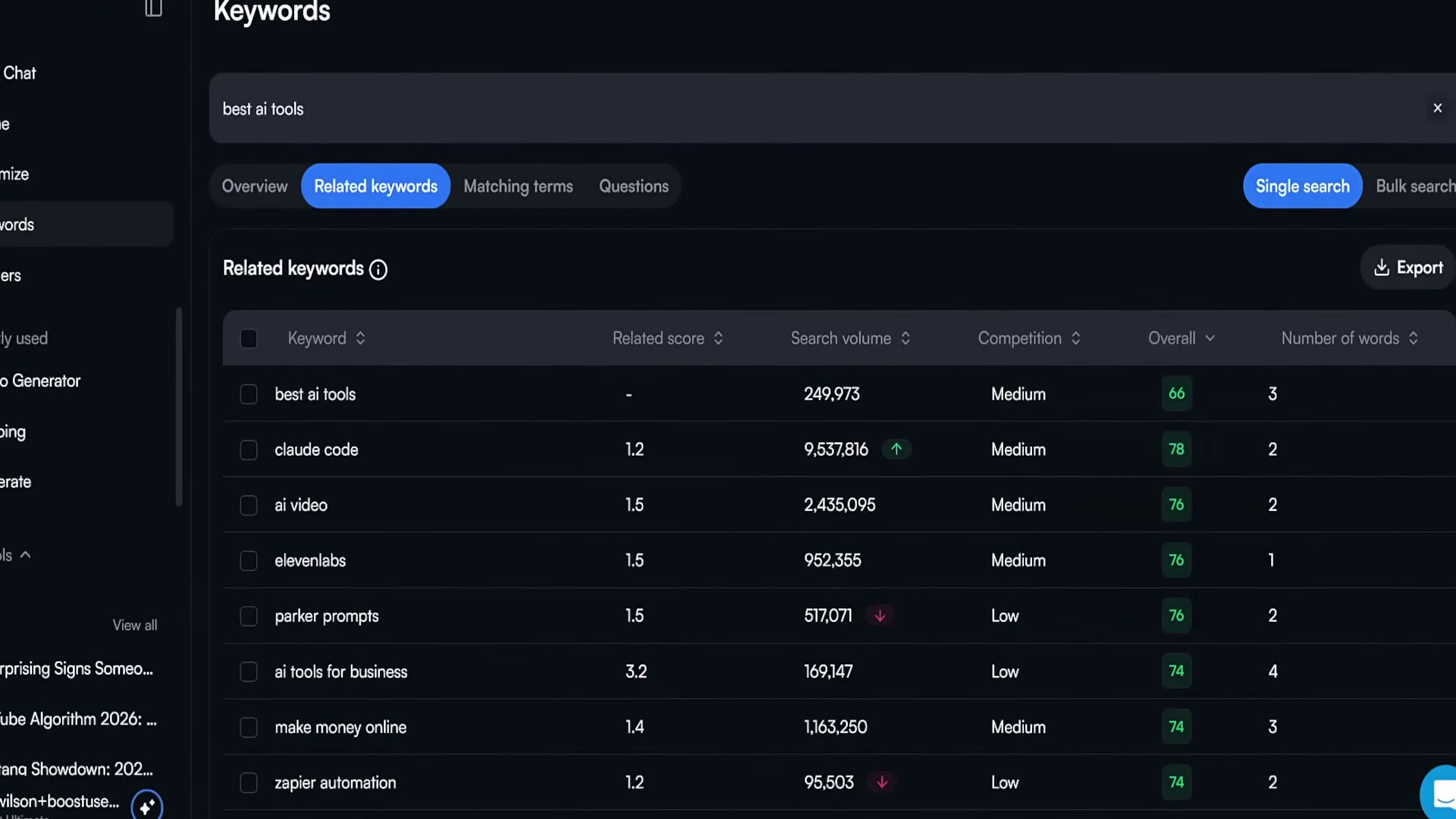
Research what’s already working before scripting anything. Search your niche on YouTube, identify repeating formats across high-performing videos — “top five,” “best free,” “for beginners” — then use VidIQ’s keyword research tool to validate search volume and competition data before spending a single hour on a script.
-
Generate a daily stream of video ideas with VidIQ’s channel feed tool. It learns your channel’s focus and surfaces competitor videos, trending keywords, and outlier content, turning idea generation into a five-minute task instead of a creative block.
-
Write a curiosity-driven intro for the first 30 seconds of your script. Viewer attention is lowest right at the start, so your opening line needs to plant a question only the full video can answer. “Today I’ll show you the one thing that gets you to 100 subscribers in a single week” creates forward momentum where a plain topic statement doesn’t.
-
Record your voiceover with your own voice or an AI tool. ElevenLabs, Murf, and Descript are the most common options for faceless channels. ElevenLabs specifically supports voice cloning, so you can lock in a consistent voice identity across every video from day one.

-
Edit your voiceover before touching any visuals. Cut dead space between sentences and strip background noise using Audacity, Lexis Audio Editor, Descript, or Adobe Podcast. A clean audio track makes every editing decision downstream faster and more intentional.
-
Import your cleaned voiceover into CapCut or DaVinci Resolve and match visuals line by line. Pull free stock footage from Pexels, Pixabay, or Storyblocks, and use ChatGPT or Midjourney for AI-generated images when stock footage falls short. Layer in text overlays, icons, and PNG elements to keep the visual track dense and engaging.
- Build your title and thumbnail as a single unit, not two separate decisions. A strong title combines a clear topic with curiosity or a stated benefit — a number, an audience signal, and a timely qualifier all in one. The thumbnail complements the title visually rather than repeating it: if your title is “Best Free AI Tools for Students,” a “$0” badge next to a recognizable icon is enough.

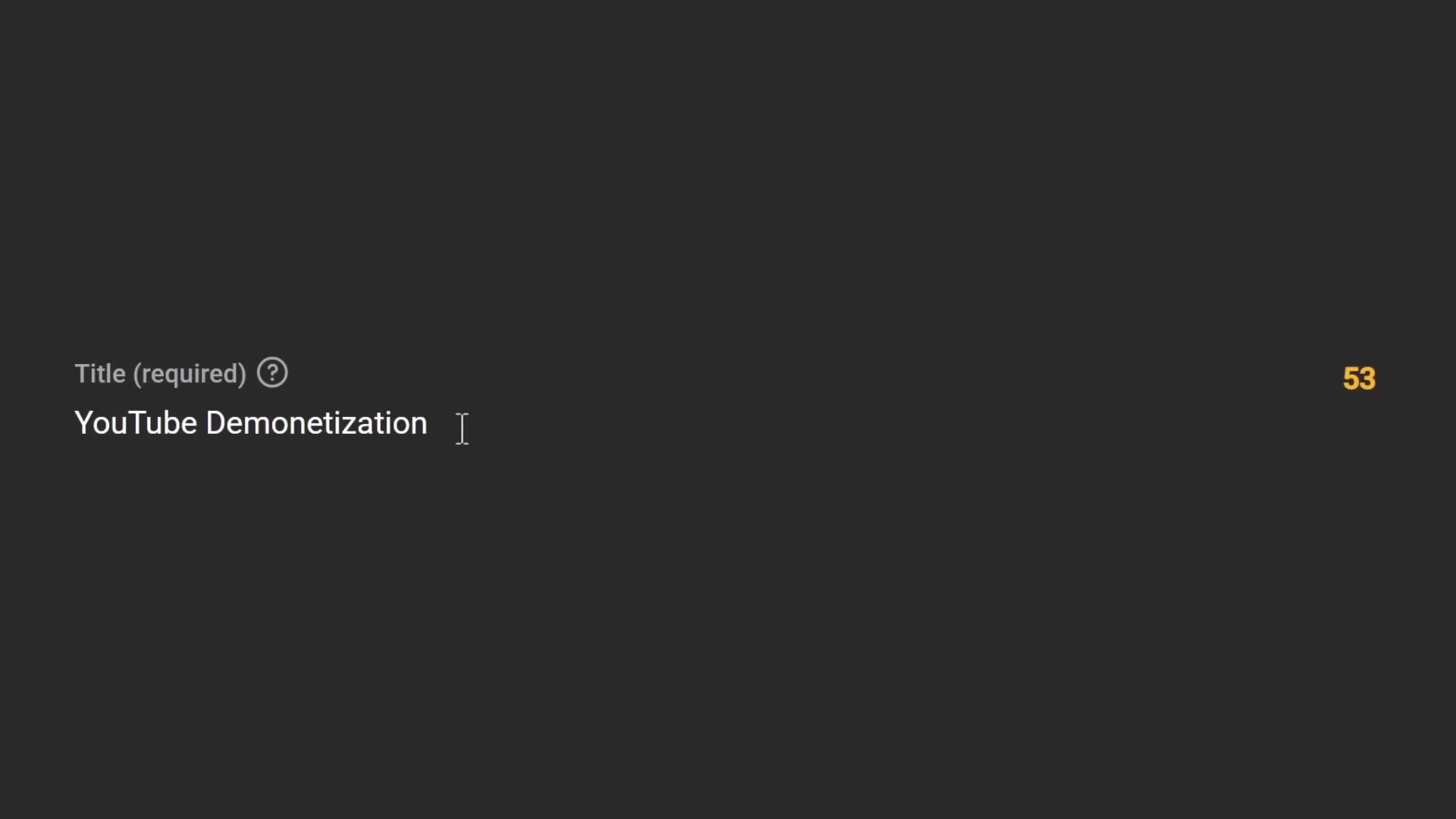
- Score your title with VidIQ’s browser extension before you publish. Type in your candidate title and the tool returns a score alongside stronger alternatives, so you’re optimizing before the video goes live rather than after the early-window traffic has already passed.
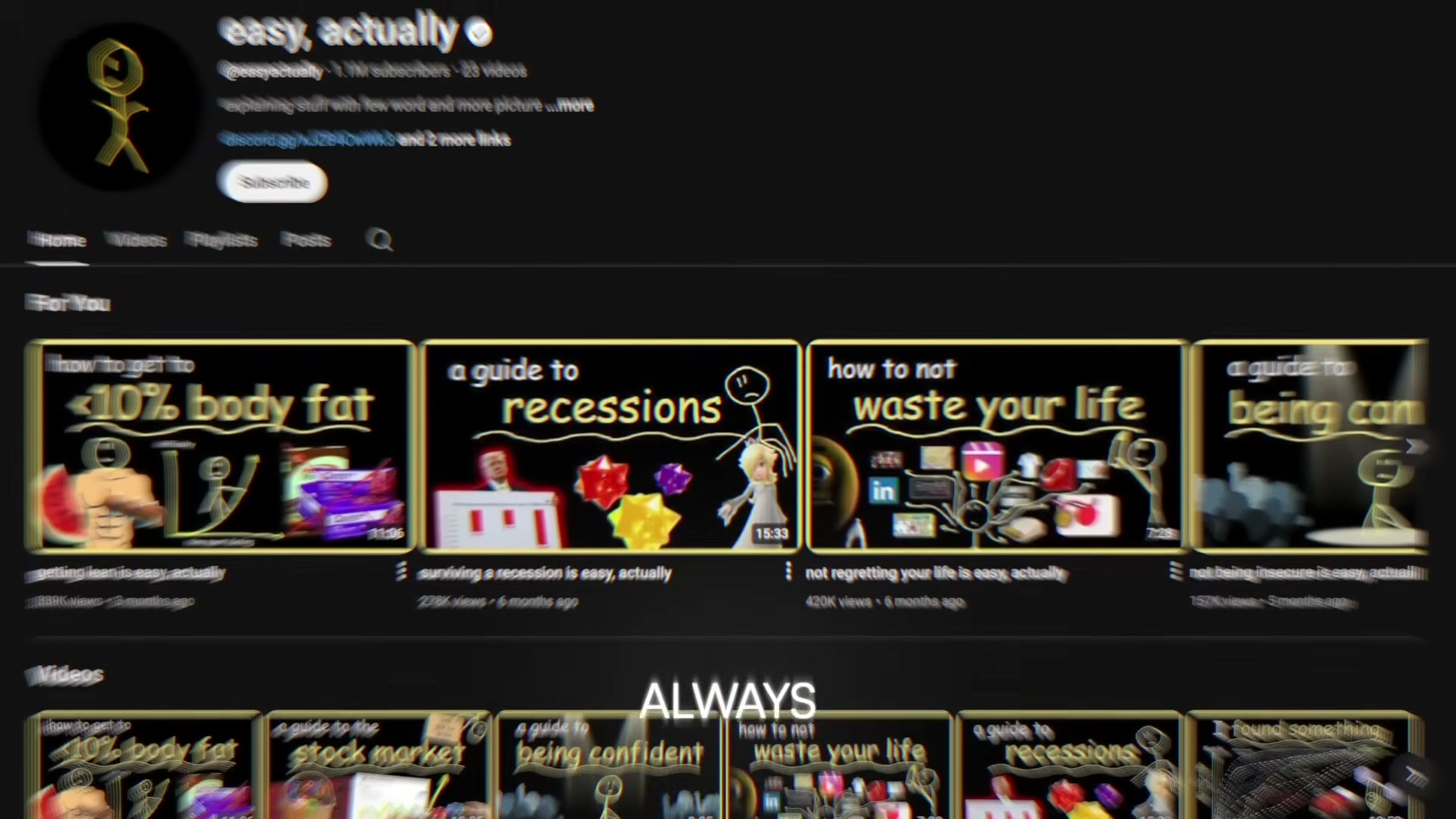
- Lock in a visual brand system: a fixed color palette, a consistent font, and the same AI voice across every video. The channel “easy, actually” reached 1.1 million subscribers across just 23 videos by using yellow, black, and white with Comic Sans on every thumbnail — returning viewers recognized the channel before reading a single word.
- Commit to publishing through your first 10 to 50 videos before drawing any conclusions about traction. Audience recognition on a faceless channel builds more slowly than on a personality-driven one because there’s no face to anchor the memory. Treat the early videos as the learning curve they are — improvement compounds automatically if you stay in the game long enough.
How does this compare to the official docs?
The tools covered here — VidIQ, ElevenLabs, CapCut, DaVinci Resolve — each maintain their own documentation with features, pricing tiers, and interfaces that shift regularly, and the next section runs each critical step against what those sources actually say right now.
Here’s What the Official Docs Show
Act 1 gives you a reliable production blueprint grounded in real creator experience. This section runs each step against current official documentation to surface pricing distinctions, platform expansions, and attribution requirements worth knowing before you build the workflow.
Step 1 — Niche selection using the three P rule
No official documentation was found for this step — proceed using the video’s approach and verify independently.
Step 2 — Research what’s already working on YouTube
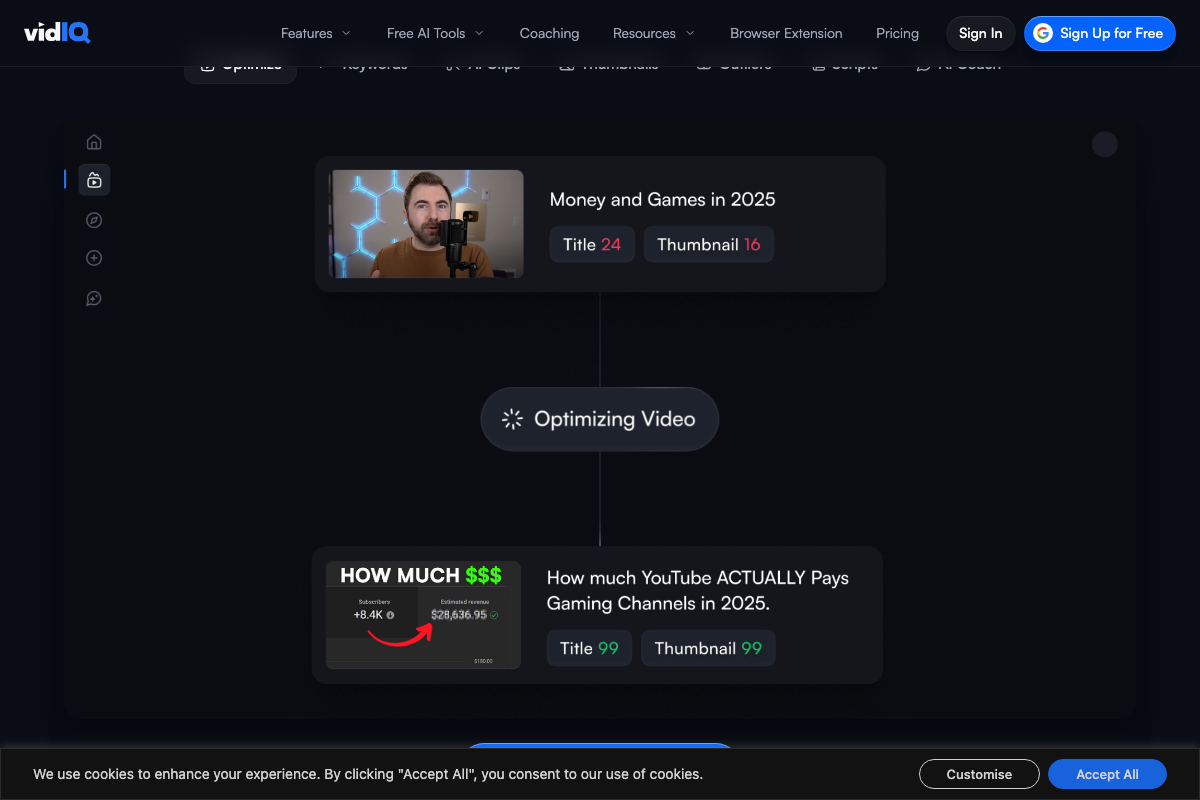
The video’s approach here matches the current docs exactly. VidIQ confirms keyword research and an Optimize tab as core platform features, with a distinct Keywords tab visible in the product interface alongside a 0–100 scoring system for titles.
Step 3 — Generate daily video ideas with VidIQ
The video’s approach here matches the current docs exactly. VidIQ markets itself as an AI-powered growth tool trusted by 20M+ creators, consistent with the idea-generation and competitor-monitoring use case described.
Step 4 — Write a curiosity-driven 30-second intro
No official documentation was found for this step — proceed using the video’s approach and verify independently.
Step 5 — Record your voiceover with AI tools
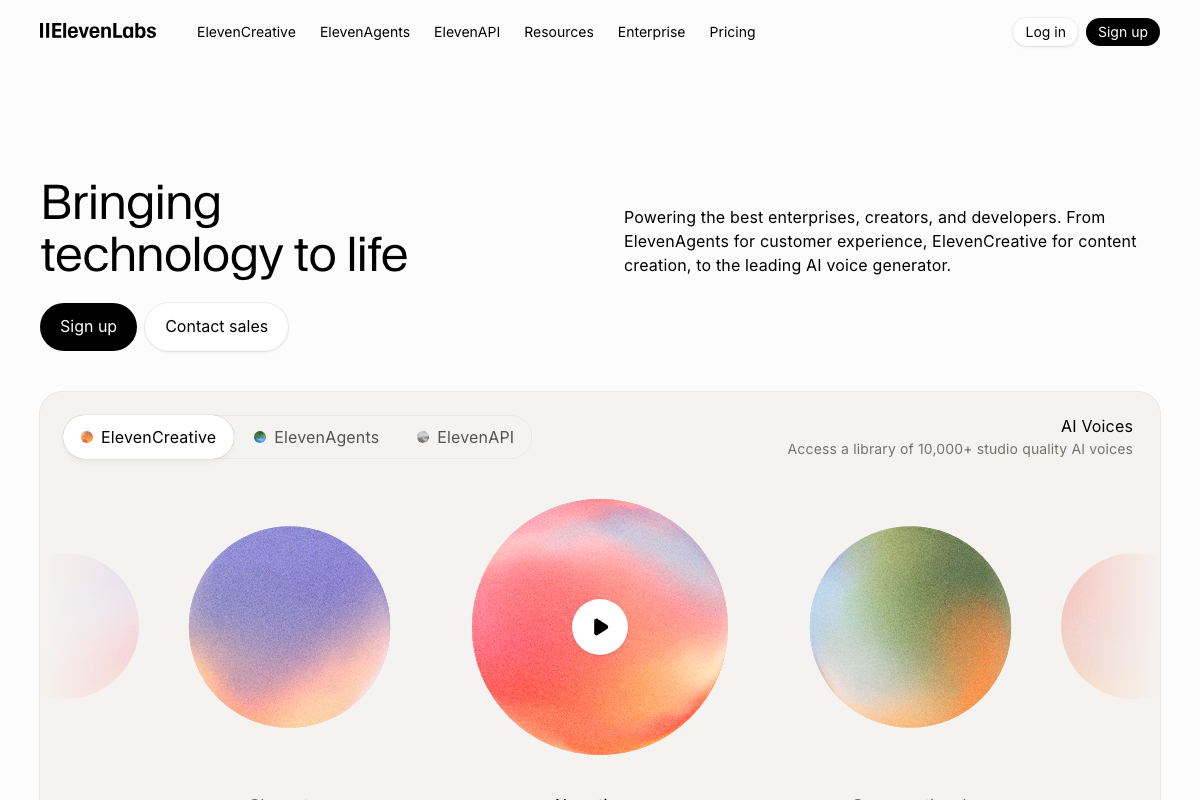
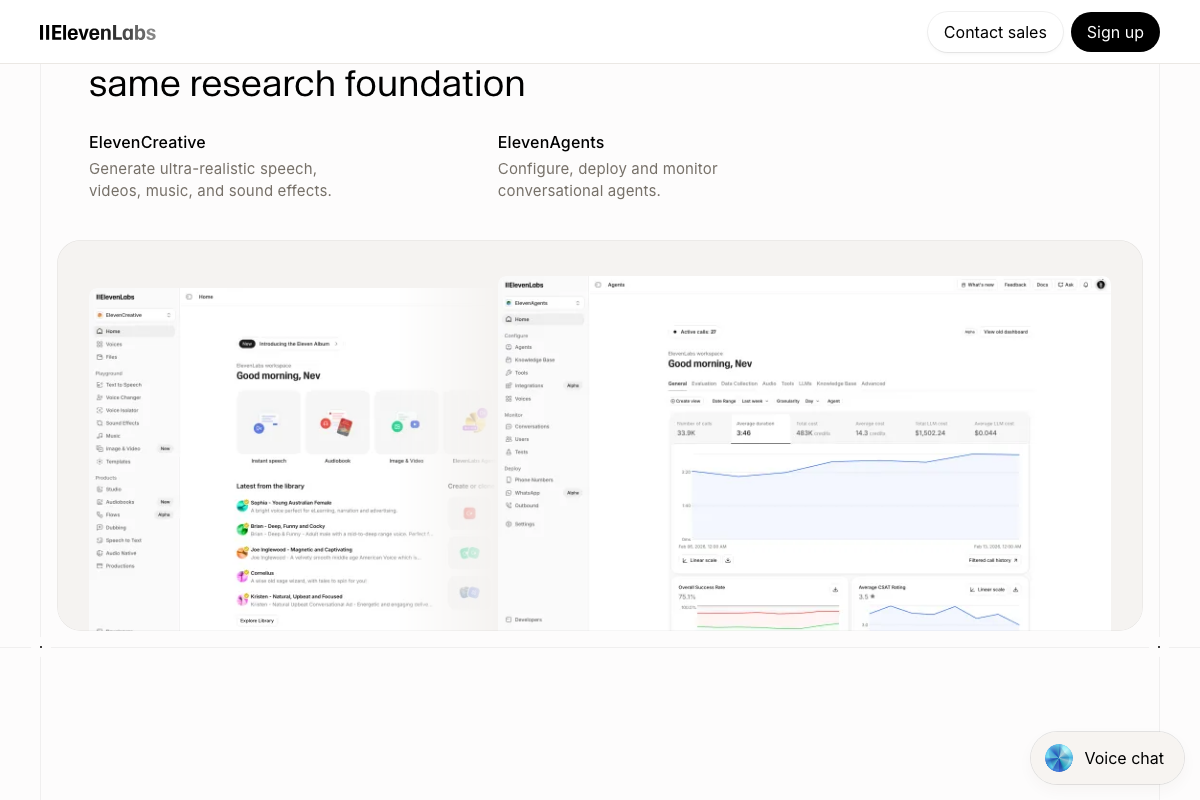
ElevenLabs and Murf are both confirmed AI voice platforms. One meaningful update: ElevenLabs has expanded into three distinct product lines — ElevenCreative (the correct entry point for voiceovers), ElevenAgents, and ElevenAPI. Stick to ElevenCreative for the workflow described in Step 5. Descript is confirmed as well, but it now leads with AI video editing under its Underlord brand — script generation, generative B-roll, and layout design are current capabilities the tutorial doesn’t attribute to it, and worth knowing before you pigeonhole it as an audio-only tool.
Step 6 — Edit your voiceover before touching visuals
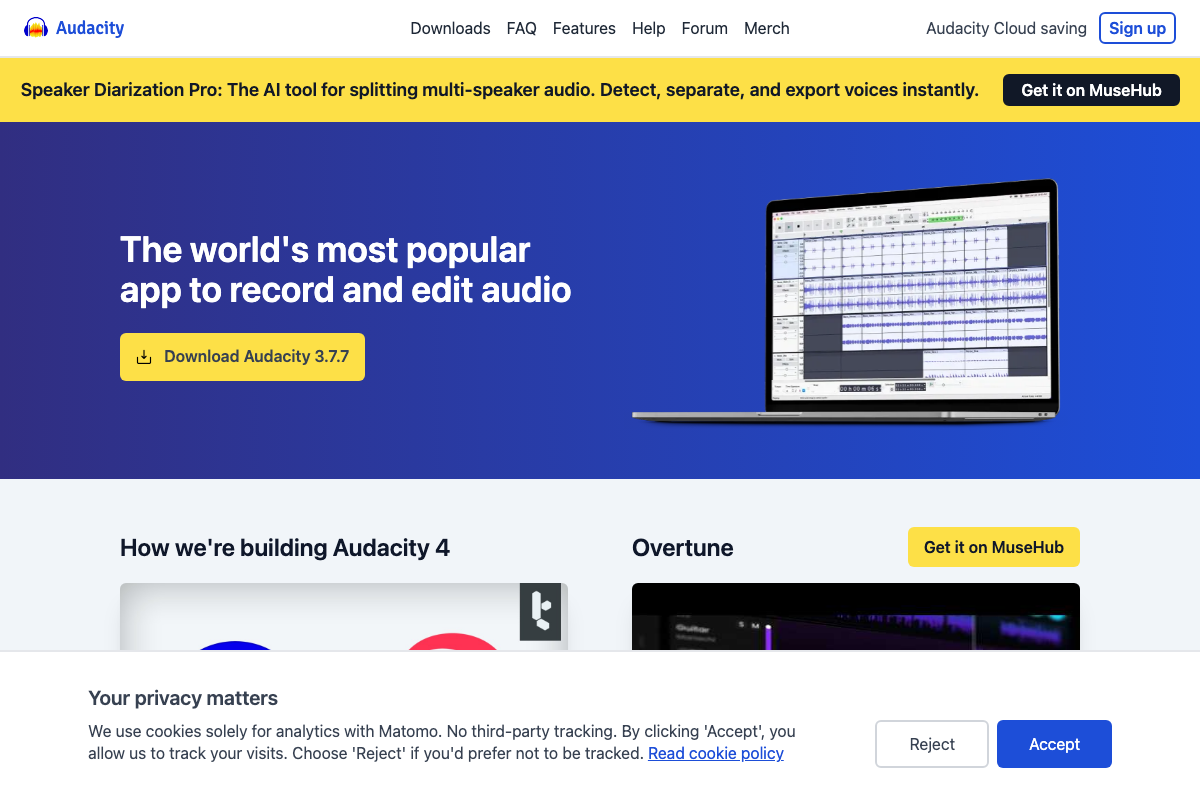
Audacity is confirmed as a free, cross-platform audio editor at version 3.7.7 — with cloud saving and AI-powered MuseHub plugins now available, including Speaker Diarization Pro. If you’re following an older tutorial recording, the interface may differ from the current release. Adobe Podcast could not be verified from the available documentation screenshots; test it directly rather than relying on this section for that tool.
Step 7 — Import voiceover and match visuals in your editor
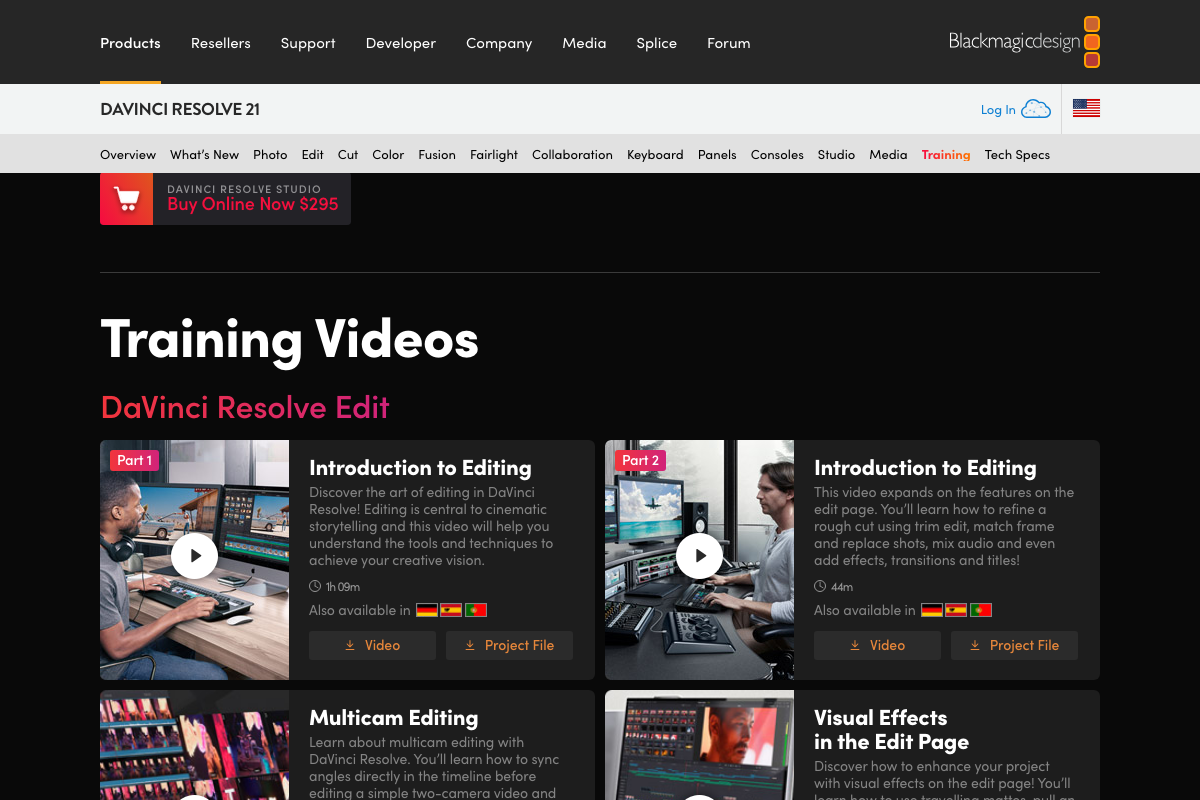
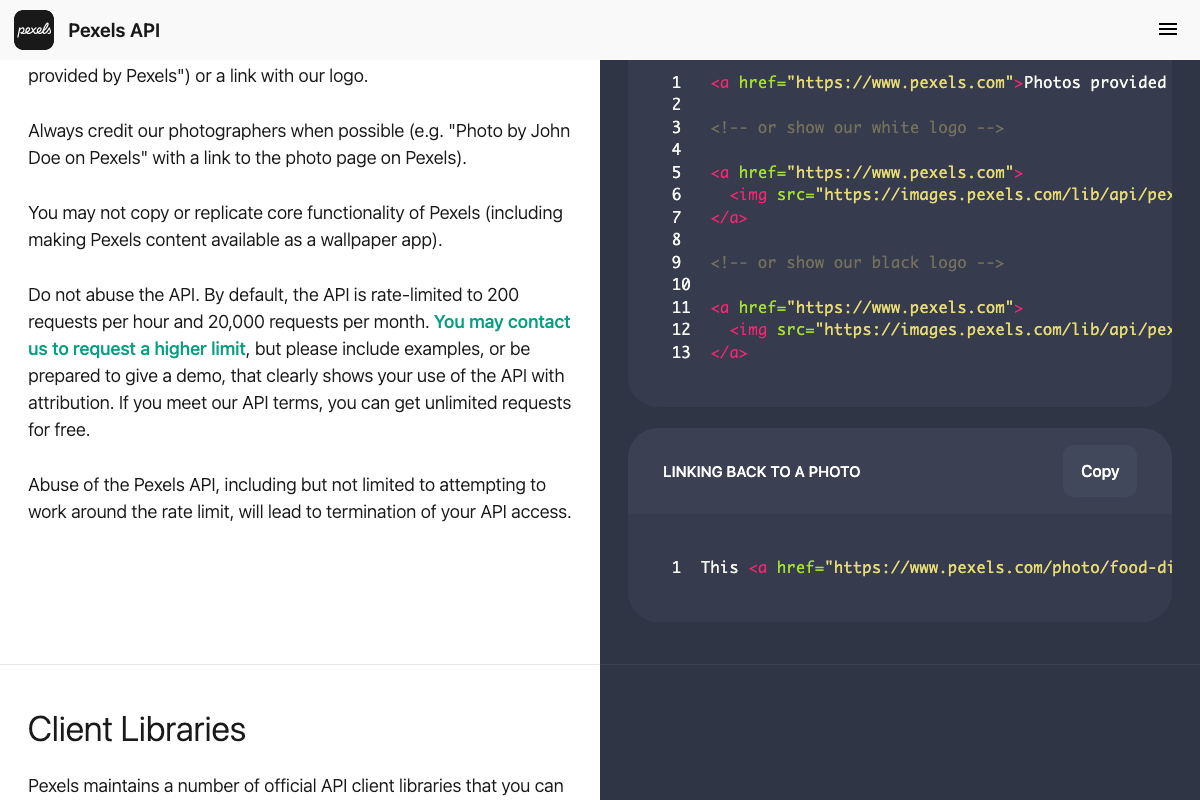
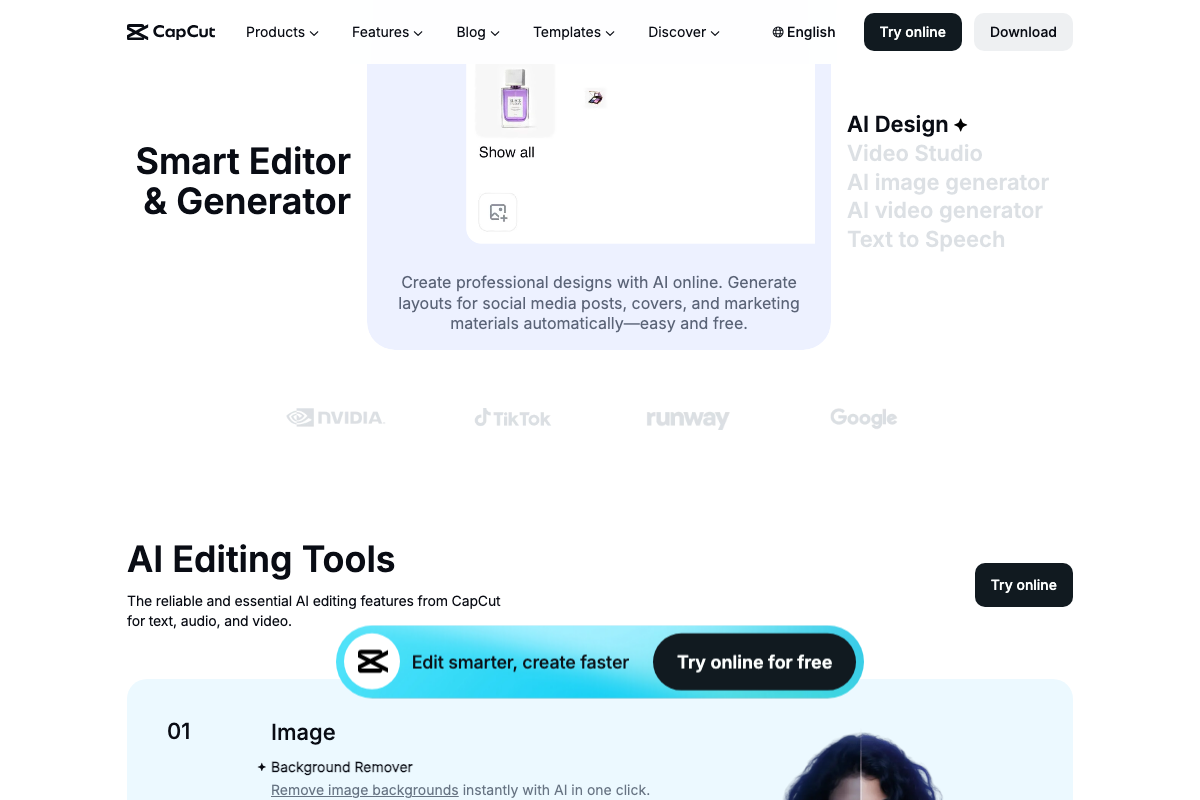
Three clarifications here. First, DaVinci Resolve has a free version and a paid Studio version at $295 per the Blackmagic Design training page — the tutorial doesn’t distinguish between them. The free version handles basic video assembly without issue. Second, Pexels requires crediting photographers when using their content (“Photo by [Name] on Pexels with a link to the photo page”) — Step 7 doesn’t mention this, but it applies to both direct downloads and API access. Third, CapCut includes built-in AI image generation and AI video generation under its AI Design suite, meaning creators already using CapCut may not need ChatGPT or Midjourney as separate tools. Pixabay also carries 230k+ music tracks alongside its video library — a free audio source worth knowing for a voiceover-driven format.
Step 8 — Build your title and thumbnail as a single unit
No official documentation was found for this step — proceed using the video’s approach and verify independently.
Step 9 — Score your title with the VidIQ browser extension
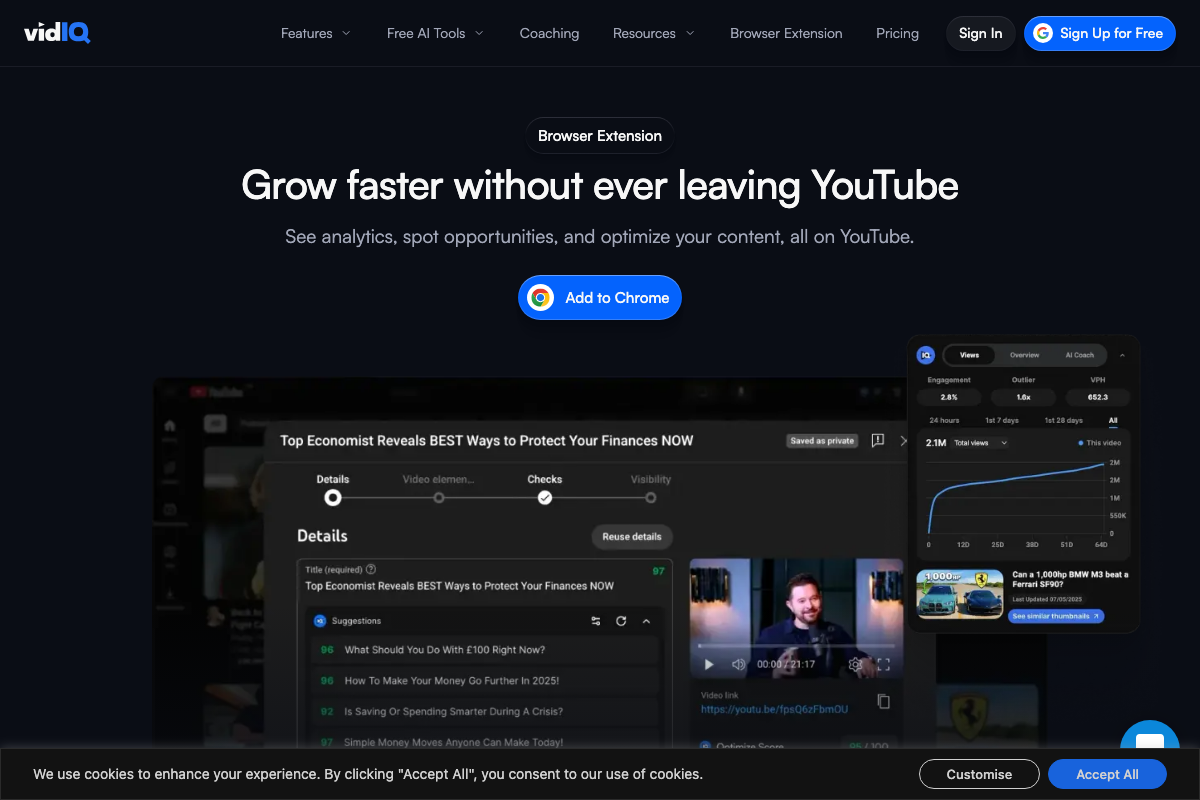
The video’s approach here matches the current docs exactly, with one addition: VidIQ scores your title and thumbnail simultaneously as a pair on a 0–100 scale — not the title alone. The browser extension embeds directly into YouTube’s upload Details screen and also surfaces analytics including engagement rate and outlier score alongside the scored title alternatives.
Step 10 — Lock in a visual brand system
The video’s approach here matches the current docs exactly. Both ElevenLabs and Murf confirm browsable, use-case-tagged voice libraries suited to locking in a single channel voice. Murf’s homepage includes a live preview widget for auditioning voices before committing; ElevenLabs labels each voice by context (e.g., “A bright voice perfect for eLearning, narration and advertising”) to help you match tone to niche.
Step 11 — Commit to publishing through your first 10–50 videos
No official documentation was found for this step — proceed using the video’s approach and verify independently.
Useful Links
- vidIQ: Get More Subscribers & Views on YouTube | YouTube Tools — YouTube growth platform with AI keyword research, simultaneous title and thumbnail scoring, and a browser extension that integrates into YouTube’s upload workflow.
- Free AI Voice Generator & Voice Agents Platform | ElevenLabs — AI voice platform now spanning ElevenCreative (speech, music, video), ElevenAgents, and ElevenAPI; ElevenCreative is the entry point for the voiceover workflow.
- Free AI Voice Generator & Text to Speech Online | Murf AI — AI voiceover studio with live voice preview, Studio product, API, and AI dubbing; rated 4.7/5 on G2 across 1,000+ reviews.
- Descript – AI Video & Podcast Editor | Free, Online — AI video editor with Underlord co-editing, script generation, generative B-roll, layout design, and podcast audio editing in one tool.
- Audacity® | Free Audio editor, recorder, music making and more! — Free, open-source, cross-platform audio editor at version 3.7.7 with cloud saving and AI plugins available via MuseHub.
- Adobe Podcast | AI audio recording and editing, all on the web — Adobe’s web-based AI audio tool referenced in Step 6; documentation was inaccessible during this review — verify capabilities directly at the link.
- CapCut AI Video Editor: Smart Online Video Editing with Advanced AI Tools — Free AI video editor with built-in image generation, video generation, and Text to Speech; available in browser or as a download.
- DaVinci Resolve – Training | Blackmagic Design — Official Blackmagic Design training for DaVinci Resolve 21 covering Edit, Color, Fairlight, and Fusion; Studio upgrade is $295.
- Free stock photos · Pexels — Free photo and video library requiring attribution to photographers per usage guidelines.
- 6 million+ Stunning Free Images to Use Anywhere – Pixabay — Royalty-free community library with 4.3M+ photos, videos, 230k+ music tracks, and sound effects.
- ChatGPT — OpenAI’s web interface with an Images sidebar feature for AI image generation; login required to access.
- Midjourney — AI image generation platform accessible via web interface; product support is routed through Discord rather than a traditional help center.


0 Comments