

Build Scroll-Animated Cinematic Websites with Claude Code and Higgsfield AI
One source photo, no design subscriptions, no hand-written code. By the end of this tutorial, you’ll have a scroll-animated, cinematic website — the kind that commands $10,000+ as a freelance deliverable — built by a Claude Code Skill file and AI-generated video assets from Higgsfield AI. The entire asset pipeline, from raw photograph to deployed HTML, runs in under an hour.
-
Download and install the Claude Desktop App from Anthropic’s website. Both Mac and Windows builds are available.
-
Open the app and switch from the default Chat interface to Co-work mode. Unlike a standard chatbot, Co-work gives Claude the ability to read and write local files, execute scripts, and complete multi-step workflows autonomously on your machine.
-
Click Work in Folder, then create or select a local project directory — the tutorial names it
cowork-animated-website. Every file Claude generates lands here.
Before Claude can build anything, you need visual assets. Higgsfield AI handles all of them from a single reference photograph.
-
In Higgsfield, navigate to the Image section and upload your one reference photo. The tutorial uses an actual photograph of the “Iron Man house” in Clifton, Cape Town.
-
Prompt Higgsfield to generate multiple camera angles of the property. Set resolution to 2K, aspect ratio to 16:9, and request 4 variations so you can select the strongest frames.

-
Select your preferred generated image and upscale it up to 4× inside Higgsfield before using it as a video source frame.
-
Use Higgsfield’s Angles feature to drag the virtual camera direction wheel to a new position and generate a second angle of the same property. This image becomes your end frame.
-
Navigate to Higgsfield’s Create Video section. Select the General template, then upload your first image as the start frame and your Angles-generated image as the end frame.
-
Prompt Higgsfield to produce a cinematic pan: “Turn this image into a cinematic video shot of this property in Cape Town, South Africa, having it pan to the right to show the other side of the house.” Higgsfield auto-enhances the prompt before sending it to the model.

-
Download the generated video and source images into your Claude Co-work project folder.
-
Load the pre-built
animated-websiteSkill — a plain-English markdown file that defines when to trigger, what inputs to accept, the full step-by-step build process, and the exact design system Claude must follow on every run.
Warning: this step may differ from current official documentation — see the verified version below.
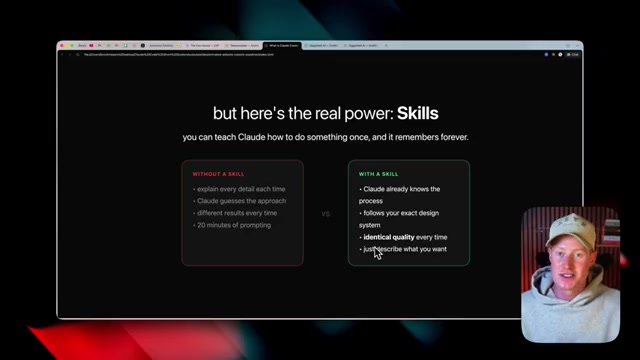
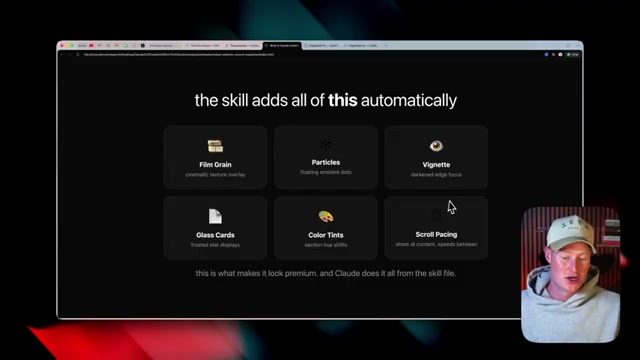
- Hand Claude the video file and trigger the Skill. Claude extracts all frames automatically, constructs a complete HTML/CSS site with scroll animations, and applies six cinematic effects without any additional configuration: film grain, particles, vignette, glass cards, color tints, and scroll pacing.

- Claude opens the finished site in your system browser automatically for review.

-
Refine copy, adjust sections, or change layout by continuing the conversation with follow-up prompts inside Co-work — no re-triggering the Skill required.
-
Return to Higgsfield, generate a property infographic using your reference photo and a descriptive prompt, download the result, then prompt Claude to integrate it as a new website section.
How does this compare to the official docs?
The “Co-work” interface and the custom Skill-file mechanism shown here diverge from how Anthropic officially documents Claude Code’s project configuration — Act 2 walks through the verified approach so your implementation holds up in production.
Here’s What the Official Docs Show
The tutorial walkthrough above is a solid guide to what Cowork can do — the core workflow holds up when you check it against Anthropic’s published documentation. This act adds the platform details you’ll want in hand before you sit down to build, in the same order you’ll encounter them.
Step 1 — Download the desktop app
The video’s approach here matches the current docs exactly.
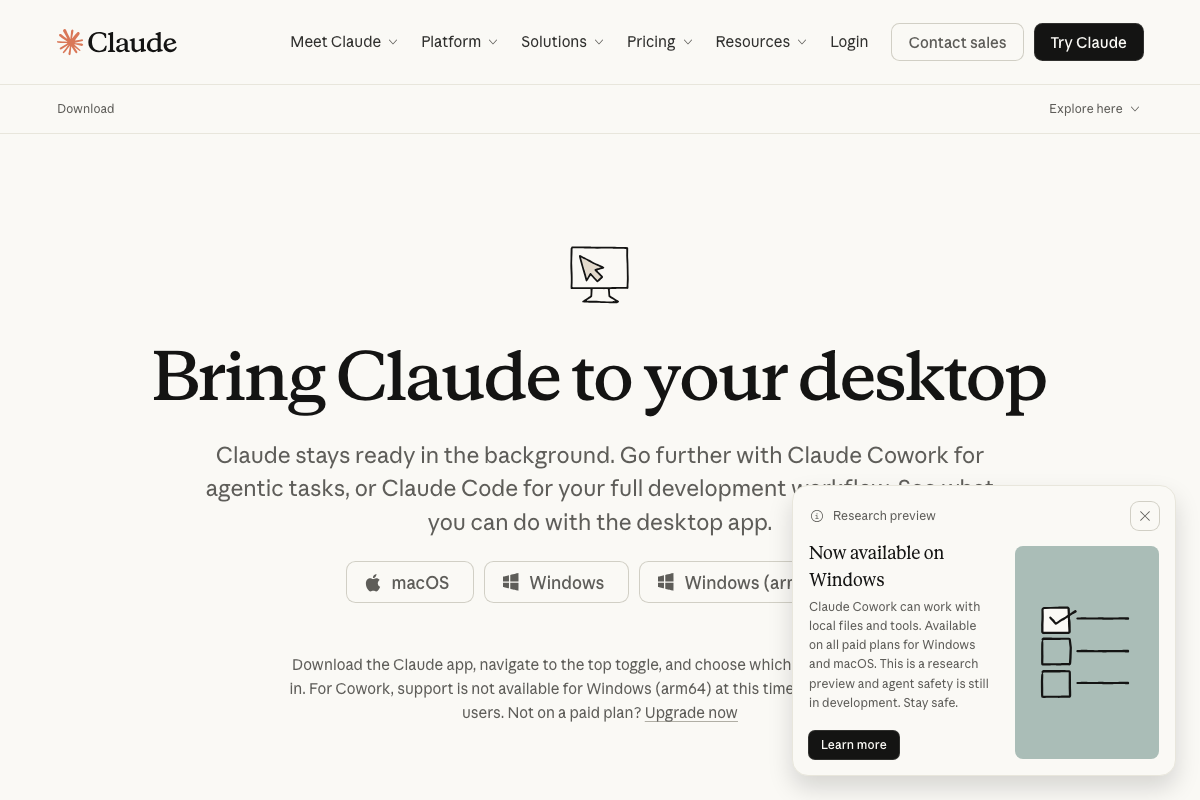
Two additions the video skips: Cowork carries an official research preview designation, and Anthropic’s download page includes this explicit warning — “Agent safety is still in development. Stay safe.” Additionally, Windows (arm64) is not supported for Cowork; a standard Windows (x64) or macOS install is required. One more gate worth knowing before you start: Cowork is available on paid plans only — Pro ($17/month billed annually) or Max (from $100/month). Free-tier users will not see the Cowork toggle after installing.
Steps 2–3 — Switch to Cowork mode and select your project folder
The video’s approach here matches the current docs exactly for both steps.

Three things the docs clarify that the video doesn’t:
First, the official product name is Cowork — one word, no hyphen. As of March 2026, the video’s “Co-work” spelling appears nowhere in Anthropic’s UI, download page, or product copy.
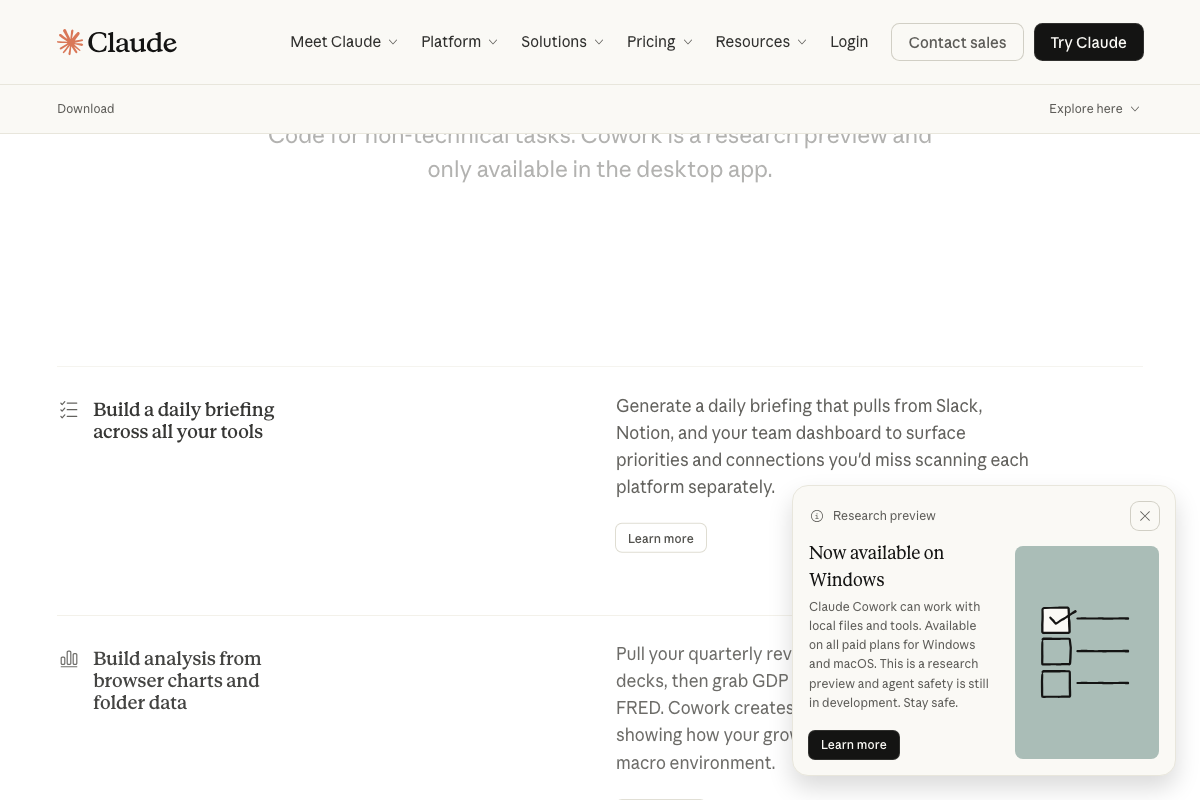
Second, the download page draws a clear distinction the video blurs: Claude Cowork (agentic desktop mode for general tasks) and Claude Code (full development workflow tool) are listed as two separate modes. The video refers to the tool as “Claude Code (Co-work)” in a way that treats them as one product.
Third, Cowork is desktop-app-exclusive — it cannot be accessed from the Claude web interface or mobile apps.


Steps 4–10 — Higgsfield AI asset generation
No official documentation was found for these steps —
proceed using the video’s approach and verify independently.
Step 11 — Load the animated-website Skill
The video’s approach here matches the current docs exactly. The desktop UI’s Context panel surfaces Skills as named markdown files; the SKILL.md entry is visible in the confirmed screenshot.
Steps 12–15 — Build, review, refine, and extend with Higgsfield
No official documentation was found for these steps —
proceed using the video’s approach and verify independently.

Useful Links
- Claude Code — Anthropic’s product page for Claude Code and Cowork, covering mode descriptions, pricing tiers, and the official Cowork explainer.
- Download Claude — Official desktop app download page with macOS, Windows, and Windows (arm) options, plus the full Cowork research preview notice.


0 Comments