

Claude Desktop’s Hidden Upgrade: Parallel Sessions, Split View, and In-App File Editing
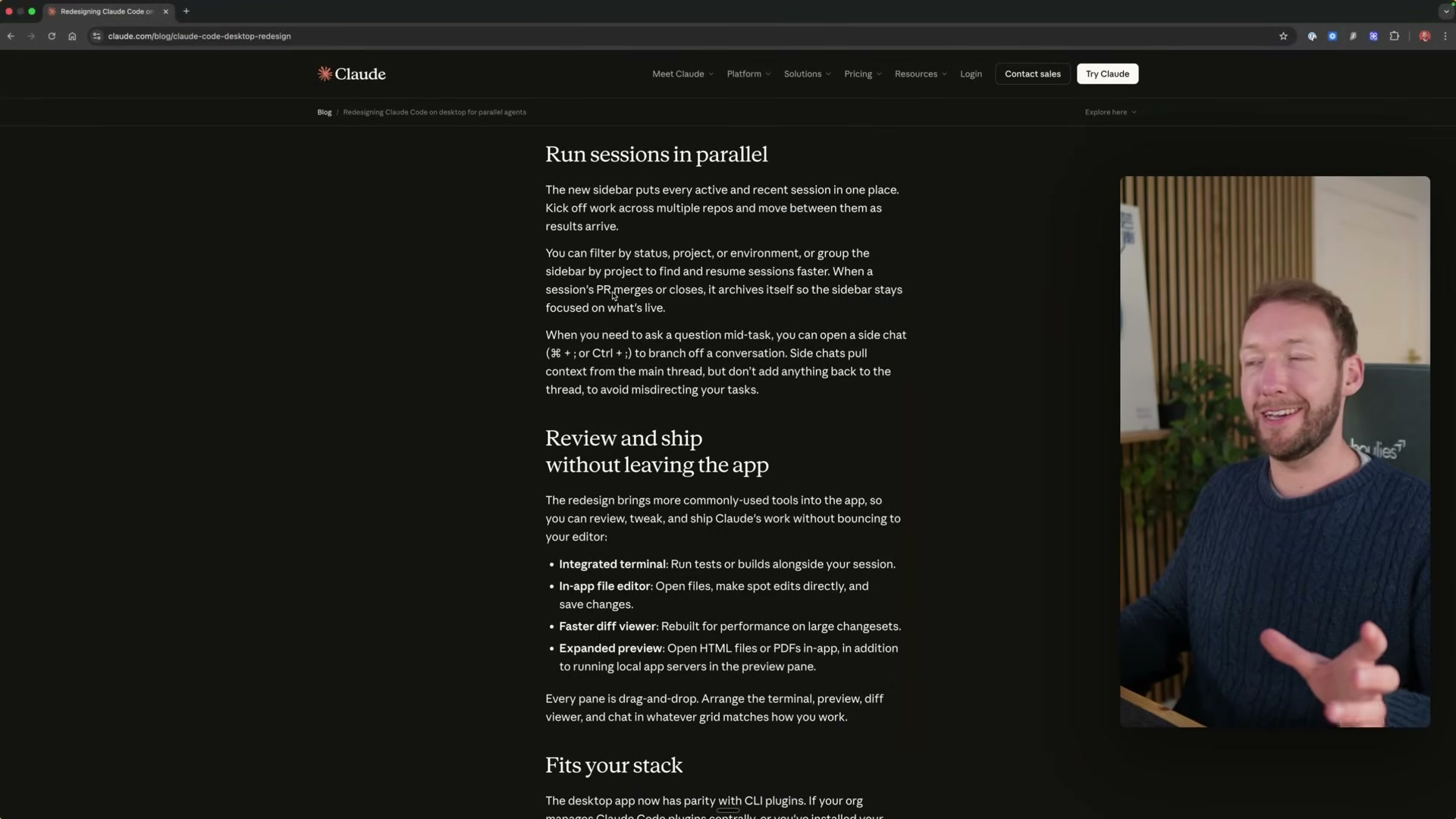
Claude Desktop just shipped an update that quietly repositions it from a single-task chat interface into a project-level operating environment for agentic workflows. After completing this tutorial, you’ll run multiple Claude sessions in parallel, review Claude’s generated plans in a collapsible markdown pane, navigate your full project file structure, and preview or edit markdown files without leaving the app.
-
Understand what changed. Before this update, Claude Desktop had no visibility into your wider project structure. Sessions were isolated from each other and from your file system. Users building agentic operating systems — pre-built file hierarchies designed to load context on demand — had to manage everything from the terminal because the desktop app could not see the underlying files.
-
Understand what an agentic OS is and why this matters. An agentic OS is a structured directory that stores client context, agent instructions, and output files, loading them selectively per session. That architecture previously required terminal access to function properly. The new desktop features make it UI-native for the first time.
-
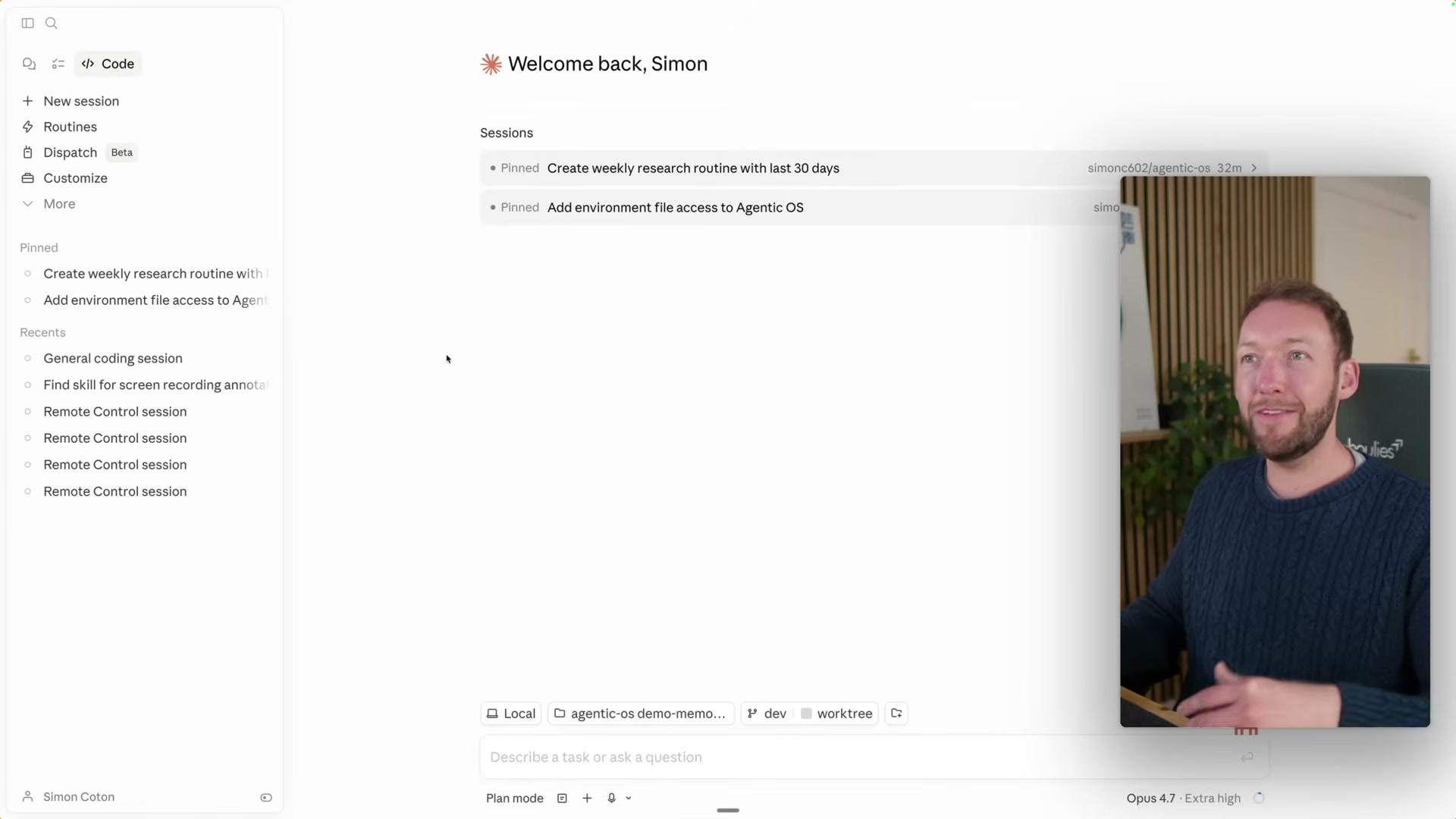
Open the sessions panel. The left-hand sidebar now displays every active session in a unified list rather than isolated chat threads. You can track multiple tasks tied to a single project — or across multiple projects simultaneously — without losing context between them.
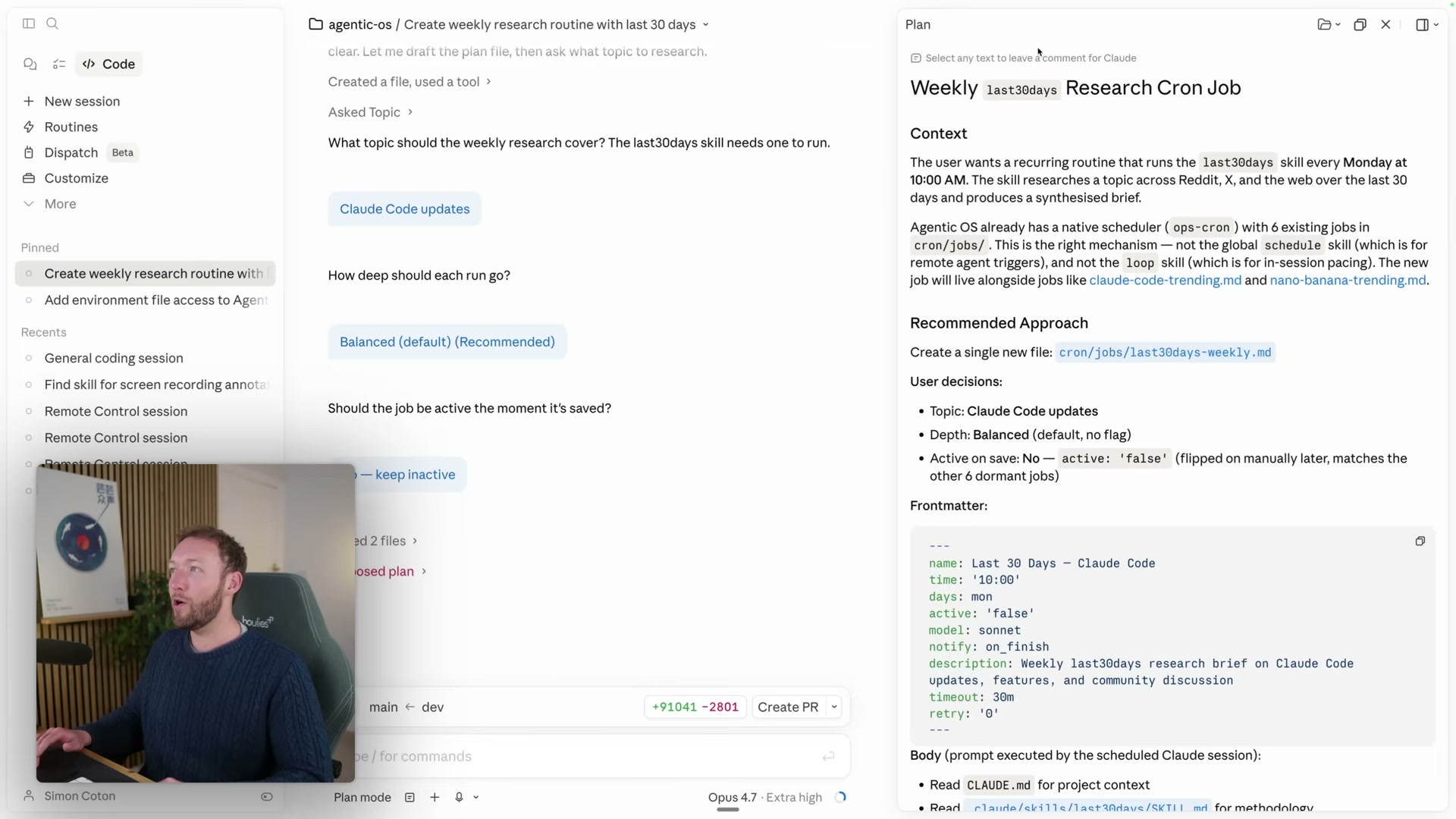
- Open a session and surface the Plan panel. A sidebar toggle inside any active session renders Claude’s generated plan in collapsible, formatted markdown. You can expand and collapse individual steps to track progress without scrolling back through the full chat history to find where Claude described its approach.
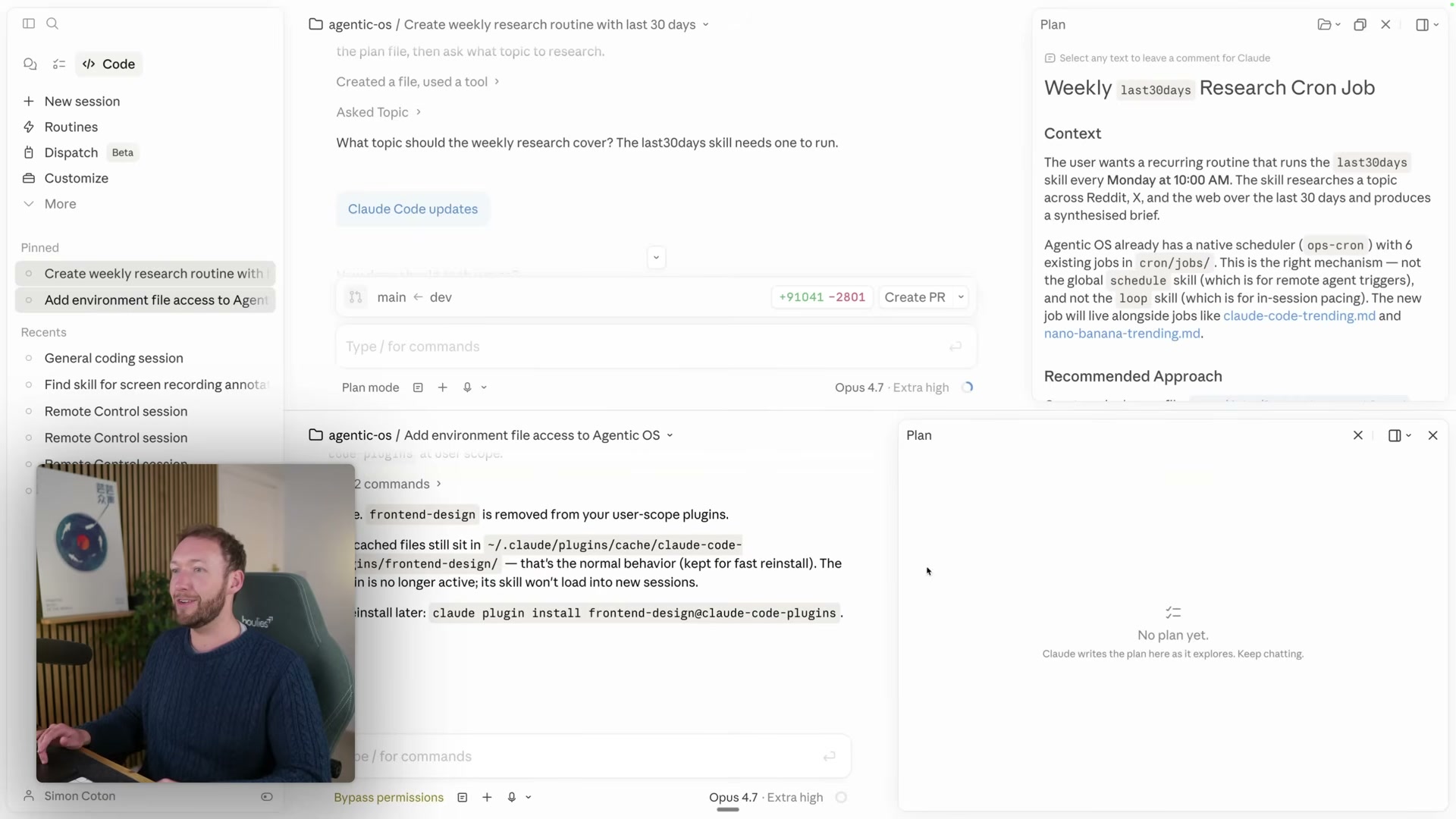
- Enable split view. Drag any session alongside another to activate a split-view layout. The Plan and Files panels inside each split operate independently, so you can monitor two distinct workstreams in tandem. The interface supports up to four simultaneous windows. Press ⌘2 to open the Cowork panel directly from the keyboard.
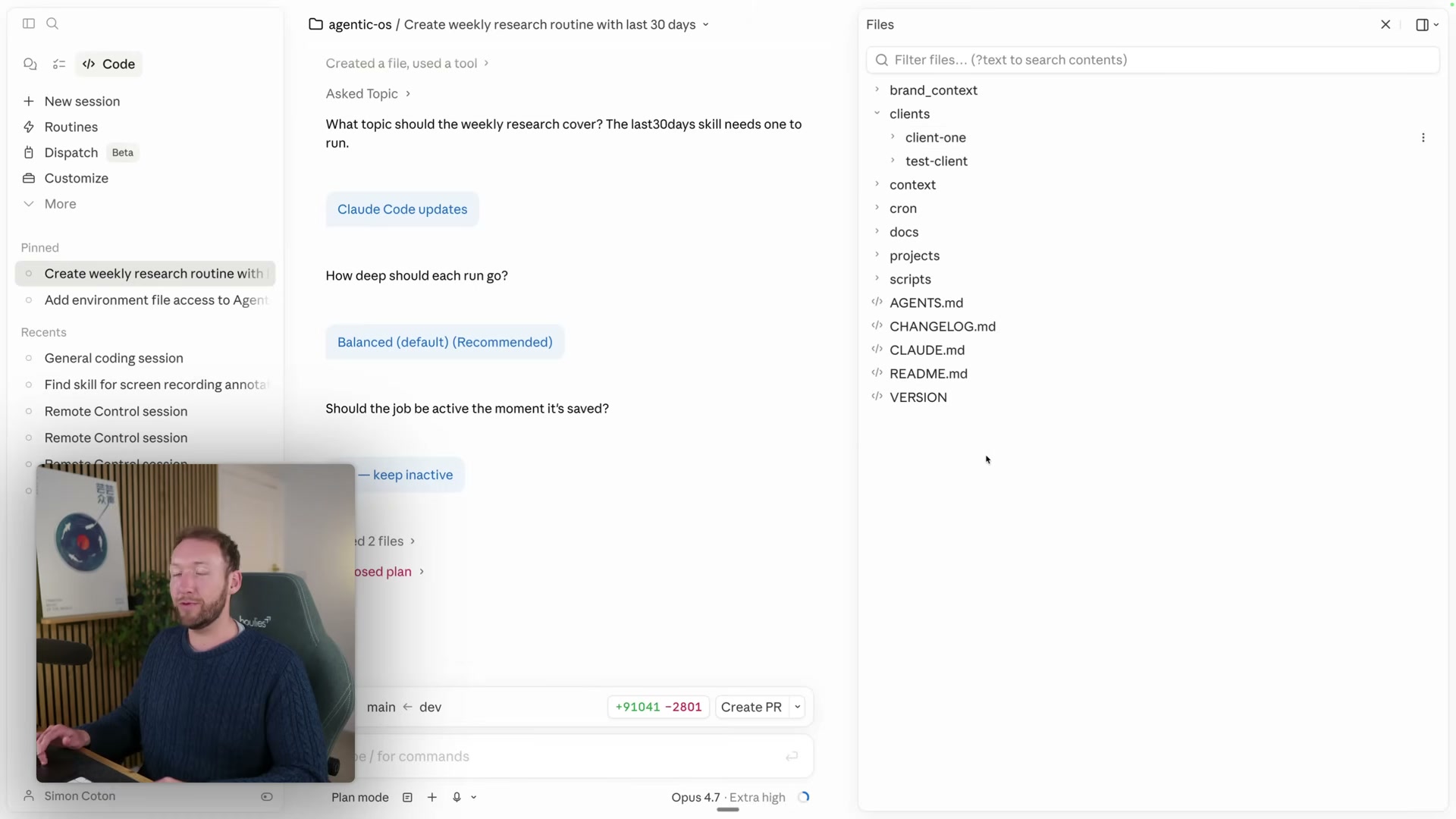
- Open the Files panel and preview a markdown output. The Files panel exposes your full project folder tree inside any session. Clicking a markdown file renders it inline in a preview pane on the right — no editor switch required. Output files, brand context documents, and agent configuration files are all readable from one place.
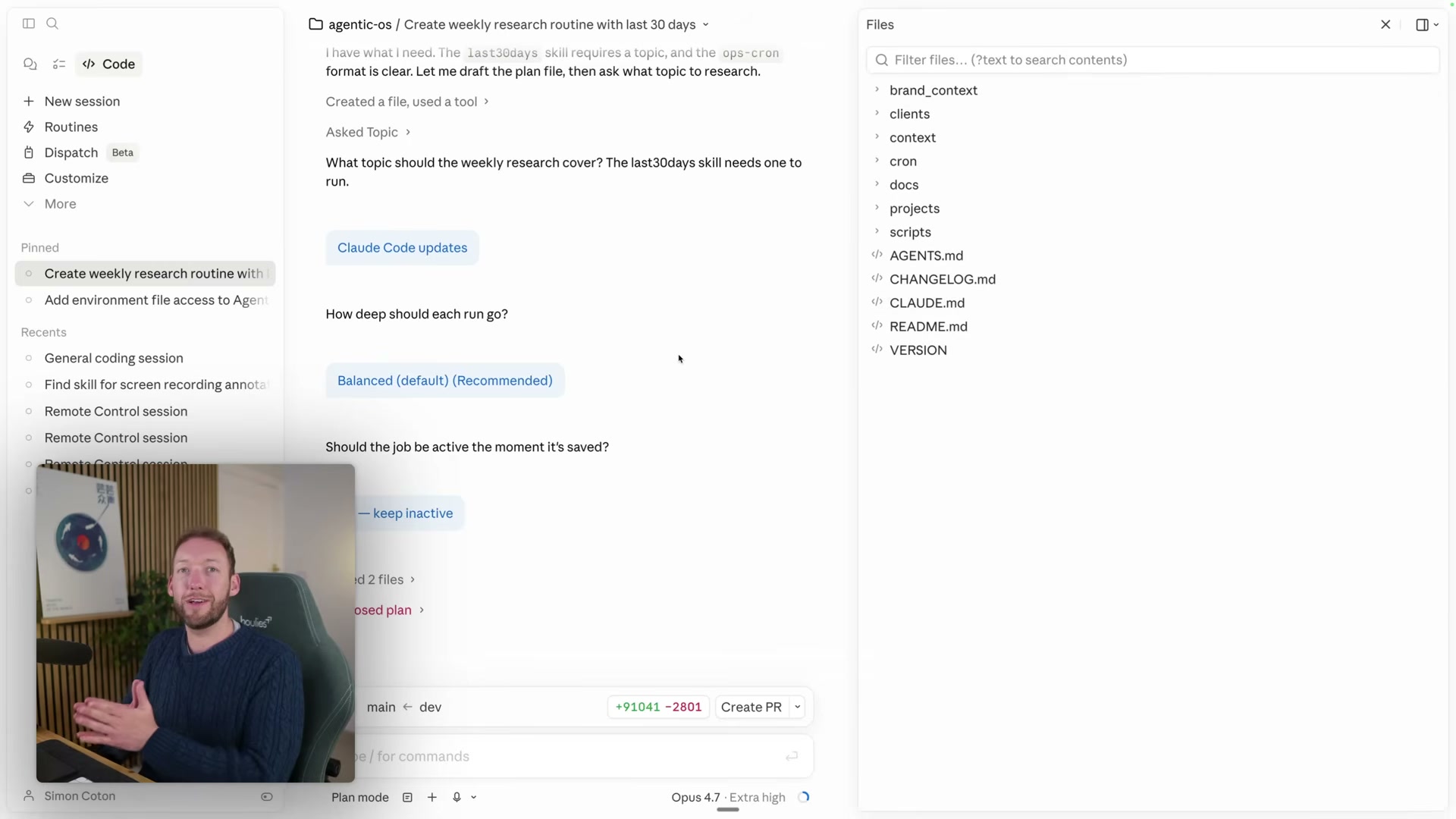
- Browse the full file structure and edit CLAUDE.md in-app. The file tree now includes your complete project directory. You can open and edit CLAUDE.md directly inside Claude Desktop — useful for updating agent instructions mid-session without reaching for VS Code.
-
Start a new session scoped to a specific client folder. When opening a Claude Code session, select the client directory you want to work in. Claude loads context scoped to that folder, keeping brand context, project history, and agent rules tied to the right client rather than pulling from the entire working directory.
-
Note the current PNG rendering limitation. Skills that output PNG files — such as Excalidraw diagrams — display as raw code rather than rendered images inside the Files panel. Markdown renders correctly; binary image formats do not yet.
-
Note the hidden folders limitation. Dot-prefixed directories, including skills folders such as
.claude, are not visible in the Claude Desktop file browser. Editing those files still requires VS Code or direct terminal access. -
Note the .env limitation. Environment files containing API credentials cannot be viewed or modified from within Claude Desktop — only through VS Code or the terminal. Claude can still read and use those credentials during active sessions; you just cannot change them from the app UI.
How does this compare to the official docs?
Anthropic’s release post names the headline features but leaves the workflow implications — and the precise boundaries of what renders and what doesn’t — for the documentation to address in full.
Here’s What the Official Docs Show
The video surfaces real functionality in Claude Desktop, and the steps below layer in what official sources confirm, clarify, or leave open. Most of the UI-level features shown have no official doc coverage yet — those are flagged clearly so you know exactly where you’re relying on the video alone.
1. Understand what changed
No official documentation was found for this step — proceed using the video’s approach and verify independently.
2. Understand what an agentic OS is and why this matters
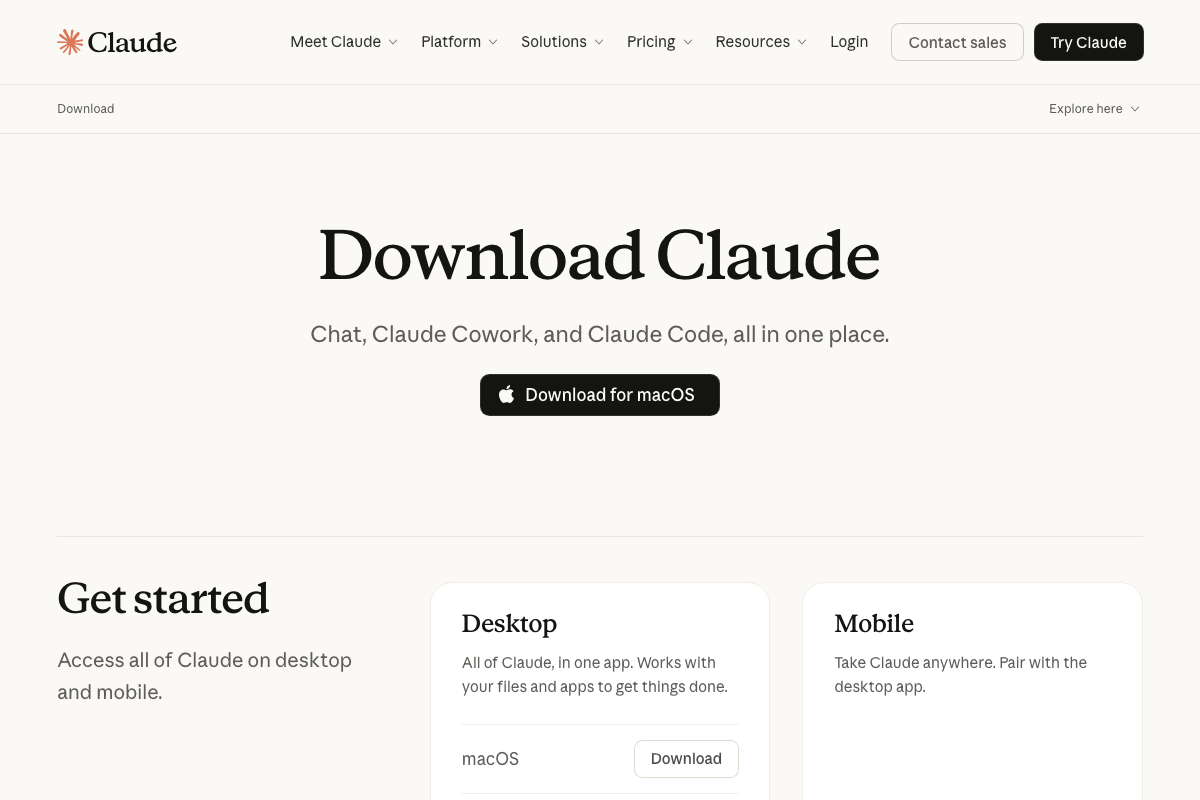
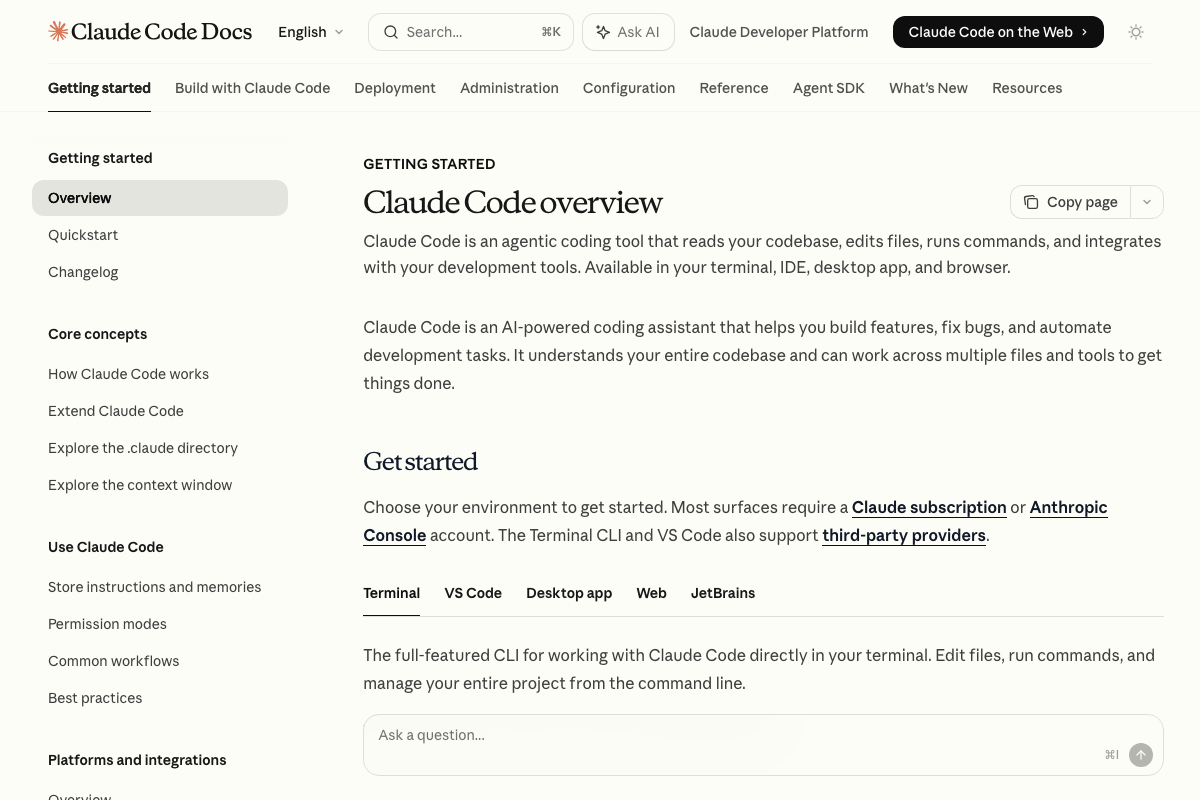
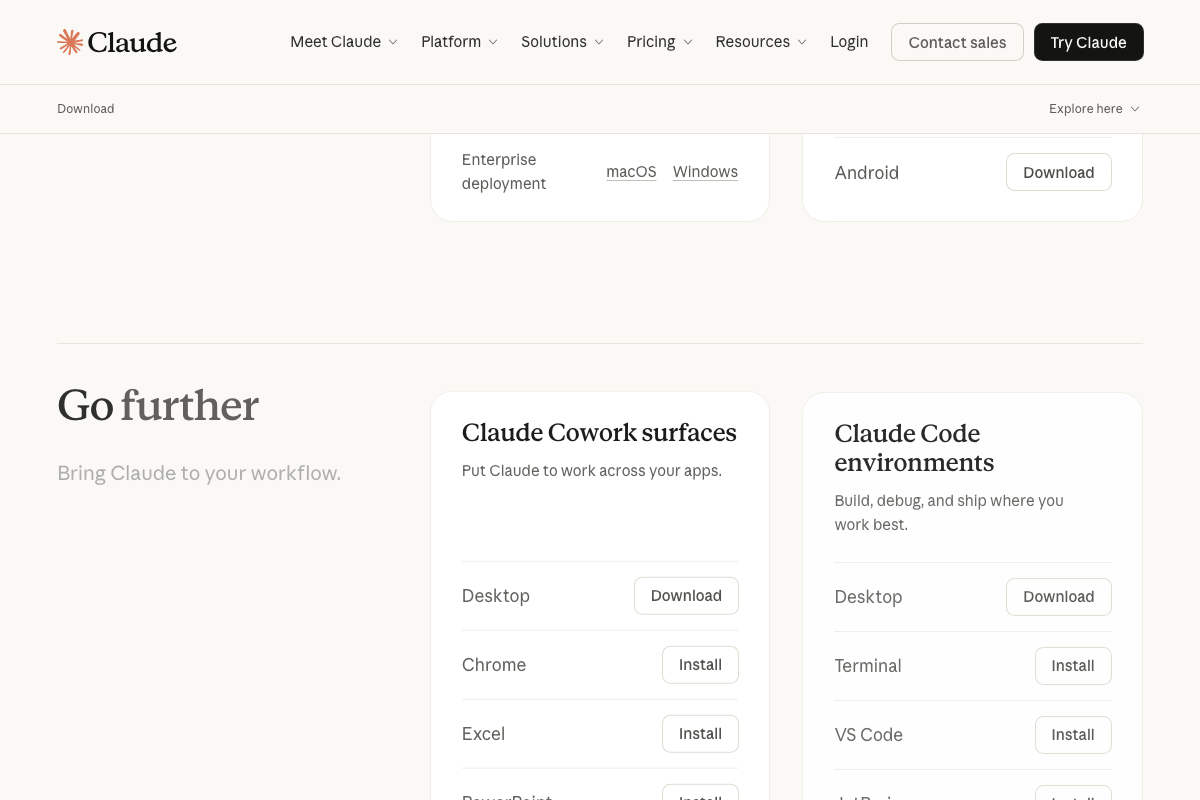
The video’s approach here matches the current docs exactly. The official Claude Code overview lists Desktop, Terminal, VS Code, Web, and JetBrains as supported environments — confirming the multi-environment expansion the video references. One doc-specific addition worth knowing: Anthropic distinguishes Claude Cowork (productivity surfaces: Desktop, Chrome, Excel, PowerPoint) from Claude Code (coding environments) — terminology that may surface in product UI even if the tutorial doesn’t use it.
3. Open the sessions panel
No official documentation was found for this step — proceed using the video’s approach and verify independently.
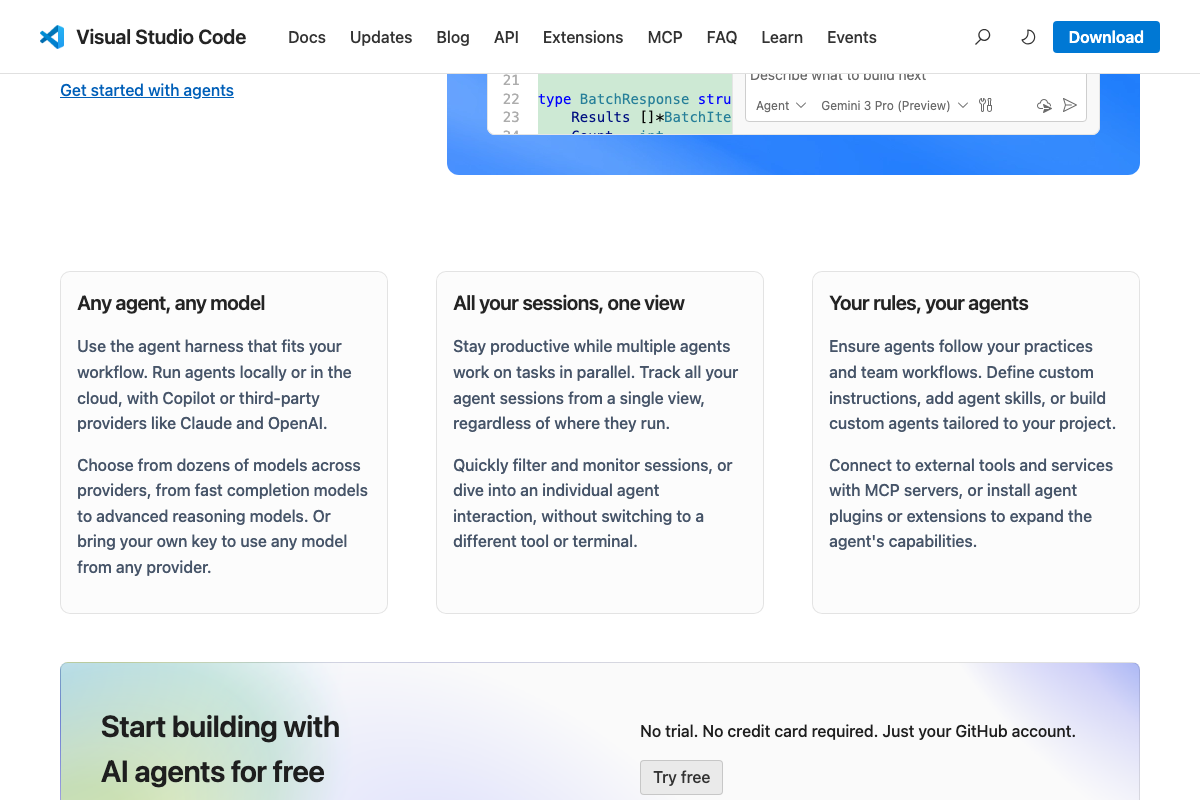
One useful reference point: VS Code ships an “AGENT SESSIONS” panel as a GitHub Copilot feature with an analogous purpose — tracking parallel agent tasks from a single view. These are separate implementations in separate products, but VS Code’s published docs offer a conceptual anchor for how unified session panels work if you want to explore the pattern further.
4. Surface the Plan panel
No official documentation was found for this step — proceed using the video’s approach and verify independently.
5. Enable split view
No official documentation was found for this step — proceed using the video’s approach and verify independently.
6. Open the Files panel and preview markdown
No official documentation was found for this step — proceed using the video’s approach and verify independently.
7. Browse the full file structure and edit CLAUDE.md in-app
No official documentation was found for this step — proceed using the video’s approach and verify independently.
The Claude Code docs do reference “Explore the .claude directory” and “Store instructions and memories” as supported concepts, confirming CLAUDE.md-style instruction files are an official Claude Code pattern — even though the in-app editor UI itself has no doc coverage yet.
8. Start a session scoped to a specific client folder
The video’s approach here matches the current docs exactly. The claude.ai/download page confirms Claude Desktop packages Claude Code as an official environment, and the Claude Code overview describes scoped, agentic file operations as its core capability.
9. Note the PNG rendering limitation
The video’s approach here matches the current docs exactly that skills are a supported Claude Code customization concept. One clarification on Excalidraw specifically: its native file format is .excalidraw (JSON-based), not PNG. PNG requires a deliberate export action inside the app. Whether the rendering issue the video describes applies to .excalidraw JSON output or to an exported PNG binary depends on how the skill is implemented — a distinction worth checking before concluding the behavior is a fixed limitation.

10. Note the hidden folders limitation
No official documentation was found for this step — proceed using the video’s approach and verify independently.
11. Note the .env limitation
No official documentation was found for this step — proceed using the video’s approach and verify independently.
VS Code is a confirmed Claude Code environment where full file editing is available, making it a well-documented fallback for the access restrictions the video identifies in steps 10 and 11.
Useful Links
- Download Claude | Claude by Anthropic — Official download page describing Claude Desktop as bundling Chat, Claude Cowork, and Claude Code in one app, with environment and surface listings.
- Claude Code overview – Claude Code Docs — Official Claude Code documentation covering supported environments, capability categories, and .claude directory usage.
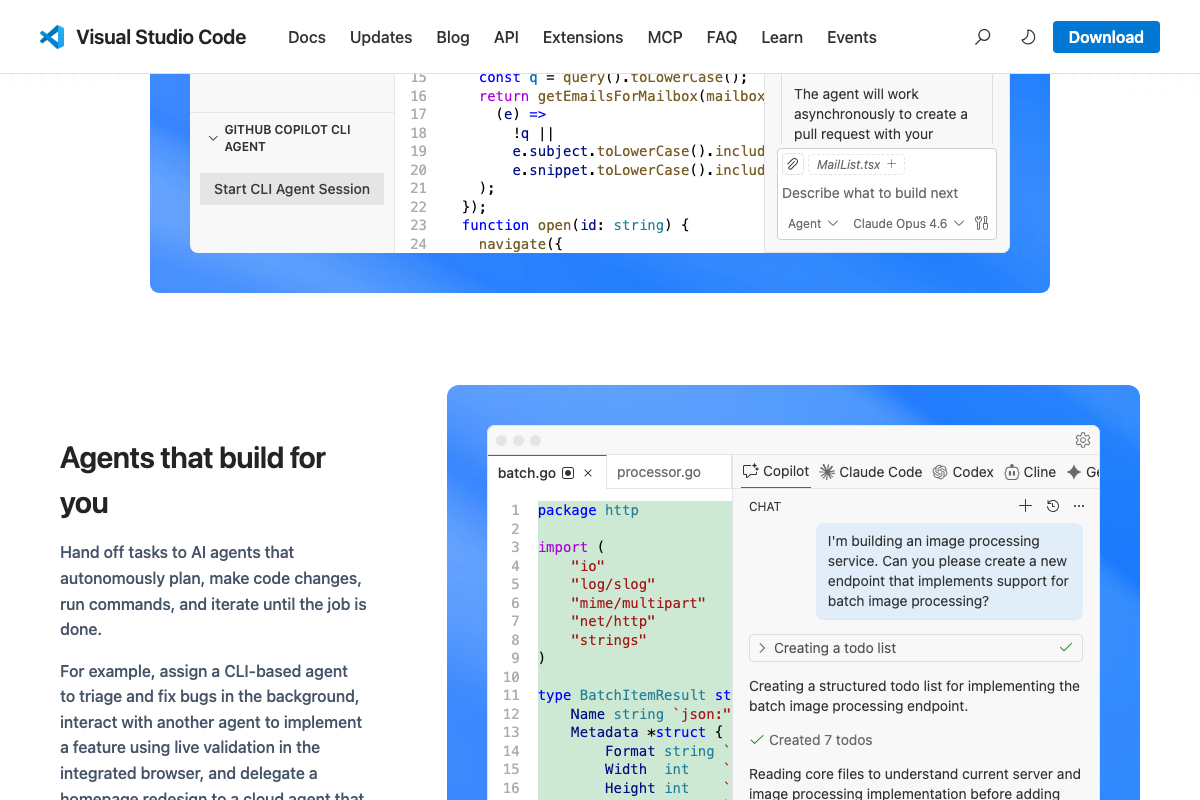
- Visual Studio Code – The open source AI code editor — VS Code homepage documenting the AGENT SESSIONS panel and “All your sessions, one view” multi-agent tracking as GitHub Copilot features.
- Excalidraw Whiteboard — Excalidraw web app reference; native output format is .excalidraw (JSON), with PNG available only via explicit export action.


0 Comments