

Four YouTube Growth Strategies Built Around Session Time
YouTube’s algorithm rewards more than watch time and retention — session time, the credit a channel earns when a viewer keeps watching the platform after finishing a video, is one of the least-discussed distribution levers available to creators. This tutorial walks through four strategies vidIQ demonstrated for turning session time into subscriber growth: end screen optimization, niche expansion, the YouTube collab tool, and long-form content prioritization. After working through each one, you’ll have a concrete action plan you can apply to an existing channel today.
-
Recognize that session time is a first-class ranking signal. When your video starts a watch session — meaning a viewer clicks play and then continues watching YouTube afterward — the algorithm credits your channel for that engagement. More session time expands distribution, which brings in new viewers, which compounds subscriber growth.
-
Open your end screen settings and audit what each end card is currently linking to. Specifically, check whether any cards are set to “latest upload.” A dynamically updating card feels convenient, but it can send a viewer to a topically unrelated video — breaking the session and handing it to another channel.
-
Replace any “latest upload” links with manually selected videos that are topically adjacent to the one being watched. A pasta recipe video should link to a sauce recipe video, not a kitchen equipment review. The end screen’s job is to continue the narrative, not just keep traffic on-site.
-
For maximum effect, plan the linked video before recording the current one. At roughly the 80% mark of the video you’re filming, add a verbal bridge that tells viewers what they’ll need to watch next and why. This primes the click before the end card even appears.
-
Benchmark end screen performance inside YouTube Analytics by navigating to Analytics > See More > Metrics, searching “end,” and applying the Clicks Per End Screen Element Shown metric. This isolates which videos are actually converting end-screen traffic and which are being ignored.
-
Open YouTube Studio and identify your top three videos by watch time over the last 28 days — or a broader window if your upload cadence is low. These are your distribution anchors.
-
For each top video, work through three questions: What else does this viewer watch? What problem did they have before finding this video? What problem will they have after watching it? The gap between the second and third questions is where niche expansion lives.
-
Use a keyword research tool to surface adjacent topics with measurable search demand sitting close to your existing niche. The goal is not to abandon your subject matter expertise — it’s to aim that expertise at a larger, overlapping audience.
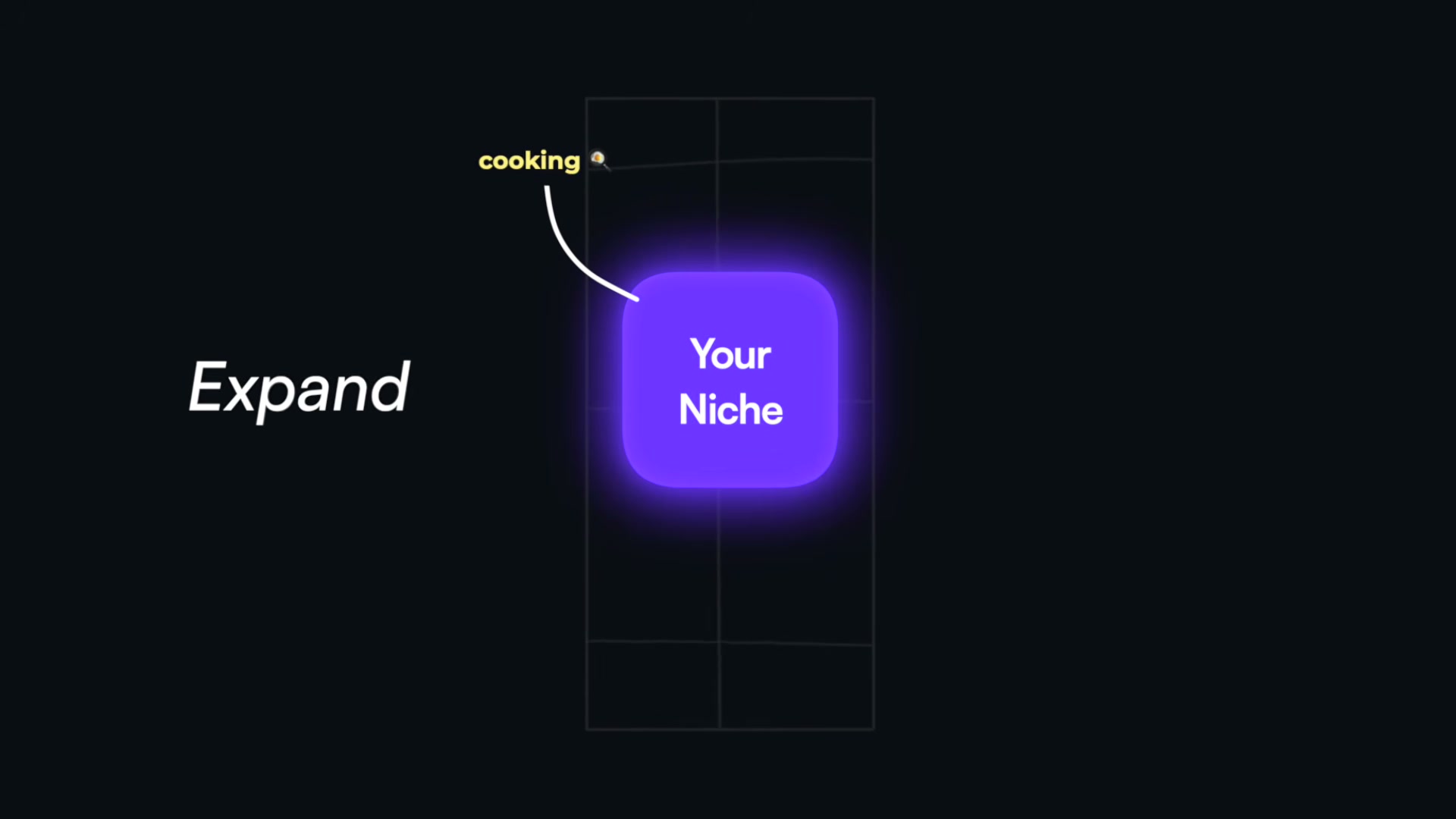
- Build a “bridge video” that targets one of those adjacent topics while staying grounded in your technical foundation. The original audience recognizes the voice and expertise; new viewers get a reason to subscribe.
-
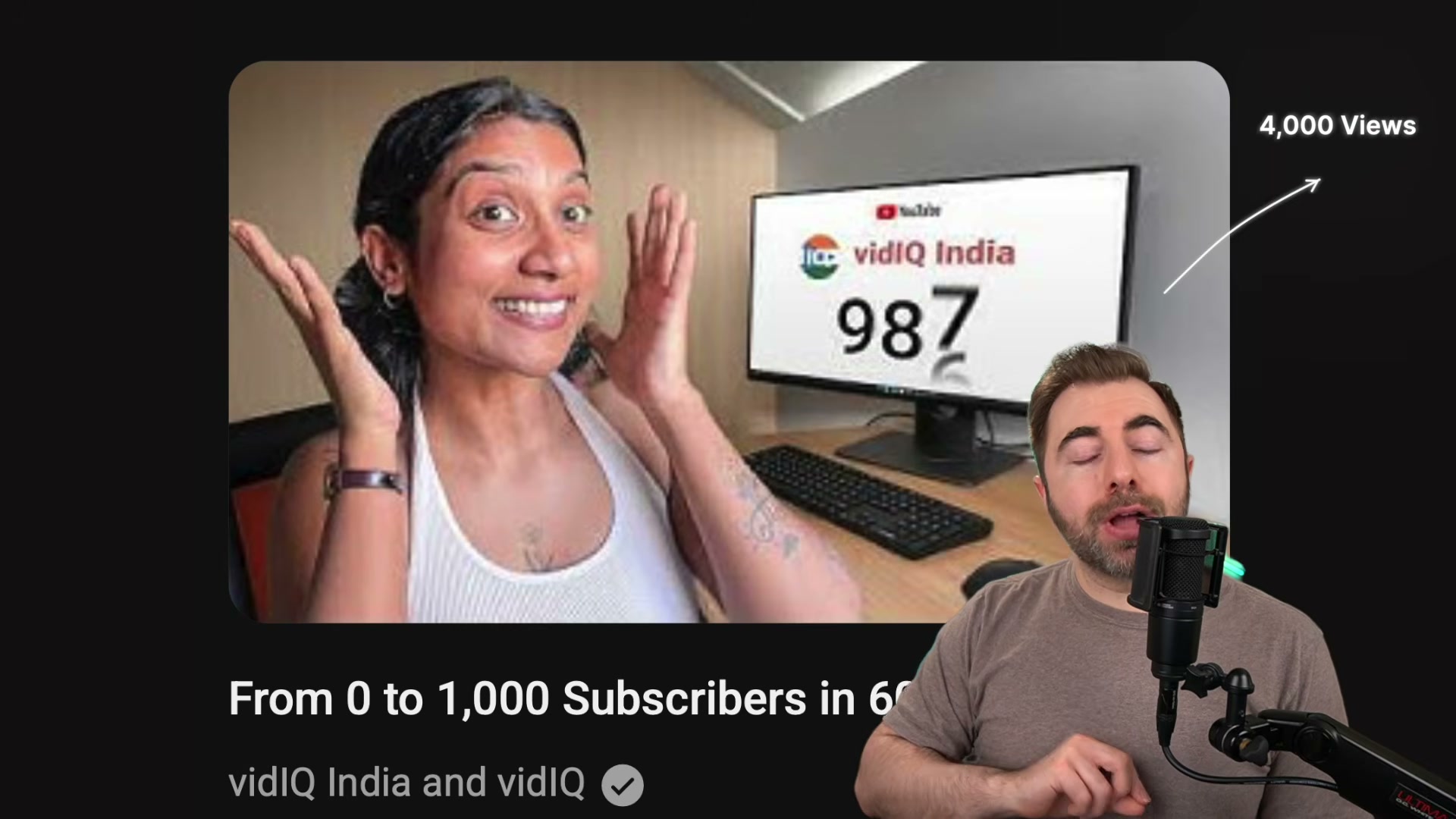
When researching potential collaborators, look at peer-sized channels rather than aspirational targets. Channels with audiences similar in size and interest to yours produce more durable session-time crossover than a one-off feature from a channel 450 times your size.
-
Tag a collaborator on a video using YouTube’s collab tool and track the downstream effect on views, subscriber acquisition, and retention on your next video — the one posted without the collab tag. That second-video retention number tells you whether the collab brought in viewers or just borrowed them.
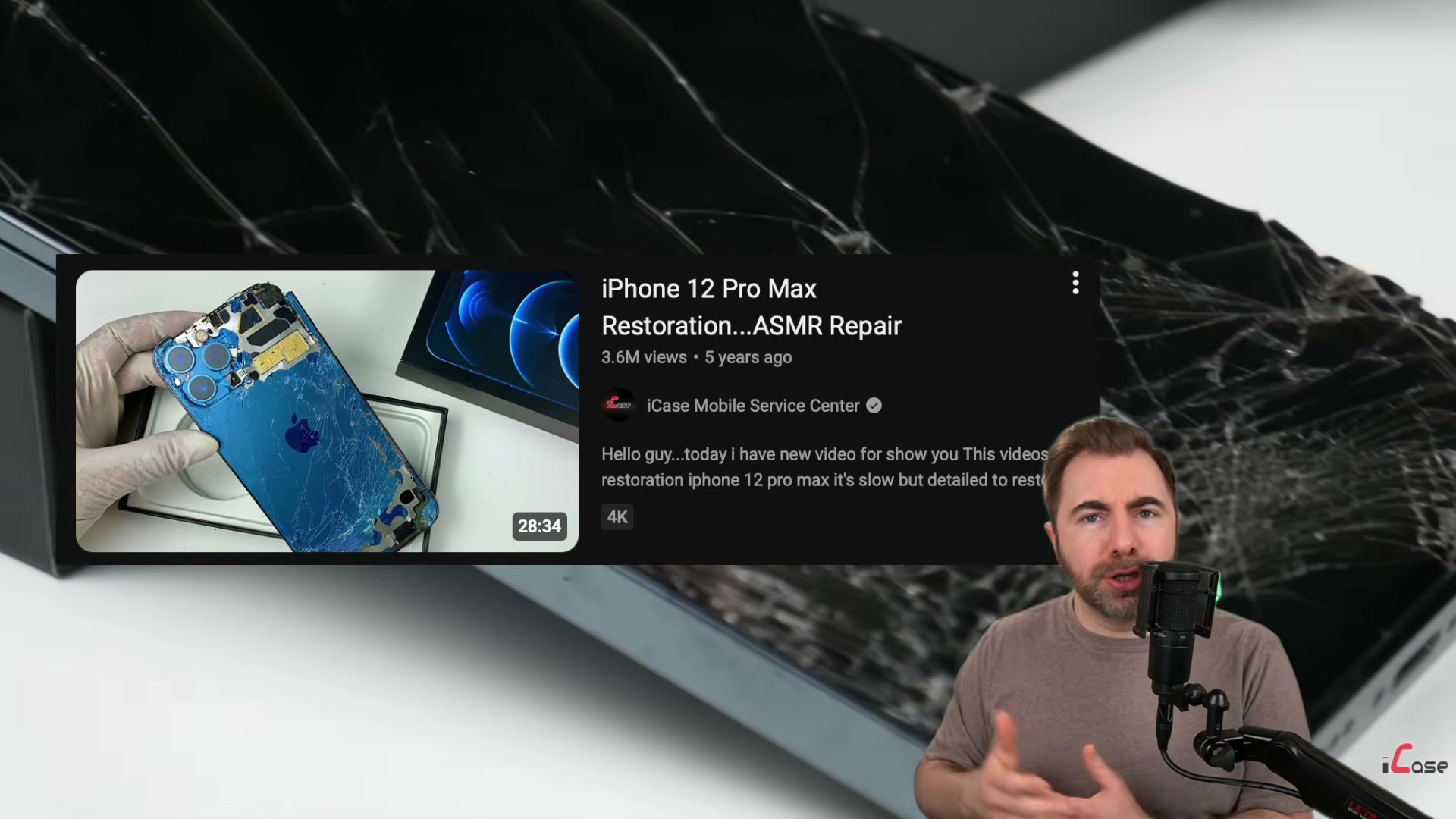
- Shift creative priority toward long-form content. The transcript notes that long-form video holds a dominant share of total YouTube watch time, and longer sessions generate more session-time credit per view.
How does this compare to the official docs?
Several of these steps touch YouTube Studio features and algorithm behaviors that YouTube itself has documented — and in a few cases, the platform’s official guidance adds important nuance that the video doesn’t cover.
Here’s What the Official Docs Show
The strategies above are well-grounded in how YouTube’s algorithm works, and the documentation adds a useful layer of mechanical precision to several steps. Two areas — end screen analytics navigation and the collab tool — go beyond nuance and warrant specific updates.
Step 1 — Session time as a ranking signal
No official documentation was found for this step — proceed using the video’s approach and verify independently.
Steps 2–3 — Audit and update end screen links
The video’s approach here matches the current docs exactly. The official navigation is YouTube Studio > Content > select video > Editor > End screen, where the Video element type offers exactly three sub-choices: most recent upload, best for viewer, or a specific video — confirming the “specific video” swap the tutorial recommends.
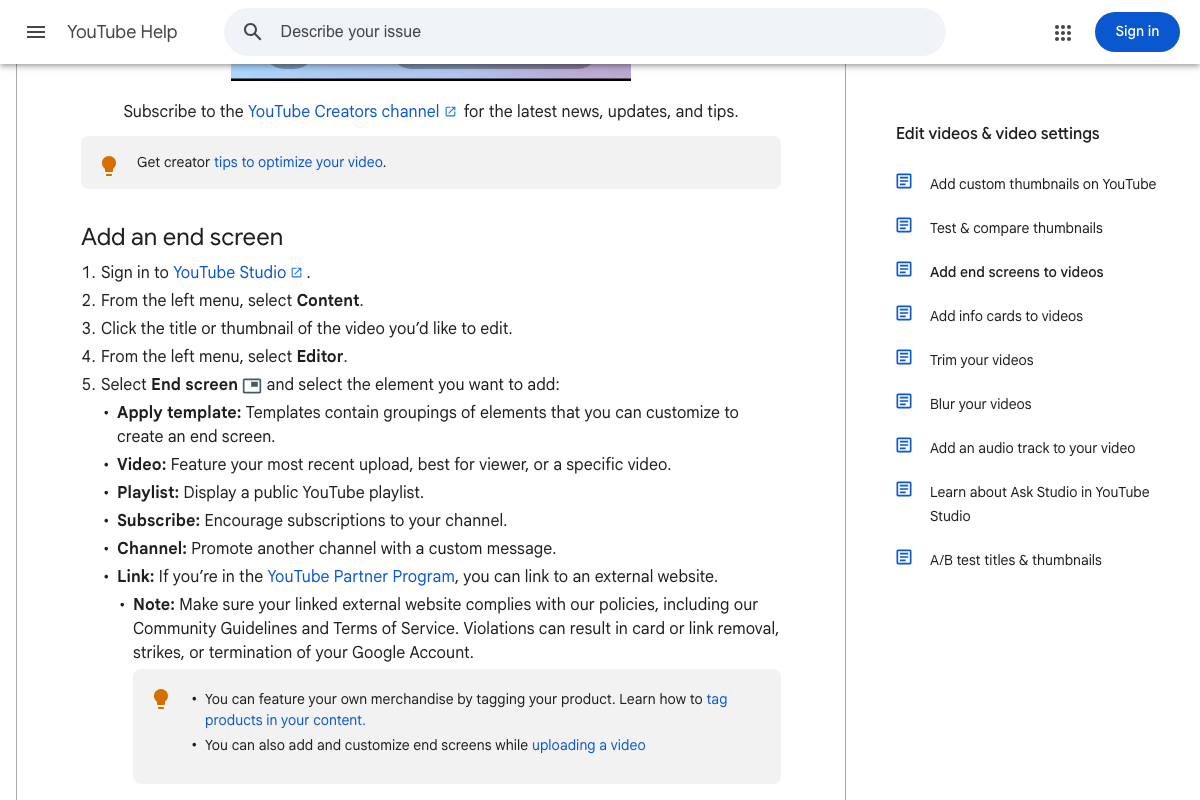
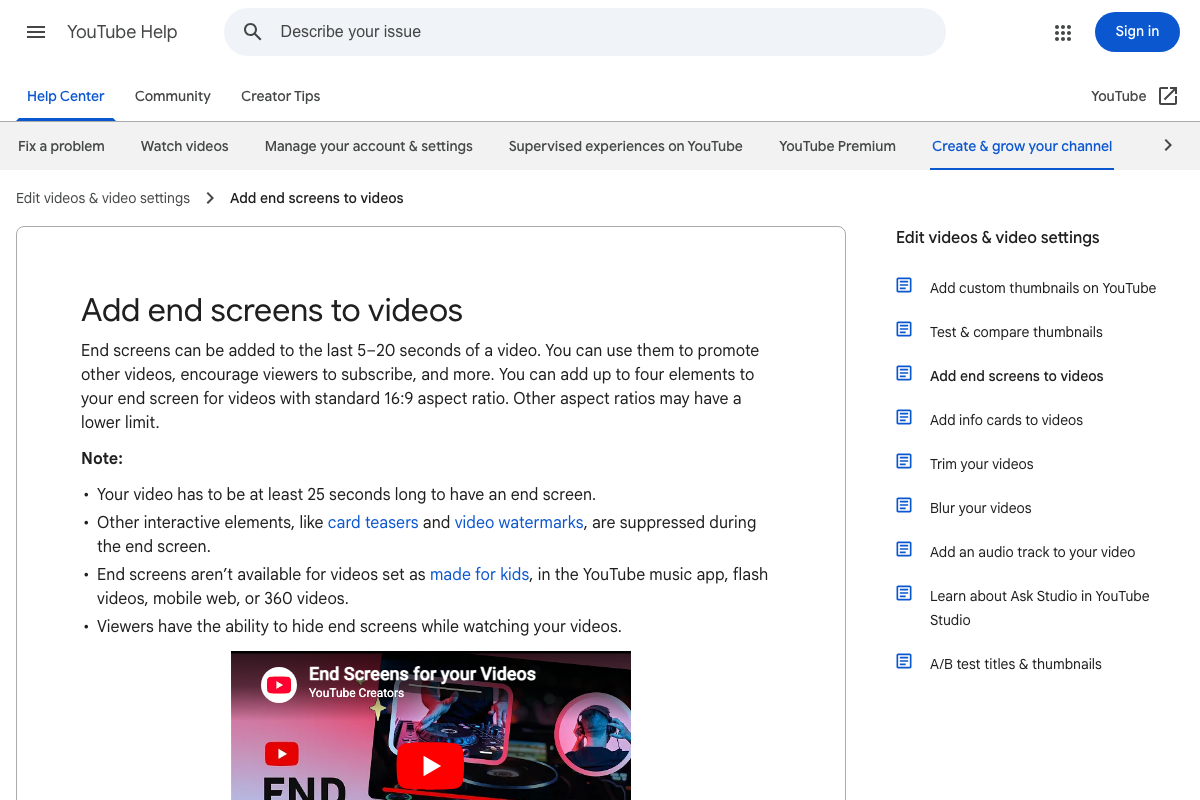
The docs add constraints the tutorial doesn’t cover: end screens are restricted to the last 5–20 seconds of a video, videos must be at least 25 seconds long to qualify, the maximum is 4 elements for standard 16:9 videos, and end screens are disabled on made-for-kids content.
Step 4 — Pre-plan the linked video before filming
No official documentation was found for this step — proceed using the video’s approach and verify independently.
Step 5 — Benchmark end screen performance in Analytics
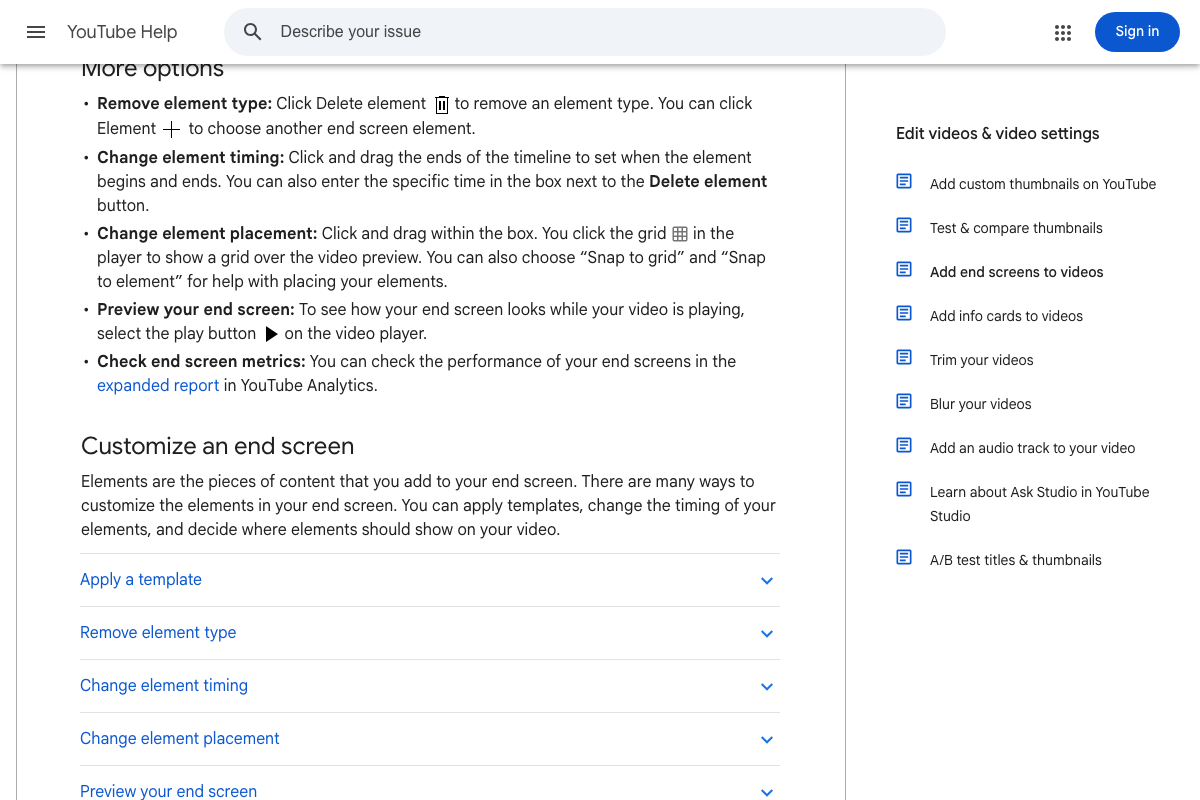
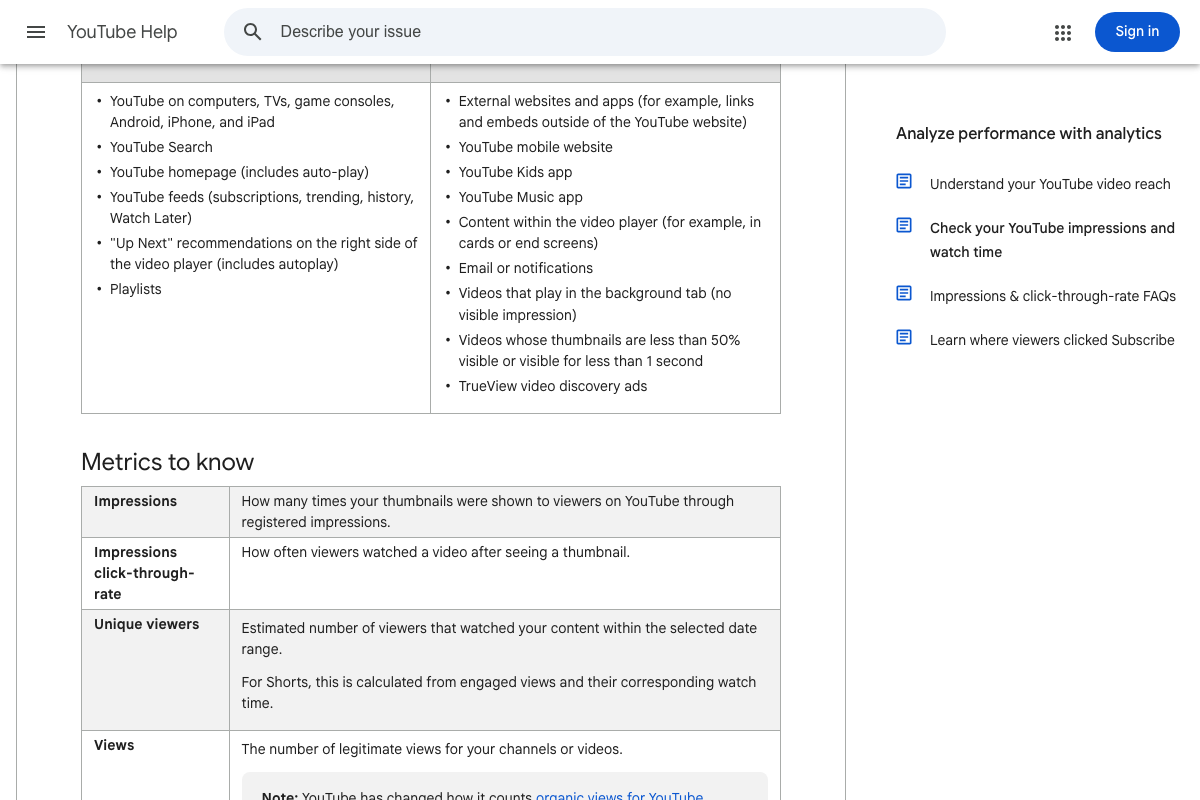
As of April 3, 2026, the correct path to end screen metrics is the expanded report in YouTube Analytics, reached from the end screen Editor inside YouTube Studio — the video shows “Analytics > See More > Metrics > search end,” which is a different navigation path. The metric label “clicks per end screen element shown” does not appear in any current documentation. Separately, the impressions and watch time report (answer/9314486) explicitly excludes end screen interactions from its impressions count, so searching for end screen data there will return nothing relevant.
Step 6 — Identify your top 3 videos by watch time
No official documentation was found for this step — proceed using the video’s approach and verify independently.
Step 7 — Map viewer intent before and after each top video
No official documentation was found for this step — proceed using the video’s approach and verify independently.
Step 8 — Use vidIQ for adjacent keyword research
No official documentation was found for this step — proceed using the video’s approach and verify independently.
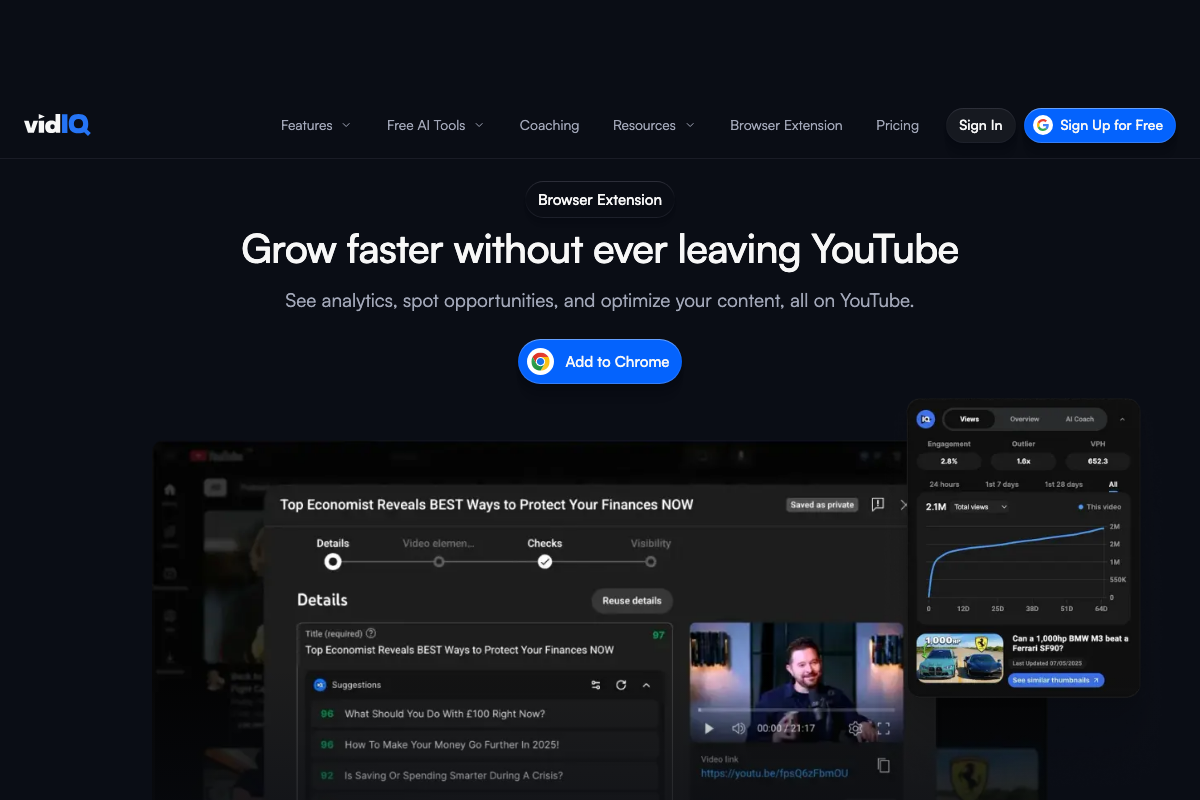
The vidIQ screenshots captured show the platform homepage, an AI title/thumbnail optimizer, and the browser extension — none is the standalone keyword research interface the tutorial references. The feature exists within the platform; the specific workflow is not independently verifiable here.
Step 9 — Build a bridge video targeting the adjacent topic
No official documentation was found for this step — proceed using the video’s approach and verify independently.
Steps 10–11 — Research collaborators and use the YouTube collab tool
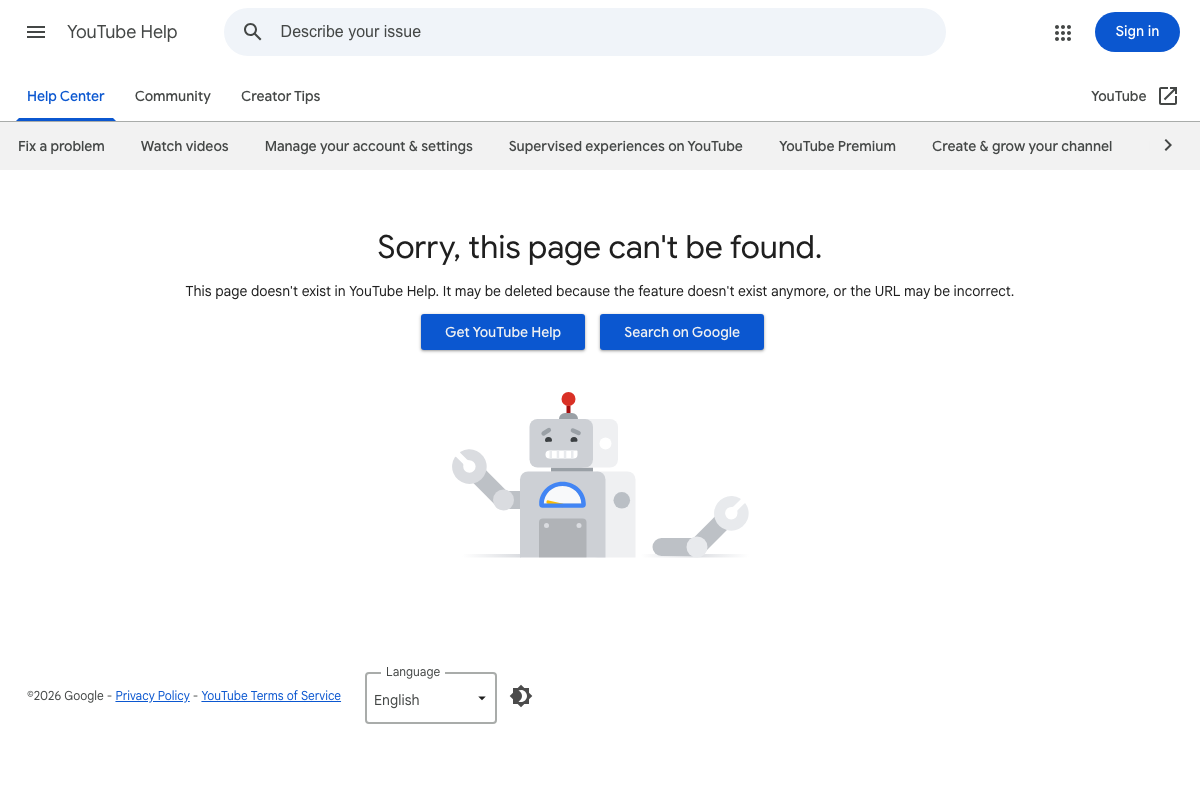
As of April 3, 2026, the YouTube Help page for the collab tool (answer/7300612) returns a 404 error. The page itself states it “may be deleted because the feature doesn’t exist anymore.” Verify whether this tool is still active in your YouTube Studio before building either step into your workflow.
Step 12 — Prioritize long-form content
No official documentation was found for this step — proceed using the video’s approach and verify independently.
Useful Links
- Add end screens to videos — YouTube Help — Official documentation for configuring end screen elements in YouTube Studio, including placement timing, element limits, content eligibility, and how to access performance reporting.
- Check your YouTube impressions and watch time — YouTube Help — Covers the Analytics Content tab and impressions funnel; explicitly documents that end screen interactions are excluded from the impressions count.
- YouTube Collab Tool — YouTube Help — Returns a 404 as of April 2026; linked here so you can confirm current availability before incorporating the collab workflow.
- Manage your channel branding — YouTube Help — Referenced in the Step 6 context; requires an authenticated YouTube account to access the full Studio interface.
- vidIQ: YouTube Growth Tools — Platform homepage confirming the feature set referenced in Step 8, including the browser extension and AI optimization tools, though the standalone keyword research interface was not captured in available screenshots.


0 Comments