

GPT 5.5 and GPT Image 2: What Changed in ChatGPT This Week
OpenAI shipped two model upgrades back to back: GPT 5.5, an agentic model built for long-running structured tasks, and GPT Image 2, a redesigned image generator with 2K output and near-perfect text rendering. After working through this walkthrough, you’ll know how to access both models, configure GPT 5.5’s thinking effort, and produce multi-format social media assets from a single source image in one prompt. Benchmark comparisons against Claude Opus 4.7 are included to help you calibrate where each model fits in your stack.
-
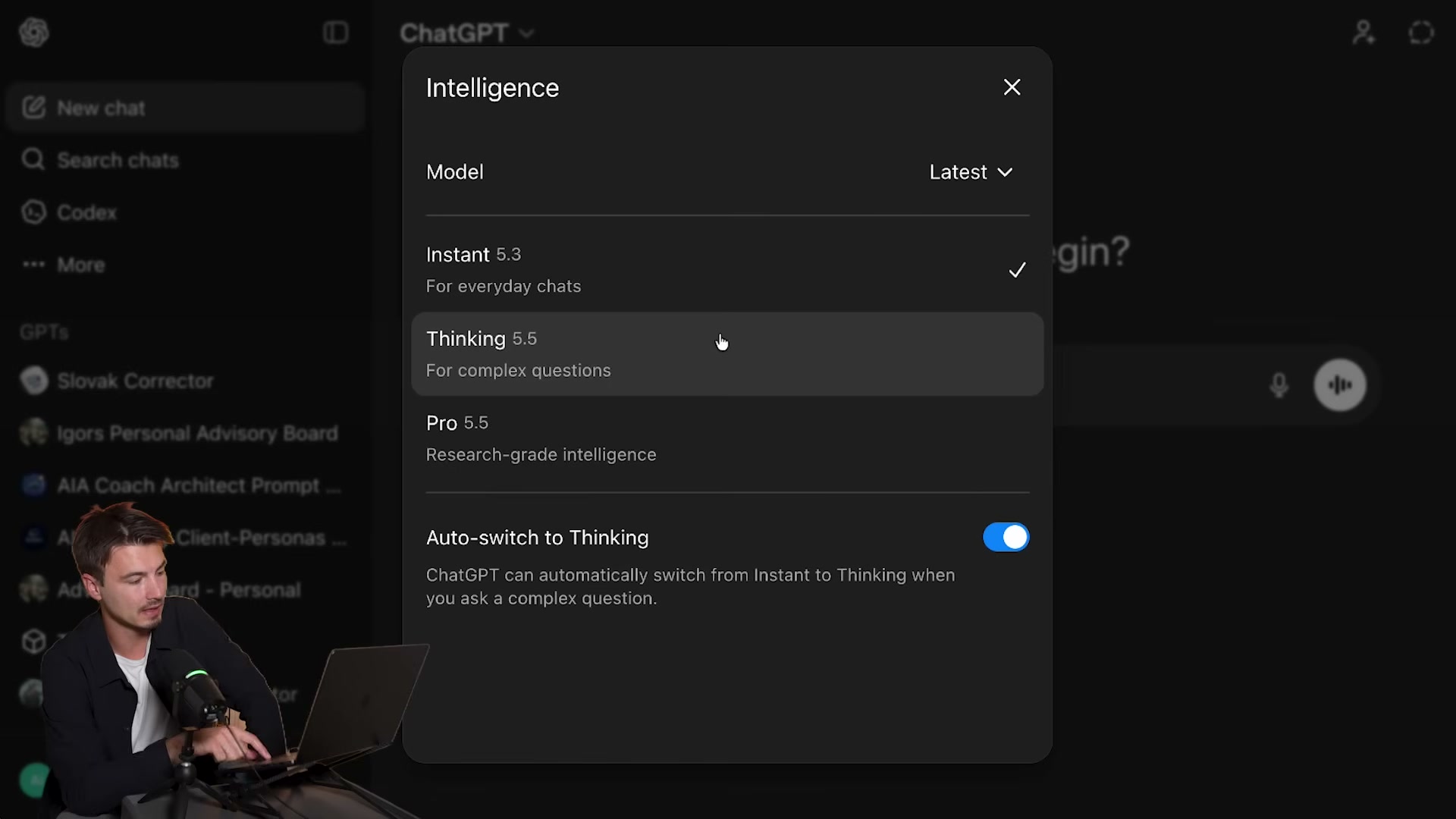
Open ChatGPT and click the model selector at the top of the interface. By default, most sessions land on Instant mode.
-
In the model picker, locate the three tiers: Instant (runs GPT 5.3 for quick replies), Thinking (GPT 5.5 for complex questions), and Pro (GPT 5.5 research-grade, available on the $200/month Pro plan). A toggle labeled “Auto-switch to Thinking” lets the model self-escalate when it detects a harder prompt.
- Open the Configure option and set thinking effort to Extended. Quick and Default are also available, but Extended surfaces the full reasoning chain and aligns more closely with the conditions used in agentic benchmarking.
-
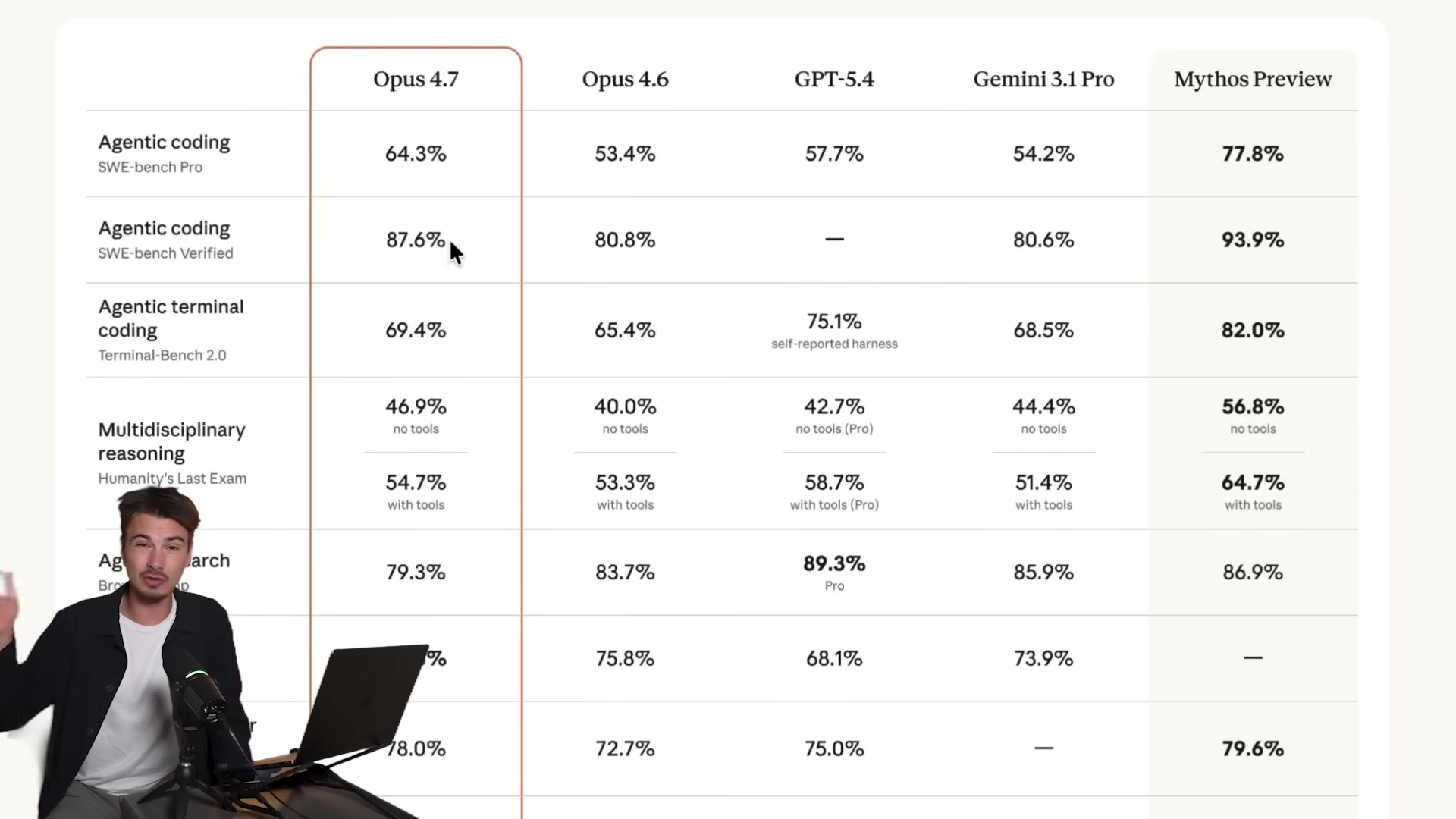
Paste a complex agentic coding prompt — the tutorial uses a YouTube repurposing application — to test GPT 5.5’s structured-output capability. The model spent 3 minutes 12 seconds and produced an app that failed on first run, while Claude Opus 4.7 completed the same prompt cleanly. GPT 5.5 is optimized for multi-step agentic pipelines, not single-turn chat completions.
-
Run a visual generation prompt — an SVG of the Death Star above Los Angeles — to observe how GPT 5.5 handles tool selection. The model surfaced its reasoning (“Considering SVG request limitations”) and switched to a PNG via its image tool instead of writing SVG code. On reprompting, it returned an inaccessible data path.
Warning: this step may differ from current official documentation — see the verified version below.
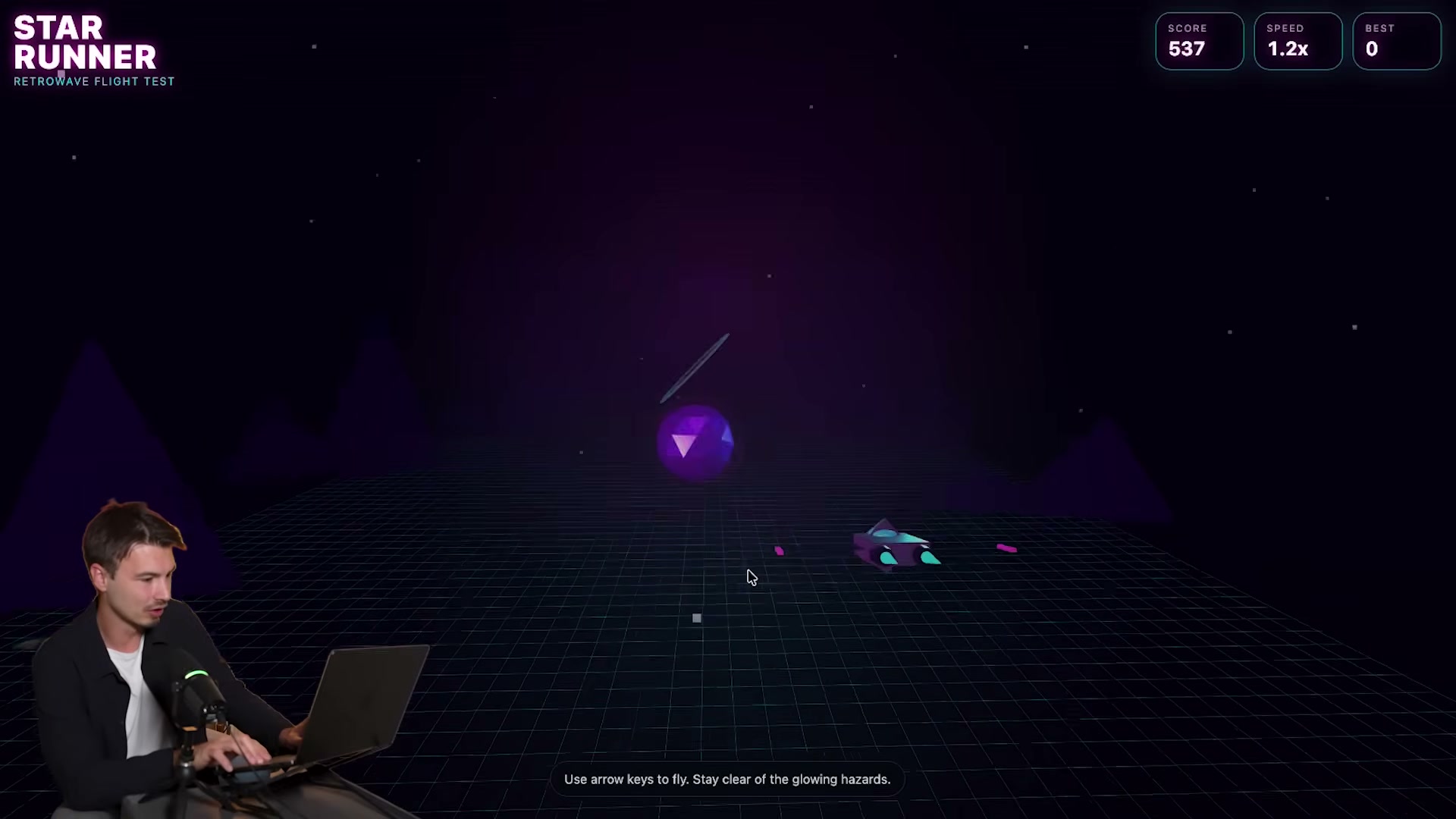
- Submit a creative coding prompt requesting a space shooter game. GPT 5.5 produced a fully playable retrowave flight game — Star Runner — with 3D rendering, live score tracking, and speed counters from a single prompt, no follow-up edits required.
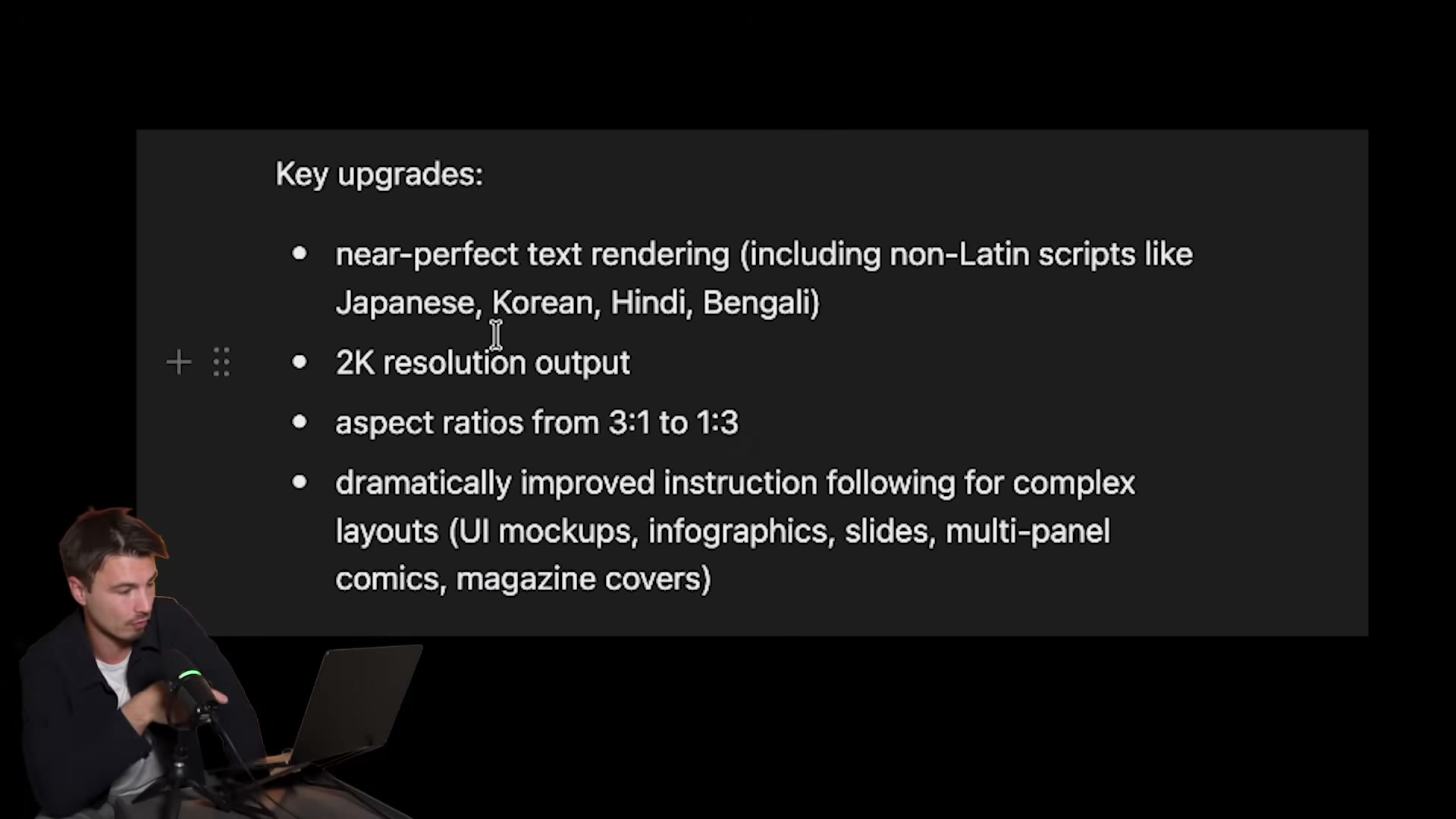
- Enable image creation in the interface to activate GPT Image 2. Four headline upgrades ship with this release: near-perfect text rendering including non-Latin scripts, 2K resolution output, aspect ratios from 3:1 to 1:3, and significantly tighter instruction following for complex layouts.
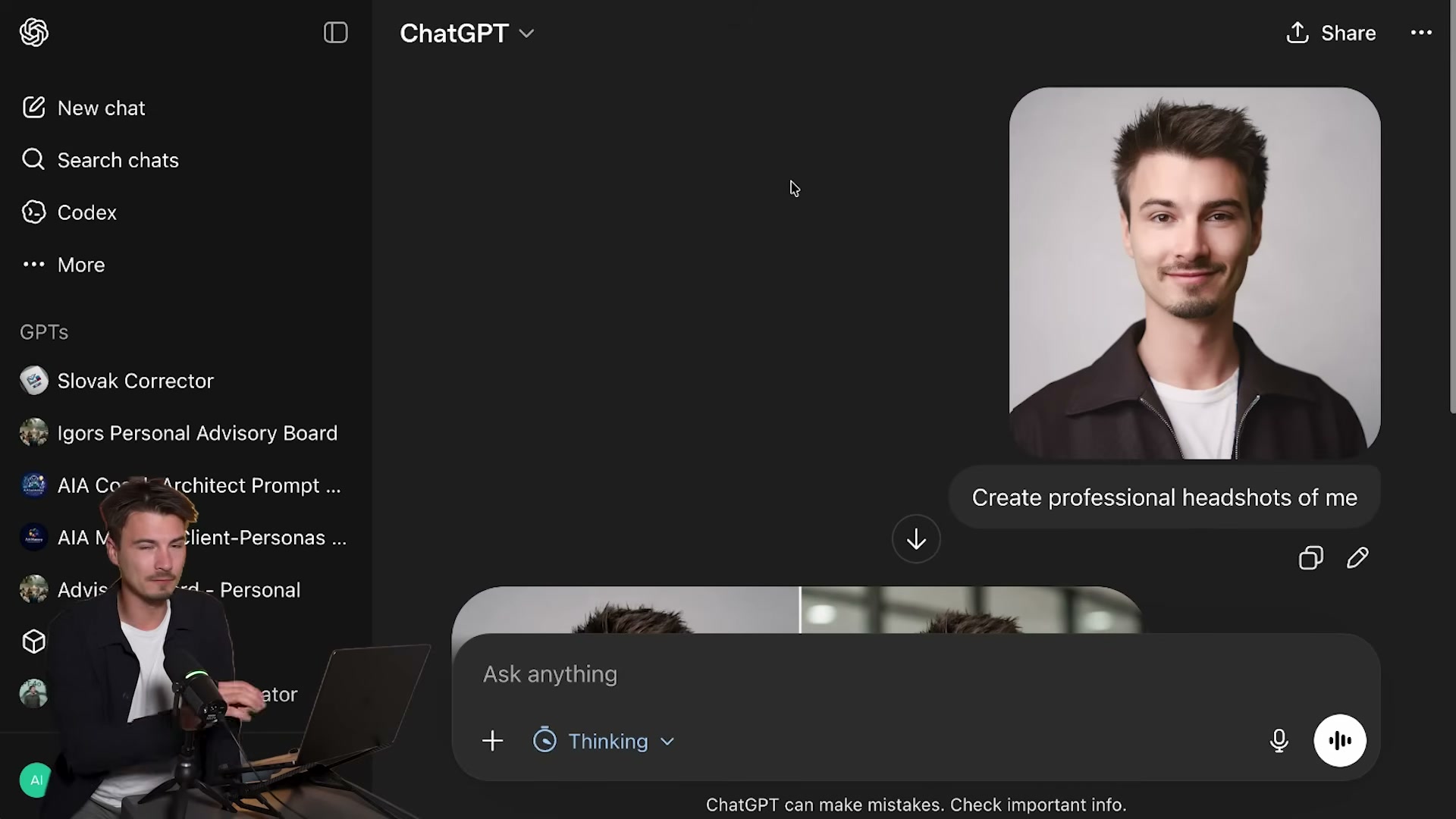
- Upload a photo of yourself and send: “Create a professional headshot of me.” GPT Image 2 retained actual facial features across multiple outputs rather than generating a lookalike — a meaningful improvement over earlier face-retention pipelines.
-
Turn on Thinking mode within GPT Image 2 for layout-intensive prompts. Select Thinking from the model options while image creation is active; the model runs multiple reasoning passes before generating, which pays off on structured outputs like infographics.
-
Upload a YouTube thumbnail and send: “Create social media graphics from this thumbnail in free sizes. Instagram square, Twitter banner, Pinterest pin.” GPT Image 2 returns all three formats in a single response, resizing typography proportionally across each layout.
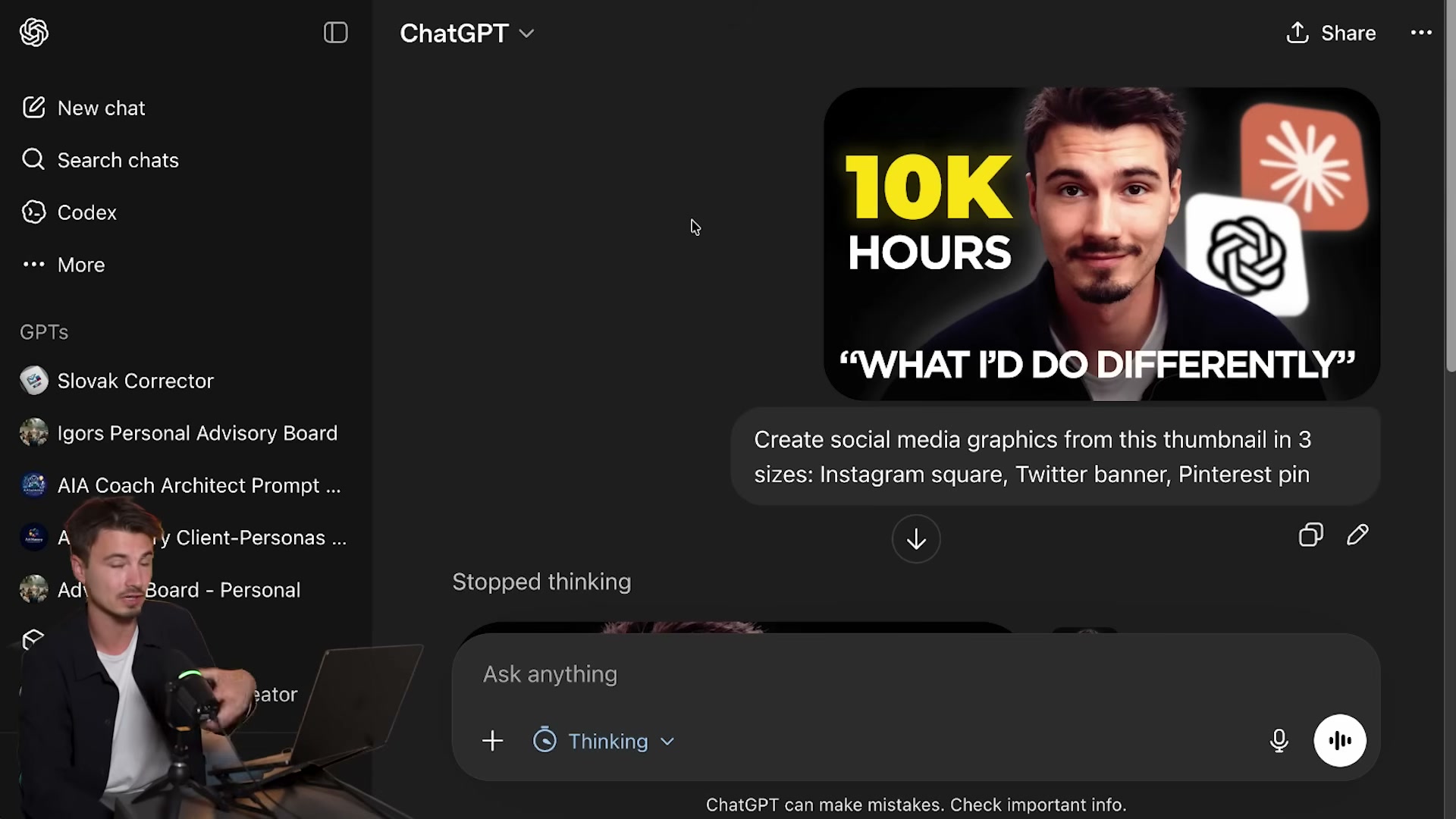
- Review the output for text fidelity, resolution, and composition accuracy. Instruction following on specific copy has improved to the point where text placed in the prompt reliably appears in the rendered image — a consistent failure mode in earlier generators that GPT Image 2 largely resolves.
How does this compare to the official docs?
The video demonstrates both models through live testing rather than API documentation, which means behaviors around SVG tool-switching, model tier naming, and thinking mode availability in Image 2 deserve cross-checking against what OpenAI has formally documented.
Here’s What the Official Docs Show
The video does a solid job orienting you to ChatGPT’s evolving interface, and the live testing approach surfaces real behavior you won’t find in any changelog. What the screenshots add is a layer of grounding for the access points and plan names — plus a few distinctions worth knowing before you configure your stack.
Step 1 — Opening ChatGPT and locating the model selector
The ChatGPT interface at chatgpt.com does display a model selector dropdown labeled “ChatGPT” at the top center of the screen — exactly where the video directs you.

The video’s approach here matches the current docs exactly. One practical note: the model selector options — including GPT-5.5 tiers and any thinking effort controls — are only visible after you authenticate. The logged-out view confirms the dropdown exists but shows no model list.
Step 2 — Selecting a model tier (Instant, Thinking, Pro)
No official documentation was found for this step —
proceed using the video’s approach and verify independently.
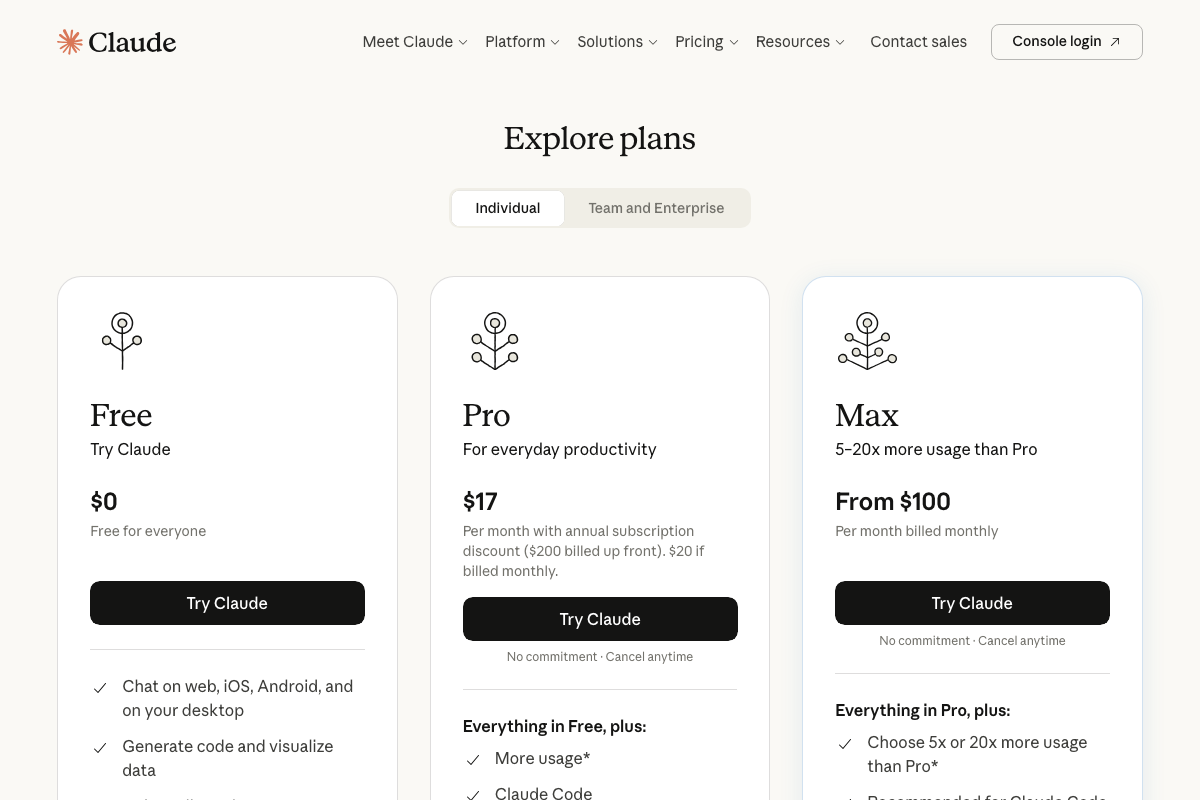
One naming note worth flagging: the video references OpenAI’s plan tiers (Plus, Pro, Business, Enterprise) in the context of model access. These are ChatGPT-specific plan names. If you are cross-referencing with Claude’s pricing at any point, Claude.ai uses Free, Pro, and Max — there is no “Plus” tier on Claude.ai. Conflating the two naming conventions will send you to the wrong upgrade page.
Steps 3 through 11 — Thinking effort configuration, agentic prompts, GPT Image 2 workflows
No official documentation was found for these steps —
proceed using the video’s approach and verify independently.
All three ChatGPT screenshots captured identical logged-out homepages. None confirms the GPT-5.5 model listing, the Quick/Default/Extended thinking effort levels, GPT Image 2’s availability within the chat interface, the multi-format image export workflow, or the face-retention behavior described in Steps 8 through 11. These steps require a logged-in paid account to observe, and the official developer platform documentation at platform.openai.com/docs was not captured in the available screenshots.
On the Claude Opus 4.7 comparison
The tutorial references Claude Opus 4.7 as a benchmark counterpart. The available Claude screenshots cover only the claude.ai marketing and pricing pages — neither the API docs at docs.anthropic.com nor any interface that surfaces model version names. As of April 24, 2026, the name “Claude Opus 4.7” cannot be confirmed or denied from these screenshots. Use the Anthropic docs directly to verify current model naming before citing this designation in any client-facing materials.
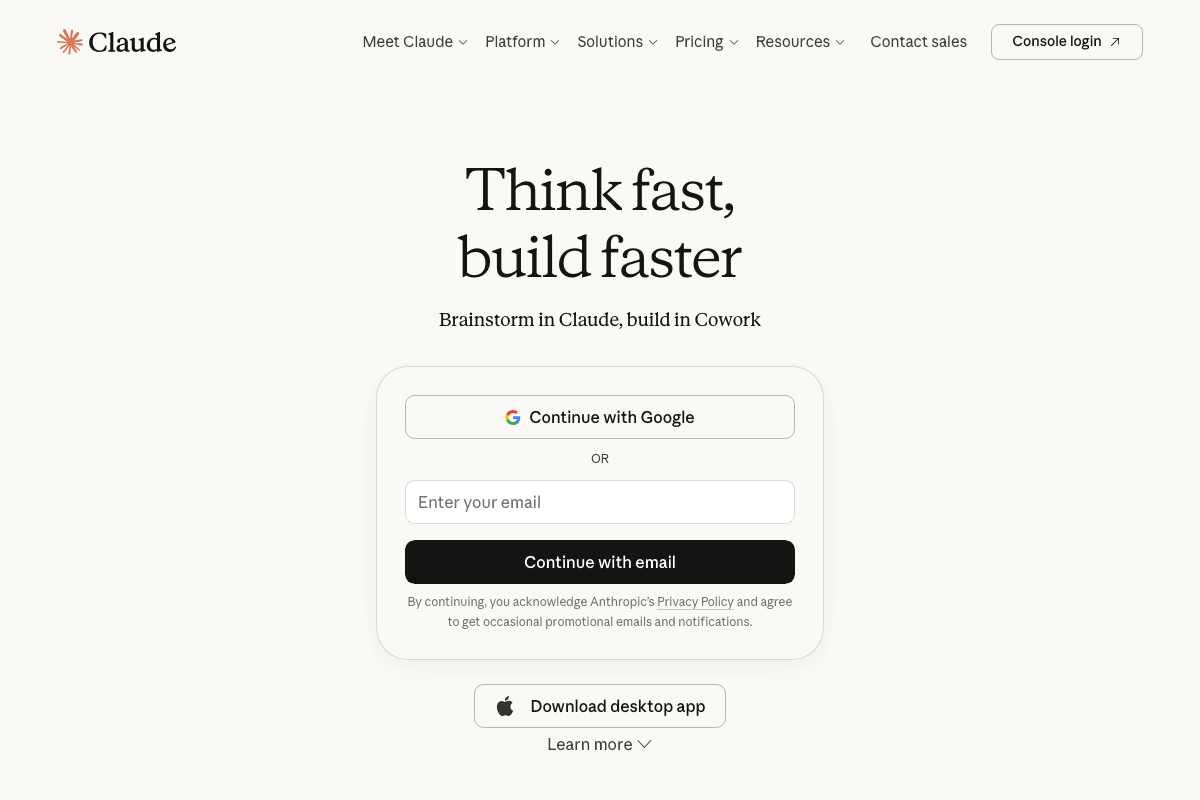
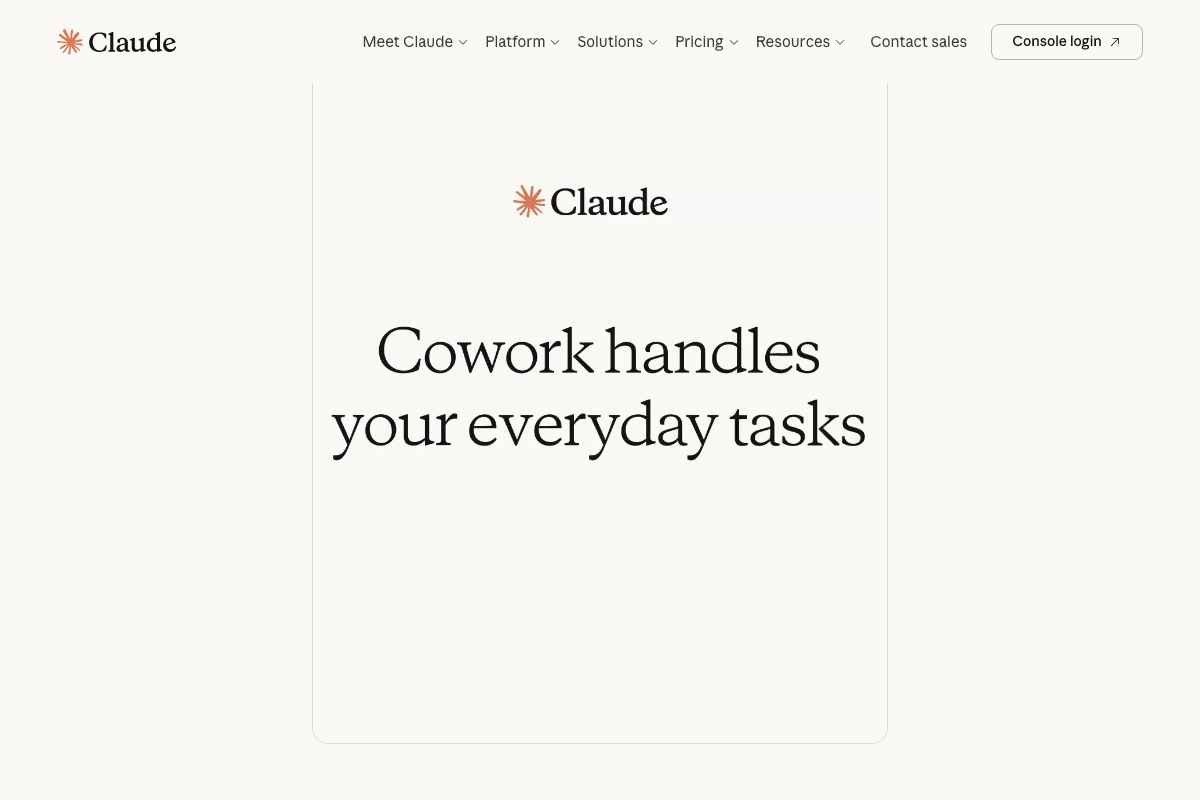
One additional change worth noting: the Claude.ai homepage now prominently promotes a product called Cowork (“Brainstorm in Claude, build in Cowork”), which does not appear anywhere in the tutorial. The Claude product surface has expanded since the video’s reference points were established.


0 Comments