

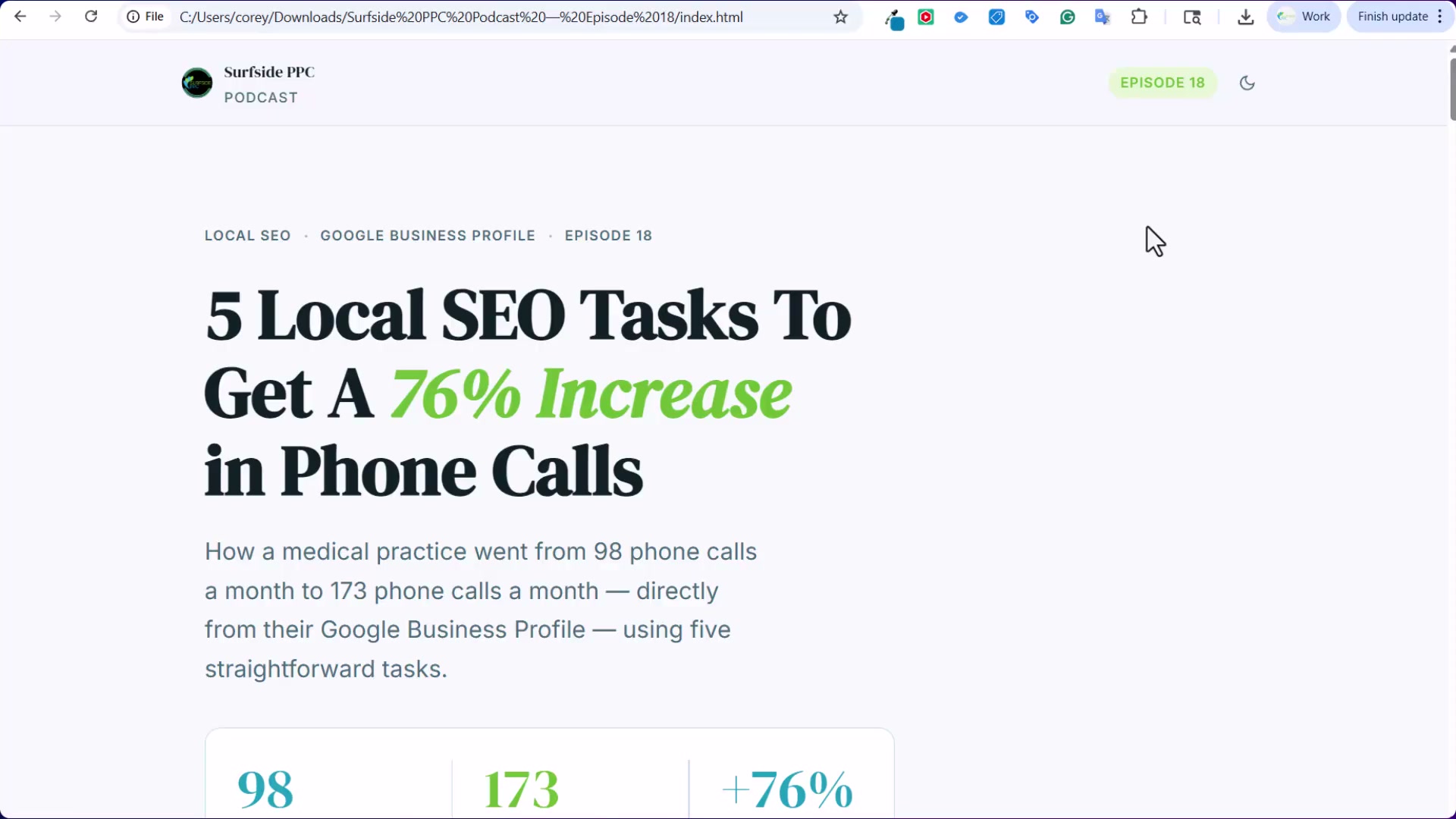
5 Local SEO Tasks That Drove a 76% Increase in Monthly Phone Calls
A medical practice averaged 98 inbound phone calls per month. Six months of Google Business Profile work later, that number was 173 — a 76% lift with no paid media involved. This tutorial walks through each of the five tasks so you can apply the same repeatable system to any local practice or service business.
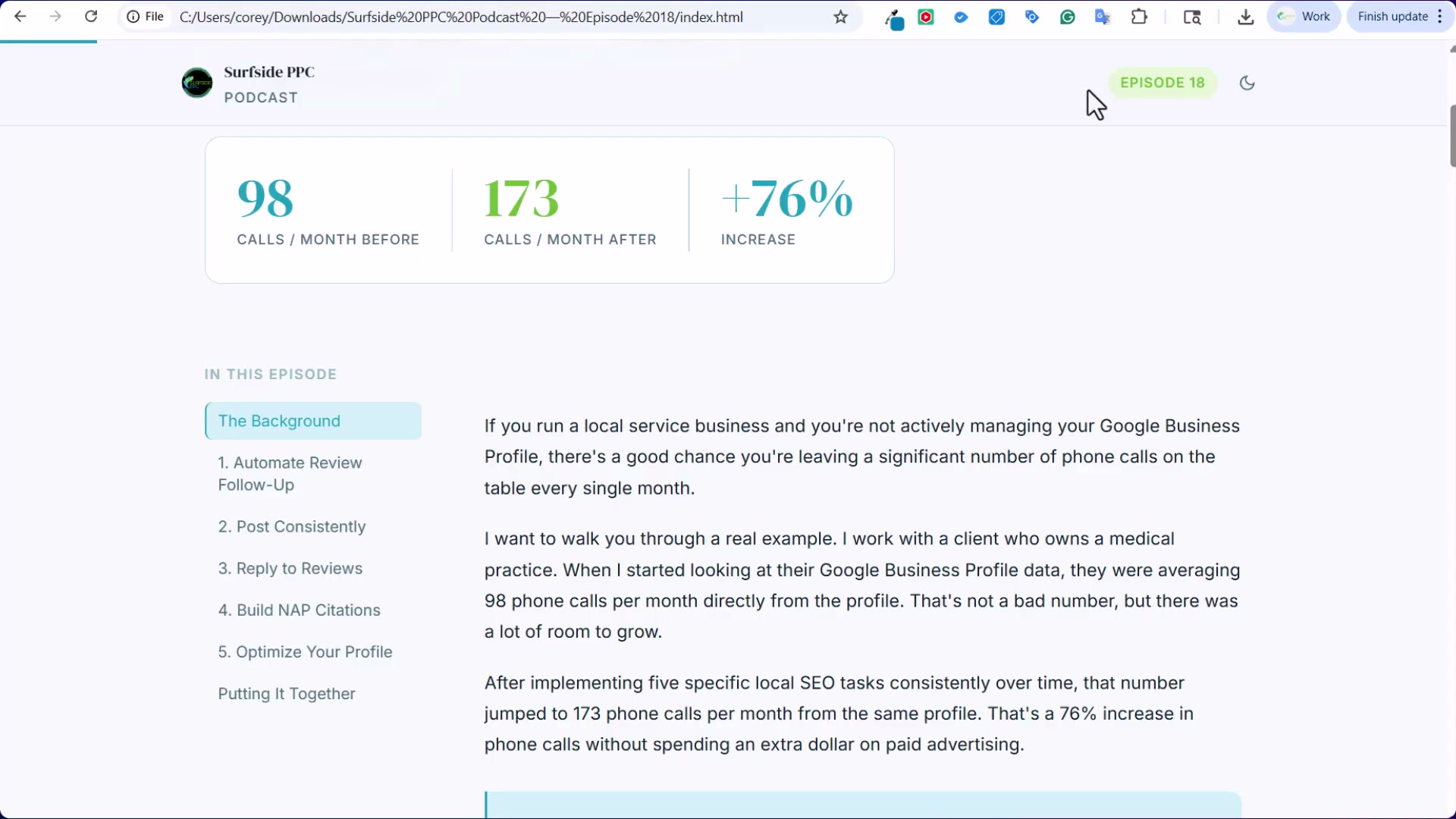
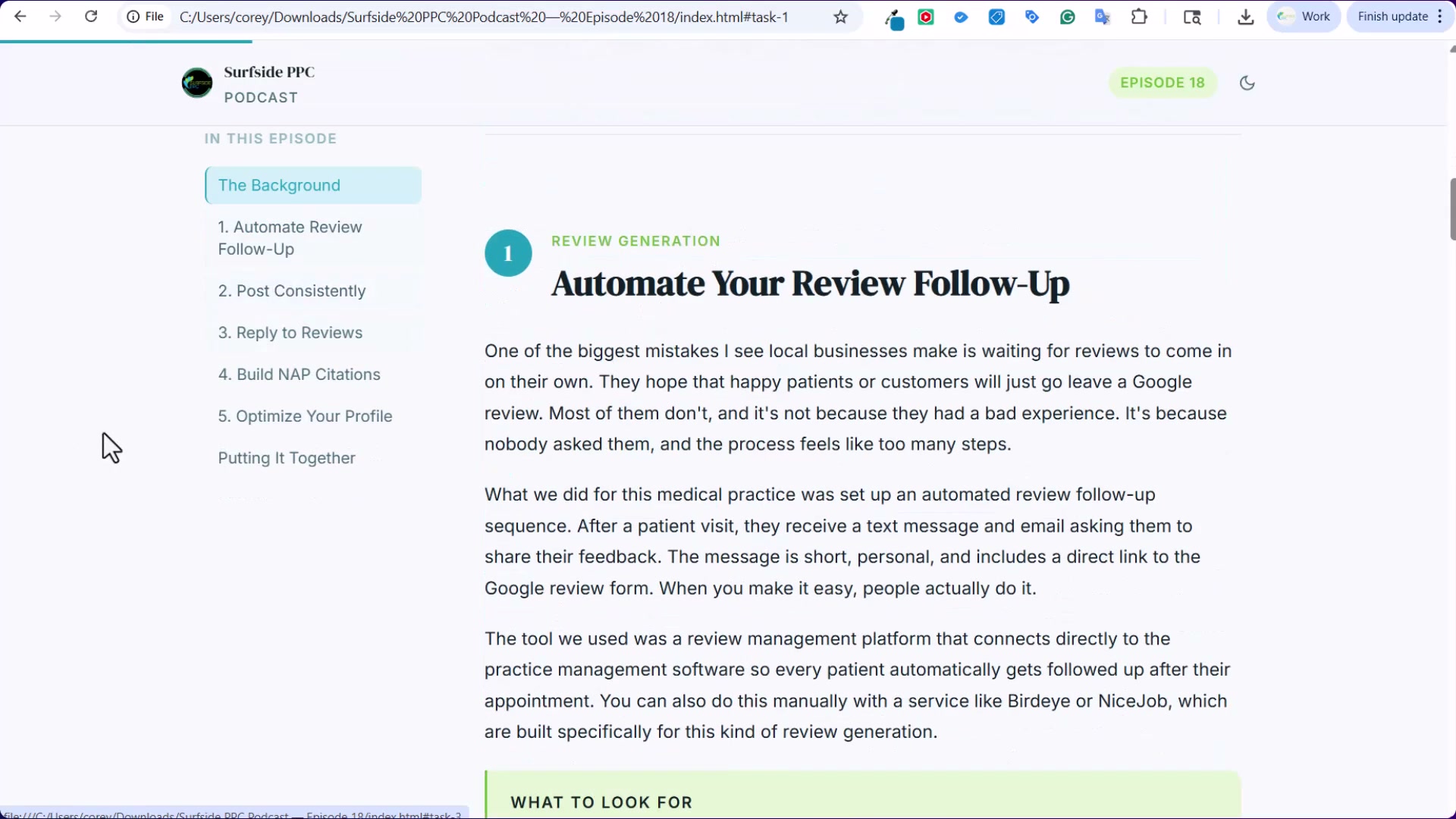
- Automate review follow-up. Check whether the practice’s EHR or practice management software already includes a post-appointment review request feature — most modern systems do, and using the native tooling keeps the process HIPAA-compliant by design. If the native option isn’t available, platforms like BrightLocal and Birdeye fill the gap with automated email and SMS sequences. The metric that matters most isn’t total review count but review velocity: how many new five-star reviews arrive in a rolling 30-day window carries more ranking weight than a large but stagnant total.
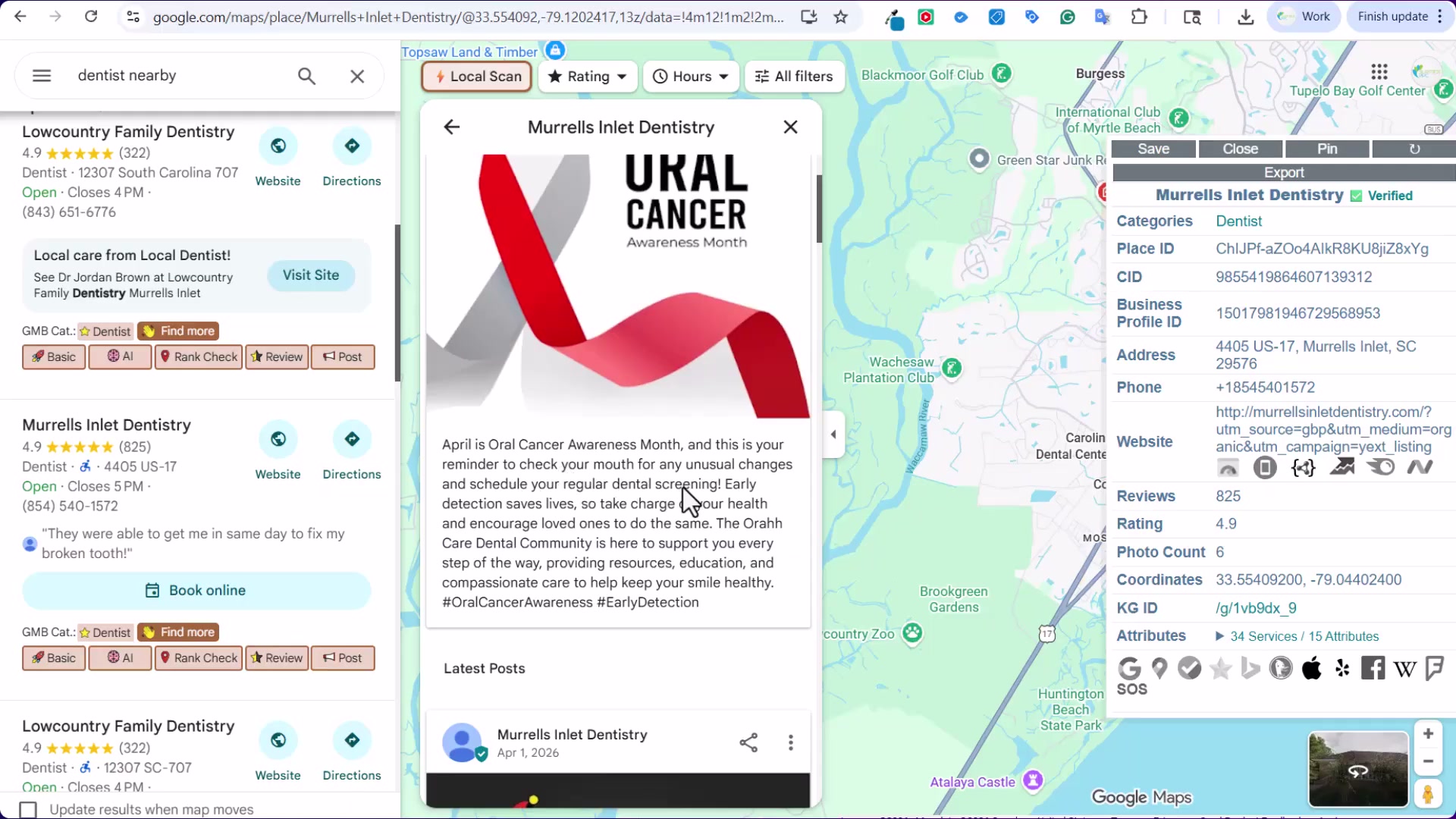
- Post consistently to your Google Business Profile. Publish one to two posts per week. Content that performs well includes awareness-month tie-ins (April is Oral Cancer Awareness Month for dental practices), service-specific educational posts (how dental implants work, what to expect from ACL repair surgery), and lighter community content. Once a post is written, repurpose it across Facebook, Instagram, and YouTube — each platform creates another surface for Google to associate the practice with specific procedures and local intent.
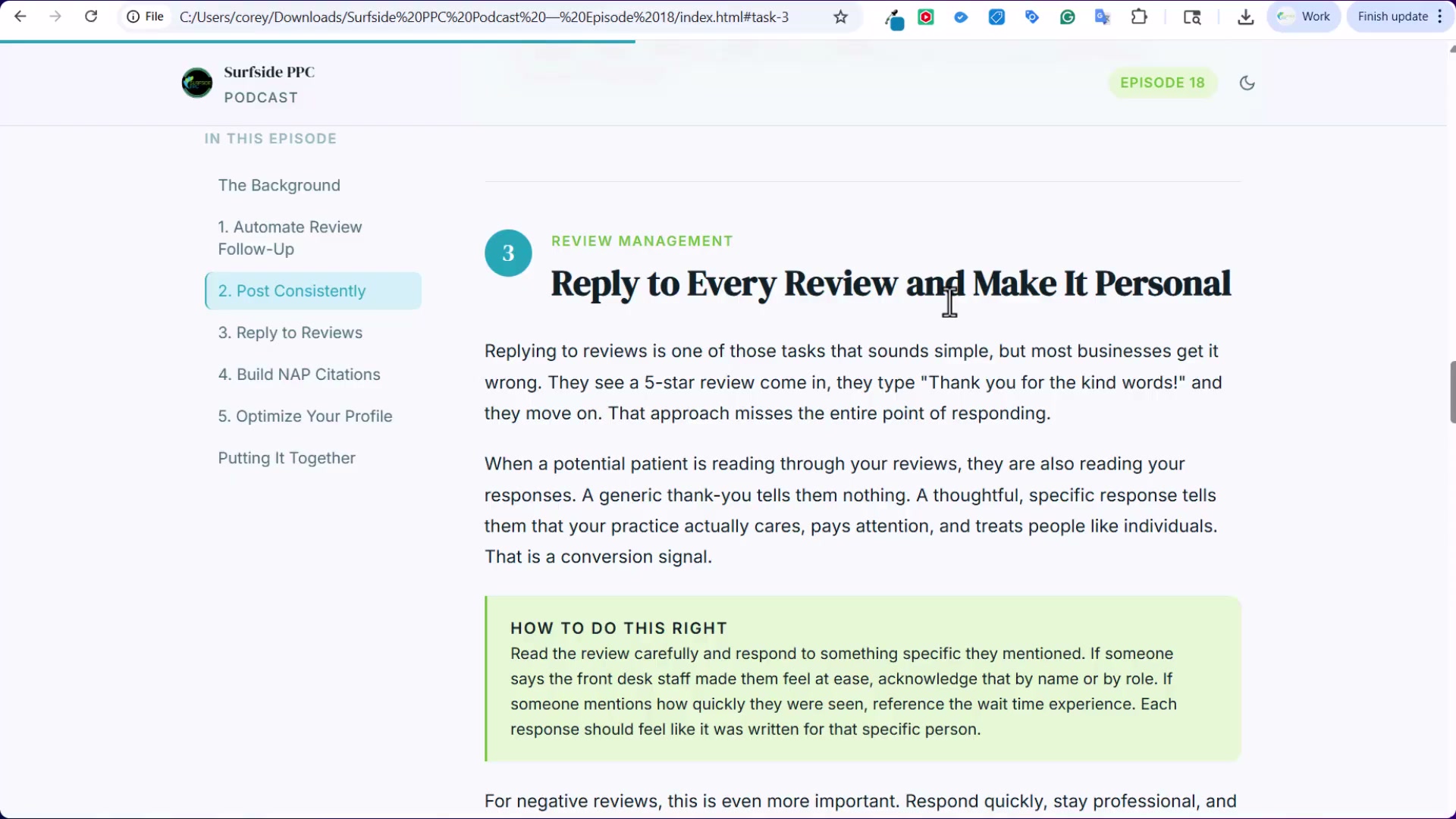
- Reply to every review, and make it personal. Read what the reviewer actually wrote and mirror their language back. If a patient mentions a specific procedure or outcome, reference it directly in the response. That’s where relevant service and location keywords appear naturally — not as stuffed phrases, but as accurate acknowledgment. Generic thank-you replies leave ranking signals on the table and read as low-effort to prospective patients who scroll reviews before booking.
-
Complete every field in the profile. Treat an incomplete GBP as an active ranking liability. Primary category, additional categories, attributes, service options, business hours, and the business description all contribute. A miscategorized or sparse profile hands the advantage to any competitor who has taken the time to fill everything in. In practice, this step precedes the others — it establishes the foundation that posting, review generation, and reply strategy build on top of.
-
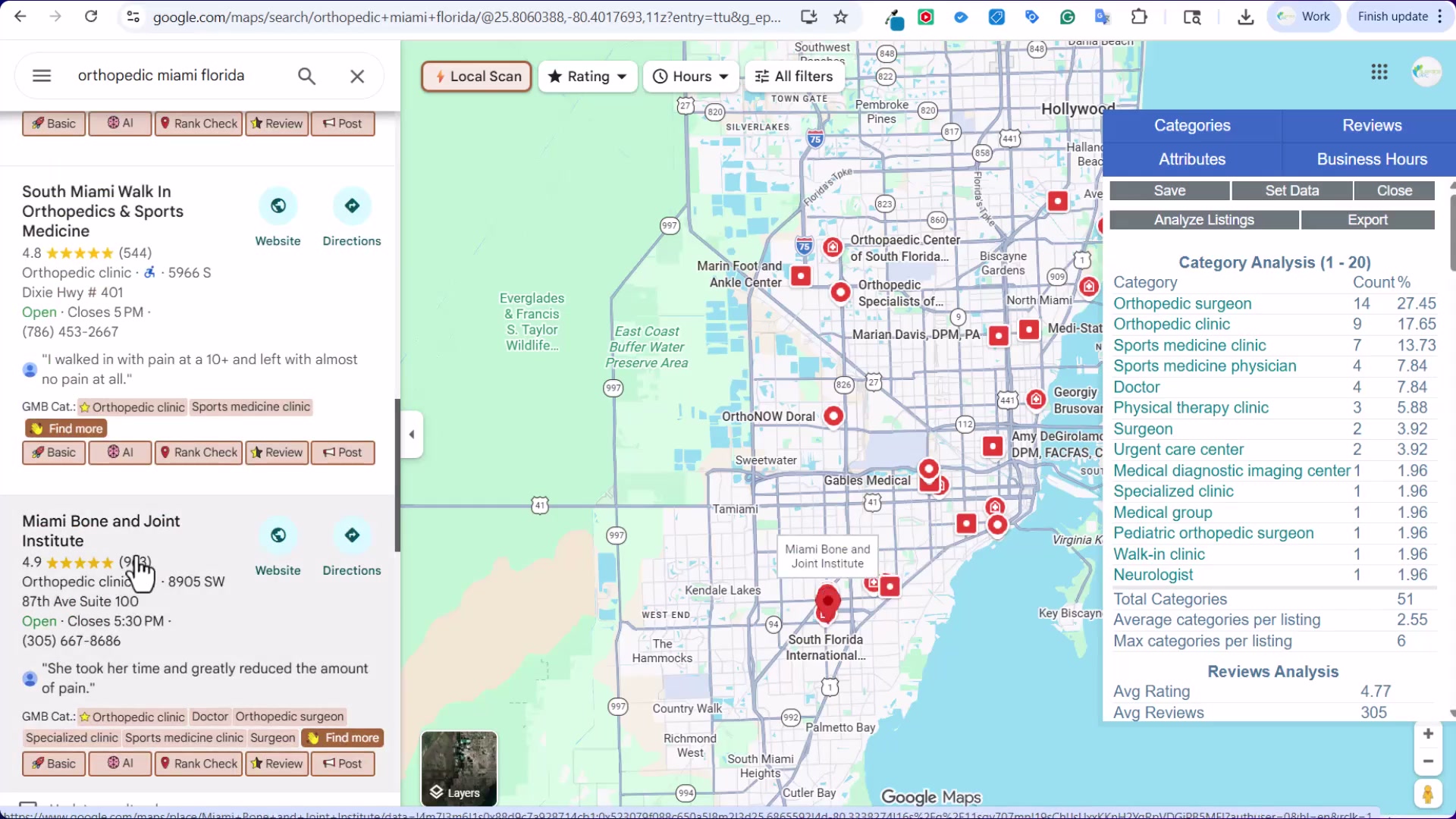
Run a GMB Everywhere local scan. Search a target keyword and location — the tutorial uses “orthopedic Miami Florida” — and open the Category Analysis panel. It surfaces which primary categories the top-ranking competitors use, how review counts are distributed across the map, average ratings, and which attributes appear most frequently in high-ranking listings. Use that data to identify the specific gaps between your client’s profile and the profiles currently outranking it.
How does this compare to the official docs?
Google’s own Business Profile documentation covers some of this ground, but it’s deliberately general — and where the official guidance gets specific on categories, posting, and review responses, the details diverge from what the video recommends in ways that are worth examining directly.
Here’s What the Official Docs Show
The five-step framework from the video holds up well against current documentation — the core logic is sound and the tools are still valid. What follows adds scope and a few details that weren’t visible in the tutorial.
Step 1: Automate review follow-up.
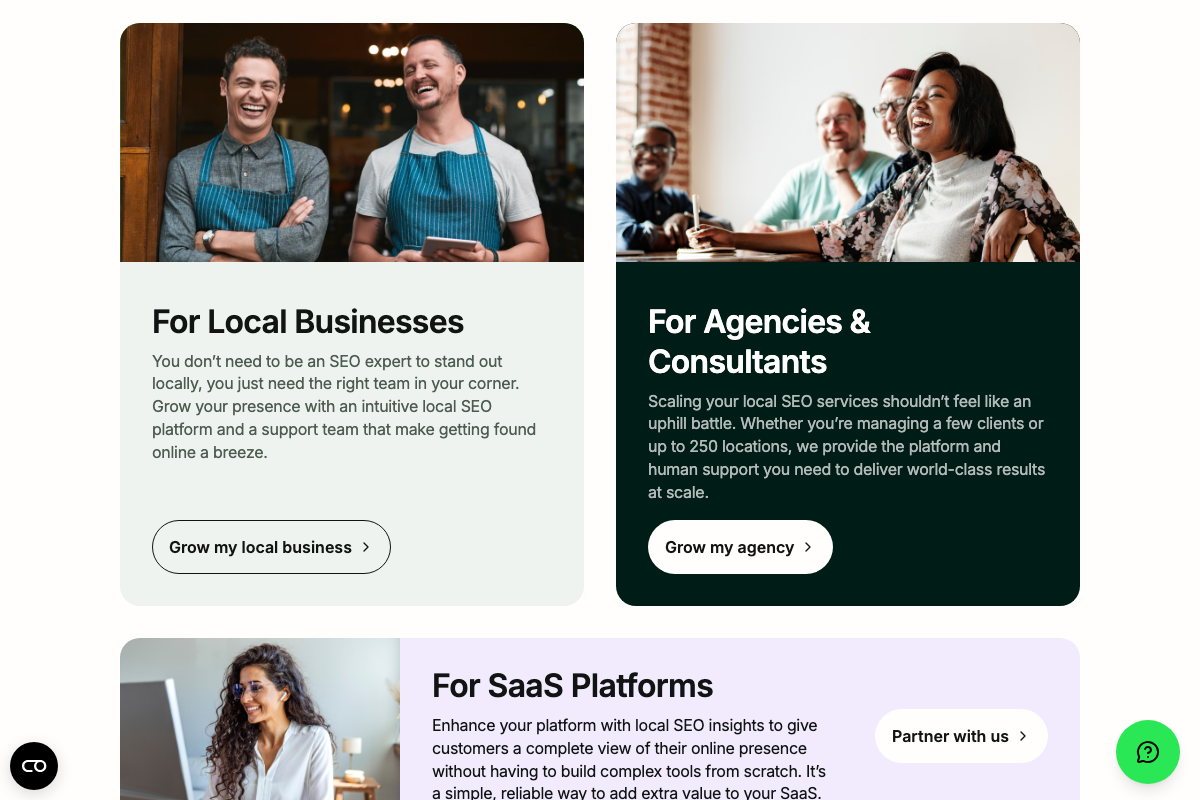
The video’s approach here matches the current docs exactly. Birdeye for Healthcare confirms EHR/PMS integration with named partners — Athena, DrChrono, and Nextech — directly validating the native-first approach. BrightLocal remains a solid fallback, and it now leads with a “New AI Insights” feature the tutorial doesn’t reference.
Two scope expansions worth knowing: Birdeye currently positions itself as the “#1 Agentic Marketing Platform for Multi-location Brands” — materially broader than a single-practice review tool — and its review response automation covers Google, Yelp, and Facebook simultaneously, not GBP only. It also connects healthcare practices to Healthgrades, Zocdoc, and WebMD for review collection, which expands Step 1’s surface area beyond what the video describes.
One flag: the tutorial specifies HIPAA-compliant automation as a requirement. EHR/PMS integration is confirmed in the docs, but HIPAA compliance language is not visible in the captured screenshots. Verify Birdeye’s compliance documentation directly before deploying it in a clinical setting.

Step 2: Post consistently to your Google Business Profile.
No official documentation was found for this step —
proceed using the video’s approach and verify independently.
Step 3: Reply to every review, and make it personal.
No official documentation was found for this step —
proceed using the video’s approach and verify independently.
Step 4: Complete every field in the profile.
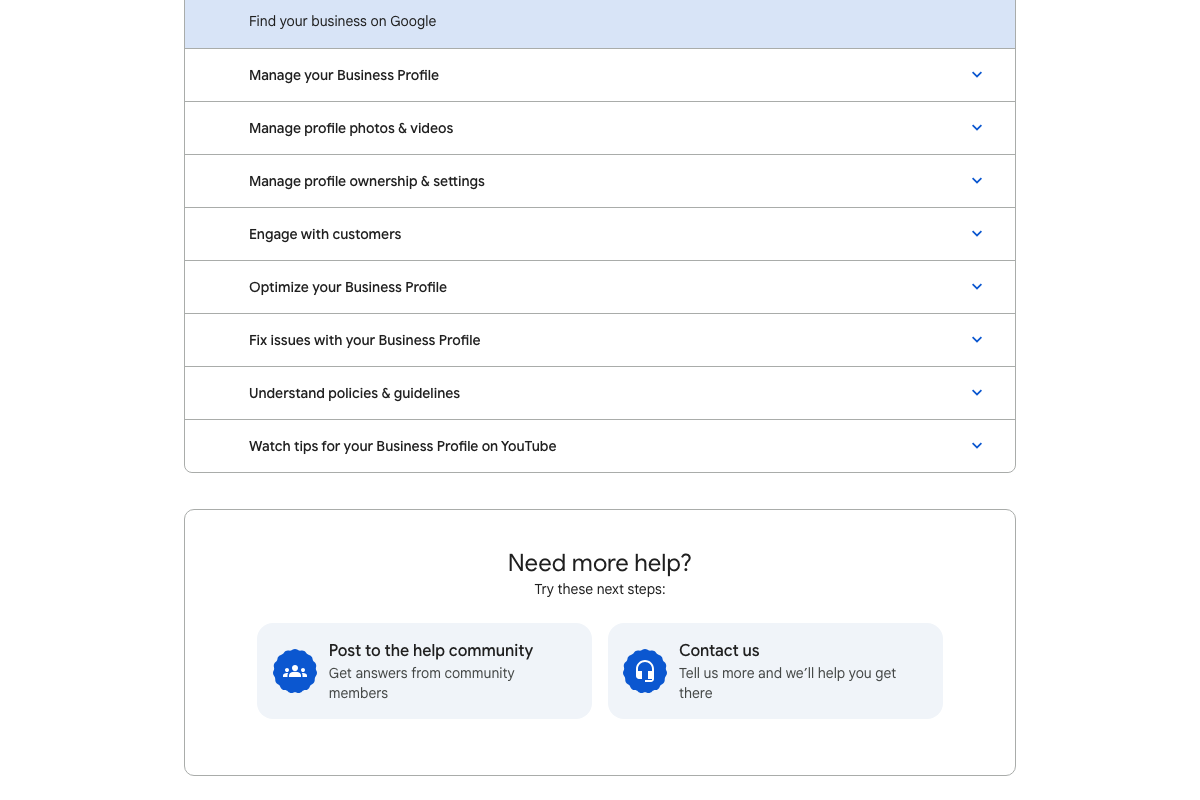
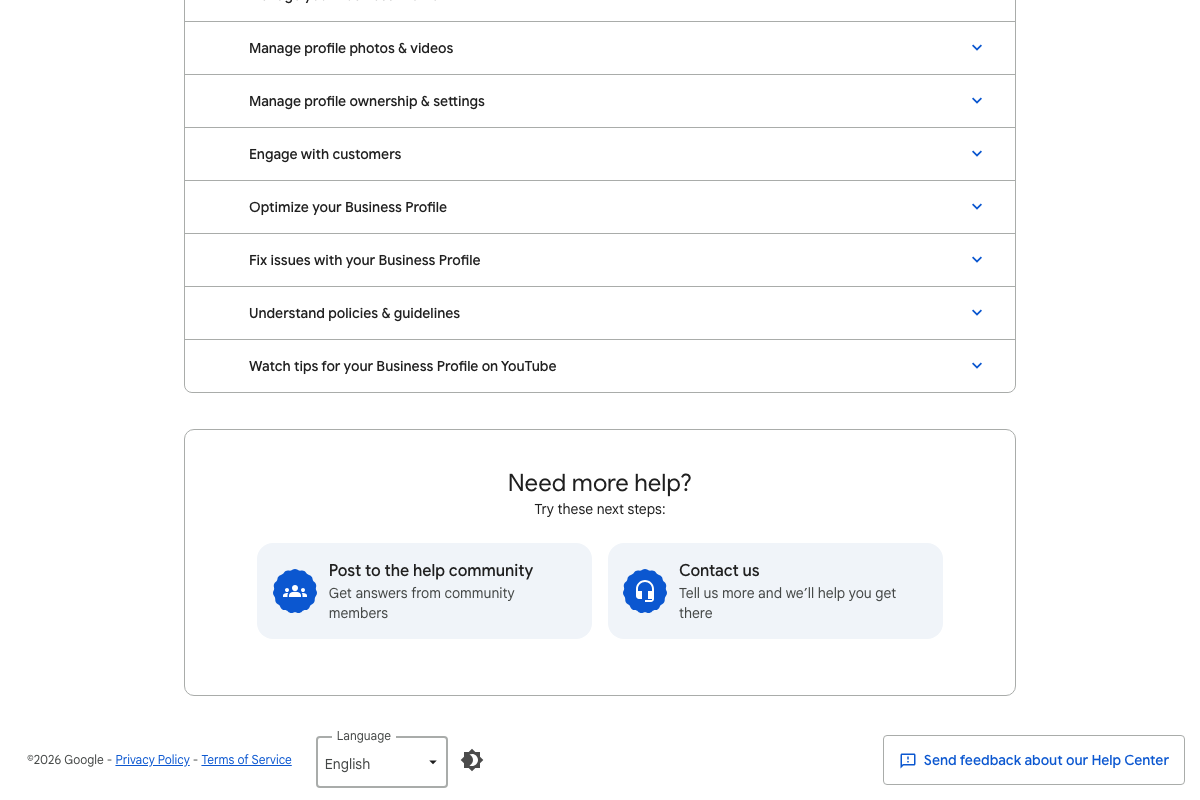
The video’s approach here matches the current docs exactly. Google’s Help Center includes a dedicated “Optimize your Business Profile” section — categories, attributes, service options, business description — aligned precisely with what the tutorial prioritizes. A 2026 copyright footer confirms the page is actively maintained.
Step 5: Run a GMB Everywhere local scan.
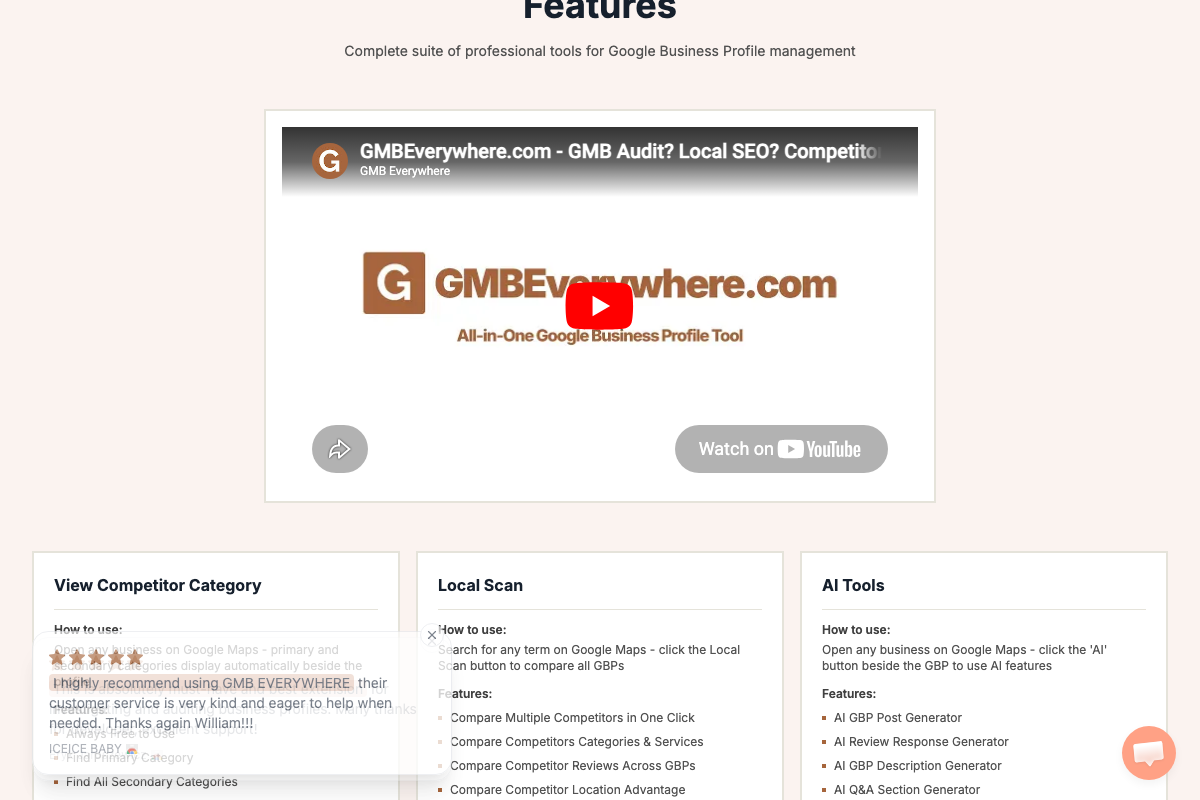
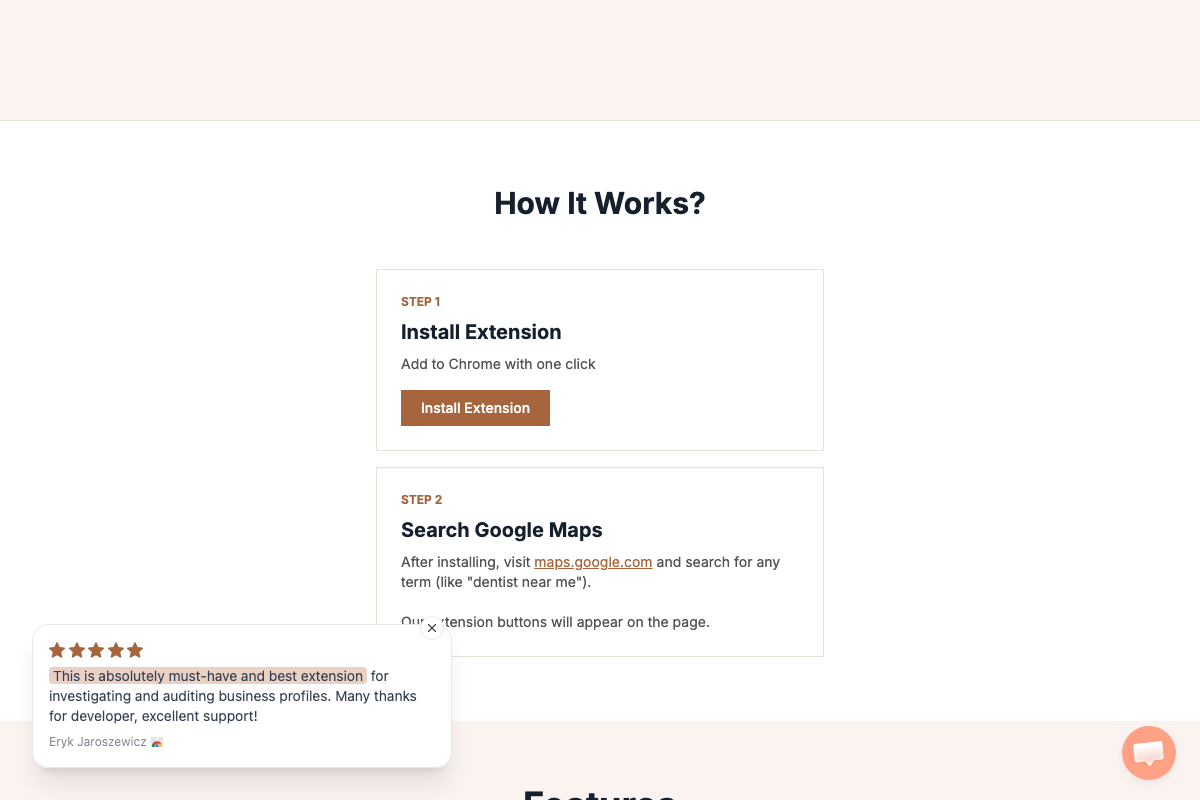
The video’s approach here matches the current docs exactly. Local Scan is confirmed to compare competitor categories, services, and reviews across GBPs — the core outputs the tutorial describes. Searching Google Maps is the documented entry point, and “orthopedic Miami Florida” is structurally identical to the tool’s own “dentist near me” example.
One nuance: the tutorial references “justifications” and “attribute data” as specific Local Scan output labels — those exact terms don’t appear in the visible feature documentation. Treat them as directional, not guaranteed panel labels. Also worth noting: GMB Everywhere includes four AI sub-tools the tutorial never mentions — AI GBP Post Generator, AI Review Response Generator, AI GBP Description Generator, and AI Q&A Section Generator. The Post Generator and Review Response Generator apply directly to Steps 2 and 3 and are worth exploring once the core workflow is running.
Useful Links
- Google Business Profile Help — Official help center for GBP setup, verification, customer engagement, and profile optimization across all features.
- BrightLocal – Local SEO Platform, Citations, Services, and APIs — Full-featured local SEO platform for businesses and agencies, now leading with AI Insights for automated local search analysis.
- GMB Everywhere – All-in-One Google Business Profile Tool — Chrome Extension for competitor category analysis, local scanning, and AI-assisted GBP content generation; free to start with a one-click install.
- #1 Agentic Marketing Platform for Multi-location Brands | Birdeye — Agentic marketing platform covering review automation across Google, Yelp, and Facebook, plus listing management and AI search visibility tools for multi-location and healthcare brands.


0 Comments