

Rank Any Local Business With a 22-Prompt Claude Stack
A 40-person SEO agency has distilled its entire local ranking playbook into 22 Claude prompts — and made them free. After completing this walkthrough, you’ll know how to load a persistent business context into a Claude Project, run a Google Business Profile category gap audit against map-pack competitors, and produce a polished PDF intelligence report without opening a single Chrome extension. The same workflow the agency uses on active client accounts is available to any solo operator willing to invest 20 minutes of setup.
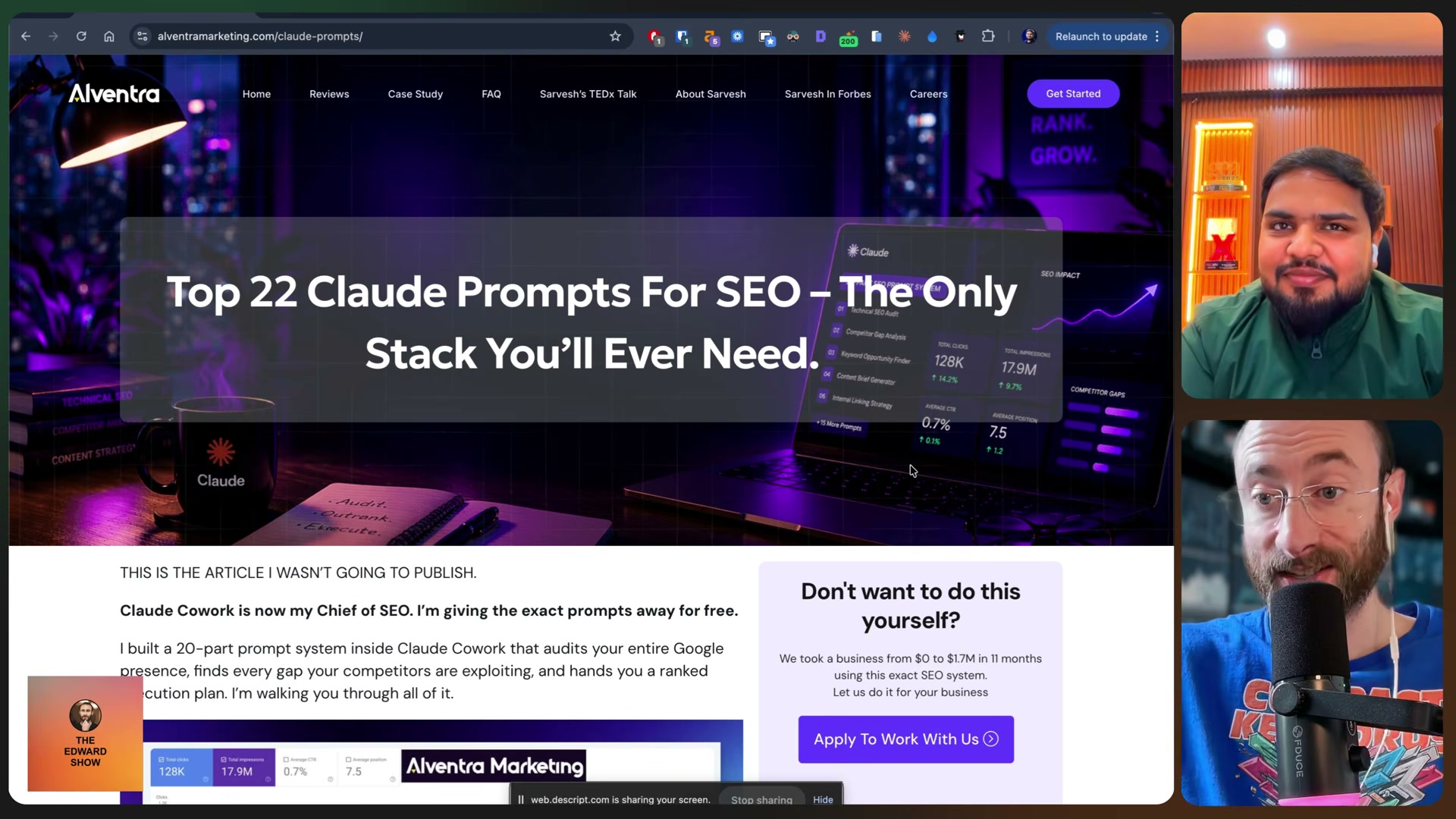
-
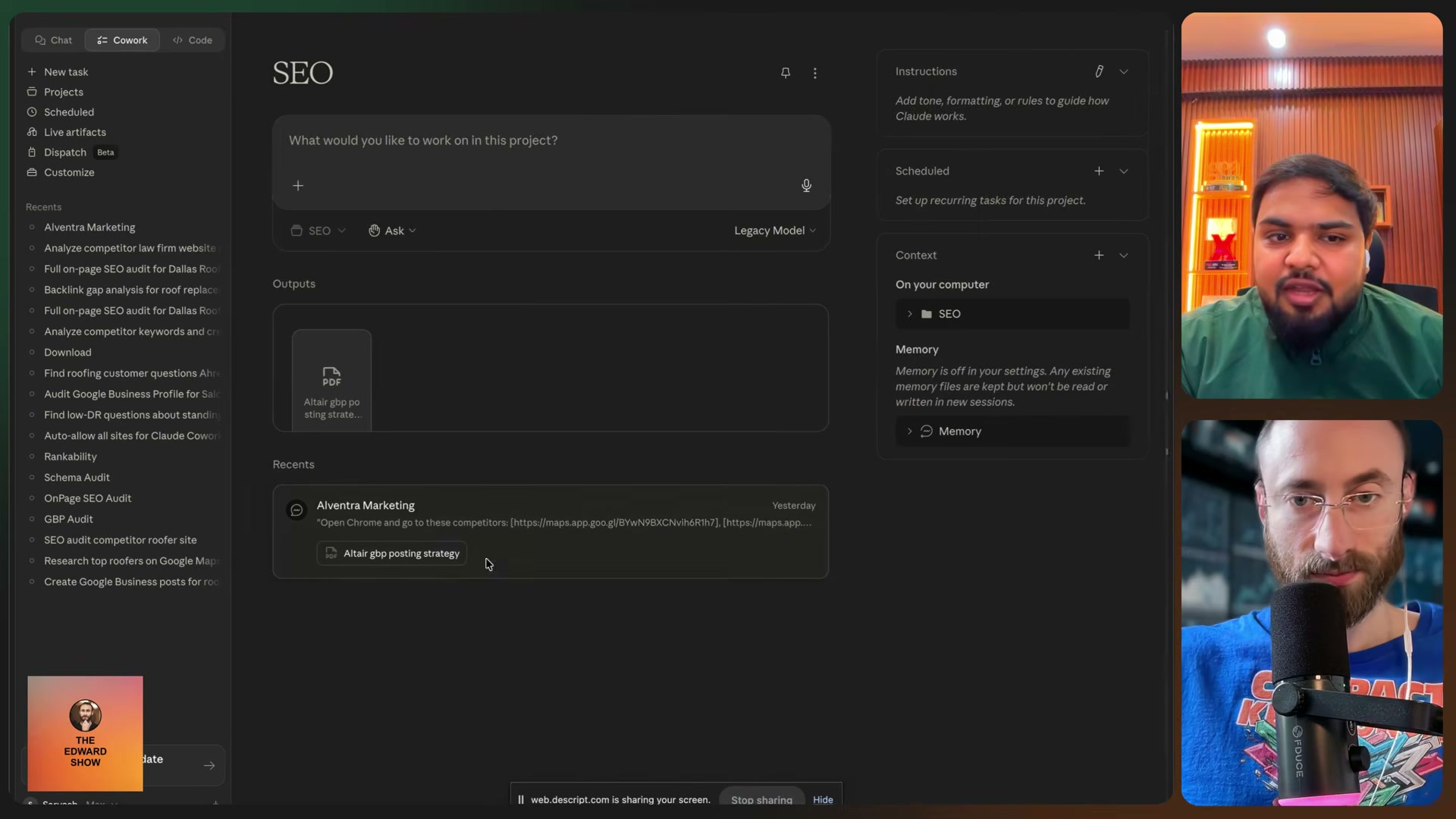
Open Claude and navigate to Projects. Create a new project dedicated to this business — every prompt in the 22-prompt stack runs inside it, and all subsequent chats automatically inherit whatever context the project already holds.
-
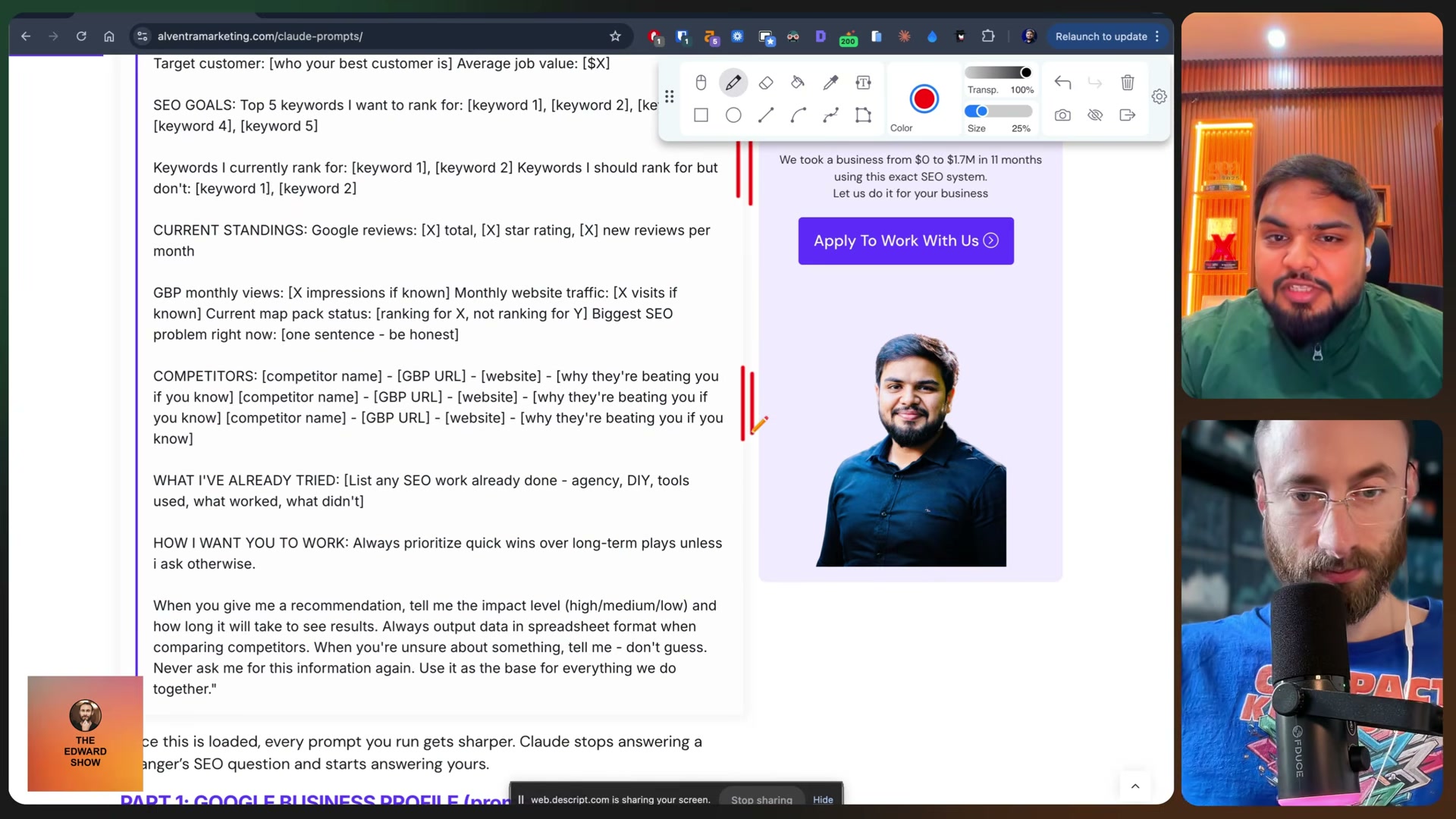
Fill out the master context prompt (Prompt 0) with the following fields: business name, address, Google Business Profile URL, website, years in business, team size, primary service, secondary services, target locations, target keywords, up to three competitor GBP URLs, competitor websites, and your best hypotheses about why those competitors currently outrank you. Budget 15–20 minutes here; the quality of every downstream prompt depends entirely on the completeness of this step.
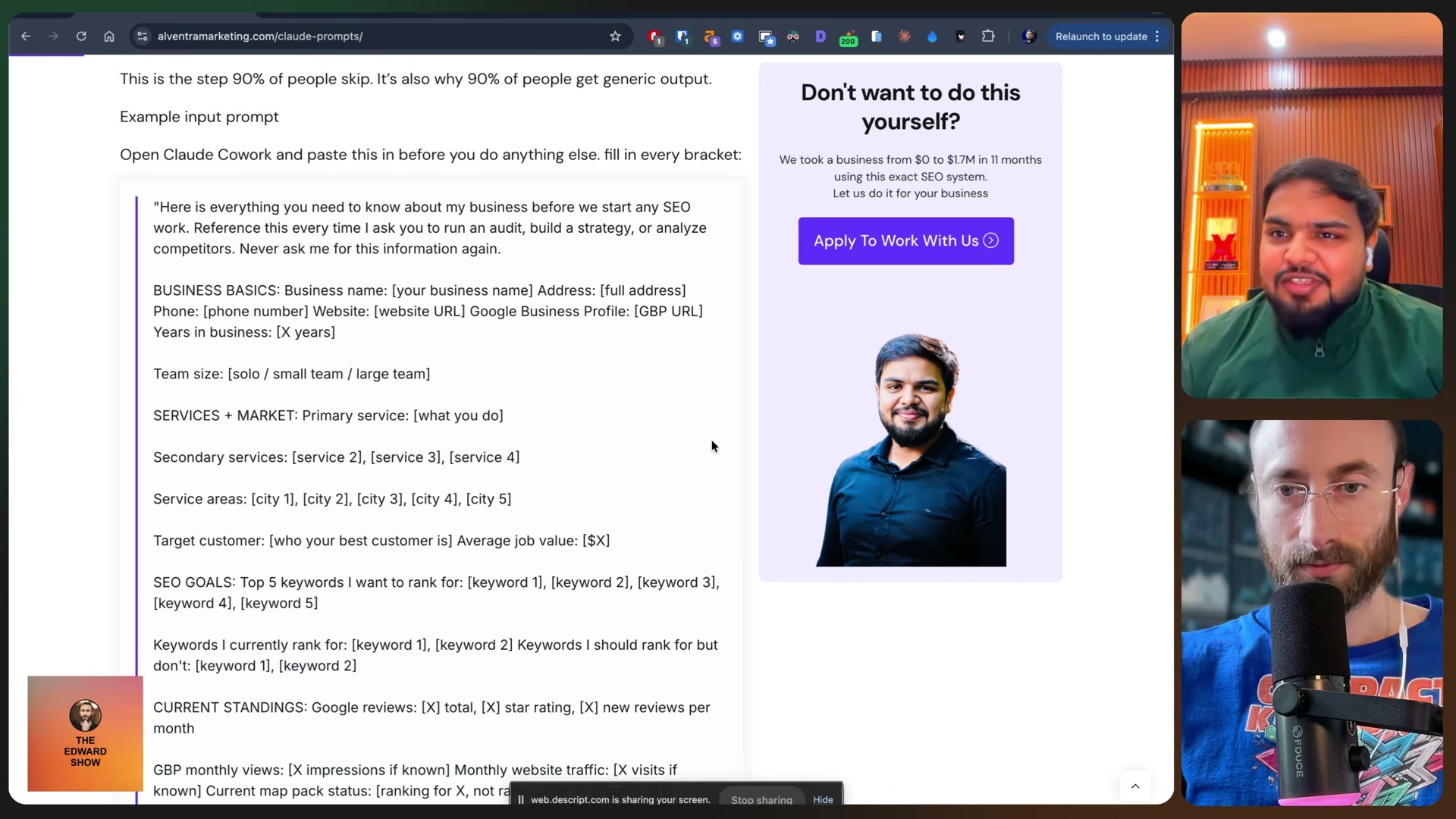
- Paste the completed brain prompt as the first chat message in the project. All subsequent chats inherit this context, so Claude already knows your business, your competitors, and your target keywords before any audit prompt runs.
- Run the GBP category audit prompt. Open Chrome, search your target keyword plus city in Google Maps, and identify which businesses appear in the map pack. The prompt instructs Claude to extract each competitor’s primary and secondary GBP categories, compare them against your own listing, and output the full gap analysis as both a spreadsheet and a branded PDF report.
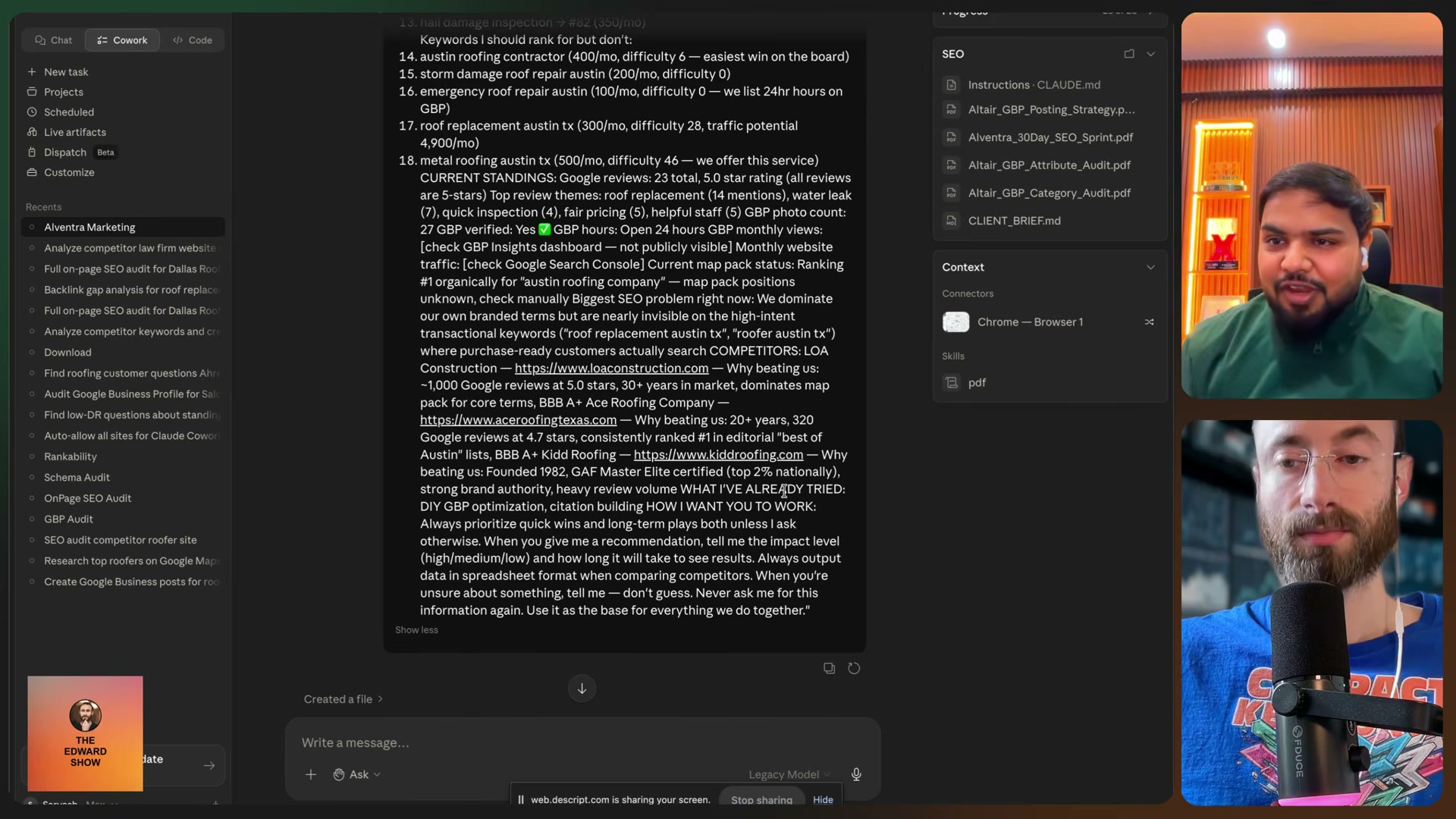
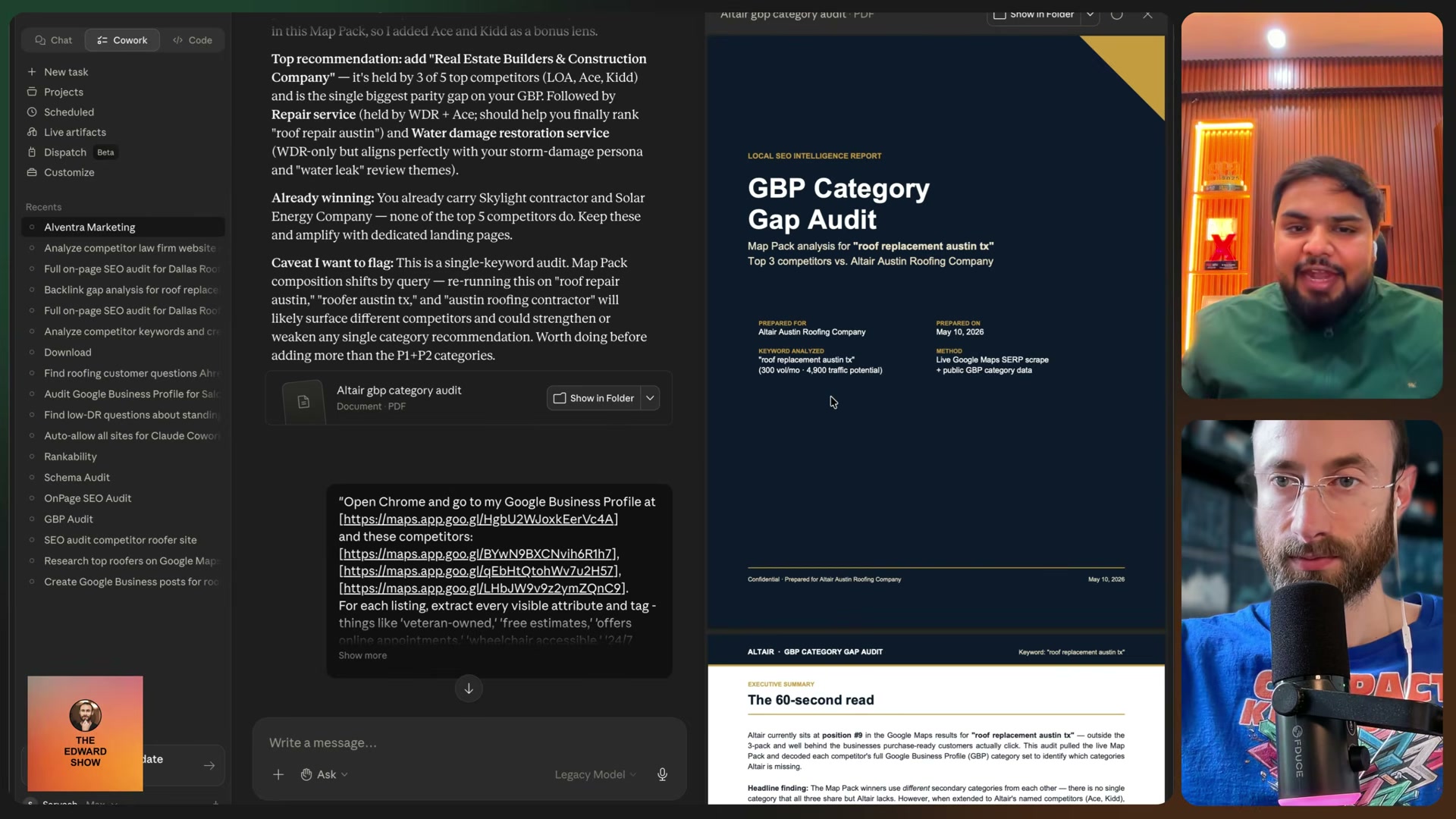
-
Run the GBP attributes audit prompt. Paste each competitor’s GBP “About” section URL into the prompt. Claude extracts every visible attribute and tag from each listing, compares the full set against your own, and surfaces specific gaps to close.
-
Review every AI recommendation before acting. Claude may surface a category like “Real Estate Builder and Construction Company” because three of five competitors use it — but whether that label accurately describes your business is a call only you can make. Treat the output as a research brief, not a task list.
-
To skip manual edits, grant Claude Code access to your logged-in Google Business Profile account so it can apply approved changes directly.
Warning: this step may differ from current official documentation — see the verified version below.
How does this compare to the official docs?
Google’s GBP category guidelines and Claude’s own documentation each carry constraints around automated account access and permissible category selection that the video doesn’t address — Act 2 maps every step against those sources so you know exactly where this workflow holds up and where it needs a guardrail before you run it on a live account.
Here’s What the Official Docs Show
The walkthrough above gives you the full workflow as the creator built it — this section adds what the official documentation confirms, clarifies, and flags as unverified so you can run the stack on a live account without surprises. Nothing here replaces the video’s approach; it just tells you where the guardrails are.
Step 1 — Access Claude Code
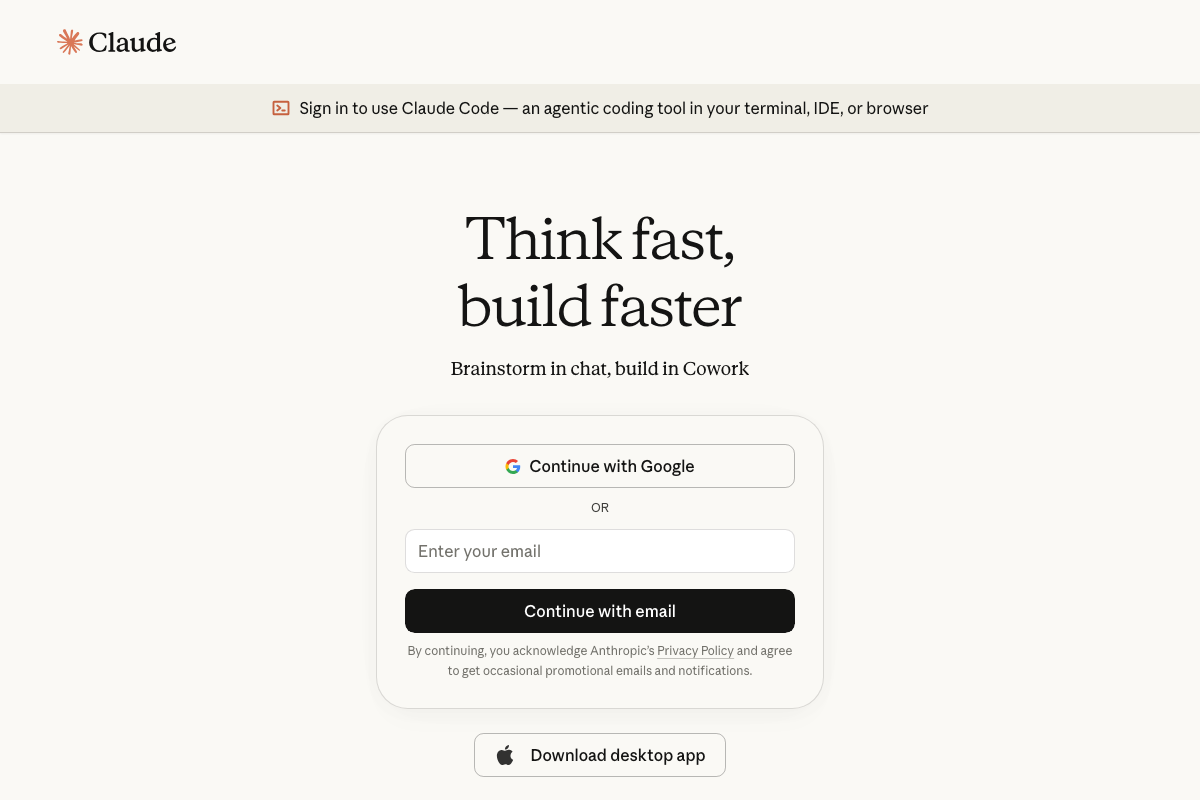
Claude Code is real, it lives at claude.ai/code, and sign-in works exactly as the video implies via Google account or email.
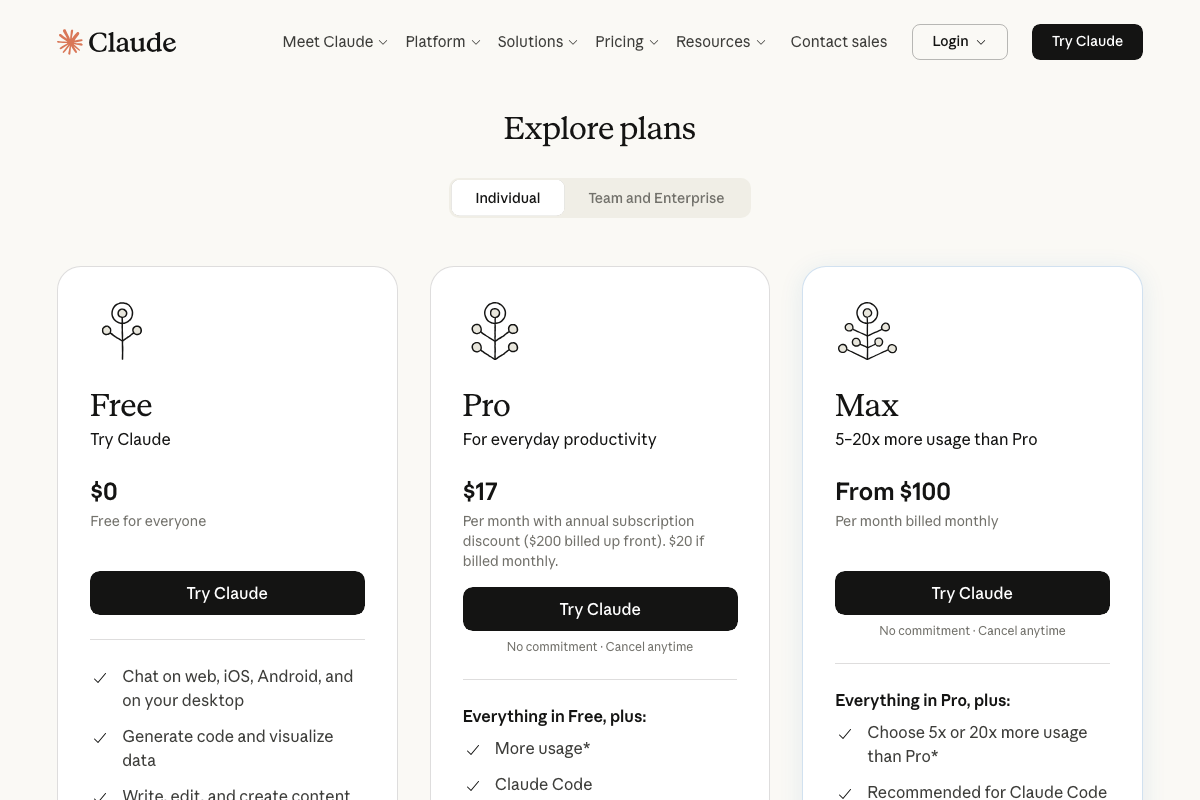
One gap the video skips: Claude Code is not available on the Free plan. The pricing page confirms that Pro ($20/month billed monthly) is the minimum required tier. If you plan to run a 22-prompt stack regularly, the Max plan (from $100/month) is explicitly labeled “Recommended for Claude Code” and offers 5–20× more usage than Pro — worth knowing before you hit a usage wall mid-audit.
Note also that Claude.ai includes a separate feature called “Cowork” for everyday tasks. It is distinct from Claude Code — do not conflate the two when setting up your project environment.
Step 2 — Build the master context (brain) prompt
No official documentation was found for this step — proceed using the video’s approach and verify independently.
Step 3 — Paste the brain prompt as the first project chat message
No official documentation was found for this step — proceed using the video’s approach and verify independently.
Step 4 — Run the GBP category audit in Chrome
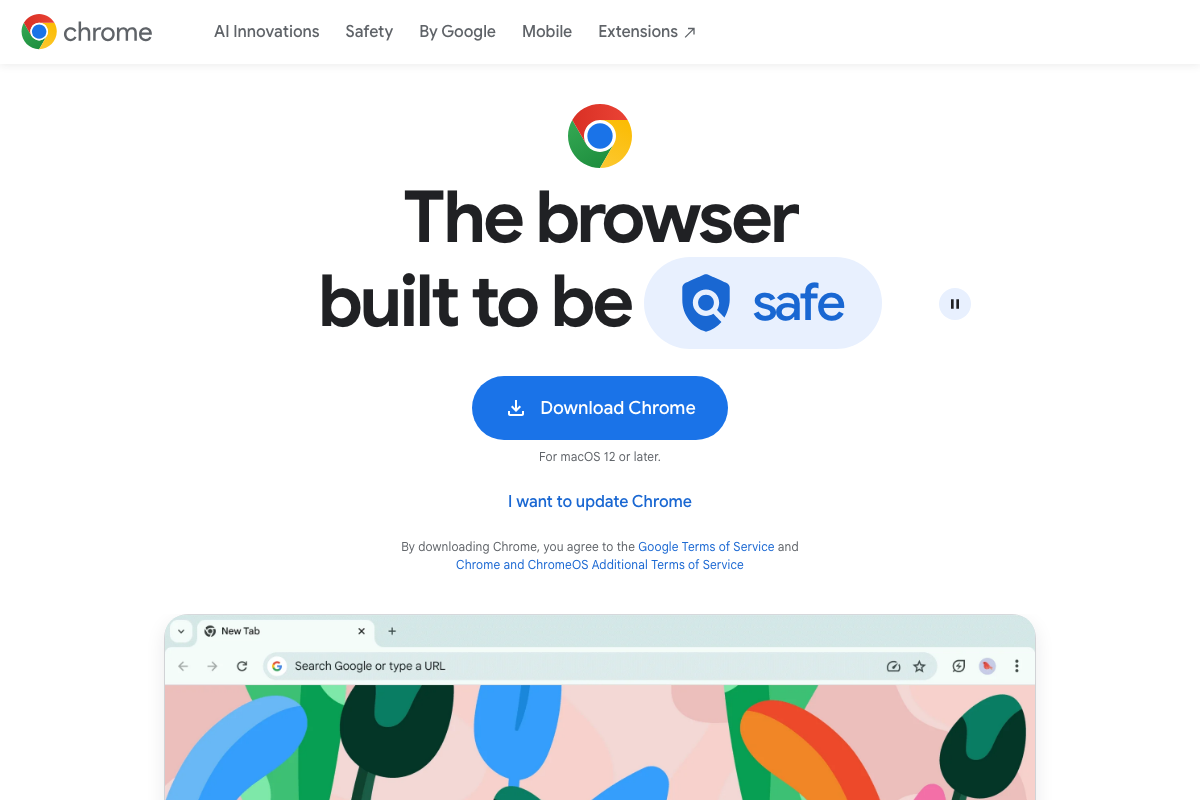
The video’s approach here matches the current docs exactly. Google Business Profile’s “Optimize your Business Profile” is an official, active help topic confirming that category research and gap analysis are Google-supported activities. Chrome remains the correct tool; the current release requires macOS 12 or later.
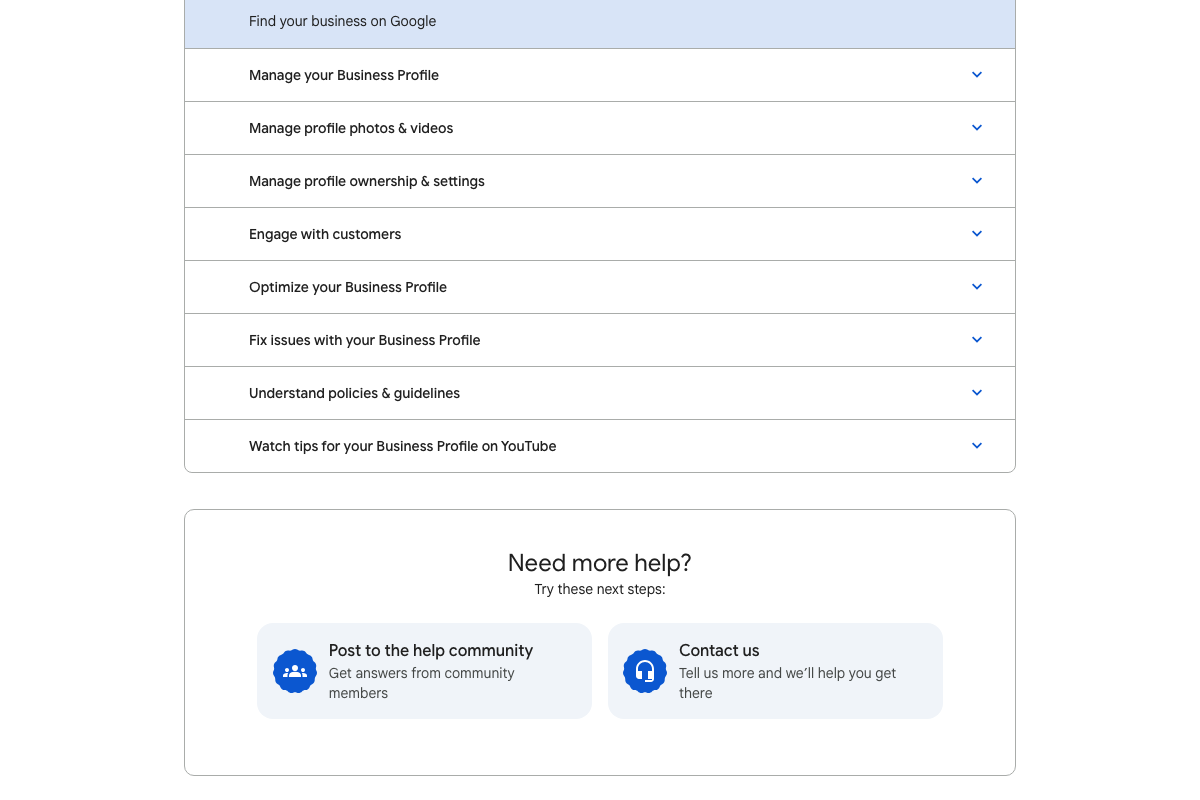
One addition the video omits: the GBP Help Center surfaces an “Understand policies & guidelines” topic that applies directly to the categories Claude surfaces in this step. Google enforces category eligibility rules — selecting an ineligible category because a competitor uses it can trigger a profile violation. Review that policy page before applying any category recommendation.
Step 5 — Run the GBP attributes audit
The video’s approach here matches the current docs exactly. “Optimize your Business Profile” covers attributes and tags as official, managed profile data.
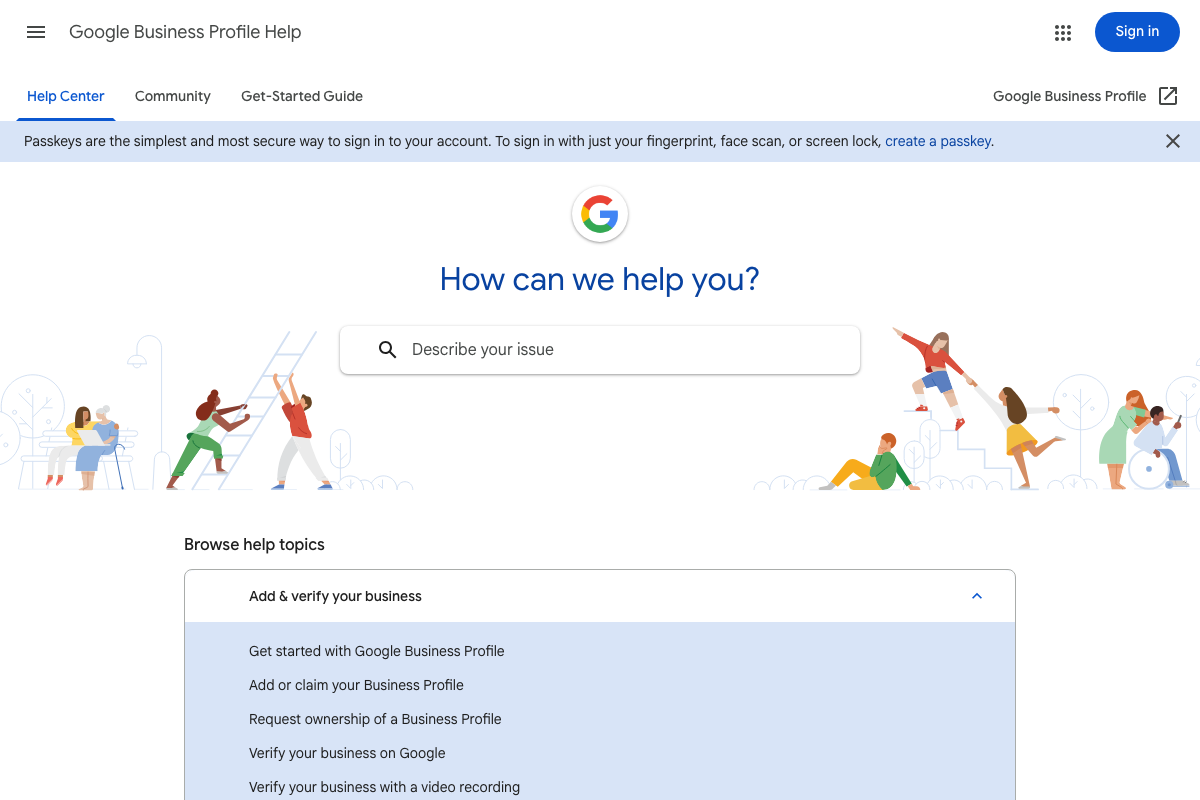
One prerequisite the tutorial skips: if you or your client does not yet have a verified GBP, the Help Center’s “Add or claim your Business Profile” and “Verify your business on Google” flows must be completed first or the audit prompts will have nothing to act on.
Step 6 — Review recommendations before applying
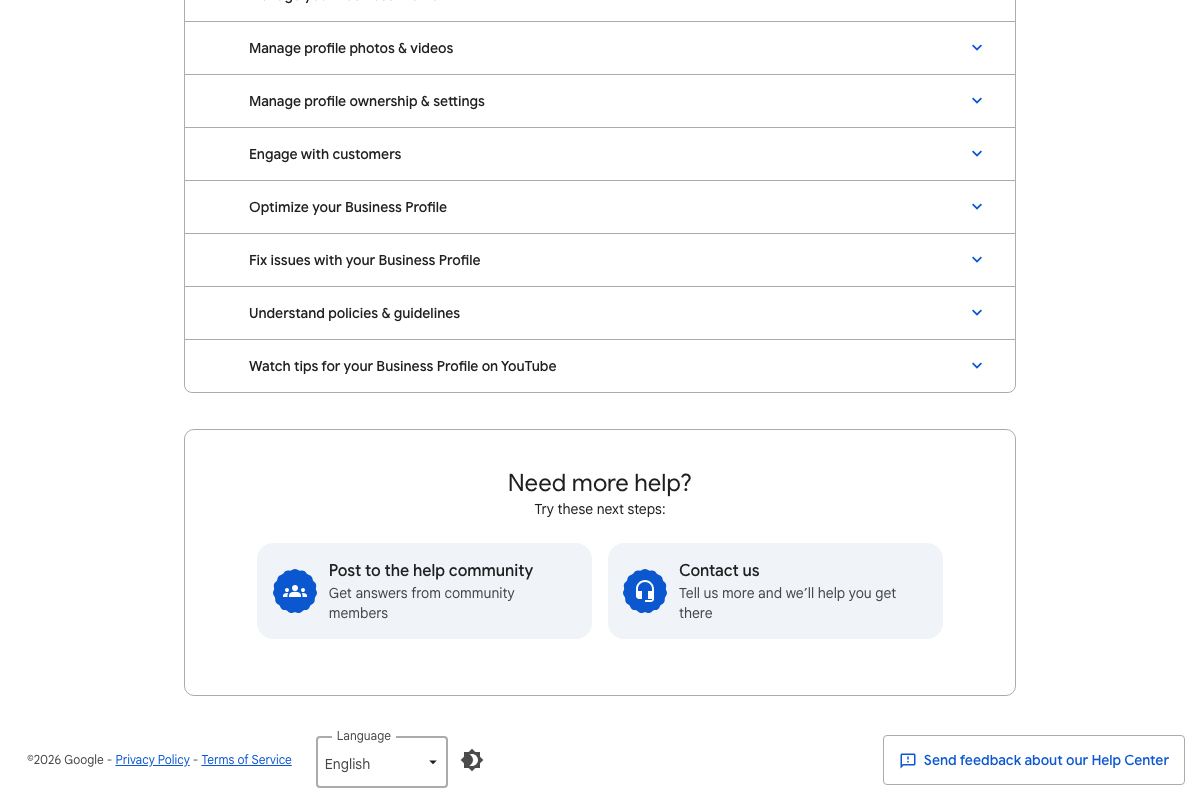
The video’s approach here matches the current docs exactly. “Manage your Business Profile” is a distinct official GBP topic, and the Help Center’s “Fix issues with your Business Profile” section exists precisely for situations where an applied change triggers a verification request or suspension flag — confirming that human review before acting is not optional caution, it’s Google’s own expectation.
Step 7 — Grant Claude Code direct GBP account access
No official documentation was found for this step — proceed using the video’s approach and verify independently.
Useful Links
- Sign in – Claude — Official Claude Code access point; confirms sign-in options, product positioning as an agentic coding tool, and desktop app availability.
- Google Business Profile Help — Official GBP Help Center covering optimization, category and attribute management, policies and guidelines, and issue resolution.
- Google Chrome – The Fast & Secure Web Browser Built to be Yours — Chrome download page confirming current system requirements (macOS 12 or later) relevant to step 4.


0 Comments