

Build a Kanban Board with Claude Code’s Ultra Plan Mode
Ultra Plan pushes Claude Code’s planning phase into the cloud, replacing a lengthy terminal session with a browser-based review UI that generates a structured architecture in roughly 30 seconds. After completing this tutorial, you’ll know how to invoke Ultra Plan, annotate the generated plan in the browser, and approve it back to your terminal — and you’ll have a concrete head-to-head benchmark against local plan mode on a real React kanban board build to calibrate your expectations.
-
Update Claude Code to the latest version. Ultra Plan shipped as part of a recent release, and older CLI versions won’t recognize the invocation command.
-
Create a GitHub repository for your project and push at least one commit before starting — a bare README is sufficient. Ultra Plan requires an existing remote repo; this is a hard prerequisite, not an optional step.
-
Open a terminal, navigate to your project directory, and start a Claude Code session.
- Write your full project prompt before invoking Ultra Plan. The video’s prompt specifies a greenfield kanban board with 14 explicit requirements: Kanban columns, card fields, priority filters, drag-and-drop, animations, dark mode, localStorage persistence, and a React/Tailwind stack. Specificity at this stage directly shapes the quality of the generated plan.
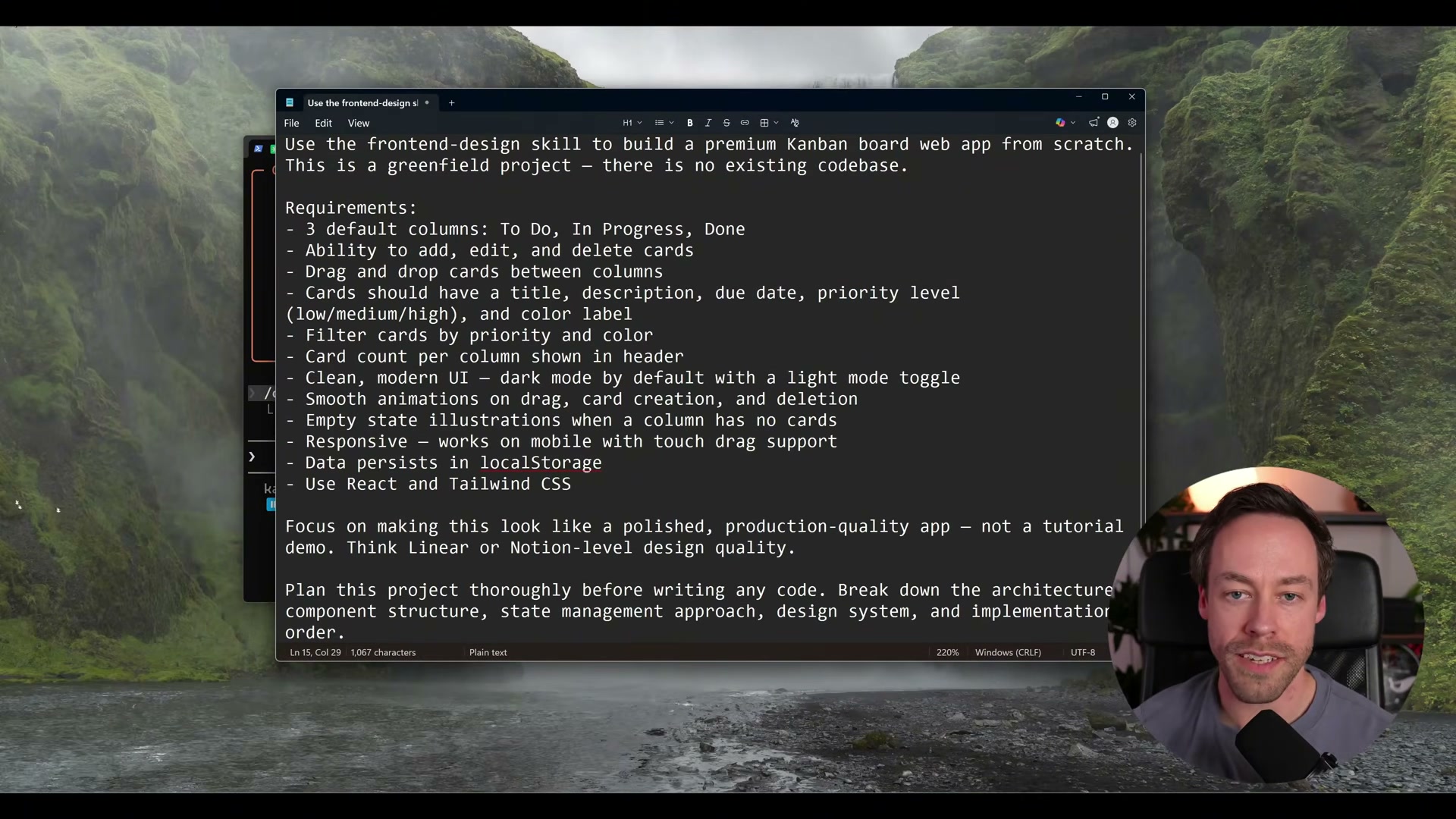
- Append
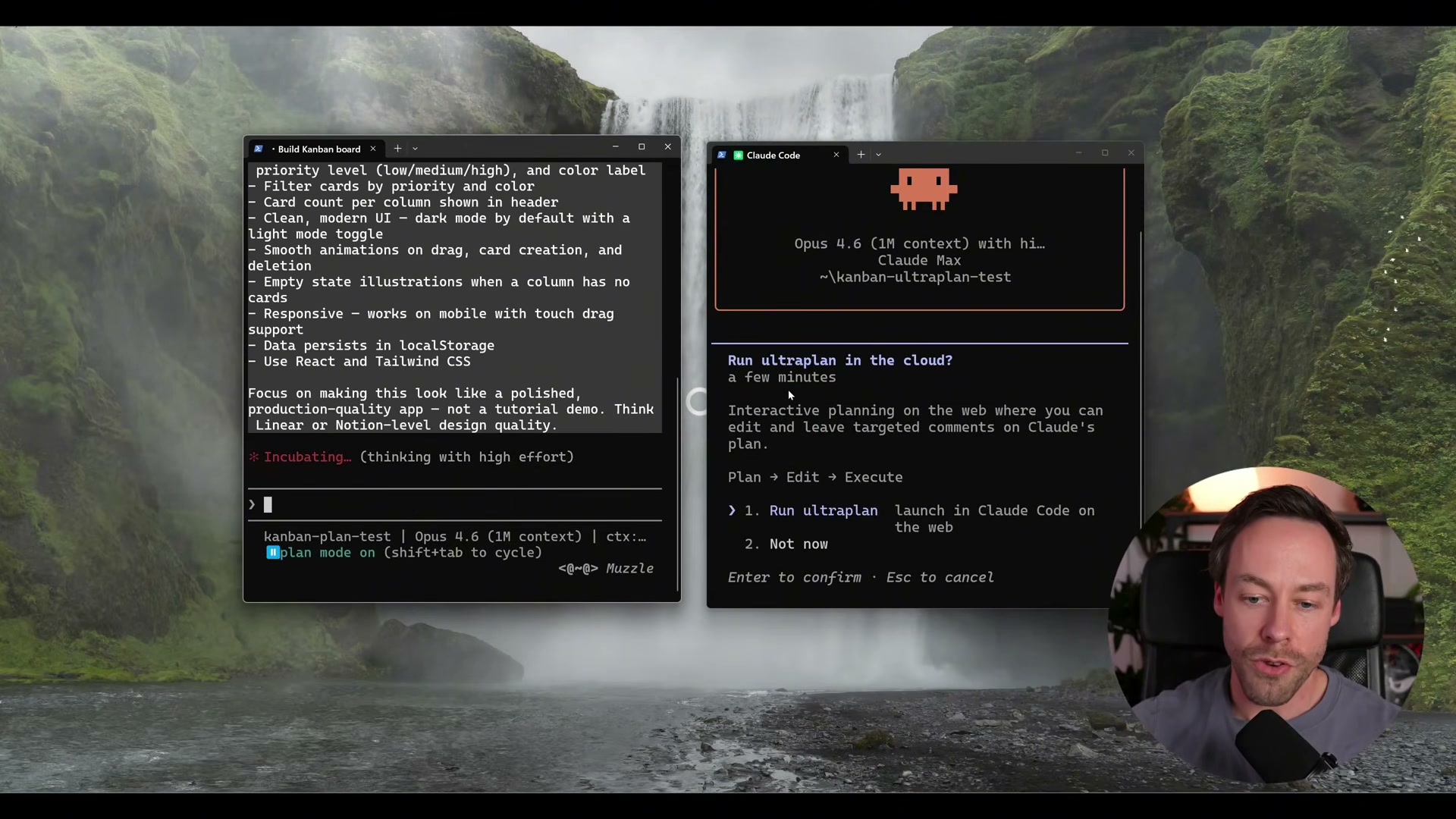
ultra planor/ultraplanto your prompt to invoke Ultra Plan mode. Claude Code will display a rainbow-gradient indicator and present a confirmation dialog asking whether you want to run the plan in the cloud.
-
Confirm the dialog and follow the link Claude Code generates. This opens the plan review interface at
claude.ai/code. The plan itself — architecture overview, a Mermaid component diagram, and a full dependency list — appears in approximately 30 seconds. -
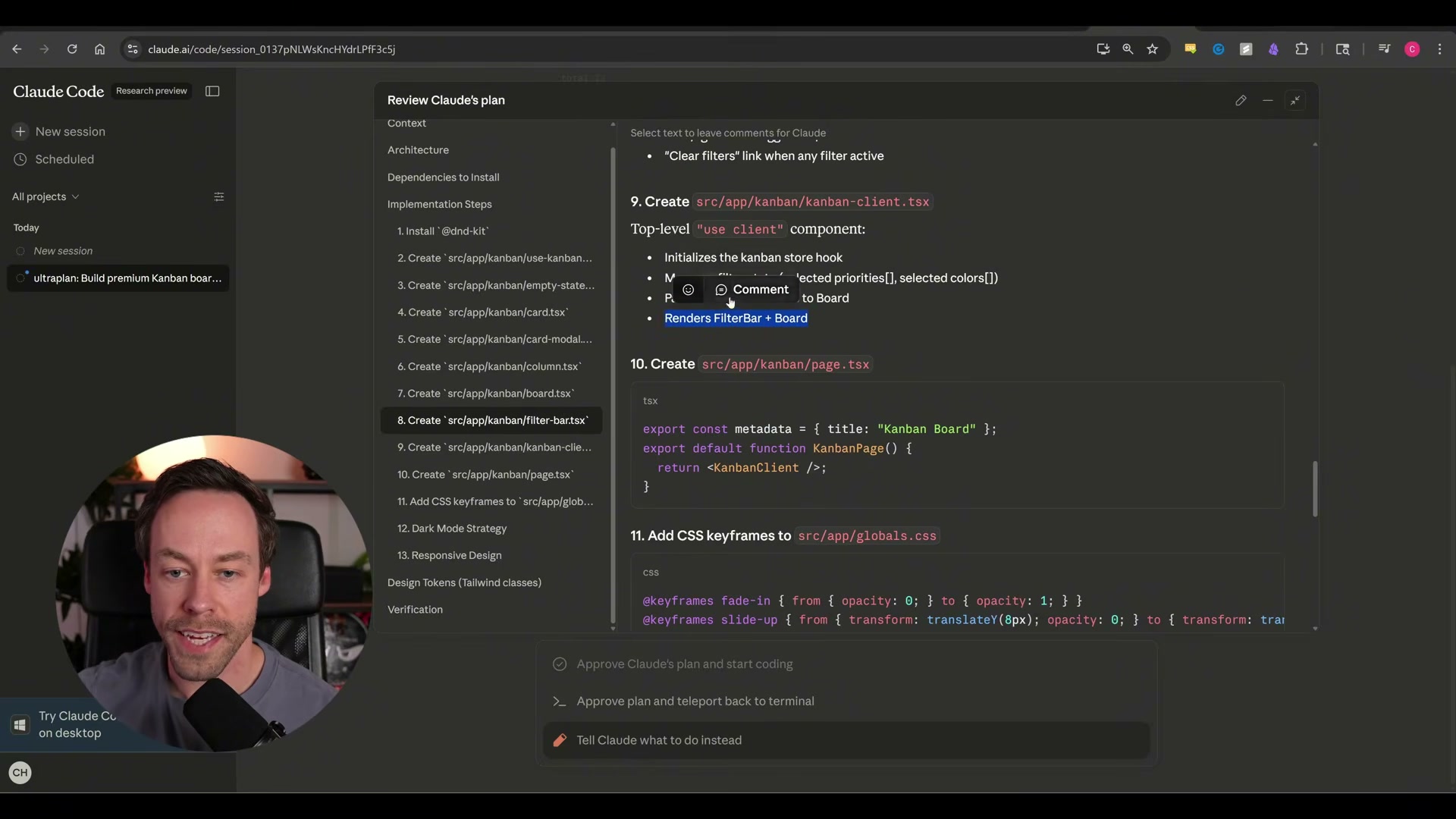
Read through the generated plan in the browser. Ultra Plan produces a numbered implementation sequence with file-level detail, a sidebar outline for navigation, and embedded code snippets for key components.
-
Highlight any section of the plan text to attach an inline comment or emoji reaction. This lets you flag specific steps for revision without rewriting your entire prompt — a meaningful improvement over the terminal-only workflow where all feedback is conversational.
-
Click Approve Plan once you’re satisfied with the architecture. The approved plan transmits back to your terminal session.
-
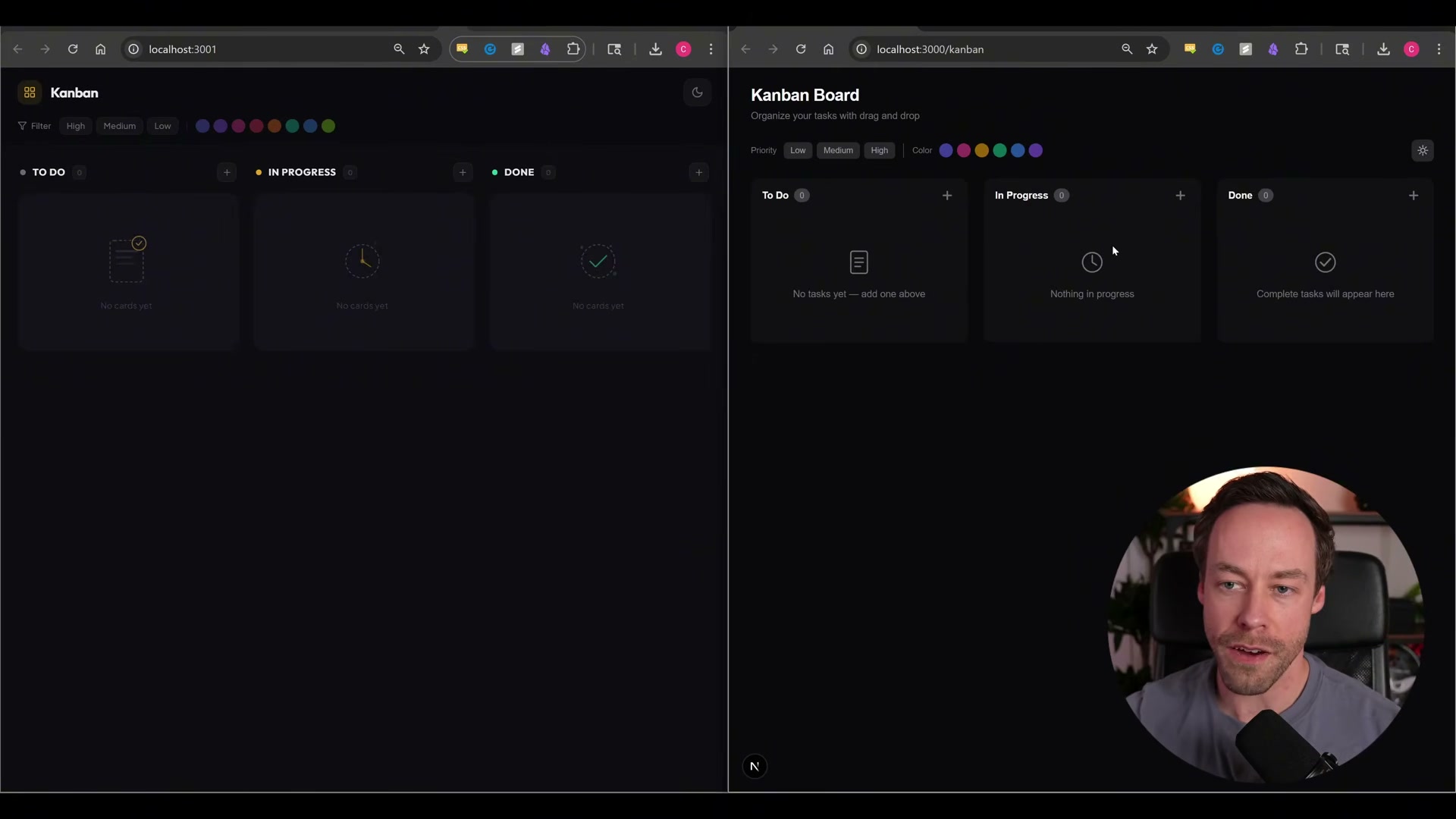
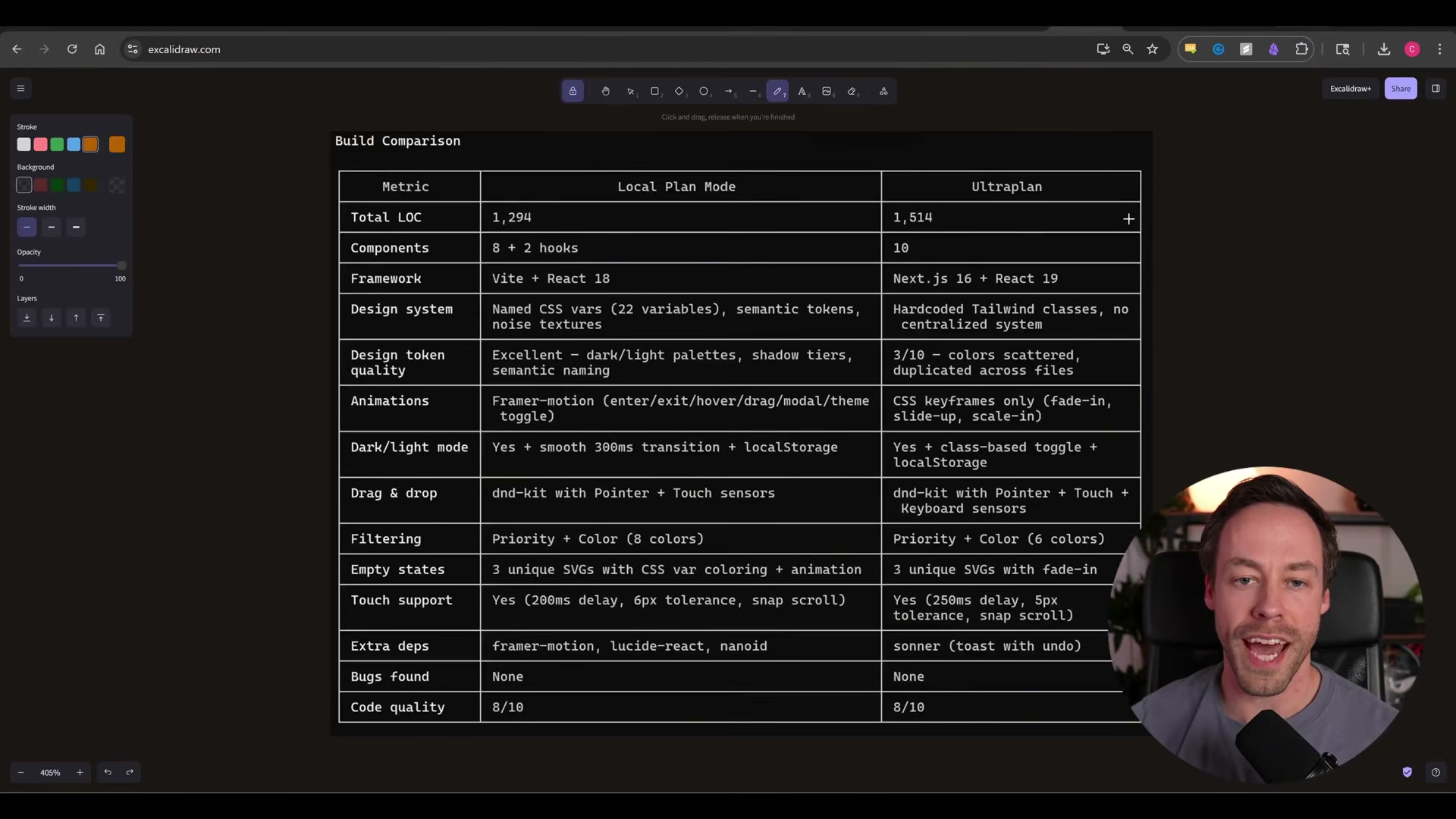
Execute the approved plan from the terminal to begin the build. In the video, Ultra Plan produces a Next.js 16 + dnd-kit implementation at 1,614 lines of code; the parallel local plan mode build lands at 1,294 lines using Vite + React + framer-motion. Both builds reach functional parity on drag-and-drop, filtering, dark/light mode toggle, and empty states.
Warning: this step may differ from current official documentation — see the verified version below.

How does this compare to the official docs?
The video surfaces real behavioral gaps — particularly around skill invocation and what “additional cloud resources” actually means — that Anthropic’s documentation leaves largely unaddressed, and the official docs tell a more precise story about what Ultra Plan can and can’t guarantee.
Here’s What the Official Docs Show
The video covers a genuinely useful workflow comparison, and Act 1 gives you a solid mental model of what Ultra Plan mode looks like in practice. What the docs add — and what you should know before running this yourself — are some important clarifications about naming, URLs, and which parts of the workflow currently have no official documentation backing them.
Step 1 — Update Claude Code to the latest version
No official documentation was found for this step —
proceed using the video’s approach and verify independently.
Step 2 — Create a GitHub repository
The video’s approach here matches the current docs exactly. GitHub is the correct platform for creating the remote repository required before starting. One note worth adding: GitHub’s own product UI includes a “Plan” tab in its main navigation — that refers to GitHub Projects (native issue tracking and project boards), not Claude Code’s Ultra Plan mode. The names collide, but the features are unrelated.

Step 3 — Open a terminal and start a Claude Code session
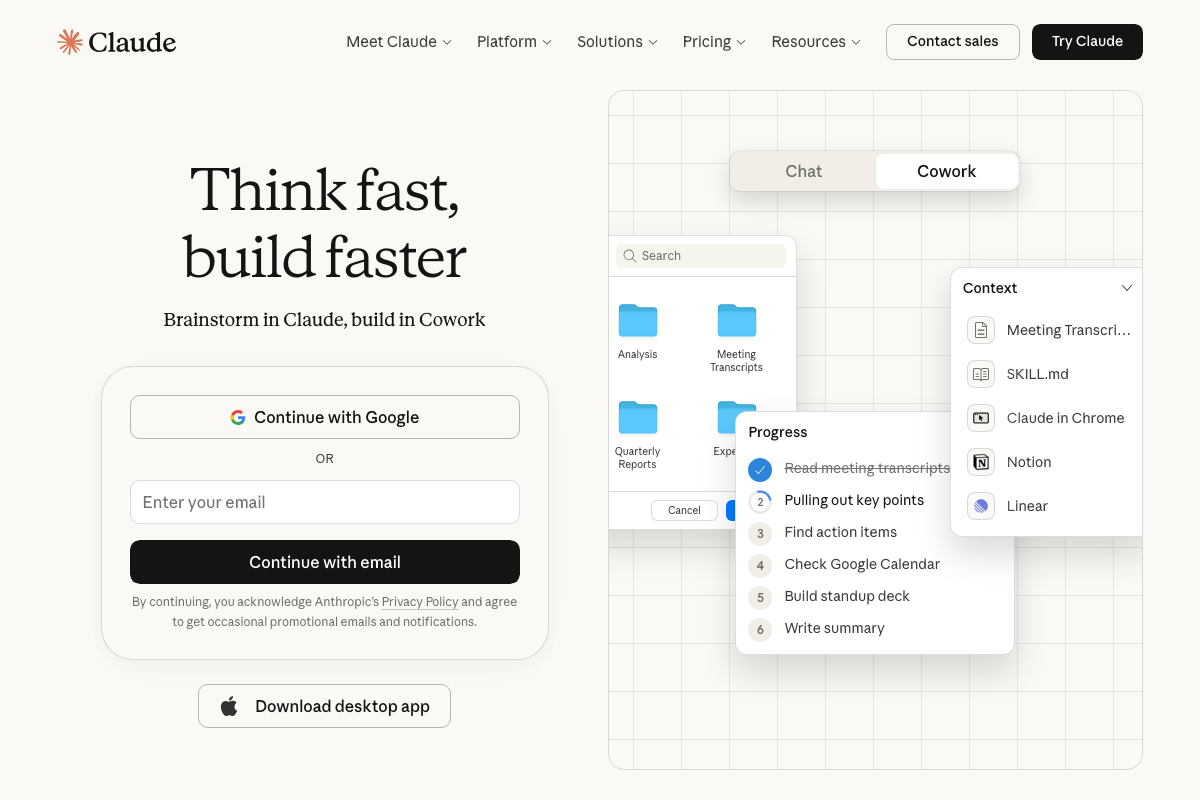
As of April 6, 2026, the URL claude.ai/code resolves to the claude.ai web application sign-in page — it offers “Chat” and “Cowork” modes and a desktop app download. This is a distinct product from the Claude Code CLI described in the tutorial. If you’re looking for Claude Code installation documentation, navigate directly to docs.anthropic.com/en/docs/claude-code rather than claude.ai/code.
Step 4 — Write your full project prompt
No official documentation was found for this step —
proceed using the video’s approach and verify independently.
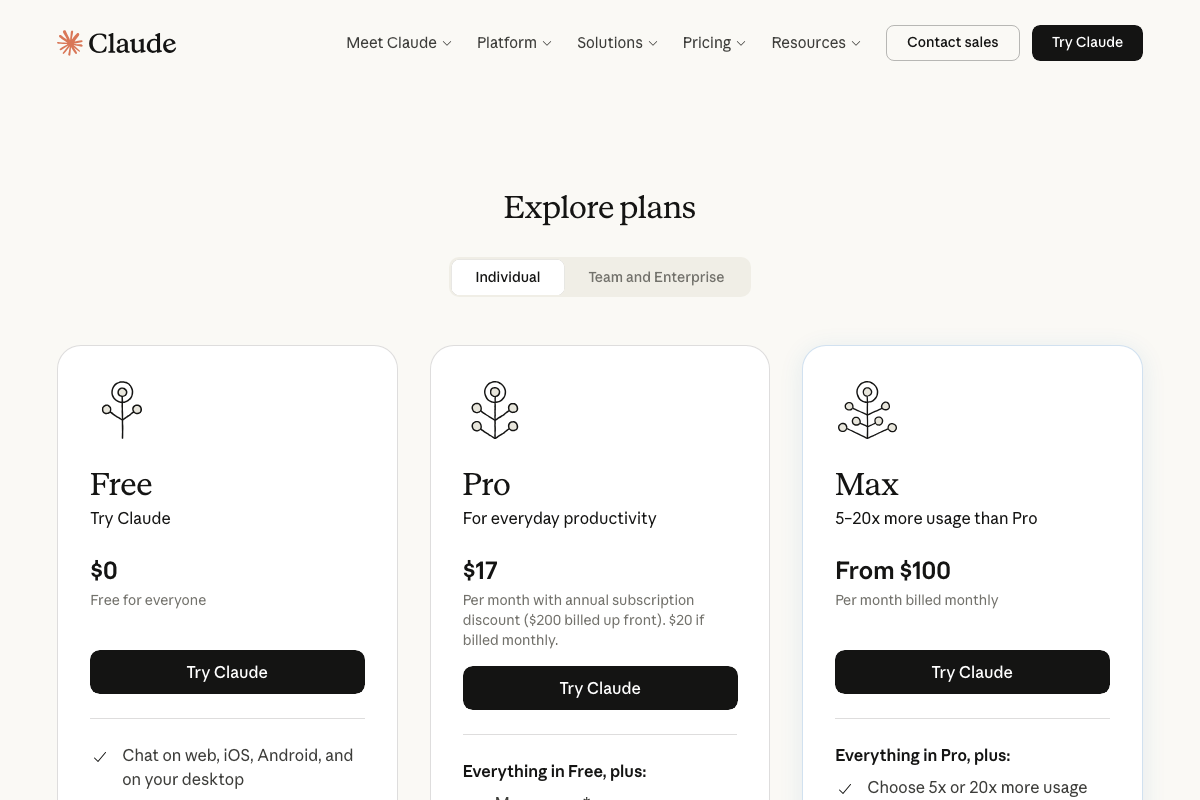
One clarification before Steps 5–9: “Ultra Plan” is a feature mode, not a subscription tier. The video’s framing can read as though “Ultra Plan” is a paid plan level. The official claude.ai pricing page shows three tiers — Free, Pro ($17/mo annual), and Max (from $100/mo). There is no subscription tier named “Ultra.” Ultra Plan refers to a feature mode within Claude Code, likely requiring a Max subscription, but the docs do not confirm the exact tier requirement.
Steps 5–9 — Invoke Ultra Plan, review in browser, annotate, and approve
As of April 6, 2026, the official documentation URL for this feature — docs.anthropic.com/en/docs/claude-code/plan-mode — returns a 404 Page Not Found. The feature name “ultraplan” is acknowledged on the 404 error page itself as a suggested navigation link (“Plan in the cloud with ultraplan”), which confirms the feature exists in Anthropic’s documentation architecture — but the page is not yet publicly accessible.
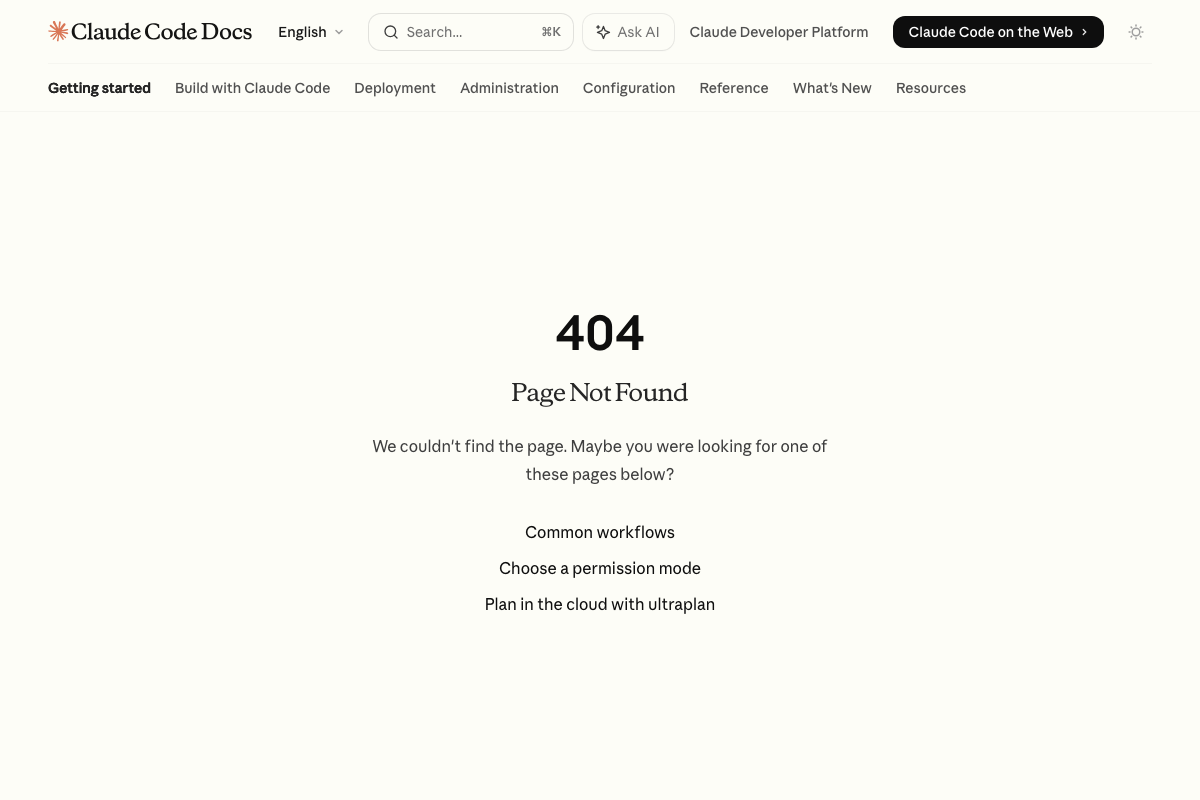
This means the invocation commands (ultra plan or /ultraplan), the browser review UI behavior, the inline annotation flow, and the approval handshake described in Steps 5 through 9 cannot be verified against official documentation. The video’s account may be accurate — the 404 is likely a documentation lag behind a recently shipped feature — but treat those steps as unconfirmed until the docs page goes live.
No official documentation was found for Steps 5, 6, 8, or 9 —
proceed using the video’s approach and verify independently.
Step 7 — Read the generated plan, including Mermaid diagrams
Mermaid is confirmed as a real, actively maintained open-source diagramming library currently at version 11.14.0. The project has migrated its primary home from mermaid.js.org to mermaid.ai. That the Ultra Plan output includes a Mermaid diagram is plausible — Claude Code generates structured text, and Mermaid renders from text syntax. However, the specific output format (numbered steps, sidebar navigation, embedded code snippets) described in the video is unverified by any official Claude Code documentation.

Step 10 — Execute the approved plan
No official documentation was found for this step —
proceed using the video’s approach and verify independently.
Useful Links
- Claude Code — The claude.ai web application login page; note this is the web app, not the Claude Code CLI documentation hub.
- Claude Code Plan Mode Docs — Currently returns a 404; check this URL for updated Ultra Plan / ultraplan documentation as Anthropic publishes it.
- GitHub — Platform for creating the remote repository required in Step 2 before starting an Ultra Plan session.
- Mermaid | Diagramming and charting tool — Text-based diagramming library (v11.14.0) referenced in Step 7’s plan output; primary home has migrated to mermaid.ai.
- About Mermaid — Project background and contributor information for the open-source Mermaid library.
- Browse Fonts – Google Fonts — Font library used for the kanban board’s UI layer; not part of the Ultra Plan workflow itself.


0 Comments