

Seven Levels of Claude Code Design: From Generic Output to Website-Grade UI
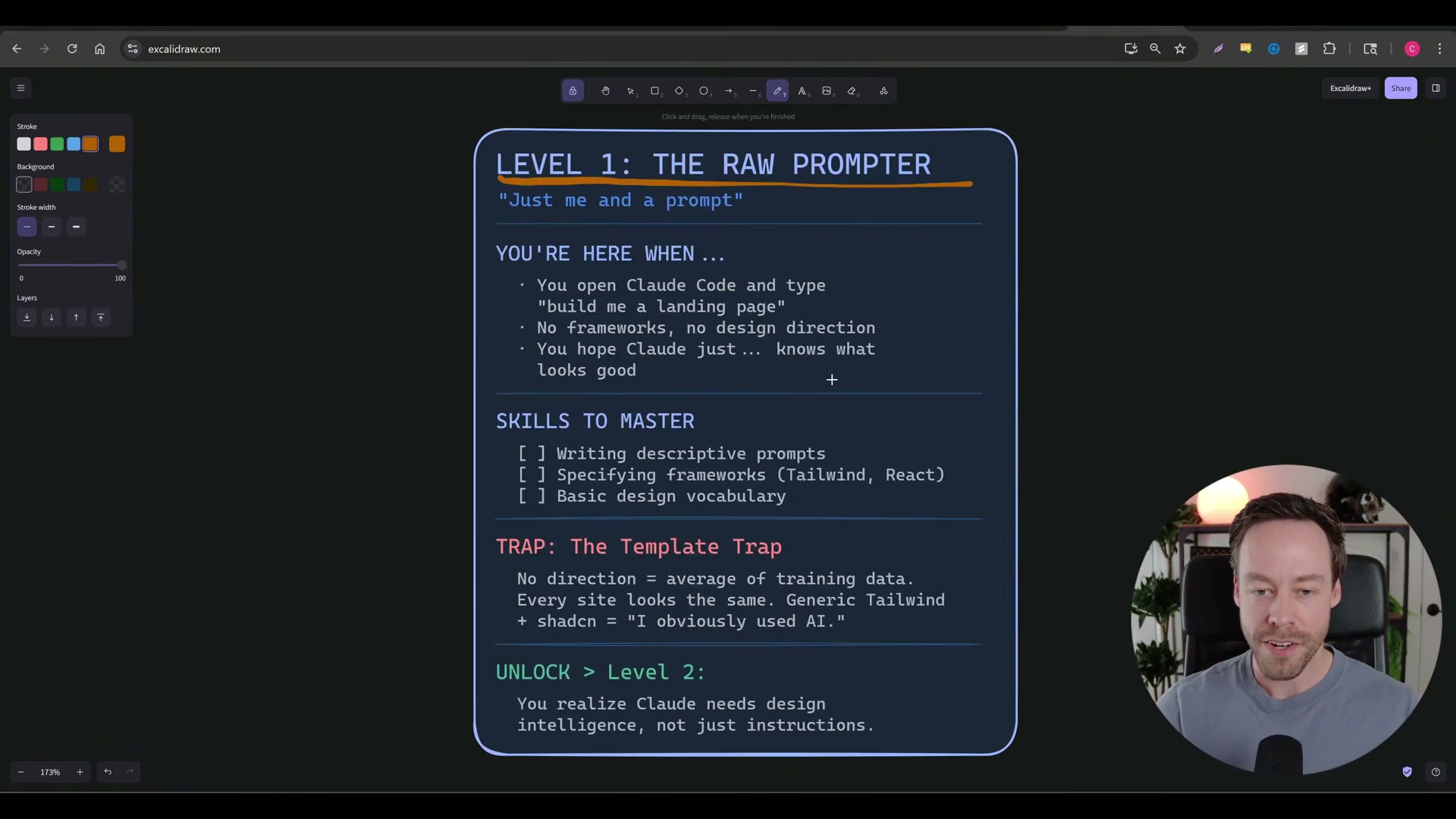
Most developers hit a wall the first time they ask Claude Code to build a landing page — purple gradients, template layouts, and instantly recognizable AI output. This tutorial maps the first four levels of a seven-level framework that progressively upgrades front-end design quality in Claude Code, taking you from raw prompting through skill-augmented generation and visual references toward full website cloning. By the end, you’ll have a repeatable process for producing UI that doesn’t look like it came off an assembly line.
-
Open Claude Code and write a basic natural-language prompt describing your product. The framework uses a fictional SaaS app called Argus — a social media intelligence tool — as its case study: “Create a landing page for Argus, a social media intelligence app for content creators to find trending topics in their niche.”
-
Engage Plan Mode. Claude Code will ask about your tech stack (Next.js, plain HTML, Astro) and desired visual style. Answer what you can — Plan Mode’s questions build your design vocabulary incrementally, even if you don’t know the frameworks yet.
-
Review the output. What you’ll get is a functional but generic AI template: purple gradients, a hero section, feature tabs, a waitlist CTA. The underlying problem is that undirected prompts produce undirected results — without explicit design guidance, Claude Code defaults to the statistical average of everything it has seen.
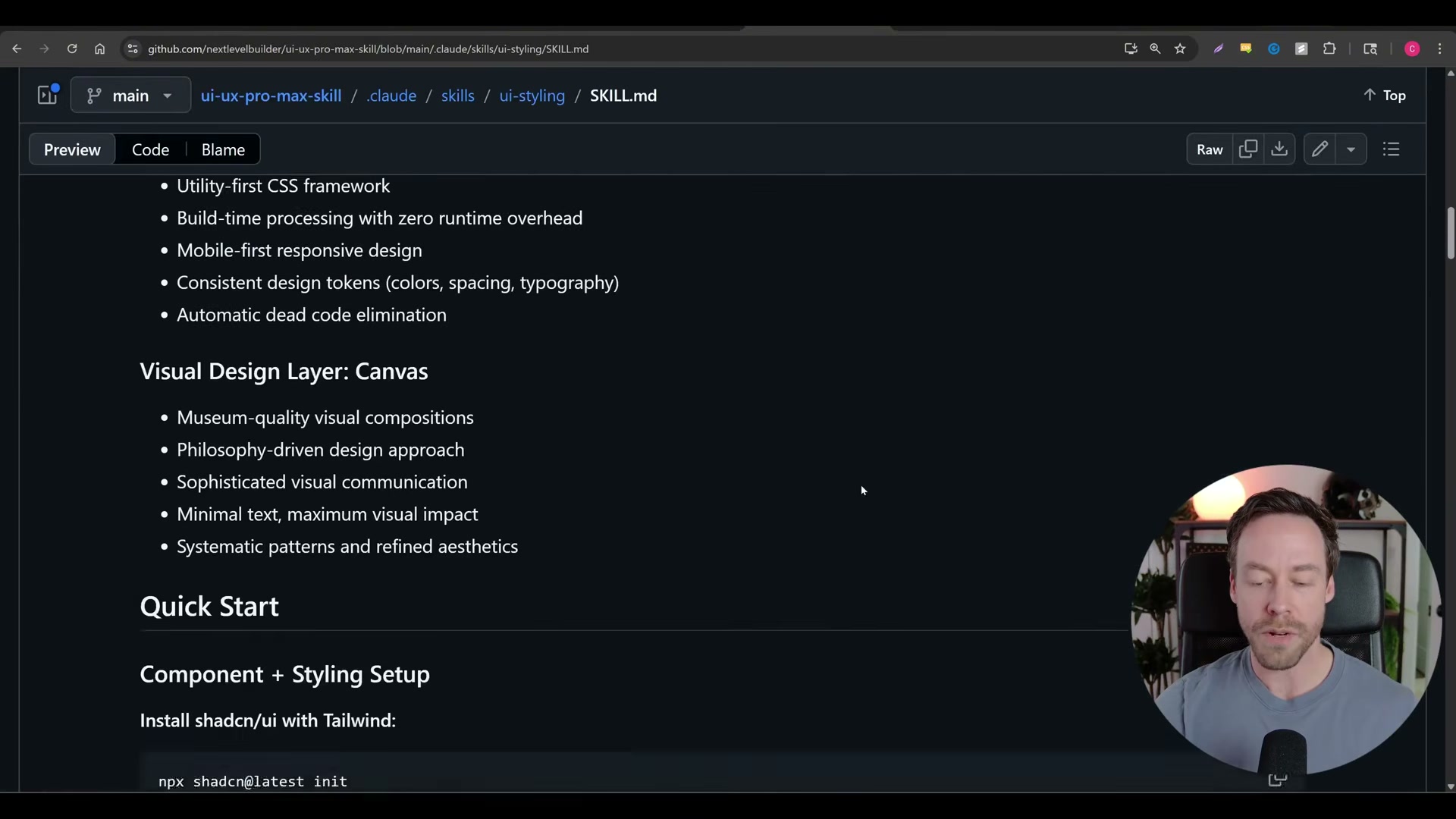
- Install the UI/UX Pro Max skill by running
/plugin marketplacein your Claude Code terminal and adding the skill by name. Alternatively, paste the GitHub repository URL directly into the chat and ask Claude to install it. The skill’sSKILL.mdinjects design heuristics — color theory, typography systems, spacing rules, and an explicit checklist of AI slop patterns to avoid.
Warning: this step may differ from current official documentation — see the verified version below.

- Load the skill via a forward-slash command or natural language (
"Use the UI/UX Pro Max skill"), then re-run the landing page prompt and tell Claude to use the skill when building.
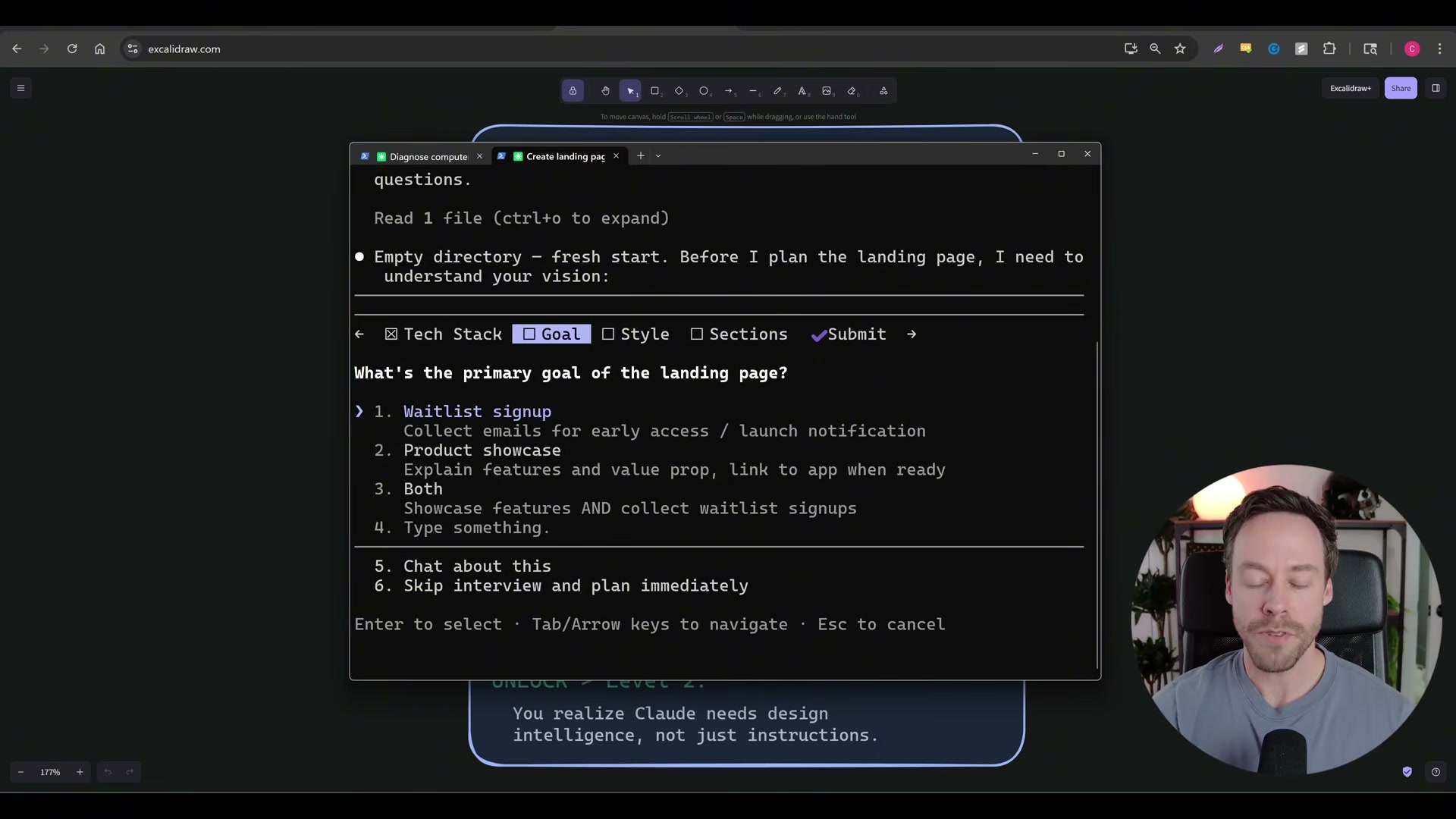
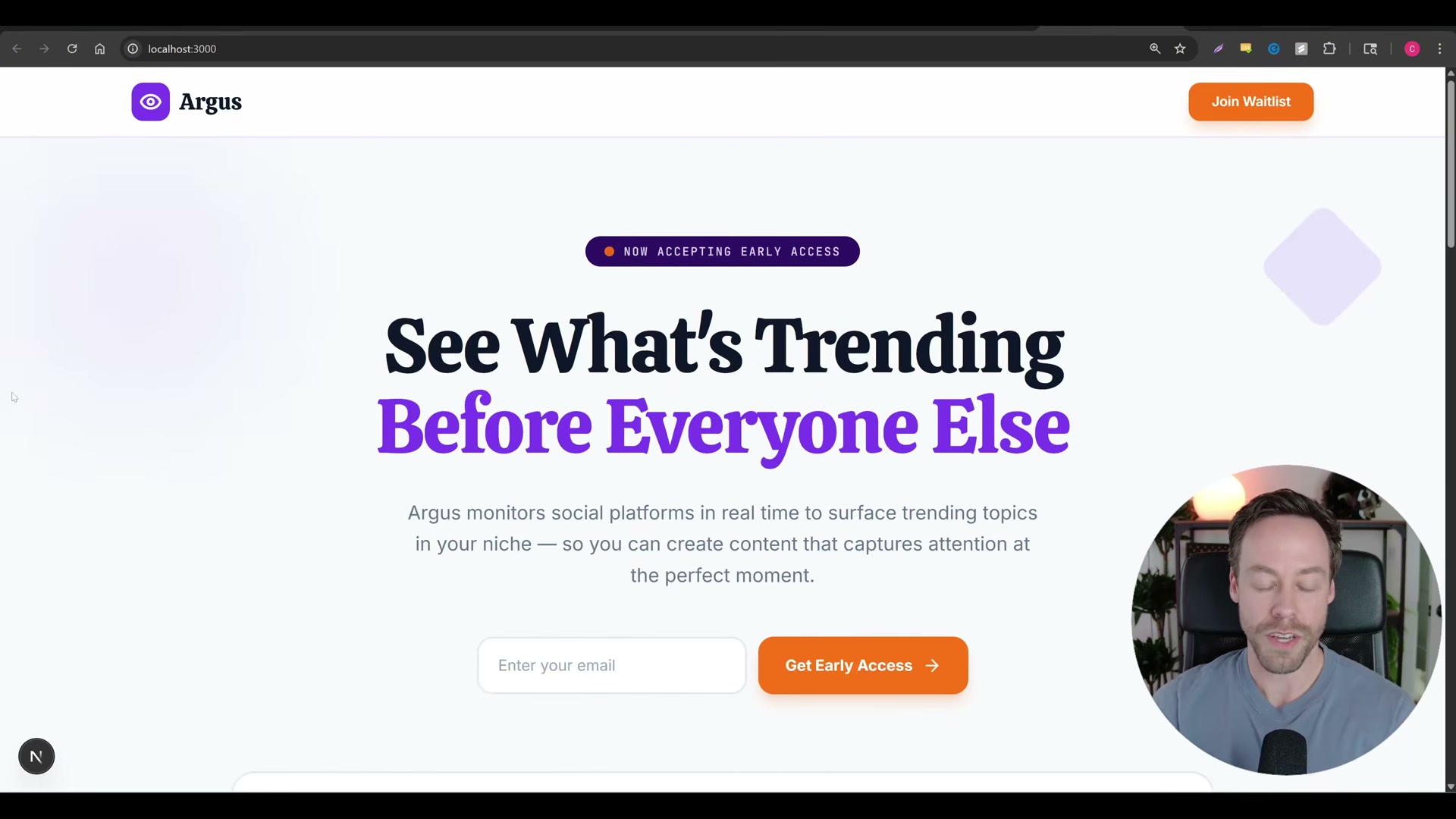
- Answer the skill’s guided questions — typography preference, CTA color, visual tone. You’ll get a meaningful upgrade: intentional color hierarchy, better button states, section-to-section variation. It still reads as AI-generated, but the distance from Level 1 output is substantial.
- Browse design inspiration on Awwwards, Godly.website, Pinterest, or Dribbble and identify a reference site whose visual aesthetic you want Claude Code to emulate. The goal is to stop describing what you want and start showing it.

-
Take multiple screenshots of your chosen reference and drop them into the Claude Code prompt alongside the site’s URL. Instruct Claude to rebuild the landing page matching the reference’s visual style — palette, typographic weight, layout density, motion cues.
-
Evaluate the output against the reference. First-pass fidelity caps around 50%. Screenshots move the needle significantly over text-only prompting, but iterating via screenshot feedback creates its own ceiling: you can show Claude what you want, but you can’t show it how the reference was built.
-
Recognize that true aesthetic parity requires extracting the reference site’s underlying code structure. Screenshot references show Claude a target; cloning the site shows it the architecture behind the aesthetic — and that’s exactly where Level 4 picks up.
How does this compare to the official docs?
The video’s skill installation flow uses a marketplace command and GitHub convention that Claude Code’s official documentation treats differently — and closing that gap is what Act 2 is for.
Here’s What the Official Docs Show
The video delivers a genuinely useful seven-level mental model, and the steps around design inspiration sources hold up well against current platform reality. Where Act 2 adds value is in clarifying a meaningful product-level shift at claude.ai/code that affects how you set up and access the tool — gaps worth closing before you try to follow this workflow today.
Step 1 — Getting Started: The Product You’ll Actually Find
As of March 26, 2026, navigating to claude.ai/code lands you on Cowork, not “Claude Code” as described in the tutorial. The headline reads “Think fast, build faster” with the subhead “Brainstorm in Claude, build in Cowork.” Whether this is a rebrand or a distinct product is not clarified on the page — but the CLI-based interface the tutorial shows is not what the official URL surfaces today.
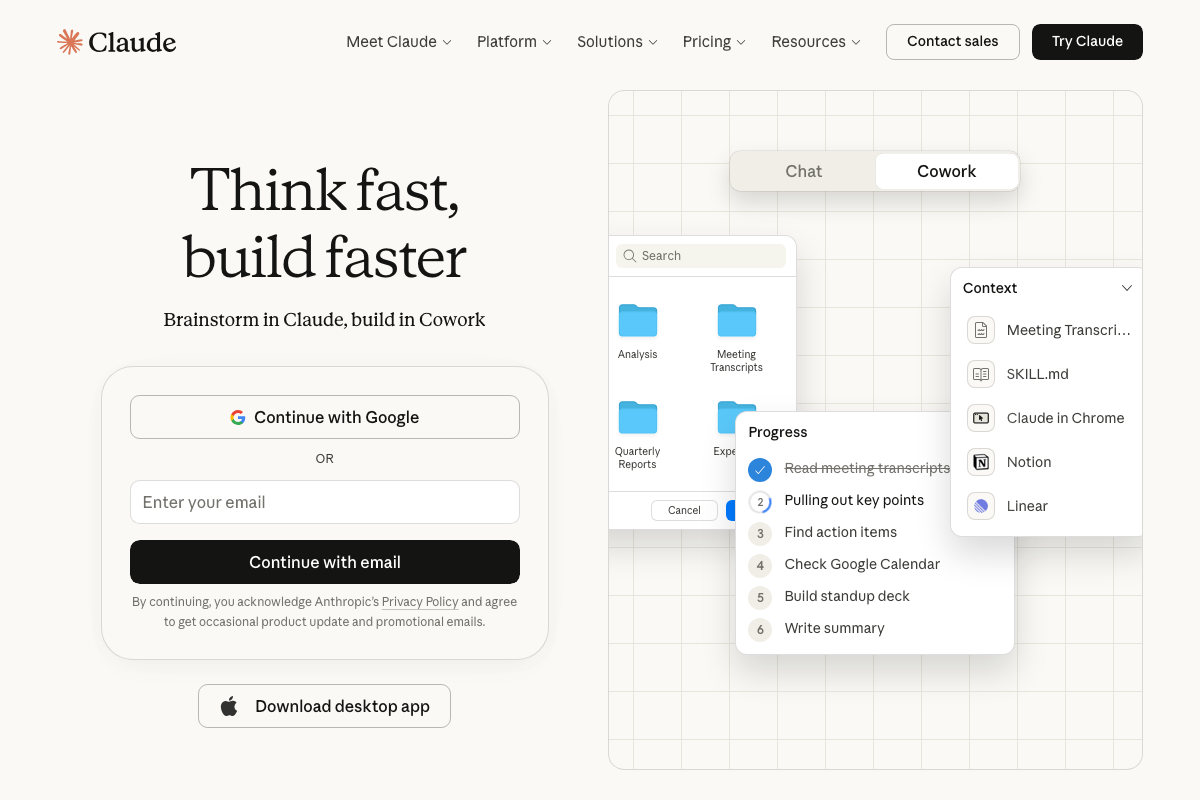
No official documentation was found confirming the Claude Code CLI-based interface shown in the tutorial — proceed using the video’s approach and verify independently.
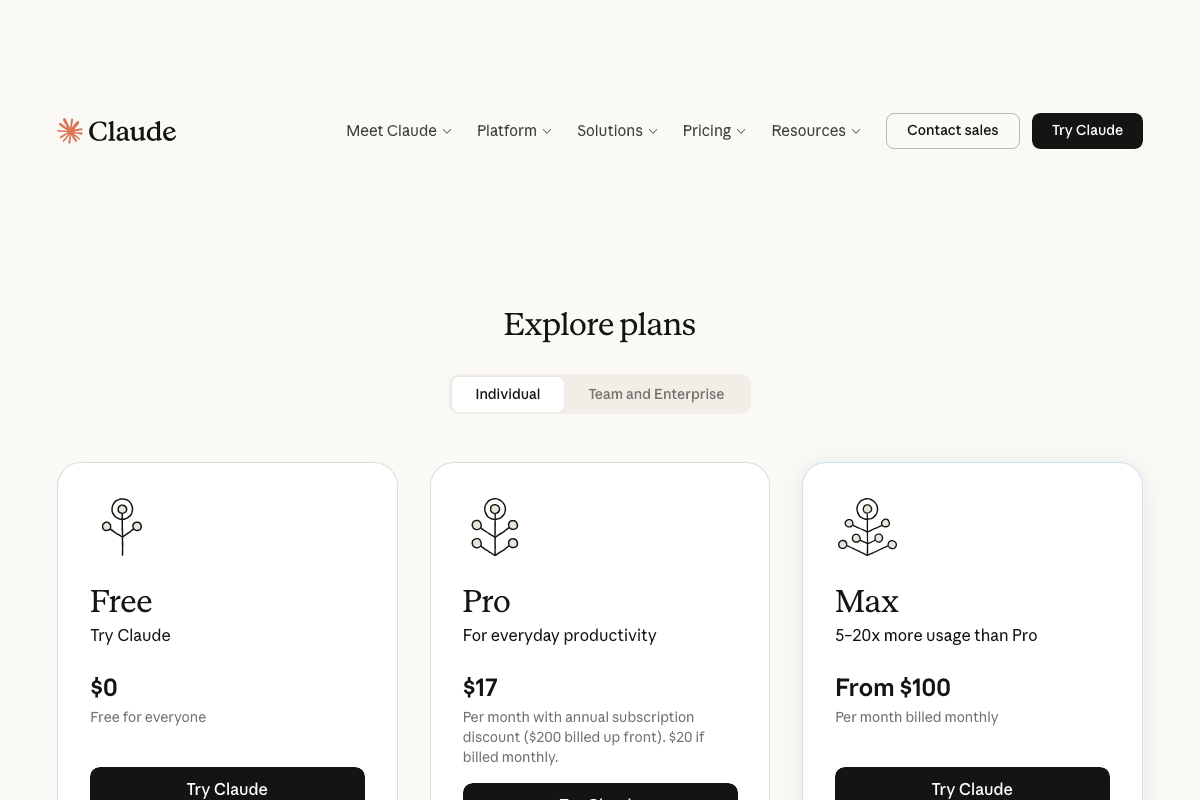
One important practical note the tutorial skips: access is tiered. The official pricing page shows Free, Pro ($17/month annual, $20/month monthly), and Max (from $100/month). Full agentic features may require a paid plan before you can follow any steps in this framework.
Steps 2–3 — Plan Mode and Initial Output
No official documentation was found for Plan Mode’s guided-question flow — proceed using the video’s approach and verify independently.
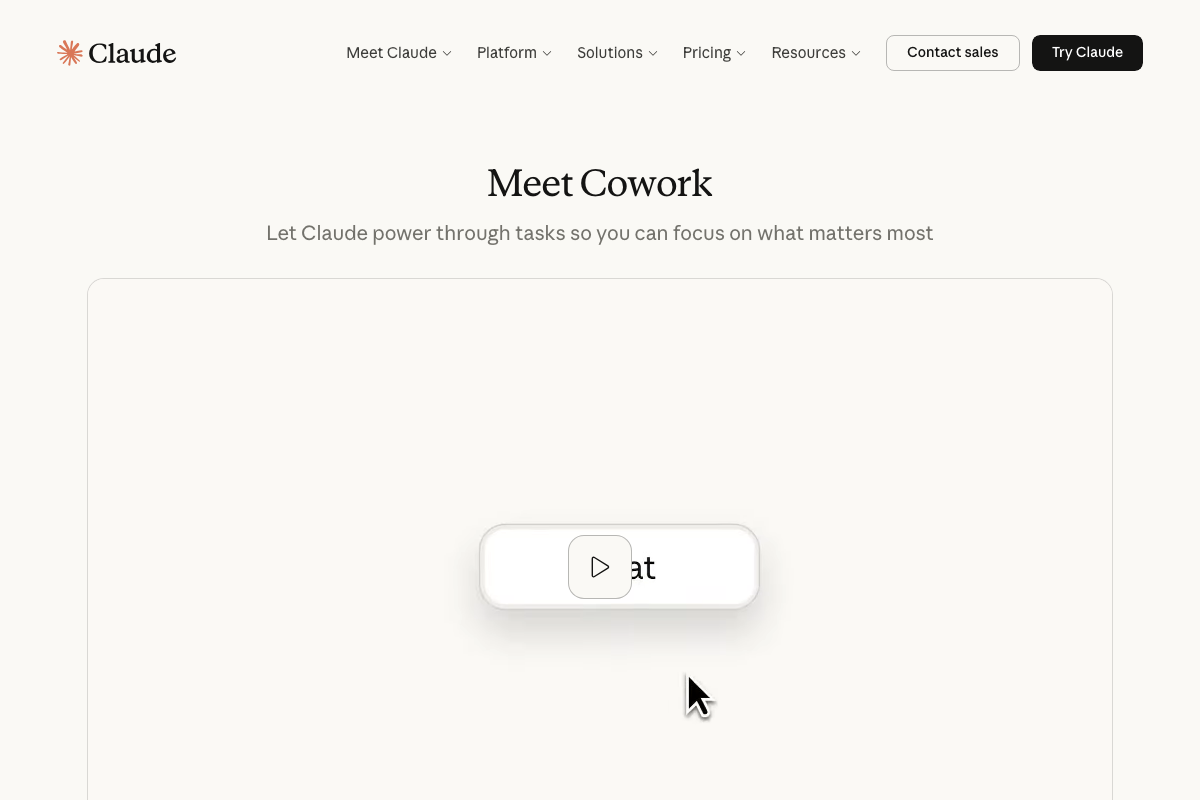
The official page describes Cowork as a tool that “lets Claude power through tasks so you can focus on what matters most” — framing it as autonomous task execution rather than an interactive question-answer session.
Step 4 — Installing the UI/UX Pro Max Skill
This is the sharpest divergence from current official documentation. The /plugin marketplace command the video instructs you to run does not appear anywhere on the official page — no marketplace UI, no install command, no plugin workflow is visible.
What the official Cowork interface does show: a Context panel that lists SKILL.md as a loadable context file type, alongside integrations like Notion and Linear. As of March 26, 2026, skills appear to be loaded as context documents within a Cowork session — not installed through a marketplace command.
No official documentation was found for the
/plugin marketplacecommand or the GitHub URL install method described in the tutorial — proceed using the video’s approach and verify independently.
Steps 5–6 — Loading the Skill and Reviewing Output
No official documentation was found for the skill-loading slash command flow or the guided interview step — proceed using the video’s approach and verify independently.
Steps 7–8 — Visual Reference Sourcing (Awwwards, Godly, Pinterest, Dribbble)
The video’s approach here matches the current docs exactly for these two platforms.
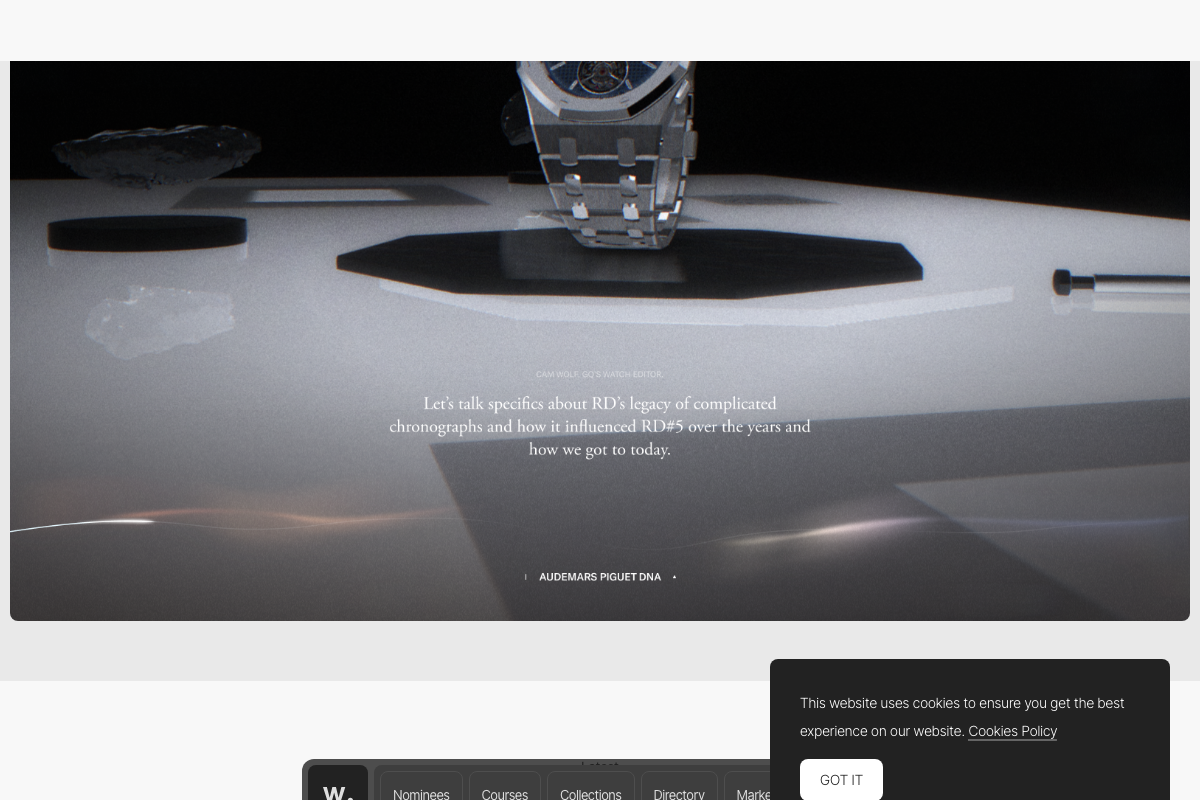
Awwwards is active and running its daily Site of the Day format. The in-browser preview feature lets you screenshot reference designs without leaving the platform — directly compatible with the tutorial’s drop-into-prompt workflow.
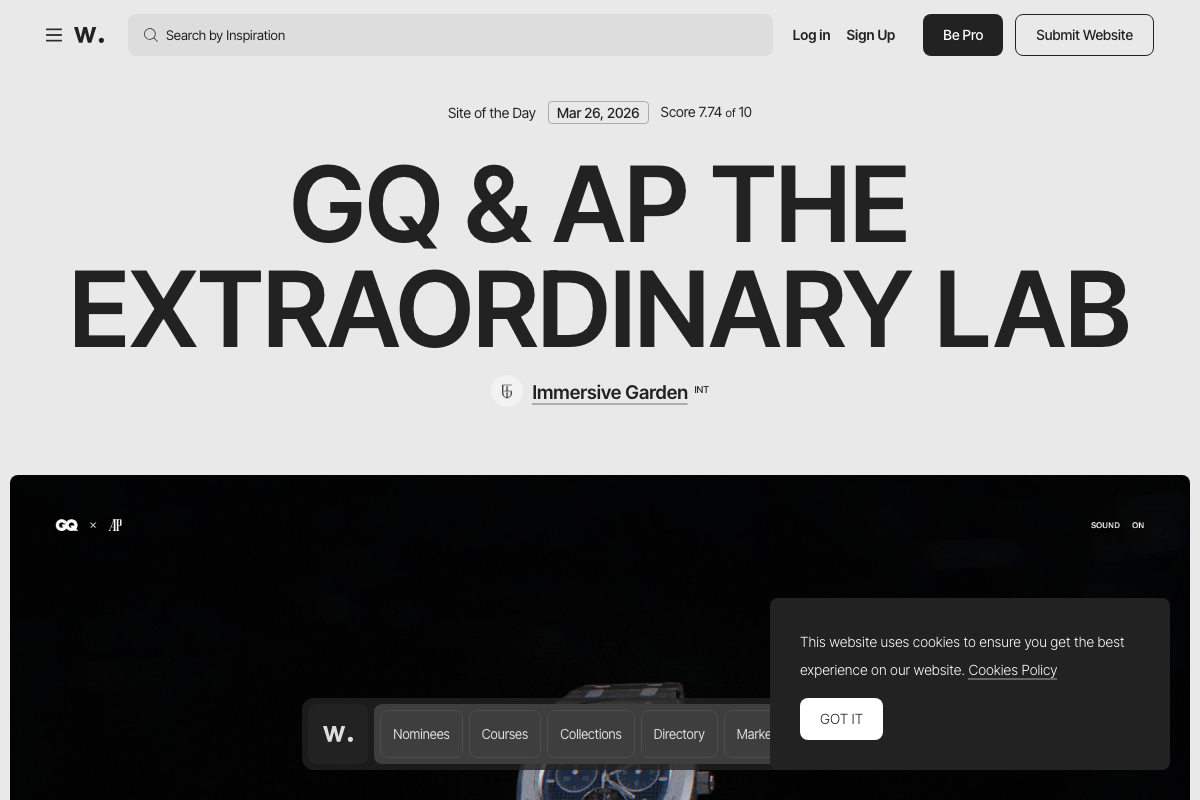
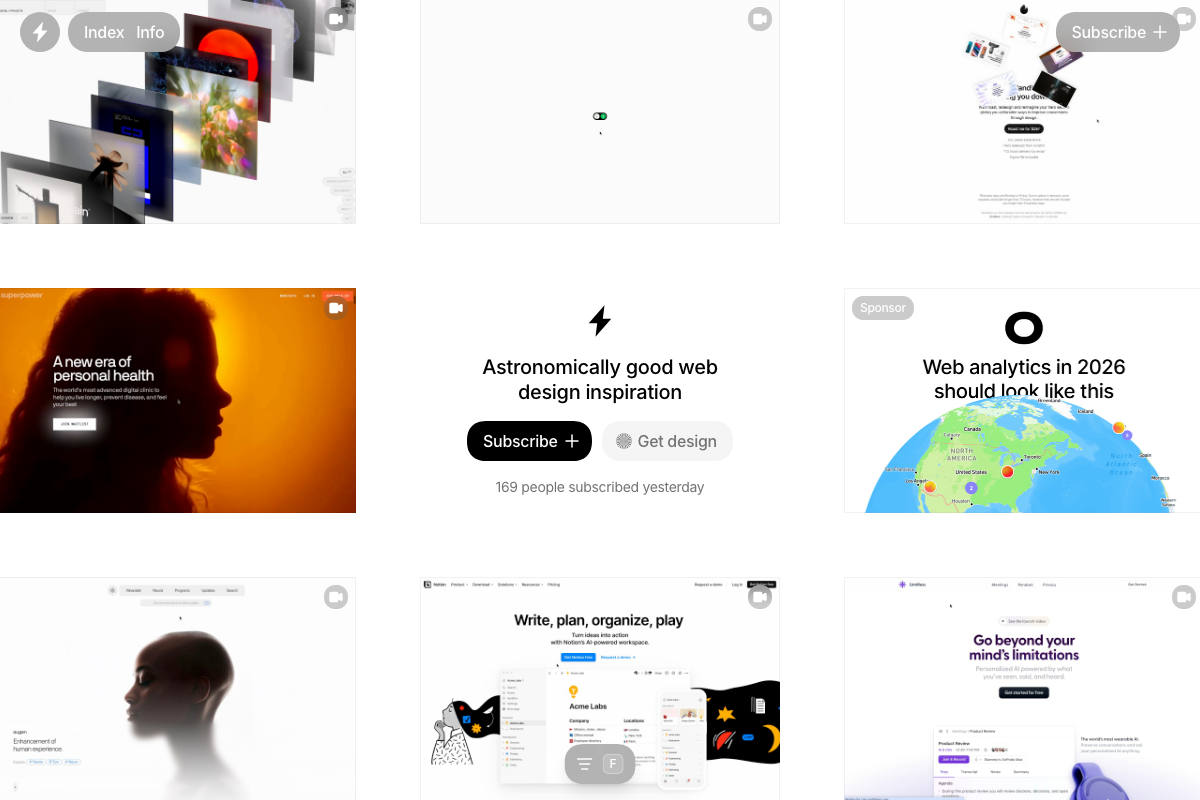
Godly.website is confirmed active. Its gallery skews heavily toward SaaS and startup landing pages, which makes it particularly well-matched to the tutorial’s Argus use case.
Pinterest is active, but one clarification is worth flagging: the platform’s homepage surfaces lifestyle and seasonal trend content for logged-out users, not design work. To use Pinterest for UI inspiration the way the tutorial intends, you’ll need to search explicitly — terms like “SaaS landing page design” or “app UI dark theme” will get you there.

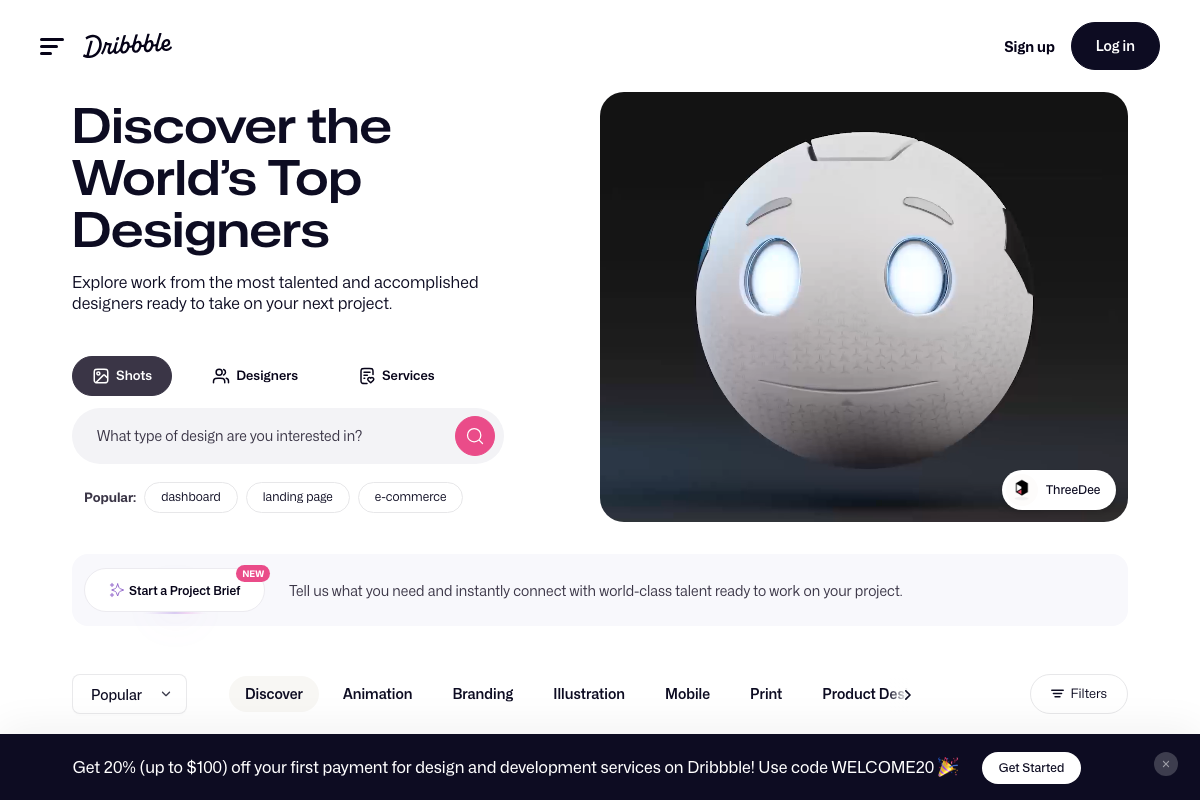
Dribbble is confirmed active. The “landing page” tag appears as a popular search suggestion directly on the homepage, confirming strong relevance to this workflow.
Steps 9–11 — Evaluating Fidelity and Transitioning to Site Cloning
No official documentation was found for these steps — proceed using the video’s approach and verify independently.
Useful Links
- Claude Code / Cowork — Official landing page for Anthropic’s agentic build tool, currently marketed as Cowork as of March 2026.
- Awwwards — Website Awards — Daily-curated design awards platform with in-browser site previews suited for reference screenshot capture.
- Godly — Astronomically Good Web Design Inspiration — Curated gallery of SaaS and startup landing pages with daily email subscription option.
- Pinterest — General visual ideation platform; requires targeted keyword search to surface UI and web design inspiration content.
- Dribbble — Discover the World’s Top Designers — Designer portfolio and shot gallery with strong landing page and SaaS UI content accessible via keyword search.


0 Comments