

Build n8n Workflows with Claude Code and the Official n8n MCP Server
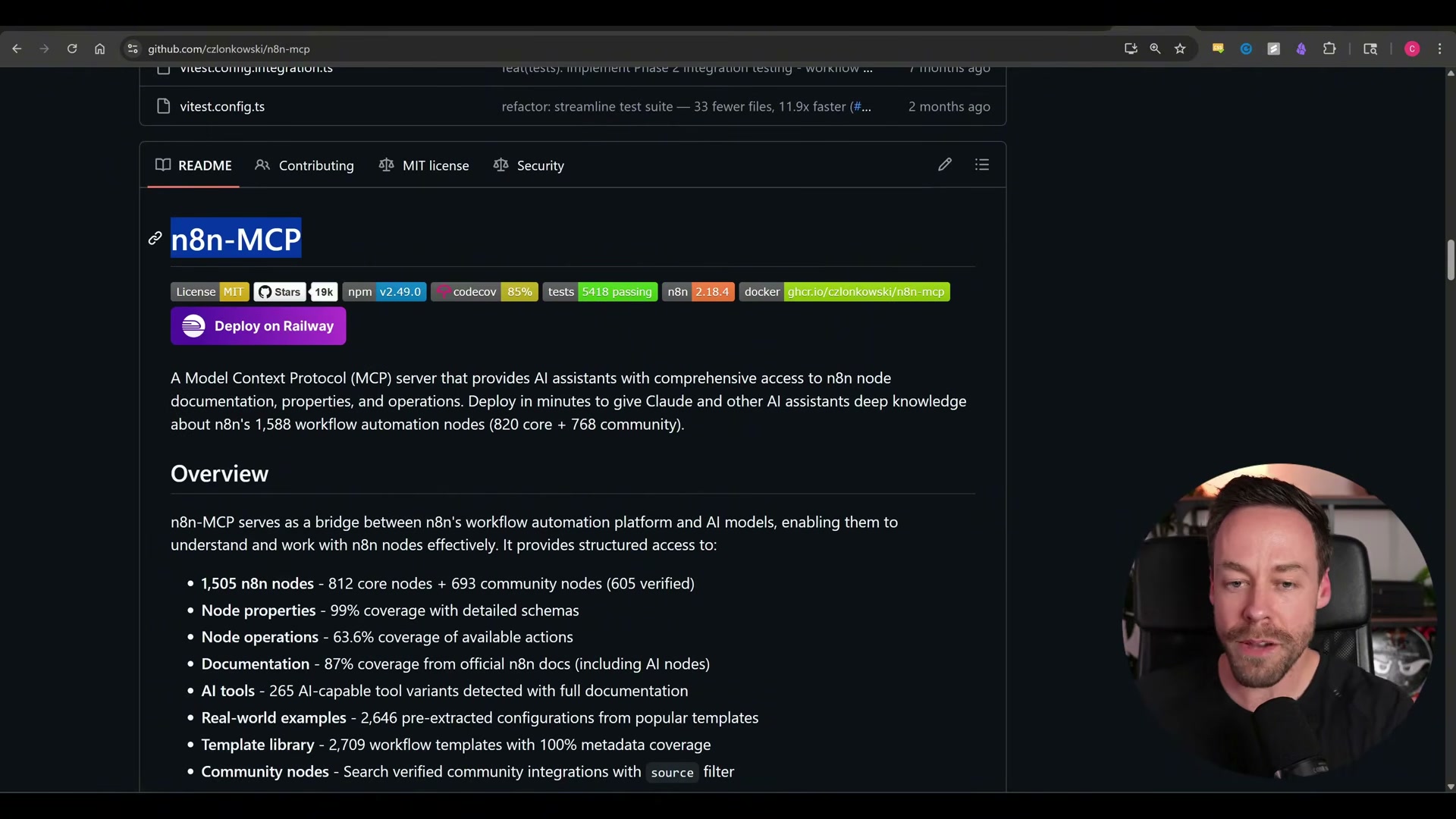
n8n’s official MCP server replaces context-window hacks and fragile JSON generation with a TypeScript compile step that validates every workflow before it touches your instance. Claude Code now writes, validates, and pushes automations directly into your n8n canvas from a single natural-language prompt. After completing this tutorial, you can ship a working n8n workflow — including a multi-source AI newsletter — without touching a node editor.
-
Update your n8n instance to the latest version. The Instance-level MCP settings panel does not exist in older releases, so this step is a prerequisite for everything that follows.
-
Navigate to Settings > Instance-level MCP inside n8n. If you want Claude to access workflows you have already built, open the Enable Workflow MCP Access modal and toggle them on individually. For net-new workflows, no additional workflow-level configuration is required.
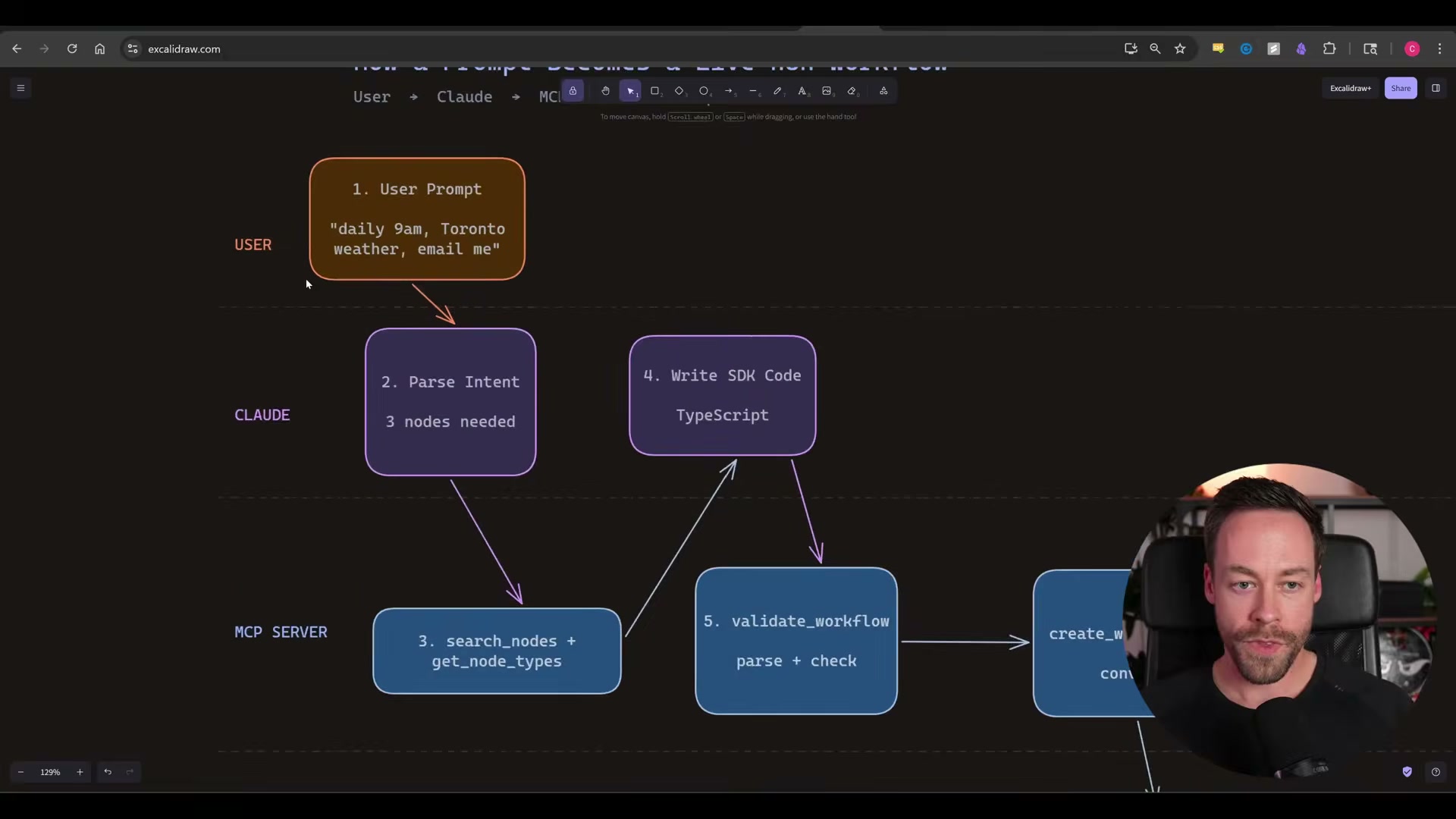
- Set the MCP toggle to Enabled, then click Connection Details and select Access Token as the authentication method.
- Copy the server URL, access token, and the full configuration JSON block from the Connection Details panel. Paste all three into Claude Code and prompt it to configure the MCP server — Claude Code writes the config file for you.
Warning: this step may differ from current official documentation — see the verified version below.
The video demonstrates pasting the raw access token directly into the Claude Code chat window to get the integration running quickly. The presenter explicitly flags this as insecure; store the token as an environment variable and rotate it before handing this stack to anyone else.
-
Exit Claude Code completely and do a full restart. A running instance will not load new MCP server configuration until restarted from scratch — a reload is not sufficient.
-
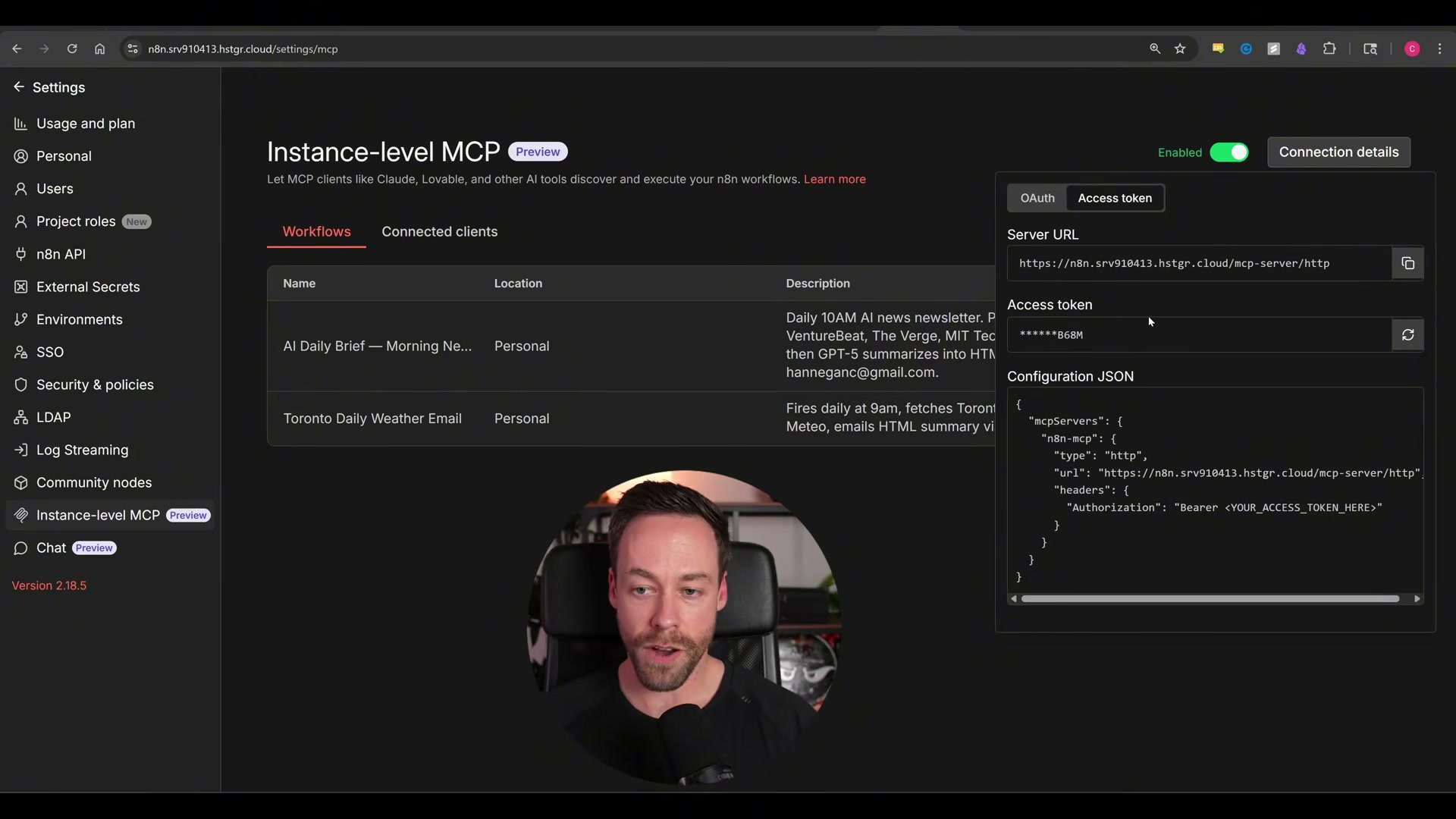
Run
/mcpin Claude Code and confirm thatn8n-mcpshows ✅ connected. If the server does not appear, the configuration JSON contains an error or the restart did not complete cleanly.
-
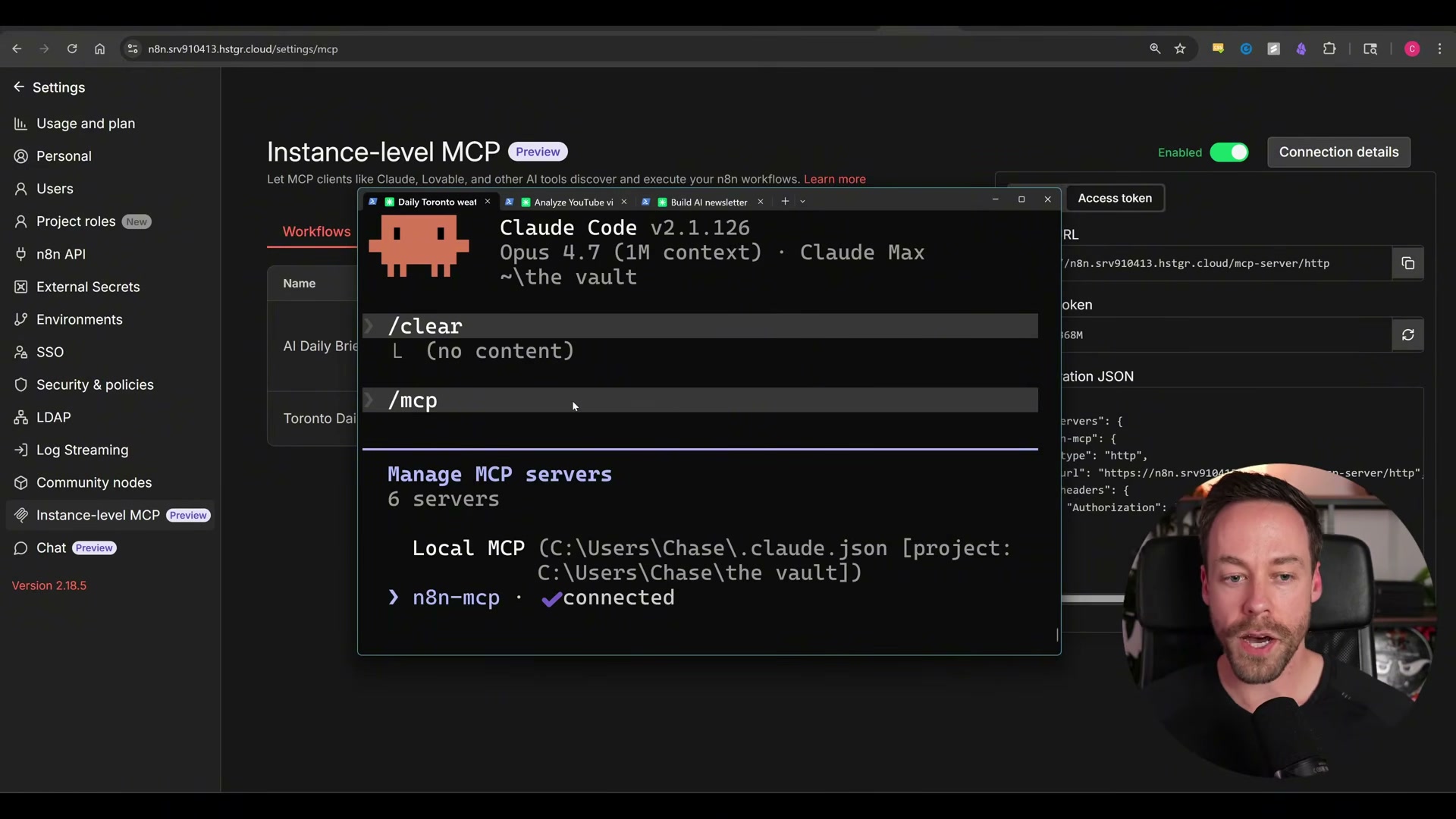
Prompt Claude Code in plain English to build your first workflow. The video uses: “Use n8n-mcp to build me a workflow that fires daily at 9am, fetches Toronto weather, and emails me the forecast.” Claude Code queries available node types, writes TypeScript, validates the result against the MCP server, and converts it to JSON — populating the workflow in n8n automatically without any copy-pasting.
-
Open your n8n canvas, confirm the workflow appears fully wired, and execute it manually to verify end-to-end delivery.
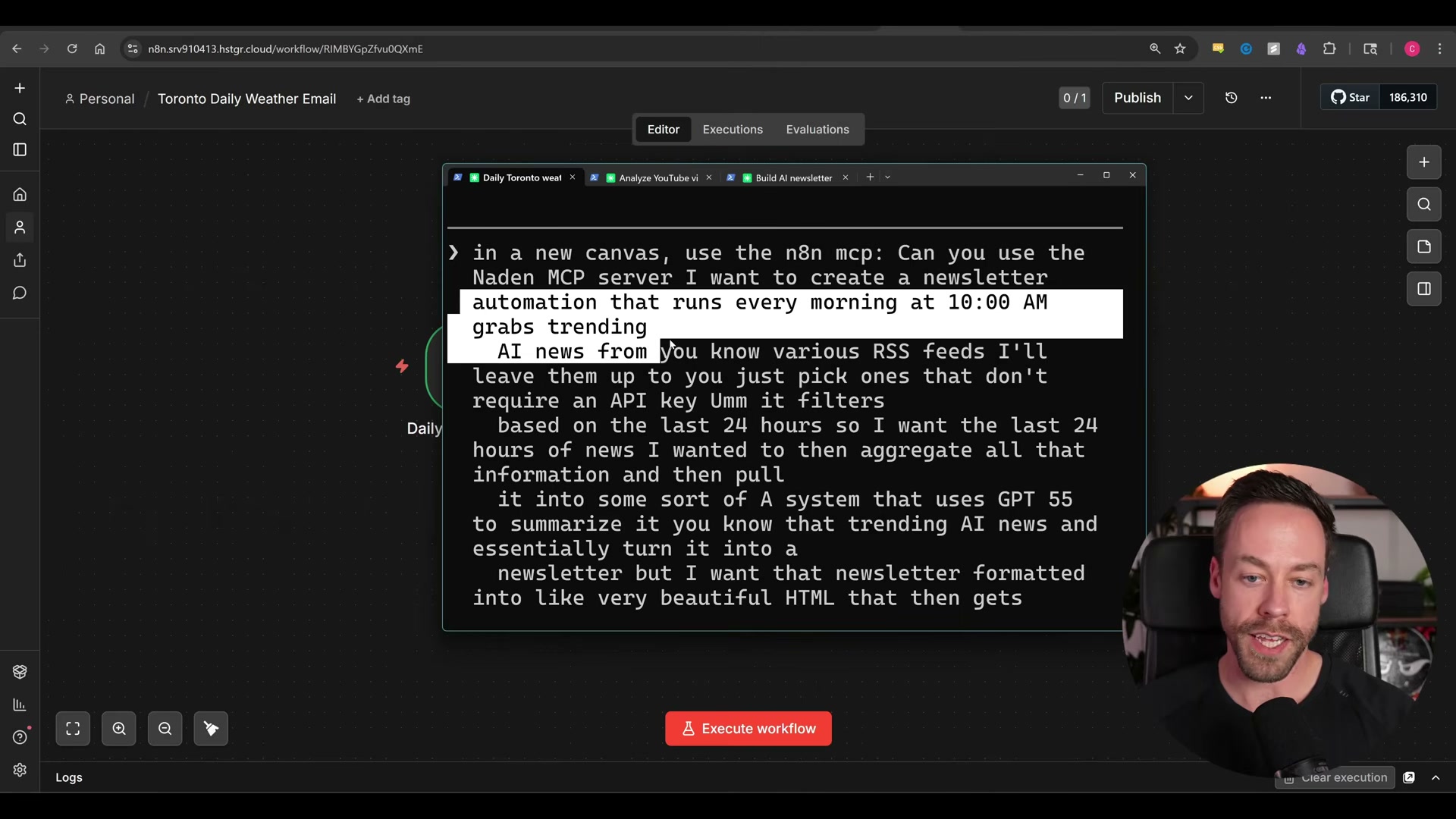
- Escalate to a more complex spec using a single detailed prompt. The video describes a daily newsletter that merges six RSS feeds, filters articles published in the last 24 hours, aggregates them, passes the content to GPT-5 for HTML summarization, and delivers the result by email — all specified in one message.
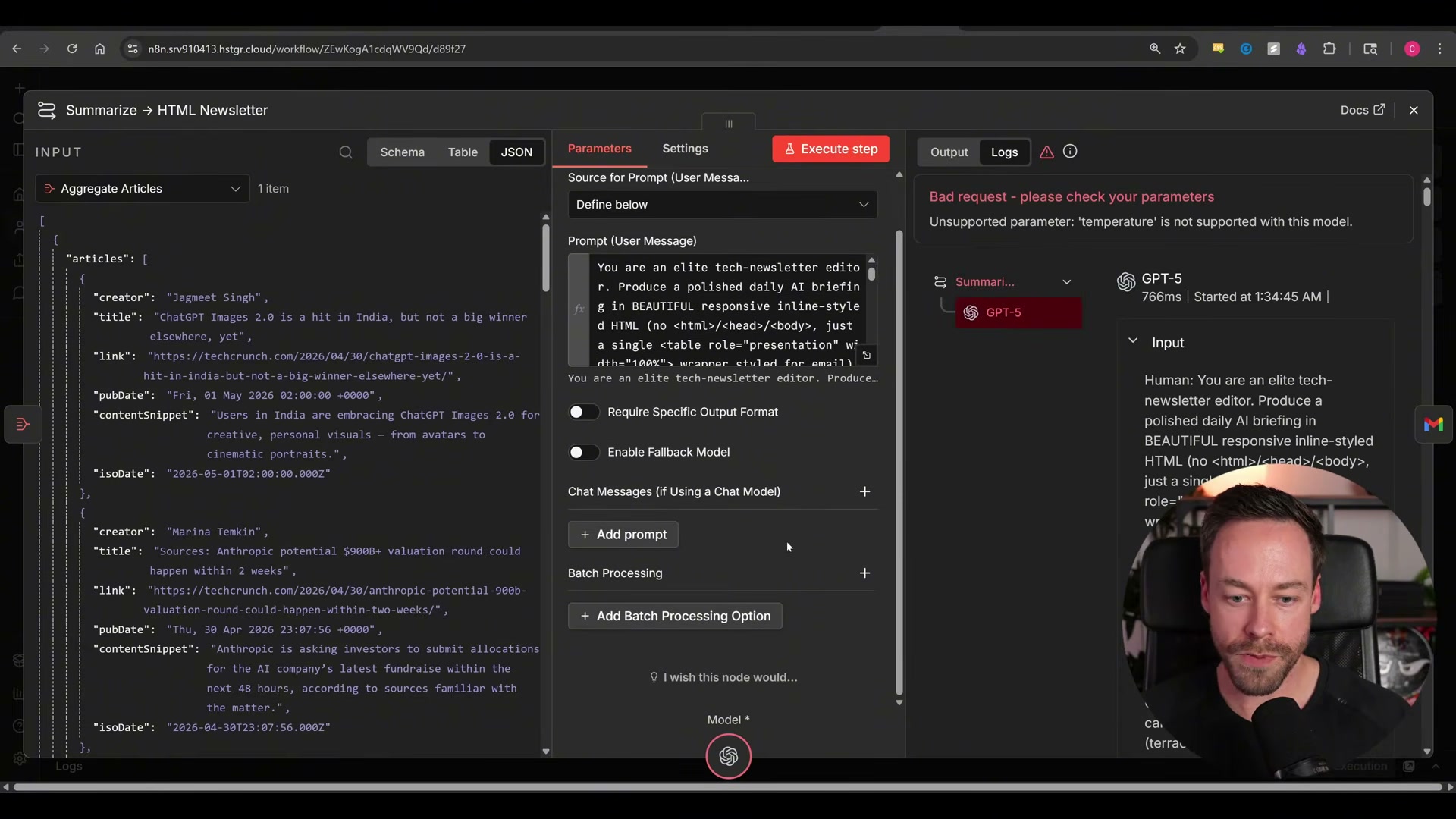
- When a workflow execution returns an error, copy the raw error text from n8n and paste it directly into Claude Code. The video demonstrates this with a
temperatureparameter rejected by GPT-5 — Claude Code identifies the unsupported parameter, removes it from the node configuration, and the corrected workflow delivers successfully on the next run.
How does this compare to the official docs?
The video gets you connected in minutes, but n8n’s documentation and the MCP server’s GitHub repository specify security requirements, environment variable handling, and self-hosted versus cloud configuration differences worth understanding before you ship this to a client environment.
Here’s What the Official Docs Show
The video delivers a solid end-to-end walkthrough, and this section adds the documentation context it skips — licensing nuances, installation prerequisites, and the official reference points worth checking before you configure anything in a production environment. Nothing here overrides the video; it fills the gaps.
Step 1: Confirm your n8n deployment type before updating
The video’s approach here matches the current docs exactly on the core requirement: the MCP settings panel requires an up-to-date instance. One thing the tutorial doesn’t mention — per official docs, n8n is fair-code licensed, not fully open-source. Deployment type (Cloud, npm, or Docker self-hosted) may affect feature availability, including MCP. Check the “Choose the right n8n for you” section at docs.n8n.io before proceeding.
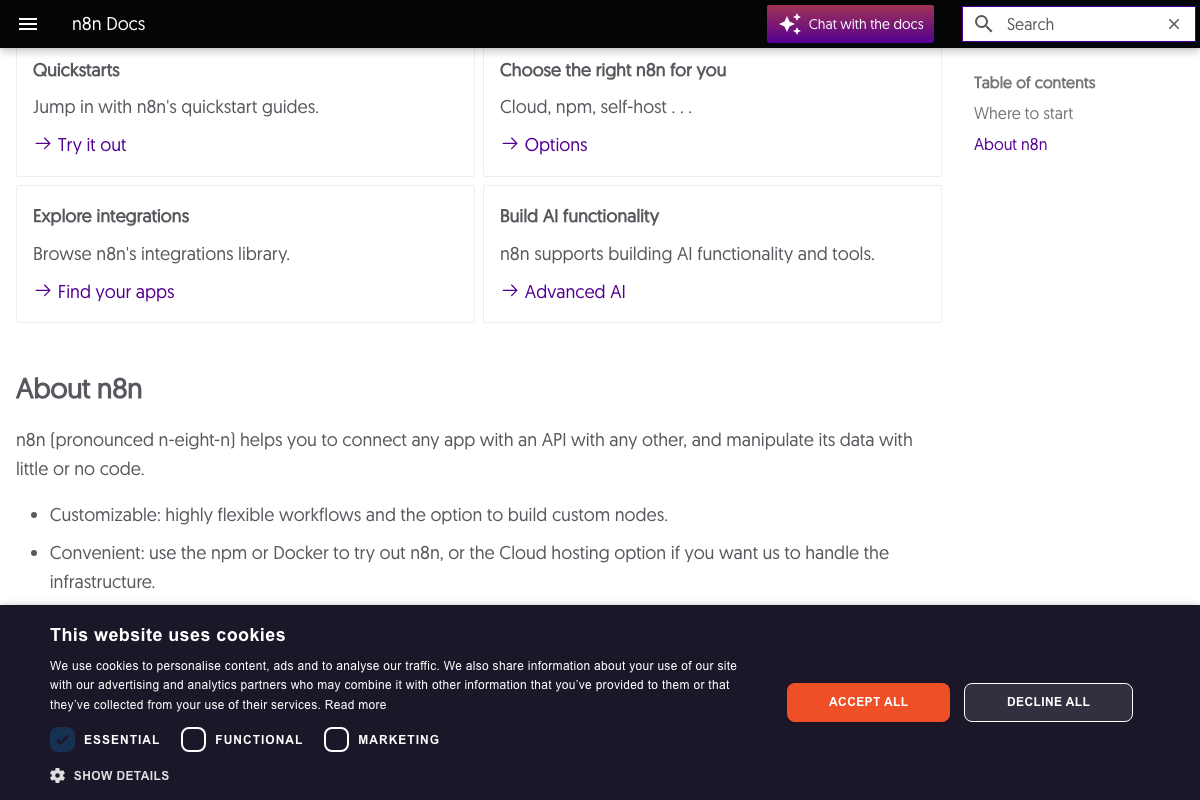
Steps 2–5: n8n Instance MCP configuration (Settings → Instance Level MCP, toggle, access token, connection details)
No official documentation was found for these steps —
proceed using the video’s approach and verify independently.
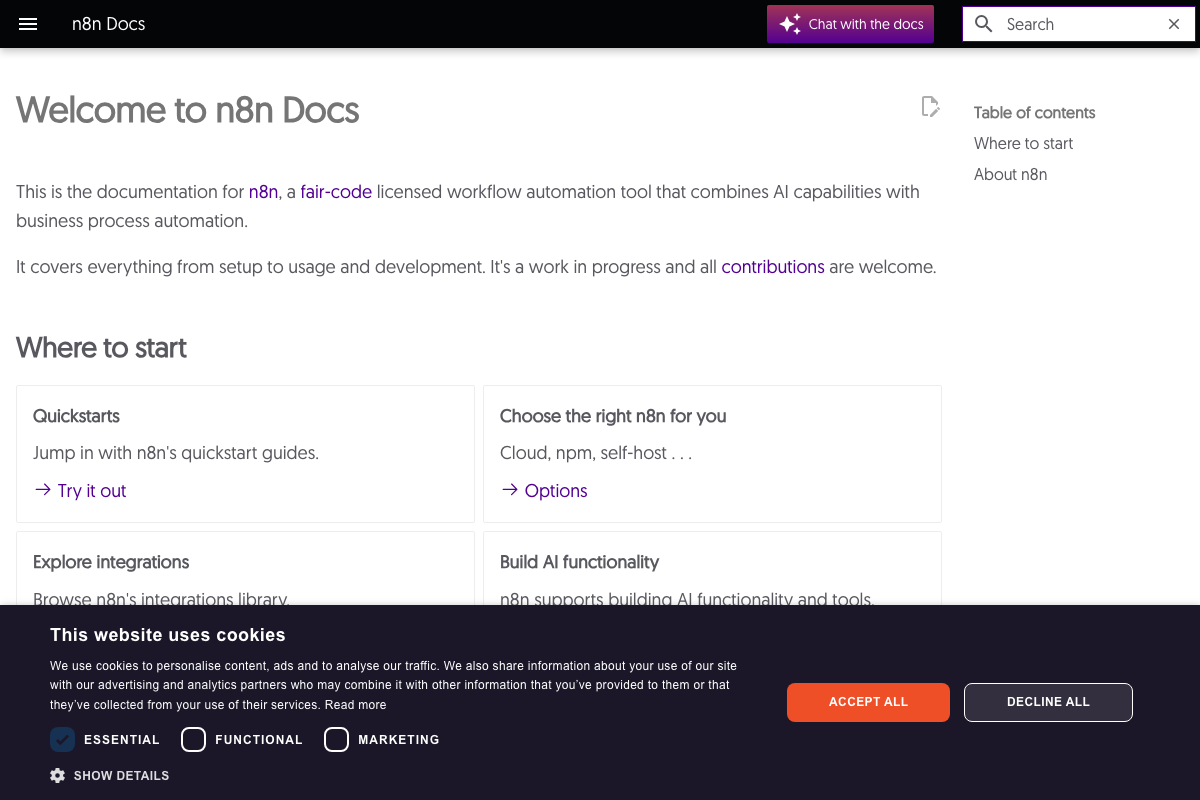
The MCP configuration UI does not appear in any available n8n documentation screenshot. The most likely documentation home is Build AI functionality → Advanced AI at docs.n8n.io — navigate there and search “MCP” if the settings path has shifted since the video was recorded.
Steps 6–8: Claude Code installation, configuration, and /mcp verification
No official documentation was found for these steps —
proceed using the video’s approach and verify independently.
One addition: the tutorial assumes Claude Code is already installed. If it isn’t, the official install command is:
curl -fsSL https://claude.ai/install.sh | bash
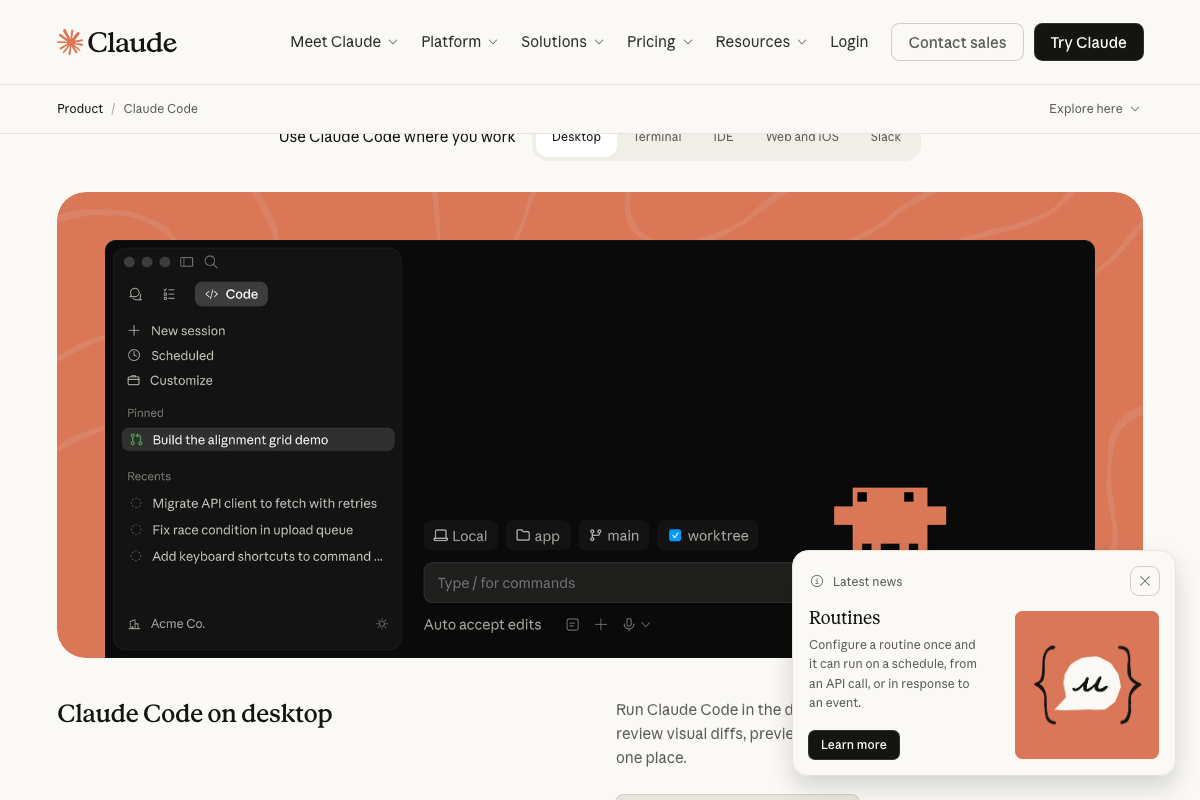
The Claude Code desktop UI does confirm slash-command support — the input bar reads “Type / for commands” — which is consistent with the /mcp verification step in the video. The specific output listing connected servers isn’t shown in any official screenshot.
Step 9: Prompting Claude Code to build complex multi-node workflows
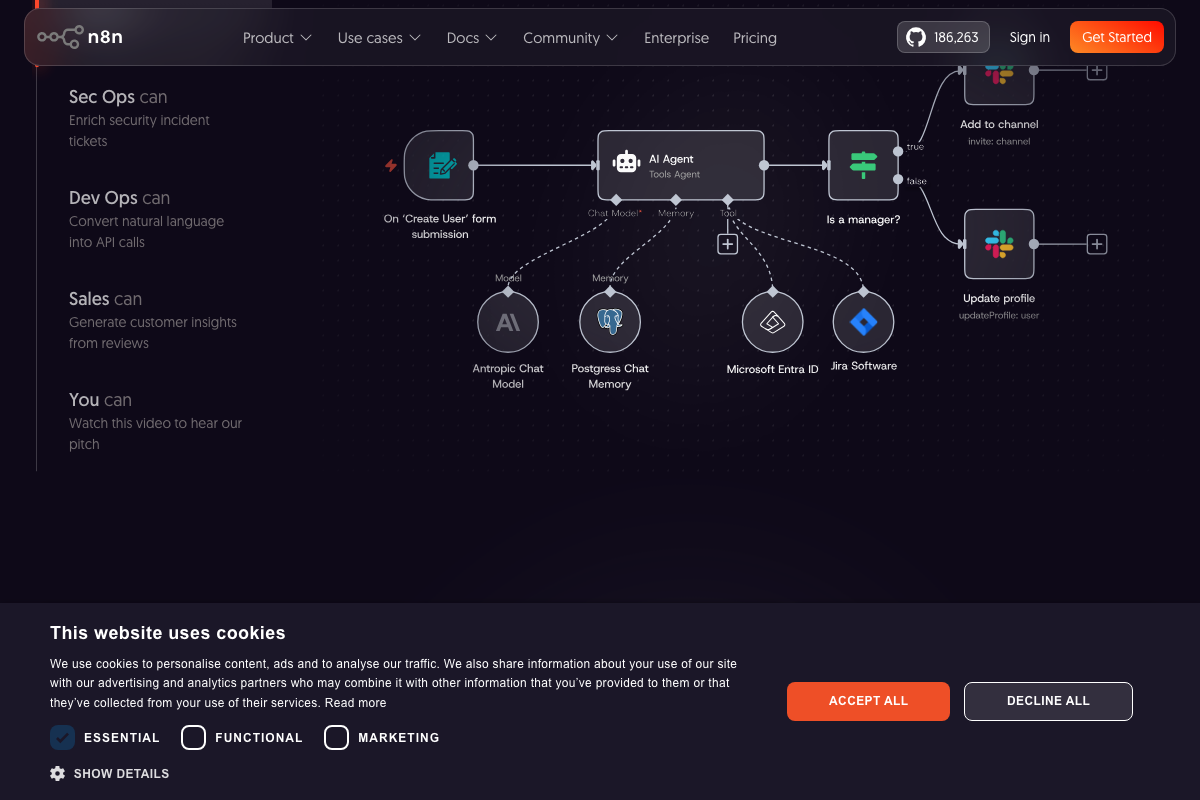
The video’s approach here matches the current docs exactly. The n8n canvas supports AI Agent nodes with sub-nodes for model, memory, and external integrations — the same structural pattern the tutorial’s newsletter workflow produces.
Step 10: Confirming the generated workflow appears fully wired in the canvas
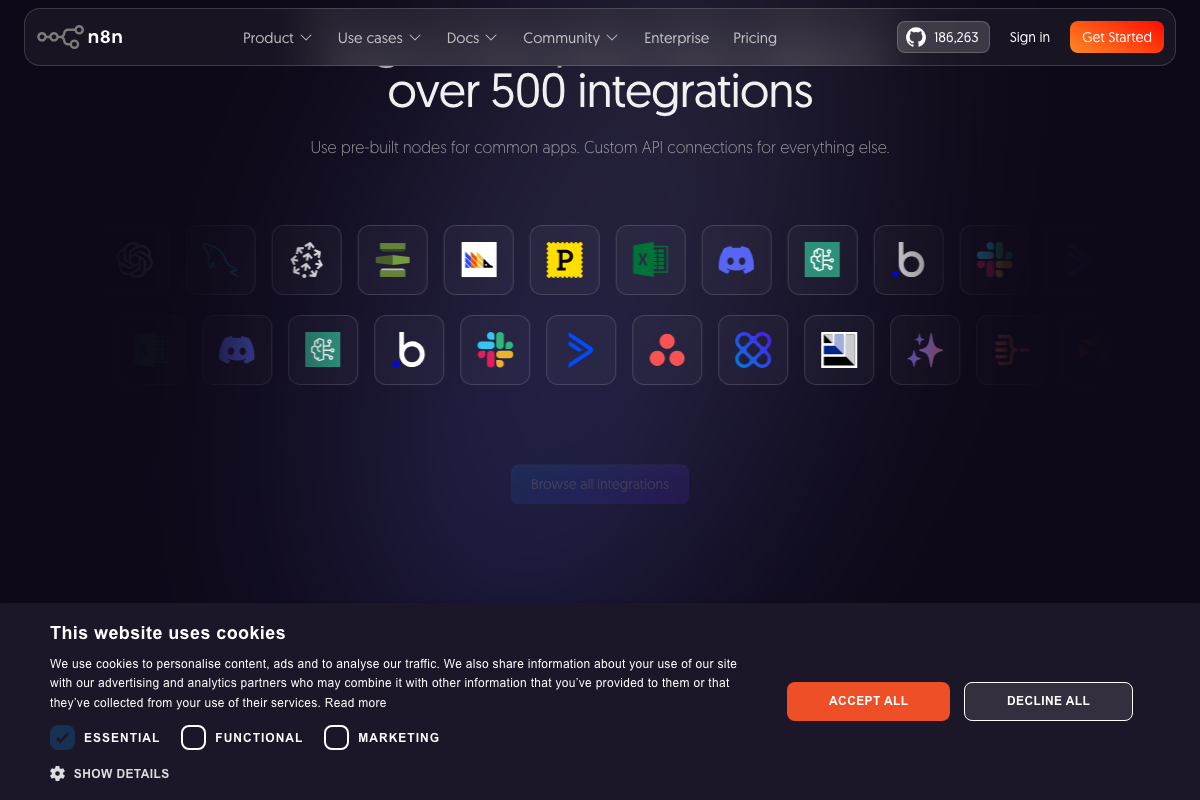
The video’s approach here matches the current docs exactly. n8n’s 500+ native node library includes email delivery and RSS ingestion nodes, confirming Claude Code selects from existing integrations rather than constructing custom ones from scratch.
Steps 11–14: RSS aggregation, GPT-5 node, temperature parameter error, corrected delivery
No official documentation was found for these steps —
proceed using the video’s approach and verify independently.
OpenAI Platform documentation at platform.openai.com/docs/overview requires authentication to access. Whether GPT-5 accepts a temperature parameter cannot be confirmed from any public-facing screenshot. If you hit a parameter rejection matching the one in the video, check the authenticated API Reference → Explore endpoints and parameters section for the current model spec before adjusting the node manually.
Useful Links
- AI Workflow Automation Platform – n8n — Official n8n homepage covering AI workflow capabilities, deployment paths, and the 500+ node integration library.
- Explore n8n Docs: Your Resource for Workflow Automation and Integrations — n8n documentation hub; the Build AI functionality → Advanced AI section is the most likely location for current MCP server configuration documentation.
- Claude Code by Anthropic | AI Coding Agent, Terminal, IDE — Official Claude Code product page with the install command, plan tiers, and multi-surface feature overview.
- OpenAI Platform — OpenAI API documentation hub (authentication required); the API Reference section covers model-specific parameters including temperature support per model.


0 Comments