

Write High-Converting Google Ads Headlines with Claude AI and a Systematic Split Testing Process
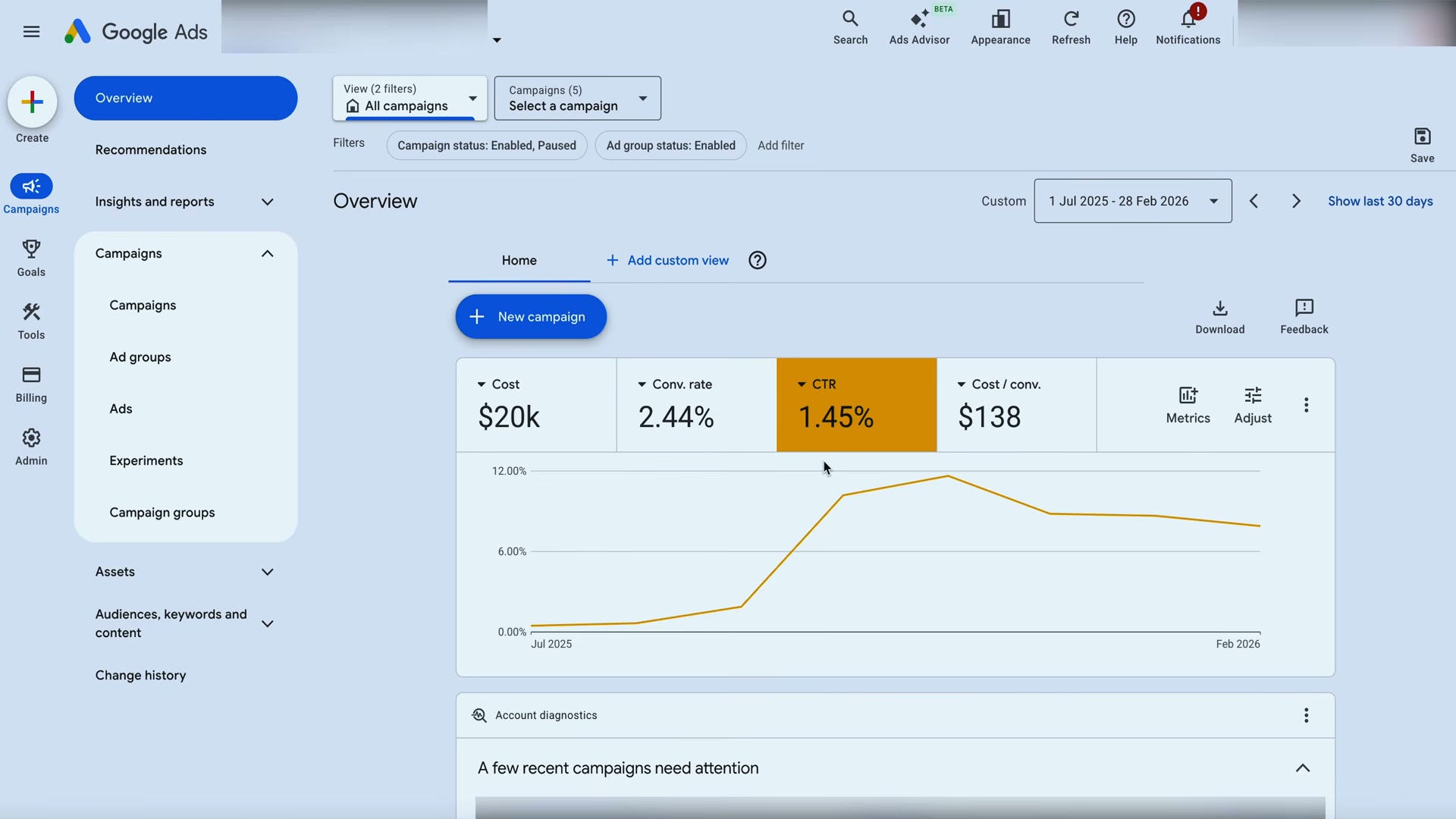
Most Google Ads accounts plateau not because of bidding strategy or audience targeting — but because the ad copy never gets iterated. After working through this framework, you’ll be able to generate a three-to-six month pipeline of research-backed headlines using Claude, load them into Google Ads for clean split tests, and run a continuous testing cycle that compounds CTR and conversion rate gains over time.
-
Before writing a single headline, internalize the four required elements every Google Ads headline must contain: a keyword focus, a brand mention, a strong call to action, and an emotional trigger backed by objective facts. The fourth element is where most accounts fail — vague claims like “we’re the best” carry no weight. Anchoring emotion to a percentage, a dollar value, or a measurable guarantee is what makes a headline your competitors can’t or won’t copy.
-
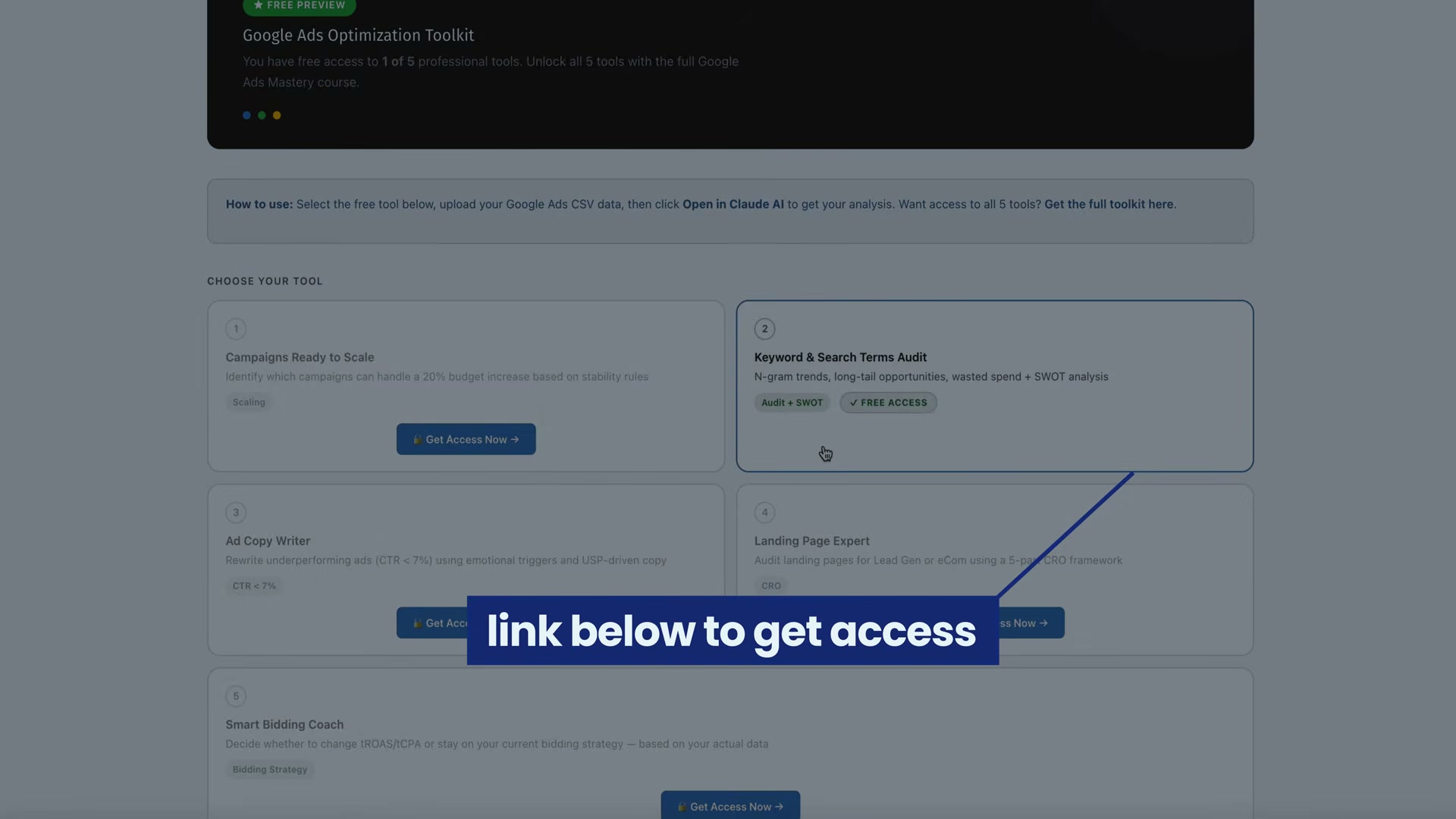
Open Claude (or the Define Digital Academy Ad Copywriter tool if you have access) and load the discovery phase prompt. The prompt is available as a standalone Claude workflow — you don’t need the academy’s tool to replicate the process.
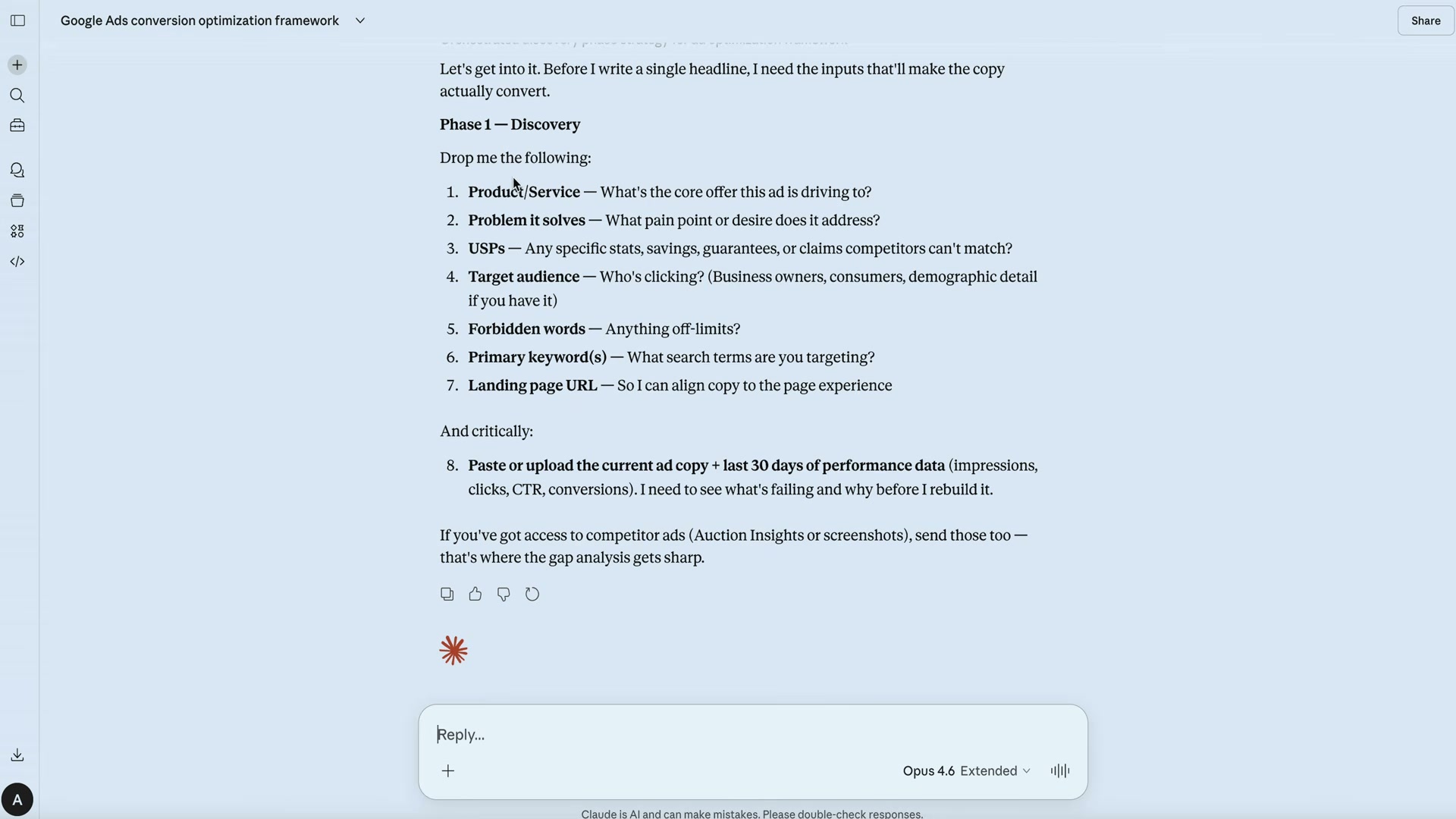
- Feed the prompt eight inputs: your core offer or product, the pain point or desire it addresses, unique selling points with specific stats or guarantees, your target audience, any forbidden keywords, your primary keywords, your landing page URL, and your current ad copy with at least 30 days of performance data. Specificity here is the variable that separates generic output from headlines that convert — the more precise your USPs, the harder Claude’s output is for competitors to replicate.

- Export your ad performance report from inside Google Ads as a CSV and upload it into Claude alongside your prompt inputs. Claude uses this data to benchmark your current conversion rate against category norms before generating any copy — if the performance file is missing, Claude will flag it rather than proceed.
- Review Claude’s structured output, which organizes headline angles into four categories: emotion-based triggers, social proof and authority claims, competitor-differentiated claims, and condition- or service-specific angles. A single run typically surfaces around 45 headline candidates and 45 description variants.
-
Select five to six headlines that align most closely with your audience’s core pain points. Run additional iterations in Claude or push the output into Gemini for further variation if needed. If you have a customer avatar document, upload it into Claude to tighten audience specificity before finalizing your selections.
-
Log every generated headline in a Google Sheet, tracking tested versus untested status. This prevents duplication across testing cycles and gives you a visible backlog to pull from over the next three to six months.
-
Inside the Google Ads interface, configure each ad group to run exactly two ads — each differing by only one element. Isolating a single variable per test is what produces actionable signal.
-
Load your Claude-generated headlines into the Responsive Search Ad interface, assigning each to a specific ad slot.

-
Let each variant accumulate a minimum of approximately 100 clicks before drawing conclusions from CTR or conversion rate data. Declaring a winner on low volume produces false positives that can send the testing cycle in the wrong direction.
-
Pause underperforming ads, promote the winning variant, and introduce a new challenger headline. Repeat the cycle every three to six months to keep your copy ahead of market conditions and competitor messaging.
How does this compare to the official docs?
The framework Aaron walks through is grounded in sound conversion principles, but Google’s own RSA guidance and the Claude API documentation offer important nuance on a few steps — which Act 2 unpacks in detail.
Here’s What the Official Docs Show
The video’s framework is structurally sound, and the documentation confirms the core workflow holds. What follows adds platform-specific context the tutorial skips — campaign type selection, Claude plan requirements for file uploads, and the correct entry point for Gemini.
Step 1 — Internalize the four headline elements
No official documentation was found for this step — proceed using the video’s approach and verify independently.
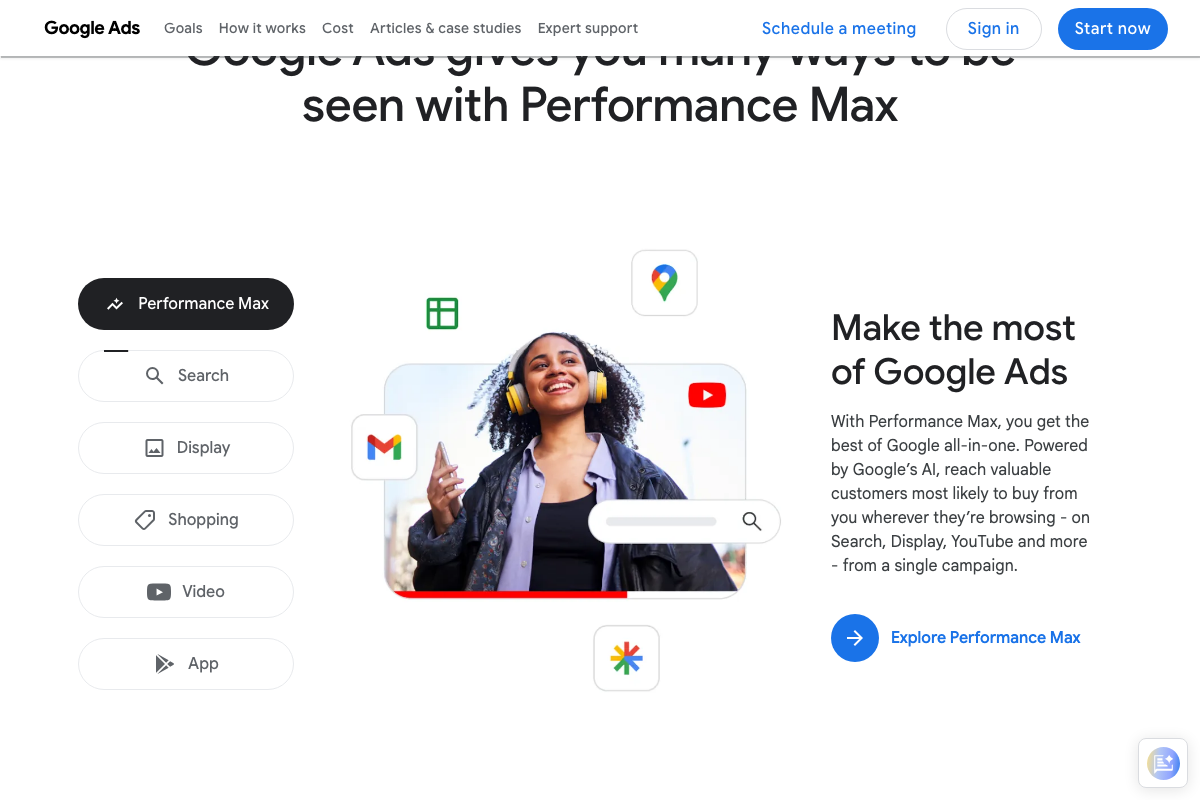
One critical platform clarification: this entire framework applies to standard Search campaigns only. Google Ads currently promotes Performance Max as its default campaign type, which uses asset groups managed by Google’s AI rather than manually controlled headline slots. When creating your campaign, select Search explicitly.
Step 2 — Open Claude
The video’s approach here matches the current docs exactly. Claude is accessible at claude.ai via Google or email sign-in, and a desktop app is also available.
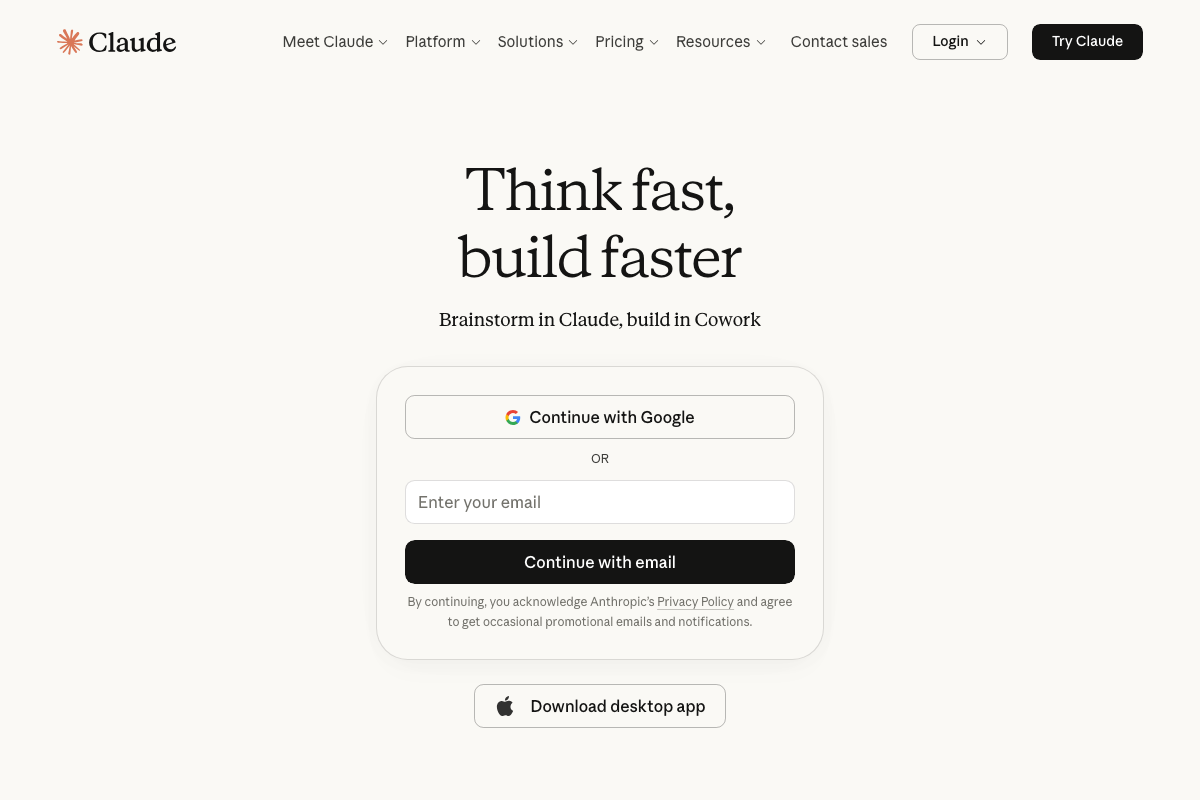
As of April 2026, Anthropic has added a product called Cowork visible on the Claude homepage. The tutorial doesn’t reference it — it’s not part of this workflow.
Step 3 — Feed the eight prompt inputs
No official documentation was found for this step — proceed using the video’s approach and verify independently.
Step 4 — Export and upload your ad performance CSV
No official documentation was found for the CSV export process itself — proceed using the video’s approach and verify independently.
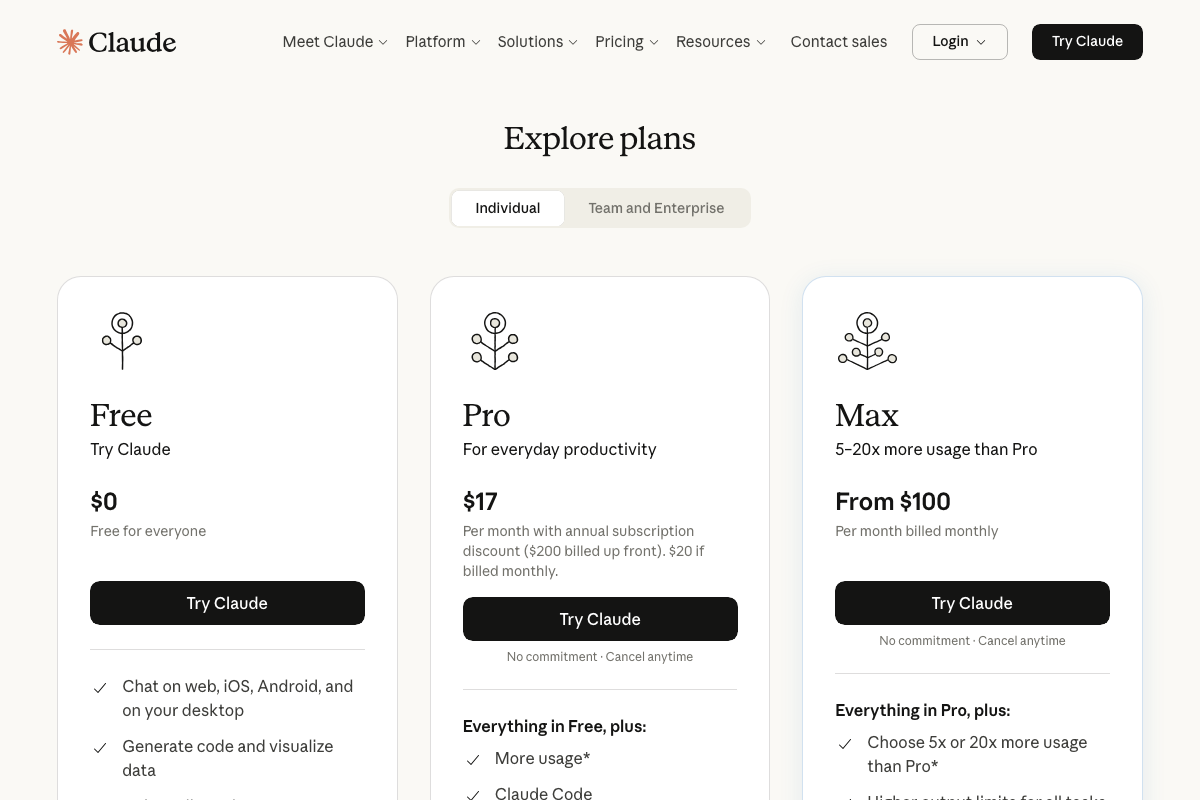
Worth flagging: file upload is not listed as a Free plan feature in current Claude pricing documentation. Steps 4 and 7 both require uploading files into Claude. If you hit a restriction on the Free tier, a Pro plan at $17/month billed annually unlocks that capability. The tutorial doesn’t address this cost.
Step 5 — Review Claude’s structured output
No official documentation was found for this step — proceed using the video’s approach and verify independently.
Step 6 — Iterate in Gemini if needed
The video’s approach here matches the current docs exactly — Gemini supports text-based generation tasks well-suited to headline iteration.

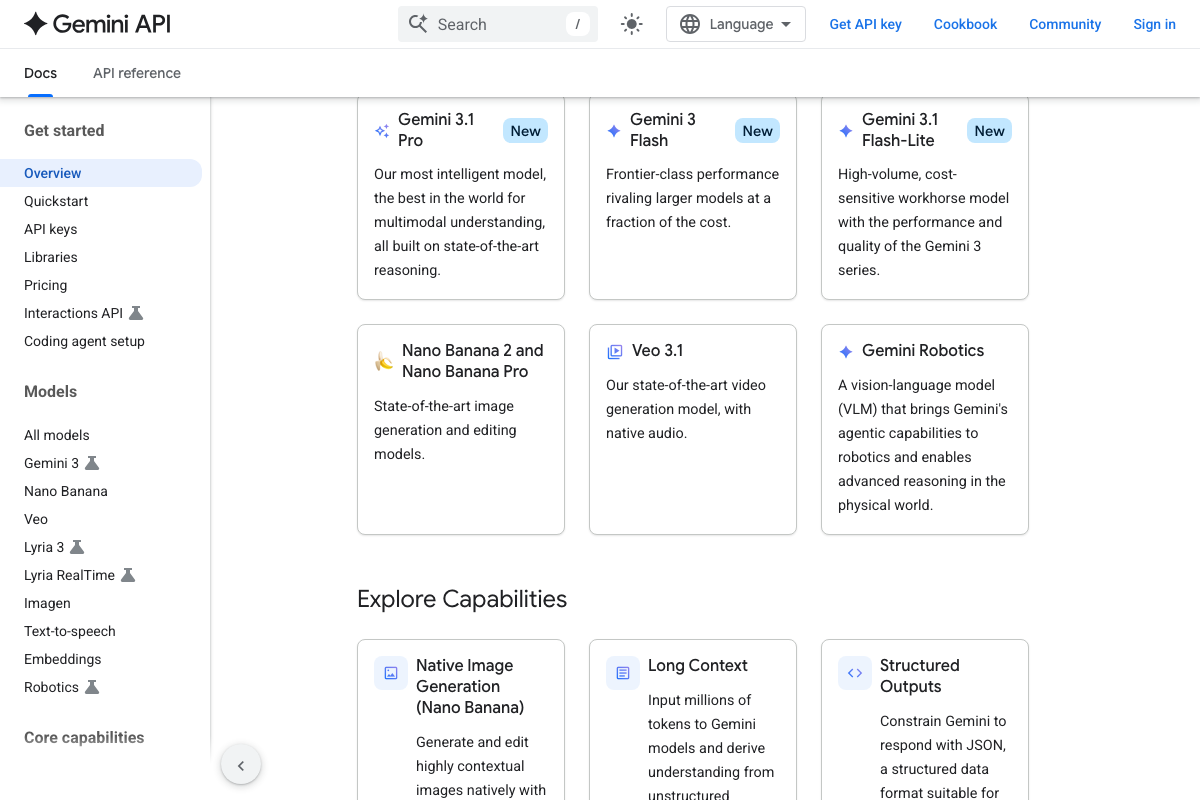
One access distinction the tutorial glosses over: the documentation is from the developer API at ai.google.dev, which requires an API key. For non-developers, use gemini.google.com instead — no key needed. For this use case, Gemini 3 Flash or Gemini 3.1 Flash-Lite are the most cost-efficient current models.
Step 7 — Upload customer avatar documents
No official documentation was found for this step — proceed using the video’s approach and verify independently.
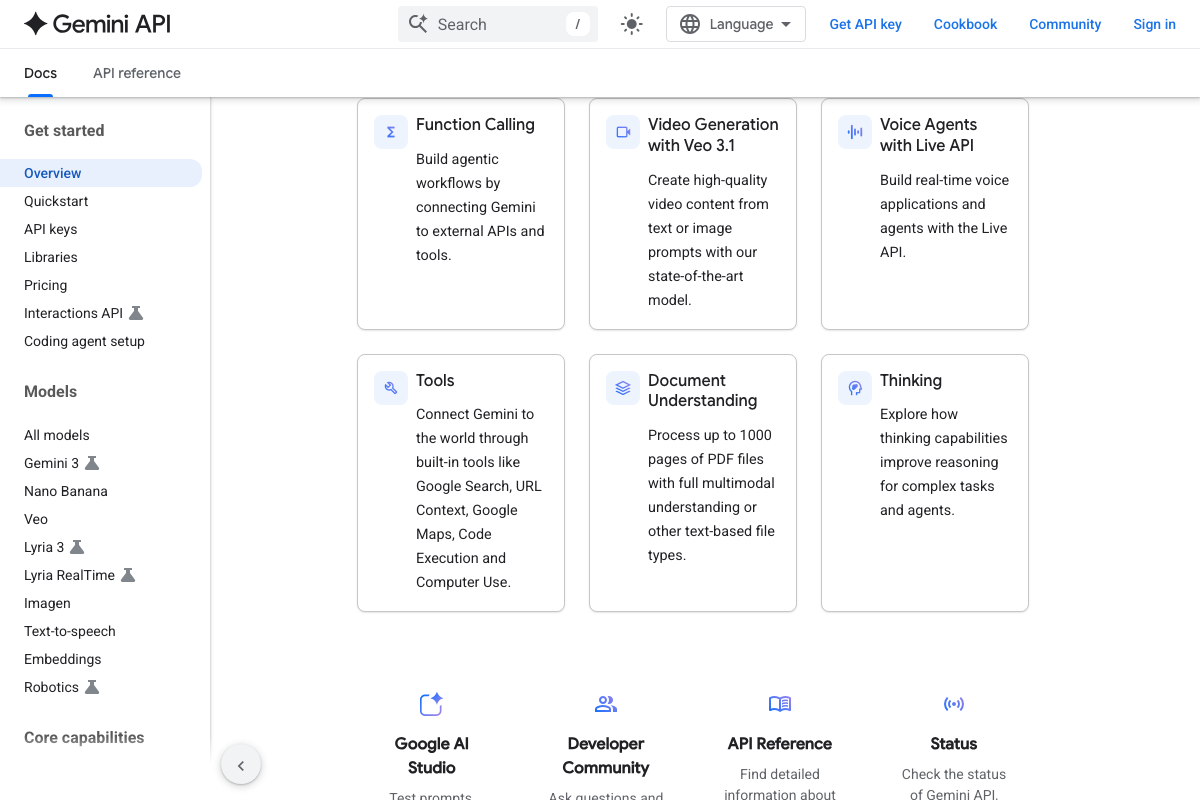
Additive note: Gemini’s Document Understanding feature supports up to 1,000 pages of PDF content. The avatar document upload in this step can be run in Gemini as an alternative to Claude — relevant if you’re constrained by Claude’s Free plan file upload limits.
Step 8 — Log headlines in Google Sheets
The video’s approach here matches the current docs exactly. Sheets is accessible at sheets.google.com; a Google account is required.

Steps 9, 10, and 11 — Ad group setup, CTR monitoring, pausing underperformers
No official documentation was found for these steps — proceed using the video’s approach and verify independently.
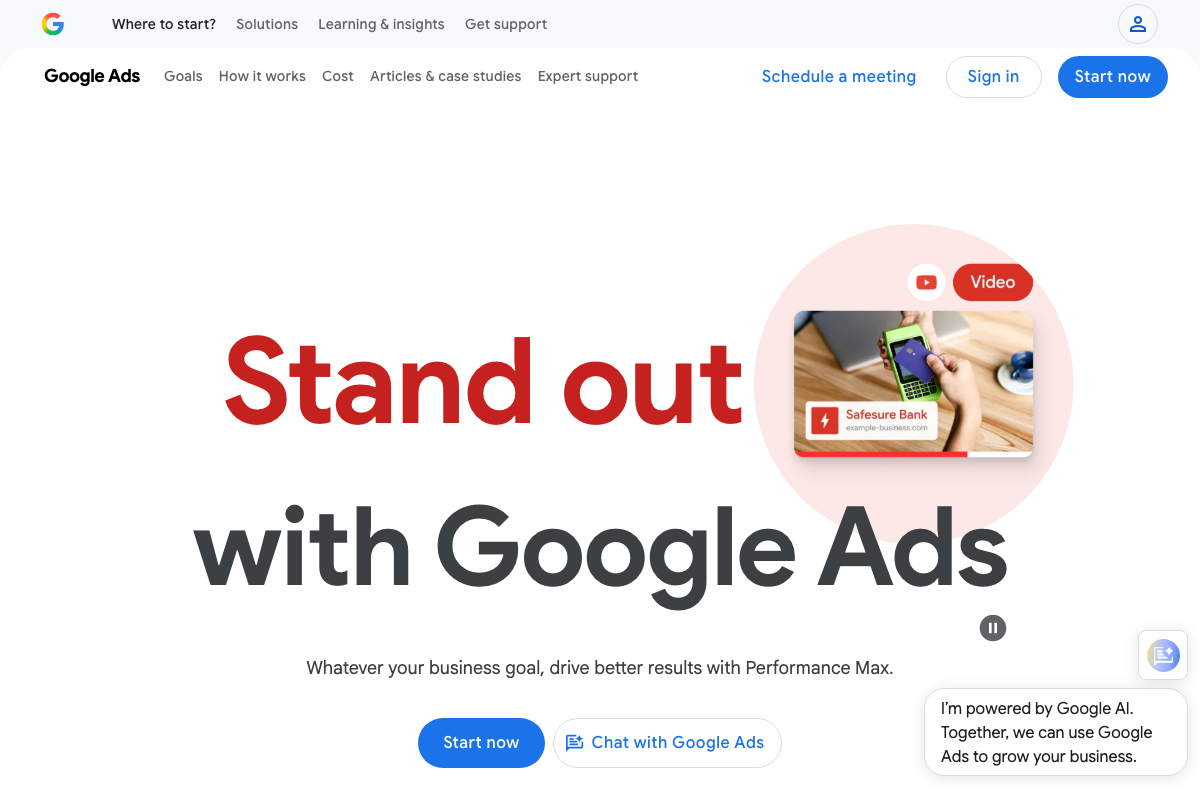
The two-ads-per-ad-group testing structure in step 9 is specific to Search campaigns. Performance Max does not support the same manual configuration. Confirm your campaign type before building out ad groups.
Useful Links
- Google Ads – Get Customers and Sell More with Online Advertising — Google Ads public homepage and entry point for campaign creation and management.
- Claude — Anthropic’s Claude platform covering sign-in options, pricing tiers, and feature availability by plan.
- Gemini API | Google AI for Developers — Developer documentation for the Gemini API including the current model catalog and Python quickstart.
- Google Sheets: Sign-in — Google Sheets access point for the headline tracking spreadsheet described in step 8.


0 Comments