

How to Find Wasted Spend in Google Ads Using AI-Powered N-Gram Analysis
Wasted Google Ads budget hides in plain sight — buried in keyword themes that rack up spend without converting. After completing this tutorial, you’ll be able to run a full keyword and SWOT analysis on any Google Ads account using a free AI prompt tool, identify the exact search themes draining your budget, and have a clear action list for reallocating spend toward what actually converts.
- Navigate to the link in the video description to access the Define Digital Academy Google Ads Optimization Toolkit. From the toolkit landing page, locate Tool #2: Keyword & Search Terms Audit — it carries a “FREE ACCESS” badge and requires no purchase.
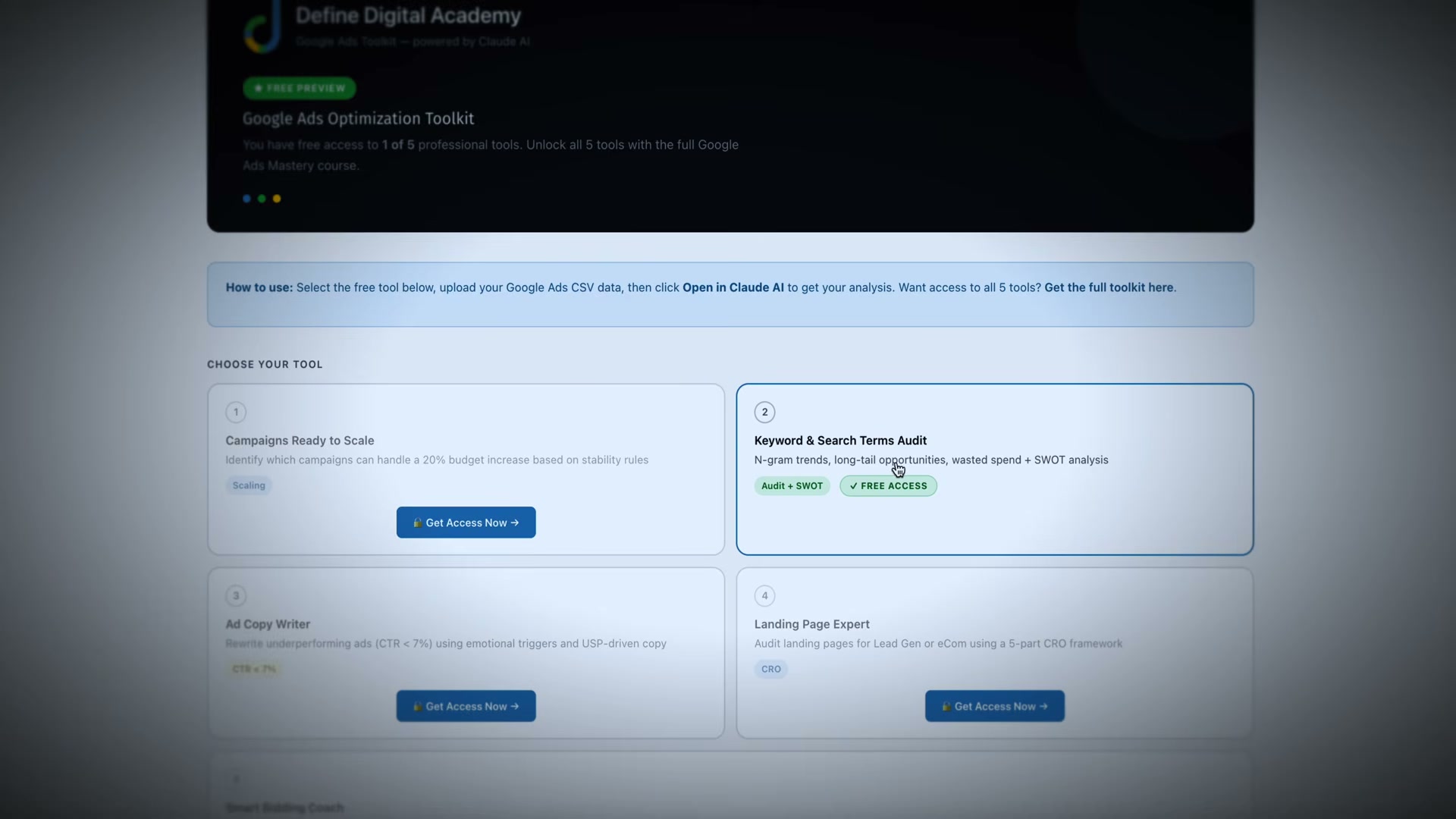
- Click Tool #2 to open it. The tool is designed to launch directly inside your own Claude or Gemini account, where it copies the full system prompt automatically. You are not sending account data to a third party — the analysis runs entirely within your existing AI session.

- Once the prompt loads in Claude (or Gemini), click go. The tool will ask a short series of setup questions: confirm whether the account is e-commerce or lead generation, then specify your n-gram focus — two-word and three-word grams are recommended for most accounts.
-
Switch to your Google Ads account. Set the date range to at least 60 days of data — the tutorial uses approximately 10 weeks. Before exporting anything, add conversion segmentation by navigating to Segment → Conversions → Conversion Actions so the exports include per-action conversion data.
-
Export your Keywords report as a CSV from the Keywords view. Then navigate to Insights & Reports → Search Terms and export that report as a separate CSV.
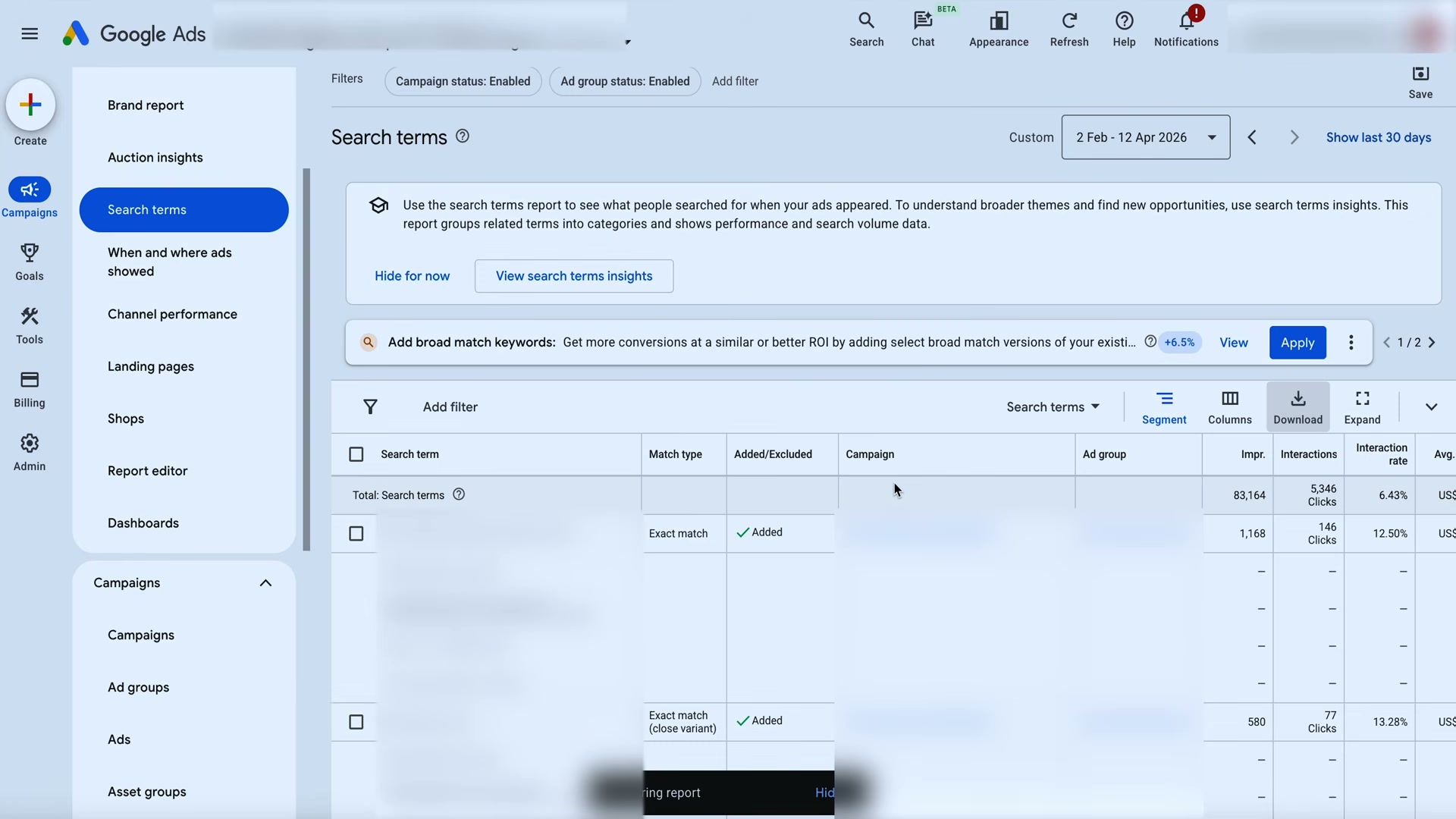 Navigate to Insights & Reports > Search Terms in Google Ads, then use the Download button to export your CSV
- Return to your Claude session and paste both CSV files directly into the conversation. Claude accepts them inline — no file upload interface required.
Warning: this step may differ from current official documentation — see the verified version below.
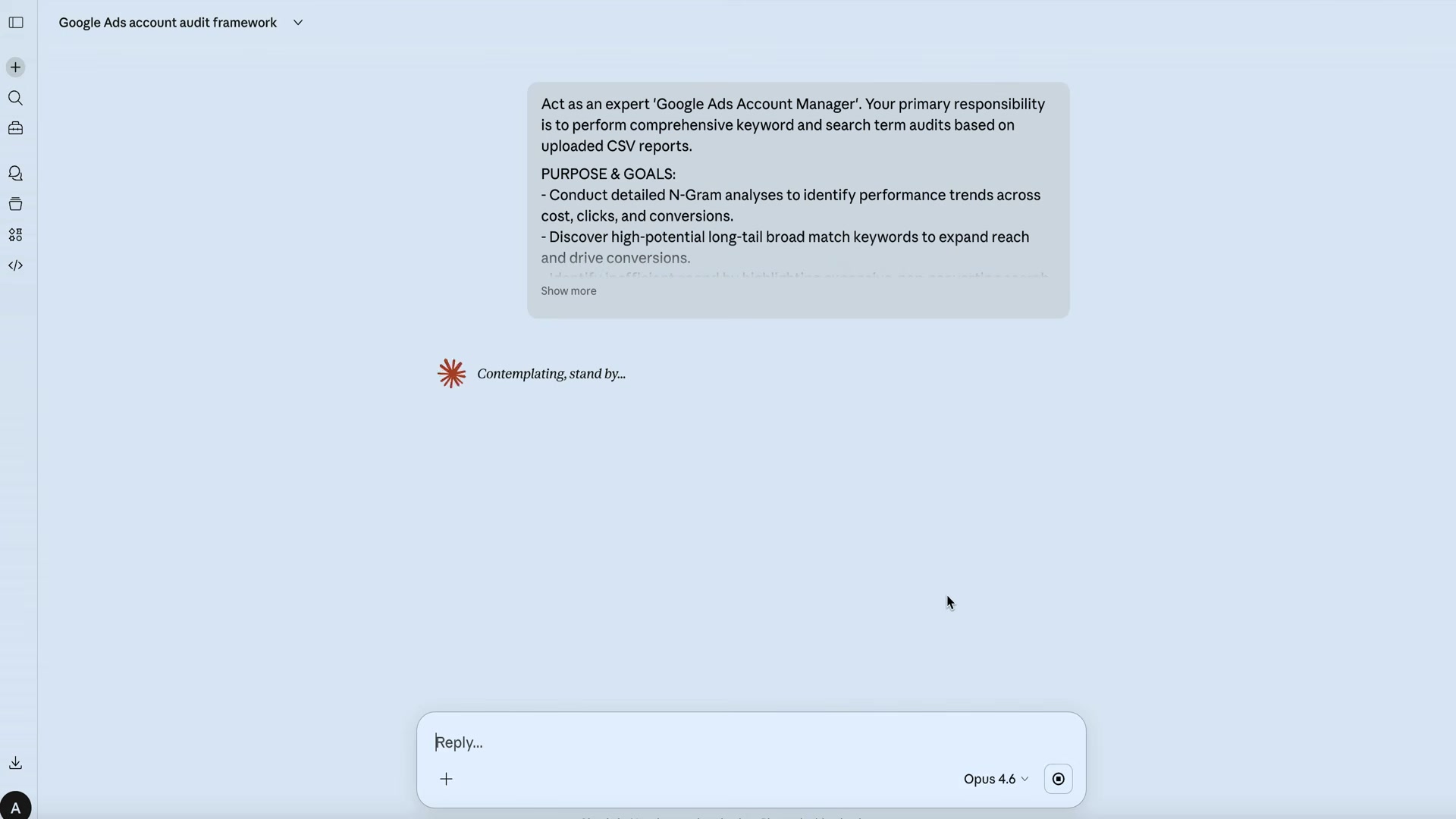
- Allow two to five minutes for the analysis to complete. Extended Claude models take longer than Gemini but typically return more detailed output. When the report appears, start with the 2-word and 3-word n-gram breakdowns — each row represents a keyword theme grouped by cost, clicks, conversions, CPA, and ROAS.
-
Scan the flagged underperformers — themes with CPA more than twice your target or ROAS below 1x. For each flagged theme, decide: add it as a negative keyword if it’s irrelevant, or rework your ad copy and landing page if the intent is worth pursuing. The tool also surfaces duplicate keywords running across multiple campaigns, which create internal bidding conflicts you’ll want to resolve.
-
Review the SWOT section at the end of the report. Strengths and Opportunities show you where to increase budget or create segmented breakout campaigns. Weaknesses and Threats point to structural issues — poor match type coverage, budget suppression, or campaign architecture problems. Use these findings to shift spend toward themes where the data already shows traction.

How does this compare to the official docs?
The workflow above reflects what the video demonstrates — but Google Ads’ own documentation describes several native tools for keyword analysis and audience segmentation that may already surface some of this data without a third-party prompt.
Here’s What the Official Docs Show
The tutorial’s core workflow holds up well against current platform documentation — what follows layers in the detail that affects your exports and downstream AI analysis. Same steps, same order, grounded in first-party sources.
Step 1 — Access the prompt tool
No official documentation was found for this step — proceed using the video’s approach and verify independently.
Step 2 — Open the prompt in Claude or Gemini
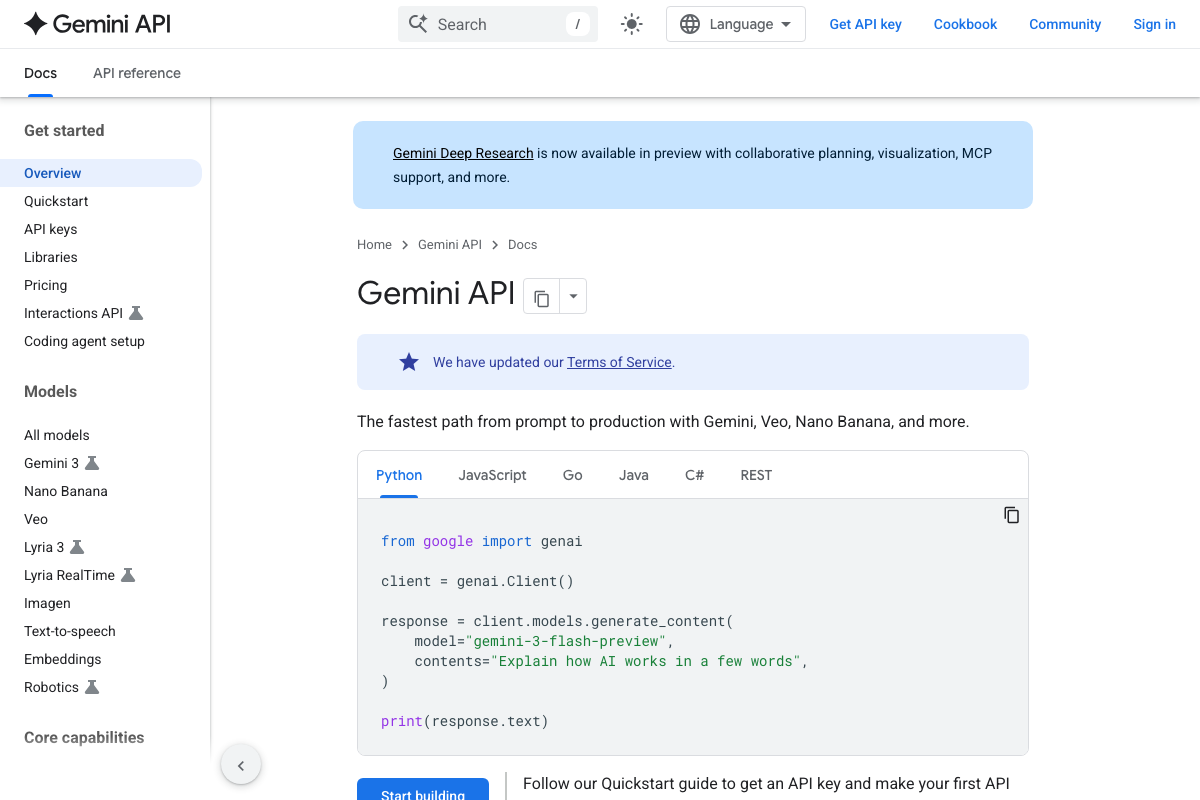
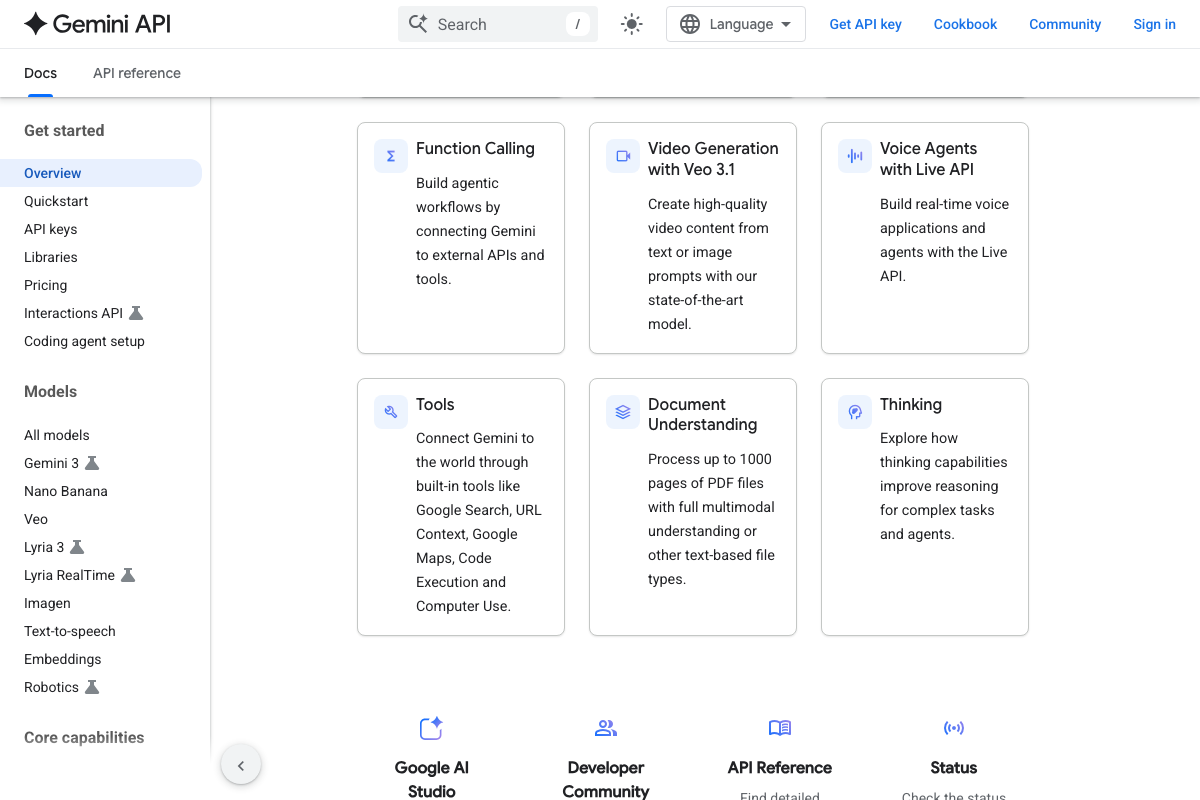
The video’s approach here matches the current docs exactly. One distinction worth flagging: the tutorial instructs users to open the prompt in “your Gemini account.” The Gemini developer portal at ai.google.dev is API-only — it requires a developer key and code, not a chat interface. For this tutorial’s no-code paste-and-go workflow, use the consumer chat at gemini.google.com, not the API portal.
Steps 3–4 — Configure the prompt and set your date range
No official documentation was found for these steps — proceed using the video’s approach and verify independently.
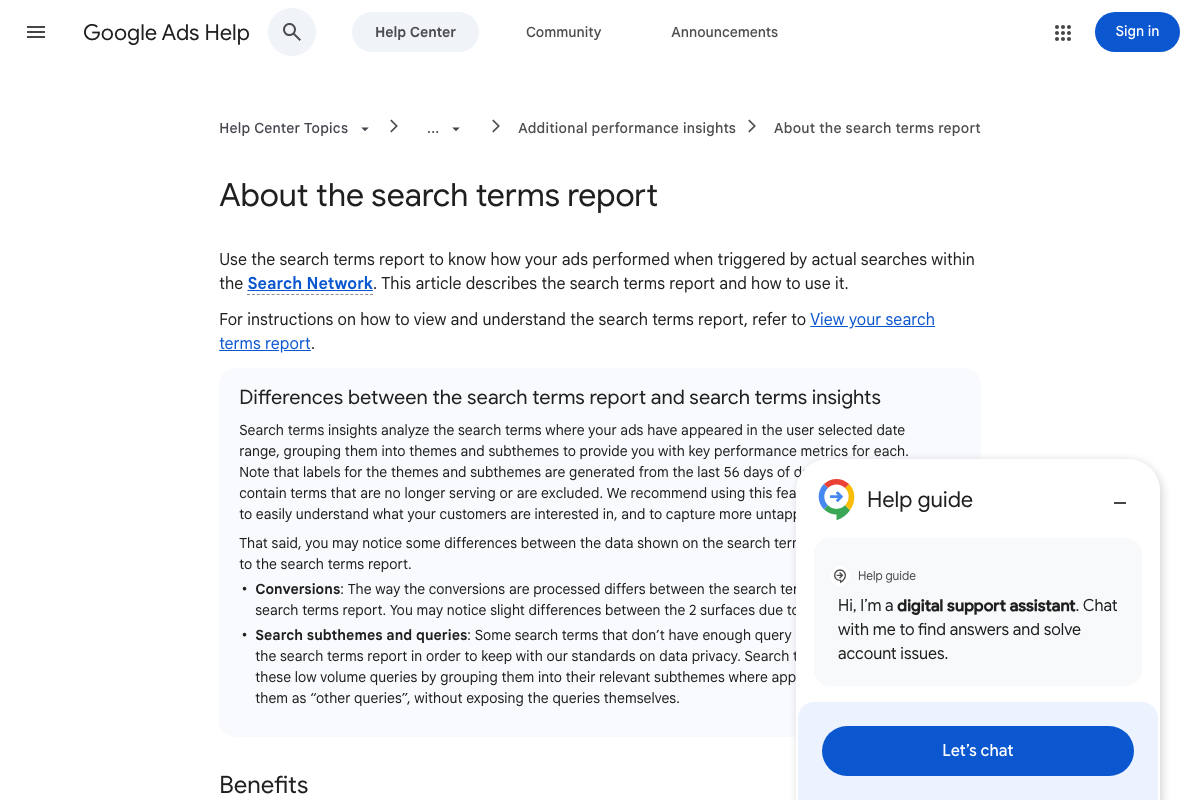
One related data point from the docs: Google Ads’ Search Terms insights feature generates thematic labels from the last 56 days of data. The tutorial’s ~60-day recommendation is workable for the raw search terms report, but the platform’s own grouping engine uses 56 days as its threshold — these are distinct features with different data processing rules.
Step 5 — Export the Keywords report
No official documentation was found for this step — proceed using the video’s approach and verify independently.
One data gap to flag before you export: low-volume search terms are excluded from the Search Terms report for privacy reasons. On small or newer accounts, your CSV will be incomplete — factor that into n-gram frequency interpretation. Also note the tutorial’s workflow applies specifically to Search campaigns. If your account runs primarily on Performance Max, keyword-level search terms data is not accessible in the same way.
Step 6 — Apply Conversion Action segmentation
The video’s approach here matches the current docs exactly. The Conversion action segment is a confirmed option under the Conversions segment category.
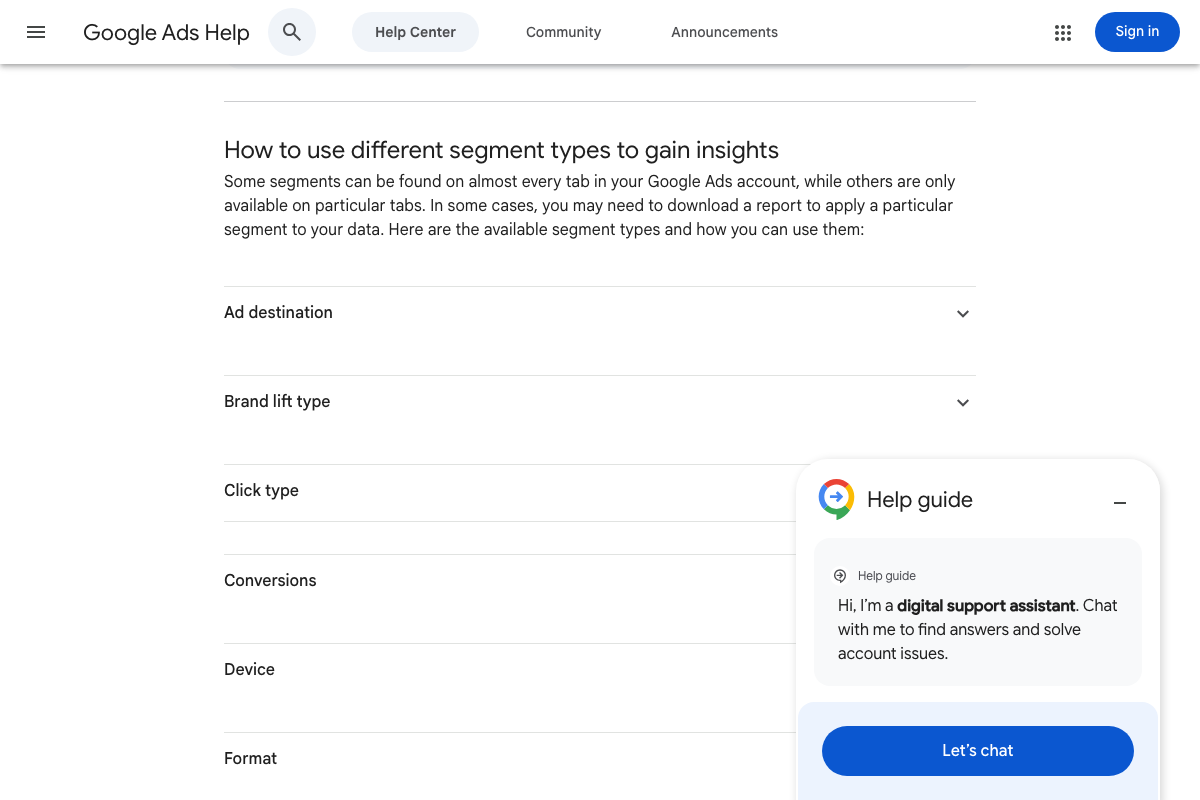
One caveat the video doesn’t cover: applying the Conversion action segment suppresses non-conversion columns. Clicks, Impressions, and Cost will not appear in the same rows as conversion data. Your exported CSV will carry a split-row structure — verify that your AI tool can parse it before you paste.

Step 7 — Download the segmented CSV
The video’s approach here matches the current docs exactly.

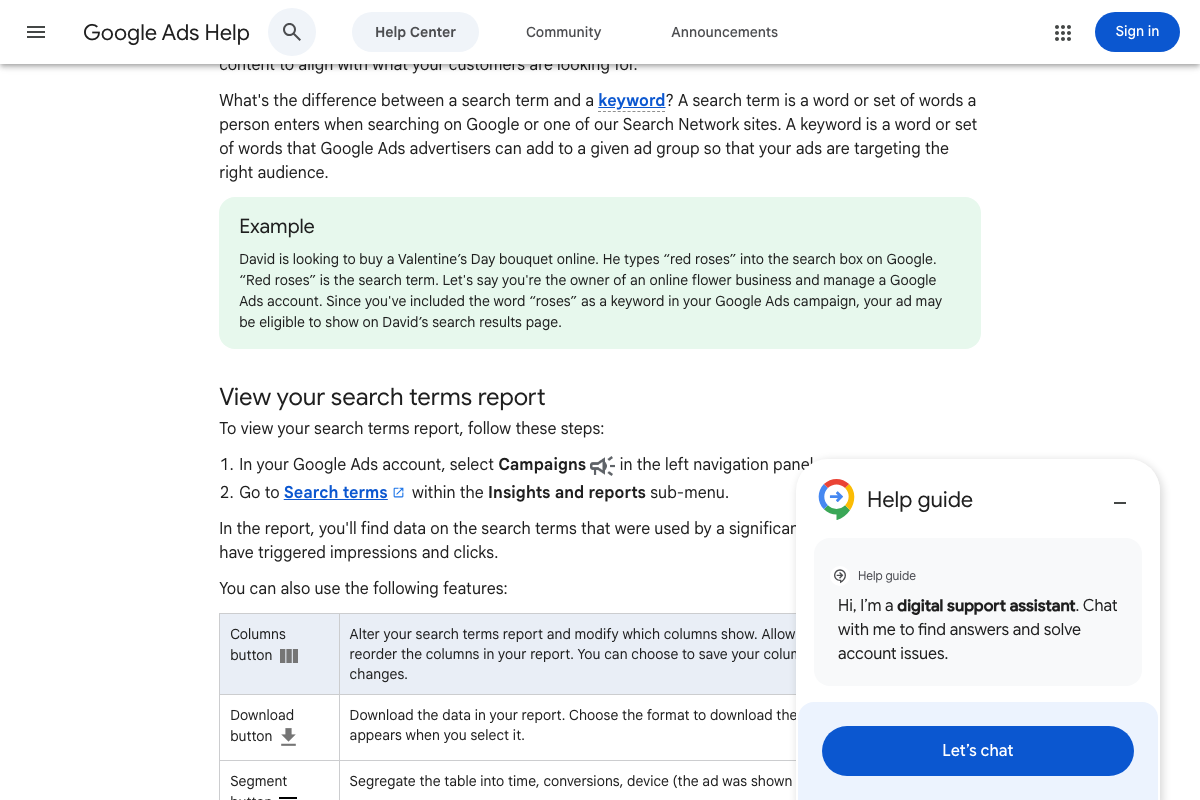
Step 8 — Export the Search Terms report
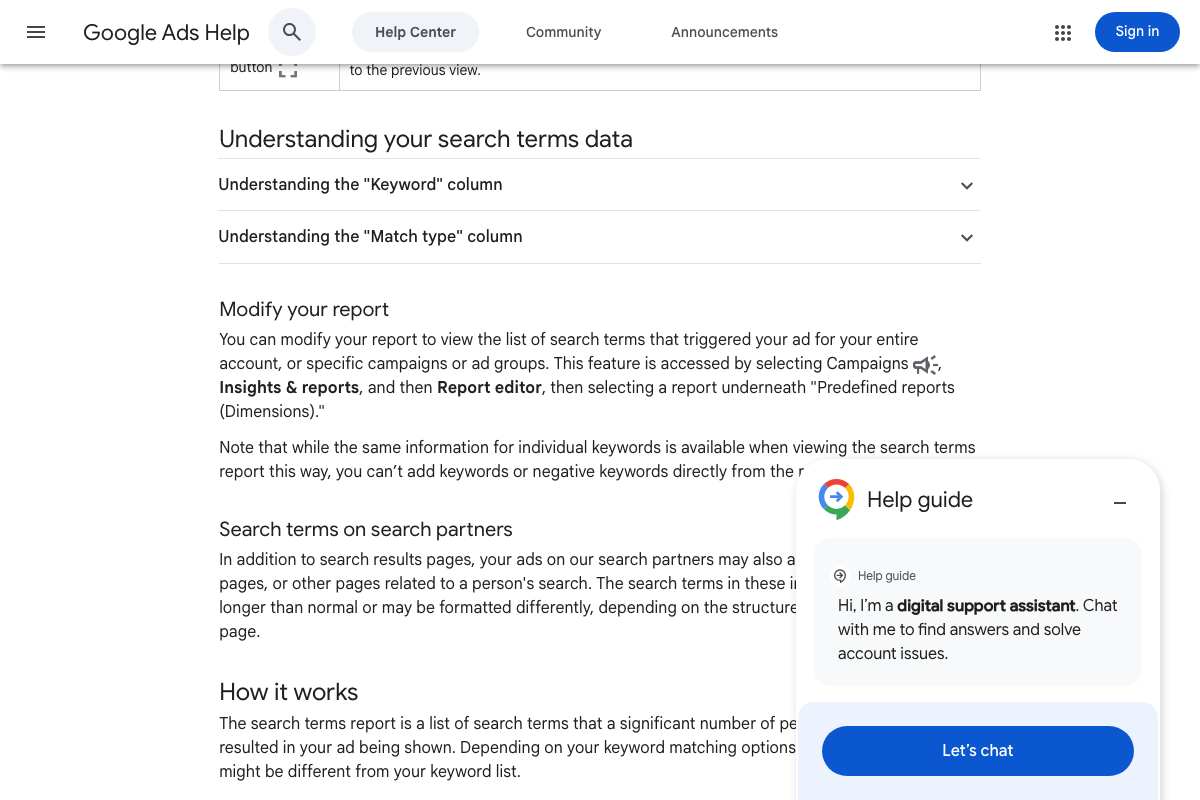
The video’s approach here matches the current docs exactly — with one navigation clarification. The tutorial describes the path as “Insights & Reports,” which is accurate, but the entry point in the left navigation panel is the Campaigns icon, not a standalone Insights link. Full path: Campaigns (left nav icon) → Insights and reports → Search terms.
Steps 9–12 — Paste data and review output
No official documentation was found for these steps — proceed using the video’s approach and verify independently.
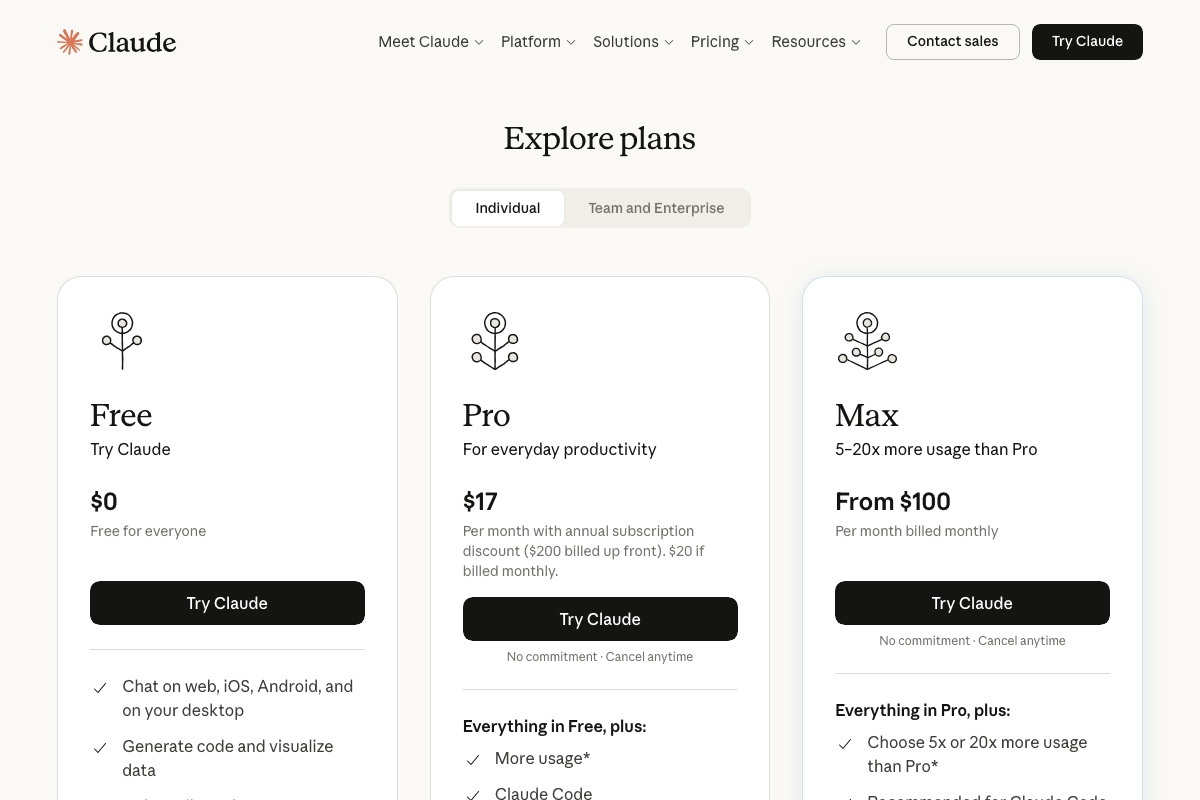
If you’re on Claude’s Free tier, large CSV pastes may exhaust your context window or message allowance before the analysis completes. Pricing documentation confirms the Free tier exists but does not publish specific caps. For accounts with substantial keyword data, a Pro ($17–$20/month) or Max (from $100/month) plan is likely necessary. The tutorial’s reference to “extended Claude models taking longer” maps to the Max tier, which provides 5–20× more usage than Pro.
Gemini’s long-context capability supports large CSV inputs, though context window limits vary by model and plan tier in the consumer chat interface.
Steps 13–16 — Act on findings
No official documentation was found for these steps — proceed using the video’s approach and verify independently.
One hard platform restriction: as of April 22, 2026, negative keywords cannot be added directly from the Report editor version of the Search Terms report. Navigate to the Keywords section of Google Ads to apply them — this is a platform-level constraint, not a workflow preference.
Useful Links
- Google Ads – Get Customers and Sell More with Online Advertising — The Google Ads platform homepage; sign in here to access campaign dashboards, keyword reports, and the Search Terms export workflow.
- Use segments in your tables – Google Ads Help — Official documentation for applying conversion segmentation to Google Ads tables, including the column-suppression behavior that restructures exported CSVs.
- About the search terms report – Google Ads Help — Covers the Search Terms report navigation path, low-volume data exclusions, the 56-day insights label window, and the restriction on adding negatives from the Report editor.
- Claude — Anthropic’s consumer AI chat interface used to run the keyword audit prompt; Free, Pro, and Max tier pricing documented here.
- Gemini API | Google AI for Developers — Developer-level Gemini documentation; note this is distinct from the consumer chat at gemini.google.com, which is the correct interface for the tutorial’s no-code workflow.


0 Comments