

Scale Google Ads Past $5k–$10k/Month by Restructuring Campaign Architecture
Doubling your Google Ads budget should not halve your profitability — but for accounts stuck between $5k and $10k per month, that is exactly what happens. The culprit is CPC resistance: Google’s algorithm concentrating spend on a narrowing pool of products or keyword themes, then bidding progressively higher for the same traffic to maintain its conversion rate. By the end of this walkthrough, you will be able to diagnose spend concentration in your own account, surface underserved “sidekick” segments, and execute a staggered campaign breakout that forces the algorithm to distribute budget across new inventory without triggering further performance regression.

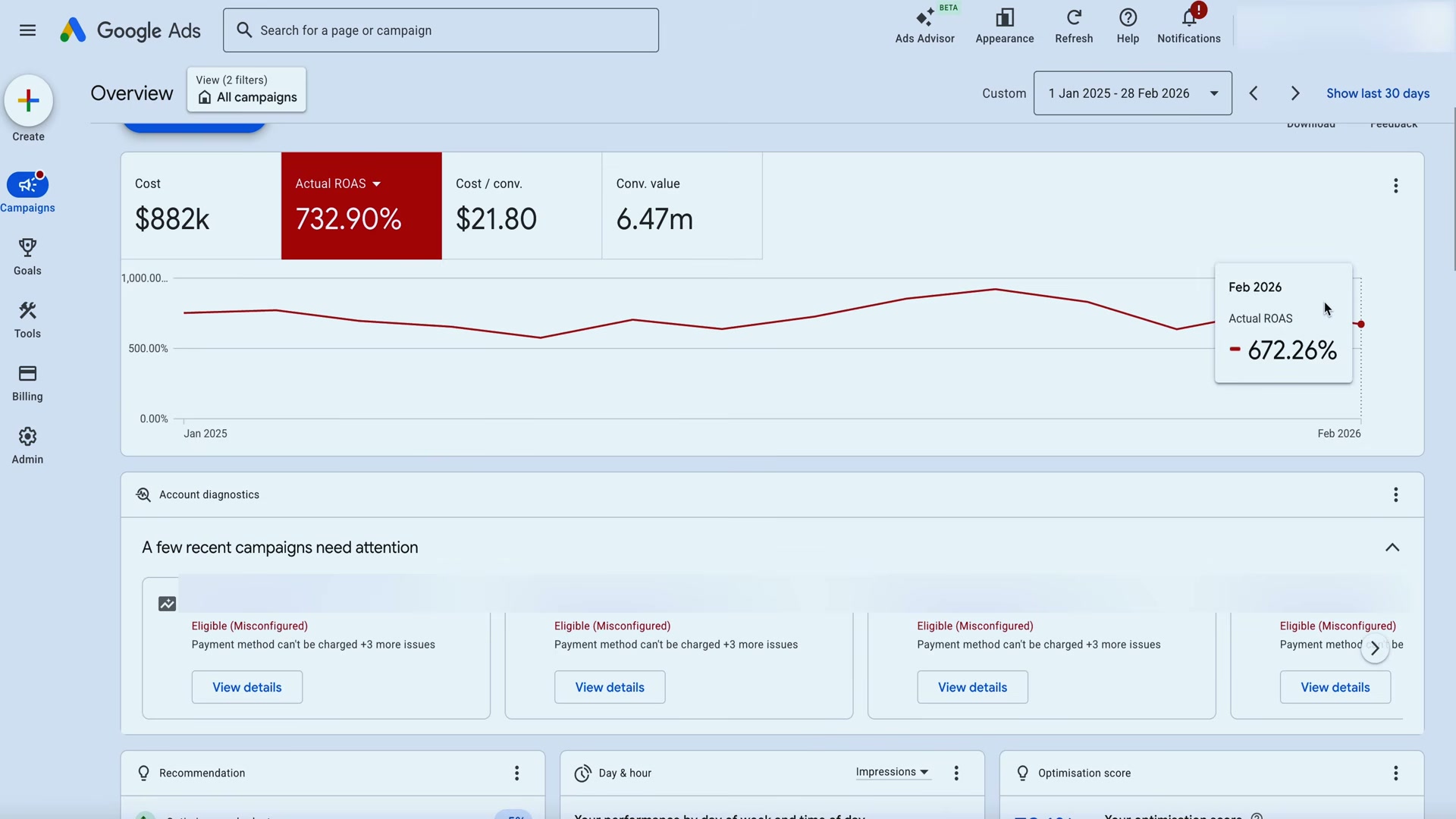
- Identify CPC resistance. Open your campaign trend lines and look for the combination of rising CPC alongside flat or declining conversion volume and ROAS. That pattern confirms the algorithm is caught in a loop — bidding more aggressively on the same narrow inventory rather than finding incremental volume.
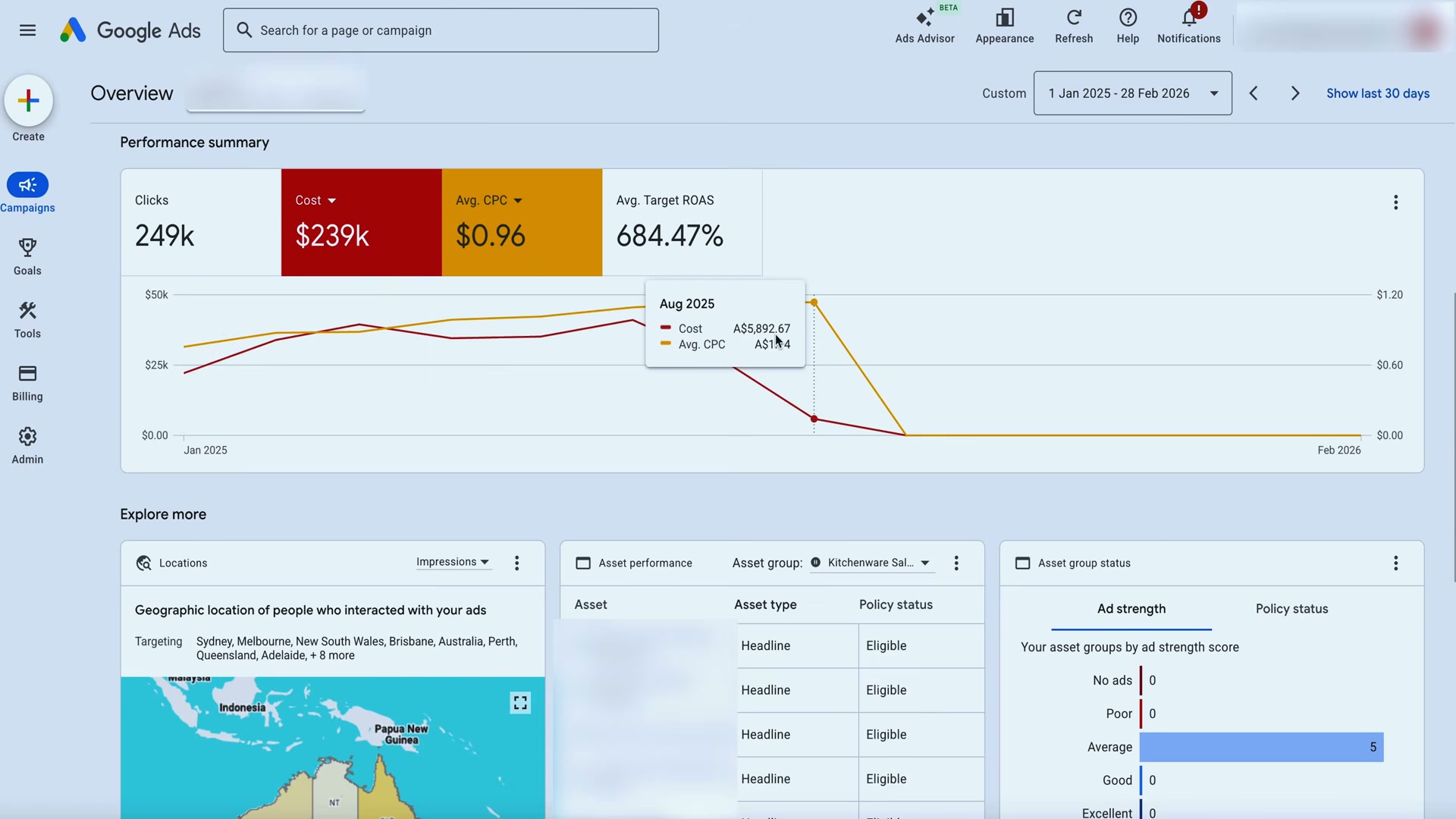
- Audit spend distribution. For Search campaigns, check whether the same two or three ad groups absorb the majority of budget each time you raise daily spend. For Performance Max and Shopping, filter your product report and confirm whether 20–30% of SKUs are receiving the vast majority of impressions and cost. Either pattern is evidence of unhealthy concentration.
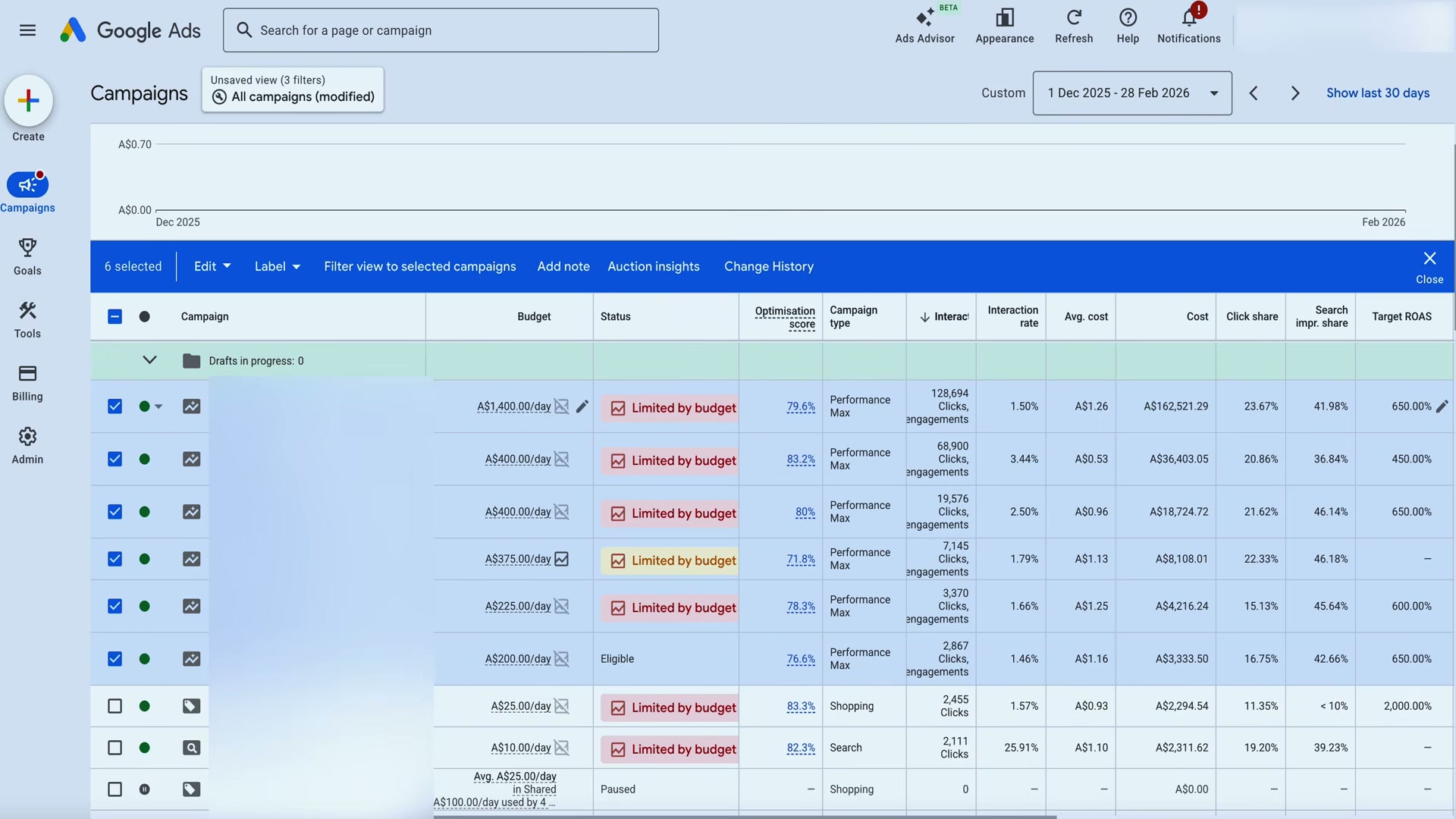
- Export raw data. Pull the search terms report (for Search) or your full product feed (for Shopping and PMax) directly from Google Ads. No transformation is needed at this stage — the raw export is the input for the analysis in Step 4.
- Run an n-gram or product labelizer analysis. Paste the exported data into Gemini and prompt it to categorize spend into winners, losers, and potential winners. Alternatively, deploy a Google Ads Script for the same classification. The output should tier every keyword theme or product so you know exactly where money is working and where it is wasted.

-
Identify sidekick segments. From the analysis output, flag keyword themes or product categories that show conversion activity but receive little to no budget — typically because their search volume is lower than your dominant themes. These are assets the algorithm has quietly abandoned.
-
Pause sidekick segments from the existing campaign. Remove the flagged products or keyword themes before launching anything new. Leaving them in place causes the old and new campaigns to cannibalize each other, splitting signal and triggering a fresh learning period in both.
-
Launch a dedicated campaign for each sidekick segment. Create a new Performance Max or Search campaign containing only the isolated products or keyword themes. A single-segment campaign forces budget toward inventory the algorithm was previously ignoring.
-
Increase budgets incrementally. Apply increases of approximately 20% every 5–7 days rather than large one-time jumps. Larger increases risk triggering another learning phase and reintroducing the CPC resistance pattern you just resolved.
Warning: this step may differ from current official documentation — see the verified version below.
-
Stagger additional campaign breakouts over time. Roll out one or two new segmented campaigns at a time across multiple months. Launching too many simultaneously fragments conversion data and prevents any single campaign from exiting the learning phase.
-
Layer Performance Max over restructured Search campaigns. Once segmented Search campaigns are stable, add Performance Max to capture additional demand across Google’s full inventory — display, YouTube, Discover, Gmail, and Maps — without disrupting the search architecture underneath.
How does this compare to the official docs?
Google’s own guidance on Smart Bidding, campaign consolidation, and budget scaling frames these decisions quite differently from the practitioner playbook above — and the gaps between the two are where the most actionable nuance lives.
Here’s What the Official Docs Show
The practitioner framework in the video is a field-tested playbook that holds up where Google’s documentation exists to test it. What follows layers in the official documentation for each step — confirming what it can, flagging what it cannot, and adding precision where the docs go further than the tutorial does.
Step 1 — Identify CPC resistance
No official documentation was found for this step —
proceed using the video’s approach and verify independently.
Step 2 — Audit spend distribution
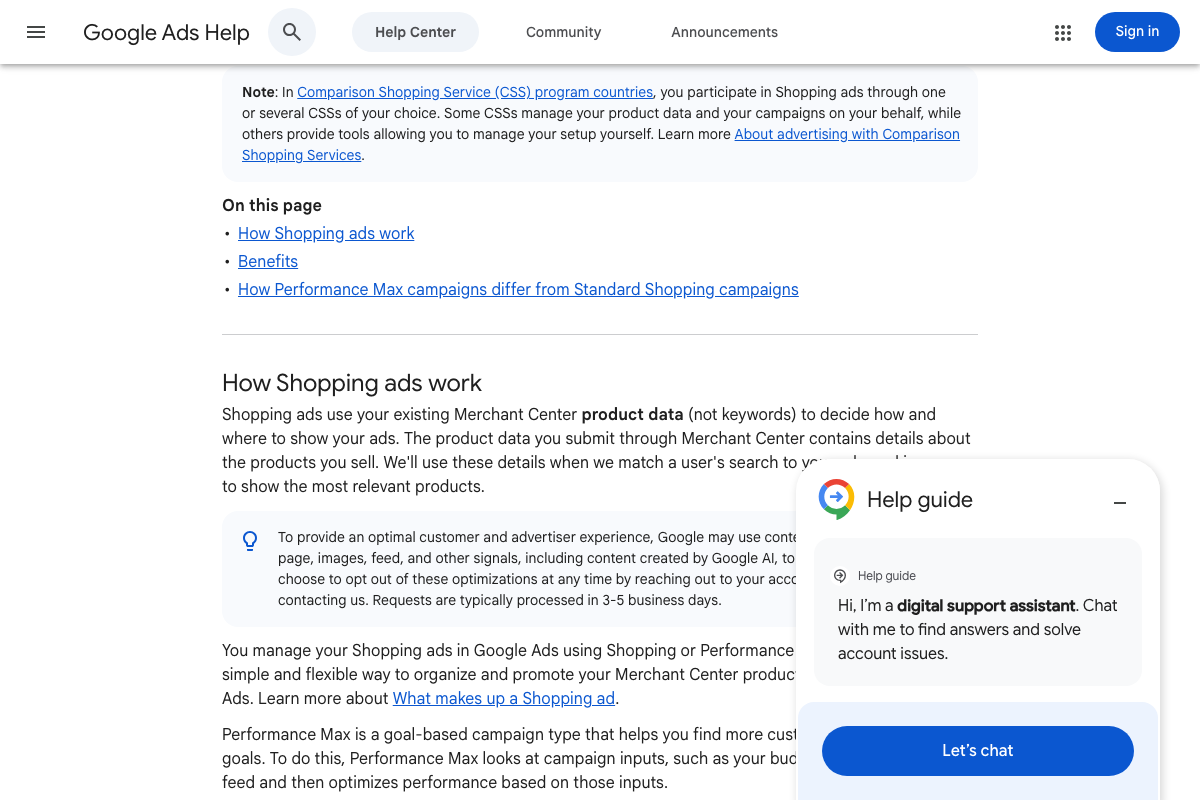
The official Shopping ads documentation confirms that Google uses “product data (not keywords)” to determine how and where Shopping ads appear — validating the product-level audit here. One useful boundary the docs draw: for Shopping and Performance Max, you are auditing product groups and feed data, not ad groups and keyword themes. The keyword-concentration lens applies strictly to Search campaigns.
Step 3 — Export raw data
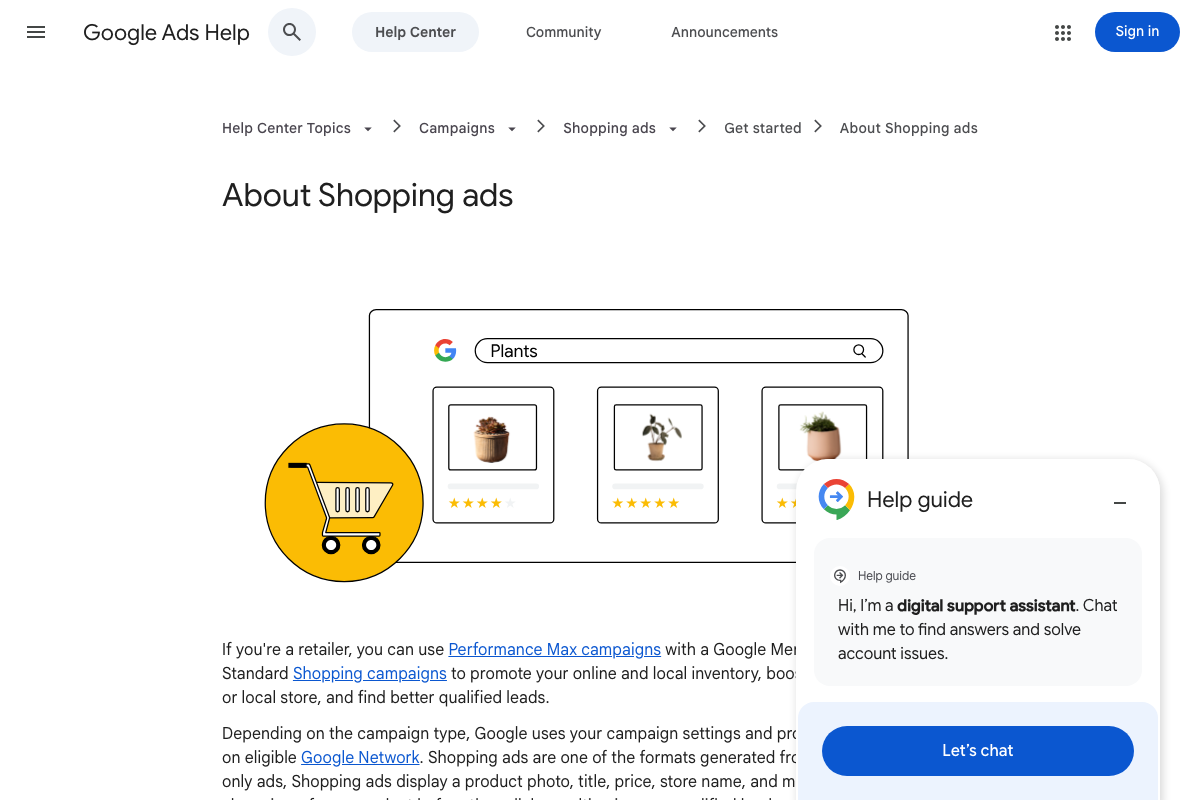
The documentation confirms the Merchant Center product feed is the canonical data source for Shopping and PMax campaigns — consistent with the export the tutorial recommends. The specific export workflow and the “no transformation needed” framing are not addressed in the official docs.
No official documentation was found for the export procedure itself —
proceed using the video’s approach and verify independently.
Step 4 — Run an n-gram or product labelizer analysis
As of March 25, 2026, the Google Ads Scripts AdsApp reference URL the tutorial points to returns a 404. The scripts option in this step cannot be verified from that URL; search developers.google.com/google-ads/scripts directly for a current entry point.
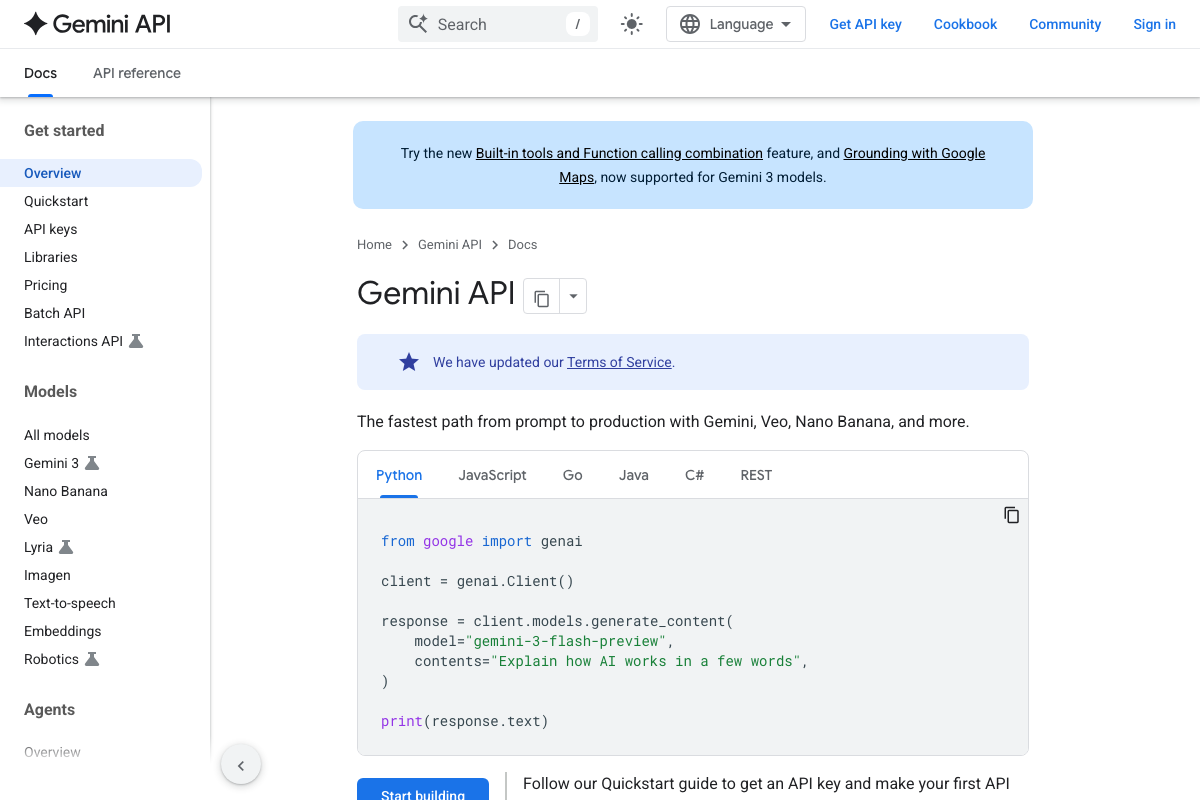
The tutorial’s instruction to “paste data into Gemini” most likely refers to gemini.google.com, the web chat interface. The Gemini API shown in the official docs is a separate developer product requiring an API key and SDK setup — a different workflow. Both routes work; the web interface is faster for a one-time analysis. One practical addition from the docs: Gemini’s Document Understanding capability accepts file uploads of up to 1,000 pages, so large search terms exports can be uploaded directly rather than pasted as raw text.
Step 5 — Identify sidekick segments
No official documentation was found for this step —
proceed using the video’s approach and verify independently.
Step 6 — Pause sidekick segments from the existing campaign
No official documentation was found for this step —
proceed using the video’s approach and verify independently.
Step 7 — Launch a dedicated campaign for each sidekick segment
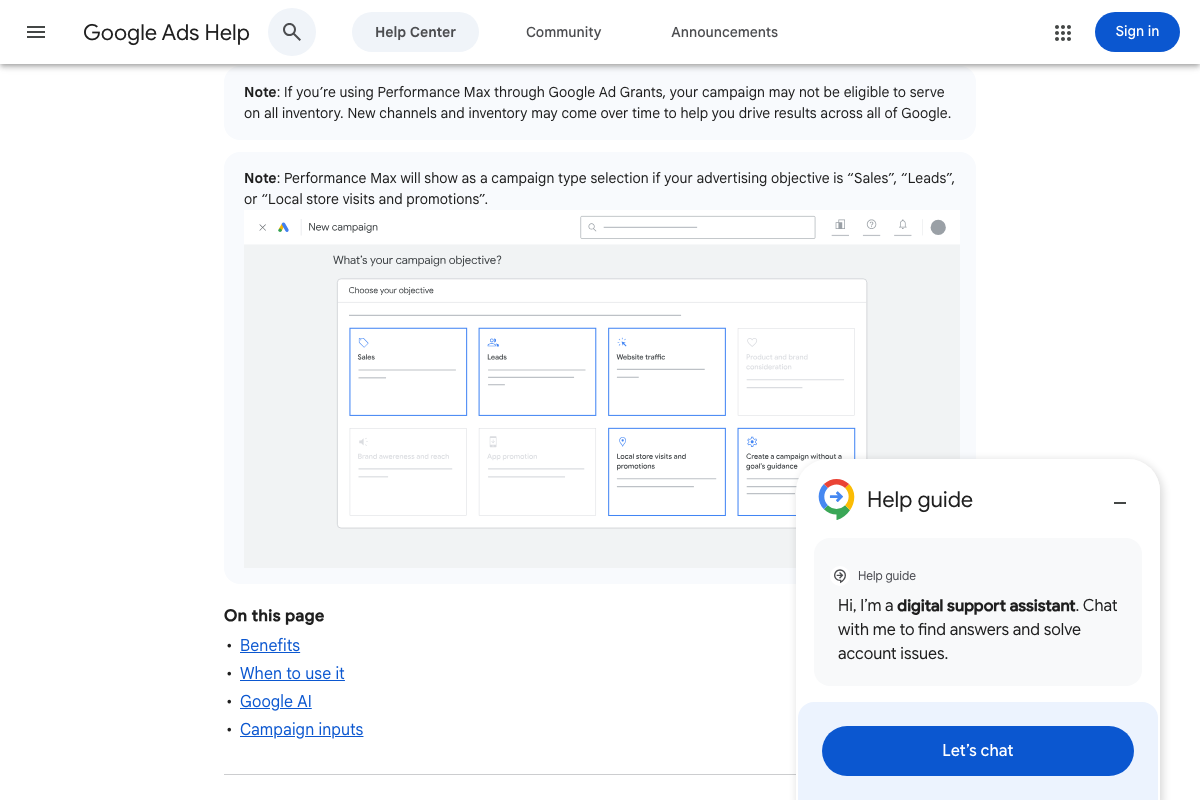
The video’s approach here matches the current docs exactly. One prerequisite the tutorial does not mention: Performance Max only appears as a campaign type when your advertising objective is set to Sales, Leads, or Local store visits and promotions. If you do not see PMax in the campaign type list during setup, your objective selection is the first thing to check.
Step 8 — Increase budgets incrementally
No official documentation was found for this step —
proceed using the video’s approach and verify independently.
Step 9 — Stagger additional campaign breakouts over time
No official documentation was found for this step —
proceed using the video’s approach and verify independently.
Step 10 — Layer Performance Max over restructured Search campaigns
The video’s approach here matches the current docs exactly. Google’s own documentation states Performance Max “is designed to complement Search campaigns to help you find more converting customers across all of Google: YouTube, Display, Search, Discover, Gmail, and Maps” — a direct architectural confirmation of the layering strategy the tutorial recommends but does not cite. One element the tutorial does not address: PMax applies data-driven attribution by default, distributing conversion credit across channels. If your existing Search campaigns run a different attribution model, expect your cross-campaign reporting to shift once PMax is live.
Useful Links
- About Performance Max campaigns – Google Ads Help — Official documentation covering PMax objectives, campaign inputs, its designed role complementing Search, and data-driven attribution behavior.
- About Shopping ads – Google Ads Help — Confirms that Shopping ads are product-data-driven (not keyword-driven) and covers product group management and Merchant Center as the feed source.
- Create a campaign – Google Ads Help — Step-by-step campaign creation flow showing all eight available campaign types including Search and Performance Max.
- Gemini API | Google AI for Developers — Developer documentation for the Gemini API covering SDK setup, current model lineup, Document Understanding, and Code Execution capabilities.
- Google Ads – Get Customers and Sell More with Online Advertising — Google Ads product homepage confirming Performance Max as the primary promoted campaign type across Search, Display, YouTube, and more.


0 Comments