

Build an Interactive App Prototype with Google Stitch
Google Stitch is an AI-native design canvas that turns natural-language descriptions into multi-screen, interactive app and website prototypes — no design experience required. After completing this walkthrough, you’ll have generated a fully clickable prototype from a single text prompt, refined it using live voice commands, and exported it to Figma, Google AI Studio, or a shareable preview link. The entire workflow takes minutes, not days.
- Sign in at stitch.withgoogle.com using a personal Google account or a Google Workspace account. If you’re on Workspace, your administrator must first enable Google Workspace Experiments — without that setting, Stitch will not be accessible to your account. Stitch is currently free during its experimental phase and runs on a monthly credit system.
Warning: this step may differ from current official documentation — see the verified version below.
- Open Stitch in Google Chrome on a desktop computer. Mobile support is limited, and features like live voice mode don’t function correctly in other browsers. Once signed in, the home screen presents a central chat interface, a set of example prompt chips, a Gemini model selector, and an App/Web toggle.

- Type a natural-language description of the app or site you want to build, then select your target platform — App for mobile or Web for desktop — using the toggle beneath the prompt field before submitting. The more specific you are about features and user flows, the more accurate the initial output.
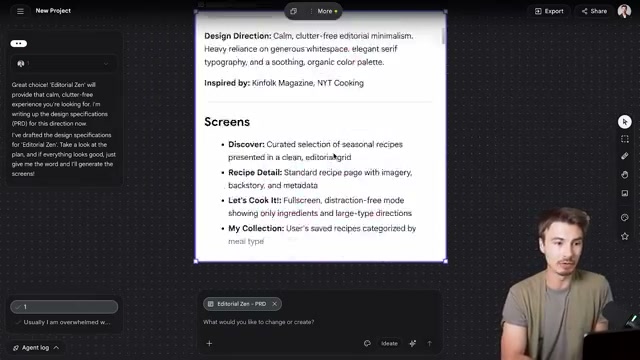
- When Stitch returns design direction options via its ID8 feature, select one by typing its number or name and pressing Enter. Before rendering a single screen, Stitch generates a Product Requirements Document that maps your chosen design direction, target audience, and full screen inventory.
-
Activate live voice mode by clicking the microphone button in the chat toolbar. Speak to the AI assistant as you would brief a designer — describe new features, request additional screens, or ask it to build out complete flows. The assistant responds in voice and executes changes on the canvas in real time.
-
Press Shift+1 on Mac to zoom out and fit the entire canvas in view. All generated screens populate the infinite canvas workspace; this shortcut snaps the viewport to show everything at once.
-
Click the Play button to enter interactive prototype mode. Every screen becomes clickable, letting you walk through navigation flows and validate the user experience before exporting.
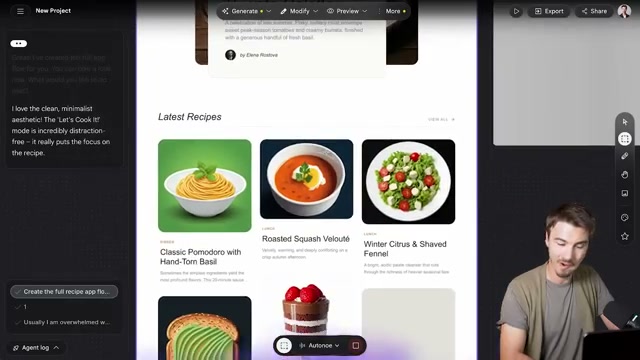
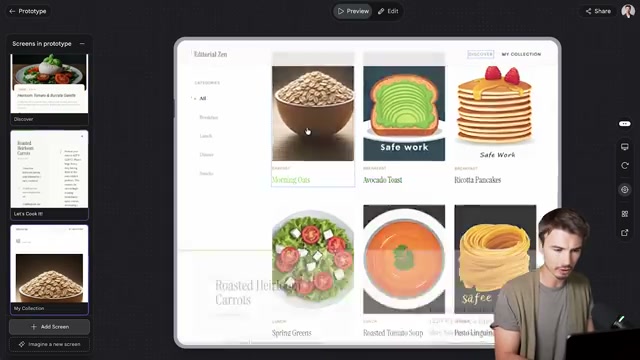
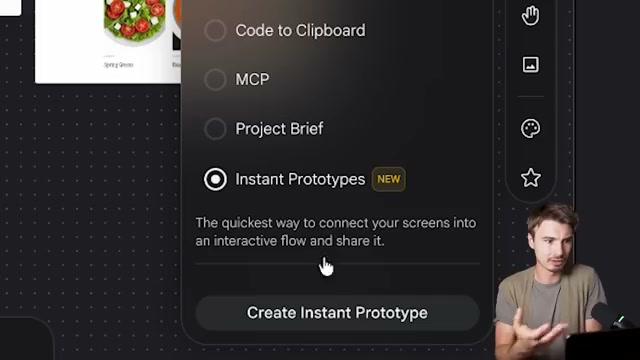
- Click Export to choose your output path: send to Google AI Studio for live hosting with one additional click, export to Figma for design handoff, download a ZIP of all code and assets, copy code to clipboard, or enable the Instant Prototype sharing link for a public preview URL at stitch.withgoogle.com/preview. Note that the AI Studio export path carries a caveat — some Stitch features may not transfer cleanly.
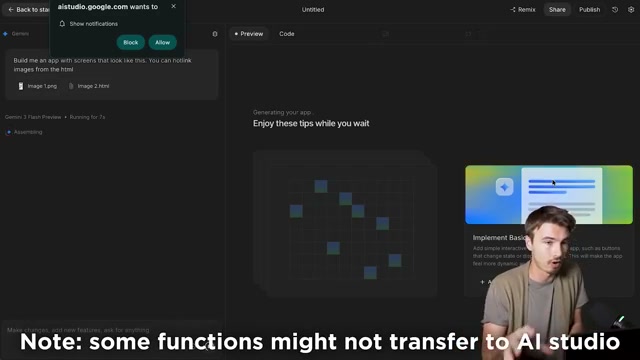
Warning: this step may differ from current official documentation — see the verified version below.
How does this compare to the official docs?
The video demonstrates a fast, intuitive path from prompt to prototype, but details around credit limits, Workspace access requirements, and export fidelity across platforms are worth cross-referencing against what Google currently documents.
Here’s What the Official Docs Show
The walkthrough in Act 1 covers Google Stitch’s core workflow clearly — what follows adds documentation context for the platforms Stitch exports to, and surfaces one claim about export behavior that official sources characterize differently. No Stitch-native documentation was available for review, so steps 1–7 carry the same caveat.
Step 1 — Sign in at stitch.withgoogle.com
No official documentation was found for this step — proceed using the video’s approach and verify independently.
Step 2 — Open Stitch in Google Chrome
No official documentation was found for this step — proceed using the video’s approach and verify independently.
Step 3 — Enter your prompt and select App or Web
No official documentation was found for this step — proceed using the video’s approach and verify independently.
Step 4 — Choose a design direction via the ID8 feature
No official documentation was found for this step — proceed using the video’s approach and verify independently.
Step 5 — Activate live voice mode
The Gemini API documentation lists “Voice Agents with Live API” as a current capability, described as building “real-time voice applications and agents with the Live API.” This is structurally consistent with Stitch’s described real-time voice assistant, though the docs reference the underlying developer API layer rather than Stitch’s consumer UI.
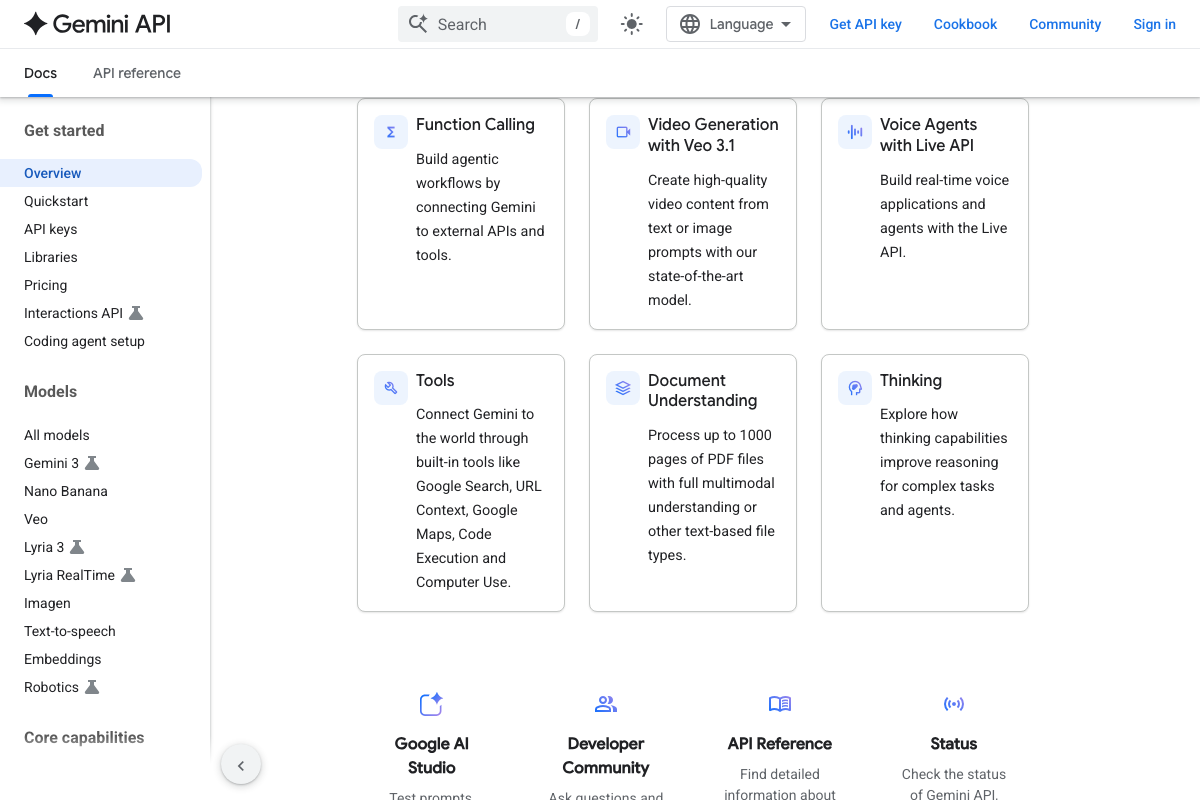
No official documentation was found for Stitch’s specific voice mode UI or microphone button behavior — proceed using the video’s approach and verify independently.
Step 6 — Press Shift+1 to fit the canvas
No official documentation was found for this step — proceed using the video’s approach and verify independently.
Step 7 — Click Play to enter prototype mode
No official documentation was found for this step — proceed using the video’s approach and verify independently.
Step 8 — Export your prototype
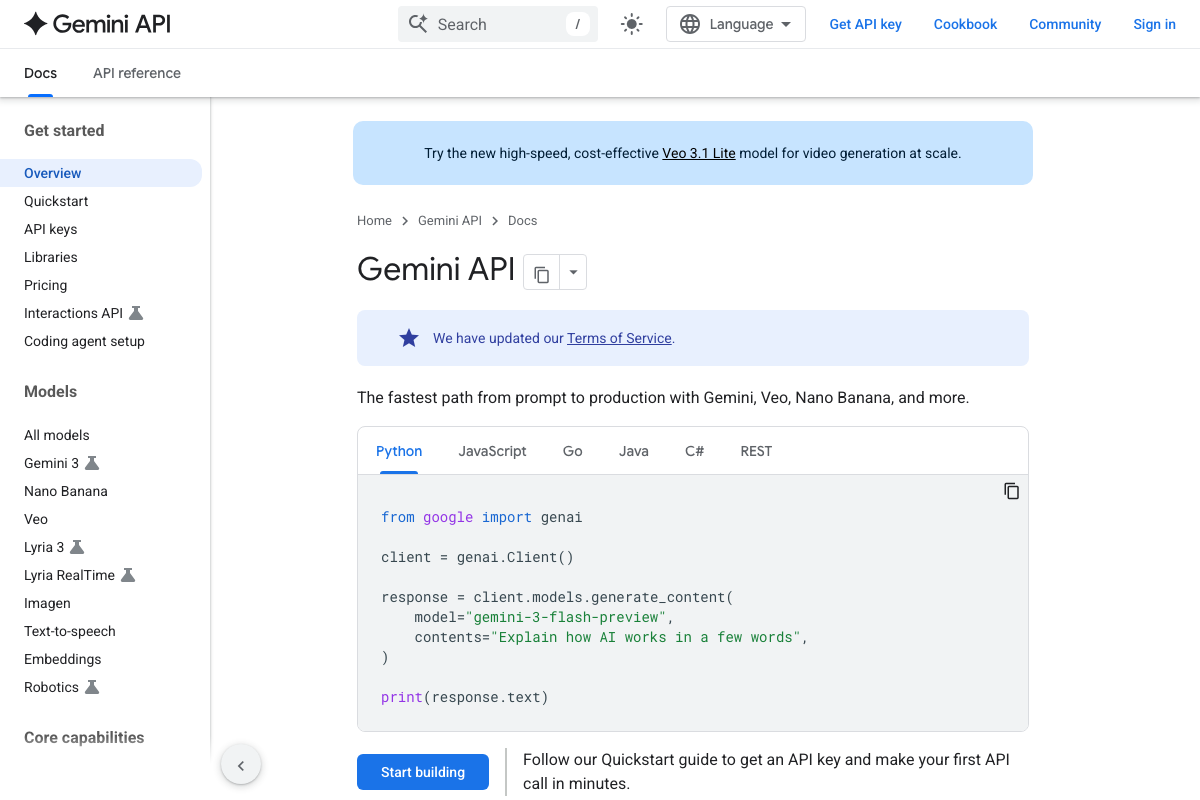
As of April 2, 2026, Google AI Studio is documented at ai.google.dev as a tool to “test prompts” — a prompt-testing and developer prototyping environment. The video describes the AI Studio export option as “live hosting,” which is not confirmed by available official documentation.
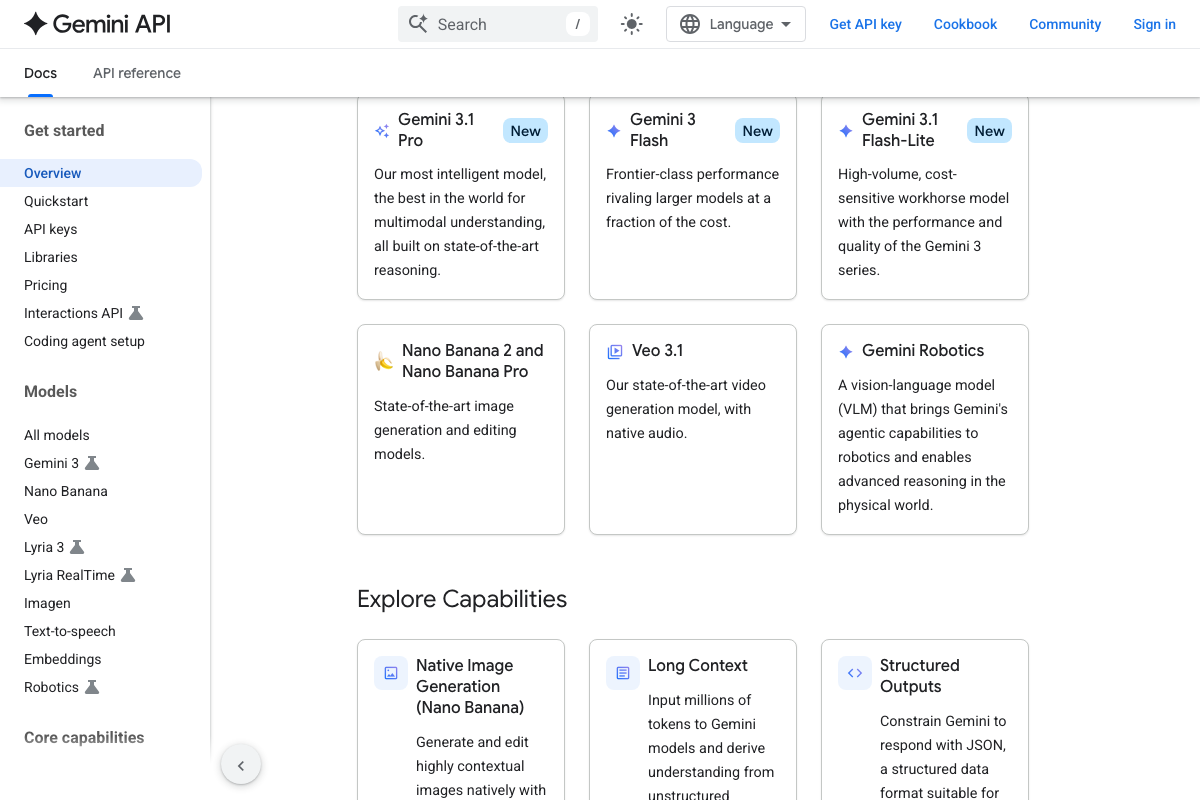
For context, the current Gemini model lineup documented at ai.google.dev includes Gemini 3.1 Pro, Gemini 3 Flash, Nano Banana 2 (image generation), and Veo 3.1 (video with native audio). None are referenced by name in the tutorial; their role in Stitch’s internal processing is not documented in these screenshots.
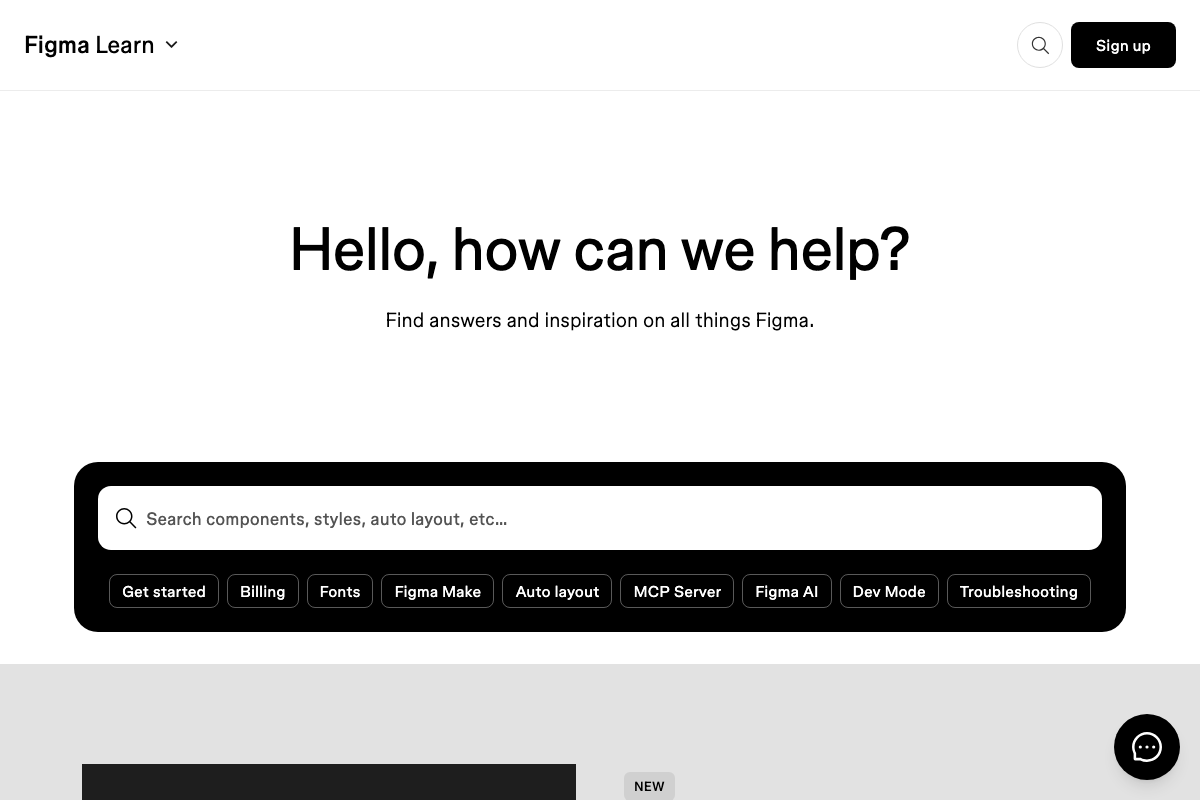
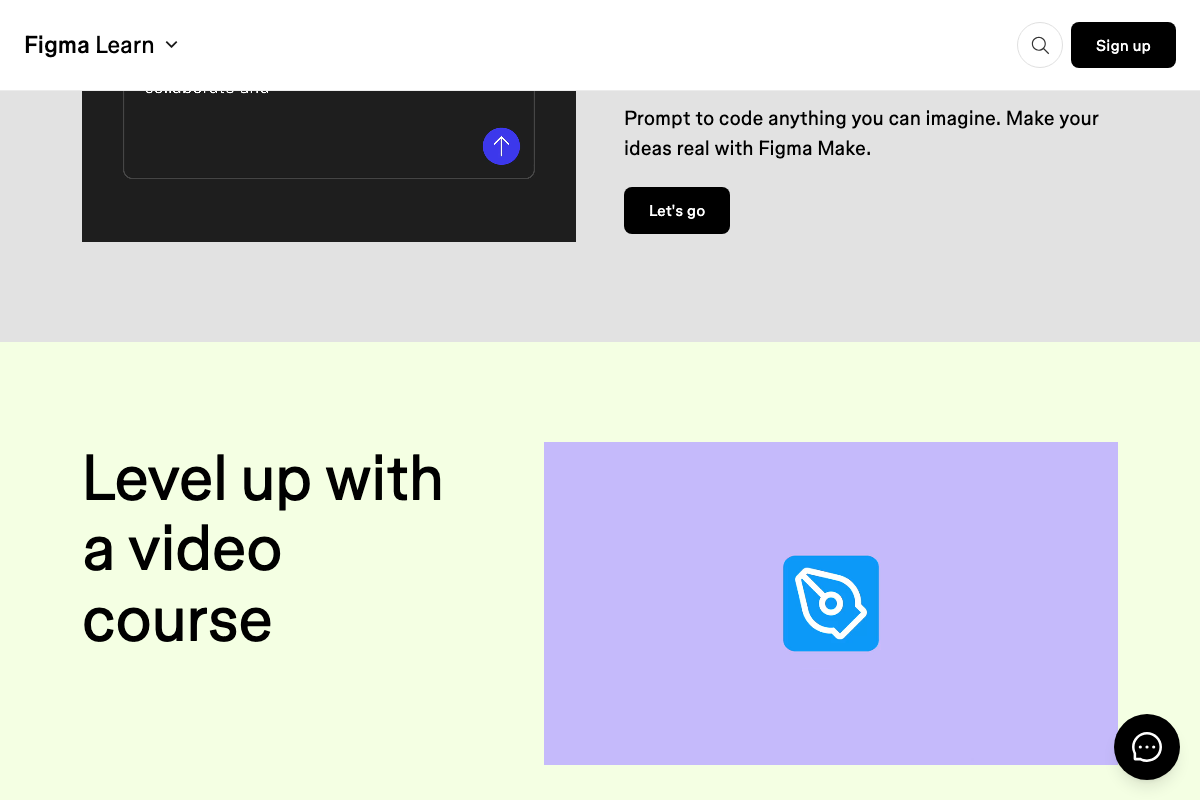
On the Figma side: the Figma Learn help center surfaces no documentation for a Google Stitch import or design handoff workflow. What is prominently documented is Figma Make — Figma’s own native AI-to-code prototyping tool, described as “Prompt to code anything you can imagine.” These are separate products with separate workflows; the tutorial does not distinguish between them, which matters if you’re evaluating both tools for your design process.
No official documentation was found for Stitch’s ZIP download, Instant Prototype sharing link, or export UI behavior — proceed using the video’s approach and verify independently.
Useful Links
- Gemini API | Google AI for Developers — Official documentation for the Gemini API model family, current model lineup, and developer quickstarts covering the technology layer that underlies Google AI Studio.
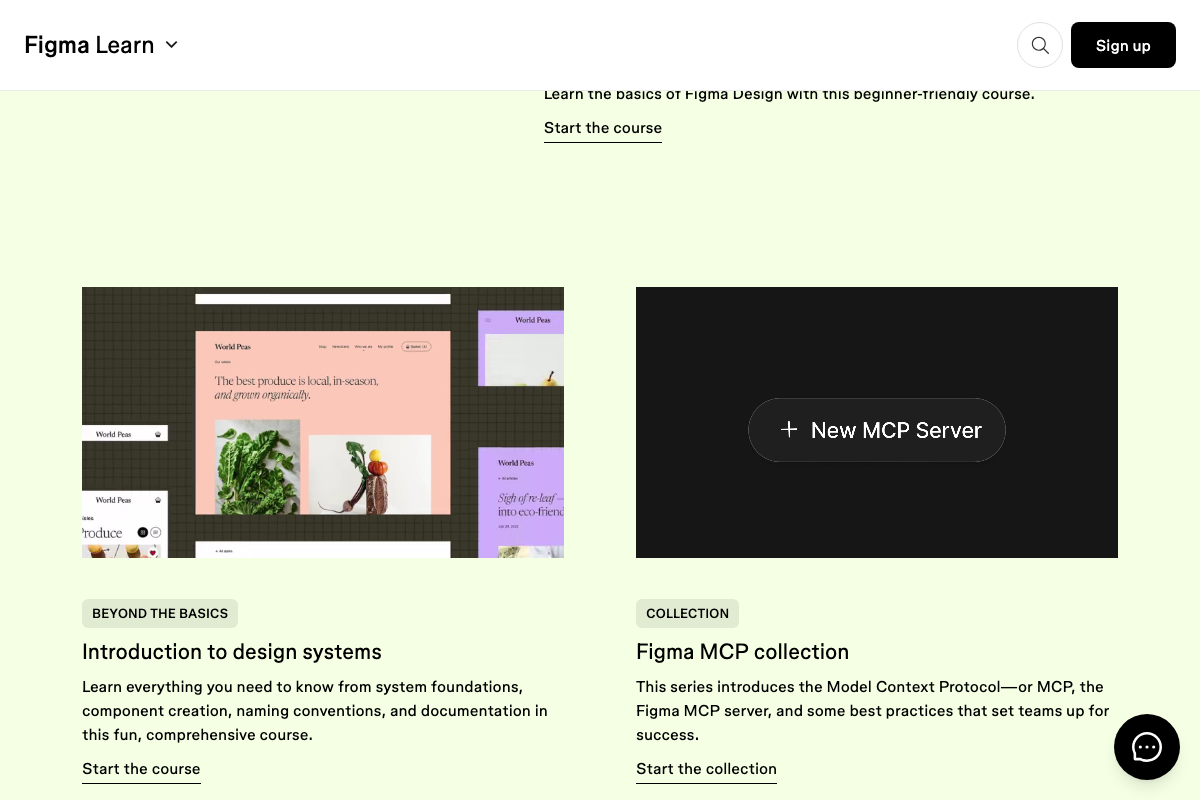
- Figma Learn – Help Center — Figma’s official help center documenting Figma Make, Dev Mode, Figma AI, and the Figma MCP server integration.


0 Comments