

Build Persistent, Scheduled Workspaces with Claude Cowork Projects
Claude Cowork’s new Projects feature solves the platform’s most frustrating limitation: every task started fresh, with no memory of what came before. Projects give you a dedicated workspace that retains context, stores files, runs scheduled automation, and connects to external tools — all scoped to a single area of your work. By the end of this tutorial, you’ll have a fully configured project with persistent memory, at least one live recurring task, and an active connector or MCP integration pulling in data from an outside app.
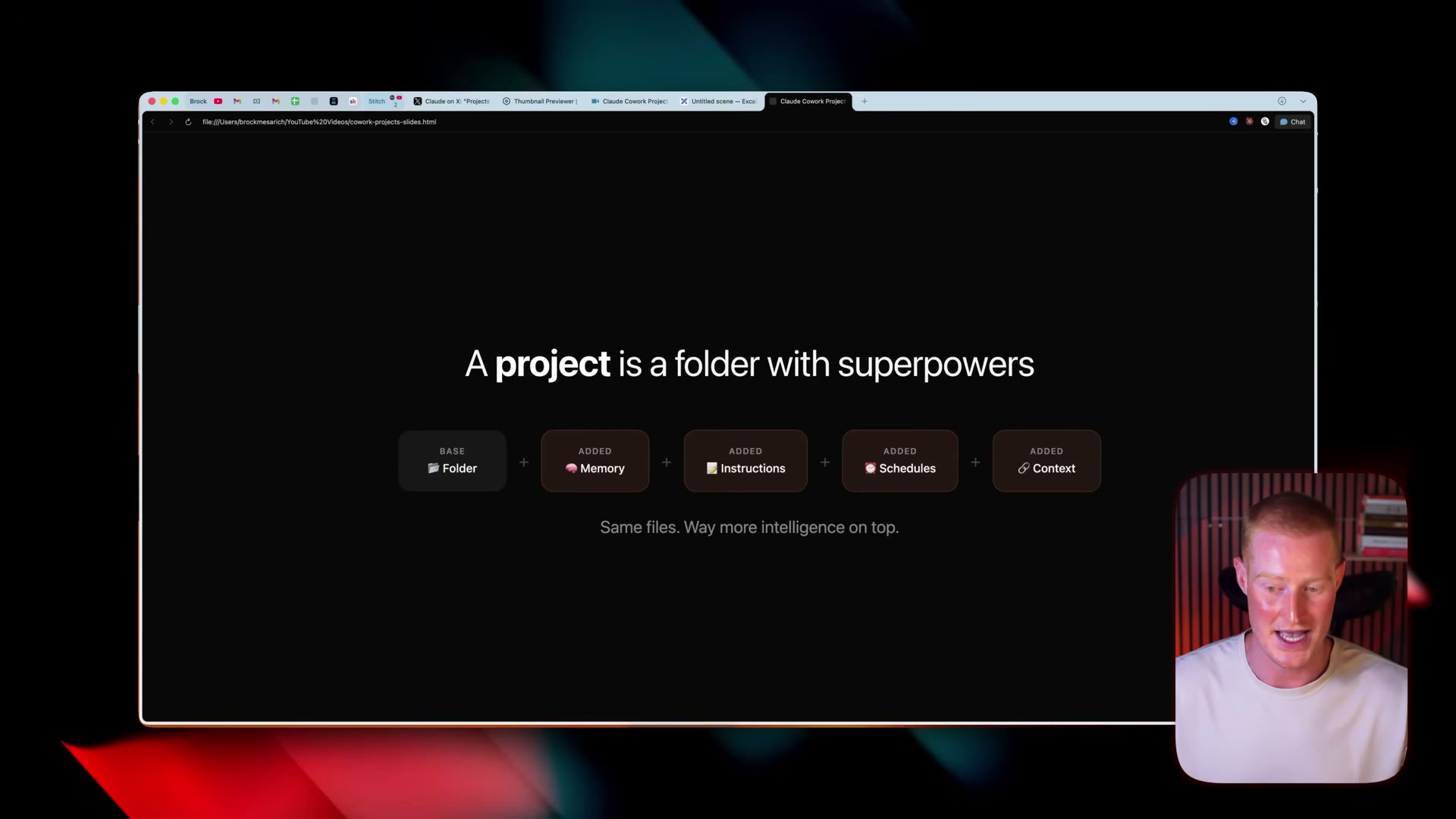
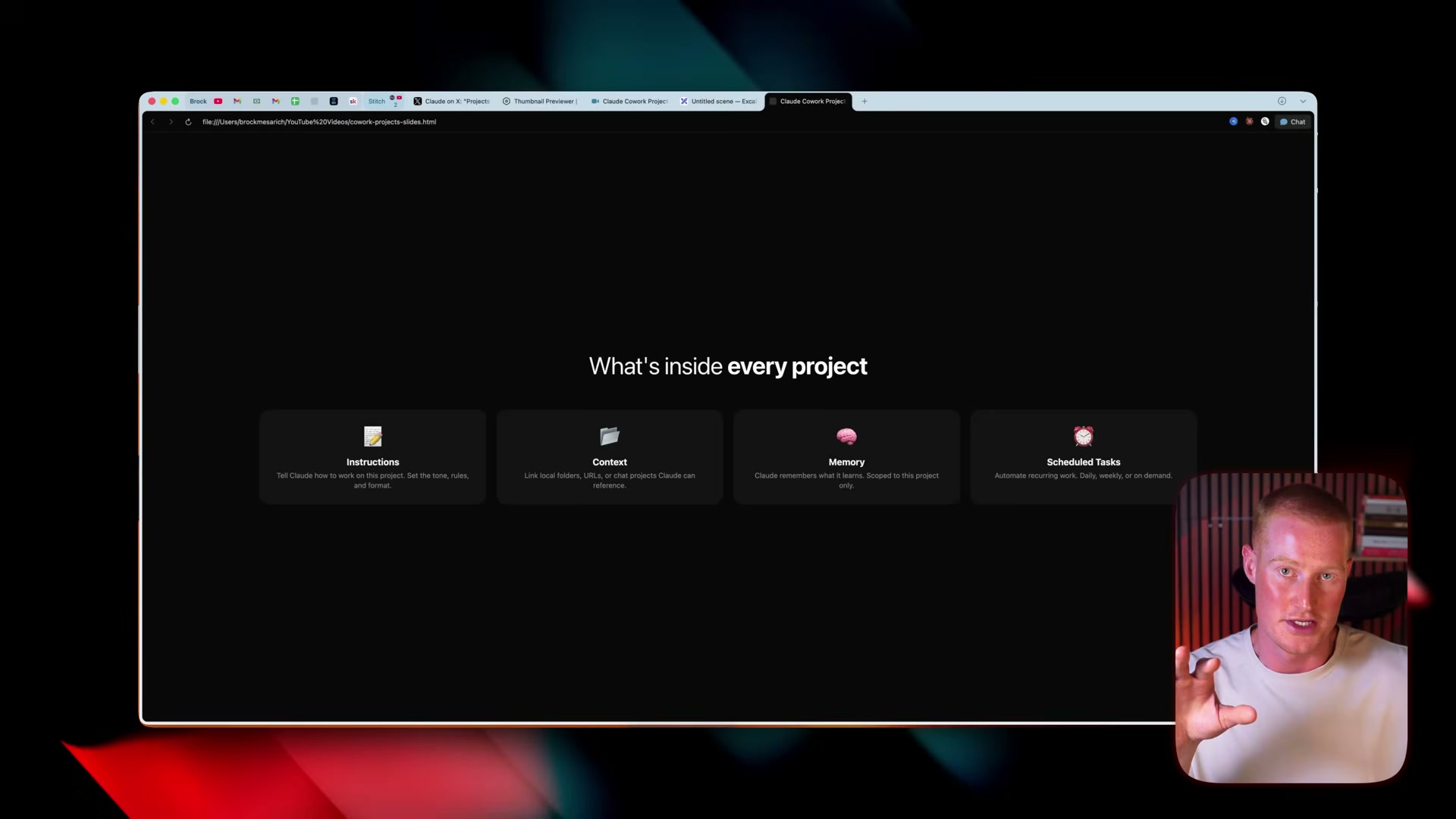
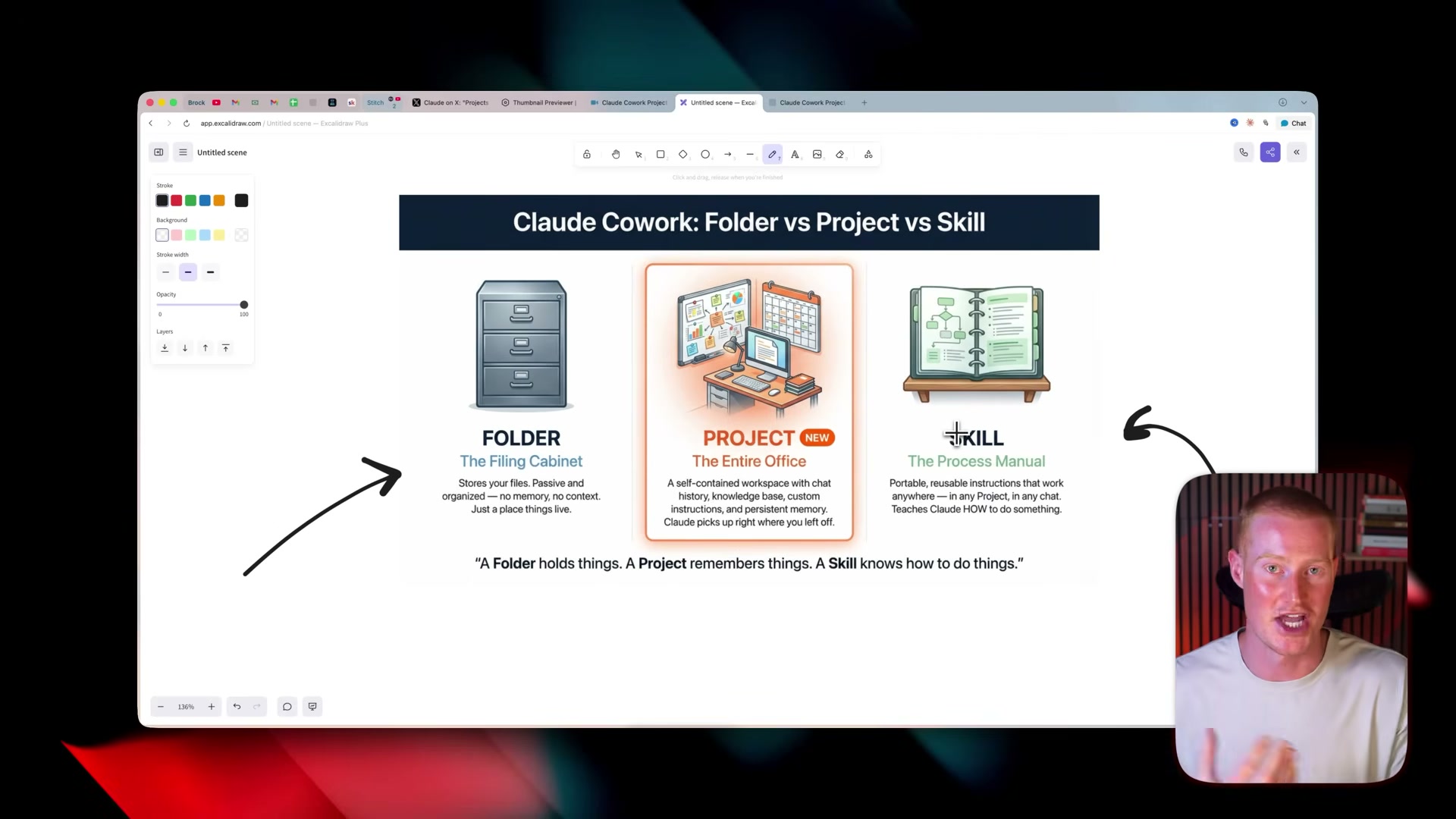
Before touching the UI, understand what separates a Project from a plain folder. A folder gives Claude temporary file access — read, write, done. When the task ends, context disappears. A Project layers persistent memory, standing instructions, scheduled tasks, and linked context on top of that same file access, so Claude picks up exactly where it left off every time.
-
Open Claude Cowork and find the Projects tab in the left-hand sidebar — this is a new addition to the interface. Click it to view any existing projects or start building your first one.
-
Click the + button. Three creation paths appear: start from scratch, import from an existing Claude.ai project, or initialize from a folder already on your machine. Starting from scratch gives you the most control over instructions and context from the beginning.
-
Enter a project name, write your standing instructions in the instructions field, and confirm the Memory toggle is enabled. Click Create.
-
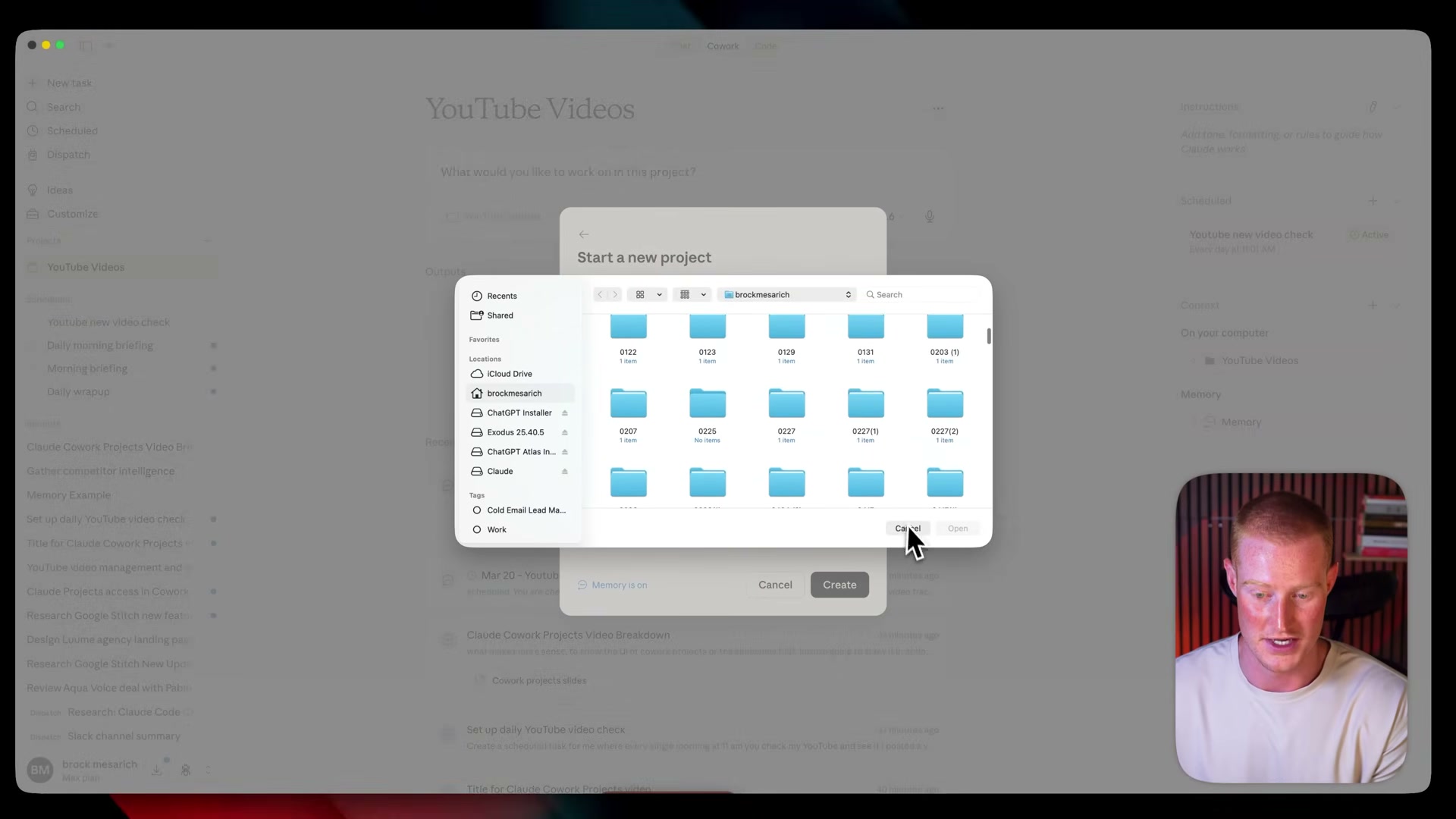
With the project created, link a local folder as the project’s Context. This folder becomes the knowledge base Claude draws on across every task inside the workspace — files added here persist between sessions.
-
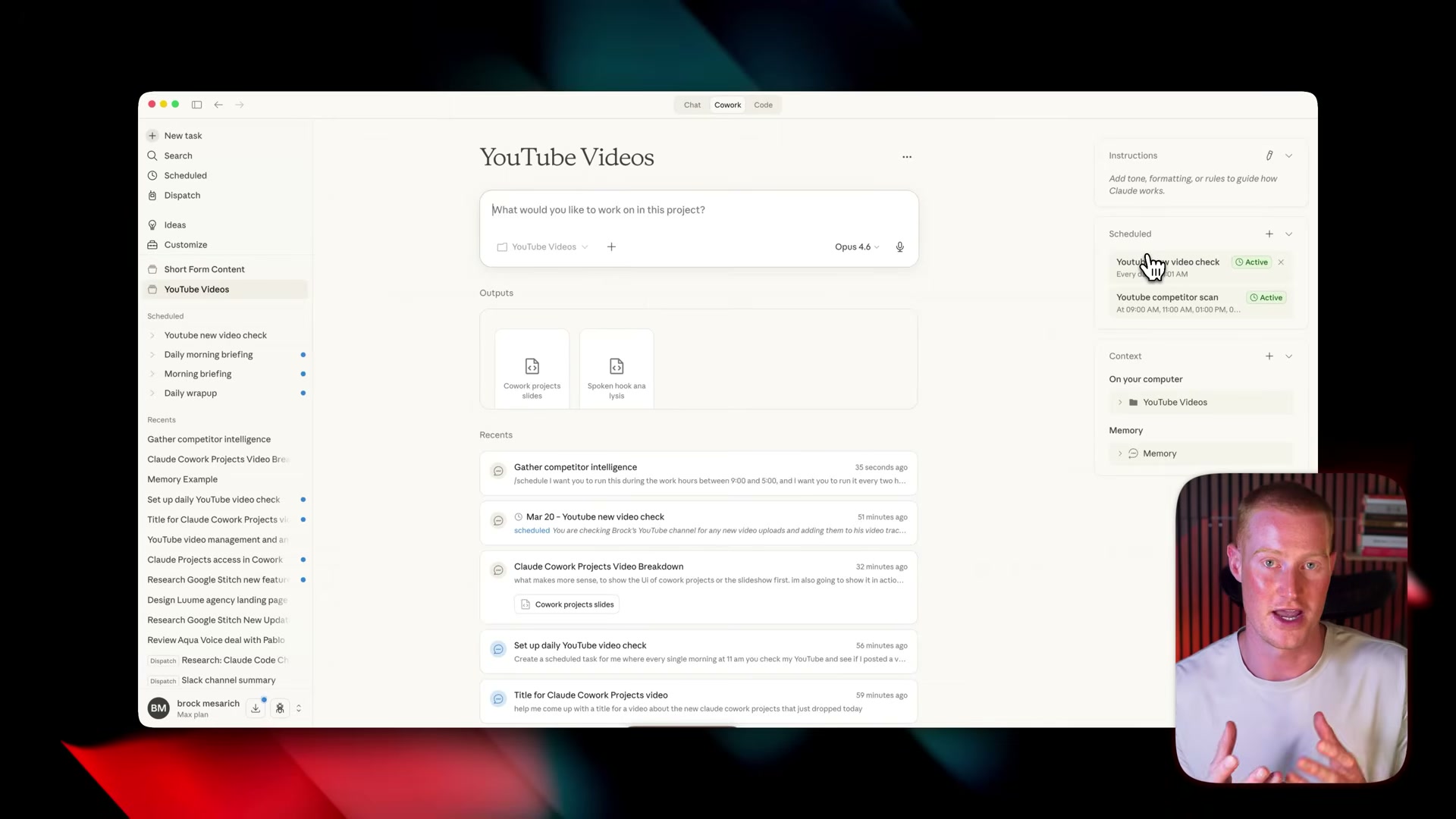
Launch your first task one of two ways: from the main Cowork interface by selecting the project from the dropdown when creating a new task, or directly from the project’s entry in the sidebar. Either route automatically scopes the task to the project’s memory and instructions.
-
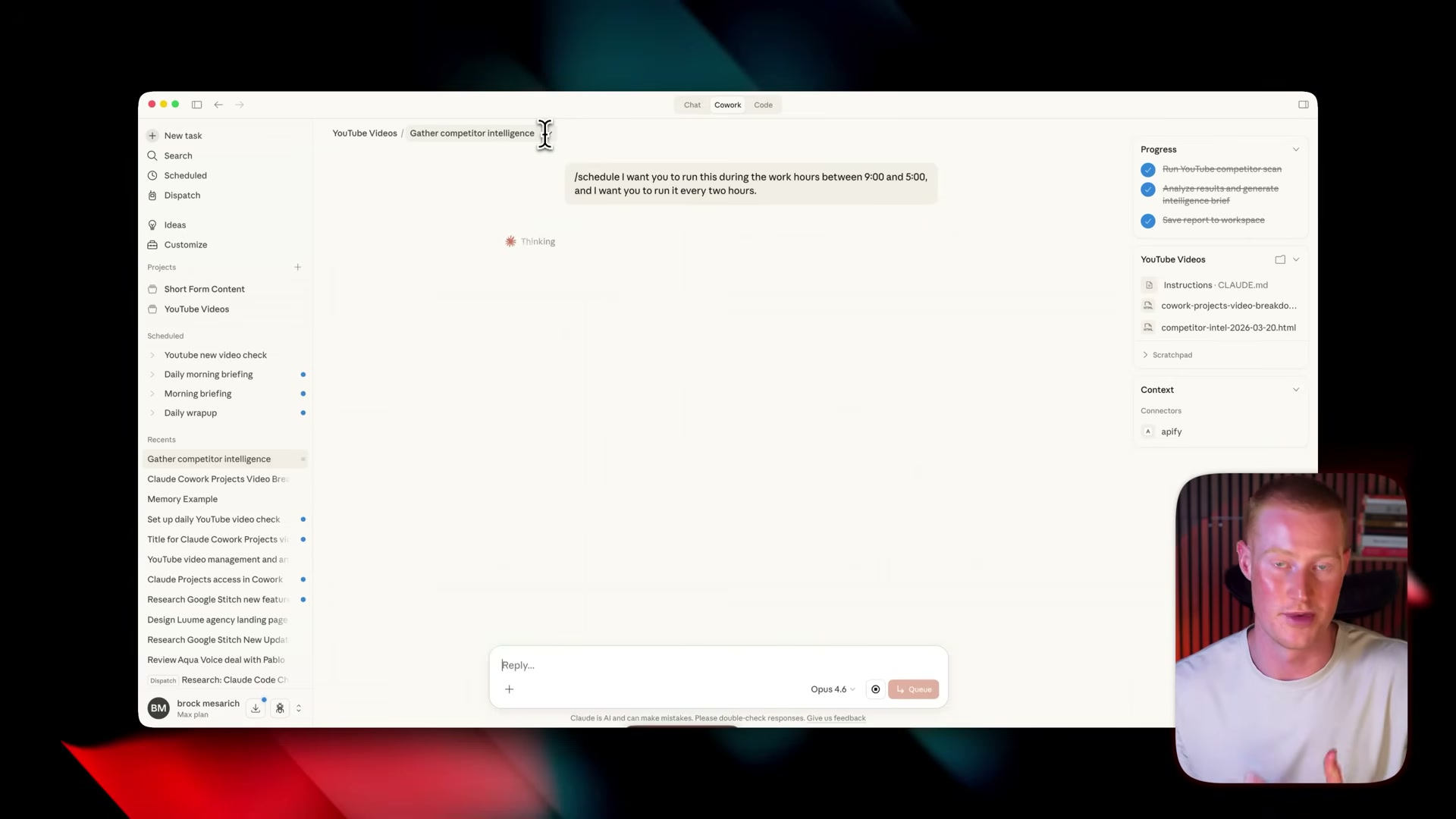
After a task runs and produces output, click Schedule on that output. Describe the cadence in plain language — “run this every two hours between 9 and 5,” for example — and Cowork converts it into a recurring automated task tied to the project.
-
To extend the project with external data, open Cowork’s connector settings and add a native integration. Gmail, Google Calendar, Slack, and Figma are available without additional configuration.
-
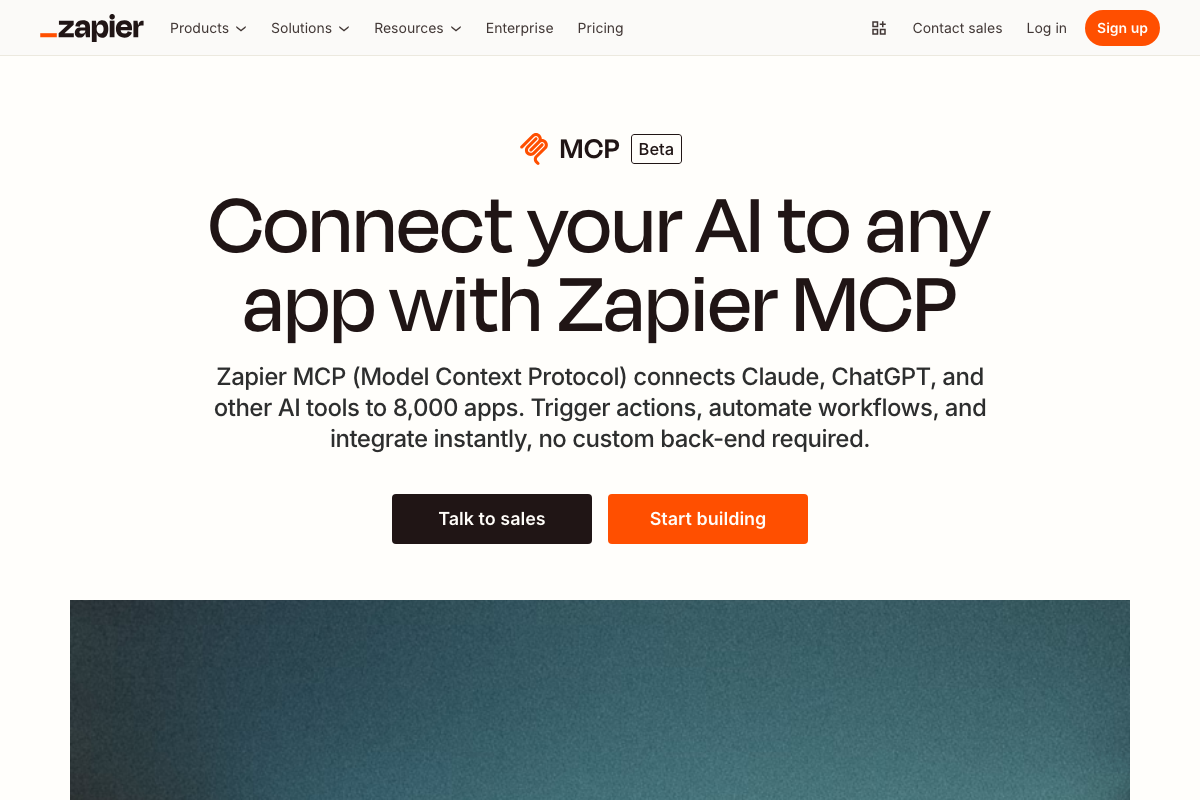
For apps outside the native connector list, go to Zapier MCP, click Start Building, and create a new MCP server targeting Claude Cowork. Select the apps and specific actions you want to expose, then click Connect.
-
Copy the MCP server URL Zapier generates, return to Cowork, search for “Zapier” in the connectors panel, and paste the URL to activate the custom integration.
Warning: this step may differ from current official documentation — see the verified version below.
How does this compare to the official docs?
The video captures the feature as it shipped, but Anthropic’s documentation fills in the precise terminology, permission model, and edge-case behavior that a hands-on walkthrough naturally skips — and Act 2 maps every step against that source.
Here’s What the Official Docs Show
The video delivers a practical first look at Claude Cowork Projects — the steps below add documentation-grounded precision to the points where the official UI and feature status diverge from what was captured on screen. For steps without screenshot coverage, the video remains your best guide.
1. Accessing Cowork
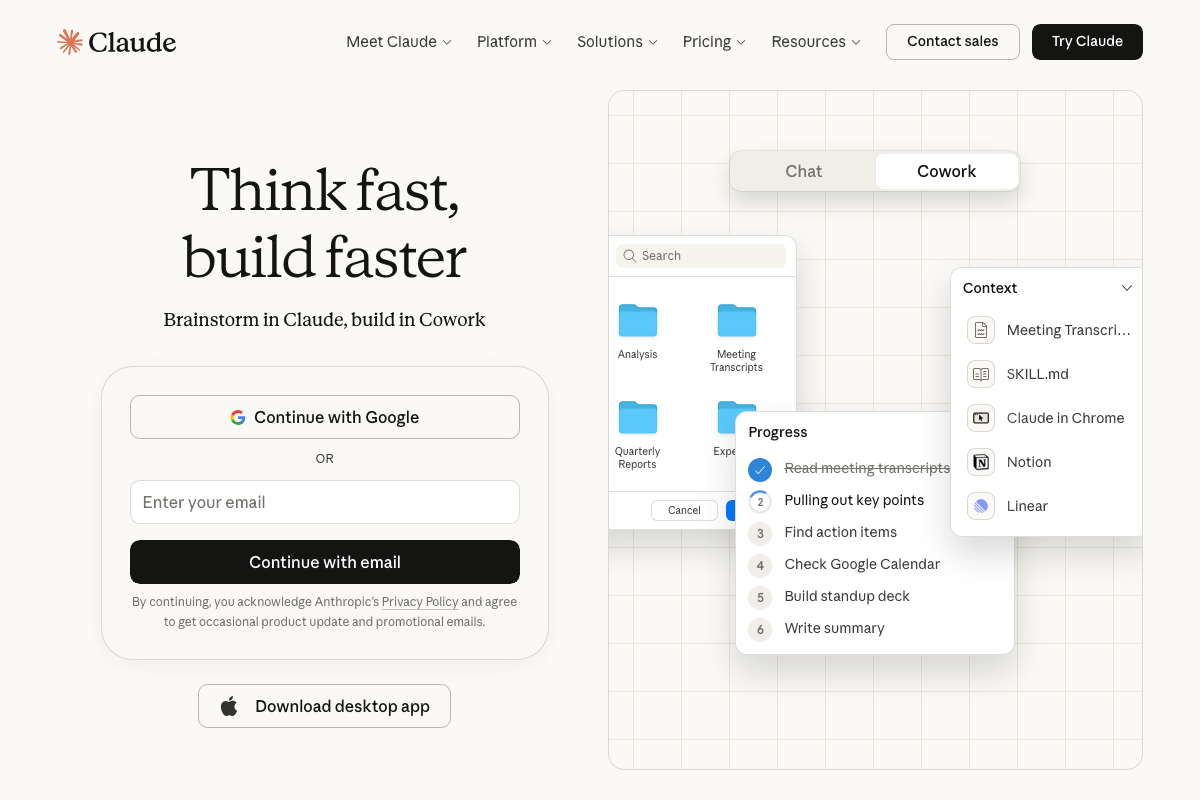
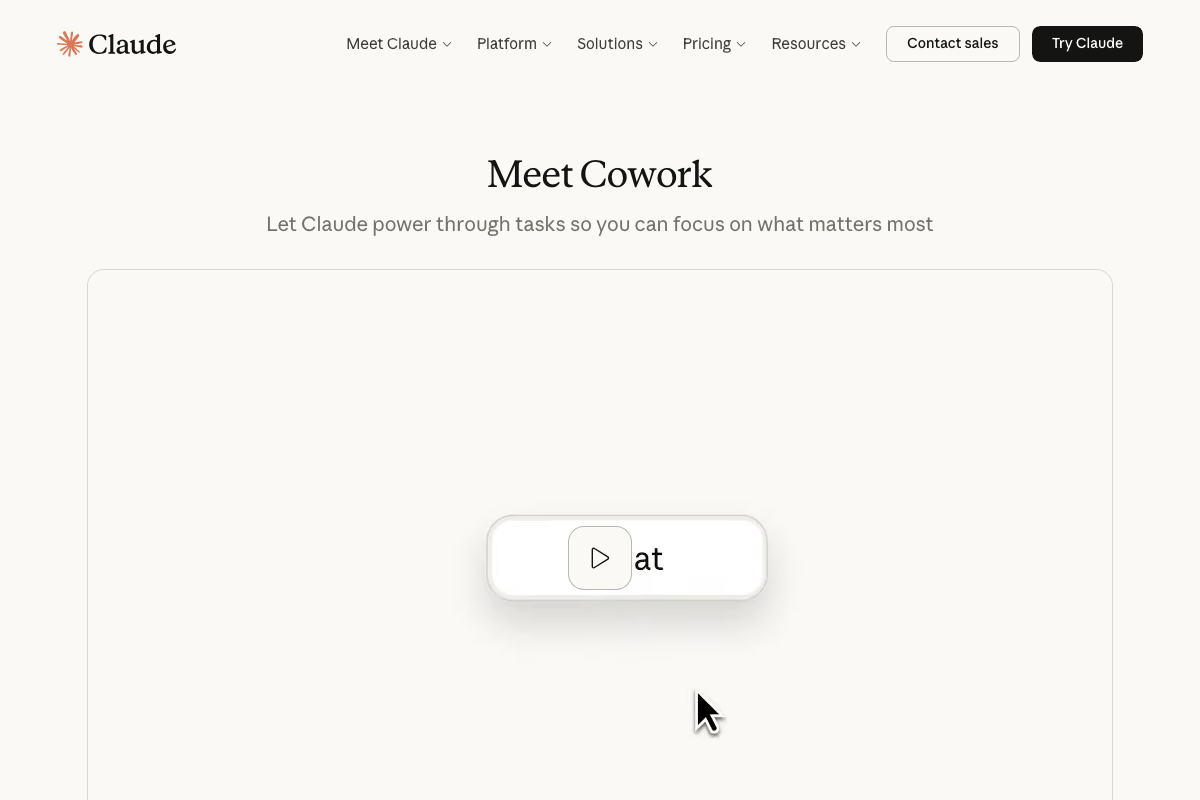
As of March 21, 2026, Cowork is reached via a Chat | Cowork tab toggle at the top of claude.ai — not a “Projects tab in the left-hand sidebar” as the video describes. The workspace structure visible inside Cowork uses folders as the primary organizational unit.
2. Creating a project
No official documentation was found for this step — proceed using the video’s approach and verify independently.
3. Naming, instructions, and Memory toggle
No official documentation was found for this step — proceed using the video’s approach and verify independently.
4. Linking a Context folder
No official documentation was found for this step — proceed using the video’s approach and verify independently.
The official Cowork UI does confirm a Context panel that displays attached files and integrations side by side — consistent with the persistent knowledge base concept described here.
5. Launching a task
No official documentation was found for this step — proceed using the video’s approach and verify independently.
The claude.ai UI does show a sequential task progress panel (Read transcripts → Pull key points → Check Calendar → Build deck), confirming multi-step task execution within Cowork.
6. Scheduling a recurring task
No official documentation was found for this step — proceed using the video’s approach and verify independently.
7. Native connectors (Gmail, Google Calendar, Slack, Figma)
No official documentation was found for this step — proceed using the video’s approach and verify independently.
One useful addition: the Cowork Context panel in official screenshots also shows Notion and Linear as active integrations, suggesting the connector roster extends beyond the four apps named in the video.
8. Setting up Zapier MCP
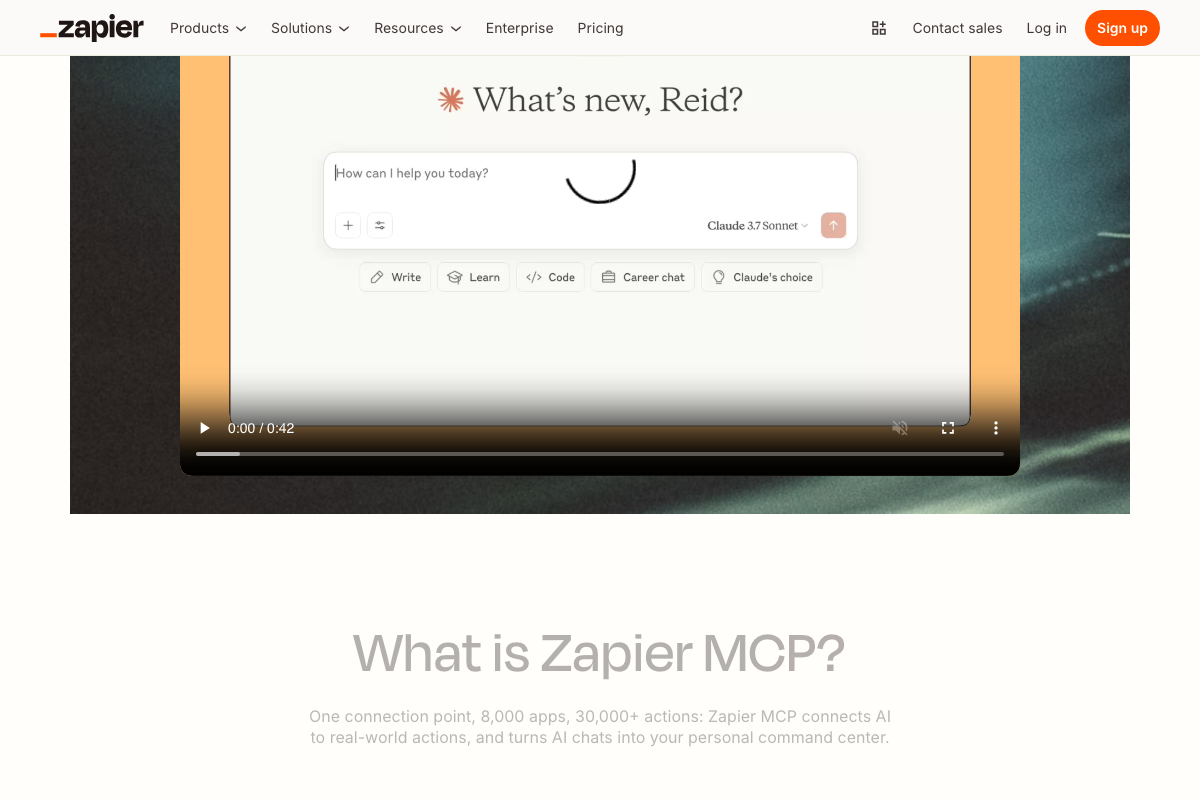
The video’s approach here matches the current docs exactly. Navigate to zapier.com/mcp, click Start Building, and create your MCP server — Claude is a listed supported client. Two things the video omits: Zapier MCP carries an “MCP Beta” label at time of publication, meaning the feature may change; and Zapier handles authentication, rate limits, and retries automatically, so you won’t need to manage OAuth credentials manually.
9. Pasting the MCP URL in Cowork
No official documentation was found for this step — proceed using the video’s approach and verify independently.
Worth noting: the Zapier MCP demo visible in official screenshots shows a standard Claude Chat interface, not Claude Cowork specifically — whether the MCP server scopes exclusively to Cowork is unconfirmed by the documentation captured.
Useful Links
- Claude — Official claude.ai homepage, including the Chat | Cowork tab toggle and Cowork UI mockup referenced in steps 1, 4, and 5.
- Connect AI tools to 8,000 apps with Zapier MCP — Zapier MCP landing page confirming the ‘Start building’ entry point, MCP Beta status, and automatic auth handling referenced in step 8.
- Zapier MCP — Zapier’s product page detailing the ‘8,000 apps, 30,000+ actions’ scope and the Claude interface integration demo referenced in steps 8 and 9.


0 Comments