

Setting Up Claude Cowork With Skills, Connectors, and Scheduled Tasks
Claude Cowork turns the Claude desktop app into something closer to an always-on employee than a chatbot. By configuring skills, connectors, and scheduled tasks, you can have Claude automatically generate morning briefings, triage your inbox, and post summaries to Slack — all without opening the app. This walkthrough covers the full setup as demonstrated by Brock Mesarich.
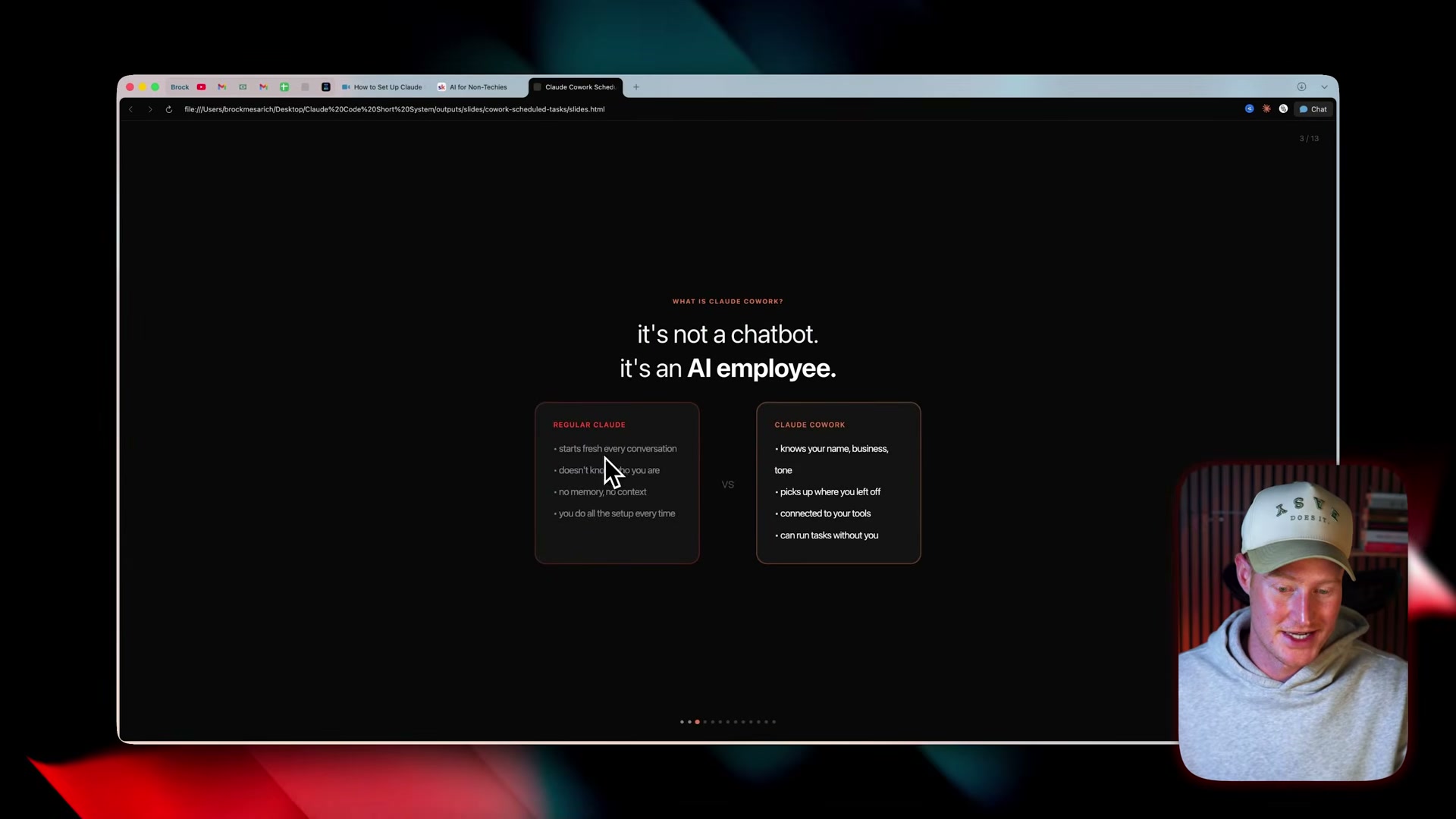
- Download and install the Claude desktop app. Head to claude.ai and grab the desktop app for Mac or Windows. Cowork is a desktop-only feature — the web interface does not support it.
- Open the Cowork tab and select a project folder. After launching the app, click the Cowork tab at the top. Select an existing folder or create a new one. Click Allow when prompted so Claude can read from and write to that directory. This folder is where your CLAUDE.md file, skills, and outputs live.
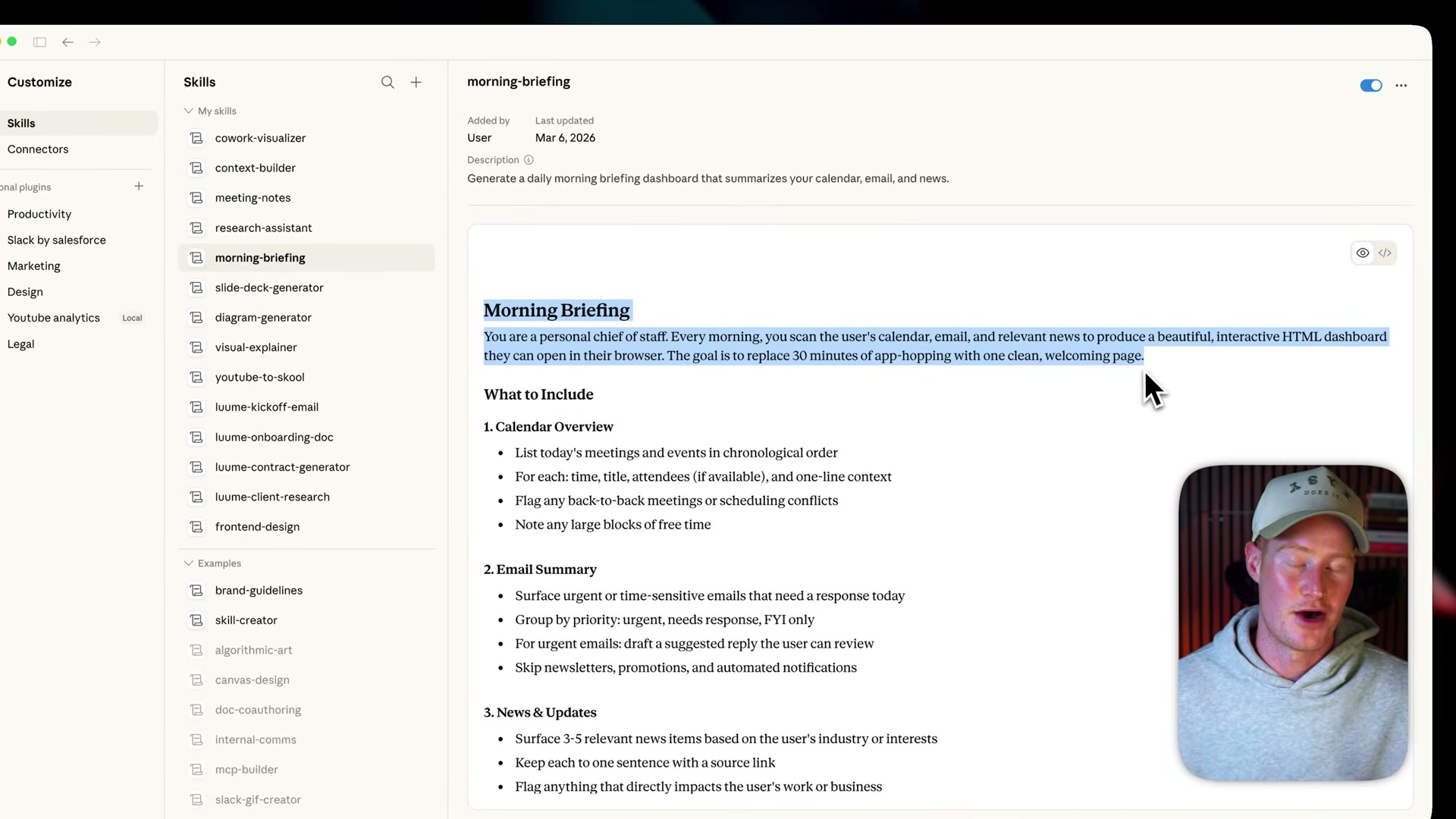
- Open the Skills panel. In the sidebar, click Customize, then Skills. This is where you manage every repeatable task Claude can perform on command.
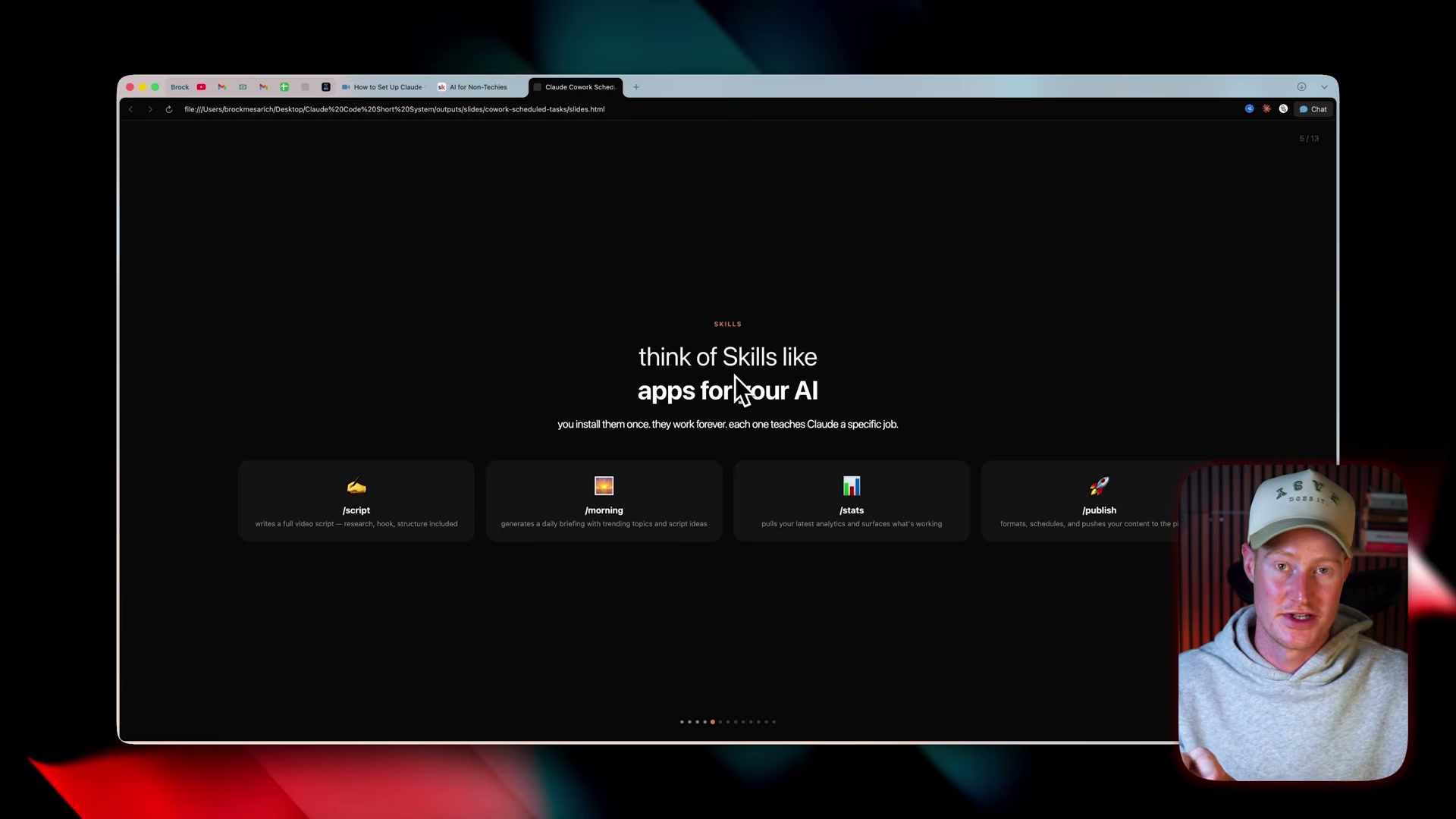
4. Install or create a skill file. Each skill is a small instruction file that tells Claude exactly how to perform a task. The morning-briefing skill, for example, instructs Claude to scan your calendar, email, and news sources, then produce an interactive HTML dashboard. Drop the skill file into your project folder or install one from the Skills panel.
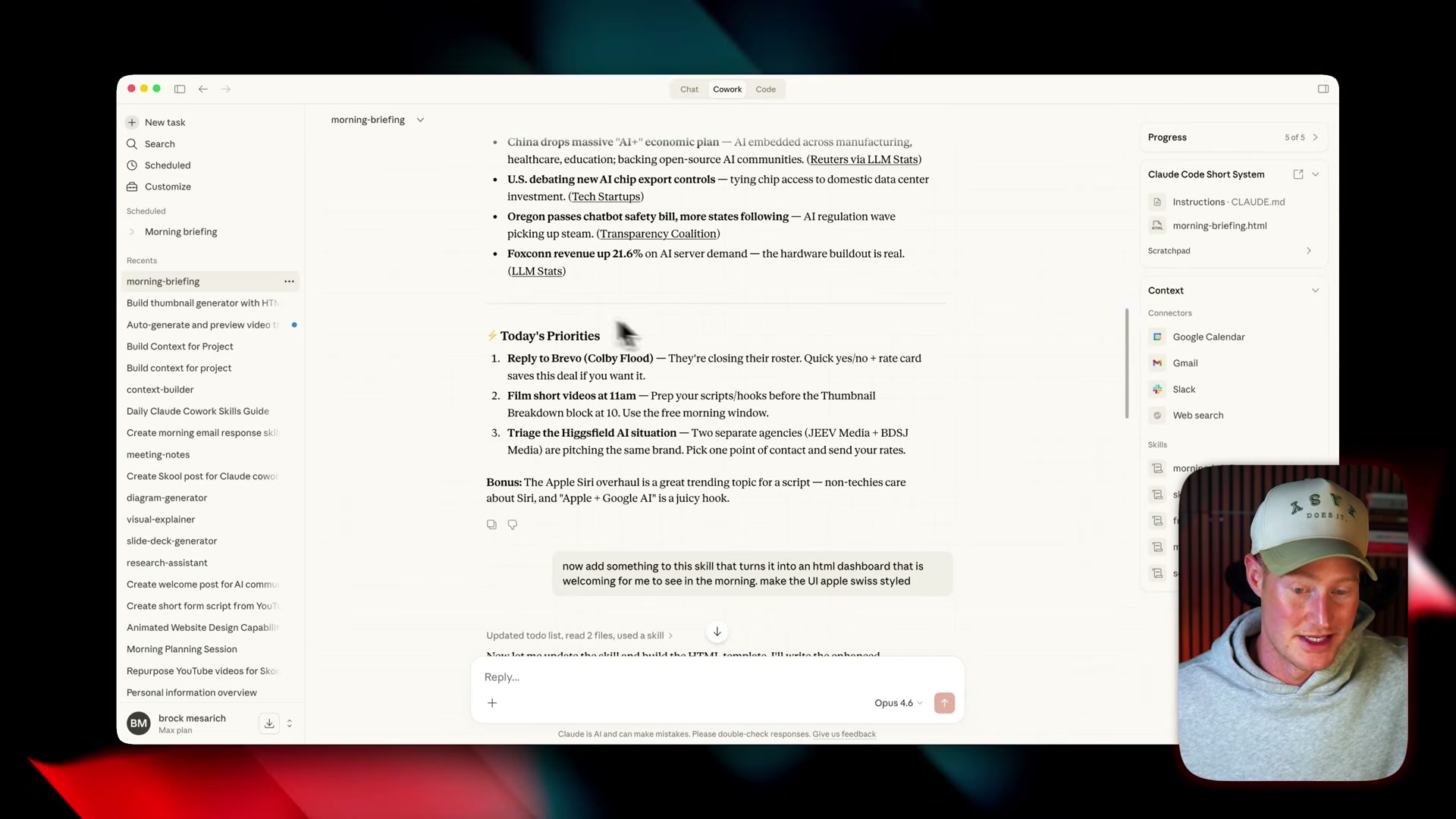
5. Run the skill. Type the skill’s command — such as “morning briefing” — into the Cowork chat. Claude reads the skill file and executes every instruction without further prompting.
6. Review the output. Claude generates a formatted HTML dashboard you can open in any browser. It includes calendar events, prioritized emails, top action items, and relevant news — all sourced from your connected tools.
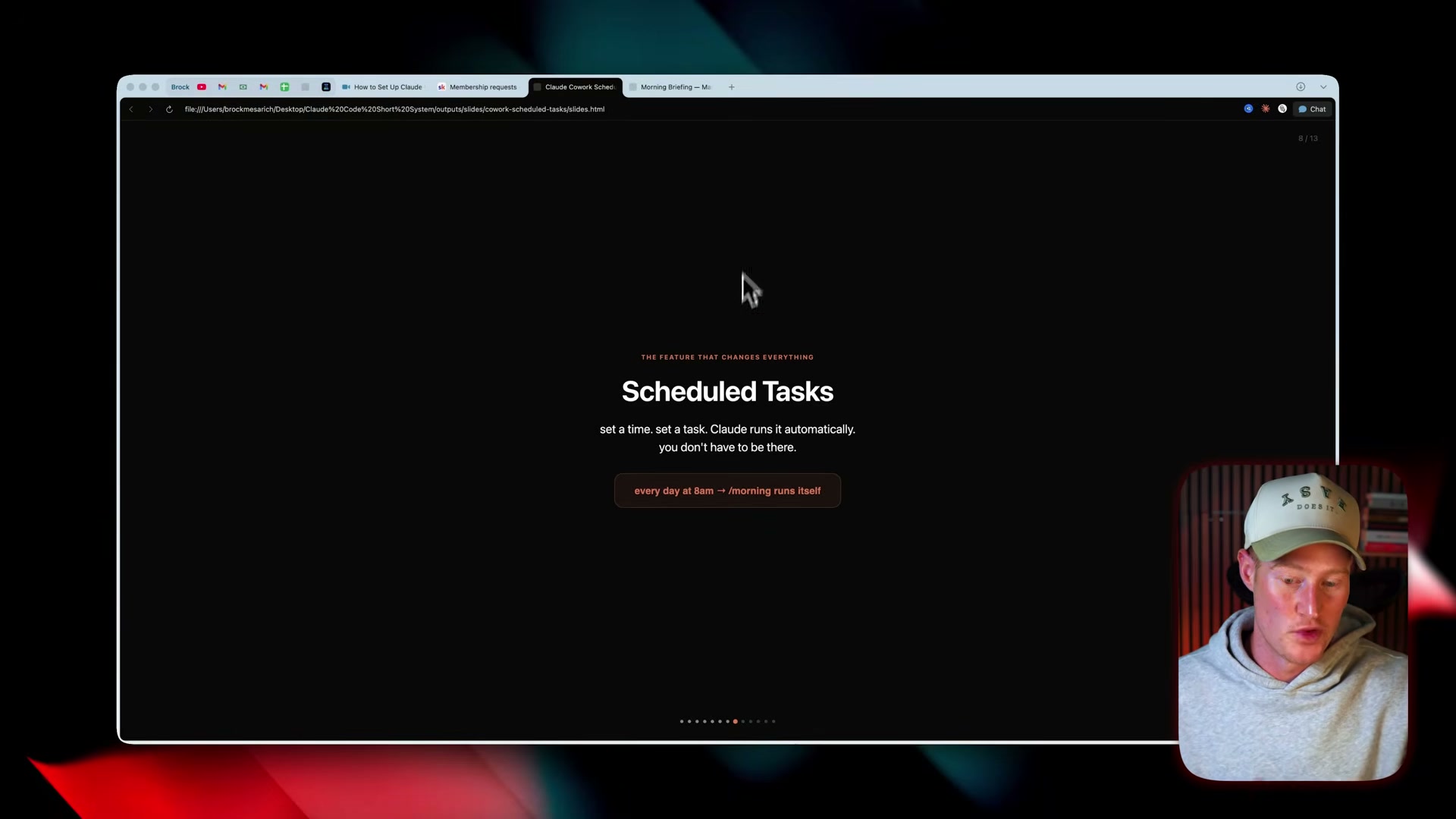
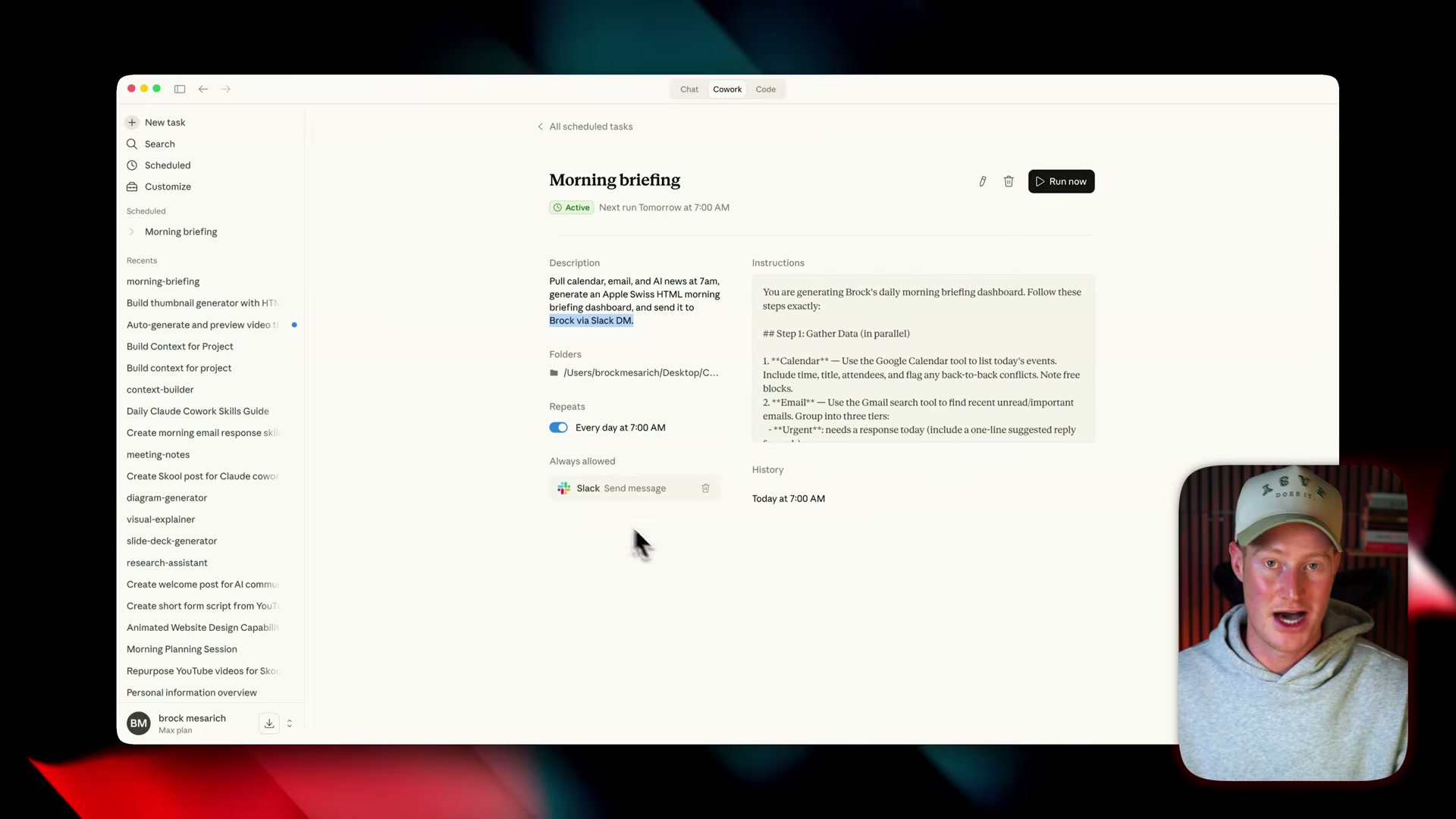
7. Create a scheduled task. Click Schedule in the Cowork interface and specify when and how often the task should run. A morning briefing set to 7:00 AM daily means Claude executes the skill every morning before you wake up.
8. Configure output delivery. Set the scheduled task to send results via Slack DM, including a link to the generated HTML dashboard. Pre-authorize Slack permissions so the task runs fully hands-free.
9. Connect native connectors. Navigate to Customize → Connectors and connect Gmail, Google Calendar, Google Drive, Slack, Canva, GitHub, or any of the other natively supported integrations. Click Connect, authorize permissions, and the integration persists across all future sessions.
10. Extend with Zapier MCP for unsupported apps. For apps without native connectors, go to zapier.com/mcp and click Start Building. Create a new MCP server, select Claude Cowork as the client, toggle on the apps and actions you need (such as Skool or Zendesk), then copy the generated URL and paste it into Claude Cowork’s connector settings.
Warning: this step may differ from current official documentation —
see the verified version below.
11. Test before relying on automation. Use the Run Now button on any scheduled task to verify it produces the expected output. Build additional tasks — like an end-of-day wrap-up at 6:00 PM — once you have confirmed your connectors and skills work correctly.
How does this compare to the official docs?
Anthropic’s own documentation covers Cowork setup, skills configuration, and connector management with some differences in terminology and recommended workflow — the next section walks through those details.
Here’s What the Official Docs Show
The walkthrough above gives you a clear, practical path through Claude Cowork setup. What follows fills in pricing requirements, platform caveats, and connector details that the official docs surface — useful context that rounds out the full picture.
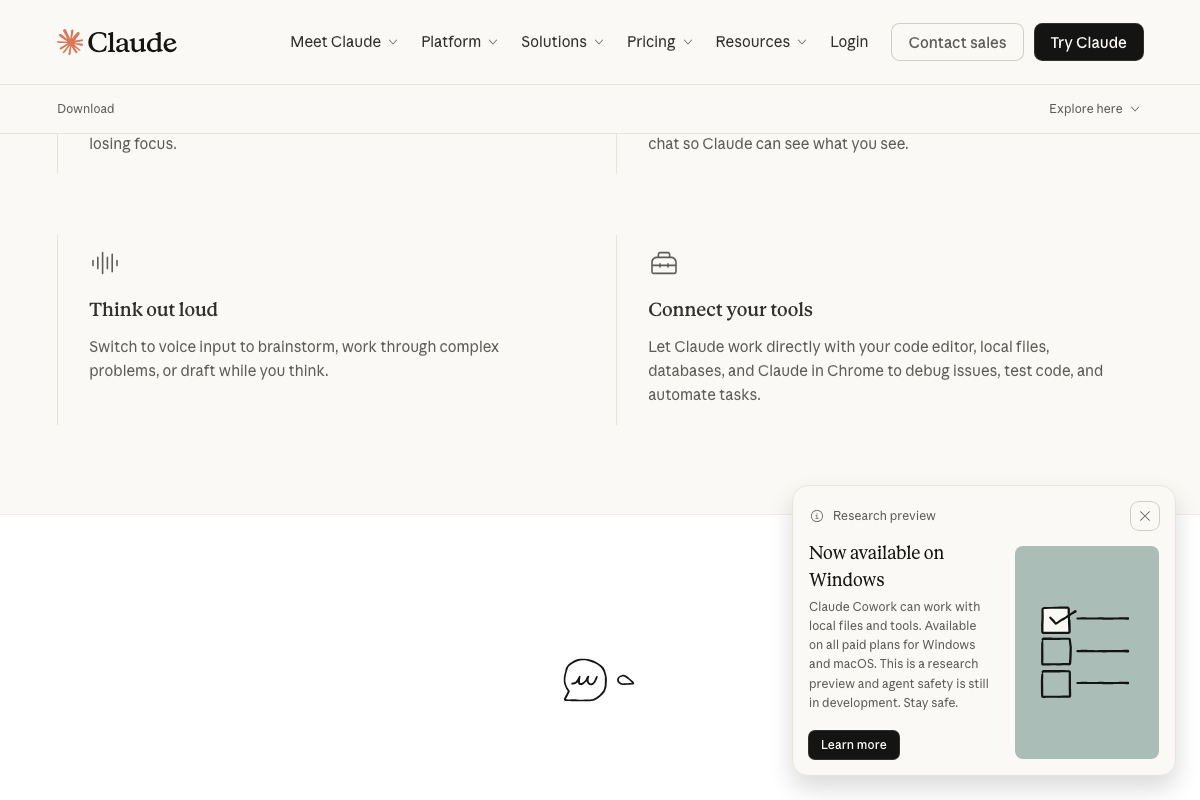
Step 1: Download and install the Claude desktop app. The video’s approach here matches the current docs exactly — with important additions. The download page at claude.ai/download labels Cowork as a “Research preview” with agent safety still in development and states it requires a paid plan: Pro at $17/month (annual) or Max from $100/month. As of March 11, 2026, Windows (arm64) is not supported for Cowork, narrowing the video’s “Mac or Windows” claim.


Step 2: Open the Cowork tab and select a project folder. The video’s approach here matches the current docs exactly. The claude.ai homepage confirms the Chat/Cowork toggle, folder browser, and a Progress panel for multi-step execution.
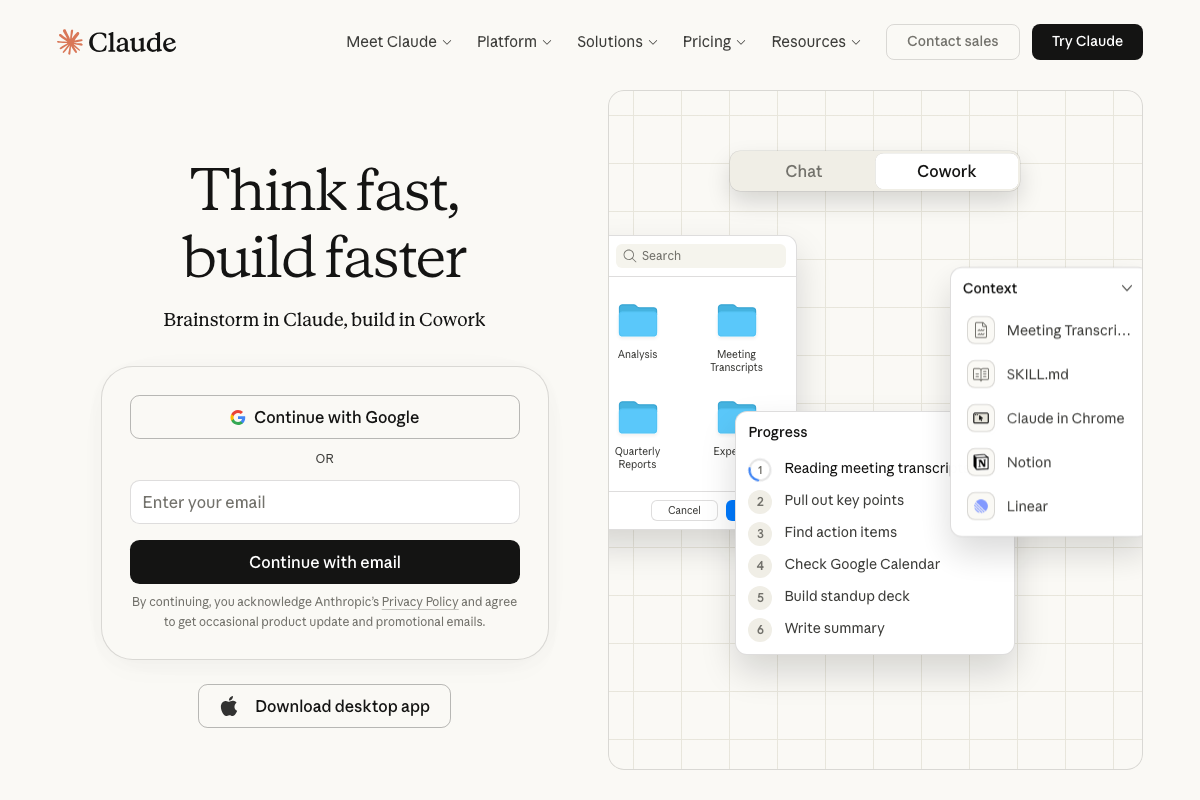
Step 3: Open the Skills panel. The video’s approach here matches the current docs exactly. The Context panel shows SKILL.md as a loaded item, suggesting skills are stored as .md files in your working directory.
Step 4: Install or create a skill file.
No official documentation was found for this step — proceed using the video’s approach and verify independently.
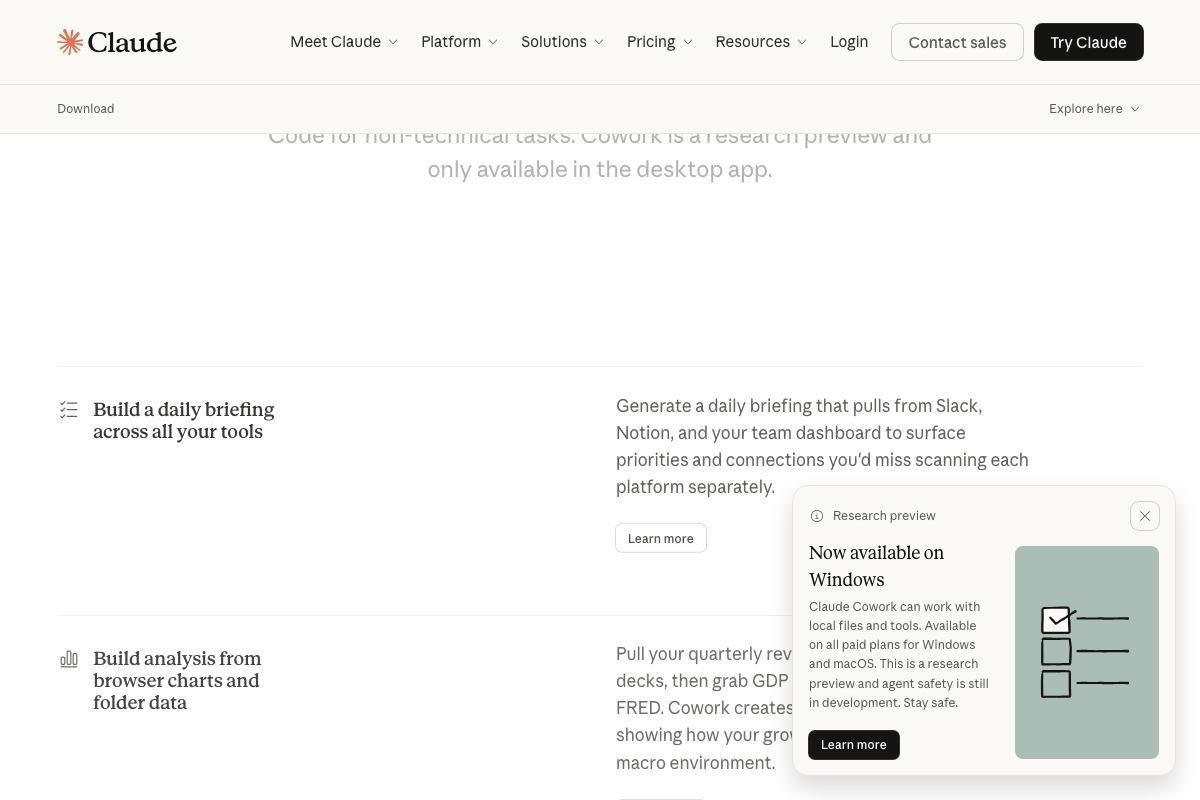
Step 5: Run the skill. The video’s approach here matches the current docs exactly. Anthropic’s download page promotes “Build a daily briefing across all your tools” as a primary use case, pulling from Slack, Notion, and team dashboards.
Steps 6–8: Review output, create a scheduled task, and configure delivery.
No official documentation was found for these steps — proceed using the video’s approach and verify independently.
Step 9: Connect native connectors. The video lists six connectors (Gmail, Google Calendar, Google Drive, Slack, Canva, GitHub). The download page frames connectivity more broadly — “code editor, local files, databases, and Claude in Chrome.” The Context panel also shows Notion and Linear as additional connectors beyond the video’s six.
Step 10: Extend with Zapier MCP. The video’s approach here matches the current docs exactly. One addition: Zapier MCP is labeled “Beta” on the official page and automatically handles authentication, rate limits, and retries — infrastructure the video doesn’t cover. The page confirms 8,000+ apps with 30,000+ actions.

Step 11: Test before relying on automation. The video’s approach here matches the current docs exactly.
Useful Links
- Claude Homepage — Cowork tab, Context panel, and folder browser interface
- Download Claude Desktop App — Research Preview details, paid plan requirements, and platform support
- Zapier MCP — Beta MCP server connecting Claude to 8,000+ apps
- Slack Developer Docs — API infrastructure behind Cowork’s native Slack connector
- Google Calendar — Schedule-aware connector for daily briefings
- Google Drive — Cloud storage connector for file-aware task execution
- Canva — Visual design platform connector for creative automation
- GitHub — Code collaboration connector for repo and issue access
- Skool — Community platform connectable via Zapier MCP
- Zendesk — Customer service platform connectable via Zapier MCP


0 Comments