

Connect Obsidian to Claude Co-work for a Persistent Second Brain
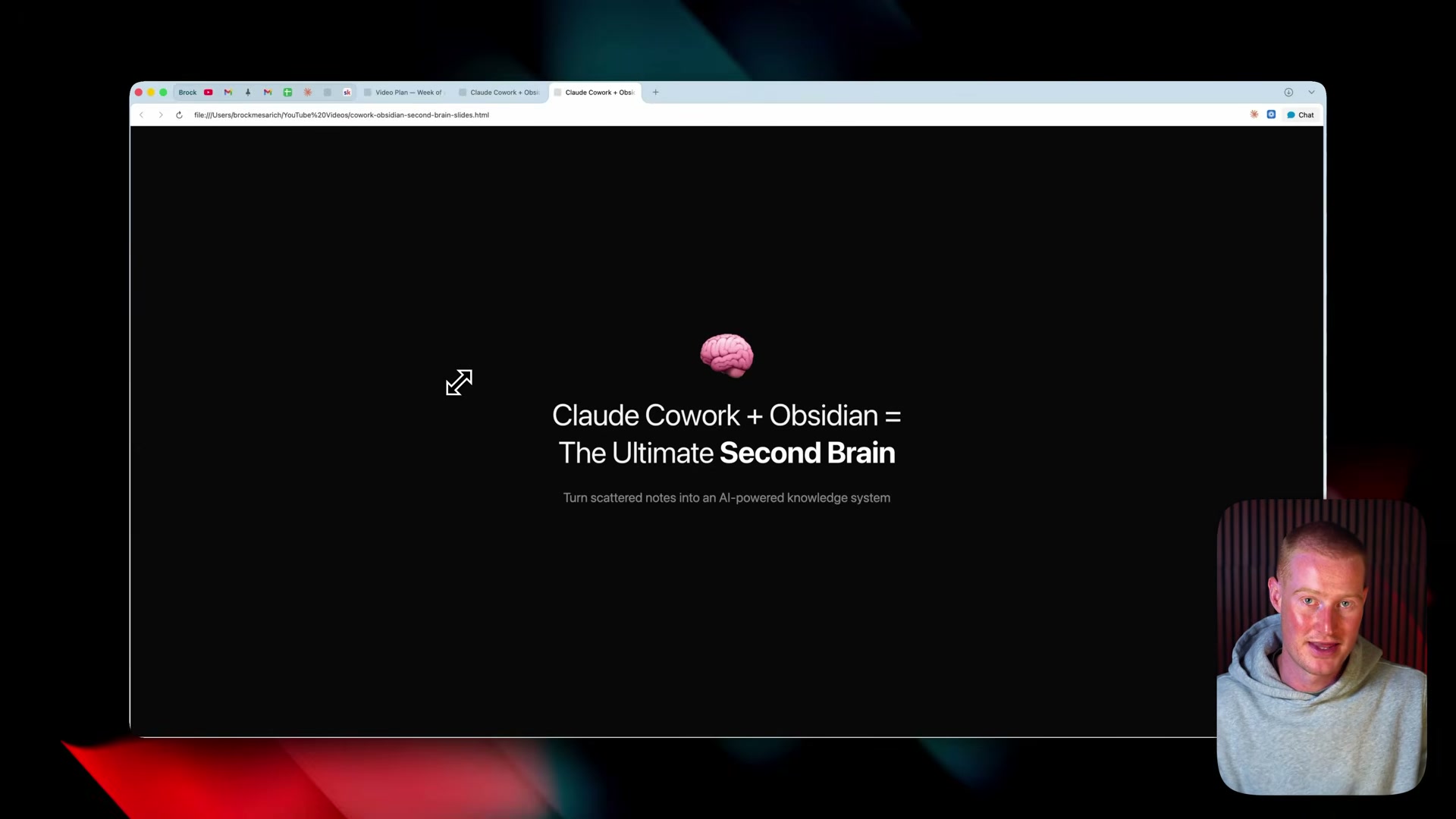
Claude Co-work is powerful in the moment and amnesiac by design — close a session and every research thread, client note, and planning decision disappears. Pairing it with Obsidian, a free local markdown editor, gives Co-work a persistent vault it can read from and write to across every session. By the end of this walkthrough, you’ll have a fully wired second brain where context accumulates automatically, survives app restarts, and stays entirely on your own machine.
-
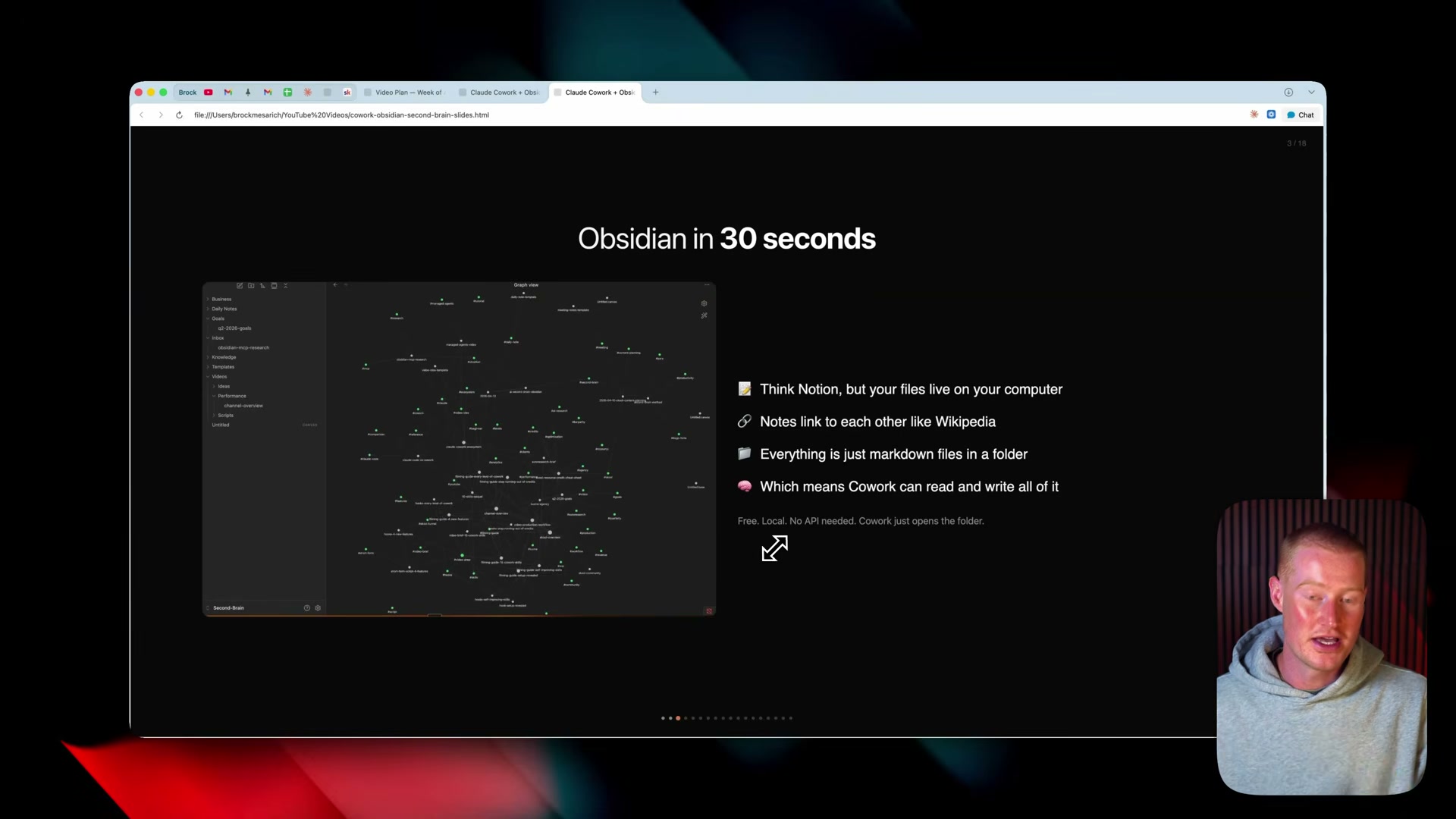
Download Obsidian for free from obsidian.md. No account, subscription, or API key is required — the app installs like any other macOS or Windows application.
-
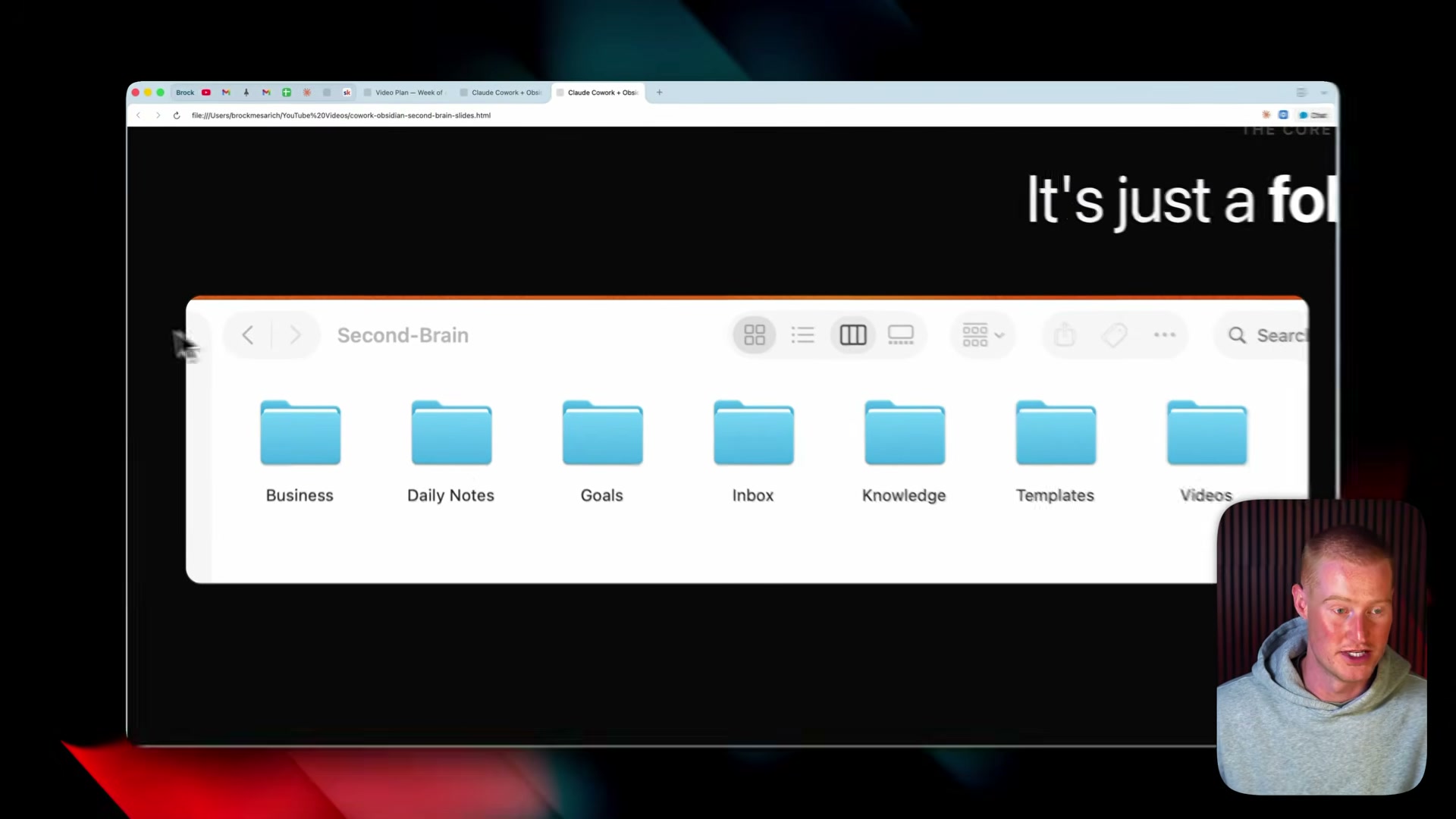
Create a new folder somewhere you’ll remember — the video uses the desktop and names it
Second Brain. This folder becomes the vault root, and the name is entirely up to you.
- Open Obsidian and, on the welcome screen, choose Open folder as vault. Point it at the folder you just created. Obsidian renders the directory as a note workspace immediately — even if it’s currently empty.
- Open the Claude desktop app and toggle on Co-work mode. The toggle appears in the app’s main interface and must be active before you connect any external folder.
Warning: this step may differ from current official documentation — see the verified version below.
-
Inside Co-work, click the folder icon and select the same folder you pointed Obsidian at — in the video, that’s the
Second Brainfolder on the desktop. Both apps now reference identical files on disk. -
When Claude requests filesystem permission, click Always Allow. This grants Co-work read and write access to the vault for all future sessions without re-prompting.
-
Give Claude a brain dump prompt describing the subfolder structure you want. The video uses something like: “Create subfolders for YouTube Videos, School Community, Client Work, and Daily Notes.” Claude generates the folder hierarchy and populates starter markdown files immediately.
-
Switch to Obsidian and watch the new subfolders appear in the left sidebar in real time. Because both tools point at the same directory on disk, there is no sync step and no plugin required.
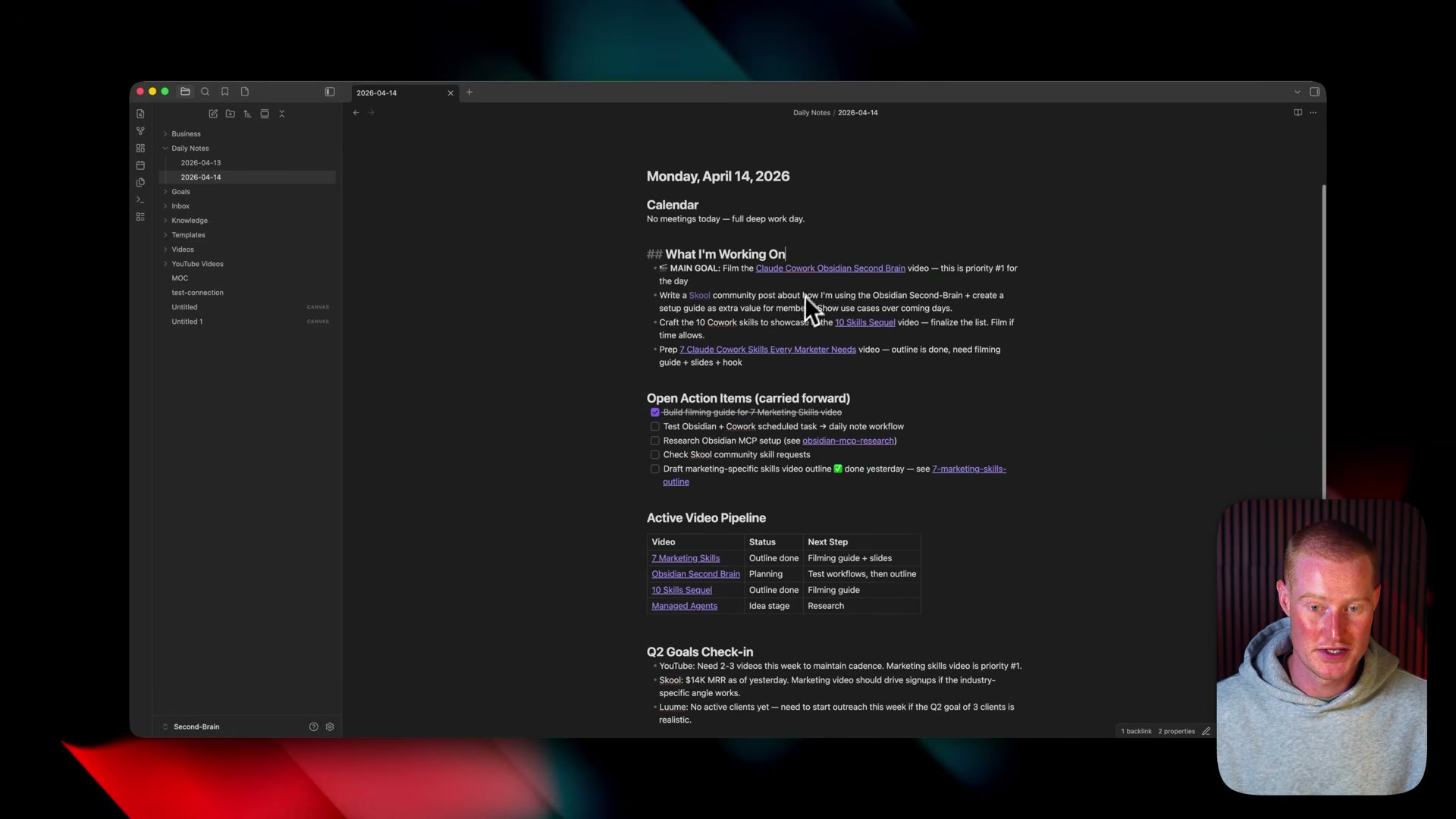
- Verify the Co-work → Obsidian direction: ask Claude to update a specific note — for example, marking a video project as completed and moving it to a
Publishedsubfolder. Open Obsidian and confirm the file reflects the change. In the video, the move happens within seconds of Claude’s response.
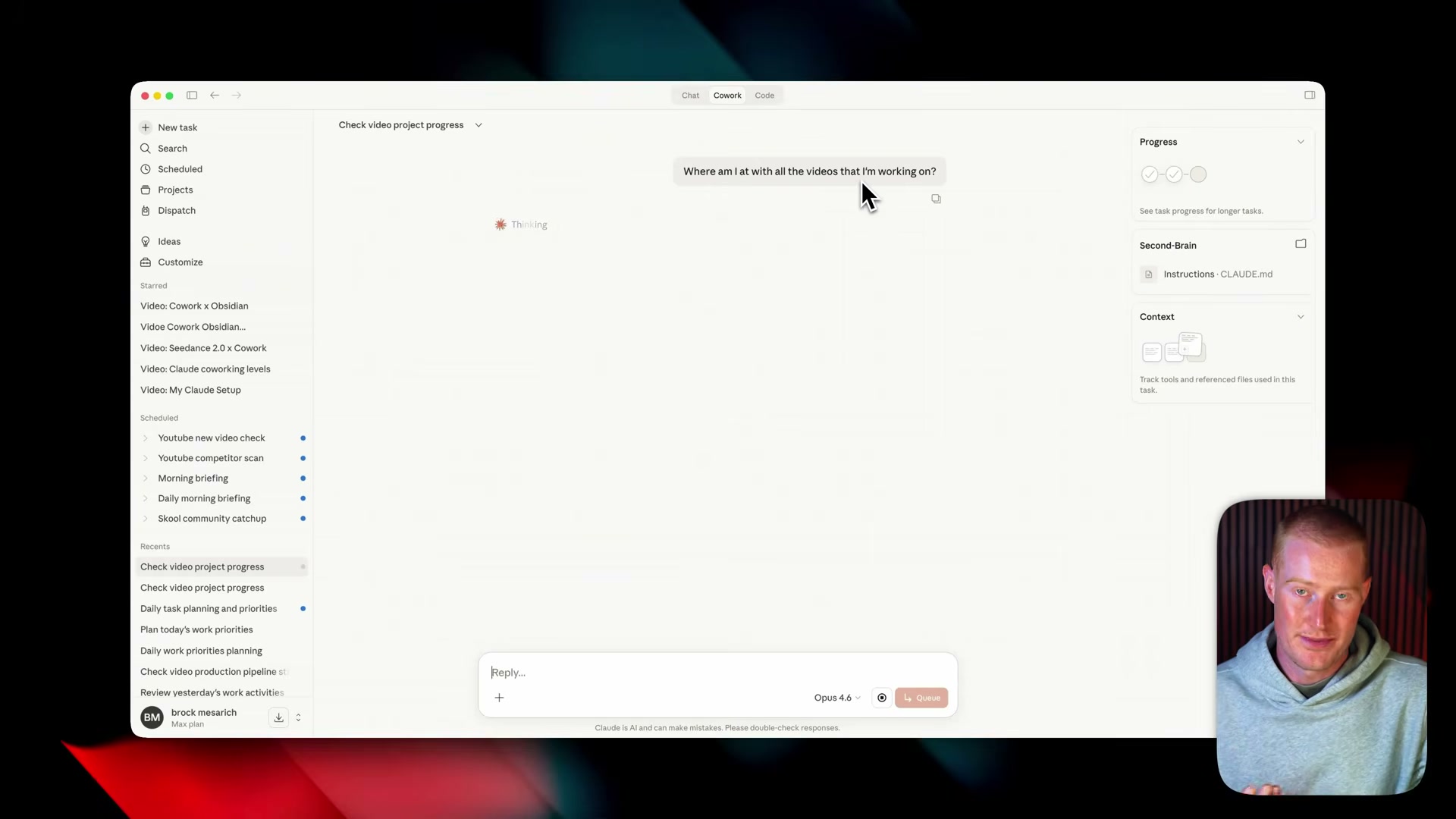
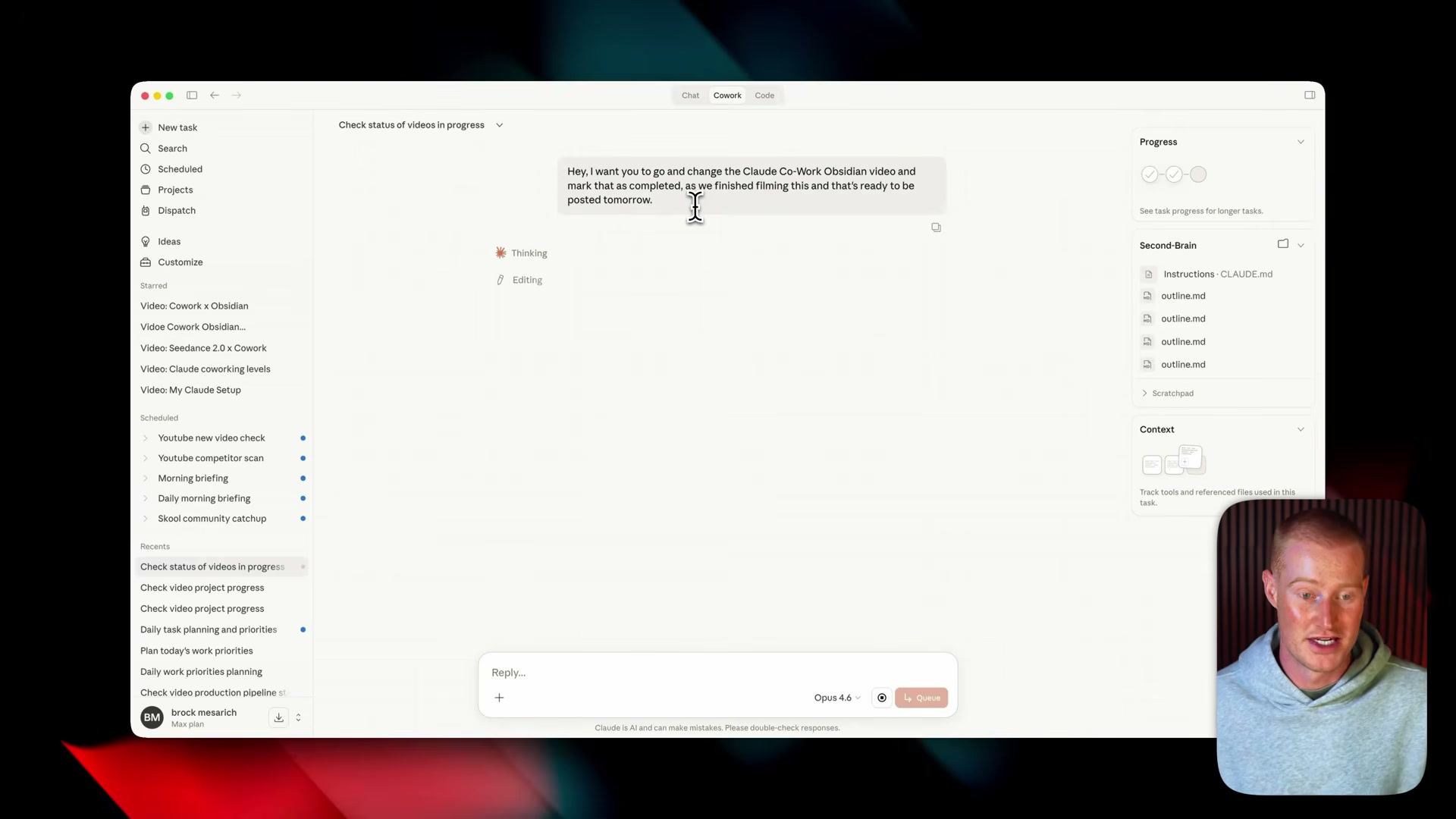
- Verify the Obsidian → Co-work direction: open a note directly in Obsidian, edit its content — the video renames a video title inline — then return to Co-work and ask Claude about that note by name. Claude reads the updated file and returns the revised information, confirming the sync runs in both directions.
How does this compare to the official docs?
The video’s setup works end-to-end as demonstrated, but the folder-access permission flow and the exact label “Co-work mode” may not map cleanly to what Anthropic’s current documentation describes — Act 2 traces the official path and flags where the two diverge.
Here’s What the Official Docs Show
The tutorial in Act 1 gives you a functional picture of the Obsidian-to-Claude workflow and holds up well for the early setup steps. Act 2 layers in the documentation, fills in a few prerequisites the video skips, and brings one product name in line with Anthropic’s current terminology.
1. Download Obsidian
The video’s approach here matches the current docs exactly. Obsidian is free at obsidian.md, macOS is the primary download CTA, and a “More platforms” link covers Windows, Linux, iOS, and Android — cross-platform availability the video doesn’t mention but relevant if your team isn’t all-Mac.

2. Create the vault folder
No official documentation was found for this step — proceed using the video’s approach and verify independently.
3. Open the folder as a vault in Obsidian
No official documentation was found for this step — proceed using the video’s approach and verify independently.
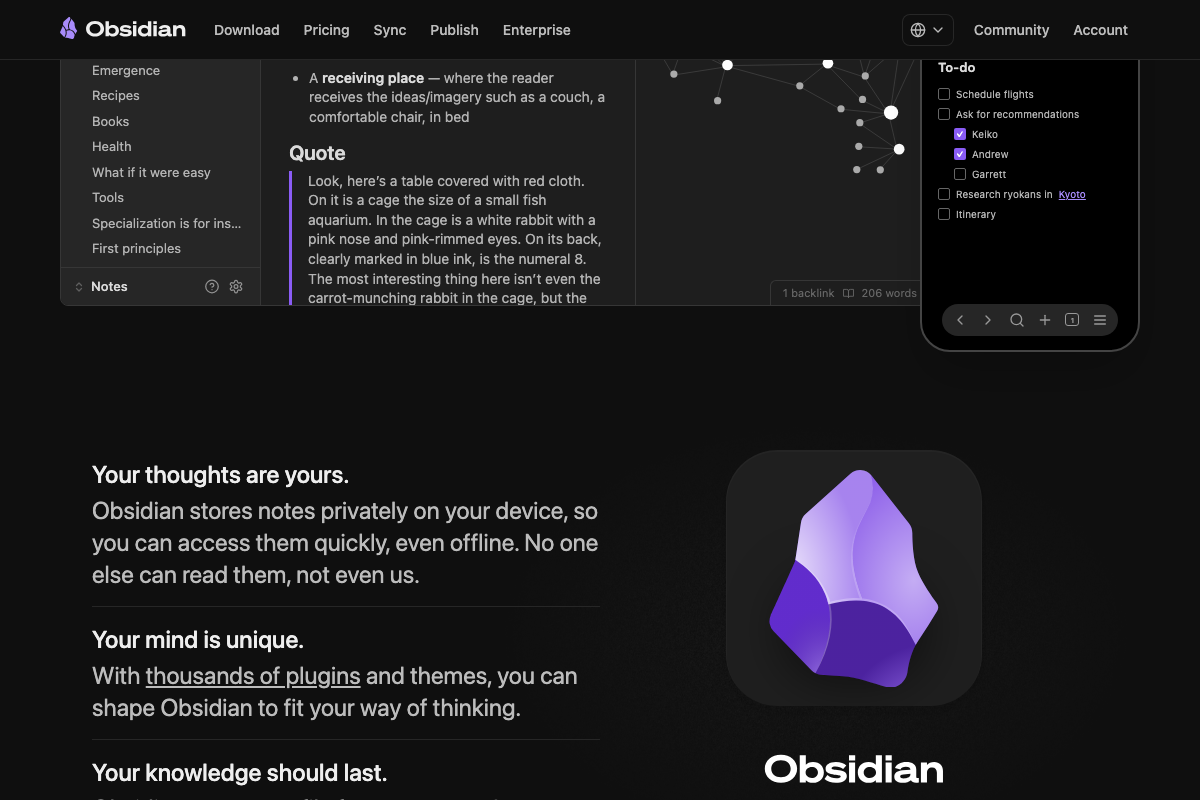
One addition before you proceed: Obsidian’s official site states notes are “stored privately on your device” and that “no one else can read them, not even us.” That is the default model for an unconnected vault. Granting Claude Cowork read/write access to the same folder in step 6 materially changes it — worth flagging before you point this workflow at a client-work directory.
4. Open the Claude desktop app and activate Cowork
Two clarifications apply here as of April 15, 2026.
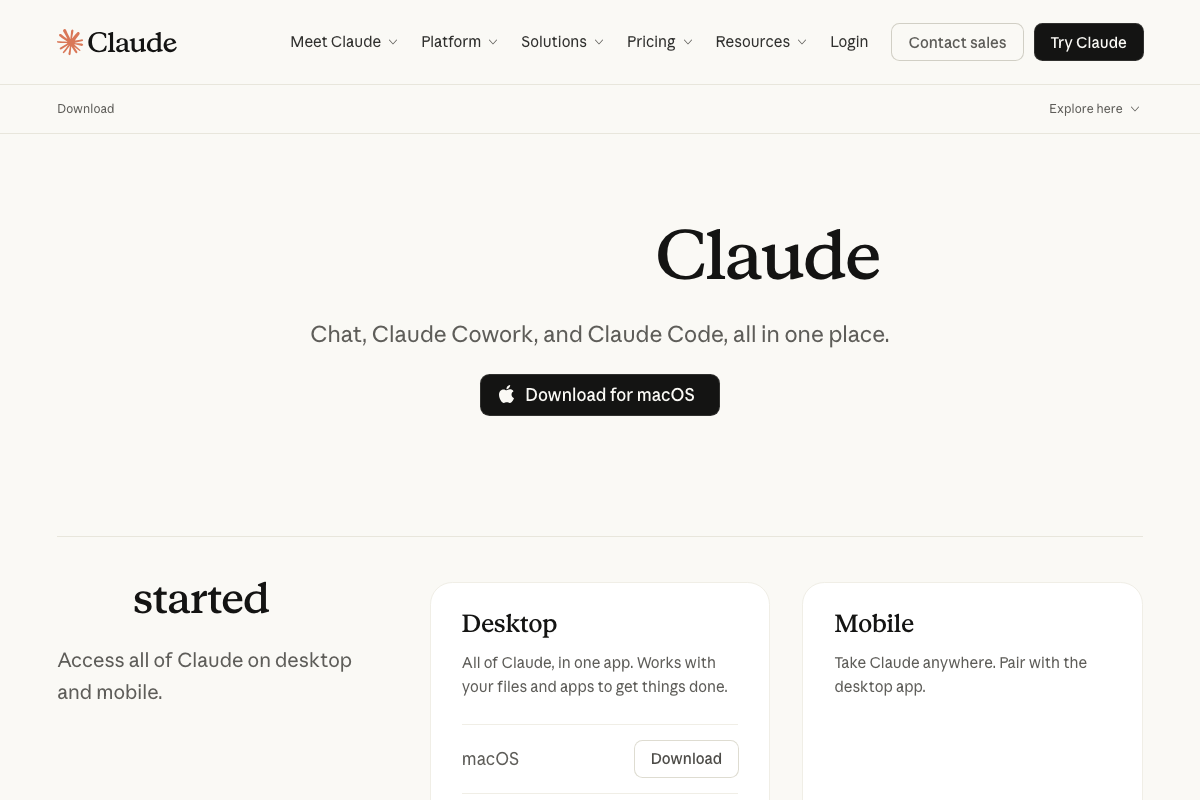
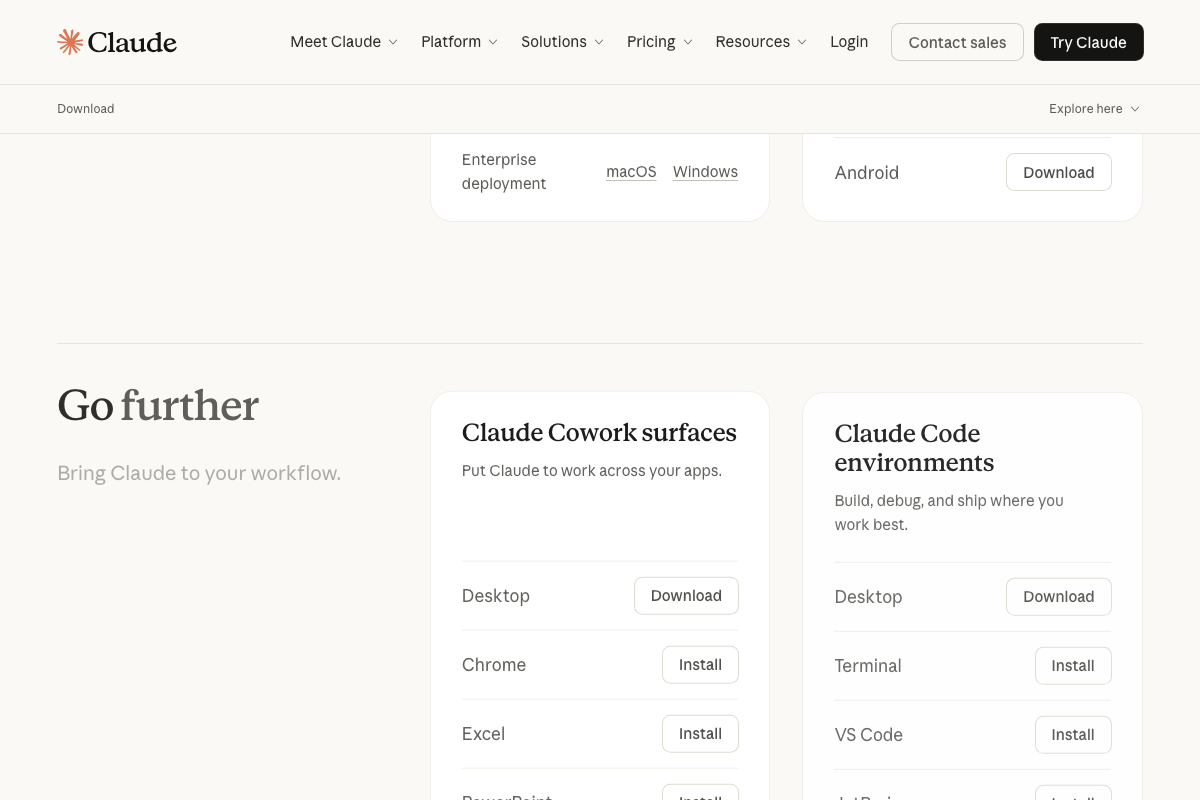
As of that date, the correct product name is Claude Cowork — one word, no hyphen, no “mode” suffix. The official download page at claude.ai/download lists it as a distinct product surface alongside Chat and Claude Code, not a toggle inside the app. Additionally, the video implies Cowork is desktop-only; official docs list four Cowork surfaces: Desktop, Chrome, Excel, and PowerPoint.
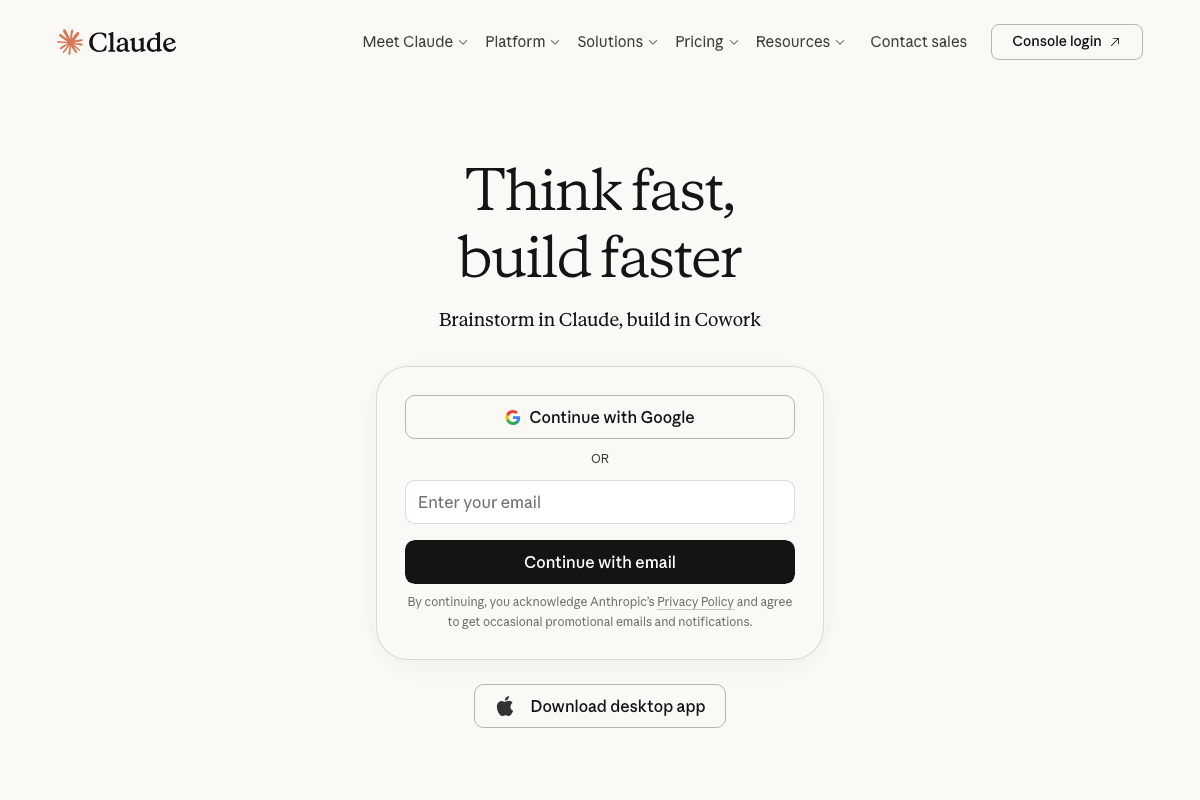
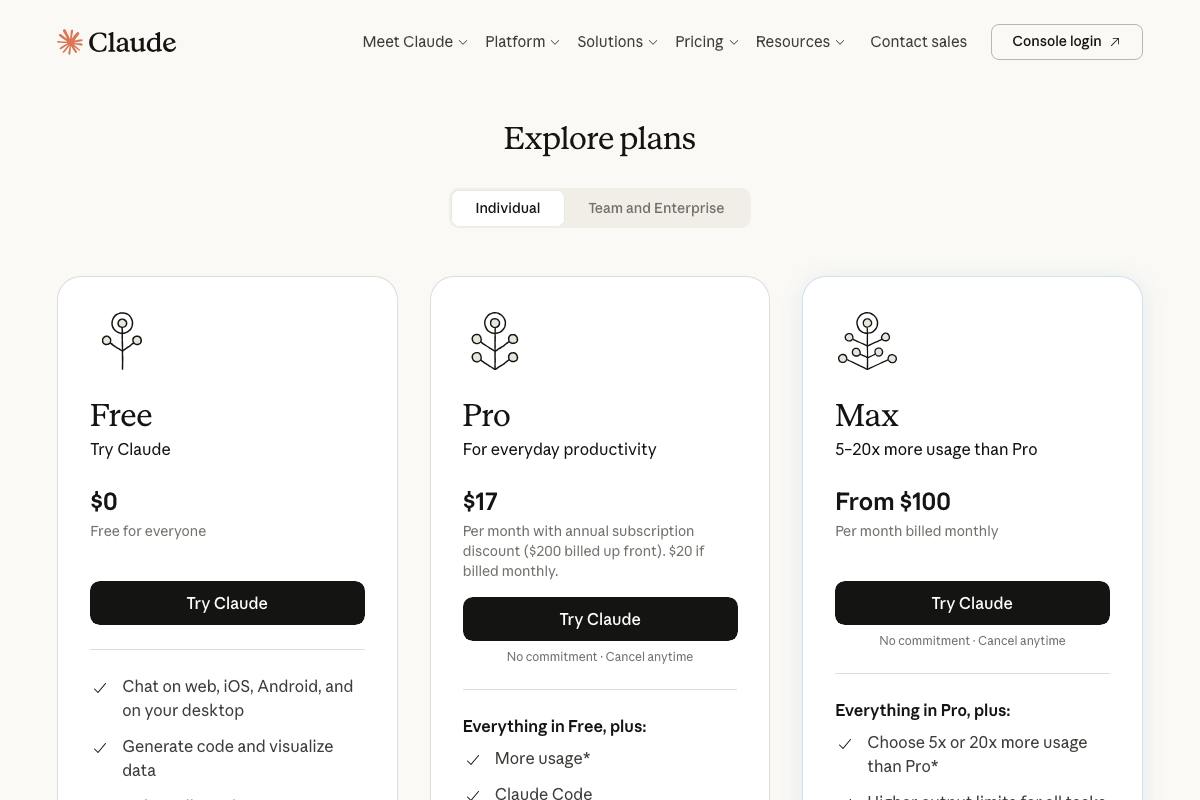
A prerequisite the video skips: a Claude account is required before you can access Cowork at all. Login options are Google OAuth or email/password. The tutorial also doesn’t specify which plan is needed — Claude offers Free, Pro ($17–$20/month), and Max ($100+/month) tiers, and the screenshots don’t explicitly gate Cowork folder access to a specific tier.
5. Link the vault folder inside Cowork
No official documentation was found for this step — proceed using the video’s approach and verify independently.
6. Grant filesystem permission
No official documentation was found for this step — proceed using the video’s approach and verify independently.
7. Give Claude the folder-structure prompt
No official documentation was found for this step — proceed using the video’s approach and verify independently.
8. Confirm folders appear in Obsidian
No official documentation was found for this step — proceed using the video’s approach and verify independently.
9. Verify Cowork → Obsidian writes
No official documentation was found for this step — proceed using the video’s approach and verify independently.
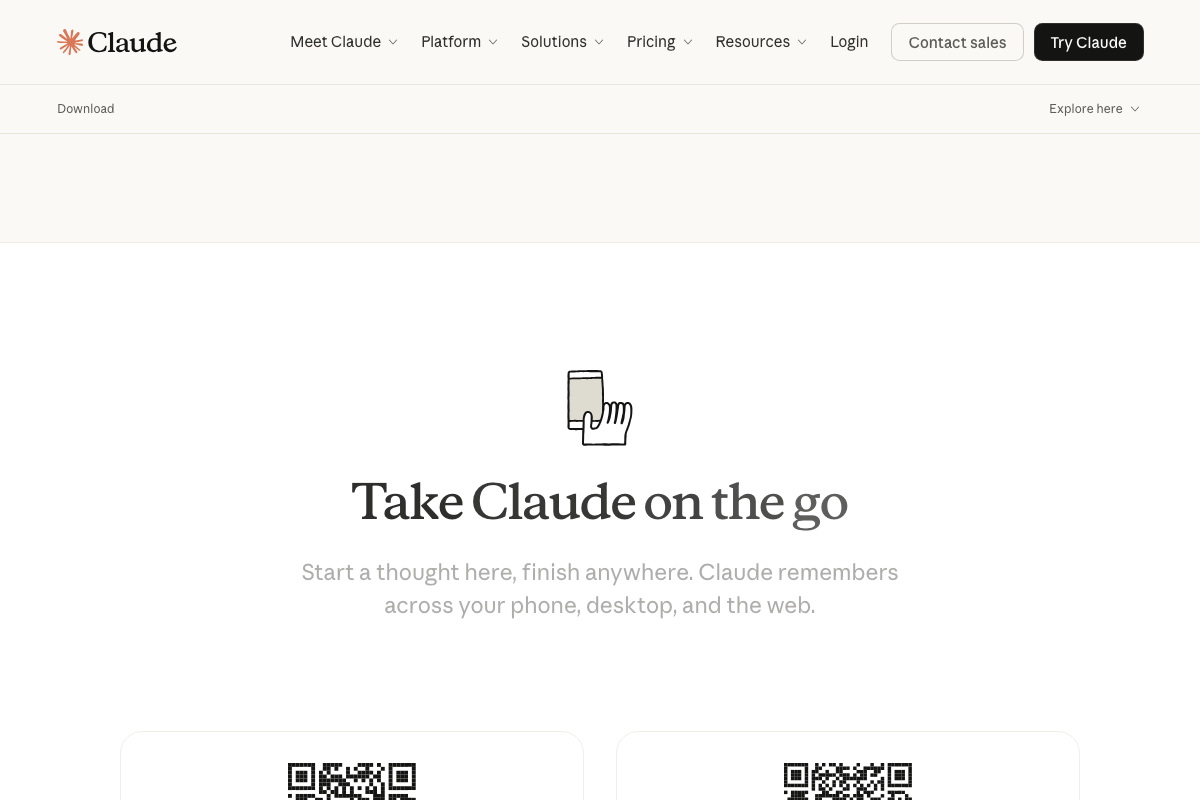
One distinction the docs surface here: claude.ai states “Claude remembers across your phone, desktop, and the web.” That refers to Claude’s conversation memory — not filesystem access. The persistence this setup delivers comes from the shared local folder, not from Claude’s native memory feature.
10. Verify Obsidian → Cowork reads
No official documentation was found for this step — proceed using the video’s approach and verify independently.
Useful Links
- Obsidian – Sharpen your thinking — Official Obsidian homepage covering download options, privacy model, and cross-platform availability.
- Download Claude | Claude by Anthropic — Official Claude download page confirming Claude Cowork product naming, surfaces (Desktop, Chrome, Excel, PowerPoint), and plan tiers.
- Claude — Claude web app login page confirming account requirements, authentication options, and Cowork’s positioning as a distinct product surface from standard Chat.


0 Comments