

Master Claude’s Four New Cowork Features: Projects, Scheduled Tasks, Dispatch, and Computer Use
Claude Cowork has moved well beyond the chatbot loop — four recently released features turn it into a persistent, autonomous agent that remembers your business, runs work on a schedule, accepts instructions from your phone, and controls your desktop directly. After completing this walkthrough you’ll have a configured project with memory enabled, at least one scheduled task running automatically, and Dispatch wired up so your phone can hand off work to your desktop. The setup requires the Claude desktop app and a Pro plan ($20/month).
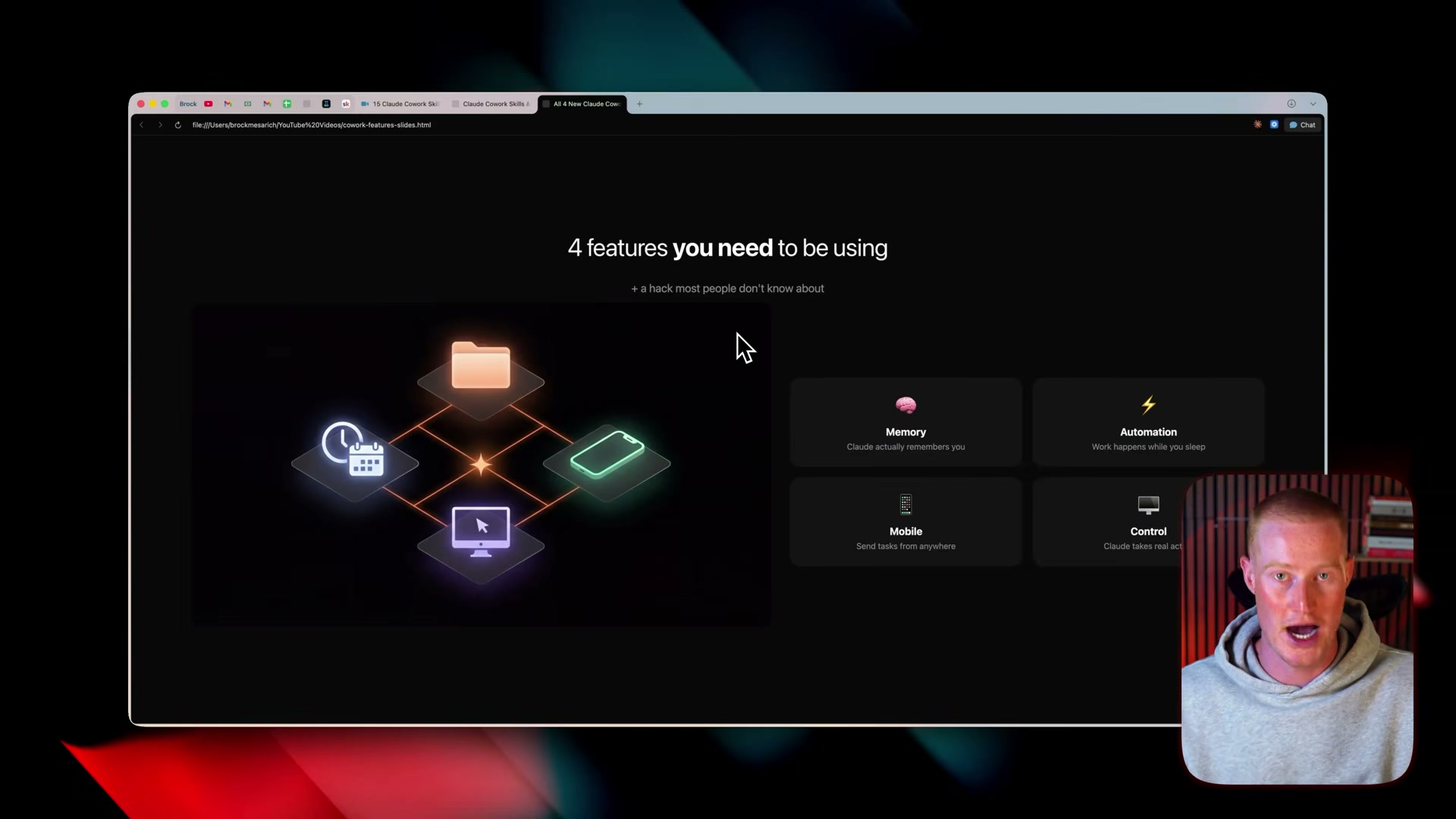
-
Download the Claude desktop app using the link in the video description. Cowork’s agentic features — Projects, Scheduled Tasks, Dispatch, and computer use — are exclusive to the desktop app. None of them appear on claude.ai in a browser.
-
Open the desktop app. Projects appear in the left sidebar; if the section is collapsed, click Show to expand it. The sidebar organizes your projects, active tasks, and scheduled runs in a single panel.
-
Create your first project by clicking the + button. Claude presents three onramps:

- Start from scratch — name the project, write instructions, and refine later.
- Import an existing Claude chat project — pulls in context from any project you’ve already built on claude.ai.
- Use an existing folder — points Claude at a local directory so it has direct file access from the start.
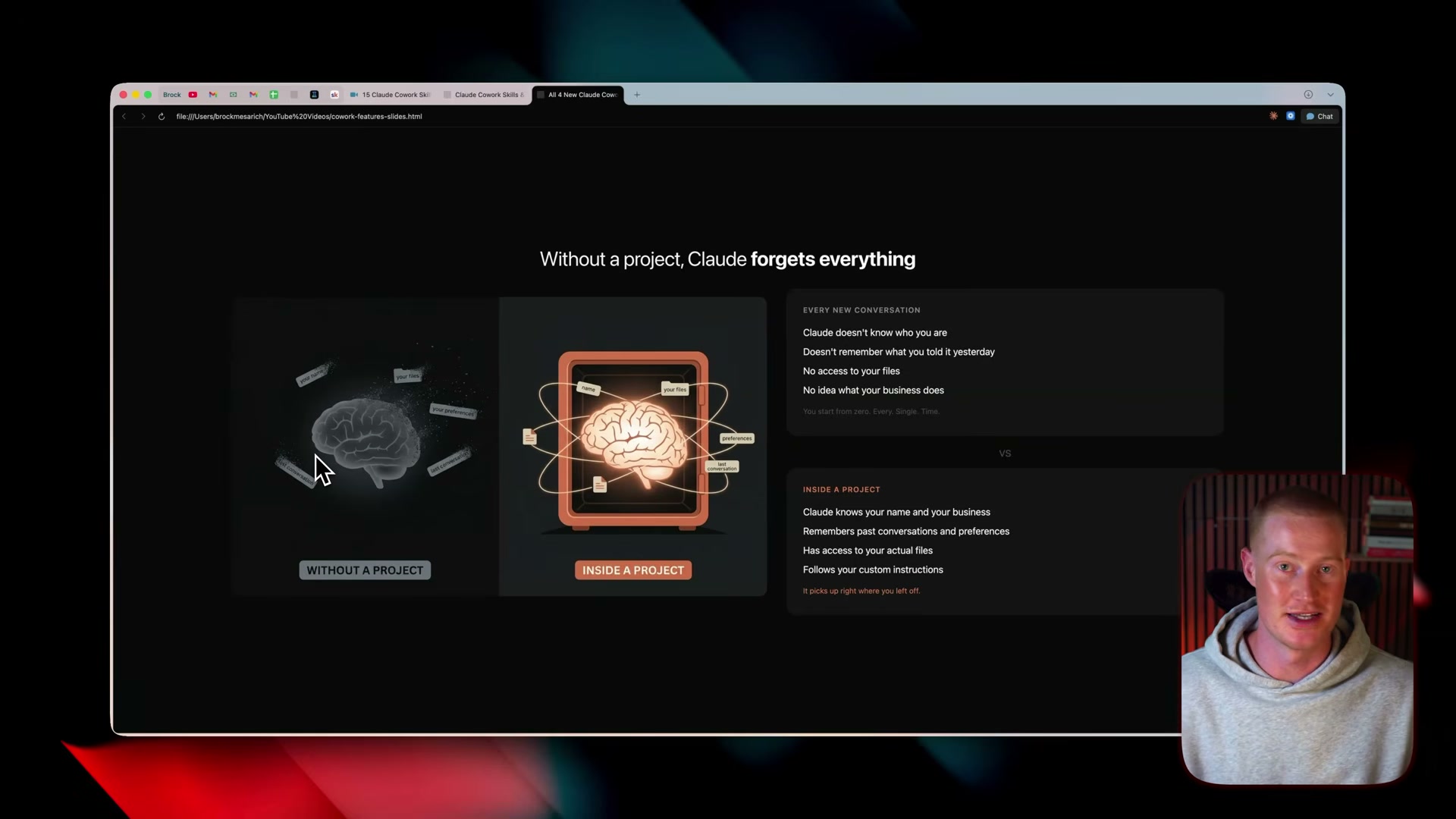
- Before clicking Create, toggle Memory on. With memory enabled, Claude retains your name, business context, past conversations, and preferences across every session inside the project. Without it, Claude resets on each conversation — no recollection of yesterday’s work, no awareness of your files or custom instructions.
- Inside a configured project, open Scheduled Tasks and create a new task. Write a plain-language description of what Claude should do, then set a cadence: Hourly, Daily, Weekly, Weekdays, or Manual. Claude executes the task against the project’s linked folder and Skills without any additional input from you.

- After a task has run, open its History panel to review outputs and verify execution. Each run log shows what Claude did, what files it touched, and what data it produced — useful for auditing automations before you rely on them in production.

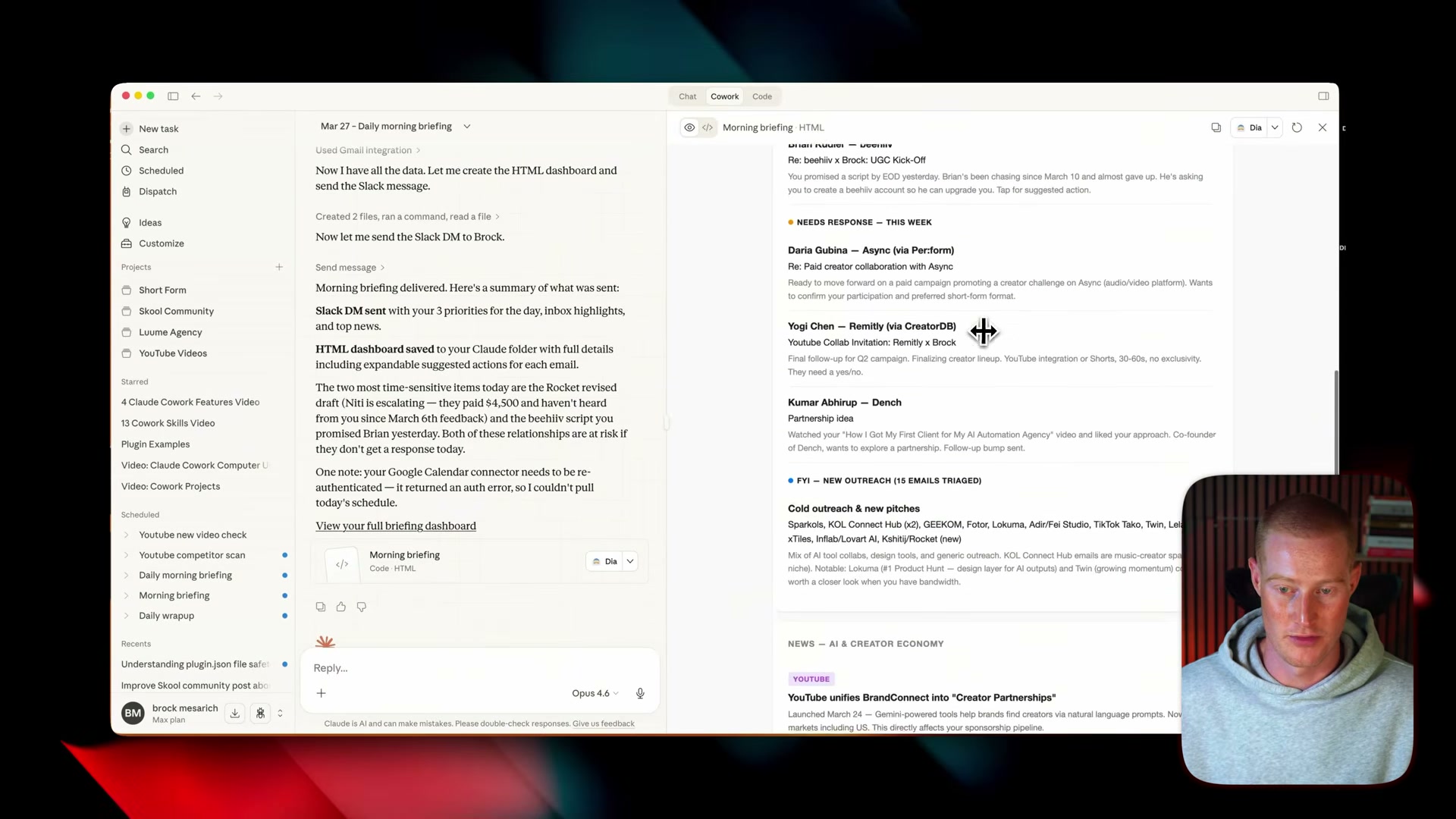
- Add Skills to a project to give scheduled tasks reusable workflow logic. A morning briefing skill, for example, can sweep your email inbox, check Slack, pull calendar events, and draft replies — all triggered by a single scheduled task at a set time each day.
-
Click Dispatch in the left sidebar to open the mobile-desktop sync interface. Dispatch creates a shared thread between your phone and your desktop so tasks sent from the Claude mobile app execute on your machine.
-
If Dispatch does not appear in the sidebar, delete the Claude desktop app, reinstall it, and confirm your account is on the Pro plan ($20/month). The feature is not available on the free tier.
Warning: this step may differ from current official documentation — see the verified version below.
-
Inside Dispatch, enable the Keep Awake toggle so the desktop agent stays active and can receive tasks even when Claude is not the frontmost window.
-
Enable the Browser Actions and Computer Use toggles to grant the agent full GUI control — it can navigate browsers, interact with desktop applications, and complete multi-step workflows triggered entirely from your phone.
-
Send a task from the Claude mobile app and watch the Dispatch thread update in real time on your desktop as Claude works through each step.
How does this compare to the official docs?
Anthropic’s documentation covers each of these features with precise capability boundaries and permission requirements that the video doesn’t surface — and several of them reframe what’s actually possible with computer use, scheduled task scoping, and memory persistence.
Here’s What the Official Docs Show
Act 1 gave you a practical walkthrough of Claude Cowork’s four agentic features as demonstrated in the video — this section layers in what Anthropic’s official documentation confirms, clarifies, or leaves unverified as of March 31, 2026. Where the docs are silent, you’ll know exactly which steps to treat as unconfirmed.
Step 1 — Download the Claude desktop app
The video’s approach here matches the current docs exactly. The canonical download URL is claude.ai/download, with macOS and Windows both listed.

One clarification worth noting: the official page brands the product suite as Claude Cowork — not “agentic Co-work” as the video describes. The distinction matters if you’re searching Anthropic’s docs or support resources for follow-up help.
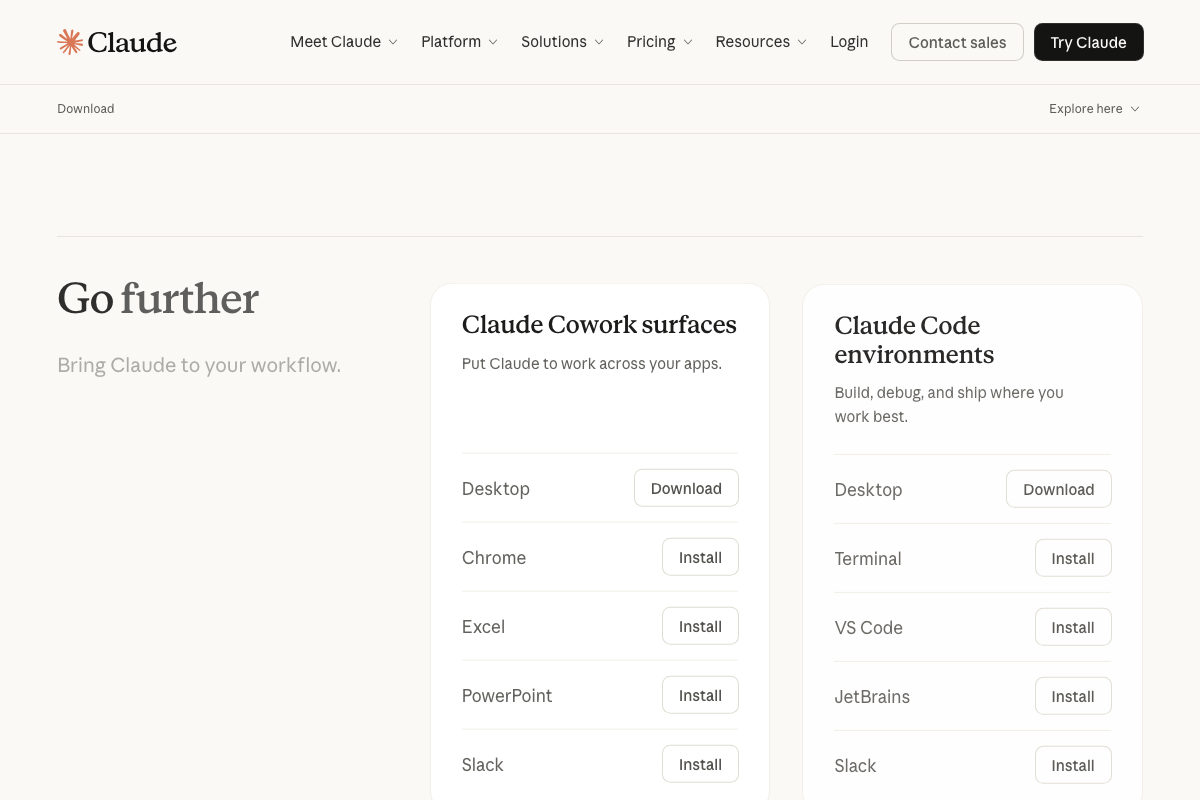
The download page also surfaces something the video doesn’t address: Claude Cowork is not desktop-exclusive. The official page lists Cowork surfaces as Desktop, Chrome, Excel, PowerPoint, and Slack — separate from the Claude Code environments (Terminal, VS Code, JetBrains). If your workflow lives in a browser or productivity suite, Cowork reaches there too.
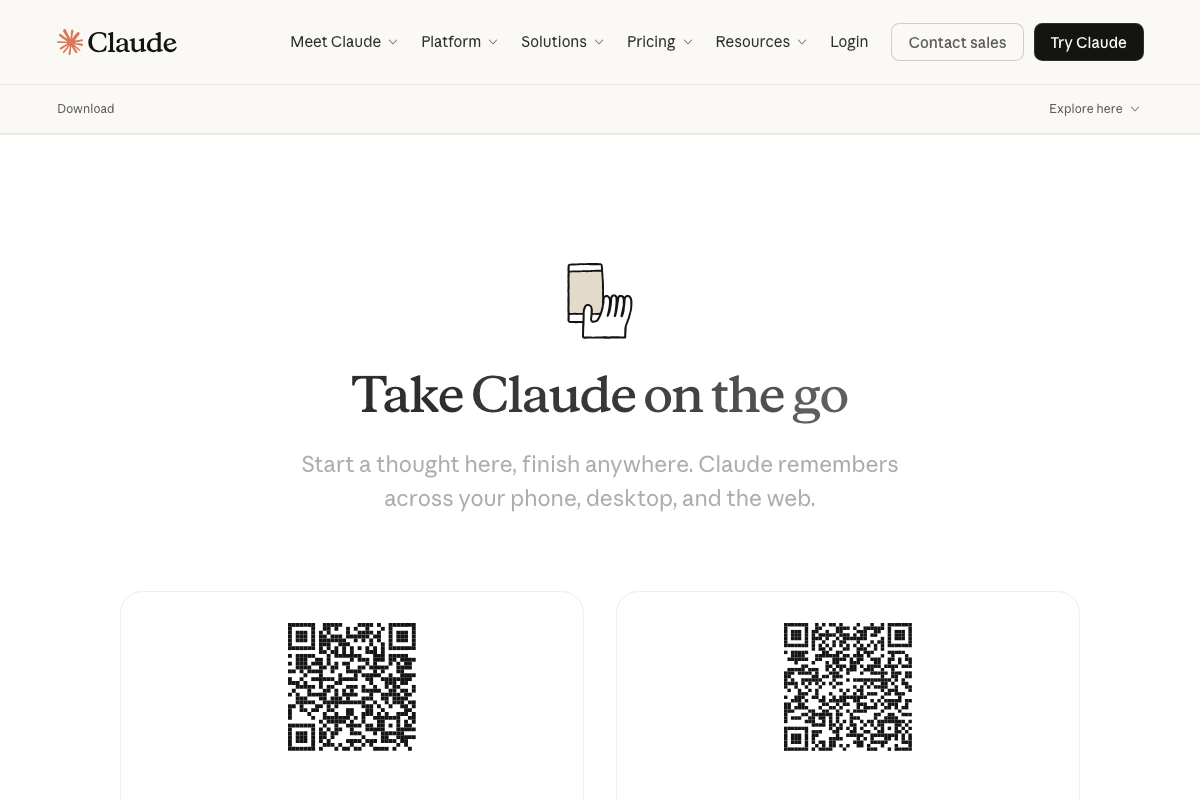
The mobile app pairing is confirmed: the download page provides QR codes for both iOS and Android and states that “Claude remembers across your phone, desktop, and the web.” The term Dispatch does not appear by name on this page, but the pairing relationship is officially documented here.
Steps 2–7 — Projects sidebar, project creation, Memory toggle, Scheduled Tasks, task history, Skills
No official documentation was found for these steps — proceed using the video’s approach and verify independently.
Steps 8–12 — Dispatch setup, Keep Awake toggle, Browser Actions, Computer Use, mobile task dispatch
No official documentation was found for these steps — proceed using the video’s approach and verify independently.
A specific note on the support article the video’s description may reference: as of March 31, 2026, the URL support.anthropic.com/en/articles/9517503-claude-for-ios-and-android returns a 404 error. Official documentation for Dispatch, the Keep Awake toggle, browser actions, and computer use toggles cannot be verified from any provided source. Treat steps 8–12 as video-only guidance until Anthropic publishes or restores the relevant support content.
Useful Links
- Download Claude | Claude by Anthropic — Official download page for the Claude desktop app (macOS and Windows) and mobile apps, including the full list of Claude Cowork surfaces and Claude Code environments.
- Claude Help Center — The Anthropic support article cited for Claude iOS and Android documentation; currently returns a 404 and should be monitored for restoration.


0 Comments