

Claude Code vs Claude Cowork: Which Tool Actually Belongs in Your Stack?
Two tools share the Claude name but serve entirely different users. After working through this tutorial, you’ll understand the architectural difference between Claude Code and Claude Cowork, know which environments each one runs in, and be able to connect both to the apps you use every day — without second-guessing which one to open.
-
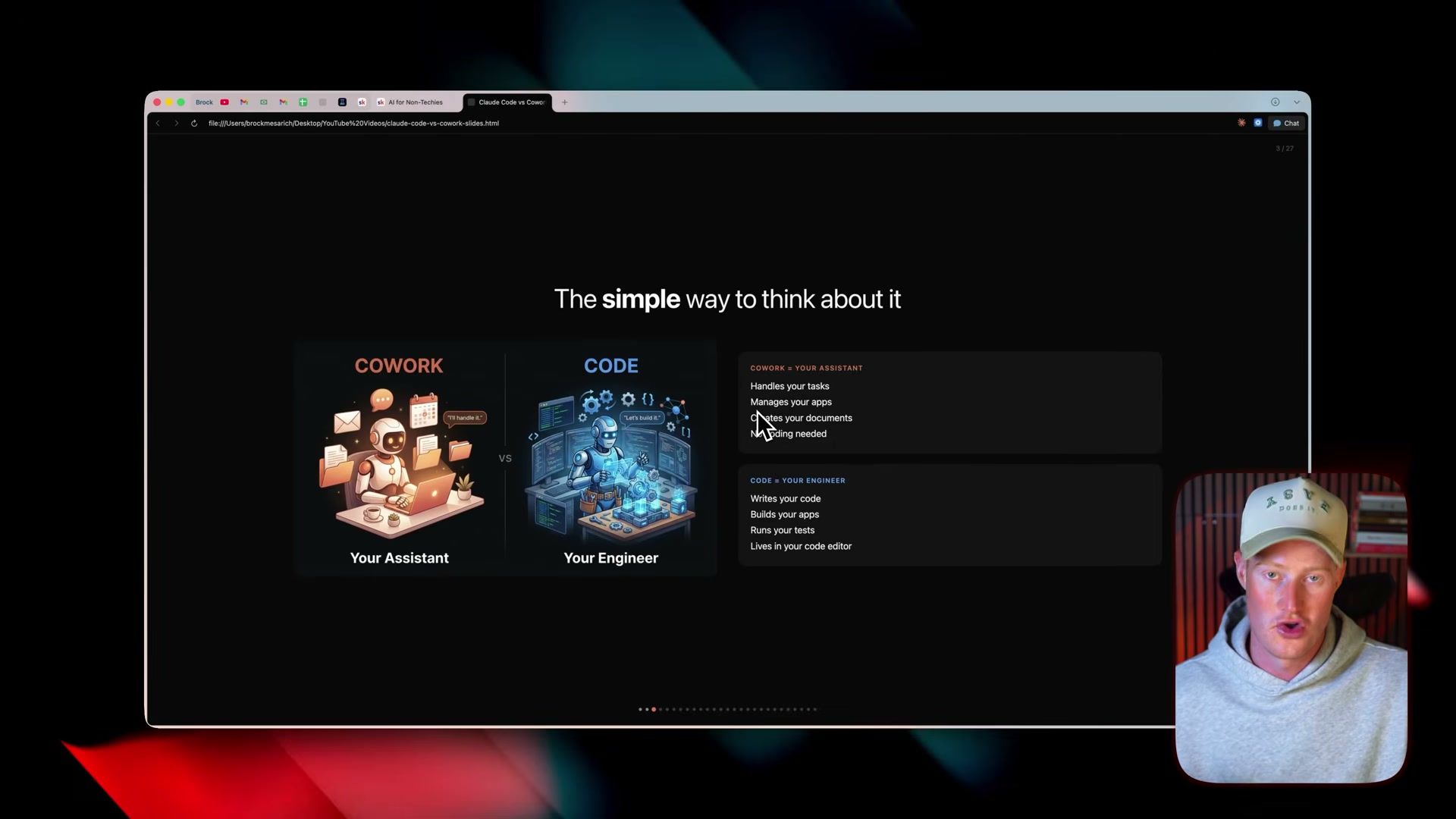
Grasp the core distinction. Claude Cowork is a no-code assistant that lives inside the Claude desktop app. It handles tasks, connects to apps, and creates documents — no terminal, no code, no technical background required. Claude Code is a full engineering agent: it writes code, runs tests, builds applications, and operates inside code editors and terminals. Cowork is for anyone; Code is for developers.
-
Understand the sandbox. Cowork runs inside a controlled environment that deliberately restricts what it can touch on your machine. Inside the sandbox: your designated folders, document creation, app connectors, and scheduled tasks. Outside: your system settings, other desktop apps, and anything beyond the folder you’ve explicitly granted. That boundary isn’t a limitation — it’s what makes running an autonomous agent safe on a real computer.
-
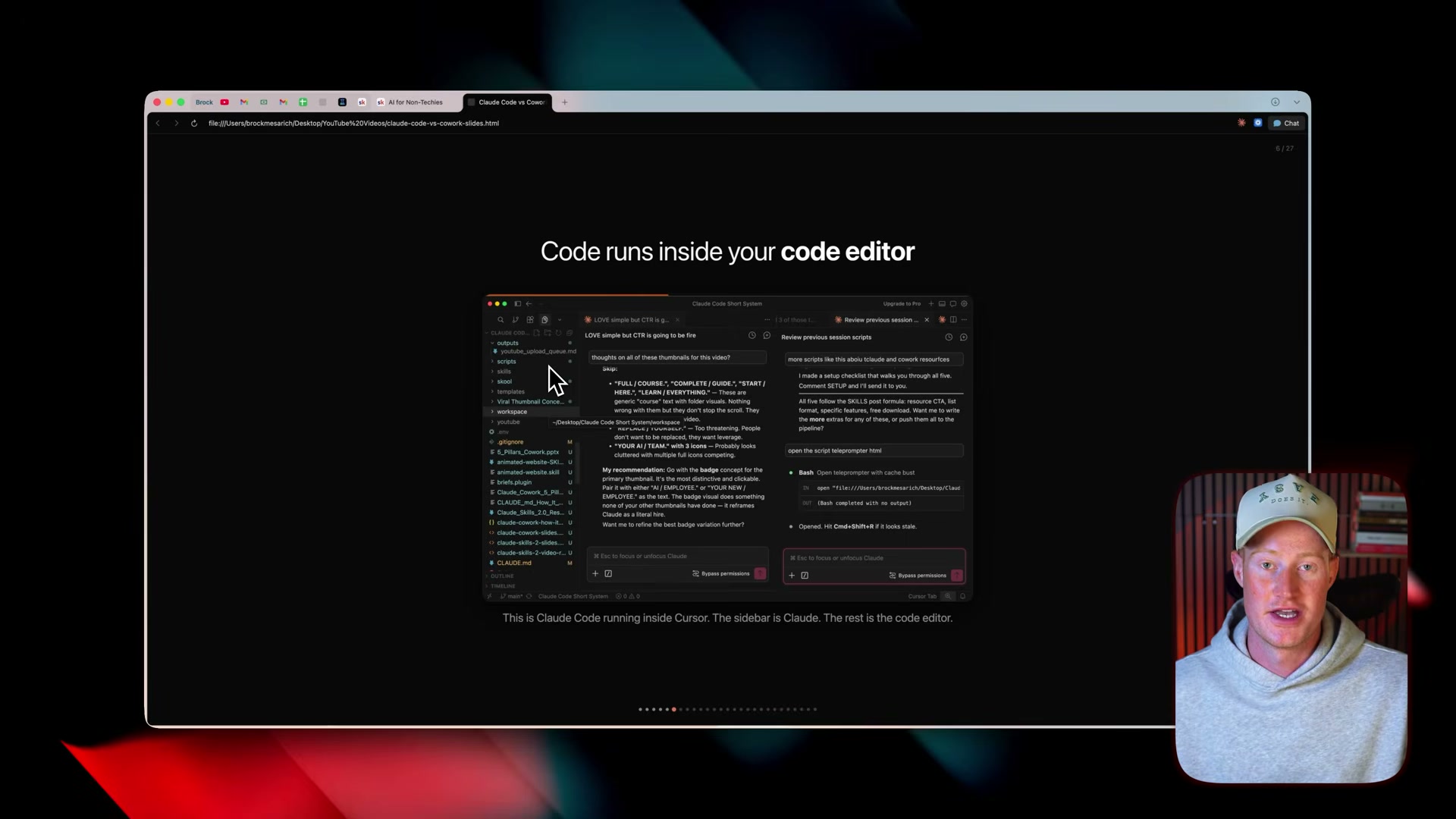
Learn what a code editor is. Think of Google Docs: an app for writing text that handles formatting, spelling, and sharing. A code editor — also called an IDE — is the same concept applied to code. It manages syntax highlighting, error detection, and extensions. Claude Code installs as one of those extensions inside editors like Cursor or VS Code.
-
See Claude Code running inside Cursor. With the extension loaded, you can run multiple Claude Code sessions simultaneously, each handling a separate task in parallel. The interface is a file tree on one side and a chat panel on the other — powerful for developers, genuinely disorienting if you’ve never opened an IDE.
-
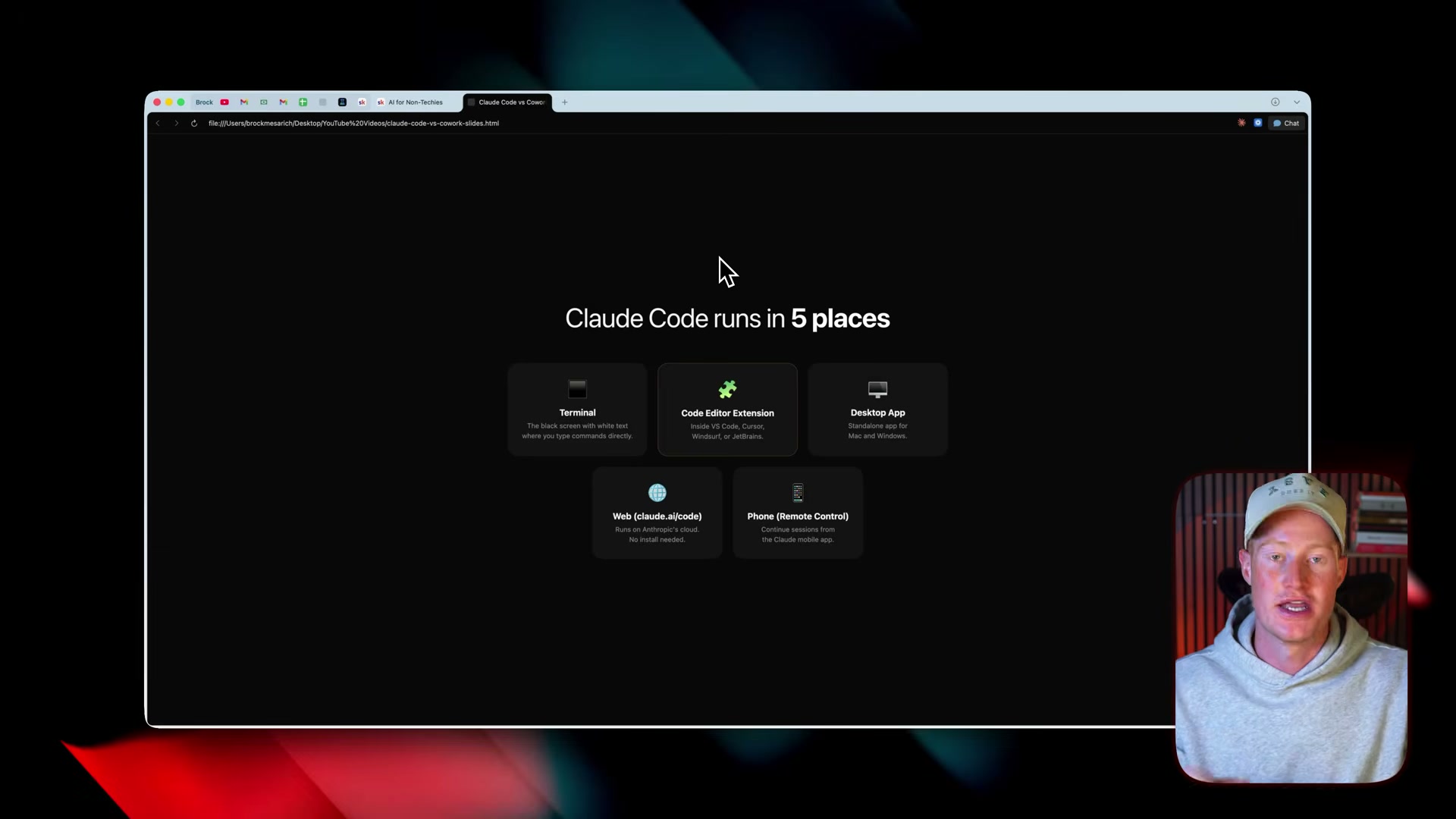
Know the five places Claude Code runs. Claude Code operates in: (1) your terminal, where you type commands directly into your machine; (2) a code editor extension for Cursor or VS Code; (3) the Claude desktop app, with reduced capability compared to a full IDE; (4) the web at claude.ai/code; and (5) remote control mode via the Claude mobile app.
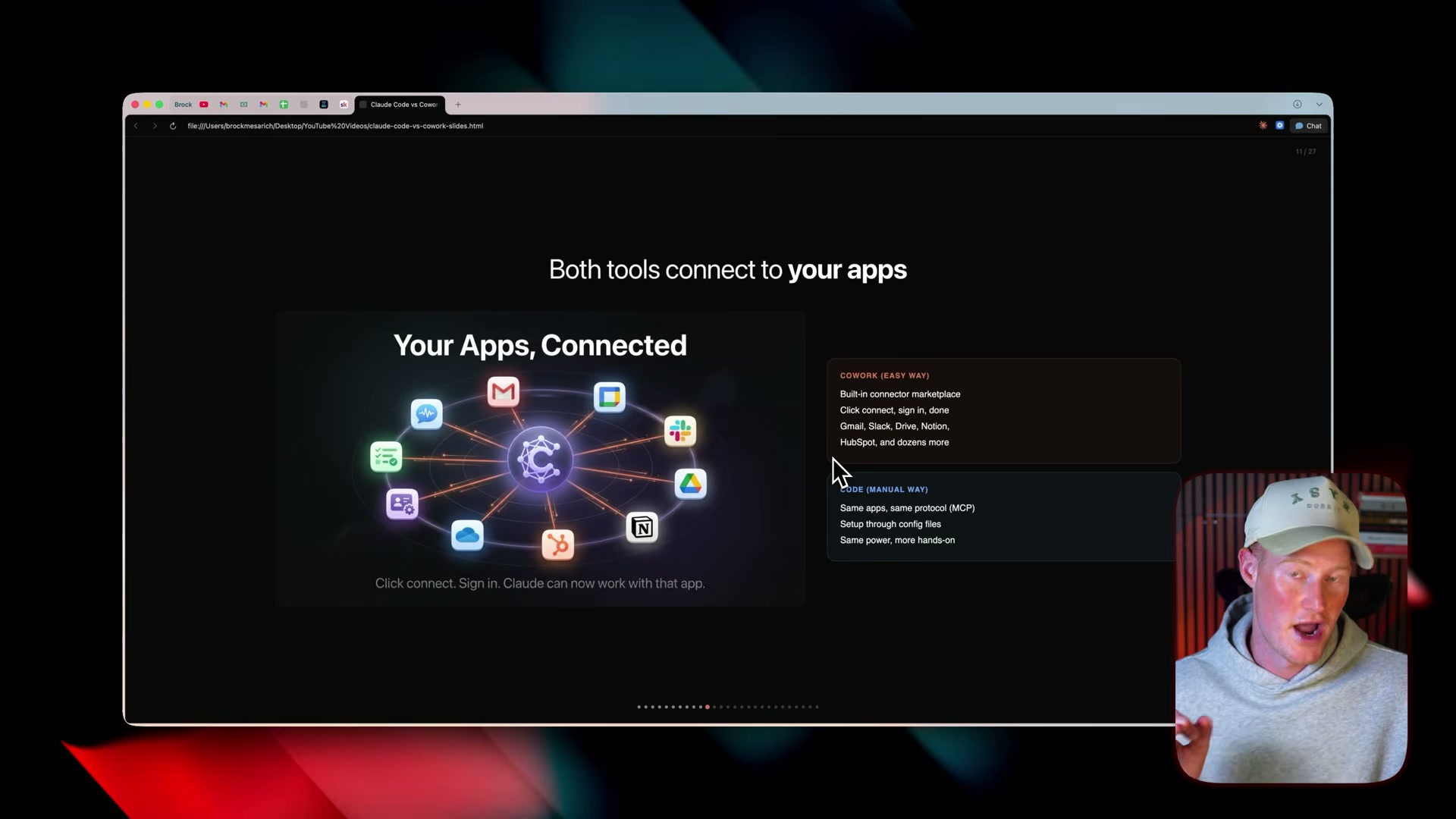
- Connect apps inside Cowork. Open Claude Cowork, click Customize in the left panel, and navigate to the Connectors tab to see every app already linked to your account. To add one, click Browse Connectors and search the built-in marketplace. Gmail, Slack, GitHub, Figma, Chrome, and Apple Notes all connect with a single click and an OAuth sign-in.
-
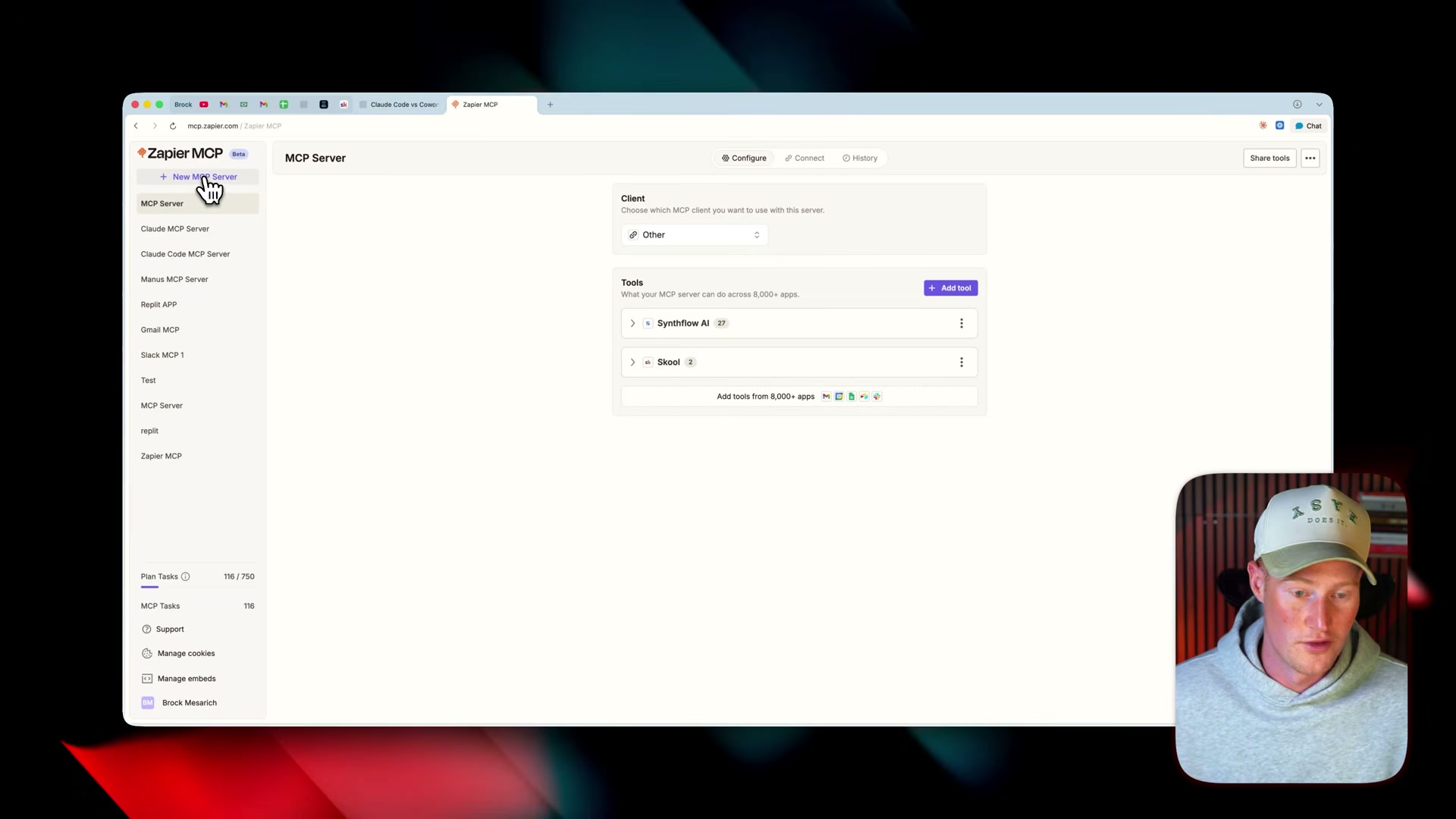
Extend Cowork’s reach with Zapier MCP. When no native connector exists, Zapier MCP bridges the gap. In Zapier, click Create New MCP Server, select Claude Cowork as the platform, add the app tools you need — Zendesk, for example — and click Connect. Zapier generates a unique MCP URL tied to that server configuration.
-
Paste the Zapier MCP URL into Cowork. Back in Cowork, open Customize → Connectors, search for the Zapier connector, paste the generated URL, and confirm the connection. Cowork can now reach any of Zapier’s roughly 8,000 app integrations through the same no-code interface you’ve already been using.
Warning: this step may differ from current official documentation — see the verified version below.
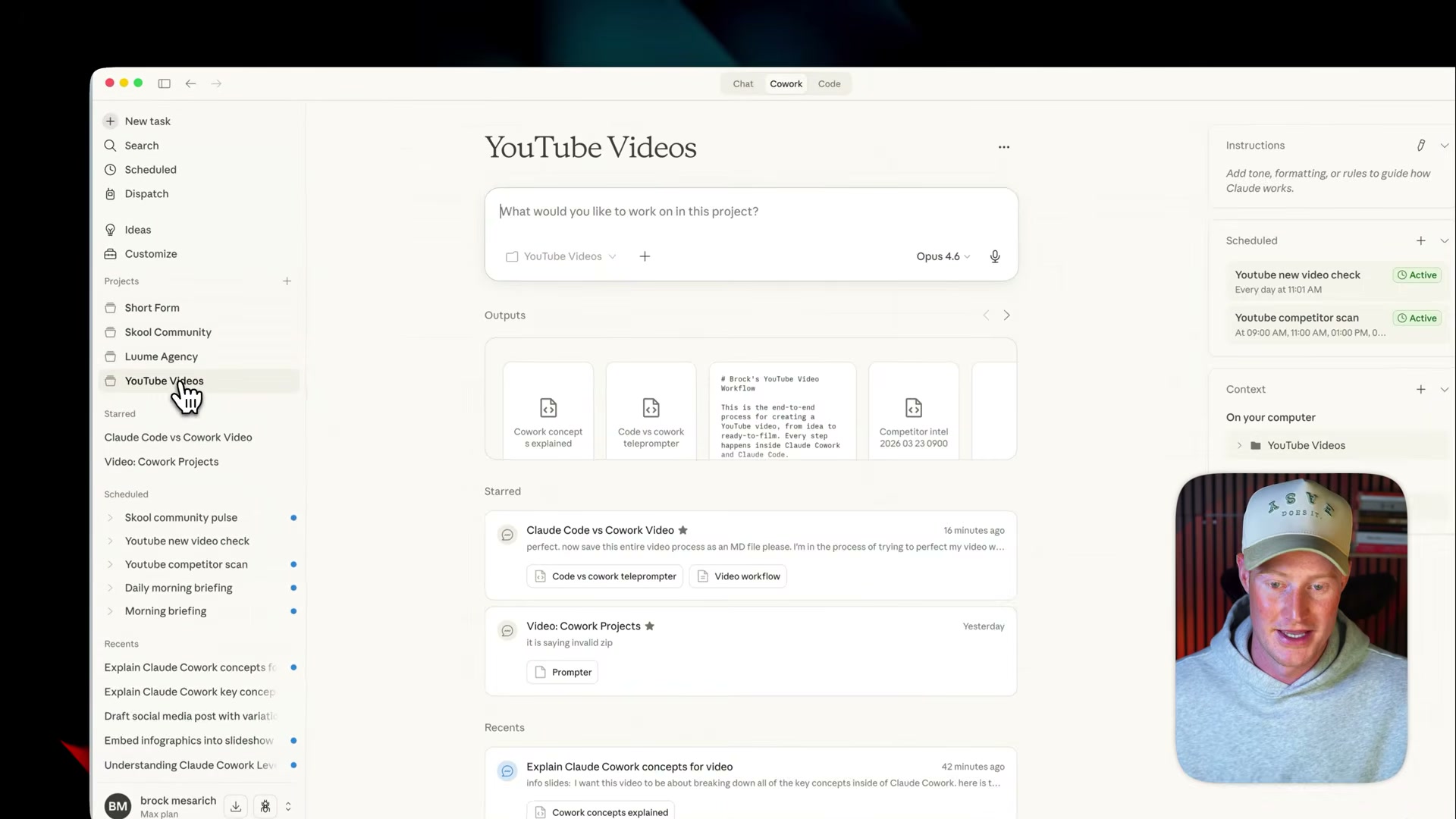
- Explore Cowork’s Projects. Each project in Cowork is its own isolated workspace with separate folders, memory, custom instructions, and scheduled tasks. A YouTube content workflow, a client agency account, and a personal finance tracker each stay cleanly partitioned — no context bleeding between them.
How does this compare to the official docs?
The video builds a genuinely useful mental model for choosing between these tools, but Anthropic’s documentation draws sharper technical lines — particularly around MCP configuration, sandbox permissions, and what Claude Code can actually access — that change how you’d approach several of these steps in production.
Here’s What the Official Docs Show
The video builds a solid conceptual foundation for distinguishing Claude Code from Claude Cowork, and everything that follows builds directly on that foundation — filling in a few environment names, reframing one mobile capability, and flagging one platform-selection step the docs don’t fully corroborate. Think of this section as the spec sheet sitting next to the demo video.
Step 1 — Grasp the core distinction.
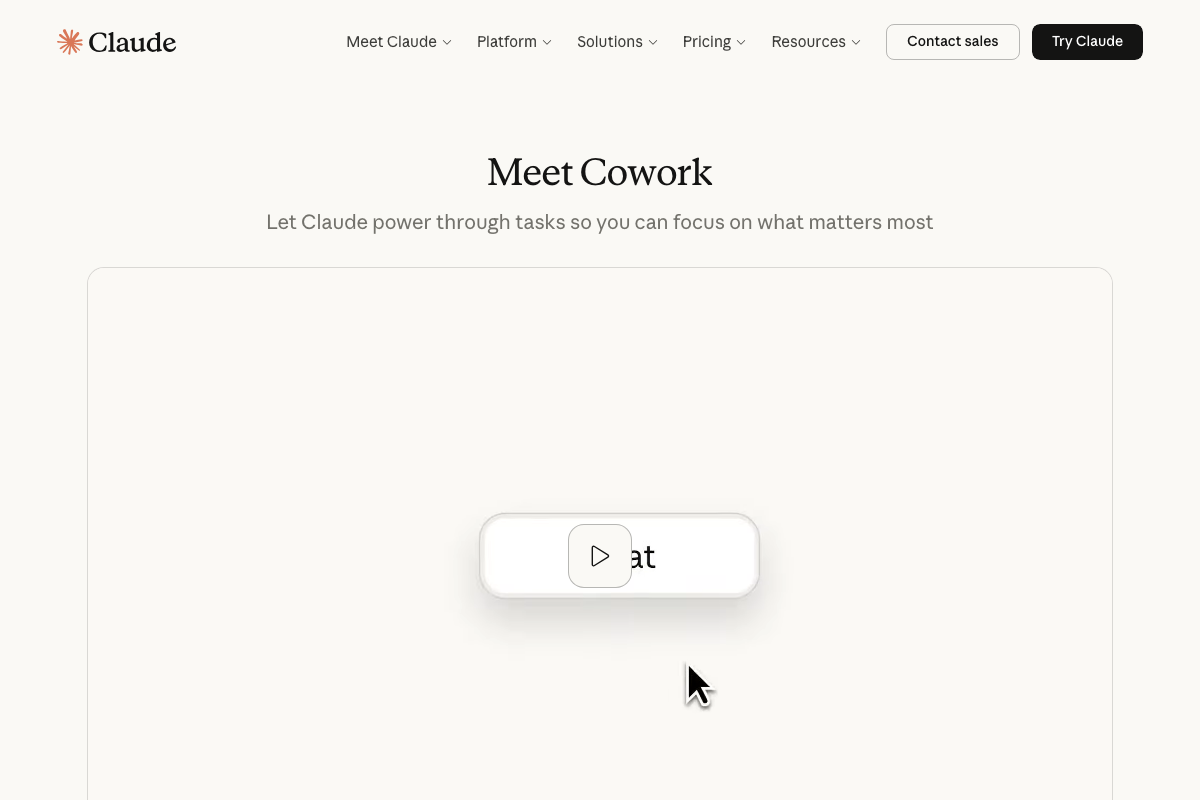
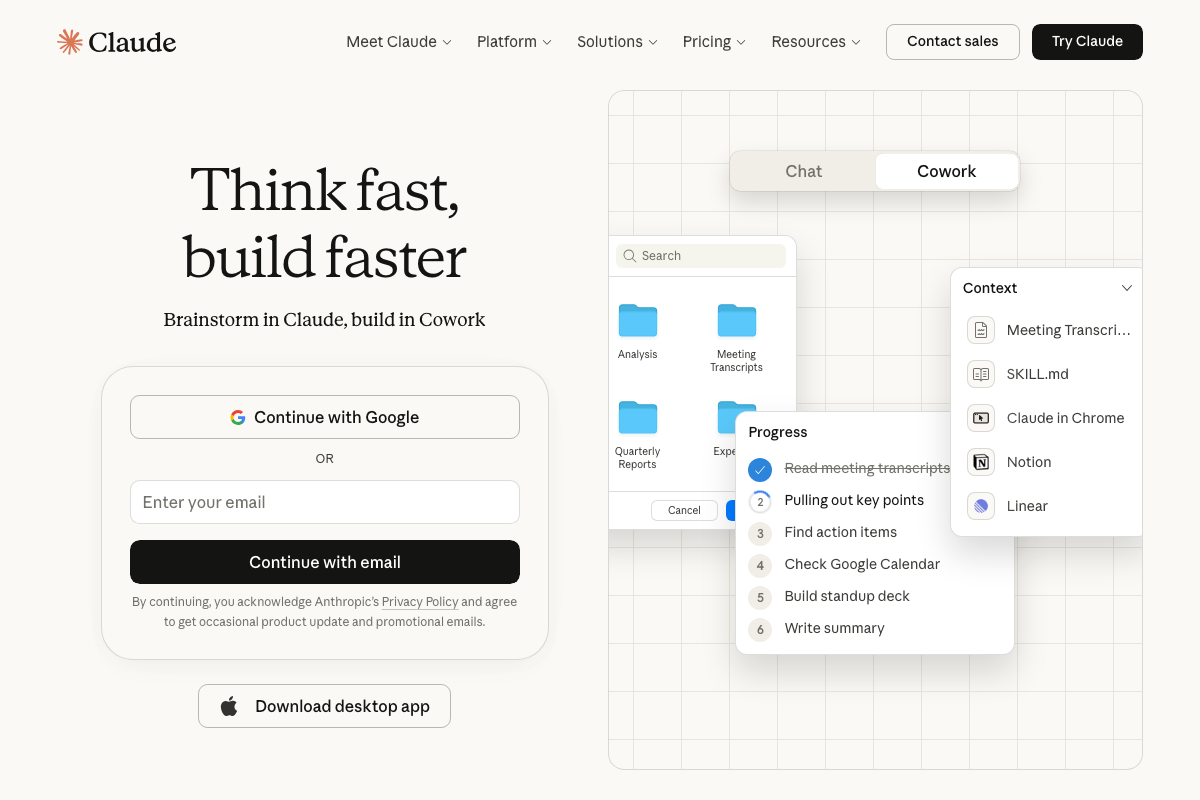
The video’s approach here matches the current docs exactly. The official claude.ai page confirms both products by name and positions them in complementary roles: Cowork as the task-delegation layer, Claude Code as the engineering agent. One precise note from the docs: Cowork is officially framed as “let Claude power through tasks so you can focus on what matters most” — not as a “no-code assistant.” The no-code framing is intuitive shorthand, but the official positioning emphasizes autonomous delegation over technical accessibility.
Step 2 — Understand the sandbox.
No official documentation was found for this step — proceed using the video’s approach and verify independently.
Step 3 — Learn what a code editor is.
The video’s approach here matches the current docs exactly. Cursor’s own homepage confirms it as an AI-native code editor, and the structural description of IDE functionality aligns with how Cursor presents itself.
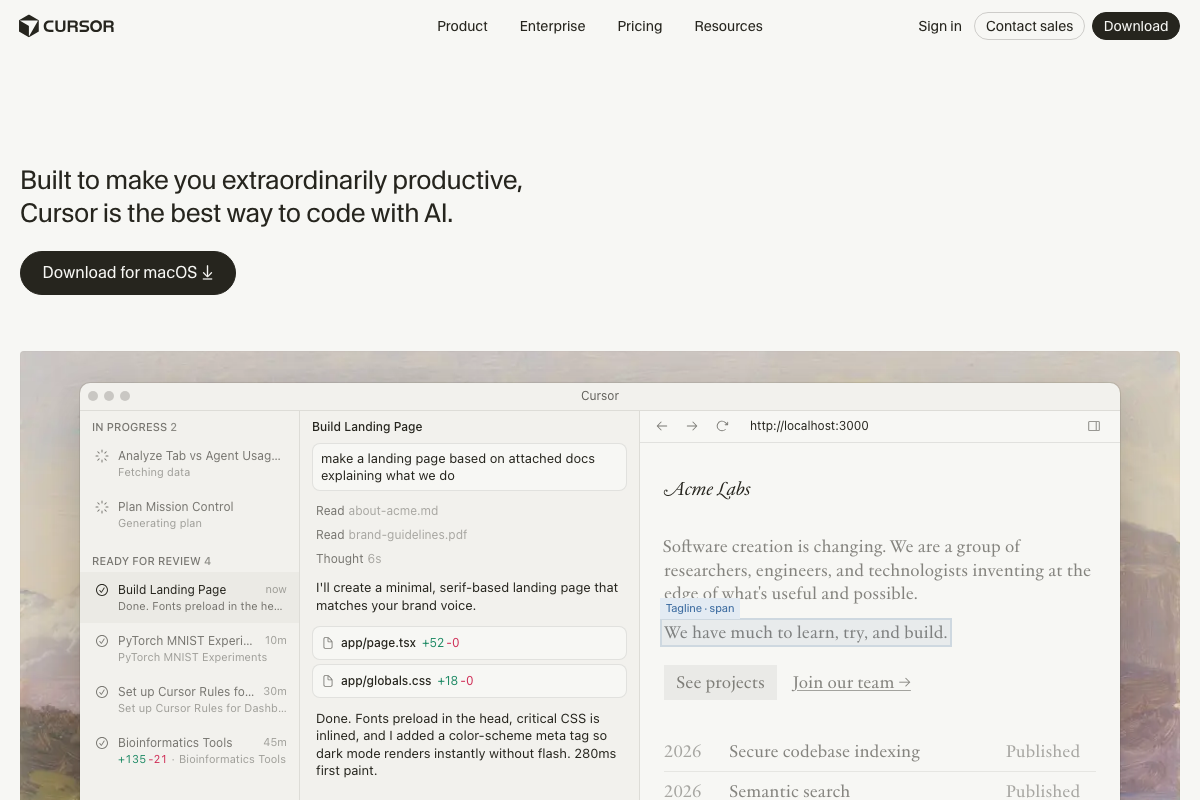
Step 4 — See Claude Code running inside Cursor.
The video’s approach here matches the current docs exactly. Cursor’s 2024 changelog officially lists “Multi-agent collaboration” as a shipped feature, directly corroborating the parallel-sessions demo. The “IN PROGRESS 2” indicator visible in Cursor’s task pane matches what the tutorial shows.
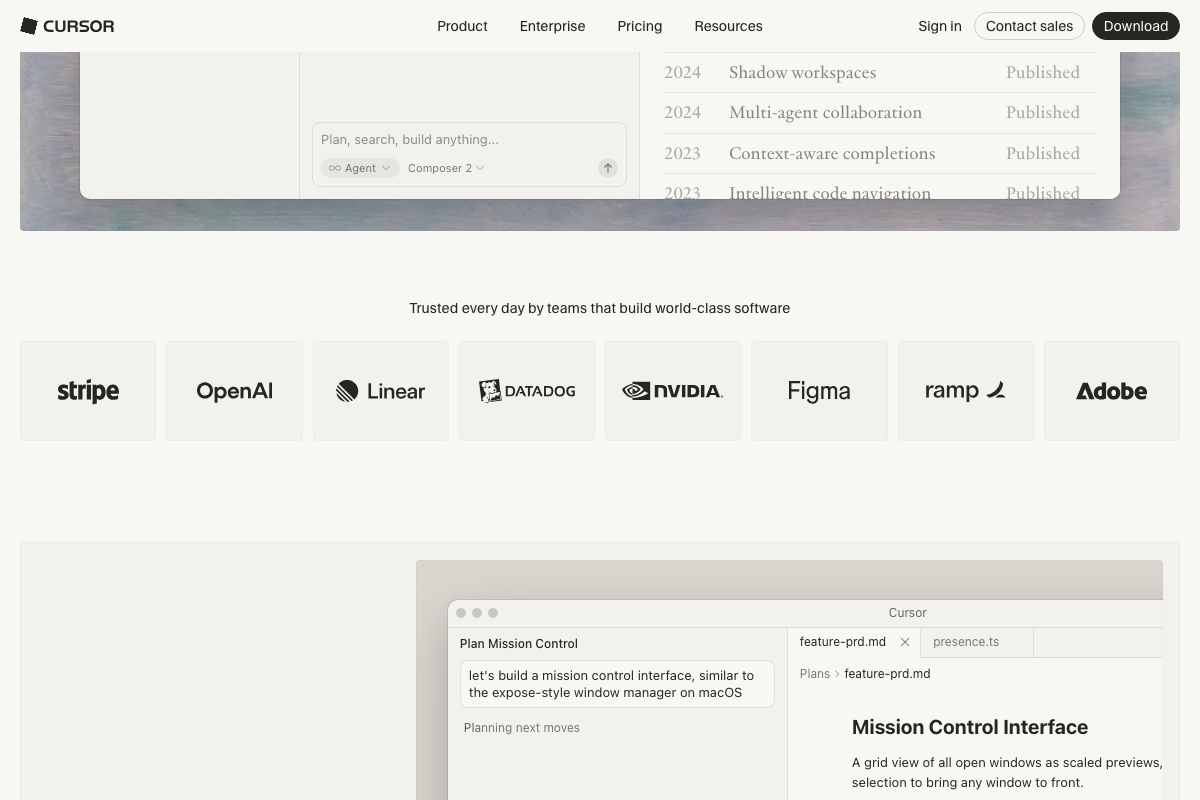
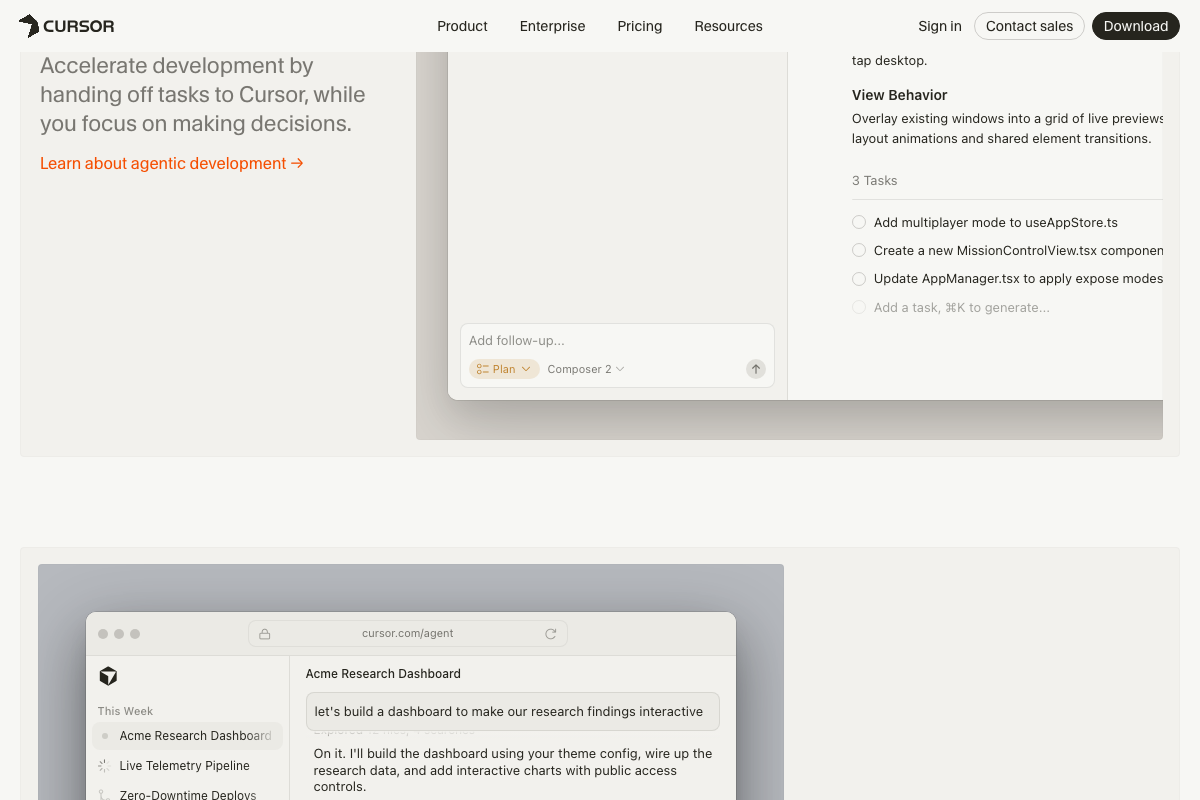
Step 5 — Know the five places Claude Code runs.
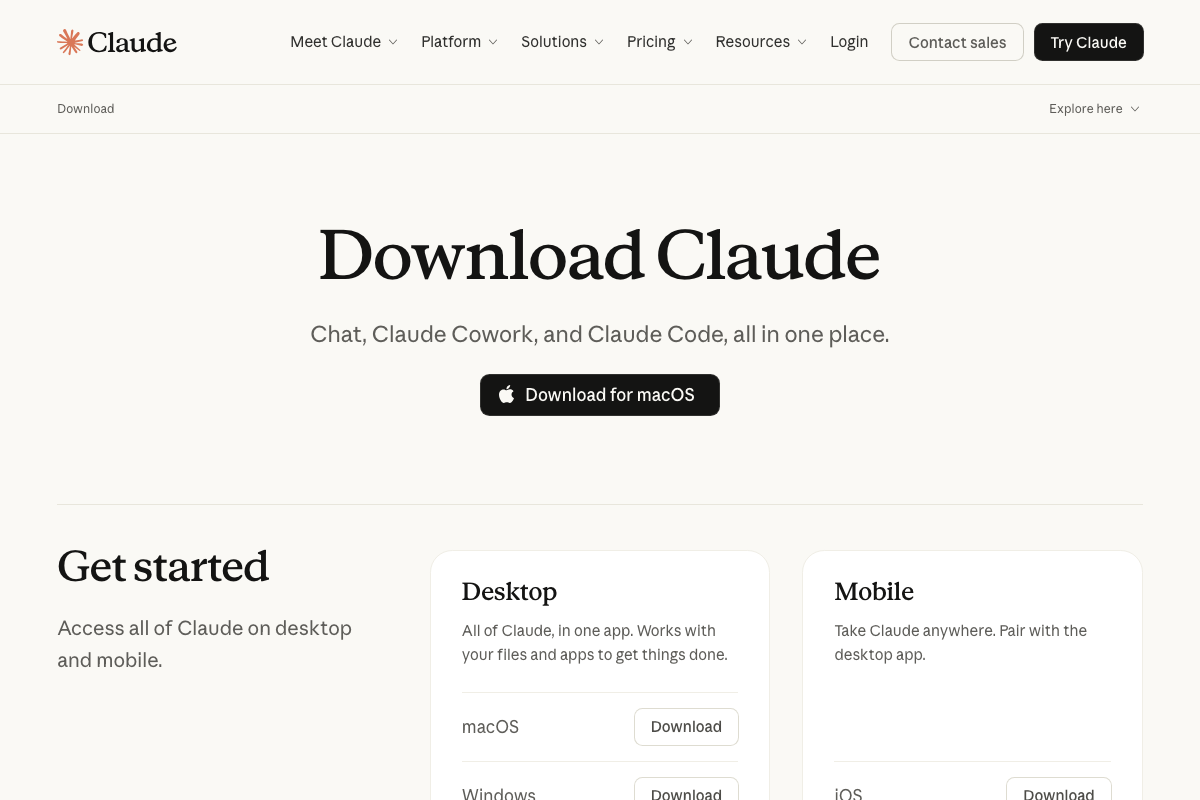
This is the most significant factual gap in the tutorial. The official Claude download page lists Claude Code’s five environments as: Desktop, Terminal, VS Code, JetBrains, and Slack. The tutorial names terminal, code editor extension, Claude desktop app, Claude web app, and mobile remote control mode.
Two corrections as of March 25, 2026:
- The correct parameter is JetBrains (an IDE family used heavily in enterprise Java and Kotlin development) — the video omits this entirely.
- Slack is an official Claude Code environment — the video omits this as well.
- As of March 25, 2026, the correct environment list does not include “Claude web app” — the video shows this, which does not appear in the official environments list.
- As of March 25, 2026, mobile remote control mode is not an official Claude Code environment. The mobile app is positioned as a general Claude companion described as “Start a thought here, finish anywhere” — cross-device continuity, not Code-specific remote control. The video’s framing does not reflect the official documentation.

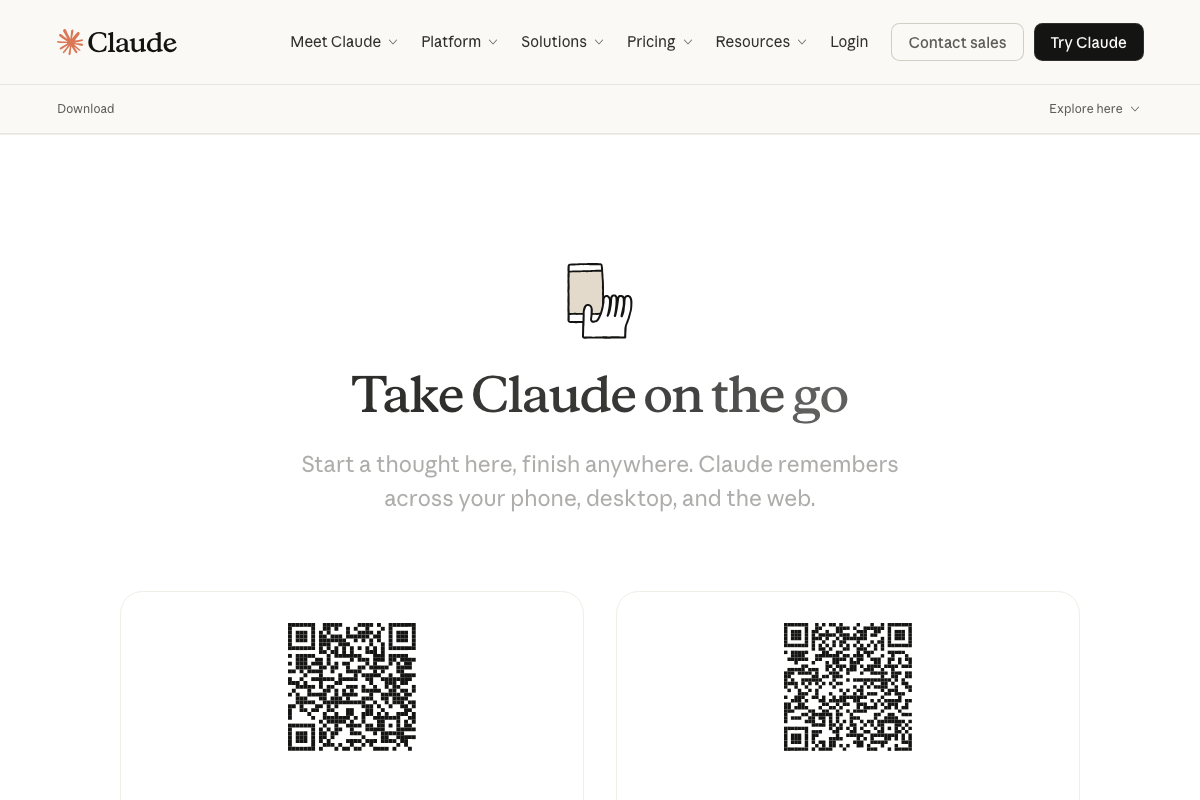
Step 6 — Connect apps inside Cowork.
No official documentation was found for this step — proceed using the video’s approach and verify independently.
The download page does confirm Cowork’s official surfaces as Desktop, Chrome, Excel, PowerPoint, and Slack. The video’s connector browser showing Gmail, GitHub, Figma, and Apple Notes may exist within the in-app Connectors tab, but these specific apps do not appear in the official surfaces list captured in the documentation screenshots.
Step 7 — Extend Cowork’s reach with Zapier MCP.
No official documentation was found for this step — proceed using the video’s approach and verify independently.
Step 8 — Paste the Zapier MCP URL into Cowork.
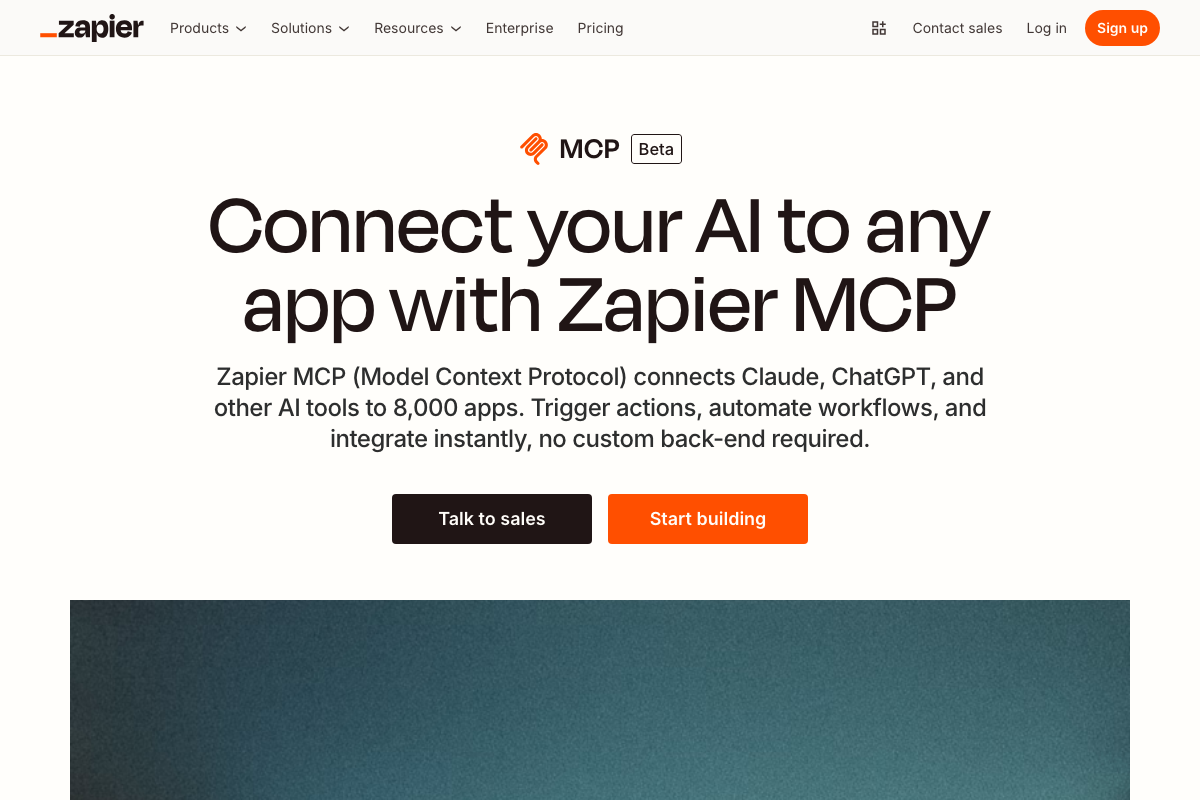
Zapier MCP is confirmed as an active Beta product connecting Claude, ChatGPT, Cursor, and other AI tools to 8,000 apps and 30,000+ actions with no custom backend required — the video’s approach here matches the current docs exactly on those fundamentals. One meaningful clarification: the tutorial instructs you to “select Claude Cowork as the platform” in Zapier’s MCP server creation flow. As of March 25, 2026, the Zapier MCP page refers to “Claude” generically throughout — “Claude Cowork” as a named platform selection is not visible in any captured Zapier documentation. Whether that option exists inside the creation flow itself is unconfirmed; use the video’s steps and verify in your own Zapier dashboard.
Step 9 — Explore Cowork’s Projects.
No official documentation was found for this step — proceed using the video’s approach and verify independently.
Step 10 — Projects as isolated workspaces.
The video’s approach here matches the current docs exactly. The official Cowork interface screenshot confirms separate named project folders (Analysis, Meeting Transcripts, Quarterly Reports) and a Context panel displaying connected integrations per active session — exactly the isolated, per-project structure the tutorial describes.
Useful Links
- Claude Code — Official Anthropic page for both Claude Code and Claude Cowork, including the Chat/Cowork tab toggle, project structure, and the “Meet Cowork” value proposition section.
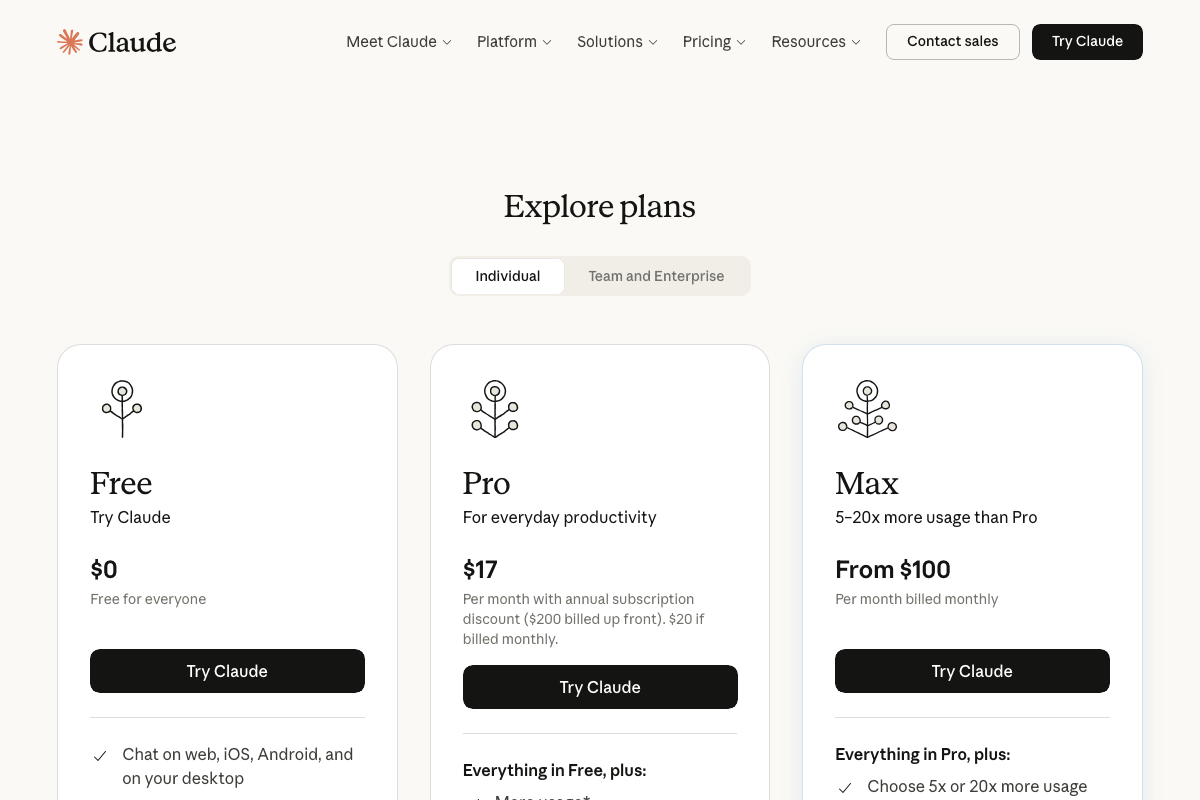
- Download Claude | Claude by Anthropic — Official download page listing all Claude Code environments (Desktop, Terminal, VS Code, JetBrains, Slack) and Cowork surfaces (Desktop, Chrome, Excel, PowerPoint, Slack) side by side, plus mobile companion app details.
- Cursor: The best way to code with AI — Cursor’s homepage and changelog confirming AI-native multi-agent collaboration, agentic task handoff, and enterprise adoption relevant to Claude Code’s IDE integration.
- Connect AI tools to 8,000 apps with Zapier MCP — Zapier MCP Beta landing page confirming Claude, ChatGPT, and Cursor compatibility, 30,000+ available actions, and automatic authentication and rate-limit handling.


0 Comments