

Run Parallel AI Agents with Perplexity Computer’s Multi-Model Orchestration
Perplexity Computer turns a single natural-language prompt into a coordinated swarm of specialized AI agents working simultaneously — no manual model selection, no sequential bottlenecks. By the end of this walkthrough, you’ll know how to submit multi-agent tasks, understand the routing architecture that powers them, import reusable skill files from external tools, and connect third-party apps like Slack. Access requires Perplexity’s Max plan at $200/month.
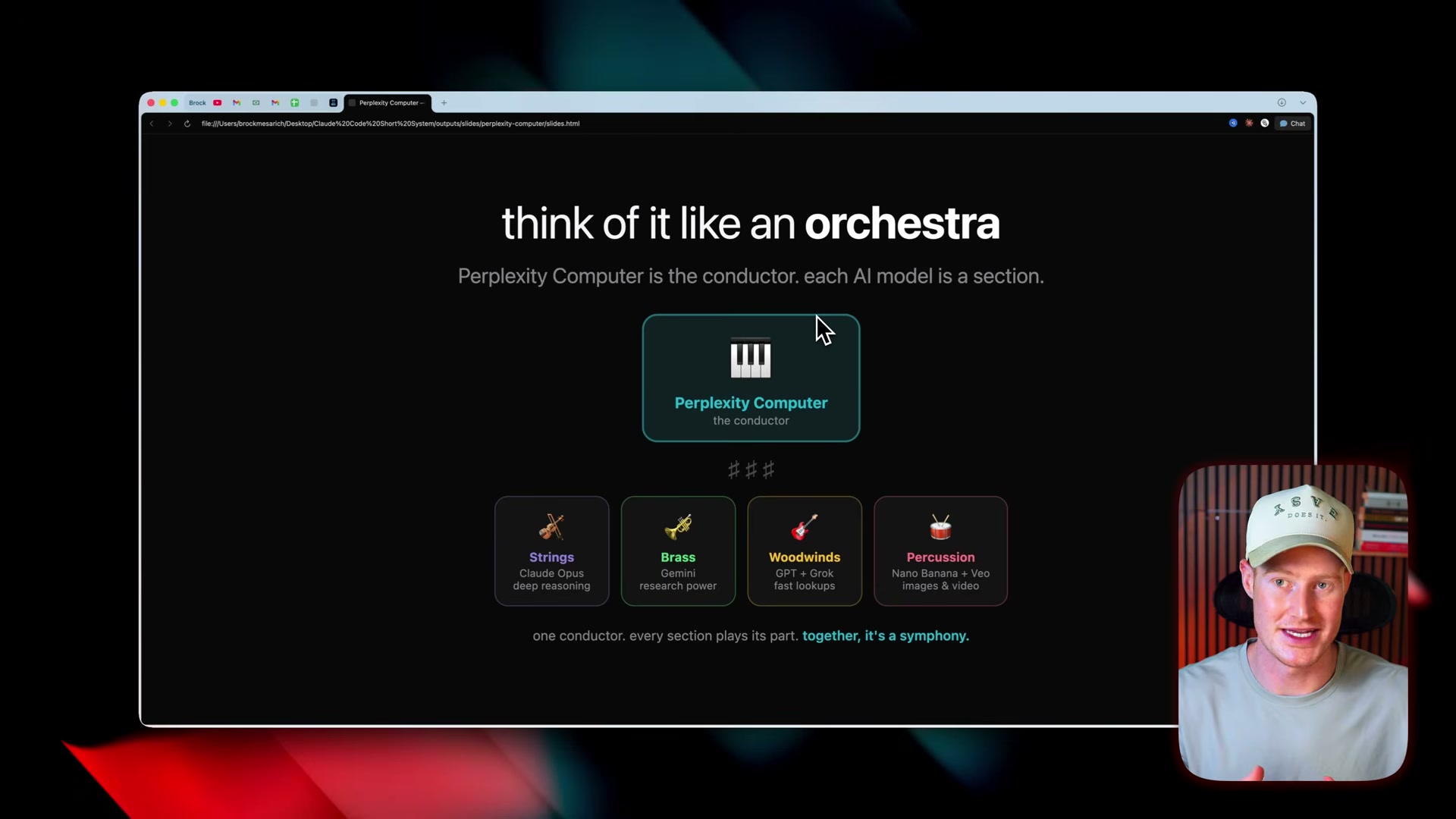
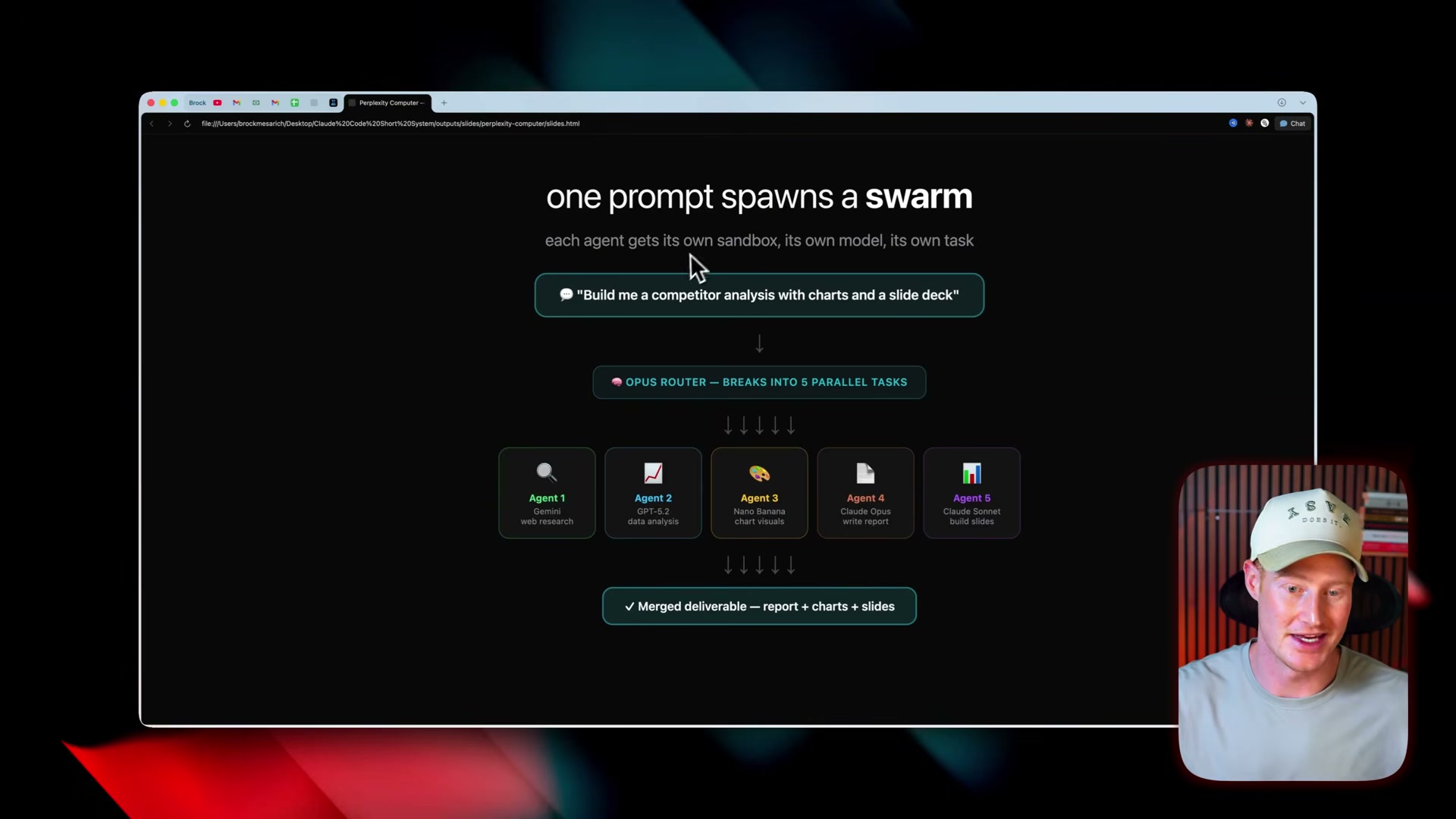
- From the main Perplexity interface, click Computer in the left navigation. The dashboard displays your full task history alongside panels for Files, Connectors, Skills, and Gallery — each with linked output artifacts from completed jobs.
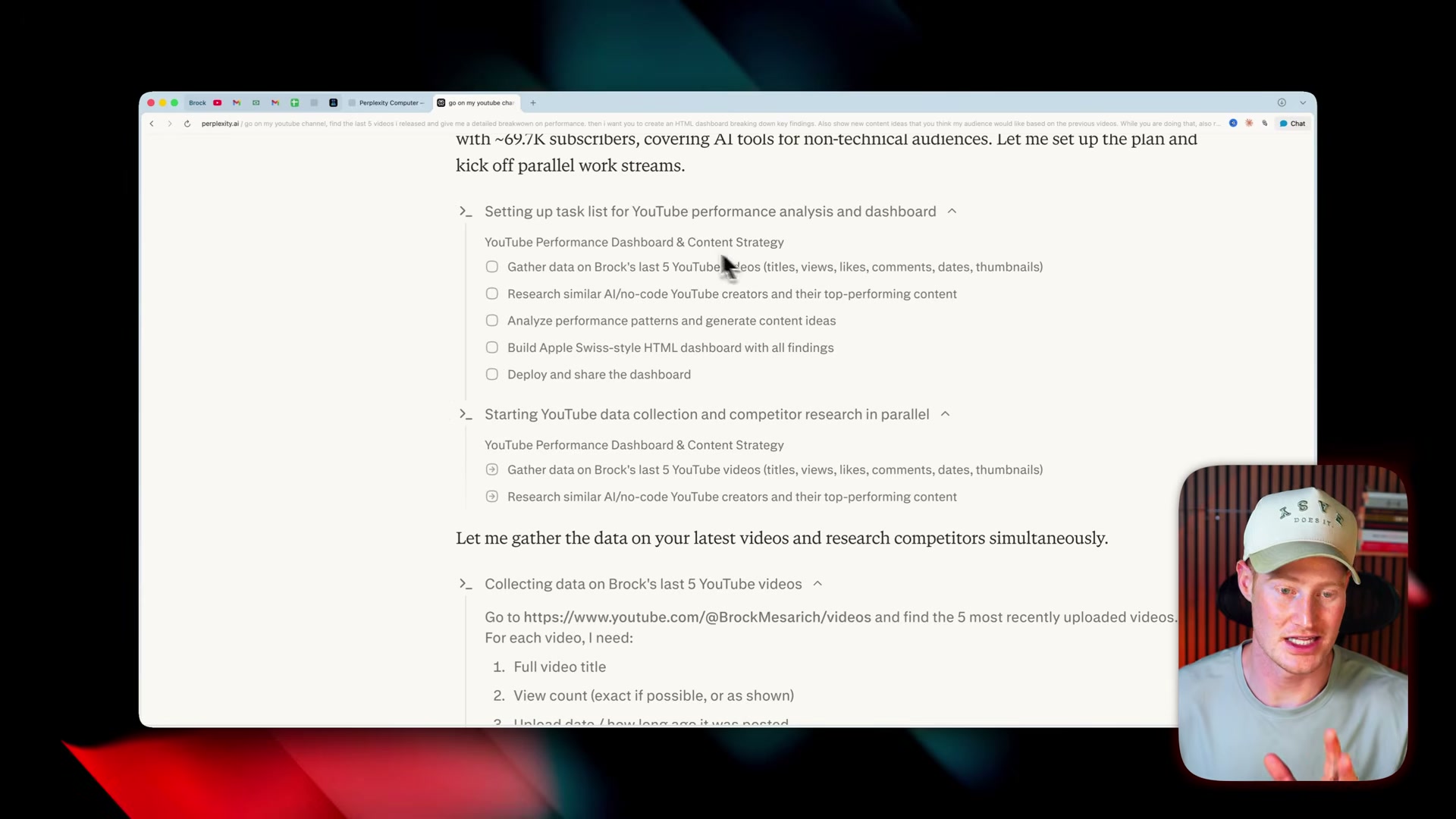
- Type your goal in plain language directly in the task bar. The system accepts open-ended descriptions like “Research my last five YouTube videos, build an HTML analytics dashboard, and in parallel research competitor channels to surface content ideas.” No structured syntax or model selection required.
- Watch the system decompose your prompt into parallel subtasks automatically. The built-in Opus router reads the request, assigns a specialized model to each workstream — Gemini for web research, a dedicated model for data analysis, another for visuals — and spins all of them up simultaneously rather than sequentially.
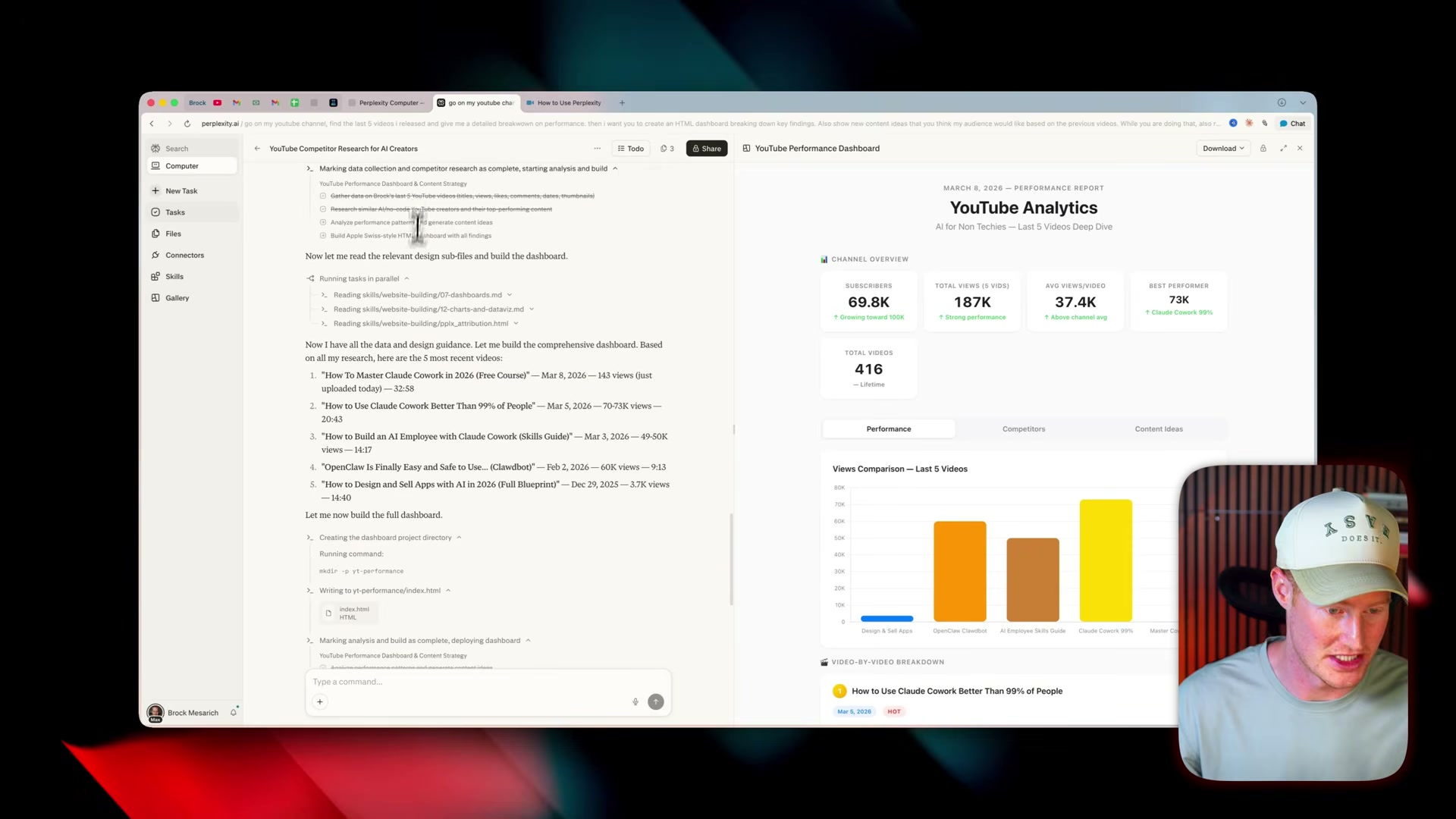
4. When the task completes, review the deliverable in the output panel. In this example, the system produces a fully rendered HTML analytics dashboard populated with real subscriber counts, per-video performance metrics, competitor channel data, and content recommendations — the product of one prompt and zero manual coordination.
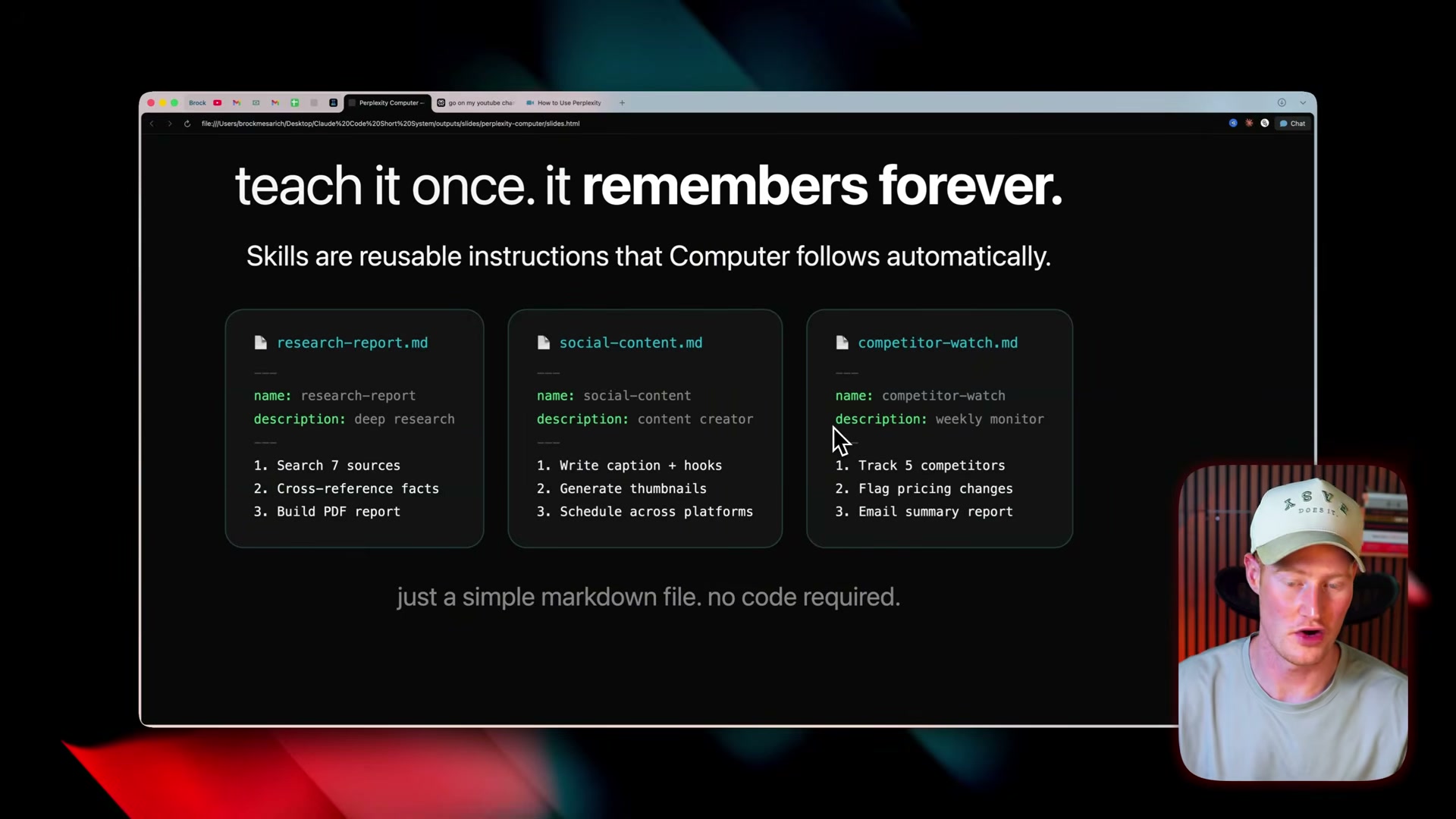
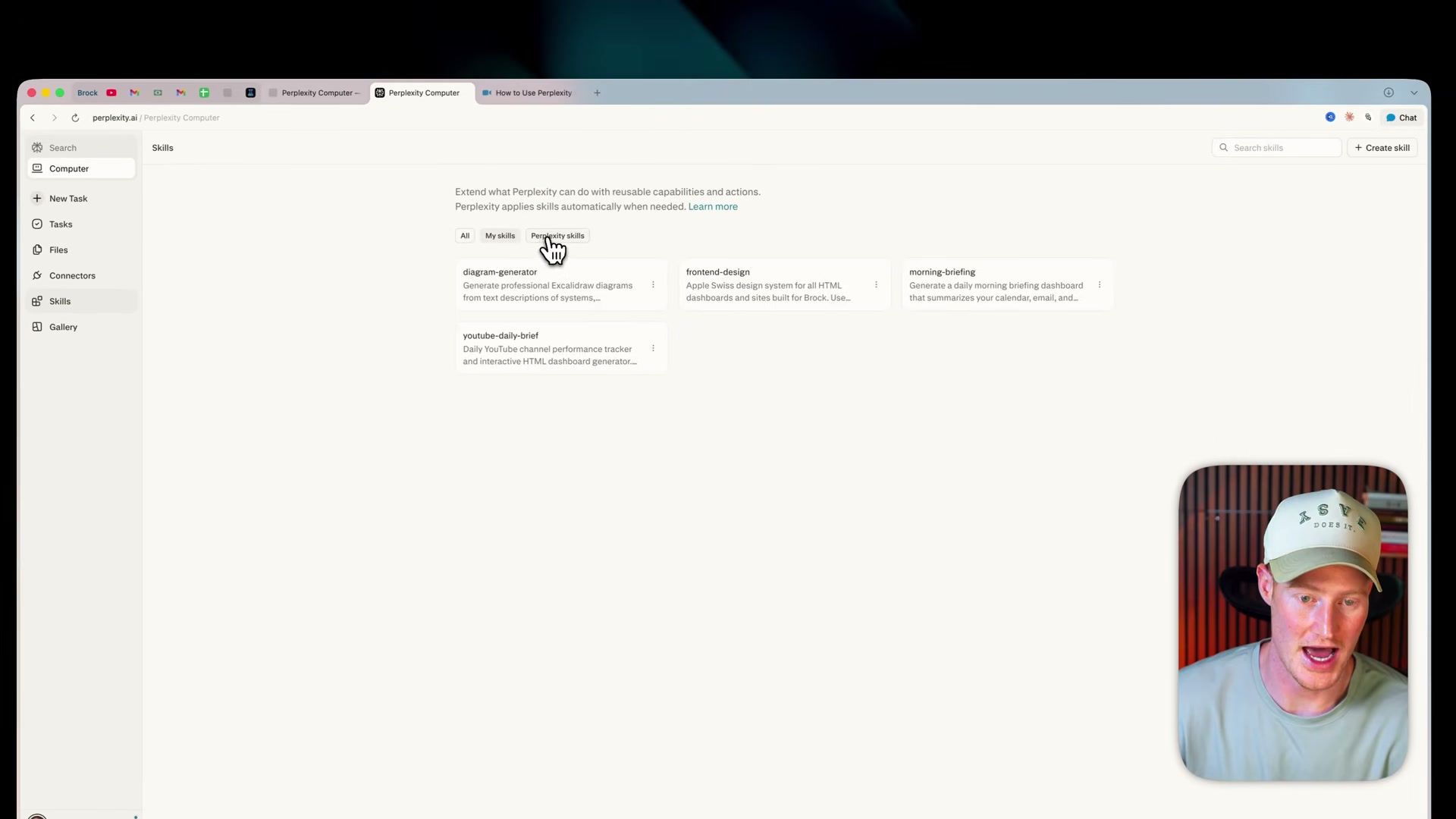
5. Open the Skills panel in the left sidebar to view installed capability modules. Each skill is a markdown file containing a name, description, and numbered instructions that Perplexity Computer reads and applies automatically whenever a relevant task is detected.
6. To source a skill from Manus, open the Manus interface, navigate to Skills, select the skill you want to transfer (here, a YouTube analogy generator), and click Download. Manus exports it as a zip file containing the underlying markdown.
7. Back in Perplexity Computer, click Upload a Skill and drag the zip file into the upload target. The skill appears in your library immediately.
Warning: this step may differ from current official documentation — see the verified version below.
8. Submit a new prompt that would naturally invoke the imported skill. The system detects the relevant context and applies the skill automatically, coordinating it alongside whichever research and image-generation agents the task requires.
9. To connect a third-party app, open the Connectors panel, click Add Connector, select Slack, choose your workspace from the authorization screen, and click Allow. Perplexity Computer can then read from and post to Slack channels as part of any automated task workflow.
How does this compare to the official docs?
The video delivers a compelling live demonstration of parallel execution and skill portability — but the official Perplexity documentation contains the specifics around skill file schema requirements, connector permission scopes, and platform-level constraints that the walkthrough leaves unaddressed.
Here’s What the Official Docs Show
Act 1 gives you a working picture of what the multi-agent orchestration system looks like in practice; this section adds what official sources can and can’t confirm about each step — plus one ownership change affecting a key third-party tool. Think of it as a pre-flight checklist before you build your own workflow.
Step 1 — Accessing Perplexity Computer
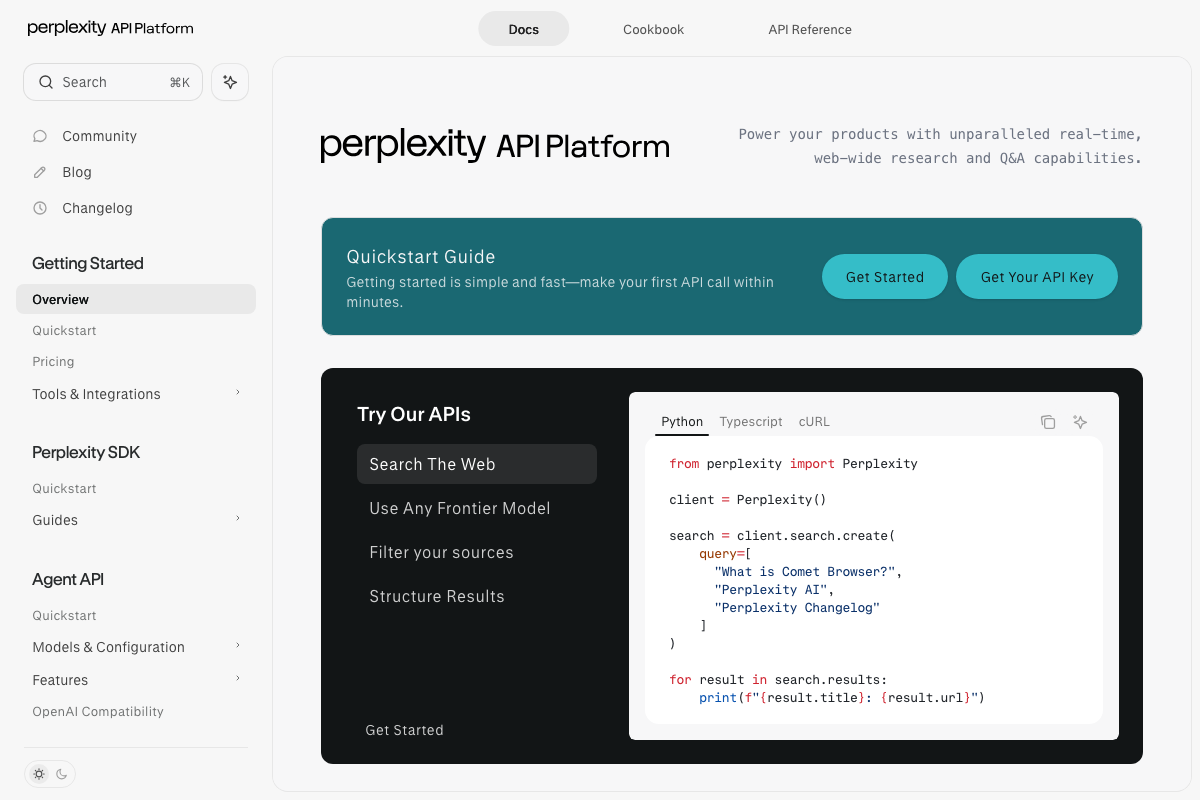
As of March 12, 2026, no product named “Perplexity Computer” appears anywhere in the Perplexity official docs. The documented platform at docs.perplexity.ai is the Perplexity API Platform, with a left-sidebar structure covering Getting Started, Perplexity SDK, and an Agent API section — a developer-facing interface, not a consumer GUI. If you’re building programmatically, that Agent API is your entry point.
Steps 2 and 3 — Submitting a prompt and watching parallel decomposition
No official documentation was found for these steps — proceed using the video’s approach and verify independently.
The Agent API does confirm Perplexity supports programmatic agent capability (“Power your products with unparalleled real-time, web-wide research and Q&A capabilities”), but the parallel-task router UI with automatic model assignment shown in the walkthrough has no corresponding documentation in any captured screenshot.
Step 4 — Reviewing the analytics dashboard output
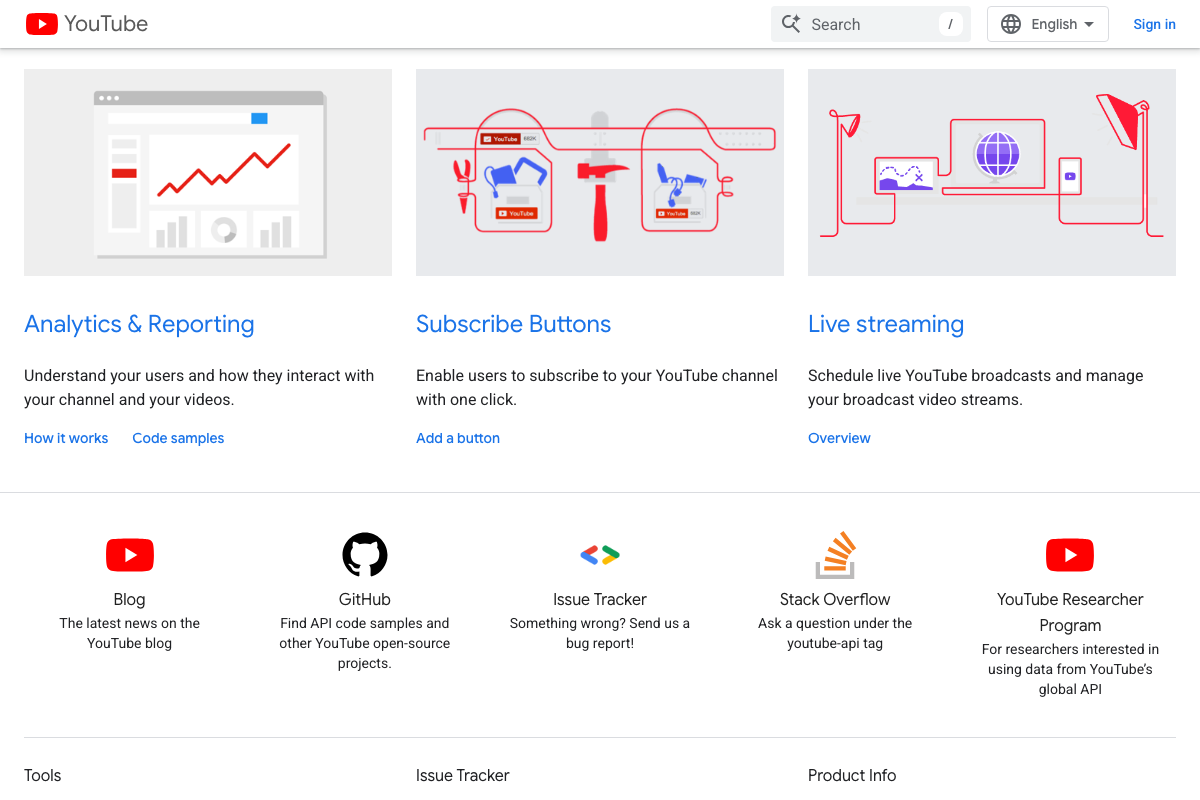
The video’s approach here matches the current docs exactly. The YouTube Data API’s Analytics & Reporting capability is explicitly documented at developers.google.com/youtube — described as helping developers “Understand your users and how they interact with your channel and your videos,” precisely the data type populating the dashboard in the walkthrough.
Step 5 — Opening the Skills panel
No official documentation was found for this step — proceed using the video’s approach and verify independently.
Step 6 — Downloading a skill from Manus
No official documentation was found for this step — proceed using the video’s approach and verify independently.
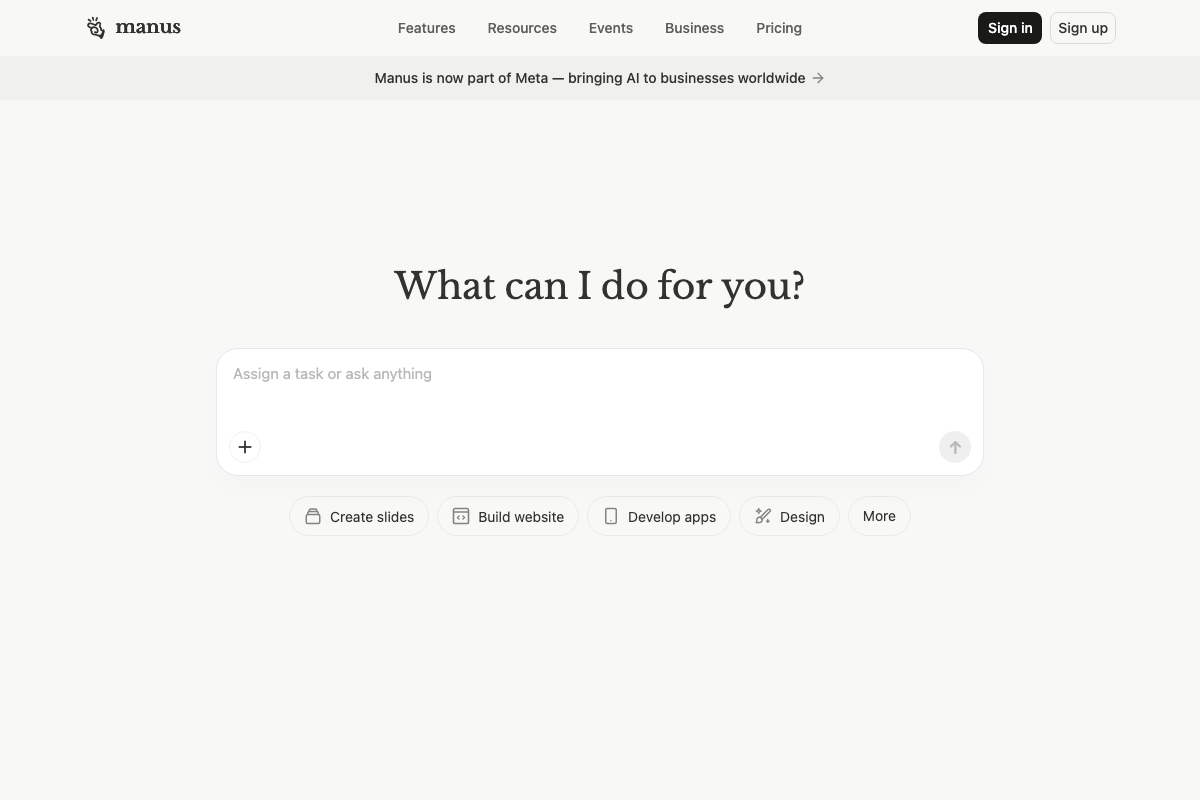
One material update before you attempt this: the Manus homepage currently displays a site-wide banner reading “Manus is now part of Meta — bringing AI to businesses worldwide.” This acquisition is not mentioned in the tutorial and may affect feature availability, pricing, and the Skills export workflow the video describes. Confirm current product status at manus.im before building any dependency on it.
Steps 7 and 8 — Uploading the skill zip and invoking it
No official documentation was found for these steps — proceed using the video’s approach and verify independently.
Step 9 — Connecting Slack
No official documentation was found for this step — proceed using the video’s approach and verify independently.
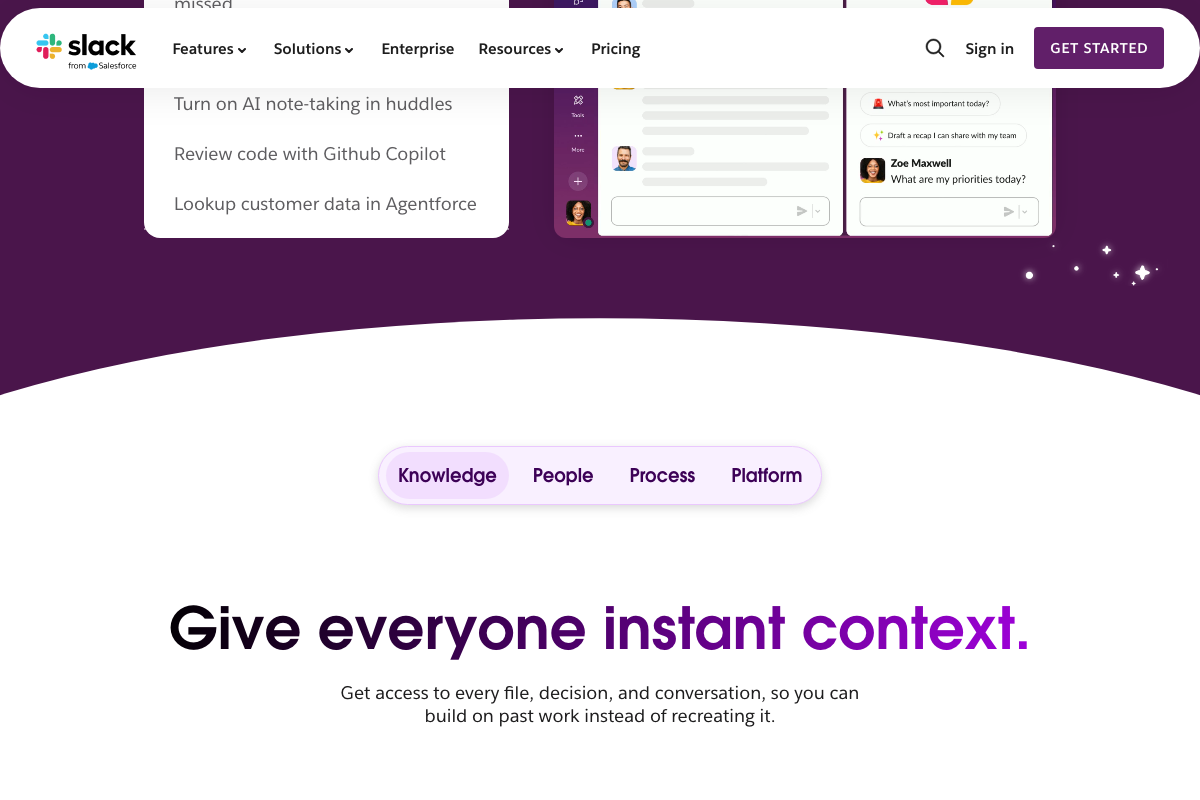
Slack’s own documentation does confirm that external agents can be wired into workspaces — GitHub Copilot and Salesforce Agentforce are cited as live examples — which is architecturally consistent with the connector model the video describes. The specific Perplexity authorization flow (Connectors panel → Add Connector → select Slack → click Allow) does not appear in any official documentation captured.
Useful Links
- Overview – Perplexity — Official Perplexity API Platform documentation covering the Agent API, SDK quickstart, models, and OpenAI compatibility layer.
- Manus: Hands On AI — Manus task platform homepage; check the Meta acquisition banner for current product availability before building workflows that depend on Manus Skills.
- YouTube | Google for Developers — YouTube Data API documentation covering Analytics & Reporting, video data, uploads, and developer support resources.
- Slack | AI Work Platform & Productivity Tools — Slack’s platform homepage documenting native AI features, Gemini and Agentforce integrations, and the external agent architecture model.


0 Comments