

Send Tasks to Your Desktop AI Agent from Your Phone with Claude Co-work Dispatch
Claude Co-work Dispatch lets you text a task from your phone and have Claude execute it on your desktop computer — no babysitting required. By the end of this walkthrough, you’ll have the desktop and mobile apps configured, a free five-skill plugin installed, and a working understanding of how to run parallel agents from anywhere. The setup takes under ten minutes.

- Go to
claude.ai/downloadand download the Claude Desktop App for your platform — macOS or Windows. On the same page, grab the mobile app for iOS or Android.

2. Open the Claude mobile app and confirm your account is on the Claude Pro plan ($17/month). Co-work Dispatch is not available on the free tier.
Warning: this step may differ from current official documentation — see the verified version below.
3. Launch the Claude Desktop App. At the top of the window, switch from Chat to the Co-work tab. Click New Task, then select or create a local folder Co-work will use as its working directory. Click Allow to grant file-system access.
4. Download the plugin zip file from the creator’s Google Drive link (in the video description). Do not unzip it — Co-work requires the compressed archive as-is for upload.
Warning: this step may differ from current official documentation — see the verified version below.
5. Inside Co-work, click Customize → Browse Plugins → Personal → + Upload Plugin. Drag the zip file into the upload dialog and confirm. Installation completes in a few seconds.

6. Navigate to Customize → Personal Plugins and verify that Five Co-work Skills appears in the list with a Local tag. If it’s there, the plugin is active.
7. On your phone, open the Claude app and tap the Dispatch button. Type a natural-language task — “sweep my inbox”, for example — and send it. Co-work picks it up and begins executing on the desktop immediately.

8. Check results in two places: the Dispatch chat thread in the mobile app delivers a plain-text summary; the Co-work desktop app shows the full output, including any generated HTML dashboards or documents.

9. Send multiple independent tasks from your phone simultaneously to spin up parallel agents — one sweeping email, another researching a topic, a third preparing a meeting brief. Each agent works against separate data with no inter-task dependencies.

Tasks that require the output of one step as input for the next — research a topic, then email the findings to the team — must run sequentially and cannot currently be split across parallel Dispatch agents.
How does this compare to the official docs?
The video’s setup flow covers the practical essentials, but Anthropic’s official documentation goes deeper on Co-work permissions, connector configuration, and the precise constraints of parallel Dispatch — details that matter before you automate anything touching live email or calendar data.
Here’s What the Official Docs Show
The tutorial’s download-to-launch sequence is solid, and the official documentation backs it up on the core steps. Where the docs add value is a handful of pricing specifics, a safety notice Anthropic displays prominently on the download page, and a cluster of later steps — plugin installation through parallel agents — that currently have no official documentation coverage.
Step 1 — Download the desktop and mobile apps
Head to claude.ai/download for both. The video’s approach here matches the current docs exactly. The download page also lists additional Cowork surfaces — Chrome, Excel, PowerPoint, and Slack — extending the workflow well beyond the Google Workspace integrations the tutorial demonstrates.


Step 2 — Set up the mobile app
The video’s approach here matches the current docs exactly. iOS and Android availability is confirmed via QR codes on the official download page. The official copy also states “Claude remembers across your phone, desktop, and the web” — the cross-device continuity that is the underlying mechanism making Dispatch possible.

Step 3 — Confirm your plan
Two points need clarification. As of March 2026, the $17/month price applies to annual billing only — the full $200 is charged upfront. Month-to-month billing is $20/month. The tutorial states “$17/month” without that distinction. Additionally, Cowork is not exclusive to the Pro plan: the official download page specifies it is “available on all paid plans,” which includes the Max tier starting at $100/month.
The download page also carries a prominently displayed research preview banner: “agent safety is still in development.” This caveat is absent from the tutorial and is worth reading before you connect Cowork to live email, calendar, or file data.

Step 4 — Open the Cowork tab and create a task
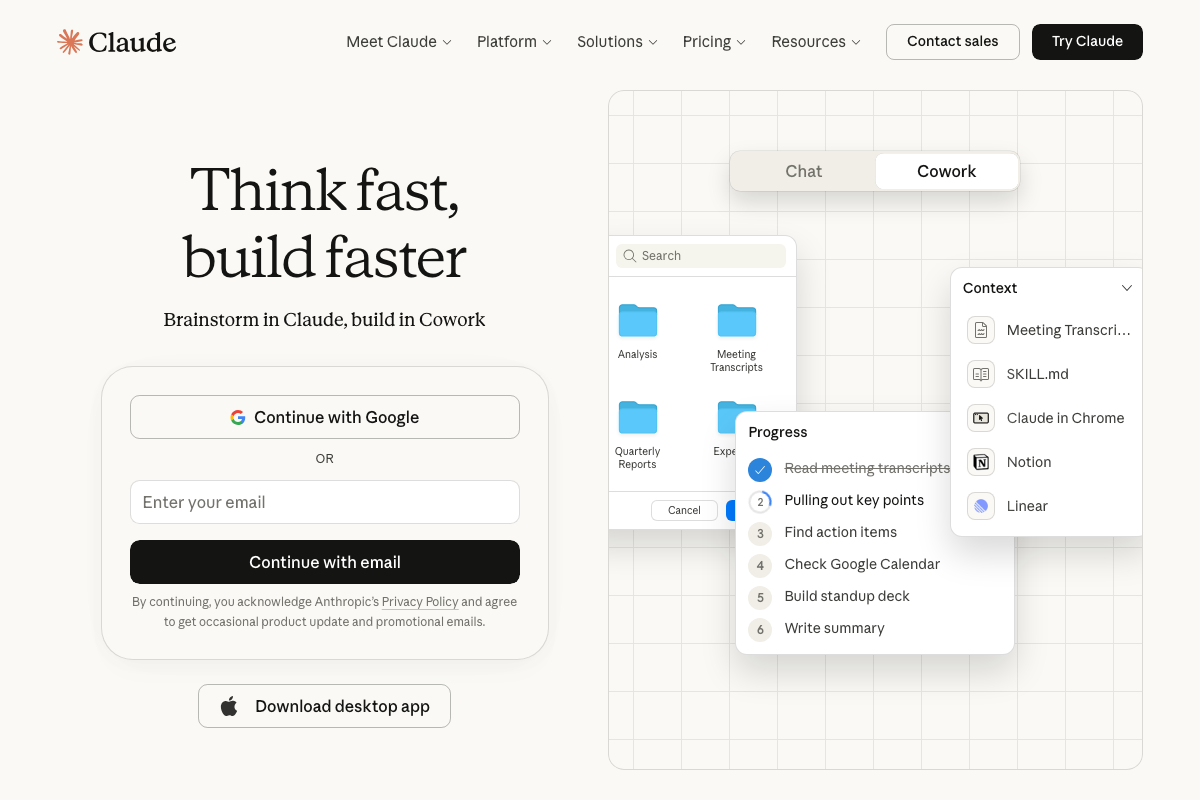
The video’s approach here matches the current docs exactly. The official UI confirms a dedicated Cowork tab alongside Chat, folder-based context selection, and a live Progress panel showing multi-step task execution. One branding note: Anthropic consistently spells it Cowork as one word — the tutorial’s “Co-work” hyphenation does not reflect the current brand standard.
Steps 5–6 — Download and install the plugin
No official documentation was found for this step —
proceed using the video’s approach and verify independently.
Steps 7–8 — Send a task via Dispatch and review results
No official documentation was found for this step —
proceed using the video’s approach and verify independently.
Step 9 — Run parallel agents
No official documentation was found for this step —
proceed using the video’s approach and verify independently.
Useful Links
- Download Claude | Claude by Anthropic — Official download page for the Claude Desktop App and mobile apps, including the research preview safety notice stating agent safety is still in development.
- Claude — Anthropic’s main product page showing the live Cowork tab UI, the Meet Cowork feature introduction, and a Progress panel confirming autonomous multi-step task execution.
- Gmail: Secure, AI-Powered Email for Everyone | Google Workspace — Gmail product page confirming the email service Cowork’s inbox sweep skill accesses; also clarifies that Gmail’s own Gemini AI features operate independently of Cowork.
- Google Drive: Share Files Online with Secure Cloud Storage | Google Workspace — Google Drive product page confirming Drive as a data source for Cowork’s meeting prep skill and as the file-sharing platform used to distribute the tutorial’s third-party plugin.
- Shareable Online Calendar and Scheduling – Google Calendar — Google Calendar product page confirming calendar data access for Cowork’s meeting prep skill, with important context that Calendar’s own Gemini scheduling features are a separate, independent system.


0 Comments