

Build a Personal AI Operating System with Claude’s Desktop App
Claude’s desktop app ships with more configuration surface than most users ever touch. By pairing a CLAUDE.md instruction file with a persistent memory.md store and purpose-built skills, you can give Claude a durable understanding of your voice, your clients, and your workflows — so every output starts at 90% instead of zero. This tutorial walks you through building that system from scratch, from folder creation to invoking your first custom skill via slash command.
-
Download and install the Claude desktop app for Mac or Windows from Anthropic’s site. Open it and confirm you’re running the latest version — the co-work and code views described below require a current build.
-
On your desktop, create a new folder. Name it
Life OS,Work OS, or whatever maps to your mental model. This folder becomes the root of your AI operating system — every file Claude reads and writes will live here.
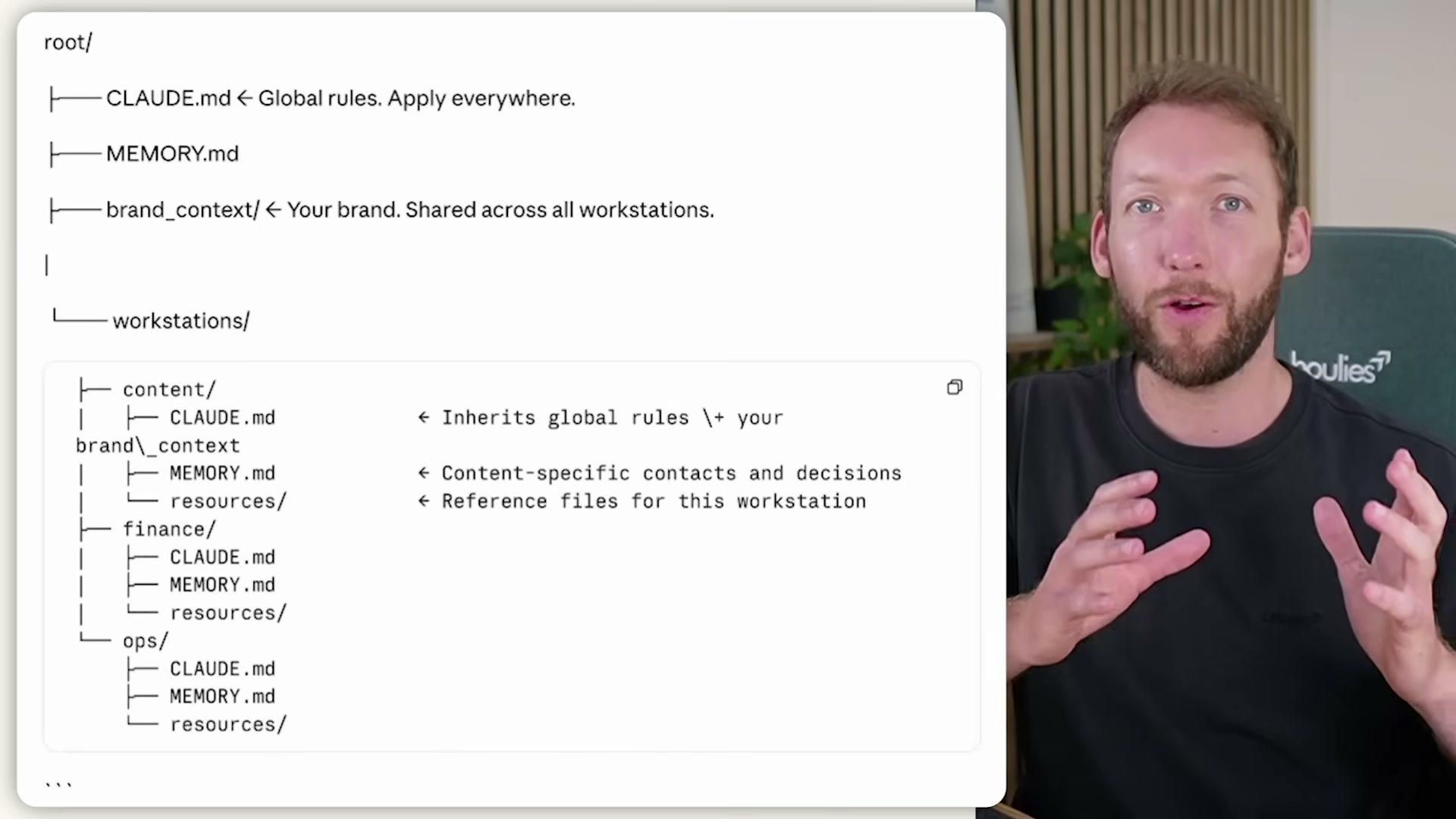
- Open the Google Drive link from the video description. Download
CLAUDE.mdandmemory.mdby opening each Google Doc and choosing File → Download → Markdown (.md). Move both files into your OS folder.
-
In Claude’s co-work view, click Choose a different folder and point it at your OS folder. Start a test conversation. The right-hand file panel should now list
CLAUDE.md— confirmation that Claude is reading your instructions file for this project. -
Switch to code view and connect to the same folder. Open
CLAUDE.mdfrom the files panel. The code view renders proper markdown formatting, making it far easier to read and edit your configuration than the co-work panel provides. -
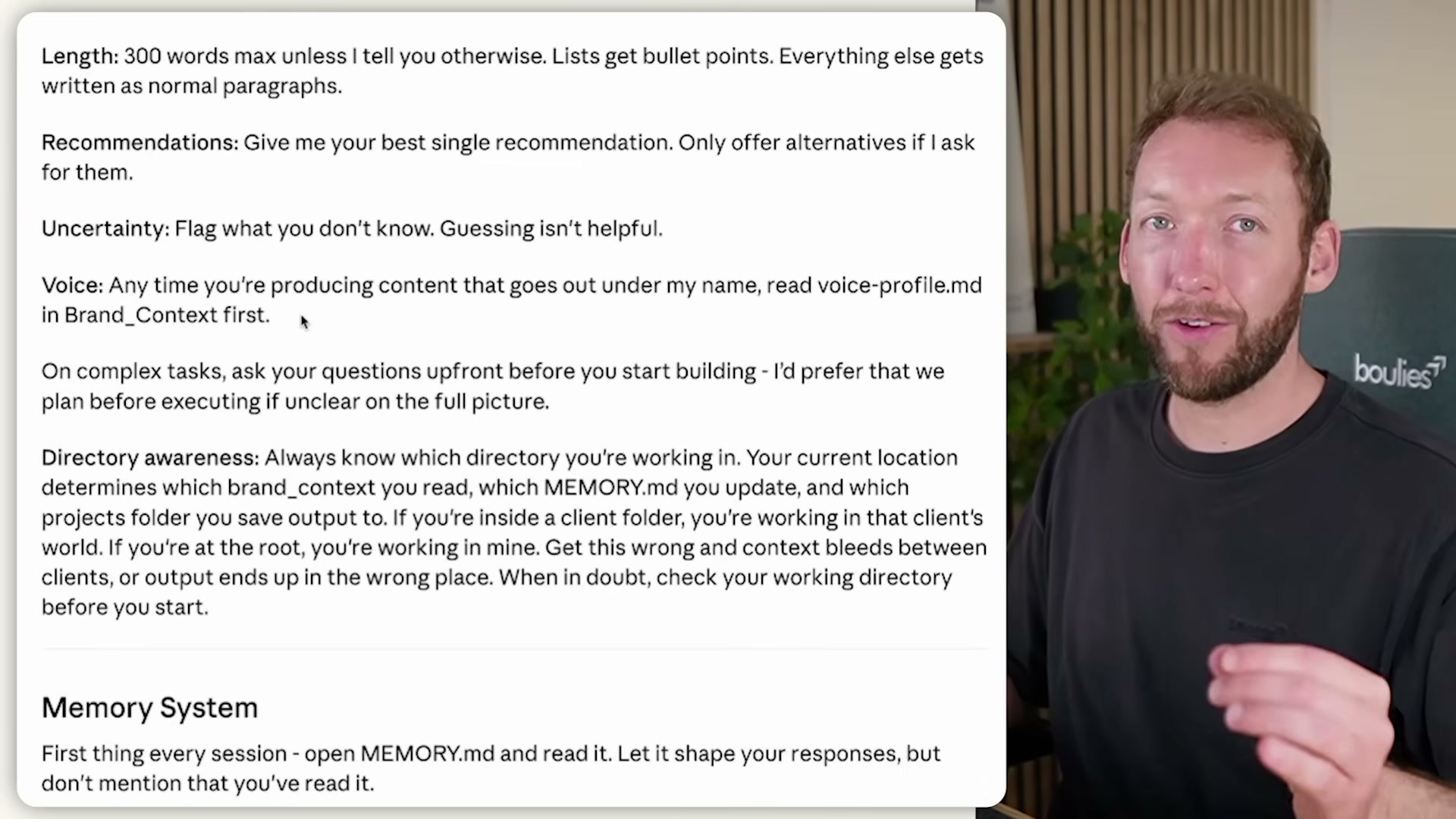
Read through and customize the behavioral rules in
CLAUDE.md. The starter template sets a 300-word default response length, a single-best-recommendation policy (no “here are five options”), an uncertainty-flagging rule, and a directive to read your voice profile before producing any written content.
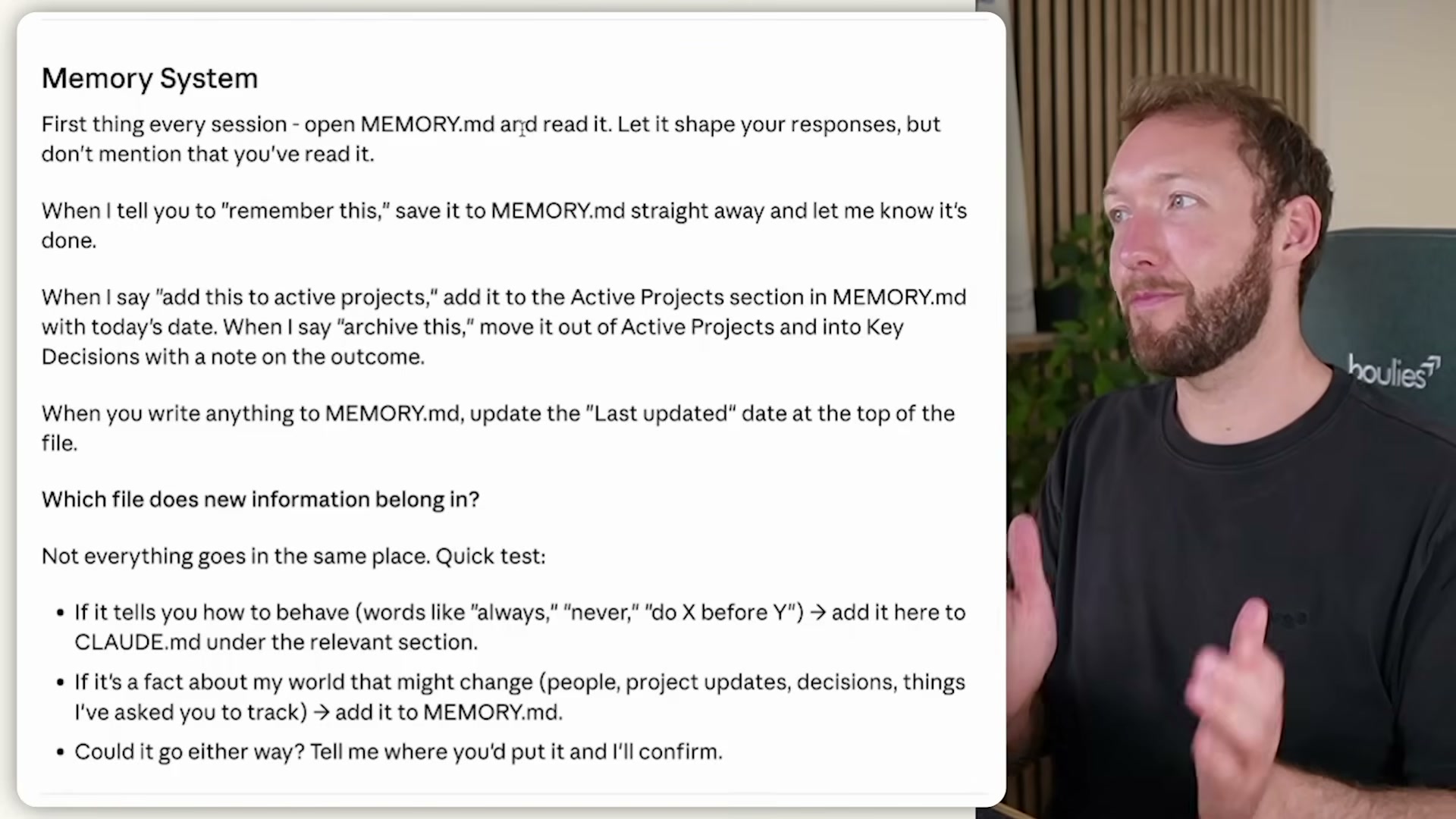
- Review the Memory System section of
CLAUDE.md. It instructs Claude to readmemory.mdsilently at the start of every session and to write to it immediately when you use trigger phrases like “remember this” or “add to active projects.” The file tracks current projects, key contacts, and decisions — Claude updates it and timestamps the change so stale information doesn’t persist.
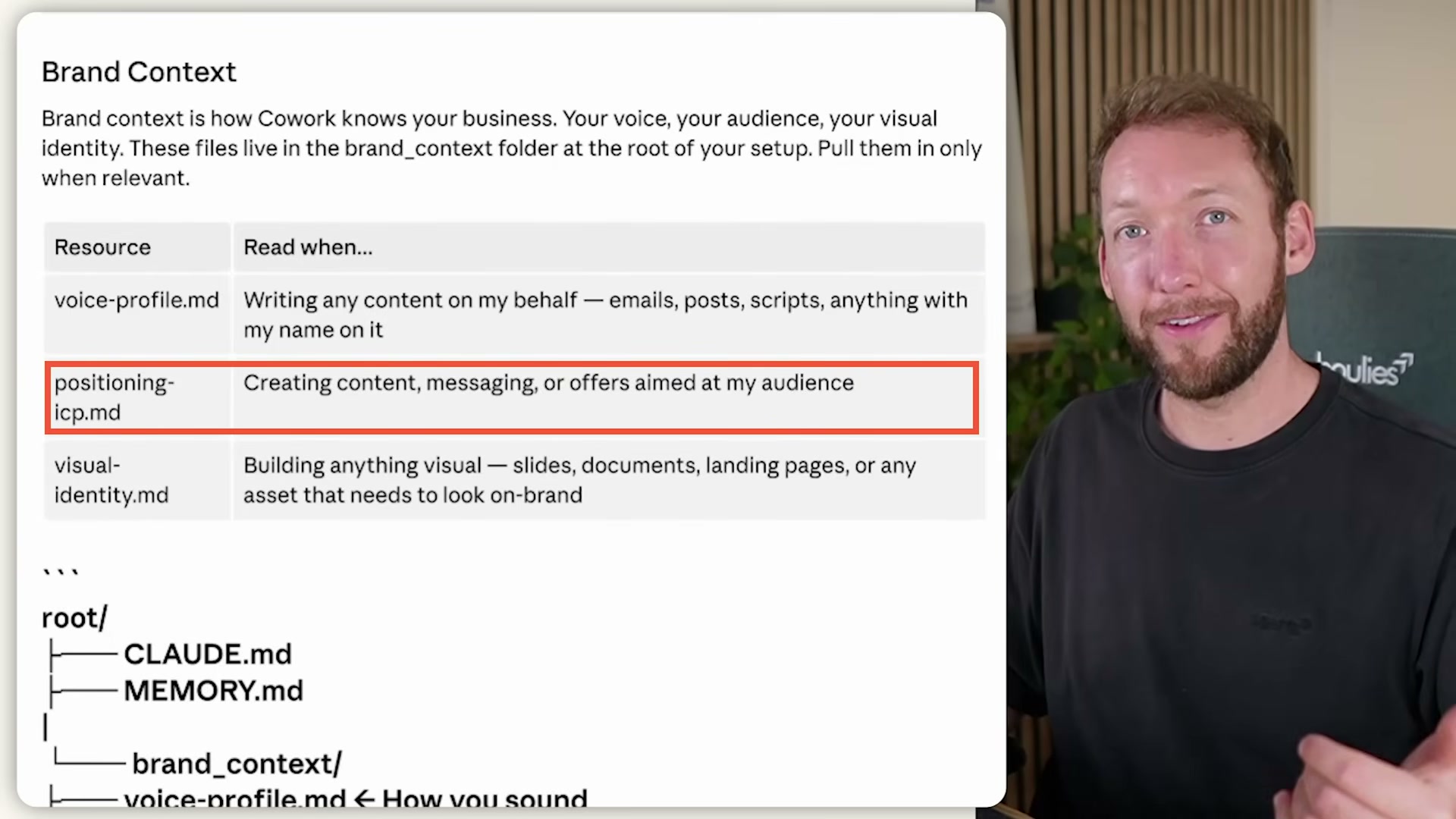
- Return to the Google Drive folder and download
starter-skills.zip. This archive contains three skills: a voice profile builder, an ICP and positioning builder, and a design tokens builder — each one generates a structured markdown file inbrand_context/.
- In co-work, go to Customize → Skills → Add Skill → Upload Skill and import each zip file individually. After the upload, each skill appears in your skills panel with its trigger type, description, and expected output path.
Warning: this step may differ from current official documentation — see the verified version below.
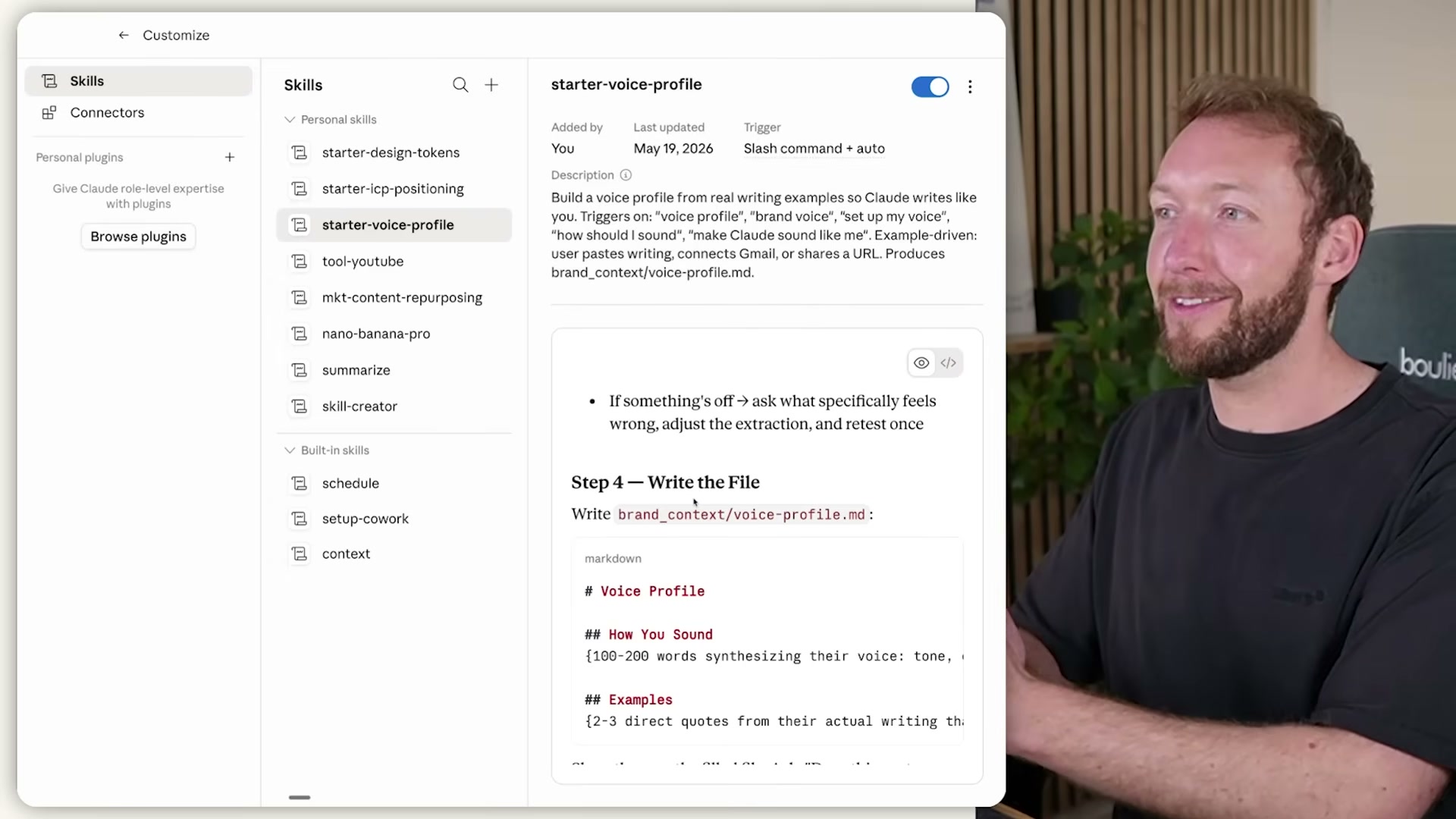
- In the co-work conversation input, type
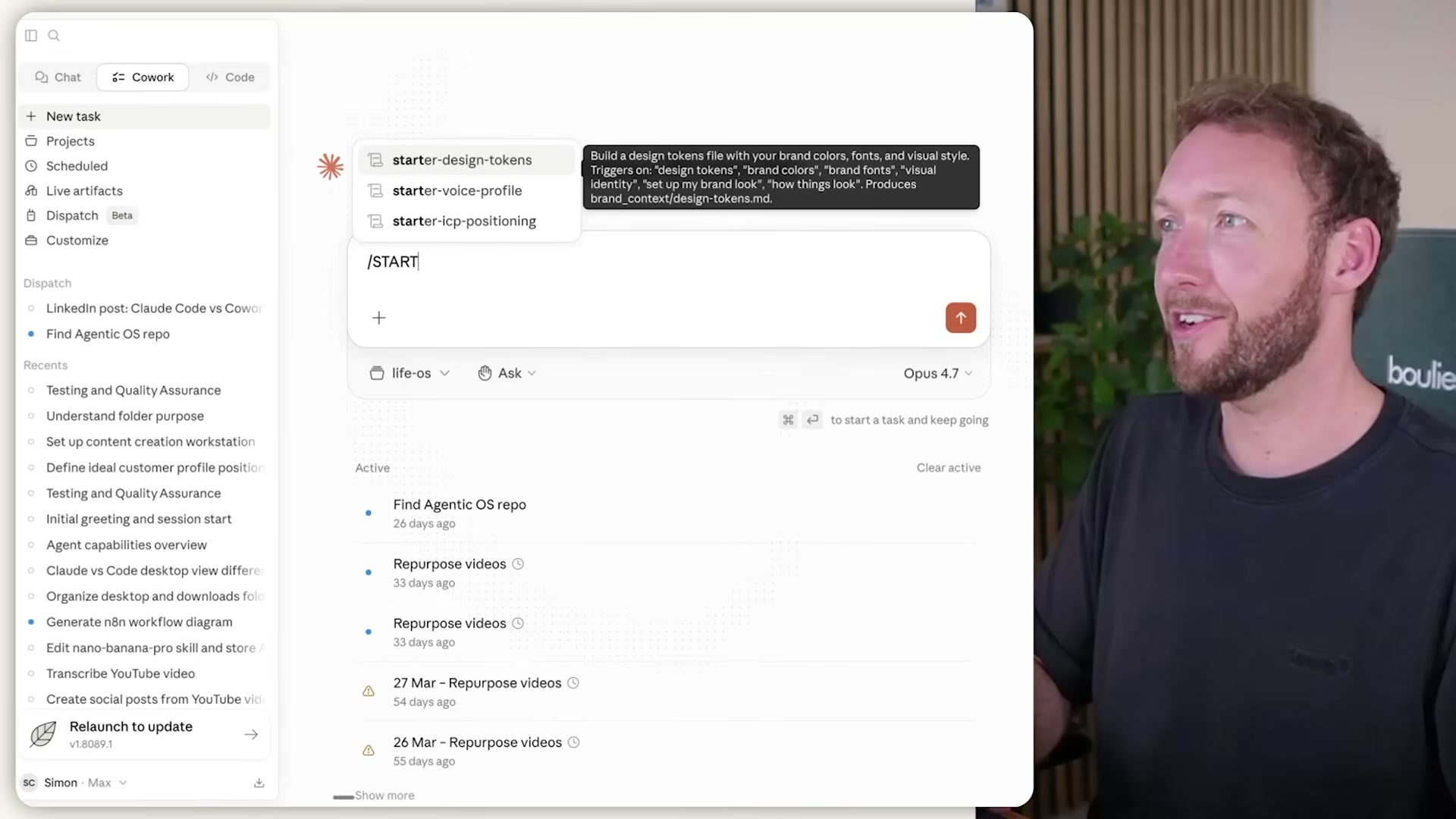
/starterto surface the installed skills as slash command options. Select voice profile, then work through the skill’s guided questions — writing samples, tone preferences, things you’d never say. Claude compiles the answers and writesbrand_context/voice-profile.mdto your OS folder.
- Open
brand_context/voice-profile.md(and the other generated files) in Claude’s code view preview mode to confirm the output. Repeat the process for the ICP positioning and design tokens skills. Once all three files exist, every future task in this project has access to your brand context without any manual prompting.
How does this compare to the official docs?
The video presents an opinionated folder architecture and a Google Drive starter kit that streamline the setup considerably — but Anthropic’s own documentation has its own take on how CLAUDE.md files should be structured, where they live in a project hierarchy, and how skills are properly packaged and distributed.
Here’s What the Official Docs Show
The video gives you a solid, opinionated workflow for building a personal AI operating system — what follows adds the official naming, surfaces a subscription requirement the tutorial skips, and flags the steps that could not be verified against live documentation. Think of this as the annotated reference layer you run alongside the video.
Step 1 — Download the desktop app
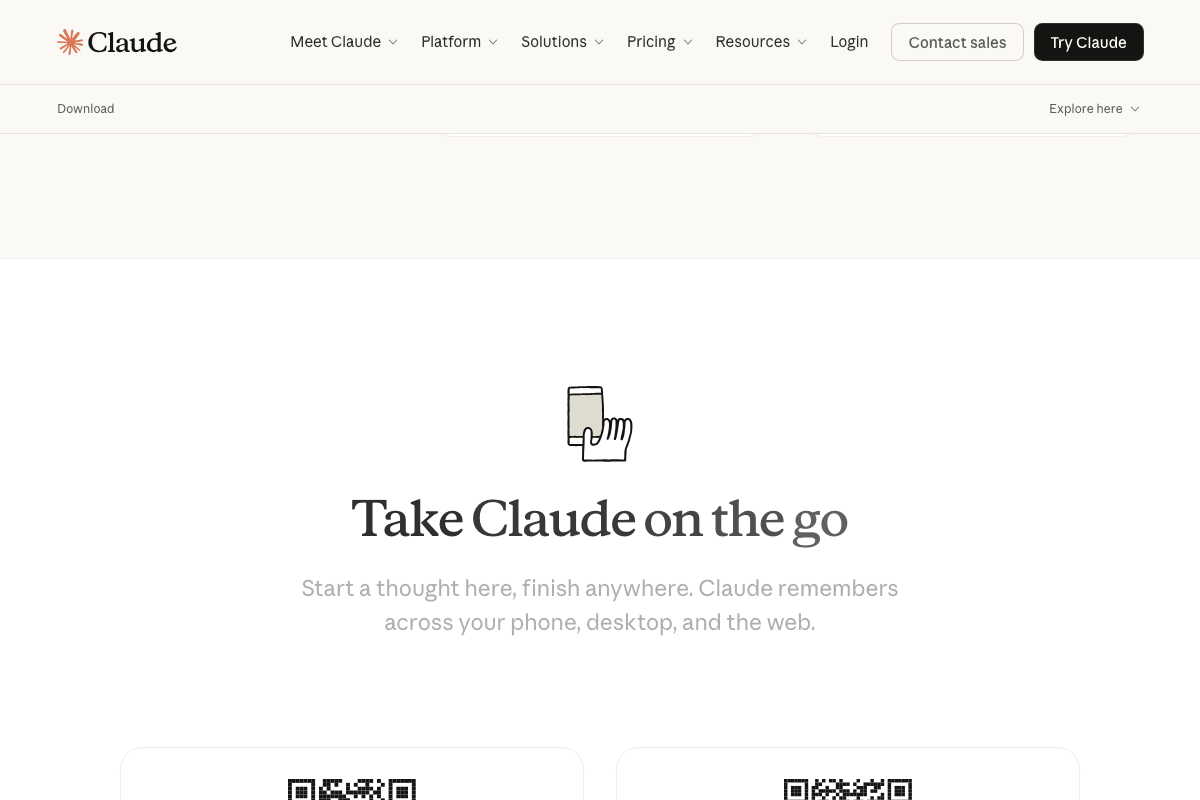
The video’s approach here matches the current docs exactly. Head to claude.ai/download and grab the macOS or Windows installer. One detail the tutorial doesn’t surface: the single download bundles three distinct surfaces — Chat, Claude Cowork, and Claude Code — in one install. You’re not choosing between them; you get all three.
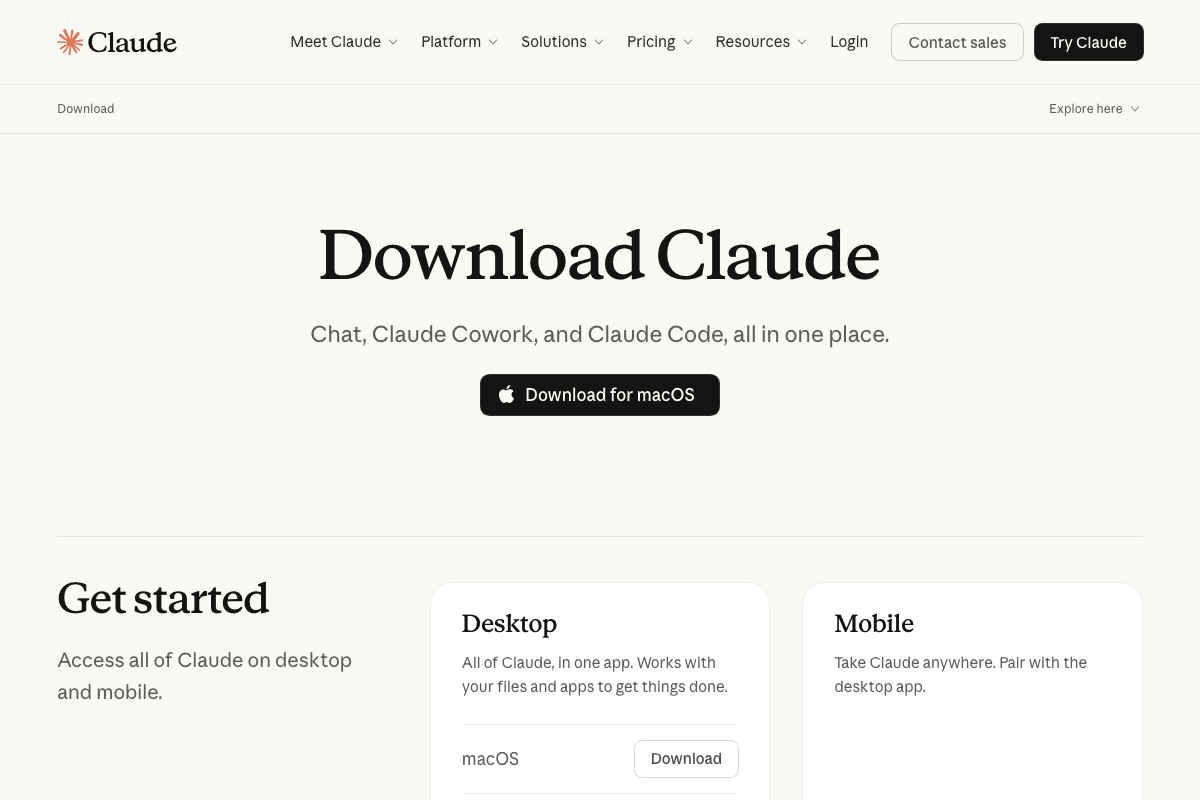
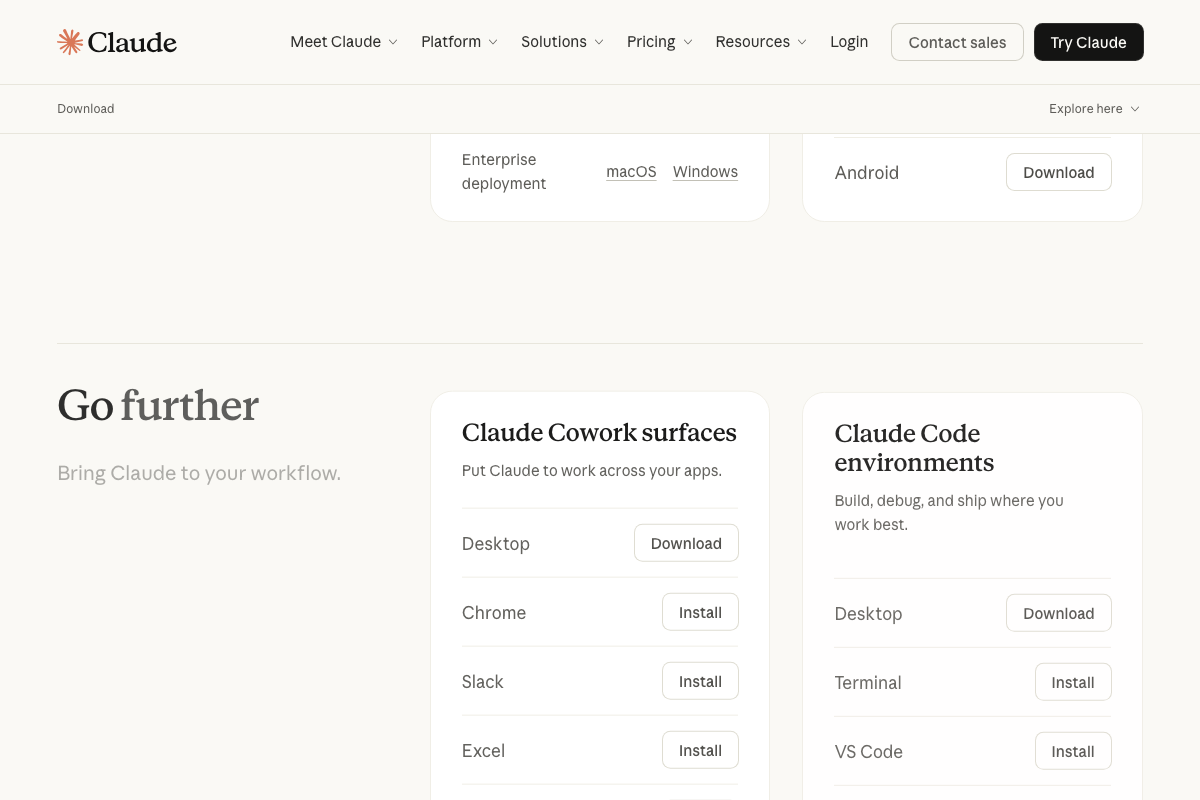
Terminology to carry forward: The official product name for the workspace surface is Claude Cowork (one word, title case) — the tutorial calls it “co-work view.” Same surface, different label. The tutorial’s “code view” is the Claude Code environment, listed separately under “Claude Code environments — Desktop” on the download page.
Step 2 — Create your OS folder
No official documentation was found for this step — proceed using the video’s approach and verify independently.
Step 3 — Download starter files from Google Drive
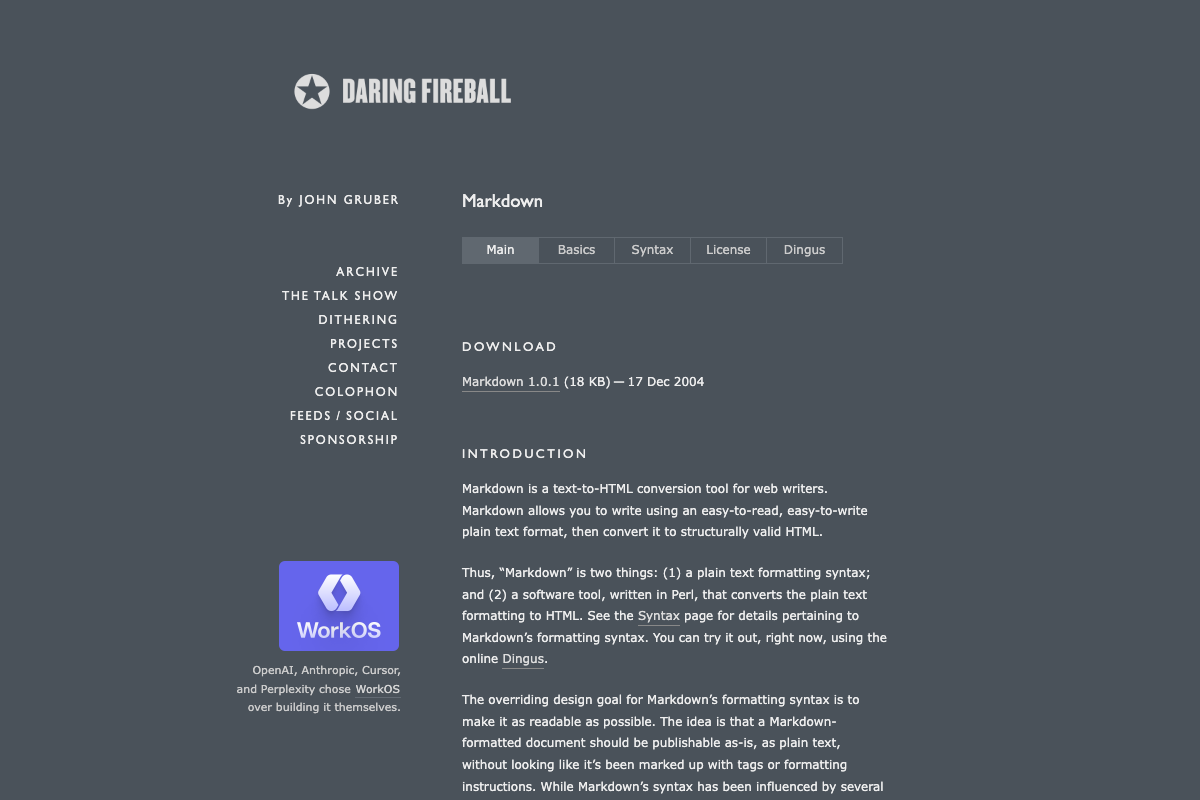
The video’s approach here matches the current docs exactly. CLAUDE.md and memory.md are standard Markdown (.md) files — plain text, readable in any editor, no conversion tool required.
Step 4 — Connect Claude Cowork to your folder
The video’s approach here matches the current docs exactly. Point Claude Cowork at your OS folder; the CLAUDE.md file appearing in the right-hand panel confirms Claude is reading your configuration for that project.
Step 5 — Open CLAUDE.md in Claude Code
No official documentation was found for this step — proceed using the video’s approach and verify independently.
As of 2026-05-21, the correct environment name is Claude Code — the video’s “code view” is informal shorthand, not the product label.
Steps 6–9 — Configure behavioral rules, memory system, and install skills
No official documentation was found for these steps — proceed using the video’s approach and verify independently.
Steps 10–11 — Invoke slash commands and review generated brand context files
No official documentation was found for these steps — proceed using the video’s approach and verify independently.
Subscription requirement the tutorial doesn’t mention
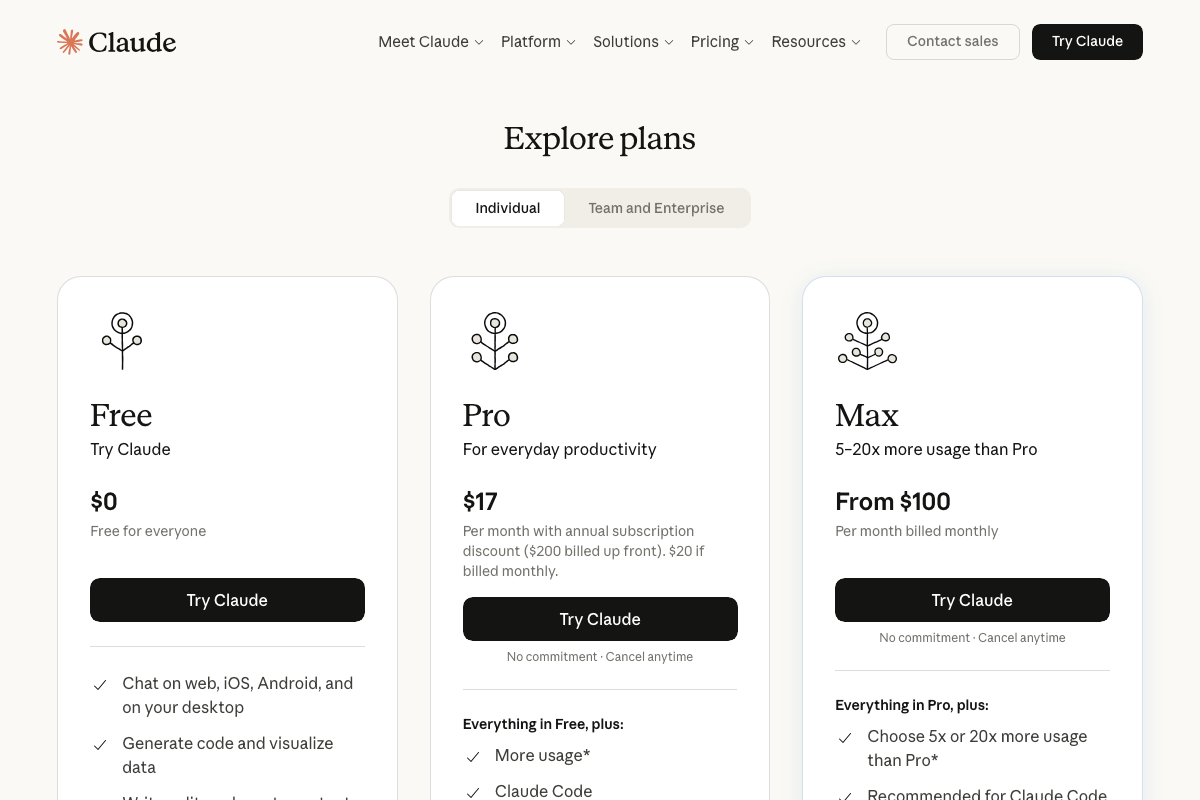
As of 2026-05-21, Claude Code is a Pro plan feature starting at $17/month billed annually. The Free plan includes desktop chat but does not list Claude Code or Cowork Skills as included features. If the code environment or skill installation steps in the video aren’t behaving as shown, your subscription tier is the first thing to check.
Useful Links
- Download Claude | Claude by Anthropic — Official desktop app download page confirming macOS and Windows availability and the bundled Chat, Claude Cowork, and Claude Code surfaces.
- Daring Fireball: Markdown — John Gruber’s original 2004 Markdown specification confirming the plain-text format used by CLAUDE.md and memory.md configuration files.
- Google Drive: Share Files Online with Secure Cloud Storage — Cloud storage platform used in the tutorial to distribute CLAUDE.md, memory.md, and skills zip starter files.
- Sign in — Claude — Claude.ai entry point; pricing details (Free, Pro at $17/month, Max at $100+/month) are accessible post-authentication and confirm Claude Code as a Pro-tier feature.


0 Comments