

Google launched the Ads DevCast vodcast in March 2026 as a direct signal that its advertising API ecosystem has crossed a threshold — the old model of manual scripting and forum-based support is done. The platform is mid-transformation, moving from granular campaign management toward AI-driven “agentic” workflows that let developers and marketers operate at a fundamentally different level of abstraction. This tutorial breaks down the DevCast’s context, the new developer toolchain it spotlights, and gives you a step-by-step guide to deploying each tool in a real workflow.
What This Is
The Google Ads DevCast, launched in March 2026, is a vodcast (video podcast) series produced for the developer community that builds on and integrates with Google Ads. It delivers technical insights — not marketing messaging — directly from the engineers and product managers who build the APIs. According to Search Engine Land, the vodcast covers AI-driven “agentic” changes reshaping ad APIs, which places it squarely inside a much larger infrastructure story Google has been building since mid-2025.
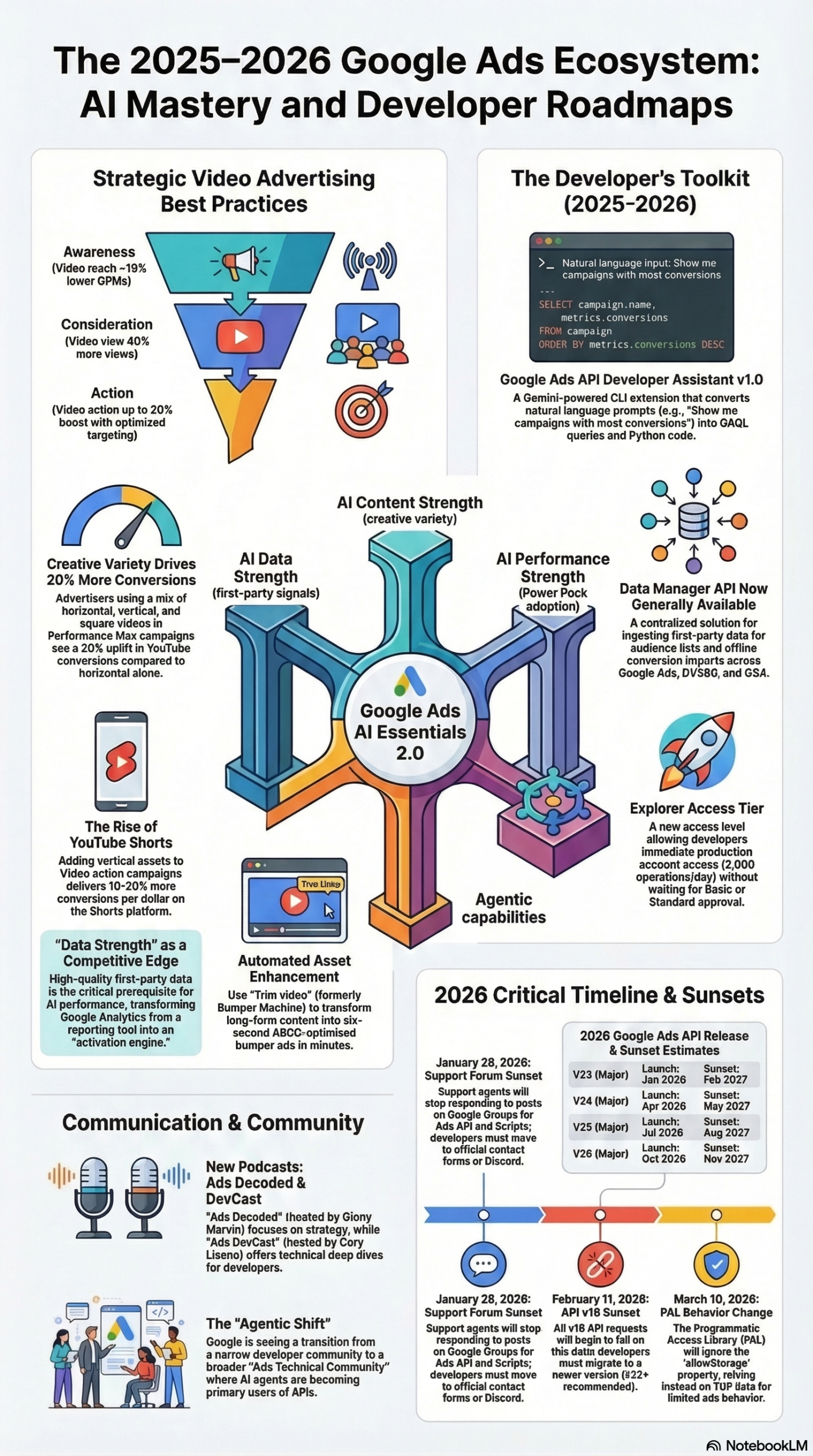
To understand why this vodcast matters, you need to understand what Google means by “agentic.” According to the Google Advertising and Automation 2025-2026 Strategic Briefing, Google is redefining the “Ads Developer Community” into a broader “Ads Technical Community” — a semantic shift that signals a new audience. This isn’t just for engineers who write production API integrations anymore. It’s for the marketer-developer hybrid who can describe what they want in natural language and let an AI agent handle the GAQL query and Python scaffolding.
The practical tools behind this shift, as documented in the Strategic Briefing, include:
Google Ads API Developer Assistant v1.0 — A Gemini-powered CLI extension that lets you interact with the Google Ads API using natural language. You type what you want — “show me all campaigns with a CPA above $40 last 30 days” — and it generates the Google Ads Query Language (GAQL) and executable Python code in response. This effectively lowers the technical barrier for anyone who understands the business logic but doesn’t want to reference API documentation constantly.
Model Context Protocol (MCP) Server — An open-source release that enables Large Language Models like Gemini to connect directly with and analyze Google Ads data. The initial release, per the Strategic Briefing, is read-only and focused on reporting and diagnostics. Think of it as giving your LLM-powered workflows a live window into your Google Ads account without requiring a custom API integration.
Explorer Access Level — A new API access tier that provides immediate production account access to new developers, removing the historical limitation of test-account-only access. The Strategic Briefing documents this at 2,880 operations per day — enough headroom for meaningful reporting, audience management, and automated adjustments without the overhead of applying for elevated access from day one.
Alongside these developer tools, Google has also launched Ads Decoded, a companion podcast hosted by Ginny Marvin aimed at practitioners. As quoted in the Strategic Briefing, the intent is “candid conversations, real insights, zero fluff” — Google’s answer to years of criticism that its product teams operate in opacity. The DevCast vodcast and the Ads Decoded podcast together form a two-track communication strategy: technical depth for developers, strategic context for practitioners.
These launches don’t exist in a vacuum. They land alongside a hard sunset schedule that every developer working with the Google Ads API needs to internalize: Google Ads API v19 sunset on February 11, 2026, the migration of developer support from Google Groups to Discord (effective January 28, 2026), and the deprecation of Call-Only ads in January 2026, among others documented in the Strategic Briefing.
Why It Matters
The Ads DevCast isn’t just another content channel. It’s a structural signal. Google is investing in developer education at the precise moment it’s retiring legacy tools and pushing the ecosystem toward AI-first campaign management — and that compression creates urgency.
For developers building on the Google Ads API, the DevCast accelerates the time between “Google announces a change” and “I understand how to implement it.” Before this, the primary sources were release notes, the occasional Google Groups thread (now sunsetted), and conference talks at Google Marketing Live. None of these were built for the cadence that Google’s current API update schedule demands.
For marketing technology teams and agencies, the agentic tooling — specifically the Developer Assistant and MCP Server — changes what’s possible without a full engineering engagement. A performance marketing analyst who can write prompts but not Python can now generate account-level diagnostic queries, pull structured GAQL reports, and feed that data into downstream analytics pipelines. The Strategic Briefing specifically frames this as allowing “marketers to execute technical tasks using natural language without full development cycles.”
For enterprise advertisers, the Data Manager API (now generally available as of 2025-2026 per the Strategic Briefing) is the connective tissue between these agentic capabilities and real business impact. It lets you send first-party data once and activate it across Google Ads, YouTube, and Display & Video 360 — with confidential matching to protect customer PII via encrypted execution environments. This is the infrastructure that makes AI-optimized campaigns actually perform: better data in, better model outputs out.
The competitive differentiation here is real. Teams that adopt the Developer Assistant and MCP Server workflow now will build institutional knowledge around AI-native API interaction before it becomes table stakes. Teams that continue operating with manual scripting and Google Groups-based support channels are already behind — those channels are gone.
The Data
The Strategic Briefing provides hard performance benchmarks for the AI-driven campaign types Google is pushing developers to implement:
| Campaign Objective | Campaign Type | Key Benchmark |
|---|---|---|
| Awareness | Video Reach Campaigns | ~16% lower CPMs; up to 44% more reach |
| Consideration | Video View Campaigns | ~40% more views than in-stream skippable CPV |
| Action | Video Action Campaigns | Up to 20% boost in conversions via optimized targeting |
| Creative Format | Multi-Orientation (H+V+S) in PMax | 20% more conversions on YouTube vs. horizontal only |
| YouTube Shorts | Vertical Asset | 10-20% more conversions per dollar vs. landscape |
API and Infrastructure Timeline — critical deadlines that directly impact any developer building on this platform:
| Feature / Service | Action Required | Deadline |
|---|---|---|
| Google Ads API v19 | Sunset — migrate to newer version | February 11, 2026 |
| Google Groups Support Forums | Sunsetting — move to Discord | January 28, 2026 |
| Call-Only Ads | New creation blocked in all interfaces/APIs | January 2026 |
PAL HTML5 SDK allowStorage |
TCF data becomes mandatory | March 10, 2026 |
| DV360 IO/Campaign-Level Targeting | Sunset — migrate targeting structure | February 2026 |
These tables are sourced directly from the Google Advertising and Automation 2025-2026 Strategic Briefing. If you’re running any v19 integrations, those requests are already failing as of writing. The March 10 PAL SDK change is the one most programmatic teams are sleeping on — if you serve ads using the HTML5 SDK without TCF consent signal plumbing, you have a compliance gap right now.
Explorer Access Level tiers, for quick reference:
| Access Level | Production Account Access | Daily Operation Limit | Best For |
|---|---|---|---|
| Explorer (new) | Yes — immediate | 2,880 operations/day | New developers, diagnostics, reporting |
| Standard | Yes | Higher limits | Production automation, bulk operations |
Step-by-Step Tutorial: Setting Up the Google Ads Agentic Developer Workflow
This tutorial walks you through standing up the core agentic toolchain described in the DevCast and the Strategic Briefing: the Developer Assistant v1.0, the MCP Server, and the Explorer Access tier. By the end, you’ll have a working environment that lets you query your Google Ads data in natural language, generate executable Python, and connect an LLM directly to your ad account for diagnostics.
Prerequisites
- A Google Ads account (MCC or standalone)
- Python 3.9 or later installed
- Access to the Google Ads API — if you’re starting fresh, apply for Explorer Access (detailed in Step 1)
- A Google Cloud project with the Ads API enabled
- Basic familiarity with pip and virtual environments
Phase 1: Obtain API Access and Configure Credentials
Step 1 — Apply for Explorer Access or Verify Your Current Tier
The Explorer Access Level, documented in the Strategic Briefing, is the fastest path for new developers. Unlike the old process that restricted you to test accounts, Explorer provides immediate production access at 2,880 operations per day.
Navigate to the Google Ads API access request form and select “Explorer” if you’re a new applicant. If you already have API access, verify your current level in your Google Ads account under Tools > API Center.
Step 2 — Set Up OAuth2 Credentials
In your Google Cloud console, create a new OAuth 2.0 Client ID for a desktop application:
- Go to APIs & Services > Credentials
- Click Create Credentials > OAuth client ID
- Select Desktop app
- Download the
client_secrets.jsonfile
Keep this file out of version control. Use environment variables or a secrets manager in production environments.
Step 3 — Install the Google Ads Python Client Library
python -m venv ads-agent-env
source ads-agent-env/bin/activate  # Windows: ads-agent-env\Scripts\activate
pip install google-ads
Create a google-ads.yaml configuration file in your home directory (or working directory):
developer_token: YOUR_DEVELOPER_TOKEN
client_id: YOUR_CLIENT_ID
client_secret: YOUR_CLIENT_SECRET
refresh_token: YOUR_REFRESH_TOKEN
login_customer_id: YOUR_MCC_ID  # Optional, use if operating under an MCC
Generate your refresh token by running the authenticate_in_web_application.py example from the Google Ads Python client library examples.
Phase 2: Install and Configure the Developer Assistant v1.0
Step 4 — Install the Google Ads API Developer Assistant
The Developer Assistant is a Gemini-powered CLI extension. Per the Strategic Briefing, it generates GAQL queries and executable Python code from natural language input.
pip install google-ads-developer-assistant
You’ll also need a Gemini API key. Get one from Google AI Studio and set it as an environment variable:
export GEMINI_API_KEY="your_key_here"
Step 5 — Run Your First Natural Language Query
With the Developer Assistant installed, you can now query your Ads account in plain English. Open your terminal and try:
ads-assistant "Show me all campaigns where cost per conversion exceeded $50 in the last 30 days"
The tool will:
1. Parse your intent using Gemini
2. Generate the equivalent GAQL query
3. Output executable Python code you can run or adapt
4. Optionally execute the query directly against your account if you pass the --execute flag
Example generated GAQL output:
SELECT
  campaign.id,
  campaign.name,
  metrics.cost_per_conversion,
  metrics.conversions
FROM campaign
WHERE
  segments.date DURING LAST_30_DAYS
  AND metrics.cost_per_conversion > 50000000
ORDER BY metrics.cost_per_conversion DESC
Note: Google Ads API reports costs in micros (millionths of the currency unit), so $50 becomes 50000000 in GAQL. The Developer Assistant handles this conversion automatically when generating code.
Step 6 — Adapt the Generated Code
The Assistant outputs Python code using the google-ads client library. A typical output will look like:
from google.ads.googleads.client import GoogleAdsClient

client = GoogleAdsClient.load_from_storage()
ga_service = client.get_service("GoogleAdsService")

query = """
    SELECT campaign.id, campaign.name,
           metrics.cost_per_conversion, metrics.conversions
    FROM campaign
    WHERE segments.date DURING LAST_30_DAYS
      AND metrics.cost_per_conversion > 50000000
    ORDER BY metrics.cost_per_conversion DESC
"""

customer_id = "YOUR_CUSTOMER_ID"
response = ga_service.search_stream(customer_id=customer_id, query=query)

for batch in response:
    for row in batch.results:
        campaign = row.campaign
        metrics = row.metrics
        print(
            f"Campaign: {campaign.name} | "
            f"CPA: ${metrics.cost_per_conversion / 1_000_000:.2f} | "
            f"Conversions: {metrics.conversions}"
        )
Save this as high_cpa_campaigns.py, substitute your customer ID, and run it:
python high_cpa_campaigns.py
Phase 3: Connect the MCP Server for LLM-Driven Diagnostics
Step 7 — Clone and Configure the Google Ads MCP Server
The MCP Server is an open-source release that lets LLMs like Gemini read your Google Ads data directly. This is the infrastructure layer that powers AI agents to perform autonomous diagnostics.
git clone https://github.com/googleads/google-ads-mcp-server
cd google-ads-mcp-server
pip install -r requirements.txt
Configure the server by copying the example environment file:
cp .env.example .env
Edit .env with your API credentials (same credentials from Phase 1):
GOOGLE_ADS_DEVELOPER_TOKEN=your_token
GOOGLE_ADS_CLIENT_ID=your_client_id
GOOGLE_ADS_CLIENT_SECRET=your_client_secret
GOOGLE_ADS_REFRESH_TOKEN=your_refresh_token
GOOGLE_ADS_CUSTOMER_ID=your_customer_id
Step 8 — Start the MCP Server
python server.py
The server exposes a local endpoint that MCP-compatible LLM clients can connect to. With the server running, you can integrate it into any tool that supports the Model Context Protocol — including Cursor, Claude Desktop, or custom agent frameworks.
Step 9 — Query Your Account via LLM
With the MCP server connected to your LLM client, you can now ask diagnostic questions in natural language and receive structured responses pulled live from your account:
- “Which ad groups have zero impressions in the last 7 days?”
- “What’s the average ROAS by campaign type this month?”
- “Are any of my shopping campaigns missing product feed attributes?”
The MCP Server translates these into API calls and returns structured data — no GAQL required on your end. Per the Strategic Briefing, the current release is read-only, which makes it safe for diagnostic workflows without risk of unintended campaign modifications.
Phase 4: Integrate First-Party Data via the Data Manager API
Step 10 — Set Up the Data Manager API for First-Party Data Activation
The Data Manager API, now generally available per the Strategic Briefing, lets you send customer data once and activate it across Google Ads, YouTube, and DV360. This is the data layer that makes your AI-optimized campaigns actually perform.
Install the required dependencies:
pip install google-cloud-bigquery google-ads
A basic first-party data upload using the Data Manager API looks like this:
from google.ads.googleads.client import GoogleAdsClient

client = GoogleAdsClient.load_from_storage()
customer_data_service = client.get_service("CustomerDataService")

# Prepare hashed customer emails (SHA-256)
import hashlib

def hash_email(email):
    return hashlib.sha256(email.strip().lower().encode()).hexdigest()

# Build the upload request (simplified)
customer_id = "YOUR_CUSTOMER_ID"
hashed_emails = [hash_email(e) for e in ["user1@example.com", "user2@example.com"]]

# Refer to the official Data Manager API documentation for the full request structure
# including UserData and CustomerMatchUserListMetadata objects
The API also supports confidential matching — encrypting customer information within a trusted execution environment — which handles GDPR and CCPA compliance at the ingestion layer, as documented in the Strategic Briefing.
Expected Outcomes
After completing this tutorial setup, you’ll have:
- API access configured with appropriate credential management
- Developer Assistant installed — natural language → GAQL → Python in your terminal
- MCP Server running — LLM-driven diagnostics with live account data
- Data Manager integration — first-party data flowing into your audience lists
The workflow you’ve built is the foundation of what Google’s Strategic Briefing calls the “Agentic Support” pillar of the AI Essentials 2.0 framework.
Real-World Use Cases
Use Case 1: Automated Weekly Performance Diagnostics
Scenario: A mid-size e-commerce advertiser runs 40+ campaigns across Google Search, Shopping, and YouTube. Their in-house analyst spends four hours every Monday pulling performance reports.
Implementation: Connect the MCP Server to the analyst’s LLM client. Create a standing Monday morning prompt: “Pull all campaigns with ROAS below 200% and cost above $500 in the past 7 days, grouped by campaign type.” The server queries the Ads API, the LLM formats the output into a structured briefing, and the analyst reviews exceptions instead of pulling raw data.
Expected Outcome: Weekly diagnostic time drops from 4 hours to under 30 minutes. The analyst focuses on decisions, not data collection. Per the Strategic Briefing, this workflow requires only Explorer Access level — 2,880 daily operations is sufficient for standard reporting cadences.
Use Case 2: Rapid GAQL Prototyping for Agency Reporting
Scenario: A performance marketing agency needs custom attribution reports for 15 clients, each with different conversion event configurations. Their developer previously hand-wrote each GAQL query.
Implementation: Install the Developer Assistant. For each client, prompt it with the business requirement: “Show conversions by campaign for the last 90 days, segmented by conversion action and device.” The Assistant generates validated GAQL and Python scaffolding. The developer adapts the customer ID and runs it. New client onboarding time for custom reports drops dramatically.
Expected Outcome: GAQL query development time per client cuts by an estimated 60-70% based on the natural language → code workflow the Strategic Briefing describes as the core value proposition of the Developer Assistant.
Use Case 3: First-Party Data Activation for Performance Max
Scenario: An enterprise retailer has a CRM with 500,000 customer records but hasn’t activated them in Google Ads. Their Performance Max campaigns are under-performing because the AI has limited audience signals.
Implementation: Use the Data Manager API to upload hashed emails and phone numbers with confidential matching enabled. Populate Customer Match audience lists and assign them as audience signals in Performance Max campaigns. As documented in the Strategic Briefing, the Data Manager API allows a single data upload to activate across Google Ads, YouTube, and DV360.
Expected Outcome: Performance Max gains stronger audience signals for its bidding model. Based on the Strategic Briefing benchmarks, Video Action Campaigns (which Performance Max can include) show up to 20% conversion improvements with properly optimized targeting.
Use Case 4: YouTube Shorts Creative Optimization
Scenario: A DTC brand is running YouTube campaigns with only horizontal video assets. Their Shorts placements are underperforming.
Implementation: Use the “Trim Video” (formerly Bumper Machine) tool documented in the Strategic Briefing to convert existing long-form horizontal content into vertical assets. Upload both orientations to Performance Max. The Strategic Briefing specifically notes that vertical assets deliver 10-20% more conversions per dollar on Shorts than landscape assets.
Expected Outcome: Multi-orientation creative in Performance Max delivers 20% more conversions on YouTube versus horizontal-only, per the Strategic Briefing benchmarks from the Best Practices Guide: Google AI for Video Advertising.
Use Case 5: EU Compliance Automation
Scenario: A global advertiser runs campaigns across EU markets. With the EU Political Ads Regulation now enforced (per the Strategic Briefing), their ops team needs to audit all campaigns for compliance and automate the self-declaration process.
Implementation: Use the Developer Assistant to generate a GAQL query that flags any campaign with political content keywords in the name or description fields. Integrate the self-declaration field into the campaign creation API workflow, requiring the eu_political_ad field to be explicitly set to false for all non-political campaigns as a validation step before submission.
Expected Outcome: Zero compliance gaps in EU campaign creation. Audit trail maintained programmatically via API logs rather than manual review.
Common Pitfalls
1. Not Migrating Off API v19 Before the February 11, 2026 Deadline
Per the Strategic Briefing, Google Ads API v19 was sunsetted on February 11, 2026 — requests fail at this point. Developers still using pinned v19 client library versions in production integrations face silent failures or hard errors. Audit your google-ads.yaml for the api_version field and update to the latest stable version. Check all dependencies and scheduled jobs.
2. Assuming the MCP Server Supports Write Operations
The MCP Server’s initial release is read-only, as documented in the Strategic Briefing. Developers building agent workflows that expect to create campaigns, modify bids, or update ad copy via the MCP Server will hit a wall. Plan your agentic architecture accordingly: use MCP for diagnostics and reporting, use direct API calls with the Python client library for write operations.
3. Missing the PAL HTML5 SDK TCF Requirement
As of March 10, 2026, the allowStorage property in the PAL HTML5 SDK is ignored — the SDK reads TCF consent data directly from devices, per the Strategic Briefing. Programmatic publishers who haven’t updated their consent string plumbing will serve limited ads to all users, not just non-consenting ones. Verify your CMP integration passes valid TCF strings before the SDK reads them.
4. Uploading Unhashed Customer Data via the Data Manager API
The Data Manager API uses confidential matching — data must be hashed (SHA-256) before upload. Sending plaintext emails or phone numbers is both a compliance failure and an API error. Always hash and normalize (lowercase, trimmed) before building your upload payloads.
5. Ignoring the Discord Migration for Support
Google Groups for Ads API, Scripts, and CM360 support sunsettted on January 28, 2026 per the Strategic Briefing. Teams still filing issues or searching for answers in old Google Groups threads will find dead ends. Join the “Google Advertising and Measurement Community” Discord server — that’s where the active support channel lives now.
Expert Tips
1. Use conversion_environment for Cross-Device Attribution
The Strategic Briefing documents that bidding models now use the conversion_environment field (APP or WEB) to improve in-app conversion performance. If you’re running app campaigns, explicitly set this field in your conversion action configuration. Missing it means your model is optimizing with incomplete environment context.
2. Segment by LAST_30_DAYS Before Using Custom Date Ranges
When prototyping with the Developer Assistant, always start with LAST_30_DAYS as your date segment. It’s a GAQL shortcut that avoids date formatting errors and gives you a consistent baseline. Once you confirm the query structure works, swap in custom segments.date BETWEEN logic.
3. Set Up Audience Signals in Performance Max Before Launch
Performance Max campaigns use the Data Strength pillar of Google’s AI Essentials 2.0 framework per the Strategic Briefing. Launching PMax without audience signals means the model starts cold. Upload your customer lists via the Data Manager API, configure your remarketing audiences, and set them as signals before going live.
4. Use “Trim Video” Systematically Across Your Entire Creative Library
The Strategic Briefing recommends using Trim Video (formerly Bumper Machine) to convert long-form content into six-second ABCD-optimized bumper ads. Run your entire YouTube creative library through this tool — even older videos. Bumper ads drive reach at minimal incremental cost and pair well with Video Reach Campaigns showing ~16% lower CPMs.
5. Subscribe to the Ads DevCast and Ads Decoded in Parallel
The DevCast targets developers; Ads Decoded (hosted by Ginny Marvin) targets practitioners. Per the Strategic Briefing, Ads Decoded was built for “candid conversations, real insights, zero fluff.” Subscribe to both and distribute them to the right members of your team. Engineers get the DevCast; media and strategy leads get Ads Decoded. The information asymmetry between technical and strategic teams is a real cost.
FAQ
Q: Is the Google Ads API Developer Assistant free to use?
The Developer Assistant itself is a CLI tool distributed via pip. However, it is powered by Gemini, which means you’ll incur Gemini API usage costs based on the queries you run. Get a Gemini API key from Google AI Studio and monitor your usage. For low-volume diagnostic work, costs are minimal. High-frequency automated querying will add up — evaluate your use case against Gemini API pricing before building automation on top of it.
Q: Can the MCP Server modify campaigns or just read data?
As documented in the Strategic Briefing, the initial MCP Server release is read-only. It is designed for reporting and diagnostics. Write operations — creating campaigns, updating bids, modifying ad copy — still require direct API calls using the Google Ads Python client library or equivalent. Google has not announced a timeline for write-capable MCP Server functionality as of March 2026.
Q: What’s the difference between Explorer Access and Standard Access?
Explorer Access is the new entry-level tier that provides immediate access to production accounts (not just test accounts) for new developers, limited to 2,880 operations per day per the Strategic Briefing. Standard Access carries higher operation limits suitable for production automation and bulk campaign management. If you’re building a reporting tool or running diagnostics, Explorer is sufficient. If you’re managing large-scale automated bid adjustments or bulk creative uploads, you’ll need Standard Access.
Q: Is the Data Manager API different from the Customer Match API?
Yes, though they work together. The Data Manager API, now generally available per the Strategic Briefing, is an abstraction layer that simplifies first-party data ingestion. It allows a single upload to activate data across Google Ads, YouTube, and DV360 — including Customer Match audience lists. The Customer Match API is one of the activation mechanisms; Data Manager is the pipeline. Use Data Manager as your ingestion layer; the platform handles routing to the appropriate activation system.
Q: Should I migrate to RSAs now that Call-Only ads are deprecated?
Yes — immediately, if you haven’t already. Per the Strategic Briefing, new Call-Only ad creation was blocked in all interfaces and APIs in January 2026. The recommended migration path is Responsive Search Ads combined with call assets, which preserves the phone lead objective while leveraging RSA machine learning optimization. Call assets attached to RSAs also feed call conversion data back into your bidding model, which Call-Only ads handled natively but RSAs require you to configure explicitly.
Bottom Line
Google’s Ads DevCast vodcast is the public face of a much deeper infrastructure shift: the platform is actively migrating its developer and practitioner audience toward agentic, AI-native workflows. The Strategic Briefing documents the tools — Developer Assistant v1.0, MCP Server, Explorer Access, Data Manager API — and the hard deadlines that make action non-optional. Teams that engage with the DevCast and integrate these tools now will build a compounding advantage as the ecosystem continues to automate. The teams that wait will find themselves doing manual work inside a system that was rebuilt around automation. Subscribe to the DevCast, install the Developer Assistant, and run your first natural language query against your account today — the infrastructure is there, and the barrier to entry has never been lower.


0 Comments