

Enable Claude Computer Use on macOS with Dispatch Mode
Claude’s Computer Use feature lets the desktop app screenshot your screen, move your mouse, and type into any application — turning a plain-text prompt into end-to-end task execution. Pair it with Dispatch mode and you can send Claude a job from your phone while away from your desk and come back to finished work. This tutorial covers enabling the feature, granting the required macOS permissions, and running your first autonomous task. It also shows how Zapier MCP extends Claude’s reach into tools like Slack and Skool without granting full desktop access.
- Download the Claude Desktop App from claude.com. You’ll need a Pro or Max subscription and must be running macOS — Windows support is not available at the time of this tutorial. If the Computer Use toggle doesn’t appear after installation, delete the app, download a clean copy, and reinstall.
Warning: this step may differ from current official documentation — see the verified version below.
- Open the app, click your account icon, navigate to Settings > General, and toggle Computer Use on. The setting reads: “Let Claude take a screenshot and control your keyboard and mouse in apps you allow.” Browser Use enables alongside it automatically.

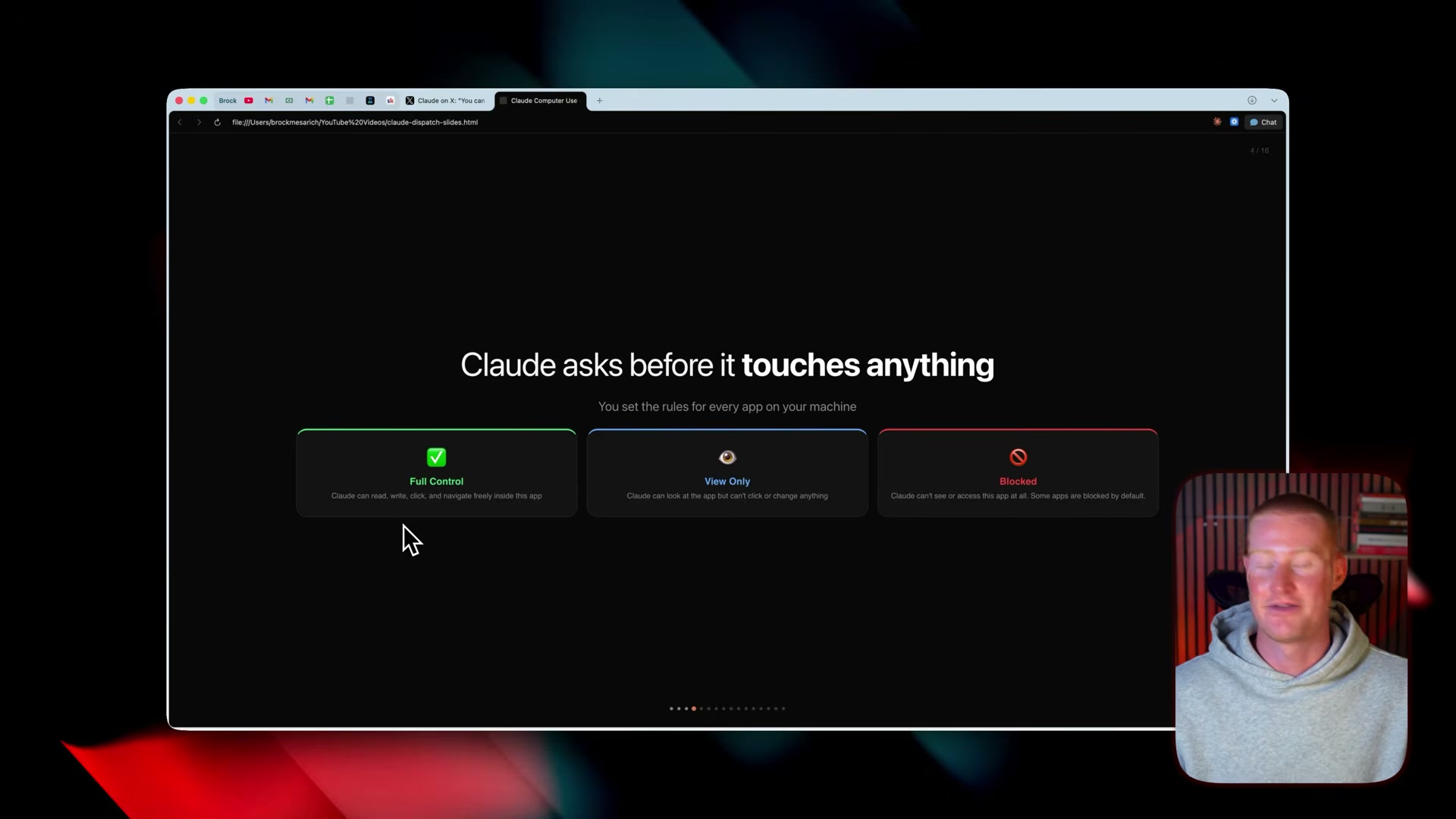
- Click Add Denied Apps to block any applications you don’t want Claude to touch. Every installed app appears in the list — clicking an entry removes it from Computer Use scope immediately.
-
Open System Settings, navigate to the Accessibility panel, and grant Claude permission to control your computer. Your system password is required to confirm.
-
Return to the Claude Desktop App, open Dispatch mode, and toggle on Keep Awake so your Mac stays active while Claude works unattended.
-
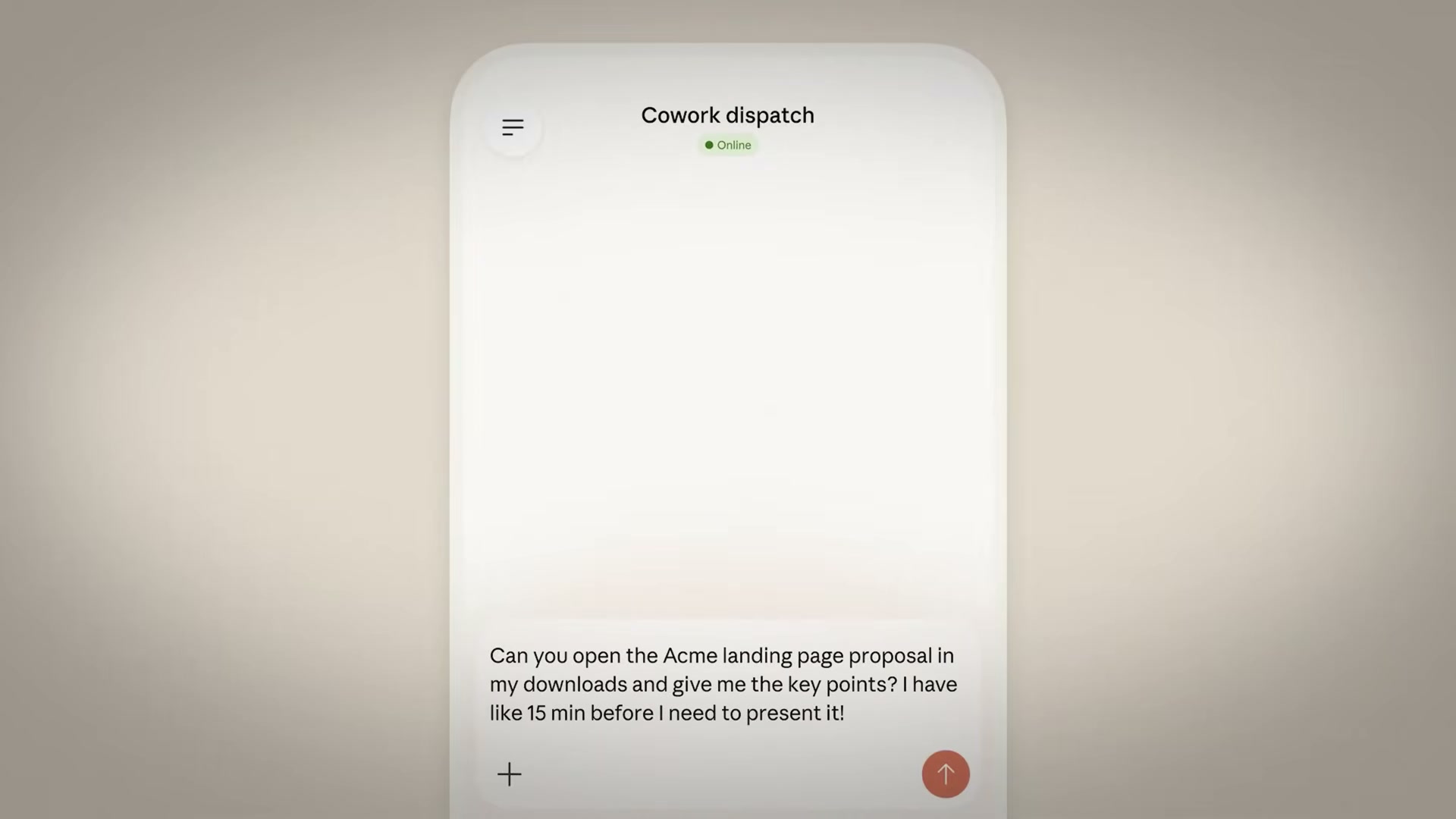
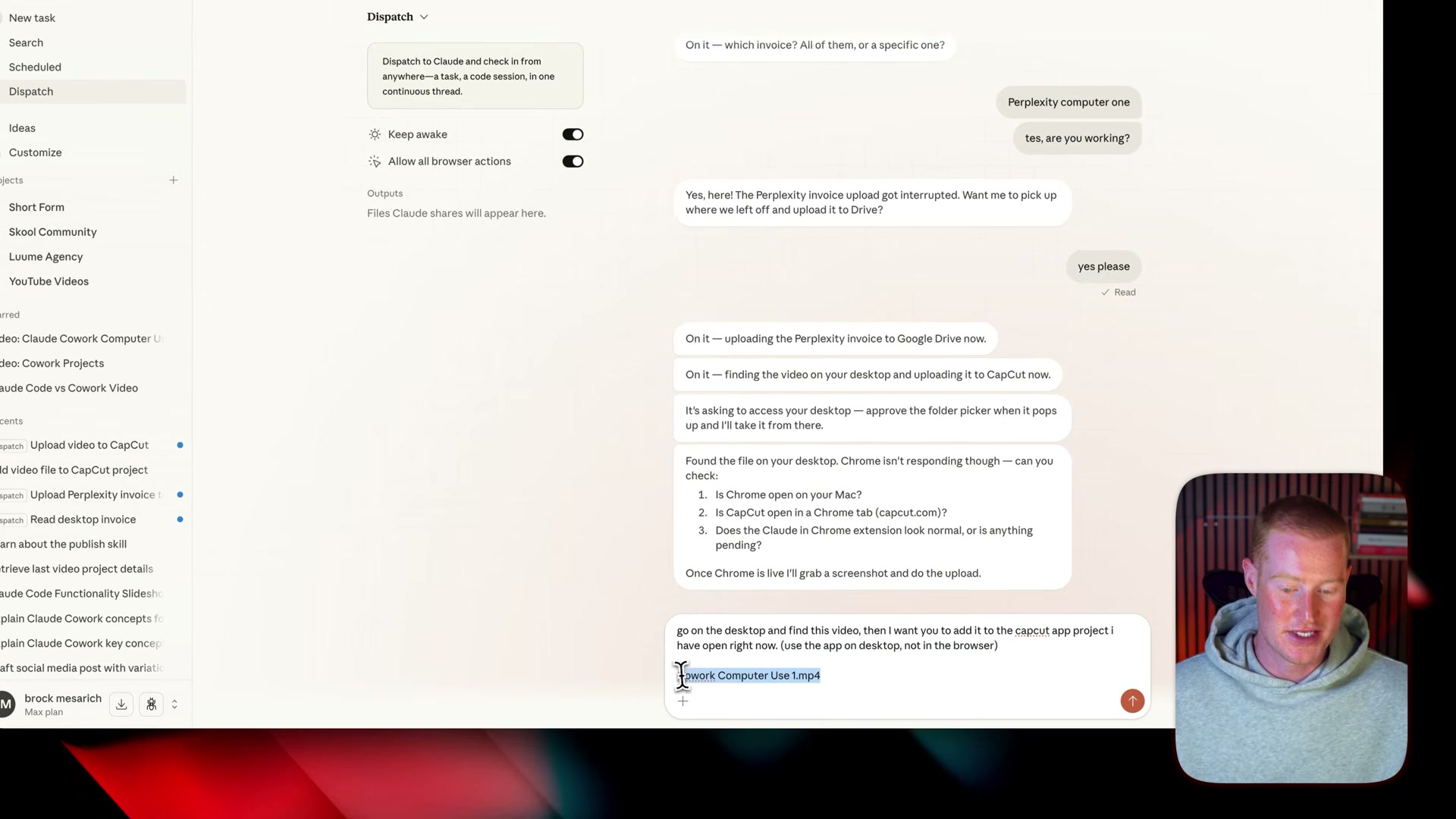
Type your first task into the Dispatch input field. The demo prompt is: Go on my desktop and find . Add it to the CapCut project I have open right now — use the app on desktop, not the browser. Click Send.
-
When Claude surfaces app-access prompts for Finder and CapCut, click Allow for each. An orange ring appears around your screen confirming Computer Use is active — keep your hands off the keyboard and mouse.
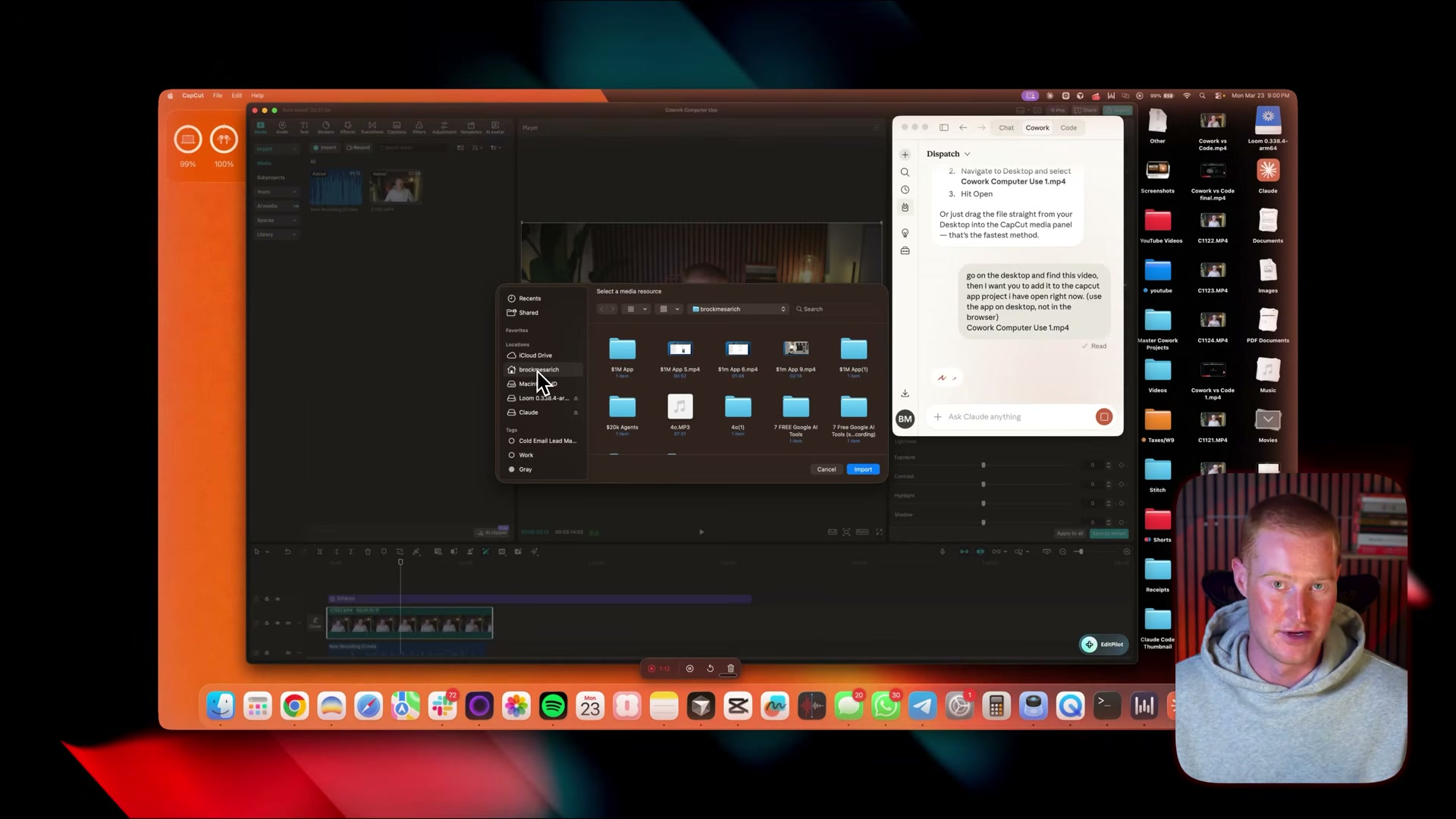
- Claude opens CapCut, launches the macOS file picker, navigates your Desktop folder, locates the target file by name, and imports it into the media panel — without any input from you.

-
To test document retrieval, submit a second task: Find the invoice on my desktop called [filename], open it, and summarize it for me. Approve the Desktop access prompt and Claude returns a breakdown of the file’s contents directly in the Dispatch thread.
-
For a more scoped alternative to full Computer Use, open Customize > Connectors in Claude Co-work to browse native app integrations.
-
Go to zapier.com, log in or create an account, and click New MCP Server. Select Claude Co-work as the target, search for the apps you want to connect — the demo uses Skool and Slack — and select the action permissions you want to grant per app.
-
Click Connect to generate a server URL, copy it, then return to Claude Co-work, search Connectors for Zapier, and paste the URL. All added app integrations activate immediately inside Claude.
How does this compare to the official docs?
The walkthrough above reflects the steps shown in the video — but the official Anthropic documentation gets specific about research-preview limitations, permission boundaries, and the exact macOS version requirements that determine whether Computer Use will behave exactly as shown here.
Here’s What the Official Docs Show
The video walkthrough gives you a solid working path through Claude’s Computer Use setup, and most of the core flow holds up. The sections below add official context where documentation fills in gaps the video left open — most notably around product naming and subscription requirements.
Step 1 — Download the Claude Desktop App
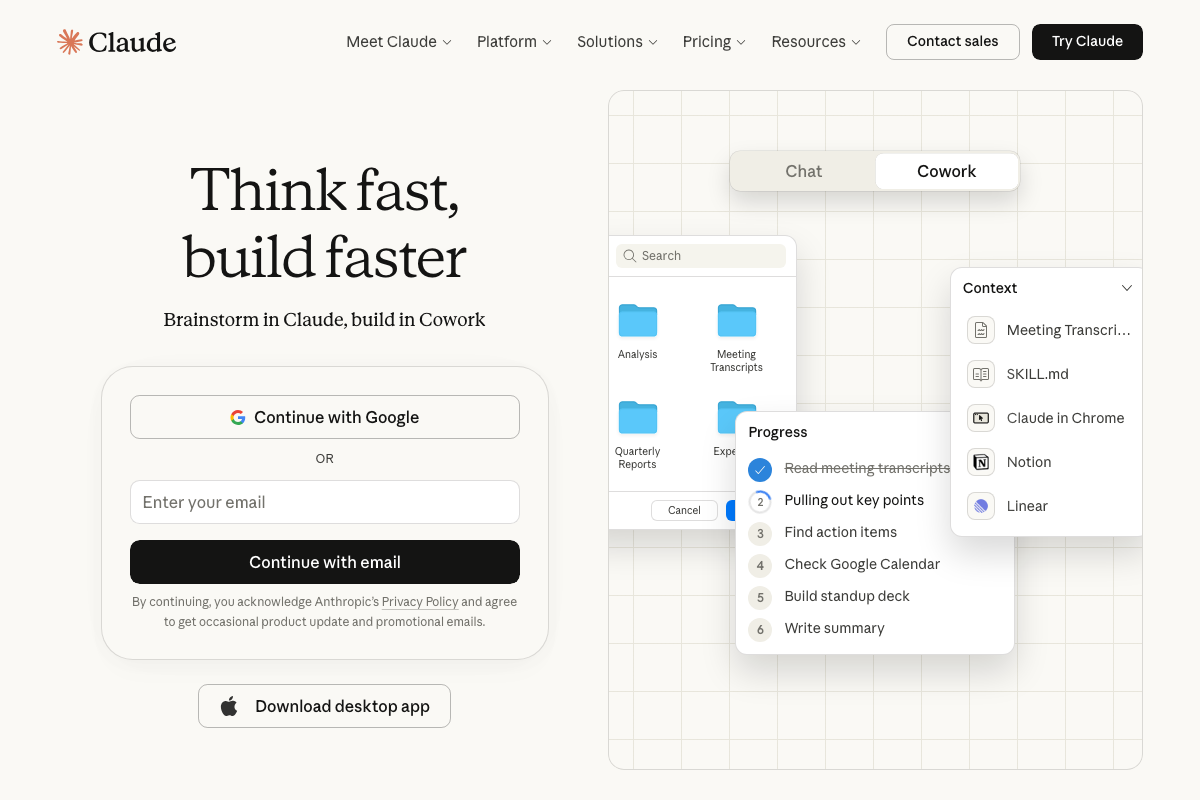
The video’s approach here matches the current docs exactly. Claude.ai displays a prominent “Download desktop app” call-to-action confirming the app is available for macOS. One gap the tutorial doesn’t address: the Free plan description visible on claude.ai’s pricing page does not list Computer Use or Cowork as included features, indicating a paid tier is required. The specific qualifying plan is not confirmed by the available screenshots — verify against the current pricing page before assuming Pro is sufficient.

Steps 2–4 — Enable Computer Use, configure denied apps, grant Accessibility permissions
No official documentation was found for these steps —
proceed using the video’s approach and verify independently.
Step 5 — Open “Dispatch mode” and toggle Keep Awake
As of March 2026, Anthropic’s official product pages use the name Cowork for the autonomous task interface — the video’s term “Dispatch mode” does not appear in any current official documentation. The Keep Awake toggle is similarly absent from all available screenshots. Use the video’s instructions to locate both, but expect the tab label to read “Cowork,” not “Dispatch.”

Step 6 — Submit the CapCut file-import task
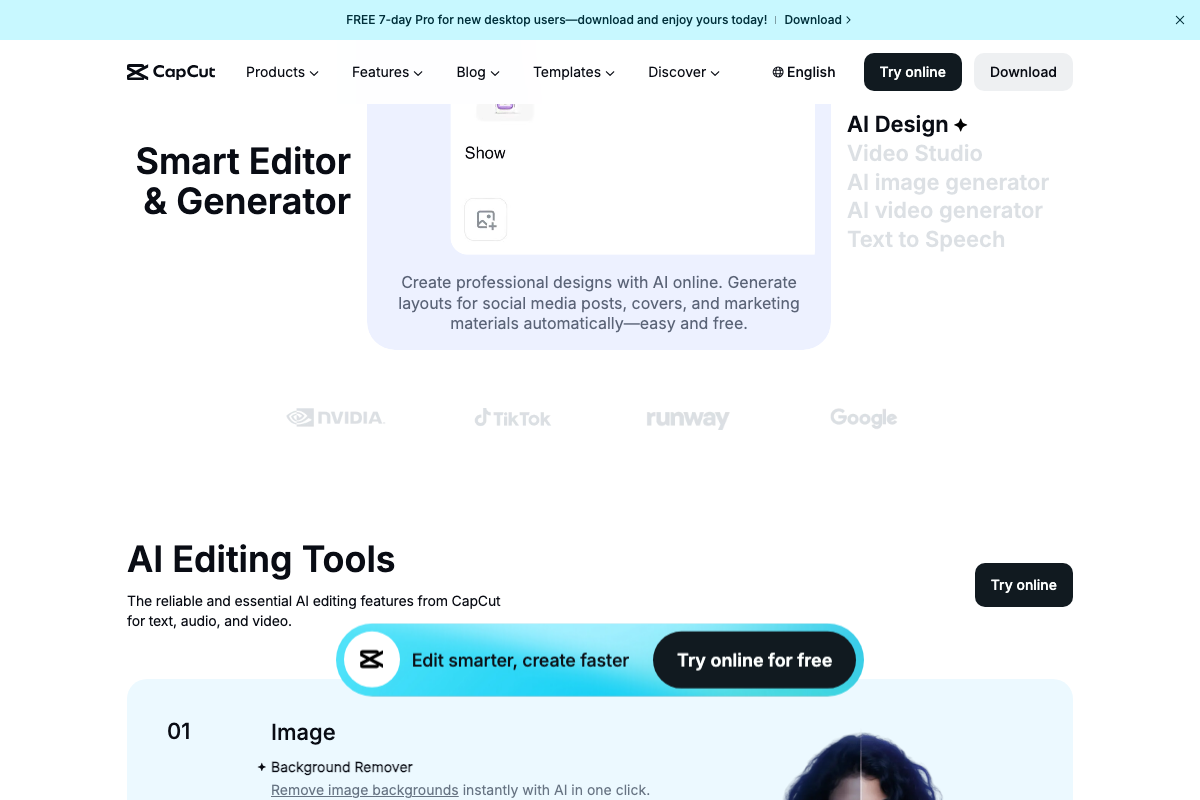
The video’s approach here matches the current docs exactly. CapCut is available as a downloadable desktop application — the macOS app is the correct target for Computer Use mouse-control automation. The browser-based version of CapCut visible at capcut.com would not be reachable via desktop automation as described.

Step 7 — Approve app-access prompts
No official documentation was found for this step —
proceed using the video’s approach and verify independently.
Step 8 — Claude locates and imports the file into CapCut
The video’s approach here matches the current docs exactly. CapCut’s desktop application supports video file import, consistent with what Claude executes in the demo.
Step 9 — Invoice summary task
No official documentation was found for this step —
proceed using the video’s approach and verify independently.
Step 10 — Open Connectors inside Claude Cowork
The Cowork interface confirmed on claude.ai’s homepage mockup shows a Chat/Cowork tab toggle and a context sidebar listing integrations including Notion and Linear — consistent with the tutorial’s description of an app-integration panel. The specific “Customize > Connectors” navigation path is not visible in any screenshot; the tab structure is confirmed, the sub-navigation is not.
Steps 11–15 — Zapier MCP Server setup
No official documentation was found for these steps —
proceed using the video’s approach and verify independently.
Useful Links
- Claude — Claude.ai homepage; entry point for downloading the Claude Desktop App and accessing Cowork product information.
- Computer Use tool – Claude API Docs — Anthropic’s official Computer Use documentation page; verify current setup requirements and macOS compatibility directly here.
- CapCut AI Video Editor: Smart Online Video Editing with Advanced AI Tools — CapCut product site; download the desktop app here for use as a Computer Use automation target.


0 Comments