

Control Claude Cowork from Your Phone with Dispatch Mode
Claude’s Dispatch mode turns your desktop AI agent into a remote worker — send a short text from your phone and return to a finished HTML dashboard, an itemized expense report, or a Slack briefing already waiting for you. This tutorial covers the full setup: pairing the mobile and desktop apps, configuring file and browser permissions, running your first remote task, and extending Dispatch beyond the 38 native connectors to 8,000+ apps via Zapier MCP.
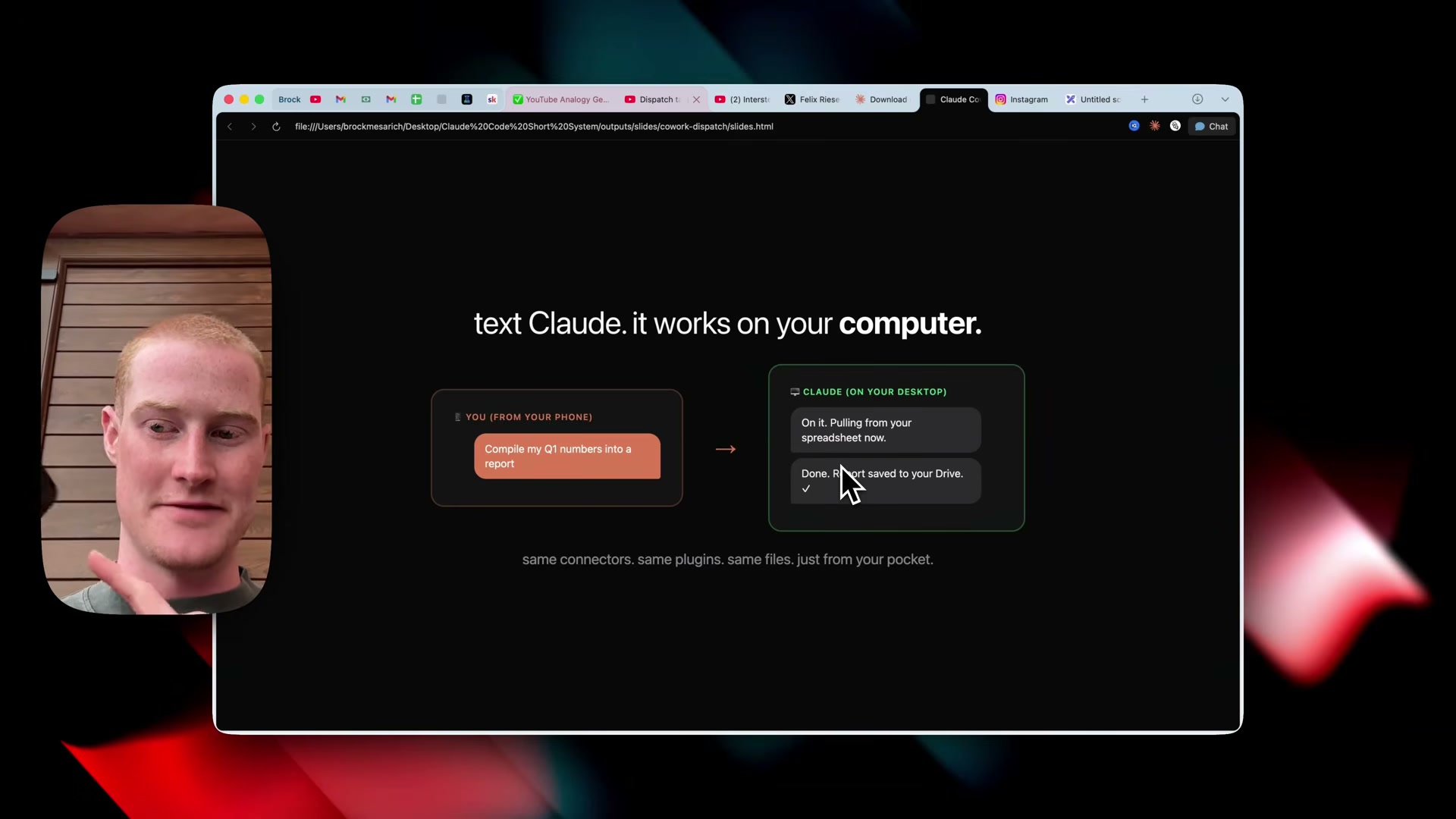
- Download the Claude Desktop app from claude.com/download, or delete and reinstall if you already have it and Dispatch isn’t appearing in your account.
- Verify your subscription tier. Dispatch is currently gated to the Max plan ($100/month). A rollout to the Pro plan ($20/month) is in progress but not yet complete as of this video.
Warning: this step may differ from current official documentation — see the verified version below.
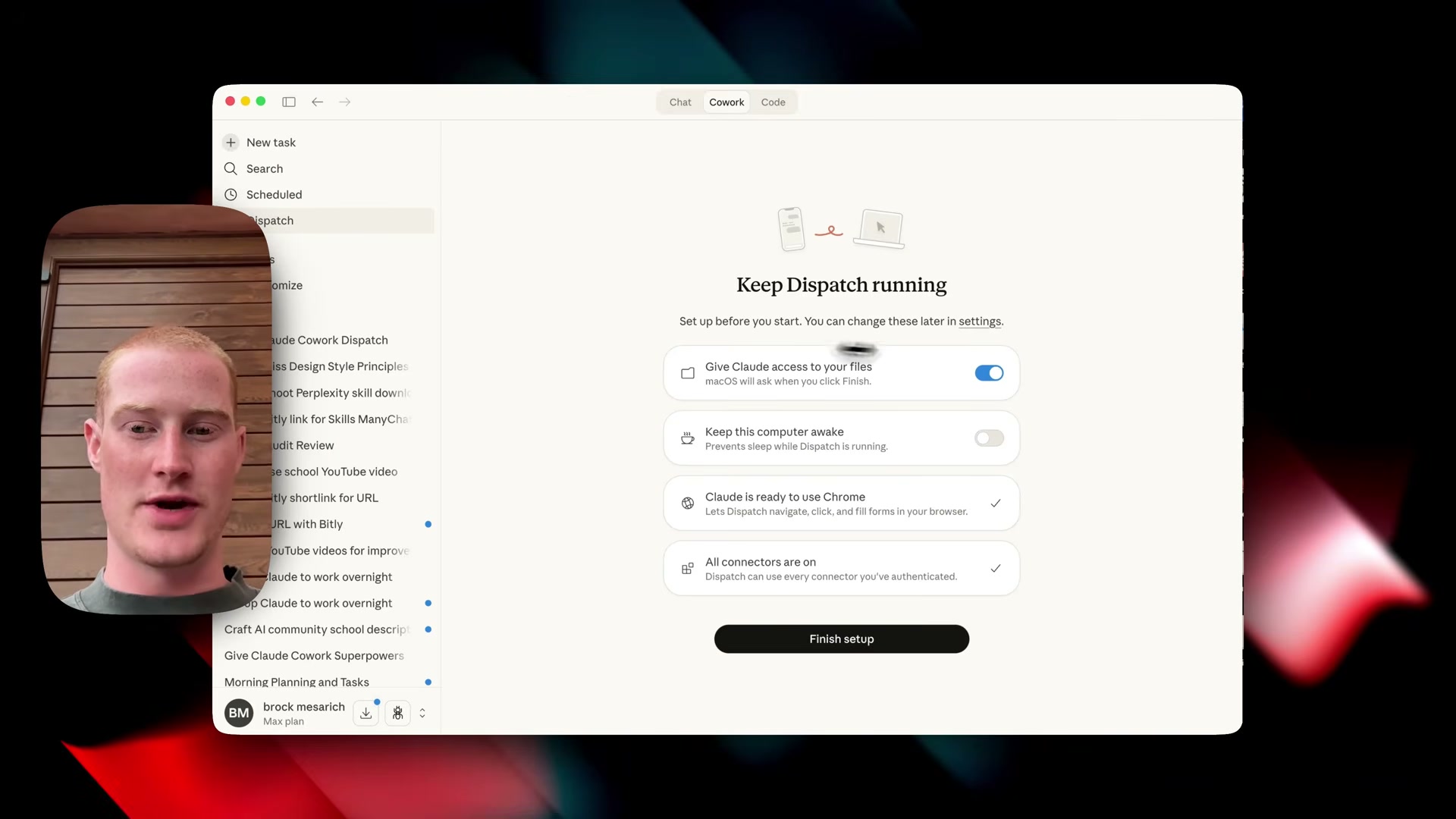
3. Open Claude Cowork on your desktop. In the left sidebar under Schedule Tasks, click the Dispatch button.
4. In the Dispatch setup panel, enable file access to grant Claude read permissions on your local machine.
5. Toggle Keep this computer awake on. If your machine sleeps, Dispatch cannot execute queued tasks.
6. Confirm Chrome access is active. Dispatch uses the Claude Chrome extension to navigate pages, click elements, and fill out forms in your browser.
7. Verify that all connectors show as enabled, then click Finish Setup. When the browser permission prompt appears, select Allow all browser actions.
8. On your phone, open the Claude mobile app — download it from your device’s app store if you haven’t already.
9. Tap the Dispatch button inside the app, then tap Pair with Desktop. The two devices are now linked.
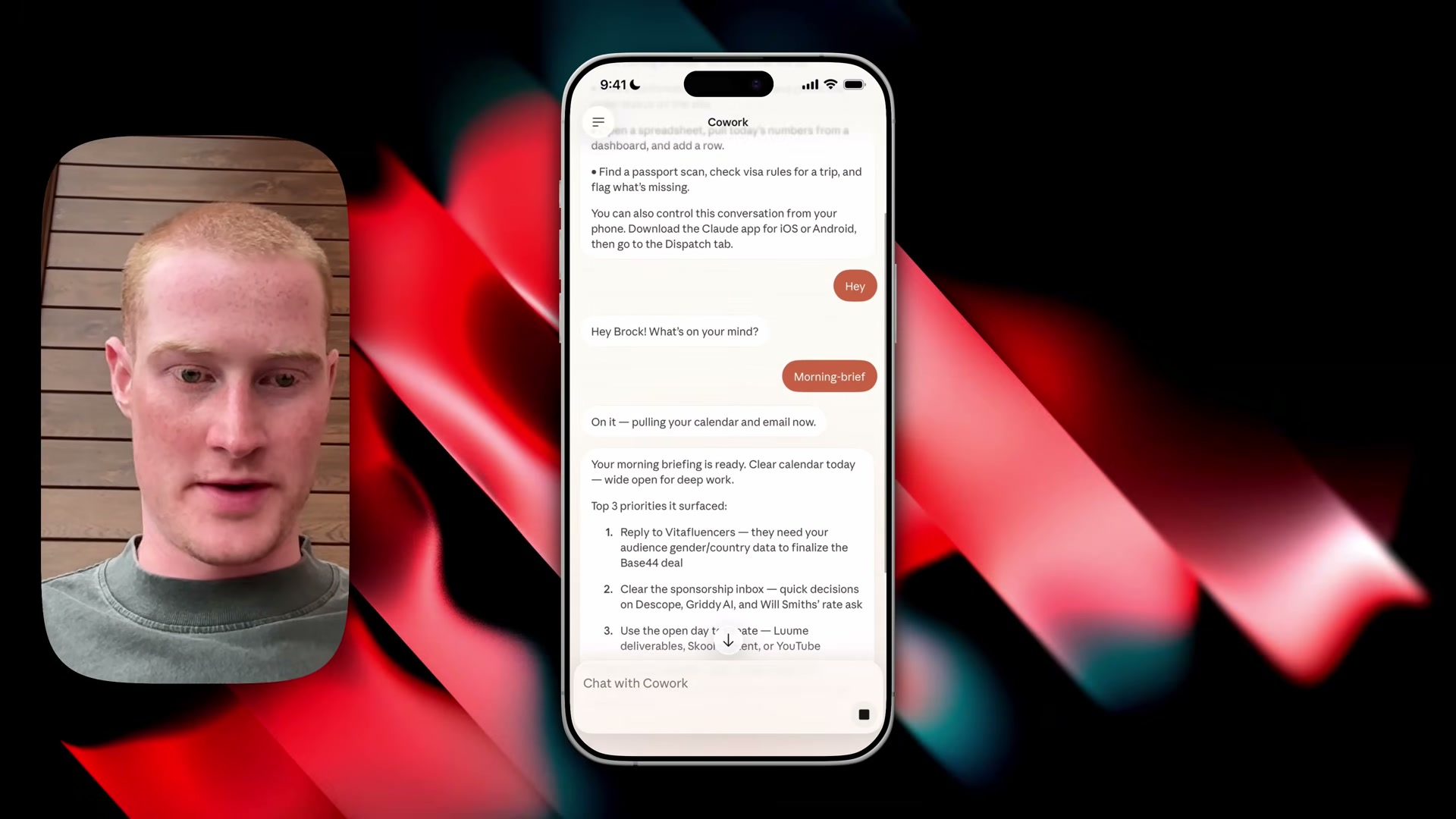
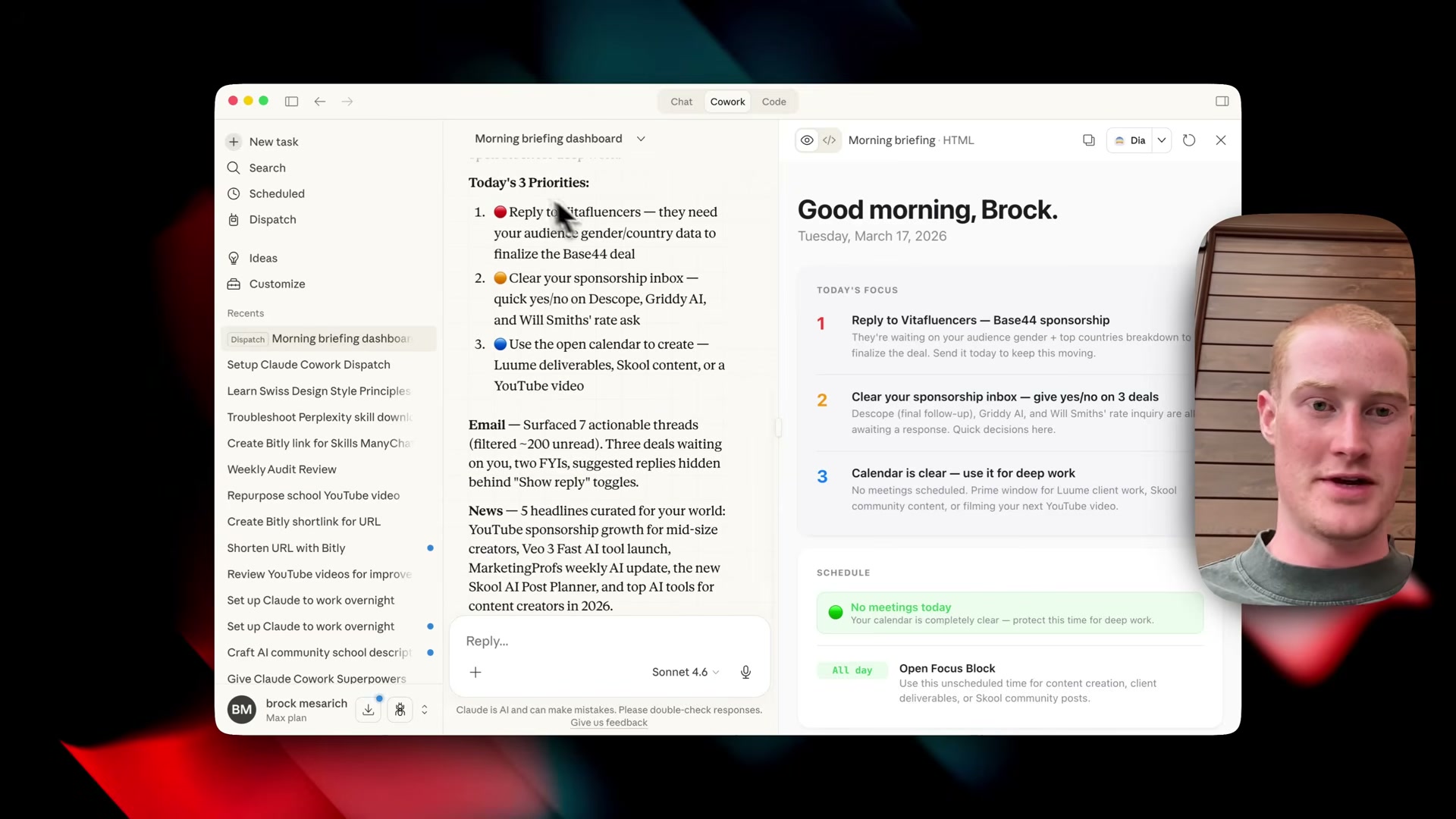
10. Type a natural-language prompt in the mobile chat interface. The task fires on your desktop; results stream back to your phone as text. For example, sending morning-brief triggers a pre-built skill that pulls your calendar and Gmail, then returns a summary to your phone — while the full HTML dashboard renders on your desktop.
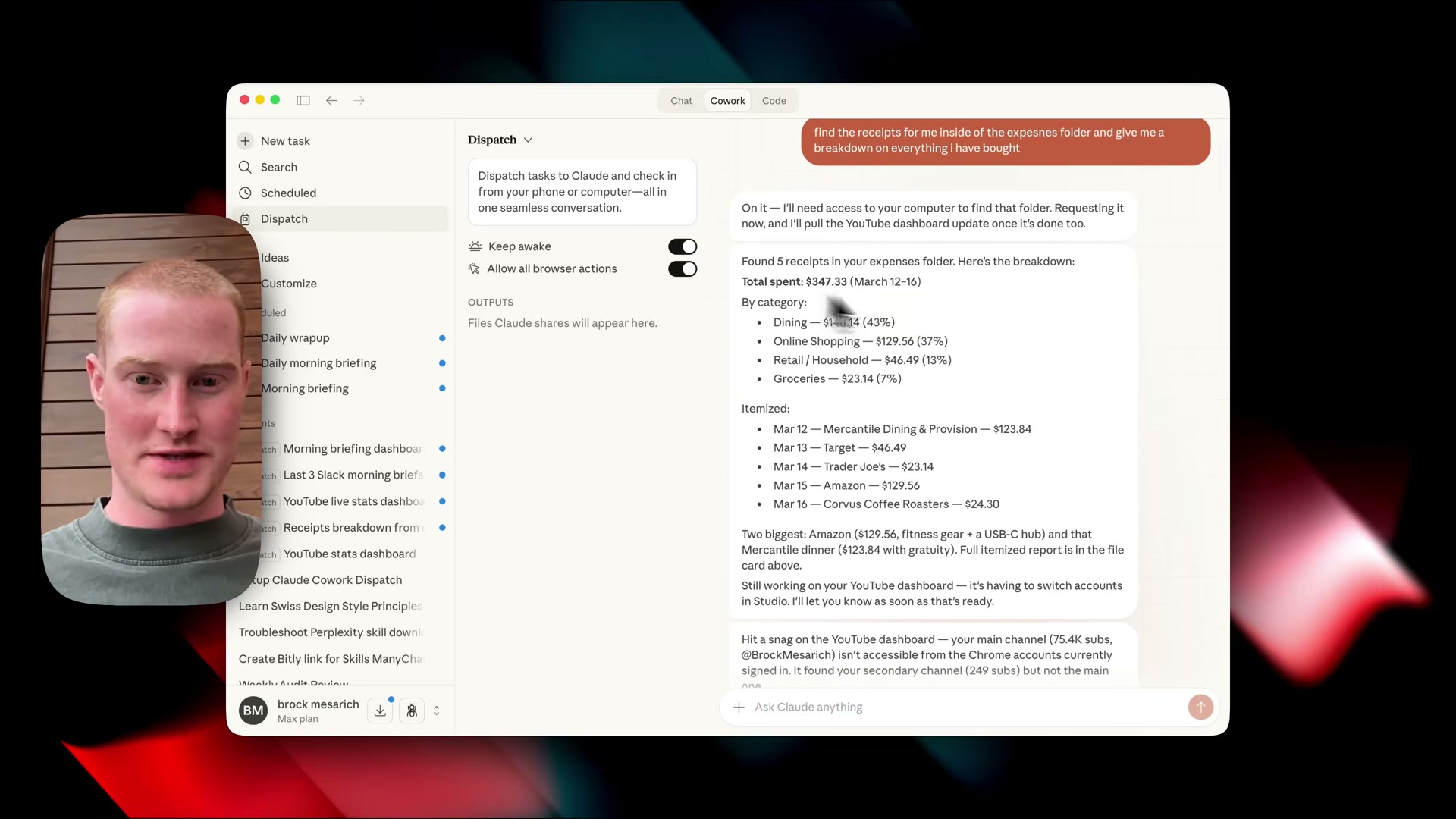
Dispatch also has access to your local file system. Asking it to summarize an expenses folder returns a categorized, itemized breakdown pulled from actual PDFs on your machine — no manual upload required.
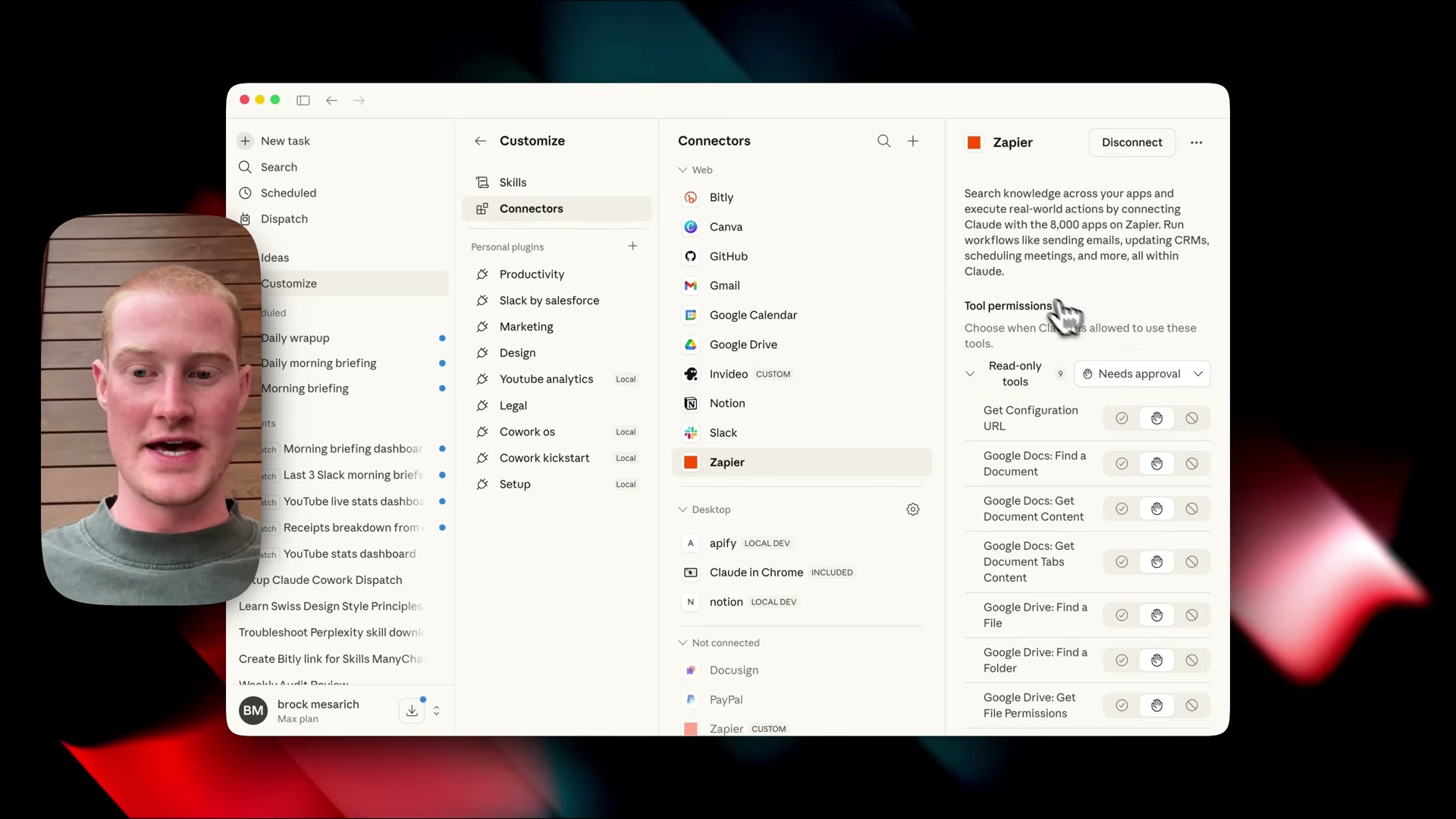
11. To reach apps outside the 38 native connectors, open Zapier MCP, click Add New MCP Server, select Claude Cowork as the client, choose the tools you want, connect your accounts, and copy the generated MCP URL.
12. Back in Cowork desktop, go to Customize → Connectors → Browse Connections, search for Zapier, and click Allow. Use the per-tool permission controls to decide which actions Claude runs automatically and which require your approval.
How does this compare to the official docs?
The video gets you running in under five minutes, but Anthropic’s documentation defines the exact permission scopes, mobile pairing prerequisites, and connector authentication flows that determine whether your setup will hold up in production — and that’s where Act 2 picks up.
Here’s What the Official Docs Show
Act 1 delivers a complete end-to-end walkthrough of Dispatch setup — the sections below add what official documentation confirms, extends, and in two cases corrects about the video’s claims.
Before you begin: The official claude.ai/download page labels Cowork a Research preview and states “agent safety is still in development.” This disclosure is entirely absent from the tutorial — weigh it before any production deployment.
Step 1 — Download the Claude Desktop app
The video’s approach here matches the current docs exactly. Cowork ships inside the standard Claude desktop app — no separate download required. Both macOS and Windows are supported.

Step 2 — Verify your subscription tier
As of March 18, 2026, the correct plan requirement is any paid plan — not Max-only, and not pending a Pro rollout. The official download page popup reads: “Available on all paid plans for Windows and macOS.” The video’s Max-gating claim reflects an earlier state. On pricing: Pro is $17/mo on the annual plan ($200 billed upfront) or $20/mo on monthly billing — the video cites only the monthly rate.


Step 3 — Open Dispatch in the left sidebar
No official documentation was found for this step —
proceed using the video’s approach and verify independently.
The Cowork sidebar visible on claude.ai shows file folder navigation only — no “Schedule Tasks” section or Dispatch button appears in any captured screenshot.

Steps 4–7 — Dispatch setup panel (file access, sleep toggle, Chrome, connectors)
No official documentation was found for these steps —
proceed using the video’s approach and verify independently.
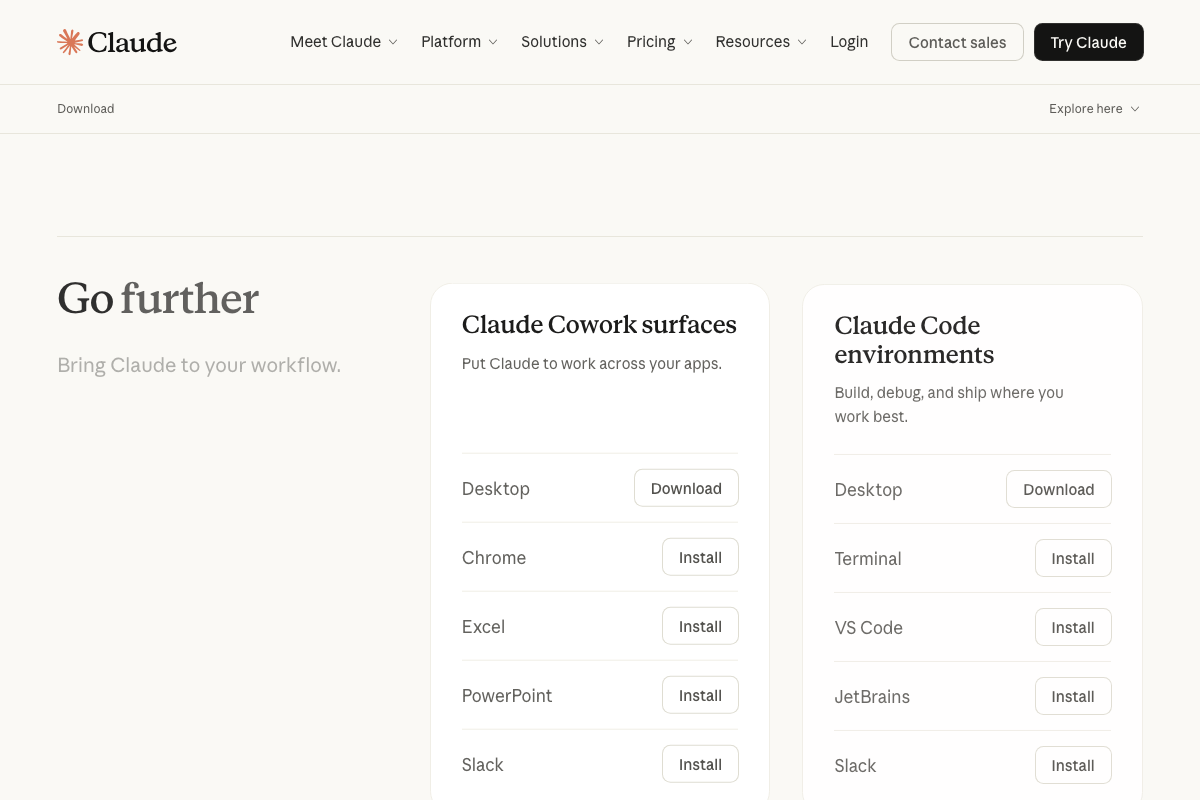
Chrome is confirmed as an official, separately installable Cowork surface on the download page, which supports the Chrome-access step in principle. Notably, the download page also lists Excel, PowerPoint, and Slack as Cowork surfaces — none of which the tutorial mentions.
Step 8 — Download the Claude mobile app
The video’s approach here matches the current docs exactly. The download page confirms iOS support and explicitly describes the mobile app as designed to “pair with the desktop app.”
Steps 9–10 — Pair devices and send your first task
No official documentation was found for these steps —
proceed using the video’s approach and verify independently.
Steps 11–12 — Extend via Zapier MCP
No official documentation was found for the specific Zapier connection flow —
proceed using the video’s approach and verify independently.
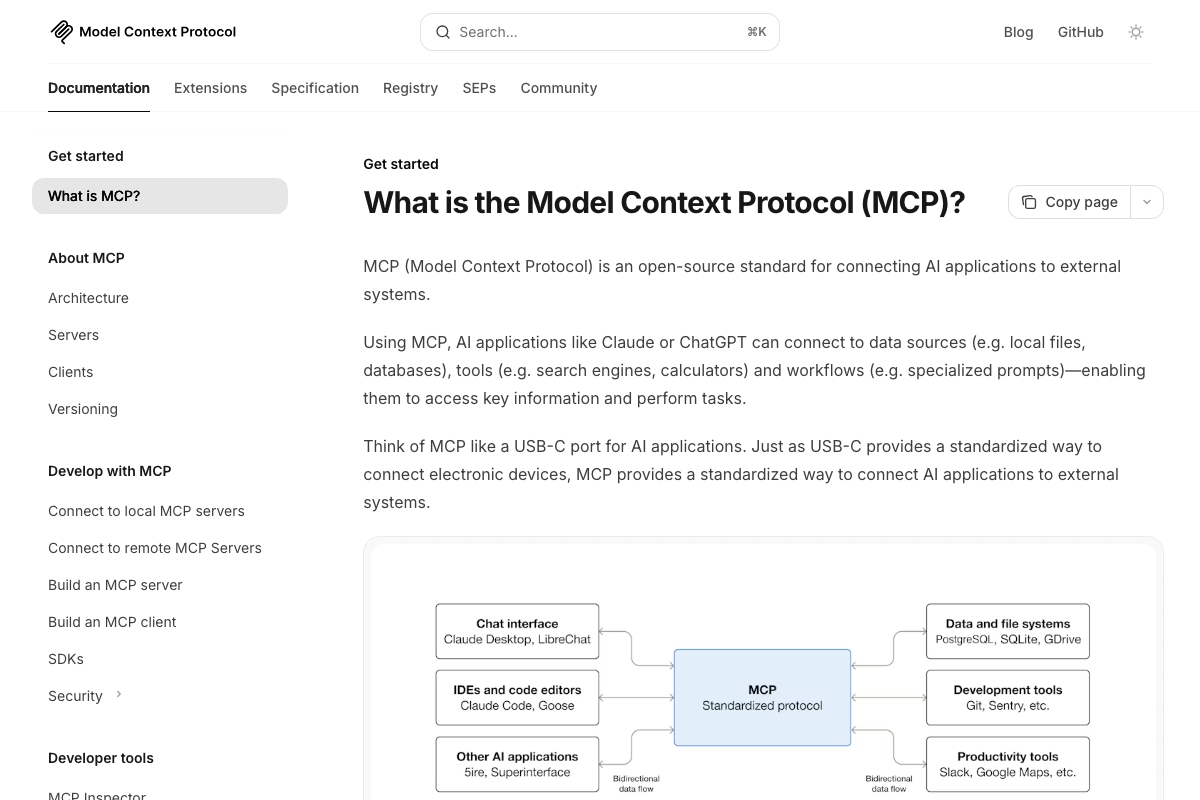
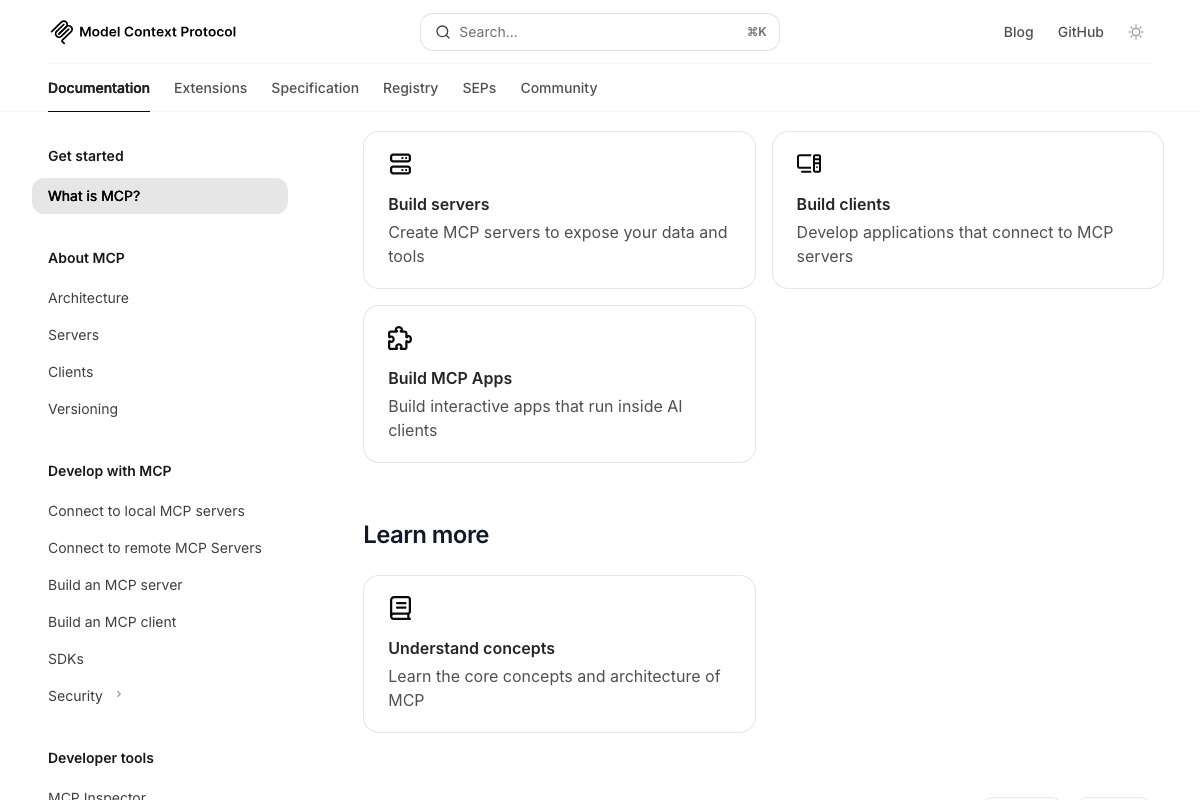
The underlying MCP protocol is well-documented. Claude Desktop is explicitly listed as a supported MCP client in the official architecture diagram, and the URL-based server connection the video describes is consistent with how MCP connections work. One resource the tutorial skips: a public MCP Registry at modelcontextprotocol.io lists available servers — a useful discovery path if you want integrations beyond Zapier.
Useful Links
- Download Claude | Claude by Anthropic — Official desktop (macOS/Windows) and mobile (iOS) download page, including the Research preview disclosure, plan eligibility, and full list of Cowork surfaces.
- Claude — Explore Plans (Pricing) — Official pricing showing Pro at $17/mo (annual) or $20/mo (monthly) and Max from $100/mo.
- Claude — Homepage with Cowork UI Mockup — Claude.ai homepage showing the Chat/Cowork toggle, file-based sidebar, and Cowork Progress task tracker.
- What is the Model Context Protocol (MCP)? — Model Context Protocol — Official MCP architecture documentation listing Claude Desktop as a supported client and providing access to the public server Registry.
- Gmail — Gmail web interface; authentication wall prevented verification of any Cowork connector behavior — confirm Gmail integration steps directly in your own authenticated session.
- Shareable Online Calendar and Scheduling — Google Calendar — Google Calendar product page; confirms it as an integration target for Cowork and MCP workflows, though no connector configuration steps are shown.


0 Comments