

Make Claude Code Sound Exactly Like You
Generic AI content is competent — and completely anonymous. This tutorial shows you how to build three persistent identity files inside Claude Code: a brand voice profile, a body of work document, and a visual brand book exported as a design token file. Complete the process once and Claude has enough context to generate content that reads like you wrote it.
- Create a dedicated brand context folder inside your Claude Code project. Every identity file you build lives here, and Claude reads this folder automatically before generating any content.

-
Run the
/marketing-brand-voiceslash command inside Claude Code and tell it you want to create your brand voice. The skill handles the rest of the session from here. -
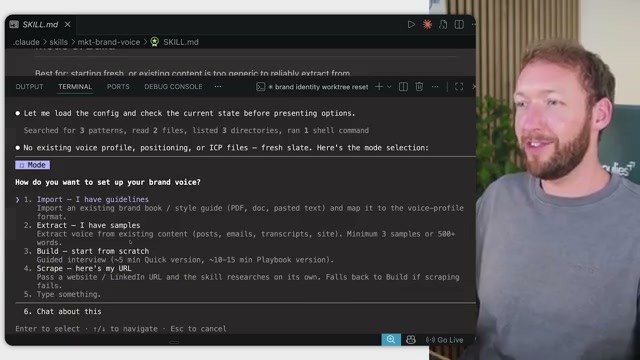
Choose your setup mode when Claude Code presents the menu. Import loads an existing brand guidelines document. Extract lets you paste raw content samples directly. Build walks you through a 10–15 minute Q&A playbook from scratch. Scrape pulls from a live URL like your LinkedIn profile or website, but requires compatible scraper tools to already be configured in your environment.
Warning: this step may differ from current official documentation — see the verified version below.
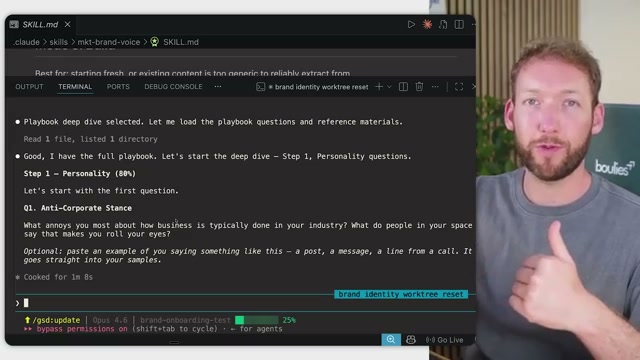
- Work through the personality section of the playbook — roughly 80% of any distinctive brand voice lives here. Answer questions about what frustrates you in your industry, the stance you take on how business gets done, and how you naturally respond when someone brings you a problem. Claude Code uses the
AskUserQuestionfeature to serve these as multiple-choice prompts or free-text inputs.
-
Complete the strategic framework section. Describe your ideal client in specific terms, the exact pain that makes them open your email or click your post, the tone they already trust, and the vocabulary that would immediately put them off.
-
Paste real content samples from wherever you actually sound like yourself — LinkedIn posts, landing page copy, blog writing, or a transcribed podcast or video recording. A first-person transcript you’ve recorded yourself carries the highest signal. Skipping this step is valid but produces a noticeably weaker output.
-
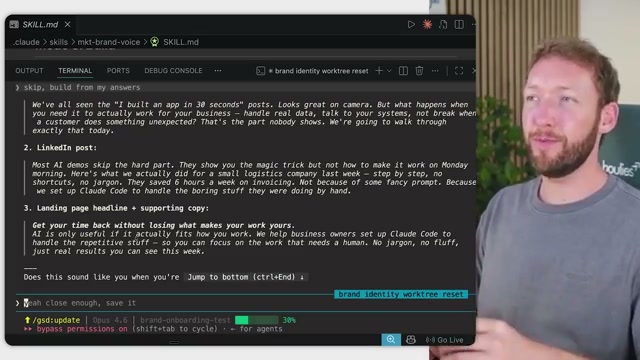
Review the three generated voice test samples Claude Code produces: an email opening, a LinkedIn post, and a landing page headline. Iterate until the output feels like something you could have written. Treat this as a calibration pass — the file evolves as you use it.
-
Save the confirmed output as
voice_profile.mdinside your brand context folder. -
Open a new session and prompt Claude Code to build a body of work document collaboratively, feeding it your past long-form posts, video transcripts, sales pages, and conversation history from the last 30–90 days.

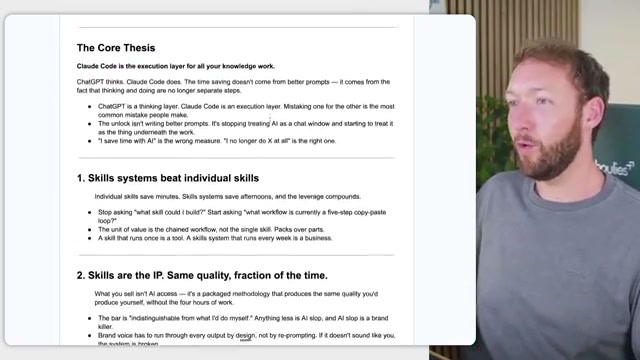
- From that content pool, Claude Code extracts recurring themes, surfaces a single-line core thesis, and builds out 7–12 foundational opinions that underpin it. Review and refine each one before accepting.
-
Save the output as a standalone markdown file. This becomes the belief-system layer every future content prompt draws from.
-
Assemble or reverse-engineer a visual brand book covering your color palette, typography choices, logo usage rules, and core brand values.
-
Export those visual guidelines as a
tokens.jsonfile so Claude Code can reference locked design decisions when generating visual assets.
Warning: this step may differ from current official documentation — see the verified version below.
How does this compare to the official docs?
The /marketing-brand-voice skill and tokens.json export pattern are community-built conventions layered on top of Claude Code’s native file-reading behavior — Act 2 examines what Anthropic’s documentation actually recommends for persistent context architecture and where these approaches align or diverge.
Here’s What the Official Docs Show
The video walks through a genuinely useful workflow for persistent brand identity in Claude Code, and the steps are worth following — this section adds the context you need to do it with clear eyes, since documentation coverage for several steps was limited or unavailable at the time of verification.
Step 1 — Sign In and Access Claude Code
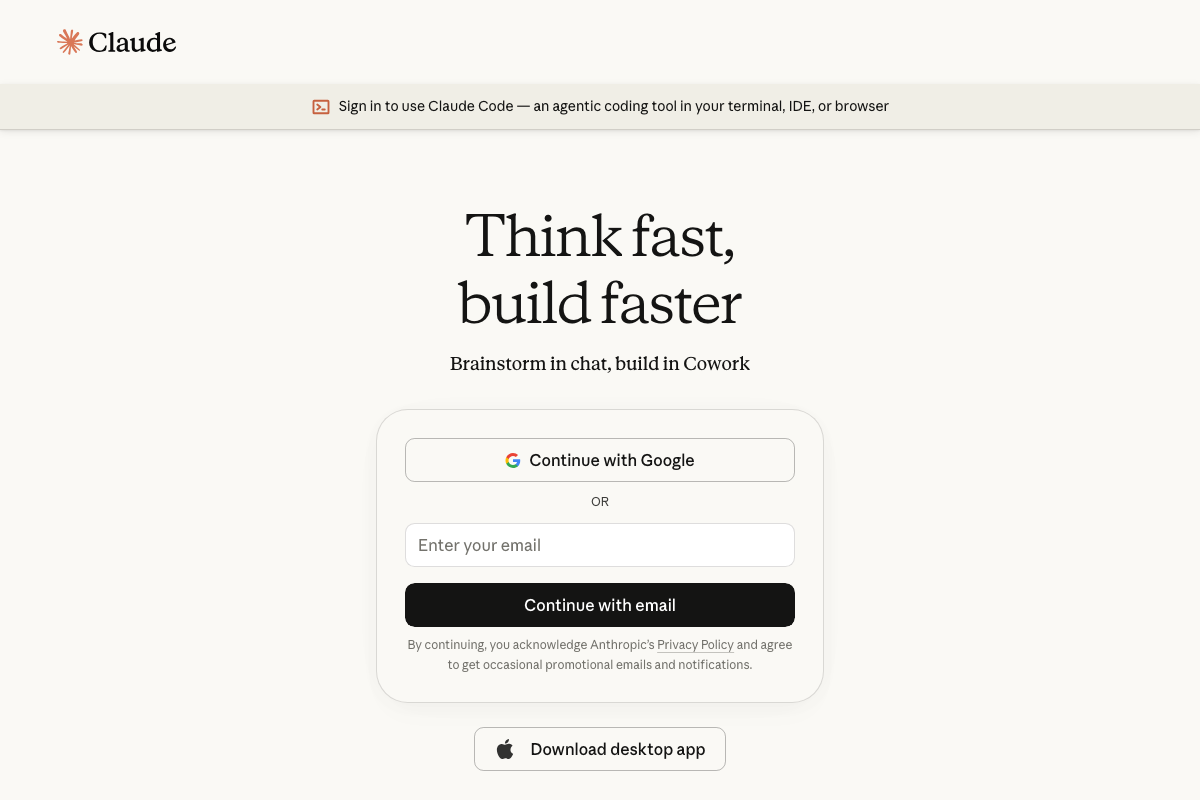
The video’s approach here matches the current docs exactly. Claude Code is accessible at claude.ai/code and requires authentication before any session begins. One detail the video doesn’t address: Claude Code is officially categorized as “an agentic coding tool in your terminal, IDE, or browser” — not a marketing or brand voice platform. That doesn’t mean it can’t do this job; it means the brand voice workflow you’re building is a custom application layered on top of a general-purpose tool, not a native product feature.
Step 2 — Run the /marketing-brand-voice Command
No official documentation was found for this step — proceed using the video’s approach and verify independently.
The /marketing-brand-voice command does not appear in any official Claude Code documentation captured in these screenshots. It is not a native built-in command. This appears to be a custom slash command created by the tutorial author — likely installed as a project-level skill. If you don’t see it when you open Claude Code, that’s expected. You’ll need to either install the author’s custom skill or replicate the underlying prompt logic manually.
Step 3 — Choose Your Setup Mode (Import / Extract / Build / Scrape)
No official documentation was found for this step — proceed using the video’s approach and verify independently.
The four-mode setup menu (Import, Extract, Build, Scrape) is part of the custom slash command workflow, not a native Claude Code interface. The Scrape mode in particular carries a real dependency caveat the video mentions only briefly: compatible scraper tools must already be configured in your environment before that path works.
Step 4 — Complete the Personality Playbook
No official documentation was found for this step — proceed using the video’s approach and verify independently.
Step 5 — Complete the Strategic Framework Section
No official documentation was found for this step — proceed using the video’s approach and verify independently.
Step 6 — Paste Real Content Samples from LinkedIn and Elsewhere

The video’s approach here matches the current docs exactly in one important respect: LinkedIn exists and requires authentication to access personal content. However, none of the available screenshots show where LinkedIn’s post history or data export lives once you’re signed in. To pull your own posts as voice samples, you’ll need to navigate to Settings → Data Privacy → Get a copy of your data after logging in — that feature is not surfaced on the public homepage the video glosses past.
Step 7 — Review and Iterate on Voice Test Samples
No official documentation was found for this step — proceed using the video’s approach and verify independently.
Steps 8–13 — Save Files, Body of Work, Core Thesis, and tokens.json Export
No official documentation was found for this step — proceed using the video’s approach and verify independently.
One material clarification for the full file-saving workflow across steps 8–13: Claude Code’s file-reading behavior is real and documented at a general level, but the specific file names (voice_profile.md, tokens.json) and folder conventions the video prescribes are community conventions, not Anthropic specifications. They work because Claude Code reads files you provide — not because the platform expects those exact names.
A second practical note: the video does not specify which Claude plan tier is required. As of June 2026, Claude offers Free, Pro ($17–20/month), and Max ($100+/month) tiers.
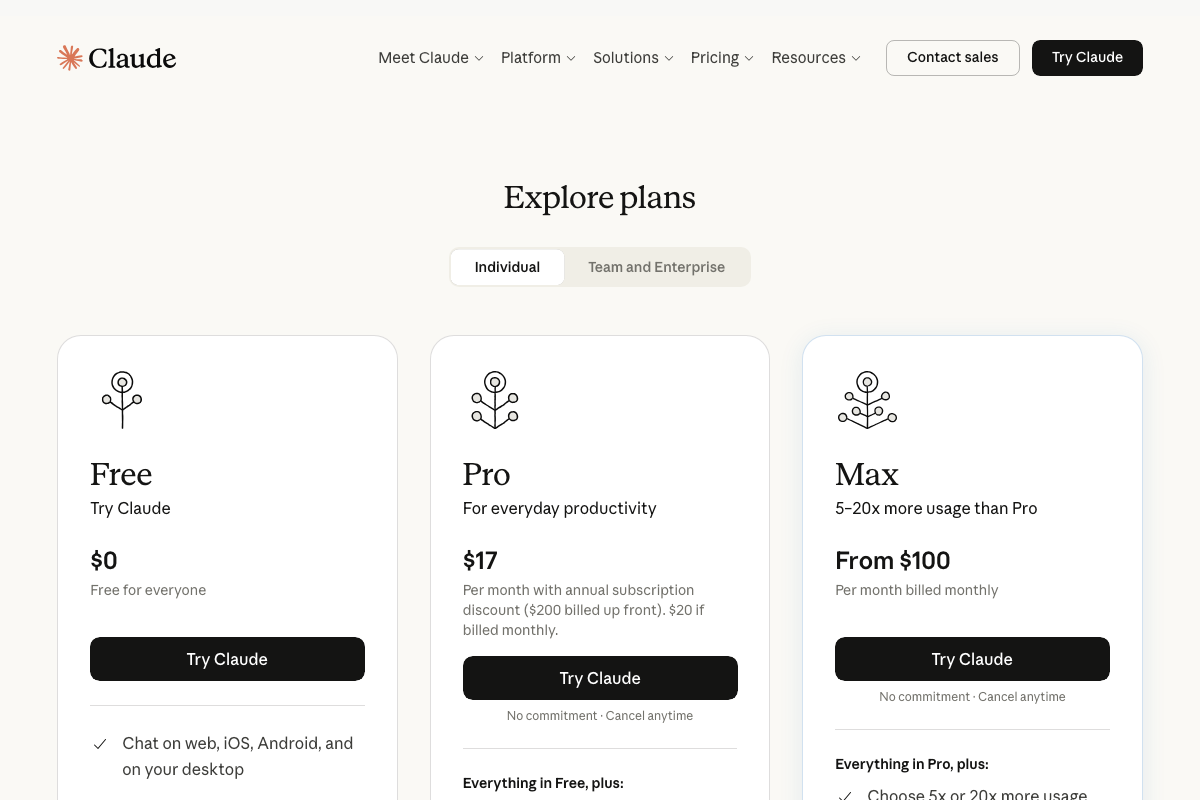
Heavy iteration workflows like the ones in steps 9–11 may exhaust usage limits on lower tiers. The Max plan offers 5–20× more usage than Pro and is worth considering if you’re running long body-of-work extraction sessions.
Useful Links
- Sign in – Claude — Official Claude Code access point; confirms product existence and authentication options
- Overview – Claude Code Docs — Official Claude Code documentation overview page (content did not render at time of capture — check directly)
- LinkedIn: Log In or Sign Up — LinkedIn homepage; sign in and navigate to Settings → Data Privacy to export your post history for use as voice samples


0 Comments