

Install Anthropic’s 31-Skill Small Business Plugin in Claude Co-work
After completing this tutorial, you’ll have Anthropic’s Small Business plugin running inside the Claude desktop app, with live connections to QuickBooks, Stripe, Gmail, and other tools ready to fire. You’ll know how to trigger the Business Pulse and Invoice Chase skills against real business data — and how to read the output each one returns.
-
Download the Claude desktop app from the link in the video description. Both Mac and Windows builds are available; install the version that matches your operating system.
-
Open the app. The default view is the standard chat interface, which is not what you need here. In the left sidebar, locate the checklist icon next to the “Chat” label — that icon is the entry point to Co-work mode.
-
Click the checklist icon. If this is your first session, Claude prompts you to connect a working directory. Choose an existing folder or create a new one dedicated to Co-work tasks — Claude uses it as file context during agentic runs.
-
Click Customize in the left sidebar. Three sub-areas appear: Skills, Connectors, and Personal Plugins. Skills are individual workflows; Connectors are your authenticated app accounts; Personal Plugins are bundled skill packs.
-
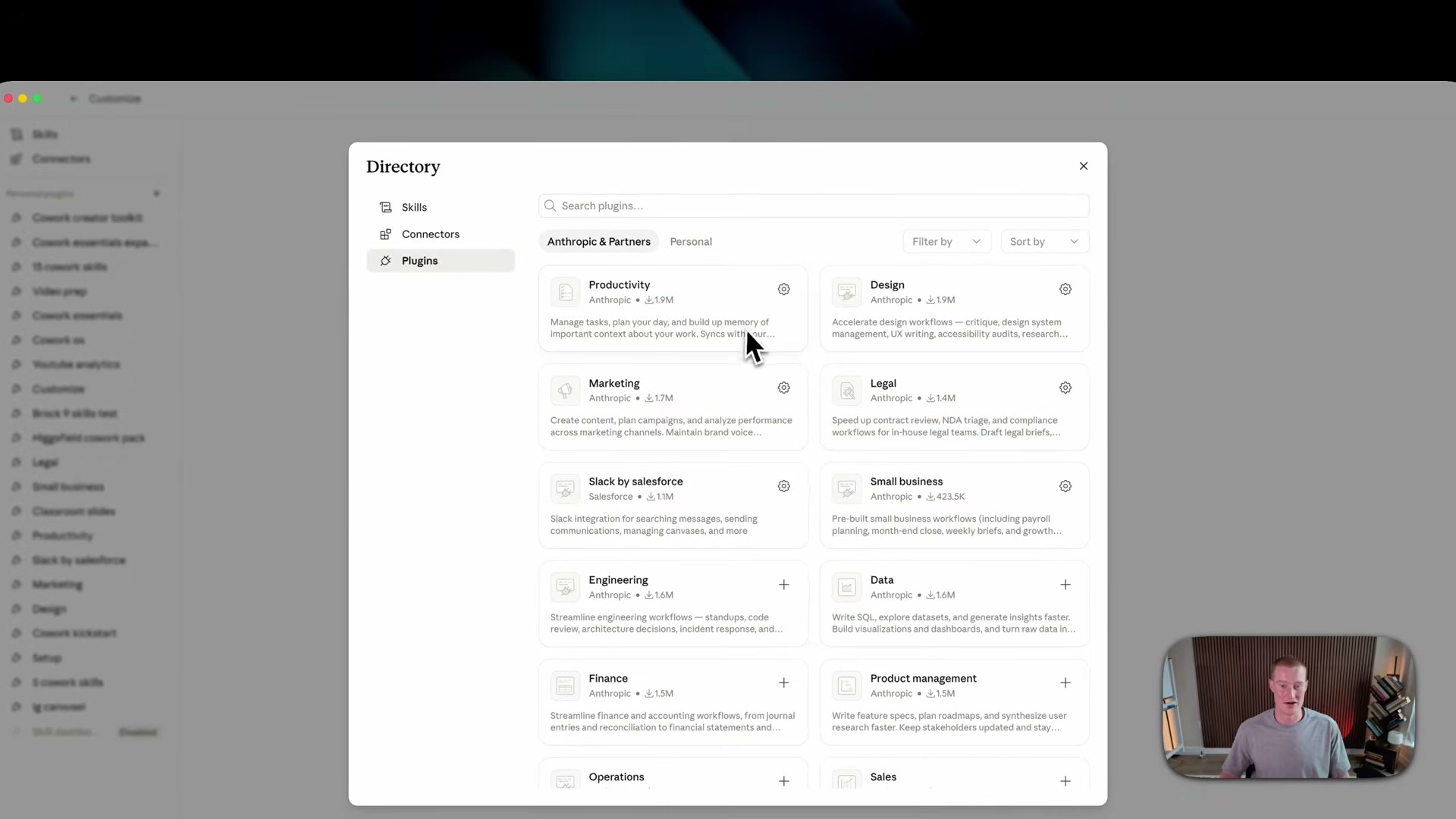
Click the + button, then select Browse Plugins. The marketplace opens with plugins from Anthropic and third-party partners — including Figma, Zoom, Adobe, and Anthropic-curated packs for productivity, design, marketing, and legal work.
-
Scroll to the Small Business entry — listed at 423,000 downloads at the time of the video — and click Download. Installation is immediate; no configuration wizard runs at this stage.
-
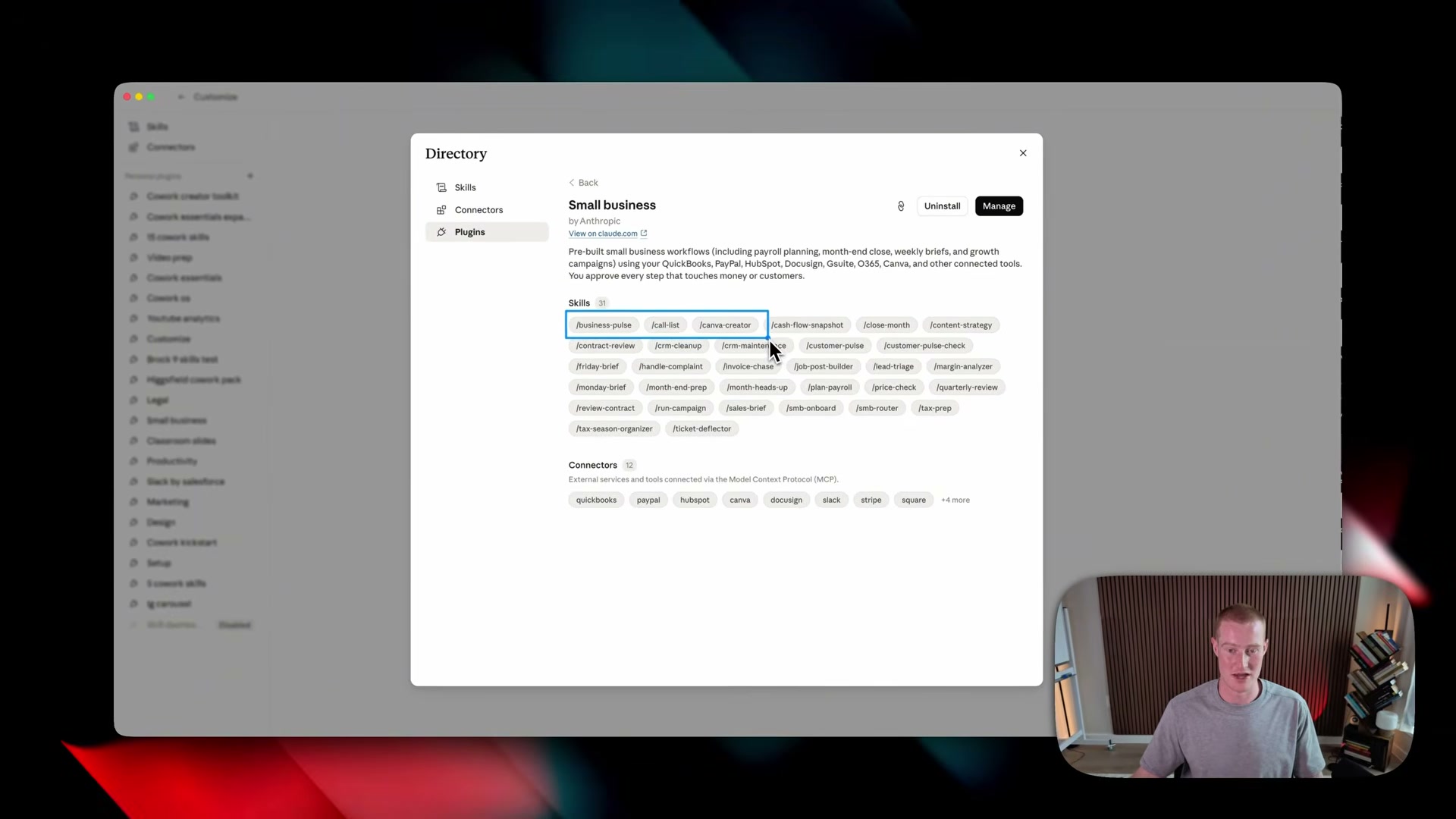
Open Personal Plugins in the sidebar and click the Small Business entry. All 31 slash-command skills appear as pill badges:
/business-pulse,/invoice-chase,/cash-flow-snapshot,/contract-review, and 27 more, alongside 12 supported connectors.
-
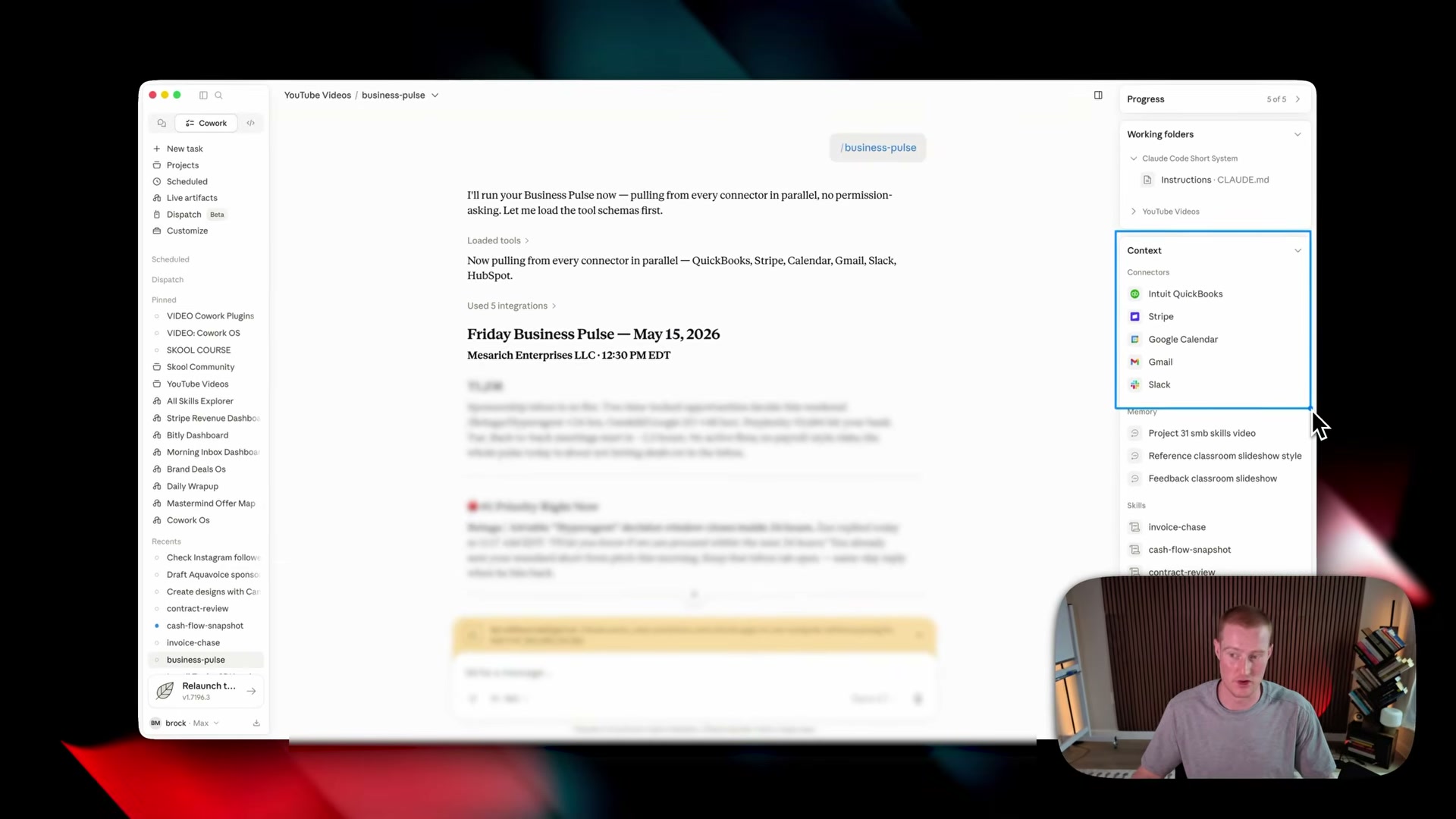
Open Connectors and authenticate every app you want the skills to access — QuickBooks, Stripe, PayPal, HubSpot, Gmail, Google Calendar, Slack, Microsoft Teams. Unconnected apps appear with a hollow status indicator in skill output rather than causing errors, so partial setups still run.
-
In Co-work’s chat input, type
business pulse. Claude fires parallel requests to every connected app simultaneously — pulling QuickBooks financials, Stripe payment history, Gmail threads, and calendar events in one pass — then synthesizes a dated, one-page report with a TL;DR, your top priority, a cash snapshot, pipeline status, and a Watch List of proactively flagged risks.

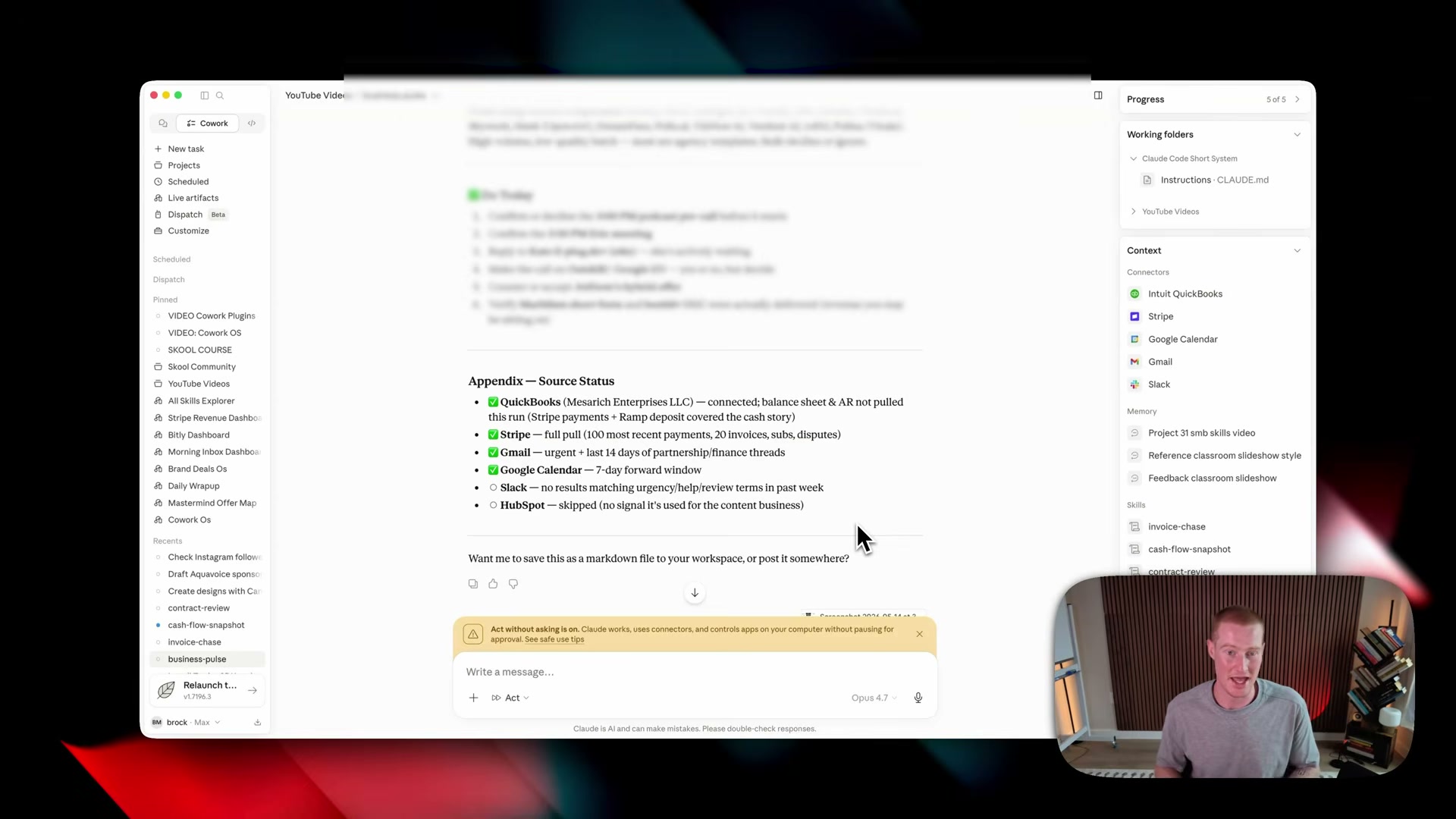
The report closes with an Appendix — Source Status table listing each connector, what data was pulled, and what was skipped. This auditability layer makes it straightforward to spot missing connections without re-running the skill.
- Type
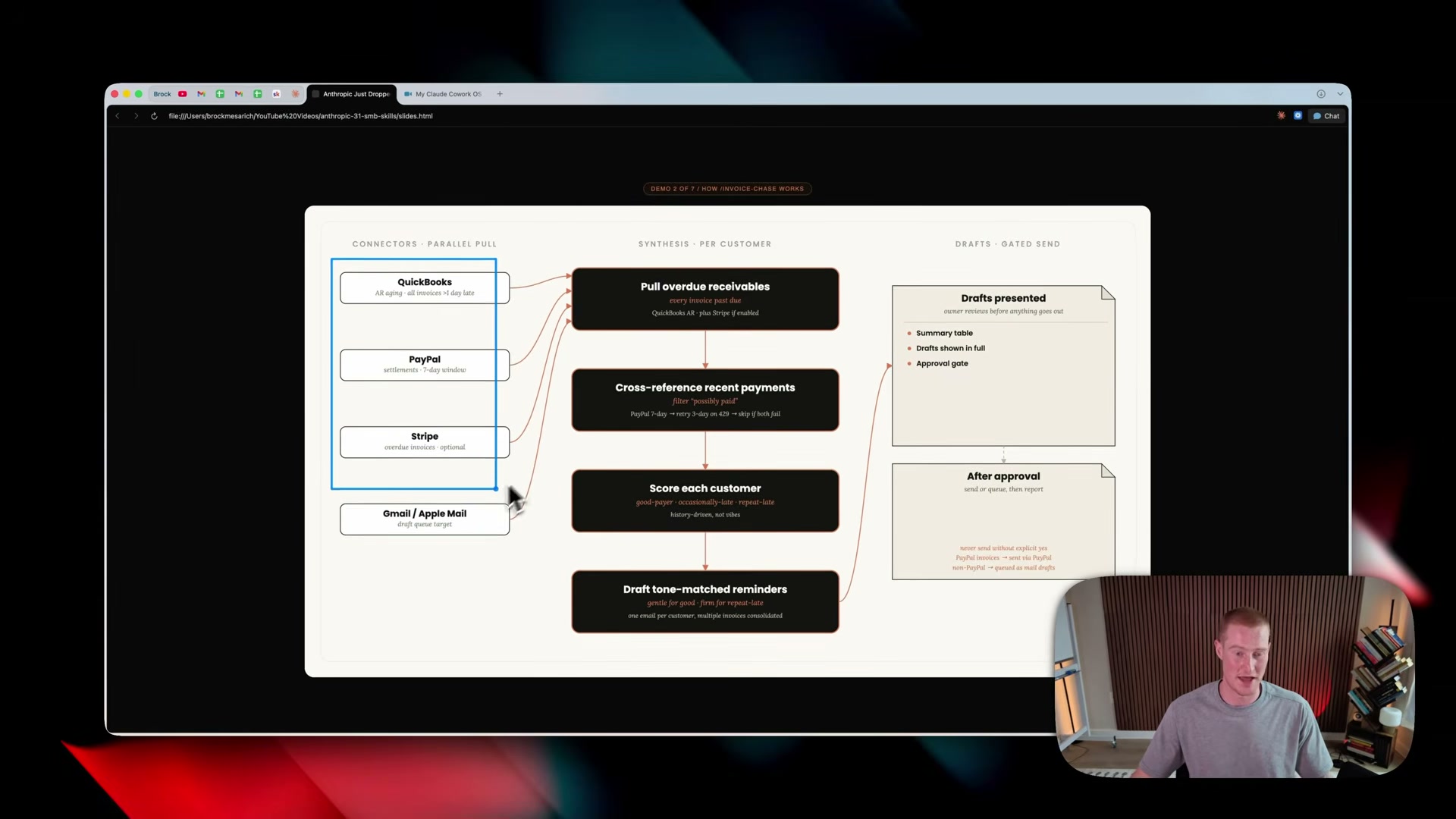
invoice chase. Claude asks three setup questions: which email client to use, whether to include Stripe data, and your overdue threshold in days. The skill pulls accounts receivable from QuickBooks and PayPal, cross-references recent payment activity, scores each customer — good payer, occasionally late, or repeat late — and drafts tone-matched reminder emails matched to each score.
-
Review the scored customer list and the drafted emails Claude returns. The skill holds at an approval gate — nothing sends until you type
send. This human-in-the-loop checkpoint is part of the skill’s architecture, not an optional add-on. -
Type
job post builderand supply role title, seniority level, and compensation range. The skill generates a structured job posting from those three inputs.
How does this compare to the official docs?
The video captures the Small Business plugin and Co-work interface at release, but Anthropic’s connector setup flow, plugin directory layout, and skill invocation syntax may have changed — the official documentation is where to verify what’s current before you build production workflows on top of it.
Here’s What the Official Docs Show
Act 1 gives you a solid orientation to the workflow — and the first step is grounded in current reality. The documentation adds a few important prerequisites and naming corrections the video skips, and leaves a significant portion of the tutorial unverified by any official source.
Step 1 — Download the Claude desktop app
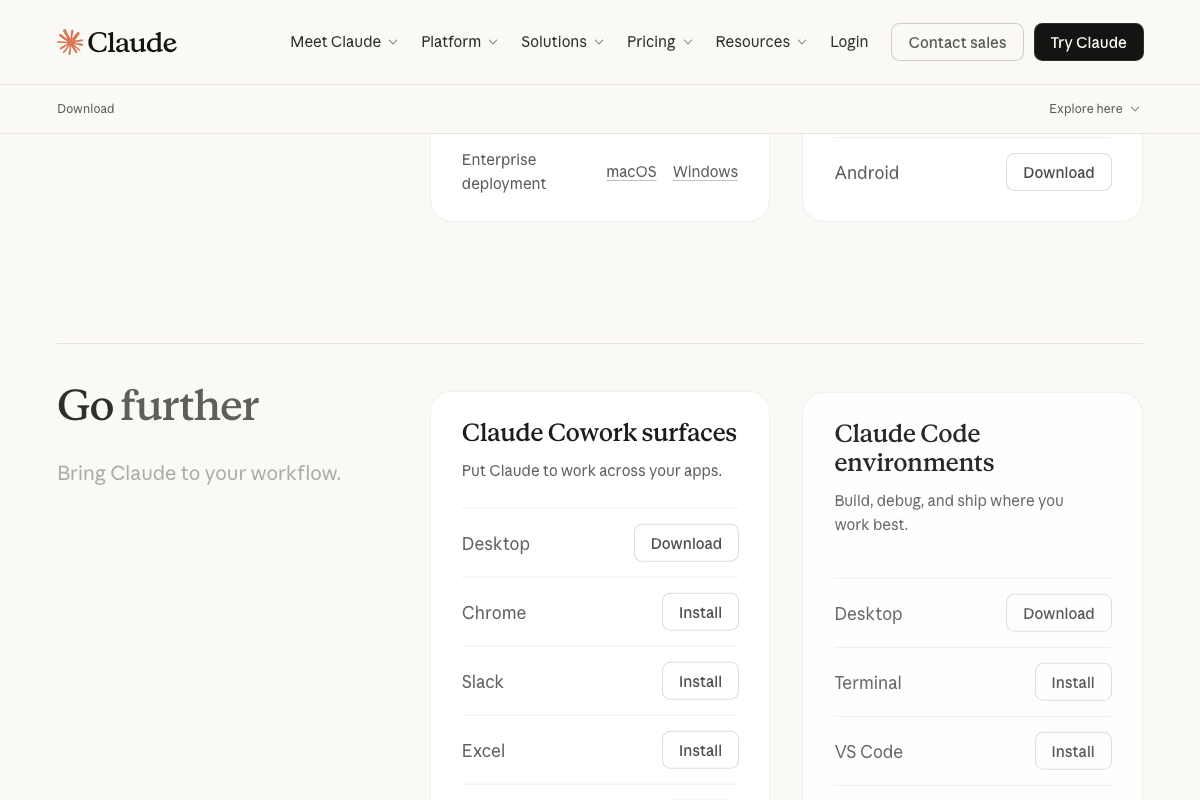
The video’s approach here matches the current docs exactly — for macOS. Go directly to claude.ai/download; no video description link required.
Two points worth correcting before you go further: The official product name is Claude Cowork (one word, no hyphen) — not “Co-work mode.” And as of May 2026, the Windows download on the official page is listed exclusively under Enterprise deployment. The primary consumer download button is macOS only — the video presents both platforms as equivalent options.
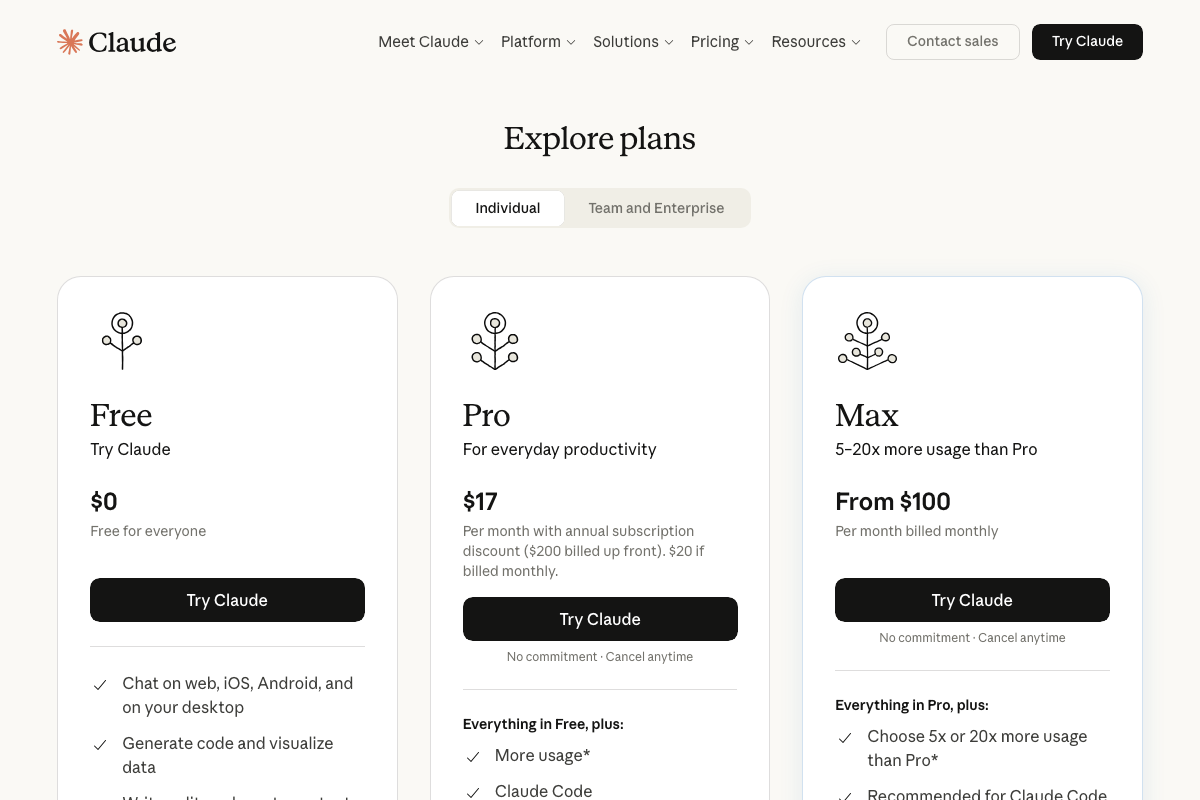
One more prerequisite the tutorial skips entirely: the claude.ai pricing page shows three plan tiers — Free, Pro ($17/mo), and Max (from $100/mo). It is not disclosed in the tutorial which plan is required to access Cowork or the plugin marketplace. Confirm your subscription level before building any workflows on top of this setup.

Steps 2–7 — Opening Cowork, the Customize panel, and installing the Small Business plugin
No official documentation was found for these steps —
proceed using the video’s approach and verify independently.
Step 8 — Connecting your apps
No official documentation was found for this step —
proceed using the video’s approach and verify independently.
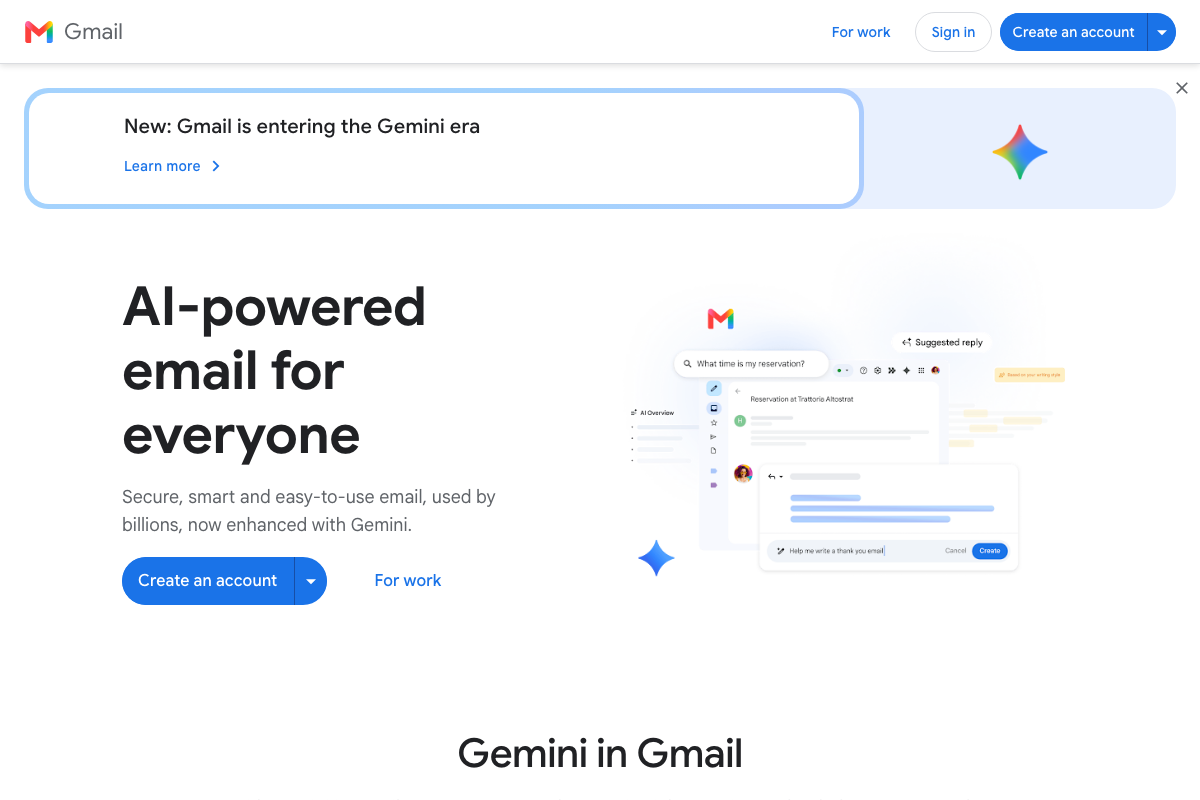
One distinction the tutorial doesn’t surface: Gmail and Google Calendar run Google Gemini as their native AI layer. Claude Cowork would connect to both services via their respective APIs as a third-party integration — entirely separate from Google’s own Gemini features. You’re accessing the same underlying data through a different channel, not replacing anything Google already does.
Steps 9–12 — Business Pulse, Invoice Chase, and Job Post Builder
No official documentation was found for these steps —
proceed using the video’s approach and verify independently.


Useful Links
- Download Claude | Claude by Anthropic — Official Claude desktop app download page; confirms macOS availability and the ‘Claude Cowork’ product name.
- Sign in – Claude — Claude.ai sign-in page and pricing tiers; verify your plan supports Cowork and plugin access before starting setup.
- Stripe | Financial Infrastructure to Grow Your Revenue — Stripe’s platform, referenced as an Invoice Chase connector target for pulling overdue invoice and billing data.
- Gmail: Secure, AI-Powered Email for Everyone | Google Workspace — Gmail’s feature page; native AI is Gemini — any Cowork integration connects separately via the Gmail API.
- Shareable Online Calendar and Scheduling – Google Calendar — Google Calendar product page; native AI is Gemini — Cowork would use the Calendar API as an independent integration.
- HubSpot | Software & Tools for your Business – Homepage — HubSpot CRM homepage, referenced as a Business Pulse connector target; no Claude integration is shown.
- Slack developer docs | Slack Developer Docs — Slack’s API documentation providing technical context for the Cowork Slack connector’s underlying integration layer.


0 Comments