

Control Who Can AI-Remix Your YouTube Shorts
YouTube’s Gemini Omni feature lets any creator use AI to visually remix your Shorts — inserting new faces, swapping backgrounds, and generating entirely new videos from your content. By default, this permission is enabled on every video across your channel. After following these steps, you’ll know exactly where the remixing controls live in YouTube Studio, how to restrict or disable them per-video, and how to apply bulk changes across an existing back-catalog.
![A Gemini Omni-remixed Short displays 'Reimagined from @[channel]' and an AI badge directly in the Shorts feed.](https://marketingagent.blog/wp-content/uploads/2026/05/frame_0004-42.jpg)
- Open YouTube Studio and navigate to the analytics page for any Short you’ve published.

-
Select the Engagement tab and scroll to the Remix panel. This panel lists every creator who has remixed that specific Short — a useful audit to run before making any permission changes.
-
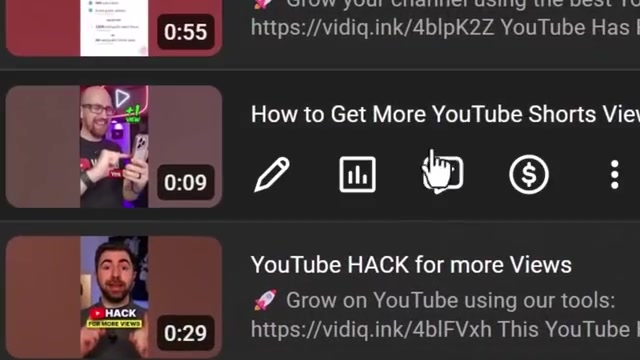
Return to the main Content screen in YouTube Studio. Locate the Short whose permissions you want to change and click the remix icon in the video row to go directly to its details page.
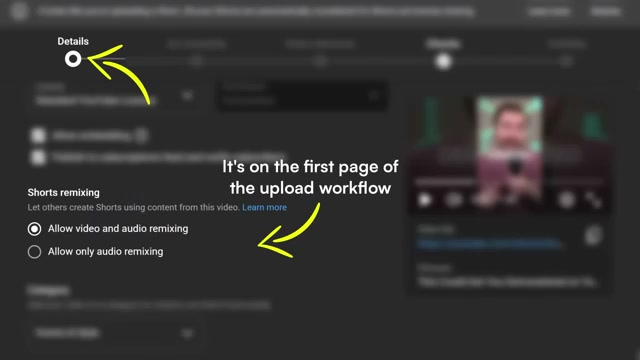
- Inside the video details, scroll to the bottom of the page to find the Shorts remixing section. The default state is Allow both video and audio remixing.
- To block AI-generated visual remixes while preserving audio remixing, change the setting to Audio only. To opt out entirely, select Don’t allow remixing.
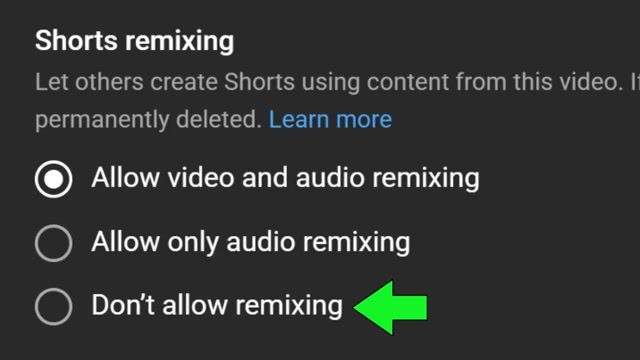
- Switching away from Allow both video and audio remixing permanently deletes all existing remixes of that Short. This action cannot be undone.
Warning: this step may differ from current official documentation — see the verified version below.
-
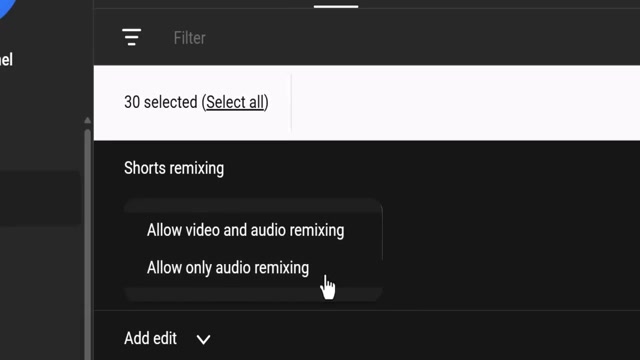
To update multiple Shorts at once, go back to the Content screen and use the checkboxes to select up to 30 Shorts at a time.
-
Open the Edit dropdown, choose Shorts remixing, and apply your preferred setting to all selected videos simultaneously.
-
For long-form videos, a separate remixing toggle exists within each video’s details page. It defaults to fully enabled — disable it if you want to restrict non-AI remixing of your longer content as well.
-
On mobile, tap the three dots next to any video in the YouTube Studio app, select Edit, swipe down to Community settings, and tap Shorts remixing to adjust the permission from your phone.
How does this compare to the official docs?
The official documentation tells a different story about where these settings surface and what conditions actually trigger that irreversible deletion — and the gap matters before you make bulk changes across a large catalog.
Here’s What the Official Docs Show
The video maps a plausible path through YouTube Studio’s remix permission controls, and Act 1 covers the navigation clearly. This act layers in documentation verification — confirming what could be cross-referenced, flagging what couldn’t, and calling out one step where the official source has gone dark entirely.
Step 1 — Open YouTube Studio and navigate to a Short’s analytics
No official documentation was found for this step — proceed using the video’s approach and verify independently.
Step 2 — Find the Remix panel under the Engagement tab
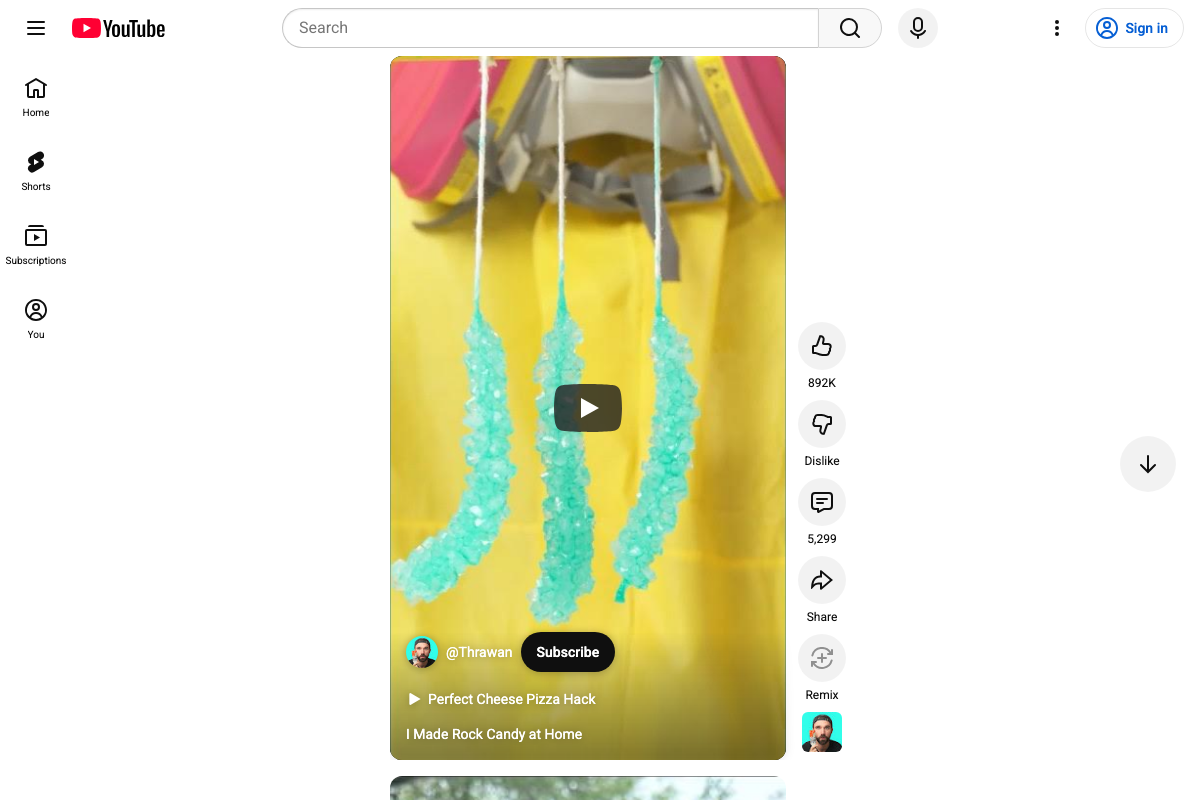
The Remix button exists as a labeled, discrete control in the public-facing Shorts viewer — positioned in the right action rail below Like, Dislike, Comments, and Share. A remixer avatar appears below it when at least one remix exists, confirming that remixes surface directly to viewers.
The video’s approach here matches the current docs exactly.
Step 3 — Click the remix icon from the Content screen
No official documentation was found for this step — proceed using the video’s approach and verify independently.
Steps 4–5 — Locate Shorts remixing on the Details page and adjust the setting
No official documentation was found for this step — proceed using the video’s approach and verify independently.

Step 6 — Permanent deletion warning when changing permissions
No official documentation was found for this step — proceed using the video’s approach and verify independently.
Steps 7–8 — Bulk-edit remix permissions across up to 30 Shorts
No official documentation was found for this step — proceed using the video’s approach and verify independently.
Step 9 — Disable remixing on long-form videos
No official documentation was found for this step — proceed using the video’s approach and verify independently.
Step 10 — Adjust permissions in the YouTube Studio mobile app
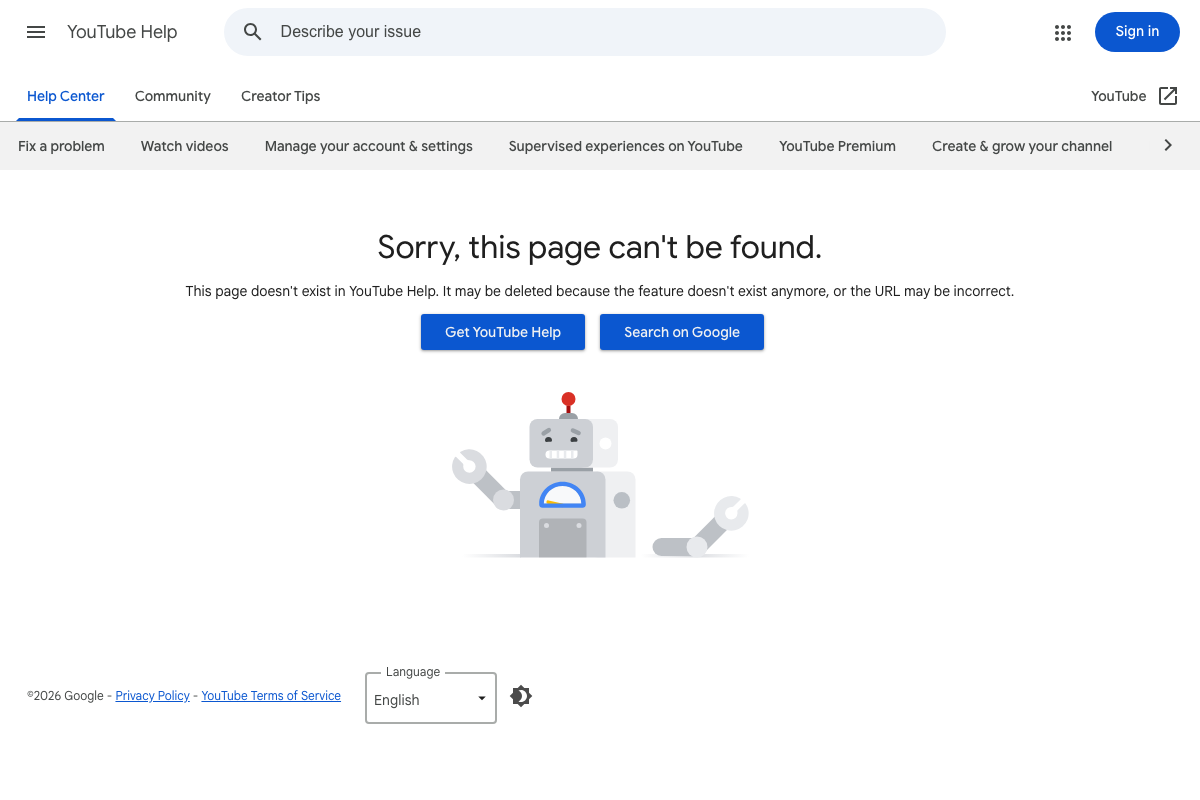
As of May 31, 2026, the official YouTube Help article for the YouTube Studio mobile app (support.google.com/youtube/answer/9449243) returns a 404. YouTube Help’s own error message states the page “may be deleted because the feature doesn’t exist anymore.” The mobile workflow shown in the video cannot be verified against official documentation.
A note on the Gemini Omni framing
No article specifically about Gemini Omni AI remixing of Shorts appeared on blog.youtube at time of capture — not on the homepage, in the AI category filter, or in any listed posts. The tutorial’s attribution of visual remix capability to Gemini Omni could not be confirmed against official sources.
Useful Links
- Overview – YouTube Help — YouTube Studio help topic page; returned a Google sign-in wall at time of capture.
- YouTube Studio — Creator dashboard for managing videos, content settings, and permissions; requires authentication to access any UI.
- Get started creating YouTube Shorts – YouTube Help — Help article URL that redirected to the public Shorts viewer rather than a documentation page at time of capture.
- YouTube Shorts — Public-facing Shorts feed where the viewer-side Remix button is confirmed present in the action sidebar.
- Official YouTube Blog — YouTube’s official announcements hub, including a dedicated AI category where Gemini-related feature releases would likely appear.
- YouTube Studio mobile app – YouTube Help — Official help article for the YouTube Studio mobile app; returns a 404 as of May 31, 2026.


0 Comments