

Use the Free ChatGPT Add-in in Microsoft PowerPoint
OpenAI’s official ChatGPT add-in runs as a persistent sidebar directly inside Microsoft PowerPoint — no tab-switching, no copy-pasting between tools. After completing this walkthrough, you’ll know how to install the add-in, generate a full multi-slide deck from your own source files, and work through ChatGPT’s four core features: Build, Update, Understand, and Polish. Every slide the add-in produces lands in native, fully editable text boxes and shapes, not locked images you can’t touch.
- Create or log in to a free OpenAI account at openai.com. The add-in works across every ChatGPT plan tier — free, Plus, Pro, Business, and Enterprise — so no upgrade is required to follow this tutorial.
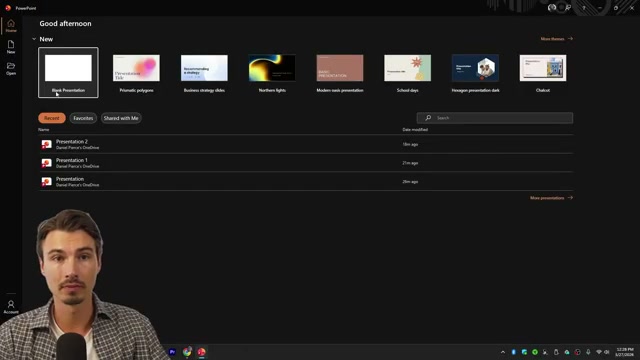
- Open PowerPoint on your desktop. Windows and Mac both work. Start a new blank presentation from the home screen.
- Navigate to the Home tab, click Add-ins, and type
ChatGPTin the search box. Click Add, then open the add-in from the ribbon to surface the sidebar. Sign in with your OpenAI credentials when prompted.
Warning: this step may differ from current official documentation — see the verified version below.
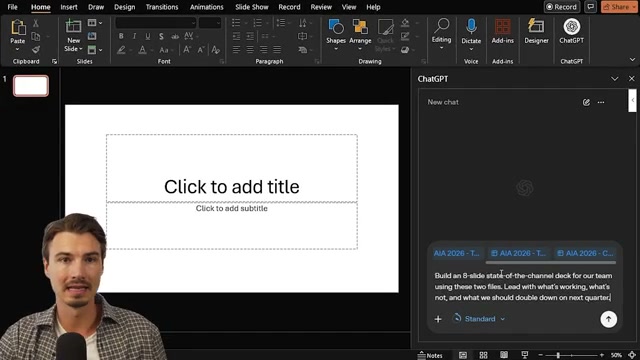
- To build a deck from scratch, click Build inside the sidebar. Attach your source files — a markdown doc, an analytics export, a strategy brief — then enter a plain-language prompt describing the deck you need. ChatGPT reads those files directly and populates every slide from the content inside them.
- To add a slide to an existing deck without disturbing the rest of it, switch to Update and describe the slide you want. ChatGPT inserts it and leaves everything else untouched.

- Use Understand to run a structured critique. Prompt ChatGPT to read the deck from a specific role — a channel manager, a skeptical CFO, a first-time viewer — and it returns weak spots, missing data, and the questions your audience would actually raise in the room.
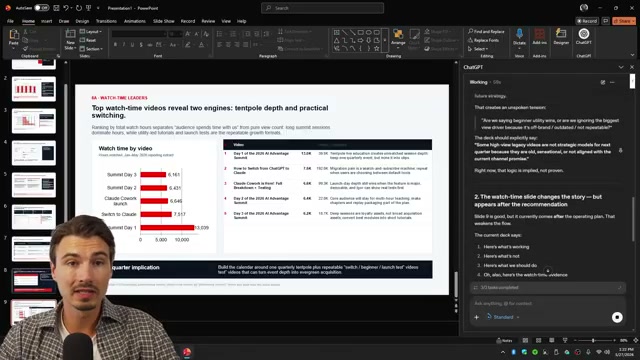
- To tighten a specific slide, select it, switch to Polish, and describe the edit. ChatGPT rewrites only that slide — cleaner copy, same intent — and leaves the rest of the deck alone.
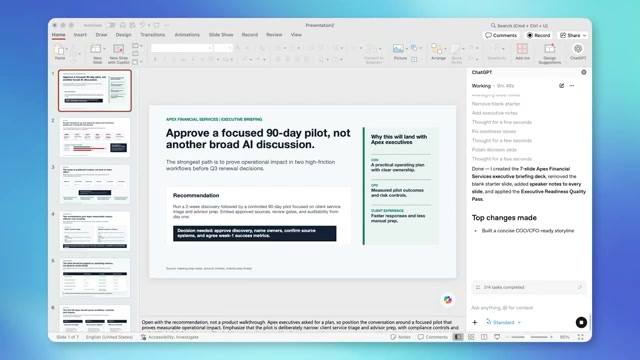
- On paid plans, open Connectors to link external apps — Notion, Gmail, Google Calendar — directly to the sidebar. From there, prompt ChatGPT to retrieve a specific document or page and convert it into slides without downloading anything first.
Warning: this step may differ from current official documentation — see the verified version below.
How does this compare to the official docs?
OpenAI’s published documentation for the ChatGPT for PowerPoint add-in specifies permissions, supported plan tiers, and known limitations that the video moves past quickly — and at least two installation details are worth verifying before you deploy this in a team environment.
Here’s What the Official Docs Show
The video gives you a solid working introduction to the ChatGPT add-in’s feature set — and that hands-on framing remains useful context. What follows fills in what official documentation could and couldn’t confirm at the time of writing, so you can proceed with a clearer picture of what’s verified, what’s assumed, and where a parallel Microsoft-native path exists.
Step 1 — Create or log in to a free OpenAI account
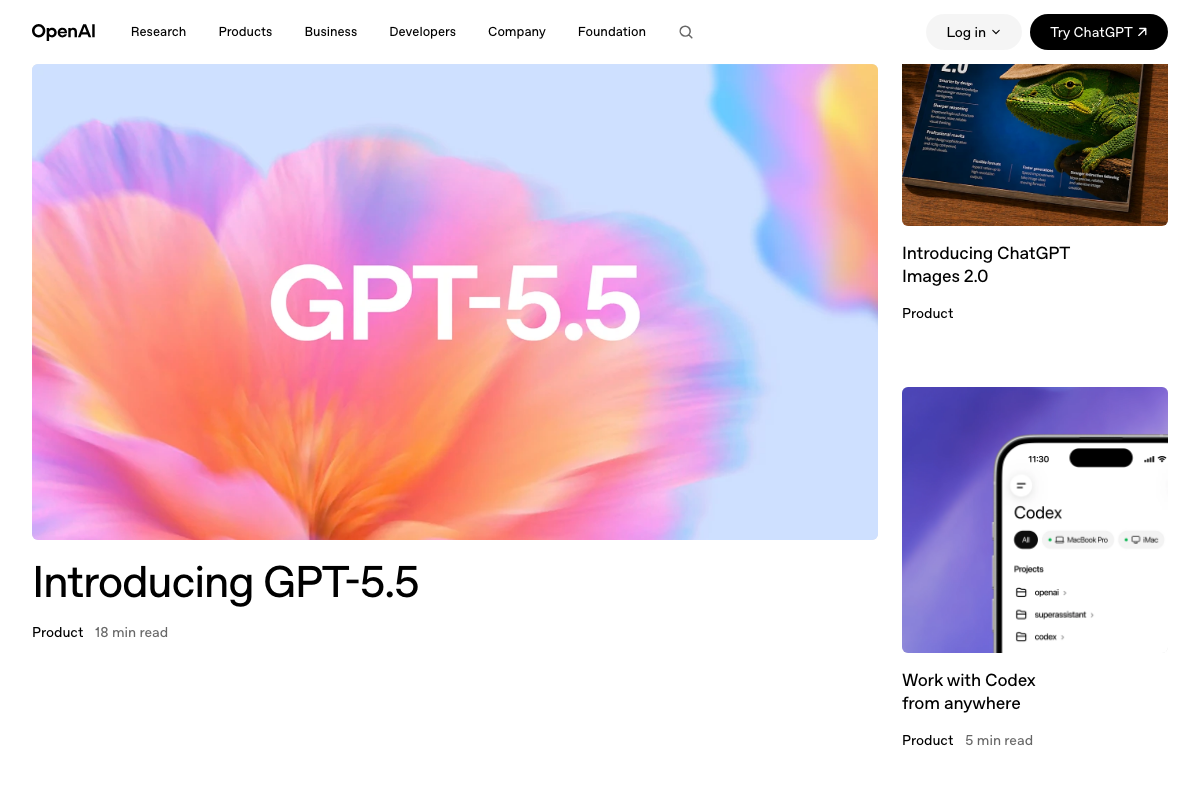
The video’s approach here matches the current docs exactly. The OpenAI homepage at openai.com presents both a Log in dropdown and a Try ChatGPT button, confirming that a free account is the correct starting point.
One thing worth knowing: as of May 2026, OpenAI’s homepage, news feed, and recent announcements feature GPT-5.5, ChatGPT Images 2.0, and Codex — but no dedicated landing page, help article, or product listing for a ChatGPT add-in for Microsoft PowerPoint is visible anywhere in the official OpenAI web presence. The add-in exists as a product, but it is not currently surfaced through OpenAI’s primary documentation entry points.

Step 2 — Open PowerPoint on your desktop
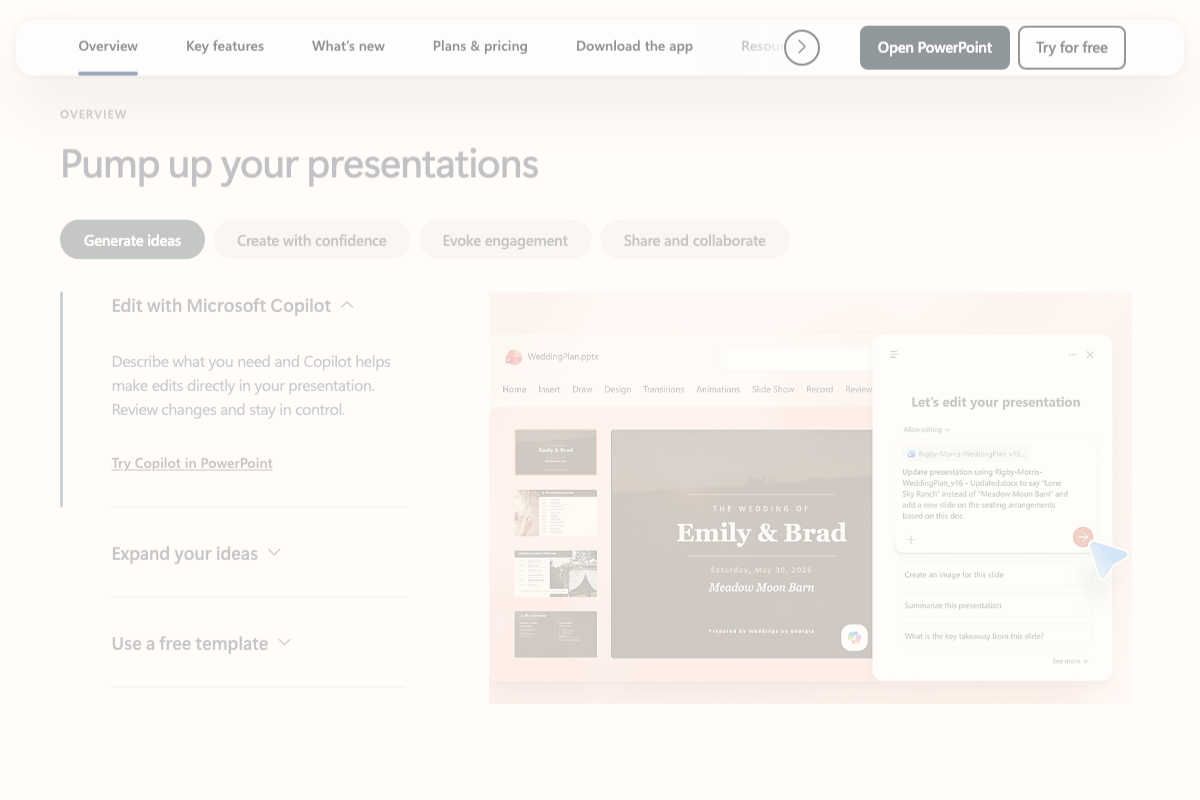
The video’s approach here matches the current docs exactly. Microsoft’s official PowerPoint product page confirms the desktop app is available via the Download the app tab and an Open PowerPoint button, with a free entry point through Try for free.
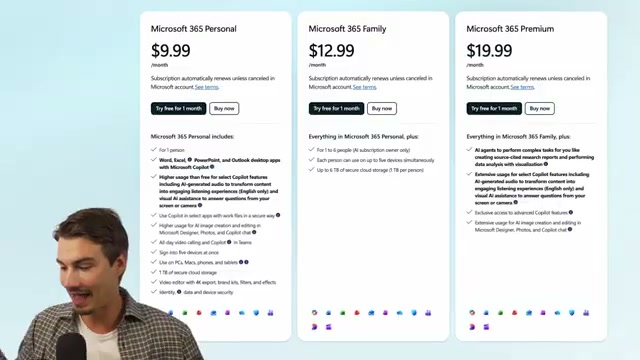
There is one significant clarification worth making explicit: the AI tool that Microsoft’s official documentation promotes for the exact same use cases the tutorial demonstrates — editing slides via a sidebar, summarizing presentations, updating decks from referenced documents — is Microsoft Copilot, not the ChatGPT add-in. The Copilot sidebar visible in official docs surfaces prompts including “Summarize this presentation” and “What is the key takeaway from this slide?” These are distinct products. Copilot requires a Microsoft 365 Copilot subscription; the ChatGPT add-in operates under your OpenAI plan tier. Knowing which you’re using matters before you roll either out to a team.

Steps 3–6 — Installing the add-in and using Build, Update, Understand, Polish
No official documentation was found for these steps —
proceed using the video’s approach and verify independently.
No screenshot captured the PowerPoint desktop ribbon, the Office Add-ins store search results for “ChatGPT,” or the ChatGPT add-in sidebar. The installation path the video describes (Home tab → Add-ins → search “ChatGPT” → Add → sign in) is neither confirmed nor contradicted by available documentation.
Step 7 — Uploading a YouTube Analytics export for analysis
No official documentation was found for this step —
proceed using the video’s approach and verify independently.
All three YouTube Analytics screenshots captured only the Google account sign-in gate. The analytics export and file-upload workflow the video references could not be verified from official sources.
Steps 8–10 — Polish and additional deck refinement
No official documentation was found for these steps —
proceed using the video’s approach and verify independently.
Step 11 — Using Connectors to link Notion (and other apps)
No official documentation was found for this step —
proceed using the video’s approach and verify independently.
Notion’s official homepage prominently features its own native AI products — Notion Agents, Custom Agents, and Q&A Agents. OpenAI appears in Notion’s customer logo bar, but that indicates a business relationship, not a documented integration. No ChatGPT Connector linking Notion to the PowerPoint add-in is visible in any official Notion documentation captured.

Useful Links
- OpenAI | Research & Deployment — The official OpenAI homepage; starting point for account creation and ChatGPT access across all plan tiers.
- PowerPoint | Presentations and Slides Online | Microsoft 365 — Microsoft’s official PowerPoint product page, including download options, plan tiers, and documentation for Microsoft Copilot as the primary AI feature.
- The AI workspace that works for you. | Notion — Notion’s homepage documenting its native AI agent capabilities, including Custom Agents and Q&A Agents.
- Analyze performance with analytics – YouTube Help — Google’s official YouTube Analytics help topic; authentication required to access the dashboard and export interface.
- YouTube Studio — The authenticated entry point for YouTube Studio, where analytics data and export options are available after sign-in.


0 Comments