

Build a 12-Week SEO Content Plan in Two Minutes Using AI
Keyword research has never been the bottleneck — translating hundreds of keyword ideas into an actionable publishing schedule has. By combining Keywordtool.io, Google Keyword Planner, and Claude, you can collapse that translation step into a single prompt and walk away with a pillar-and-cluster content calendar ready to execute or hand off to a writer. The output covers 12 weeks of sequenced posts, each mapped to a keyword, a URL slug, and a priority tier.
- Open Keywordtool.io, enter your seed keyword — in this case, PPC advertising — and let the tool populate the Google tab. Click Load More to expand the results to roughly 200 keyword suggestions, then select and copy the entire list.
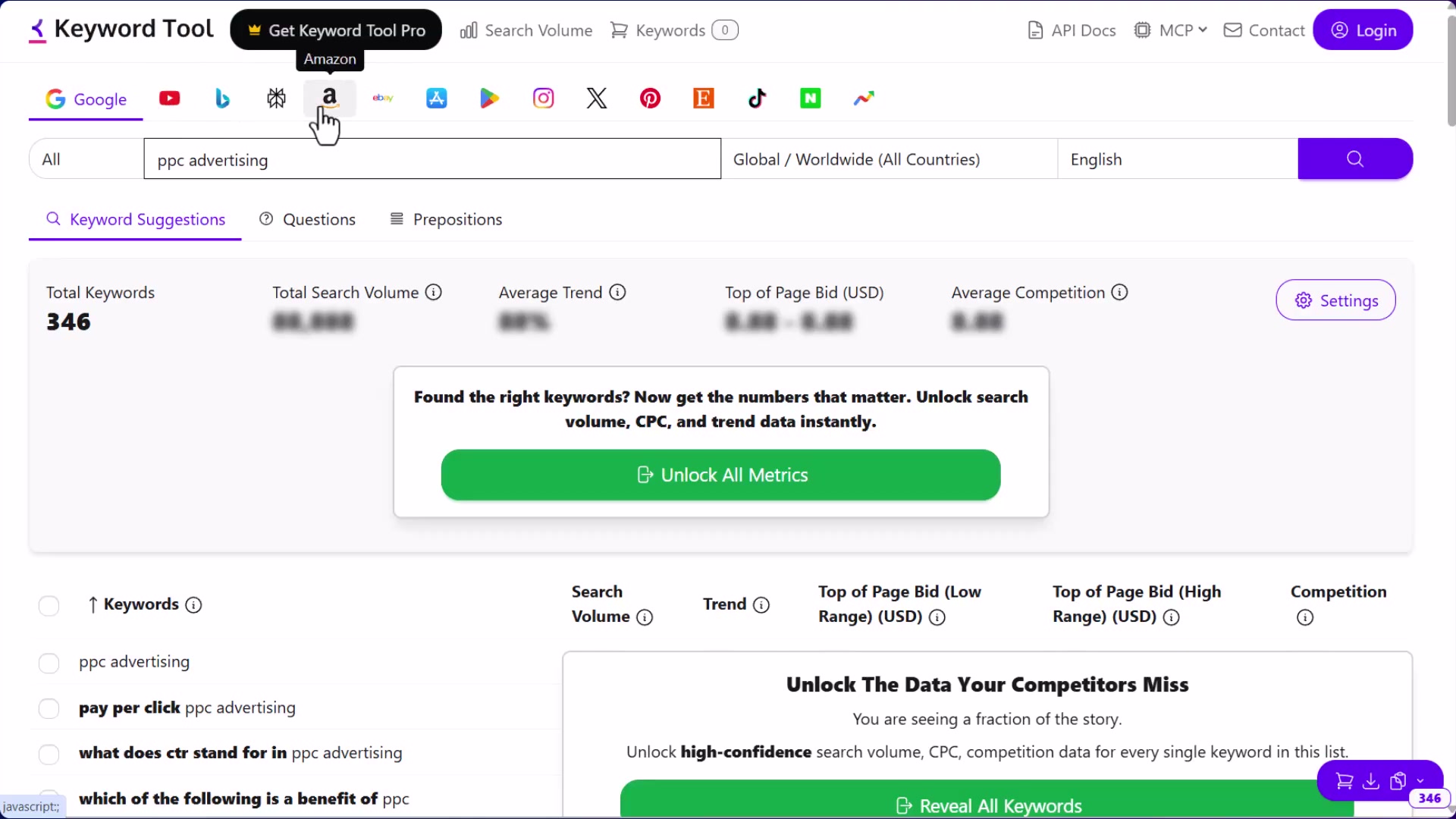
- Switch to the YouTube tab on Keywordtool.io and copy that keyword set separately. The YouTube list tends to run smaller (around 80 results), which makes it a tighter, higher-signal input for content targeting both search and video rankings.
Warning: Keywordtool.io’s free tier blurs search volume, CPC, and competition metrics behind a paywall. Volume data comes from Google Keyword Planner in the next step, so the free tier is sufficient here — but don’t rely on Keywordtool.io alone for prioritization decisions.
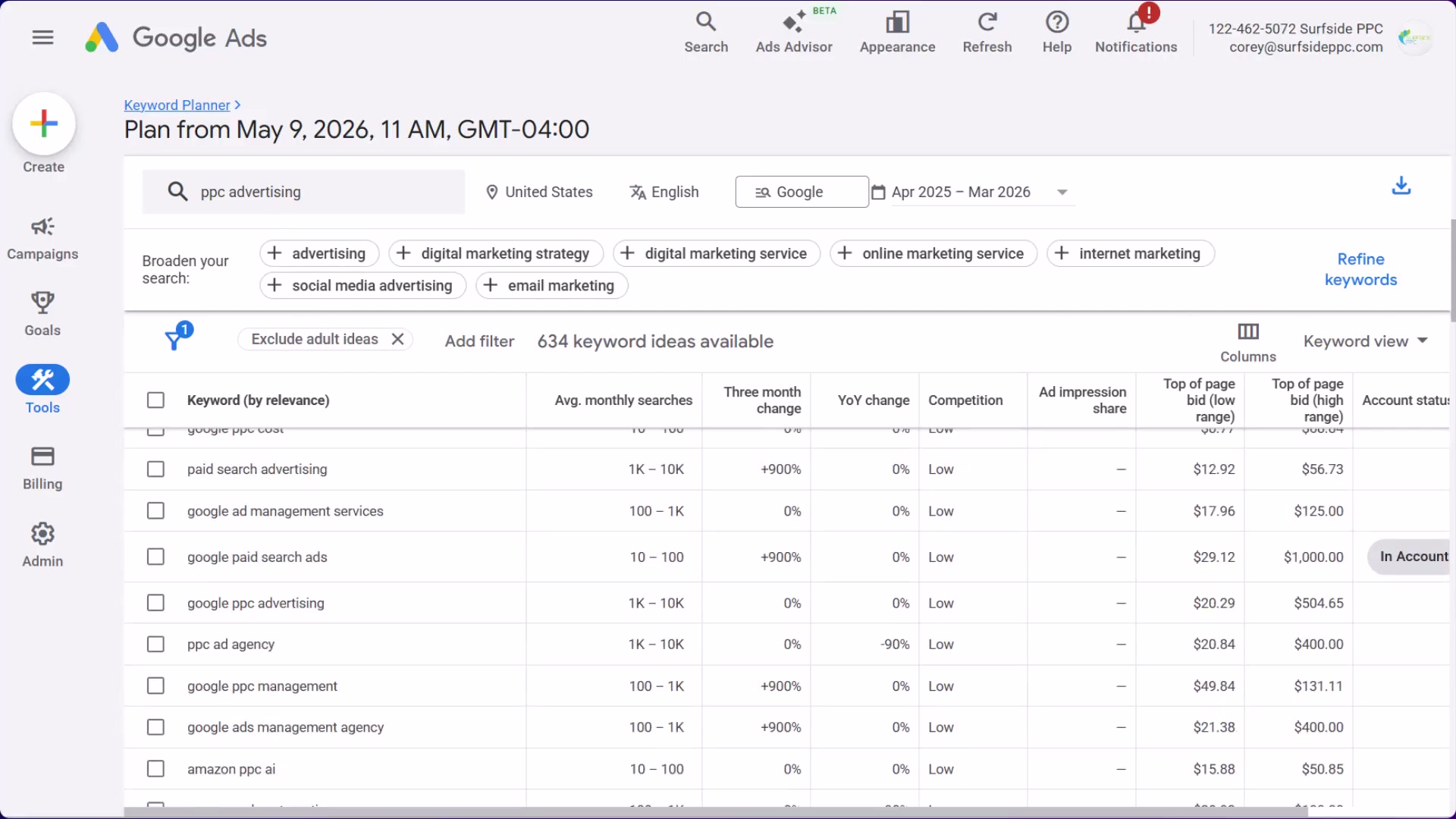
- Open Google Keyword Planner, search the same seed keyword, sort by relevance, and copy the top 500 results. This is where you get actual average monthly search data and bid ranges to accompany your keyword list.
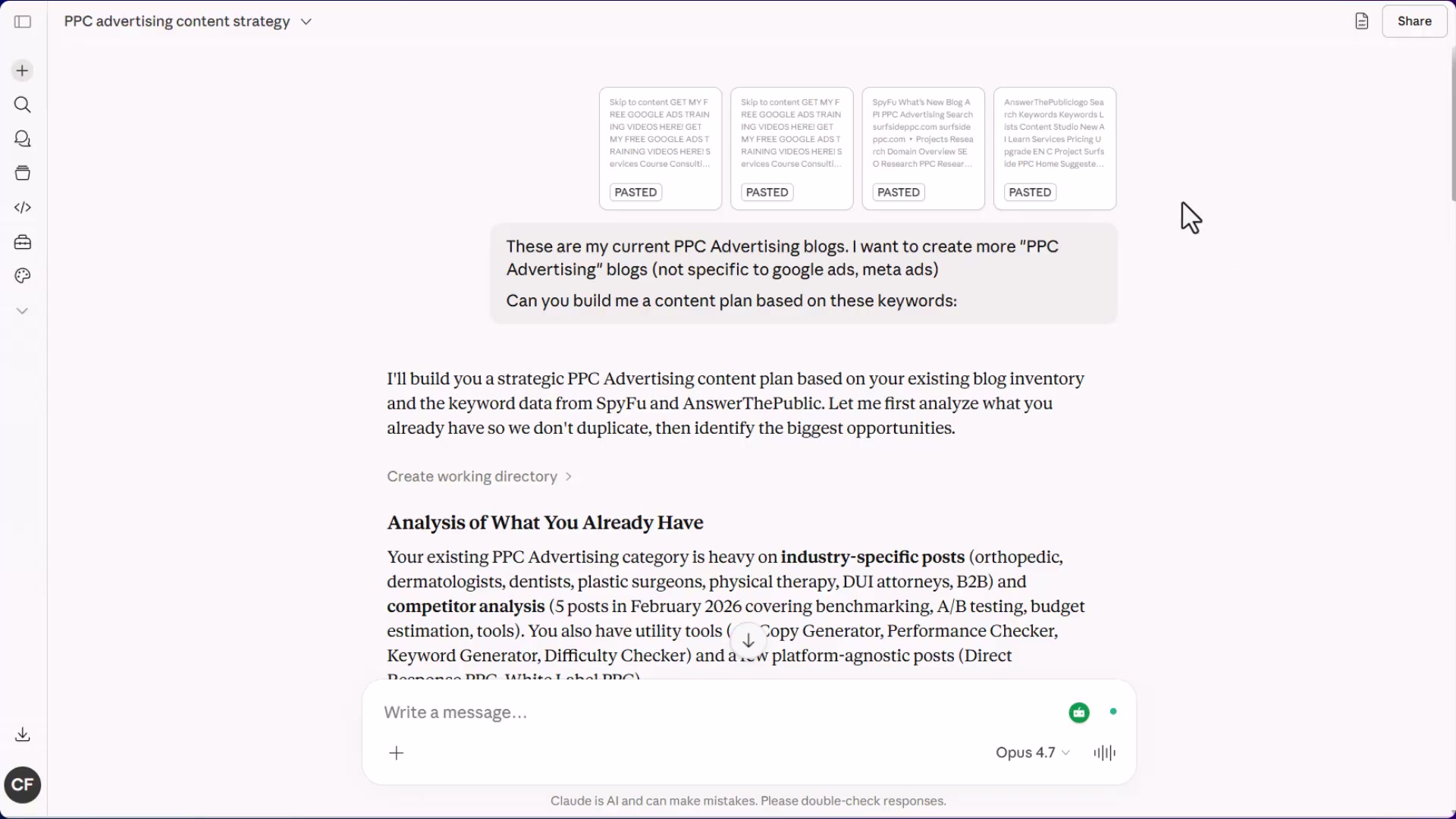
- Open Claude and paste all three keyword lists into a single prompt. Include your existing blog or content URLs so Claude has context on what you’ve already published. Then instruct it to build a content plan that excludes platform-specific topics (no Google Ads-only or Meta Ads-only posts), and request the output formatted for Microsoft Excel.
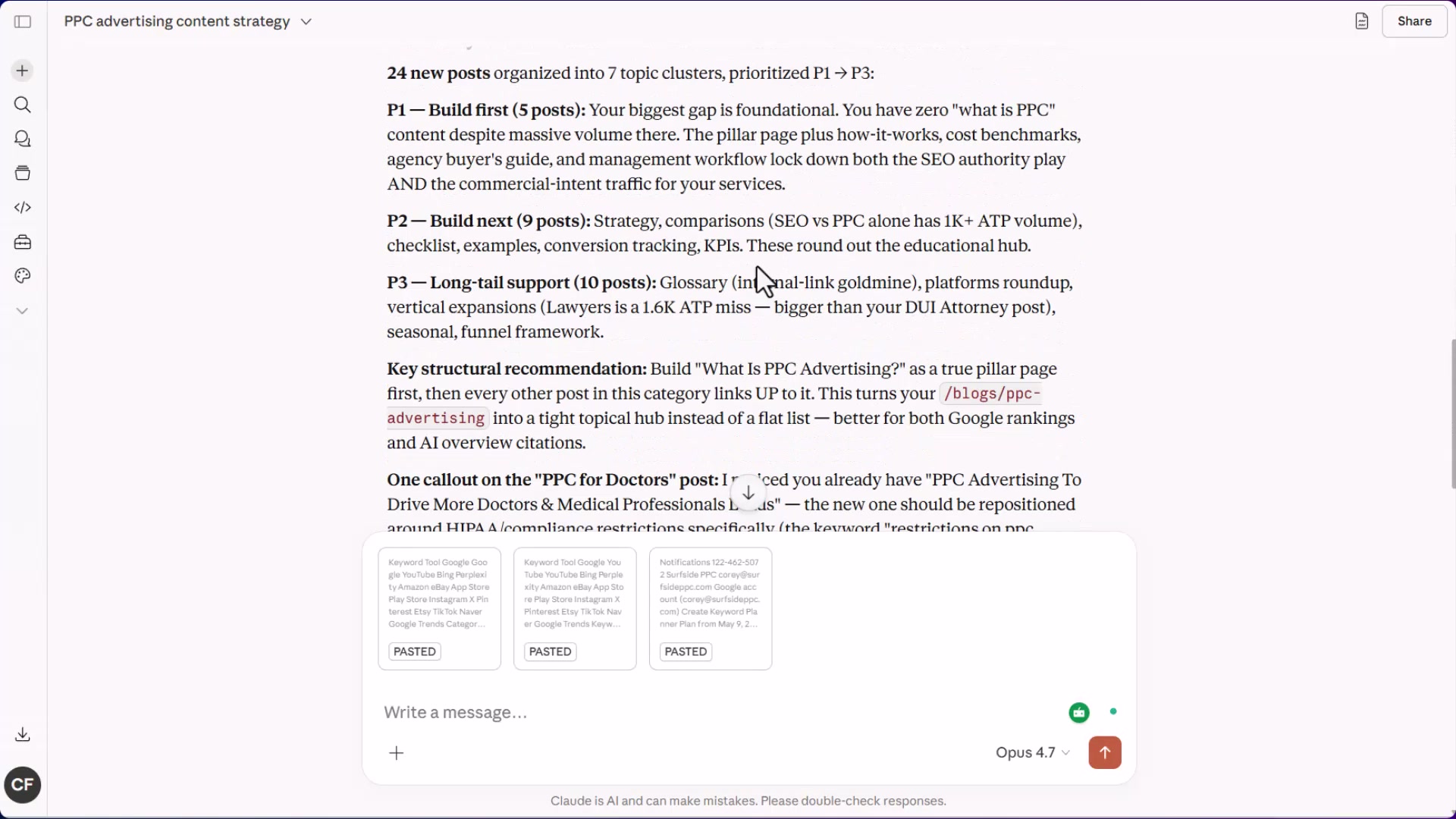
- Review Claude’s structured output. The model returns an analysis of your existing content alongside a prioritized list of new posts — organized into P1 (foundational), P2 (strategy), and P3 (long-tail) tiers — and recommends publishing the pillar page first to establish the internal linking anchor for each cluster.
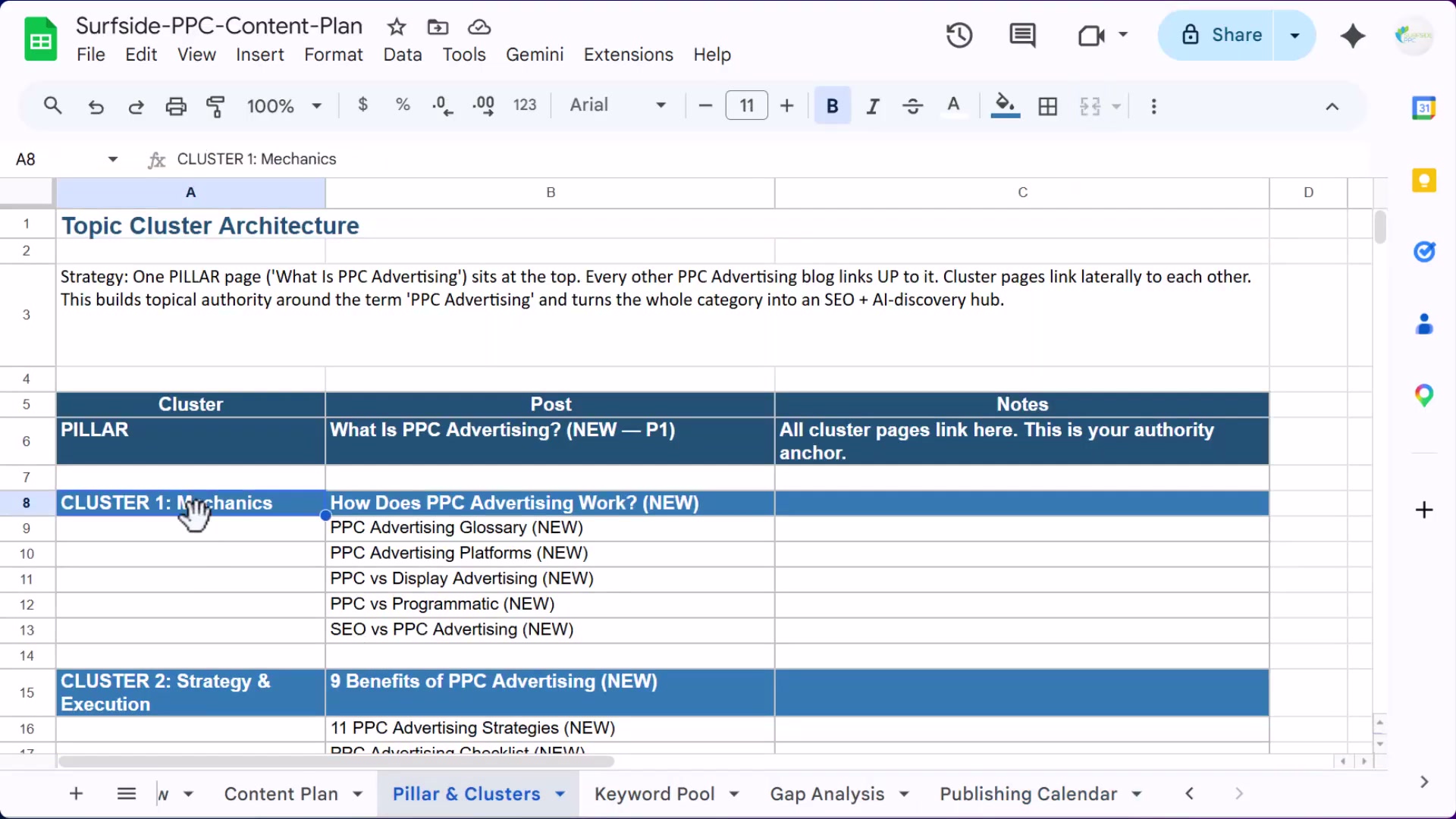
- Open the exported spreadsheet and review the Pillar & Clusters tab. The pillar page sits at the top of each cluster; every supporting post links back up to it. This architecture is how topical authority compounds — each piece published strengthens the ranking signal for the entire cluster over time.
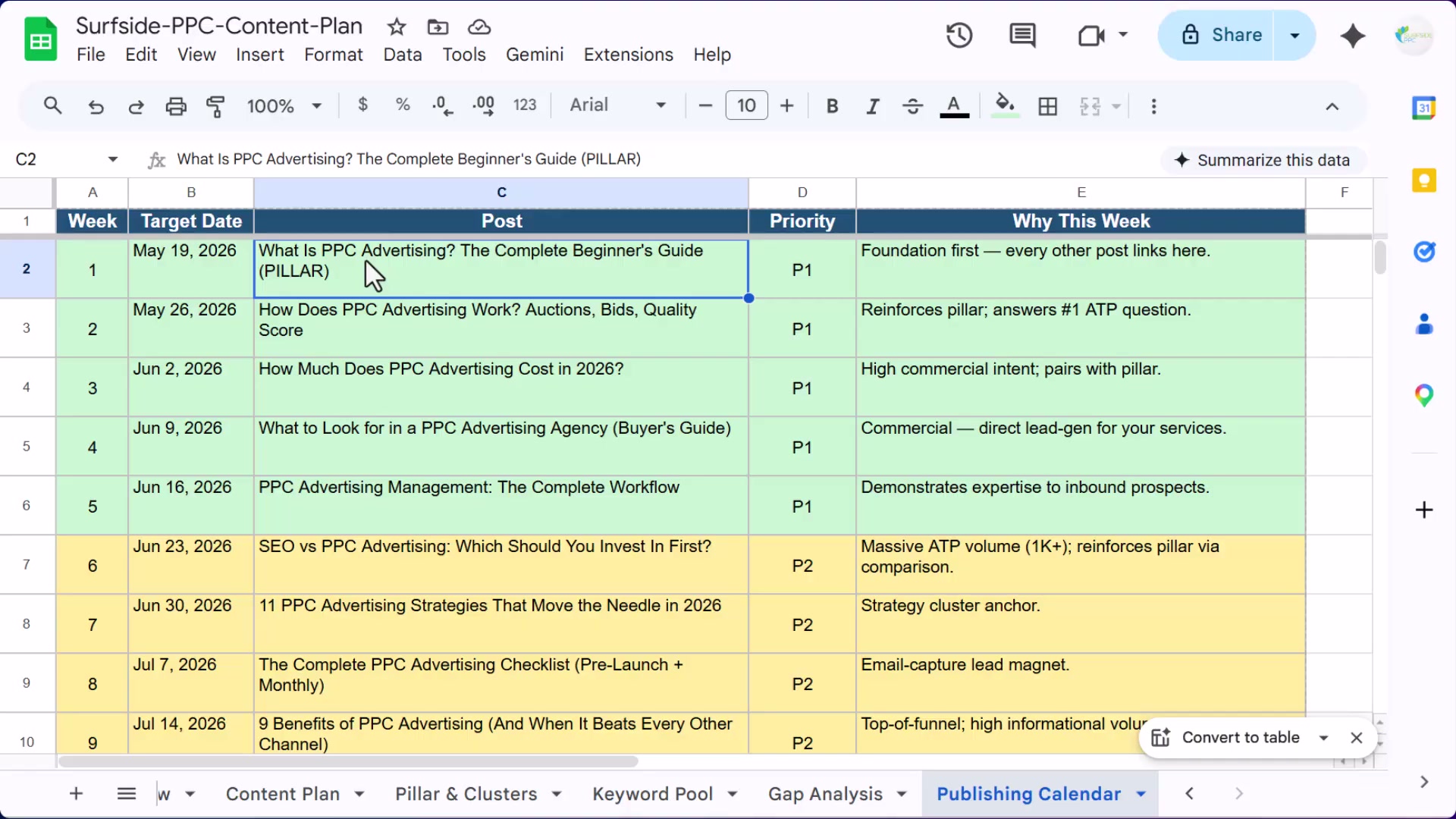
- Move to the Publishing Calendar tab to see the 12-week execution schedule. Each row includes a target date, post title, priority level, and a one-line rationale explaining its position in the sequence. With 25 total articles mapped, the plan defines a clear sprint — publish consistently, then return to update and strengthen each piece on the next cycle.
How does this compare to the official docs?
The workflow shown here moves fast and produces a usable deliverable, but the specific prompt structure, Claude’s structured output behavior, and what Keywordtool.io actually surfaces on a free plan all deserve a closer look against what Anthropic’s documentation and official keyword research guidance actually recommend.
Here’s What the Official Docs Show
The video’s workflow holds up well against current product documentation for all three tools. What follows adds context the tutorial moves past quickly — free-tier limitations, tool intent, and a platform update that opens an additional option inside your spreadsheet.
Step 1: Pull Google keyword suggestions from Keywordtool.io
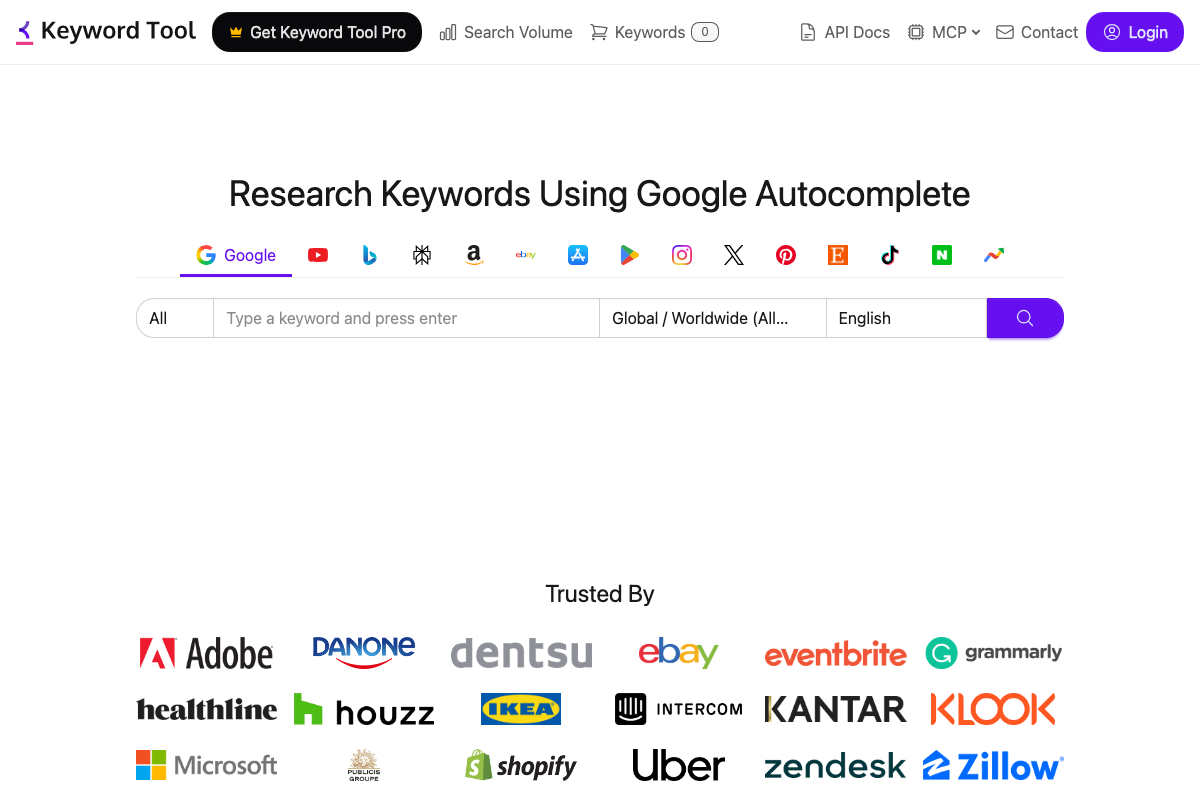
The video’s approach here matches the current docs exactly. The Google tab is the default active tab, the YouTube tab is the second icon in the platform switcher, and location and language filters (defaulting to Global/Worldwide and English) are available before you run any search. One disclosure the tutorial skips: the free tier returns keyword strings but locks search volume, CPC, and competition behind a Pro subscription. Volume data comes from Keyword Planner in the next step, so this is a workable gap — but plan accordingly before committing to a Pro upgrade.
Step 2: Switch to the YouTube tab and copy that keyword set
No official documentation was found for this step — proceed using the video’s approach and verify independently.
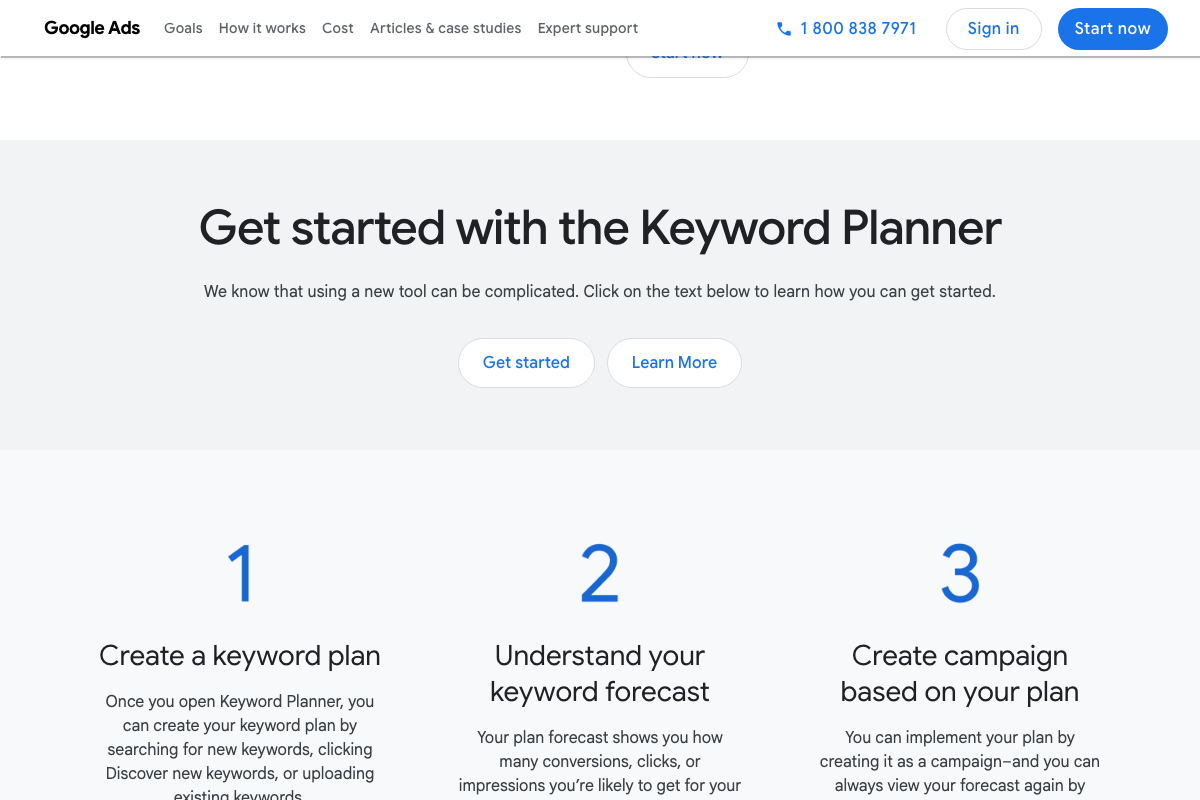
Step 3: Pull keyword data from Google Keyword Planner
The video’s approach here matches the current docs exactly for the seed-keyword discovery step. Context worth having before you start: Keyword Planner is a Google Ads tool — its documented purpose is ad campaign planning, not organic content SEO. You’re borrowing it for a secondary use case, and the results reflect commercial search intent accordingly. The tool requires a Google Ads account; you can create one without running any live campaigns, but that prerequisite is real. On the “500 results by relevance” instruction: official pages confirm relevance sorting exists as a native feature, but the specific 500-result cap is not confirmed by any available documentation — treat it as a practical observation, not a guaranteed export limit.


Step 4: Open Claude and paste your combined keyword lists
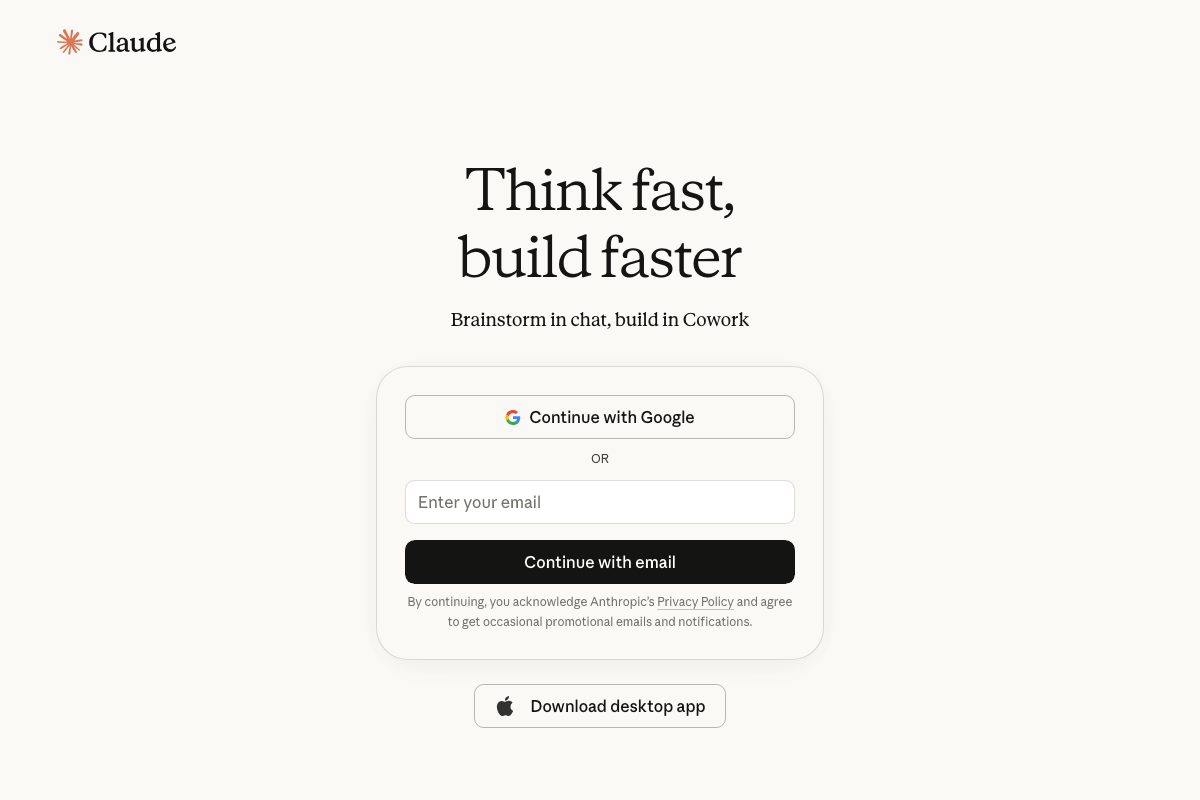
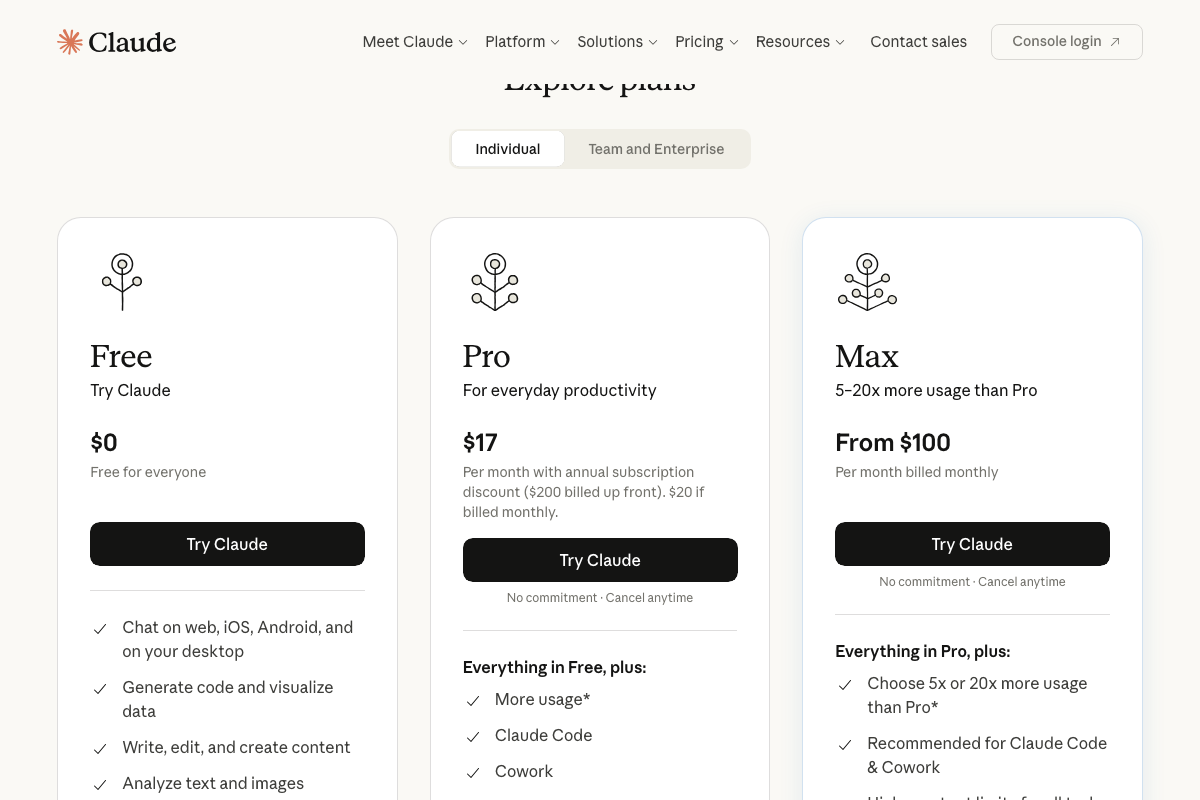
The video’s approach here matches the current docs exactly — claude.ai is accessible via browser with Google OAuth or email, no API key required. Two updates since filming: Claude now surfaces a “Cowork” product in the main navigation; ignore it for this workflow, you want standard chat. More importantly, as of May 2026, the Free tier carries usage limits explicitly flagged by the pricing page. Pasting three keyword lists totaling 700-plus rows in a single prompt may hit those limits. The Pro plan at $17/month billed annually adds higher usage allowances and is the advisable tier for this workflow.
Step 5: Review Claude’s structured output
The video’s approach here matches the current docs exactly. Standard chat at claude.ai handles structured output requests — including tiered priority lists and cluster maps — without any additional configuration or paid feature.
Step 6: Review the Pillar & Clusters tab in your spreadsheet
No official documentation was found for this step — proceed using the video’s approach and verify independently.
Step 7: Move to the Publishing Calendar tab
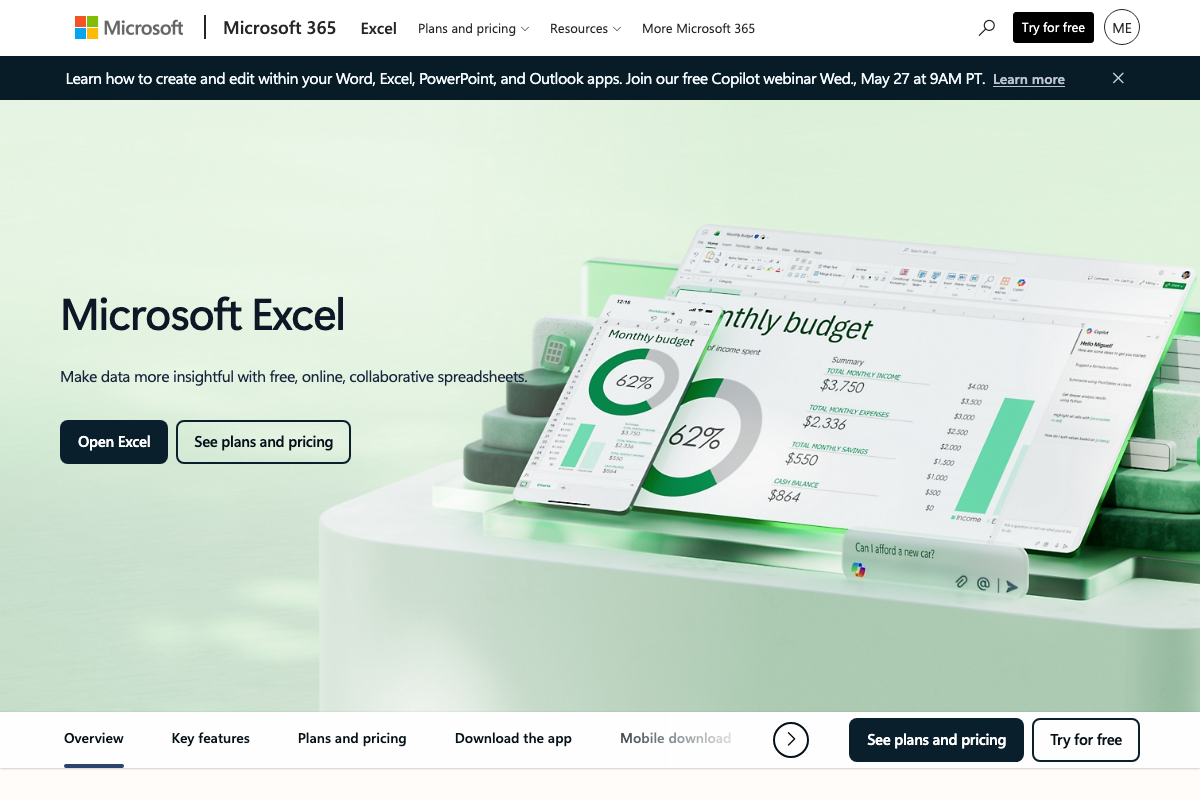
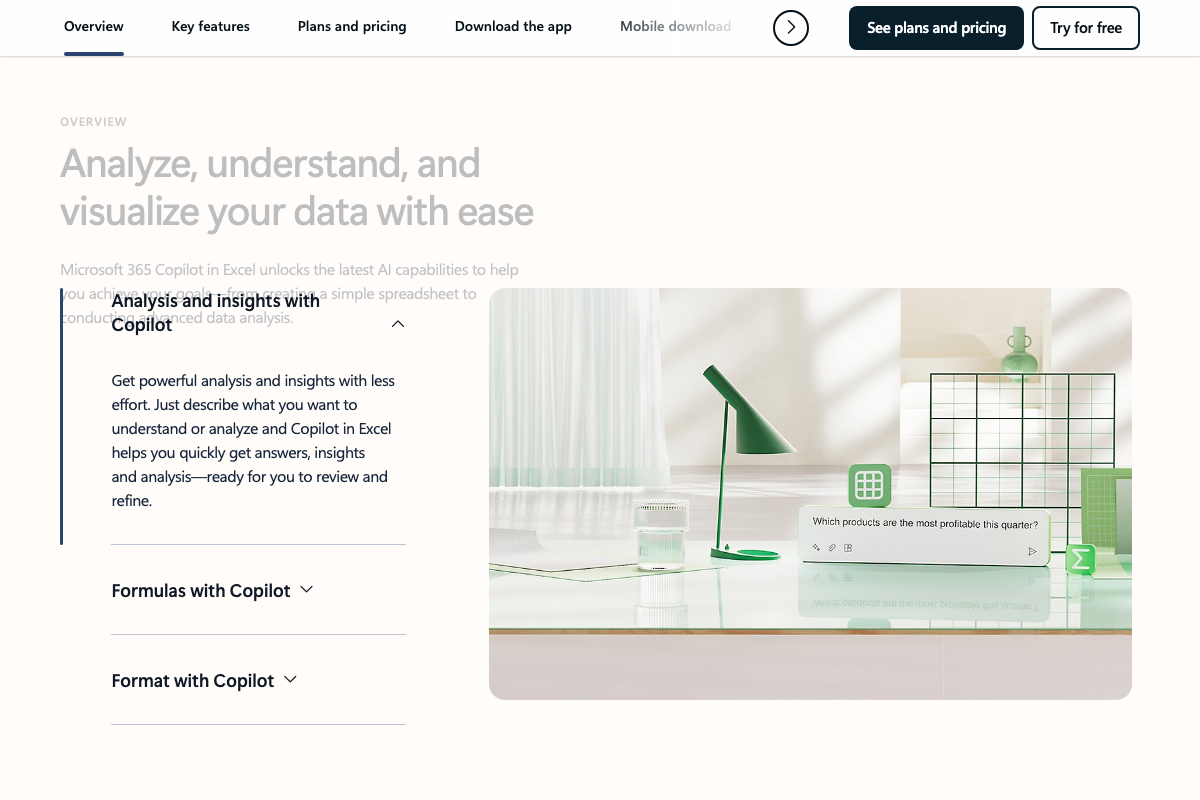
The video’s approach here matches the current docs exactly — Excel for the web is free and handles structured table output without a Microsoft 365 subscription. One addition the tutorial doesn’t cover: Microsoft 365 Copilot is now integrated directly into Excel with documented AI-assisted analysis, formula generation, and formatting. It requires a paid Microsoft 365 subscription, but if you already have one, it offers a fully documented path for refining or re-sorting the calendar Claude produces without leaving the spreadsheet.
Steps 8–10
No official documentation was found for these steps — proceed using the video’s approach and verify independently.
Useful Links
- Keyword Tool — Research Keywords Using Google Autocomplete — Free keyword suggestion tool powered by Google Autocomplete; search volume, CPC, and competition data require a Pro subscription.
- Get Campaign Keyword Suggestions with Keyword Planner — Google Ads — Google’s ad-focused keyword research tool used in the tutorial for organic SEO volume data; requires a free Google Ads account to access.
- Sign in — Claude — Anthropic’s browser-based Claude interface; the standard chat tier supports this entire workflow with no API key or developer account required.
- Microsoft Excel — Free Online Spreadsheets Software — Microsoft’s spreadsheet tool with a free web version; Microsoft 365 Copilot AI features require a paid Microsoft 365 subscription.


0 Comments