

Building a Fully Local AI Video Automation Pipeline with OpenCode, SDXL Turbo, and Hyperframes
After completing this tutorial, you’ll have a working end-to-end pipeline that turns a video concept into a short-form, narrated, Fireship-style video — entirely on local hardware, with no paid API keys required. The stack combines OpenCode, a local LLM via Ollama, SDXL Turbo for image generation, Kokoro TTS for voiceover, and Hyperframes for HTML-to-video rendering. Every component runs offline; the only cost is compute time.
-
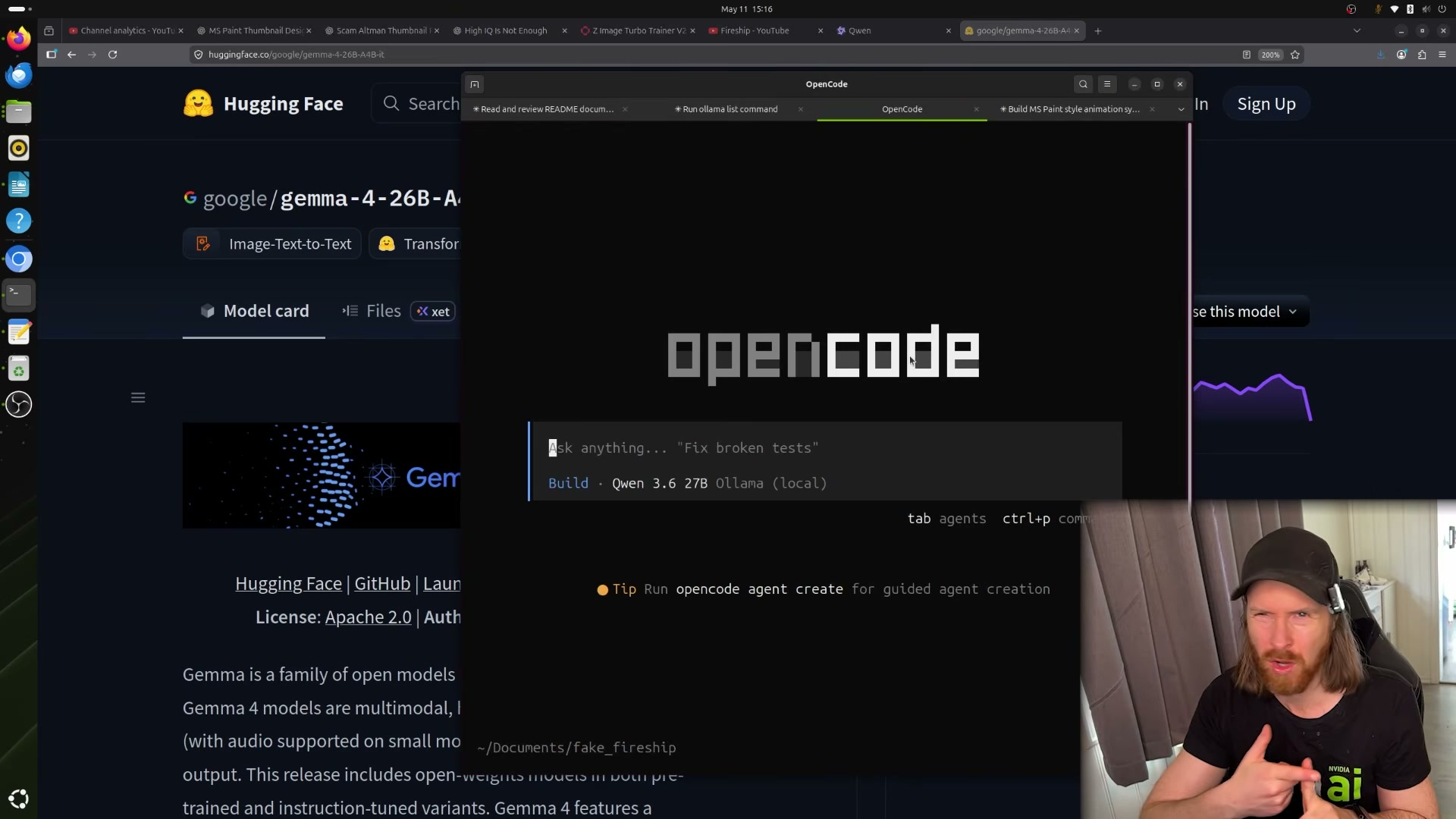
Select a local LLM with reliable tool-calling. Pull candidate models through Ollama and benchmark them against a multi-step agentic task before committing. Gemma 4 27B enters a tool-calling loop on this workload and is not usable here. Qwen 3.6 27B completes tool calls cleanly, avoids burning excessive thinking tokens, and runs at acceptable speed on consumer GPU hardware. Set it as the active model in OpenCode before proceeding.
-
Download the SDXL Turbo image model from HuggingFace. Search HuggingFace for
Z-Image-Turbo(Tongyi-MAI/Z-Image-Turbo) and pull the weights locally. This SDXL-based model handles the image card generation step that accounts for roughly 60% of the final video’s visual content. No API registration is required — the model runs via a local inference script (imagegen_local.py) you’ll wire into the pipeline later. -
Set up Kokoro TTS locally. Clone
hexgrad/Kokoro-82Mfrom HuggingFace. At 82M parameters, the model is small enough to run fast on a mid-range GPU and produces natural-sounding voiceover suitable for short-form content. This becomes the audio rendering layer in the pipeline — every line of generated script passes through Kokoro before the final video is assembled.
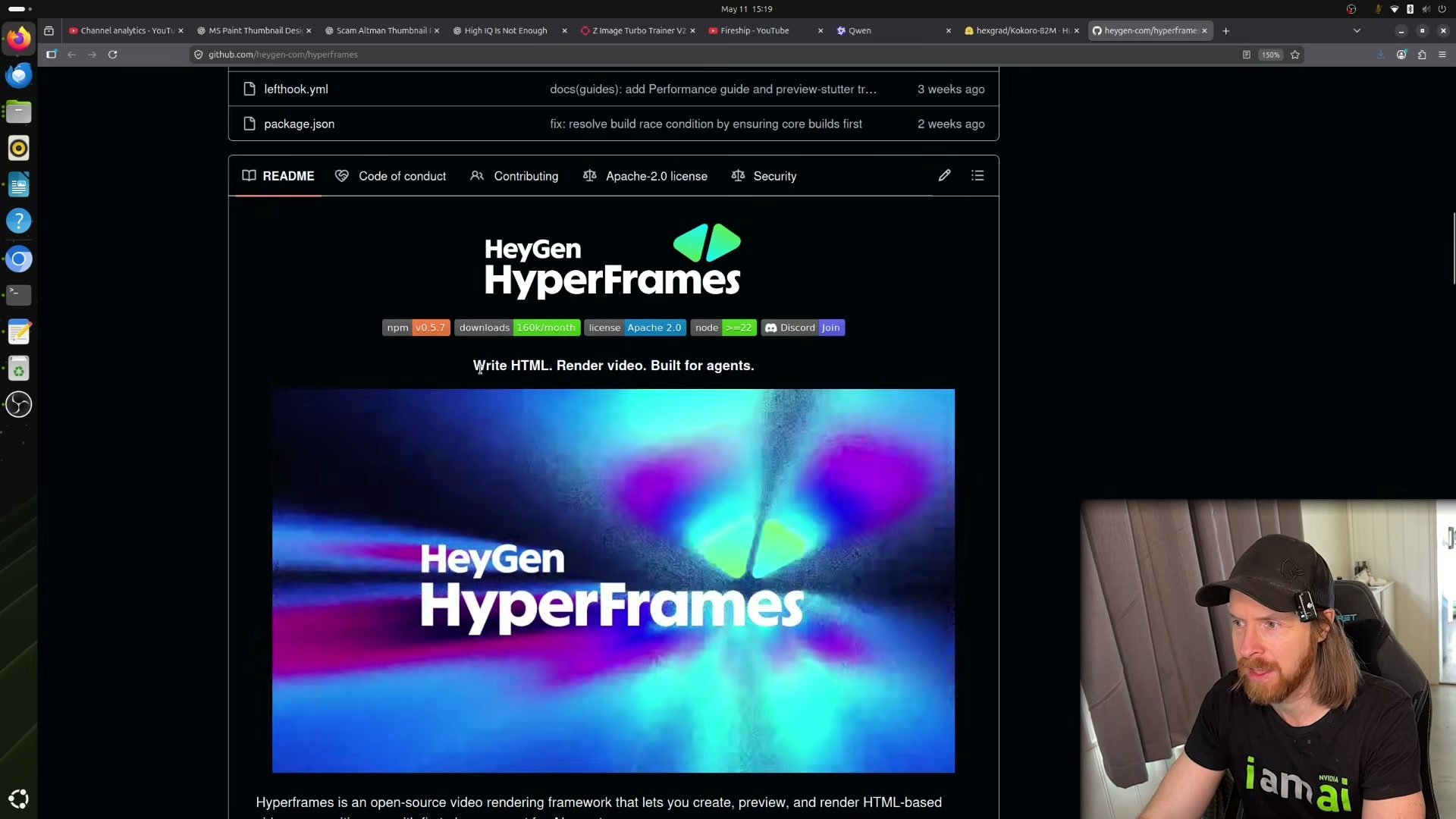
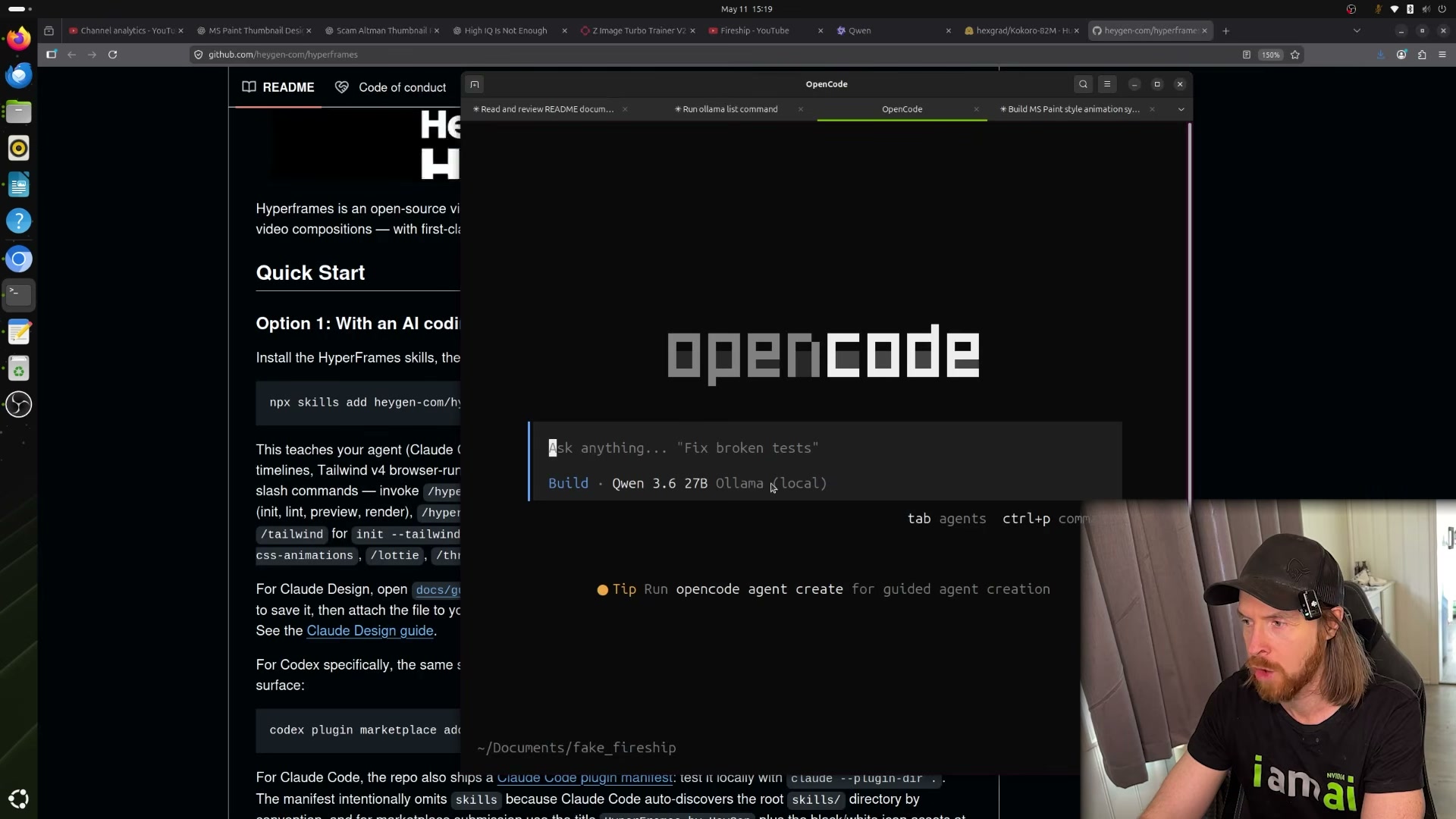
- Install and configure Hyperframes as the rendering engine. Hyperframes (by HeyGen) takes HTML compositions and renders them to video — the same conceptual role Remotion plays in JavaScript-first stacks. Add it as an OpenCode skill with a single command:
npx skills add heygen-com/hyperframes
No manual configuration is needed after installation; the skill registers itself as an available tool within the OpenCode agent context.
-
Build a style reference from Fireship transcripts. Pull transcripts from several Fireship videos and extract structural and tonal patterns — pacing, joke density, caption style, segment length. Compress these observations into a single Markdown file. This file functions as a style constitution for the agent, not a template it fills in mechanically.
-
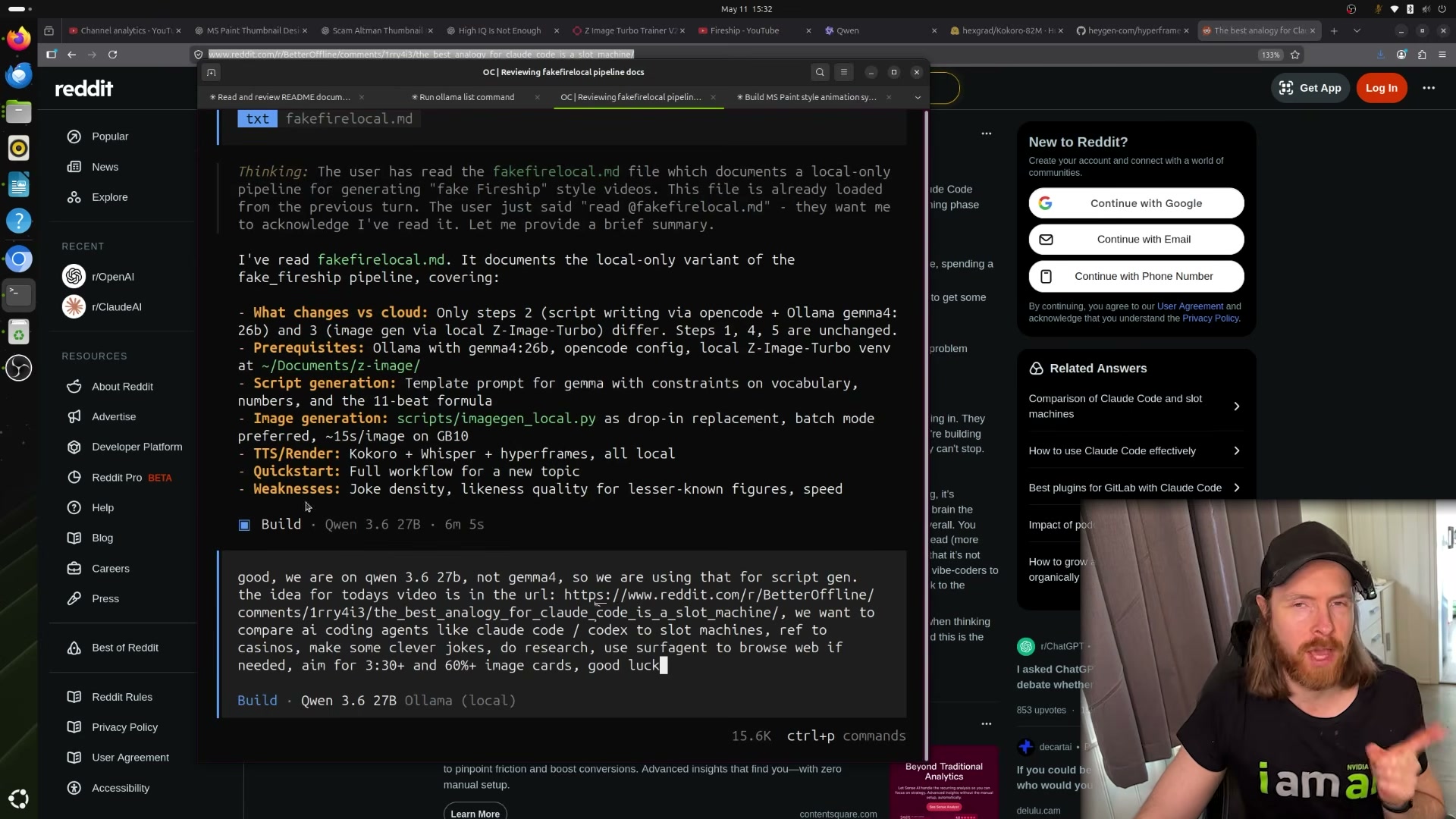
Load the style guide into the OpenCode agent as context. In the OpenCode terminal, run
read @fakefirelocal.mdto attach the Markdown file to the active session. The local LLM reads and summarizes the full pipeline spec before accepting a task prompt, confirming it understands the constraints.
-
Write the task prompt. Specify the video concept (AI coding agents compared to slot machines, sourced from a Reddit URL), target runtime (3.5 minutes or longer), image card ratio (60%), and authorize the surf/web-browse agent for live research. Pass the prompt to Qwen and start the run.
-
Launch the pipeline and let it run unattended. The agent sequences script generation → image generation via SDXL Turbo → TTS rendering via Kokoro → final video assembly via Hyperframes. On the hardware used here, the full run takes roughly 56 minutes and consumes approximately 174,000 context tokens. There is no need to monitor it.

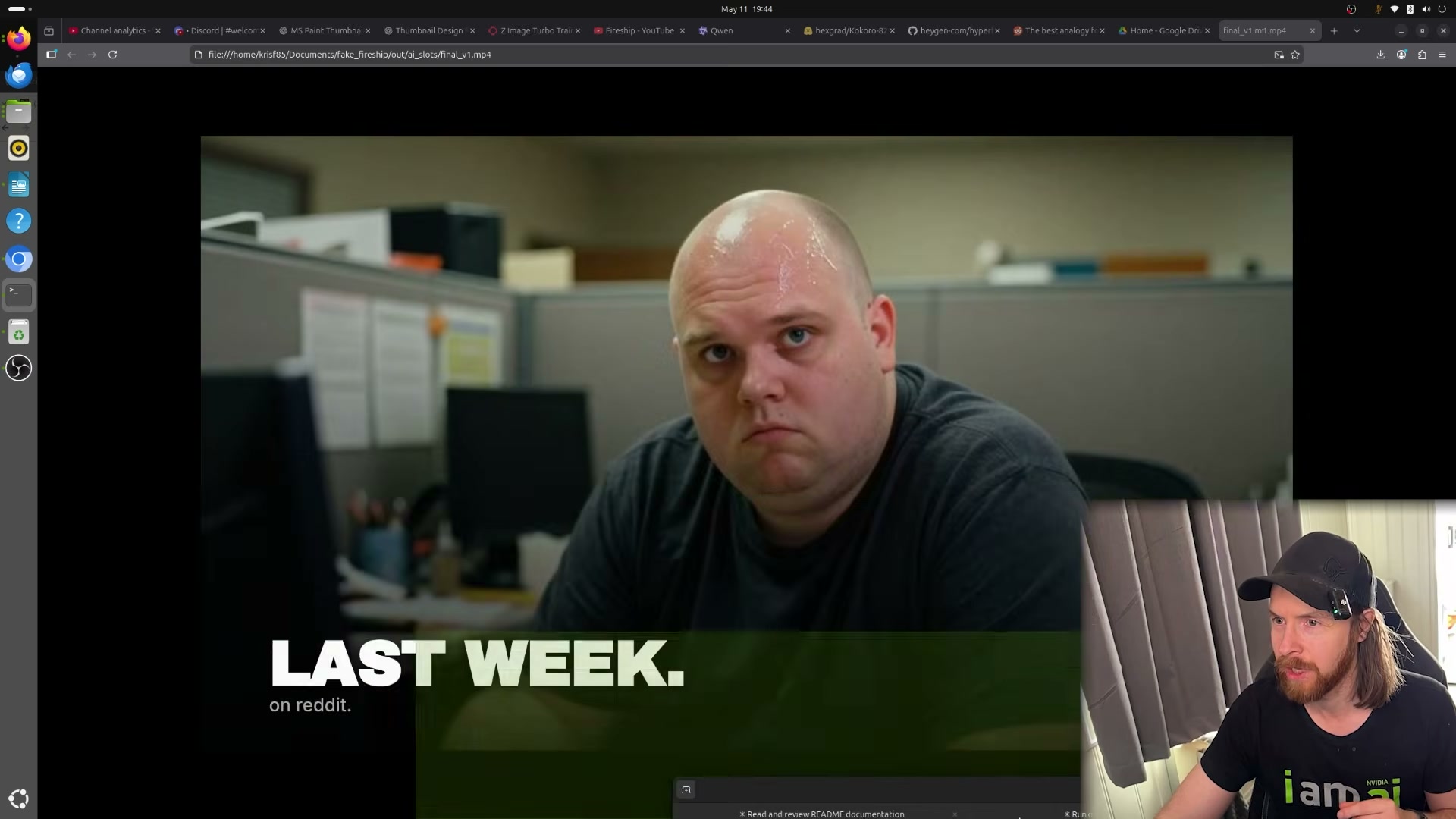
- Review the rendered output. Open
out/ai_slots/final_v1.mp4from the local project folder. The file weighs 39MB and plays back as a narrated, captioned, image-driven short-form video in the target style.
- Generate the YouTube thumbnail separately. Use ChatGPT’s image editor to produce a thumbnail matched to the video concept, then download and upload it alongside the video file.
Warning: this step may differ from current official documentation — see the verified version below.
How does this compare to the official docs?
The pipeline stitches together four independent open-source projects, each with its own installation requirements and versioning considerations — and where the video moves fast, the official documentation for Hyperframes, Kokoro, and Ollama fills in the gaps that matter for production use.
Here’s What the Official Docs Show
The video covers a genuinely capable local pipeline, and the components it recommends are largely sound — this act adds the documentation layer that fills in the gaps Act 1 moves past quickly. Where the docs surface corrections or missing context, they’re noted plainly below.
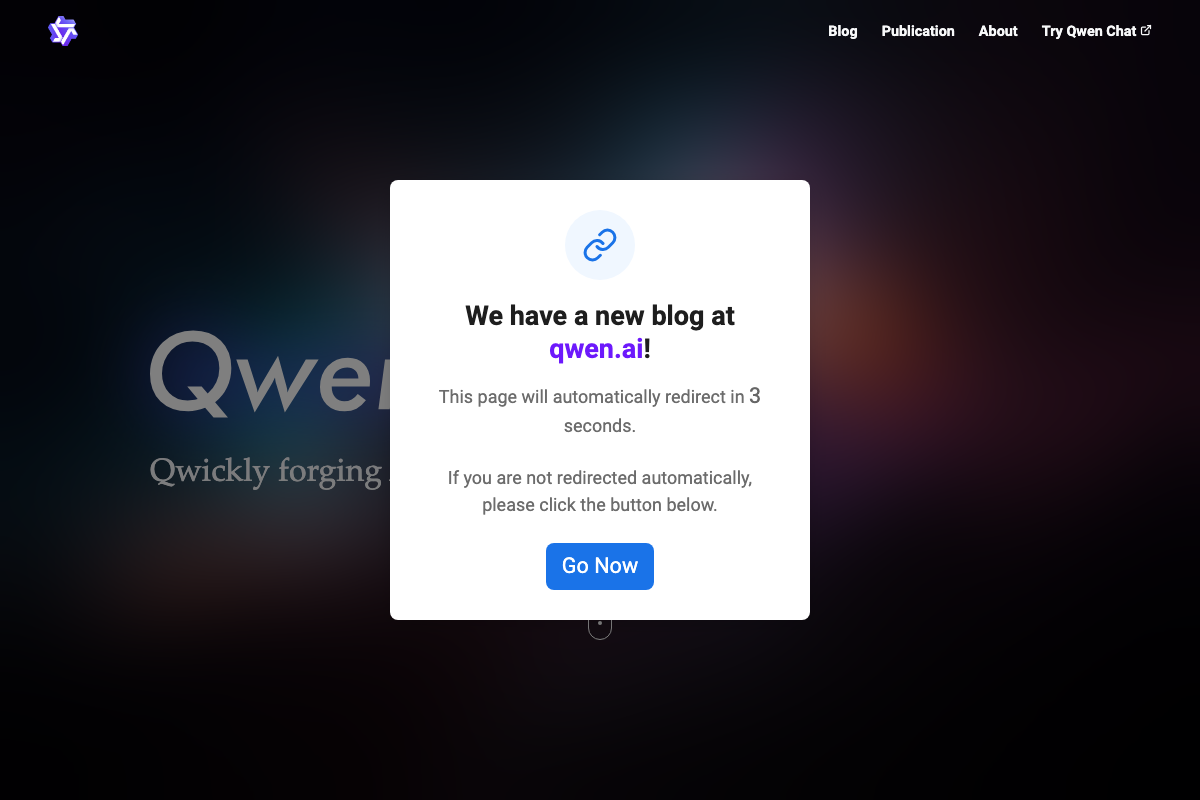
Step 1 — Select a local LLM. The video refers to the selected model as “Qwen 3.6 27B.” As of May 2026, qwenlm.github.io is no longer a functional documentation destination — it displays a redirect modal and forwards to qwen.ai; any links to that domain in the original tutorial are outdated. The Qwen3-32B model card on HuggingFace is the canonical reference, but the parameter count and exact variant name shown in the video could not be independently confirmed from available screenshots.
No official documentation was found for the Ollama benchmarking or model selection criteria in this step — proceed using the video’s approach and verify independently.
Step 2 — Download SDXL Turbo from HuggingFace. Stability AI’s corporate website (stability.ai) now focuses entirely on enterprise Brand Studio services and does not surface SDXL Turbo documentation or download links. The correct source for the model weights is huggingface.co/stabilityai/sdxl-turbo — go there directly, not to stability.ai.

No official documentation was found for the local inference script (
imagegen_local.py) or the specificZ-Image-Turbovariant referenced in the video — proceed using the video’s approach and verify independently.
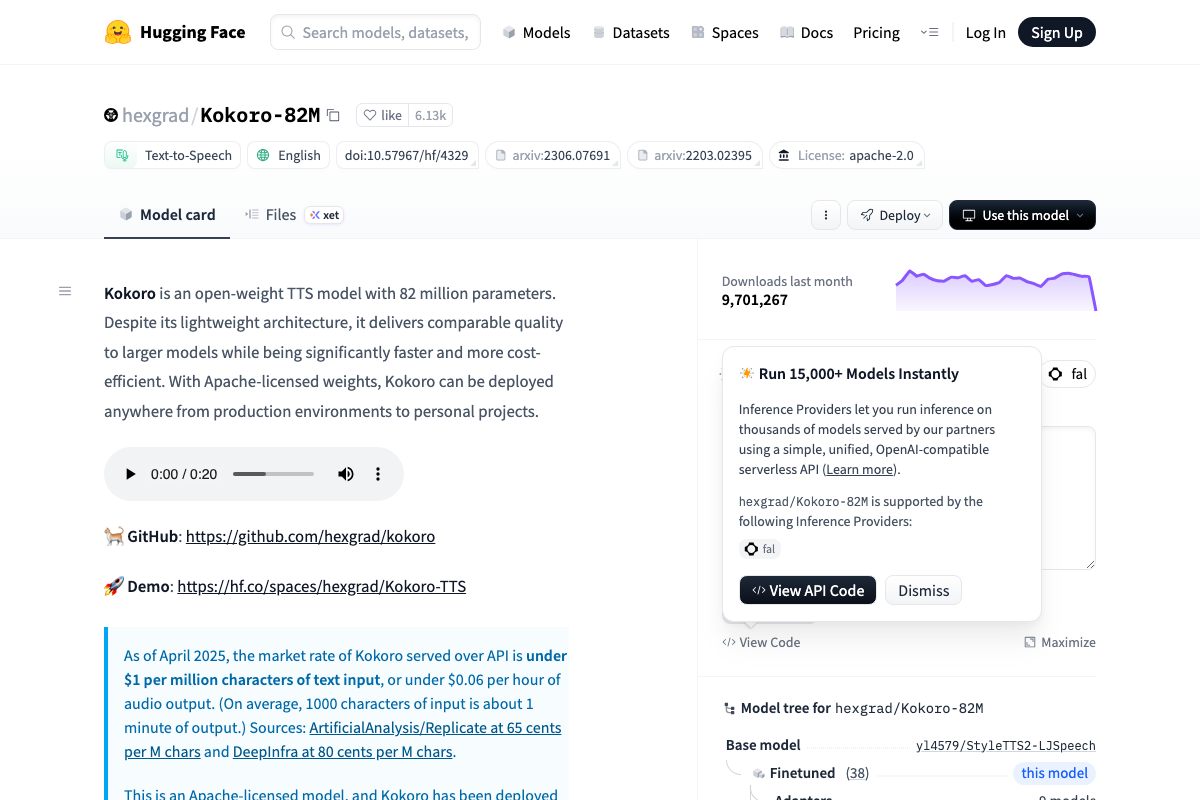
Step 3 — Set up Kokoro TTS locally. The video’s approach here matches the current docs exactly. Kokoro-82M lives at hexgrad/Kokoro-82M on HuggingFace, carries an Apache 2.0 license, and runs free locally. Two additions worth noting: install with pip install kokoro>=0.9.2 soundfile plus apt-get install espeak-ng; and the video does not specify a version — v1.0 (January 2025) is current stable and supports 8 languages and 54 voices, a significant upgrade over v0.19. One flag: the model card explicitly names kokorottsai_com and kokorotts_net as likely fraudulent — download exclusively from HuggingFace or github.com/hexgrad/kokoro.
Step 4 — Install Hyperframes.
No official documentation was found for this step — proceed using the video’s approach and verify independently.
Step 5 — Build a style reference from Fireship transcripts.
No official documentation was found for this step — proceed using the video’s approach and verify independently.
Steps 6, 7, and 8 — Load context, write the task prompt, and run the pipeline. The video’s approach here matches the current docs exactly. OpenCode is a provider-agnostic open source agent that explicitly supports connecting any model from any provider, including local instances via Ollama. Install it with:
curl -fsSL https://opencode.ai/install | bash
One clarification: the terminal UI demo in the OpenCode docs shows Claude Opus 4.5 as the default active model — the video substitutes a local Qwen model, which the architecture fully supports, but is not the out-of-box default you’ll see on first launch.


Step 9 — Review the rendered output.
No official documentation was found for this step — proceed using the video’s approach and verify independently.
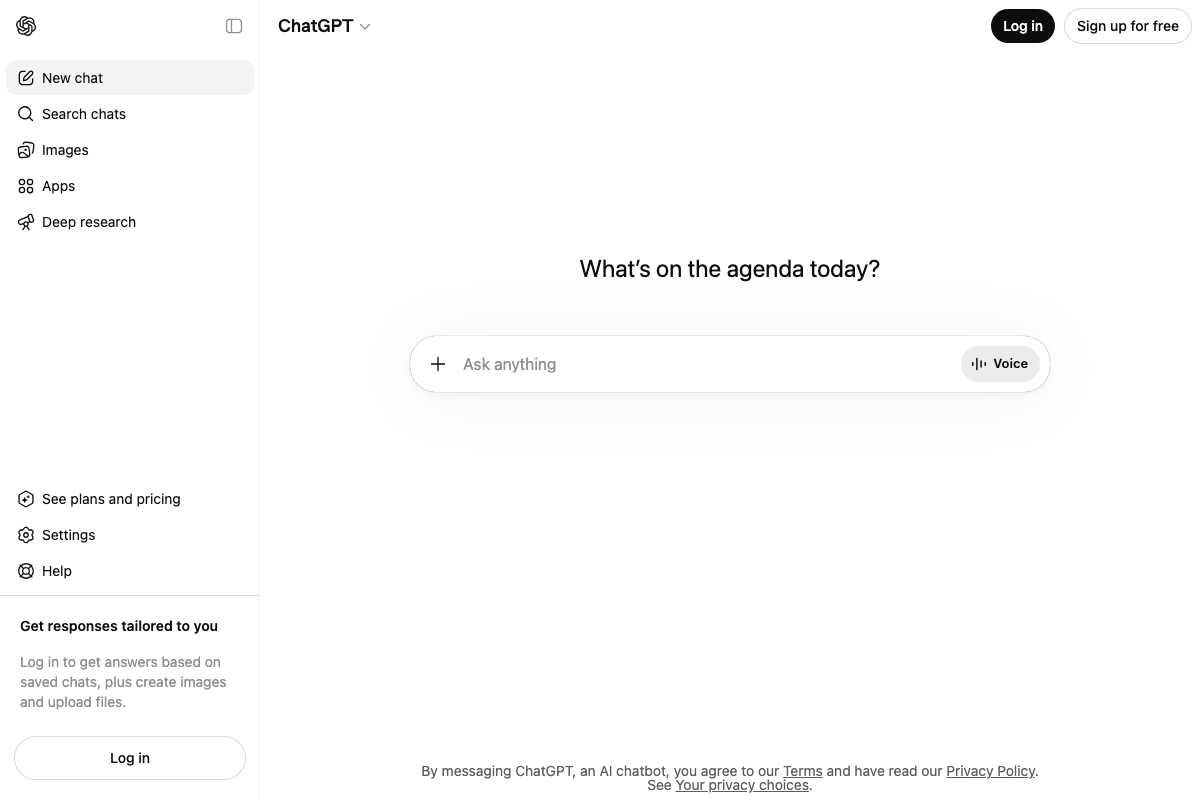
Step 10 — Generate the YouTube thumbnail with ChatGPT. The video’s approach here matches the current docs exactly. Image generation is accessible via the Images option in the ChatGPT sidebar at chatgpt.com. Note that a logged-in account is required — the unauthenticated interface surfaces the option but gates access behind login.
Useful Links
- OpenCode | The open source AI coding agent — Official homepage with install command, feature overview, and desktop beta download for macOS, Windows, and Linux.
- Qwen Blog — Current canonical destination for Qwen model announcements and documentation; the former
qwenlm.github.ioURL redirects here. - hexgrad/Kokoro-82M · Hugging Face — Model card for Kokoro TTS with install instructions, version history, voice list, and scam-site warnings.
- Stability AI — Corporate homepage; visit
huggingface.co/stabilityai/sdxl-turbodirectly for SDXL Turbo model weights. - ChatGPT — Web interface for thumbnail generation via the Images sidebar; requires a logged-in account.


0 Comments