

OpenAI’s Biggest Week: GPT-5.5, Realtime Voice, Codex Chrome, and HubSpot AEO
OpenAI shipped five meaningful updates in a single week — the kind of velocity that leaves even close followers scrambling to catch up. Work through this guide and you’ll be able to access GPT-5.5 Instant in ChatGPT, test the new Realtime voice API directly in your browser, wire Codex up to Chrome for live page context, and pull your brand’s AI search visibility scores from HubSpot’s new AEO dashboard.
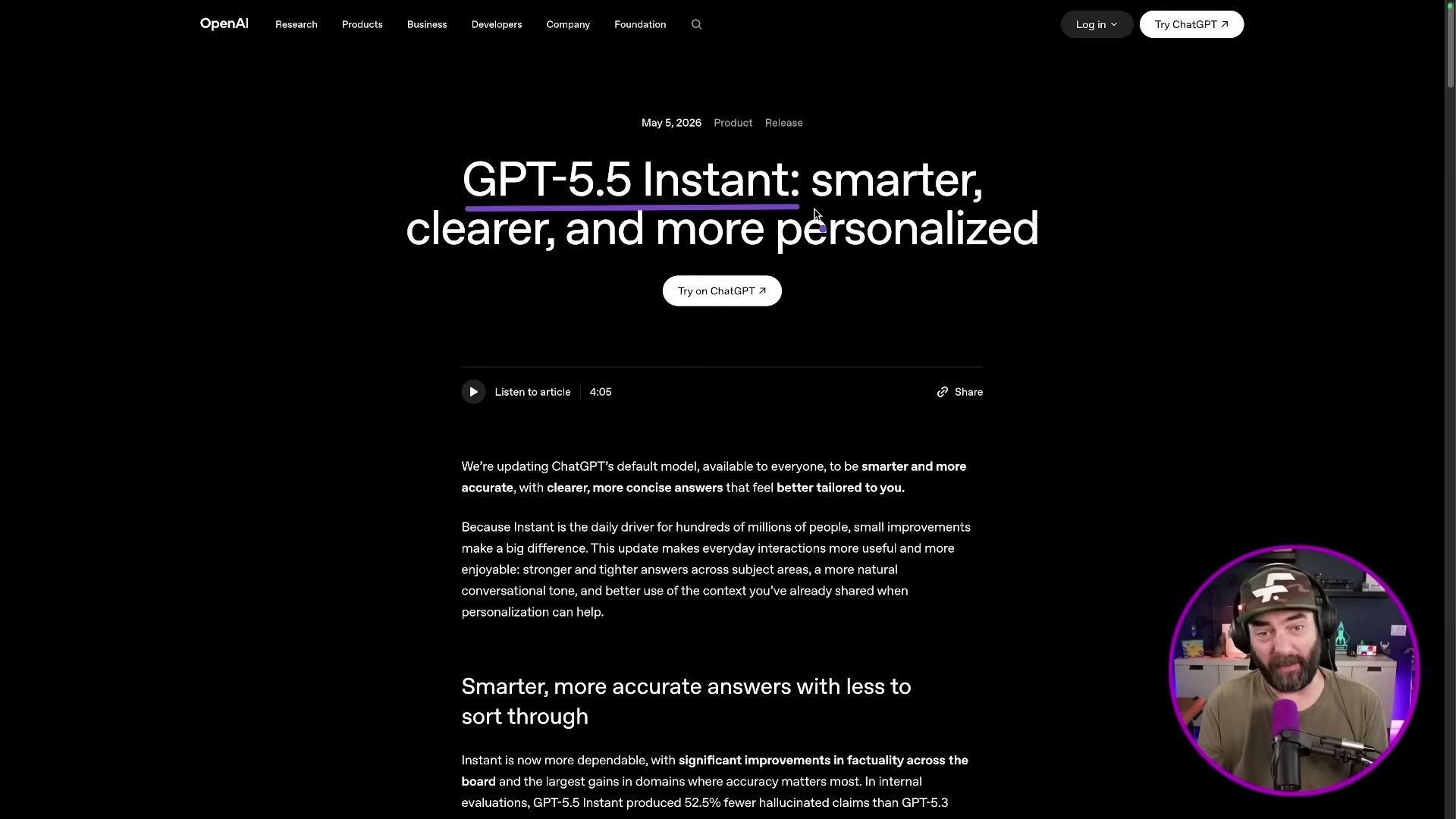
- Visit OpenAI’s website and study the published side-by-side comparisons of GPT-5.3 Instant versus GPT-5.5 Instant. On a handwritten algebra problem, 5.3 arrives at an incorrect “no real solution” verdict after verbose reasoning; 5.5 self-corrects and lands on x=3. A tone test shows 5.5 trimming 30.2% of words from a comparable response and removing emoji padding entirely.
- Open ChatGPT. The model selector has relocated from the top-left corner to the top-center thinking/model toggle. Click that toggle to reveal the full version list.
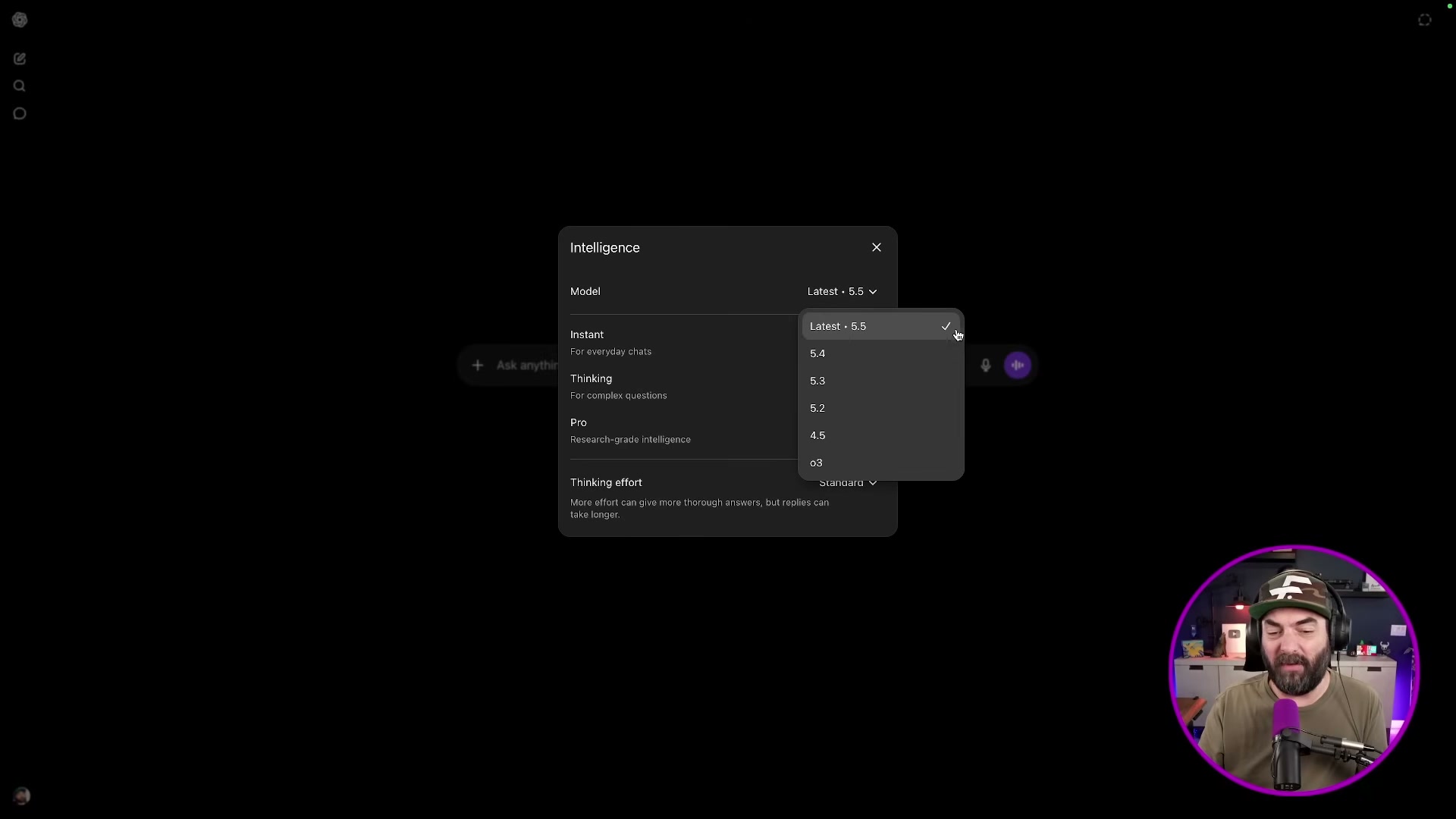
- Select GPT-5.5 Instant from the dropdown. Click Configure and set the default to Instant mode with auto-switch to Thinking enabled — the model will escalate its reasoning depth only when the prompt demands it.
- Navigate to
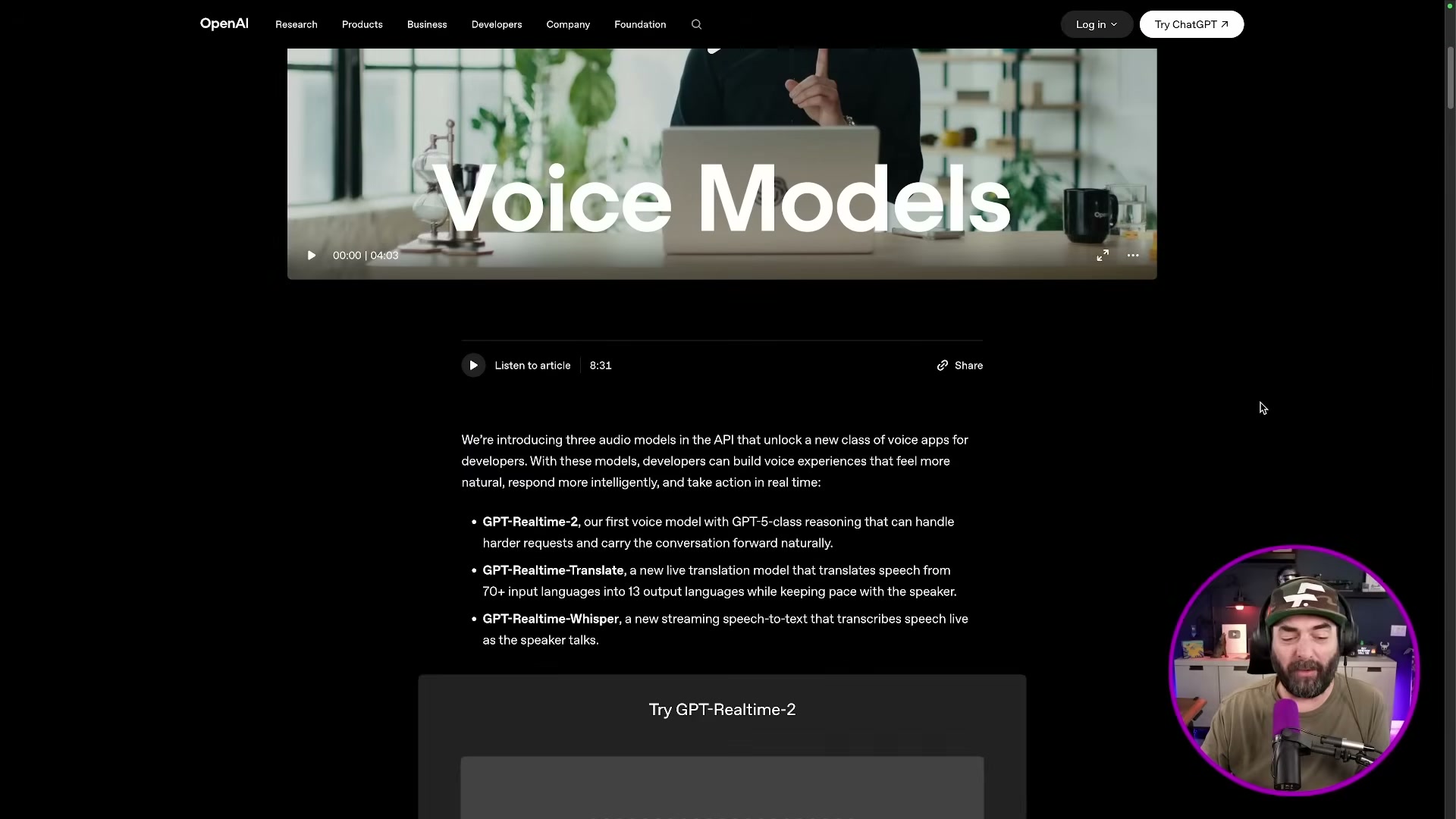
platform.openai.com/audio/realtimeto reach the GPT-Realtime-2 browser demo. OpenAI released three new voice models this week: GPT-Realtime-2 for conversational AI with GPT-5-class reasoning, GPT-Realtime-Translate for live speech translation across 70+ input languages into 13 output languages, and GPT-Realtime-Whisper for streaming transcription. All three are API-only at the time of this recording — none yet available inside ChatGPT or Codex.
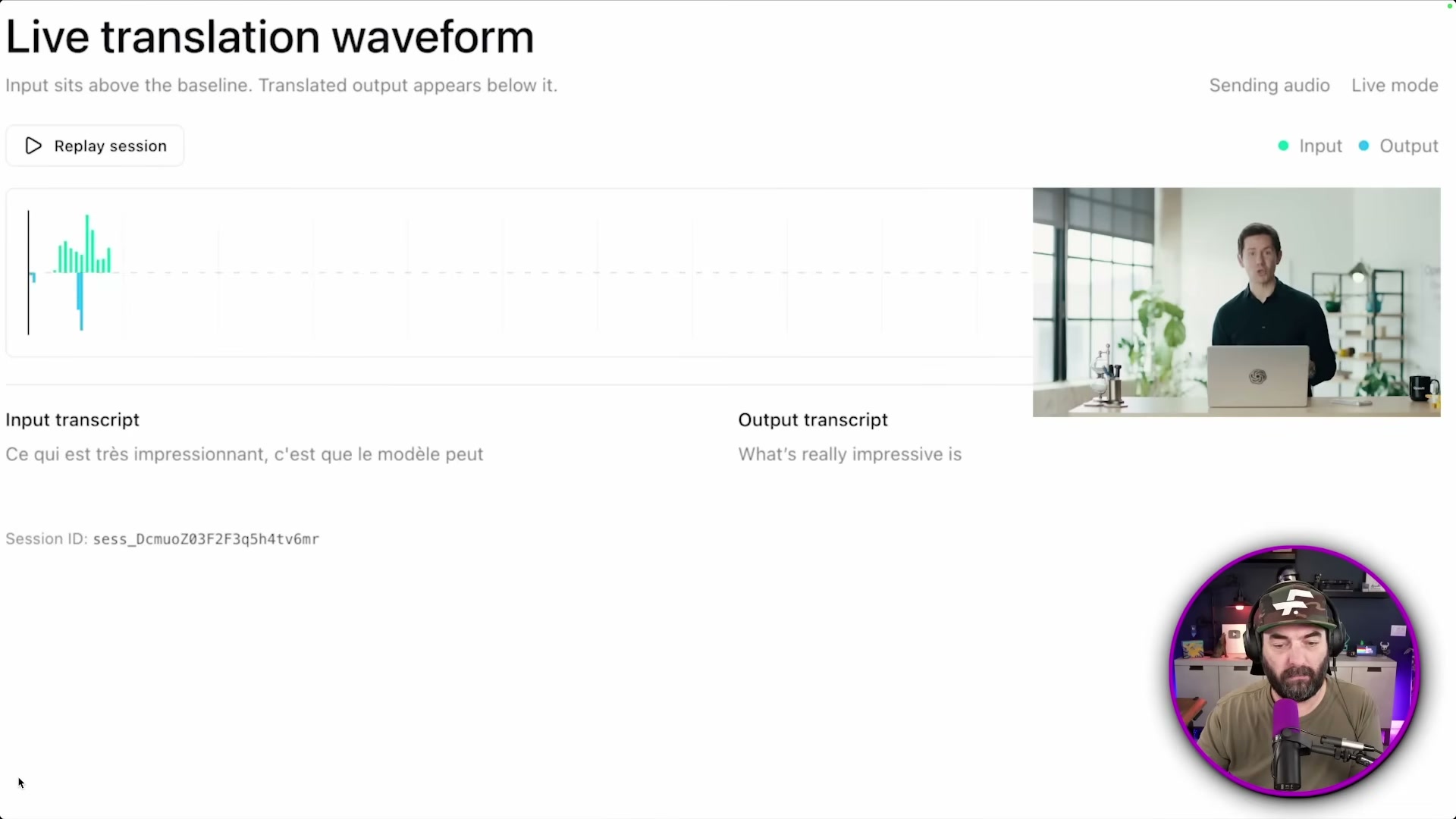
- Start a session and test the pause-and-resume behavior: instruct the model to stay quiet, carry on a separate conversation, then give it a cue phrase to re-engage. Sessions are time-limited and billed against your API account — budget accordingly before running team demos.
-
To connect Codex to Chrome, open the Codex app, navigate to Plugins, and click the plus icon next to the Chrome option. Click Install Chrome and confirm the browser extension prompt when Chrome presents it.
-
With Codex and a Chrome window side by side, start a new chat and type
@Chromefollowed by any URL. Codex retrieves the live page and makes its full content available for reasoning within the conversation thread.
Warning: this step may differ from current official documentation — see the verified version below.
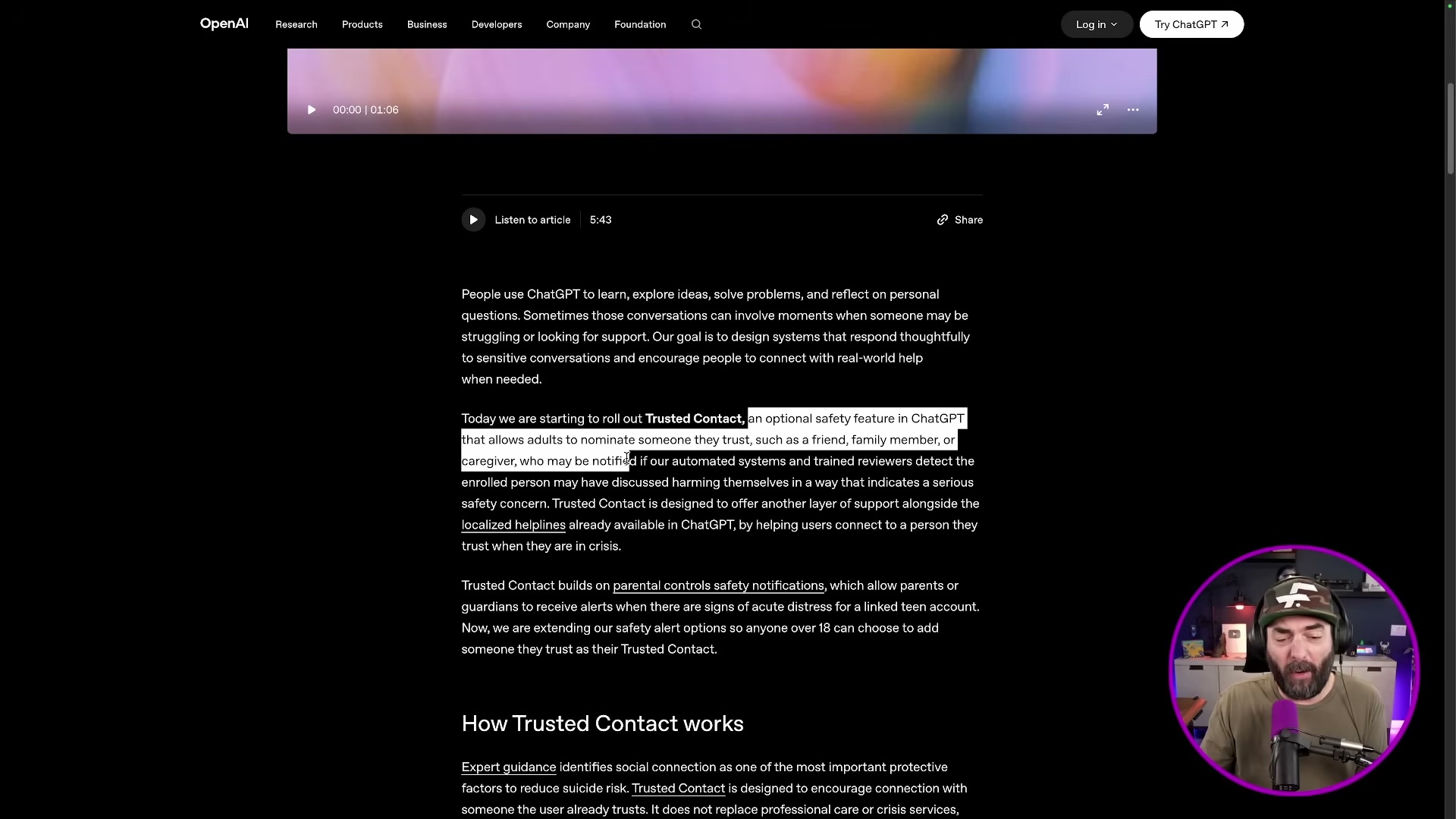
- OpenAI also launched a Trusted Contacts safety feature this week. It’s an opt-in setting that lets adults nominate a friend, family member, or caregiver to be notified if ChatGPT’s automated systems detect a serious self-harm discussion tied to the enrolled account.
- Open HubSpot’s AEO tool and enter your brand or product name. The dashboard returns AI visibility scores showing how often your brand surfaces in ChatGPT, Gemini, and Perplexity responses, which prompts triggered those appearances, and a competitor comparison chart.
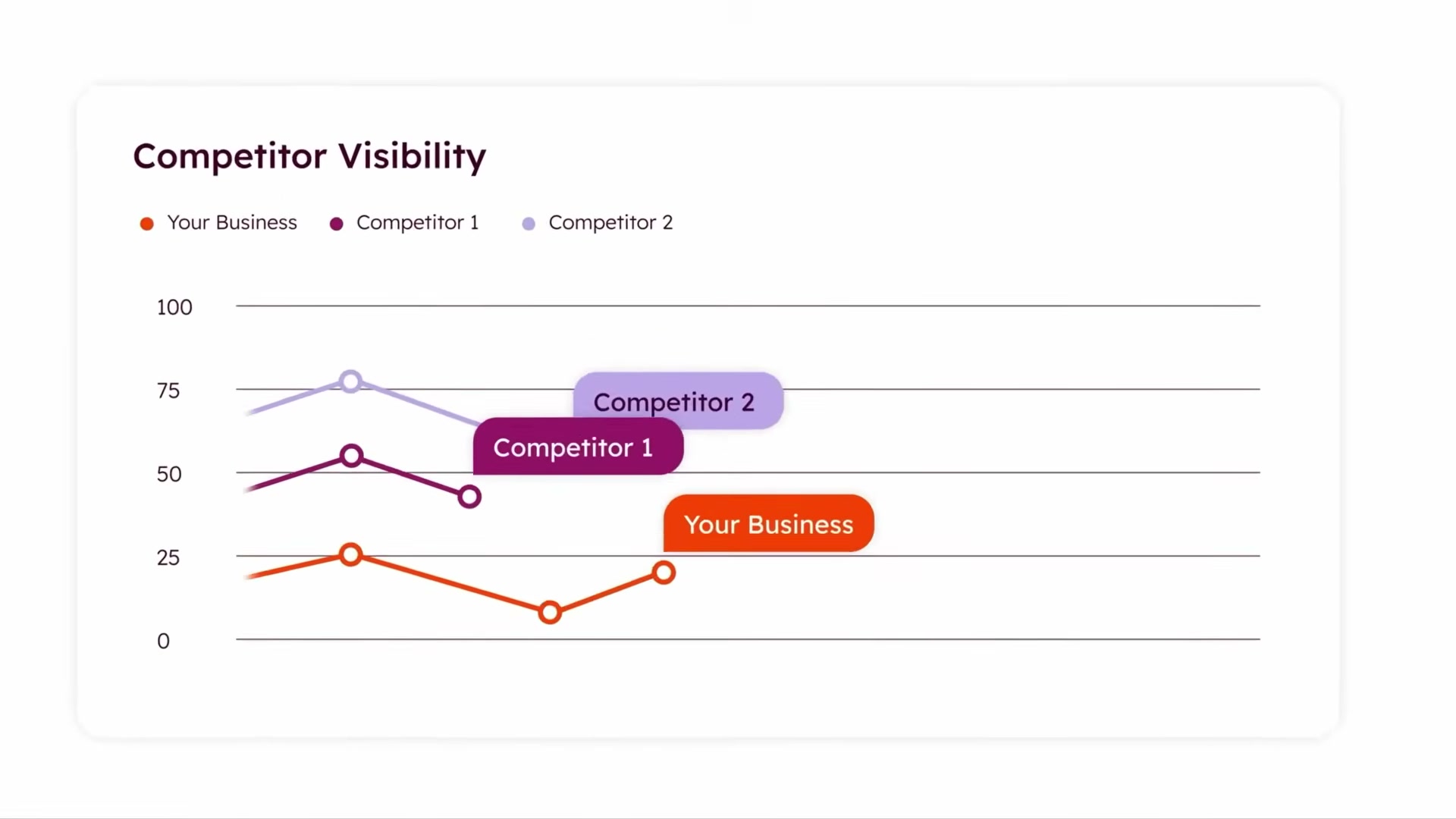
- Review the competitor visibility chart and work through HubSpot’s generated improvement plan. Low-visibility brands will see which prompt categories competitors are winning and receive targeted content recommendations to close the gap.
How does this compare to the official docs?
OpenAI’s API reference, ChatGPT release notes, and HubSpot’s AEO documentation each add critical context around pricing, model versioning, and feature rollout timelines that the video walkthrough leaves on the table.
Here’s What the Official Docs Show
Act 1 walked you through five of OpenAI’s biggest releases in a single week — this section layers in what official documentation can and cannot confirm as of May 8, 2026. Where coverage exists, it either affirms or extends the video; where it doesn’t, those gaps are called out explicitly so you can verify before building anything on top of these features.
Step 1 — GPT-5.5 Instant comparison page on OpenAI.com
No official documentation was found for this step —
proceed using the video’s approach and verify independently.
Step 2 — Opening ChatGPT and locating the model selector
The ChatGPT interface confirms a ChatGPT ▾ dropdown at top-center — consistent with the video’s description of the selector relocating from the top-left corner.

The video’s approach here matches the current docs exactly. One important caveat: the available screenshots capture the logged-out state only. The specific model names available in that dropdown — including GPT-5.5 Instant — and any thinking mode toggle require an authenticated session to verify. Log in before drawing conclusions about which models appear in your own selector.
Step 3 — Selecting GPT-5.5 Instant and configuring Instant mode with auto-switch
No official documentation was found for this step —
proceed using the video’s approach and verify independently.
The logged-out screenshot confirms the dropdown exists where the video says it is, but the model list, the Configure option, and the thinking mode toggle cannot be verified from public-facing pages.
Step 4 — Navigating to platform.openai.com/audio/realtime and the three new voice models
No official documentation was found for this step —
proceed using the video’s approach and verify independently.
The video names GPT-Realtime-2, GPT-Realtime-Translate, and GPT-Realtime-Whisper as API-only. That API-only status is a meaningful constraint if you’re planning any production integration — confirm current availability directly in OpenAI’s platform documentation before scoping any voice workflow.
Step 5 — Testing pause-and-resume behavior and session billing
No official documentation was found for this step —
proceed using the video’s approach and verify independently.
The billing note in Act 1 is worth flagging regardless: Realtime API sessions are metered. Verify current token and session pricing in the OpenAI pricing page before running team demos.
Step 6 — Connecting Codex to Chrome via the Plugins panel
No official documentation was found for this step —
proceed using the video’s approach and verify independently.
Step 7 — Using @Chrome within a Codex chat to retrieve live page content
No official documentation was found for this step —
proceed using the video’s approach and verify independently.
Step 8 — Setting up the Trusted Contacts safety feature in ChatGPT
No official documentation was found for this step —
proceed using the video’s approach and verify independently.
Given this feature involves safety and account settings, verify its current availability and opt-in flow directly within your ChatGPT account settings before communicating it to others.
Step 9 — Running your brand through HubSpot’s AEO dashboard
No official documentation was found for this step —
proceed using the video’s approach and verify independently.
Step 10 — Reviewing the competitor visibility chart and improvement plan
No official documentation was found for this step —
proceed using the video’s approach and verify independently.
Useful Links
- ChatGPT — The logged-out ChatGPT homepage confirming the top-center model selector placement referenced in step 2.


0 Comments