

12 Ways to Stop Burning Through Claude Cowork Credits
Claude Cowork consumes credits at a pace that surprises most users — not because the tasks are broken, but because the default setup silently wastes tokens on every message. After working through these fixes, you’ll know exactly where your credits go and have seven concrete changes ready to apply today. The adjustments range from a five-second model swap to a structural workspace audit, and the combined savings compound quickly.
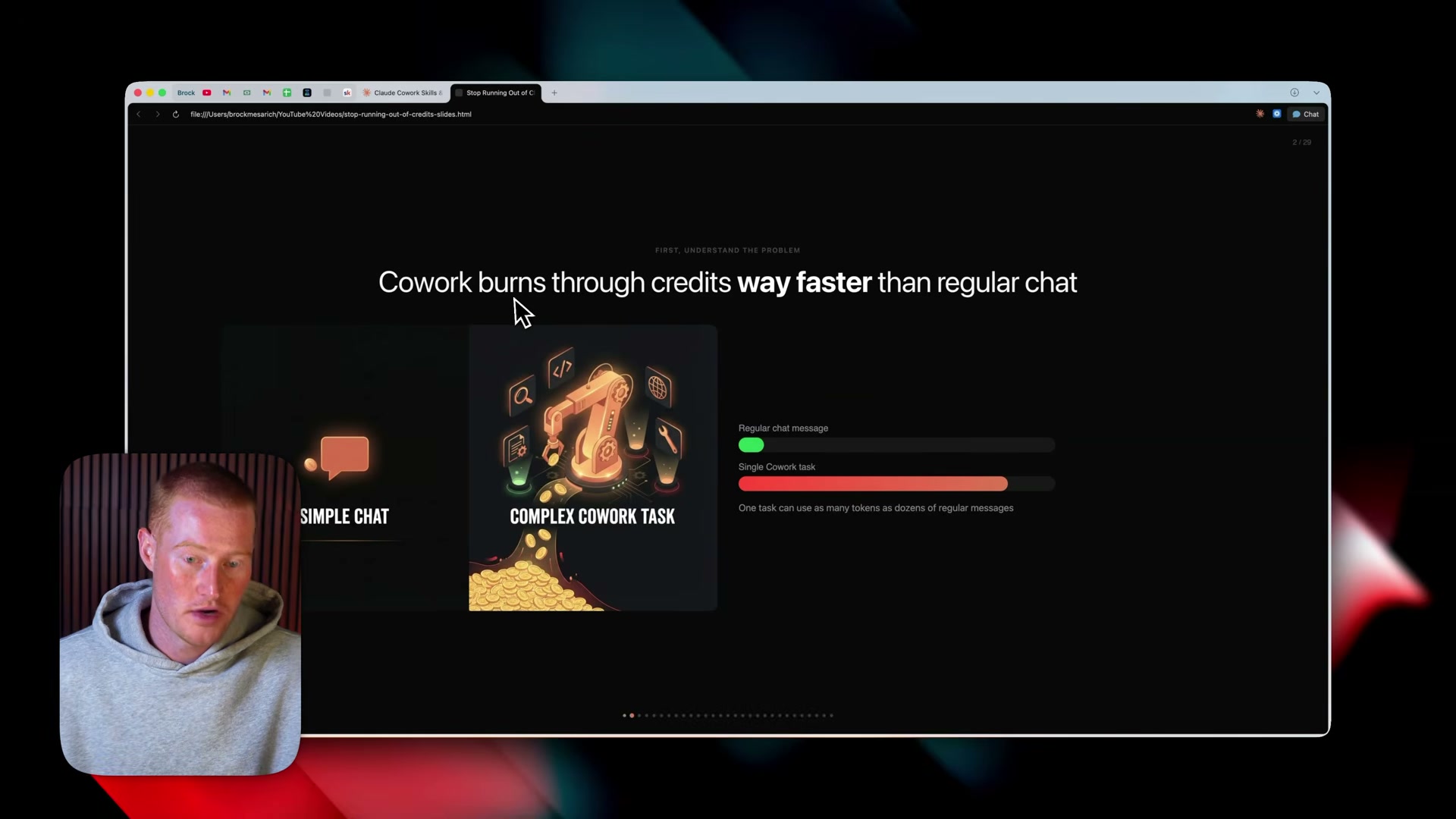
- At task creation, select the model that matches the actual complexity of the work. Haiku handles simple, repetitive tasks like short-form drafts; Sonnet 4.6 covers the majority of everyday analytical and writing work; Opus 4.6 is reserved for deep reasoning and complex multi-step workflows. Most users leave Opus selected by default and overpay on every routine task as a result.
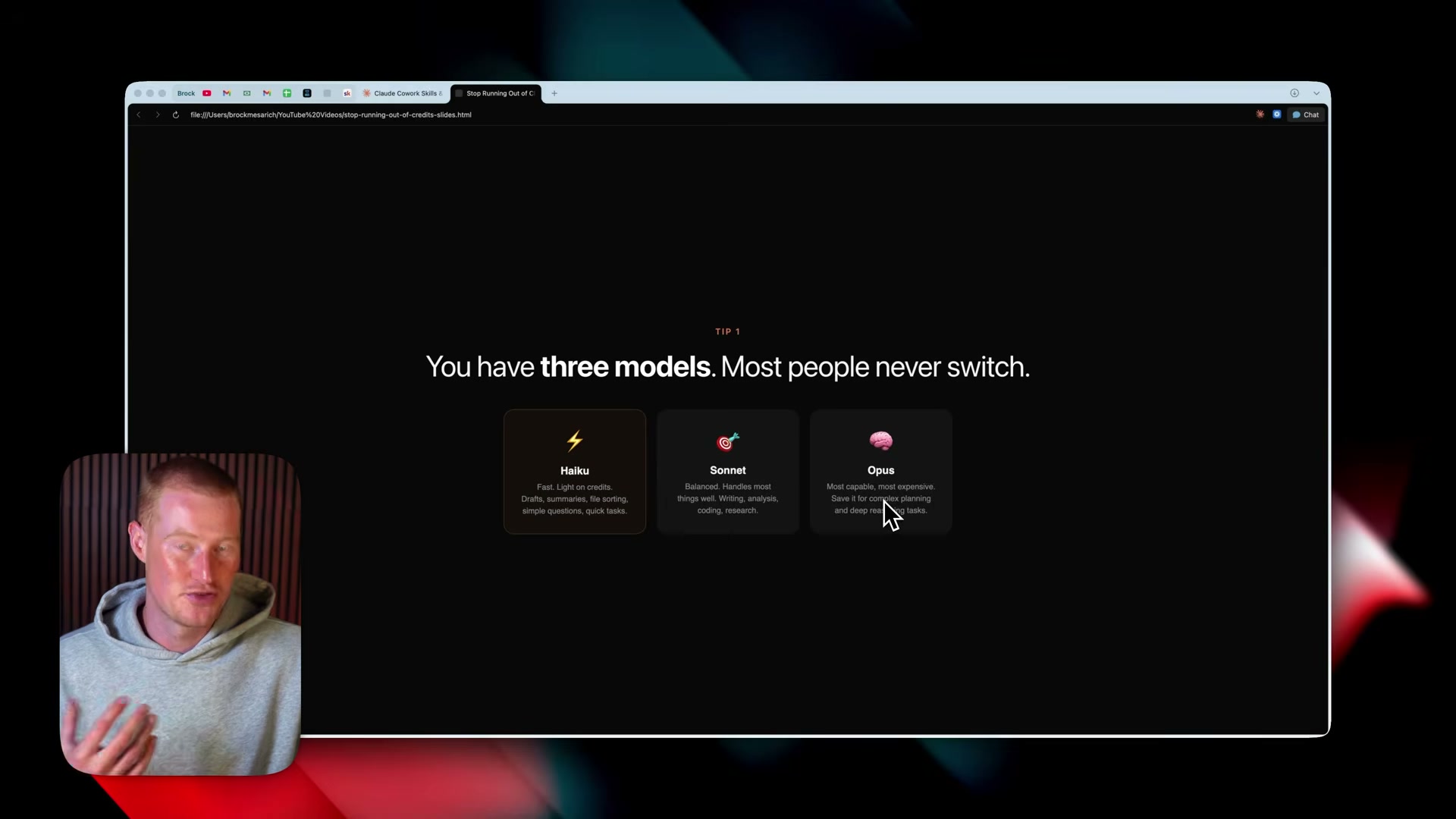
- Specify exact response length in every prompt, or bake the constraint into the skill definition. Output tokens cost more than input tokens, and an unconstrained request like “explain how tokens work” can return 2,000 words when three sentences would do the same job. Add “3 sentences max” to the prompt, or add the length rule directly to the skill so recurring workflows stay tight automatically.
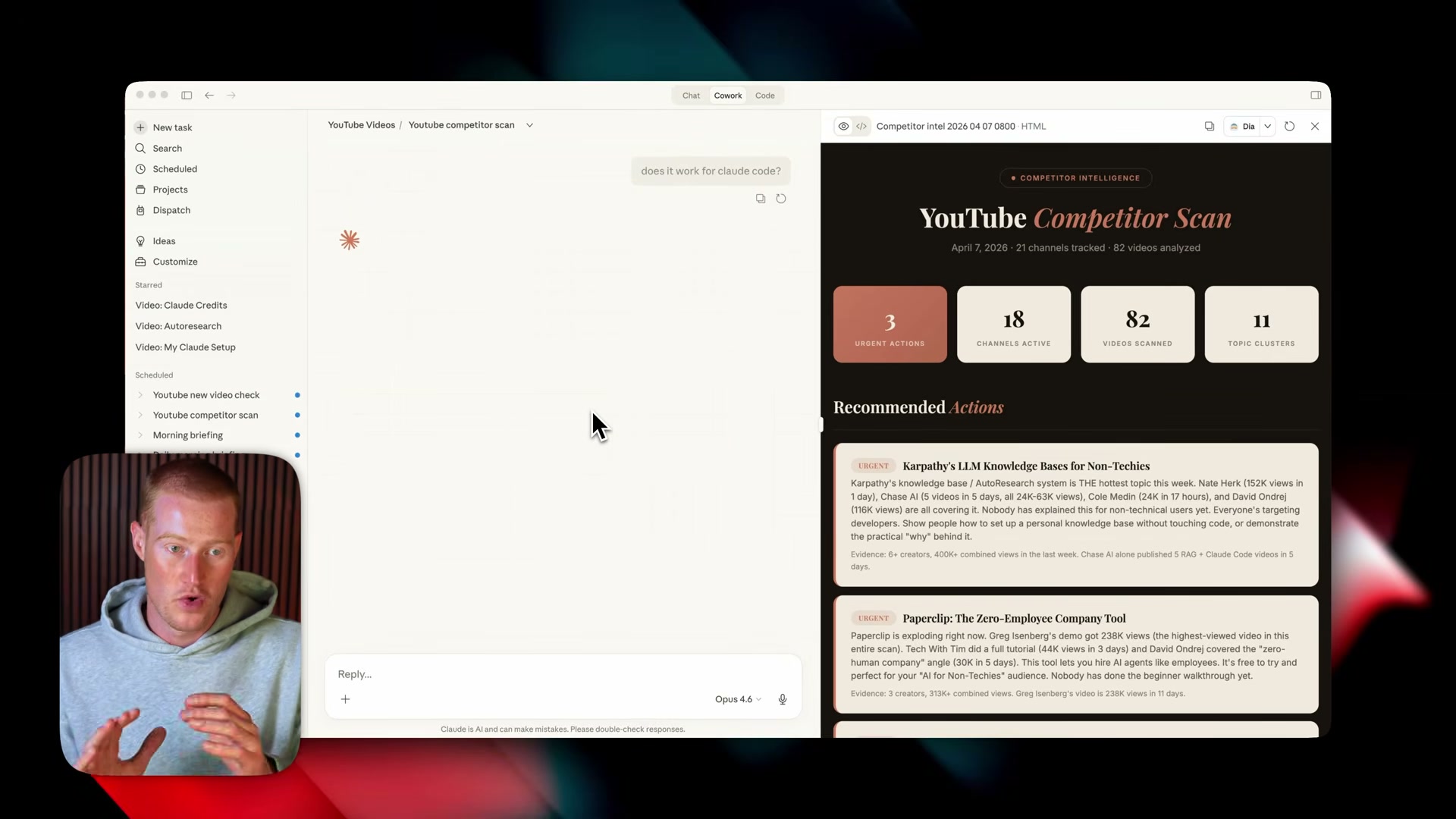
- Keep your CLAUDE.md file under 200 lines. This file loads on every single message, so each line you add is a permanent per-message cost regardless of what you’re asking Claude to do. The file should contain only four things: who you are and what your business does, tone and writing style, universal rules, and key context that every task genuinely needs.

-
Move task-specific instructions, long reference lists, detailed processes, and anything you use only occasionally out of CLAUDE.md and into dedicated skills. Skills load on demand — they only consume tokens when a task triggers them. A bloated CLAUDE.md, by contrast, loads all of that content on every message, including tasks where none of it applies.
-
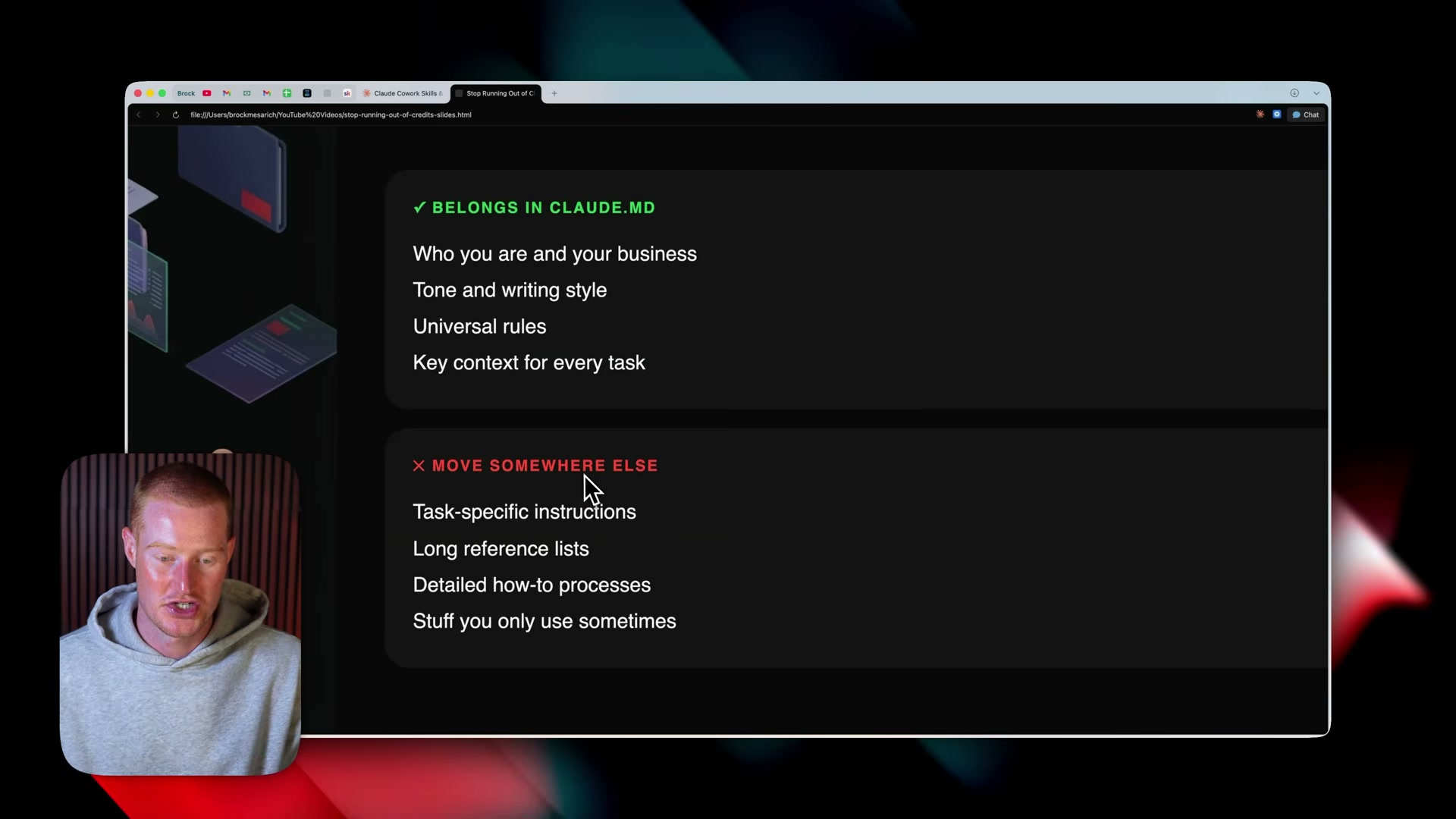
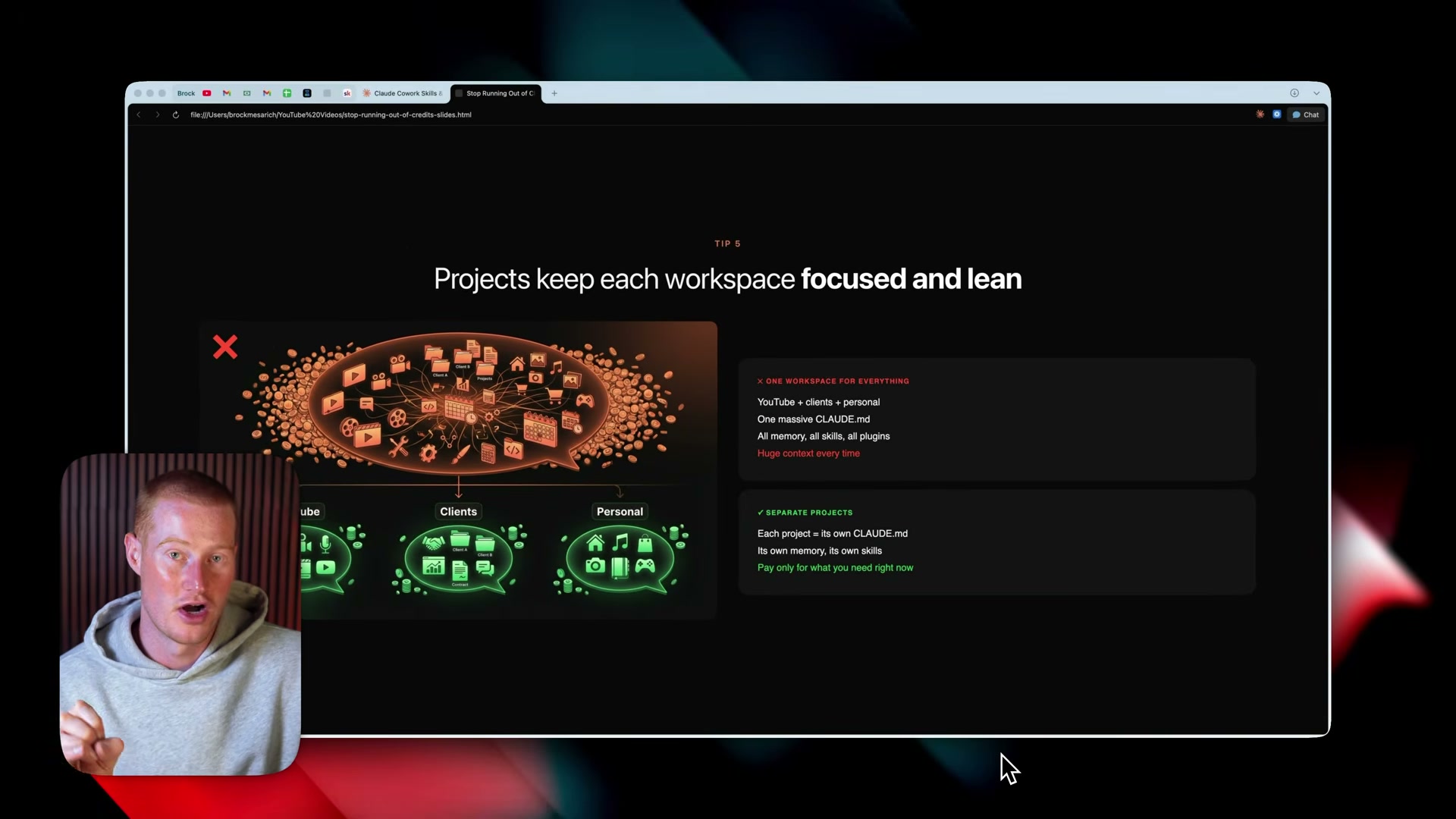
Use Claude Code Projects to scope memory, scheduled tasks, and outputs to separate work areas. Before Projects, a single Cowork environment meant everything competed for the same context. With Projects, each area — client work, personal tasks, content production — gets its own CLAUDE.md and task history, keeping each context lean.
-
Start a new task for each distinct session instead of continuing an existing conversation. Every prior message in a running conversation re-loads with each new message, and accumulated history rarely contributes anything useful to the current task.
-
Audit your connector list and disconnect anything you don’t use at least weekly. Every active connector adds to the context window Claude maintains when selecting tools, and duplicate connectors for the same app compound the waste without adding capability.
How does this compare to the official docs?
The video translates these optimizations into plain language quickly, but Anthropic’s official documentation covers the mechanics behind model pricing, context window behavior, and CLAUDE.md configuration in far more depth — and that’s exactly where the verified version picks up.
Here’s What the Official Docs Show
The video covers the right territory, and three of its seven tips are confirmed directly by the Cowork UI. What follows fills in the gaps, flags what the screenshots couldn’t verify, and adds one piece of context on Tip 7 that the video leaves out entirely.
Tip 1 — Match the model to the task
No official documentation was found for this step —
proceed using the video’s approach and verify independently.
The version designations “Sonnet 4.6” and “Opus 4.6” do not appear on any current Cowork page. The pricing screen shows usage is metered by subscription tier — Free, Pro ($17/month), Max (from $100/month) — not by a visible per-model rate card. No model-selection UI is visible to confirm that task-creation-time model switching works as described. The core advice is reasonable; the specific version numbers and workflow cannot be confirmed from current documentation.
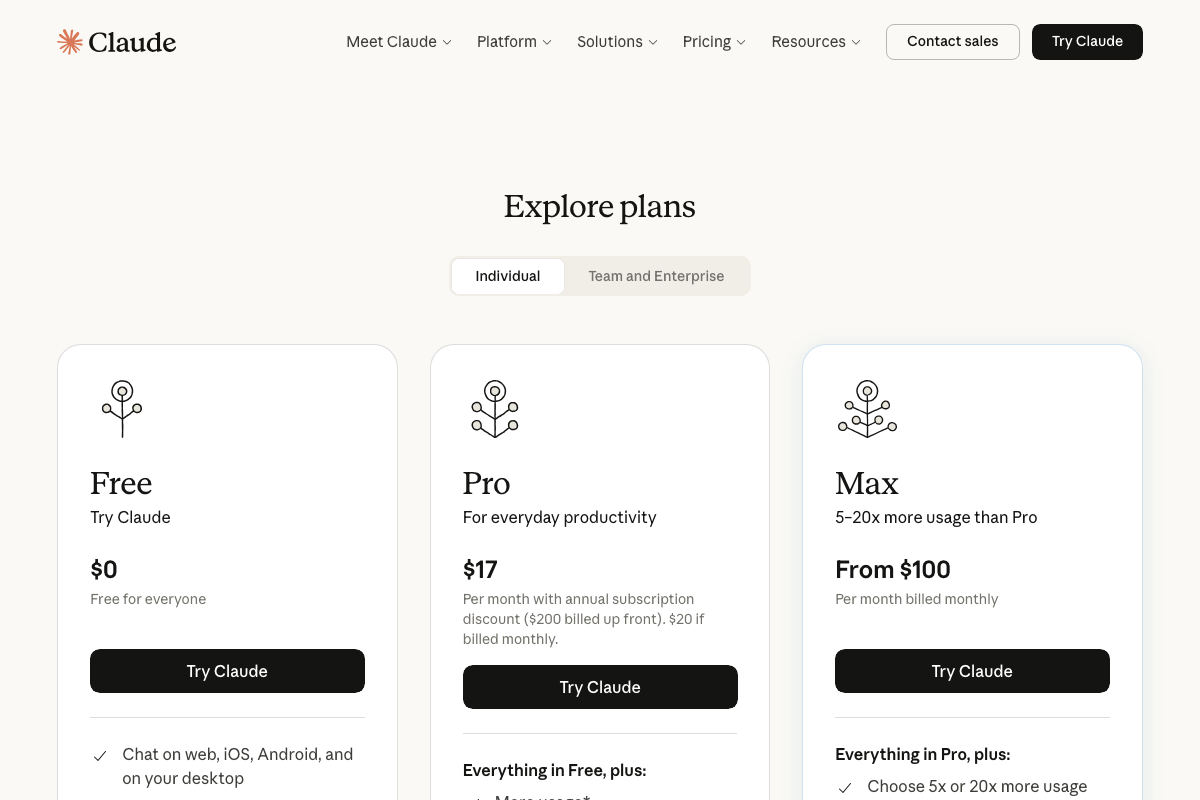
One naming note worth carrying forward: the product the video calls “Claude Co-work” is officially branded Cowork at claude.ai/code. Anthropic’s developer documentation calls the underlying tool Claude Code. Neither label matches the video’s phrasing exactly — both terms are in active use in different contexts.
Tip 2 — Constrain output length in every prompt
No official documentation was found for this step —
proceed using the video’s approach and verify independently.
Tip 3 — Keep CLAUDE.md under 200 lines
No official documentation was found for this step —
proceed using the video’s approach and verify independently.
Tip 4 — Move task-specific content into skills
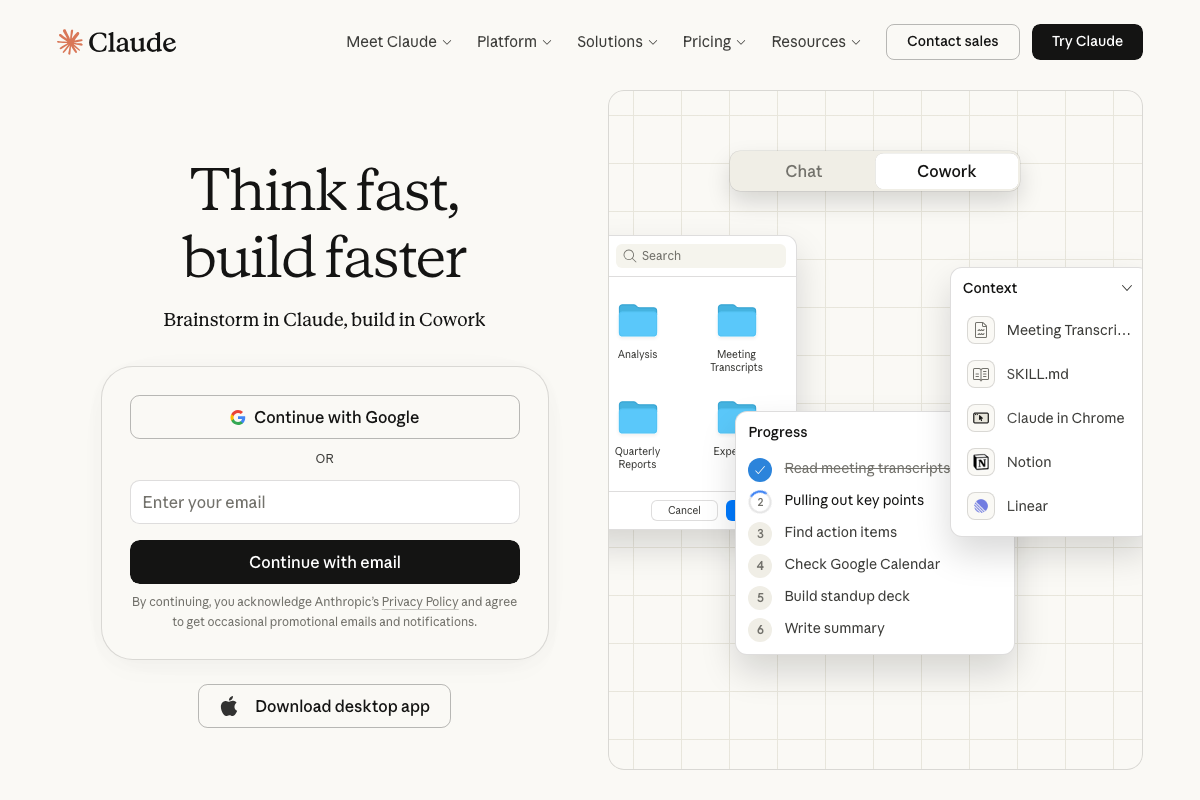
The video’s approach here matches the current docs exactly. The Cowork Context panel shows SKILL.md as a named, discrete context item — confirming that skills load on demand rather than persisting on every message the way CLAUDE.md does.
Tip 5 — Use Projects to scope each work area
The video’s approach here matches the current docs exactly. Project folders — Analysis, Meeting Transcripts, Quarterly Reports — are visible as distinct scoping areas in the workspace UI, consistent with the separate-context discipline the video describes.
Tip 6 — Start a new task for each session
No official documentation was found for this step —
proceed using the video’s approach and verify independently.
Tip 7 — Audit and remove unused connectors
The video’s approach here matches the current docs exactly. The Context panel confirms connectors (Notion, Linear, Claude in Chrome) are individually listed, meaning each can be disconnected without affecting the others.
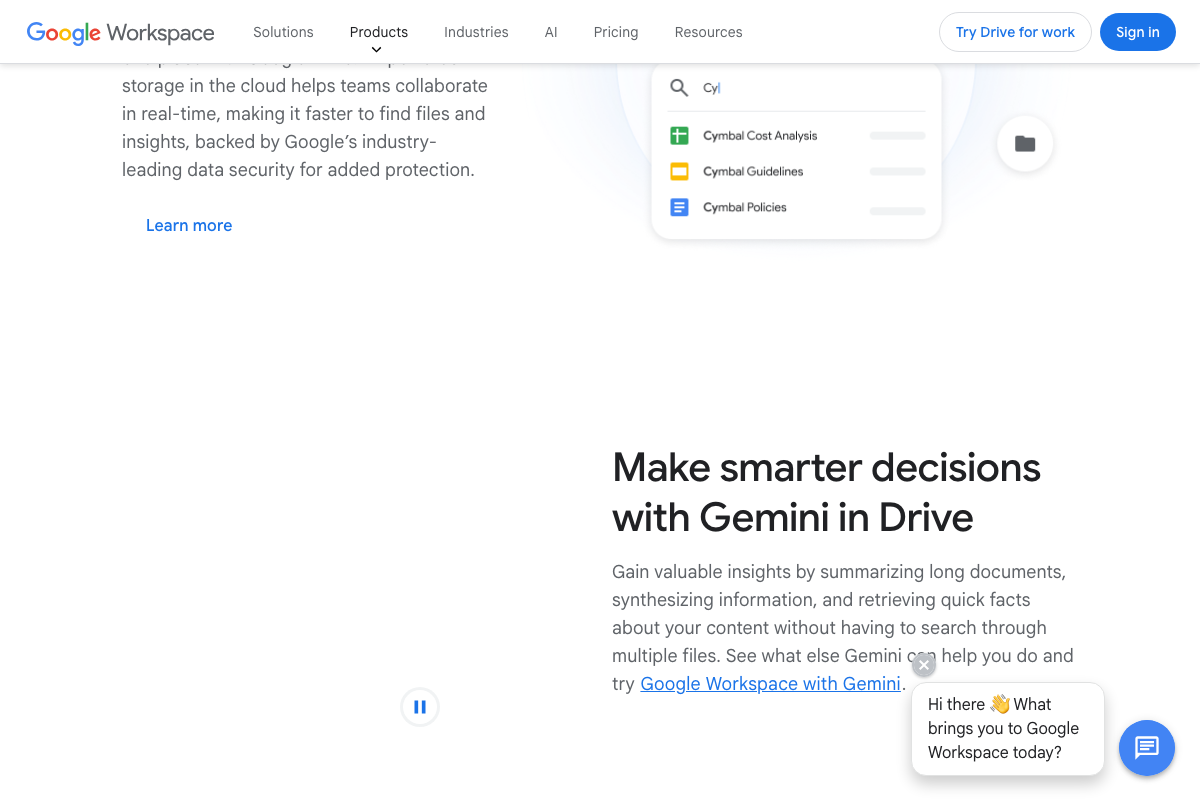
What the video doesn’t address: Gmail, Google Drive, Google Calendar, and Canva all ship with native Gemini AI integrations. Gmail handles drafting, thread summaries, and inbox search without a connector. Drive can summarize and synthesize documents natively. Calendar can generate events directly from Gmail content. Before deciding to keep a connector active, confirm whether the task is already covered inside the app — if it is, the connector adds token overhead with no marginal gain.


Useful Links
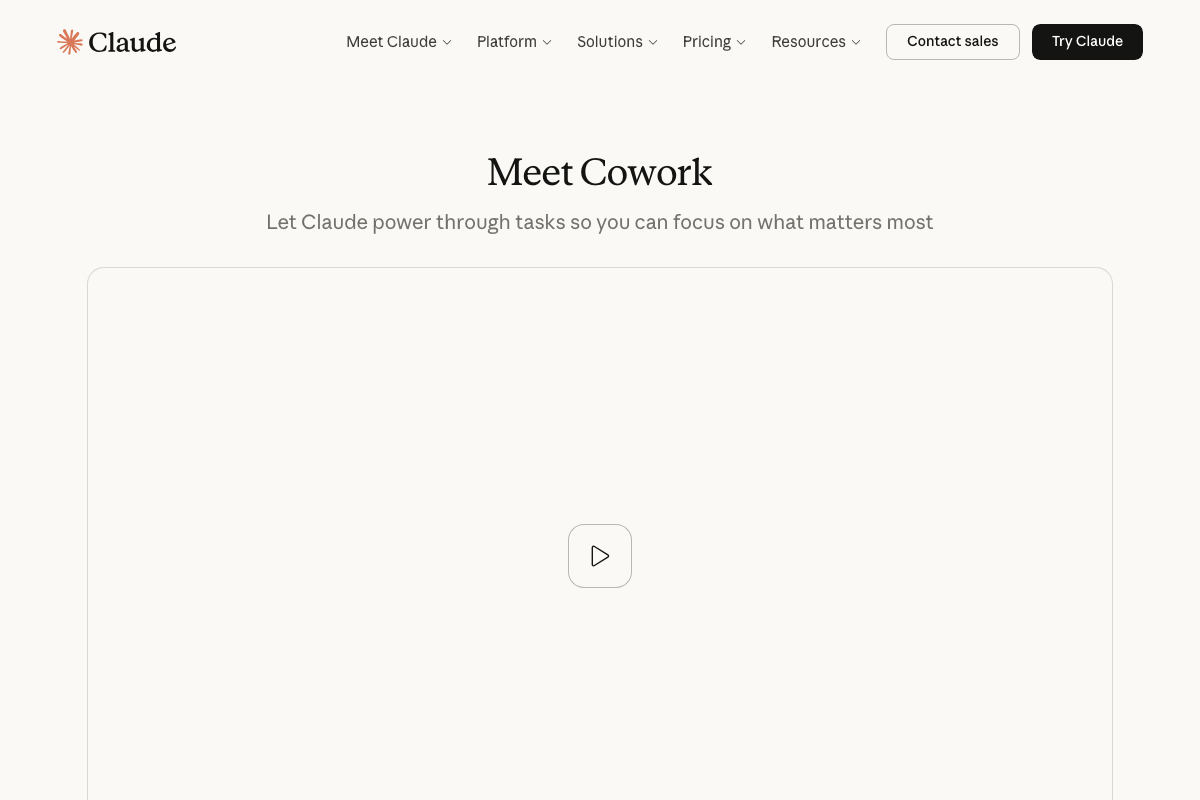
- Claude Code — Consumer-facing Cowork product page; includes the workspace UI, subscription pricing tiers, and the “Meet Cowork” product overview.
- Canva Help Center — Canva’s self-service support hub; useful context for evaluating Canva as a Cowork connector worth retaining or removing.
- Gmail: Secure, AI-Powered Email for Everyone — Gmail’s feature and marketing page detailing native Gemini integration for email drafting, thread summaries, and inbox search.
- Shareable Online Calendar and Scheduling — Google Calendar — Google Calendar product page covering Gemini-powered scheduling features native to Google Workspace.
- Google Drive: Share Files Online with Secure Cloud Storage — Google Drive product page covering Gemini in Drive for document summarization and multi-file synthesis.


0 Comments