

Build a Solo Content Workflow with Claude Co-work and Blotato
Sabrina Romanov publishes 250 pieces of content per week without a team, an agency, or a single virtual assistant — just Claude Co-work, a brand-voice skill she trained herself, and a scheduling tool called Blotato. By the end of this walkthrough, you’ll have a Claude skill that writes in your exact voice, a live connection between Claude and Blotato’s visual and scheduling tools, and a repeatable system for turning raw screenshots into multi-platform posts without leaving the Claude interface.
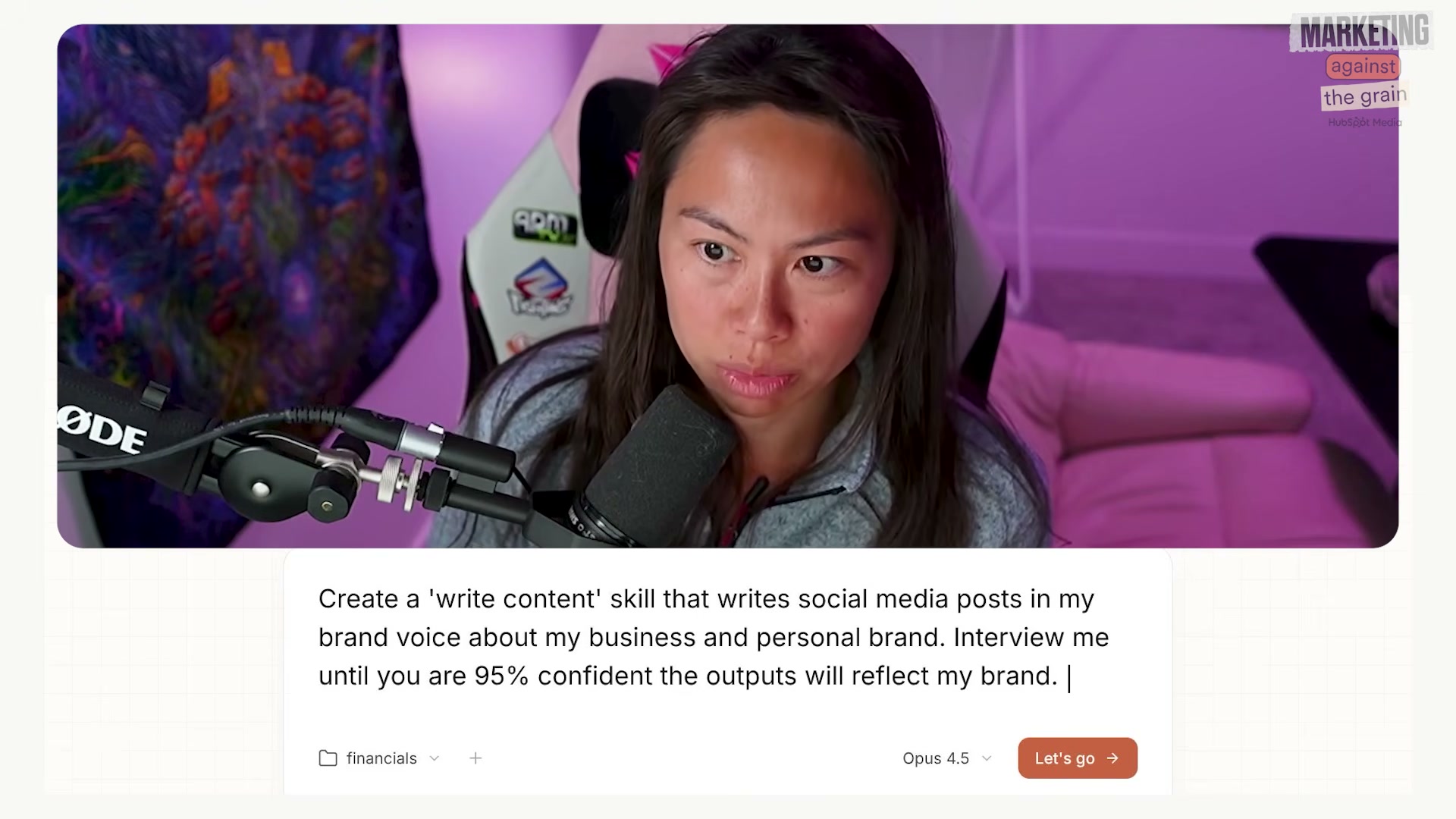
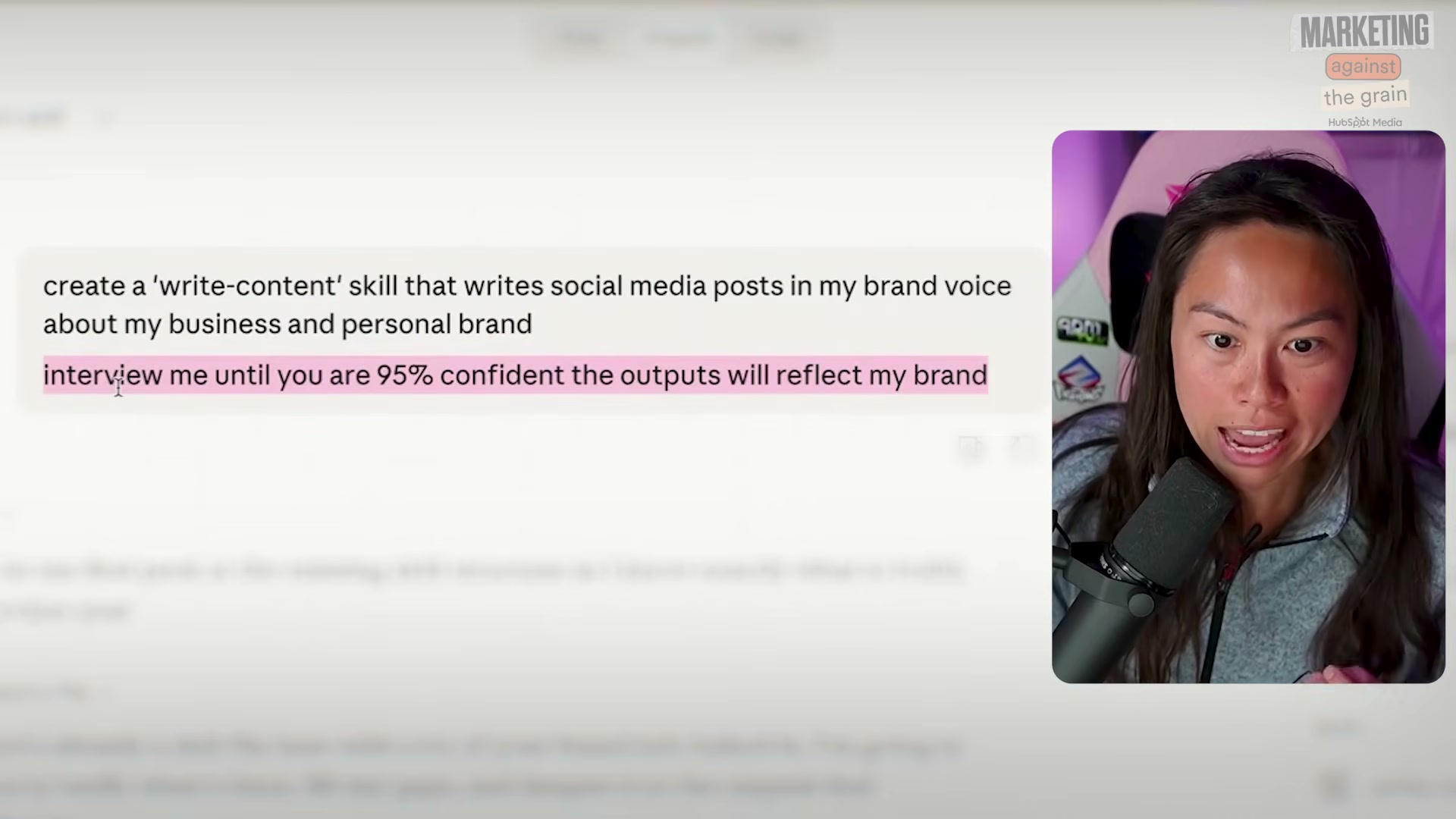
- Open Claude Co-work and paste this prompt into a new conversation: “Create a write content skill that writes social media posts in my brand voice about my business and personal brand. Interview me until you’re 95% confident the outputs will reflect my brand.” The 95% confidence threshold is the operative instruction — it prevents Claude from generating anything until it has enough signal.
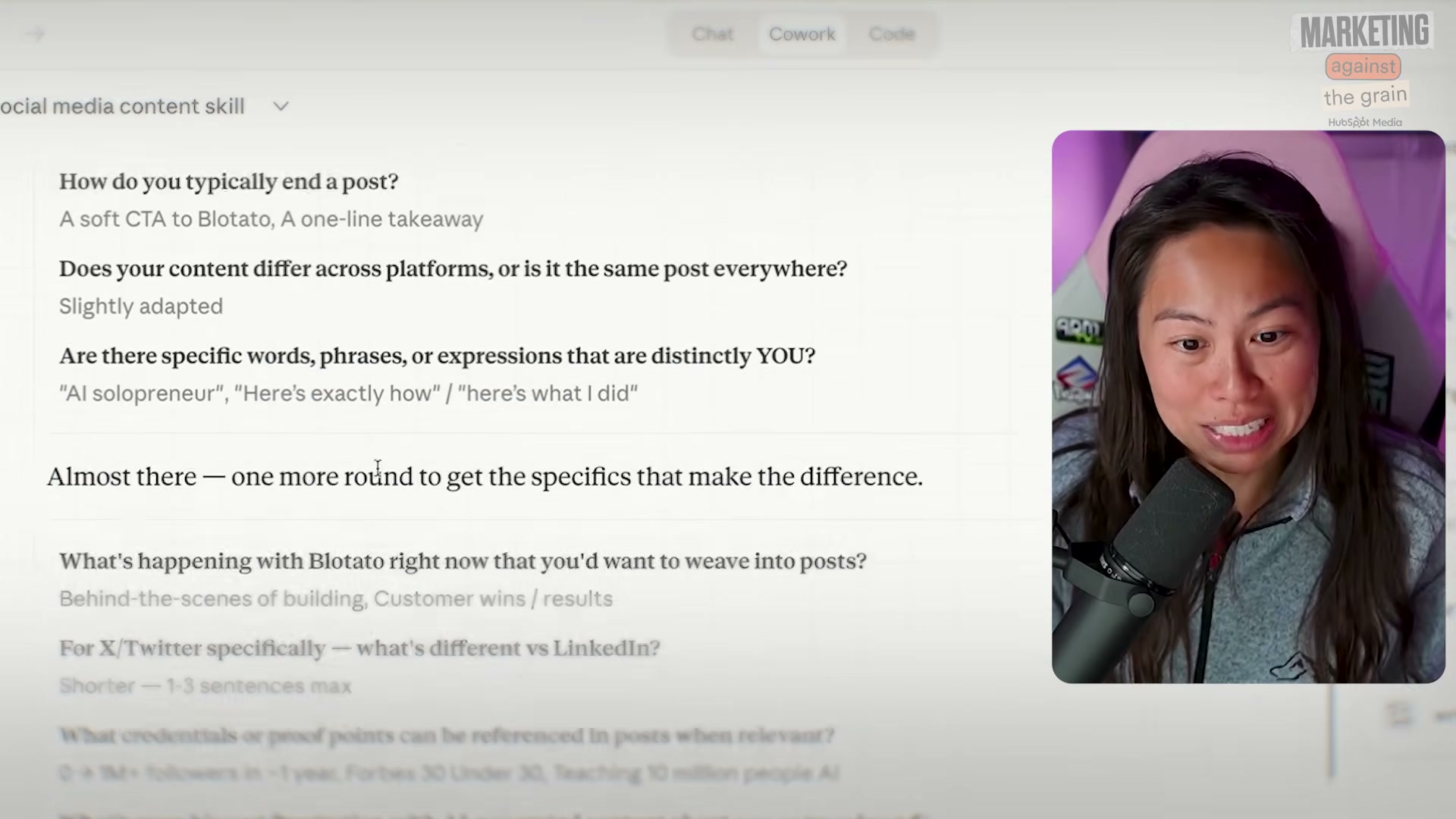
- Work through Claude’s interview. Expect questions covering platforms, content pillars, post length, tone, CTAs, target audience, and how much personal content you mix in. Answer specifically — vague inputs produce generic outputs.
- When Claude requests writing samples, paste a real high-performing piece — a Substack post, a LinkedIn article, a tweet thread. Concrete examples anchor the skill to your actual voice rather than an approximation of it.
-
Start a new chat and trigger the skill by typing
/write content. Confirm the skill name highlights blue — that visual confirmation means Claude is loading the full interview context, not starting from scratch. Plain-text “write content” also works, but the slash trigger removes ambiguity. -
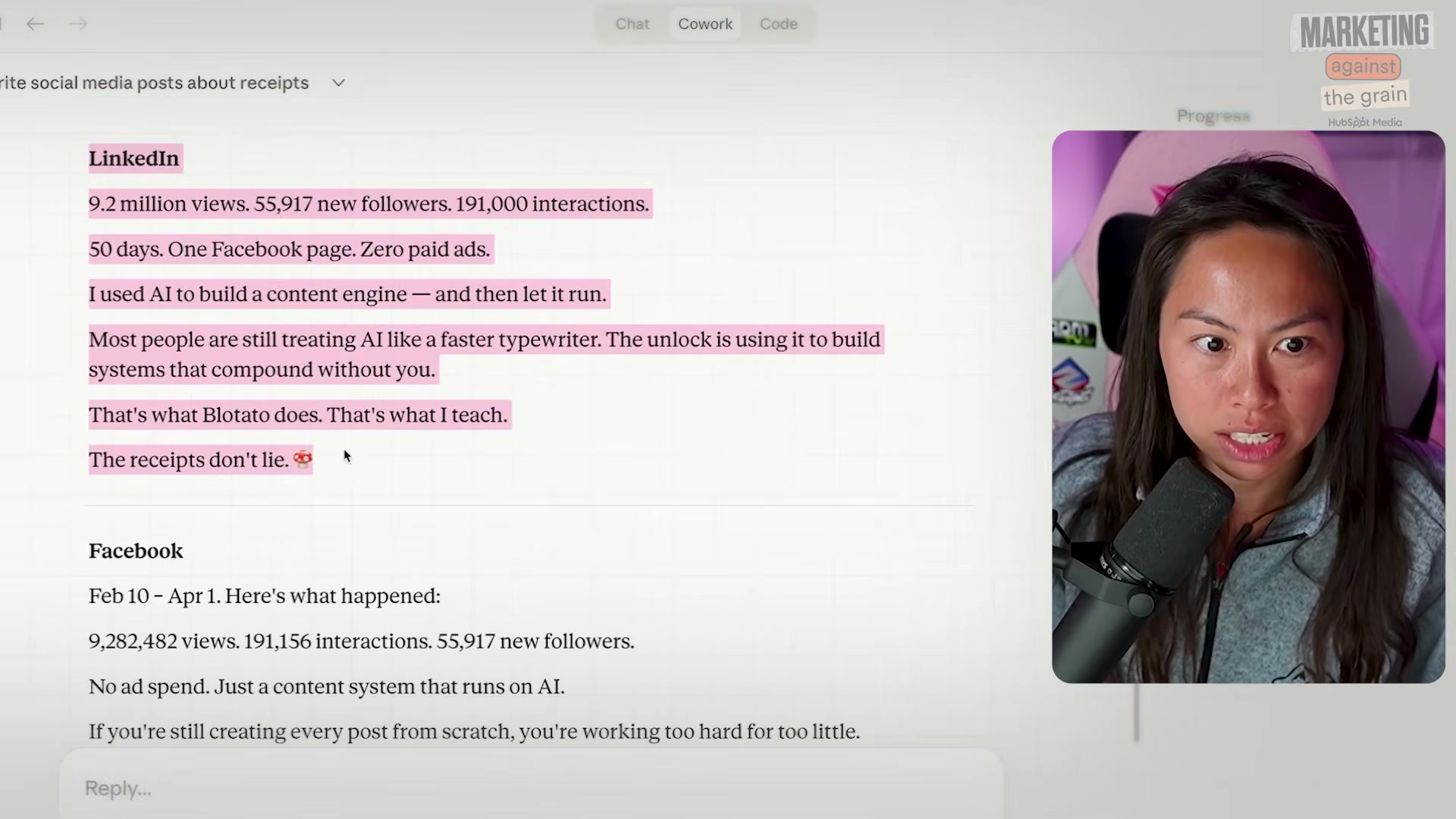
Prompt Claude to write posts by referencing a local file: “Write a LinkedIn, Facebook, and Twitter post about the receipts image in my downloads folder.” Claude Co-work has file system access, so it locates the image, analyzes its contents, and generates platform-specific drafts without any manual copying.
-
Review every draft. If something’s off — a tone mismatch, an emoji you’d never use, a CTA that doesn’t fit your style — give Claude that feedback in chat, then close the loop: “Update the skill with everything we’ve talked about.” This writes your preferences into the skill itself so future sessions inherit them automatically.
-
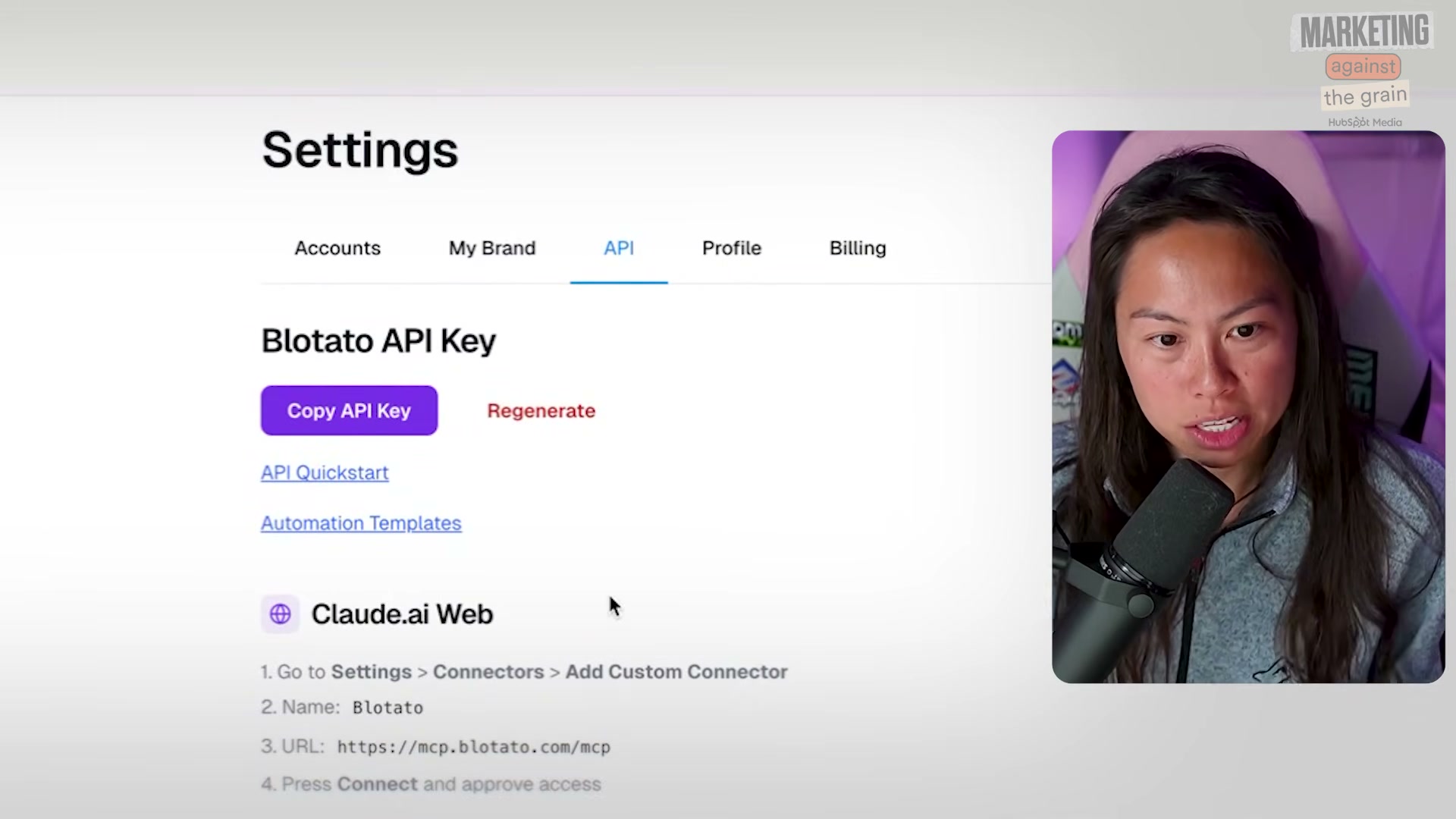
In Blotato, navigate to Settings > API and generate an API key. This authenticates every request Claude makes to Blotato’s visual and scheduling endpoints.
-
In Claude Co-work, go to Settings > Connectors, click Add custom connector, name it “Blotato”, and paste
https://mcp.blotato.com/mcpas the connector URL. -
Click Connect and complete the OAuth window. Once authenticated, Blotato’s tools are available to Claude across all conversations.
-
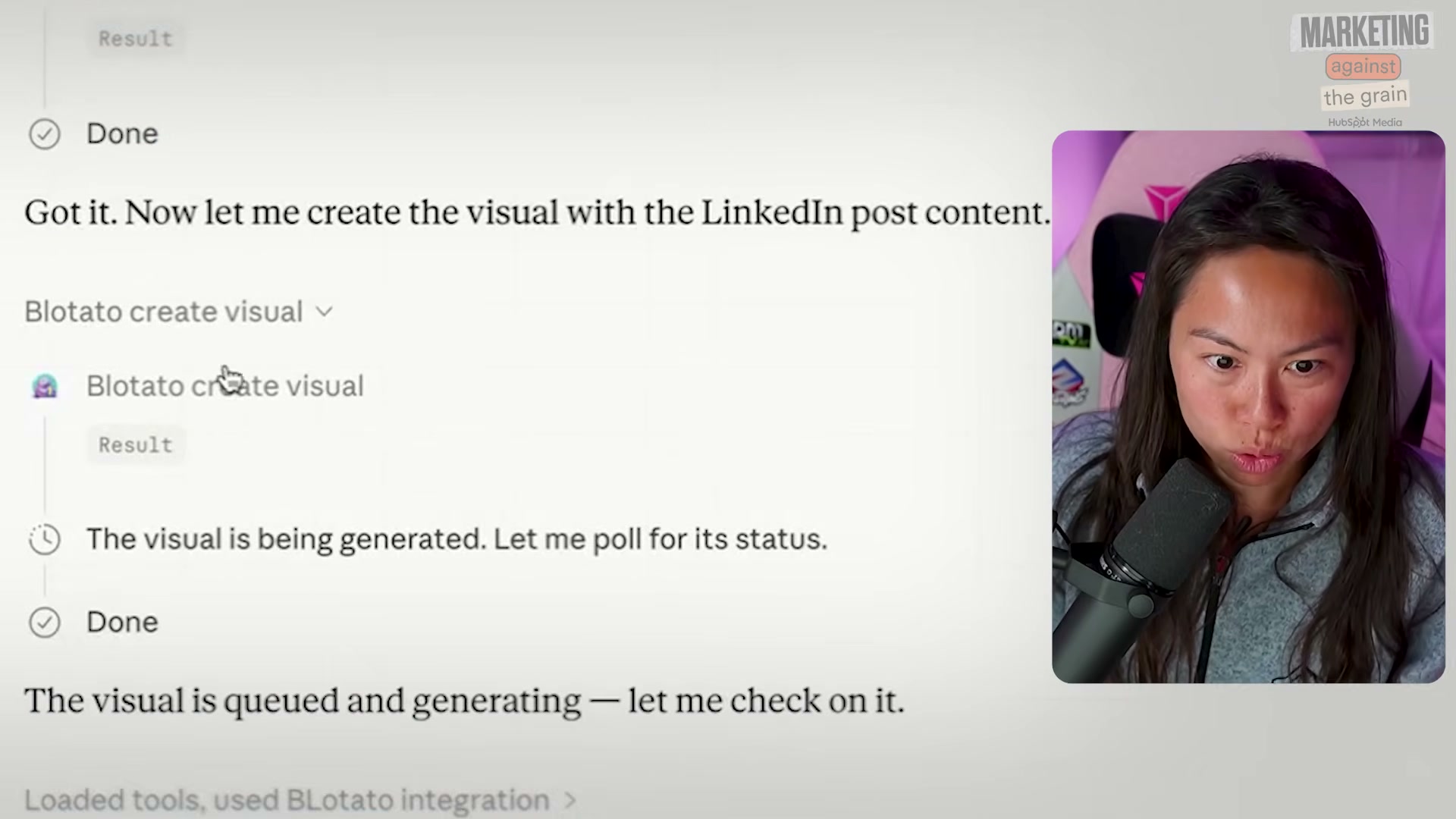
Prompt Claude: “Use Blotato tool to create a visual to accompany our LinkedIn post. Let’s use the whiteboard infographic template.” Claude identifies the connector, calls
create_visual, and begins the job — no manual steps in Blotato required. -
Wait 1–2 minutes for Blotato (powered by Nano Banana 2) to render the infographic. When Claude reports completion, click Show image to preview.
-
Prompt Claude to schedule all three posts 10 minutes from now, specifying the asset per platform: infographic for LinkedIn, the analytics screenshot for Facebook, and Twitter as text only. Claude handles scheduling through the Blotato connector without requiring a separate dashboard.
-
To clean up a test run, tell Claude: “Delete these three posts.”
Warning: this step may differ from current official documentation — see the verified version below.
How does this compare to the official docs?
The steps above follow the workflow as demonstrated live in the video — Act 2 checks the Claude skill system and Blotato MCP integration against Anthropic’s published documentation and Blotato’s official API reference to surface exactly where the two accounts align and where they diverge.
Here’s What the Official Docs Show
The video gives you a working blueprint — the documentation screenshots add essential context on costs and one factual correction worth knowing before you start. Think of this as a pre-flight check for the steps the official record can actually speak to.
Step 1 — Open Claude Co-work and paste your skill prompt
Cowork is a real, named Anthropic product — confirmed on claude.ai with the tagline “Brainstorm in Claude, build in Cowork.” The video’s approach here matches the current docs exactly. What the video skips: Cowork requires a paid subscription. As of April 2026, it’s included on the Pro plan ($17/month annual, $20/month monthly) or Max plan (from $100/month). Free-tier users cannot follow this tutorial without upgrading first — budget that before you open a new conversation.
Steps 2–6 — Brand-voice interview, writing samples, skill trigger, post drafts, refinement loop
No official documentation was found for these steps —
proceed using the video’s approach and verify independently.
Step 7 — Generate a Blotato API key in Settings > API
Blotato is a confirmed, active product with a public free-trial offer (“Start FREE Week” CTA visible on the homepage). The video’s approach here matches the current docs exactly in positioning Blotato as a content creation and scheduling platform. One caveat: no captured screenshot shows the Settings > API page or the key-generation UI specifically — confirm that navigation path inside your own account after signing up.
Steps 8–9 — Add Blotato as a custom connector in Cowork
No official documentation was found for these steps —
proceed using the video’s approach and verify independently.
Step 10 — Generate a whiteboard infographic via the Blotato connector
No official documentation was found for this step —
proceed using the video’s approach and verify independently.
Step 11 — Wait for render; preview the infographic
As of April 2026, no reference to “Nano Banana 2” or any named image-generation engine appears anywhere on the Blotato website. The video’s claim that Blotato is “powered by Nano Banana 2” is unconfirmed by official documentation — treat it as informal shorthand, not a verifiable technical spec.
No official documentation was found for this step —
proceed using the video’s approach and verify independently.
Steps 12–13 — Schedule posts across platforms; delete test runs
LinkedIn and Facebook are confirmed live platforms, both accessible via Google OAuth or email login — consistent with what a third-party scheduler like Blotato would require for OAuth handshake. Beyond that, no scheduling interface, post-management panel, or API integration UI appears in any captured screenshot; both platforms were available only in their logged-out public state. The Blotato-to-platform connection flow is unverified from official documentation.
No official documentation was found for these steps —
proceed using the video’s approach and verify independently.
Useful Links
- Claude — Anthropic’s product hub for Claude and Cowork, including pricing tiers, sign-in options, and the macOS desktop app download
- Blotato – AI Content Engine — Blotato’s official homepage with free trial access, template library overview, and social proof from business-owner users
- LinkedIn: Log In or Sign Up — LinkedIn’s public login page, the starting point for authenticating your account with a third-party scheduling tool
- Facebook — Facebook’s login page under Meta branding, required for cross-platform post scheduling via Blotato


0 Comments