

YouTube’s Ask YouTube Feature: Enable and Use Conversational AI Search
YouTube’s new Ask YouTube feature replaces keyword-based search with a conversational AI interface that generates structured, narrative answers backed by curated video recommendations. After working through these steps, you’ll know how to activate Ask YouTube, compose queries that unlock its full depth, and understand where its results diverge from classic search — in format, sourcing, and consistency.
-
Go to youtube.com/new in your browser. If your account has YouTube Premium, you’ll find a panel introducing a new way to search on YouTube.
-
Click Try now to activate Ask YouTube on your account. The feature is gated behind YouTube Premium and is unavailable to free-tier users.
-
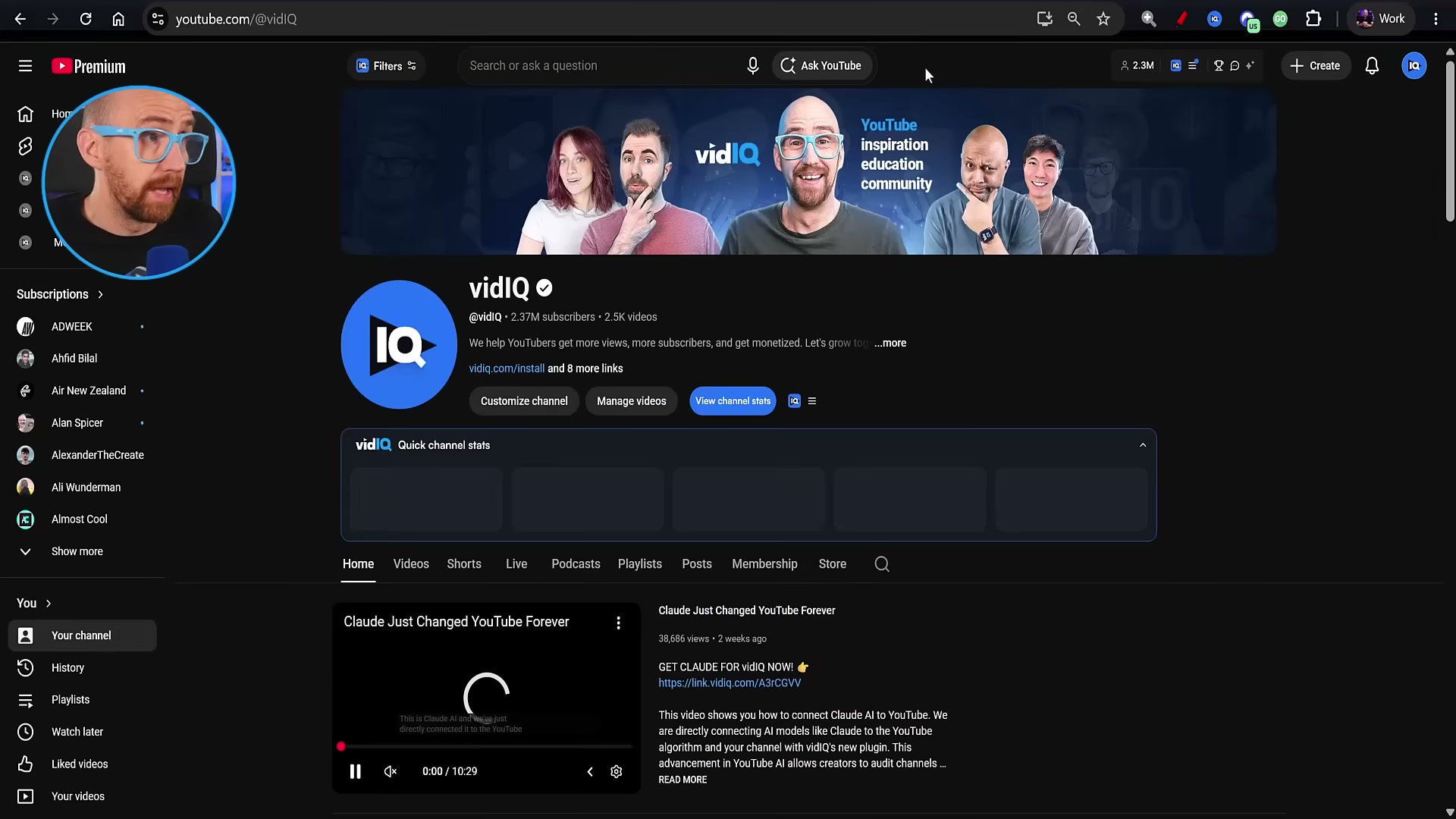
Navigate back to the YouTube homepage and confirm activation: the Ask YouTube button should appear inside the main search bar and persist across every page — channel pages, video pages, and beyond.
-
Click inside the search bar without typing anything. Ask YouTube immediately surfaces a set of suggested questions — currently these are generic and carry no connection to your watch history or viewing preferences.
-
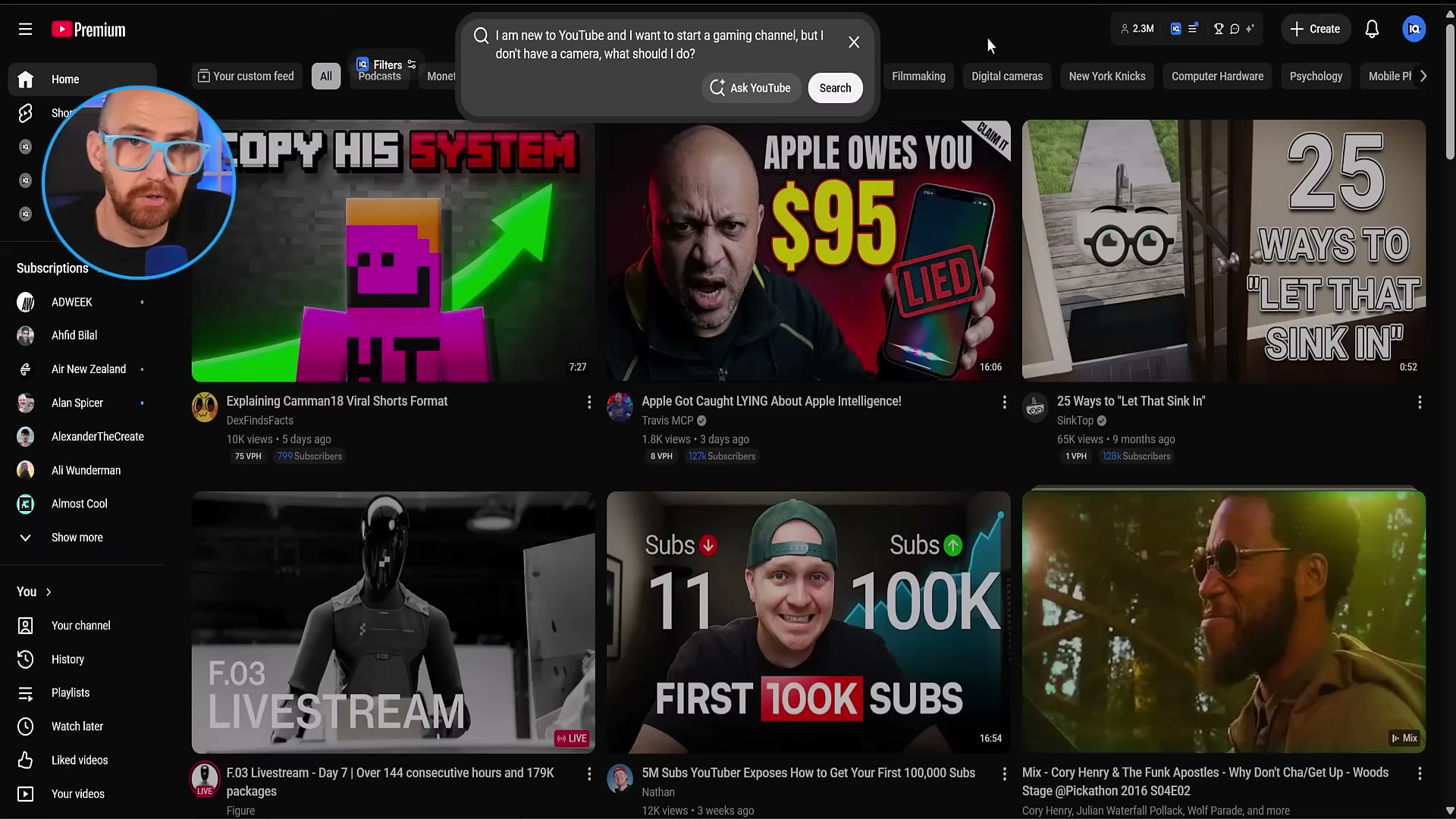
Type a full conversational question rather than a keyword string. A query like “I am new to YouTube and want to start a gaming channel but don’t have a camera — what should I do?” demonstrates the format. When the dropdown appears, click Ask YouTube rather than pressing Enter to trigger classic search.
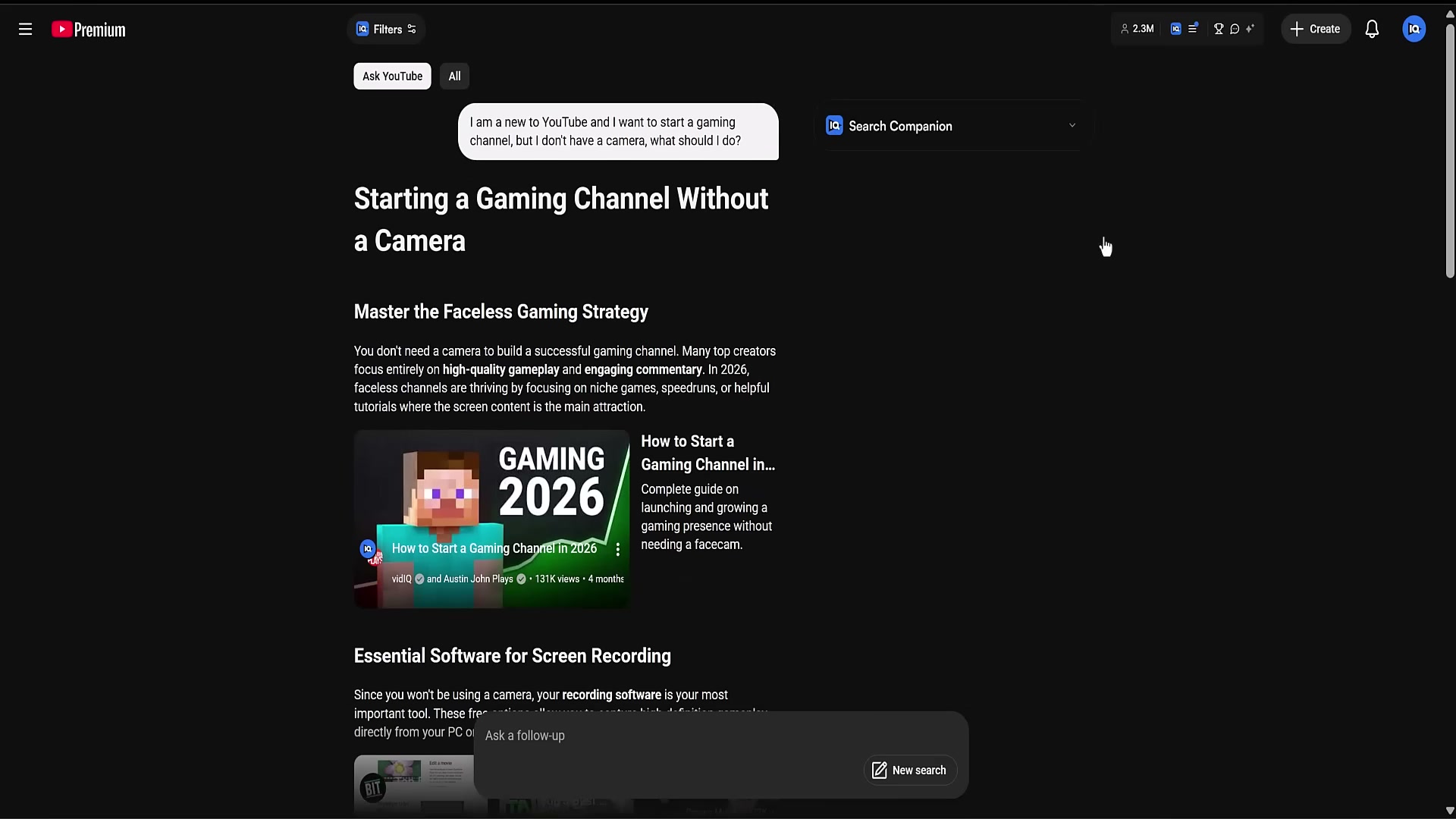
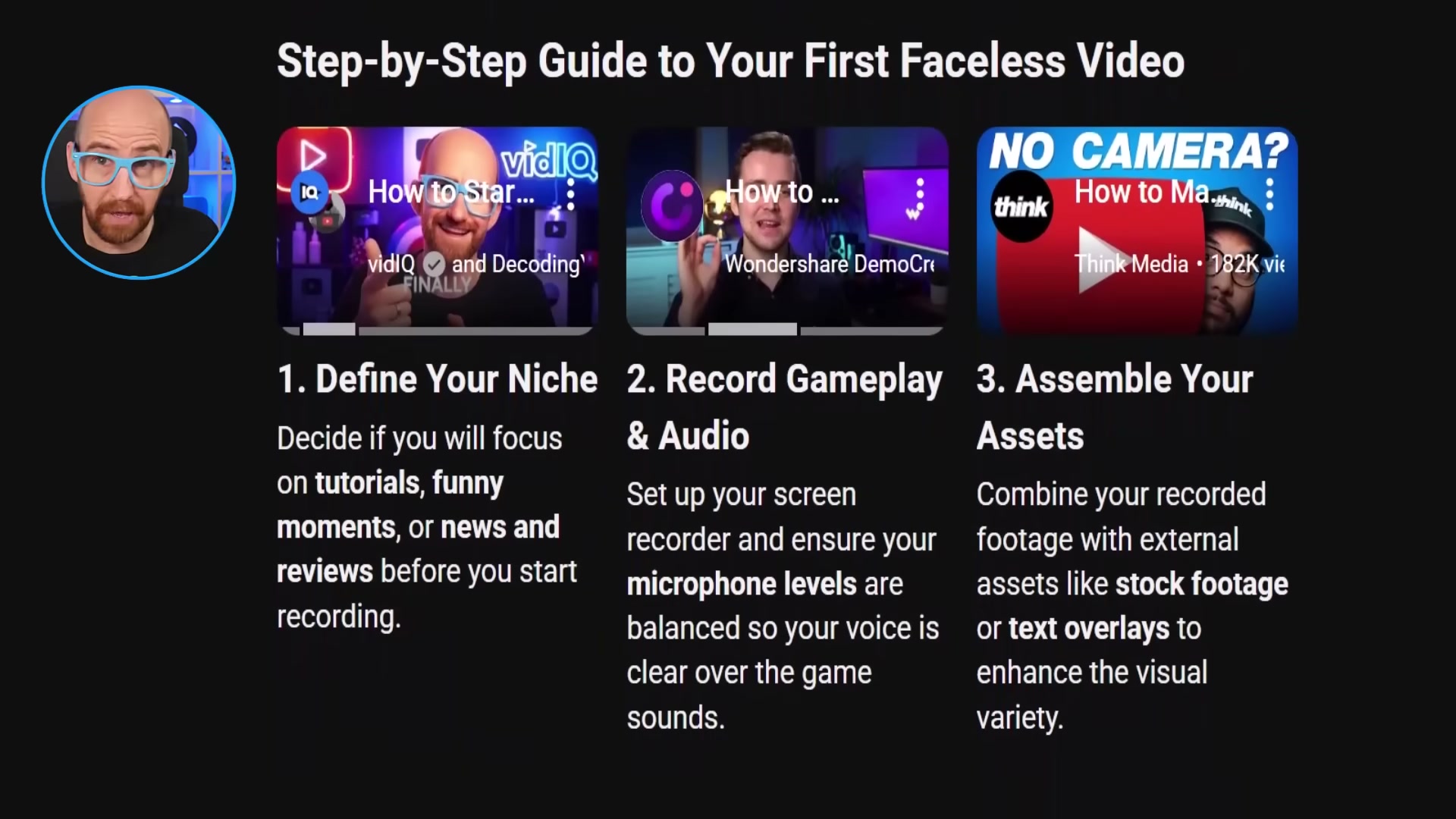
- Review the result page: Ask YouTube renders an AI-generated headline, structured prose sections, embedded video thumbnails, and in-video timestamps where available. Run the identical query through classic search by clicking the All tab at the top of the results to compare formats directly.

-
Open one of the surfaced videos and cross-reference AI-generated summary text against the actual video transcript. In vidIQ, click IQ button → Transcript and search for exact phrases from the Ask YouTube result. In testing, the phrase “You don’t need a camera” appeared in the AI summary but not anywhere in the source transcript — suggesting Ask YouTube synthesizes answers beyond the literal video content rather than quoting it directly.
-
Re-run the identical query at a 12-hour interval, then again five minutes after that. Expect the AI-generated text, structure, and video selection to vary between runs. Consistent results are not guaranteed in the current rollout.
Warning: this step may differ from current official documentation — see the verified version below.
-
Click the All button at the top of any Ask YouTube result page to return to classic search view at any point during a session.
-
At the bottom of an Ask YouTube result, tap one of the AI-generated follow-up prompt chips or type your own question into the Ask a follow-up field to continue the conversation within the same session.
- Return to the YouTube homepage after several searches and click the search bar. The suggested Ask YouTube prompts will not reflect your recent queries or watch history — personalization is absent from the feature in its current state.
How does this compare to the official docs?
YouTube’s own documentation and the Google I/O announcement frame Ask YouTube’s behavior — particularly around result consistency, transcript sourcing, and personalization — quite differently from what live testing reveals, and those gaps are exactly what Act 2 unpacks.
Here’s What the Official Docs Show
Act 1 gives you a solid first-person walkthrough of Ask YouTube as the creator experienced it. This section adds what official sources document — filling in the Premium tier detail the tutorial skips and flagging the steps that couldn’t be confirmed from publicly accessible pages.
Step 1 — Navigate to youtube.com/new to find the opt-in panel
No official documentation was found for this step — proceed using the video’s approach and verify independently.
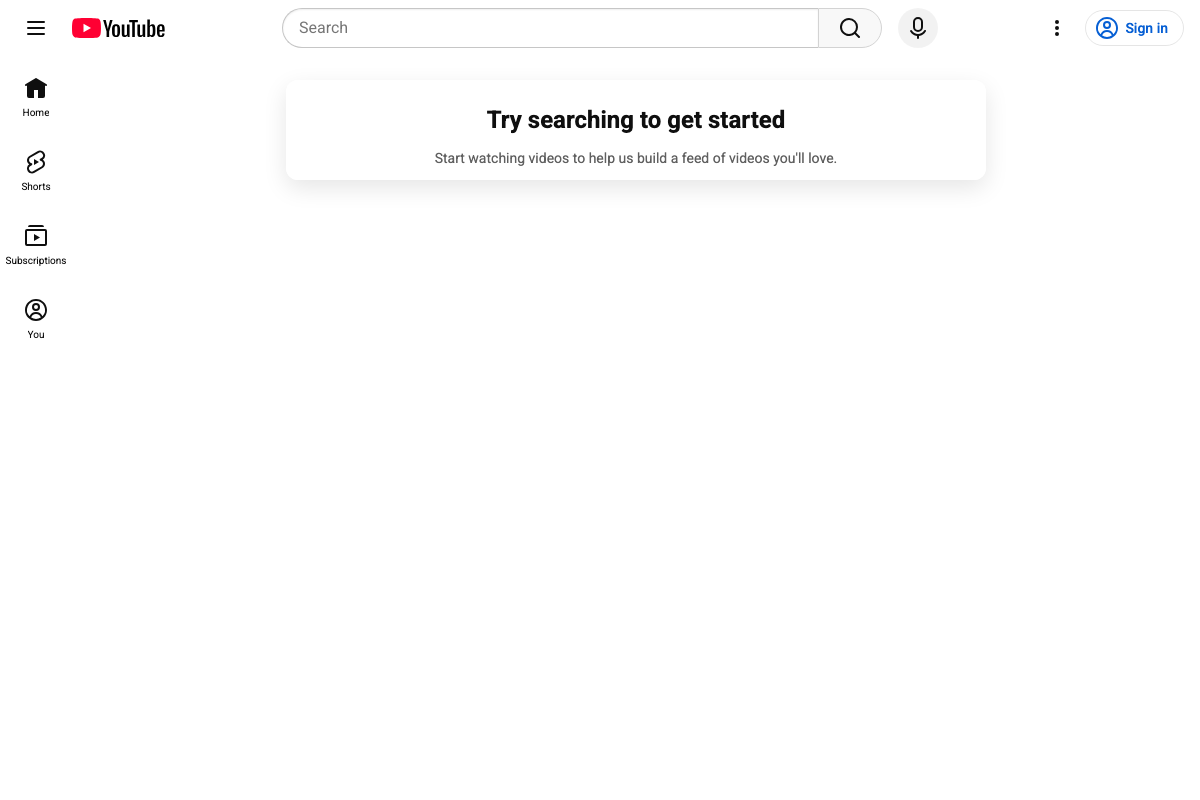
Step 2 — Activate Ask YouTube; feature requires YouTube Premium
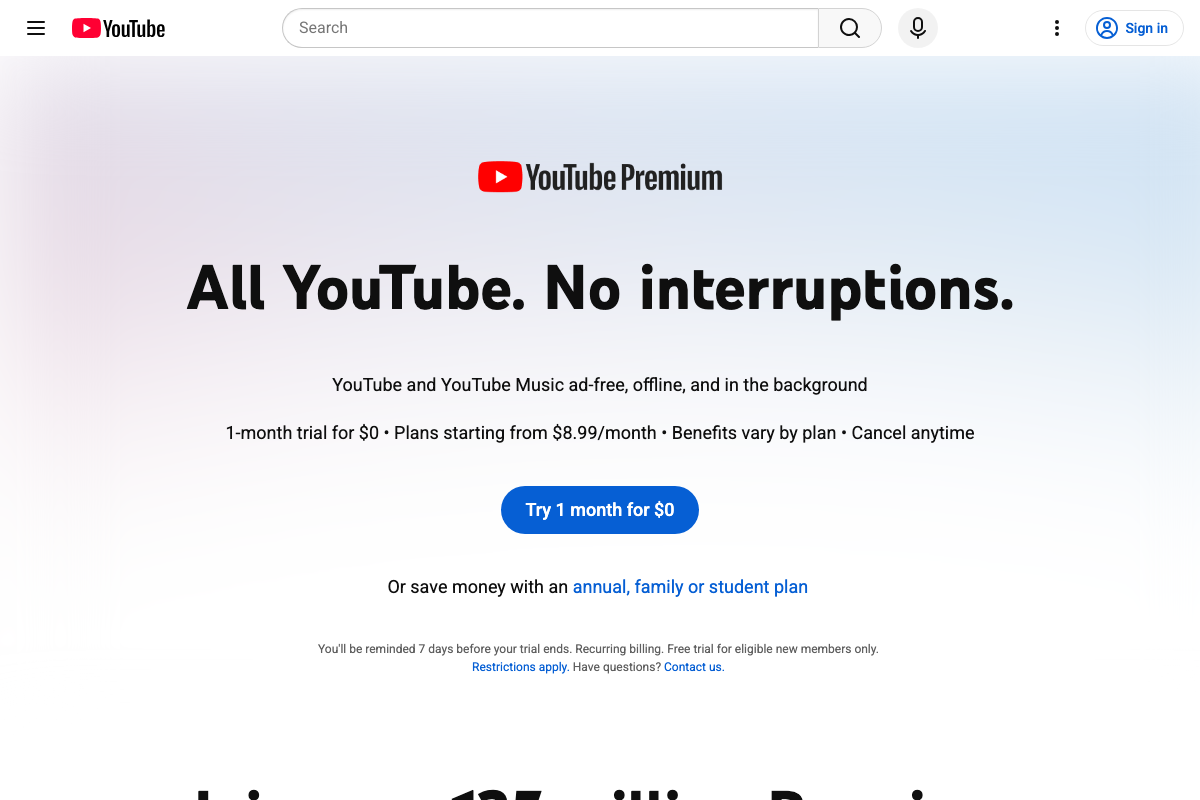
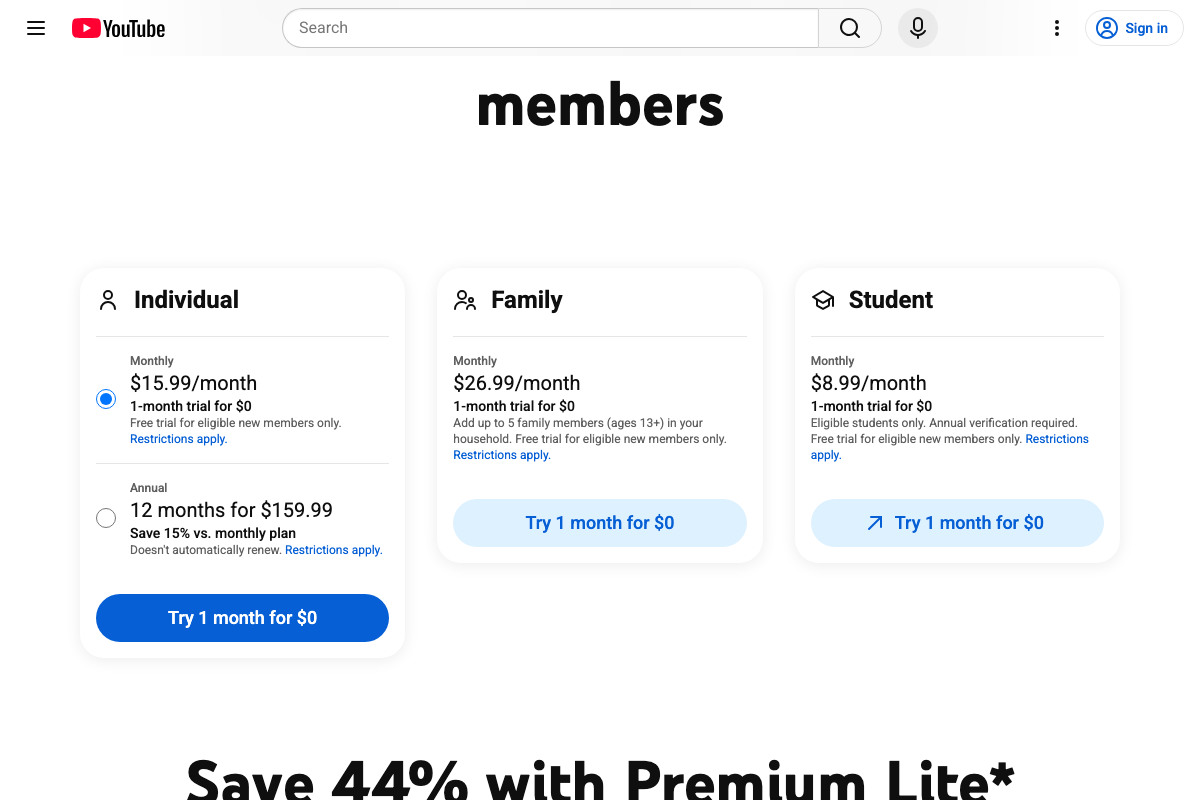
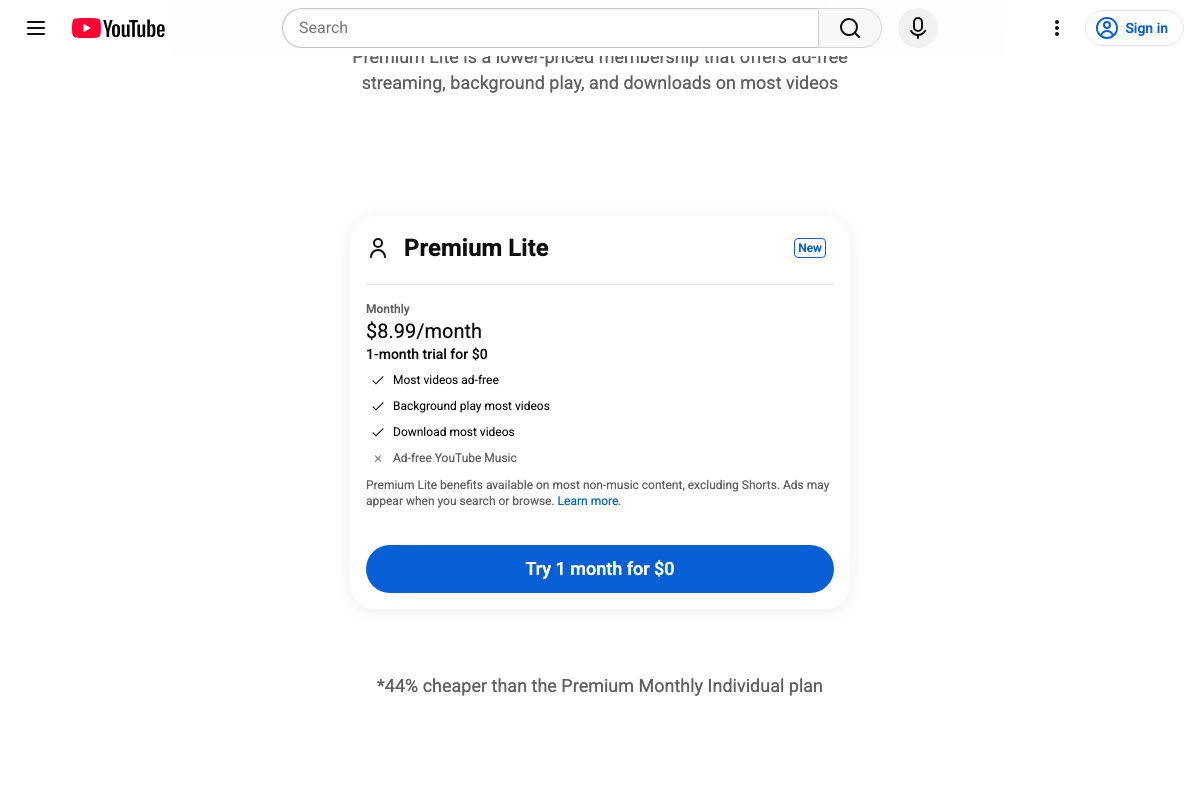
The video’s approach here matches the current docs exactly — YouTube Premium is a real, active subscription at youtube.com/premium. What the tutorial doesn’t surface: YouTube now offers four distinct tiers, not one. Individual runs $15.99/month; Family is $26.99/month; Student is $8.99/month. A fourth tier — Premium Lite ($8.99/month, currently tagged “New”) — adds a wrinkle the video skips entirely: its fine print reads “Ads may appear when you search or browse,” raising an open question about whether Ask YouTube is available on Lite or restricted to full Premium plans. Neither the landing page nor the pricing page lists Ask YouTube by name as a benefit on any tier, so if activation fails after subscribing, confirming your tier is the right first diagnostic step.
Step 3 — Ask YouTube button appears in the search bar after activation
No official documentation was found for this step — proceed using the video’s approach and verify independently.

Steps 4–6 — Suggested questions, conversational query format, result page layout, and the All toggle
No official documentation was found for these steps — proceed using the video’s approach and verify independently.
Step 7 — Cross-reference the AI summary via vidIQ’s IQ button → Transcript
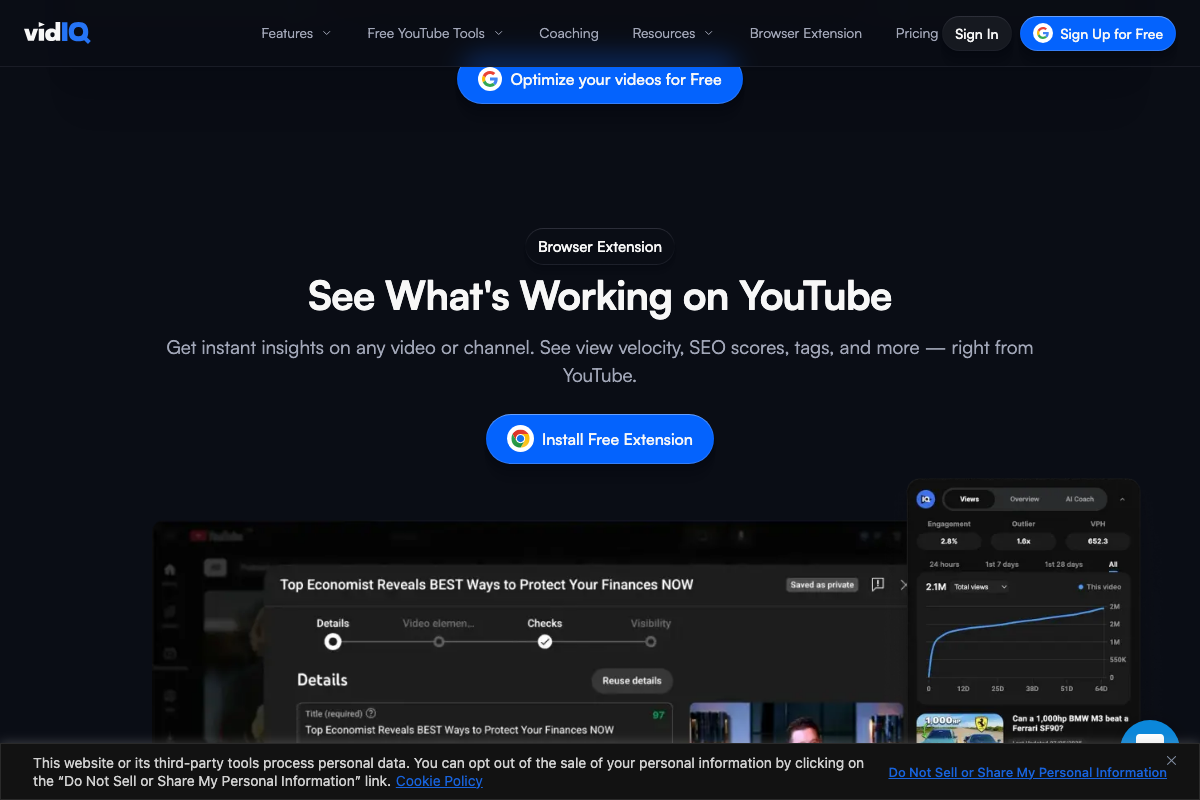
vidIQ’s browser extension exists and does place a live data panel inside YouTube video pages — confirmed by the product’s own marketing screenshots. The in-YouTube panel tabs visible in those screenshots are labeled Views, Overview, and AI Coach. A Transcript tab is not labeled or depicted in any available documentation.
No official documentation was found for the specific IQ button → Transcript workflow — proceed using the video’s approach and verify independently.
Steps 8–11 — Result variability across runs, the All toggle, follow-up prompt chips, and personalization absence
No official documentation was found for these steps — proceed using the video’s approach and verify independently.

Useful Links
- YouTube — YouTube homepage; Ask YouTube requires sign-in and an eligible Premium subscription before any feature UI appears.
- YouTube Premium — Official Premium subscription page listing all current tiers, including the newly introduced Premium Lite at $8.99/month and its search-and-browse ad caveat.
- vidIQ — vidIQ creator tools homepage; offers a free browser extension that overlays data panels on YouTube video pages with Views, Overview, and AI Coach tabs confirmed.
- vidIQ (onboarding) — vidIQ’s onboarding landing page with full product feature overview, free sign-up option, and browser extension install link.


0 Comments