

Everything Depositphotos Can Do Now (And It’s More Than Stock Photos)
Depositphotos has evolved from a stock photo library into a multi-tool creative platform spanning music, video, AI ideation, design, and image generation. After completing this walkthrough, you’ll be able to source assets across every media type, use the AI Assistant to structure a full campaign brief before touching a single asset, generate logos and original images from text prompts, and upscale output for production — without switching platforms.
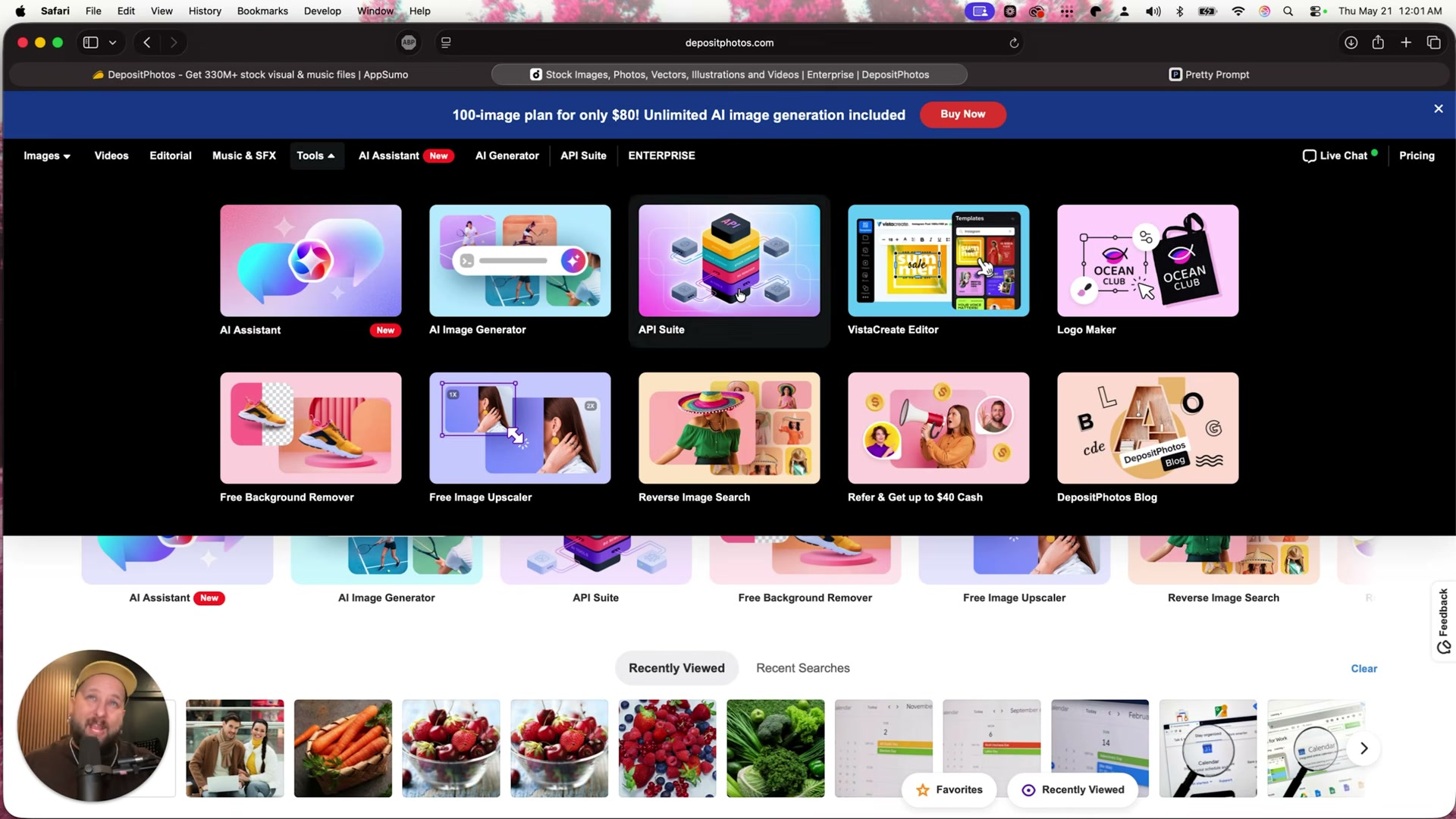
-
Navigate to the Collections tab on the Depositphotos homepage. Browse the editorial Celebrities collection, curated Inspo sets organized by visual mood, and category grids for illustrations and vectors. Hovering any image in the search results surfaces an AI-generated caption alongside one-click Download, Favorite, and Find Similar controls — no modal required.
-
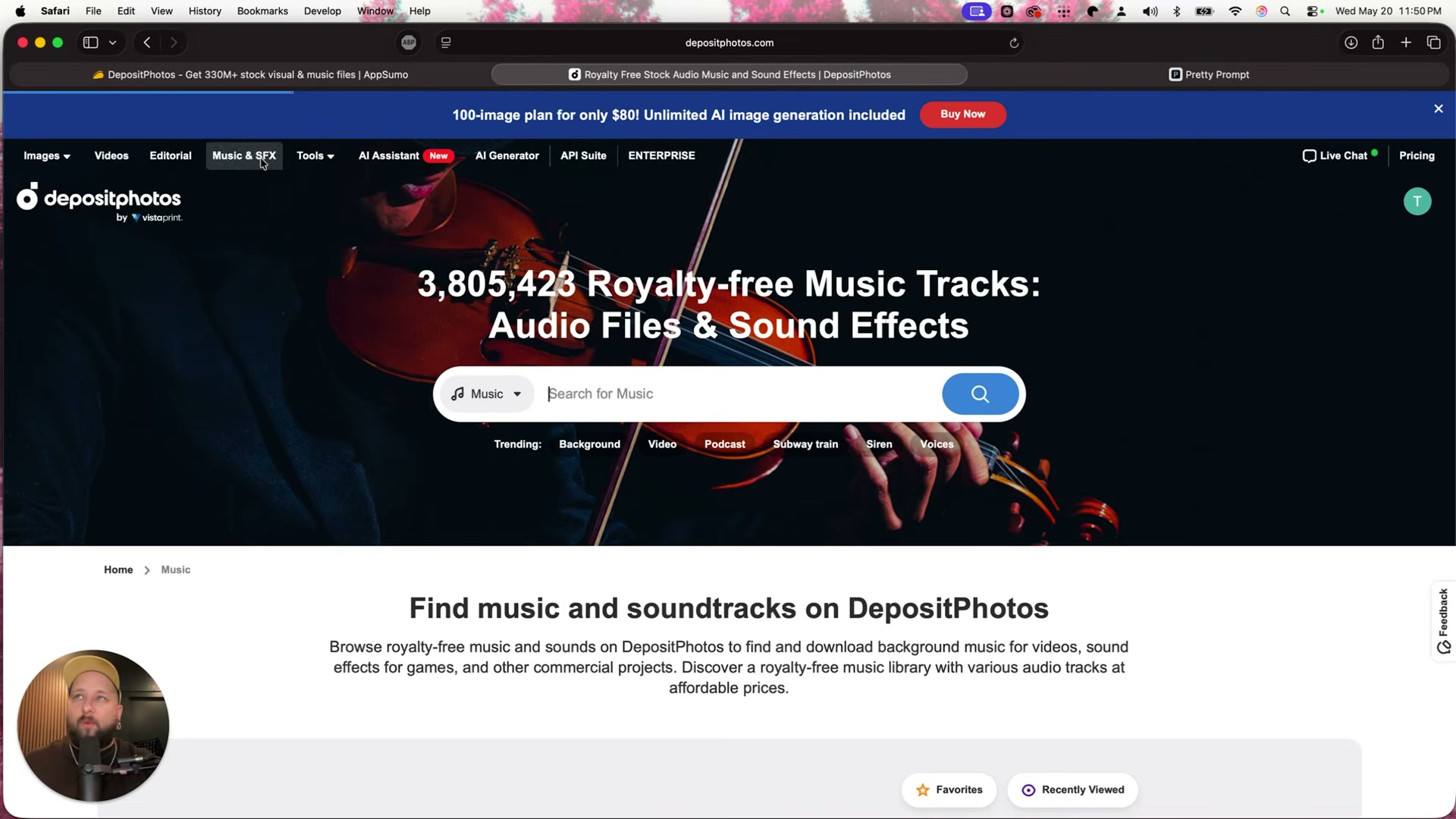
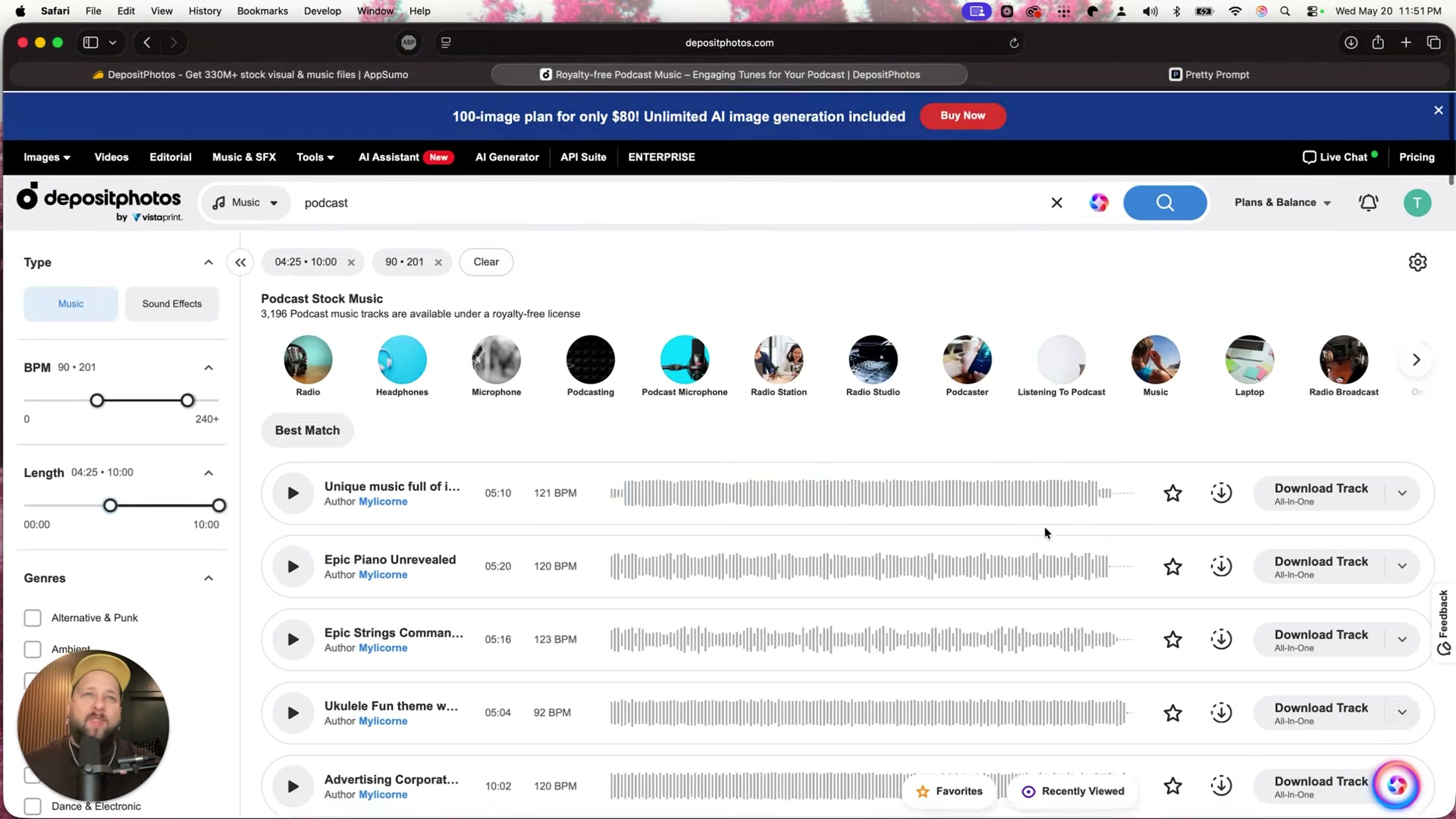
Select Music & SFX from the top navigation to access a library of over 3.8 million royalty-free tracks. Search by keyword or choose from trending category chips — Background, Podcast, Voices. Inside any results page, filter by BPM range, track length, and Genre. Each result displays duration, tempo, a waveform preview, and a Download Track button.
- Open the Video section and apply filters for clip length, orientation, number of people, and gender to narrow results precisely. Slow motion, green screen, animation, and background categories are accessible from the filter row without entering a keyword search.
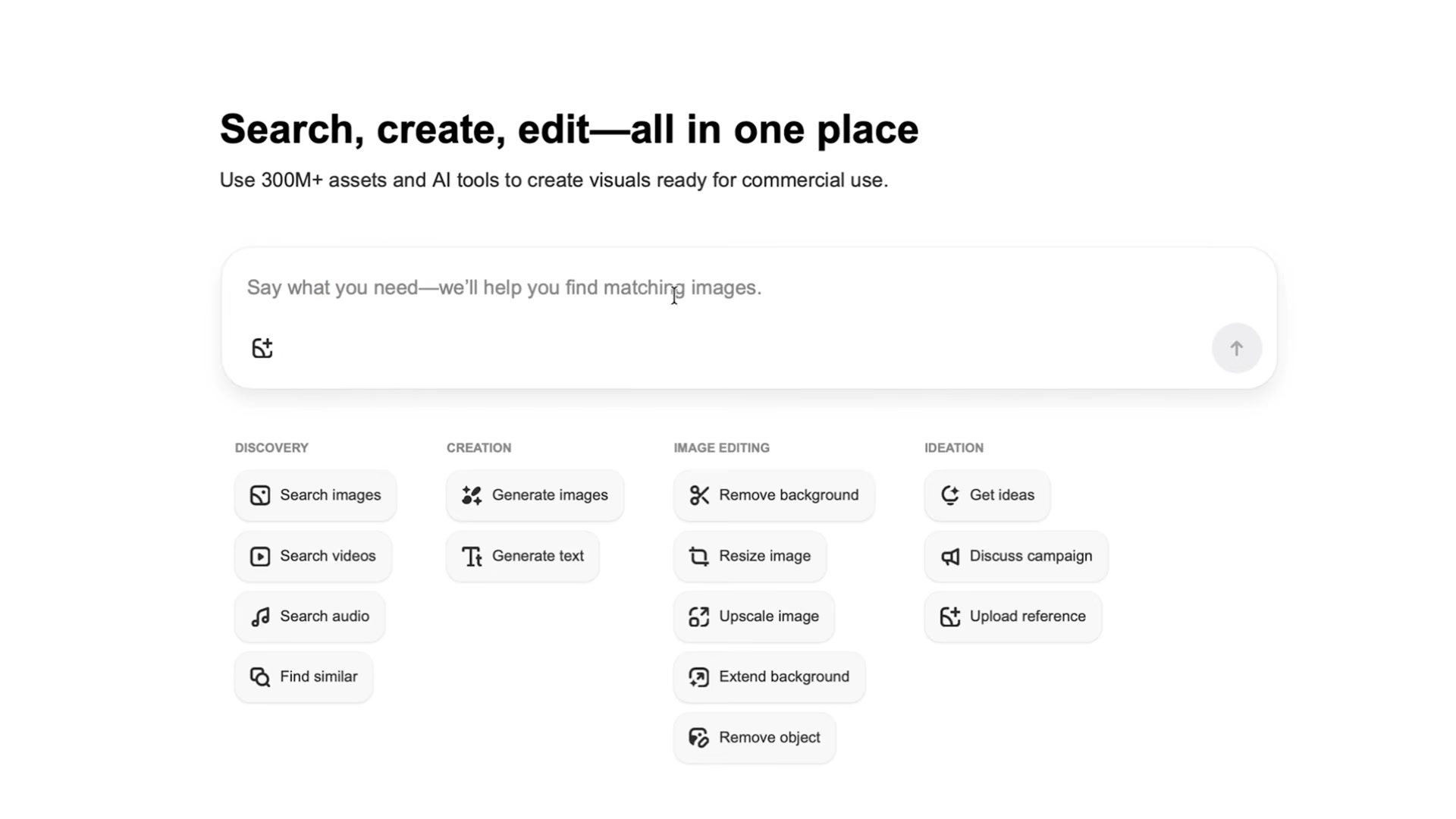
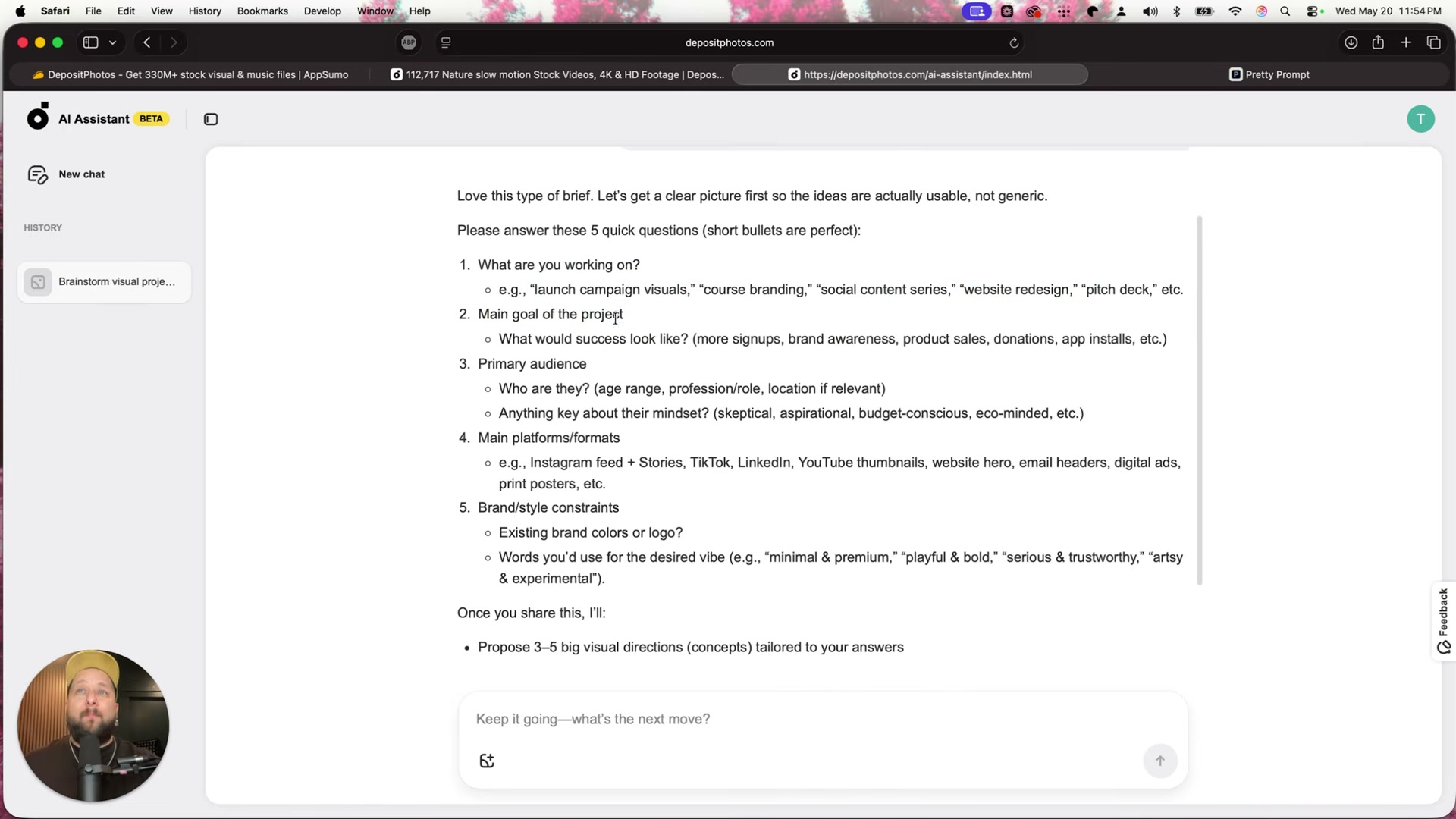
- Open the AI Assistant from the Tools menu and choose Ideation → Get Ideas. A pre-loaded prompt walks through five qualifying questions: project type, goal, primary audience, target platforms and formats, and brand style constraints. After answering all five, it proposes three to five visual directions — each paired with specific Depositphotos asset type recommendations and matching VistaCreate template suggestions.
-
Access VistaCreate through the Tools menu or at create.vista.com. The free Starter tier includes 100,000+ templates, 1M+ licensed photos and videos, free fonts, 10 GB storage, and social scheduling to Facebook, Instagram, and Pinterest. The Pro plan ($10/month) adds 100 AI image generations per month, unlimited storage, AI Object Remover, AI Writer, and Infinite Brand Kits.
-
Select Logo Maker from the Tools menu. Enter your brand name, pick a style category — Zen, Lettermark, Typographic, Playful, and others — then write a plain-language description of your logo vision. The tool parses your brief, surfaces prompt refinements, and generates up to 64 free logo concepts. Click any result to open the customization editor.
Warning: this step may differ from current official documentation — see the verified version below.
-
Open Reverse Image Search from the Tools menu. Upload a reference image or paste a URL to surface visually similar licensed assets across the full Depositphotos library.
-
Run any AI-generated image through the free Image Upscaler (also in the Tools menu) to restore resolution quality before downloading for production use.
-
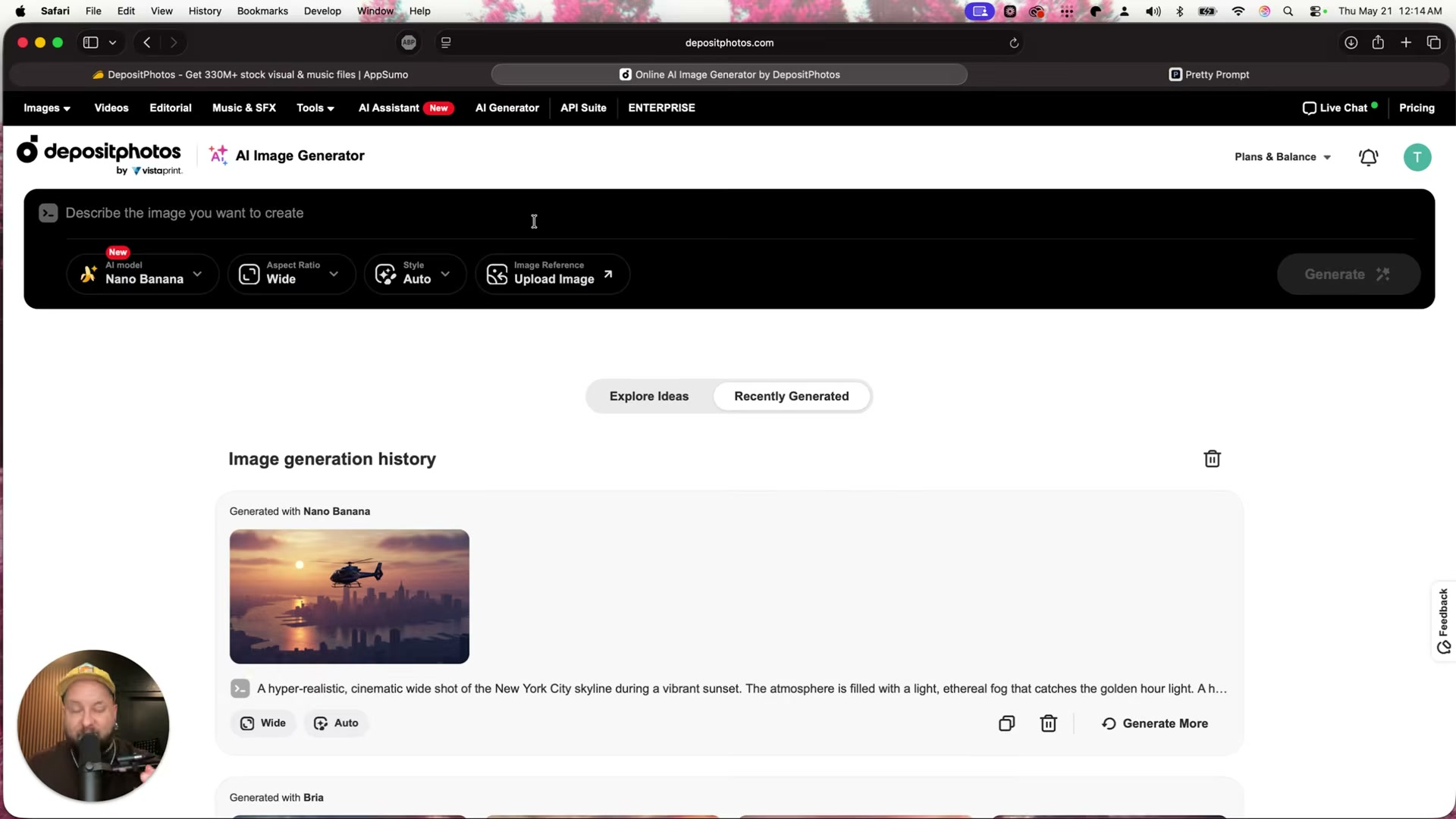
Open AI Image Creator from the Tools menu. Select a generation model — Nano Banana or Bria — set an aspect ratio, optionally attach an image reference, paste your prompt, and hit Generate. Generated images and your generation history appear side by side in the same interface.
How does this compare to the official docs?
The walkthrough covers significant ground quickly, but the official Depositphotos and VistaCreate documentation has more precise things to say about licensing tiers, AI generation limits, and the exact scope of the Logo Maker integration — which is where Act 2 picks up.
Here’s What the Official Docs Show
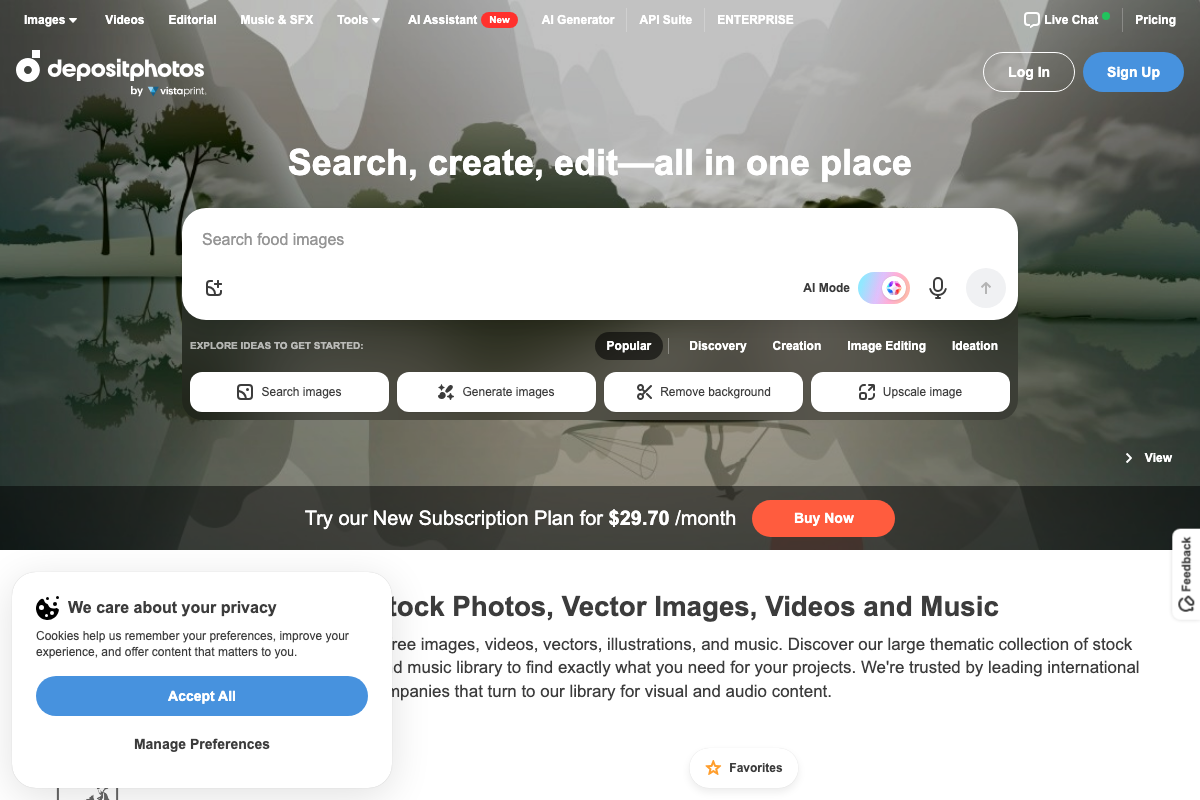
The tutorial covers Depositphotos accurately across most of its toolset — the step sequence holds up and the platform largely works as described. A handful of navigation labels and entry points have since shifted, and two steps fall outside what the official homepage surfaces, so those are flagged below.
1. Stock Photos, Vectors, and Collections
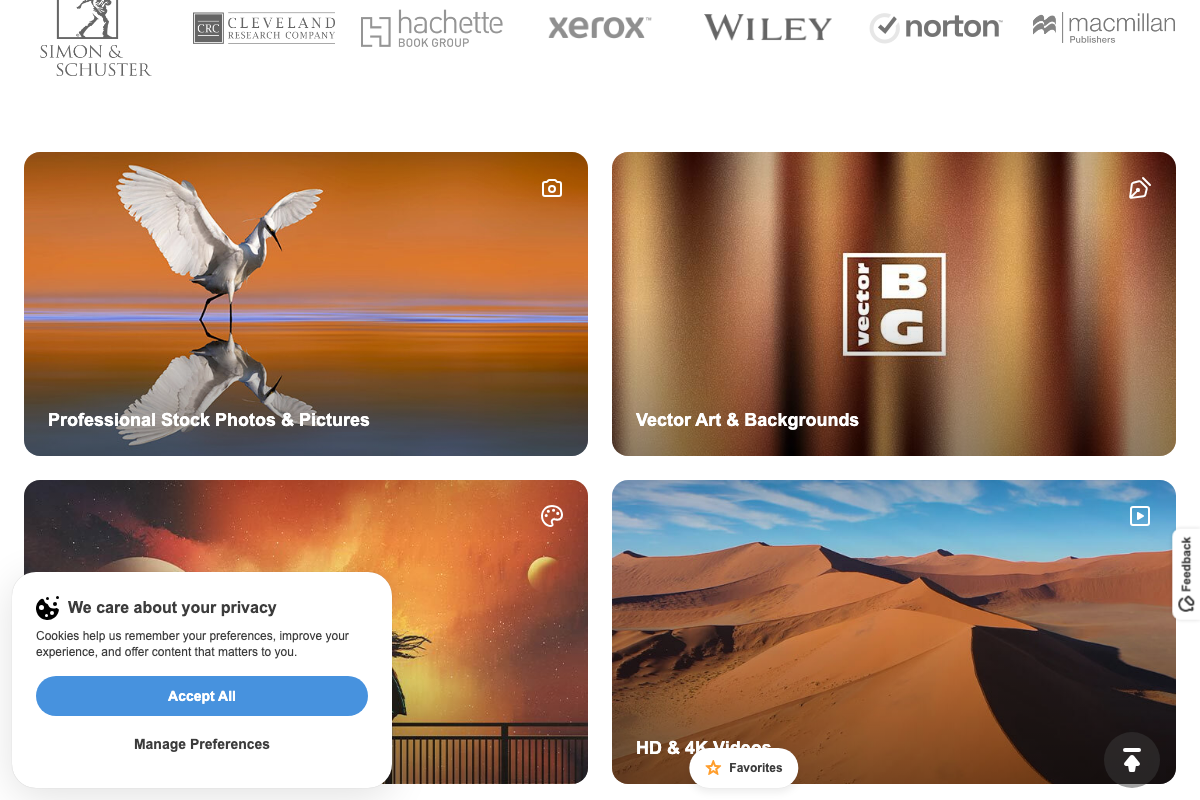
The homepage confirms Professional Stock Photos & Pictures and Vector Art & Backgrounds as distinct, browsable category tiles. The video’s approach here matches the current docs exactly. Worth noting: celebrity collections and curated Inspo sets mentioned in the tutorial are not surfaced as named tiles on the homepage and cannot be confirmed at this level — navigate into the Collections section to locate them.
2. Music & SFX
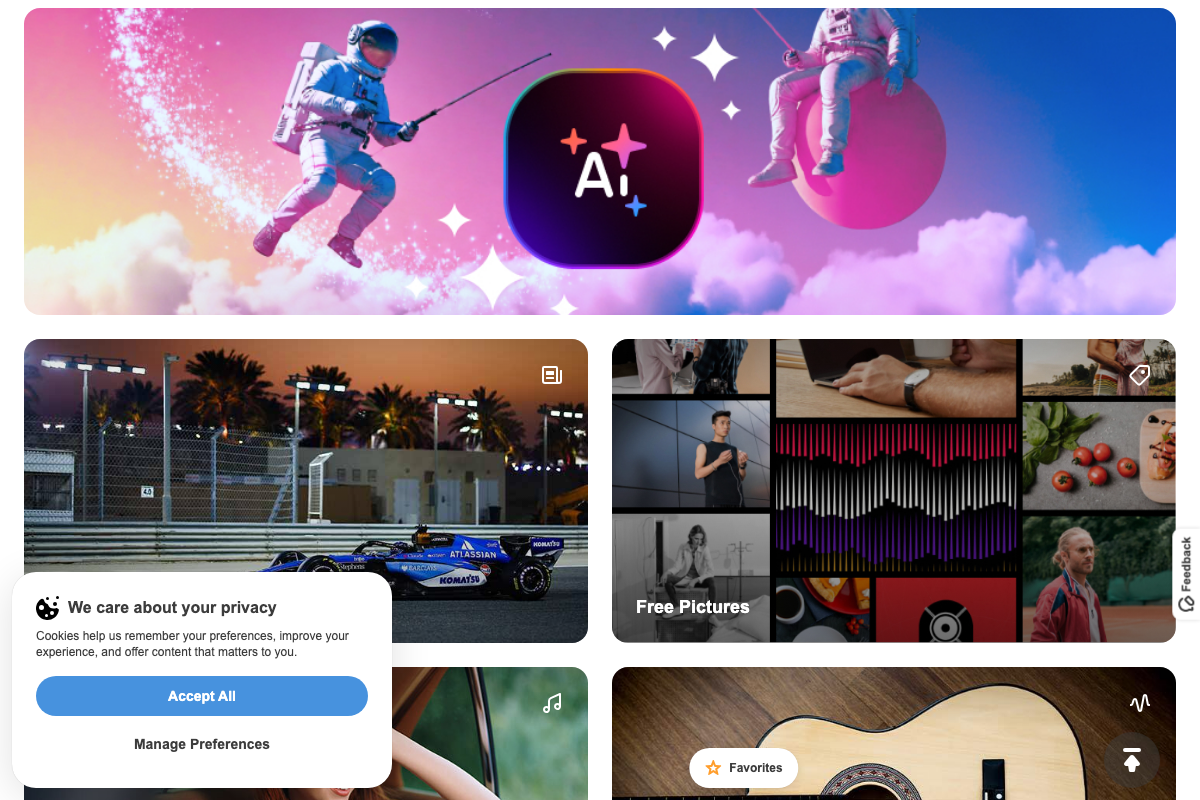
A dedicated music and audio category tile is confirmed on the homepage. The video’s approach here matches the current docs exactly. Filter specifics — BPM range, track length, and genre — are not visible at homepage level and require entering the Music & SFX section to verify.
3. Stock Video
HD & 4K Videos is confirmed as a category-level tile. The video’s approach here matches the current docs exactly. Clip-level filters for length, orientation, and people count are inside the section and not surfaced at homepage depth.
4. AI Assistant and Ideation
AI Assistant appears in top-level navigation with a “New” badge, confirming it as a recently added featured tool. The video’s approach here matches the current docs exactly. One useful addition from the docs: the Ideation tab is also accessible directly from the homepage inside the “Explore Ideas to Get Started” section — alongside Popular, Discovery, Creation, and Image Editing tabs — so you don’t need to enter the AI Assistant flow first to reach it.
5. VistaCreate
No official documentation was found for this step —
proceed using the video’s approach and verify independently.
6. AI Logo Maker
No official documentation was found for this step —
proceed using the video’s approach and verify independently.
7. Reverse Image Search
A reverse image search icon is visible directly inside the main search bar on the homepage. The video’s approach here matches the current docs exactly. Also present in the same search bar: an AI Mode toggle for AI-assisted search and a microphone icon for voice search — neither mentioned in the tutorial.
8. Image Upscaler
“Upscale image” is confirmed as a labeled quick-action button on the homepage. The video’s approach here matches the current docs exactly.
9. AI Image Generation
AI image generation is confirmed via both a top-level “AI Generator” navigation item and a “Generate images” quick-action button on the homepage. As of 2026-05-21, the correct navigation label is AI Generator — the tutorial refers to it as “AI Image Creator,” which reflects an earlier version of the platform. The model names Nano Banana and Bria cited in the tutorial do not appear in any homepage screenshot and cannot be confirmed from the official site at this level; verify model availability once inside the tool.
Useful Links
- Royalty-free Images, Photo Stock, Video & Music | DepositPhotos — Official Depositphotos homepage covering stock photos, vectors, video, music, AI Assistant, AI Generator, reverse image search, and image upscaling in a single platform view.


0 Comments