

Constant Contact has quietly evolved from a basic email newsletter tool into a full-stack AI marketing platform — one that handles email, SMS, and social media from a single dashboard. If you’re running marketing for a small or mid-sized business and you’re still manually writing every subject line, scheduling every post, and managing every subscriber list by hand, this tutorial will change how you operate. By the end, you’ll know exactly how to activate the AI Content Generator, build multi-channel automation paths, and use segmentation to send the right message to the right person at the right time — without a dev team or a six-figure marketing budget.
What This Is
Constant Contact is a cloud-based digital marketing platform purpose-built for small-to-medium businesses (SMBs). What began as a straightforward email marketing service has been rebuilt around a core AI layer that now powers content creation, subject line optimization, audience segmentation, and multi-channel campaign orchestration across email, SMS, and social media.
According to the Constant Contact AI Marketing and Automation Platform research report, the platform currently holds an 8.8 out of 10 rating from industry evaluators, with a UI/UX score of 8.9 — scores that reflect its reputation for being genuinely accessible to non-technical users. It connects to over 300 third-party applications, including Salesforce, Slack, Shopify, Wix, and Canva, with Zapier integration that extends this to thousands of additional tools.
The platform’s two flagship capabilities are:
1. The AI Content Generator
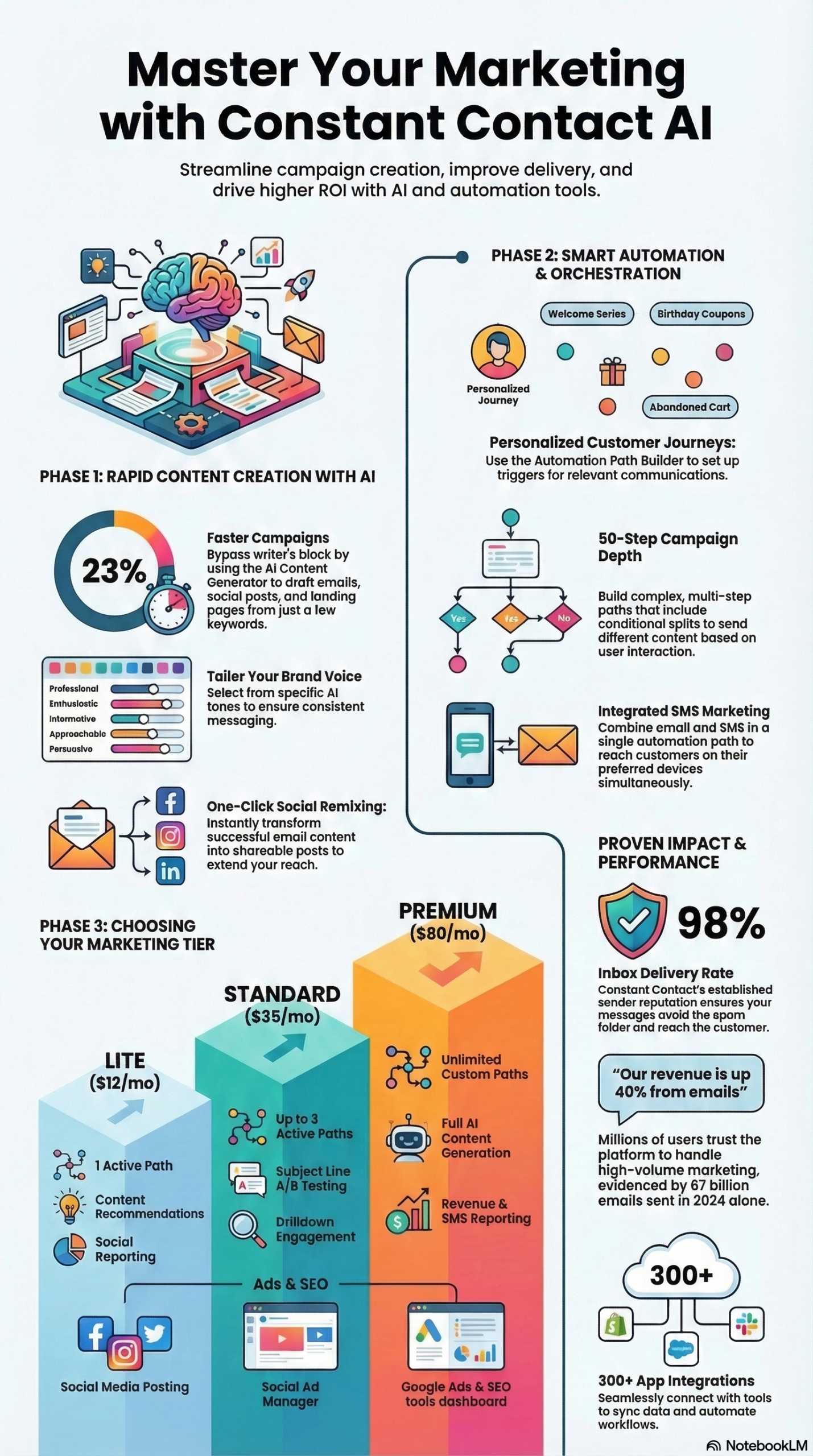
This tool accepts 1-2 sentences or a list of keywords from the user and generates ready-to-send email copy, social media posts, and landing page content. You select from five tone options — Professional, Enthusiastic, Informative, Approachable, or Persuasive — and the generator drafts content for the selected channel. A key sub-feature is the Subject Line Optimizer, which analyzes your historical engagement data and suggests subject lines that are statistically more likely to get opened. The platform’s own marketing claims that campaigns can be created up to 23% faster using this toolset.
2. The Automation Path Builder
This is a drag-and-drop visual editor for building behavior-triggered communication sequences — what the industry calls “marketing automation journeys.” You define a trigger event (like a contact joining your list, clicking a link, or completing a purchase), and the builder lets you chain together email sends, SMS sends, time delays, and conditional logic branches. The interface is point-and-click, no code required.
Beyond these two pillars, Constant Contact also provides:
– A BrandKit that stores logos, color palettes, and imagery so the AI generates on-brand content automatically
– A Marketing CRM layer with support for up to 1,000 unique contact lists and up to 500 tags per individual contact
– Ecommerce sync with Shopify, WooCommerce, and Squarespace to trigger automations based on real-time purchase events
– SMS marketing as a built-in channel — not a bolted-on integration — with 500 free SMS messages per month included in the Premium plan
– Social media management that lets you repurpose email content into posts for Facebook, Instagram, and LinkedIn in a single click
The platform operates on a tiered subscription model starting at $12/month, which means the barrier to entry is low enough for a solo founder but the ceiling is high enough for a marketing team managing thousands of contacts. There is no free-forever tier, though a trial period is available.
For businesses in regulated industries — healthcare, education, government — the platform offers Australian data storage and ISO 27001:2002 compliance, making it viable for organizations with strict data sovereignty requirements.
Why It Matters
Most SMB marketing teams have the same problem: too many channels, not enough time. You need to write emails, post on social, send texts, segment your audience, and report on all of it — often with one or two people doing the work of five. Generic marketing platforms promise to solve this but typically require stitching together three or four separate tools, each with its own login, pricing, and learning curve.
What makes Constant Contact’s AI layer meaningful is that it collapses this stack into a single workflow. A marketer can draft an email campaign, let the AI suggest an optimized subject line, approve it, hit publish, and have the platform automatically repurpose that email into social posts for Facebook, Instagram, and LinkedIn — all without leaving the dashboard. This is the kind of workflow compression that used to require a dedicated marketing operations role.
For agencies managing multiple clients, the 300+ integration library and the segmentation architecture (1,000 lists, 500 tags per contact) provide enough surface area to build genuinely customized setups without needing to write a single line of code. An ecommerce store can trigger a three-step abandoned cart sequence that crosses email and SMS. A service business can auto-enroll every new lead in a welcome series the moment they fill out a contact form. A local restaurant can schedule a week of social posts in 20 minutes by feeding the AI their weekly specials.
The data point that should catch practitioners’ attention is the claim that AI-generated or personalized subject lines can increase open rates by up to 50%. Open rate is not vanity — it directly affects deliverability. As the platform’s technical documentation explains, higher open rates signal to email carriers that your domain is legitimate, which over time decreases the probability of landing in spam. This is a compounding return: better subject lines → better open rates → better sender reputation → better deliverability on future campaigns.
One important caveat: the AI’s raw output is a starting point, not a finished product. Reviewers from SMB Guide have noted that the copy can feel “a bit dry and generic” out of the box, and that human editing is required to inject brand personality before sending. This is an honest limitation — treat the AI as a first-draft engine, not a ghostwriter who already knows your brand voice.
The Data: Constant Contact Plan Comparison
The three-tier structure maps cleanly to business stage: Lite for solo operators and new marketers, Standard for growing teams that need A/B testing and advanced segmentation, Premium for organizations running high-volume multi-channel campaigns with ecommerce integration.
| Feature | Lite ($12/mo) | Standard ($35/mo) | Premium ($80/mo) |
|---|---|---|---|
| User Access | 1 user | Multiple users | Multiple users |
| Automation Paths | 1 active path | Up to 3 active paths | Unlimited / custom paths |
| AI Content Generator | Included | Included | Included |
| SMS Marketing | Add-on required | Add-on required | 500 free SMS/mo included |
| A/B Testing | Not available | Available | Available |
| Advanced Segmentation | Basic | Advanced | Advanced + behavioral |
| Ecommerce Revenue Reporting | Not available | Not available | Included |
| SEO Tools | Not available | Not available | Included |
| Best For | Solo founders, new marketers | Growing businesses, agencies | Large orgs, ecommerce brands |
Source: Constant Contact AI Marketing and Automation Platform research report
One important operational note: SMS marketing requires account registration regardless of your plan tier. Even Premium subscribers — who get the 500 free SMS per month — must complete the SMS registration process separately before they can send. The research report specifically flags this as something to start immediately to avoid launch delays: “organizations should begin the registration process immediately to avoid delays in launching multi-channel campaigns.”
Step-by-Step Tutorial: Setting Up AI-Powered Multi-Channel Campaigns
This walkthrough takes you from a fresh Constant Contact account to a live, AI-powered automation that sends emails, optimizes for open rates, and syncs across your social channels. The steps are organized into four phases.
Phase 1: Account Setup and BrandKit Configuration
Step 1: Verify your email and set your industry.
After creating your account, navigate to Account Settings and verify your sending email address. This is non-optional — unverified accounts cannot send campaigns. Equally important: set your industry in the account settings. This unlocks benchmark comparisons that show how your open rates, click rates, and unsubscribe rates compare to peers in your vertical. If you skip this, you’re flying blind on whether your performance is good or not.
Step 2: Upload your BrandKit assets.
Go to Brand > BrandKit in the left navigation. Upload your logo, set your primary and secondary brand colors using hex codes, and add any recurring imagery (product photos, team headshots, etc.). This step is critical because the AI Content Generator pulls from your BrandKit when generating emails and social posts. If you skip the BrandKit, the AI will generate generic-looking content that doesn’t match your visual identity. Every template you use going forward will automatically apply your brand settings.
Step 3: Import your contact list.
Navigate to Contacts > Import. Constant Contact accepts CSV files, Excel files, or direct integrations (Salesforce, Shopify, etc.). During import, map your CSV columns to Constant Contact fields: first name, last name, email, phone (for SMS), company, and any custom fields you’ve defined. After import, immediately apply tags to segment the list — for example, tag contacts by how they were acquired (website form, in-store, trade show) or by product interest. You support up to 500 unique tags per contact, so don’t hold back on granularity here.
Phase 2: Generating AI-Powered Email Content
Step 4: Create a new email campaign.
Go to Campaigns > Create > Email. Choose whether you want to start from a pre-designed template or a blank canvas. For speed, start with a template in your industry category — the AI will populate it with your BrandKit assets automatically.
Step 5: Activate the AI Content Generator.
Inside the email editor, click the AI Content Generator icon (the spark/wand icon in the content block toolbar). You’ll be prompted to enter 1-2 sentences describing your campaign objective or paste in 3-5 keyword phrases. Example input for a product launch:
New product launch: wireless noise-canceling headphones for remote workers.
Target: professionals aged 25-45 who value focus and productivity.
Select your desired tone: Professional, Enthusiastic, Informative, Approachable, or Persuasive. For a product launch, Enthusiastic or Persuasive will typically outperform Informative. Click Generate, and the AI produces draft body copy and a headline.
Step 6: Optimize your subject line with AI.
After generating your body copy, navigate to the Subject Line field. Click the AI suggestion icon next to the subject line input. The tool analyzes your account’s historical engagement data and suggests 3-5 subject line variants ranked by predicted open rate. Pick the top suggestion or use it as a starting point. Remember the up to 50% open rate lift attributed to AI-personalized subject lines — this is where that gain comes from.
Step 7: Edit for brand voice.
This step is non-negotiable. As noted by SMB Guide reviewers, the AI output can feel “dry and generic” without human editing. Read through the generated copy and inject your brand’s specific language, product details, pricing, and personality. The AI gives you 70% of the work done; your editing gets it to 100%.
Step 8: Set up A/B testing (Standard and Premium plans).
If you’re on Standard or Premium, enable A/B Testing in the campaign settings. You can test two subject line variants against each other on a sample of your list (typically 20-30%), with the winner automatically deployed to the rest. Run this on every campaign — even modest open rate improvements compound into significant deliverability gains over time.
Phase 3: Building an Automation Path
Step 9: Open the Automation Path Builder.
Go to Campaigns > Automations > Create Automation. You’ll see a library of pre-built path templates: Welcome Series, Birthday/Anniversary, Abandoned Cart, Re-engagement, and Post-Purchase. For your first automation, select Welcome Series — it’s the highest-impact, lowest-effort automation you can run, and it requires only one-time setup.
Step 10: Configure your trigger.
The default trigger for a Welcome Series is “Contact joins a list.” Select the specific list you want to watch. Every time a new contact is added to that list — whether from a web form, manual import, or integration sync — the path activates automatically.
Step 11: Build your path steps.
Inside the path builder, you’ll see a visual canvas with drag-and-drop blocks. A well-structured Welcome Series looks like this:
[Trigger: Joins List "Newsletter Subscribers"]
    ↓
[Send Email: Welcome + Brand Introduction] — Immediately
    ↓
[Time Delay: 3 days]
    ↓
[Conditional Split: Opened Welcome Email?]
    ├── YES → [Send Email: Top Resources / Best Content]
    └── NO  → [Send Email: "Did you see this?" Re-engagement nudge]
    ↓
[Time Delay: 7 days]
    ↓
[Send Email: Product/Service Deep Dive]
    ↓
[Add Tag: "Welcome Series Complete"]
The Conditional Split is the key feature here. It creates a “Yes/No” branch: contacts who opened your welcome email get one follow-up; contacts who didn’t get a different one. This branching logic means every subscriber gets a sequence calibrated to their behavior, not just a one-size-fits-all blast.
Step 12: Add SMS steps (Premium or add-on required).
If you have SMS enabled, you can insert an SMS Send block at any point in the path. A high-performing placement is immediately after the initial email send — something like “Hey [First Name], just sent you an email with our welcome offer. Check your inbox!” SMS messages have significantly higher open rates than email, making this cross-channel nudge effective for driving email engagement.
Step 13: Activate the path.
Click Activate in the top right. The path is now live. Contacts who join your trigger list will automatically enter the sequence. On Lite plans, remember you can only run 1 active path at a time; Standard supports 3; Premium supports unlimited.
Phase 4: Repurposing Email Content to Social Media
Step 14: Convert your email to social posts.
After finalizing your email campaign, look for the Repurpose to Social option in the campaign actions menu. The platform uses your email content to draft posts for Facebook, Instagram, and LinkedIn simultaneously. You can review and edit each draft independently before scheduling.
Step 15: Schedule your social posts.
Set the posting schedule for each platform. Constant Contact’s built-in scheduler lets you queue up a week of posts in one session. For the best practice approach, align your social post timing with your email send — reinforce the same message across channels within the same 24-48 hour window for maximum reach.
Expected Outcomes After Setup
After completing these four phases, your marketing stack will:
– Automatically welcome every new subscriber with a behavior-responsive sequence
– Generate AI-drafted email content in a fraction of the manual time
– A/B test every campaign subject line for continuous improvement
– Cross-post to social media without duplicating effort
– If ecommerce is connected: trigger purchase-based sequences automatically
Real-World Use Cases
1. Ecommerce Brand Running Abandoned Cart Recovery
Scenario: A DTC apparel brand using Shopify has a 70% cart abandonment rate and no automated recovery system in place.
Implementation: Connect Shopify to Constant Contact via the native integration. In the Automation Path Builder, create a path triggered by “Contact abandons cart” (a trigger available when ecommerce is synced). Build a three-step sequence: Email 1 at 1 hour post-abandonment (“You left something behind”), Email 2 at 24 hours with a 10% discount offer, SMS at 48 hours with urgency copy (“Offer expires tonight”). Tag all contacts who complete a purchase so they exit the path and enter a post-purchase nurture sequence instead.
Expected Outcome: Abandoned cart email sequences industry-wide recover between 5-15% of abandoned carts. With the SMS reinforcement and behavior-triggered timing, conversion rates trend toward the higher end of that range.
2. Local Service Business Building a Lead Nurture System
Scenario: A plumbing company gets leads from a website contact form but has no system to follow up consistently. Leads go cold within 48-72 hours.
Implementation: Connect the website form to a Constant Contact list via Zapier. Build a Welcome/Nurture path triggered when a contact joins the “Website Leads” list. The sequence includes: immediate SMS confirmation (“We received your request — expect a call within 2 hours”), follow-up email the next day with reviews and a case study, and a seven-day re-engagement email if no appointment has been booked. Tag contacts who book as “Customer” to remove them from the nurture path.
Expected Outcome: A structured 7-day follow-up sequence means no lead goes cold by accident. Even if the immediate call converts poorly, the email sequence keeps the brand top-of-mind until the prospect is ready to commit.
3. Content Creator Growing an Email List
Scenario: A solo newsletter operator is posting daily on social media but converting less than 1% of followers to email subscribers.
Implementation: Use Constant Contact’s AI Content Generator to create a lead magnet landing page (a checklist, guide, or mini-course outline). Drive social traffic to the landing page. When someone signs up, they automatically enter a Welcome Series that delivers the lead magnet, introduces the newsletter, and delivers the first three issues over the first week. The BrandKit ensures the landing page and emails look consistent with the social brand identity without needing a designer.
Expected Outcome: A value-first welcome sequence that immediately delivers on the signup promise typically converts new subscribers to active readers at significantly higher rates than a generic “Thanks for subscribing” confirmation email.
4. B2B Agency Managing Multiple Client Accounts
Scenario: A digital marketing agency manages email campaigns for 12 SMB clients, each with different audiences, industries, and goals.
Implementation: Use Constant Contact’s multi-user account structure (available on Standard and Premium) to segment client campaigns. Leverage the 300+ integrations — including Salesforce for CRM-synced contacts and Canva for design — to build client-specific BrandKits and list structures. The AI Content Generator accelerates first-draft production across clients; the agency’s team handles brand-voice editing before deployment. The visual funnel reporting gives clear per-client metrics to include in monthly reports.
Expected Outcome: The AI layer compresses content production time enough that the agency can handle more clients without proportionally scaling headcount. As one user cited in the research report stated, “Our revenue is up 40% from emails” — a result of systematic, automated campaigns rather than sporadic manual sends.
Common Pitfalls
1. Skipping the BrandKit Setup
The most common mistake new users make is jumping straight into building campaigns before setting up the BrandKit. The result is AI-generated content that uses default fonts, colors, and layouts — none of which match your brand. This undermines deliverability (recipients don’t recognize the email as coming from you) and reduces click-through rates. Fix: Spend 15 minutes on BrandKit before touching a single campaign.
2. Ignoring SMS Registration Delays
Even on the Premium plan, SMS requires a separate registration process before you can send. This registration involves carrier verification and can take several days. Marketers who build a multi-channel automation that depends on SMS — then try to launch immediately — discover the channel is locked. The research report explicitly flags this: start SMS registration on day one of your account, not on launch day.
3. Sending AI Copy Without Editing
The AI Content Generator produces functional first drafts that can feel dry and generic without editing. Sending unedited AI copy at scale trains your audience to tune out your emails. It also signals lower content quality to inbox algorithms over time. Fix: always do a brand-voice pass before sending. The AI does the structural heavy lifting; you inject the voice.
4. Over-segmenting Before You Have the Data
New users sometimes build dozens of lists and tags before they have enough contacts to meaningfully segment them. A list of 50 contacts doesn’t need 10 segments. Over-segmentation early creates maintenance overhead and makes it hard to see what’s working. Fix: start with 2-3 broad segments (new leads, active customers, past customers), and add granularity as your list grows and your data matures.
5. Watching Open Rates But Not Funnel Metrics
Constant Contact’s visual Email Marketing Funnel report shows you where subscribers drop off across the full engagement sequence — not just who opened. Practitioners who only check open rates miss the insight that, for example, 40% of openers click but 90% of clickers don’t convert. The funnel view is where the actionable data lives. Check it weekly, not quarterly.
Expert Tips
1. Layer Conditional Splits for Progressive Profiling
Don’t stop at one Yes/No split in your automation paths. Stack conditional splits to build dynamic journeys that respond to multiple behaviors. For example: Did they open Email 1? If yes, did they click? If yes, tag them as “High Engagement” and fast-track them to a sales-oriented sequence. This is what separates a basic automation from a revenue-generating customer journey.
2. Use Tags as a CRM Substitute
With 500 tags available per contact, you can build a surprisingly rich behavioral profile inside Constant Contact without needing a separate CRM. Tag contacts by purchase behavior, content interest, event attendance, funnel stage, and acquisition source. These tags then become the targeting layer for highly specific campaigns. A segment of “attended webinar + clicked pricing page + not yet purchased” is a hot prospect list that deserves a specific offer, not a generic newsletter.
3. Front-Load Your Automation Calendar
Set up your Welcome, Birthday, and Anniversary paths first. These automations run indefinitely after a one-time setup and compound in value over time. Every new subscriber who joins automatically gets a world-class onboarding experience. Every customer who has a birthday gets a personalized touchpoint. This is the highest ROI work you’ll do in the platform.
4. Use A/B Subject Line Testing as Training Data
Every A/B test you run is data about your audience’s preferences. Keep a log of your winning subject lines and the attributes they share (length, first word, question vs. statement, emoji vs. no emoji). Over time you’ll develop an audience-specific playbook that outperforms generic AI suggestions. The AI gives you a baseline; your cumulative test results give you an edge.
5. Align Your Social and Email Calendar
The platform’s ability to repurpose email content to social is only powerful if you use it strategically. Map your email sends to your social calendar in advance. When an email and its corresponding social posts go out within the same 24-48 hour window, they reinforce each other — email subscribers see the social post and are reminded to engage; social followers see the post and are nudged toward email signup. This cross-channel alignment amplifies reach without requiring double the content.
FAQ
Q: Does Constant Contact have a free plan?
A: No. There is no free-forever tier. The platform starts at $12/month for the Lite plan, which supports one user and one active automation path. A trial period is available to test the platform before committing to a paid plan.
Q: Can I use Constant Contact for SMS marketing without upgrading to Premium?
A: Yes, but SMS is available as a paid add-on on Lite and Standard plans. Only the Premium plan ($80/month) includes 500 free SMS messages per month in the base price. Either way, you’ll need to complete SMS carrier registration before sending — a process that takes several days regardless of your plan tier.
Q: How accurate is the AI Content Generator for industry-specific copy?
A: The AI generates functional first drafts based on your input prompts and selected tone, but it doesn’t inherently know your industry’s specific terminology, regulations, or audience expectations. Setting your industry in account settings helps with benchmark comparisons, but the copy itself requires human editing for accuracy and voice. Reviewers describe the output as “not bad as a starting point” — which is an honest characterization. It’s a 70% solution that requires your 30%.
Q: How many contacts can I manage on Constant Contact?
A: The platform supports up to 1,000 unique lists and 500 unique tags per contact. The contact count limit depends on your plan — higher-tier plans support larger list sizes, with pricing typically scaling with total contact volume. Check the current Constant Contact pricing page for contact volume tiers, as these adjust periodically.
Q: Is Constant Contact suitable for regulated industries like healthcare or government?
A: Yes, with caveats. The platform offers Australian data storage and ISO 27001:2002 compliance specifically for government, education, and healthcare sectors. If your organization operates under HIPAA, GDPR, or other data privacy frameworks, verify compliance requirements against the platform’s current documentation before onboarding. The platform’s security architecture includes XSRF token protection and bot-detection technologies (Cloudflare, Google reCAPTCHA).
Bottom Line
Constant Contact’s AI layer — the Content Generator, the Subject Line Optimizer, and the Automation Path Builder — represents a genuine workflow compression for SMB marketing teams. The platform’s 8.8/10 rating, 300+ integrations, and multi-channel architecture (email + SMS + social) give it enough surface area to replace a fragmented tool stack for most businesses operating below the enterprise tier. The key to extracting real value is treating the AI as a first-draft engine rather than a finished-product machine: set up your BrandKit first, edit all AI copy before sending, start SMS registration immediately, and build your evergreen automations before you build one-off campaigns. The compounding returns come from the automation layer — a welcome series that runs forever, a subject line testing habit that improves deliverability over time, and ecommerce triggers that convert browsers into buyers while you sleep. Build the infrastructure once; let it run.


0 Comments