

Connect Claude Code to Google Search Console, GA4, and SEMrush as a Personal SEO Agent
By the end of this walkthrough, you’ll have a working SEO analysis agent that queries live data from Google Search Console, GA4, and SEMrush through Claude Code — no coding experience required. The setup links three data sources via a GCP service account and SEMrush’s MCP integration, then lets you interrogate all of it through natural language. Ask about keyword gaps, traffic anomalies, or competitor link velocity without touching a spreadsheet.
- Install Claude Code and open a session. Follow the official documentation to install via the desktop app or terminal. In the desktop app, click Code at the top to open a new session. Terminal users can follow along identically throughout — the only divergence comes at the SEMrush MCP step.
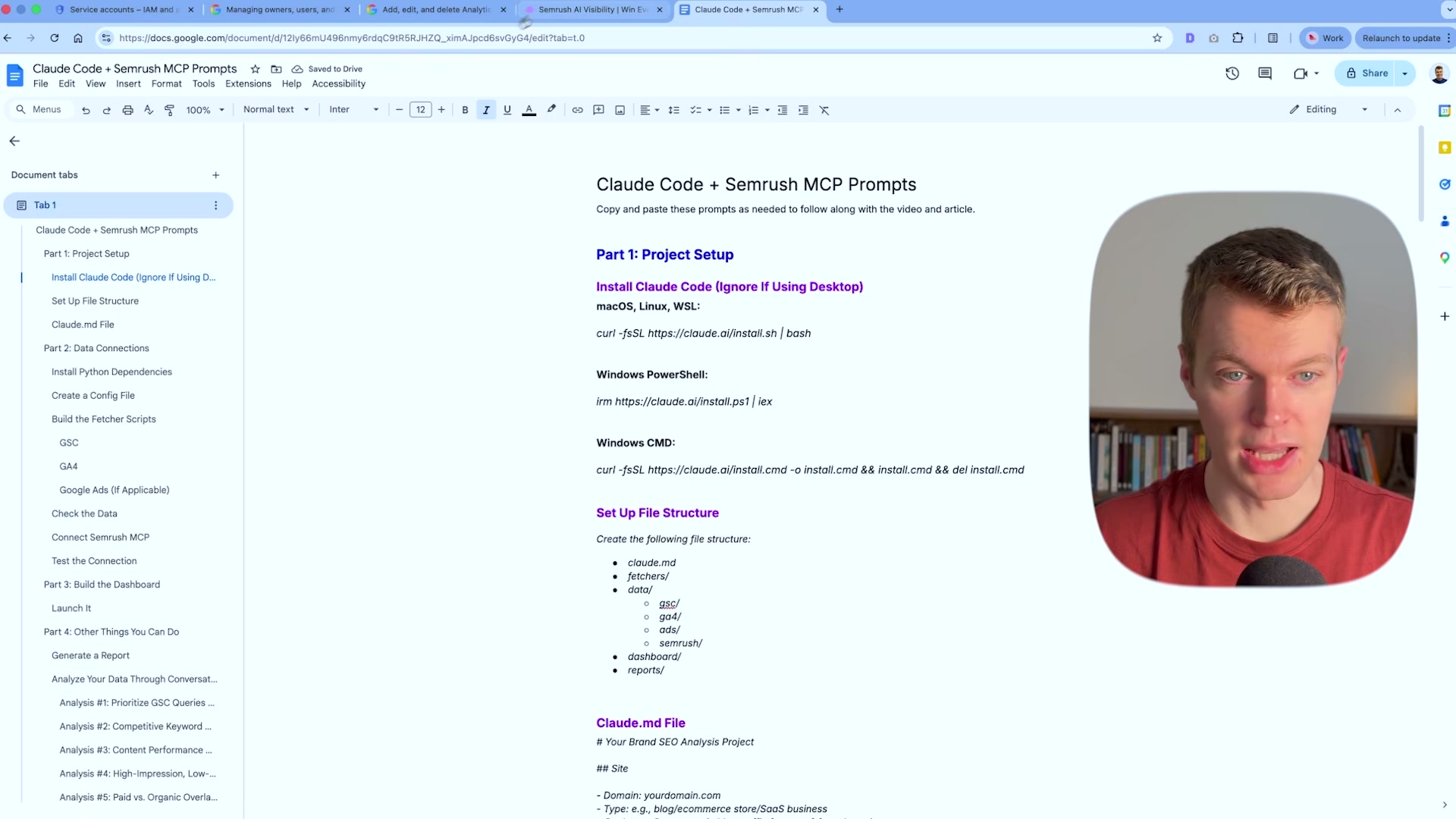
- Scaffold the project folder structure. Prompt Claude Code to create a project folder containing five subdirectories:
fetchers/,data/GSC/,data/GA4/,dashboard/, andreports/. The fetchers hold API scripts; the data folders receive pulled results; dashboard and reports store your outputs.
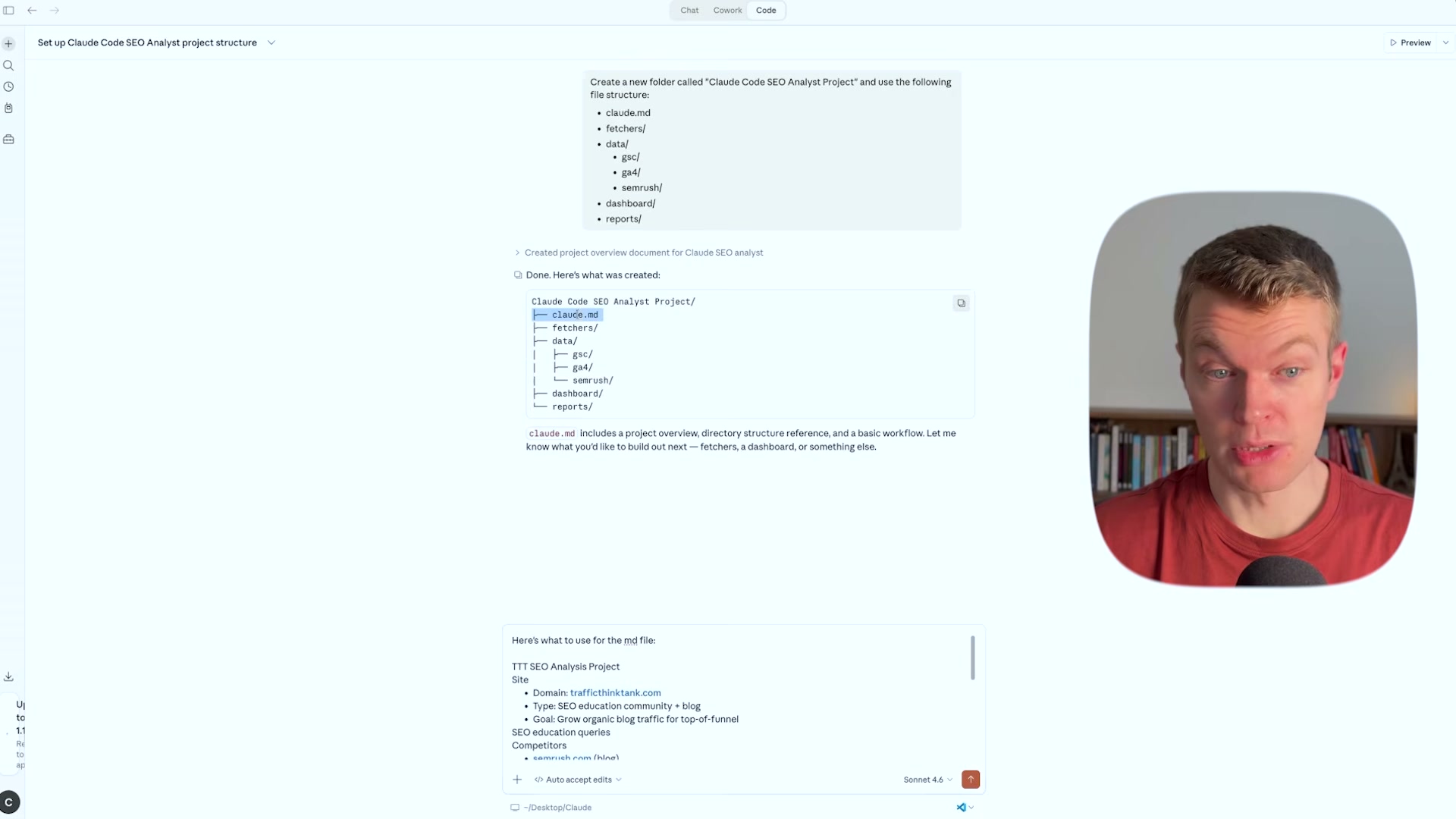
- Populate
CLAUDE.mdwith your site context. Claude Code reads this file at the start of every session. Add your domain, site type, business goals, competitor list, data sources, and any content notes — such as whether sections of your site are gated. This brief is what turns a general-purpose AI into your SEO analyst.
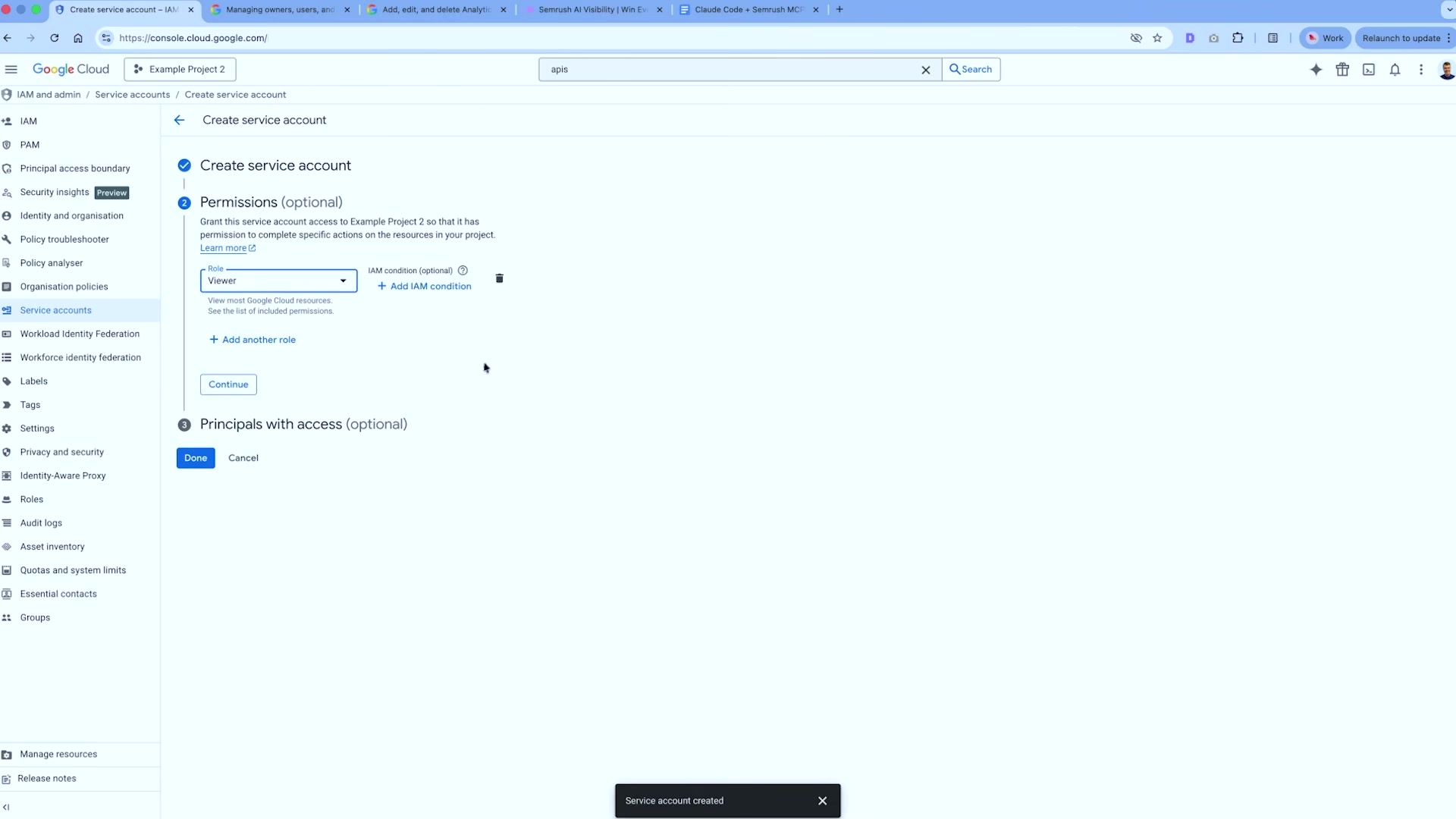
- Create a GCP project, enable APIs, and configure a service account. In Google Cloud Console, create a new project. Enable two APIs under APIs & Services: the Google Search Console API and the Google Analytics Data API (the GA4-compatible version — not Universal Analytics). Then go to IAM & Admin > Service Accounts, create an account, and assign the Viewer role.
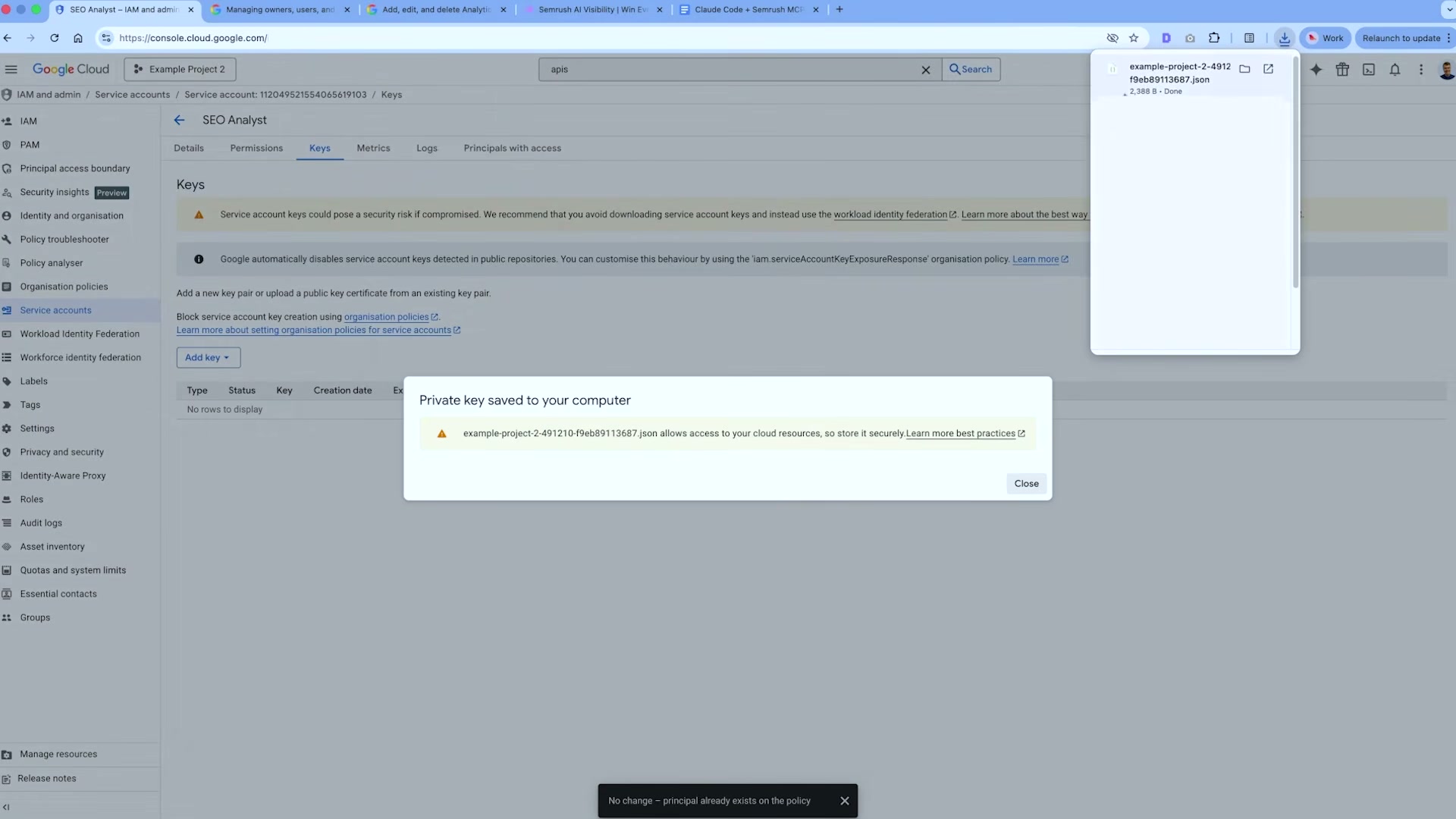
- Generate and download the JSON private key. Under the service account’s Manage Keys section, select Add Key > Create New Key, choose JSON, and click Create. The credential file downloads automatically. Upload it to Claude Code and instruct Claude to save it inside the project folder. Keep this file out of version control.
-
Grant the service account read access in GSC and GA4. Copy the service account email from the GCP Service Accounts page. Add it to Google Search Console under Settings > Users and permissions with Read access, then add it to GA4 under Admin > Account Access Management as a Viewer.
-
Install dependencies and generate the config file. Paste the dependency installation snippet from the companion reference document into Claude Code. This installs
google-api-python-client,google-auth, andgoogle-analytics-data. Then ask Claude to create aconfig.jsonspecifying your domain, GSC property URL, GA4 property ID, and optionally a Google Ads customer ID and competitor domains.
Warning: this step may differ from current official documentation — see the verified version below.
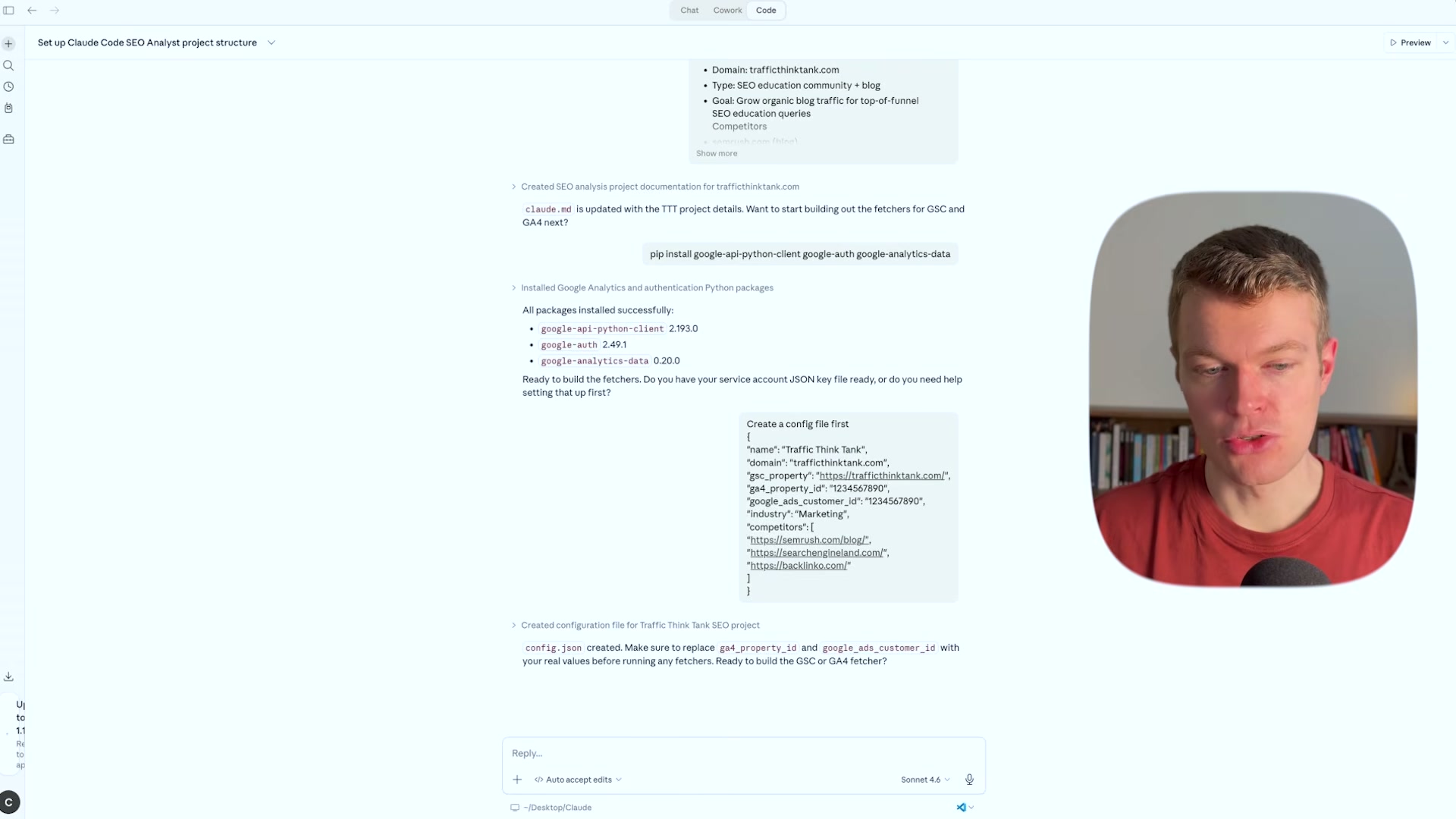
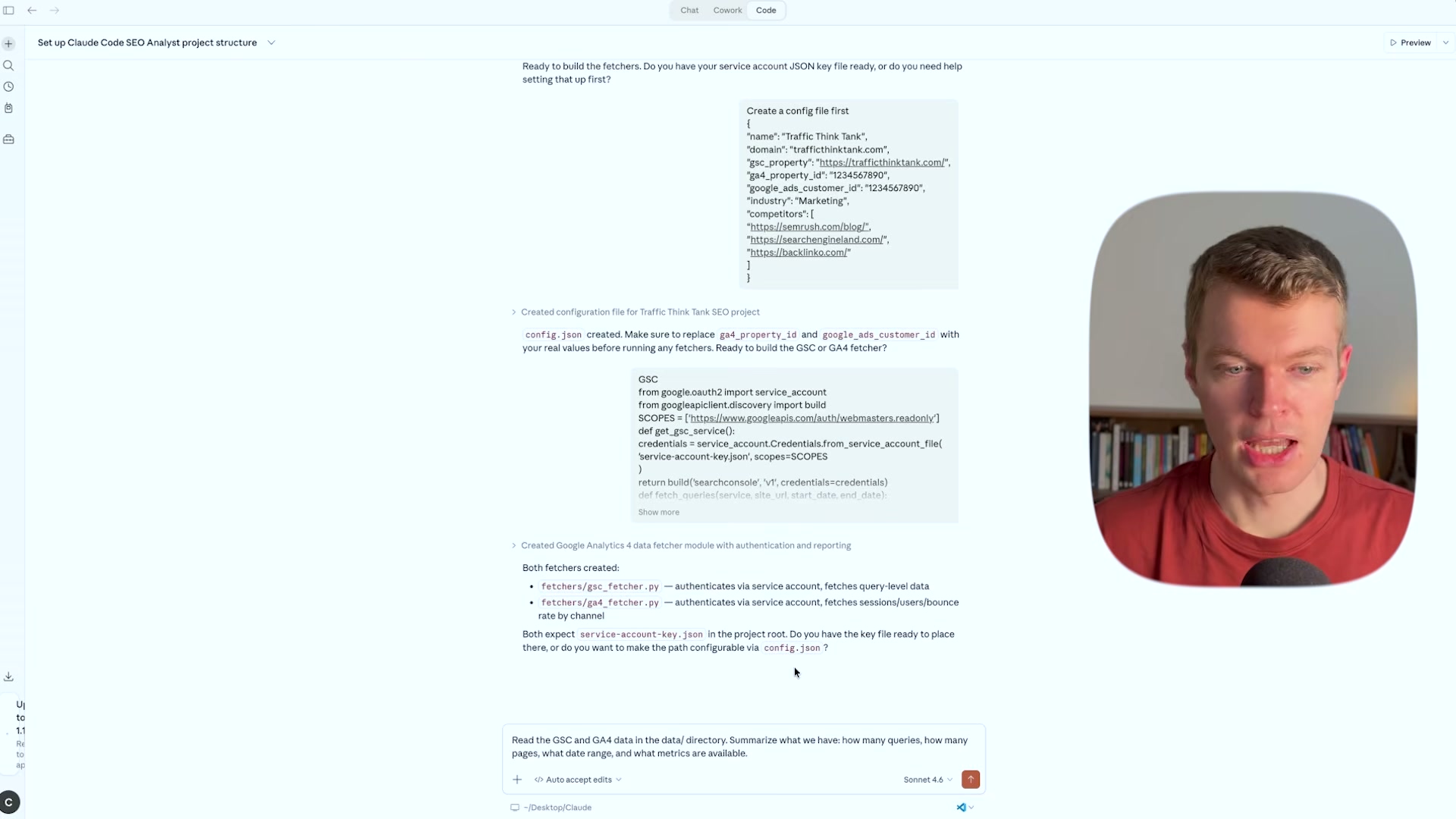
- Generate the fetcher scripts and verify data access. Paste or ask Claude to write GSC and GA4 fetcher scripts into the
fetchers/folder. Each script authenticates using the JSON key file. Once saved, prompt Claude to run both fetchers and return a recent data summary — confirm the correct property, date range, and metrics before proceeding.
-
Connect the SEMrush MCP. In the desktop app, go to Connectors > Manage Connectors > Add Custom Connector, paste the SEMrush MCP remote server URL, and complete the authentication flow. Terminal users run the MCP command, select SEMrush, and authenticate from the CLI. Verify the connection by asking Claude to return top organic keywords with position, volume, and keyword difficulty for your domain.
-
Upload the AI Visibility report and cache baseline SEMrush data. Export the AI Visibility overview CSV from SEMrush and upload it to Claude Code with a short description of what the data represents. Prompt Claude to cache a baseline SEMrush snapshot — this pre-populates the dashboard and reports you’ll build next.
How does this compare to the official docs?
The video consolidates several GCP and MCP configuration steps and leans on a companion prompt document to bridge the gaps — the official documentation for Claude Code, Google’s service account setup, and SEMrush’s MCP each add precision that matters when you move beyond a single test domain.
Here’s What the Official Docs Show
The video gives you a complete end-to-end path that works. The documentation adds a few prerequisites and safety notes worth reviewing before you authenticate anything against a live domain.
Step 1 — Install Claude Code and open a session.
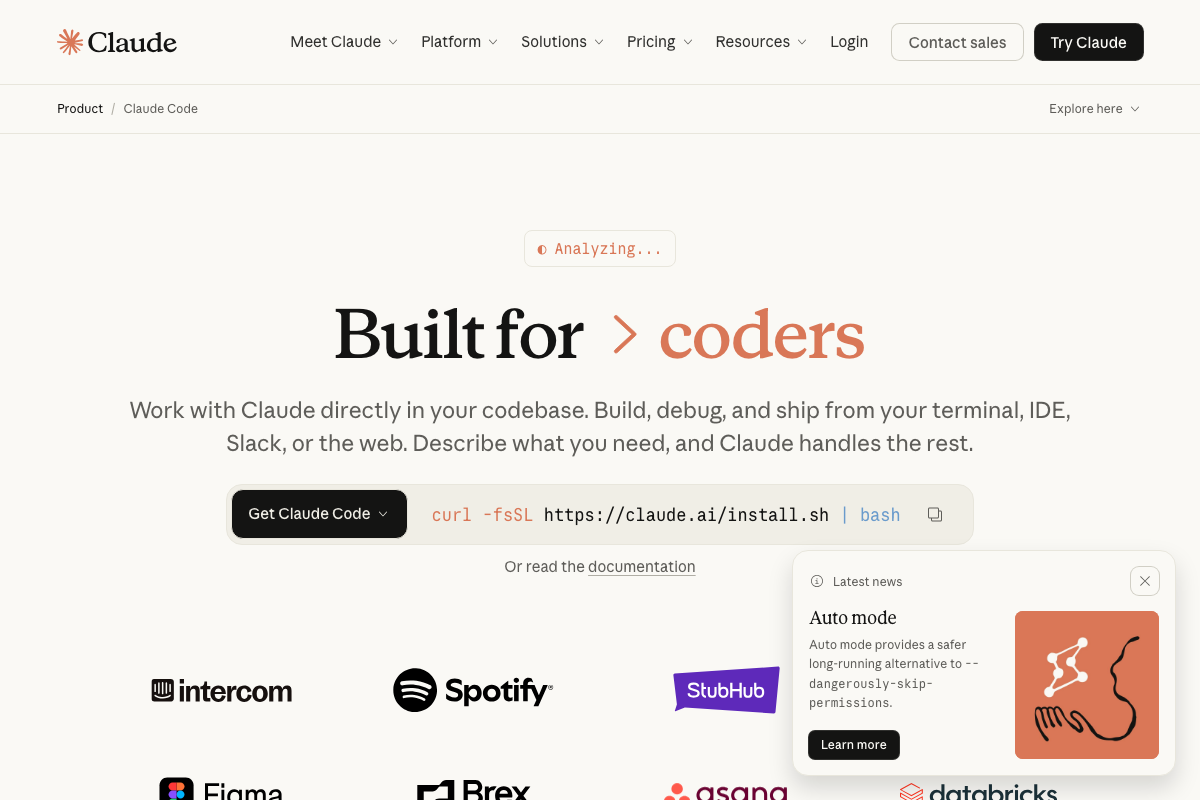
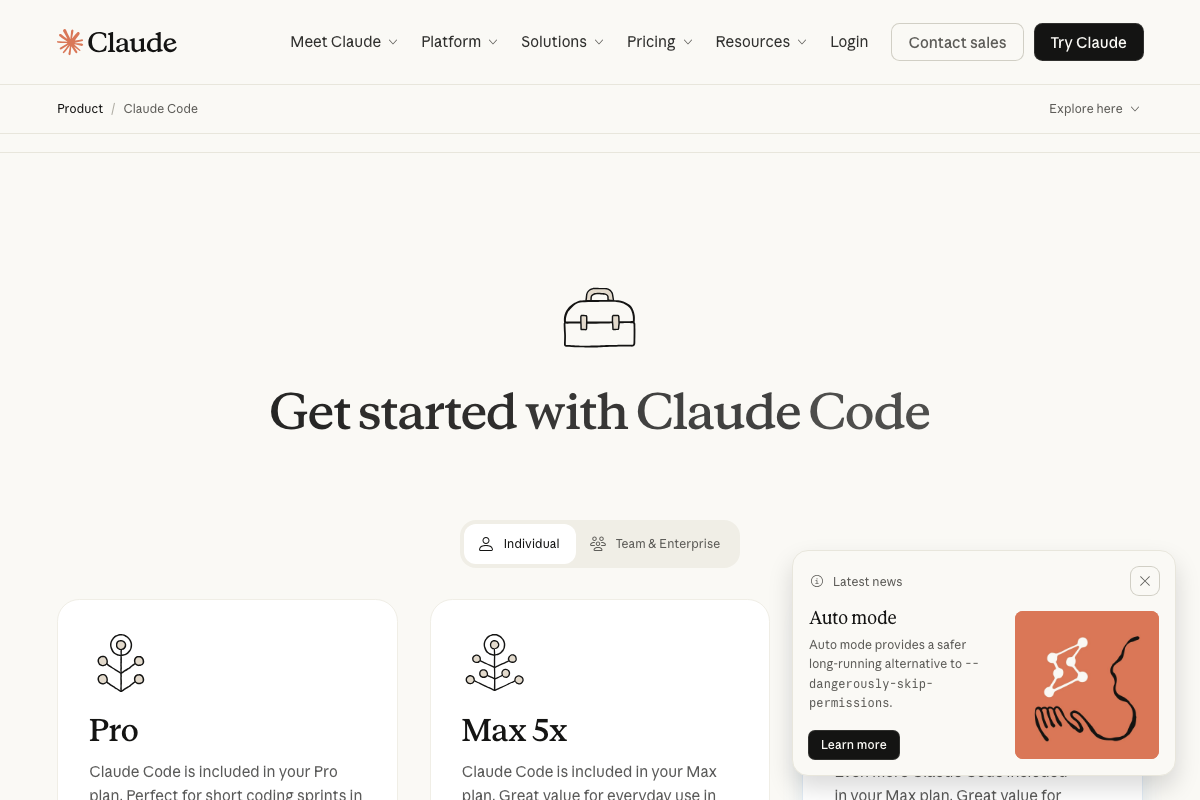
The video’s approach here matches the current docs exactly. Both the desktop app and the curl -fsSL https://claude.ai/install.sh | bash terminal command are confirmed as co-equal official install options. Three additions from the docs: Claude Code requires a paid subscription (Pro or Max plan — free accounts are excluded); the desktop app is currently labeled BETA in official materials; and the official page now promotes Auto mode as “a safer long-running alternative to --dangerously-skip-permissions” — worth knowing if permission prompts surface during the GCP or fetcher configuration steps.
Step 2 — Scaffold the project folder structure.
The video’s approach here matches the current docs exactly. The Code tab and New Session button appear precisely as described. The docs also surface a Cowork tab and a Projects panel not mentioned in the tutorial — useful for multi-domain work once this agent is running.
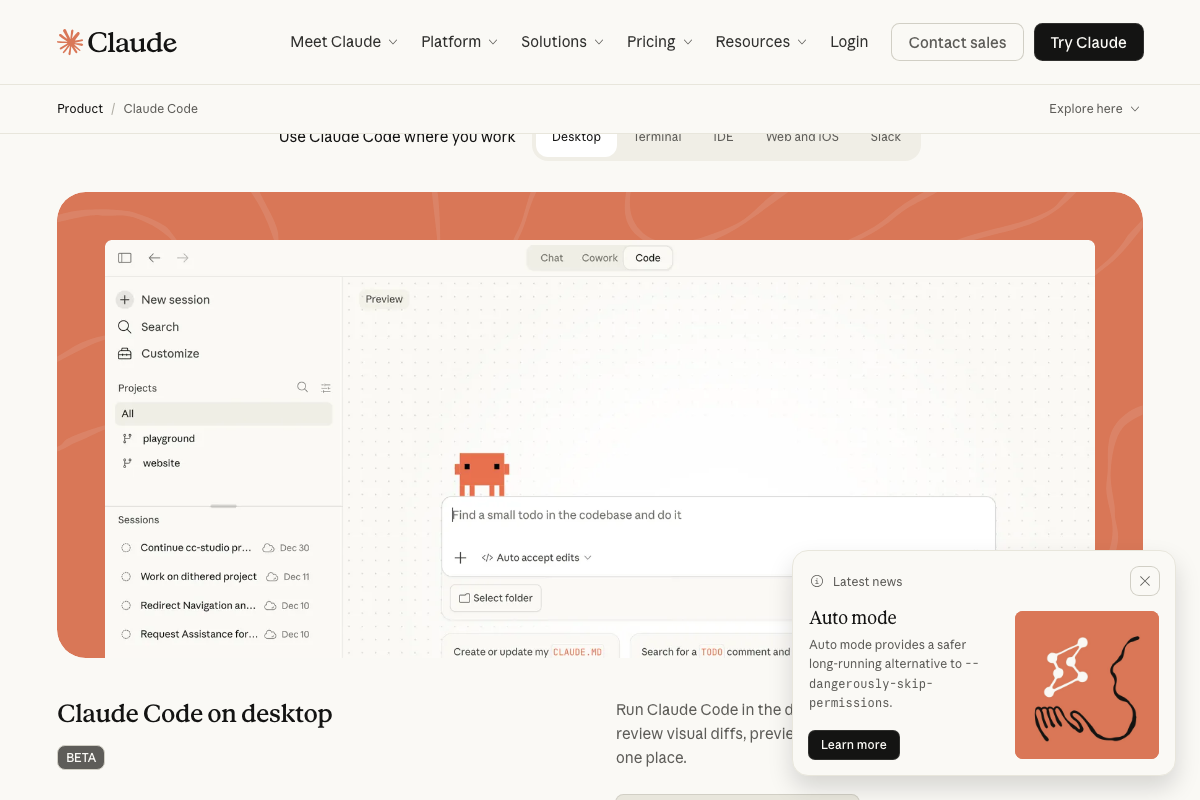
Step 3 — Populate CLAUDE.md with your site context.
One useful note: the desktop app natively surfaces a “Create or update my CLAUDE.md” shortcut in the input area, confirming this is a first-class built-in workflow rather than a workaround. The specific fields the tutorial recommends populating are not prescribed by the official docs.
No official documentation was found for this step — proceed using the video’s approach and verify independently.
Steps 4–5 — GCP project, API enablement, service account, and JSON key.
No official documentation was found for this step — proceed using the video’s approach and verify independently.
Step 6 — Grant service account read access in GSC and GA4.
No official documentation was found for this step — proceed using the video’s approach and verify independently.
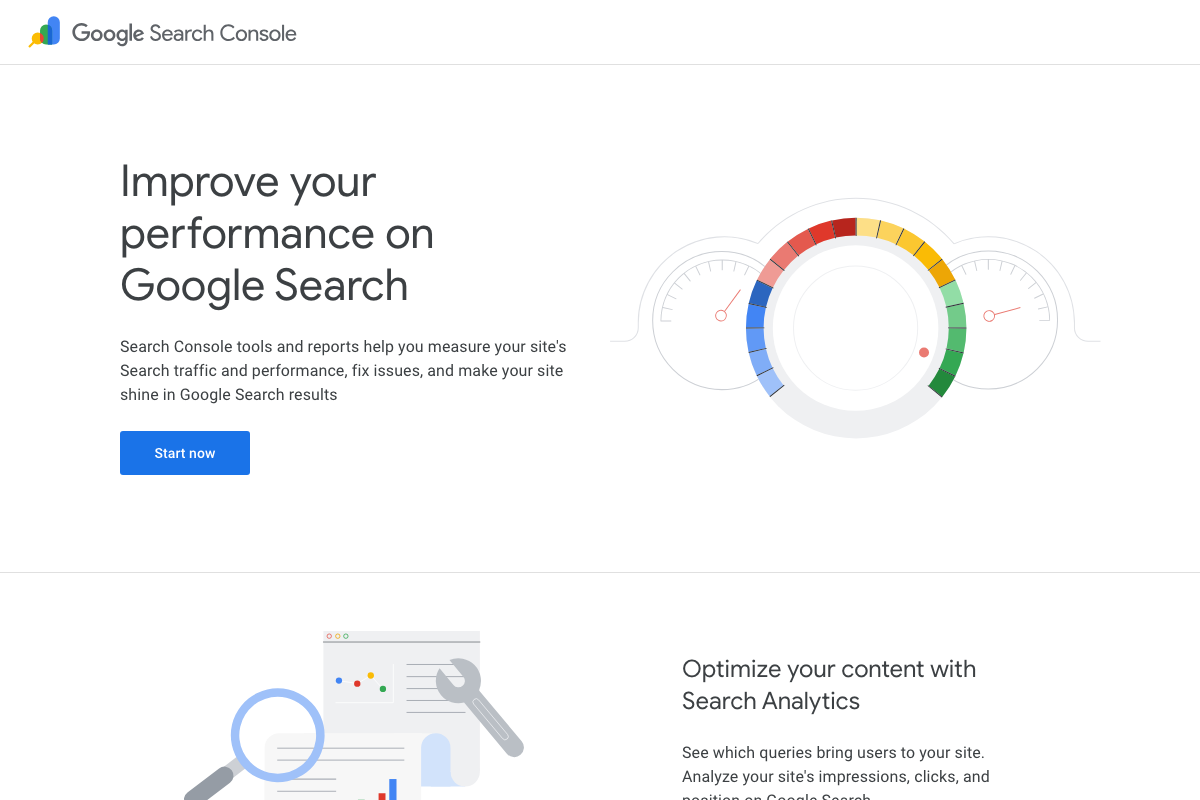 📄 Google Search Console landing page — the Settings > Users and permissions flow is behind authentication
Steps 7–8 — Install dependencies, generate config, and run fetcher scripts.
No official documentation was found for this step — proceed using the video’s approach and verify independently.
Step 9 — Connect the SEMrush MCP.
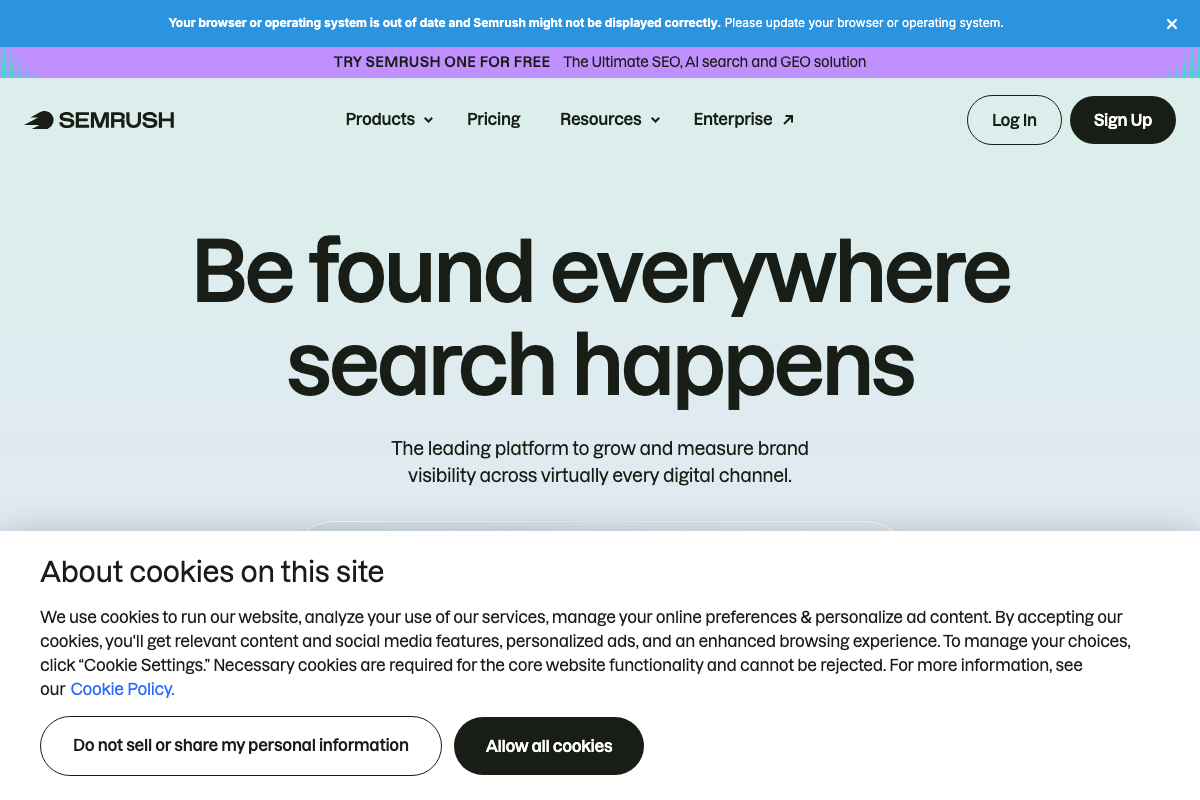
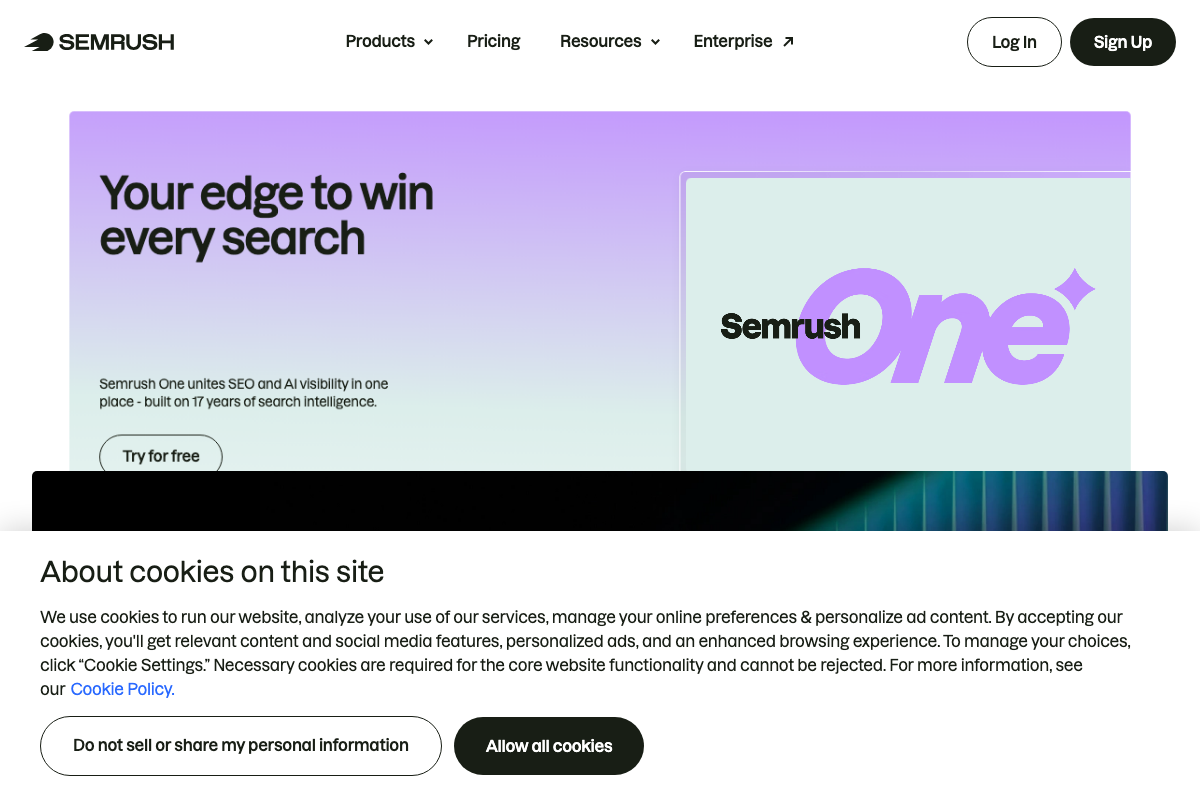
No MCP connector UI appeared in any of the three captured Semrush screenshots, so the Connectors > Manage Connectors flow cannot be confirmed. Also worth noting: Semrush now markets itself as Semrush One, positioning the platform around AI search and GEO visibility — a broader scope than the organic keyword framing the tutorial uses.
No official documentation was found for this step — proceed using the video’s approach and verify independently.
Step 10 — Upload the AI Visibility report and cache baseline SEMrush data.
The “AI Visibility” report is consistent with a named feature inside Semrush One. It appears to be a branded paid feature — confirm your plan includes AI Visibility before expecting the CSV export to be available.
No official documentation was found for the specific export and caching workflow — proceed using the video’s approach and verify independently.
Useful Links
- Claude Code by Anthropic | AI Coding Agent, Terminal, IDE — Official install page with desktop app download, terminal command, and plan pricing for Claude Code.
- Google Search Console — Search performance platform providing the impressions, clicks, and position data the GSC fetcher scripts retrieve.
- Google Analytics — GA4 property management and user access settings referenced in the service account configuration steps.
- Google Cloud Platform — Authenticated console for GCP project creation, API enablement, and service account and JSON key setup.
- Semrush: Your Unfair Advantage for Growing Brand Visibility — SEO and AI visibility platform used for the MCP connection and AI Visibility report export.
- Google Ads – Get Customers and Sell More with Online Advertising — Optional paid advertising platform listed as a separate data source requiring its own API credentials.


0 Comments