

AI News Roundup: Real-Time Interaction Models, Codex Mobile, and Krea AI Mood Boards
Thinking Machines Labs just emerged from stealth with interaction model demos that feel genuinely different from the marginal benchmark gains dominating AI headlines. You’ll come away from this post understanding five standout capabilities from those demos, the exact steps to connect OpenAI Codex to your phone via the new mobile preview, and how to generate style-consistent images in Krea AI using its Mood Board feature. The Thinking Machines model isn’t publicly available yet, but the Codex mobile setup and Krea AI workflow are live and usable today.
- Open the Thinking Machines Labs announcement page and watch the simultaneous translation demo first. The model speaks over the presenter continuously as they talk — no waiting for a sentence boundary — translating into the target language in real time. This behavior alone separates it from current production models, which require a full utterance before processing begins.

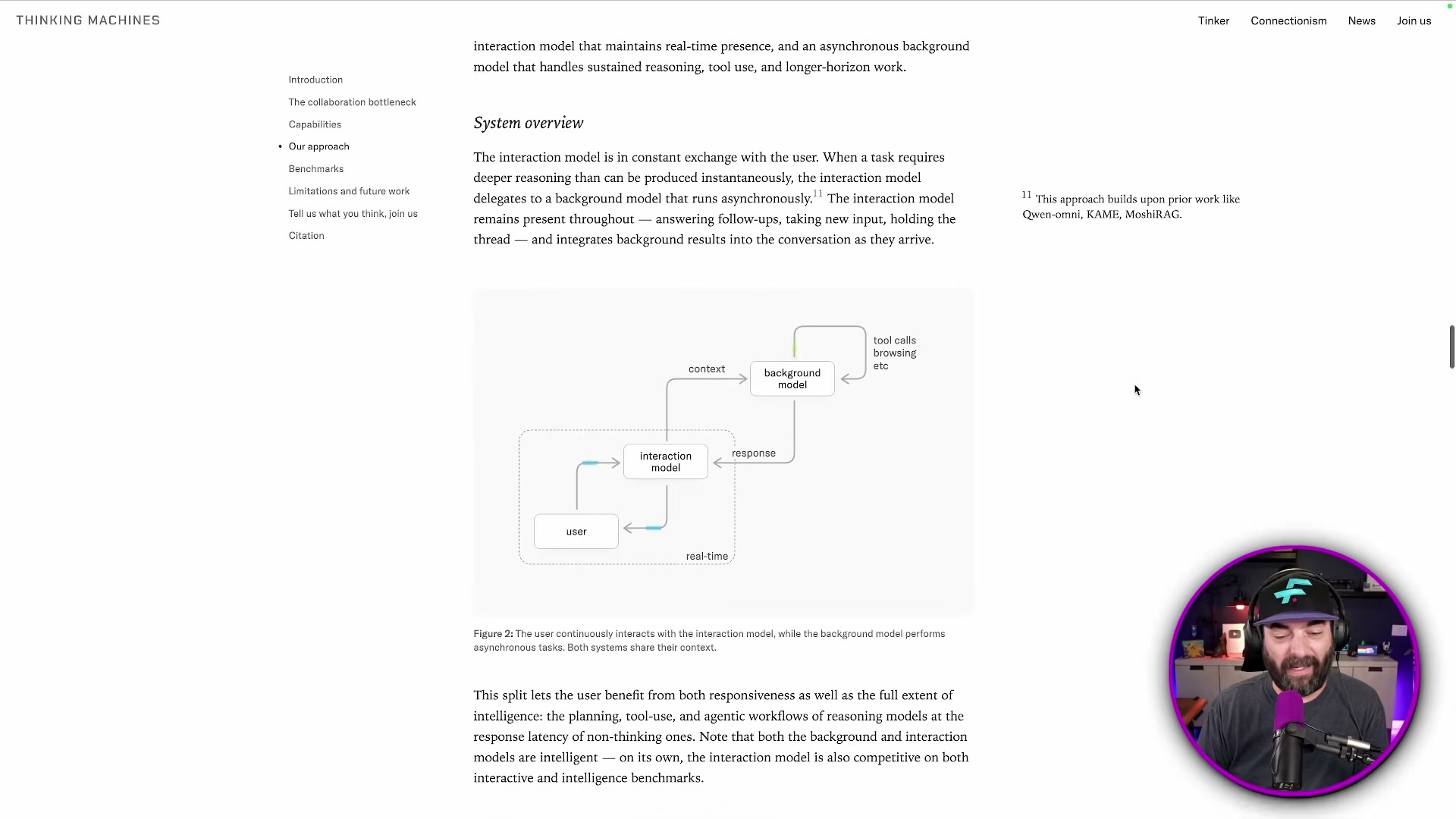
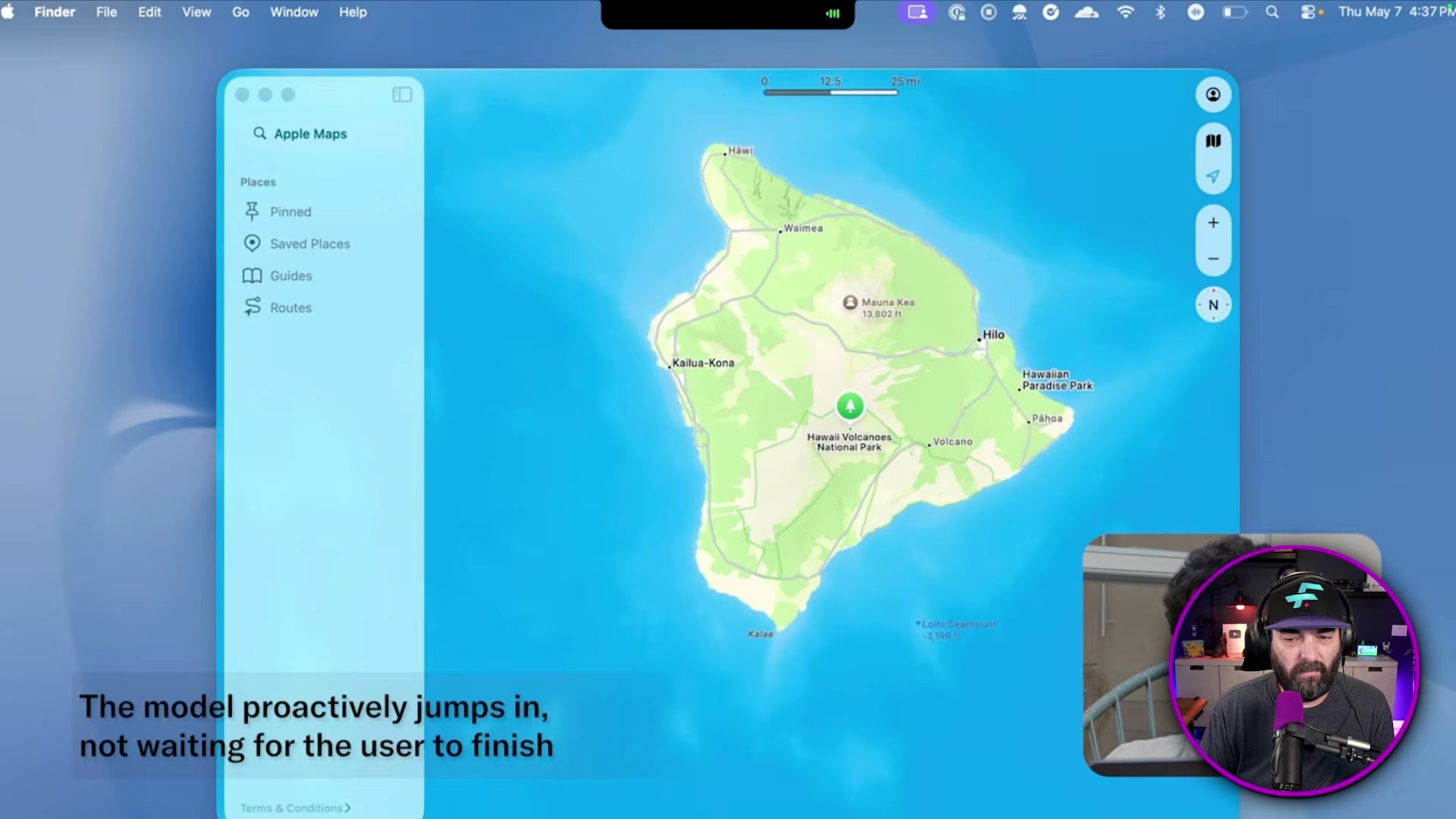
- Watch the animal-count interruption and slouch-detection demos back to back to understand the model’s selective interruption logic. The system holds during natural speech pauses but fires immediately on the specific trigger condition you define — whether that’s a spoken keyword or a posture change visible through the camera. The architectural reason this works is that the real-time interaction model runs a continuous live loop while delegating tool calls, browsing, and deep reasoning to a separate asynchronous background model.
- Review the Crusoe Managed Inference overview to understand Memory Alloy context retention. Rather than reprocessing full context windows on every request, Memory Alloy caches and reuses prior context across calls — directly relevant if you’re building agentic applications that pull large document sets or run retrieval pipelines. Throughput claims reach five times that of traditional cloud environments.
- Update the Codex desktop client to the latest version. The mobile setup option only appears after this update — it is not present in older builds.
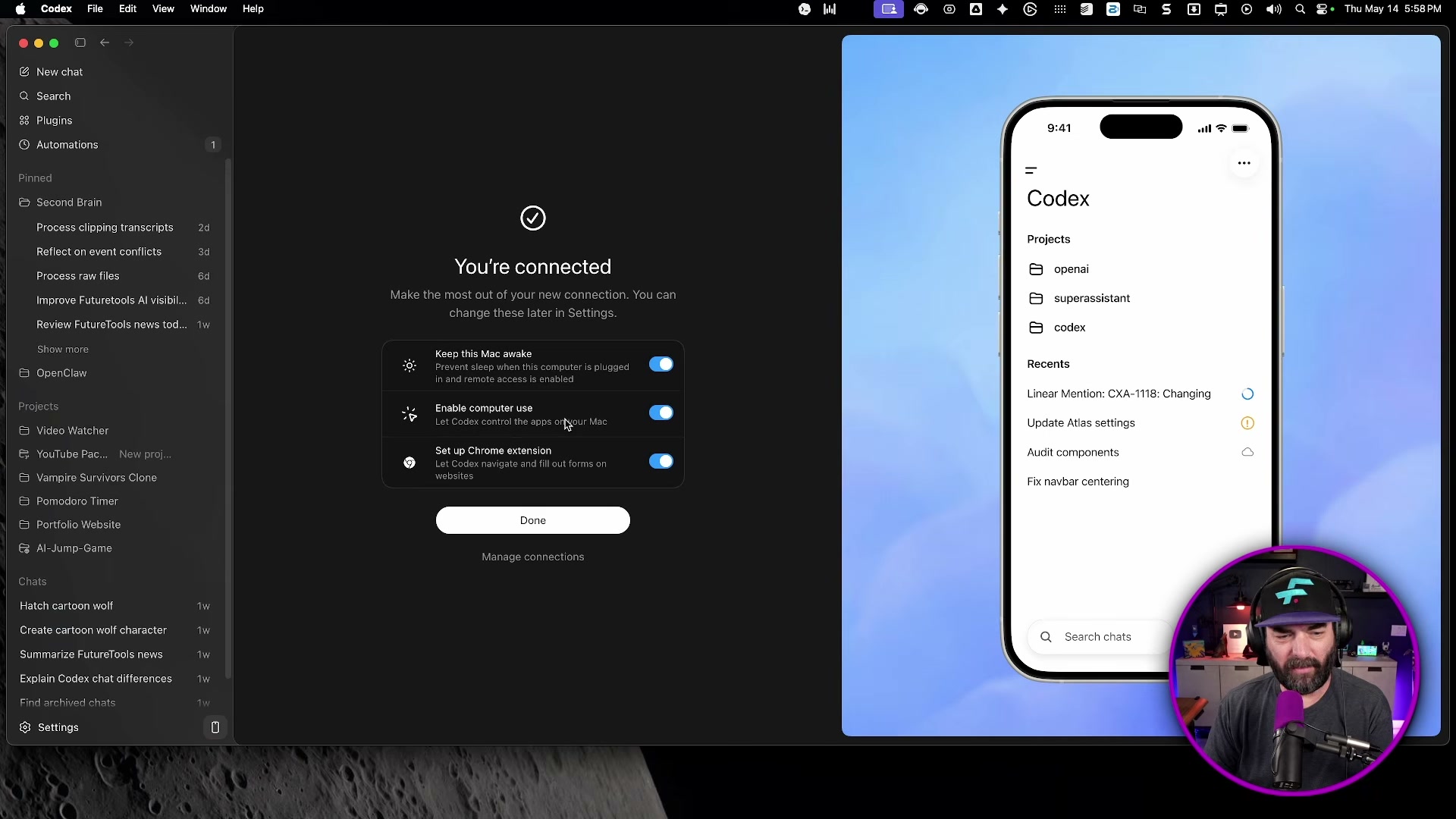
- When the setup wizard launches, toggle on Allow devices to control this computer.
Warning: this step may differ from current official documentation — see the verified version below.
-
Open the ChatGPT mobile app and scan the QR code displayed on your desktop. Confirm the connection when the app prompts you.
-
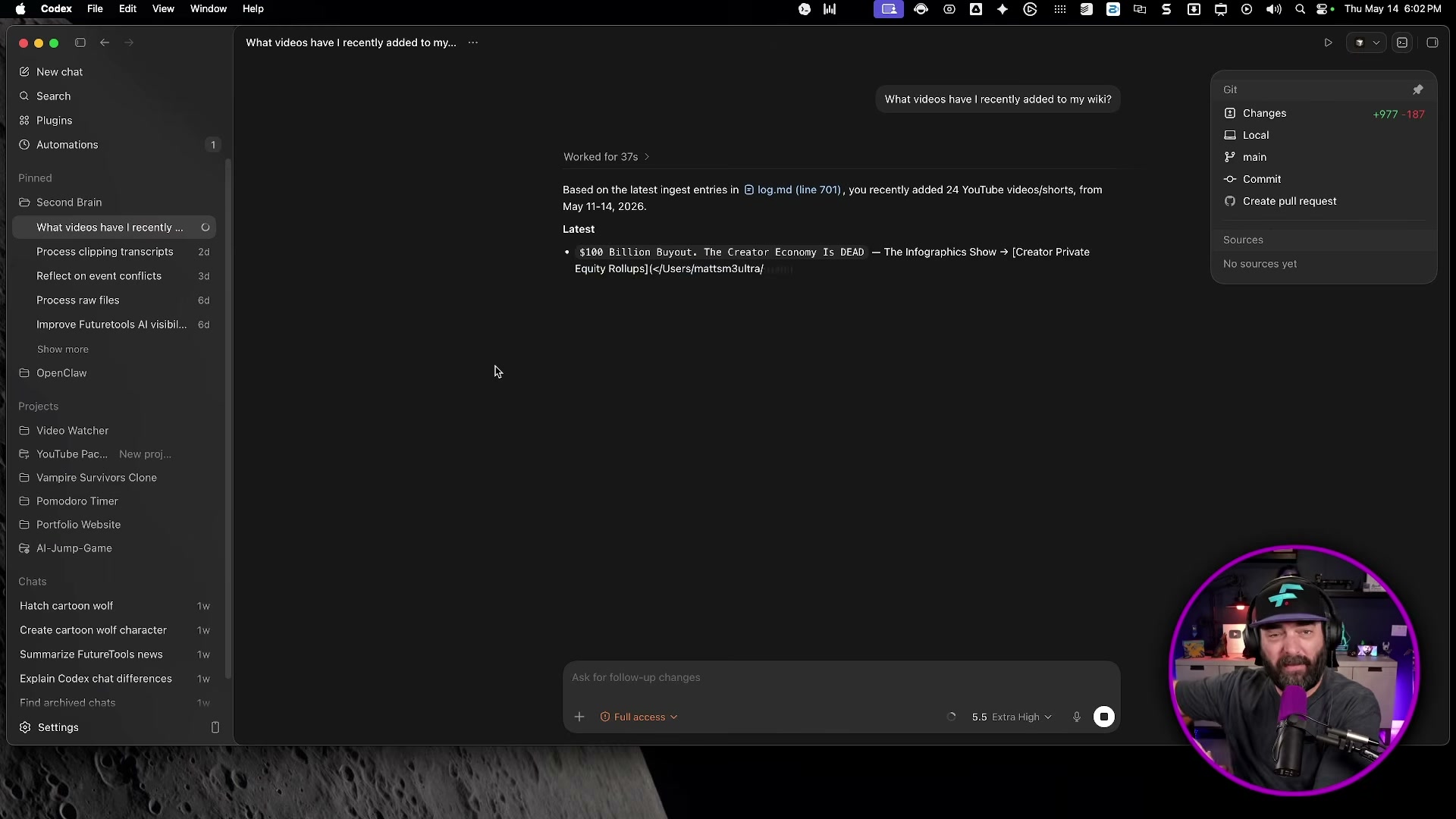
Tap New Chat in the mobile Codex interface and send a query that requires local files on your desktop — for example, asking what has recently been added to a local wiki. Switch back to the desktop client to confirm the agent is actively reading your files in real time; the mobile view mirrors the same session.
-
Log into your Krea AI account — a Max or Business plan is required. Locate the Mood Boards icon in the left sidebar.
-
Create a new mood board by entering a style keyword (such as “purple”) in the search field, then select and add images that represent the aesthetic you want to replicate.
-
Click Analyze the board. Krea generates a taste profile and a keyword summary describing the collective visual style of your selections.
-
Click Generate with mood board, enter a subject prompt, and review the outputs. The model applies the style fingerprint extracted from your board to whatever subject you specify, producing visually consistent results without manual prompt engineering for style.
How does this compare to the official docs?
The Codex mobile setup flow shown here reflects preview-release behavior, and the onboarding steps are likely to shift as the feature graduates to general availability — Act 2 checks every step against OpenAI’s current documentation so you know exactly what to follow.
Here’s What the Official Docs Show
The video covers four product areas in one pass, and the official screenshots confirm the headline claims while surfacing a few details worth checking before you follow the steps yourself. Act 2 runs through every step in the same order so you know exactly where to trust the video and where to pause.
Steps 1–2 — Thinking Machines Labs demos
No official documentation was found for these steps —
proceed using the video’s approach and verify independently.
Step 3 — Crusoe Managed Inference
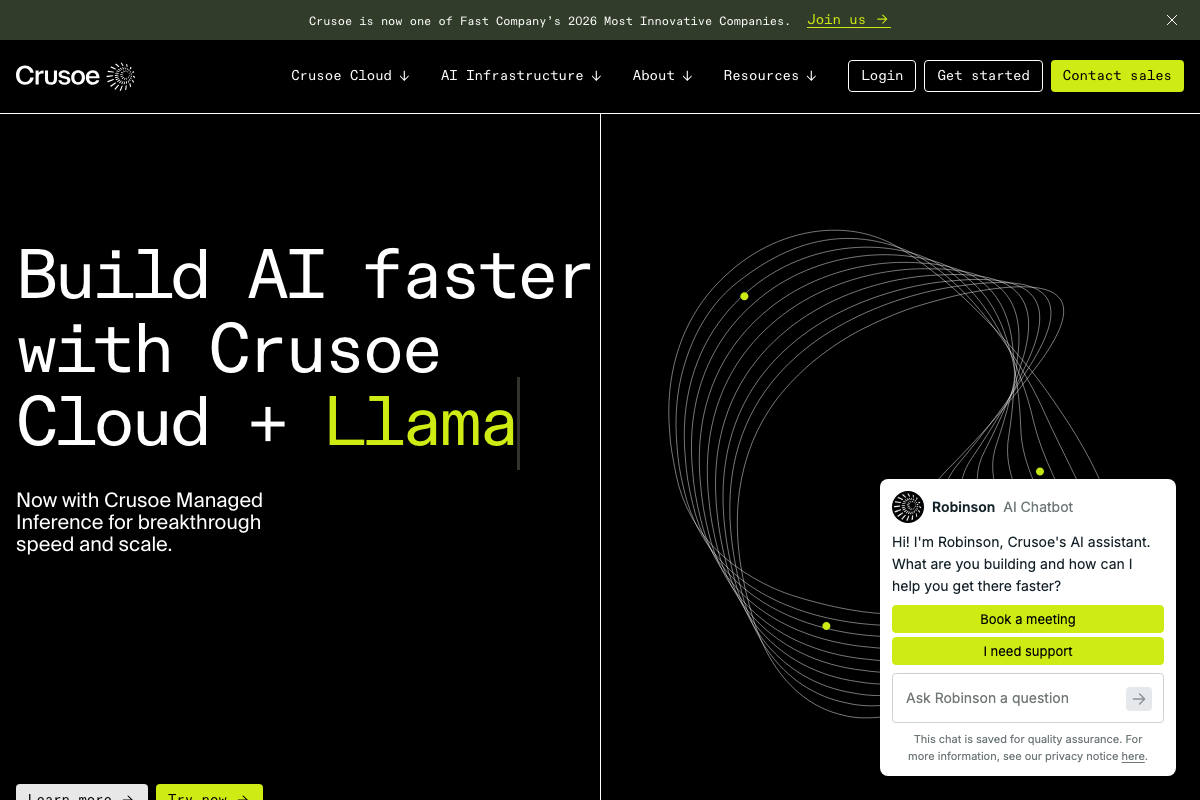
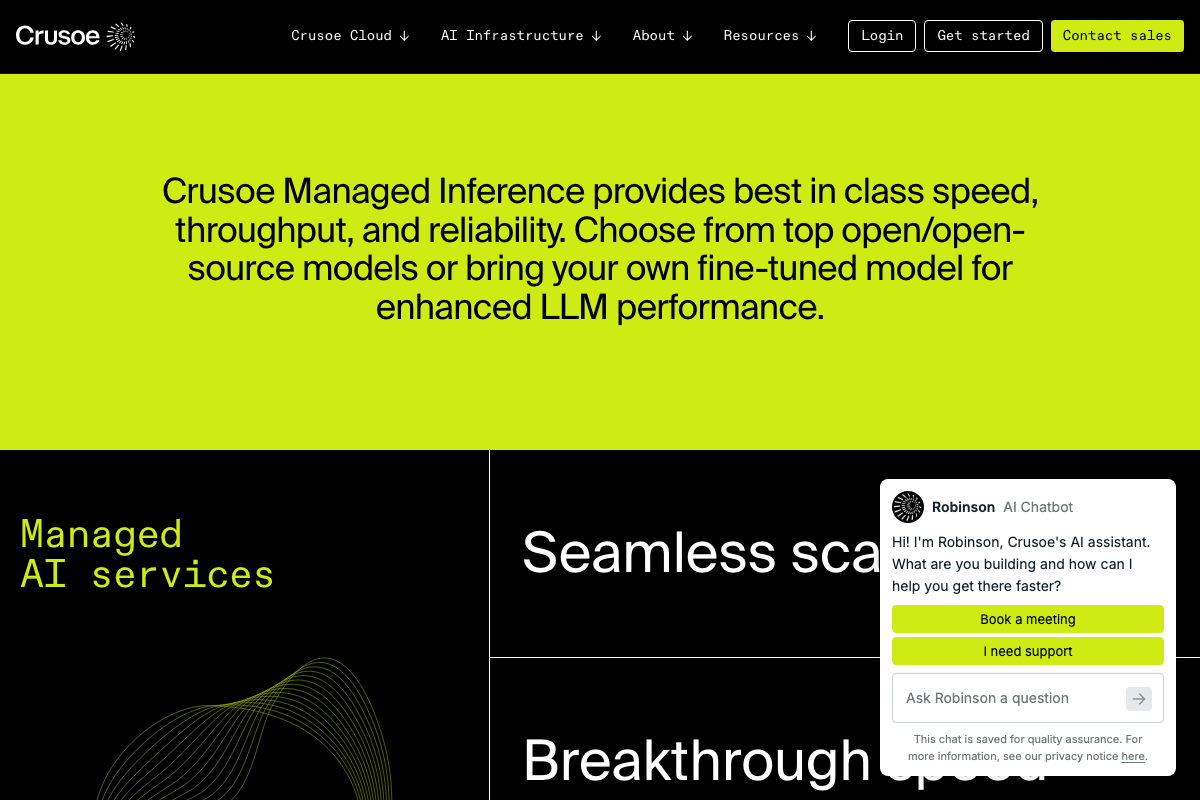
Crusoe Managed Inference is confirmed as a live, marketed product. The video’s throughput framing holds up: official copy describes the service as delivering “best in class speed, throughput, and reliability.” The video’s approach here matches the current docs on the core capability.
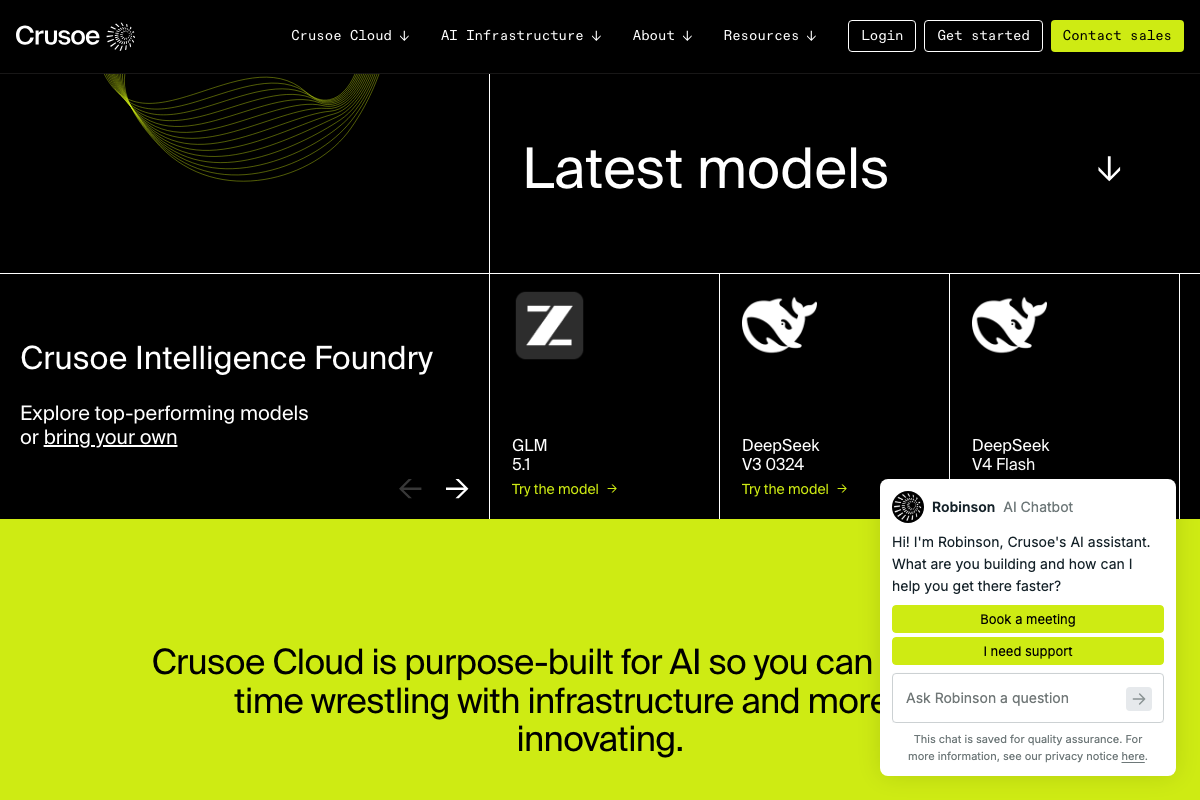
One term to flag: as of May 15, 2026, “Memory Alloy” does not appear anywhere in Crusoe’s official documentation. The video uses it to label context-retention behavior; Crusoe’s site does not. The docs also surface model-availability details the video skipped — the Crusoe Intelligence Foundry catalog includes GLM 5.1, DeepSeek V3 0324, and DeepSeek V4 Flash, and the platform supports bringing your own fine-tuned model alongside catalog options.
Step 4 — Update the Codex desktop client
No official documentation was found for this step —
proceed using the video’s approach and verify independently.
Step 5 — Toggle “Allow devices to control this computer”
No official documentation was found for this step —
proceed using the video’s approach and verify independently.
Step 6 — Scan the QR code from the ChatGPT mobile app
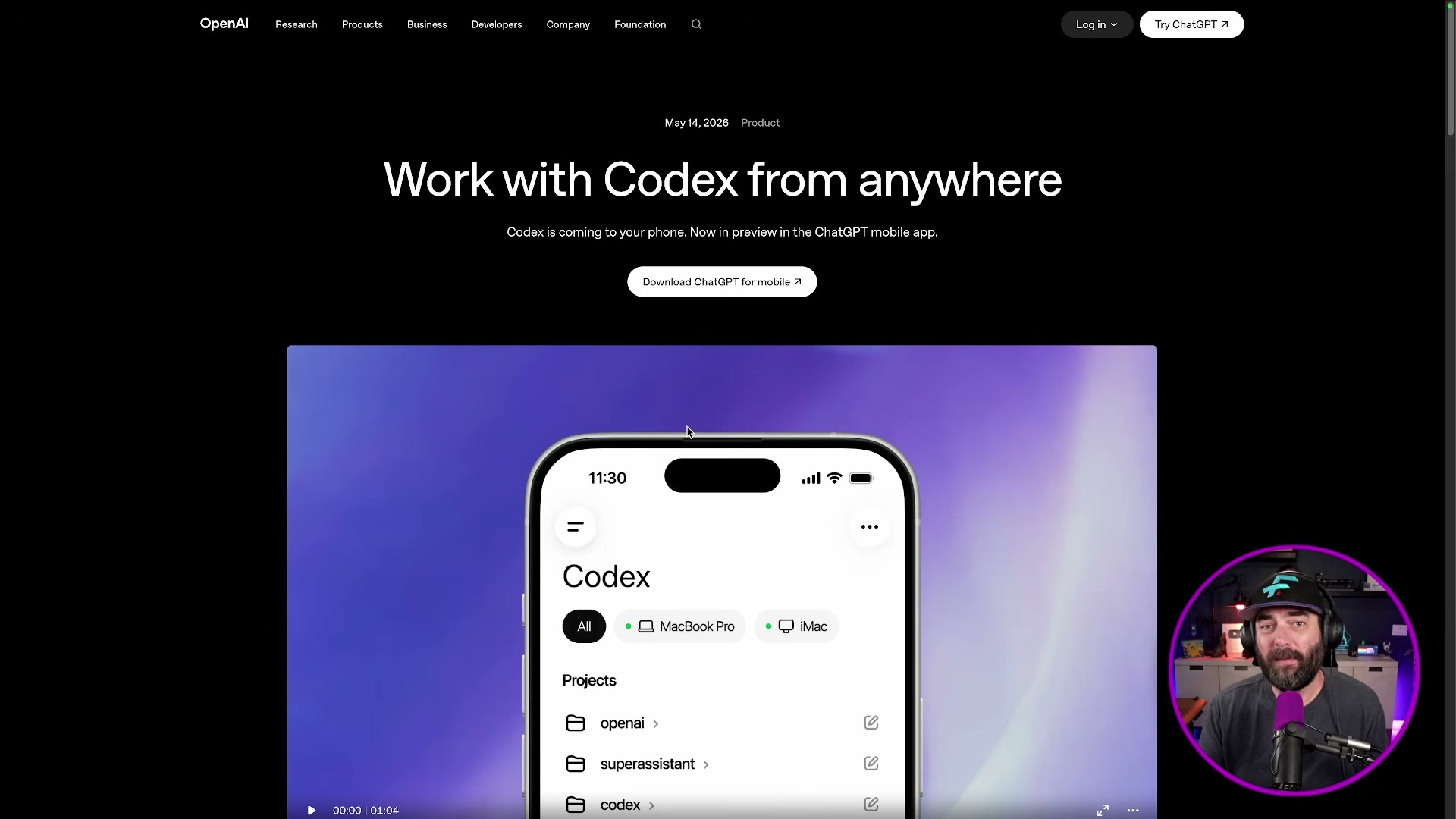
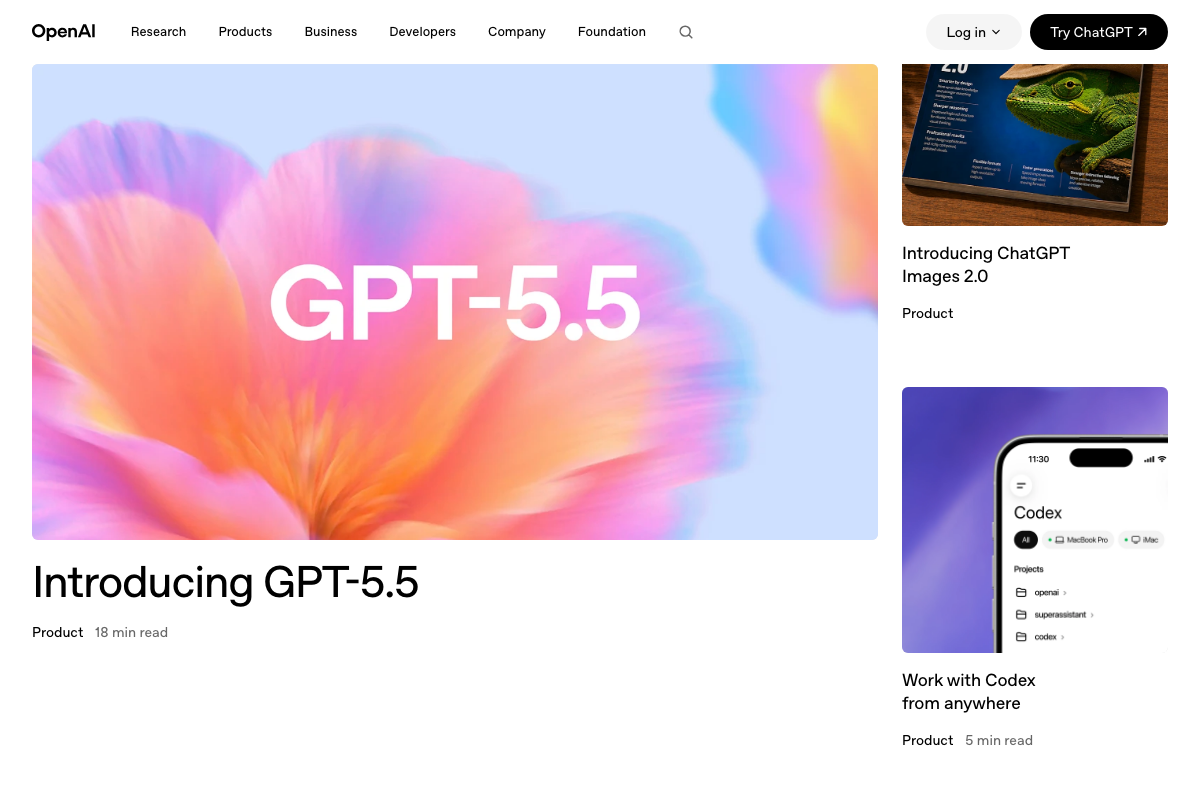
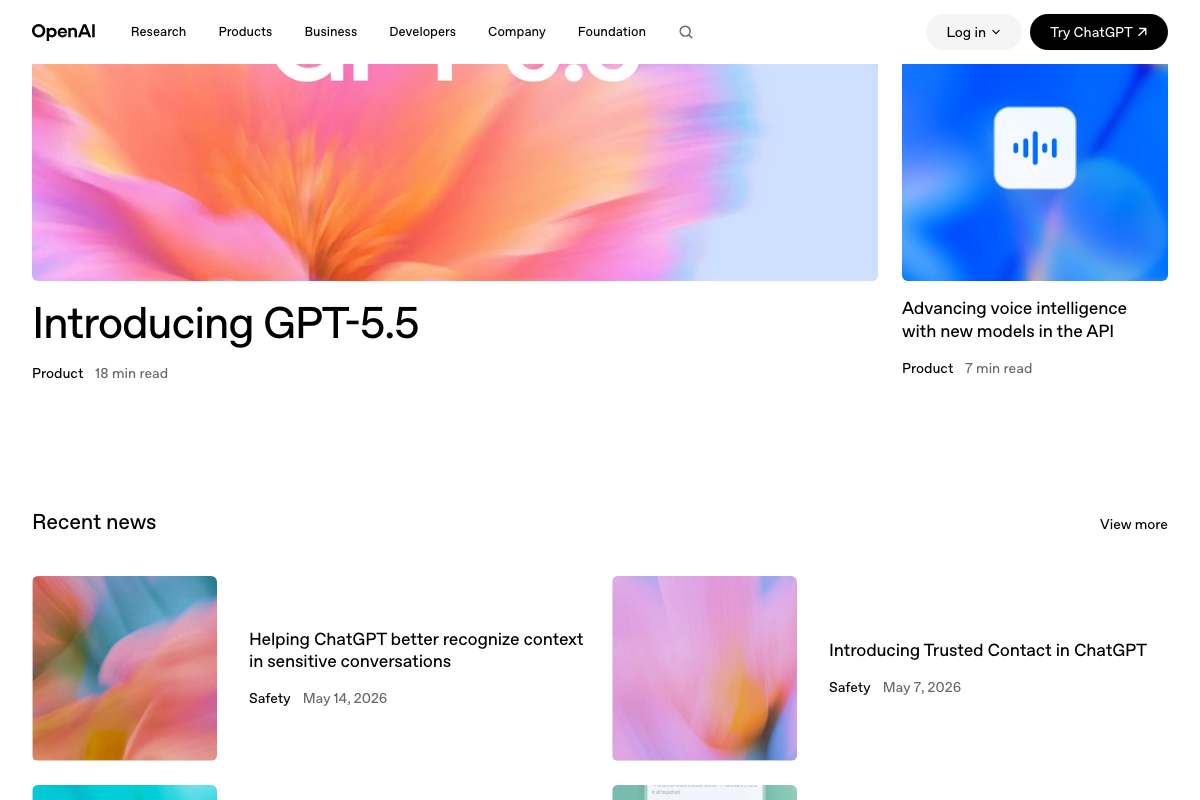
The video’s approach here matches the current docs exactly. OpenAI’s product page confirms Codex mobile is officially released, and the article card’s phone mockup shows existing project sessions — labeled with names like “openai,” “superassistant,” and “codex” — visible on the connected device. One useful addition the video didn’t address: the mockup shows a “MacBook Pro + iMac” device selector, indicating you can pair the mobile app with more than one desktop machine simultaneously.
Step 7 — Run a query from the mobile Codex interface
No official documentation was found for this step —
proceed using the video’s approach and verify independently.
Step 8 — Log into Krea.ai and locate Mood Boards
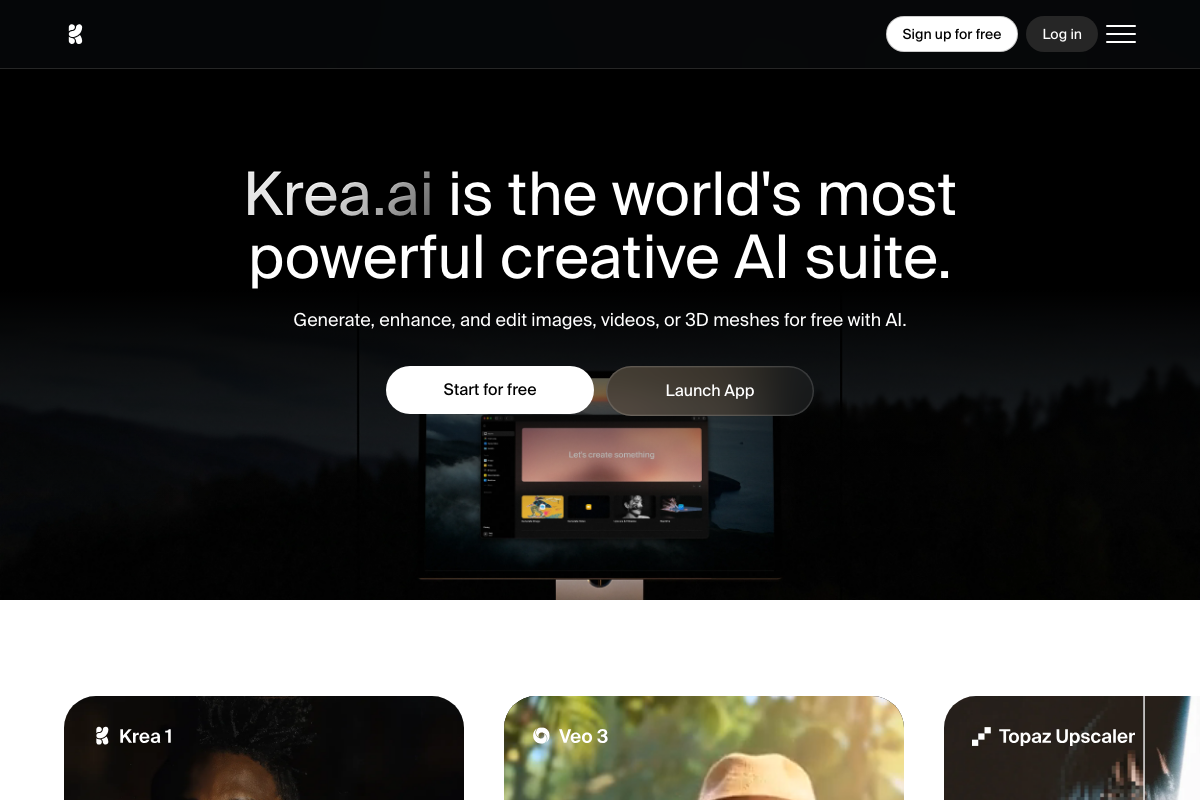
Branding note first: the platform is officially Krea.ai — the tutorial title’s “Crea AI” is a phonetic variant, not the official name. On plan requirements: the video states Mood Boards requires a Max or Business plan, but Krea.ai’s homepage leads with a “Start for free” call-to-action and no plan-gating language is visible anywhere in the available screenshots. Whether Mood Boards specifically requires a paid tier is unconfirmed — check your account dashboard before assuming an upgrade is necessary.

Steps 9–11 — Mood board creation, “Analyze the board,” and “Generate with mood board”
No official documentation was found for these steps —
proceed using the video’s approach and verify independently.

Useful Links
- OpenAI | Research & Deployment — Official OpenAI homepage and product news hub where the “Work with Codex from anywhere” mobile preview article is published.
- Crusoe | The AI factory company — Crusoe’s official site documenting Managed Inference capabilities, the Intelligence Foundry model catalog, and the platform’s renewable-powered infrastructure positioning.
- Krea: AI Creative Suite for Images, Video & 3D — Official Krea.ai homepage for the image, video, and 3D generation platform referenced throughout the Mood Boards walkthrough.
- Home \ Anthropic — Anthropic’s homepage, active during the same news cycle, listing Claude Opus 4.7, Claude Code, and Claude Code for Enterprise among current product releases.


0 Comments