

Install Claude’s Small Business and Legal Plugin Packs in Co-work
Claude’s new plugin packs put 31 pre-built skills — invoice chasing, cash flow snapshots, payroll planning, contract review — directly inside your Co-work environment. By the end of this walkthrough you will have the Small Business plugin installed, customized via onboarding, and ready to run against your live connectors. You will also know where the Legal pack fits and what to do when a skill is wired to a tool you don’t use.
-
Open the Claude desktop app and confirm you are on a paid plan. Free accounts do not have access to Co-work or the plugin directory.
-
Click the Co-work tab at the top of the app to switch out of standard Chat mode. The sidebar will change to show your projects and a Customize option.
-
Click Customize in the Co-work sidebar to open your plugin management panel, then click the + button under Browse Plugins to open the full plugin directory.
- Type
small businessin the plugin browser search field. When the Anthropic-published pack appears, click + to install it. Installation is immediate — no confirmation screen.
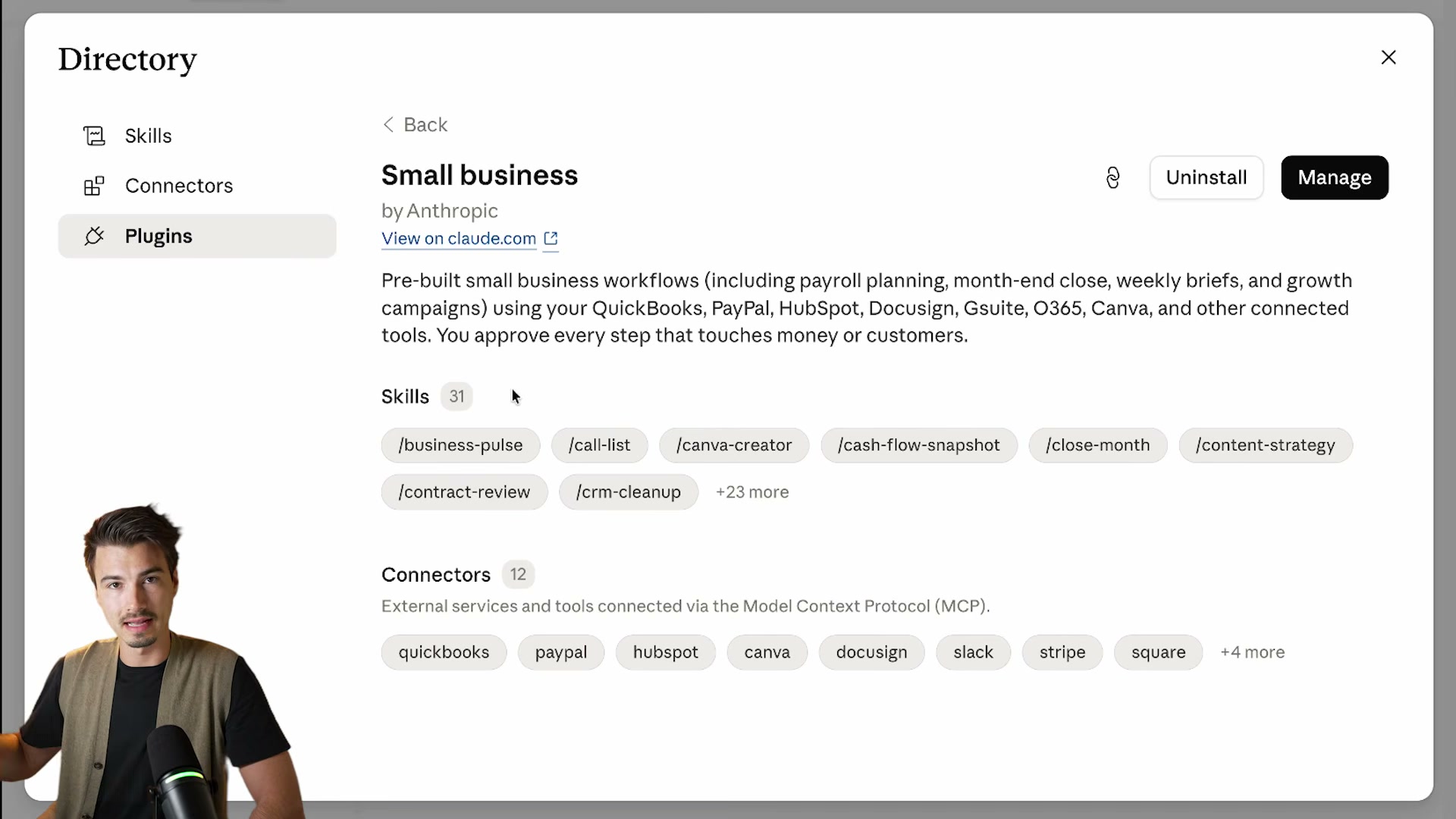
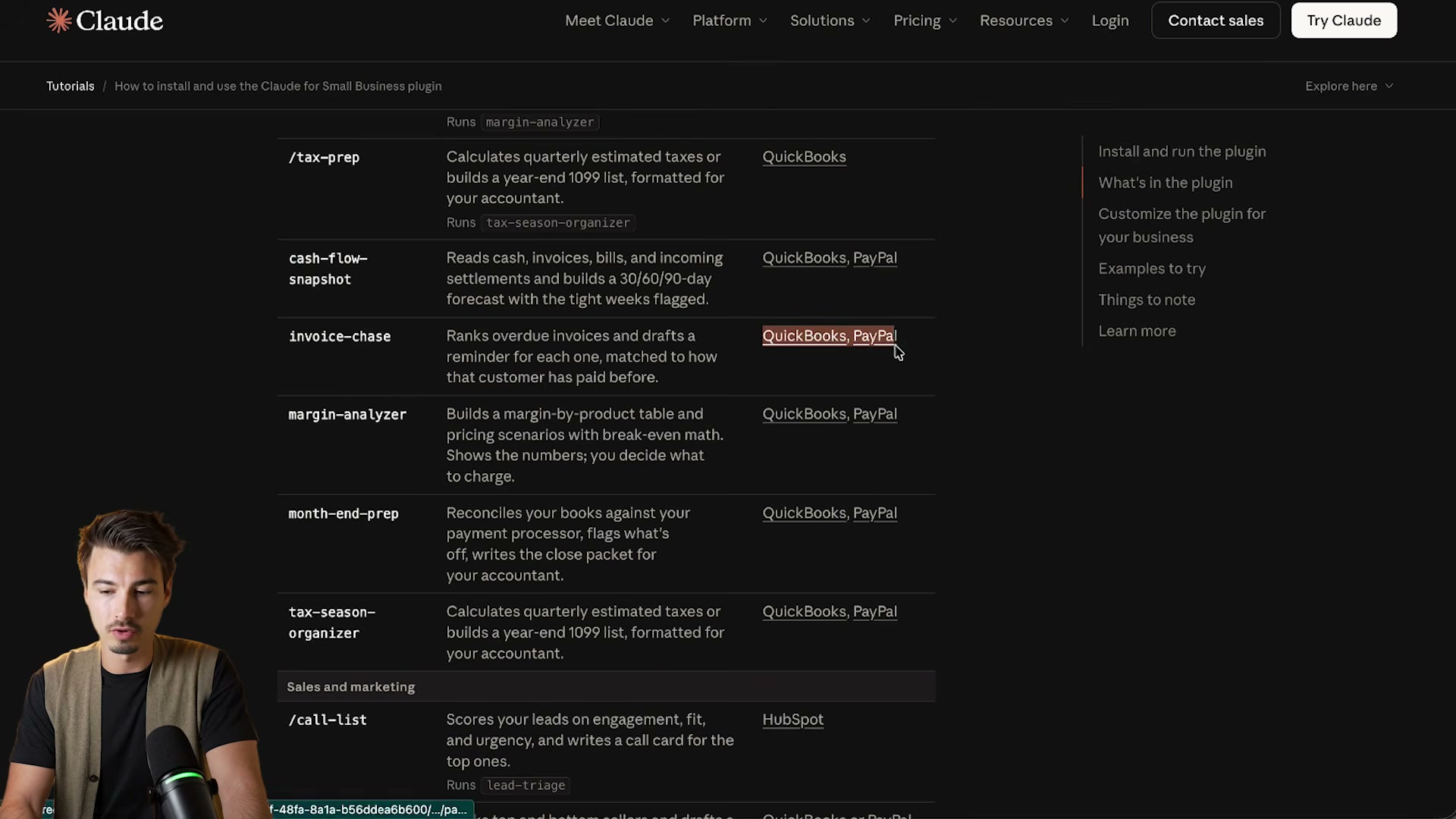
- Before running any skill, cross-reference the official Anthropic documentation page for the Small Business plugin. It lists every slash command, what each skill does, and — critically — which connector each one requires. If you are missing a connector, that skill will not function as shipped.
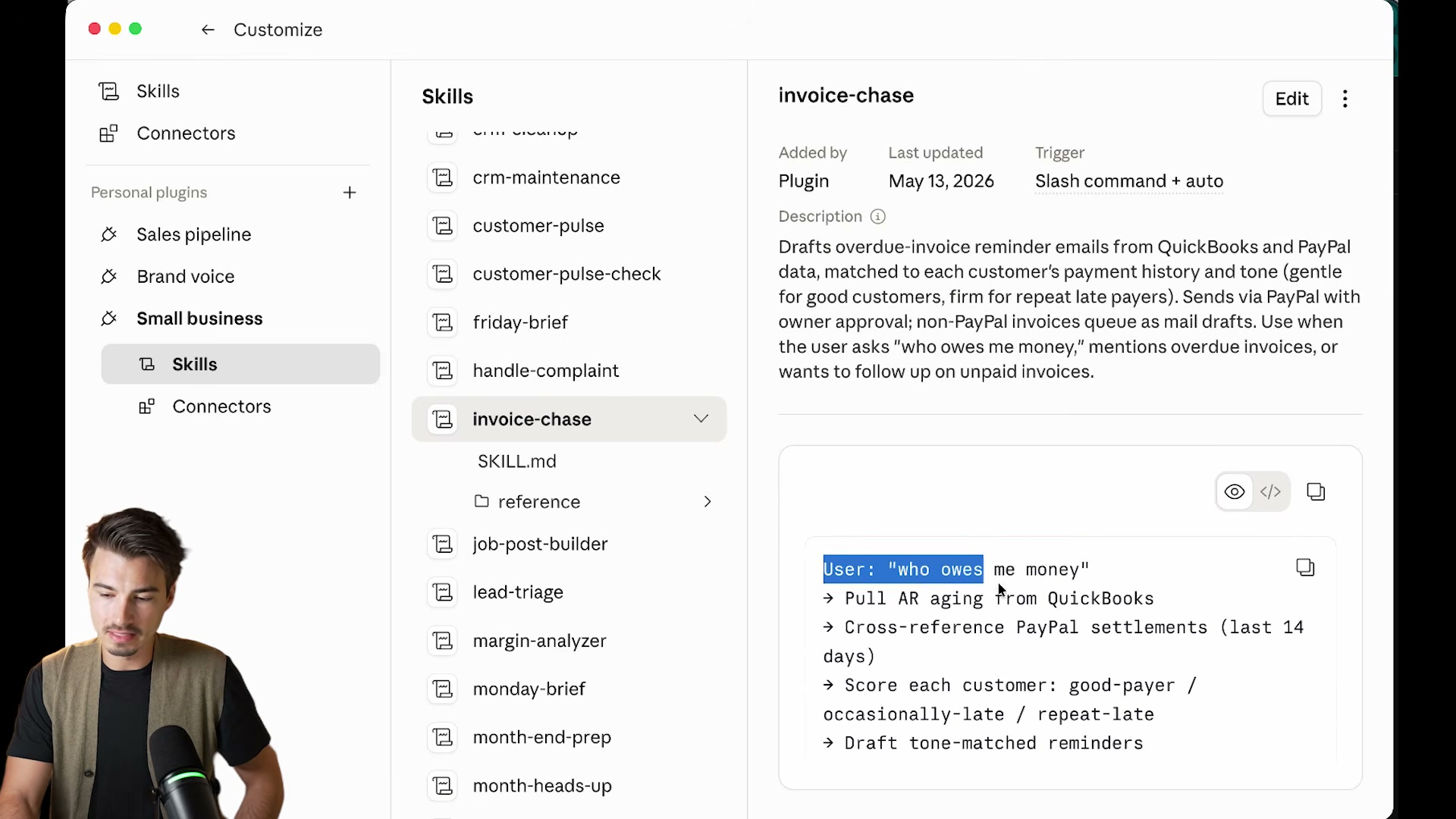
- In the Customize panel, select the Small Business plugin and open the invoice-chase skill to read its underlying prompt. The logic runs in sequence: pull an AR aging report from QuickBooks, cross-reference PayPal settlements, score customers by payment history, then draft tone-matched reminders. Every step is connector-specific.
- If your stack uses a different invoicing tool, click Edit → Customize with Claude inside the skill view. Provide your actual tool name and any relevant business context — Claude will rewrite the prompt to match. This works best when you already have context documents (sometimes called DNA files) loaded into your Co-work environment.
Warning: this step may differ from current official documentation — see the verified version below.
-
Type
/SMBin the Co-work chat bar and select smb-onboard from the skill picker. This launches the guided setup wizard rather than requiring you to configure each of the 31 skills manually. -
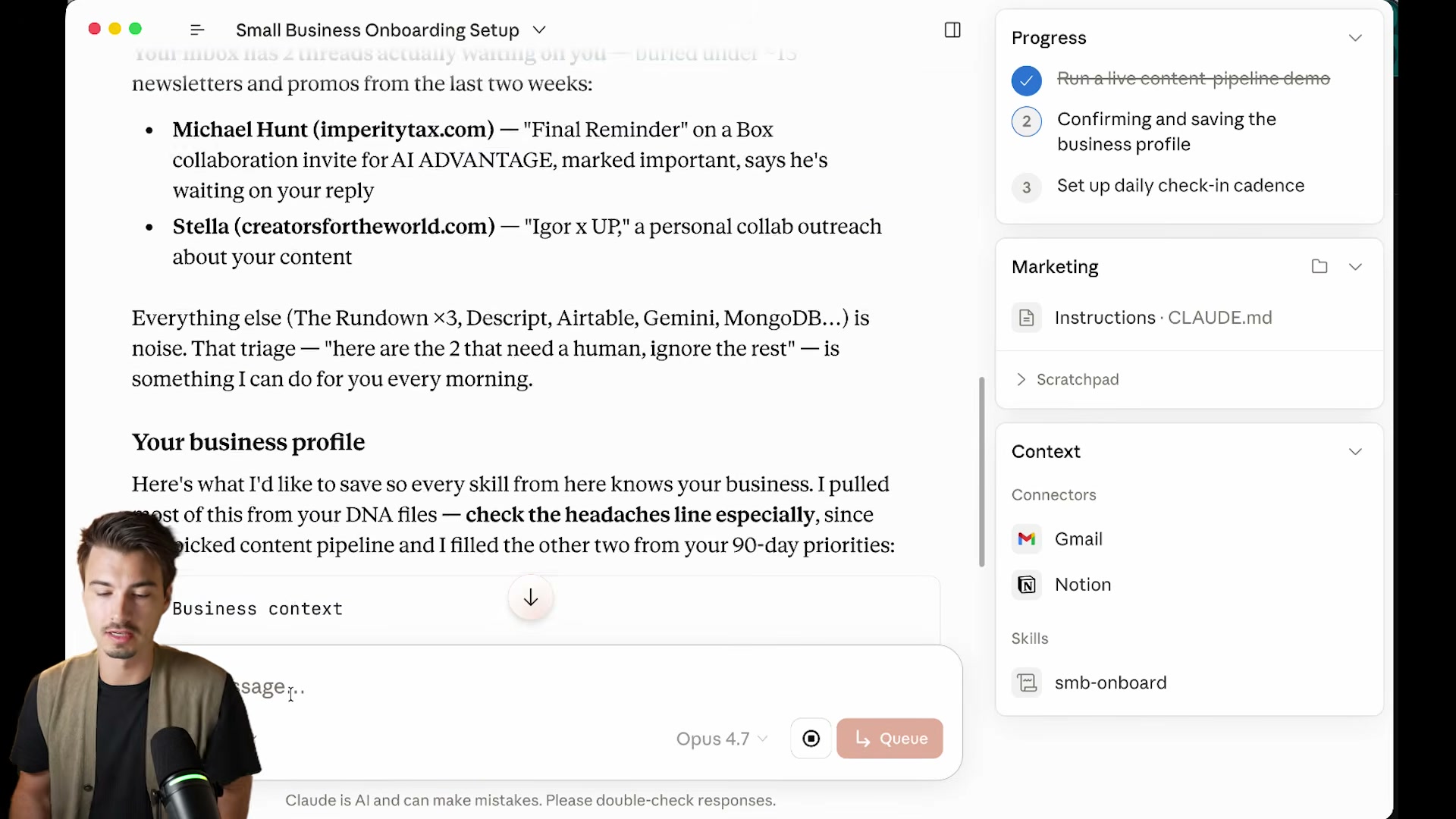
Answer the onboarding questions: team size, top priority workflow, and preferred check-in cadence. When the wizard surfaces your existing connectors, confirm the ones already active (Gmail, Notion) and defer any you have not yet configured (Slack, Canva, Stripe).
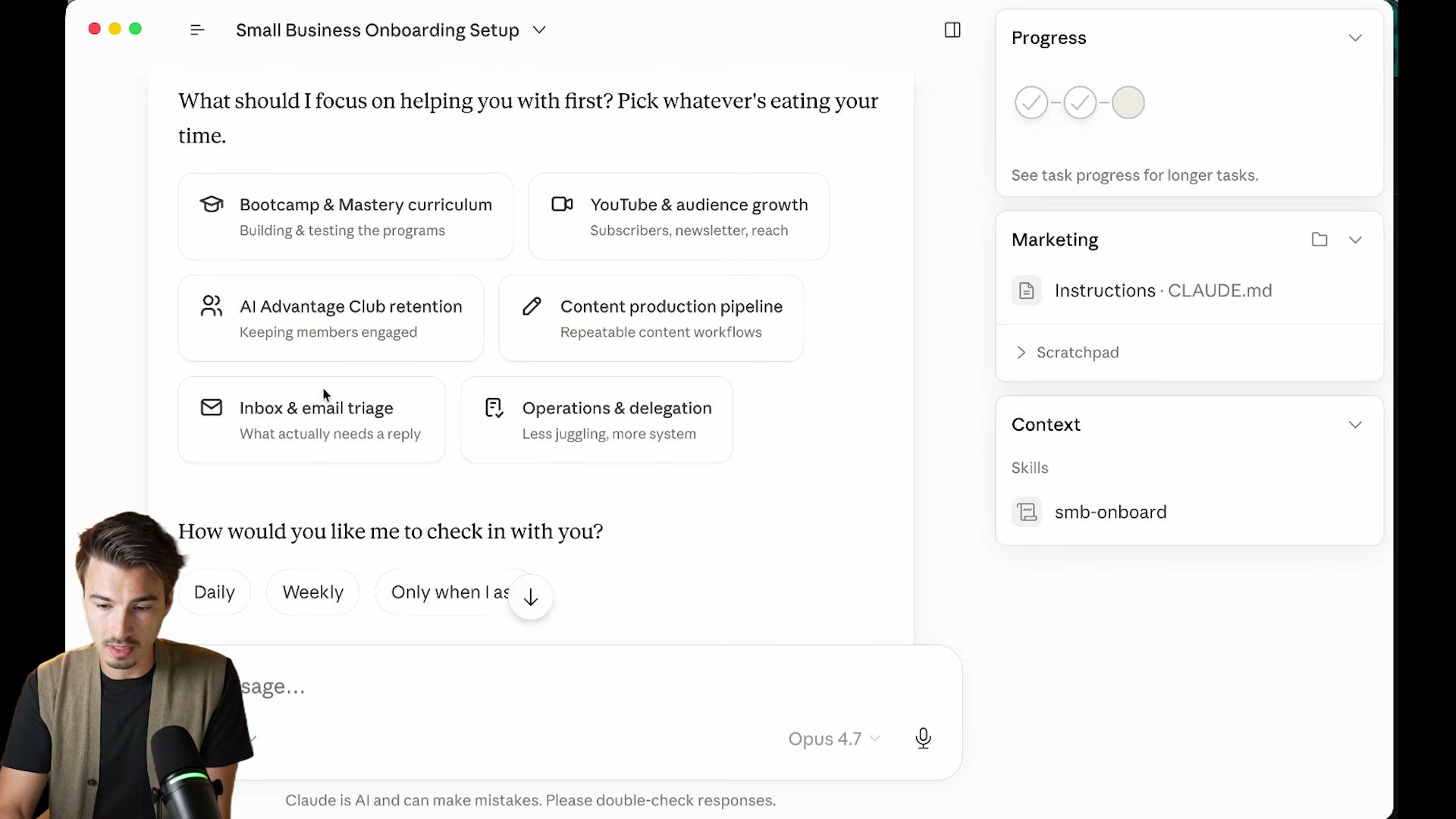
- The skill pulls context from Notion, builds a business profile, runs an initial inbox triage, and surfaces the two email threads that need a human response. It closes by recommending the next skill to run based on your stated priority.
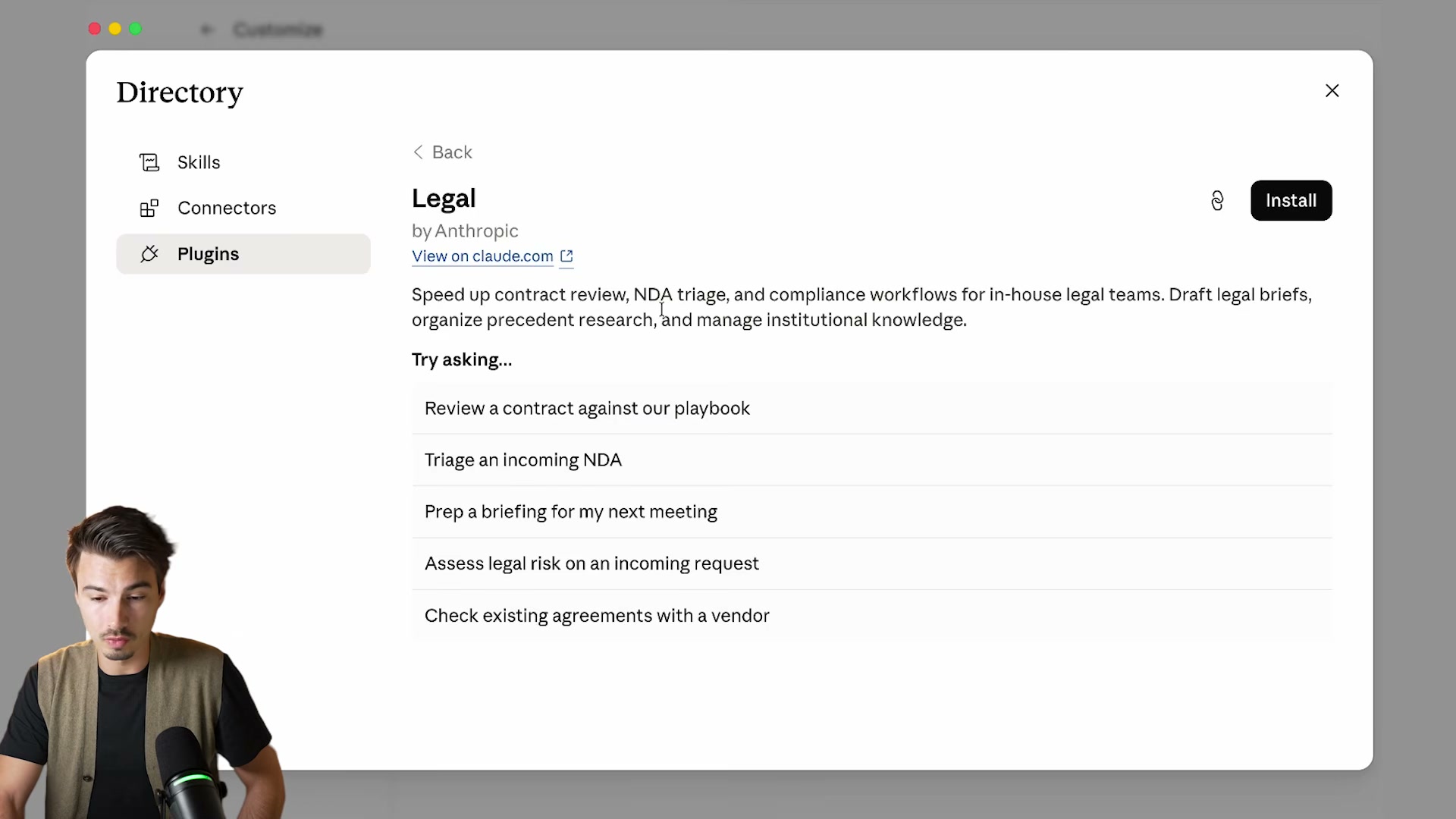
- Return to the plugin directory and locate the Legal pack, also published by Anthropic. It covers NDA triage, contract review against your internal playbook, compliance checks, and legal risk assessment — with a DocuSign connector for closing the loop on approvals.
How does this compare to the official docs?
The video gives you a fast path to a working setup, but Anthropic’s documentation specifies connector requirements, skill trigger types, and permission scopes that will matter the moment something doesn’t behave as expected — which is exactly where Act 2 picks up.
Here’s What the Official Docs Show
The walkthrough in Act 1 covers the Co-work plugin workflow accurately where documentation exists to check it — Act 2 adds the pricing specifics, installation context, and a frank accounting of which steps the available documentation can and cannot support. Think of this as the reference layer you keep open in a second tab while following the video.
Step 1 — Paid plan requirement
The video correctly states you need a paid plan. Official pricing confirms the minimum qualifying tier is Pro at $17/month (or $200/year billed annually). The Free plan does not include Co-work. If you’re running Co-work and Claude Code heavily, Anthropic’s pricing page calls out Max (from $100/month) as the recommended tier — it delivers 5–20× more usage than Pro.
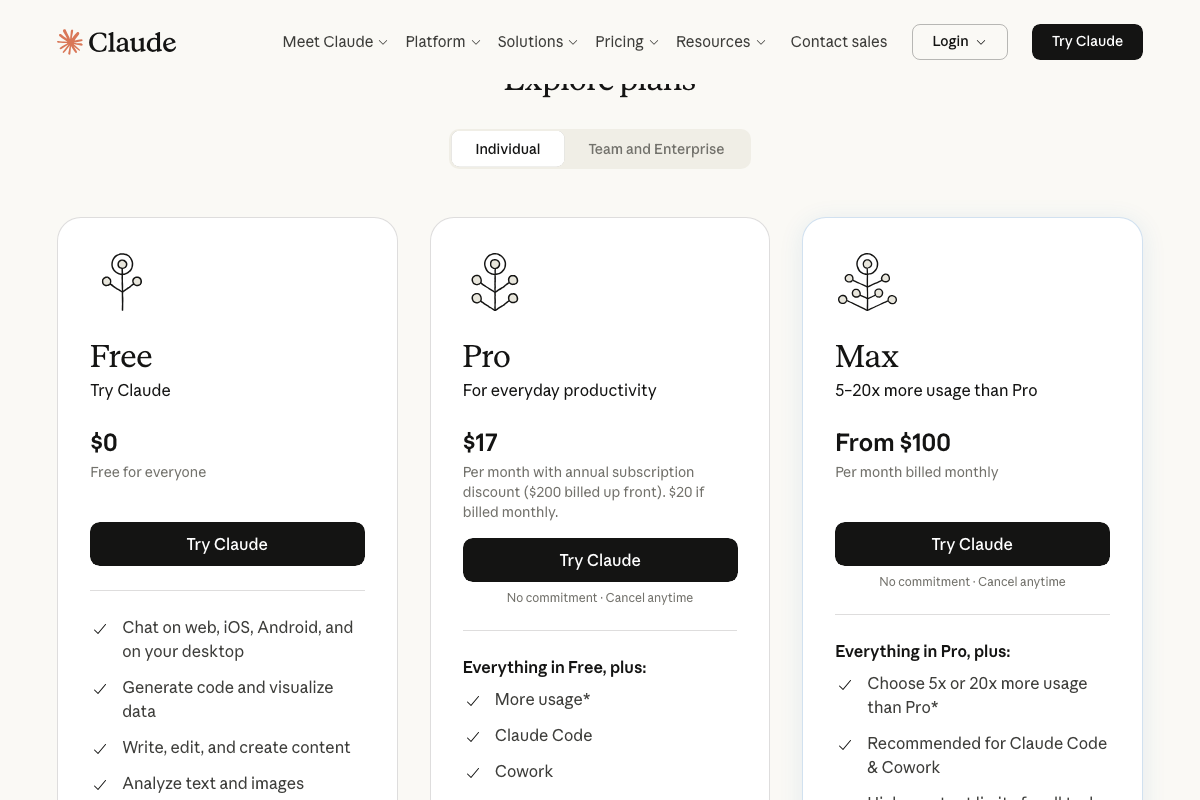
The video’s approach here matches the current docs exactly — Pro is simply the floor, not just “any paid plan.”
Step 2 — Switching to Co-work
Anthropic’s sign-in page uses the tagline “Brainstorm in chat, build in Cowork,” confirming Chat and Co-work are two distinct product modes, not UI variations on the same surface.
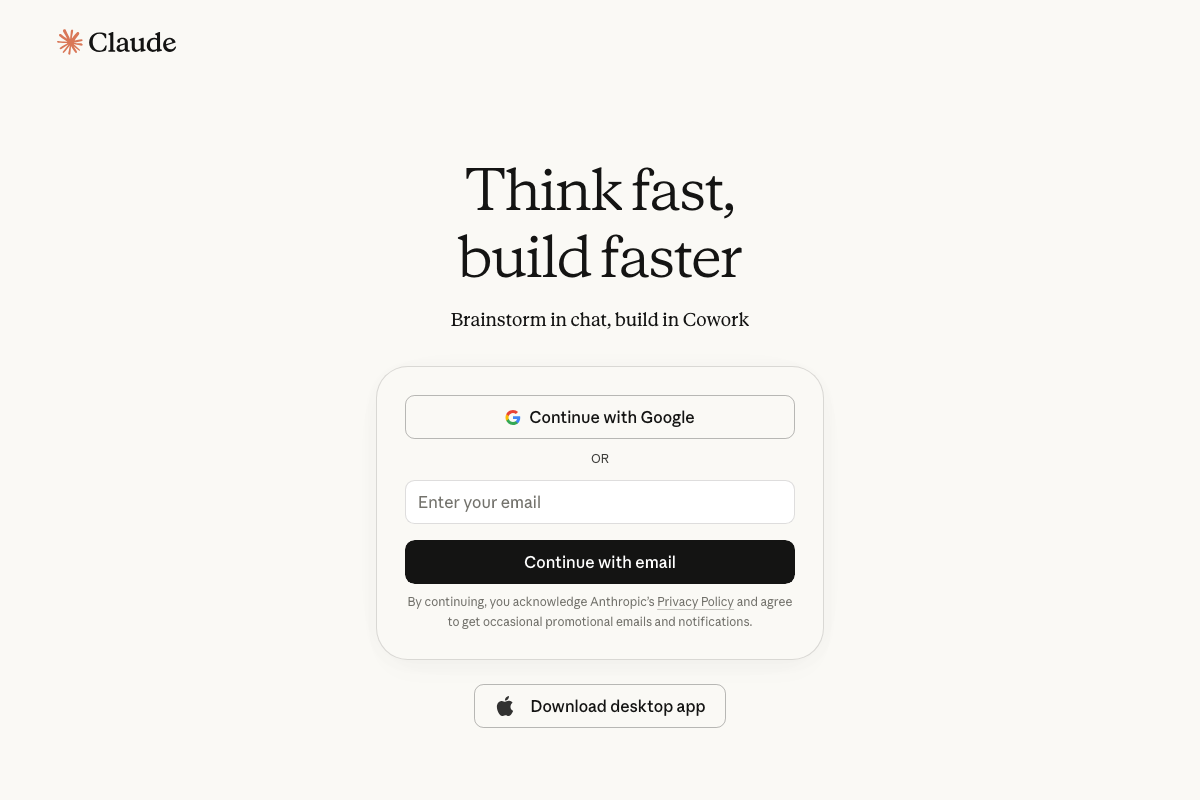
The video’s approach here matches the current docs exactly.
Steps 3–14 — Plugin browser, Small Business pack, invoice-chase, onboarding, connectors, and Legal pack setup
No official documentation was found for these steps — proceed using the video’s approach and verify independently.
The Co-work plugin browser, Small Business plugin pack (31-skill count, /SMB slash command, invoice-chase skill, onboarding wizard), connector configuration for Gmail and Notion, and the Legal plugin pack install flow are not visible in any provided documentation screenshot. Anthropic’s marketing page confirms Co-work exists and handles everyday tasks; the product layer beneath that — the plugin directory UI, skill prompts, and customization interface — is not represented in current public documentation.
Step 15 — DocuSign connector (Legal pack)
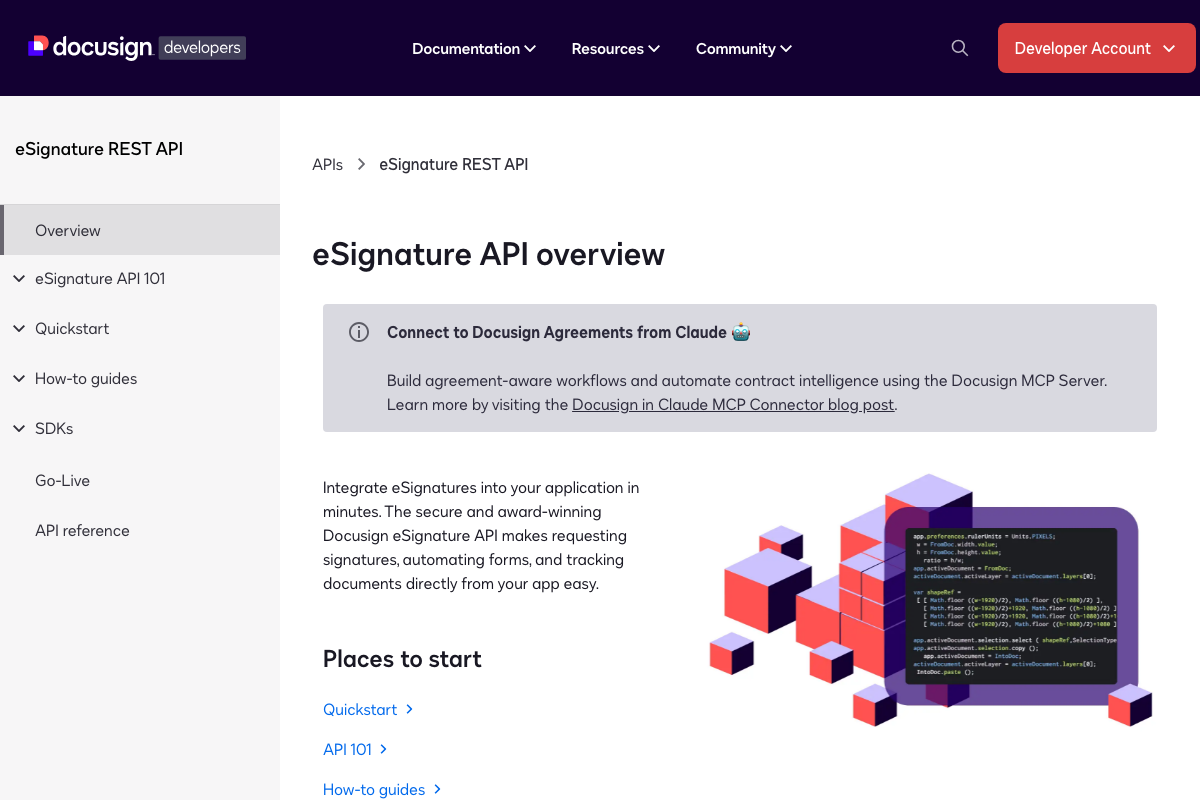
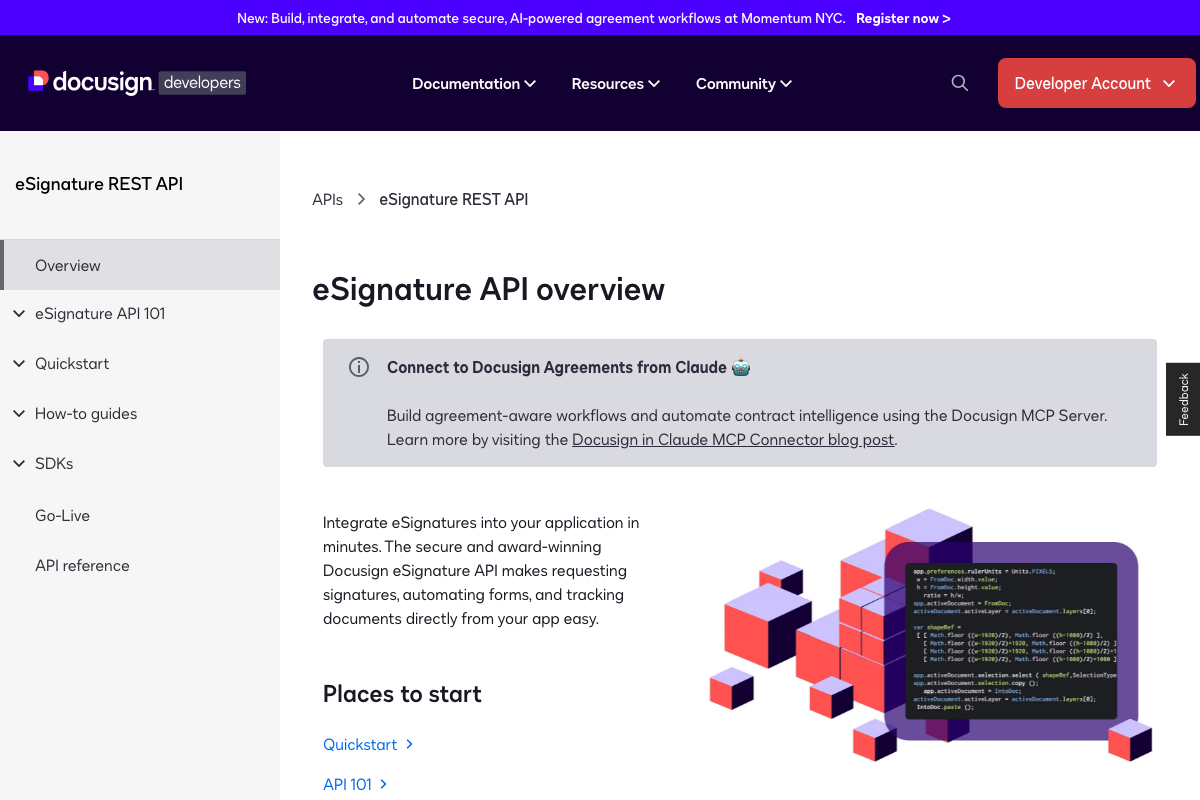
One element of the Legal pack is fully confirmed. Docusign’s developer portal documents an official “Connect to Docusign Agreements from Claude” integration via the Docusign MCP Server, supporting signature requests, form automation, and document tracking — exactly the contract execution use case described in the video.
A note on Claude Code’s /goal command and agent view
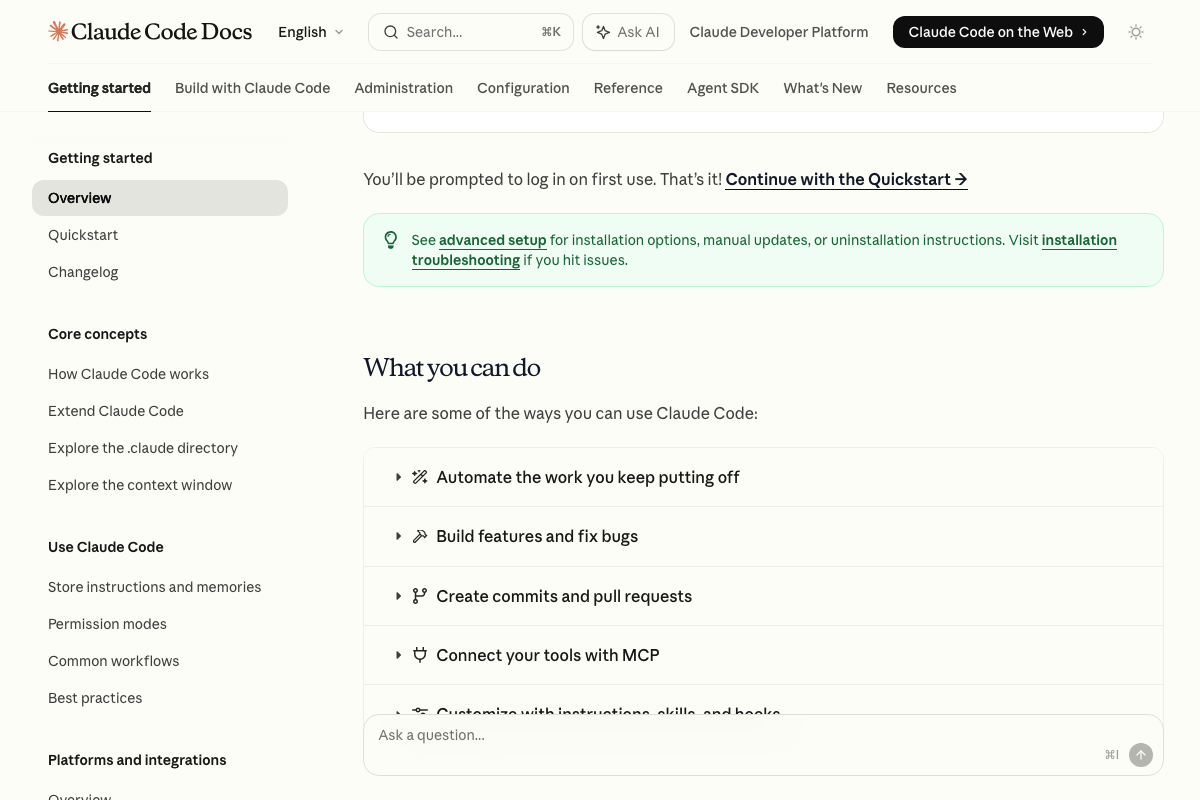
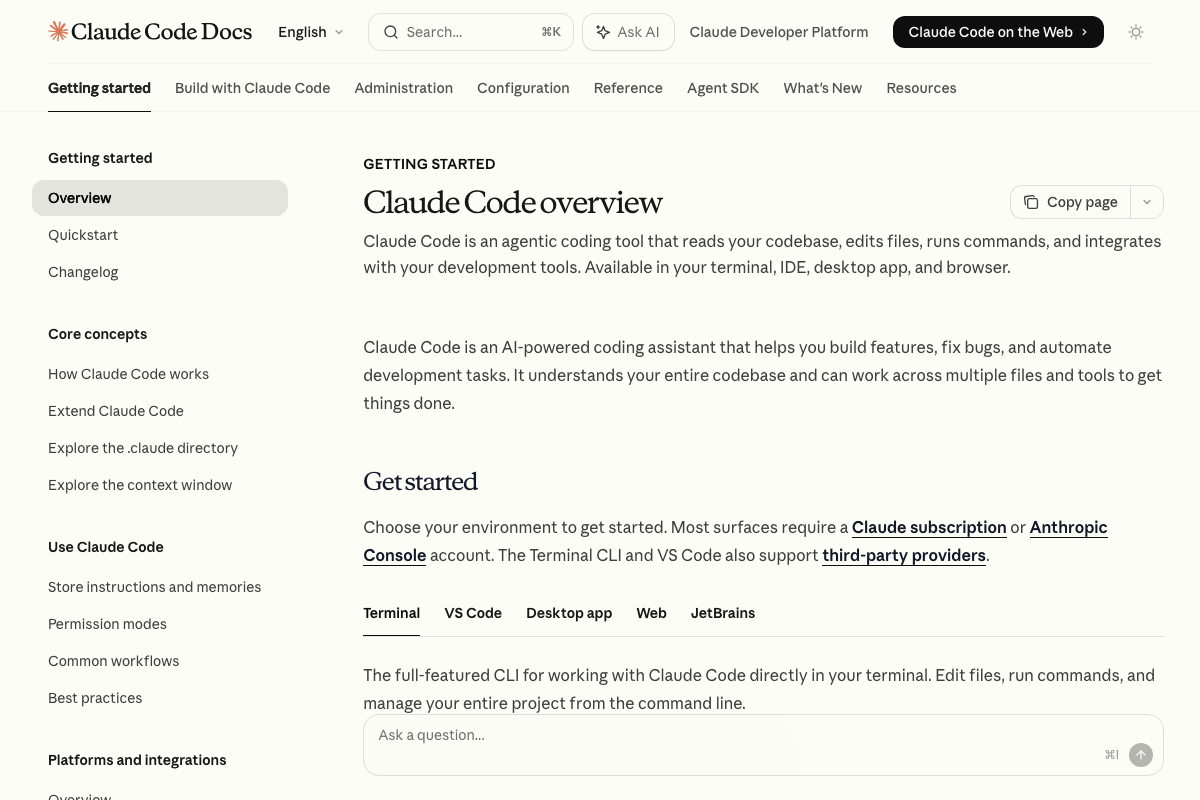
The video title references a /goal command and a named “agent view” inside Claude Code. As of May 15, 2026, neither feature appears in the Claude Code overview documentation or the official “What you can do” capability list. Claude Code is confirmed across five surfaces — Terminal, VS Code, Desktop, Web, and JetBrains — and requires a Pro or Max subscription, but /goal and “agent view” cannot be verified from the provided documentation.
Useful Links
- Sign in – Claude — Official Claude.ai entry point confirming Co-work and Chat as distinct product modes and desktop app availability.
- Claude Code overview – Claude Code Docs — Official Claude Code documentation covering installation commands, supported surfaces, and the five documented capability categories.
- Request Signatures & Automate Forms | REST API | Docusign — Docusign developer portal documenting the official Claude MCP Server connector for agreement-aware workflows and contract intelligence.
- Gmail: Secure, AI-Powered Email for Everyone | Google Workspace — Gmail homepage confirming active AI-powered email product status and Gemini-era drafting and reply features.
- The AI workspace that works for you. | Notion — Notion homepage confirming AI agent and automation capabilities relevant to the Co-work connector context in steps 12–13.
- Android | Do More With Google on Android Phones & Devices — Android.com confirming Gemini Intelligence as an official, shipped Android OS feature tier — the subject of the video’s separate Android segment.
- Pay, Send and Save Money with PayPal | PayPal US — PayPal homepage; note that PayPal does not appear in any of the 15 tutorial steps — step 12 names Stripe as the deferred payment connector.


0 Comments