

Replicate Hermes and OpenClaw Natively Inside Claude Code
Frameworks like Hermes and OpenClaw sell a compelling loop: install a skill, schedule a job, collect the result on your phone. The setup friction, model restrictions, and opacity of those external systems are the actual cost. By layering persistent memory, self-improving skills, built-in channel access, and a command center UI directly inside Claude Code, you get the same five core capabilities on a Pro or Max subscription — with full visibility into what the agent is doing and why.
- Create a
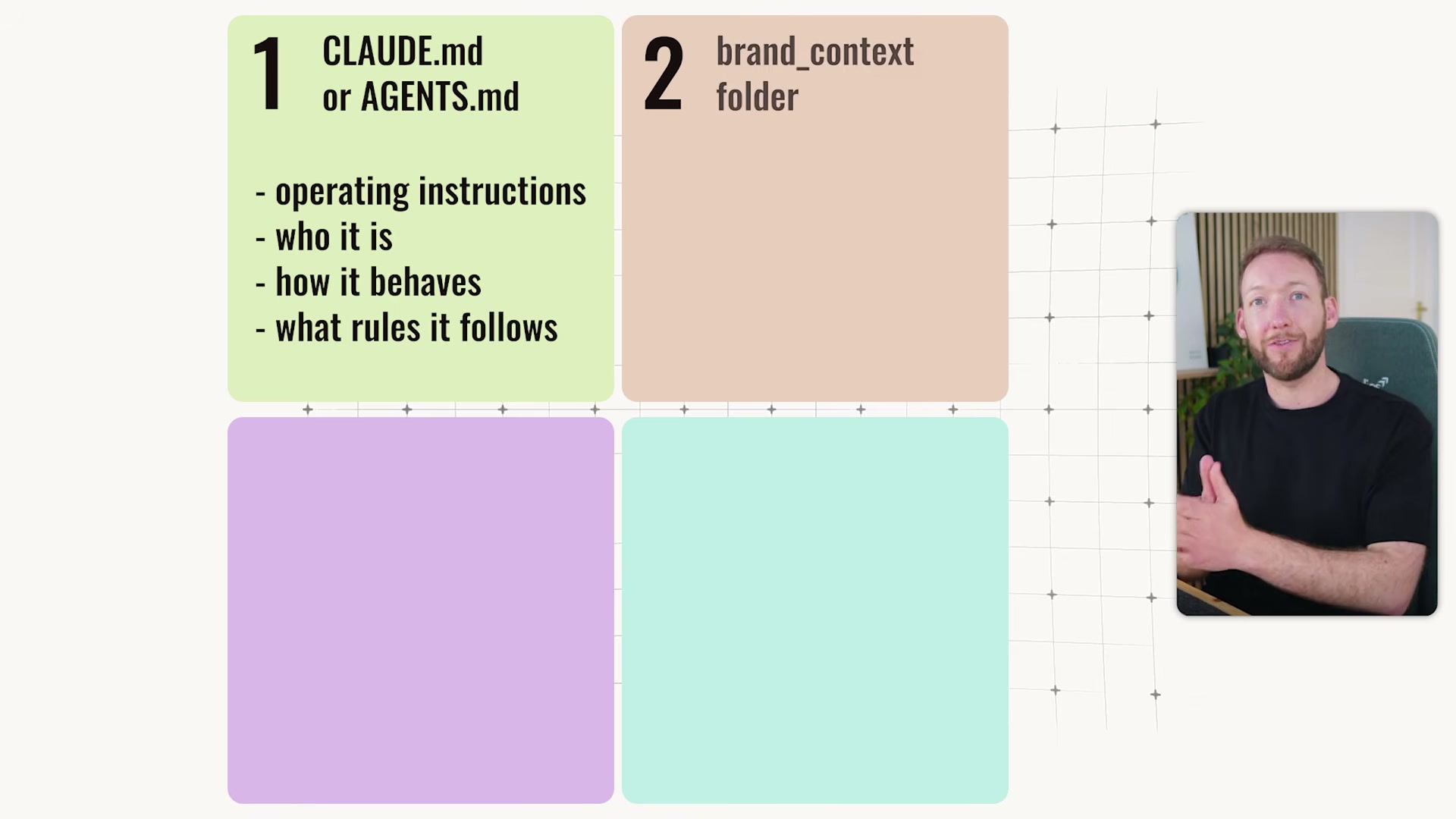
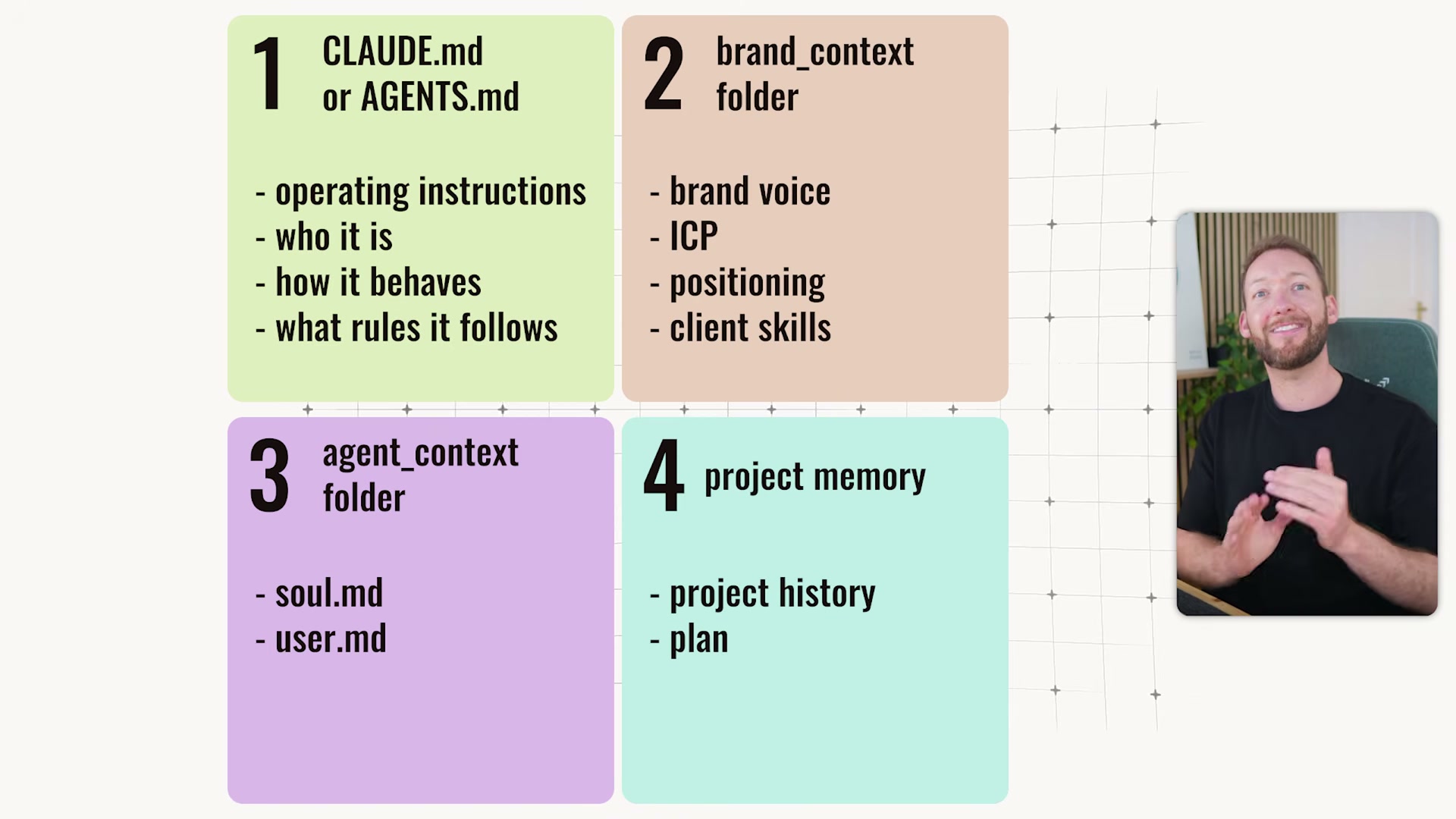
CLAUDE.mdoragents.mdfile as the agent’s root operating instructions. Keep it under 200 lines: define identity, behavior rules, and constraints here, then point outward to reference files rather than embedding everything inline. Every session loads this file first, so context bloat here degrades output quality across every task.
- Build a
brand_contextfolder at the repo root containing separate markdown files for brand voice, ICP, positioning, and client details. Every skill in the repository pulls from this shared folder, so whether the agent is drafting a LinkedIn post or scoping a landing page, it draws from the same business brain every time.

- Add an
agent_contextfolder with at minimum asoul.mddescribing behavioral style and auser.mdcapturing your recurring patterns and preferences. This is the layer that makes the agent feel tuned to a specific person rather than a generic assistant.
-
Attach a project memory file to each active project. Record what was built, what worked, what failed, and where to resume — structured so Claude can re-enter a content project from three weeks ago without a full re-briefing.
-
Install the Anthropic Skill Creator skill inside Claude Code. Provide a task description, a GitHub repo URL, or a plain-language process walkthrough, and it generates the complete
skill.mdincluding the trigger description that controls when the skill is invoked. -
Edit the Skill Creator output down to under 200 lines by moving detailed reference material into separate files that load only when that context is actually required during execution. The default output includes more than the skill needs at call time.
Warning: this step may differ from current official documentation — see the verified version below.
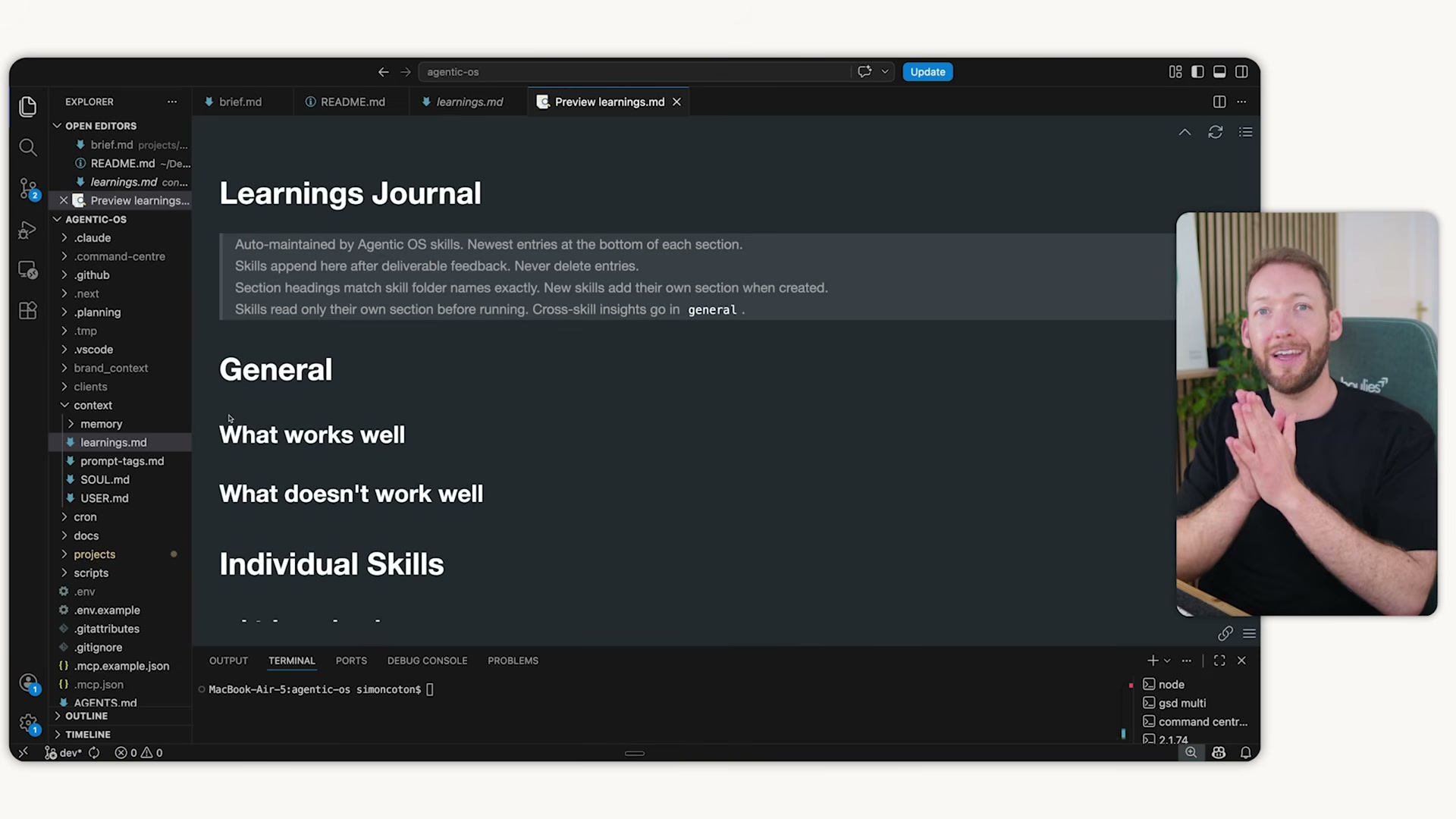
- Bake a self-learning loop into every skill by adding a
learnings.mdfile — or a dedicated rules block inside theskill.md— and closing the skill’s step sequence with an explicit feedback-collection prompt. Rules accumulate across runs; the skill improves each time it executes.

- Enable Claude Code Channels to connect Telegram, iMessage, or Discord. You can kick off tasks and pull outputs from your phone without writing any custom integration code.
- For managing parallel business goals, build or adopt a Kanban-style command center UI that wraps the Claude Code terminal, surfaces goals as cards, and lets you drill into individual agent conversations alongside a live-updating plan view.
Warning: this step may differ from current official documentation — see the verified version below.

- Use Channels for fast, on-the-go requests and the command center for goals spanning multiple days or complex multi-agent workflows. The two interfaces serve different scopes — defaulting to one for everything creates noise in both directions.
How does this compare to the official docs?
The memory architecture, skill-trimming approach, and command center pattern shown here are field-built and opinionated — and where they diverge from Anthropic’s documented behavior is precisely what Act 2 examines against the source.
Here’s What the Official Docs Show
The steps in Act 1 hold up well in the places Anthropic documents them — and where they don’t land in official documentation, the gaps are worth knowing before you build on top of them. What follows works through the same sequence, adding what the documentation confirms, clarifies, or corrects.
Steps 1–4: Layered memory (CLAUDE.md, brand context, agent context, project memory)
No official documentation was found for these steps —
proceed using the video’s approach and verify independently.
Step 5: Install the Skill Creator and define your skills
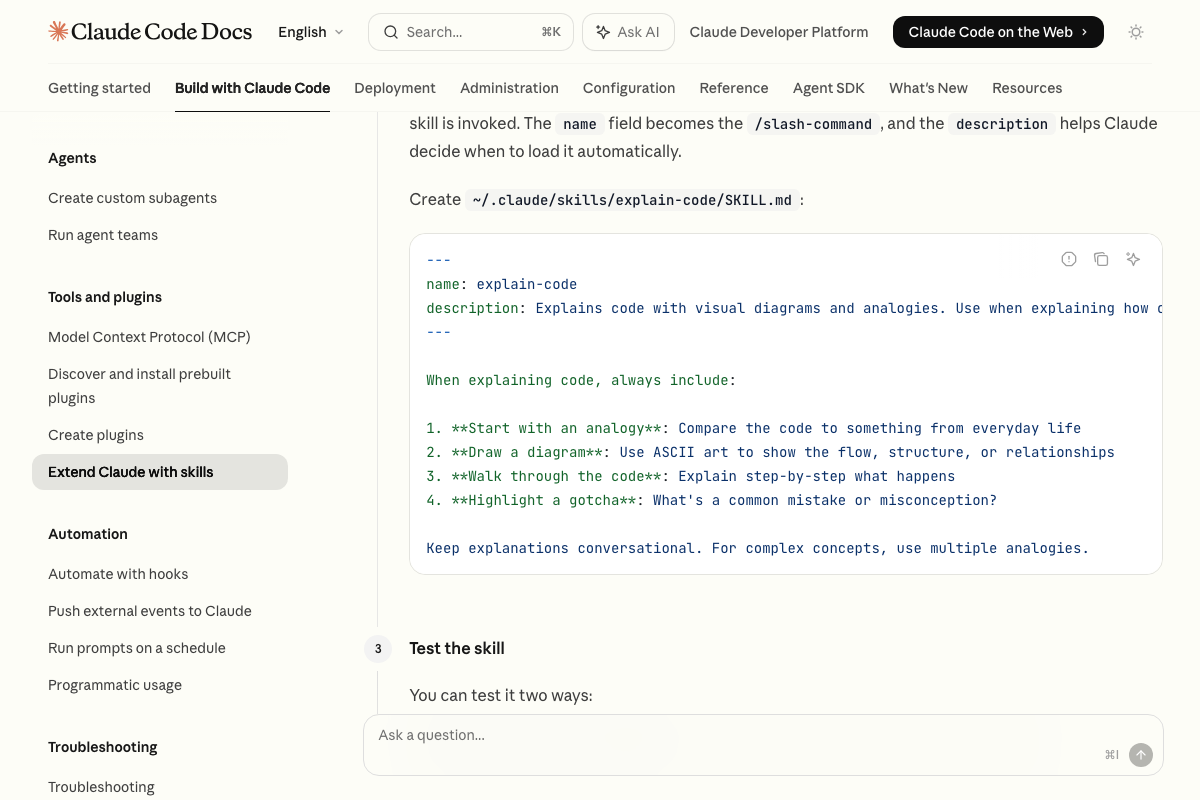
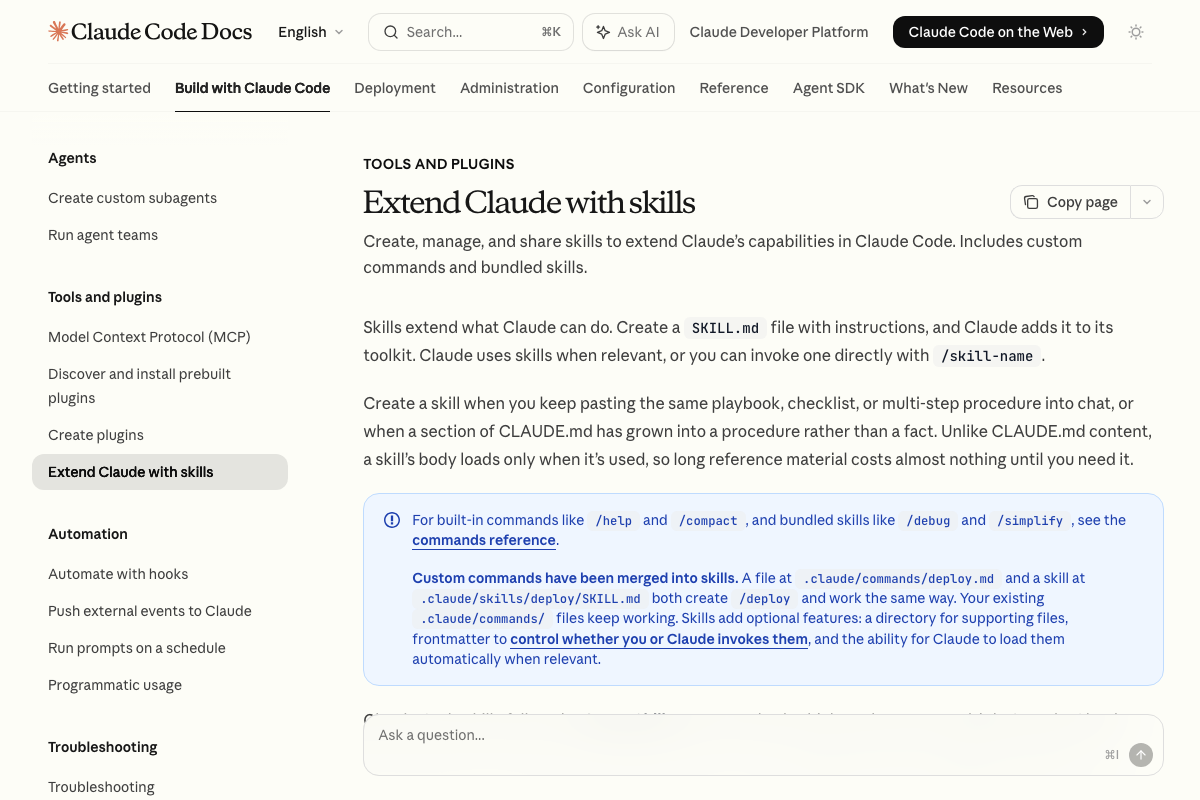
The video’s approach here matches the current docs exactly. Two additions from the official documentation: the correct path for personal, cross-project skills is ~/.claude/skills/[skill-name]/SKILL.md, and the description frontmatter field in SKILL.md enables Claude to auto-load the skill without an explicit /skill-name invocation — Claude reads descriptions at context time and reaches for the right skill before you type anything.
Step 6: Trim Skill Creator output to under 200 lines
The video’s approach here matches the current docs exactly. The docs add one useful clarification: skill bodies load lazily — only when invoked — so long reference material in a SKILL.md body costs nothing at call time. Write lean skills as a discipline; know the lazy-loading mechanism is already managing token cost for you.
Step 7: Self-learning loop with learnings.md
No official documentation was found for this step —
proceed using the video’s approach and verify independently.
Step 8: Enable Channels for Telegram, iMessage, or Discord
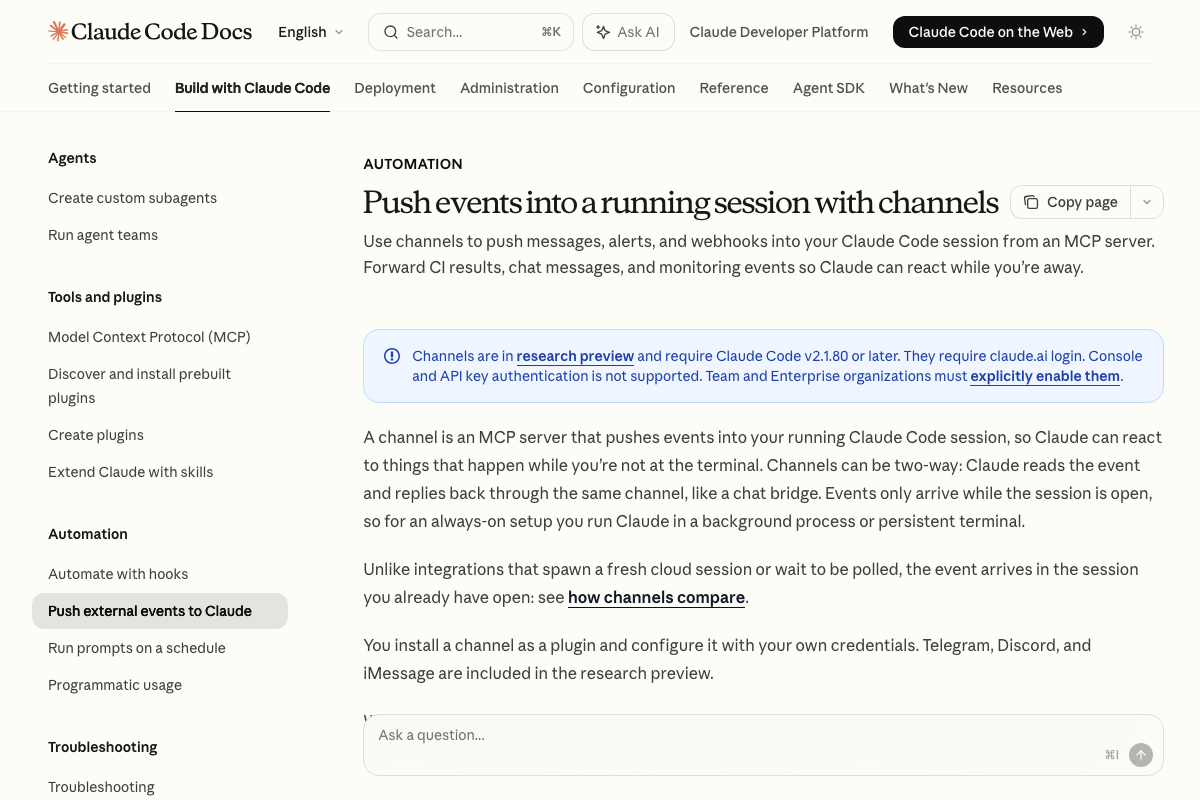
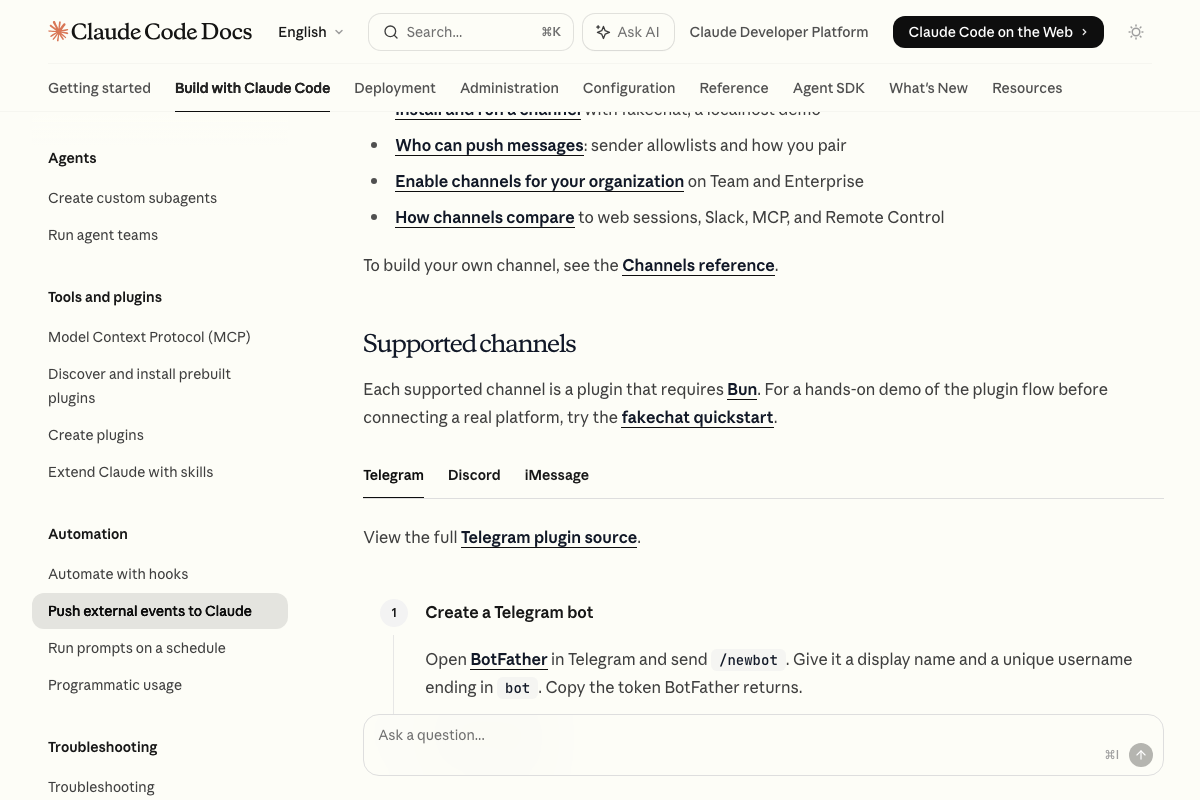
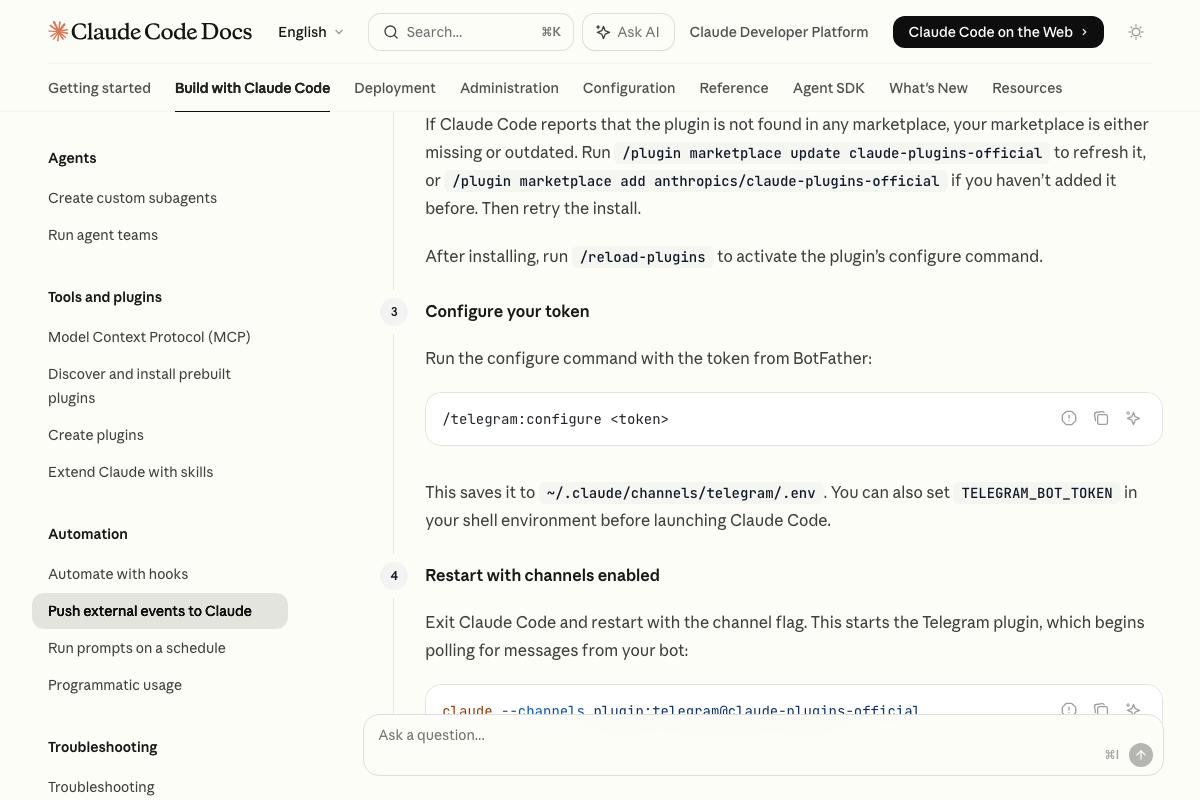
Telegram, Discord, and iMessage are the three documented integrations — the platforms match. As of April 18, 2026, however, the setup is not zero-config. Prerequisites the video omits:
- Channels are in research preview and require Claude Code v2.1.80 or later
- Authentication must use claude.ai login — Console and API key auth are explicitly not supported
- Each channel plugin requires the Bun runtime
- Telegram requires creating a bot via BotFather (
/newbot), obtaining a token, running/telegram:configure <token>inside Claude Code, and restarting with the--channelsplugin flag - Channels only receive events while a session is open — always-on access requires running Claude in a persistent background process
- Team and Enterprise organizations must explicitly enable Channels — they are not on by default
Steps 9–10: Command center UI and dual-interface workflow
No official documentation was found for these steps —
proceed using the video’s approach and verify independently.
One native alternative worth knowing: the Claude Code desktop app includes a built-in Pinned sessions panel and a Scheduled sidebar menu that address part of the multi-goal management need the tutorial solves with a custom Kanban wrapper.
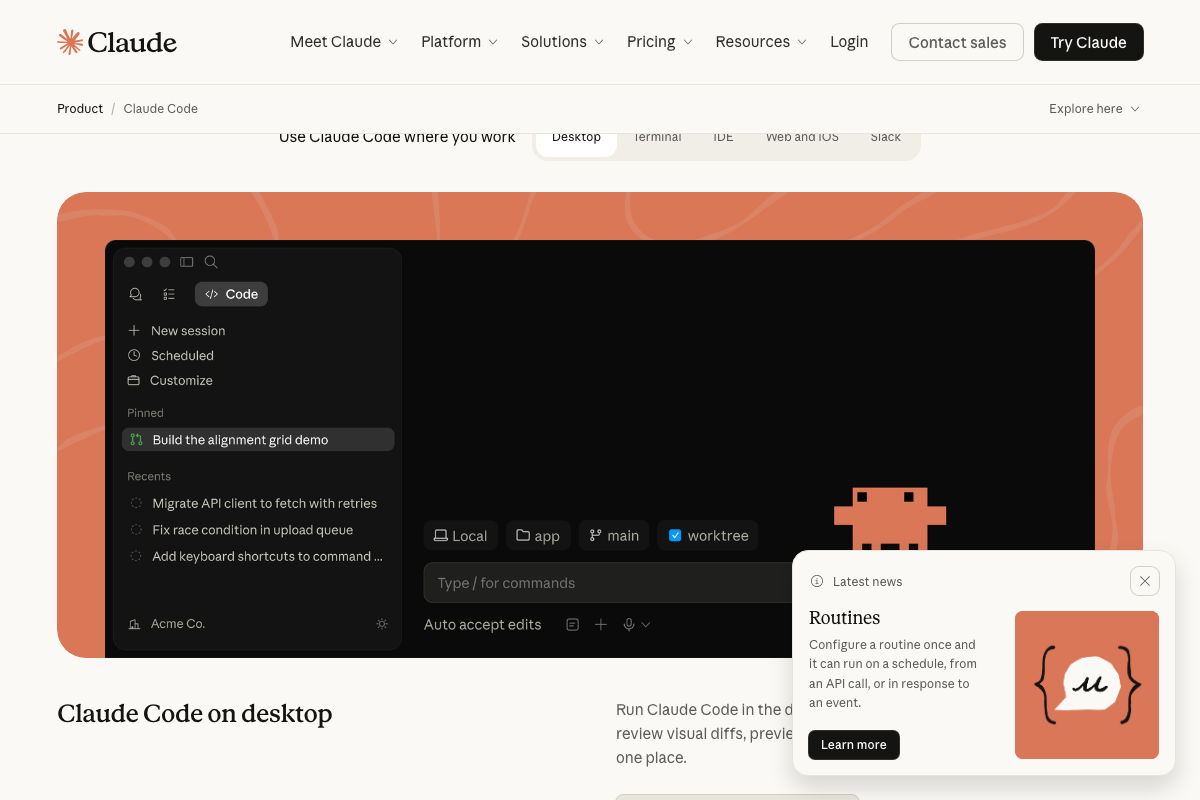
Useful Links
- Claude Code by Anthropic | AI Coding Agent, Terminal, IDE — Official Claude Code product page with the install command and a Routines feature announcement (schedule- and event-triggered automations) relevant to the scheduling use cases in step 10.
- Extend Claude with skills – Claude Code Docs — Full skills documentation covering SKILL.md structure, the personal skills folder path, lazy-loading behavior, auto-invocation via the description field, and bundled prompt-based skills.
- Push events into a running session with channels – Claude Code Docs — Official Channels documentation covering research-preview status, version requirements, supported platforms, Bun dependency, persistent-session requirement, and Telegram bot setup steps.
- Bots: An introduction for developers — Telegram’s official developer introduction for the BotFather bot-creation workflow required by Claude Code’s Telegram channel plugin.
- Telegram Messenger — Telegram homepage confirming cross-platform availability (Android, iPhone, iPad, PC/Linux, macOS) and open API access.
- Discord – Group Chat That’s All Fun & Games — Discord consumer homepage; bot credentials for the Claude Code Discord channel plugin are obtained from the Discord developer portal, not this surface.
- Obsidian – Sharpen your thinking — Local Markdown note editor with a folder hierarchy and linking features structurally similar to the tutorial’s layered memory approach; not referenced in any official Claude Code documentation.


0 Comments