

Build Animated Landing Pages with Claude Design and Seedance 2.0
Claude Design’s Q&A-driven prototyping and Seedance 2.0’s video generation can produce a full animated hero section without writing a line of code. You’ll come away with a high-fidelity landing page, a live Tweaks panel for rapid iteration, and an AI-animated background video — all built inside Higgsfield and Claude.ai for roughly $5 in compute.
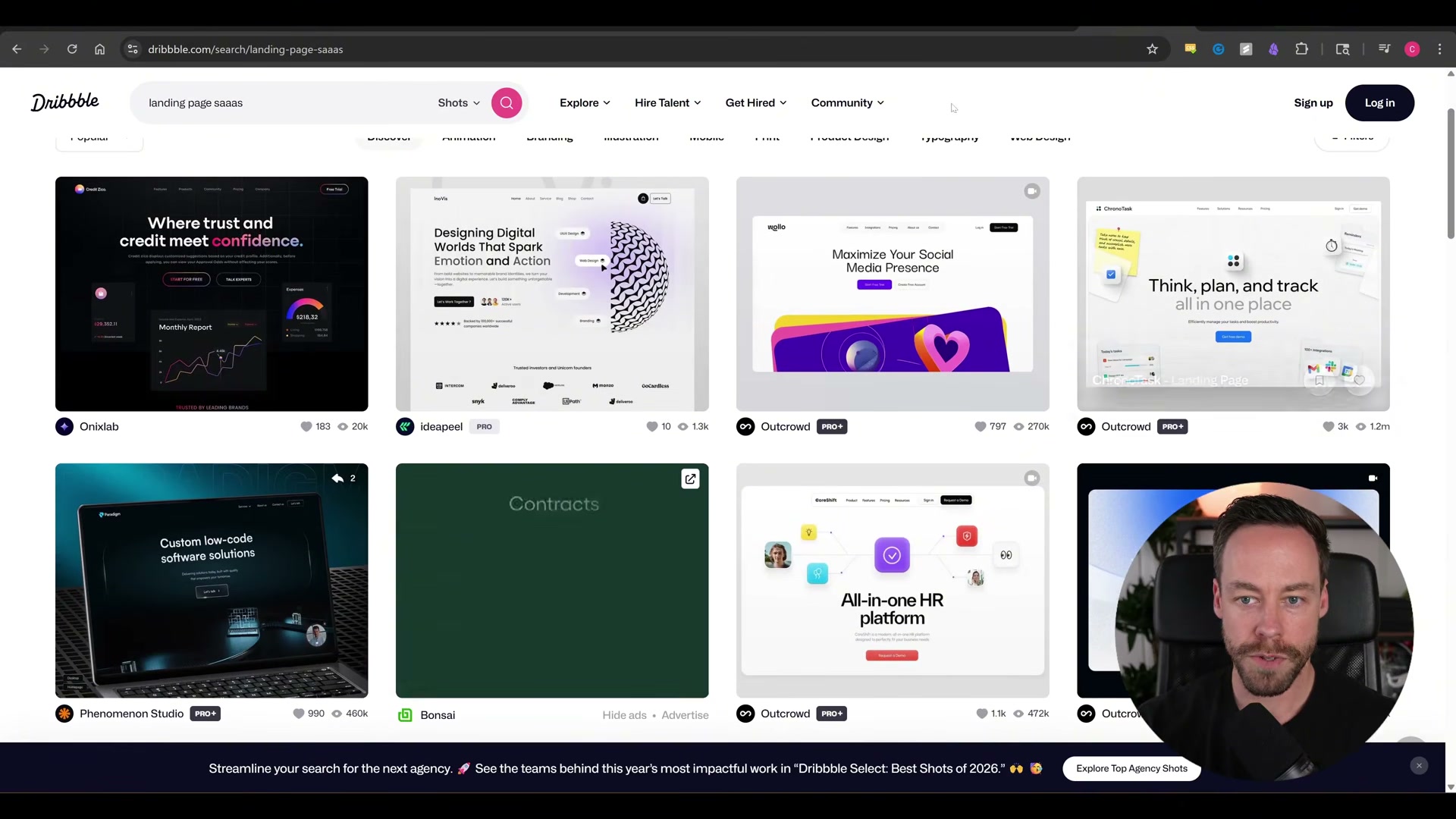
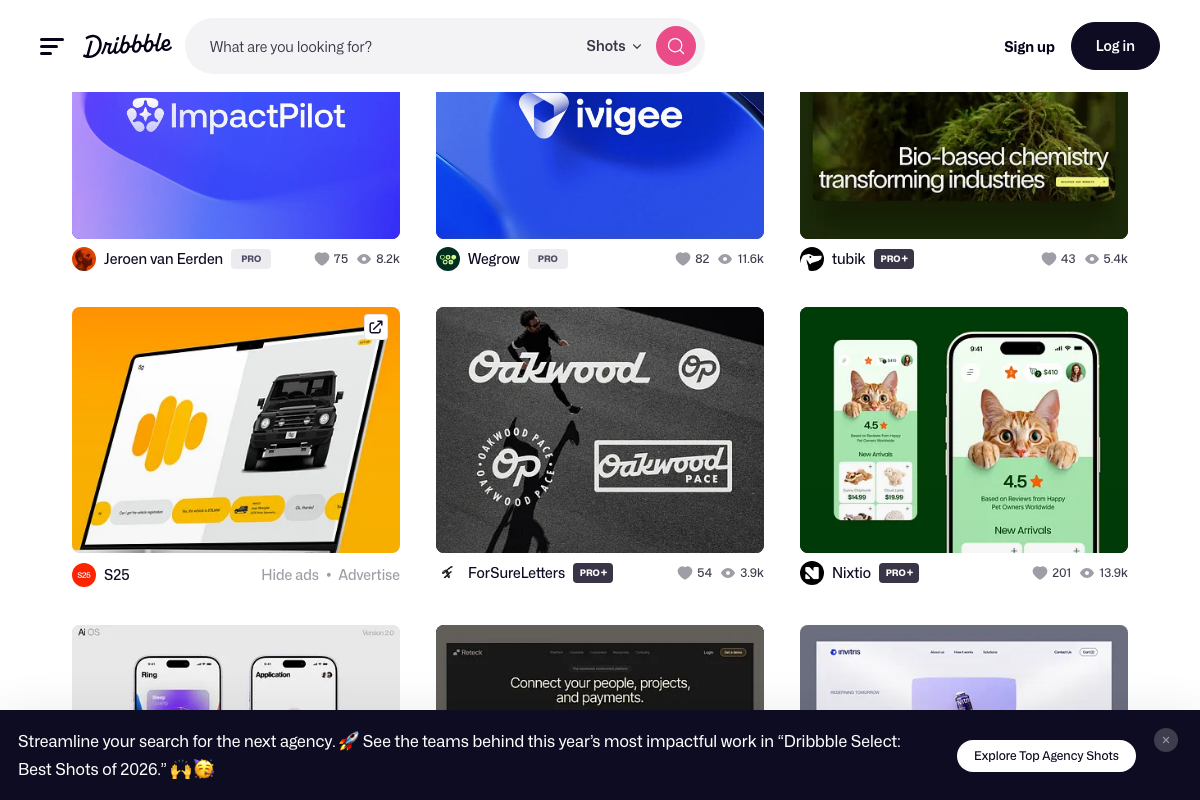
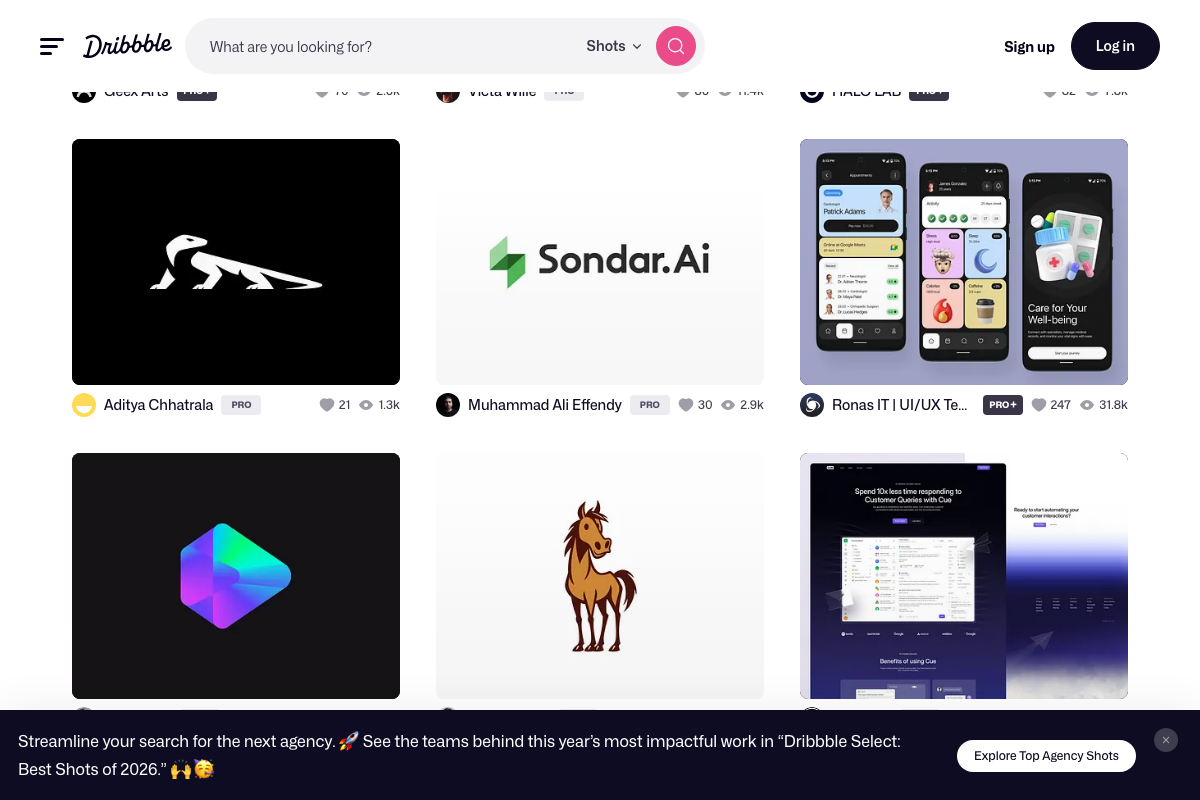
- Browse Dribbble for SaaS hero layouts and lock in your composition before touching any tool. The only question that matters at this stage: where does the dead space fall? Left, center, or right? That decision drives every prompt that follows.
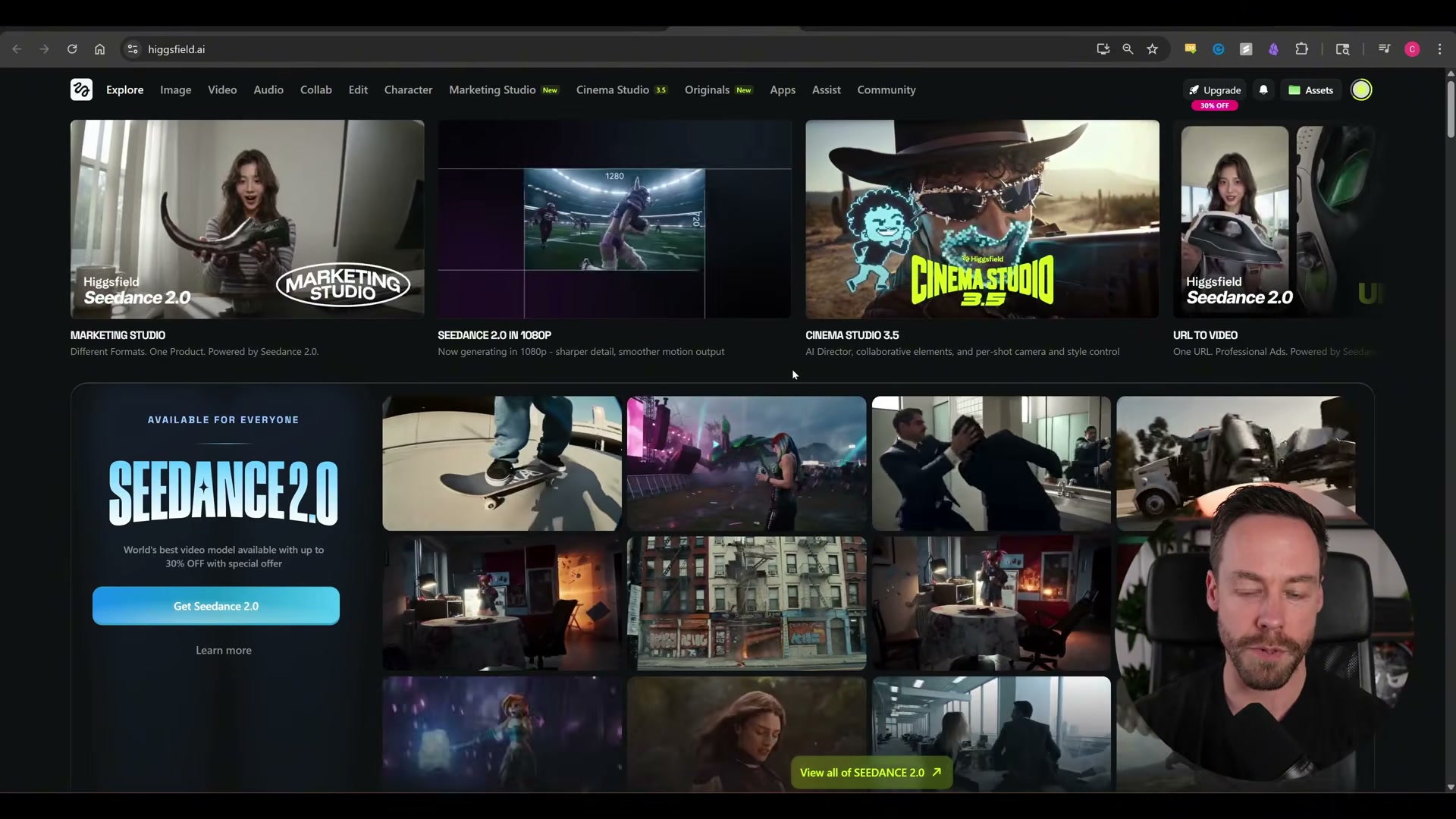
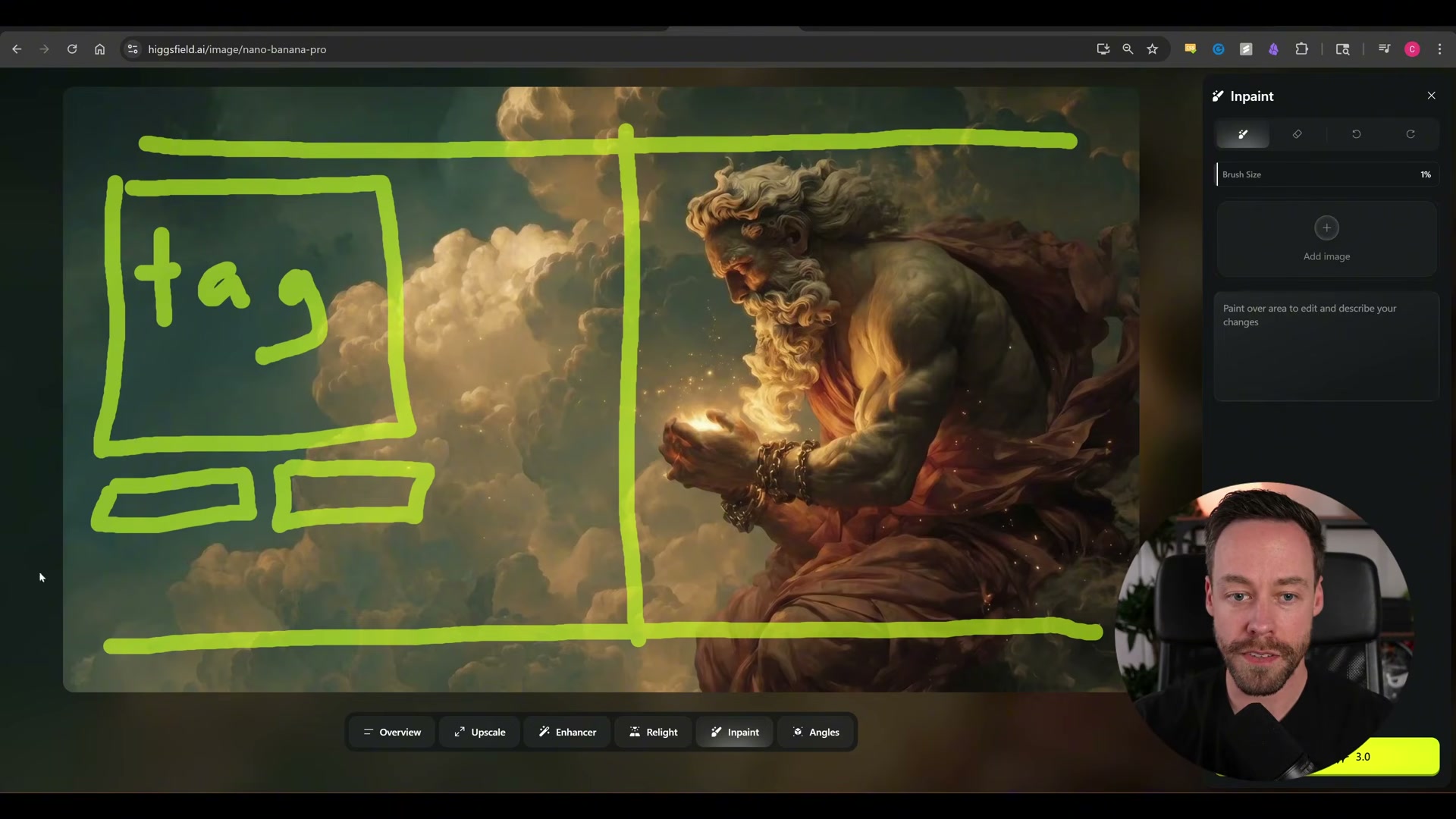
- Open Higgsfield and navigate to Image → Nano Banana Pro. Generate a still hero image that reflects your chosen composition. If copy lives on the left and the figure anchors the right, build that split into the image prompt from the start — retrofitting a composition that wasn’t planned is harder than getting it right the first time.
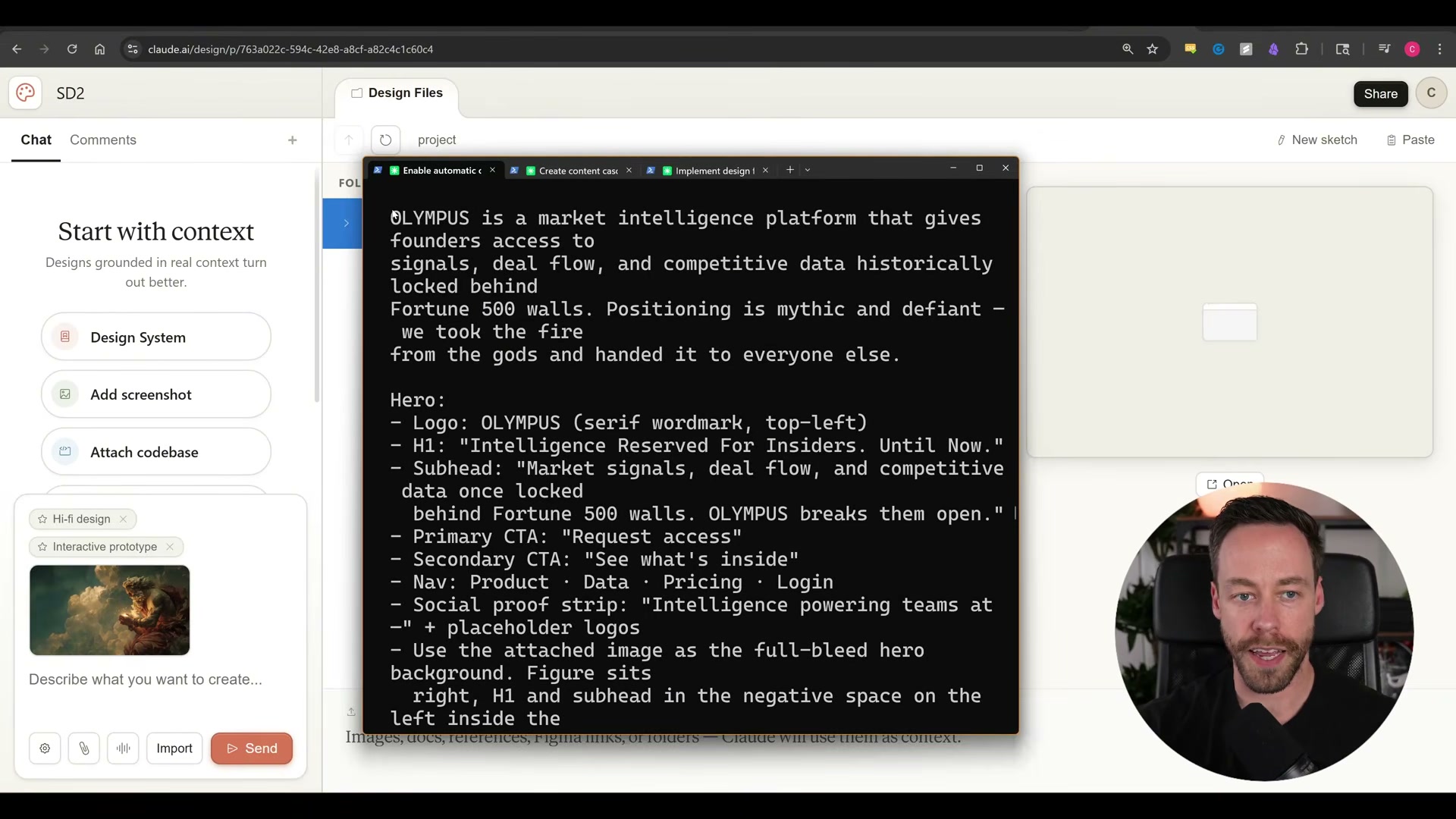
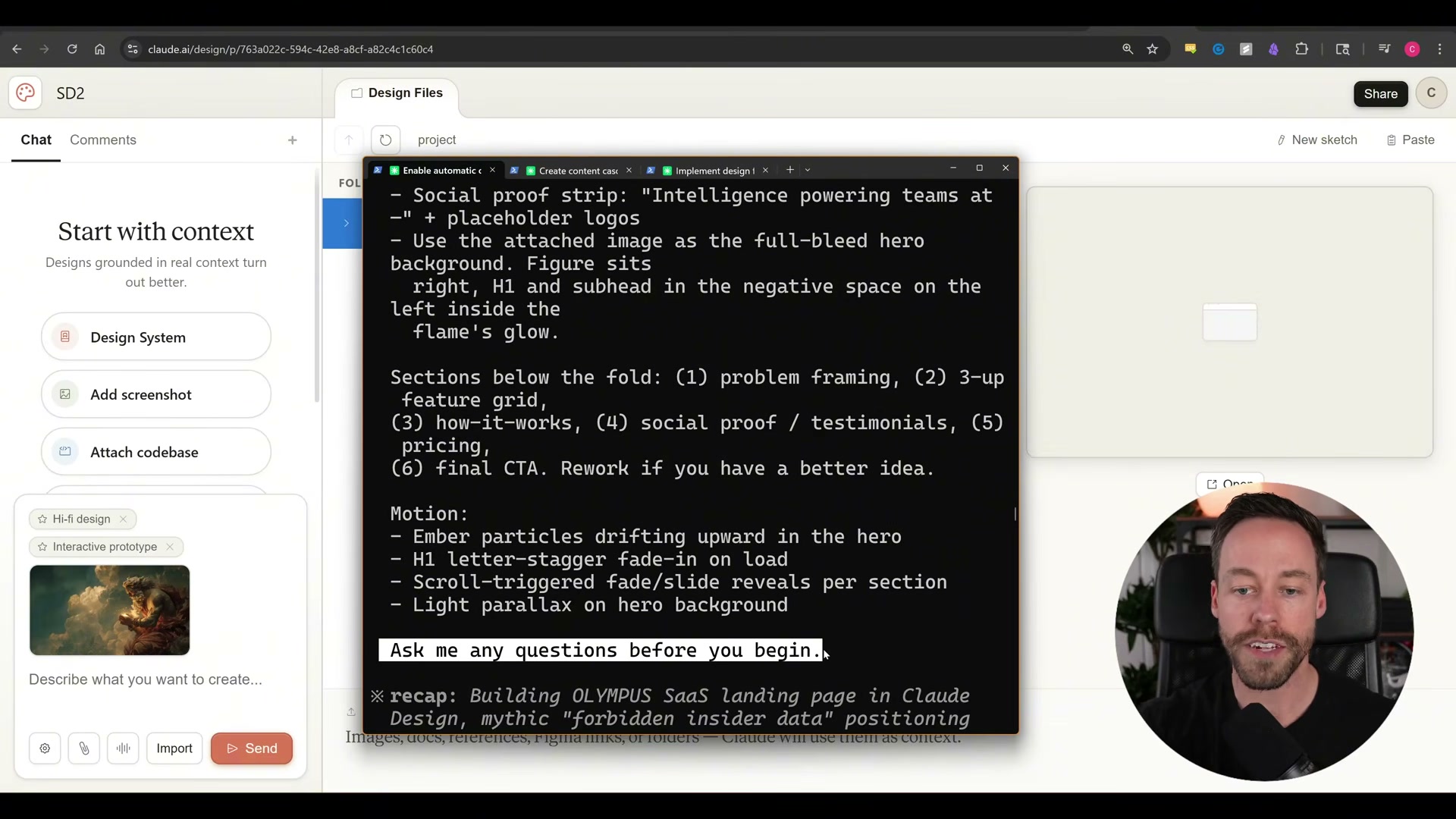
- Feed your hero image and a short creative brief to Claude Code and ask it to write a full Claude Design prompt. The output should cover brand positioning, hero layout, copy hierarchy, section order, motion behavior (think letter-stagger H1, scroll-triggered reveals, particle effects), and image placement rules.
-
Go to claude.ai/design, create a new High Fidelity prototype project, and attach your hero still via the Add screenshot context option. Any Dribbble references you saved are worth adding here too.
-
Paste the Claude Code-generated prompt and append the phrase “Ask me any questions before you begin” before hitting send. That single line triggers plan mode — a structured Q&A that produces a stronger first draft even when the brief isn’t exhaustive.
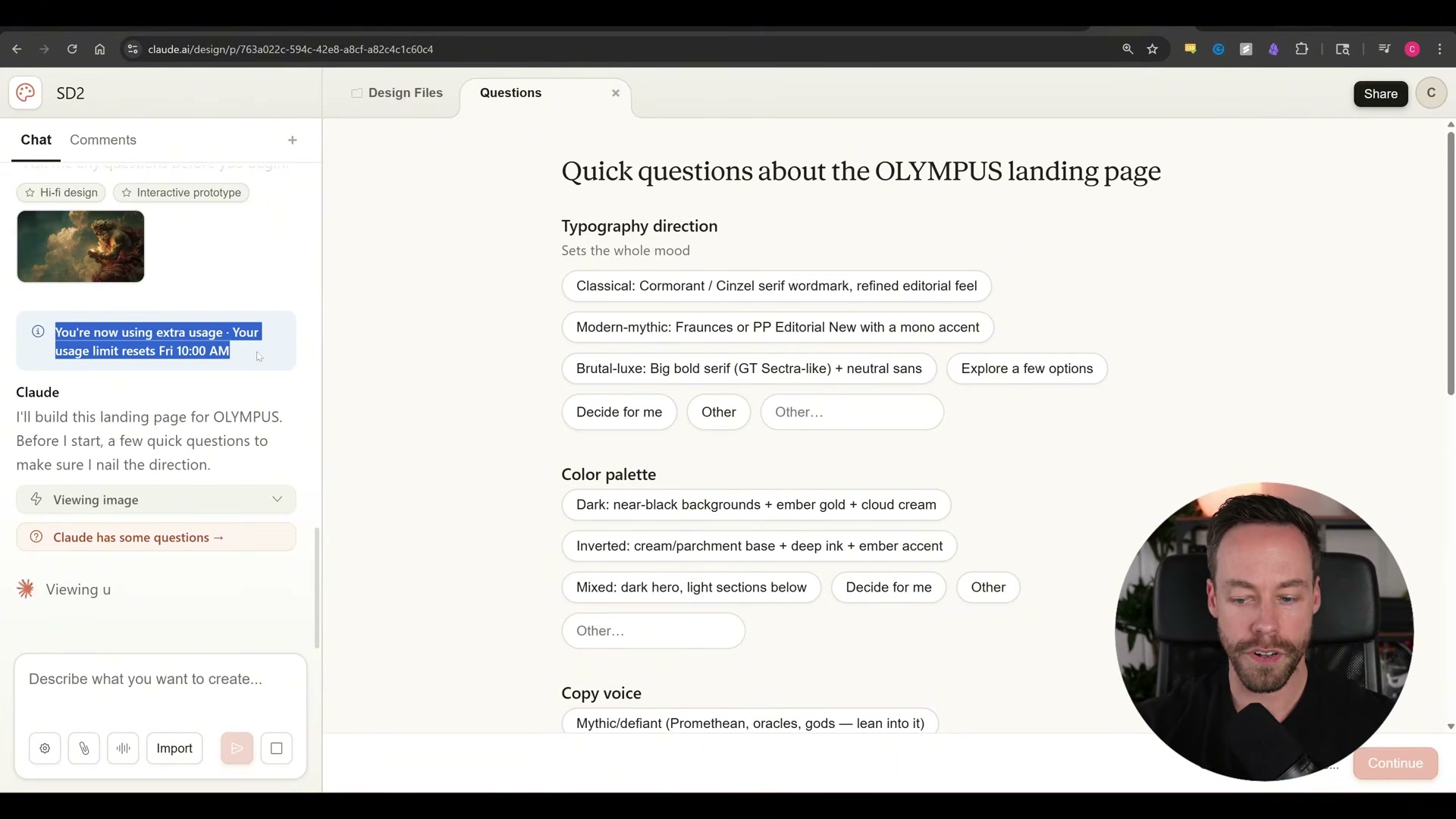
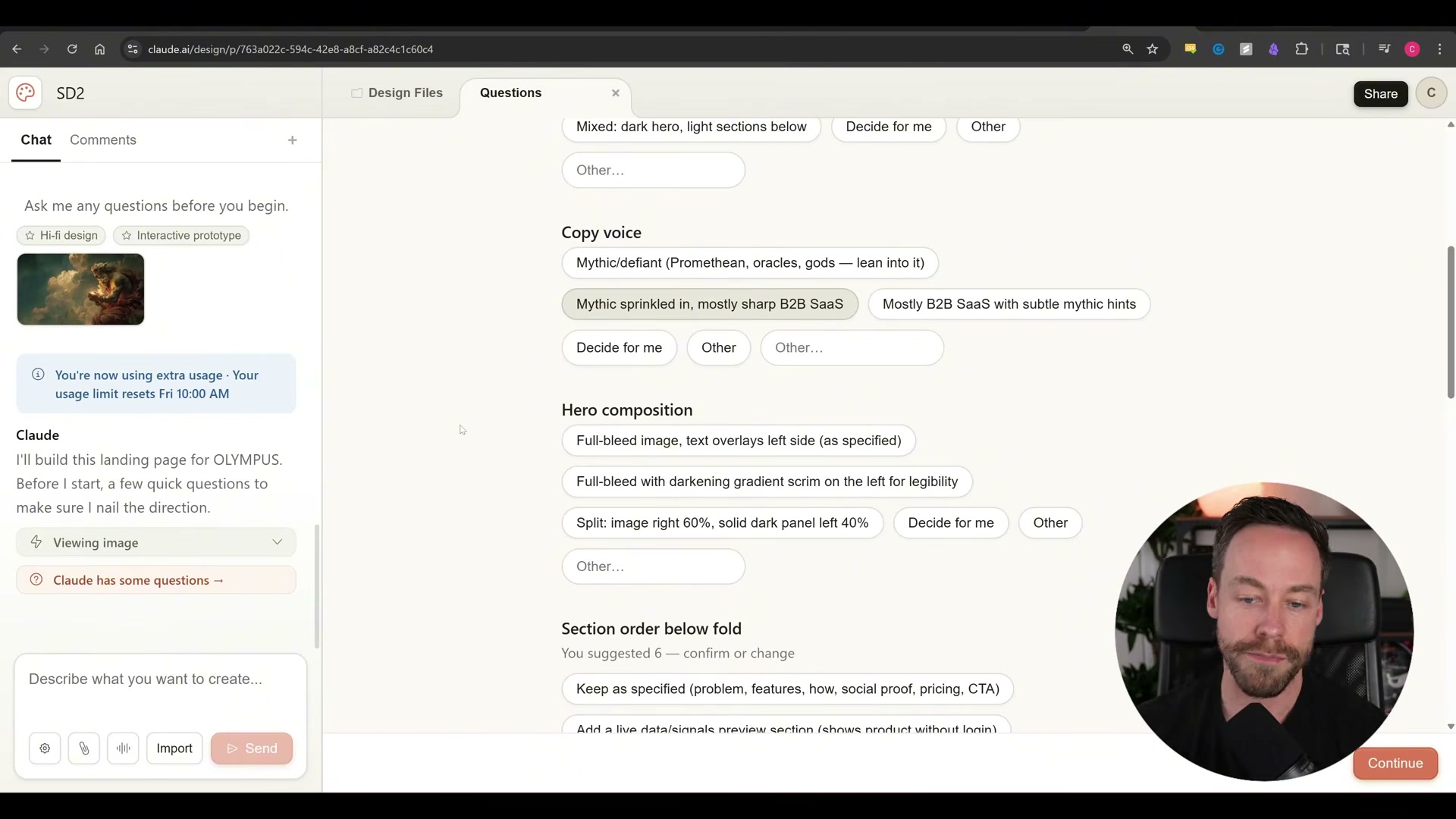
- Work through each clarifying question: typography, color palette, copy voice, hero composition, section order, and social proof treatment. Select options that align with your Higgsfield image — when in doubt, “Decide for me” is a valid choice. Hit Continue when done.
- Review the first render. If the overall composition holds, ask Claude Design to generate two additional full-layout variants for macro-level comparison, then commit to one and instruct Claude to remove the others.
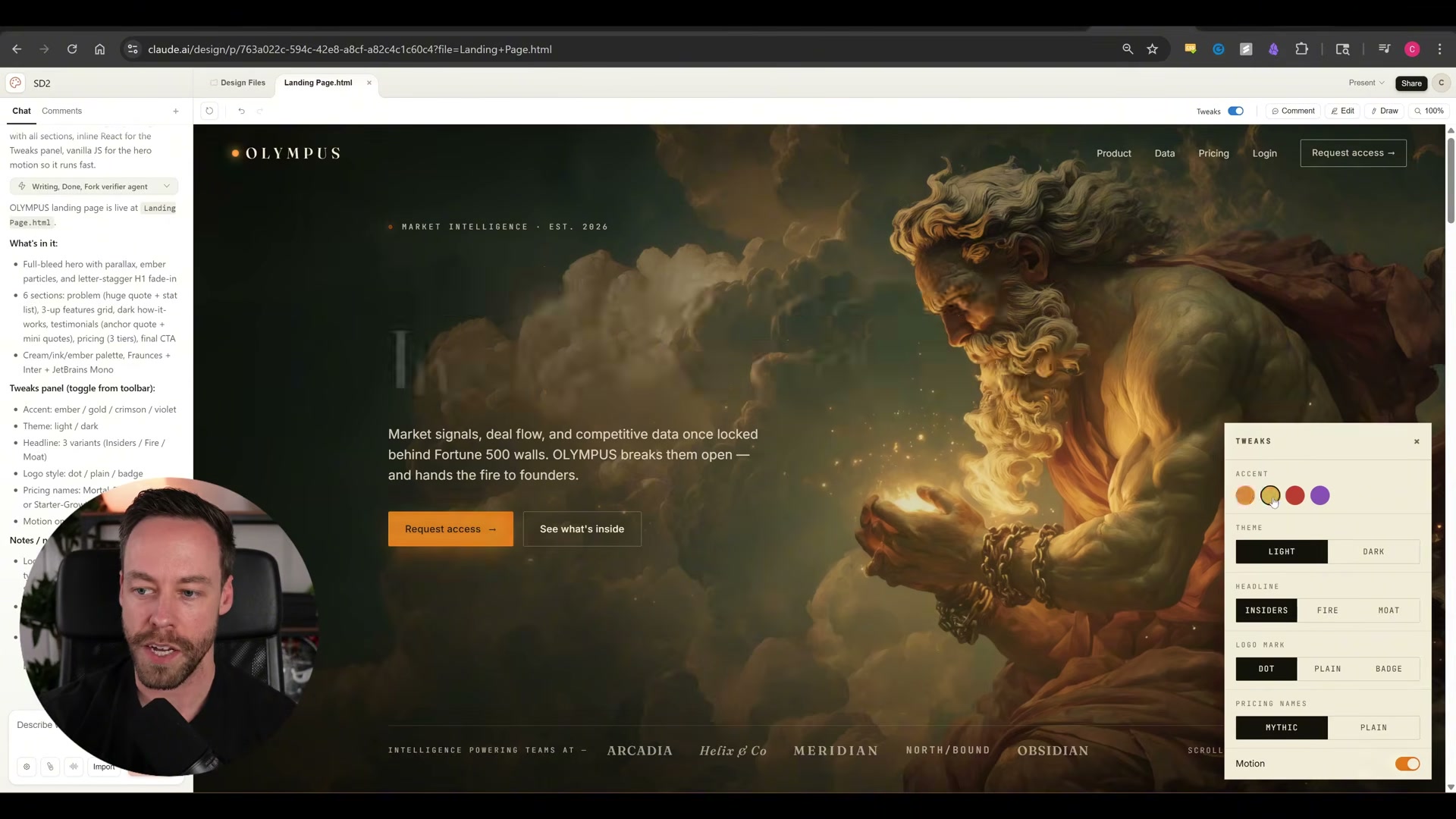
- Prompt Claude Design to expand the Tweaks panel from its default five options to fifteen or more. Cycle through accent colors, headline variants, logo marks, pricing tier names, and motion settings until the design is roughly 90% final.
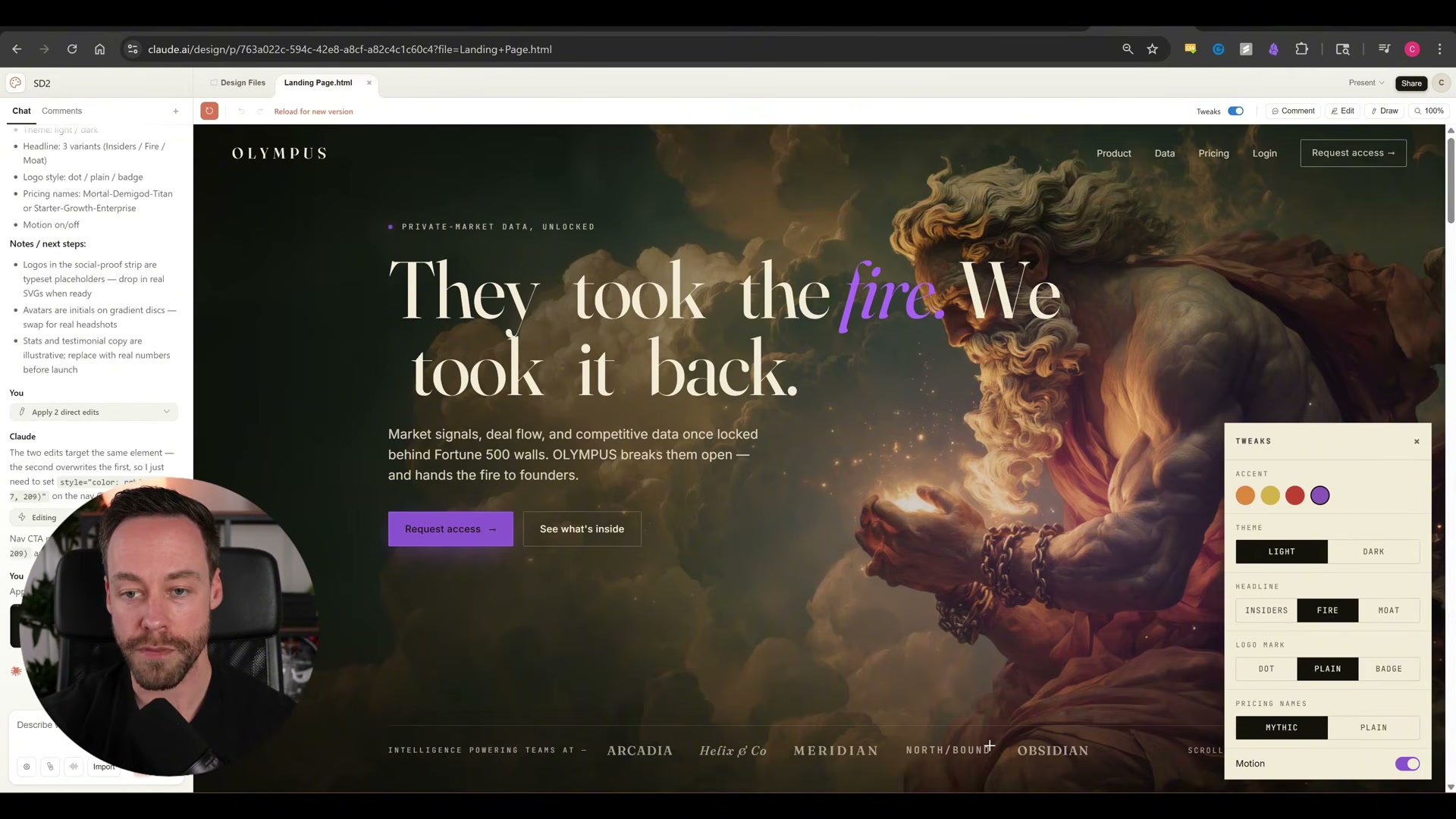
-
Export via the Share menu — .zip, HTML, Canva, PowerPoint, or PDF — and bring it into Claude Code for final polish.
-
Return to Higgsfield, load the approved hero still into Seedance 2.0, and generate the animated background video. Integrate it into the landing page as the hero background to complete the build.
Warning: this step may differ from current official documentation — see the verified version below.
How does this compare to the official docs?
The steps above come directly from a live walkthrough of one specific workflow — Act 2 checks each one against Anthropic’s Claude Design documentation and Higgsfield’s official Seedance 2.0 guides to confirm what holds, what’s shifted, and where there’s a faster path.
Here’s What the Official Docs Show
Act 1 maps a genuinely interesting creative workflow, and two of its foundational steps land exactly on current documentation. The sections below add the verified layer — including a significant gap in tool availability that is worth understanding before you invest time in the build.
Step 1 — Browse Dribbble for hero layout references
The video’s approach here matches the current docs exactly. “Landing page” is a natively suggested popular tag on Dribbble’s homepage, and AI SaaS hero shots appear organically in results — no special filter or account required.

Step 2 — Generate a still hero image in Higgsfield (Nano Banana Pro)
No official documentation was found for this step — proceed using the video’s approach and verify independently.
Step 3 — Use Claude Code to write a full design brief prompt
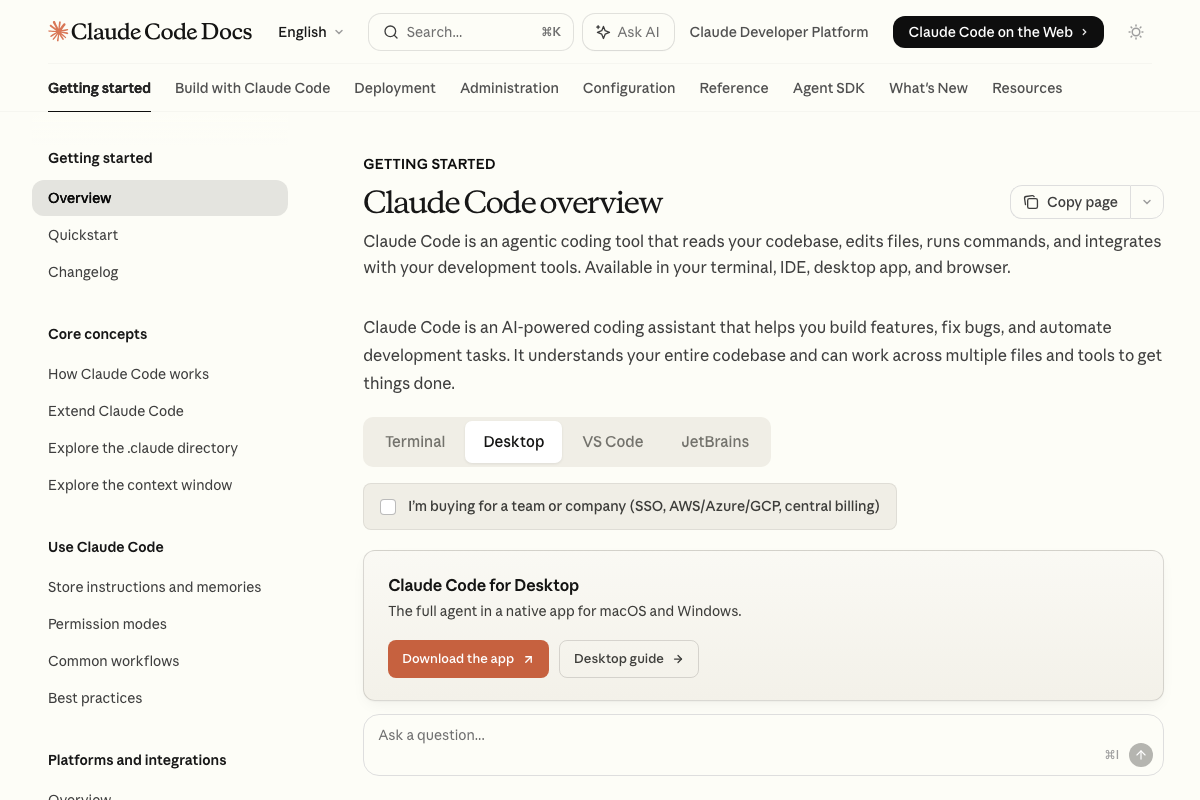
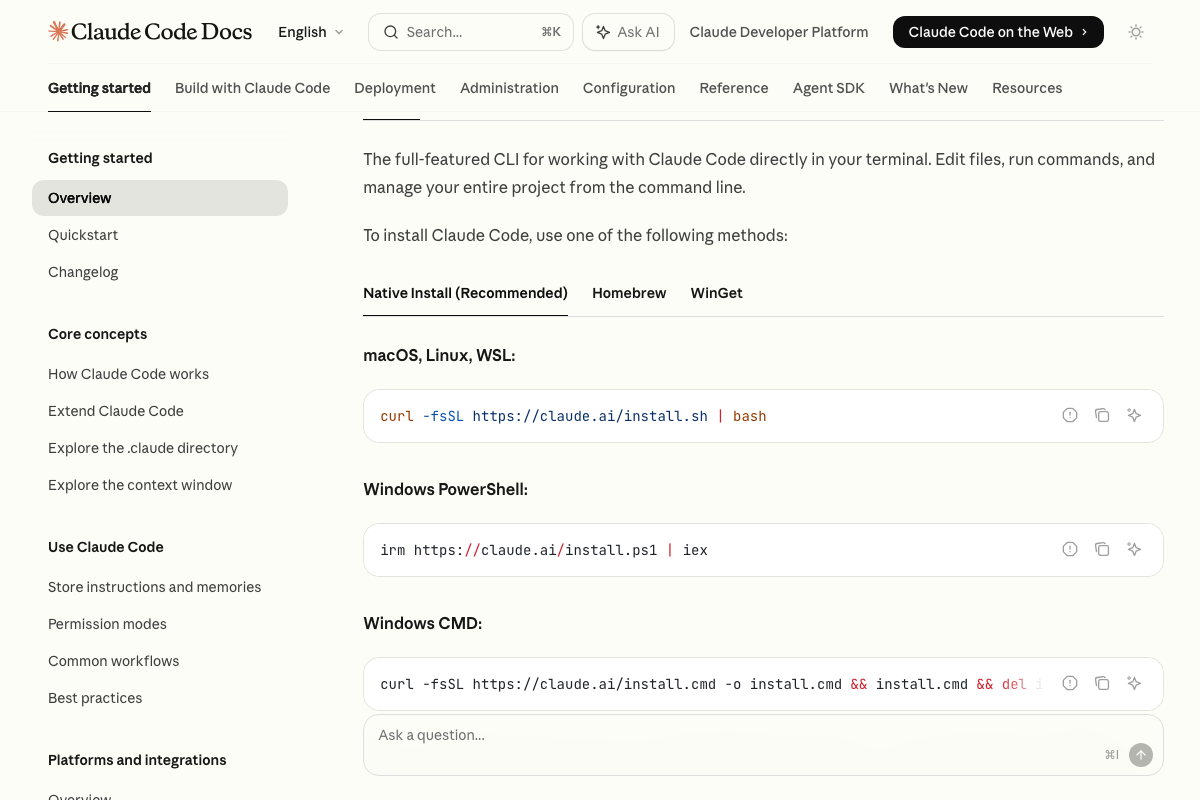
Claude Code is a confirmed Anthropic product. Install on macOS/Linux/WSL:
curl -fsSL https://claude.ai/install.sh | bash
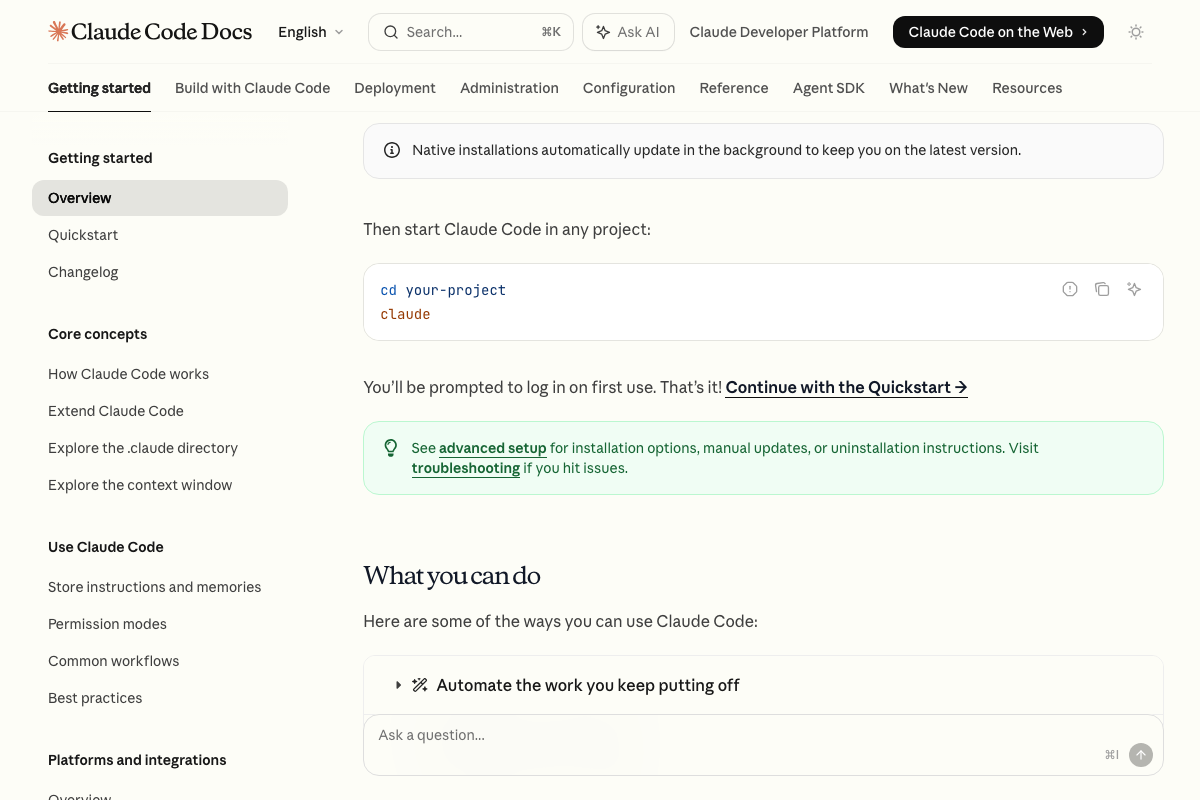
Launch from any project directory with cd your-project then claude. The video’s installation path is accurate. As of April 20, 2026, however, Claude Code is officially documented as a coding and file-editing agent — generating a design brief prompt for another AI product is not a described use case in the docs. It will accept the task, but no official guidance exists for structuring that interaction.
Step 4 — Open claude.ai/design and create a High Fidelity prototype project
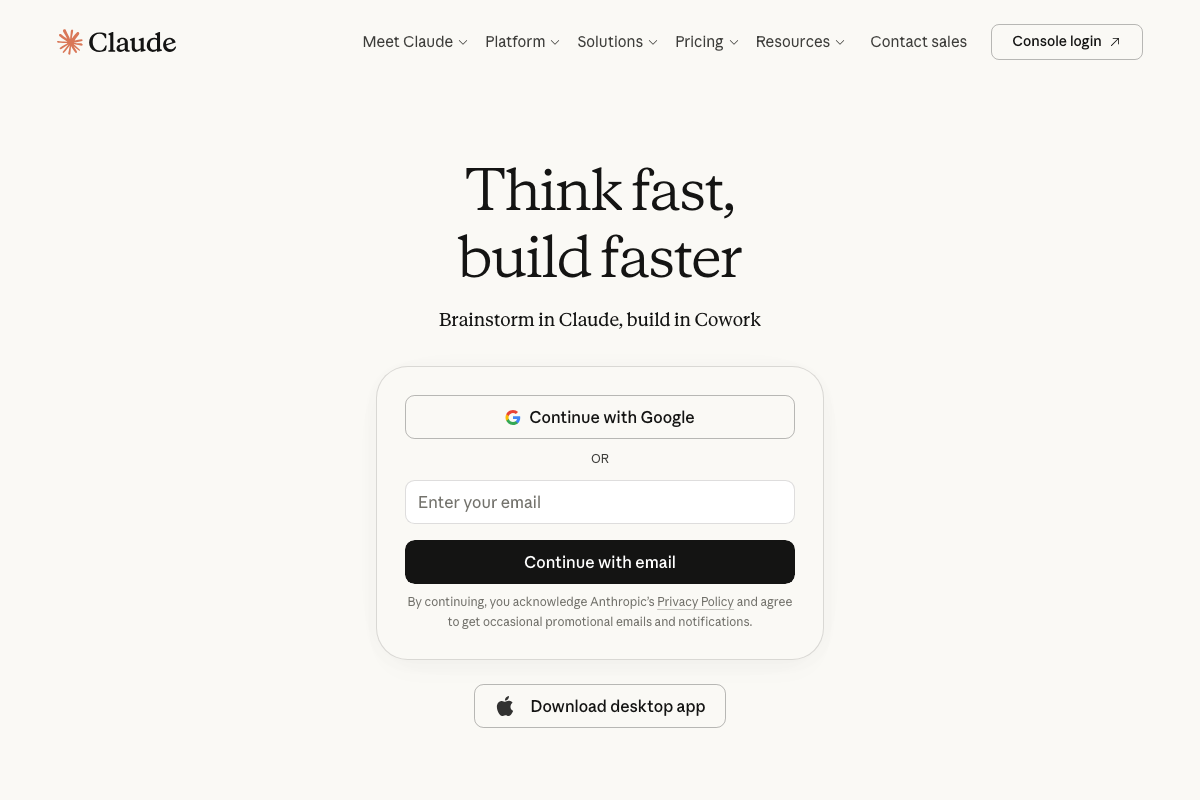
As of April 20, 2026, no product named “Claude Design” appears anywhere on claude.ai. The homepage tagline reads “Brainstorm in Claude, build in Cowork” — positioning Cowork, a third-party integration, as the production build layer. No prototype creation interface, Q&A plan mode, Tweaks panel, or variant generation is listed on the official site or at any pricing tier.

Steps 5–14 — Q&A plan mode, Tweaks panel, variant generation, export, and Seedance 2.0 animation
No official documentation was found for these steps — proceed using the video’s approach and verify independently.
Useful Links
- Claude — Official claude.ai homepage; covers sign-in options, desktop app download, and the Cowork integration positioning.
- Claude Code overview – Claude Code Docs — Official documentation for Claude Code including installation commands, supported environments, and the full capability overview.
- Dribbble – Discover the World’s Top Designers & Creative Professionals — Design discovery platform; “landing page” is a natively suggested search tag, and AI product hero shots appear in standard results.


0 Comments