

Google Ads Competitive Analysis Using the Transparency Center, SpyFu, and Meta Ads Library
Knowing what your competitors are spending — and where — turns guesswork into strategy. By combining three free or low-cost tools, you can reconstruct a competitor’s ad creative, keyword list, estimated budget, and channel mix in under an hour. This tutorial walks you through that exact workflow, ending with a repeatable method for turning raw competitive data into an actionable report using AI.
- Navigate to adstransparency.google.com and search for a competitor by domain (e.g.,
jasper.ai) or legal business name. The results display every active ad the advertiser is running across Google’s platforms — no account login required.
-
Review the ad formats in the results. Search ads will dominate for most advertisers, but look for video creatives and Performance Max assets, which signal broader funnel investment. Note which formats appear most frequently.
-
Study the messaging patterns across the ad copy — the headlines, value propositions, and CTAs. Then click through to identify the destination URLs. Most advertisers route paid traffic to dedicated landing pages or a free trial flow, which tells you exactly where they want prospects to land.
- Log into SpyFu and enter the competitor’s domain in the search bar to pull the PPC Overview. This surfaces three headline numbers: estimated paid keyword count, estimated monthly PPC clicks, and estimated monthly Google Ads budget.
- Cross-check the estimated budget against the keyword volume. A competitor showing 7,000+ paid keywords at a $42,000/month budget is likely running broad match at scale — the keyword count is inflated by match type, not by deliberate keyword selection.
Warning: this step may differ from current official documentation — see the verified version below.
-
Open the Top Paid Keywords tab and categorize what you find into three buckets: branded terms (competitor’s own name), generic category keywords, and competitor conquest terms. The ratio between these three tells you whether the advertiser is defending, acquiring, or attacking.
-
Use SpyFu’s Top Competitors view to find keyword overlap with similar advertisers. Compare monthly paid keyword counts and budgets side-by-side to benchmark where your target competitor sits in the competitive landscape.
-
Locate the competitor’s destination URLs inside SpyFu’s ad history. These reveal which landing page variants are currently active and how the advertiser structures their conversion funnel by keyword theme.
-
Open facebook.com/ads/library, select your country and “All ads,” then search the competitor’s brand name. Review every active creative — video, static image, and carousel — to assess their Meta presence.
-
Cross-reference Meta ad volume against Google ad volume. A competitor running 25 active Meta ads but minimal Google spend has made a deliberate channel choice — that gap is either an opportunity or a signal that paid search doesn’t convert in that niche.
-
Compile your notes from all three sources — ad copy, keyword themes, budget estimates, landing pages, and channel mix — and feed them into Claude or another AI assistant with a prompt asking for a structured competitive analysis. The AI synthesizes patterns across the data that are easy to miss when reviewing tools one at a time.
How does this compare to the official docs?
The tools used here each have their own documentation, rate limits, and data freshness disclosures that the video doesn’t address — and those details change how much you can trust the numbers you’re looking at.
Here’s What the Official Docs Show
The video’s workflow is accurate and the tools are correctly identified — this act adds a few interface details that will save you a click or two on first use, particularly around required filters that aren’t visible until you encounter them. Nothing here changes the core approach; it sharpens it.
1. Navigate to Google Ads Transparency Center and search by competitor
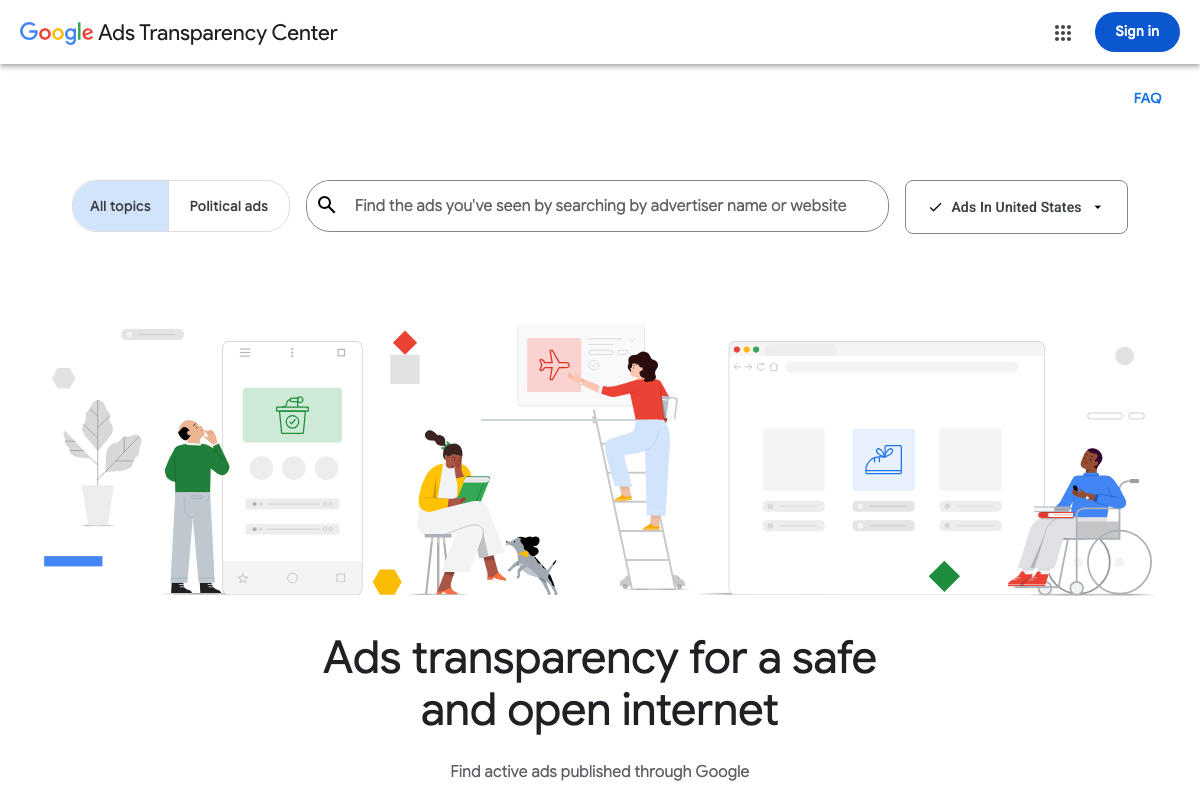
The video’s approach here matches the current docs exactly. Head to adstransparency.google.com and search by advertiser name or domain — no login required. One addition: a country/region filter defaults to “Ads In United States.” If your competitor runs geo-targeted campaigns, adjust this before searching — it directly affects which ads are returned. The interface also includes an All Topics / Political Ads toggle; for PPC competitive research, stay on All Topics.
2. Review ad formats in the results
No official documentation was found for this step —
proceed using the video’s approach and verify independently.
3. Study messaging patterns, CTAs, and destination URLs
No official documentation was found for this step —
proceed using the video’s approach and verify independently.
4. Enter the competitor’s domain in SpyFu
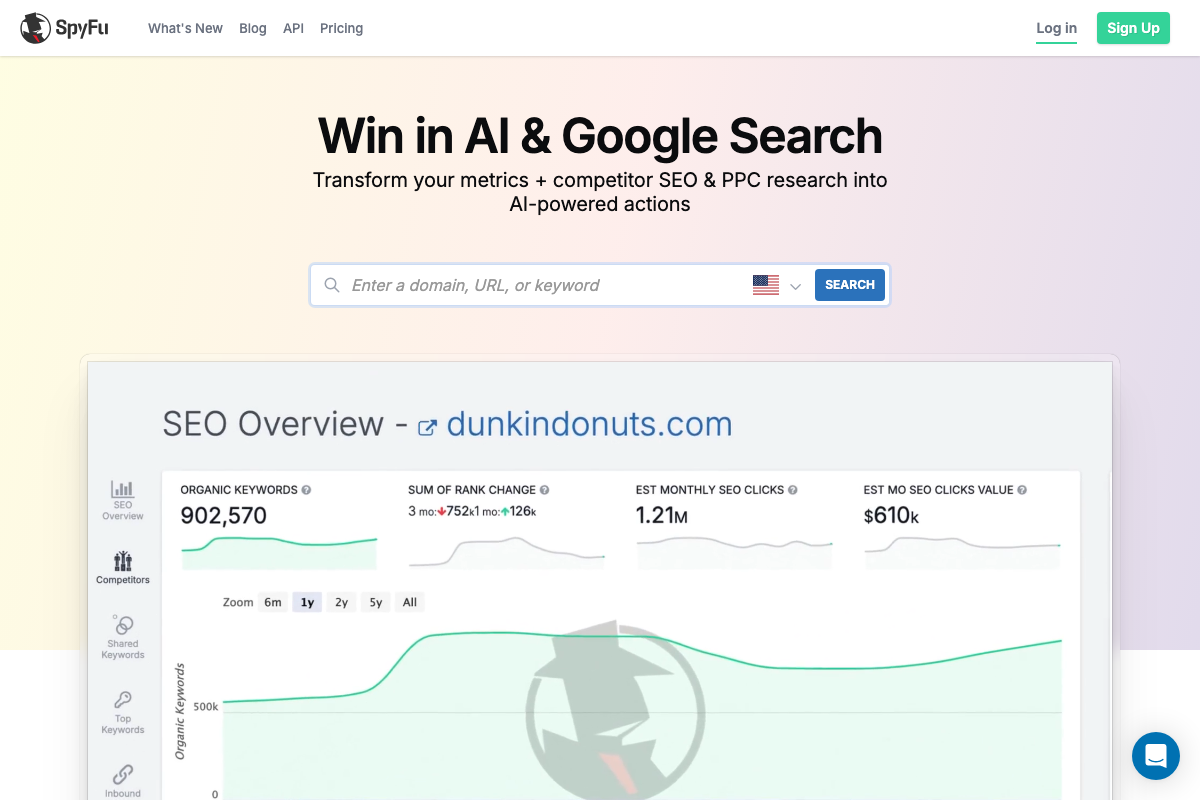
The video’s approach here matches the current docs exactly for domain-based competitor lookup. One navigation detail to add: SpyFu lands on the SEO Overview by default after a domain search — not the PPC Overview. The paid keyword counts, click estimates, and budget figures the tutorial references require navigating to the Paid section in the left-hand menu separately.
5. Cross-check budget against keyword volume
No official documentation was found for this step —
proceed using the video’s approach and verify independently.
6. Categorize top paid keywords into branded, generic, and conquest buckets
No official documentation was found for this step —
proceed using the video’s approach and verify independently.
7. Use SpyFu’s Top Competitors view to benchmark
No official documentation was found for this step —
proceed using the video’s approach and verify independently.
8. Locate destination URLs in SpyFu’s ad history
No official documentation was found for this step —
proceed using the video’s approach and verify independently.
9. Search the Meta Ad Library for competitor creatives
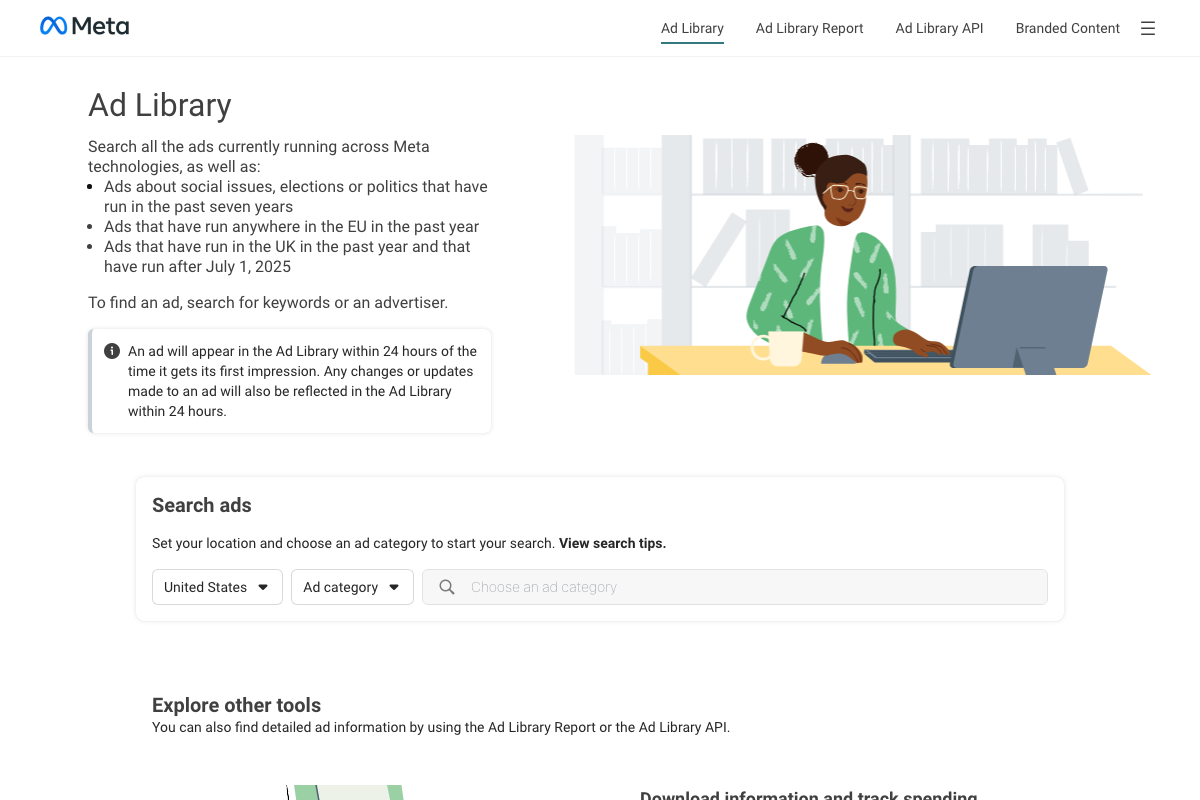
The URL facebook.com/ads/library is confirmed. As of April 7, 2026, the official product name is Ad Library (Meta branding) — the video’s “Facebook Ads Library” reflects pre-rebrand terminology. More practically: the search interface requires selecting a country and an ad category before the advertiser name field becomes usable. The video describes going straight to brand name search; in practice, choose your country and select “All ads” from the category dropdown first. No Facebook account is required, and ads appear within 24 hours of their first impression.
10. Cross-reference Meta ad volume against Google ad volume
No official documentation was found for this step —
proceed using the video’s approach and verify independently.
11. Compile data and synthesize with Claude
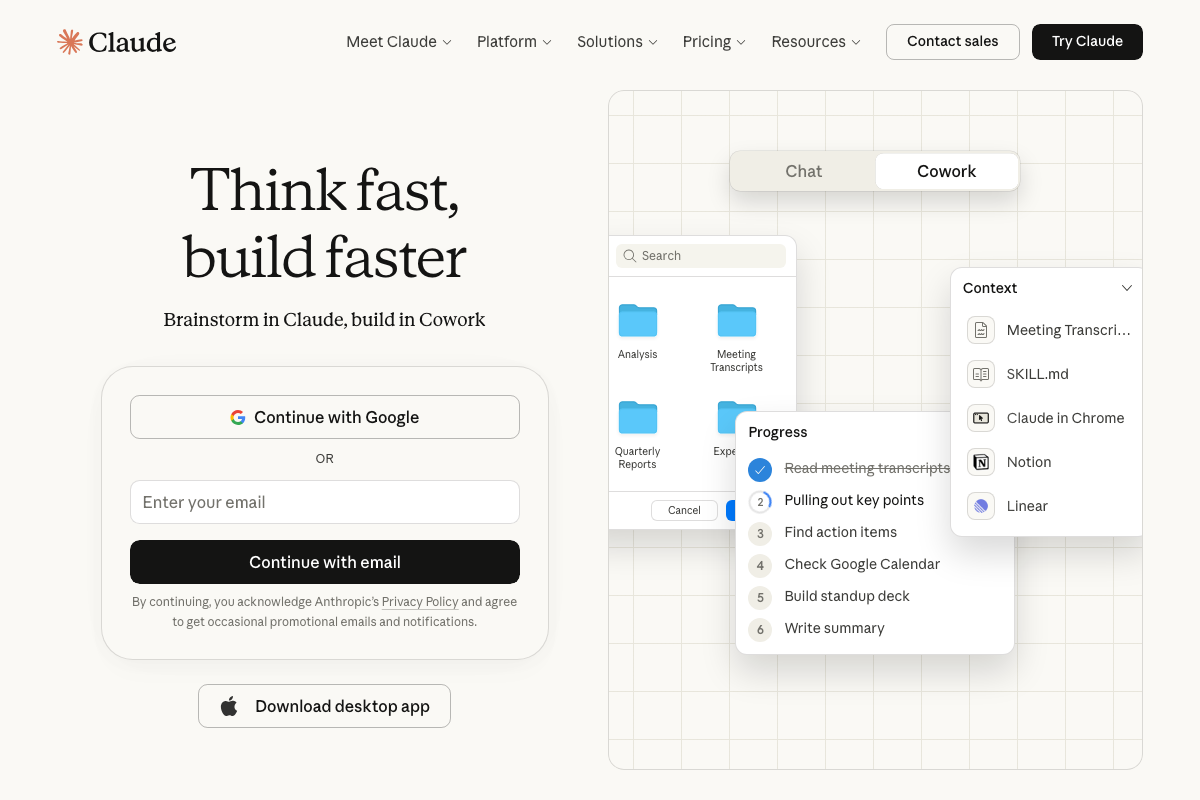
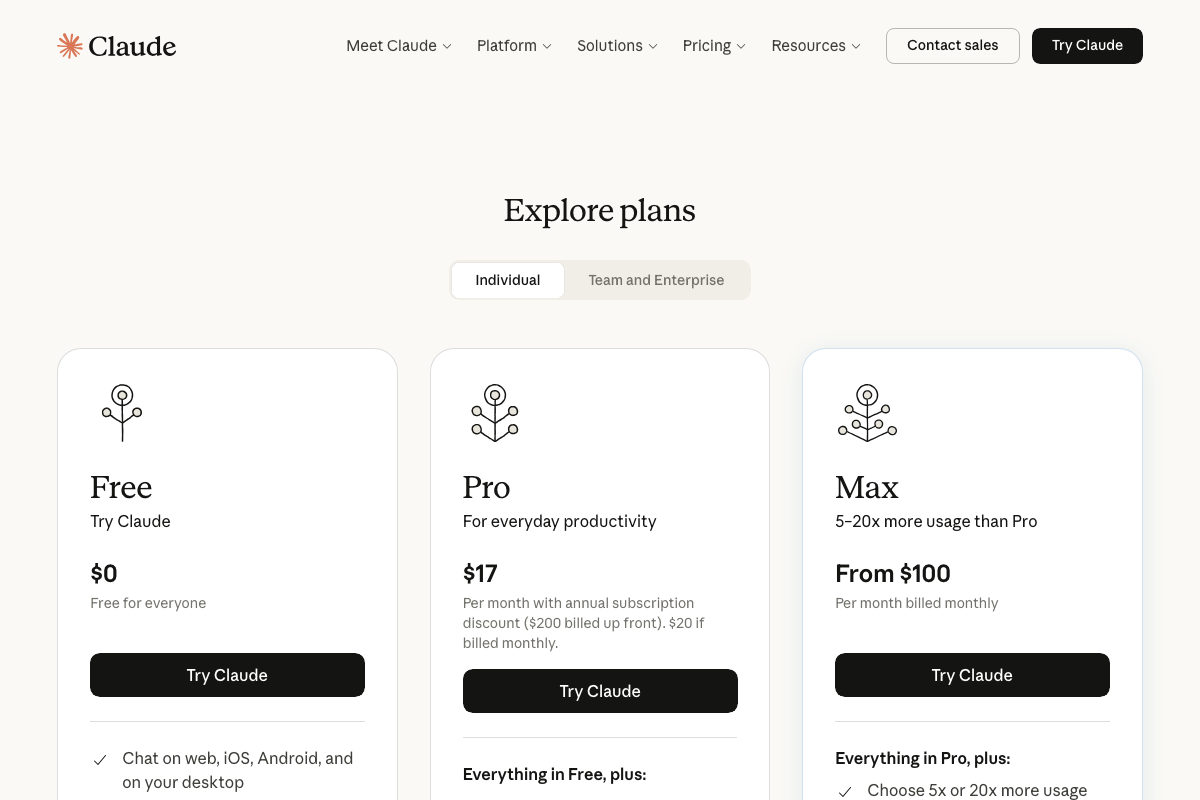
The video’s approach here matches the current docs exactly for a Chat-based paste-and-prompt workflow. Claude.ai is available on a Free tier ($0), which is sufficient for a single competitive analysis report. One addition: Claude now offers Cowork, a multi-step agentic mode for longer autonomous task sequences — if you want Claude to work through the synthesis iteratively rather than in a single prompt, this is the mode to explore. Users pasting large datasets should note that Pro ($17/mo billed annually) and Max (from $100/mo) plans offer significantly higher usage limits.
Useful Links
- Ads Transparency Center — Google’s official tool for searching active ads by advertiser name or domain across Google’s platforms.
- SpyFu — Competitor Keyword Research Tools — Competitor PPC and SEO research platform surfacing paid keyword history, estimated budgets, and ad creatives by domain.
- Meta Ad Library — Meta’s official database of active and historical ads across Meta technologies, with API access and branded content search also available.
- Claude — Anthropic’s AI assistant offering Chat and Cowork modes for competitive data synthesis, accessible on a free tier.


0 Comments