

Create a Professional AI Presentation with Gamma in Minutes
Gamma turns a topic description into a fully designed, brand-consistent slide deck without touching a single placeholder or image frame. After completing these steps, you’ll be able to generate a polished presentation, refine it through natural-language AI edits, and export it in PDF, PowerPoint, or Google Slides format. The entire run — from blank prompt to finished deck — takes roughly five minutes.
-
Open gamma.app in Chrome or Safari and sign in with your Google account.
-
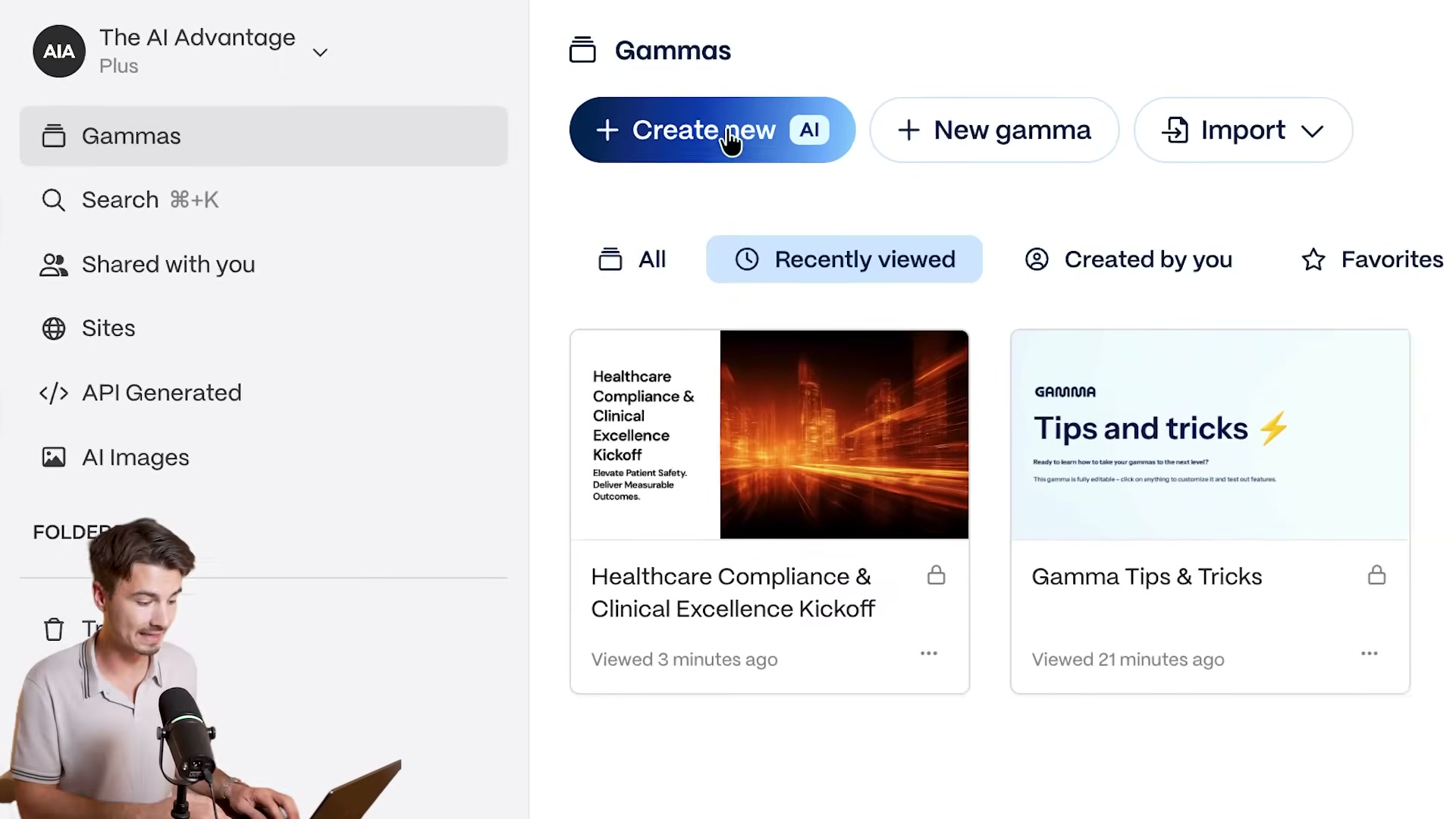
On the Gamma dashboard, locate and click the + Create New button.
-
Click Generate from the options that appear to open the prompt input panel.
-
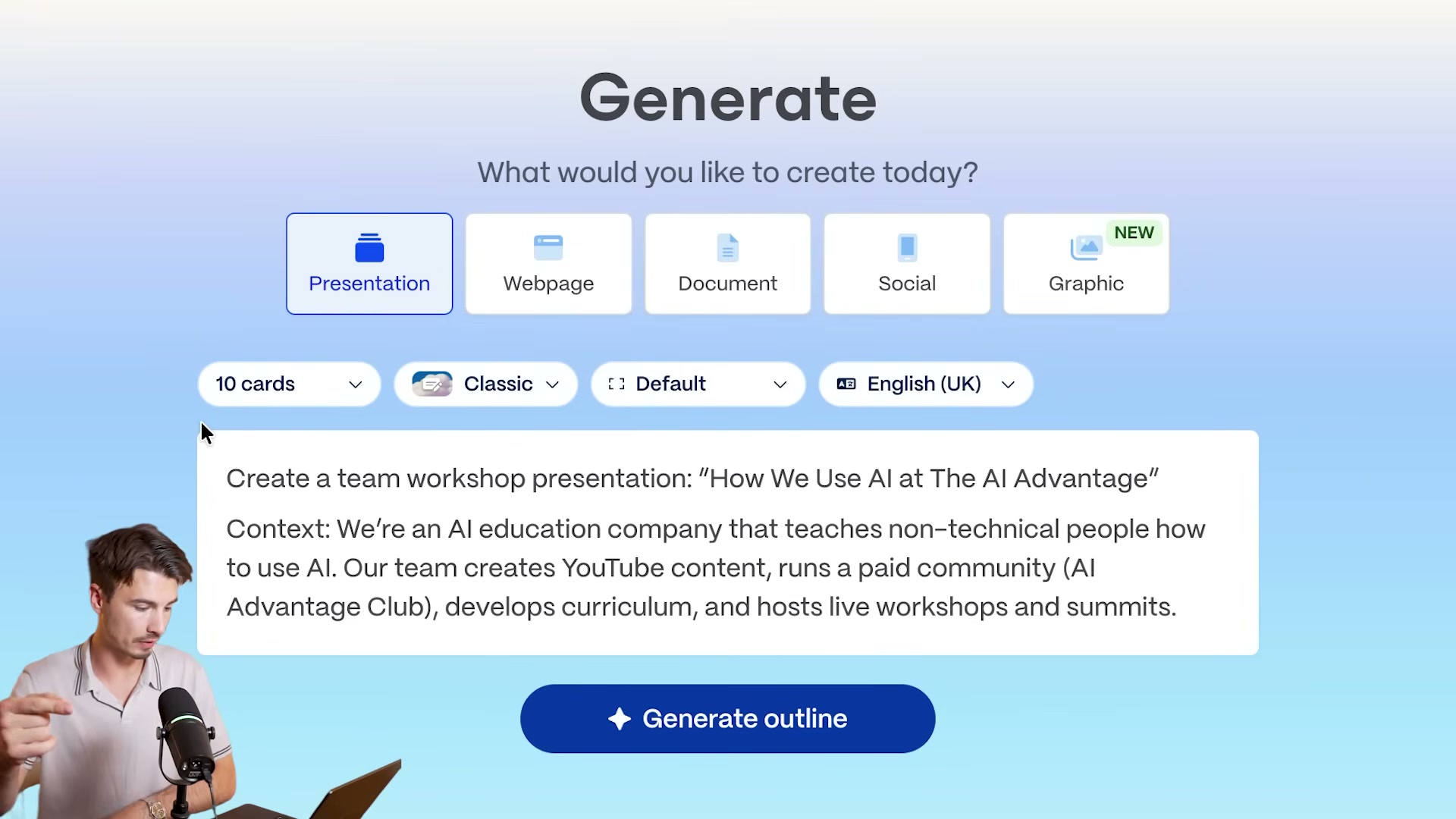
Type your presentation topic into the text field. Paste supporting business context — a few paragraphs about your company, offer, or audience — directly below it. Gamma draws on that material to shape both slide structure and copy.
-
Set the card count using the Cards control above the prompt box. Five to ten cards covers most business decks; the tutorial demo uses five to keep the generation run short.
-
Click Generate Outline. Gamma returns an editable outline before building any slides. Reorder or rewrite sections here until the narrative flow matches your intent — this is the highest-leverage editing step in the entire workflow.
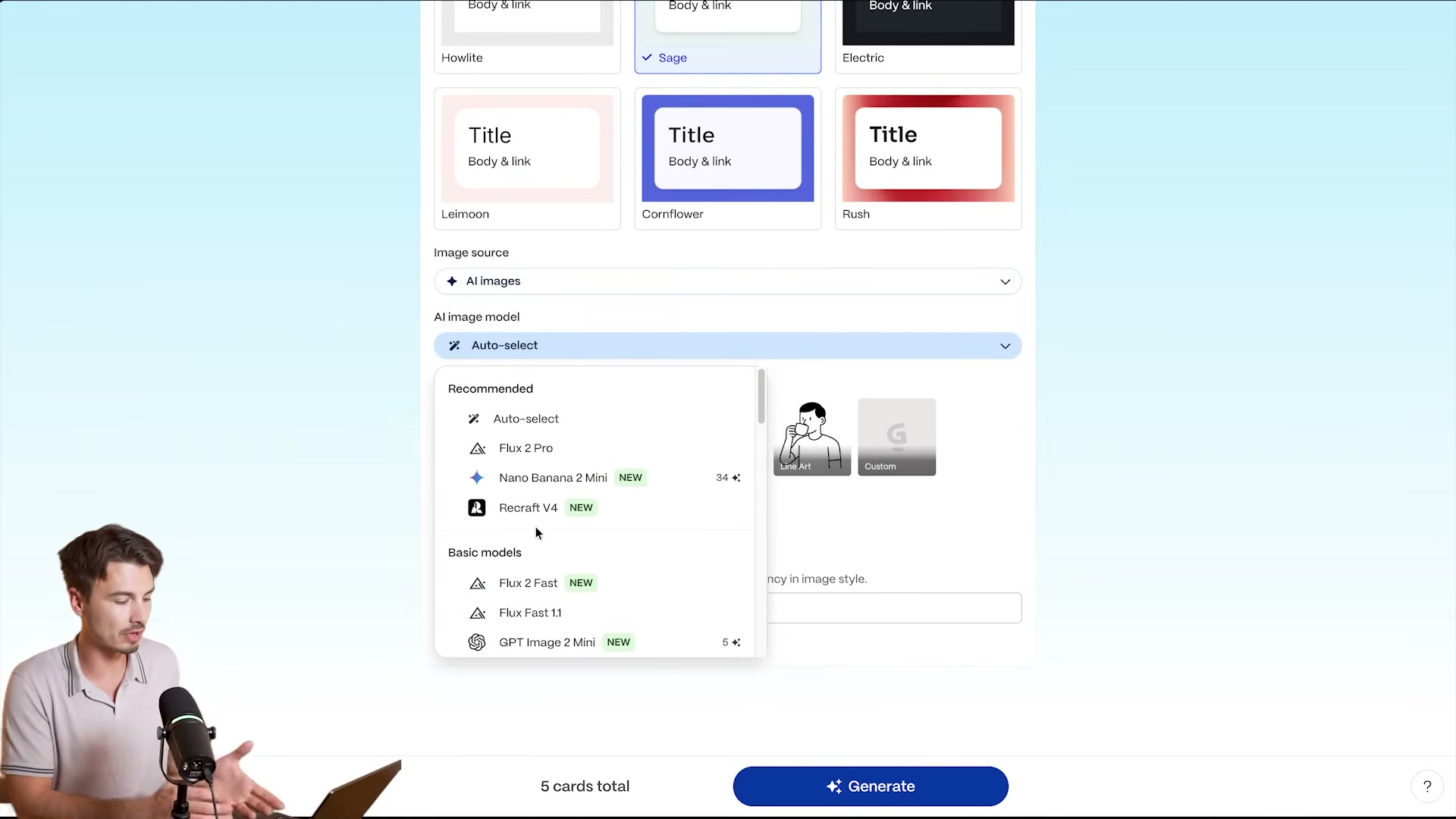
- Scroll past the outline to the Customize Your Gamma section. Select a visual theme (the tutorial uses “Atmosphere”), a text density level (“Detailed”), and an AI image model from the dropdown. Options visible in the demo include Flux 2 Pro, Recraft V4, and several lighter-weight variants.
Warning: this step may differ from current official documentation — see the verified version below.
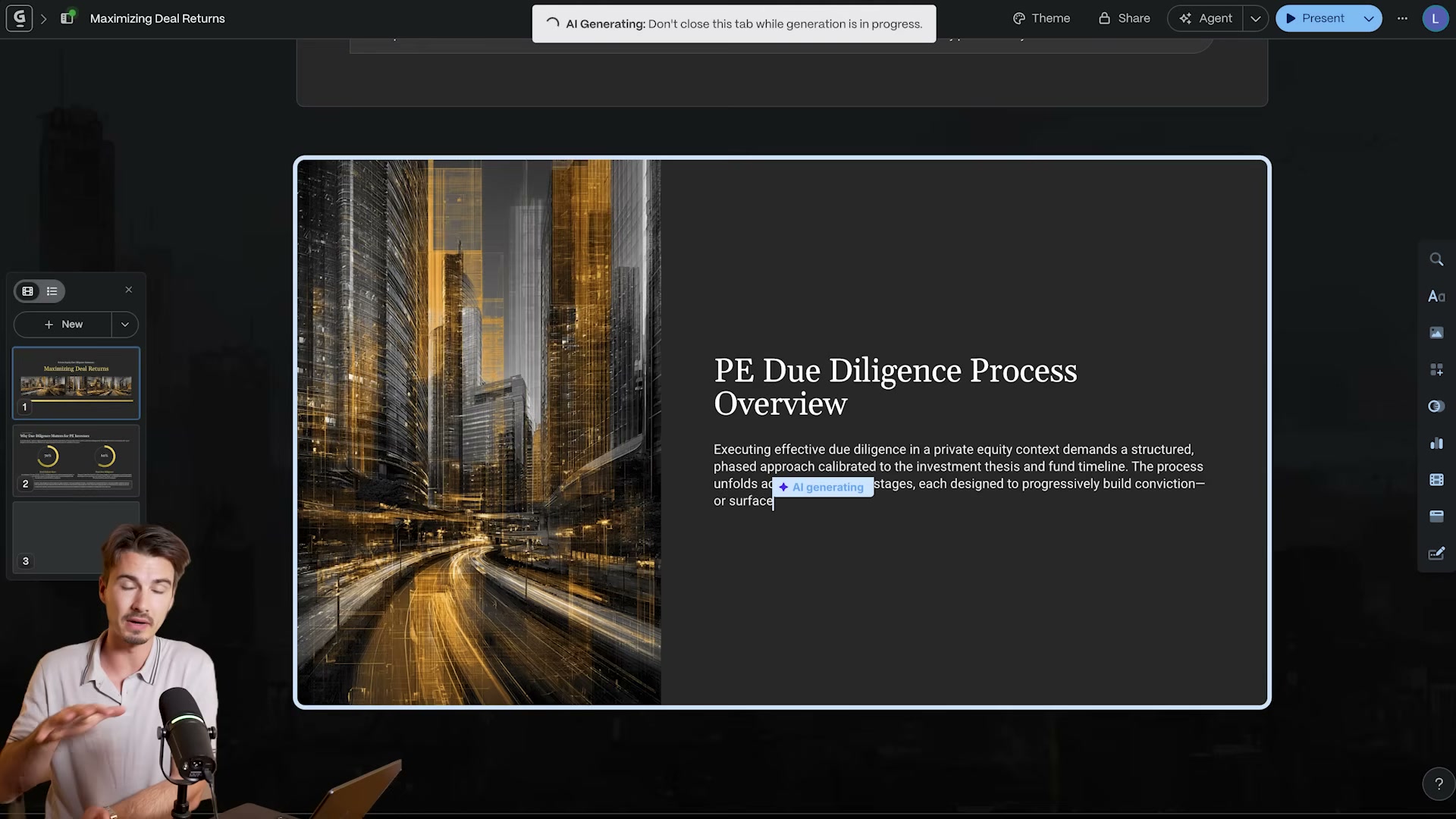
- Click Generate at the bottom of the customization panel. The editor displays an “AI Generating: Don’t close this tab” banner while it assembles the full deck in real time. Expect roughly two minutes per run.
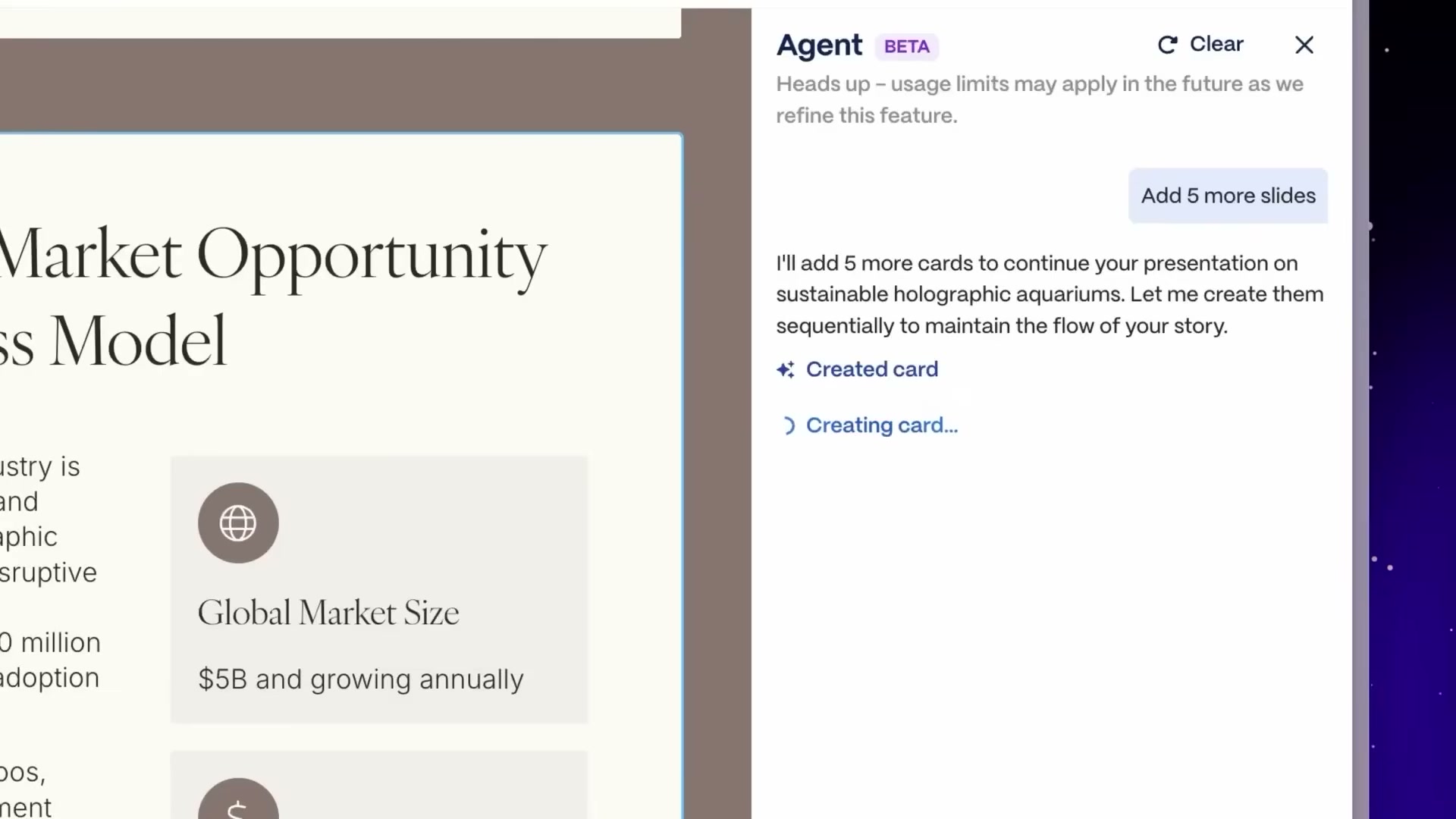
- Once generation finishes, click the sparkle icon — the Agent button — in the top toolbar to open the Edit with AI panel. Enter a natural-language instruction such as “make this slide more professional” and the agent rewrites layout and copy without any manual drag-and-drop.
-
Review the proposed changes in the preview pane. Accept the edit or revert to the previous version and issue a different instruction until the result meets your standard.
-
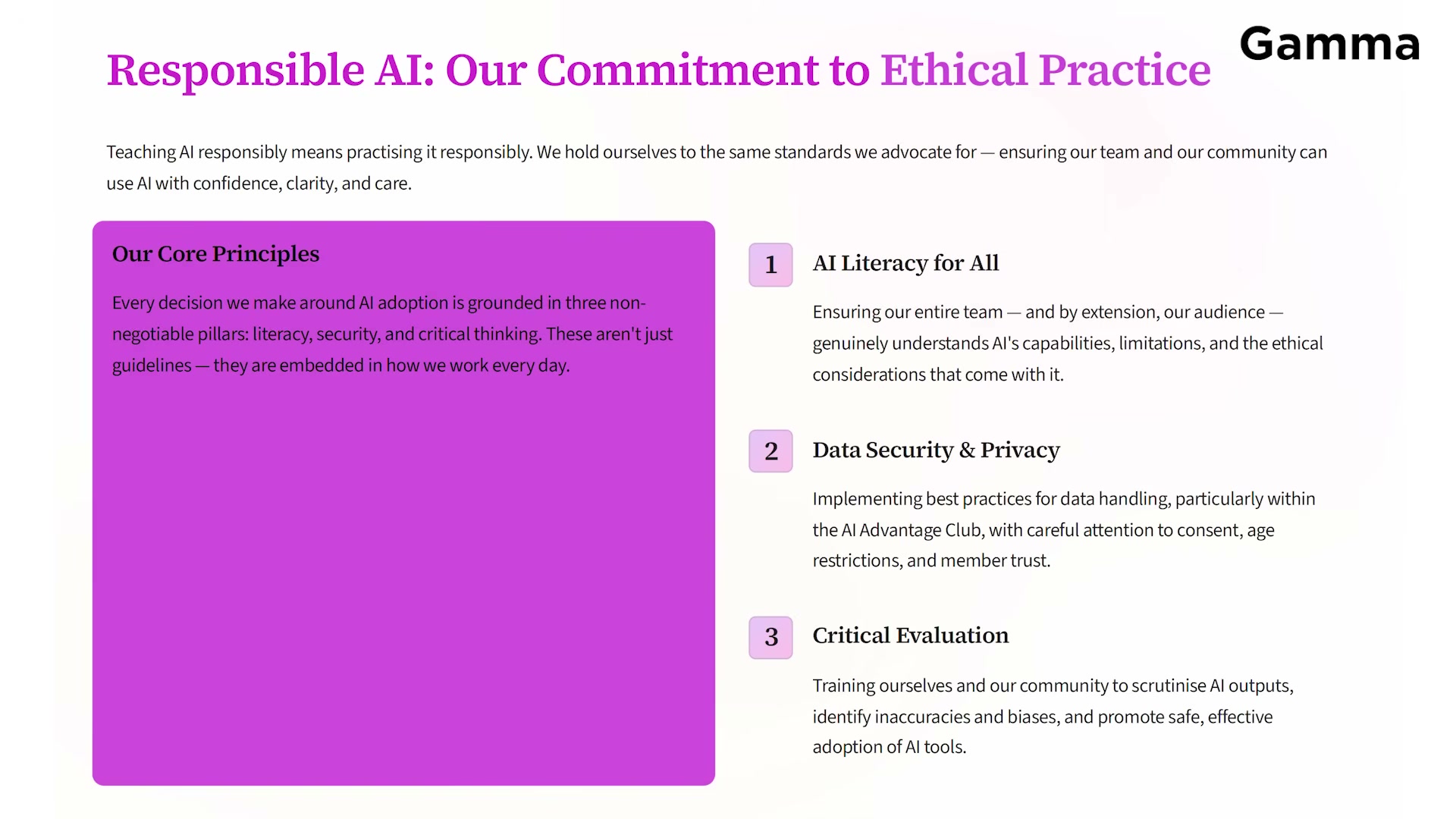
Click Share in the top-right corner to export the finished deck as a PDF, PowerPoint (.pptx), or Google Slides file.
How does this compare to the official docs?
The steps above reflect the workflow shown in the video, but Gamma’s AI image model lineup, Agent capabilities, and free-plan restrictions have all changed since filming — and the official documentation surfaces several configuration options the tutorial doesn’t cover.
Here’s What the Official Docs Show
Act 1 gives you the Gamma creation workflow as demonstrated on screen — this act layers in what the official help center confirms, clarifies, and leaves open. The documentation backs the core flow; the gaps below are places to verify before you build.
Step 1 — Navigate to gamma.app and sign in
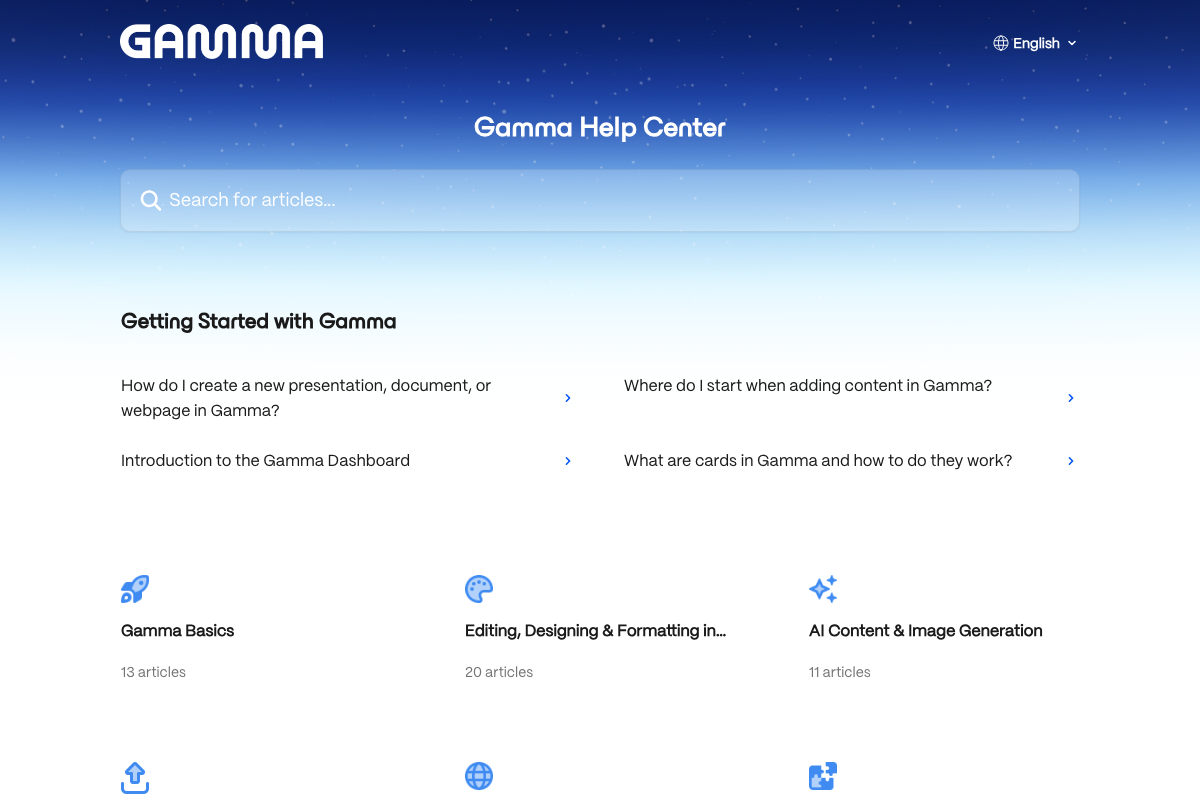
The video’s approach here matches the current docs exactly. Gamma’s help center confirms gamma.app as the correct destination, and Google account sign-in is a documented authentication method.
Step 2 — Click + Create New on the dashboard
No official documentation was found for this step — proceed using the video’s approach and verify independently.
Step 3 — Select Generate
No official documentation was found for this step — proceed using the video’s approach and verify independently.
Step 4 — Enter your topic and paste supporting context
No official documentation was found for this step — proceed using the video’s approach and verify independently.
Step 5 — Set card count
No official documentation was found for this step — proceed using the video’s approach and verify independently.
Step 6 — Click Generate Outline
The video’s approach here matches the current docs exactly. Cards are a formally documented Gamma concept, and the outline-first generation model is consistent with the Getting Started article in the help center.
One additive point: Gamma creates presentations, documents, and webpages — the tutorial focuses exclusively on decks, but the same outline workflow applies across all three output types. If a client brief or landing page suits your project better, you’re not locked into slides.
Step 7 — Choose theme, text density, and AI image model
No official documentation was found for this step — proceed using the video’s approach and verify independently.
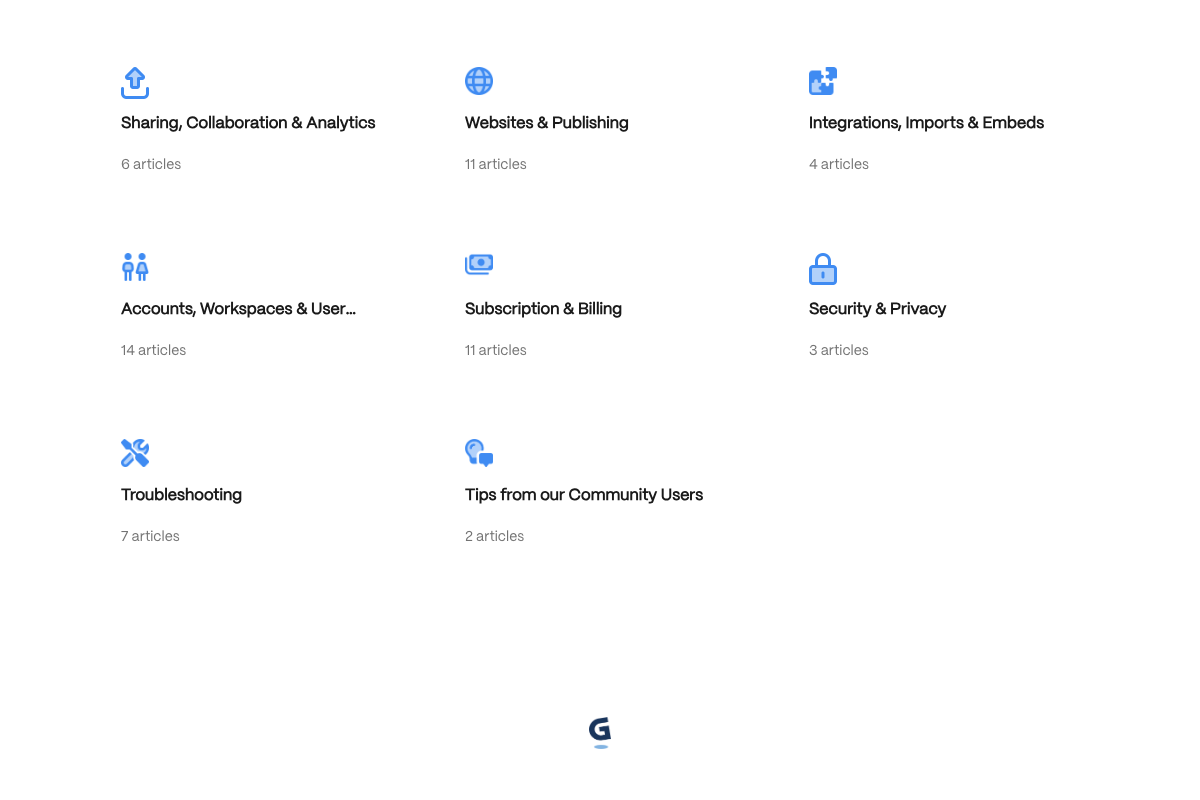
The help center lists “AI Content & Image Generation” (11 articles) and “Editing, Designing & Formatting” (20 articles) as dedicated categories — considerably more depth than the tutorial covers. Browse help.gamma.app for the current full list of theme and image model options before locking in a production workflow.
Step 8 — Click Generate and wait for the deck to build
No official documentation was found for this step — proceed using the video’s approach and verify independently.
Step 9 — Open the Agent panel and issue AI edit instructions
No official documentation was found for this step — proceed using the video’s approach and verify independently.
Step 10 — Review and accept or revert the AI’s changes
No official documentation was found for this step — proceed using the video’s approach and verify independently.
Step 11 — Export via Share (PDF, PowerPoint, Google Slides)
The video’s approach here matches the current docs exactly. “Sharing, Collaboration & Analytics” and “Integrations, Imports & Embeds” are both documented help categories, confirming that export and Google Slides integration are officially supported features.
Plan-tier note worth adding: the help center’s “Subscription & Billing” section (11 articles) signals that some features may be gated to paid plans. The tutorial doesn’t disclose which tier was used or whether AI generation requires an upgrade — confirm your plan access before expecting every step above to work on a free account.
Useful Links
- Home | Gamma Help Center — Official Gamma documentation hub covering Getting Started, AI content generation, editing and design, sharing, integrations, and subscription tiers.
- Google Slides: Sign-in — Google Slides authentication page, confirming it as a valid export destination for Gamma-generated presentations.


0 Comments