

Build and Test Apps in Real Time with OpenAI Codex and Claude Code
OpenAI, Anthropic, and Google all shipped interface overhauls in the same week — and the demos buried inside the announcement posts are more instructive than the changelogs. After working through these walkthroughs, you’ll be able to generate a full site mockup and static build from a single prompt inside Codex, edit your live preview by annotating it directly in the browser, build and autonomously test a native macOS desktop app, and run simultaneous Claude Code sessions across multiple repos from one window.
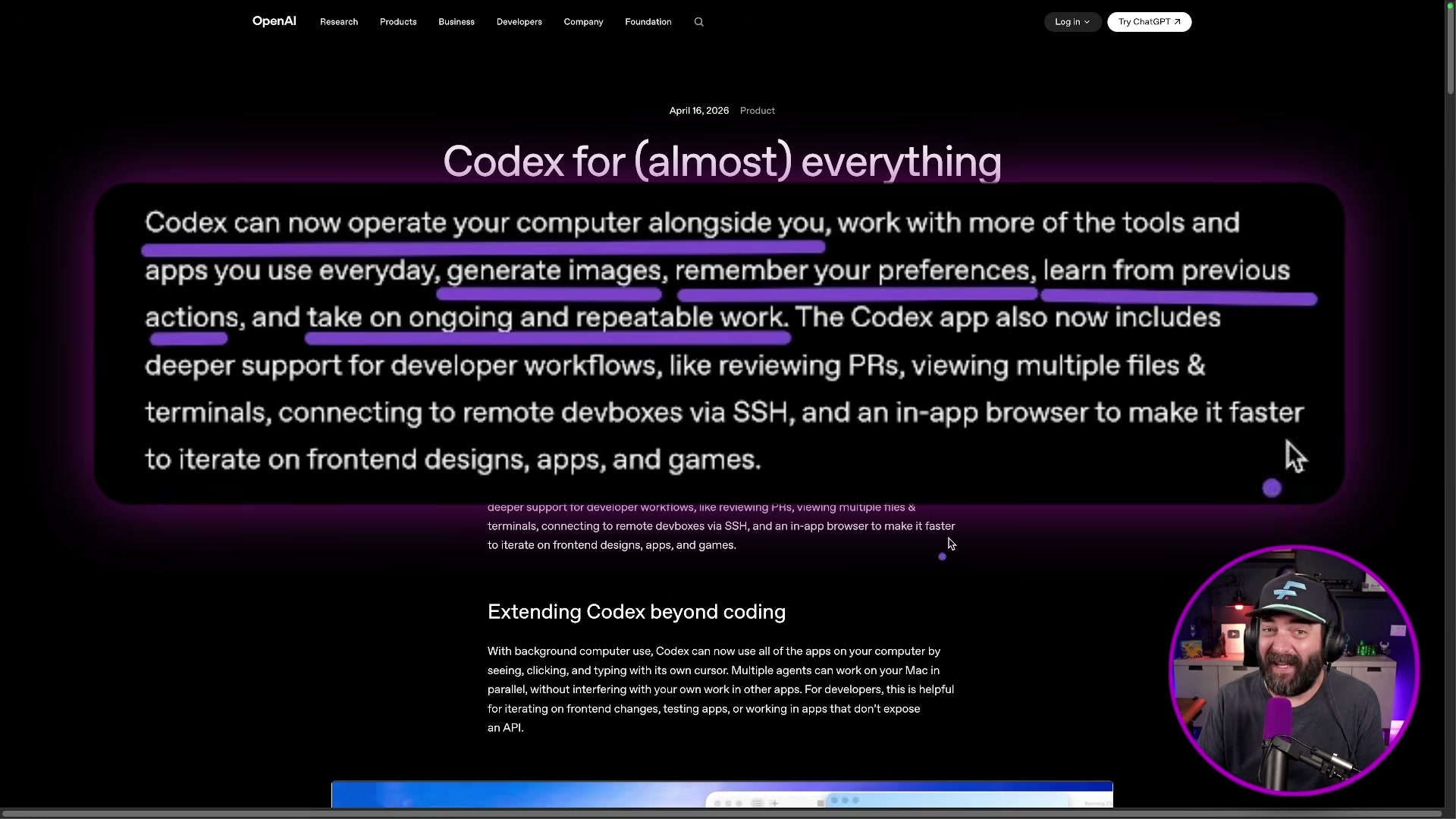
- Open the Codex desktop app. If an update prompt appears, apply it before starting — the in-app browser, comment mode, and GPT Image 1.5 integration are only available in the latest build.
-
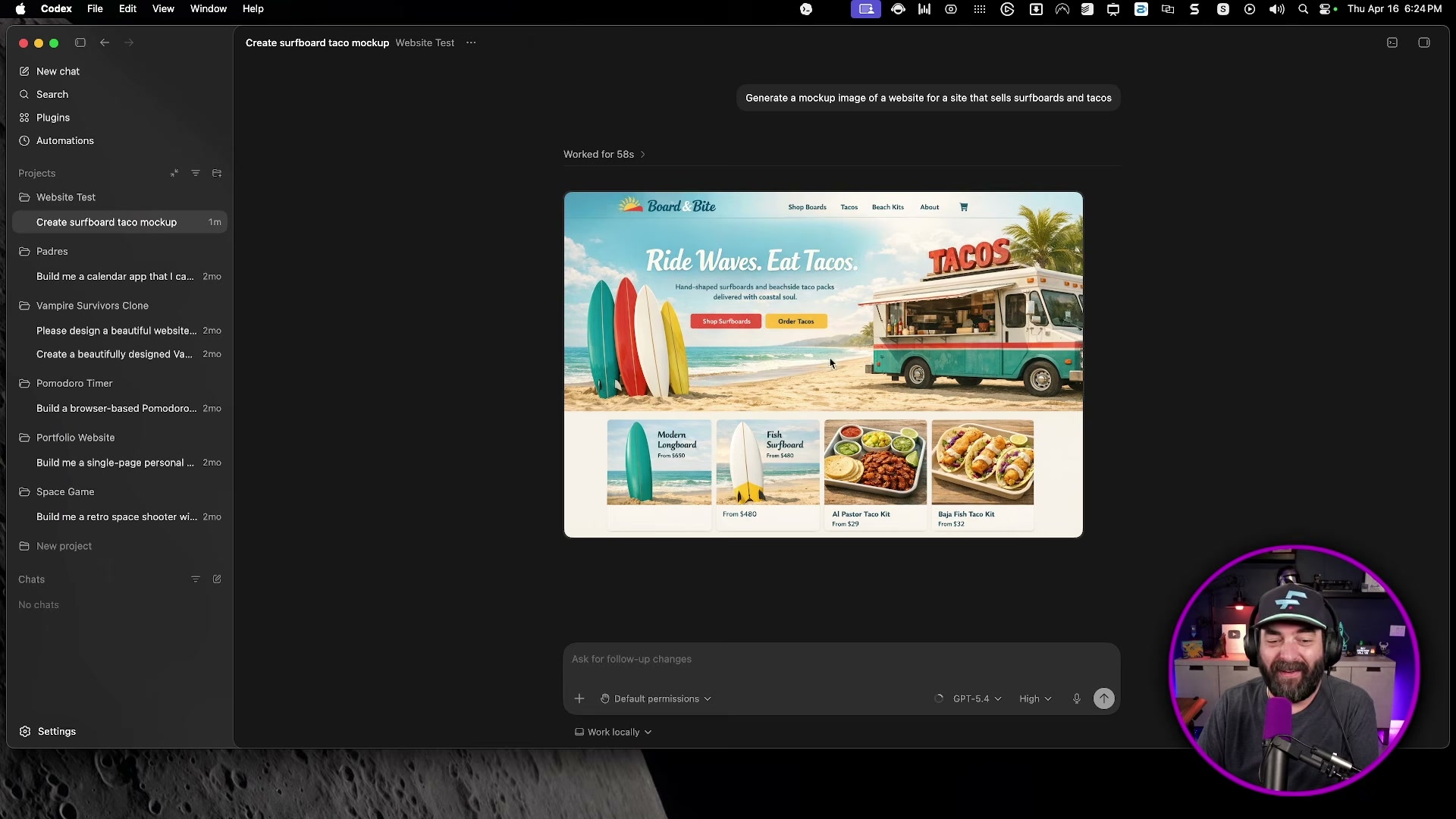
Create a new project and enter a natural-language prompt describing your concept. The demo uses: Generate a mockup image of a website for a site that sells surfboards and tacos. Codex invokes its image-gen skill automatically and returns a rendered design concept inside the app — no round-trip to ChatGPT required.
-
Follow up in the same thread: Build this site for me based on the mockup image. Codex selects a front-end design skill, scaffolds a static storefront, and surfaces a full file manifest — in this case, nine files and +1,314 lines covering SVG assets, HTML, CSS, and JavaScript.
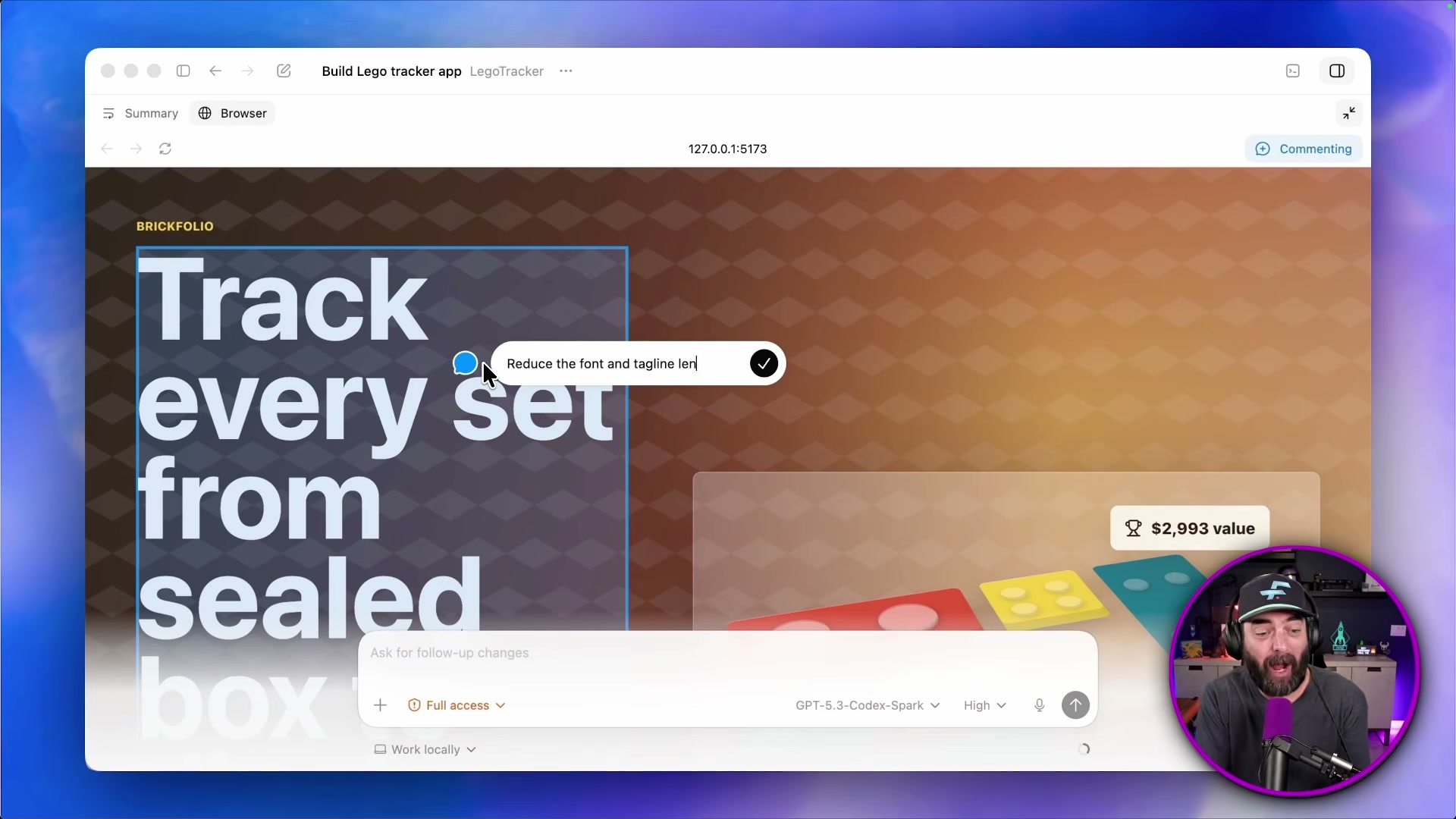
- Once the build opens in Codex’s in-app browser, click Comment Mode. Hover over any element to select it, type your instruction directly on the canvas — for example, Generate an image that has surfboards and a taco truck like the original mockup and use it as the background for this section — then press Command+Enter to submit. The background updates in place without touching the text layout.
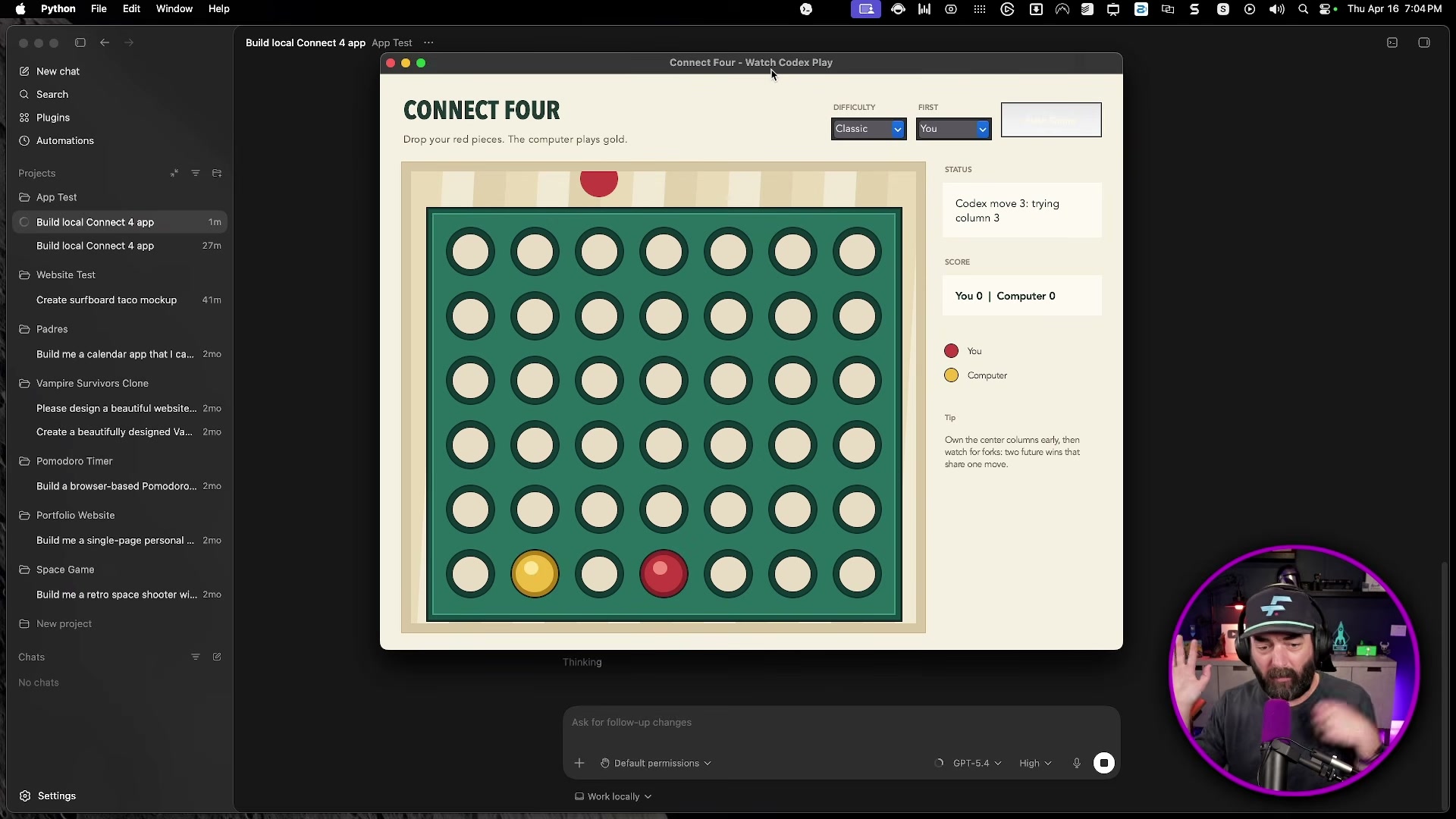
- Start a second project and prompt Codex to build a native desktop app: Create a desktop app version of Connect 4 that allows me to play against the computer. It needs to work on this Mac and run locally. The build runs for roughly 13 minutes and returns a complete app with a difficulty slider, score tracker, and AI opponent.
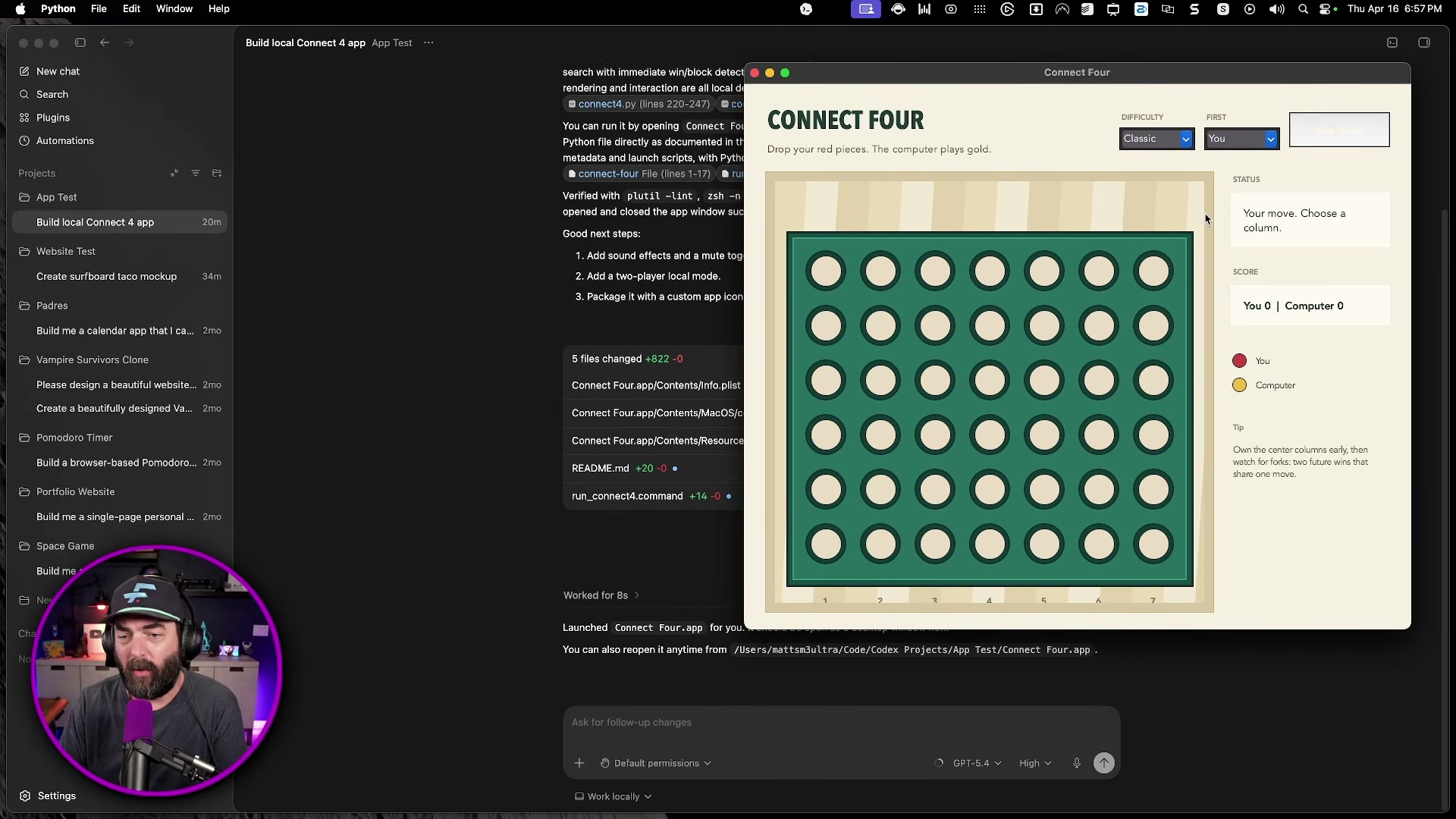
- Tell Codex to launch it: Run the app for me. Approve the local execution permission when prompted. Once it’s open, issue a follow-up: Open the app and play as me to test the experience. Codex takes cursor control, plays through a match autonomously, and reports back — demonstrating agent-driven computer use on an app it just built from scratch.
-
Open the Claude desktop app and apply the available update. The redesigned interface moves Claude Code, Co-work, and standard chat into distinct sidebar modes rather than center tabs.
-
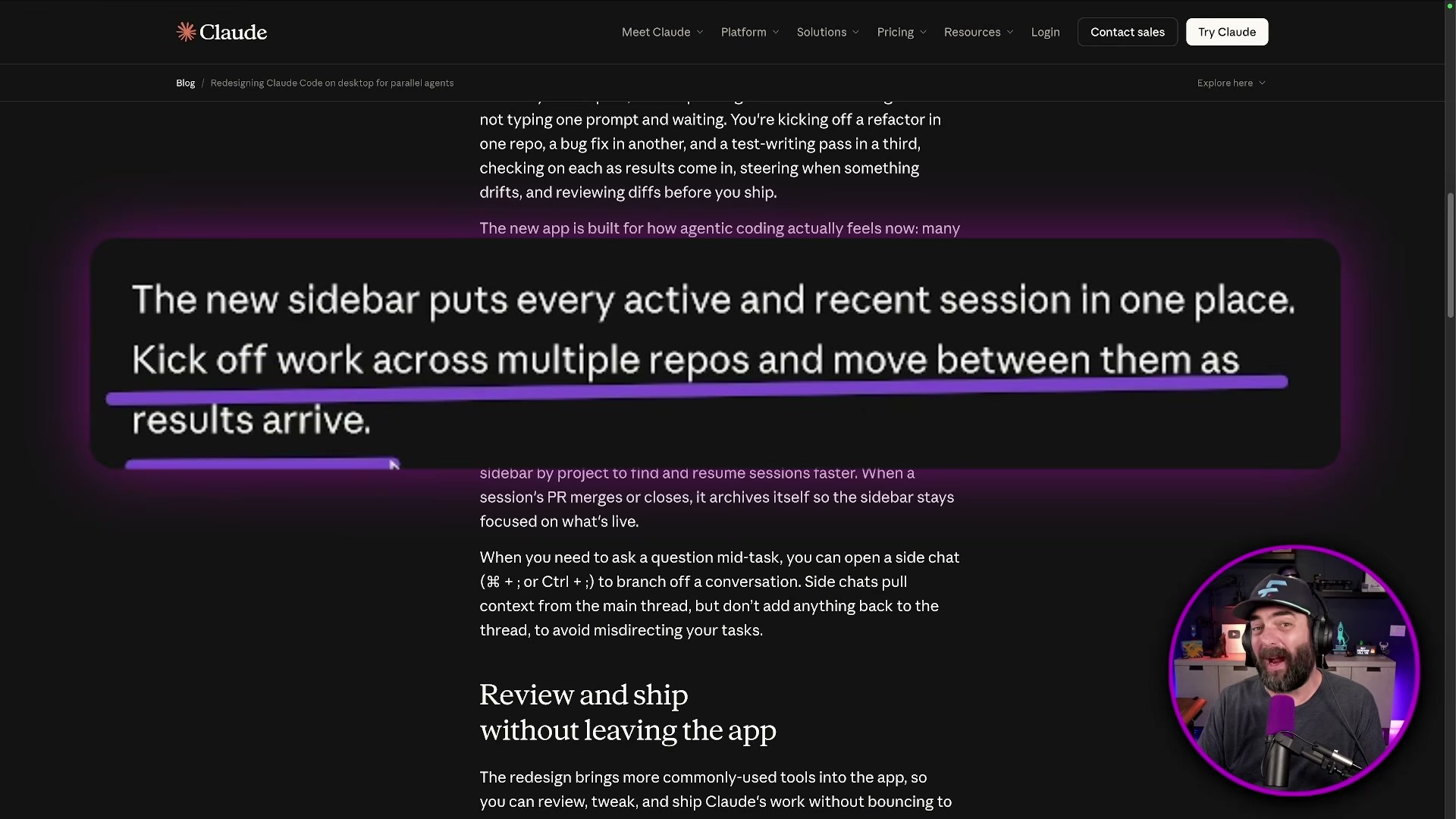
Open an existing project, submit a code review prompt, then immediately open a second project and submit a second prompt. Both sessions run in parallel without blocking each other. Drag each session card to the sidebar and pin it — you can now switch between active threads as results arrive, treating each as a persistent tab.
- Open the Gemini Mac desktop app. The + button in the sidebar surfaces image generation, video creation, Canvas, and Deep Research. In Chrome, invoke Gemini to summarize any open article into bullet points, then attempt to save the prompt as a reusable slash-command skill via the prompt toolbar.
Warning: this step may differ from current official documentation — see the verified version below.
How does this compare to the official docs?
The video moves fast through three separate app ecosystems, leaving several configuration steps and feature constraints unaddressed — Act 2 maps each demo against the official release notes to confirm what’s shipping now, what’s still in rollout, and where the behavior you saw may not match what you’ll get on your machine.
Here’s What the Official Docs Show
Act 1 is a well-paced walkthrough across three live products. What follows layers in the access requirements, surface distinctions, and documentation gaps that matter before you try to replicate any of it on your own machine.
1. Opening the Codex app
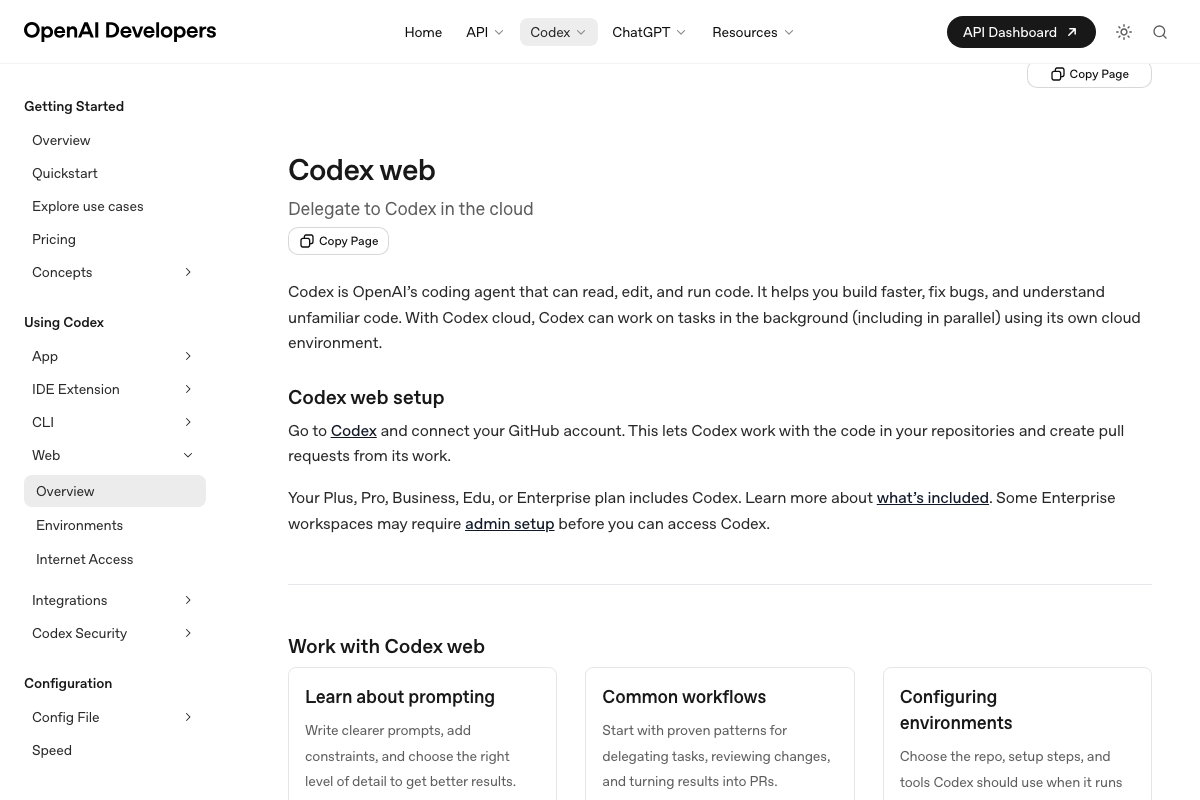
The video’s approach here matches the current docs exactly. OpenAI confirms a dedicated App surface alongside IDE Extension, CLI, and Web. One thing the video doesn’t mention: access requires a Plus, Pro, Business, Edu, or Enterprise plan. Enterprise workspaces may also require admin setup before Codex is accessible.
2. Creating a project and generating the mockup
The video’s approach here matches the current docs exactly. The docs confirm Codex can work on tasks “in the background (including in parallel) using its own cloud environment,” consistent with the natural-language project creation shown.
3. Building the static site and the GPT Image 1.5 reference
No official documentation was found for this step — proceed using the video’s approach and verify independently.
The model name “GPT Image 1.5” does not appear in any captured Codex documentation and cannot be confirmed or corrected from the available screenshots.
4. Comment Mode and live canvas annotation
No official documentation was found for this step — proceed using the video’s approach and verify independently.
Comment Mode — hover-to-select, type inline, Command+Enter to submit — is absent from all captured Codex documentation. The screenshots cover only the Web surface; the App surface where this feature lives is listed in the sidebar but not documented in the visible pages.
5–6. Connect 4 build, local execution, and agent computer use
No official documentation was found for this step — proceed using the video’s approach and verify independently.
The docs do confirm Codex can run parallel tasks in its own cloud environment, consistent with the autonomous execution model. Local execution permission prompts and agent-driven computer use on a self-built app are not addressed in available documentation.
7. Updating and opening Claude Code
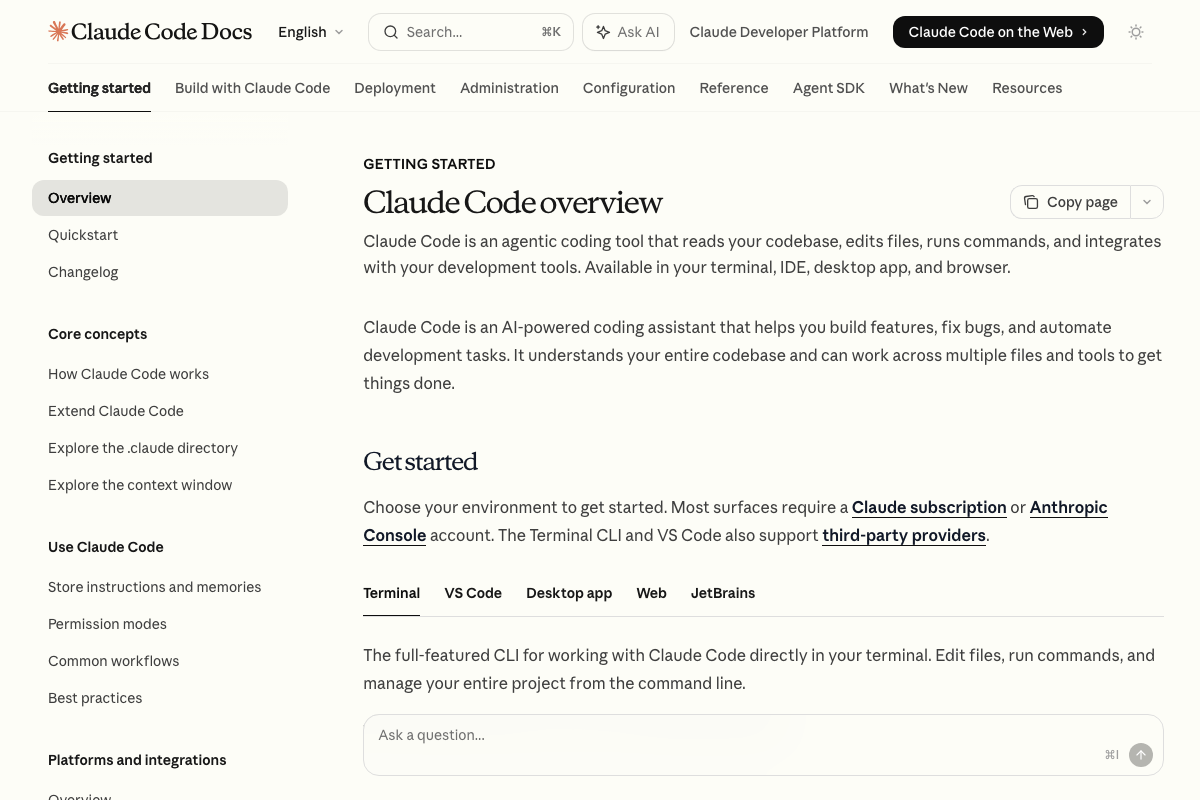
The video’s approach here matches the current docs exactly. Claude Code documentation confirms the desktop app as an official surface alongside Terminal, VS Code, Web, and JetBrains. One useful addition: the docs state native installations update automatically in the background. If you see a manual update prompt as shown in the video, this likely reflects a desktop-app-specific update gate — the docs don’t resolve which scenario applies.

8. Code review prompt, parallel sessions, and pinning
The video’s approach matches the current docs for the code review step — “Build features and fix bugs” is listed as a core Claude Code capability.

No official documentation was found for running parallel sessions or pinning session tabs — proceed using the video’s approach and verify independently.
9. Gemini desktop app, Chrome summarization, and slash-command skills
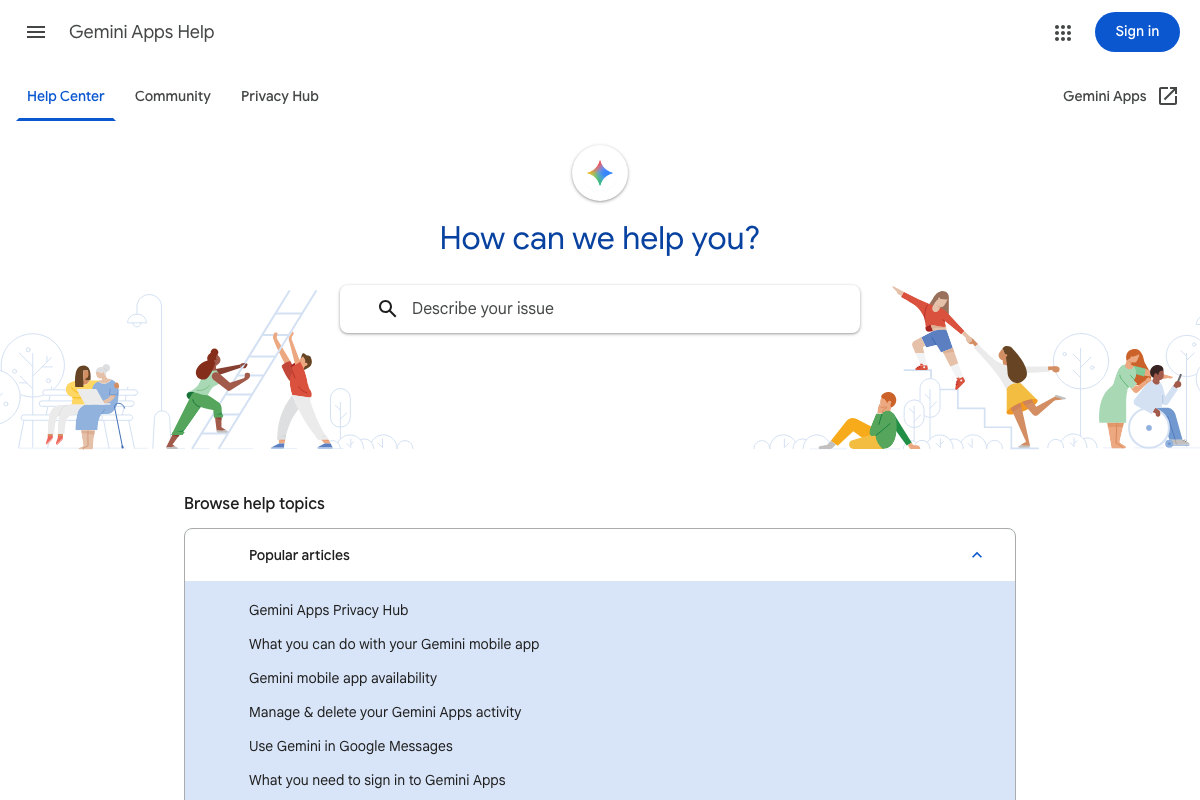
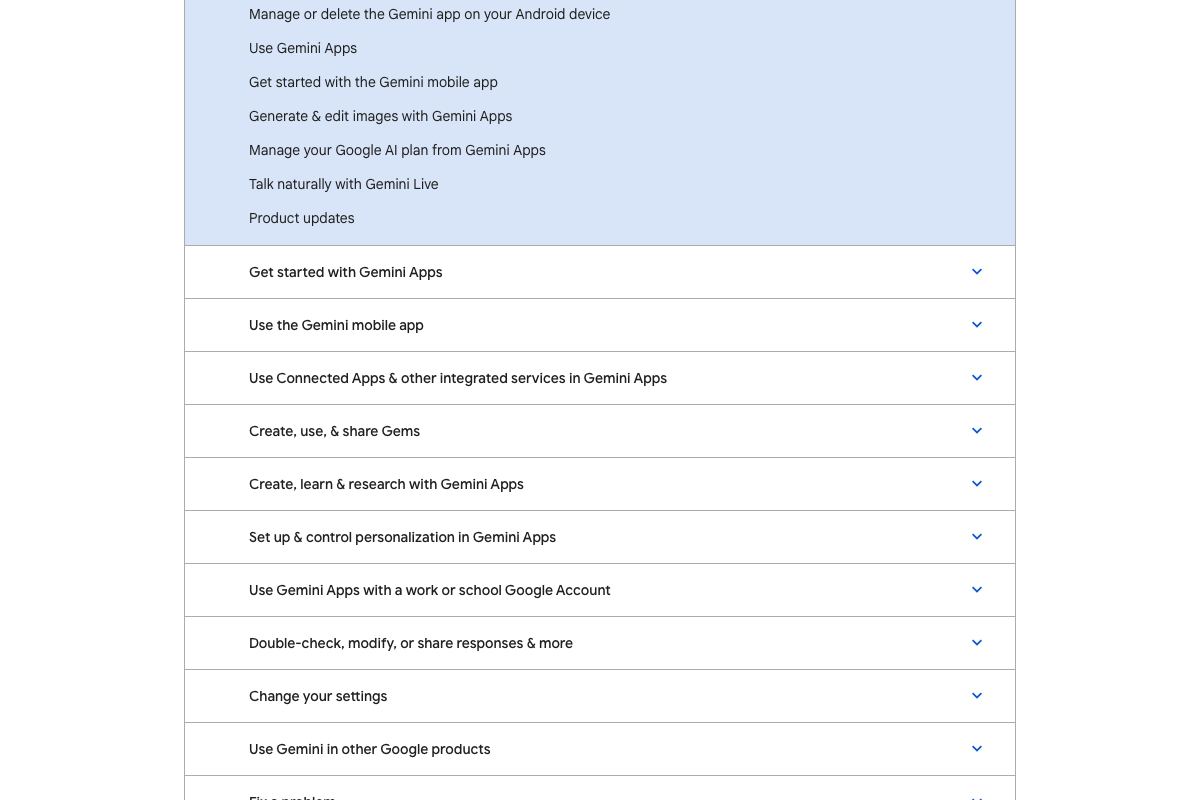
The Gemini help center confirms image generation as an official Gemini Apps feature, consistent with the demo. The video’s approach here matches the current docs exactly on that point. One clarification worth noting: the help center’s primary documented surfaces are the mobile app and web-based Gemini Apps — no standalone Mac desktop app is called out in visible content, so the “Gemini Mac desktop app” framing is partially unverified.
For the Chrome-specific steps — article summarization and saving slash-command skills:
No official documentation was found for this step — proceed using the video’s approach and verify independently.
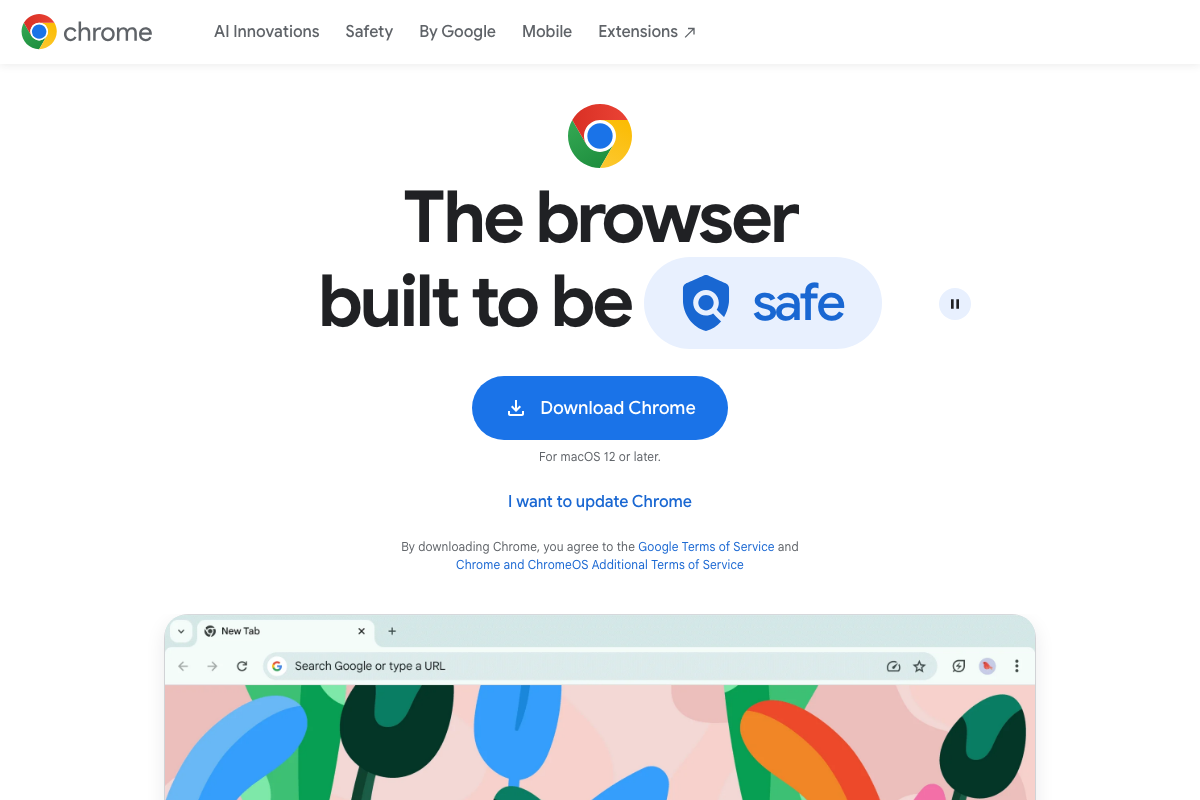
As of April 17, 2026, all three screenshots captured for Gemini in Chrome are from the Chrome marketing page (google.com/chrome), not a help or documentation page. No coverage of article summarization or reusable slash-command skills is present in the available captures.
Useful Links
- Web – Codex | OpenAI Developers — Official Codex documentation covering available surfaces (App, IDE Extension, CLI, Web), plan requirements, and parallel background task execution.
- Claude Code overview – Claude Code Docs — Official Claude Code documentation confirming desktop app as a supported environment, core capabilities, and native installation auto-update behavior.
- Gemini Apps Help — Google’s official Gemini help center covering image generation, mobile app use, Gems, research features, and using Gemini in other Google products.
- Google Chrome Help — Chrome Help Center listed as the source for Gemini in Chrome documentation; the captured screenshots were from the Chrome marketing page rather than this help center.


0 Comments