

Turn Any Text Field Into a Voice-Powered Writing Machine with Blip AI
Blip AI is a speech-to-text dictation tool that goes beyond transcription — its Action Mode lets you speak a natural-language prompt into any text field and receive a fully formatted email, Slack message, or structured document in seconds. By the end of this tutorial, you’ll have Blip configured with your preferred tone, personal shortcuts, and custom vocabulary, and you’ll know how to use Action Mode to draft polished communication without touching your keyboard.
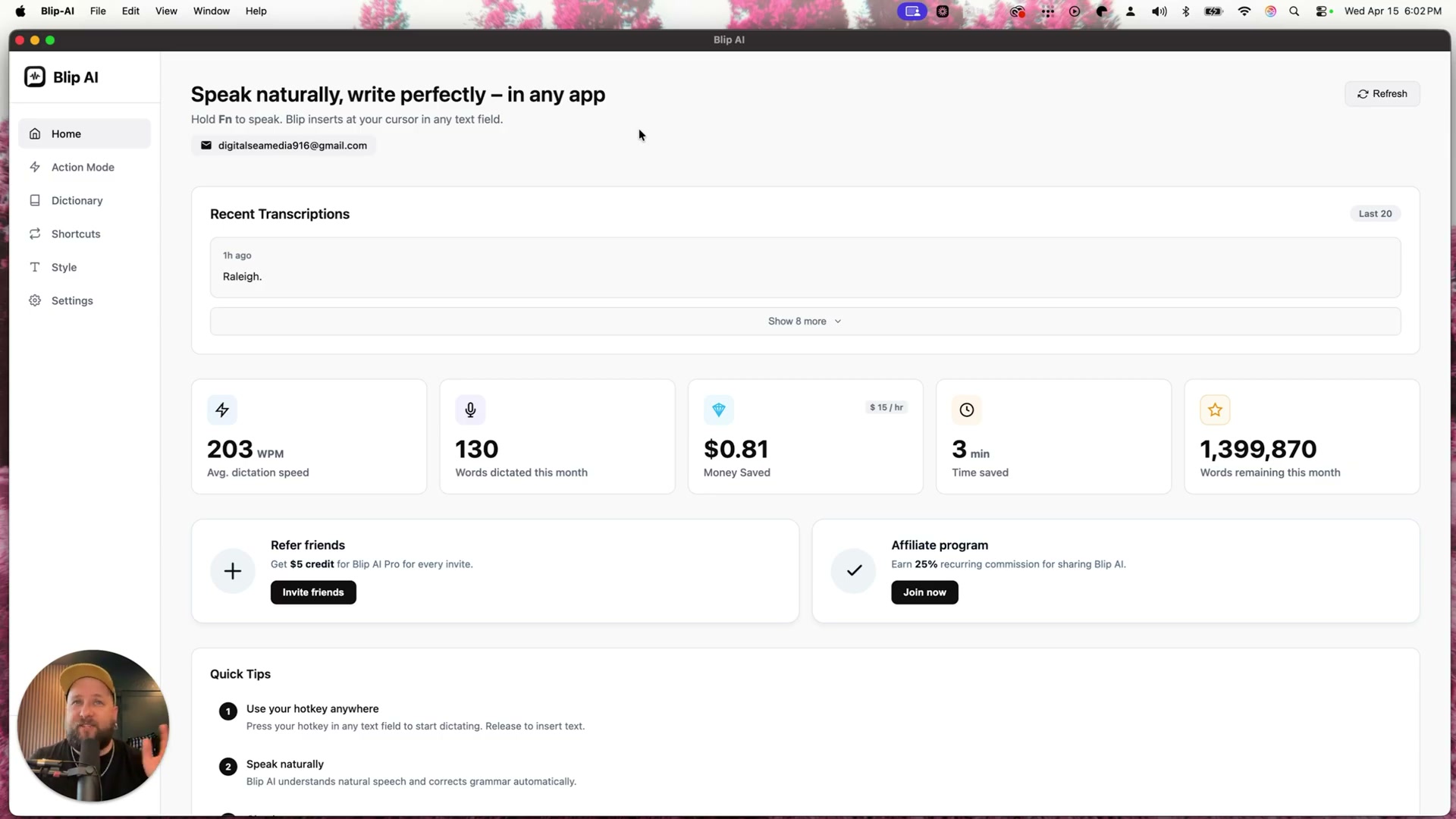
- Open the Blip AI desktop app. The home dashboard displays your monthly word usage, dictation speed, and an estimated time saved. These stats track your plan consumption — the word counter is the metric that matters most for knowing when you’re approaching your monthly limit.
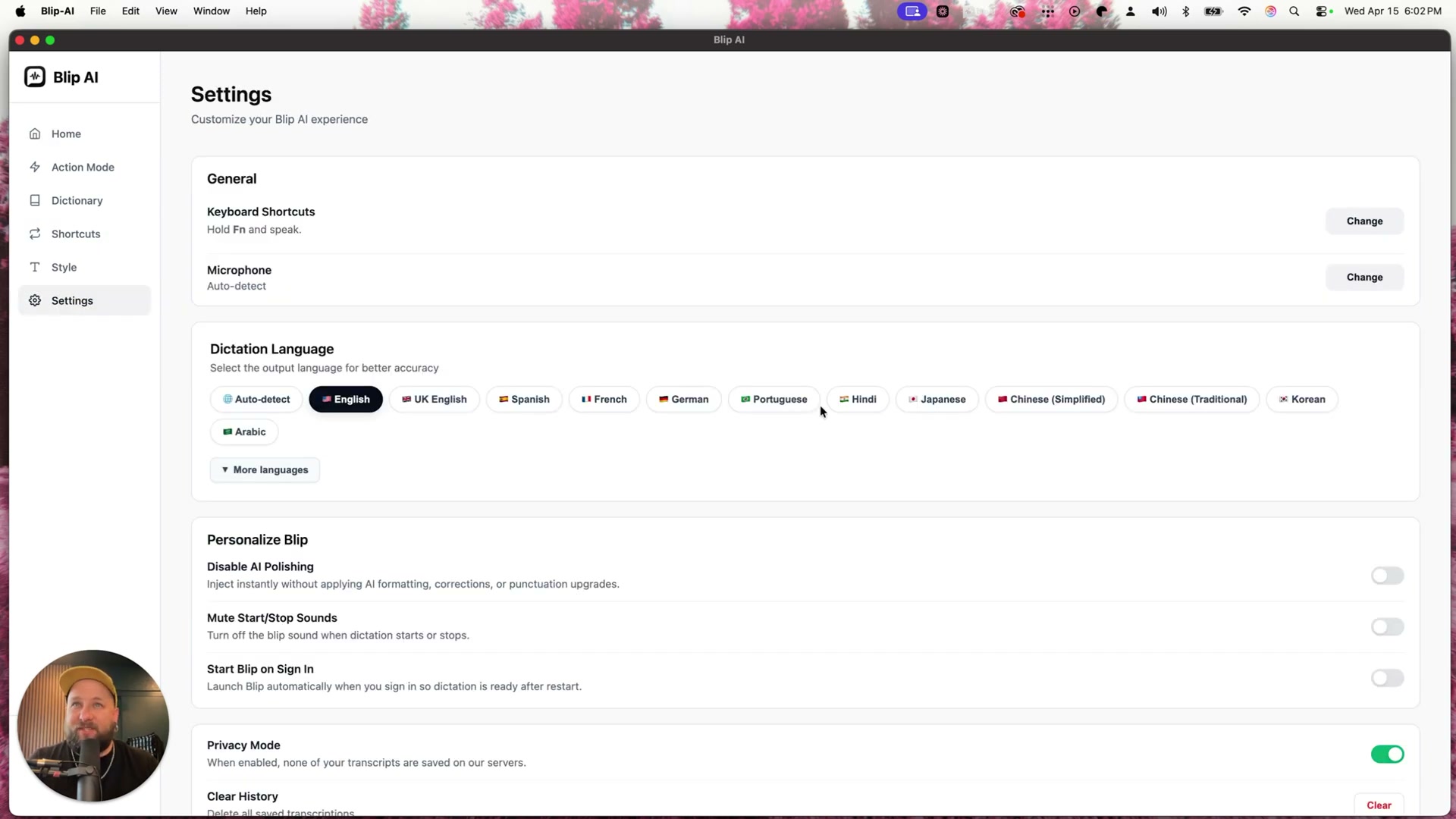
- Navigate to Settings. Assign your hotkey (the default is Hold Fn), set microphone to Auto-detect, and select your dictation language from the dropdown — twelve languages are available. Enable Privacy Mode if your dictation will include sensitive information; with this on, no transcripts are stored on Blip’s servers. Toggle AI Polishing off if you want raw transcription without automatic grammar correction.
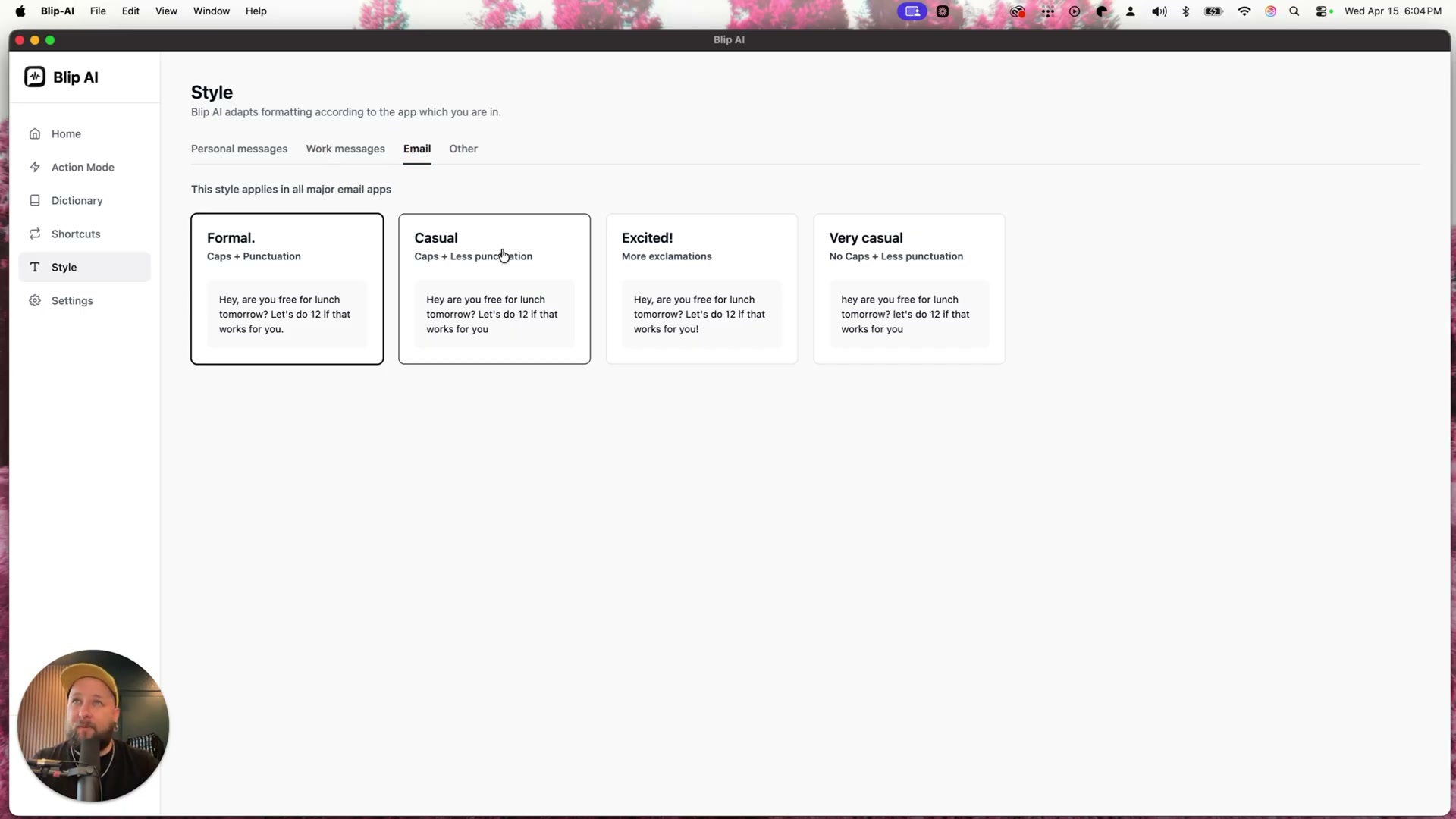
- Open the Style tab. Blip lets you set a distinct tone per context — Personal Messages, Work Messages, Email, and Other (a catch-all for all remaining apps). Select Formal, Casual, Excited, or Very Casual for each category. This per-app style differentiation is what separates Blip from most dictation tools, which apply a single global tone.
-
Go to Personal Shortcuts. Add phrases Blip should expand automatically — for example, saying “my email” outputs your full email address. Create shortcuts for phone numbers, boilerplate sign-offs, or any string you type repeatedly.
-
Open the Dictionary tab and add industry-specific acronyms or proper nouns. This prevents Blip from transcribing abbreviations phonetically and keeps your dictation accurate in technical or niche contexts.
-
To use Action Mode, place your cursor in any text field — inside your email client, a Slack compose box, a notes app, anywhere — hold your assigned hotkey, and speak a natural-language prompt. Blip listens, processes, and inserts formatted output directly into the field.
-
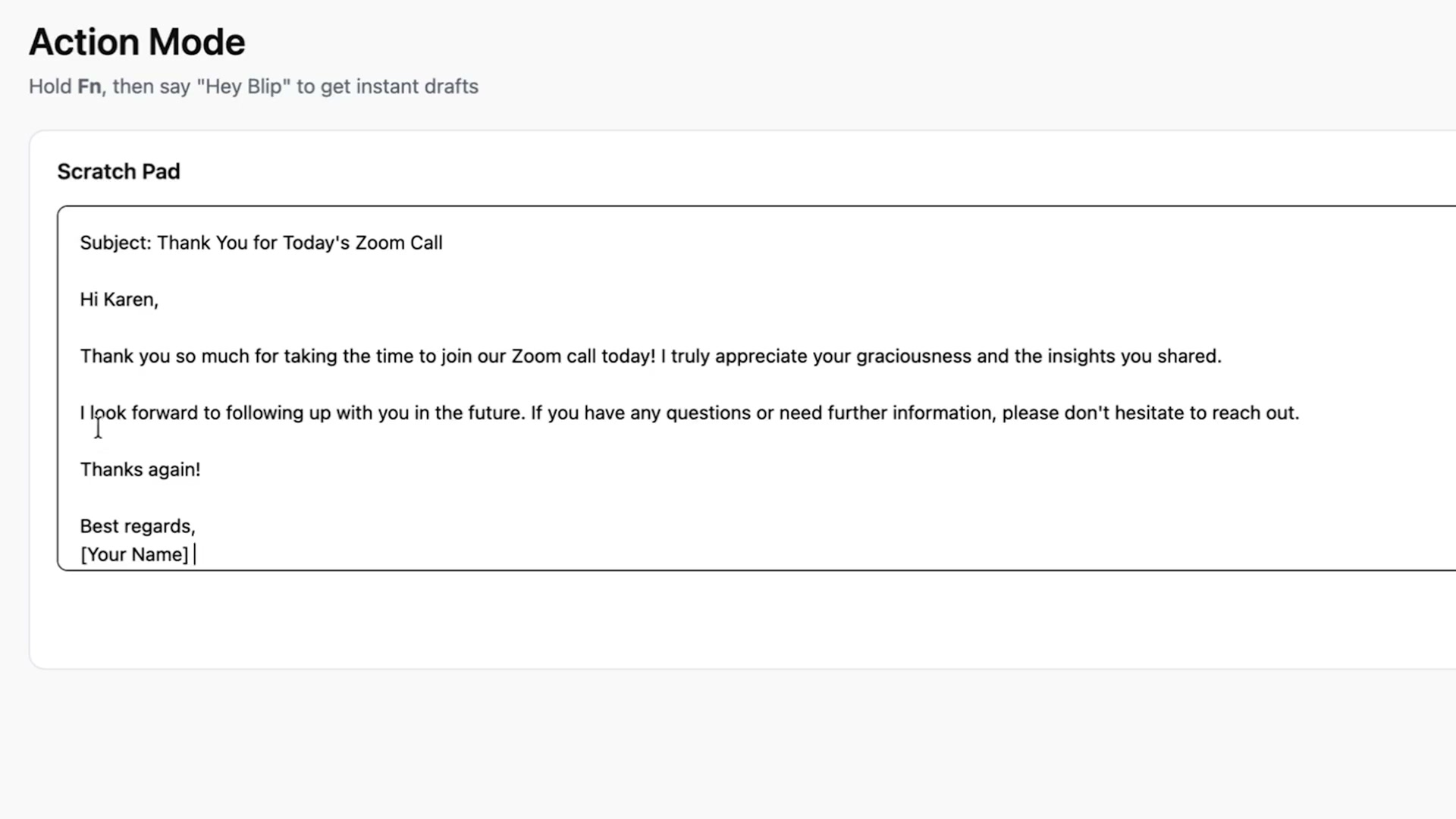
In the Blip Scratch Pad, the creator spoke a prompt asking for a follow-up thank-you email to Karen after a Zoom call. Blip returned a complete email with subject line, greeting, body paragraphs, and a sign-off placeholder in under three seconds.
-
A second prompt requested a Slack message asking the full team to brainstorm celebration ideas. Blip produced a multi-paragraph message with emoji and a structured call-to-action — no editing required.
-
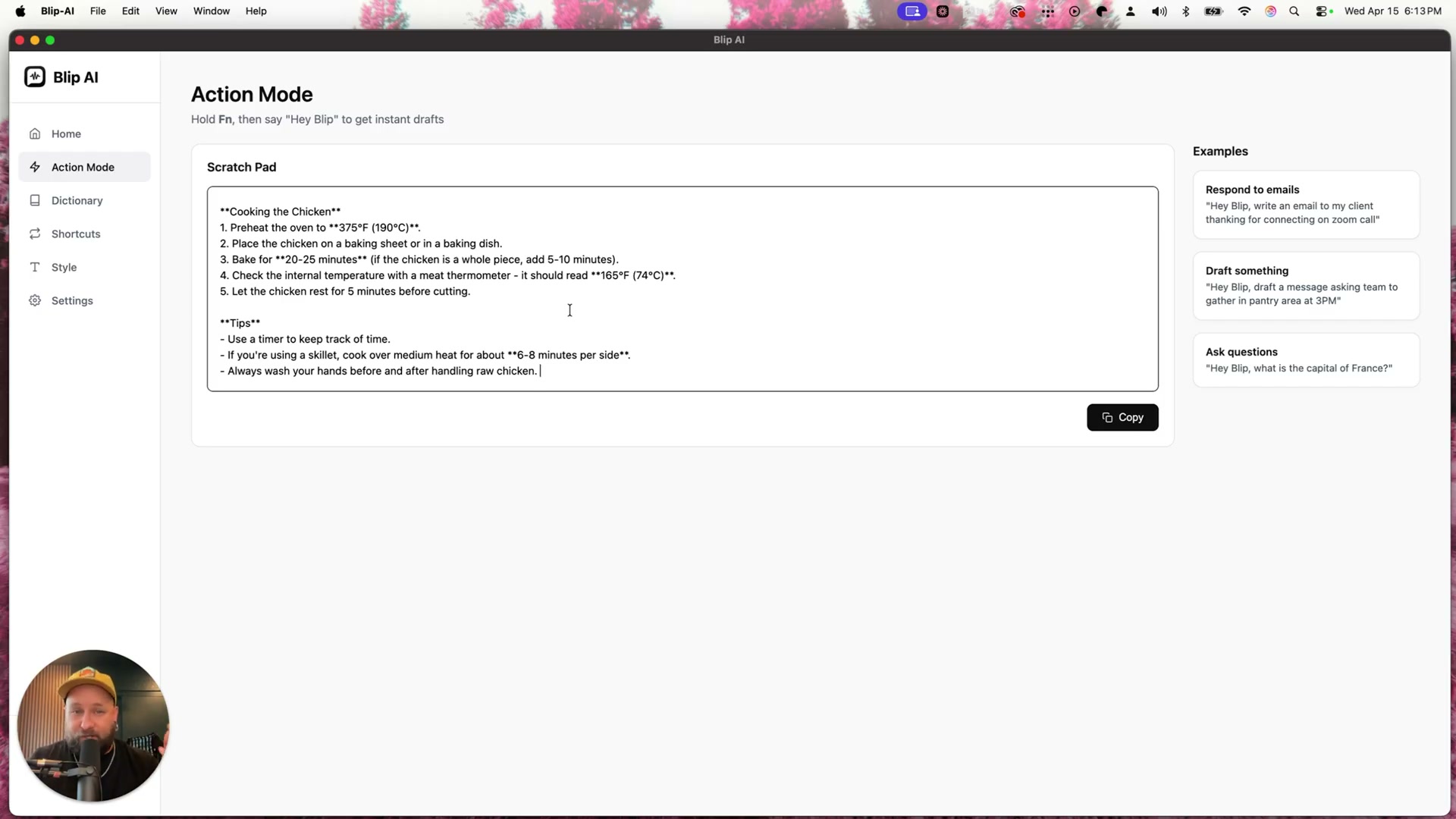
A third prompt asked Blip to generate step-by-step chicken-cooking instructions at a child’s reading level. The output included titled sections, numbered sub-steps, and a tips section — demonstrating that Action Mode can produce structured long-form content, not just short messages.
-
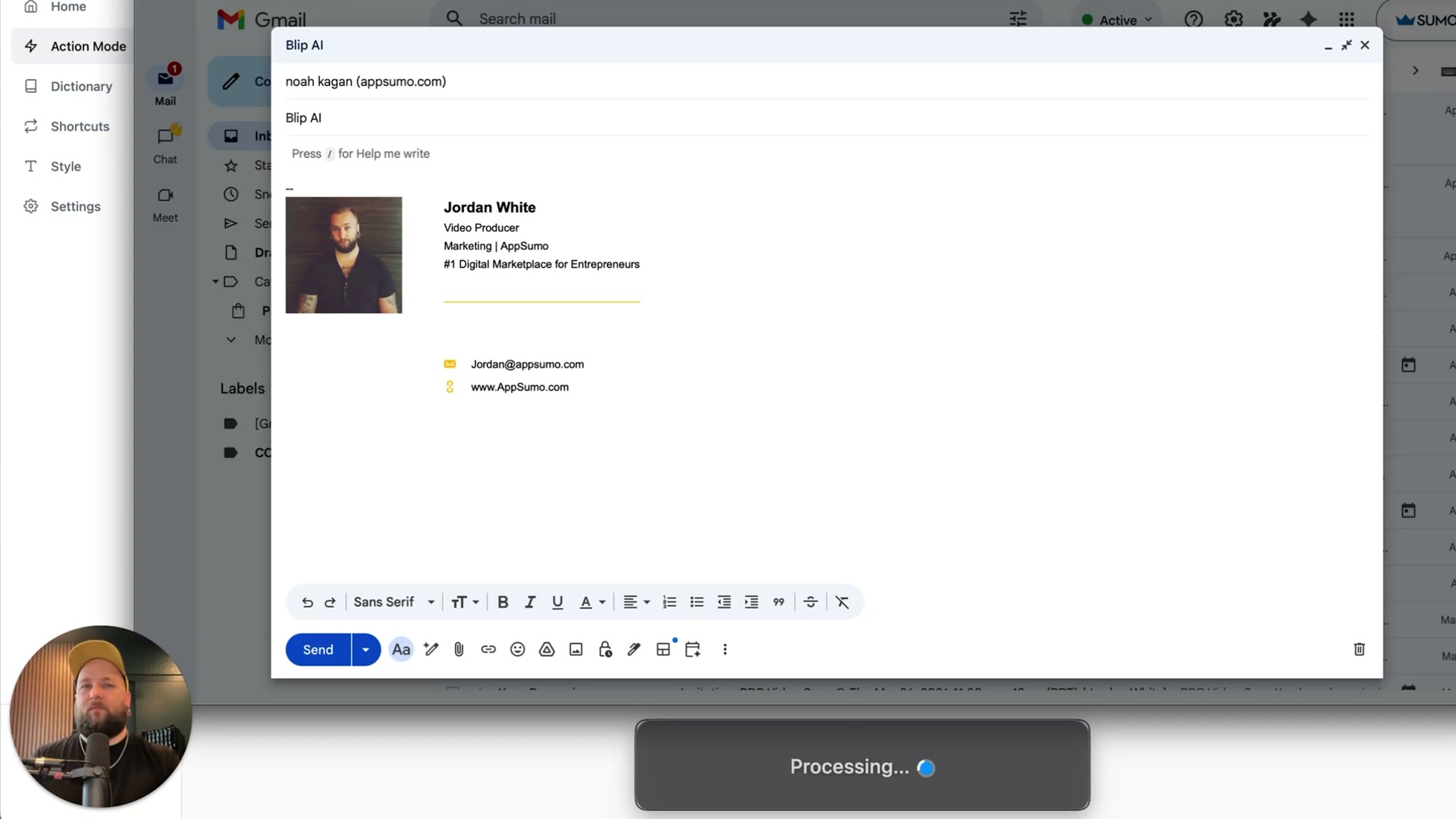
Inside Gmail, the creator opened a compose window addressed to Noah Kagan, held the hotkey, and prompted Blip to research Noah Kagan and generate targeted interview questions. The “Processing…” indicator appeared at the bottom of the compose window while Blip worked.
Warning: this step may differ from current official documentation — see the verified version below.
The resulting email contained seven specific questions referencing AppSumo’s business model, community strategy, and revenue approach — all generated from a single spoken prompt, inserted directly into Gmail without switching apps.
-
A follow-up prompt asked Blip to identify the five top reasons for AppSumo’s success and form questions around those findings for Noah Kagan. Output appeared in real time.
-
Pricing is one-time (lifetime): $50 for 200K words/month on one device, $120 for 600K words/month across five devices, $250 for 1.4M words/month.
How does this compare to the official docs?
The video demonstrates capabilities — particularly the internet-scanning behavior in Action Mode — that deserve a closer look against Blip’s documented feature set to confirm what’s built-in versus what’s prompt-dependent behavior.
Here’s What the Official Docs Show
The video gives you a clear, hands-on walkthrough of what Blip AI can do in practice. Act 2 adds one domain-level flag and a pricing correction you’ll want before you open your wallet — everything else in the tutorial stands on its own merits and should be verified directly with the product.
Before stepping through the tutorial: a domain warning
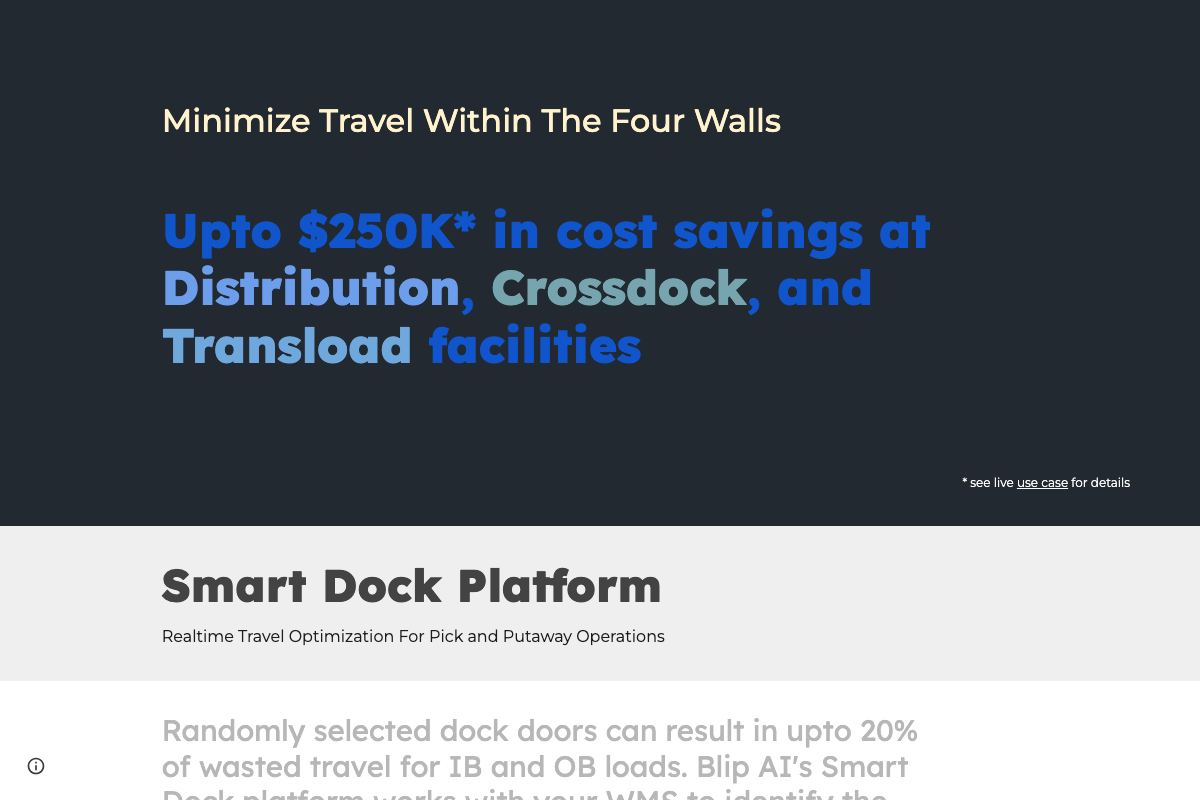
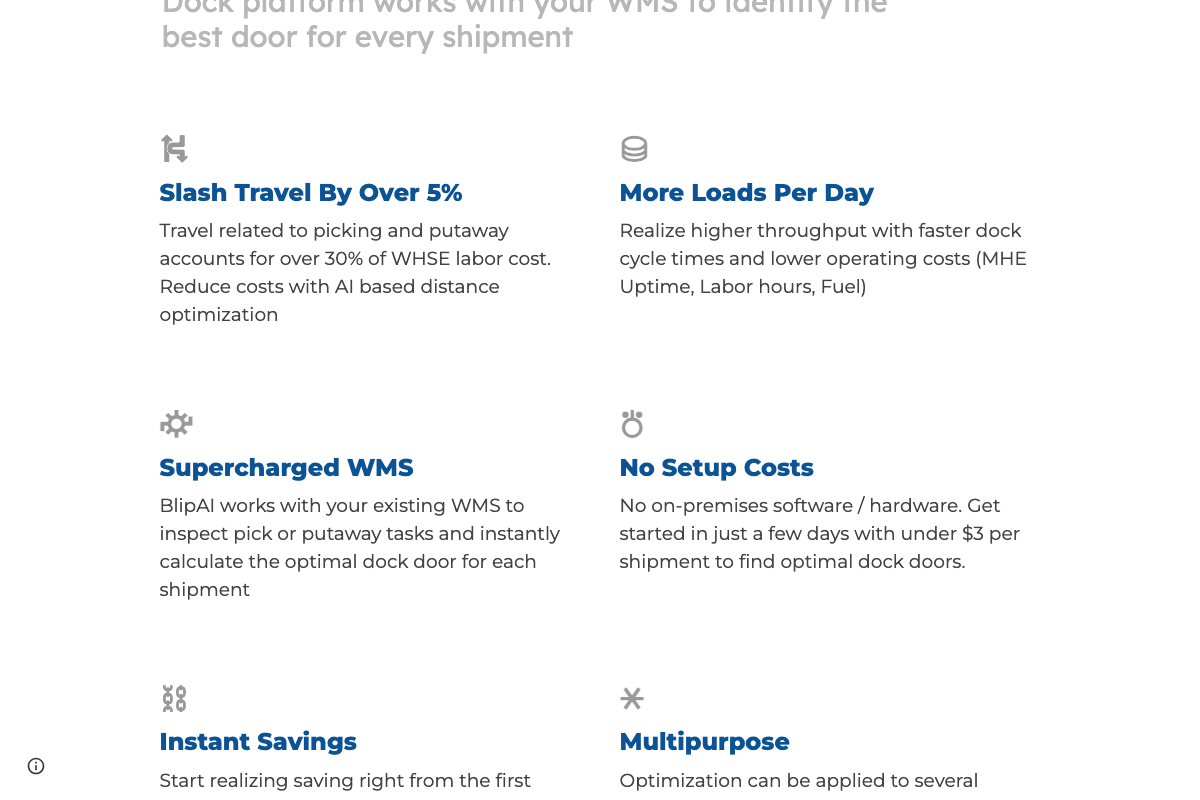
At the time of writing (April 16, 2026), https://www.blipai.com does not serve the speech-to-text dictation product shown in the video. The URL resolves to a warehouse logistics platform called Smart Dock Platform, built around dock door optimization for distribution facilities. The three screenshots below confirm this — none of their content maps to any step in this tutorial.
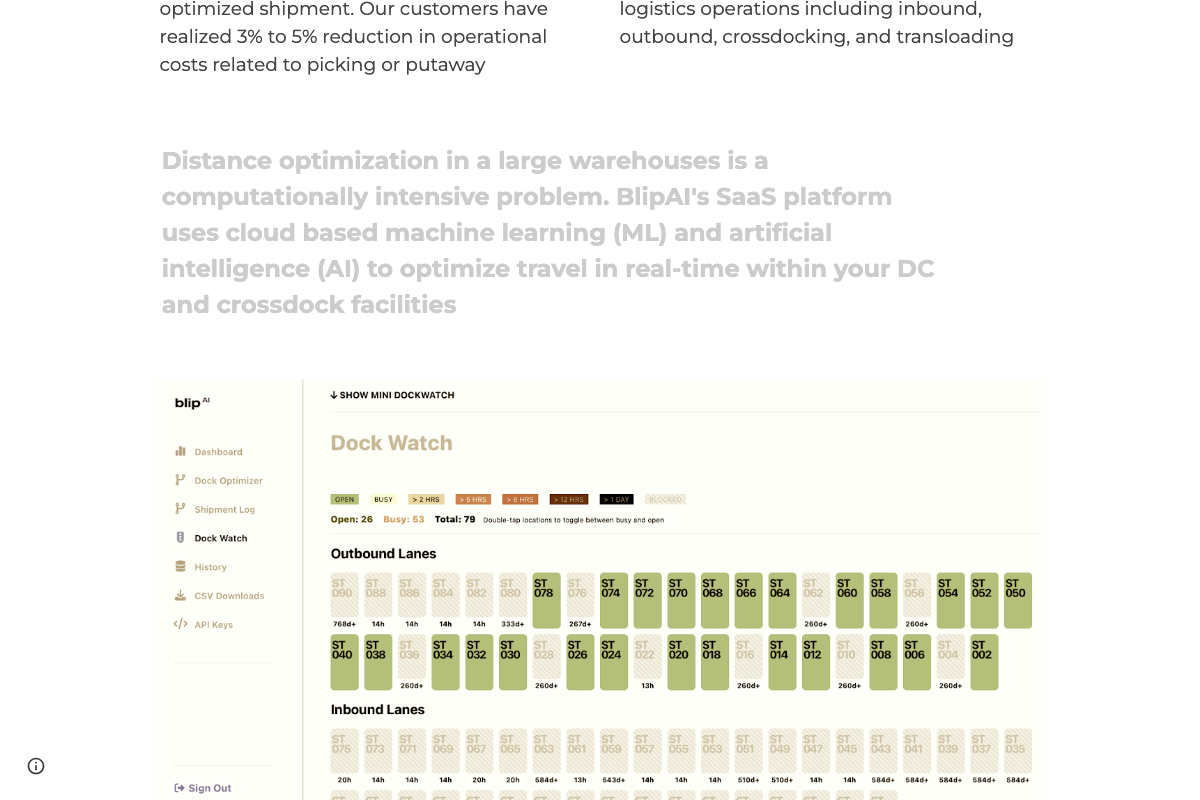
If you’re looking for the Blip AI dictation app, the verified path is through AppSumo (see Step 12 below).
Steps 1–11 — Dashboard, Settings, Style, Shortcuts, Dictionary, and Action Mode
No official documentation was found for steps 1 through 11 — proceed using the video’s approach and verify independently.
Step 12 — Pricing
The video states the entry-tier lifetime price as $50. As of April 16, 2026, the AppSumo listing shows the entry tier at $49 — a $1 discrepancy visible directly in the listing card.
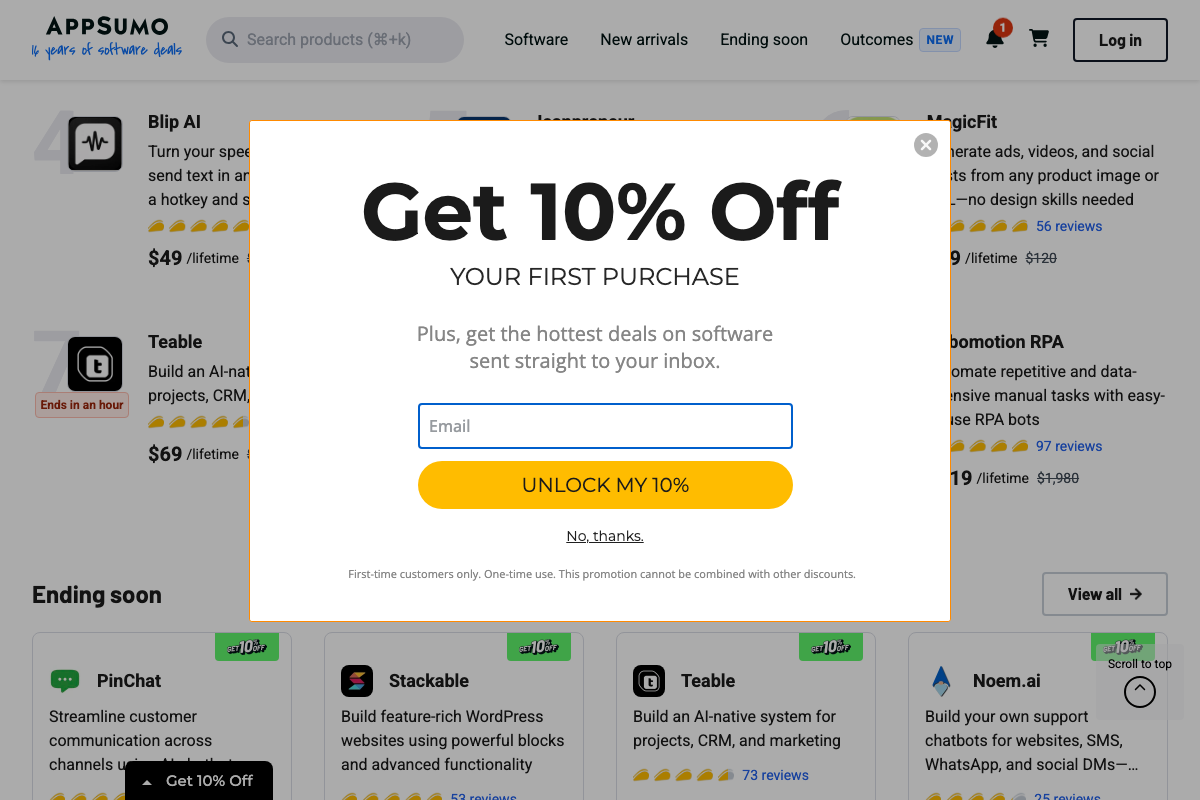
The one-time pricing model described in the video is consistent with the AppSumo listing. However, the second and third tiers ($120 and $250 as stated in the video) are not visible in available screenshots — a popup overlay obscured the full pricing table. Verify all tier prices directly on AppSumo before purchasing.
One practical note: AppSumo was running a sitewide 10% off when you spend $100+ promotion through April 17, 2026 (noon CT). If you’re targeting a higher tier, that discount may reduce your net cost below the figures the video cites.
Useful Links
- AppSumo — The verified purchase path for Blip AI’s lifetime deal as of April 2026; entry tier confirmed at $49.
- Dock Door Optimizer — The current occupant of blipai.com as of April 2026; an unrelated warehouse logistics SaaS platform that should not be confused with the Blip AI speech-to-text product.


0 Comments