

Automate Your Desktop with Claude Computer Use and Explore Gemini Live Multimodal Conversations
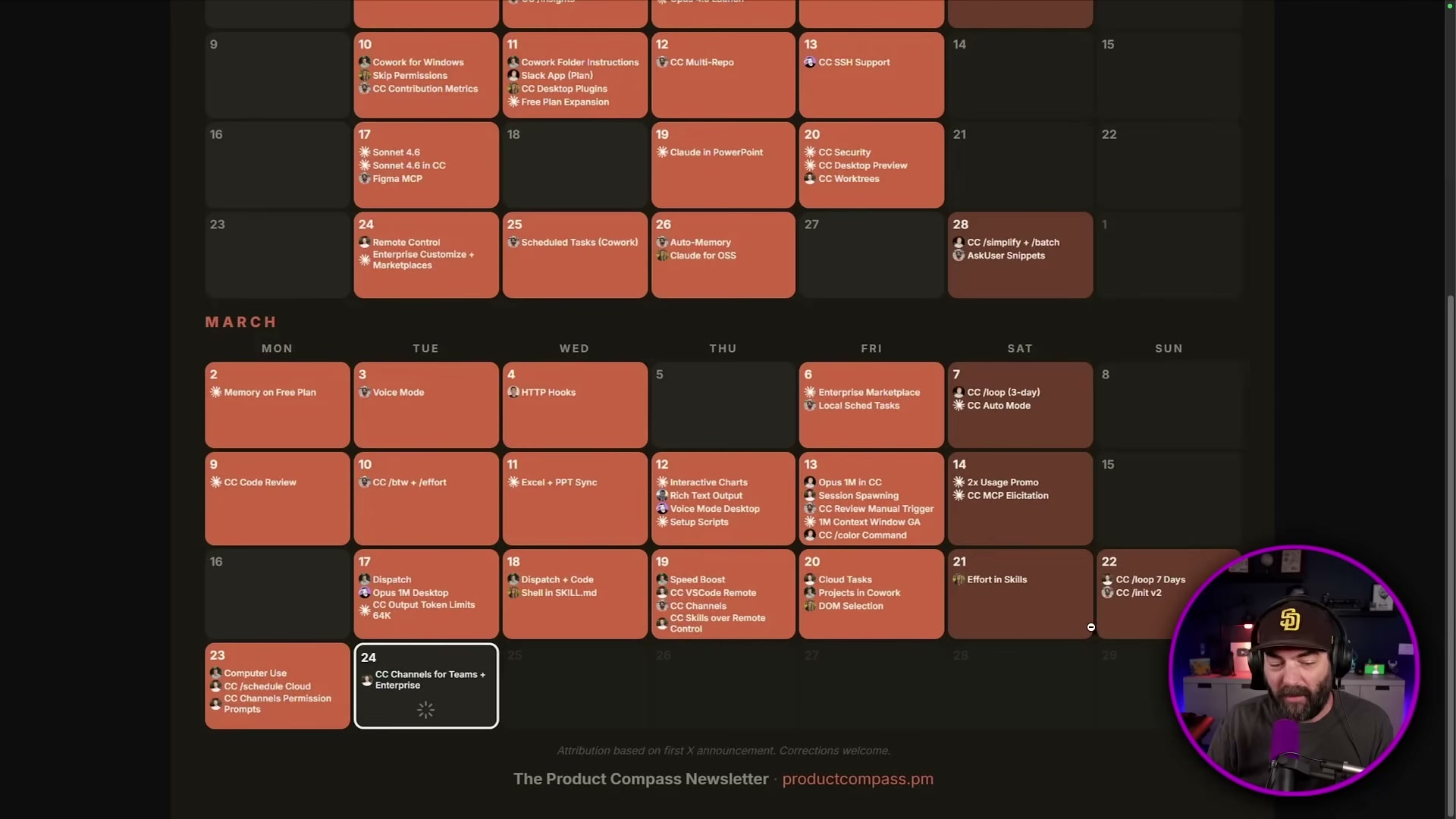
Anthropic shipped 74 releases across 52 days heading into late March 2026 — and buried inside that cadence are two features with real workflow implications: Claude’s ability to take autonomous control of your desktop, and Google’s Gemini Live model that watches your screen and talks you through what it sees. By the end of this walkthrough, you’ll know how to enable Claude computer use, set up a Co-work project with custom instructions, and run a live multimodal session inside Google AI Studio.
Part 1: Claude Computer Use
- Open the Claude desktop app, navigate to Settings → General → Desktop App, and flip the Computer Use toggle on. Without this step, the feature remains dormant regardless of your subscription tier — it requires at minimum a paid plan.
-
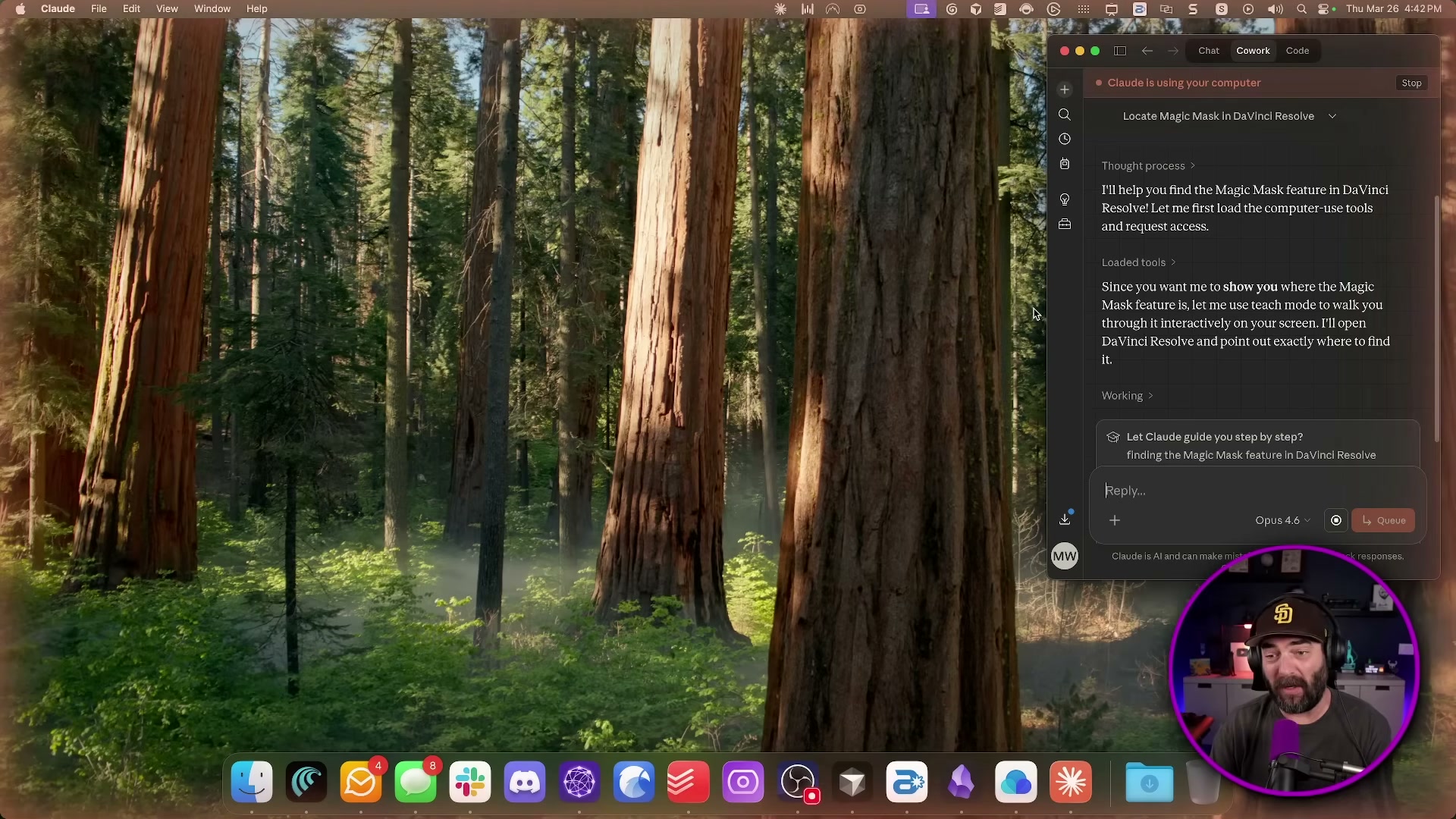
Type a natural-language instruction into the Co-work chat panel. The video demonstrates: “Open DaVinci Resolve and show me where the Magic Mask feature is.” Click Let’s go and take your hands off the keyboard — Claude takes over mouse and keyboard control from that point forward. A faint orange glow borders the screen while it’s active.
-
Watch Claude work autonomously. It opens the application, navigates to the Color page, and surfaces the relevant control — without any further input from you.
Warning: this step may differ from current official documentation — see the verified version below.
The video shows Claude’s first attempt timing out entirely before succeeding on retry. Expect the full sequence to take approximately five minutes for tasks a human would complete in ten seconds.
-
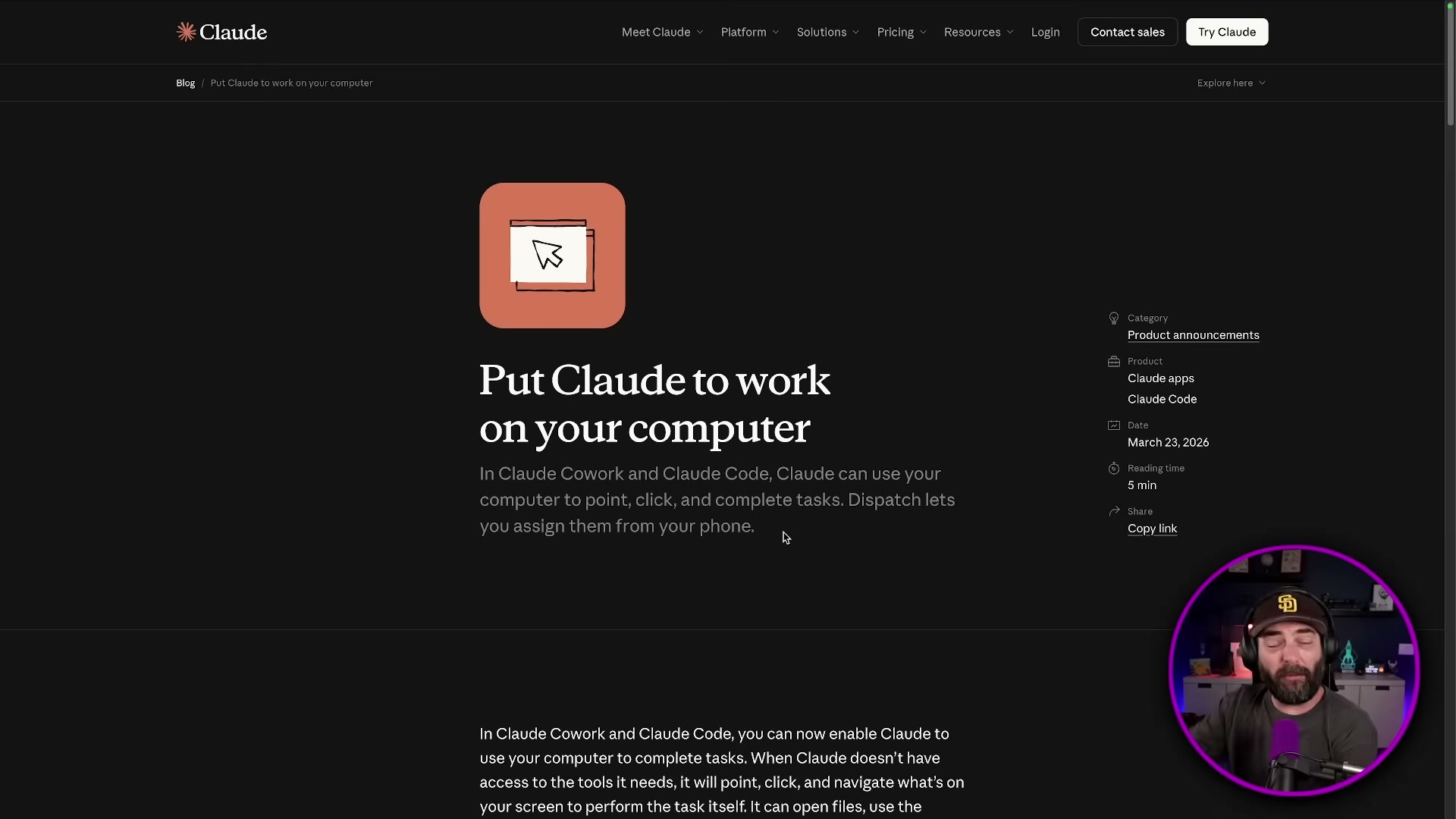
To trigger computer use tasks while away from your desk, use Claude’s Dispatch feature from the mobile app. You compose the instruction on your phone; your desktop executes it. The latency tradeoff matters far less when you’re not watching it happen in real time.
-
Inside Co-work, open the Work in a project dropdown and select Create new project. Give it a name, write a system prompt in the custom instructions field to shape Claude’s behavior for that context, then attach any relevant files before clicking Create.
Part 2: Gemini Live in Google AI Studio
- Go to aistudio.google.com, select the Real-time tile from the Playground home screen, and switch the model dropdown to Gemini 3.1 Flash Live.
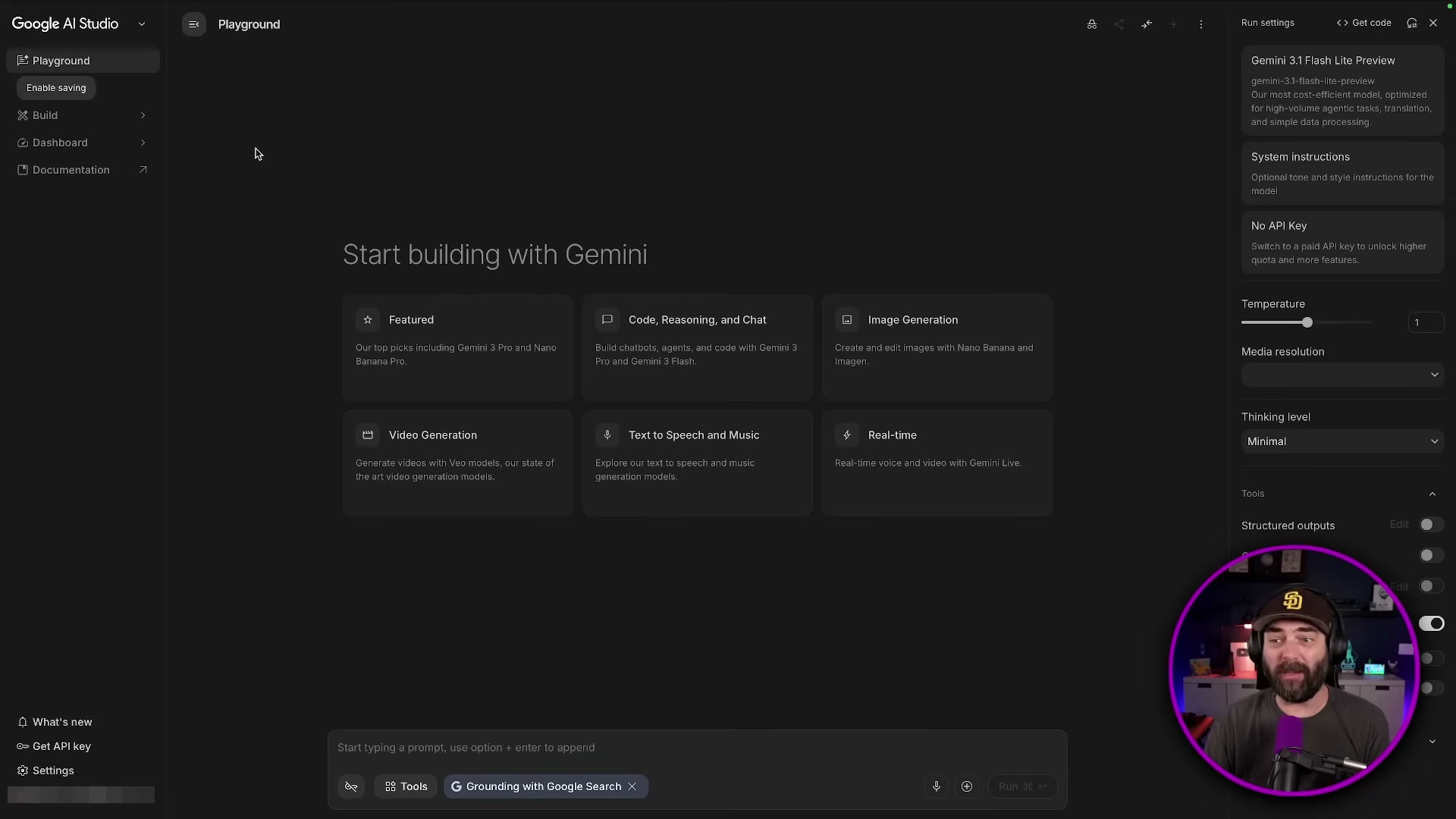
- Grant webcam access when prompted, then ask the model what it currently sees. It will describe the live video feed in natural language — in the demo, it correctly identifies a recording studio setup, microphone, and display behind the host.

-
Stop the webcam feed, switch to Screen Share, and select any open application window — the video uses OBS Studio. Ask Gemini to identify what it sees. It accurately lists visible scenes, the audio mixer panel, and the controls column, then asks what you want to accomplish inside the app.
-
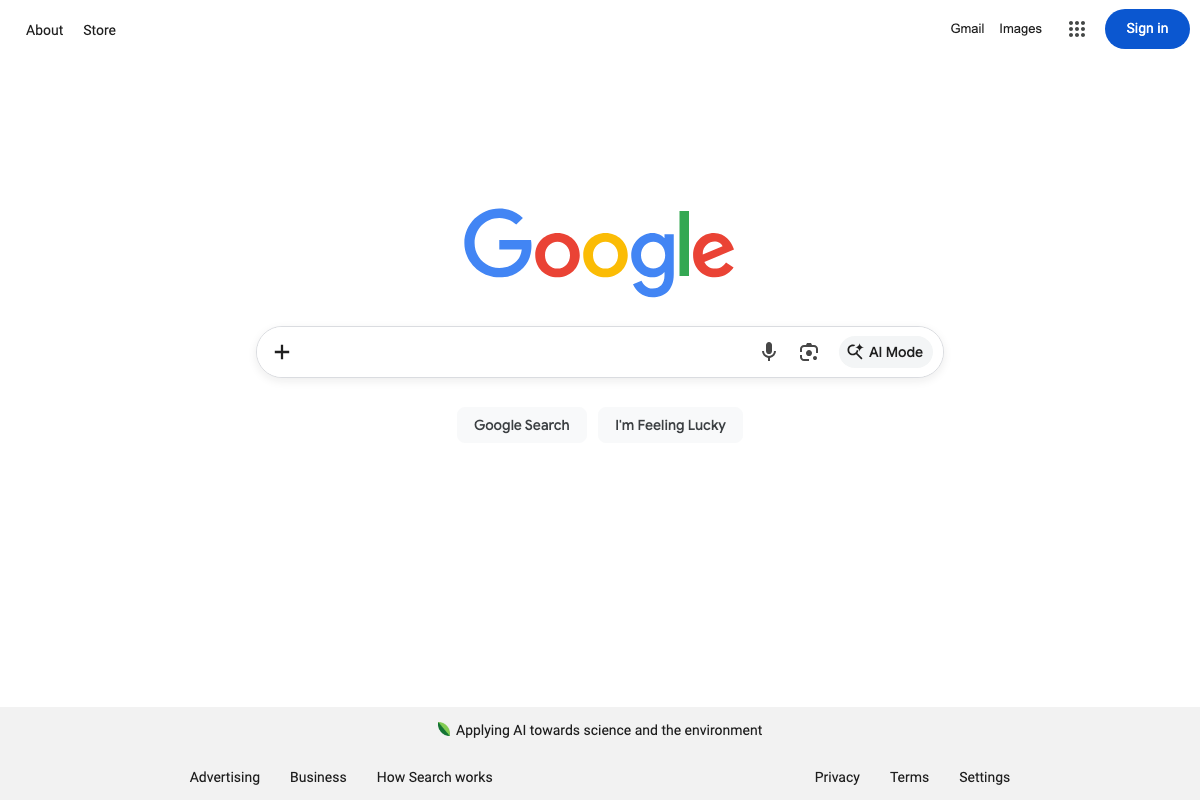
On an Android or iOS device, open the Google app, tap the icon next to AI Mode (the star icon), and start speaking. The session runs as a live multimodal conversation — the same Gemini 3.1 Flash Live model, accessed without opening a browser.
-
Open the Gemini app separately and tap Create Music to access the Lyria 3 Pro long-form song generation feature. The demo cuts off at this point before a full generation completes.
How does this compare to the official docs?
The video moves fast across a dense feature set — but the official documentation for Claude computer use, Co-work projects, and Gemini Live each contain permission models, API parameters, and limitations that the demo doesn’t surface.
Here’s What the Official Docs Show
The video covers a genuinely useful slice of what shipped from Anthropic and Google in early 2026, and most of the core demonstrations hold up. What the docs add is precision — correct model names, accurate product branding, and a handful of technical constraints worth knowing before you build anything on top of these features.
Part 1: Claude Computer Use
Step 1 — Enabling Computer Use
No official documentation was found for this step — proceed using the video’s approach and verify independently.
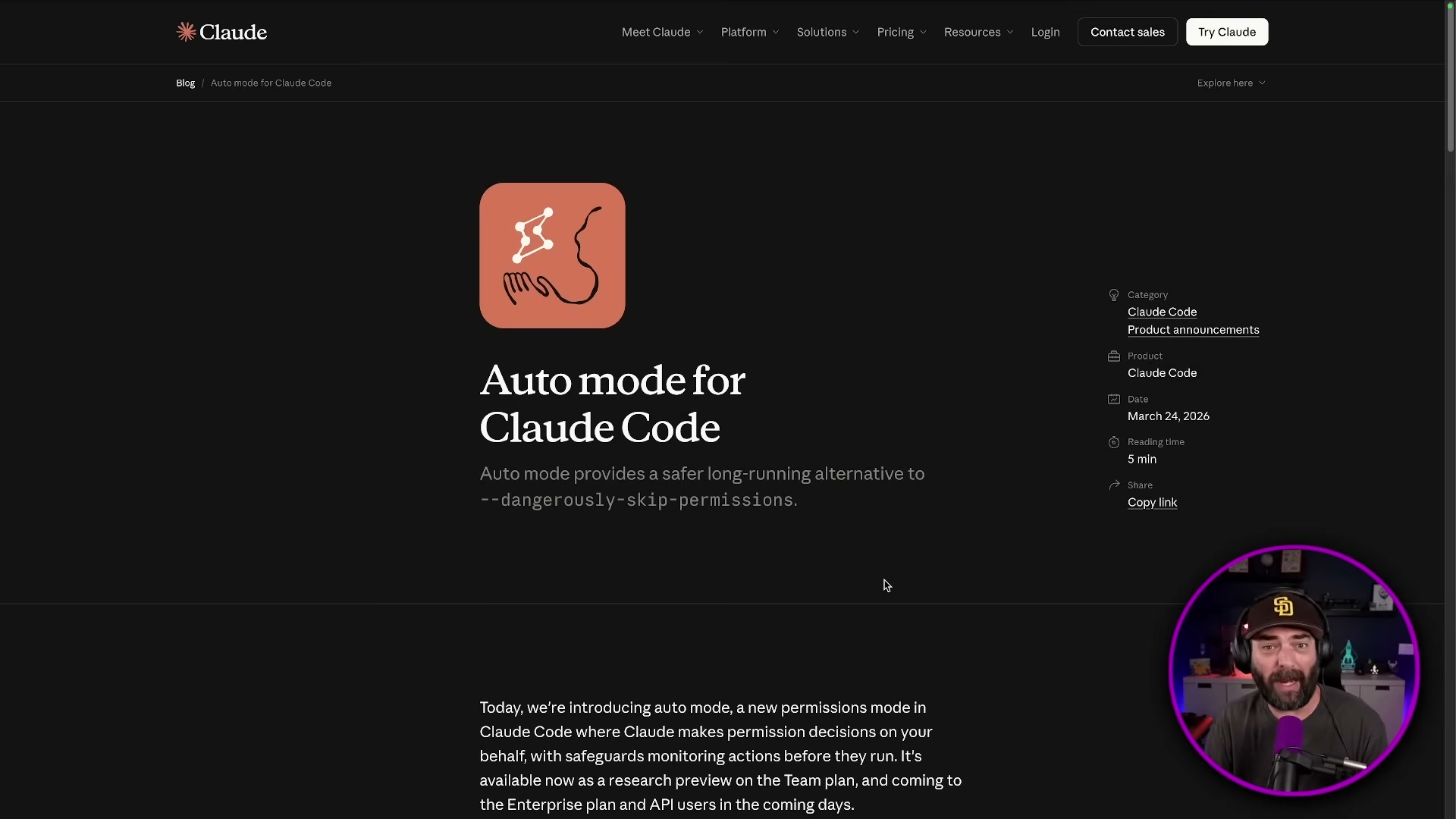
Check your plan tier before toggling anything. The current claude.ai pricing tiers are Free ($0), Pro ($17/month billed annually or $20/month), and Max (from $100/month) — and the docs do not specify on the pricing page which tier gates Computer Use access.

Verify which plan includes Computer Use at claude.ai before proceeding.
Step 2 — Giving Claude a Natural-Language Instruction
The video’s approach here matches the current docs exactly. DaVinci Resolve is an active, maintained application under Blackmagic Design’s support umbrella — the current release visible in official documentation is DaVinci Resolve Studio 20.2.
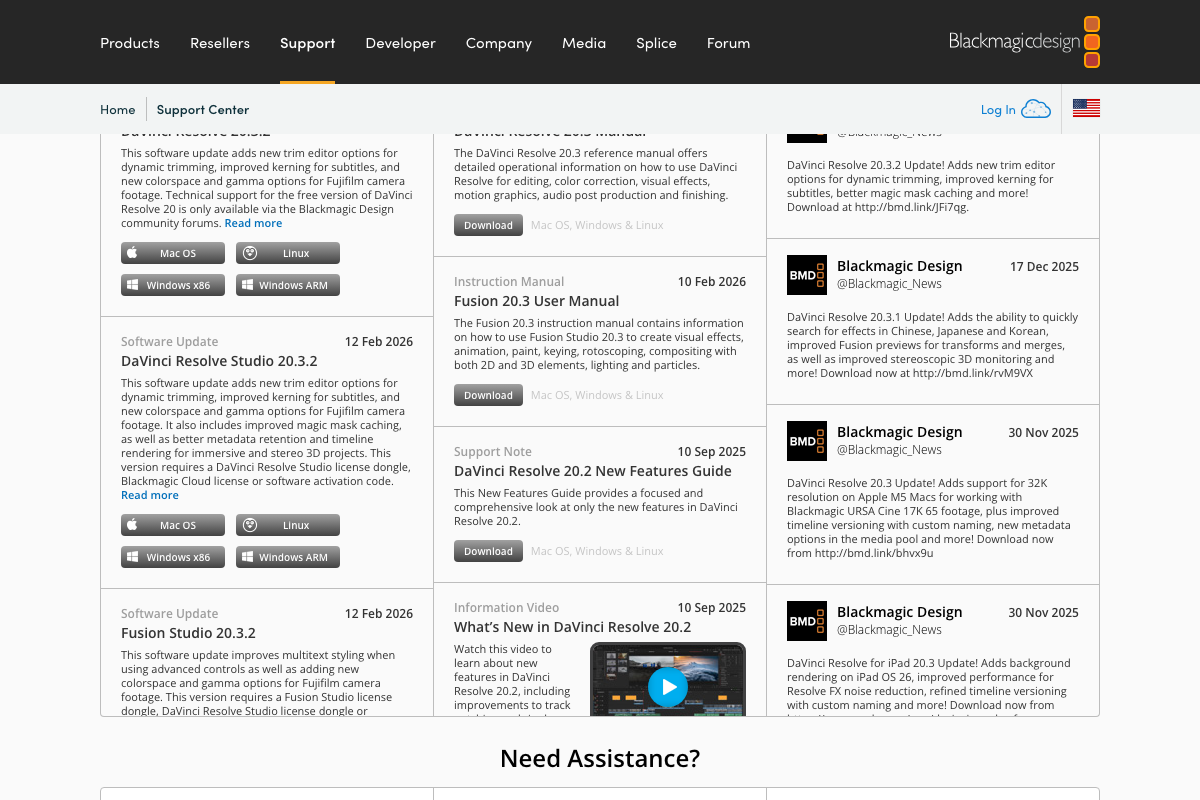
One useful note: Magic Mask does not appear by name in any visible support article title in the Blackmagic documentation — so if Claude needs reference material to locate it, pointing it at the New Features Guide for your installed version is the most reliable path.
Step 3 — Watching Claude Work Autonomously
No official documentation was found for this step — proceed using the video’s approach and verify independently.
Step 4 — Remote Triggering via Dispatch
No official documentation was found for this step — proceed using the video’s approach and verify independently.
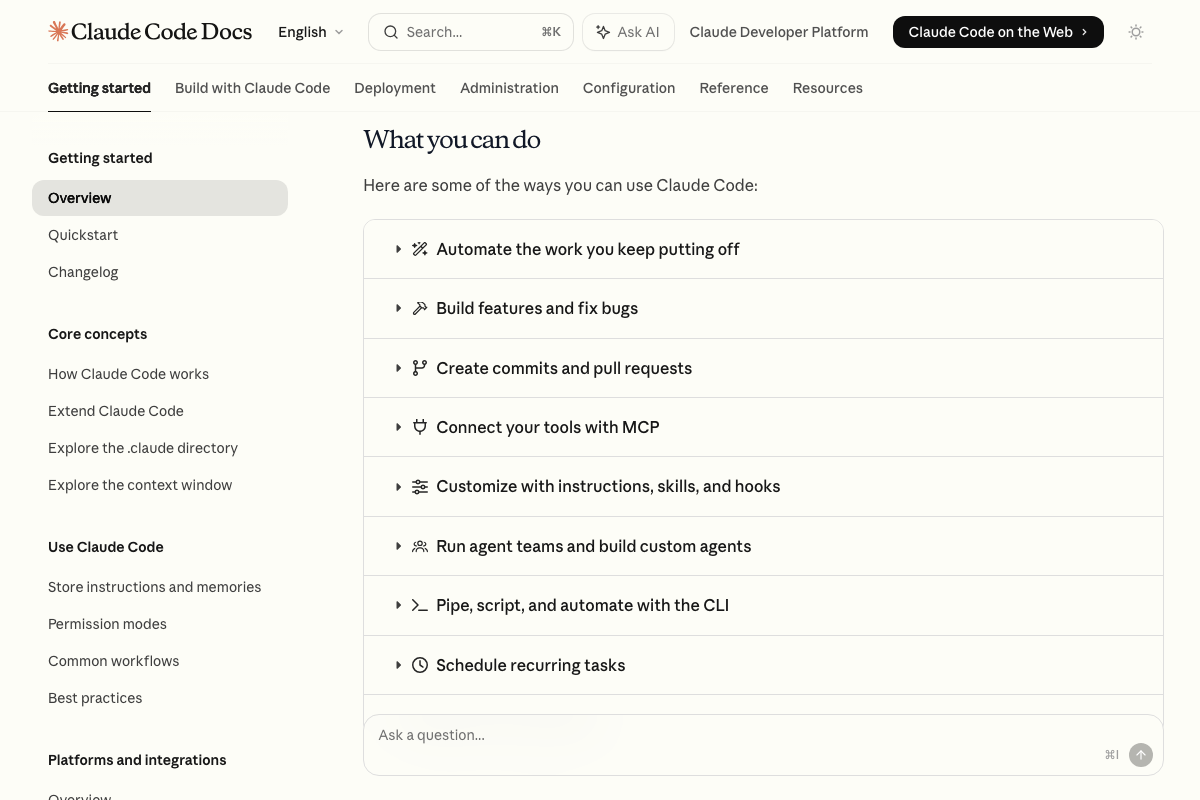
“Claude’s Dispatch feature” does not appear by name in any Claude.ai or Claude Code documentation captured in the screenshots. The Claude Code docs do list “Schedule recurring tasks” as a supported capability, but that refers to Claude Code’s development workflow automation — not desktop Computer Use triggered from a mobile device. If Dispatch exists, it is not yet represented in official documentation.
Step 5 — Creating a Cowork Project
The video’s approach here matches the current docs exactly, with one branding correction worth noting plainly. As of March 27, 2026, the official product name on claude.ai is Cowork — one word, no hyphen. The video refers to it as “Co-work” and “Co-work Projects”; neither matches the interface labeling.
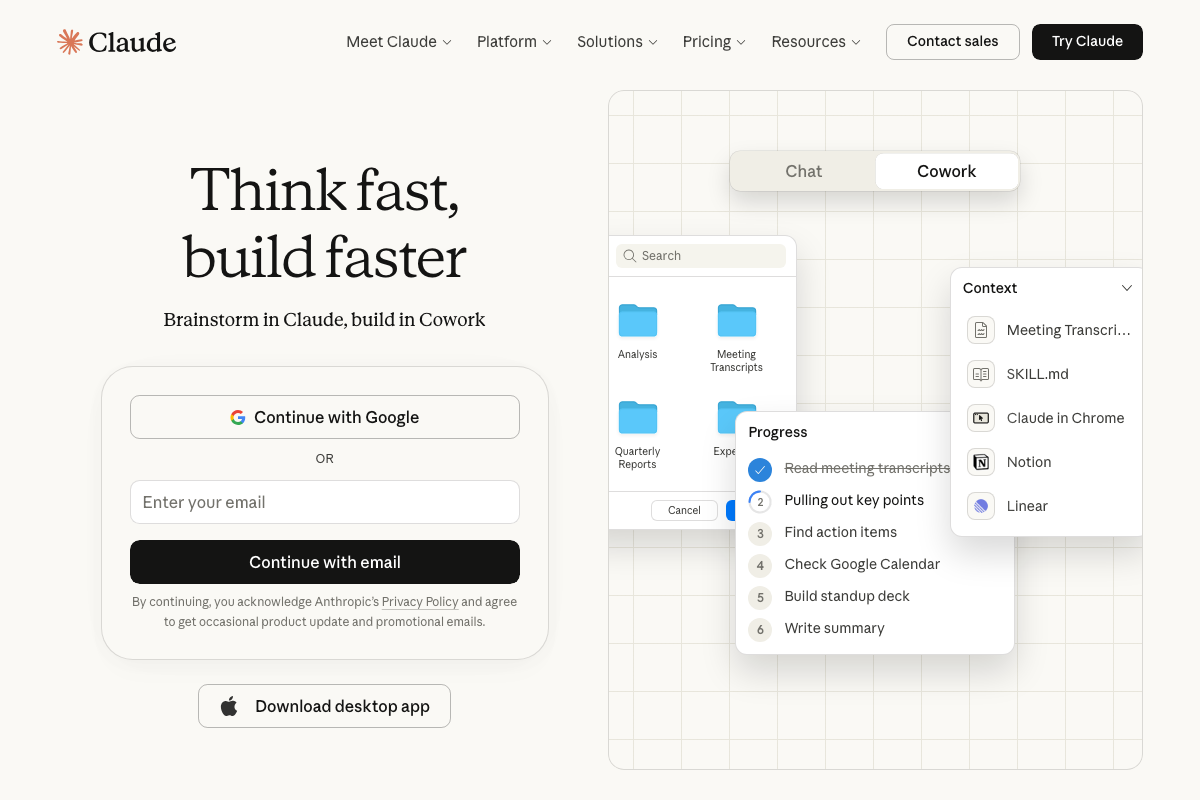
The interface itself also doesn’t use the word “Projects” — what you’re creating is a Cowork context with custom instructions and attached files. Anthropic’s official framing positions Cowork as autonomous background task execution: the tagline is “Let Claude power through tasks so you can focus on what matters most.”

Part 2: Gemini Live in Google AI Studio
Step 6 — Selecting the Live Model in AI Studio
As of March 27, 2026, the correct model to select is Gemini 3.1 Flash Live — the video instructs selecting “Gemini 2.0 Flash Live,” which reflects an earlier version. No Gemini 2.0 series model appears in the current model lineup on the Gemini API documentation page. The entire current generation is 3.x.
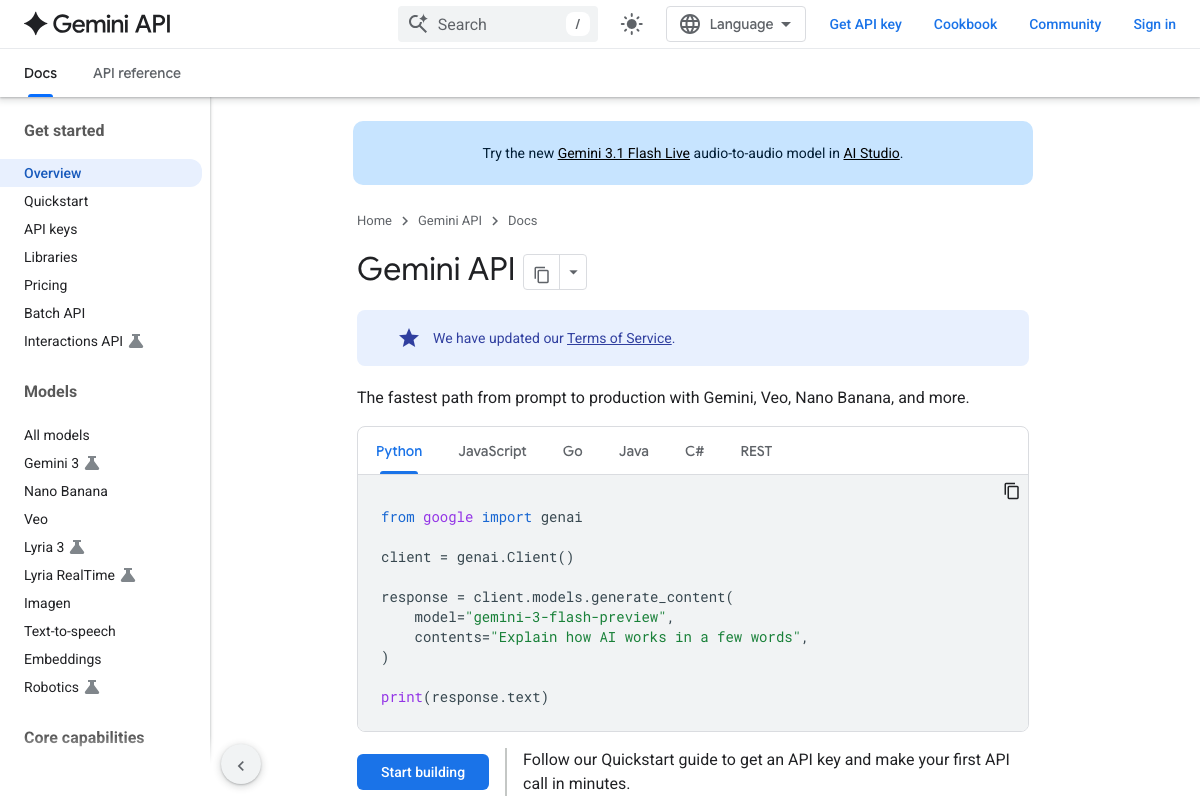
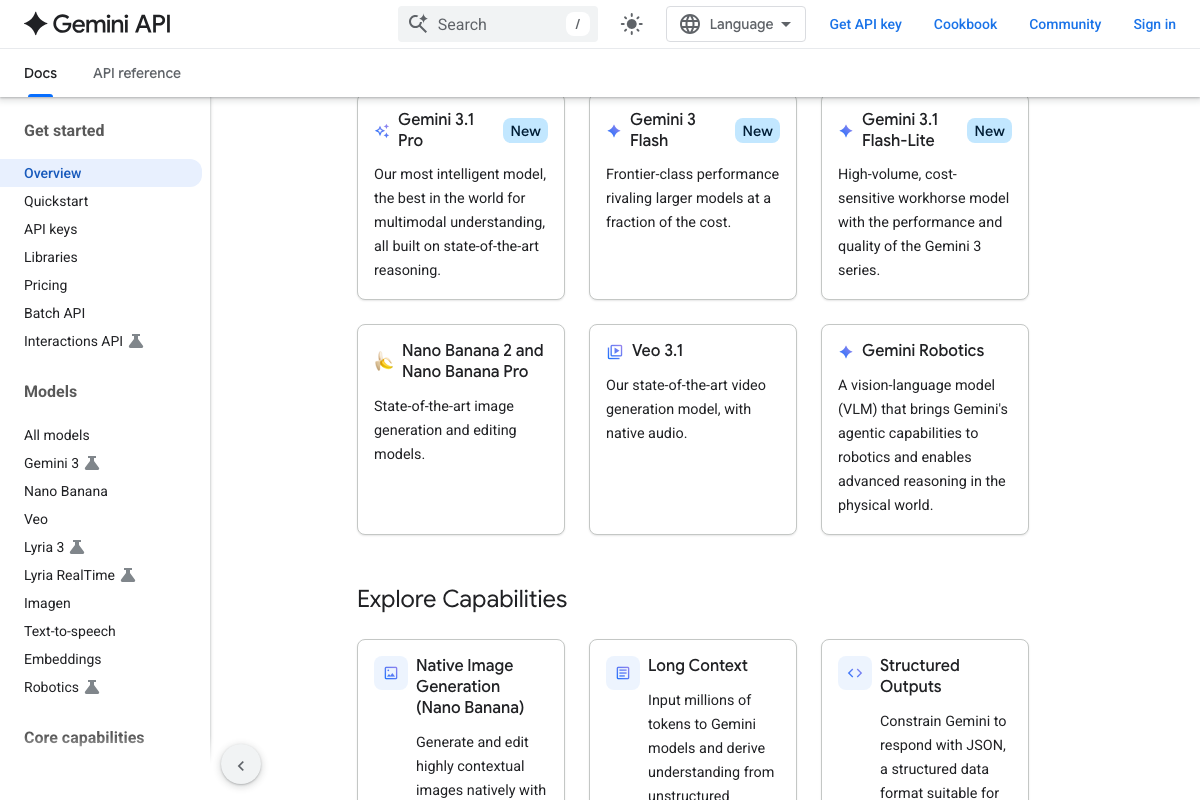
No additional official documentation was found for the AI Studio UI navigation described in this step — use the corrected model name above and verify the interface path independently.
Step 7 — Webcam Input: Ask What Gemini Sees
The video’s approach here matches the current docs exactly. The Gemini Live API officially supports real-time voice and vision interactions, with webcam confirmed as a valid input modality.
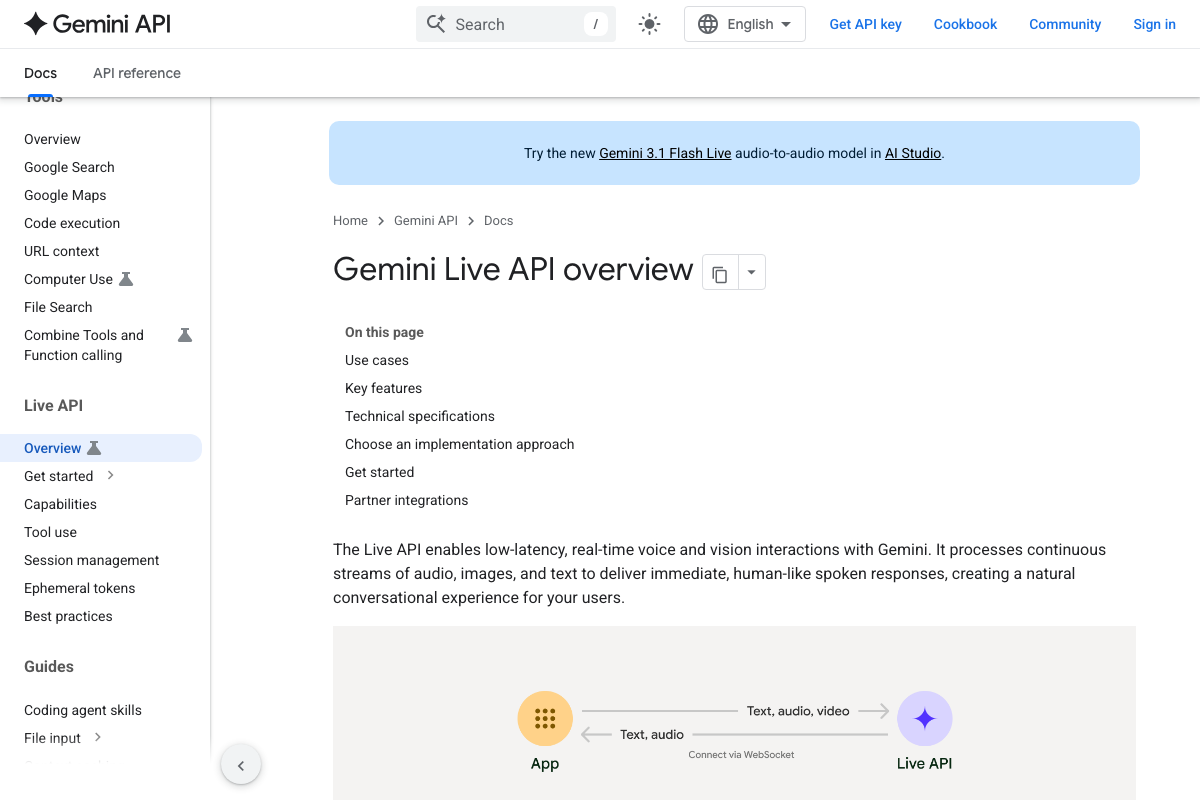
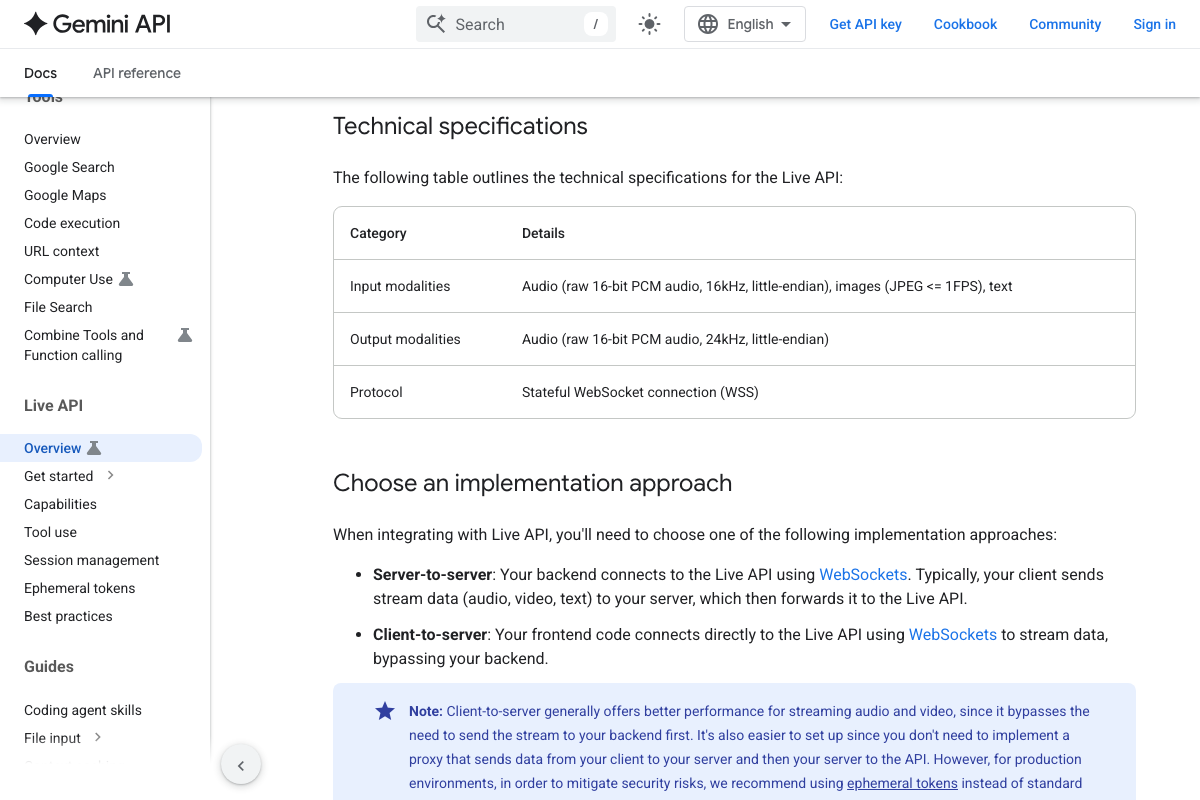
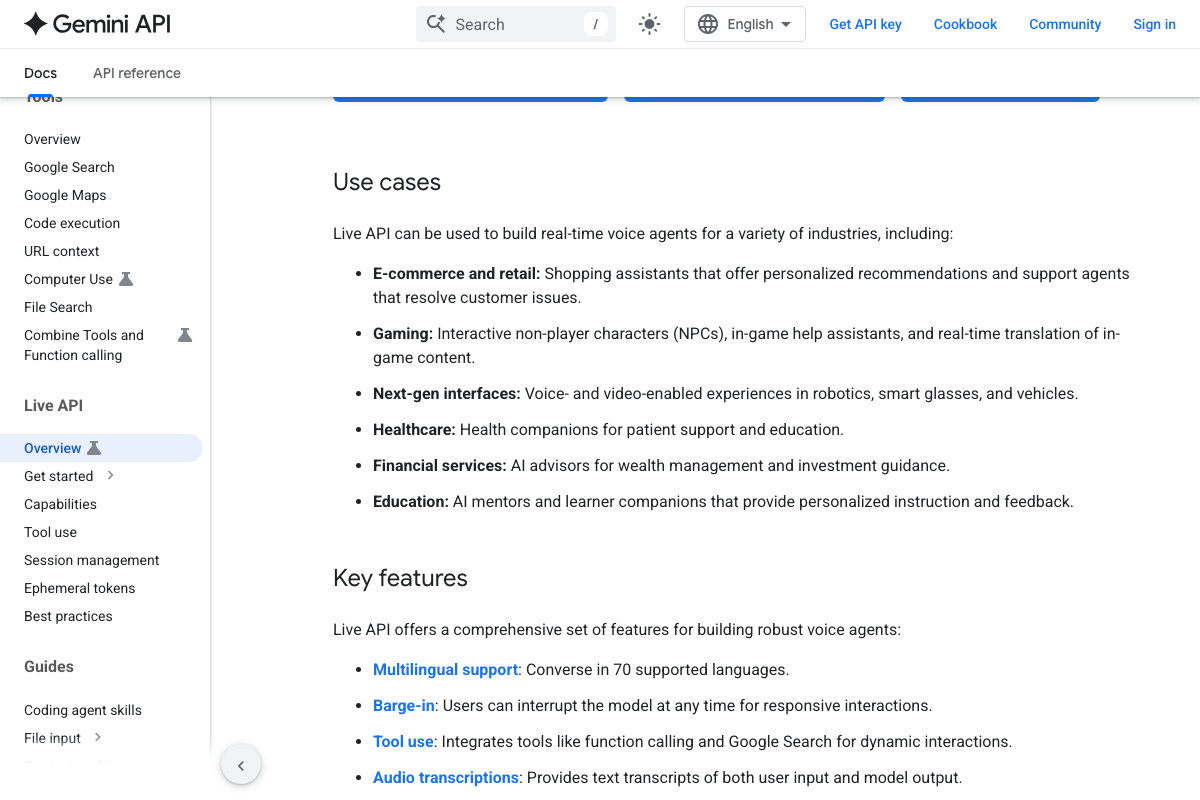
One technical detail the tutorial skips: image input via the Live API is limited to JPEG at ≤1 FPS. Gemini is processing approximately one frame per second from your webcam — not a continuous video stream. This doesn’t affect what you can do in AI Studio, but it matters if you’re building anything on top of the API.
Step 8 — Screen Share with OBS Studio
The video’s approach here matches the current docs exactly. OBS Studio 32.1.0 is the current release, and its interface — Scenes, Sources, Audio Mixer, Scene Transitions, Controls — is exactly the kind of multi-panel UI the Live API is designed to parse.
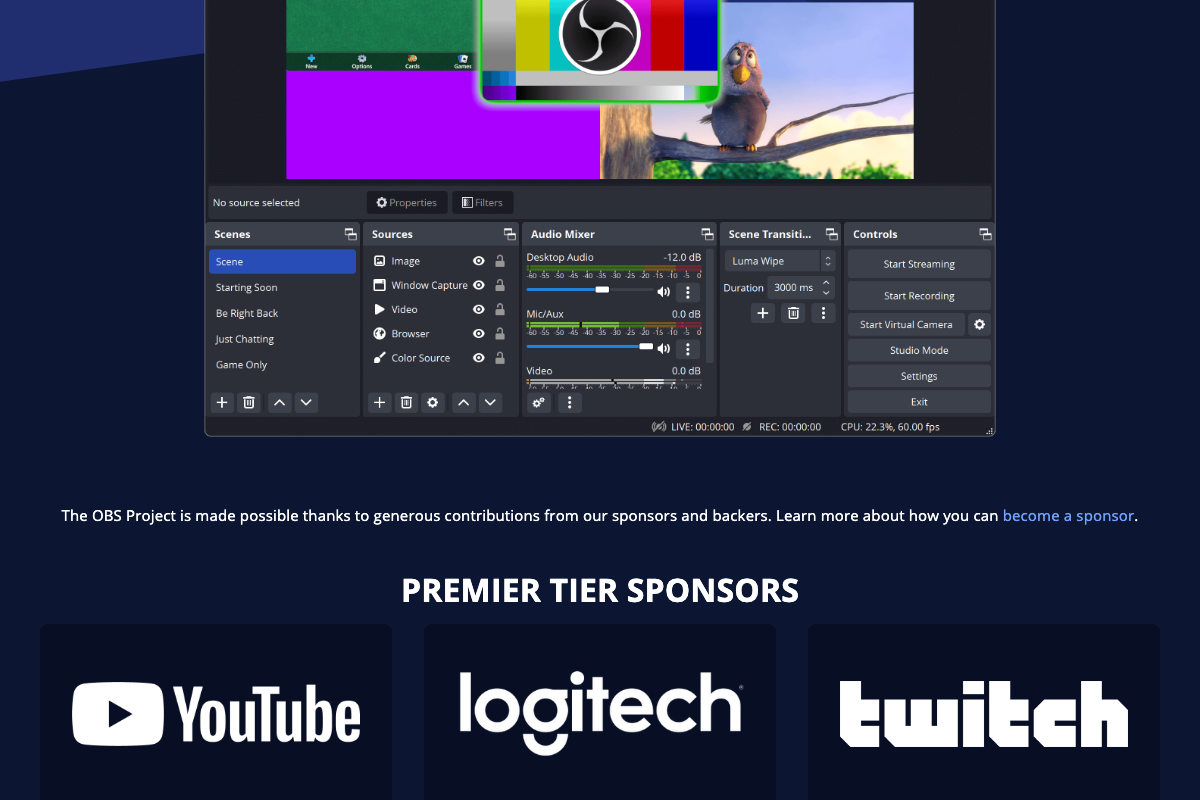
The same ≤1 FPS image input constraint from step 7 applies here. Also worth knowing: the Live API supports barge-in (you can interrupt the model mid-response), tool use (function calling and Google Search), and audio transcriptions — none of which the tutorial demonstrates but all of which are available in the same AI Studio session.
Step 9 — Google App Live AI on Mobile
No official documentation was found for this step — proceed using the video’s approach and verify independently.
On the desktop google.com homepage, only a single AI Mode button is visible inside the search bar — no adjacent “Live AI” button appears. The mobile Google app UI may differ, but it is not represented in the available documentation screenshots.
Step 10 — Gemini App Music Generation via Lyria 3
No official documentation was found for this step — proceed using the video’s approach and verify independently.
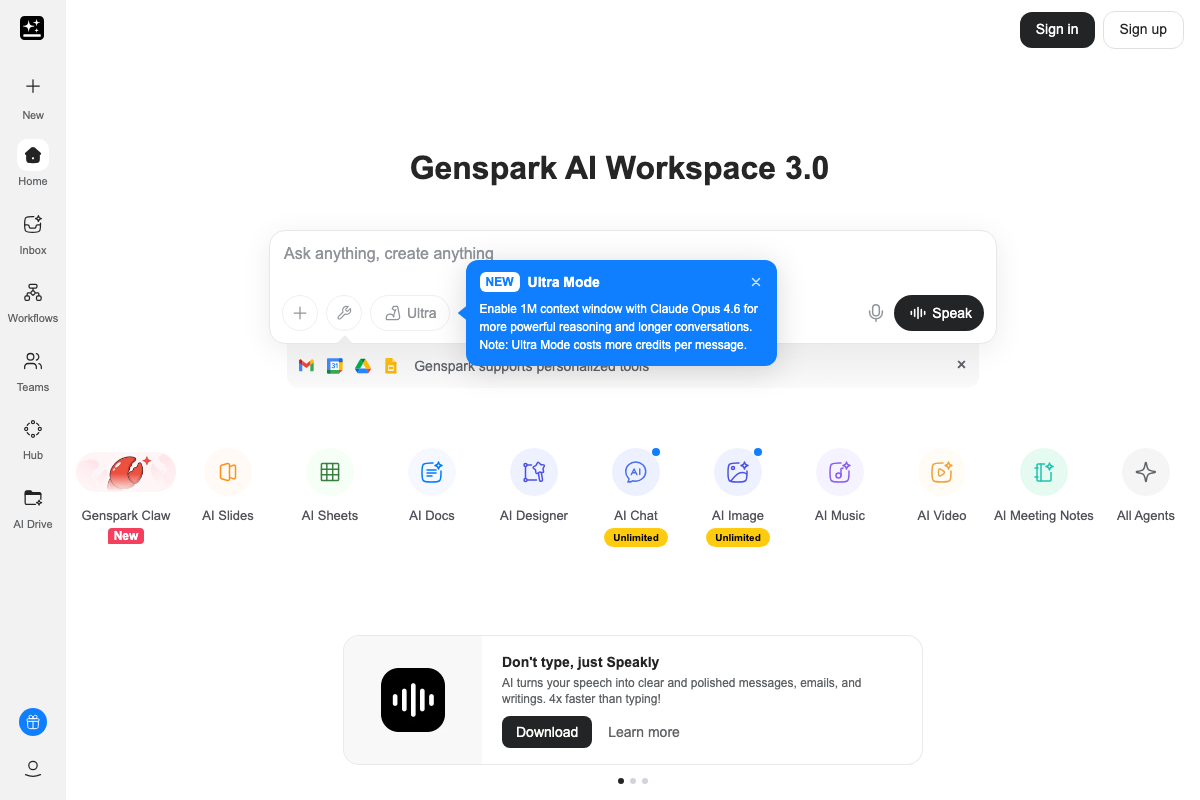
One important distinction: the screenshots showing an “AI Music” button are from Genspark (genspark.ai) — a third-party AI workspace that runs on Claude Opus 4.6, not a Google product. The Gemini API docs do list Lyria 3 in the model sidebar, but no “Create Music” button path inside the Gemini app is confirmed by any available documentation.
Useful Links
- Claude — Official Claude.ai homepage where Cowork is accessible via the Chat/Cowork tab toggle, with plan pricing and desktop app download
- Claude Code overview – Claude Code Docs — Official documentation for Claude Code as a distinct agentic coding tool, separate from the Computer Use desktop automation feature
- Gemini API | Google AI for Developers — Gemini API documentation hub listing current model families (all 3.x generation) and capabilities including Voice Agents with Live API
- Gemini Live API overview | Gemini API | Google AI for Developers — Full technical specification for the Live API including the ≤1 FPS image input constraint, barge-in, tool use, and audio transcription features
- Google — Google.com desktop homepage showing the current AI Mode button placement inside the search bar
- Support Center | Blackmagic Design — Official Blackmagic Design support portal for DaVinci Resolve, showing Studio 20.2 as the current release
- Open Broadcaster Software | OBS — OBS Studio homepage confirming version 32.1.0 as the current release with download links for Windows, macOS, and Linux
- Genspark – Your All-in-One AI Workspace — Genspark AI Workspace 3.0, a third-party platform distinct from the Gemini app — its AI Music tool does not confirm the step 10 navigation path


0 Comments