

Install 15 Pre-Built Claude Skills in One Plugin to Automate Business Workflows
Claude Code ships with raw capability but no pre-loaded workflows. This tutorial shows you how to install a single plugin that adds 15 ready-to-run skills to the Claude desktop app — covering slide deck generation, difficult conversation prep, and expense tracking, among others. After following these steps, you’ll be triggering complex multi-step automations with a slash command or a plain-English phrase, and customizing any skill to fit your brand and workflow. The entire setup takes under five minutes.
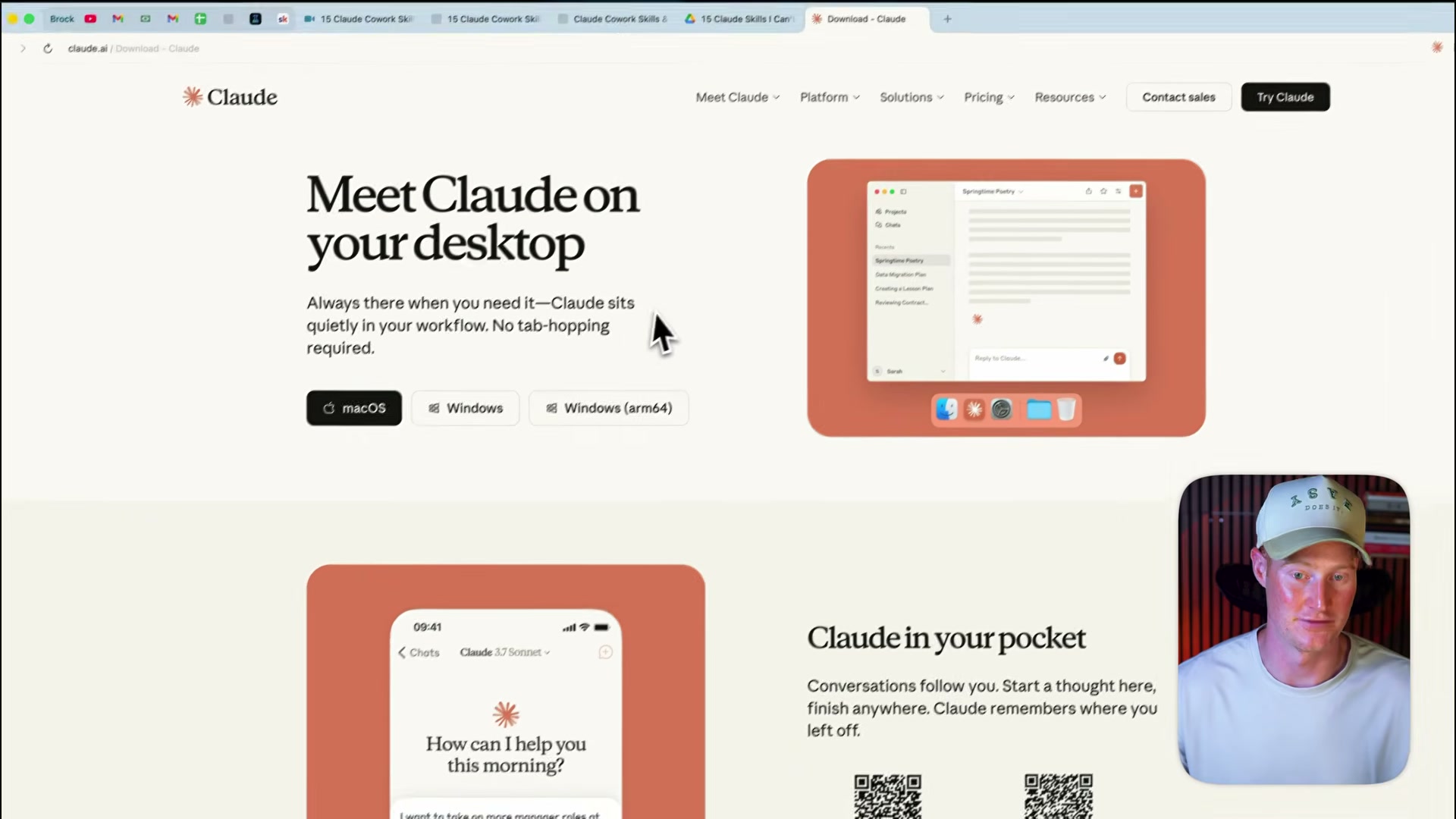
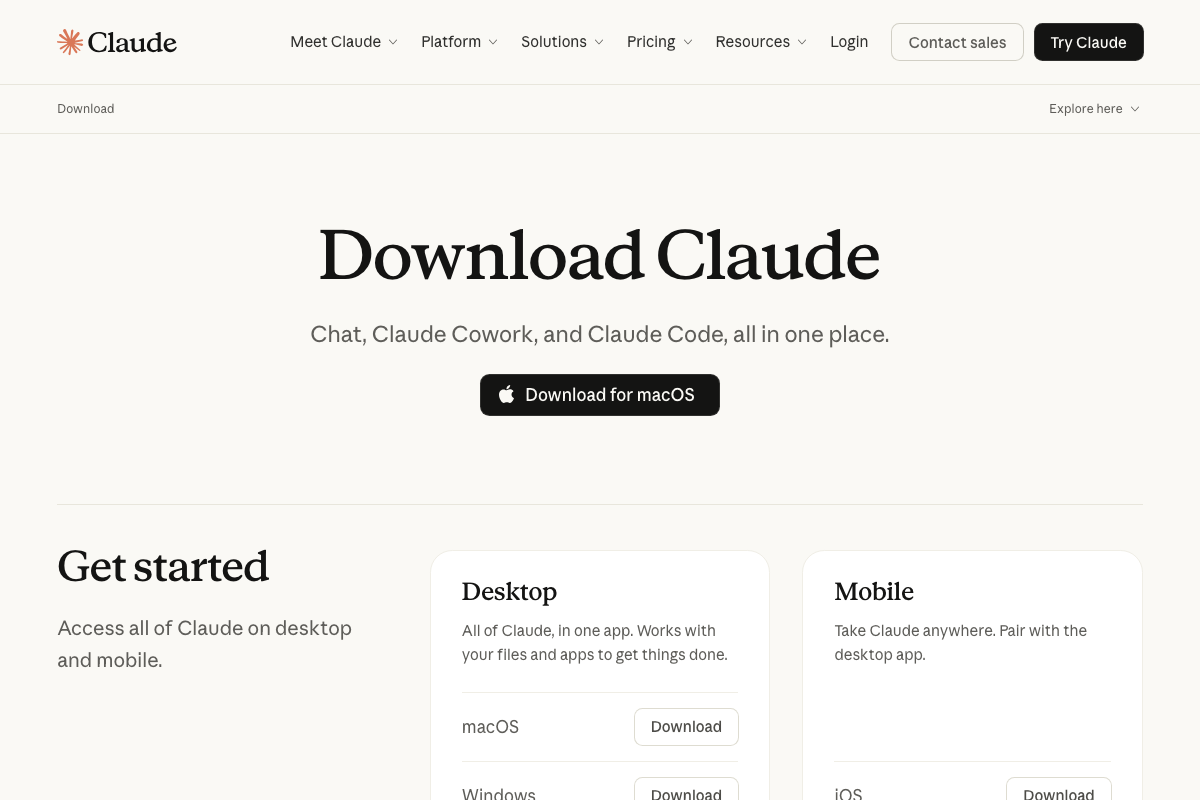
- Download the Claude desktop app from claude.ai. The download page offers builds for macOS, Windows, and Windows arm64.
-
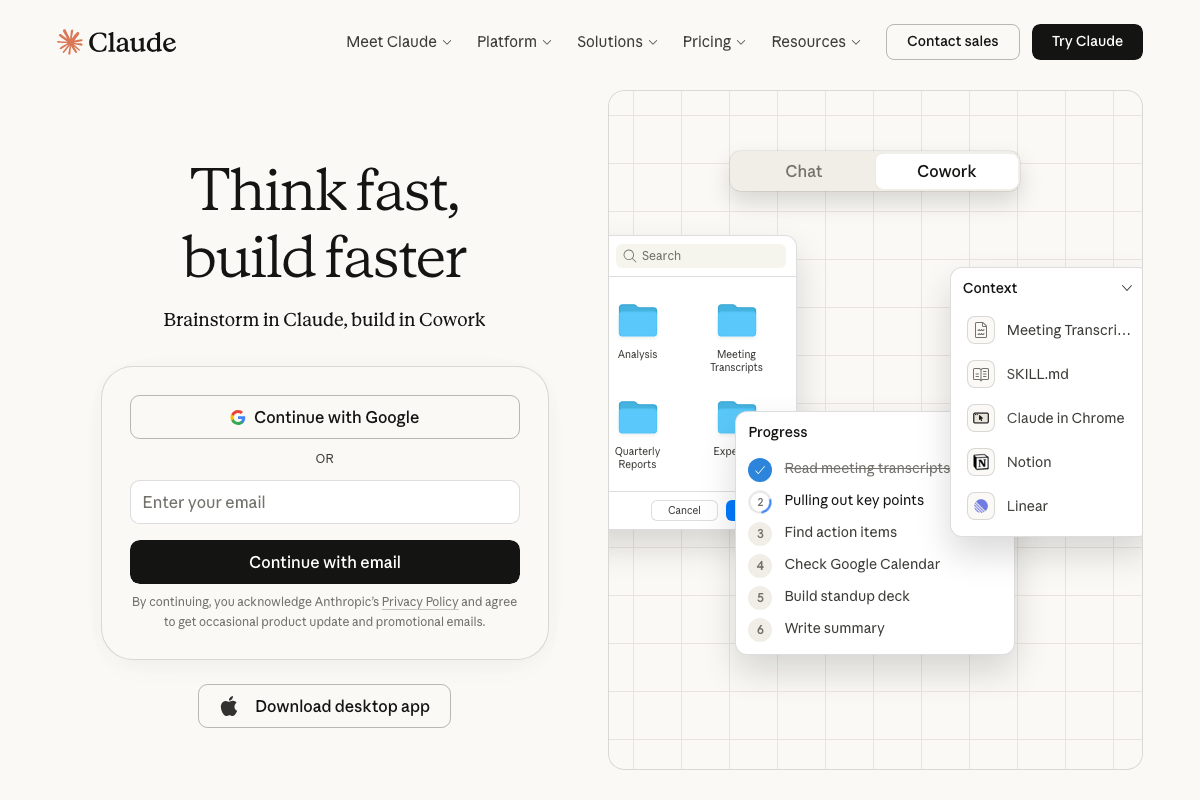
Open Claude and enter Co-work mode. Click the folder selector and either choose an existing project folder or create a new one on your local file system. Every file Claude generates during a session saves directly to this folder.
-
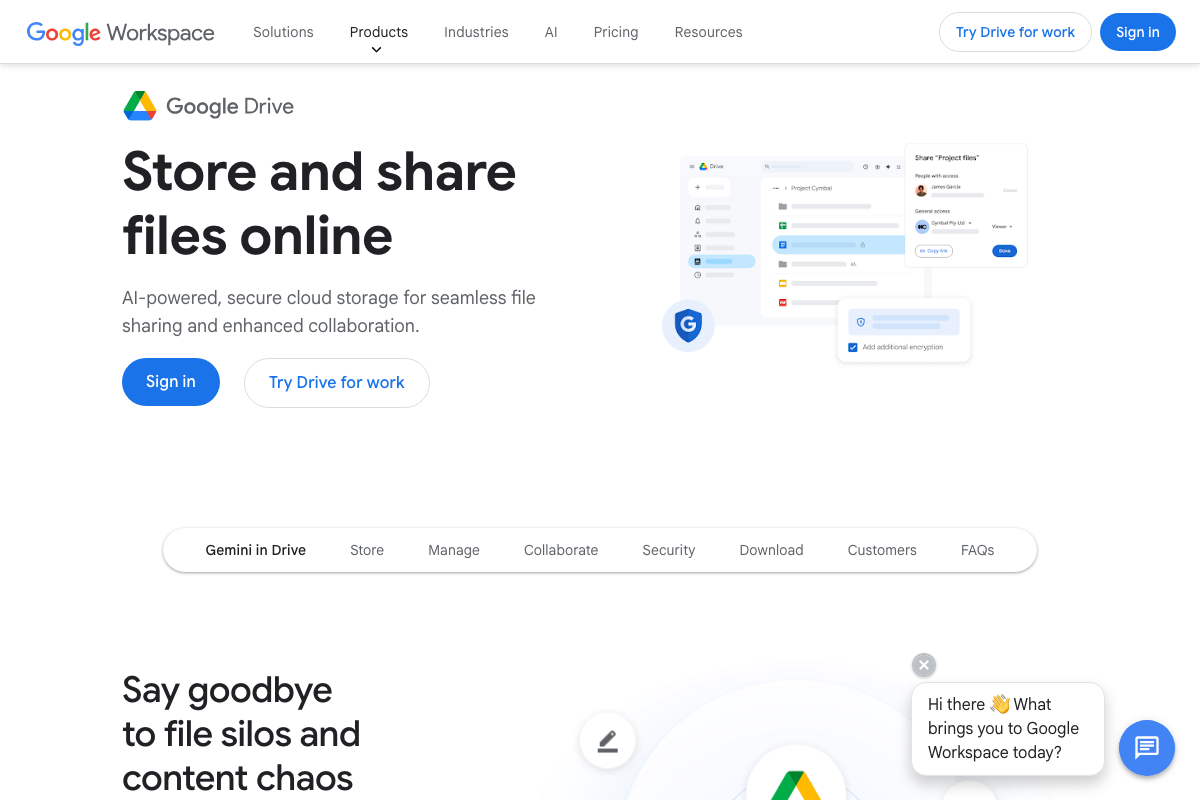
Open the Google Drive link from the video description and download the
15-cowork-skills.zipfile. Leave it zipped — the Claude desktop app requires the compressed format to recognize it as a valid plugin during upload.
- In Claude, open Customize > Plugins > Add Plugin, then click Upload local plugin and select the zip file from your desktop. The upload dialog confirms when the plugin has been installed successfully.

-
Confirm all 15 skill names appear in the plugin panel. If any are missing, re-download the zip without extracting it and repeat the upload step.
-
Type
/in the Claude input field to open the slash command picker. Scroll to the 15 Co-work Skills plugin and select slide-deck-builder, or type a natural-language request like “create a slideshow about X.” The skill’s embedded instruction file handles formatting, component selection, and navigation automatically — no detailed prompt required.

-
After the skill finishes executing, open the generated HTML file in your browser to review the output. Keyboard navigation and theming are baked into the file.
-
Run
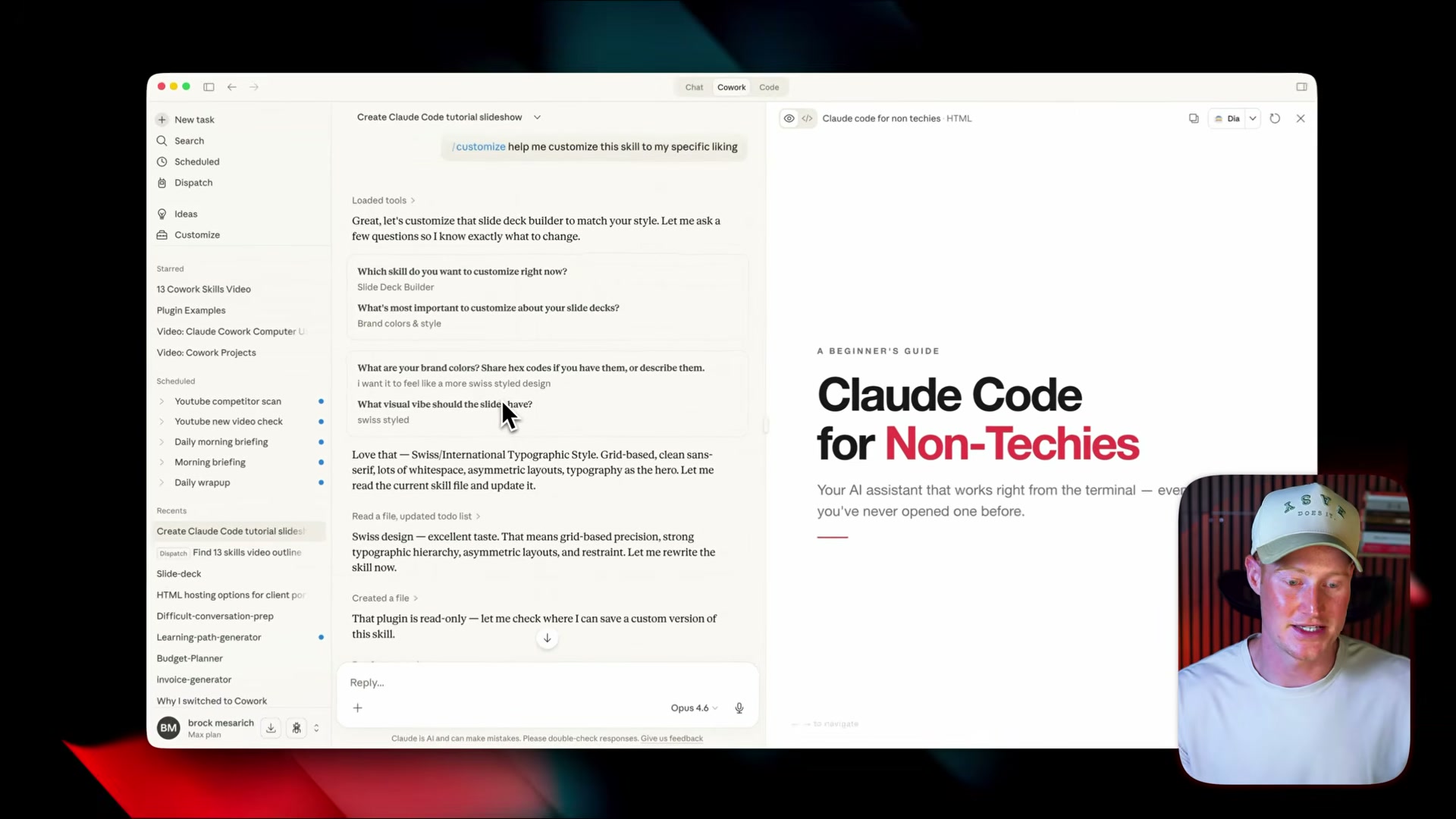
/customizeto tailor any installed skill to your preferences. The skill conducts a short interview — brand colors, tone, output format — and permanently rewrites that skill’s instruction file so every future run reflects your specifications.
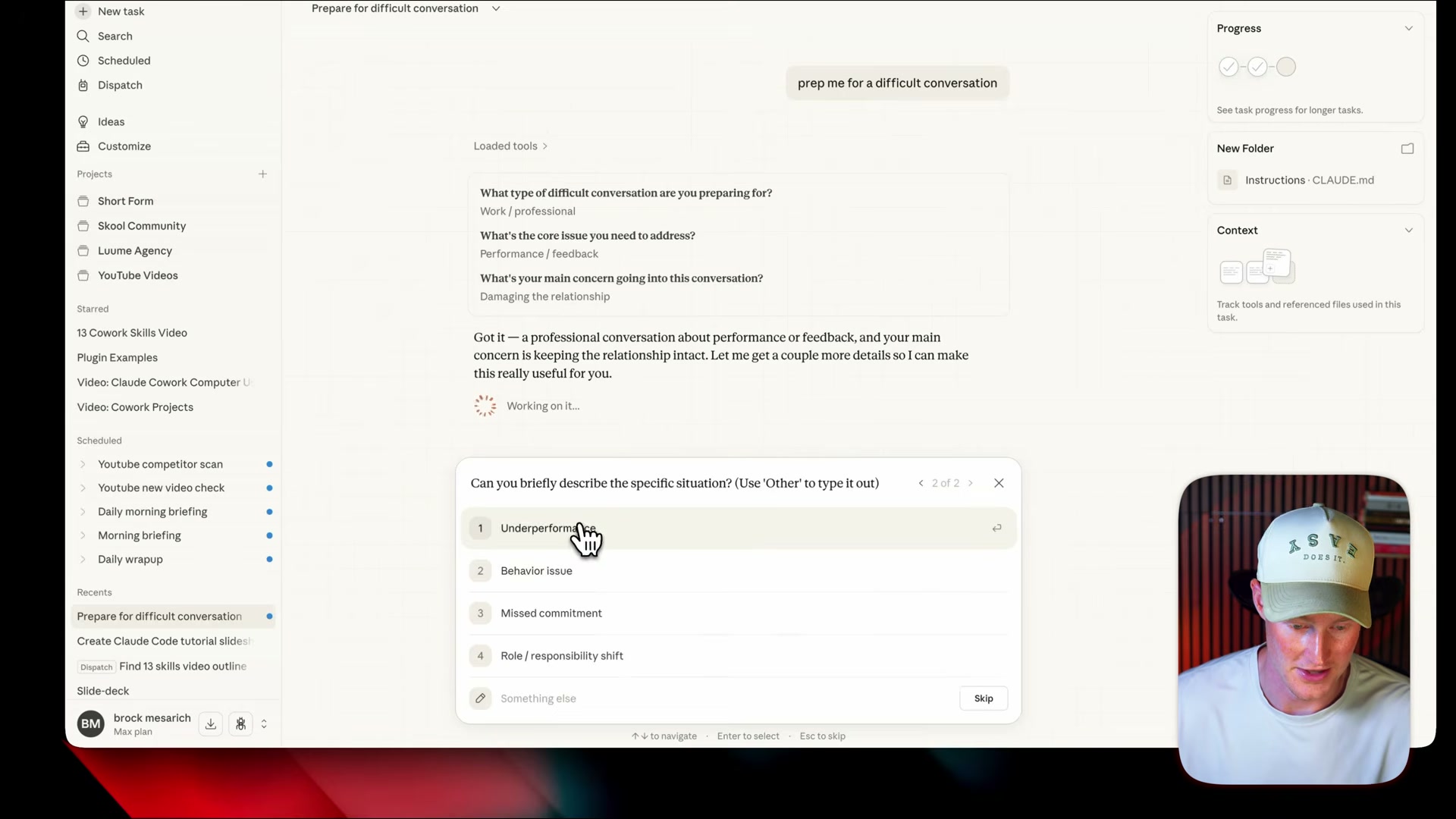
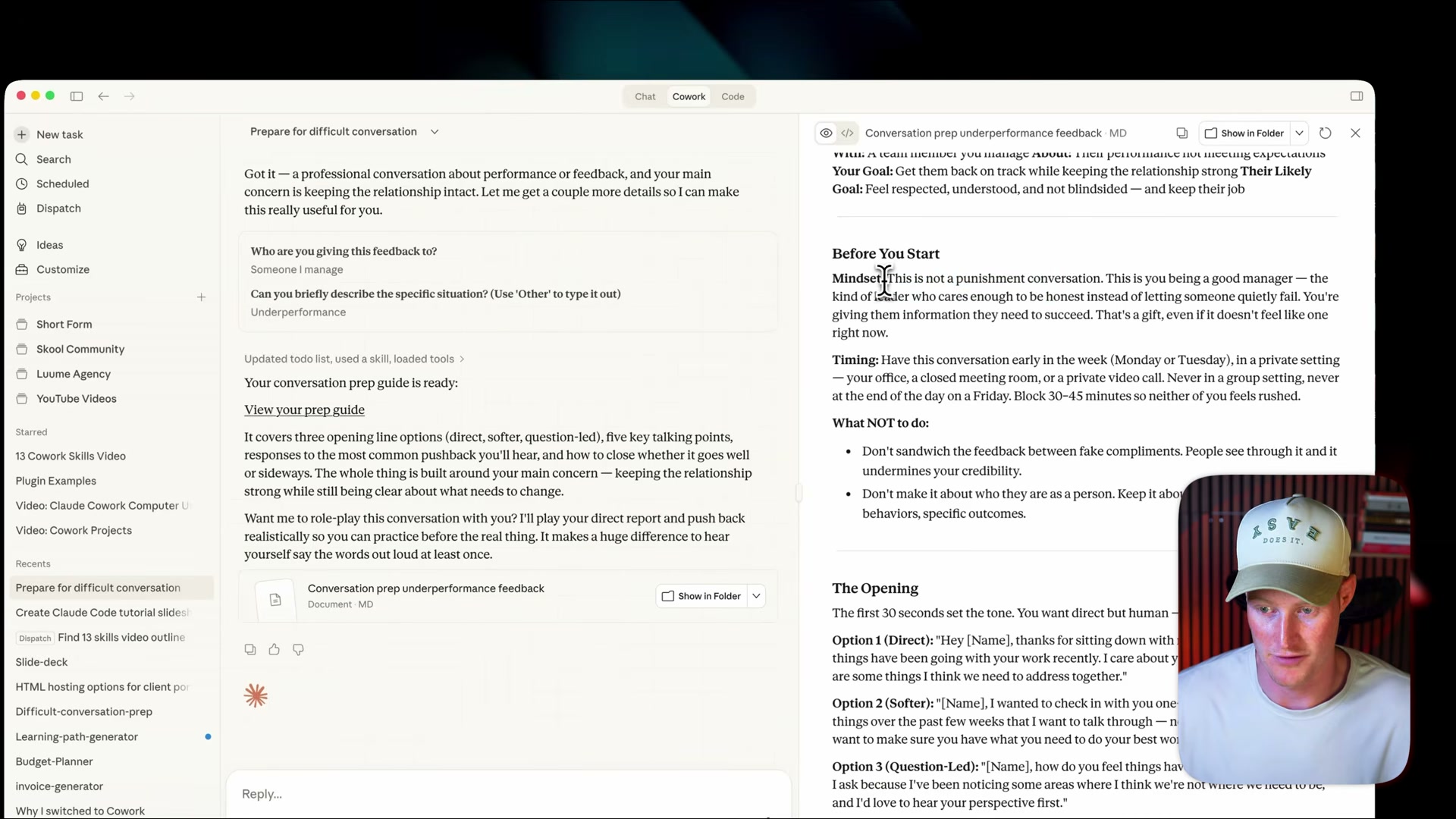
- To use the Difficult Conversation Prep skill, type a natural-language phrase like “prep me for a difficult conversation.” Claude surfaces a multi-choice dialog to collect context — relationship type, core issue, primary concern — then generates a structured prep document covering mindset, timing, talking points, and what to avoid.
-
Drop receipts into your local workspace folder and invoke the Receipt / Expense Tracker skill. It reads the files, categorizes each transaction, and outputs a labeled spreadsheet and expense dashboard to your workspace.
-
To run any skill on a recurring schedule, click the Schedule button after a skill run completes and specify a cadence — for example, every Friday at 5 PM.
Warning: this step may differ from current official documentation — see the verified version below.
How does this compare to the official docs?
The plugin upload flow, natural-language skill triggering, and scheduling mechanism shown here each map to distinct features in Anthropic’s documentation — Act 2 checks all three against the current source to surface what’s changed, what’s accurate, and where the official path diverges from what’s shown in the video.
Here’s What the Official Docs Show
The video gives you a solid working model for Claude Cowork — what follows layers in what Anthropic’s own pages confirm, clarify, and leave open as of March 2026. Only the first two steps have full documentation backing; the rest are worth flagging before you build anything on top of this workflow.
Step 1 — Download the Claude desktop app
The video’s approach here matches the current docs exactly. The canonical URL is https://claude.ai/download; macOS and Windows builds are both listed. One naming note worth carrying forward: the official product is Claude Cowork (one word, no hyphen), not “Co-work mode” as used throughout the video.
Step 2 — Open Claude and select a working folder
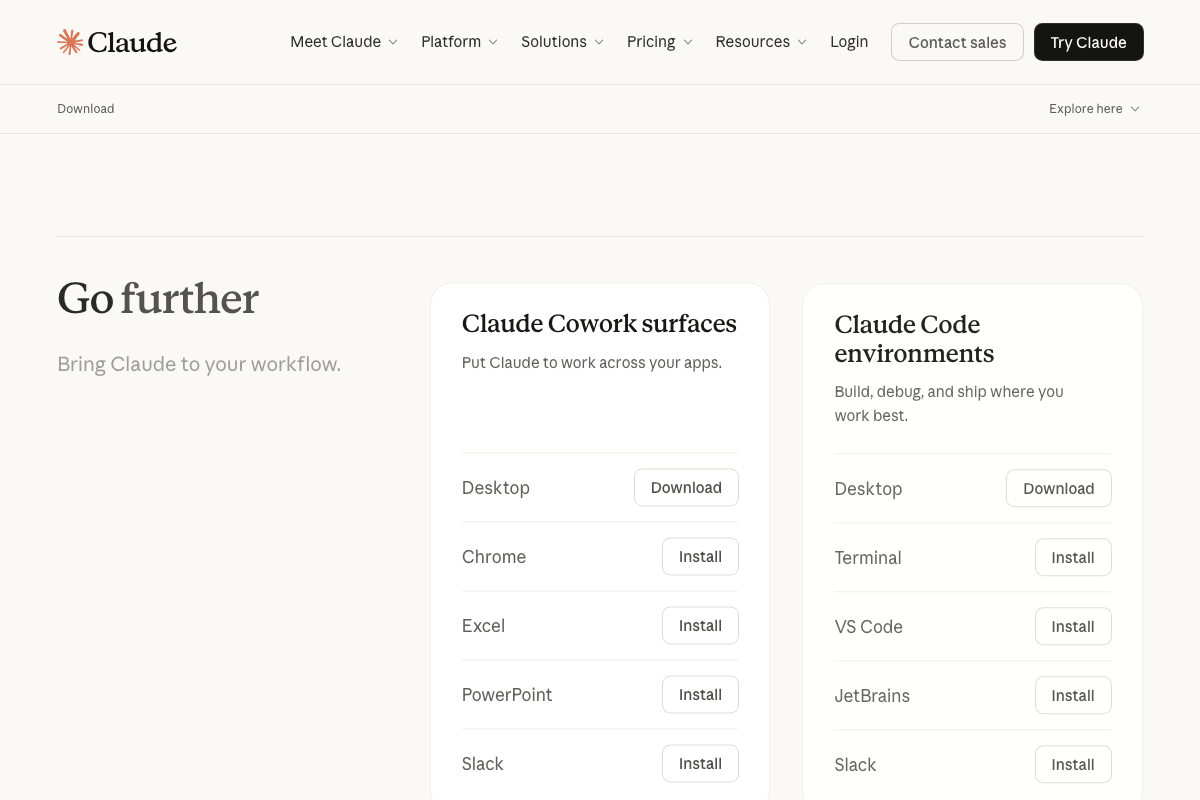
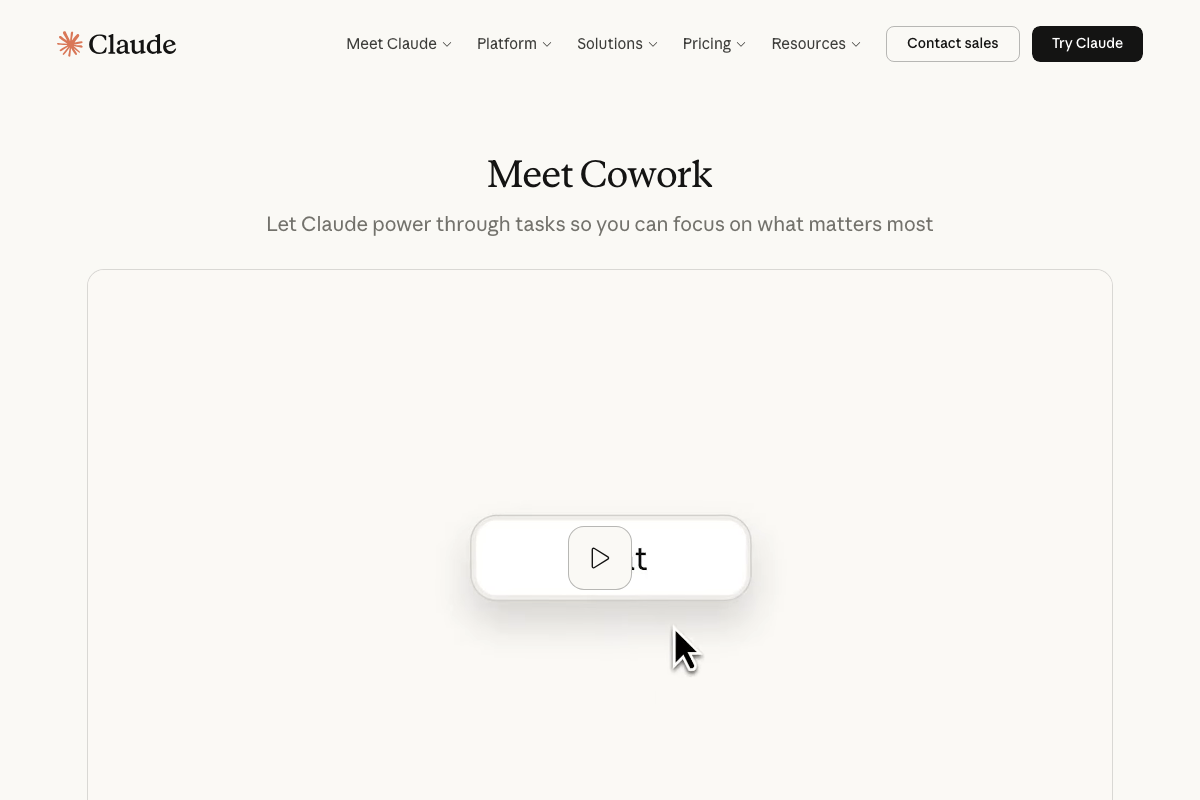
The video’s approach here matches the current docs exactly. The official UI mockup at claude.ai confirms the Cowork folder browser. Worth knowing before you proceed: Cowork and Claude Code are two distinct surfaces bundled in the same install — Cowork surfaces include Desktop, Chrome, Excel, PowerPoint, and Slack; Claude Code runs in Terminal, VS Code, and JetBrains.
Step 3 — Download the skill pack from Google Drive
No official documentation was found for this step — proceed using the video’s approach and verify independently.
Step 4 — Install the plugin via Customize > Plugins > Add Plugin
No official documentation was found for this step — proceed using the video’s approach and verify independently.
One material detail from the official UI: the claude.ai Cowork mockup shows a file named SKILL.md in the Context panel, indicating skills may be implemented as markdown definition files rather than zip packages. As of March 27, 2026, the “Customize > Plugins > Add Plugin” menu path shown in the video does not appear in any official Anthropic screenshot.
Steps 5–10 — Confirming installed skills, slash commands, and individual skill runs
No official documentation was found for these steps — proceed using the video’s approach and verify independently.
As of March 27, 2026, docs.anthropic.com/en/docs/claude-code/skills-overview returns Page Not Found. No official Anthropic page confirms the named skills (Slide Deck Builder, Difficult Conversation Prep, Receipt/Expense Tracker), the /slide-deck-builder or /customize slash commands, or the multi-choice dialog interaction pattern described across these steps.
Step 11 — Schedule a recurring skill run
No official documentation was found for this step — proceed using the video’s approach and verify independently.
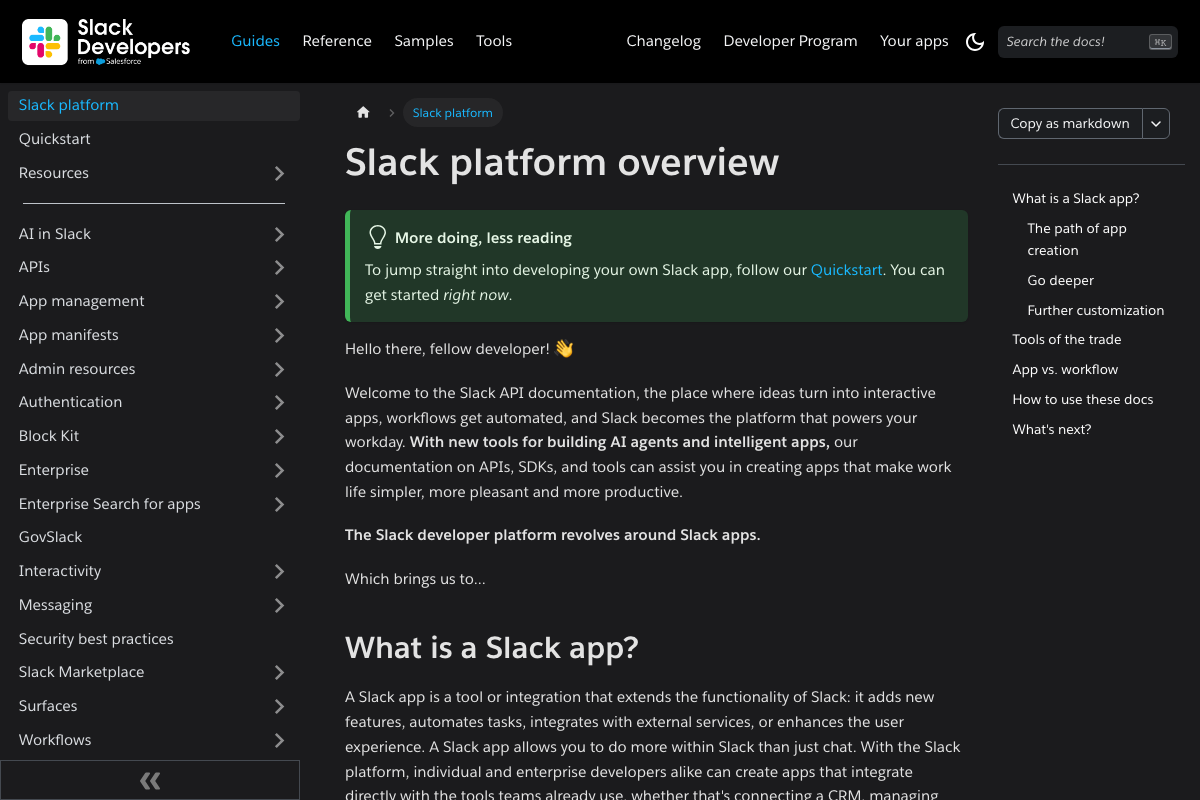
The Slack Developer Docs in the screenshot set cover programmatic Slack app development via APIs and the Bolt framework — they do not document end-user Claude skill invocation or scheduling within Slack. One open question the video also leaves unanswered: the claude.ai pricing page shows Free, Pro ($17/mo annual), and Max ($100+/mo) tiers, but does not specify which plan gates Cowork or skill access.

Useful Links
- Download Claude | Claude by Anthropic — Official desktop app download page listing macOS and Windows builds alongside a full breakdown of Claude Cowork surfaces and Claude Code environments.
- Claude — Claude’s homepage with the Cowork product overview, official UI mockups showing the SKILL.md file architecture, and current subscription pricing tiers.
- Google Drive: Share Files Online with Secure Cloud Storage | Google Workspace — Google Drive product page confirming Drive as a standard file-sharing and cloud storage platform with 15 GB free.
- Slack platform overview | Slack Developer Docs — Slack’s developer documentation covering the Bolt framework, APIs, and AI features for building custom Slack apps programmatically — not end-user Claude skill configuration.


0 Comments