

Google’s New AI Search Mode: A Complete Walkthrough
Google just shipped the most significant upgrade to its search interface in over two decades. AI Mode — powered by Gemini 3.5 Flash and now live globally — transforms search from a keyword lookup into a multi-turn conversation with access to your personal data across Google’s app ecosystem. After working through this tutorial, you’ll know how to activate AI Mode, query it with images and natural language, chain follow-up questions, and connect your Gmail and Photos for cross-app context.
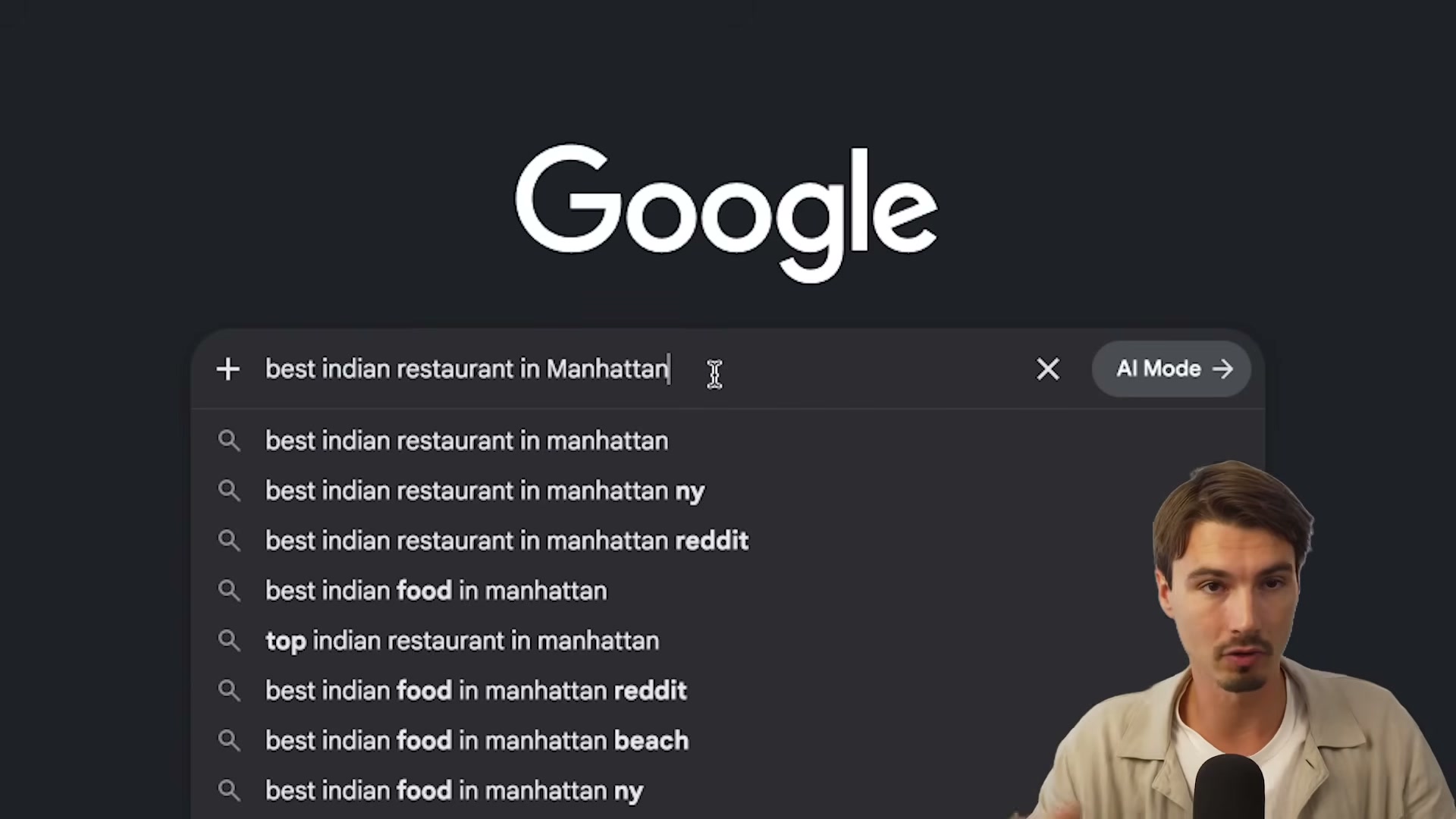
- Open Google Search in your browser. In the search bar, look for the AI Mode button — it sits inline, right next to the standard search button. Clicking it switches you into conversational mode; pressing Enter or clicking the regular search button still runs a standard keyword search, so the two modes coexist without conflict.
-
Type a longer, messier question than you’d normally enter into Google. The input box dynamically expands as you type, accommodating full sentences or multi-clause queries rather than the traditional two-to-four keyword format.
-
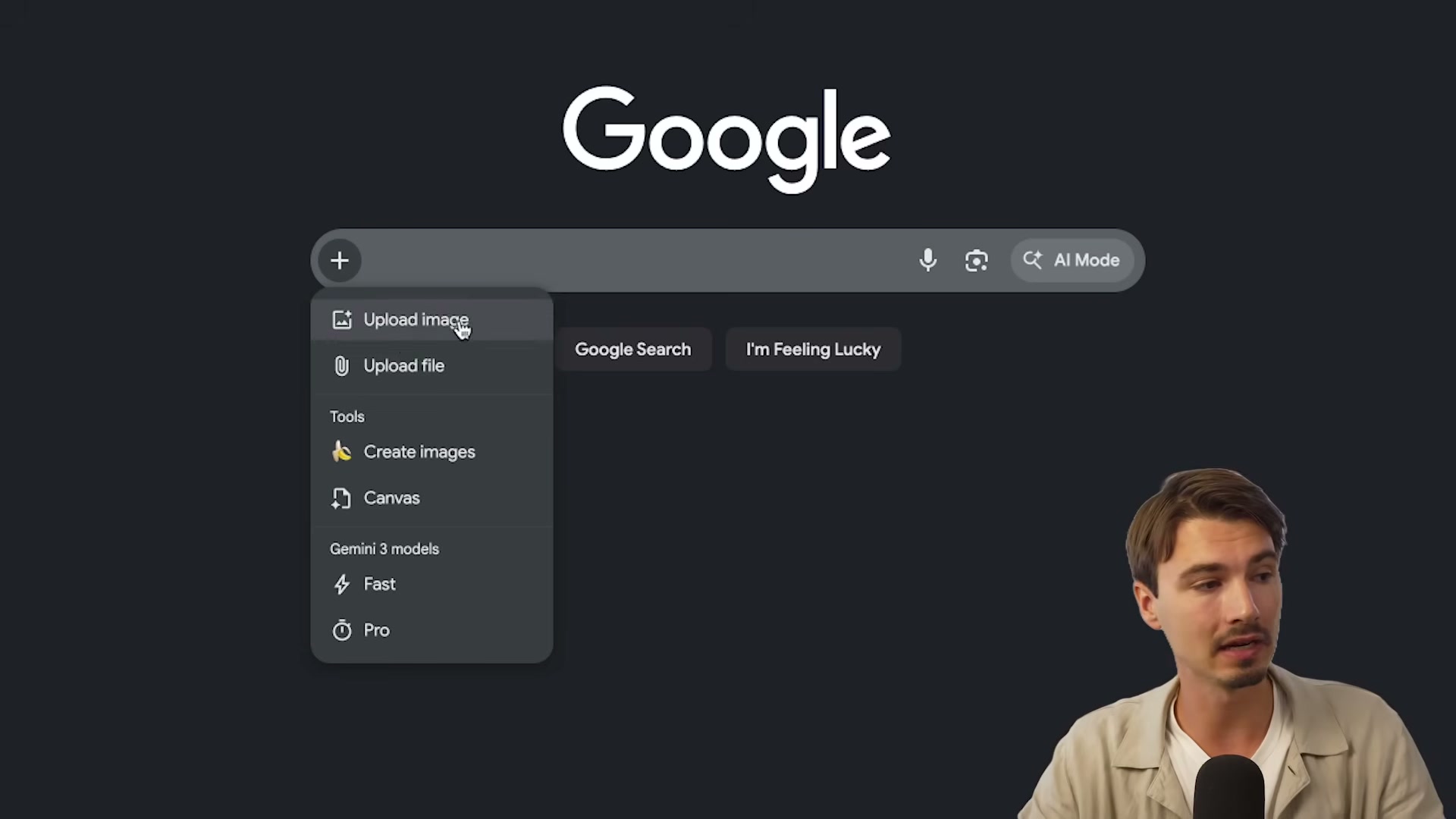
Click the + icon to the left of the input field. A dropdown reveals four options: upload an image, upload a file, generate an image, open Canvas, and switch between Gemini 3 Fast and Gemini 3 Pro. This single button is the entry point to most of AI Mode’s advanced functionality.
-
Select Upload image, choose any image from your device, and type a natural-language question about it. The underlying Gemini model analyzes the image and returns a contextual answer — functionally equivalent to dropping a file into Gemini.ai directly.
-
Submit a conversational query — something like “best Indian restaurants near me that are good for a group.” AI Mode returns a synthesized answer drawn from live search results, with source citations embedded.
-
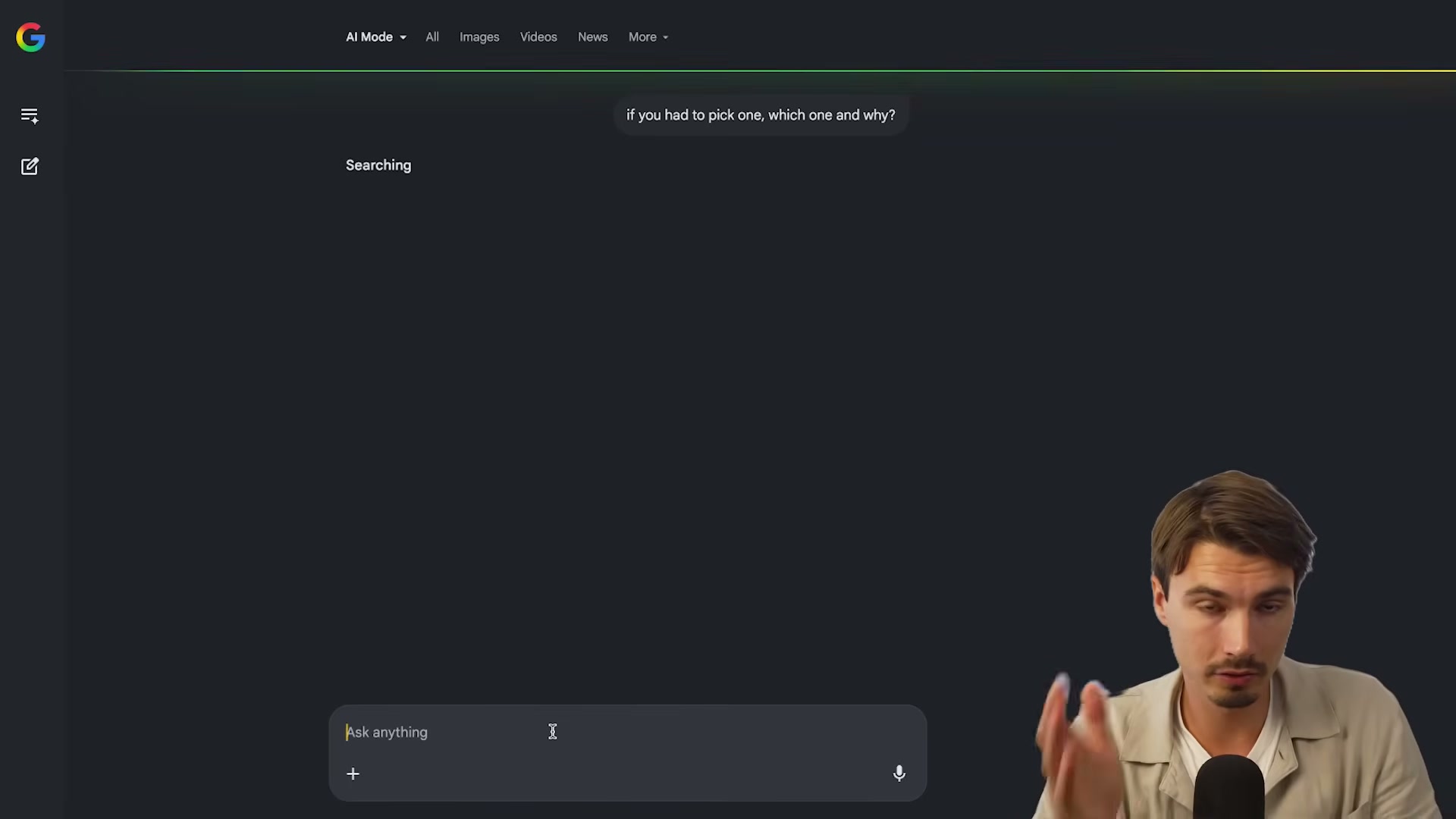
Ask a follow-up question without starting a new search. Type something like “if you had to pick one, which one and why?” — AI Mode maintains context from the prior exchange and narrows its answer accordingly. The conversation thread grows with each exchange, and result relevance increases as the model accumulates more signal about what you actually want.
- Navigate to Google Personal Intelligence settings (accessible from your Google account or the AI Mode interface). From here, you can optionally connect Gmail and Google Photos. Nothing is connected by default — every integration requires explicit opt-in on a per-app basis.
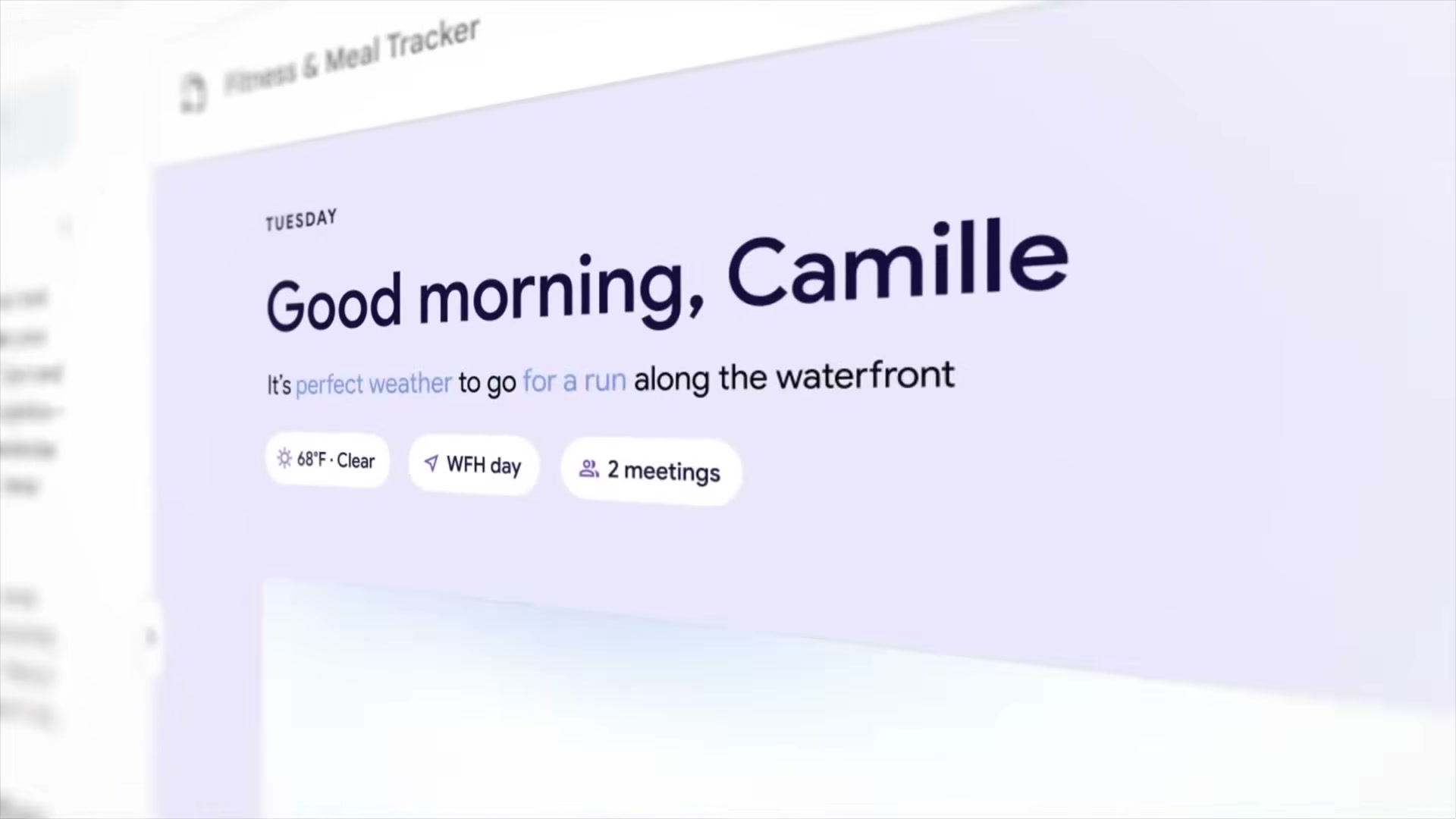
- With Gmail connected, return to AI Mode and ask a question that would normally require inbox-digging — for example, “what’s my flight confirmation number from my trip to Austin?” AI Mode queries your inbox in real time and surfaces the answer inline.
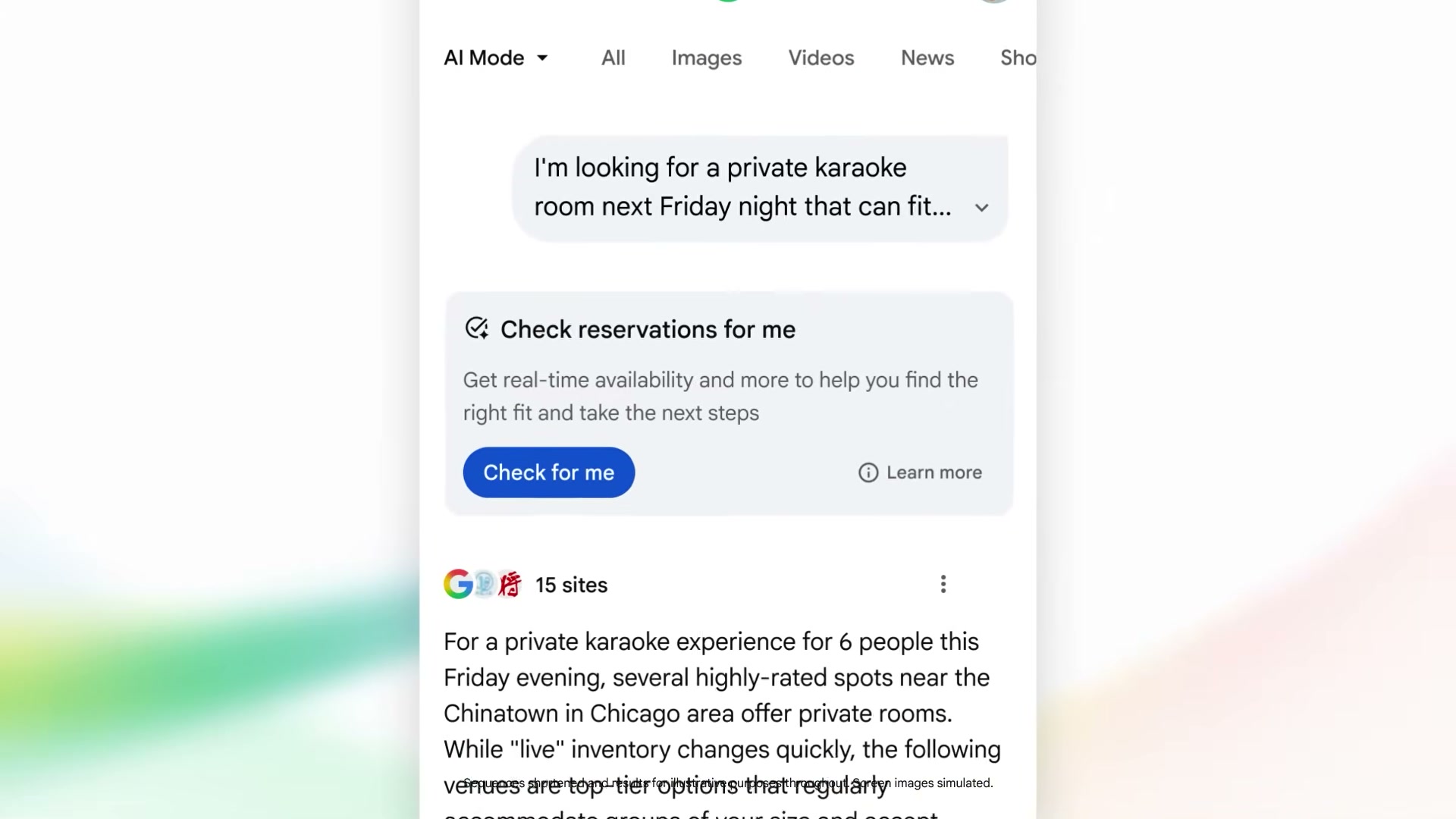
Warning: this step may differ from current official documentation — see the verified version below.
How does this compare to the official docs?
Google’s official documentation on AI Mode covers the core interface and Personal Intelligence setup, but there are meaningful gaps between what the video demonstrates and what the published specs confirm — particularly around model selection, agentic actions, and the rollout status of interactive visual responses.
Here’s What the Official Docs Show
The tutorial gives you a solid working map of AI Mode — the steps below follow the same sequence and add what the official documentation and live product screenshots surface on top of what the video demonstrates. Where the docs couldn’t confirm a step, that’s called out explicitly so you can set expectations before you sit down to try it.
Step 1 — Find and activate the AI Mode button
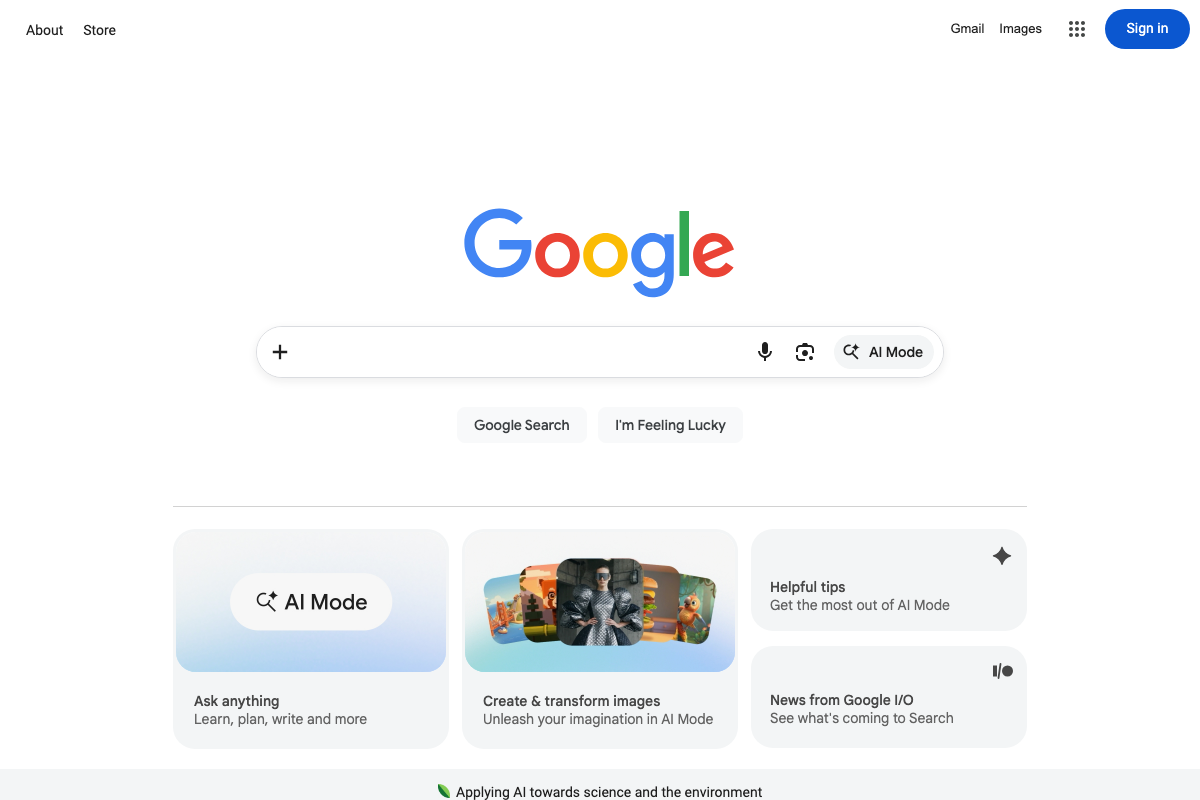
The video’s approach here matches the current docs exactly. Screenshots captured directly from google.com on May 23, 2026 confirm the AI Mode button appears as an inline pill on the right side of the search bar, marked with a sparkle icon (✦) alongside the text “AI Mode.” The plus (+) button sits at the far left of the same input field. Both entry points are live on the standard Google homepage with no additional setup required.
One thing the homepage makes explicit that the tutorial doesn’t foreground: “Create & transform images” is surfaced as a first-class feature card directly beneath the search bar — on equal footing with the core “Ask anything” card. Image creation isn’t buried in a submenu; Google is treating it as a primary draw.
Step 2 — Enter a long-form, natural-language query
No official documentation was found for this step — proceed using the video’s approach and verify independently.
Step 3 — Use the + menu to access advanced inputs and model selection
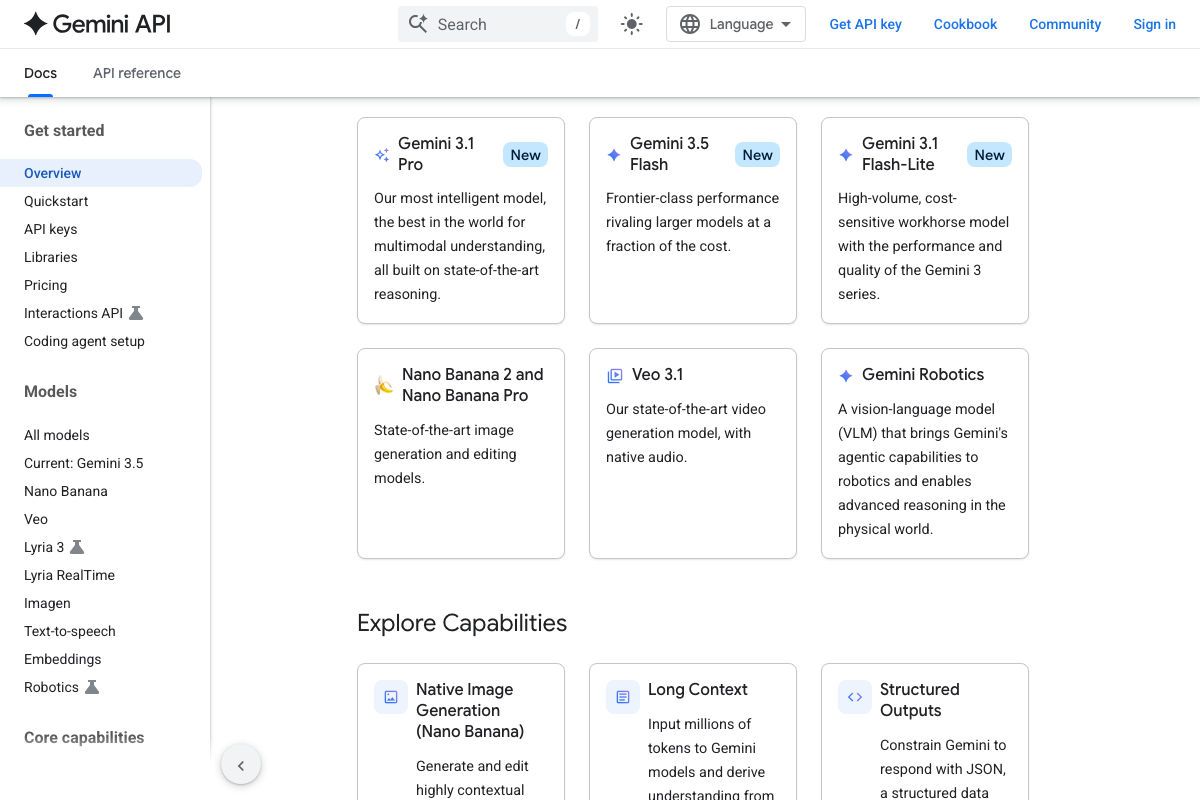
The plus (+) button’s presence is confirmed. The video’s identification of Gemini 3.5 Flash as the underlying model is also validated: the Gemini API documentation lists gemini-3.5-flash as a currently active, production model labeled “New,” described as delivering “frontier-class performance rivaling larger models at a fraction of the cost.”
Worth knowing if you plan to build on top of this: Gemini 3.5 Flash is a mid-tier model. The current top-of-lineup model is Gemini 3.1 Pro, described in the same docs as “our most intelligent model, the best in the world for multimodal understanding.” The tutorial doesn’t distinguish between the two, but if you’re evaluating AI Mode outputs against raw Gemini API outputs, the model tier difference will matter.
The specific contents of the + menu — image upload, file upload, image generation, Canvas, and model switching — cannot be confirmed or denied from the available screenshots. The menu itself was not captured.
Step 4 — Upload an image and query it
No official documentation was found for this step — proceed using the video’s approach and verify independently.
Step 5 — Submit a location-based conversational query
No official documentation was found for this step — proceed using the video’s approach and verify independently.
Step 6 — Ask a follow-up question within the same thread
No official documentation was found for this step — proceed using the video’s approach and verify independently.
Step 7 — Connect Gmail and Google Photos via Personal Intelligence settings
The Google Personal Intelligence settings panel itself does not appear in any available screenshot — the specific connection UI described in the tutorial cannot be confirmed from current captures. Both Gmail and Google Photos are confirmed as active Google products with Gemini capabilities, but the AI Mode connection path for each is not documented in the screenshots on hand.
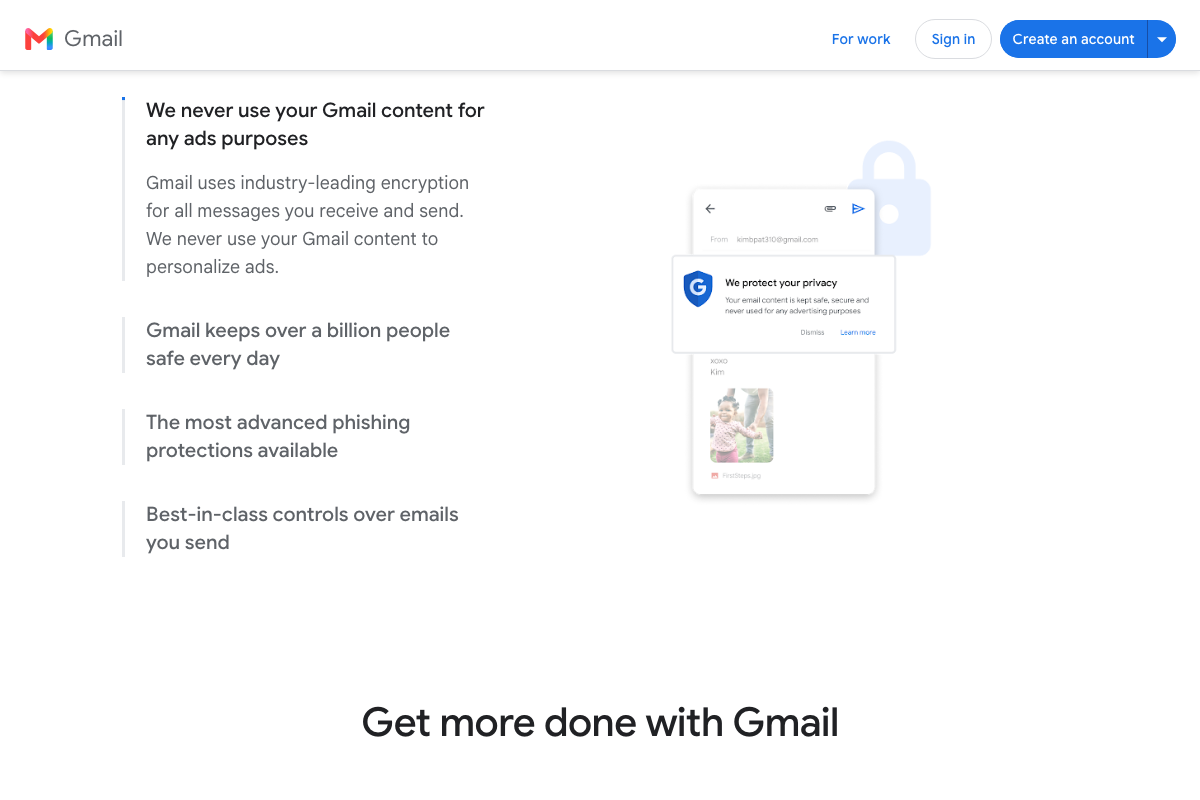
One clarification worth flagging before you opt in: Gmail’s privacy documentation states that Gmail content is never used for ad personalization and is protected by encryption. That guarantee applies to Gmail’s own data handling. It does not address how Google Personal Intelligence manages cross-app data once you’ve connected Gmail to Search — those disclosures live in a separate Personal Intelligence privacy policy that is not shown in these captures. Review that policy before connecting.
Step 8 — Query your inbox from within AI Mode
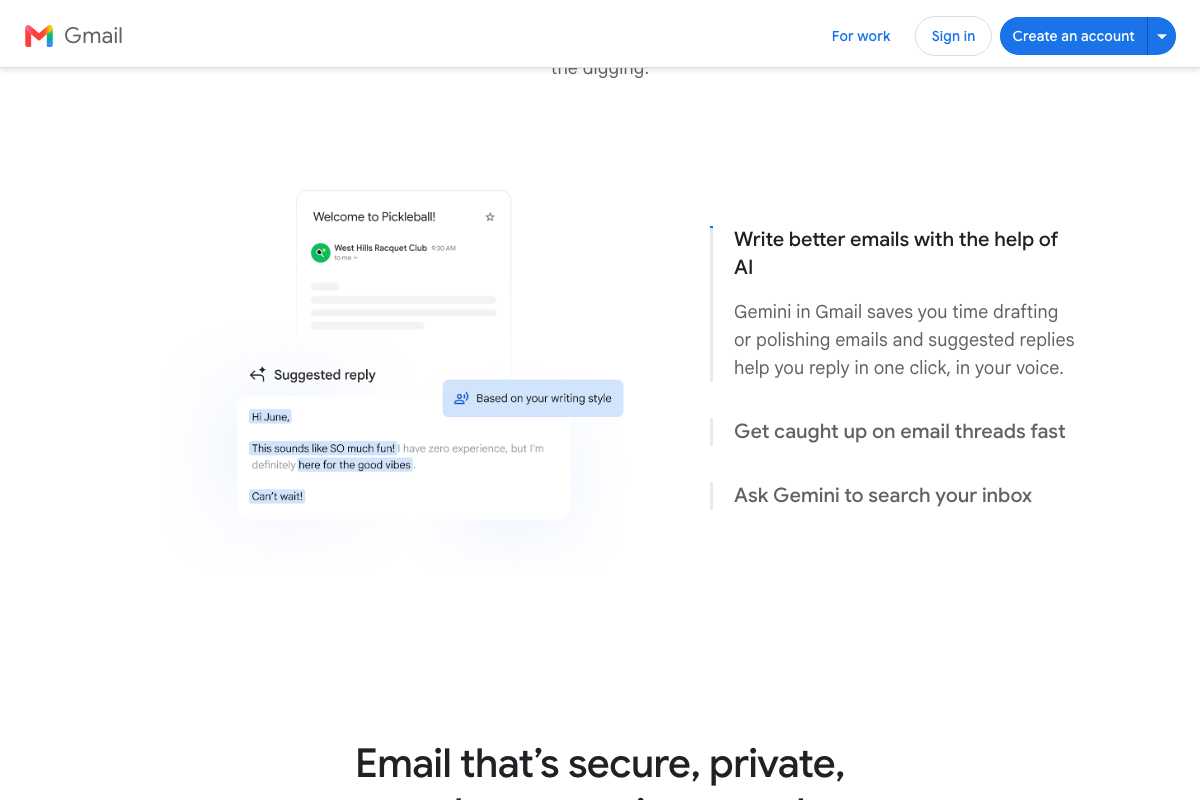
This step surfaces an important distinction the tutorial doesn’t draw. Gmail’s own product page demonstrates natural-language inbox retrieval — the exact pattern the video describes (ask a question, get an answer pulled from your email) — but as a Gmail-native Gemini feature accessible from within Gmail itself. The tutorial’s Step 8 describes the same capability accessed from within Google Search via the Personal Intelligence connection. These are two separate access paths to the same underlying data.
If you ask “what’s my flight confirmation?” from inside Gmail, that’s Gmail’s Gemini. If you ask the same question from AI Mode in Google Search, that routes through Personal Intelligence — which requires the opt-in setup described in Step 7. The video demonstrates the latter but doesn’t differentiate it from the former.
No official documentation was found for the specific Personal Intelligence ↔ Search query flow — proceed using the video’s approach and verify independently.
Useful Links
- Google — Live Google.com homepage confirming the current AI Mode button placement and feature cards as of May 2026
- Gemini generateContent API | Google AI for Developers — Official Gemini API documentation confirming Gemini 3.5 Flash as an active production model and listing built-in tools including Google Search
- Gmail: Secure, AI-Powered Email for Everyone | Google Workspace — Gmail product page documenting native Gemini capabilities including inbox search, thread summarization, and privacy disclosures
- Google Photos: Edit, Organize, Search, and Backup Your Photos — Google Photos homepage confirming the product’s search and organization capabilities referenced in Personal Intelligence setup
- Shareable Online Calendar and Scheduling – Google Calendar — Google Calendar homepage documenting Gemini-powered scheduling features and Gmail cross-app integration (separate from Personal Intelligence)


0 Comments