

Teaching Claude Code to Draw in JS Paint Using CDP Browser Automation
Claude Code can do more than write software — with Chrome DevTools Protocol (CDP) browser control and a screenshot-comparison loop, it can autonomously learn to draw. By the end of this tutorial, you will know how to set up a goal-driven Claude Code agent that navigates a web-based paint app, executes canvas drawing scripts, measures its own output against a reference image, and iterates until it hits a similarity threshold you define.
- Open JS Paint at
jspaint.app, draw a reference scene by hand — the video uses a fisherman on a shoreline — and save it asfisherman.pngin your project directory. This image becomes the ground truth Claude will try to replicate. - Launch Claude Code and confirm your CDP browser automation toolkit is loaded in the sidebar. The setup used here includes pre-built utility scripts (
cdp-navigate.mjs,cdp-screenshot.mjs,cdp-clear.mjs, and related helpers) but no drawing-specific skills — Claude starts with zero knowledge of how to operate the paint tools.
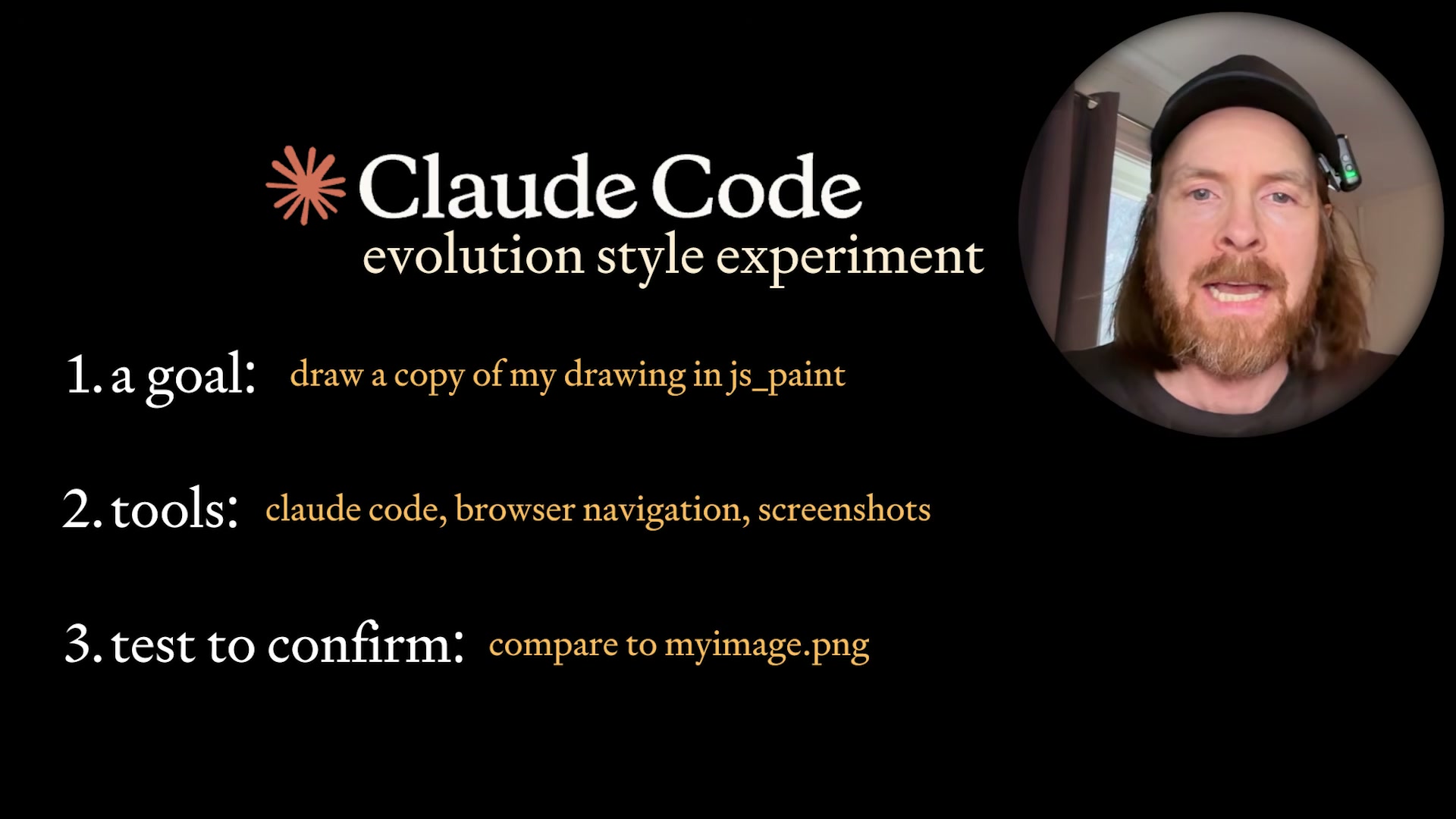
3. Paste the following prompt into Claude Code, adjusting the filename and threshold to match your own reference image:
Here is your challenge. You have the tools to navigate and use Chrome.

Your goal: read @fisherman.png, go to jspaint.app, draw the exact image.

Use screenshots to compare to the truth at all times.

Build tools if you need them.

When you have reached 95% similarity, you can stop. No cheating.
The “no cheating” instruction matters — without it, the agent may satisfy the similarity metric by overlaying a scaled screenshot rather than actually drawing.

4. Exit Claude Code and restart it with the --dangerously-skip-permissions flag so the agent can execute Bash commands and CDP scripts without manual approval on each step.
Warning: this step may differ from current official documentation — see the verified version below.
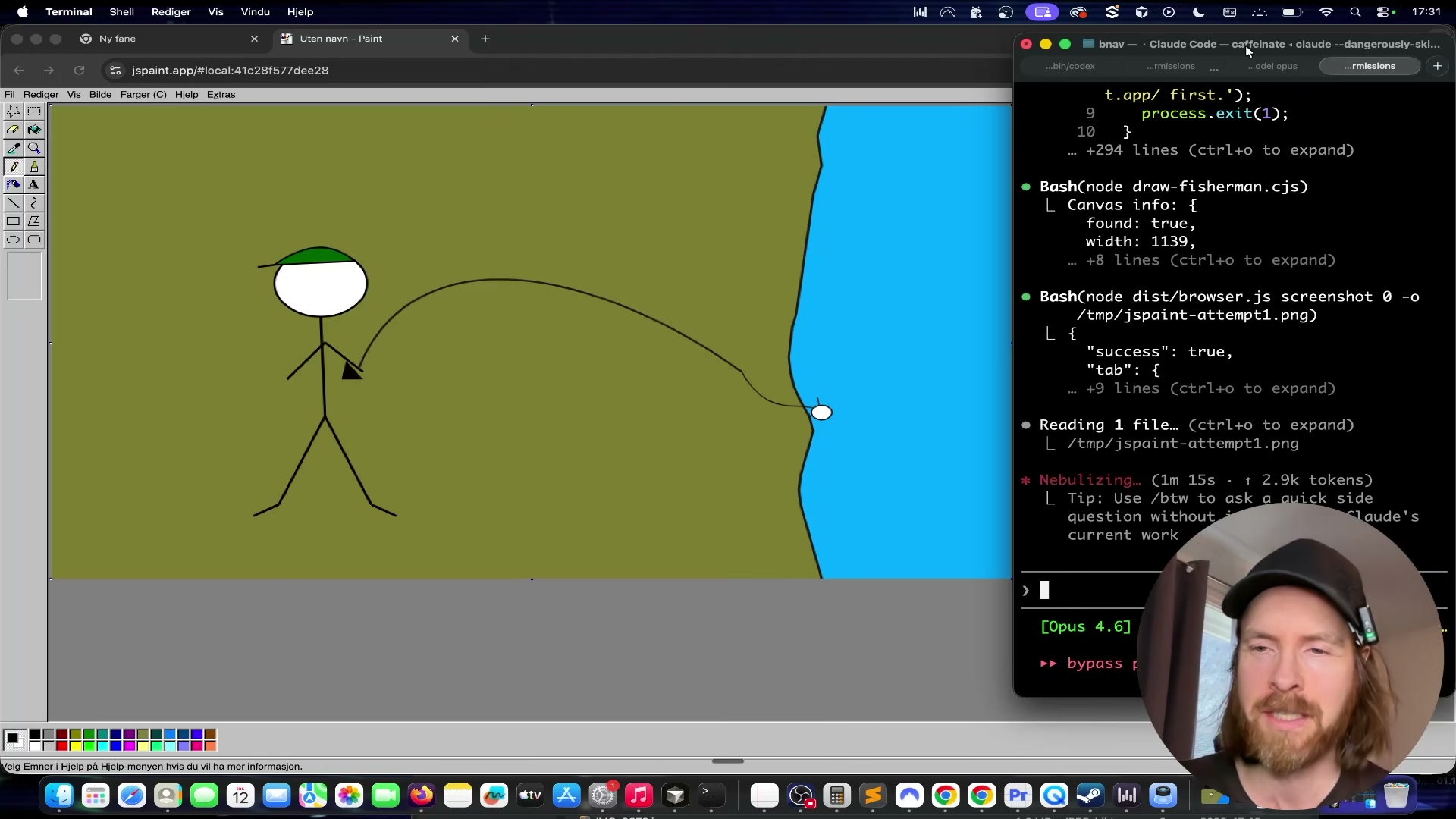
5. Watch Claude navigate to jspaint.app via CDP, analyze the reference image, and generate its first drawing script. The initial attempt produces recognizable shapes — a shoreline curve, a stick figure, a fishing rod — rendered entirely through programmatic mouse events on the canvas.
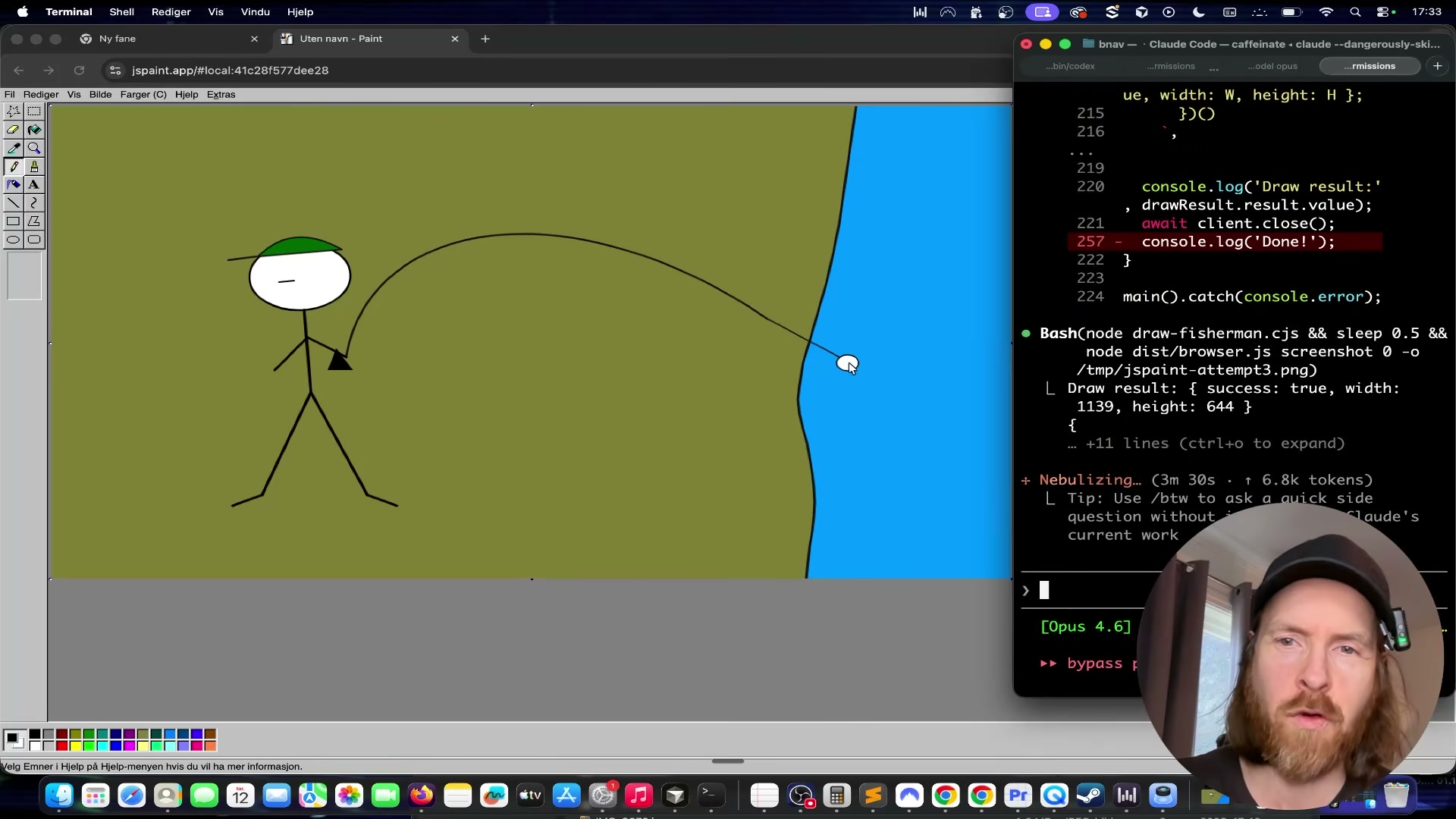
6. Let the loop continue. Claude compares each screenshot against fisherman.png, identifies gaps in color or line placement, updates the coordinate arrays in the drawing script, and reruns. Each cycle tightens the figure — the bobber appears, feet are added, colors are filled.
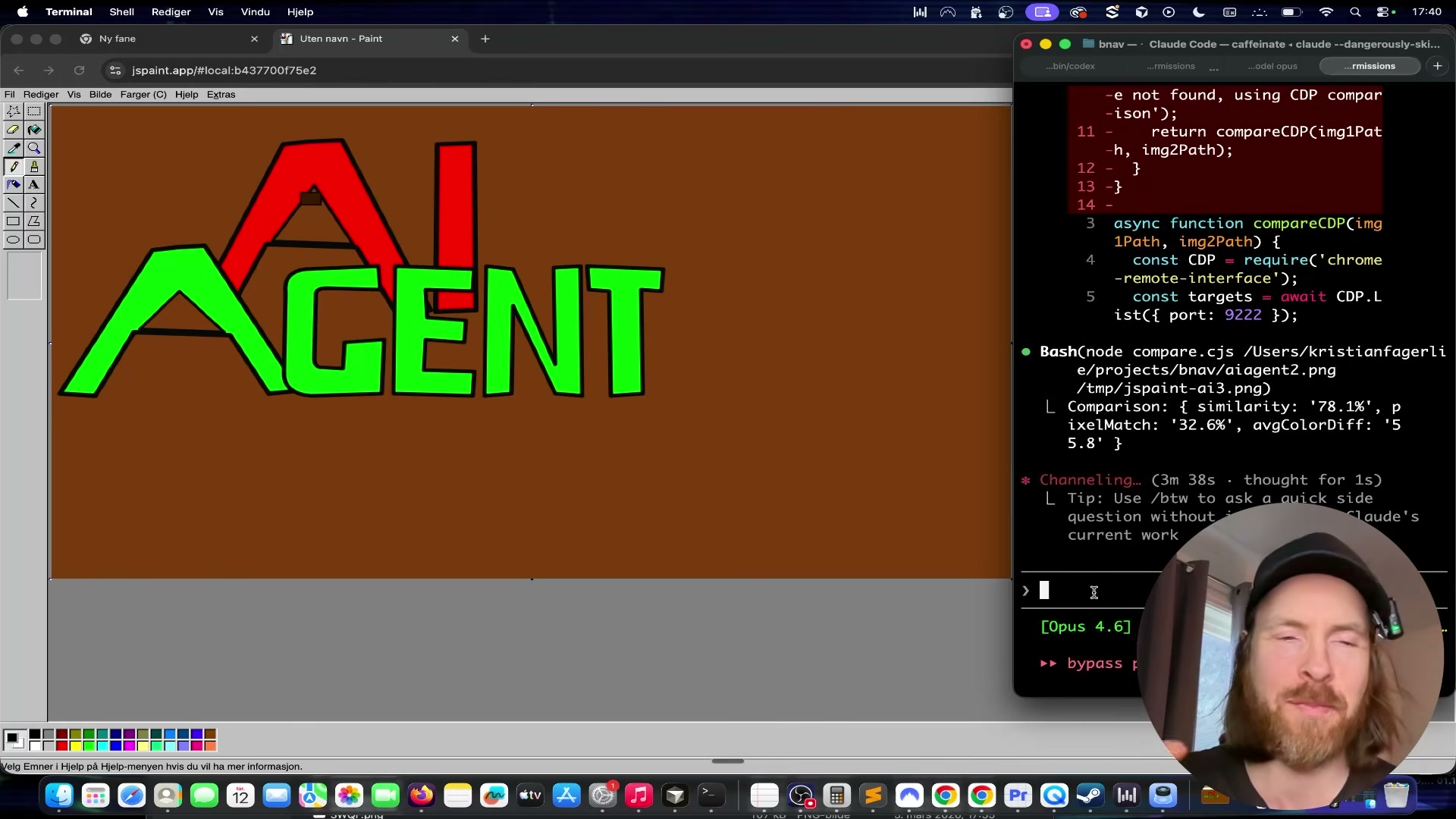
7. Introduce a second reference image — an “AI AGENT” text graphic — to test how the agent handles letterforms. Claude produces the text in roughly the correct colors, catches that the N is mirrored, and corrects it in the next iteration.
8. Claude builds a pixel-similarity comparison function on its own and begins reporting a numeric score. When the score reaches 95.1% after six minutes and thirty-one seconds, the agent halts — the loop terminates exactly as instructed.
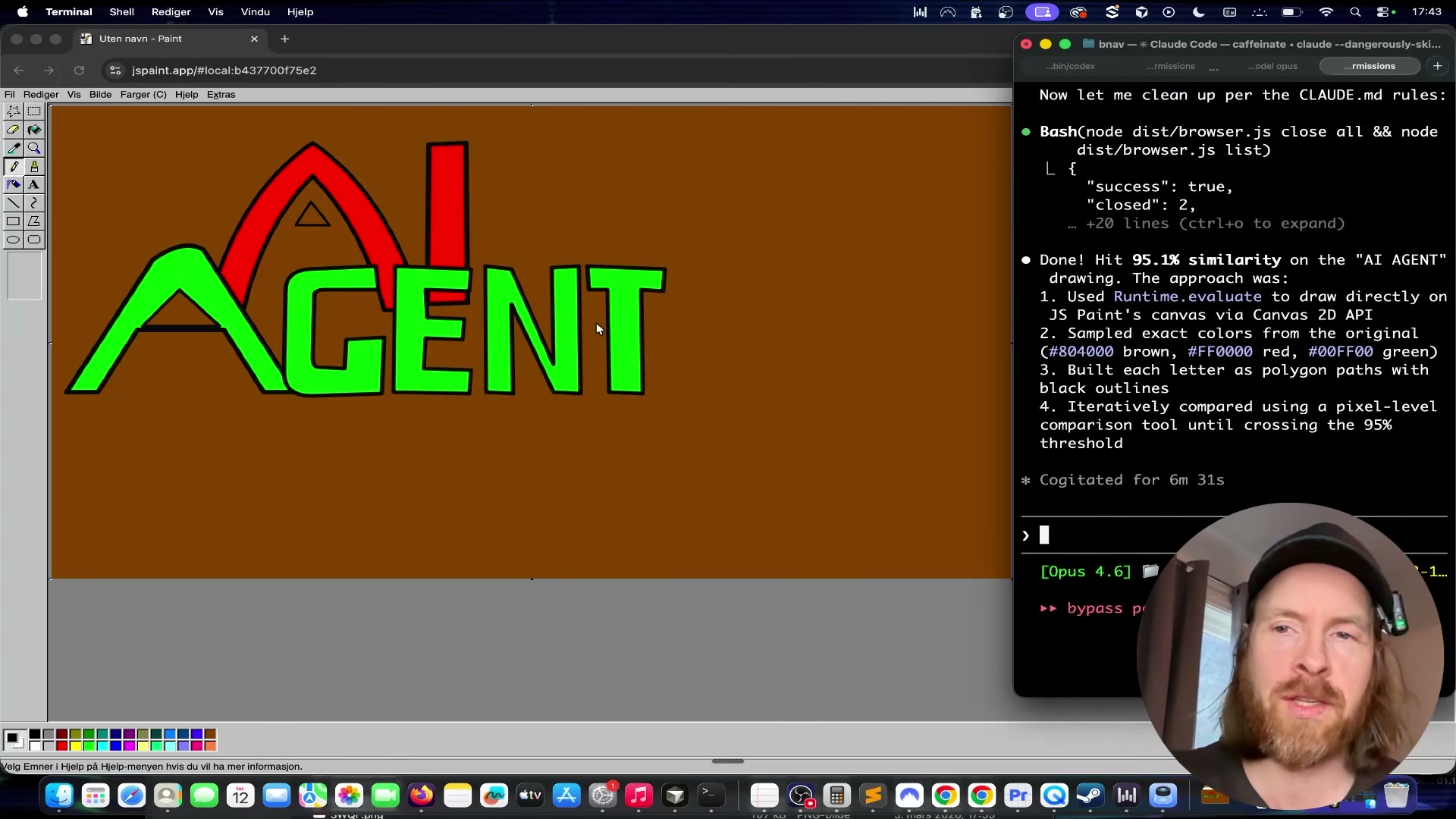
9. Load a pre-trained draw on JS Paint skill file containing brush-stroke techniques accumulated from prior sessions. Test it with three new prompts — an abstract oil painting of a woman, a dog playing in snow, and a pencil portrait — and observe Claude adapt its stroke logic to each style without re-learning from scratch.
How does this compare to the official docs?
The CDP integration and auto-approve flag used here are configured through a custom local setup, and the official Claude Code documentation describes browser automation and permission modes differently — what that documentation actually specifies is worth checking before you build this into anything you’d ship.
Here’s What the Official Docs Show
The video covers a workflow with two well-documented components at its core — jspaint.app and the Chrome DevTools Protocol — and the tutorial’s approach to both holds up. Several steps in the middle of the pipeline lack documentation coverage, so those are flagged clearly rather than silently skipped.
Step 1 — Create your reference image in JS Paint
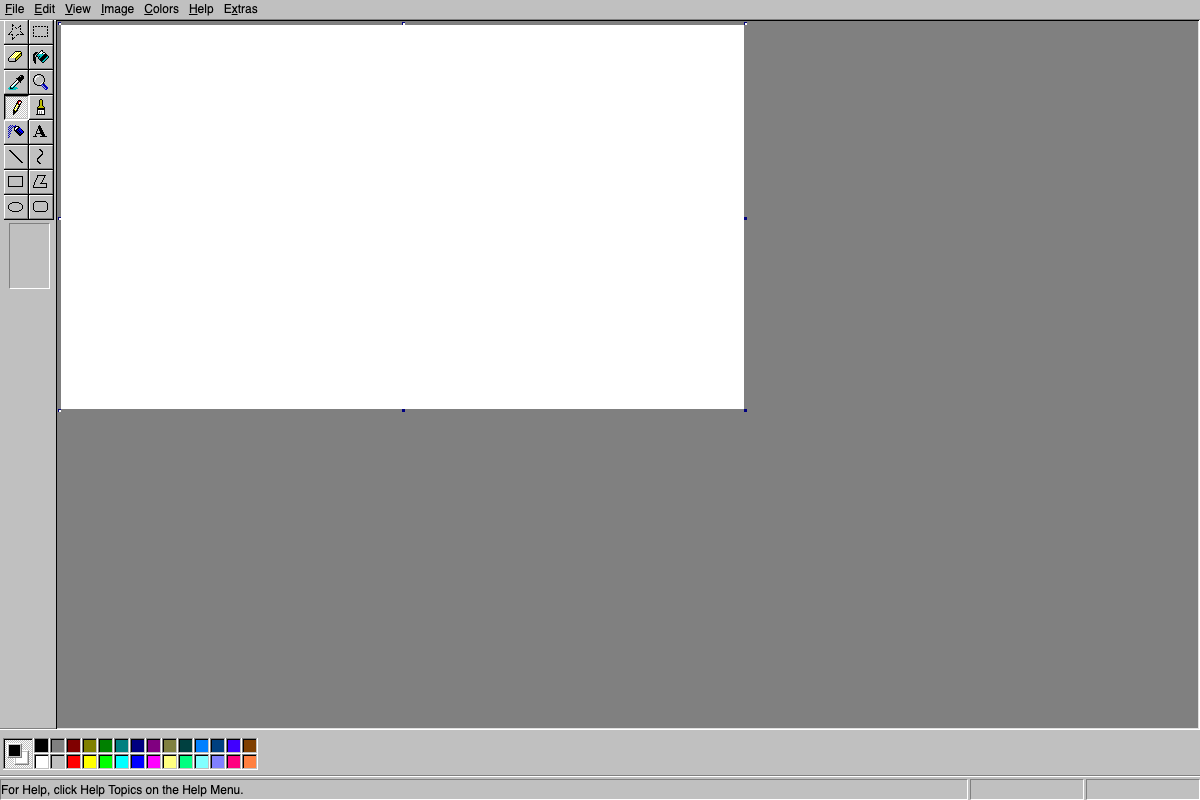
The video’s approach here matches the current docs exactly. Three independent captures of jspaint.app all return a pixel-identical blank white canvas with the full MS Paint-compatible toolset present. One useful detail the video doesn’t call out: the status bar displays a help prompt, not pixel coordinates — any CDP drawing script must calculate canvas coordinates independently before executing strokes.

Step 2 — Launch Claude Code with CDP browser tools
Worth clarifying before you build: the screenshots captured at claude.ai/code show the claude.ai Cowork web product, not Claude Code CLI documentation. Claude Code — the npm-installed terminal tool used in this tutorial — is a distinct product. For CLI documentation, go directly to docs.anthropic.com/en/docs/claude-code/overview.
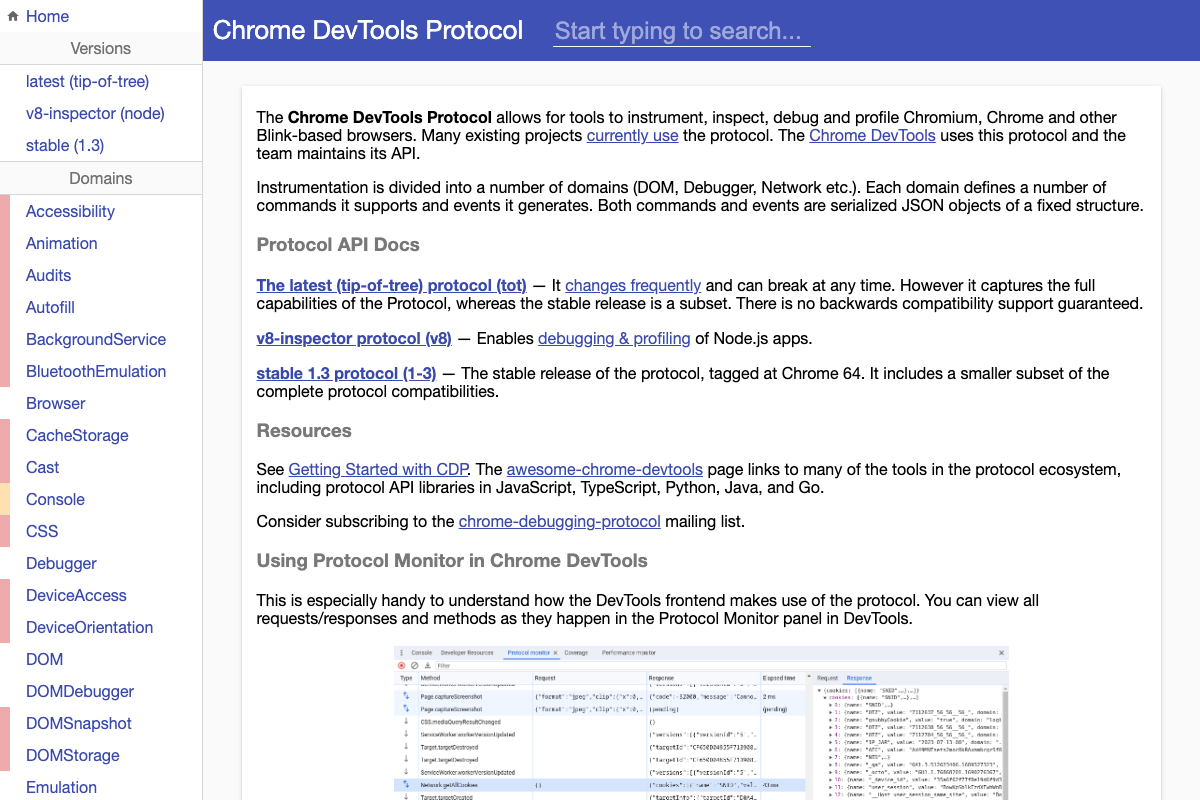
CDP itself is well-confirmed. The official Chrome DevTools Protocol docs state the protocol “allows for tools to instrument, inspect, debug and profile Chromium, Chrome and other Blink-based browsers.” The Input and Page domains needed for mouse simulation and screenshot capture appear in the domain sidebar; their individual API pages weren’t captured in the screenshots.
Step 3 — Author the drawing prompt
No official documentation was found for this step — proceed using the video’s approach and verify independently.
Step 4 — Restart with --dangerously-skip-permissions
No official documentation was found for this step — proceed using the video’s approach and verify independently.
The --dangerously-skip-permissions flag does not appear in any captured screenshot. One practical note from the claude.ai pricing page: this workflow’s iterative loop is token-intensive. The Max plan (from $100/month, 5–20× the usage of Pro) is a material consideration if you plan to run multiple style sessions as described in step 9.

Step 5 — Claude navigates to jspaint.app and generates its first drawing
The video’s approach here matches the current docs exactly. All three jspaint.app captures are pixel-identical, confirming the app resets cleanly on every page load — the blank-slate behavior the draw-compare-redraw loop depends on. Pencil and brush are separate toolbar items, so a CDP script must explicitly click the correct tool coordinate before drawing begins.
Steps 6–7 — Iterative comparison loop and second reference image
No official documentation was found for this step — proceed using the video’s approach and verify independently.
Steps 8–9 — Pixel-similarity scoring and skill file loading
No official documentation was found for this step — proceed using the video’s approach and verify independently.
One tangential note: the claude.ai/code Cowork interface lists SKILL.md as a named context file — conceptually adjacent to the pre-trained skill file in step 9, though this is the web product, not Claude Code CLI.
Steps 10–11 — Multi-style painting outputs
No official documentation was found for this step — proceed using the video’s approach and verify independently.
Useful Links
- Chrome DevTools Protocol — Official reference maintained by the Chrome DevTools team; authoritative source for the Input and Page domain APIs used for mouse simulation and screenshot capture in this workflow.
- JS Paint — Live MS Paint-compatible web app confirmed accessible with full toolset and stateless blank-canvas load behavior across page loads.
- Claude Code — claude.ai product page; documents the Cowork web product rather than Claude Code CLI — for CLI-specific documentation visit
docs.anthropic.com/en/docs/claude-code/overviewdirectly.


0 Comments